How to Easily Open Chrome to Incognito Mode

If you do not want Google Chrome to remember your activity, you can browse the web privately in Incognito mode.

If you do not want Google Chrome to remember your activity, you can browse the web privately in Incognito mode.

It is easy to quickly open an Incognito window using a keyboard shortcut. Lets explore how to do this.

This is devices running Google Chrome

Dilbert and Class
Copyright Scott Adams, Inc./Distributed by Universal Uclick for UFS

First, open Chrome. Next, with any Chrome browser window open, press the following keyboard combination to open a new Incognito window:

  • Windows, Linux, or Chrome OS: Press Ctrl + Shift + N.
  • Mac: Press ⌘ + Shift + N.

After pressing the keyboard shortcut, a special Incognito window will open. If you want to block third-party cookies, just toggle the switch to On, the default setting. Refer to below image:

Incognito 1
The Incognito window

Whenever you are in Incognito mode, you will be able to tell because the Chrome browser window’s toolbar will have a darker color scheme and there will be a small Incognito icon beside the address bar in the toolbar. See below image:

Incognito 2
The icon and text telling you are in Incognito mode

You can switch between Incognito windows and regular Chrome windows. You will only browse in private when you are using an Incognito window.

While browsing within an Incognito window, Chrome will not locally store your browsing history, site data, cookies, or saved form data once you close the Incognito window. However, downloaded files and bookmarks will be saved unless you manually remove them.

At any time, you can press Ctrl+T (or ⌘ + T on Mac) to open a new tab within the Incognito window, and browsing activity within that tab will be locally private as well.

Remember that Incognito mode is not perfect, and it does not protect you from those who might view your activity on the web remotely, such as your employer, school, ISP, or the websites you visit. It is only to prevent local snooping of your browsing history.

If you see a number next to the Incognito text at the top right, you have more than one Incognito window open. See following image:

Incognito 3
The number of Incognito windows open

When you are ready to stop private browsing, you will need to close the Incognito window(s). To do so using a keyboard shortcut:

  • Windows, Linux, or Chrome OS: Press Alt + F4
  • Mac: Press ⌘ + Shift + W

Or you can just click the “X” in the corner of the window with your mouse.

That’s it. Please feel free to share this post! One way to share is via Twitter, as mentioned below.

I hope you have found this post helpful. If so, click the Tweet icon below. This will launch Twitter where you click its icon to post the Tweet.

Check out TechSavvy.Life for blog posts on smartphones, PCs, and Macs! You may email us at contact@techsavvy.life for comments or questions.

I Would Like to Hear From You

Please feel free to leave a comment. I would love hearing from you. Do you have a computer or smart device tech question? I will do my best to answer your inquiry. Just send an email to contact@techsavvy.life. Please mention the device, app and version that you are using. To help us out, you can send screenshots of your data related to your question.

The author’s Vietnam eBook on the Battle for Tra Bong: Events and Aftermath

How to Clear Your Google Chrome Browsing Data

Need to clear your Google Chrome browsing data? Your browsing data is stored in a “cache” and at times, may cause a problem with the actual data stored on a website. By clearing your browsing data, you are starting with a “fresh cache” to avoid inconsistencies.

Need to clear your Google Chrome browsing data? Your browsing data is stored in a “cache” and at times, may cause a problem with the actual data stored on a website. By clearing your browsing data, you are starting with a “fresh cache” to avoid inconsistencies.

This is for PCs, Macs, iPhone and iPad

Dilbert and Time
Copyright Scott Adams, Inc./Distributed by Universal Uclick for UFS

FIRST, before doing any of the following, launch your Google Chrome app. For the iPhone or iPad

  1. Open an article or your account and tap the the hamburger icon (the 3 dots) in lower right-hand corner.
  2. Tap History. (It may be labeled More History). Also, you can view more of your history at historygoogle.com
  3. At the bottom, tap Clear Browsing Data.
  4. Check Browsing history. It may be checked by default.
  5. Uncheck any other items you don’t want to delete.
  6. Tap Clear Browsing Data. Tap Clear Browsing Data again or Cancel if you do not want to proceed.
  7. At the top right, tap Done, then tap Done again.

Refer to below image:

Chrome 1
Clearing Chrome browsing data on an iPhone or iPad

For Windows, Mac, or Linux

  1. Press Cntl+Shift+Delete keys for Windows or Linux. Press Command+Shift+Backspace for a Mac. The backspace key is labeled “Delete”.
  2. Uncheck any items you don’t want to delete.
  3. Press Clear data button in lower right.
  4. Hit Enter or Return key.

See below image:

Chrome 2
Clearing Chrome browsing data for Windows, Mac, or Linux

IMPORTANT: Be sure and close/quit your browser and restart it after clearing your browsing data.

Your browsing history will be cleared to the level you have chosen. You may repeat the above process to clear any unchecked items.

That’s it. Please feel free to share this post! One way to share is via Twitter, as mentioned below.

I hope you have found this post helpful. If so, click the Tweet icon below. This will launch Twitter where you click its icon to post the Tweet.

Check out TechSavvy.Life for blog posts on smartphones, PCs, and Macs! You may email us at contact@techsavvy.life for comments or questions.

I Would Like to Hear From You

Please feel free to leave a comment. I would love hearing from you. Do you have a computer or smart device tech question? I will do my best to answer your inquiry. Just send an email to contact@techsavvy.life. Please mention the device, app and version that you are using. To help us out, you can send screenshots of your data related to your question.

The author’s Vietnam eBook on the Battle for Tra Bong: Events and Aftermath

How to Open the System Control Panel in Windows 10

Microsoft says the System option in the Control Panel has been removed from Windows 10. As of the October 2020 Update, there is no way to access it. Here is a hidden command that opens the System Control Panel if it is missing. This command also works for the May 2020 Update.

Microsoft says the System option in the Control Panel  has been removed from Windows 10. As of the October 2020 Update,  there is no way to access it. There is a hidden command that opens the System Control Panel if it is missing. This command also works for the May 2020 Update.

This is for devices running Windows 10 operating system

Dilbert and Suffering
Copyright Scott Adams, Inc./Distributed by Universal Uclick for UFS

Run the Command

To run the command, press Windows+R to open the Run dialog. Next, copy and paste the following command into the Run dialog, then press Enter or click OK.

explorer.exe shell:::{BB06C0E4-D293-4f75-8A90-CB05B6477EEE}

Refer to below image:

Control Panel 1
Entering Run command for the System panel

Now, your System Control Panel will be displayed. See below image:

Control Panel 2
The System Control panel

Create a Shortcut

If you want easier access, you can create a shortcut that opens it. Here’s how to do this.

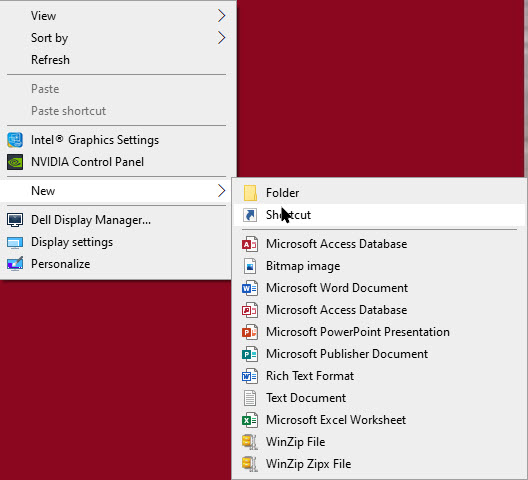
On your desktop or in any folder, right-click and select

New > Shortcut

See following image:

Control 3
Setup shortcut

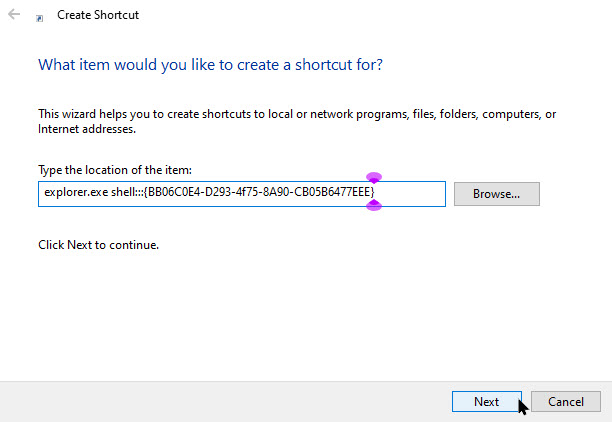
Now, in the Type Location box, copy and paste the the following command

explorer.exe shell:::{BB06C0E4-D293-4f75-8A90-CB05B6477EEE}

and press Next. Refer to below image:

Control Panel 4
Entering shortcut command

Next, assign a name for the shortcut and click Finish. In my example, it is named System Control Panel. See below image:

Control Panel 5
Assigning a name for the shortcut

Change Shortcut Icon

To change its icon, right-click it, and select

Properties > Shortcut tab > Change icon

Then, choose an icon and click OK.

Microsoft may remove the System pane completely from future versions of Windows 10. If so, this command will stop working.

Thanks to Spartan@HIDevolution on the NotebookReview forums for discovering this command!

That’s it. You now have a shortcut that opens the System Control Panel. I hope you have found this post helpful. If so, click the Tweet icon below. This will launch Twitter where you click its icon to post the Tweet.

I have found TechSavvy.Life blog posts extremely helpful. Check them out for posts on smartphones, Macs, and PCs! You may email us at contact@techsavvy.life for comments or questions.

I Would Like to Hear From You

Please feel free to leave a comment. I would love hearing from you. Do you have a computer or smart device tech question? I will do my best to answer your inquiry. Just send an email to contact@techsavvy.life. Please mention the device, app and version that you are using. To help us out, you can send screenshots of your data related to your question.

The author’s Vietnam eBook on the Battle for Tra Bong: Events and Aftermath

How to Use the Windows Terminal for Windows 10

The Terminal combines many command-line tools and shells such as Command Prompt, PowerShell and WSL (Windows Subsystem for Linux). Thus, in one application, you can have Command Prompt, and Powershell for Windows, as well as something for Linux terminal power users in one app.

Who would expect that Microsoft would develop a new terminal app that combines a command-like tool, open source, and customizable.

The Terminal combines many command-line tools and shells such as a Command Prompt, PowerShell, and WSL (Windows Subsystem for Linux). Thus, in one application, you can have all three plus other installed shell environments in one app.

This is for devices running Windows 10

Dilbert and Laptop
Copyright Scott Adams, Inc./Distributed by Universal Uclick for UFS

The key features of the Windows Terminal include multiple tabs, split panes, Unicode and UTF-8 character support, GPU-accelerated text rendering engine, and an easy way to change between themes and configuration options. Copy and Paste “just work” when you press Ctrl+C and Ctrl+V. There’s even a new font, named Cascadia Code.

Windows Terminal is an open-source project, which will continue to expand its features leveraging a growing community of contributors.

At Build 2020 on May 19, 2020, version “20H1”, Microsoft announced that the new Windows Terminal was stable and “ready for enterprise use”.

You can download the Windows Terminal from the Microsoft Store. You can even get the source code on GitHub.

Finally There Are Tabs

Windows finally has a command-line environment with built-in tabs. To open a new tab after launching the Terminal, just click the plus “+” button on the tab bar or press Ctrl+Shift+T.

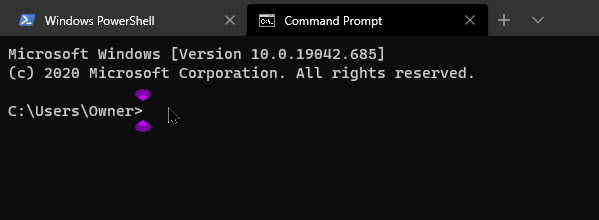
You can use familiar keyboard shortcuts to move through the tabs, like Ctrl+Tab to switch to the tab on the right and Ctrl+Shift+Tab to switch to the tab on the left. Ctrl+Shift+W will close the current tab. You can drag and drop the tabs to reorder them on the tab bar, too. Refer to below image for two tabs:

Terminal 1
Multiple tabs

Multiple Environments

By default, the Terminal will open PowerShell tabs. But it supports many types of shell environments. You can now have multiple types of shell environment in the same window.

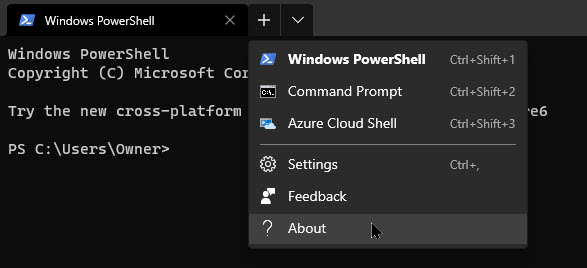
If you click the arrow to the right of the New Tab button, you will see a list of sessions you can open (if they are installed). See below image of the sessions:

Terminal 2
Listing of sessions to chose from

Split Panes

To create a new pane, press Alt+Shift+D. The Terminal will split the current pane into two and give you a second one. Click a pane to select it. You can click a pane and press Alt+Shift+D to keep splitting it.

These panes are linked to tabs, so you can easily have several multi-pane environments in the same Terminal window and switch between them from the tab bar.

Here are some other keyboard shortcuts for working with panes:

  • Create a new pane, splitting horizontally: Alt+Shift+- (Alt, Shift, and a minus sign)
  • Create a new pane, splitting vertically: Alt+Shift++ (Alt, Shift, and a plus sign)
  • Move pane focus: Alt+Left, Alt+Right, Alt+Down, Alt+Up
  • Resize the focused pane: Alt+Shift+Left, Alt+Shift+Right, Alt+Shift+Down, Alt+Shift+Up
  • Close a pane: Ctrl+Shift+W
  • Increase Windows translucent: Ctrl+Shift and scroll down with the mouse wheel

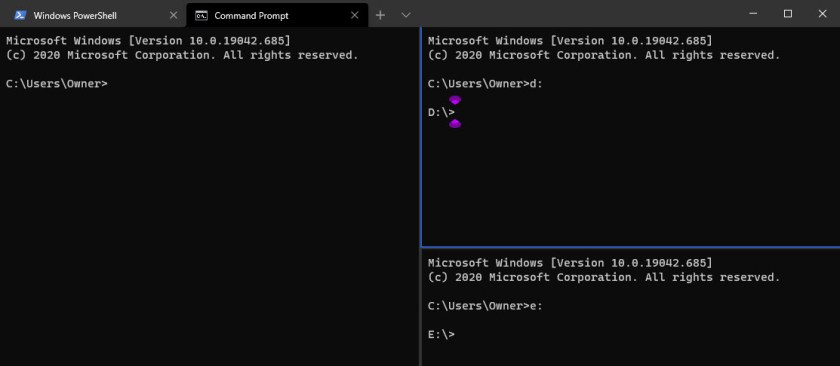
See following image where I have drive C:, D:, and E: in its own separate Command Prompt pane:

Terminal 3
Split panes of Command Prompt

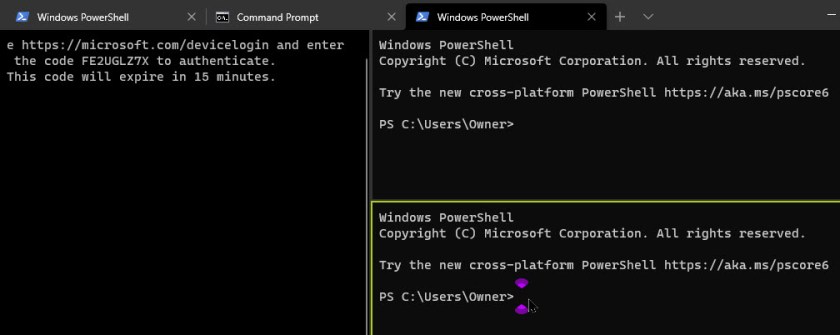
See following image where PowerShell is split into three panes:

Terminal 3A
Split panes of PowerShell

Better Zooming

The new text-rendering system means smoother, better zooming. To zoom and enlarge or shrink the text in the Terminal, hold Ctrl and rotate the mouse wheel.

In the new Terminal, only the size of the text changes and leaves the window size alone. Refer to below image:

Terminal 4
Zooming feature

Settings

The Windows Terminal is packed with customization options you can change. To access them, click the down arrow to the right of the New Tab button and select Settings. See below image:

Terminal 5
Selecting the Settings option

You’ll see a text-based JavaScript Object Notation (JSON) file full of options. As a developer tool, Windows Terminal currently makes you configure these options by modifying the text file rather than with a graphical interface. Since it is a text file, you will need to open the file with a program like WordPad. If you reinstall Terminal, any changes you make may be lost.

That’s it. Please feel free to share this post! One way to share is via Twitter, as mentioned below.

I hope you have found this post helpful. If so, click the Tweet icon below. This will launch Twitter where you click its icon to post the Tweet.

Check out TechSavvy.Life for blog posts on smartphones, PCs, and Macs! You may email us at contact@techsavvy.life for comments or questions.

I Would Like to Hear From You

Please feel free to leave a comment. I would love hearing from you. Do you have a computer or smart device tech question? I will do my best to answer your inquiry. Just send an email to contact@techsavvy.life. Please mention the device, app and version that you are using. To help us out, you can send screenshots of your data related to your question.

The author’s Vietnam eBook on the Battle for Tra Bong: Events and Aftermath

How to Create Windows 10 Recovery USB Drive

Have you received the dreaded “No bootable device found” message or a similar one on boot? My wife recently received this message on her PC. Windows 10 would not load. This usually means your hard drive has failed or your PC Master Boot Record (MBR) is corrupt. In her case, the hard drive had failed. We got no warning the hard drive was failing, it died immediately.

Have you received the dreaded “No bootable device found” message or a similar one on boot? My wife recently received this message on her PC. Windows 10 would not load. This usually means your hard drive has failed or your PC Master Boot Record (MBR) is corrupt. In her case, the hard drive had failed. We got no warning the hard drive was failing, it died immediately.

Let’s explore how to create a Windows 10 recovery USB drive to reset your computer to load Windows 10 or reinstall the operating system..

You should create this USB recovery drive after each major upgrade of Windows 10; which is usually every 6 months.

Related

How to Fix a Detected Hard Disk Problem

How to Check Your Hard Drive Status

Microsoft File Recovery Tool for Windows 10

This is for devices running Windows 10

Dilbert and Project
Copyright Scott Adams, Inc./Distributed by Universal Uclick for UFS

What is a Windows 10 Recovery Drive

If you do not have a USB drive to create Windows 10 recovery disk, you can use a CD or DVD to create s system repair disc. Both types of Windows 10 recovery media allow you to use Windows recovery options even when your computer fails to boot. If you cannot restore your computer, Windows 10 boot repair disk also gives you a chance to reinstall Windows 10.

We will be using the built-in Recovery Media Creator.

You may be concerned about the Windows 10 recovery USB size. While creating a recovery drive, the program will copy a lot of files to the USB drive, so you need to prepare a flash drive that has at least 16 GB capacity (32 GB is preferred) and ensure it’s empty, because all the data on the USB drive will be deleted in this process. If the drive is new, it will be formatted during the recovery creation process.

Create the Recovery Drive

First, connect the USB drive to your computer, and then type “recovery drive” into the Cortana search box. In the listed results, select Recovery Drive app. Refer to below image:

Recovery Drive 1
Start the Recovery Drive app

In the pop-up window that appears, check the option Back up system files to the recovery drive and click Next. See below image:

Recovery Drive 2
The create a Recovery Drive dialog

Now, select the USB flash drive you prepared, and click Next to continue. See following image:

Recovery Drive 3
Selecting your USB device

On the next screen, click Create the recovery drive link to begin creating your Windows 10 recovery USB drive. Refer to below image:

Recovery Drive 4
A warning message that the contents of the USB will be deleted

After finishing this process, you may see an option Delete the recovery partition from your PC. If you have a Windows recovery partition on your PC, you can click it to delete the recovery partition and free up some space on your computer.

When your computer fails to boot, you can use this recovery USB drive to restore Windows 10 to a new hard drive. After installing a new hard drive, power up your computer, change boot order in BIOS to boot your system from the USB drive and follow on-screen instructions to finish the restoration.

Restoring Windows

The recovery drive created by Recovery Media Creator will not work across different versions of Windows. In other words, you cannot use a Windows 8 recovery disk to restore Windows 10, nor can you use a recovery drive made by Windows 10 64-bit to boot a 32-bit computer. That is to say, you cannot create a Windows 10 recovery USB disk from another computer to use for your computer with the built in tool.

Sometimes, you are not allowed to create recovery disk in Windows 10 and the built-in tool says, “We can’t create the recovery drive. A problem occurred while creating the recovery drive”.

Recovery Drive 5
The Recovery Drive problem dialog

If Windows fails to create a recovery drive with the error “We can’t create the recovery drive”, you should first check whether your USB drive is well connected and can be recognized by Windows. If that is not the case, you can simply download the Windows 10 recovery disk ISO file and burn it to your USB flash drive or CD/DVD.

That’s all on how to create Windows 10 recovery disk on a USB drive. As mentioned earlier, you should do this after each major upgrade of Windows 10.

Please feel free to share this post! One way to share is via Twitter, as mentioned below.

I hope you have found this post helpful. If so, click the Tweet icon below. This will launch Twitter where you click its icon to post the Tweet.

Check out TechSavvy.Life for blog post on smartphone, PCs, and Macs! You may email us at contact@techsavvy.life for comments or questions.

I Would Like to Hear From You

Please feel free to leave a comment. I would love hearing from you. Do you have a computer or smart device tech question? I will do my best to answer your inquiry. Just send an email to contact@techsavvy.life. Please mention the device, app and version that you are using. To help us out, you can send screenshots of your data related to your question.

The author’s Vietnam eBook on the Battle for Tra Bong: Events and Aftermath

Three Tweaks to Speed Up Windows 10

Windows 10 is speedier than the previous versions of Microsoft’s desktop operating system, but you can still optimize its performance.

Windows 10 is speedier than the previous versions of Microsoft’s desktop operating system, but you can still optimize its performance.

There are performance factors to consider after you are up and running from a previous version of Windows. Even the latest Windows version isn’t immune to slowdowns.

For people with older, low-power machines who want a speed boost, a few tips towards this end does boost system performance. Lets explore these three tweeks.

This is for devices running Windows 10

Dilbert and Doctor
Copyright Scott Adams, Inc./Distributed by Universal Uclick for UFS

Tweak 1 – Check for Viruses

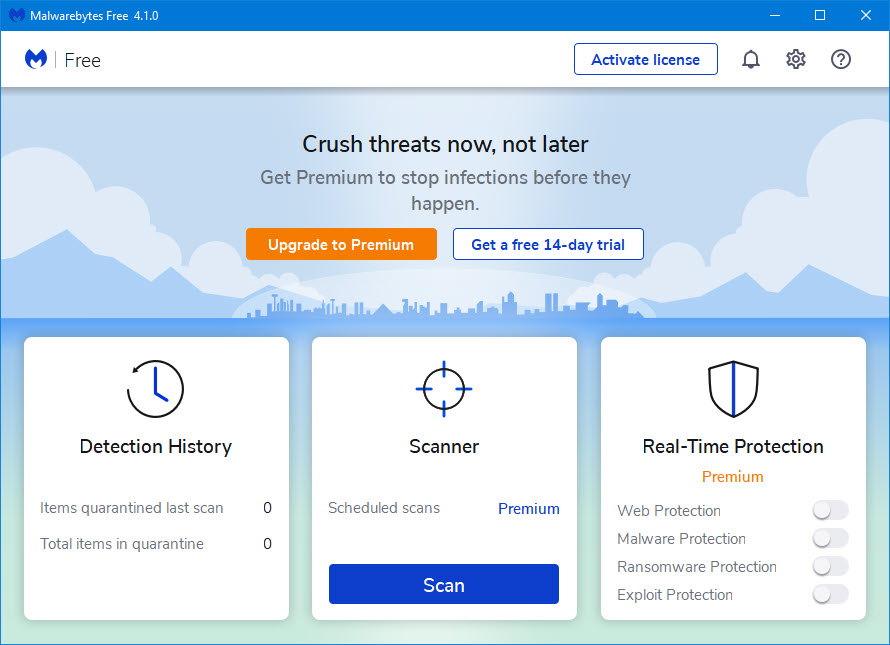
You can run the built-in Windows Defender or a third-party app to do this, but you are best served by a top pick among malware-cleanup programs, the free Malwarebytes app. Click here to download. Just install and run. Refer to below image:

Tweaks 1
Malwarebytes main screen

Tweak 2 – Change Power Settings

This tweak could boost your PC’s computing speed but at the expense of electricity. Head to

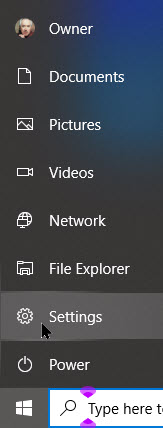
Settings (press Start, then the gear icon in lower left-hand corner or your desktop icon) > System > Power & sleep

To the right of your screen, click the Additional power settings link.

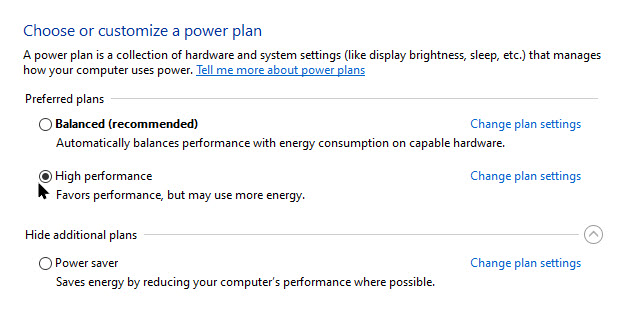
Now, click the dropdown arrow on the right side to Show additional plans. Next, select High Performance. See below image:

Tweaks 2
Accessing power settings

Tweak 3 – Turn Off Notifications

Yes, like your smart phone, Windows 10 has annoying tips and notifications.

If Windows does not need to generate a notification, your computing will go faster. I have over 20 apps that are capable of sending notifications. To turn them off, head to

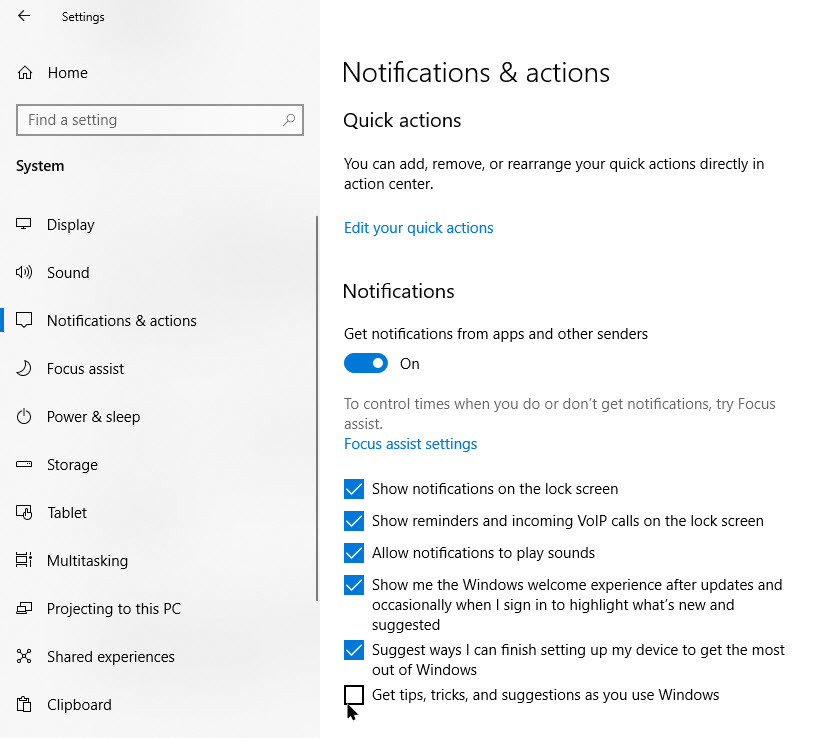
Settings (press Start, then the gear icon in lower left-hand corner or your desktop icon) > Notifications & actions

Next, you may want to disable the Get, tips, tricks, and suggestions as you use Windows. See following image:

Tweaks 3
Accessing types of Notifications

Now, scroll down to the Get notifications from these senders section. You will see a list of individual apps that can send notifications, and you can uncheck those you do not want to hear from. These notifications reduce processing that Windows needs to do to display relevant information for your system. If Windows does not need to generate a notification, your computing will go faster. Refer to below image:

Tweaks 4
Disabling Notifications from senders

An easy way to pause notifications is to tap the Focus Assist button in the Action Center.

To open the Action Center, do one of the following:

  • On the right end of the taskbar, select the Action Center icon
  • Press the Windows logo key  + A
  • On a touchscreen device, swipe in from the right edge of the screen

Just tap through the Focus Assist button to view your options for type of notifications to receive or turn them off. This also makes it easier to re-enable them later.

You are finished with these three Windows 10 tweaks. Please feel free to share this post! One way to share is via Twitter.

Just click the Tweet icon below. This will launch Twitter where you click its icon to post the Tweet.

Check out TechSavvy.Life for blog posts on smartphones, PCs, and Macs! You may email us at contact@techsavvy.life.

I Would Like to Hear From You

Please feel free to leave a comment. I would love hearing from you. Do you have a computer or smart device tech question? I will do my best to answer your inquiry. Just send an email to contact@techsavvy.life. Please mention the device, app and version that you are using. To help us out, you can send screenshots of your data related to your question.

The author’s Vietnam eBook on the Battle for Tra Bong: Events and Aftermath

How to Set a Custom Color for Start Menu in Windows 10

Out of the box, the Start menu includes a default layout with elements and settings that usually fit most people. However, if you want to make it more functional and personal, the experience available on Windows 10 is highly customizable.

On Windows 10, the Start menu is an essential component, as it is the experience you use every day to find apps, settings, and files.

Out of the box, the Start menu includes a default layout with elements and settings that usually fit most people. However, if you want to make it more functional and personal, the experience available on Windows 10 is highly customizable.

Starting with the October 2020 update, Windows 10 now defaults to a light theme that takes away accent colors from your Start menu and Taskbar. If you would like to select a custom color for your Start menu, there is an easy way to pick it in Settings. Let’s explore how to do this.

This is for devices running Windows 10

Dilbert and Words
Copyright Scott Adams, Inc./Distributed by Universal Uclick for UFS

Selecting Colors Settings

First, launch Settings by pressing Windows+I keys or by opening the Start menu and clicking the gear icon on the left. Refer to below image:

Start 1
Accessing Settings

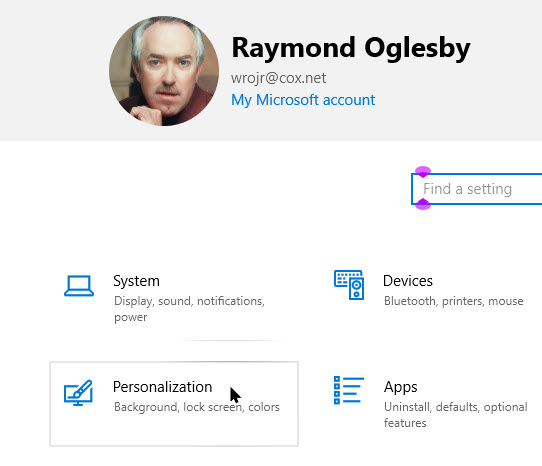
In Settings, click the Personalization option. See below image:

Start 2
Accessing Personalization option

Now, in its settings, click the Colors option. See following image:

Start 3
Accessing Colors option

Selecting your Colors

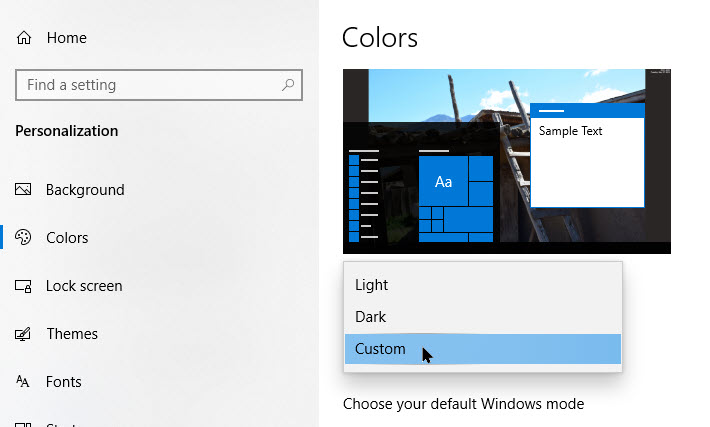
Next, in the Colors settings, locate the Choose your color drop-down menu. In this menu, select Custom. Refer to below image:

Start 4
Selecting Custom color option from drop-down

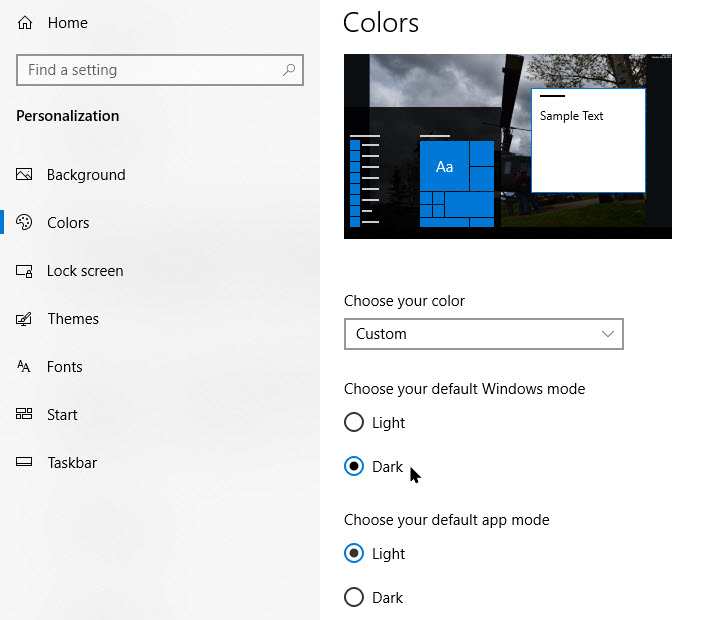
Now, two new choices will appear. Under Choose your default Windows mode, select Dark. This Dark mode is required for colorizing of your Start menu.

Now, under Choose your default app mode, select one of two options, Light or Dark, whichever one you would like the best. See below image:

Start 5
Selecting Dark mode

Selecting your Accent Color

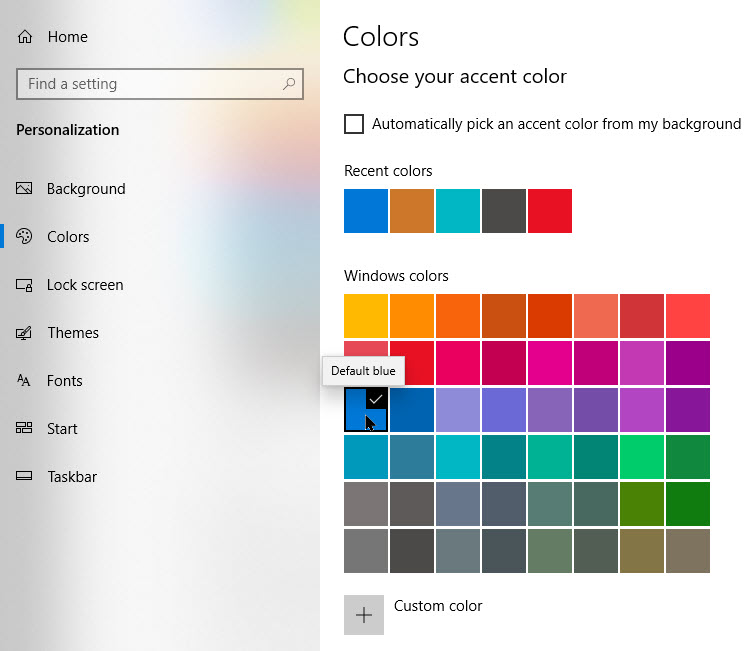
Next, scroll down the Colors page and locate the Choose your accent color section.

If you want the color to automatically match your desktop background image, checkmark Automatically pick an accent color from my background. Otherwise, click a color in the grid that you would like to use for your Start menu and Taskbar. You can also pick a custom color by clicking the Custom color button below the grid. See following image:

Start 6
Selecting your accent color

Now, locate the Show accent color on the following surfaces section and checkmark Start, taskbar, and action center.

Note! If this option is greyed out, make sure you select Dark as your default Windows mode above. It won’t work in Light mode. Refer to below image:

Start 7
Selecting your accent color on surfaces

Your New Look

The next time you open your Start menu, you will see that it has changed to the accent color you selected. See below image:

Start 8
Your new Start colorized icons

If you ever want to switch back to the standard Windows 10 theme, open

Settings > Personalization > Colors

and select Light in the Choose your color drop-down menu.

That’s it. Please feel free to share this post! One way to share is via Twitter.

Just click the Tweet icon below. This will launch Twitter where you click its icon to post the Tweet.

Check out TechSavvy.Life for blog posts on smartphones, PCs, and Macs! Feel free to email us at contact@techsavvy.life.

I Would Like to Hear From You

Please feel free to leave a comment. I would love hearing from you. Do you have a computer or smart device tech question? I will do my best to answer your inquiry. Just send an email to contact@techsavvy.life. Please mention the device, app and version that you are using. To help us out, you can send screenshots of your data related to your question.
The author’s Vietnam eBook on the Battle for Tra Bong: Events and Aftermath

How to Manage System Folders in Start Menu in Windows 10

On Windows 10, the Start menu is an essential component, as it is the experience you use every day to find apps, settings, and files.

On Windows 10, the Start menu is an essential component, as it is the experience you use every day to find apps, settings, and files.

Out of the box, the Start menu includes a default layout with elements and settings that usually fit most people. However, if you want to make it more functional and personal, the experience available on Windows 10 is highly customizable.

We are going to explain a little know feature, manage the system folders. Here’s how to do this:

This is for devices running Windows 10

Copyright Scott Adams, Inc./Distributed by Universal Uclick for UFS

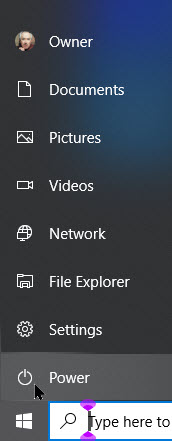
The User, Documents, Pictures, Settings and Power options are now tucked away in a column on the far left of the Start menu. Click the button at the top left of the Start menu to expand this column. Refer to below image:

Start Menu 1
The default Start menu System folders

First, launch Settings by pressing Windows+I. Now click the Personalization option. See below image:

Start Menu 2
Accessing Personalization option in Settings

Next, click the Start option. See following image:

Start Menu 3
Accessing the Start option

On the right, scroll all the way to the bottom and click the Choose which folders appear on Start link. Refer to below image:

Start Menu 4
Accessing the System folders link

Now, choose whatever folders you want to appear on the Start menu. See below image:

Start Menu 5

Enable/Disable System folders to appear on Start Menu

I have selected several folders. To view an icon’s associated text, just hover your mouse over an icon. See following image for the my new system Start menu:

Start Menu 6
Your new System folder Start menu

That’s it. Please feel free to share this post! One way to share is via Twitter.

Just click the Tweet icon below. This will launch Twitter where you click its icon to post the Tweet.

Check out TechSavvy.Life for blog posts on smartphones, PCs, and Macs! Feel free to email us at contact@techsavvy.life.

I Would Like to Hear From You

Please feel free to leave a comment. I would love hearing from you. Do you have a computer or smart device tech question? I will do my best to answer your inquiry. Just send an email to contact@techsavvy.life. Please mention the device, app and version that you are using. To help us out, you can send screenshots of your data related to your question.
The author’s Vietnam eBook on the Battle for Tra Bong: Events and Aftermath

How to Access Full Screen Startup in Windows 10

While in desktop mode, Windows 10 allows you to use the Start menu in a full-screen mode or in a way that only covers part of the screen.

While in desktop mode, Windows 10 allows you to use the Start menu in a full-screen mode or in a way that only covers part of the screen. Lets explore how to do this.

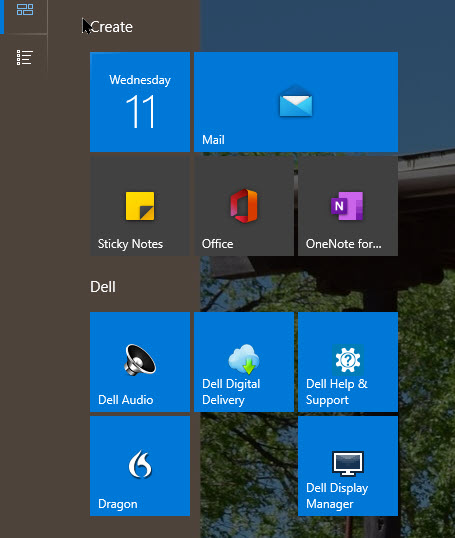
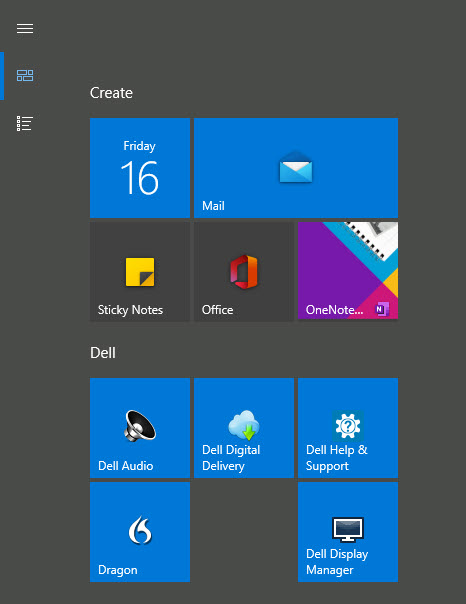
Depending on how you have your Start menu configured, a full-screen Start menu covers the entire screen (but not the Taskbar), and you can change between a “pinned tiles” view and an “all apps” view using the buttons in the upper-left corner.

In either view, you will see a screen full of shortcuts that you click on to launch an application. Refer to below image for a partial view of my desktop:

Start 1
Partial Desktop screen

To configure whether you see the full-screen Start menu in desktop mode or not, we need to make a change in Windows Settings.

This is for devices running Windows 10 operating system

Dilbert and Training
Copyright Scott Adams, Inc./Distributed by Universal Uclick for UFS

First, click the Start menu, select the Gear icon on the bottom left, then click Settings, or press the Windows+I keys to open Settings. See below image:

Start 2
Accessing Settings

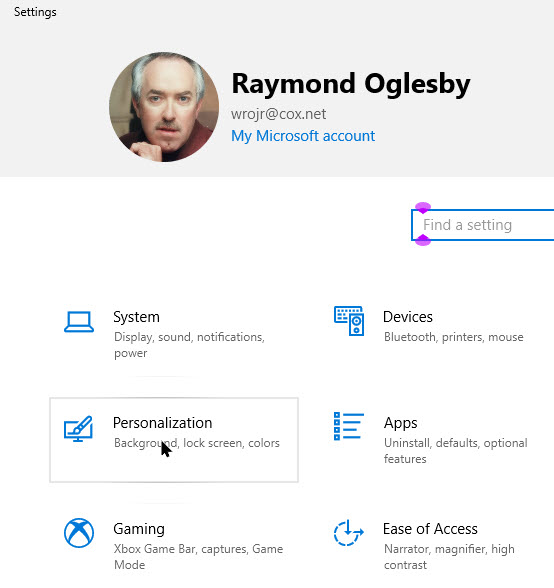
Now, click on Personalization. See following image:

Start 3
Access Personalization

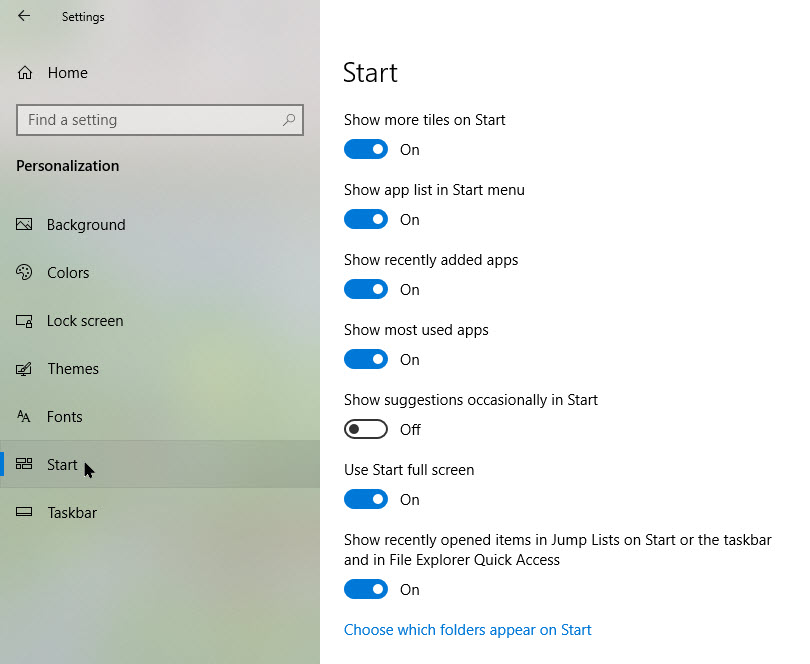
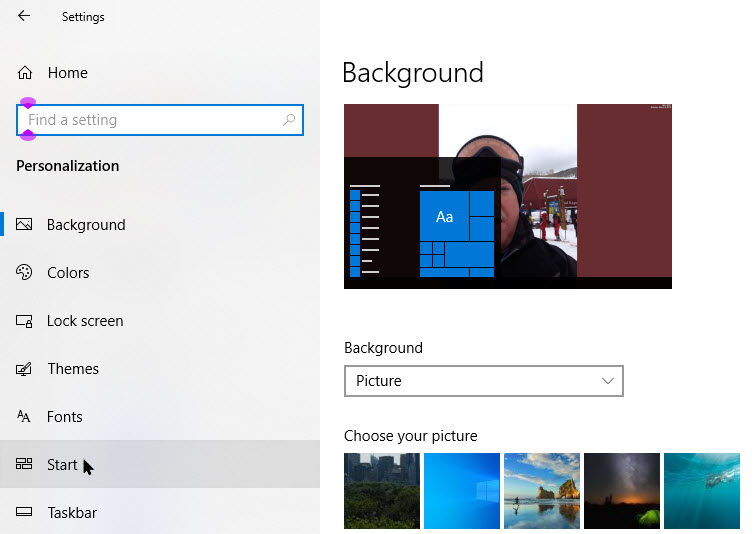
Next, select Start from the sidebar to open the its settings. Refer to below image:

Start 4
Accessing Start option

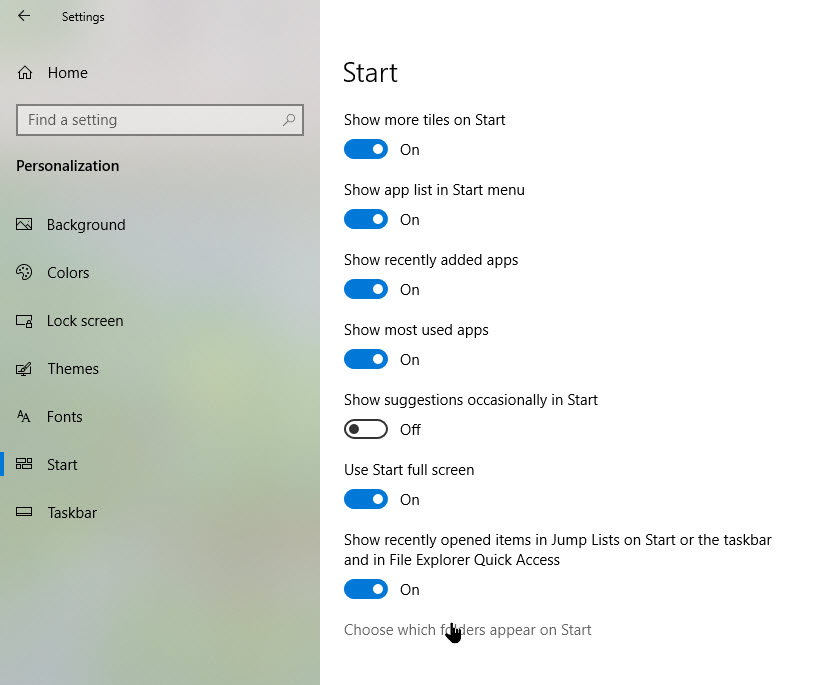
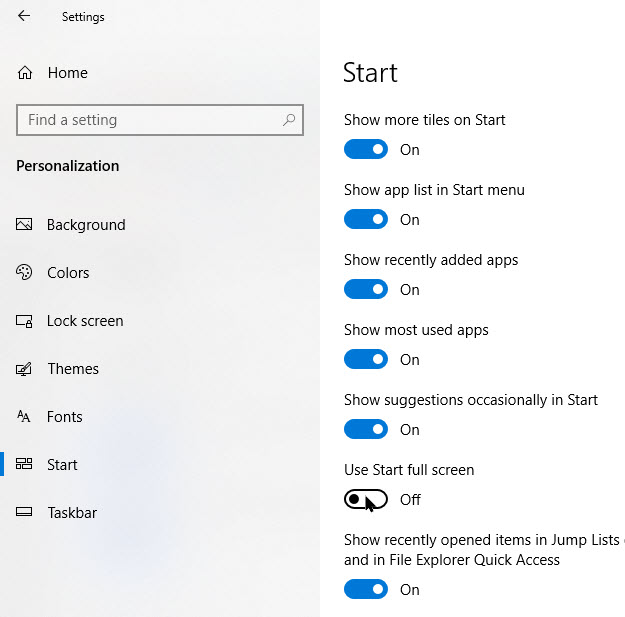
In Start menu settings, scroll down to the switch labeled Use Start Full Screen. If you would like to use the Start menu full screen in desktop mode, set this switch to On. If you do not want Start to cover the entire screen when you open it in desktop mode, set this switch to Off. See below image:

Start 5
Disabling Start Full Screen

Note! If your PC is in tablet mode, it will always show a full-screen Start menu.

You do not have to use a full-screen Start menu to get more room for shortcuts. If you would like to use a larger Start menu without having it occupy the full screen, you can easily resize the Start menu by clicking and dragging its edges.

Also, you can add a few more tiles by enabling the switch labeled Show more tiles located at the top of Start menu settings. Refer to above image.

You arte finished. Please feel free to share this post! One way to share is via Twitter.

Just click the Tweet icon below. This will launch Twitter where you click its icon to post the Tweet.

Check out TechSavvy.Life for blog posts on smartphones, PCs, and Macs! Feel free to email us at contact@techsavvy.life.

I Would Like to Hear From You

Please feel free to leave a comment. I would love hearing from you. Do you have a computer or smart device tech question? I will do my best to answer your inquiry. Just send an email to contact@techsavvy.life. Please mention the device, app and version that you are using. To help us out, you can send screenshots of your data related to your question.
The author’s Vietnam eBook on the Battle for Tra Bong: Events and Aftermath

How to Check If You Have the Latest Version of Windows 10

The latest version of Windows 10 is the October 2020 Update, version “20H2,” which was released on October 20, 2020. Microsoft releases new major updates about every six months.

The latest version of Windows 10 is the October 2020 Update, version “20H2,” which was released on October 20, 2020. Microsoft releases new major updates about every six months.

This is for devices running Windows 10

Dilbert and Wireless
Copyright Scott Adams, Inc./Distributed by Universal Uclick for UFS

To Tweet about this post, click the Tweet icon below to launch Twitter, then click its Tweet icon to post.

Check out TechSavvy.Life for their blog posts on smartphone apps, PCs. and Macs!

These major updates can take some time to reach your PC since Microsoft and PC manufacturers do extensive testing before fully rolling them out. Let’s find out what version you are running, and how you can skip the wait and get the most recent version if you do not already have it.

This update was codenamed “20H2” during its development process, as it was released in the second half of 2020. Its final build number is 19042.

Related

How to Understand Windows 10 Names and Numbers

How to Check for the Latest Version

First, open your Start menu, and then click the gear-shaped Settings icon or press the Windows+I to open the Settings app. Refer to below image:

Latest Version 1
Accessing Settings

In the Settings window, head to

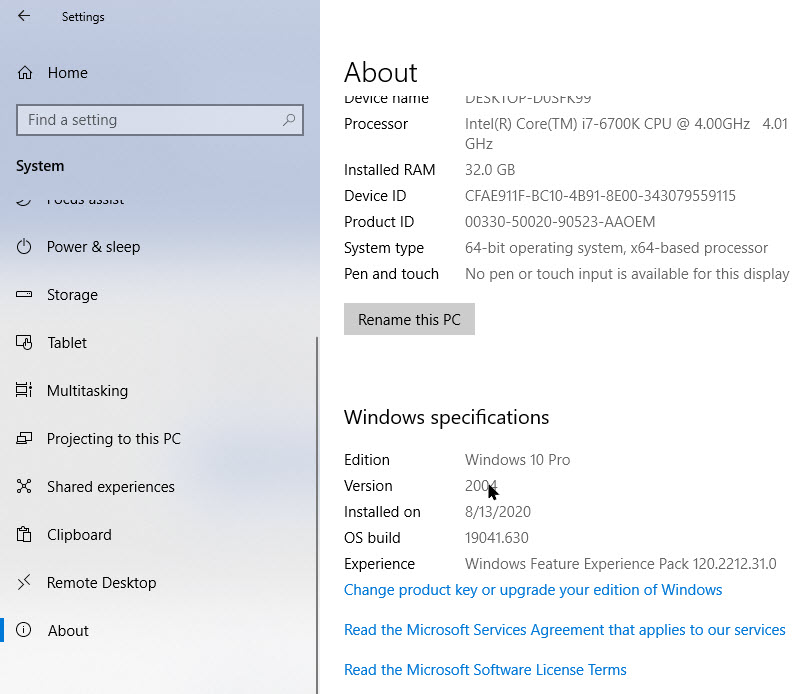
System > About

and then scroll down toward the bottom to the Windows Specifications section.

A version number of “20H2” indicates you are using the October 2020 Update. This is the latest version. If you see a lower version number, you are using an older version.

In my example below, I am using “2004”, the May 2020 Update. See below image:

Latest Version 2
Accessing Windows About information

To find out information on Microsoft Windows releases, head to Microsoft’s Windows 10 release information web page. Just look at the most recent version under “Semi-Annual Channel” section.

How to Get the Latest Version

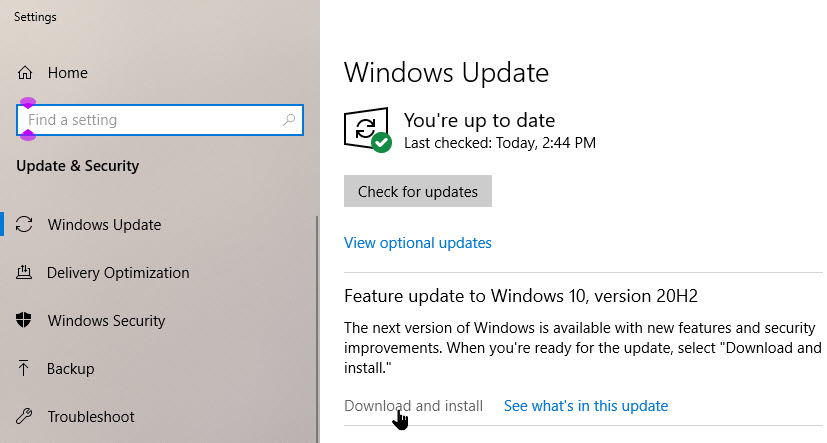
The best way to do this is by typing in Windows Update in the Cortana search bar in lower left-hand corner of your screen. Next, click on the Windows Update settings in upper left-hand corner of your screen. Now, click the Check for updates link for any updates and install per instructions. See following image where it says I am up to date, but there is an update available, the October 2020 update with an Download and Install link:

Latest Update 3
Checking for Windows updates

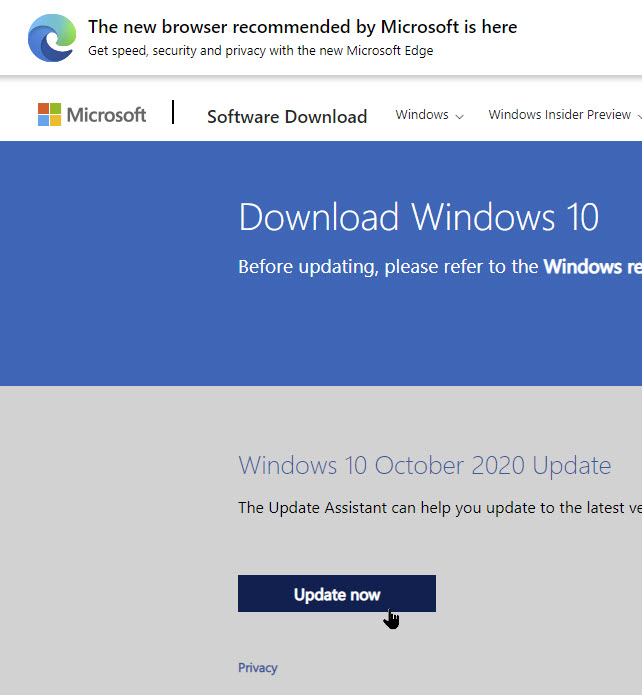
An alternate method is to visit Microsoft.com and hit the Update now button visible on the page. A small exe file, the Update Assistant tool, will be downloaded to your computer. Refer to below image:

Latest Version 4
Download the Windows Update Assistant tool

When you run this file, you will see the main screen of the Update Assistant tool. It will let you know if you are running the latest version of the Windows and whether your PC is capable of running it.

Click on Update now to start the upgrade process.

The tool will run a few compatibility checks for your PC and disk space required for installing the update.

If all appears well, the Update Assistant will access the Microsoft servers.

It will offer you two options:

  1. Upgrade this PC now
  2. Create installation media

Now, chose the first option.

The main highlight of the whole upgrade process is that all your files will be safe and right where you left them. Also, if the method does not work, you can go back to a prior version of Windows 10 anytime.

The install will take some time and your PC will restart several times. The best you can do is wait till the upgrade is finished..

In the end, when the process is complete you could either choose to restart the PC right way or after some time to allow the changes to take effect.

Note: By running the Upgrade Assistant, you are forcing Windows 10 to upgrade itself. Even if there is a known problem with the update on your computer, Windows will ignore the problem and install the update anyway. Microsoft recommends you check for any known problems impacting your system first.

You are done. Please feel free to share this post! One way to share is via Twitter, as mentioned below.

I hope you have found this post helpful. If so, click the Tweet icon below. This will launch Twitter where you click its icon to post the Tweet.

I have found TechSavvy.Life blog posts extremely helpful. Check them out for posts on smart phone apps, Macs and PCs!

The following is a previous Twitter feed so you can view how a Tweet will be displayed.

Display of your tweet

I Would Like to Hear From You

Please feel free to leave a comment. I would love hearing from you. Do you have a computer or smart device tech question? I will do my best to answer your inquiry. Please mention the device, app and version that you are using. To help us out, you can send screenshots of your data related to your question.

The author’s Vietnam eBook on the Battle for Tra Bong: Events and Aftermath