How to Send eBooks to Your Kindle: A Step-by-Step Guide

The Amazon Kindle is an effective ebook reader, linked closely to Amazon’s ecosystem. Users can send various ebook formats to their Kindle via methods like the Send to Kindle tool, Kindle app, or email. Free ebooks are readily available through various platforms, enhancing Kindle’s reading options.

RAYMOND OGLESBY @RaymondOglesby2
January 28, 2025 – 7 minutes read time

The Amazon Kindle is a great ebook reader, but it’s tightly tied to Amazon’s ecosystem. If you have a Fire tablet or a smartphone, you can download other e-reading apps to beef up your library, but with the Kindle hardware, you are pretty much tied to getting your content directly from Amazon. Well, sort of. Using some free software, you can take ebooks in various formats and zap them over to your Kindle.

Let’s explore how to send other ebook formats to your e-reader, and where to get free ebooks.

  • Of course, we all like free stuff.
  • A large variety of free ebooks to choose from.
  • Download in a variety of formats for reading on your Kindle.

This is for the Amazon Kindle. It uses the iPhone, Android, PC, and Mac. The screenshots are from Windows 10 and iPhone 14 Pro.

Amazon offers a Send to Kindle page where you can upload ebook files saved on your device. First, on amazon.com/sendtokindle, click Select files from device. Refer to the below image:
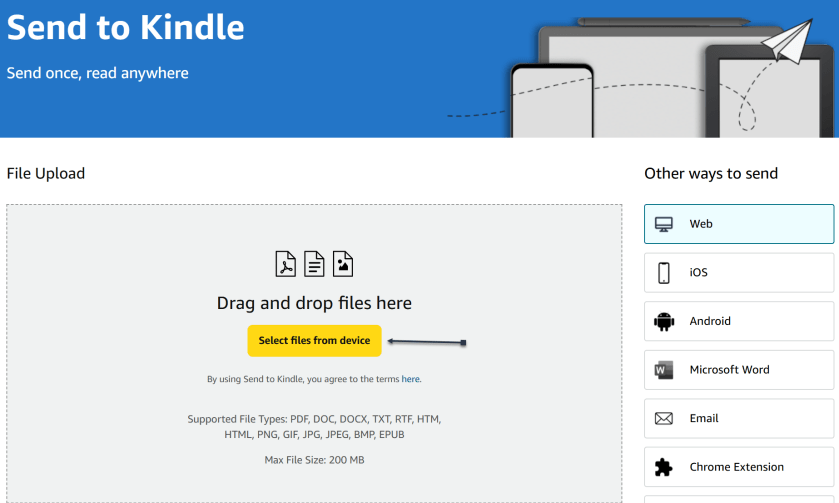
Kindle 1
Selecting files to send

Next, select the book you want on your Kindle. This tool supports PDF, DOC, DOCX, TXT, RTF, HTM, HTML, PNG, GIF, JPG, JPEG, BMP, and EPUB formats on ebooks up to 200MB in size. (Amazon no longer supports sending new Mobi files.) Ensure the Add to your library toggle is ON, then click Send. See the below image:
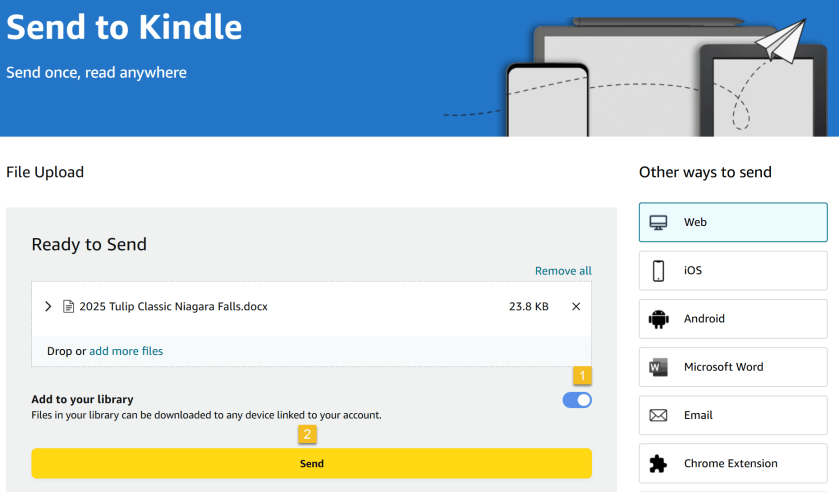
Kindle 2
Send your files

Now, a status bar will appear, letting you keep tabs on the upload. You will see a checkmark and an In Library notice when it’s ready. See the following image:

Kindle 3
Status of sending to Kindle

Amazon also has an app for Windows and macOS that lets you do the same thing. Chrome has an extension you can enable though results are mixed.

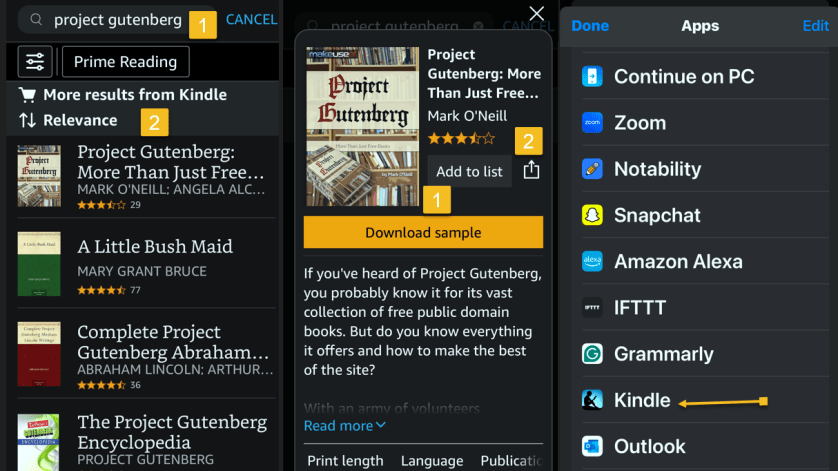
If you have the Kindle app installed on your iPhone or Android device, you can add ebooks to your library with a few taps. In the example below we downloaded an ebook from Project Gutenberg on the iPhone.

First, open your Kindle app on your iPhone and search for an ebook. Next, tap the ebook. From here, you can Download sample to see a preview or tap the Share icon. Now, locate the Kindle app and tap it. Refer to the below image:
Kindle 5
Selecting a file to send to Kindle

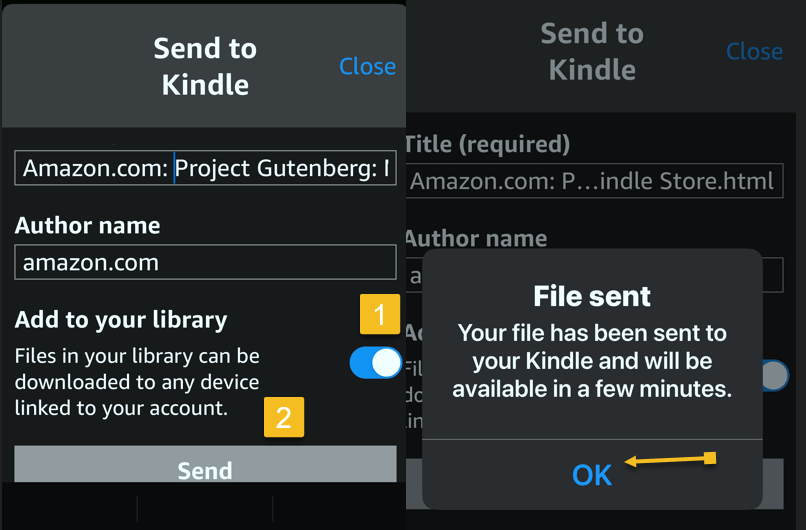
Next, ensure the Add to your library toggle is ON, then tap Send. Now, the ebook will be saved in your library in the Kindle app and on our Kindle device. The process is similar for Android. See the below image:
Kindle 5
Send your file

Amazon also lets you email ebooks to your Kindle account via a specially crafted email address. First, to get your Kindle’s email address, go to:

amazon.com/myk 

or go to:

Account & Lists > Content Library > Devices

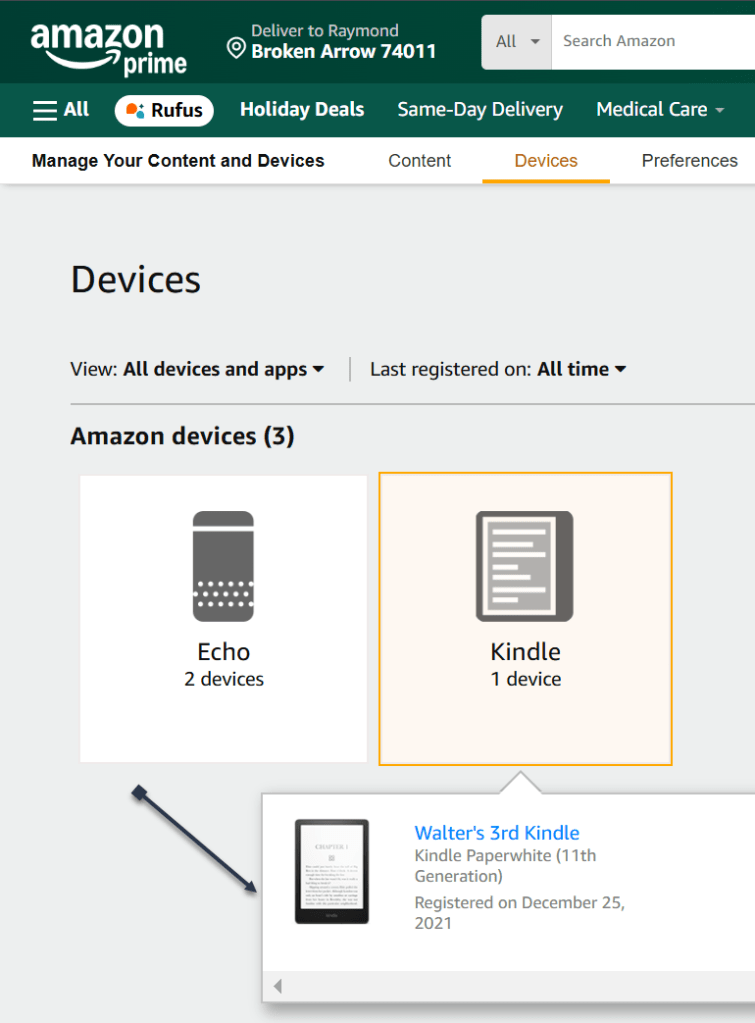
Next, in the list below, find your Kindle device and click it. In the drop-down window, click [your name’s] Kindle. See the following image:
Kindle 7
Find your Kindle

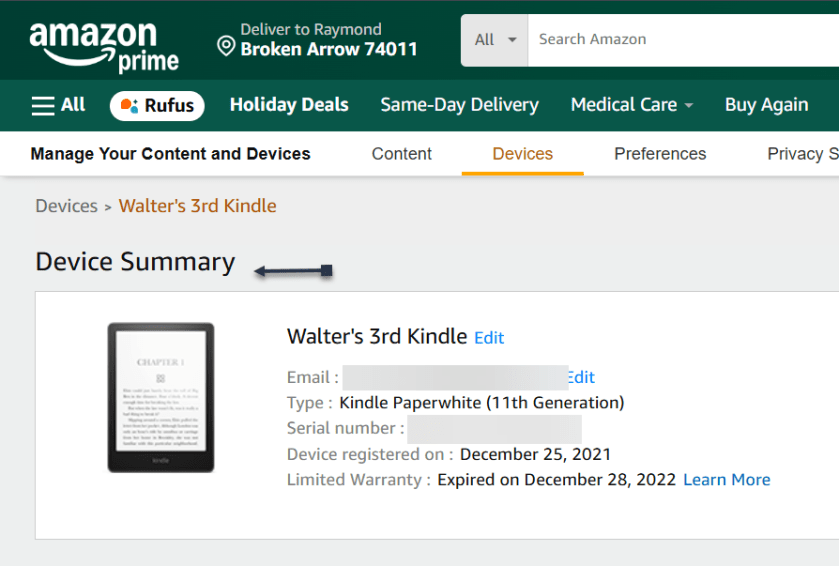
On the next page, you will see a Device Summary that lists your @kindle.com email address. (It’s set to a default address, but you can change it by clicking Edit.)  Refer to the below page:
Kindle 7
Your Kindle information

Back up top, click the Preferences tab, and scroll down to Personal Document Settings. Click the down arrow on the right and scroll to Approved Personal Document E-mail List. The email attached to your Amazon account should be listed here. If that’s the email address you will be using to send ebooks to your Kindle, you are all set. To use a different email, click:

Add a new approved e-mail address and enter the address you want to use.

Remember, your Kindle needs to be attached to a Wi-Fi network for this to work.

Amazon can automatically convert PDFs into the Kindle format, but you get two formatting choices. If you want your Kindle to display every page in the PDF as if it were a graphic, just email the .pdf file to your Kindle’s address without a subject line, upload it via the Send to Kindle website, or drag and drop the file onto a Kindle that’s attached to your PC with a USB cable.

That will maintain the formatting and graphics; it will appear on your Kindle like on your laptop. However, the font size may be too small to read.

Your other option is to attach the PDF file to an email and make the subject line “convert”—just that word. Send it to your Kindle email address and your PDF will be converted into a Kindle version that will let you mark it up and change the formatting. The graphics will still be in there as well, but you will lose the layout of the original PDF.

Third-party software, such as MiniTool PDF Editor – Kindle format converter, can also convert PDF files to Kindle formats like Word, image, TXT, and HTML.

Once you have emailed your ebook, on your Kindle head to:

Home > From Your Library

It might take a few minutes, but if your Kindle is connected to Wi-Fi, it should update automatically and the ebook will appear.

Want to delete the ebook? Tap the Menu icon (the three-dots) on the bottom right of your ebook in Your Library and select Remove download to remove it from your Kindle or Permanently Delete to remove it from your Amazon account.

  • Amazon hosts periodic Stuff Your Kindle Days, where select ebooks are free for a 24-hour period. They are usually grouped by theme.
  • To hook into public library catalogs and send ebooks to your Kindle, check out the Libby app from OverDrive. (Hoopla offers a similar service.)
  • If you want classics, Project Gutenberg has 70,000+ copyright-free ebooks.
  • For historical and academic texts, check out archive.org.
  • ManyBooks.net has a mix of free and paid classics and self-published titles.
  • Free-Ebooks.net has a large collection of self-published ebooks and classics; provide your email address to get five free ebooks per month.
  • If you like science fiction, the publisher Baen also has a set of free ebooks.
  • BookBub has a free ebook section filled with romance novels and other casual reads.

Source: Amazon, PC Mag

Disclaimer

Technology is always changing. Rarely is there static tech for smartphones and desktops. Thus, the contents of this post are only valid at the time of writing. Blog posts older than six months may have directions incompatible with your device or OS. Hopefully, older post content will continue to work as advertised. Thank you for reading TechSavvy.Life for Technology at Work For You.

Technology is just a tool. In terms of getting the kids working together and motivating them, the teacher is the most important.

-Bill Gates

That’s it. Please feel free to share this post! One way to share is via Twitter.

Just click the Tweet icon below. This will launch Twitter where you click its icon to post the Tweet.

Checkout TechSavvy.Life for blog posts on smartphones, PCs, and Macs! You may email us at contact@techsavvy.life for comments or questions.

Was this post helpful? We would love to hear your comments. Do you have a computer or smart device tech question? I will do my best to answer your inquiry. Just send an email to contact@techsavvy.life. Please mention the device, app, and version you are using. To help us, you can send screenshots of the data related to your question.

Author’s eBook

The author’s Vietnam eBook on the “Battle for Tra Bong Vietnam: Events and Aftermath” can be accessed from a Kindle device or the Kindle App for a desktop or smartphone. The apps are free.

The author’s Vietnam eBook on the Battle for Tra Bong Vietnam: Events and Aftermath

How to Disable AI Overviews in Google Search

This post provides tips for handling AI-generated summaries in Google search results. It explains how to disable these overviews using specific search modifiers.

RAYMOND OGLESBY @RaymondOglesby2
July 23, 2024 – 3 minutes read time

This is for devices running Google or Bing. Screenshots are from Windows 10 desktop

Open Google, click the 3-dot menu icon (upper right corner), then click the Settings option. If Google is outdated, it will automatically update.

  • View your Google or Bing search results without an AI-generated summary.
  • Narrow your search results to what you just want to preview.

We rely on Google every day to provide us information. But what happens when our source of knowledge becomes messy and unreliable? AI Overviews utilize Google’s Gemini AI to provide an answer to your query right on the search page; no need to click.

Still in its infancy, this feature occasionally surfaces incorrect information, so some web surfers look to disable it entirely. There are a few ways to make an AI Overview go away, but no method is as simple as tricking Google itself into getting rid of it. Google uses search modifiers, named operators, which help narrow search results. Here are a few examples:

  • Use quotations (” “) to search for the exact phrase
  • Add site: to search a single website
  • Search for a certain type of file with filetype:
  • Exclude terms with a minus (-) symbol. The minus symbol stands for NOT.

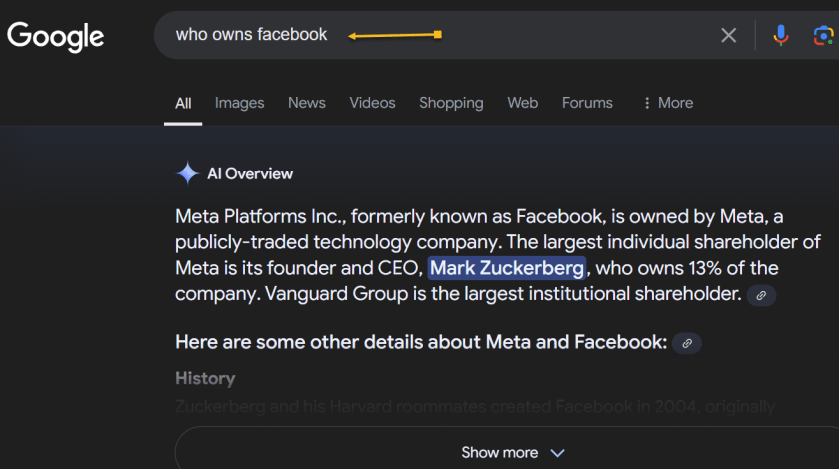
If we ask “who owns Facebook” an AI-generated summary will be displayed. Refer to the below image:

Google Tip 1
With AI-generated summary

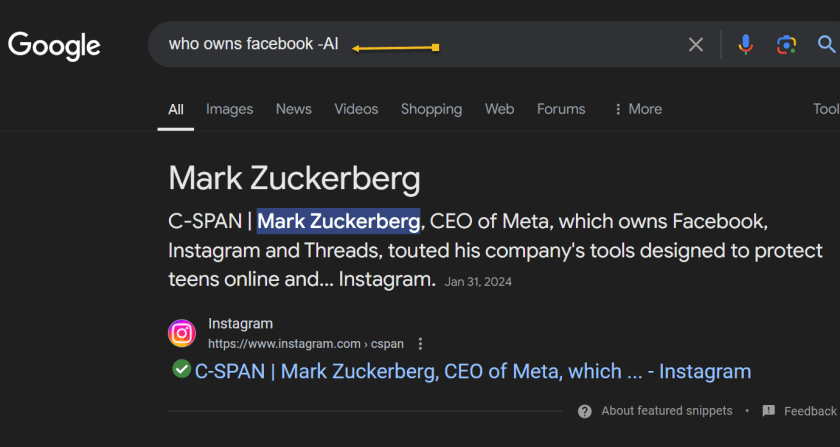
And if you add the term -AI at the end of the query, an overview is not generated. It’s a very simple solution to the AI Overview problem that can be quickly repeated on subsequent queries without needing multiple steps. See the below image:

Google Tip 2
Without AI-generated summary

However, it’s worth noting that this does not work because of the -AI modifier. On subsequent tests, we found that putting pretty much anything in there (Ex: -isports, -farm) also did the same thing.

So, no, Google did not add a secret AI kill switch to its search engine. Instead, AI Overviews are likely only available under certain conditions, and by using a search modifier, you circumvent those parameters. Still, it’s an easy way to game the system until we get an easier way to disable these overlays.

Technology is always changing. Rarely is there static tech for smartphones and desktops. Thus, the contents of this post are only valid at the time of writing. Blog posts older than six months may have directions incompatible with your device or OS. Hopefully, older post content will continue to work as advertised. Thank you for reading TechSavvy.Life for Technology at Work For You.

“Real gs move in silence like lasagna.”

Lil Wayne

That was easy. Please feel free to share this post! One way to share is via Twitter.

Just click the Tweet icon below. This will launch Twitter where you click its icon to post the Tweet.

Checkout TechSavvy.Life for blog posts on smartphones, PCs, and Macs! You may email us at contact@techsavvy.life for comments or questions.

Was this post helpful? We would love to hear your comments. Do you have a computer or smart device tech question? I will do my best to answer your inquiry. Just send an email to contact@techsavvy.life. Please mention the device, app, and version you are using. To help us, you can send screenshots of the data related to your question.

The author’s Vietnam eBook on the “Battle for Tra Bong Vietnam: Events and Aftermath” can be accessed from a Kindle device or the Kindle App for a desktop or smartphone. The apps are free.
The author’s Vietnam eBook on the Battle for Tra Bong Vietnam: Events and Aftermath

Maximize Online Protection: The Power of Password Managers and Unique Access Codes

This post emphasizes the importance of strong, unique passwords and the use of password managers to enhance security. It highlights the risks of using common or personal information-based passwords and provides tips for creating and managing secure passwords.

RAYMOND OGLESBY @RaymondOglesby2
August 13, 2024 -9 minutes read time

This is for devices using passwords. Screenshots are from iPhone 14 Pro running iOS 17.5.1+

If you are still using “qwerty” or “starwars” as a password, you should stop doing this. Let’s find out what makes a bad password, why you should care, and how to make a good one.

Don’t have the password to get into your bank account? You are out of luck unless you can trick the bouncer into telling you the password is “kangaroo.” A simple password like that would be a terrible choice to protect your access to a bank site. And yet, chances are good you are using something just as bad, because stronger passwords are too hard to remember.

The only safe way to store proper passwords is in a password manager. If you are not using one, you probably rely on a highly crackable password like “baseball” or “12345”, or you have memorized one complex password, like “Jazz2day4Me!” and use it everywhere. Password security is no small matter. Given the enormous risk, you need to keep your passwords safe.

Even the best password manager does not guarantee the safety of your accounts; not if you use it to store the same old, tired passwords. You have to switch out your old and weak passwords for new and stronger ones.

Once you have replaced all your lame passwords with strong, unique ones, you can relax, at least until a data breach forces a change. The National Institute of Standards and Technology (NST) no longer recommends changing passwords every 90 days. NIST now recommends using long phrases like “Correct-Horse-Battery-Staple” and changing them only when necessary. If you have terrible passwords, “when necessary” means right now.

Passwords 1
Bad passwords

Just what makes a bad password? Let’s look at some of the attributes of terrible passwords, and then some pointers on improving them.

Every few months a news outlet posts a list of the worst passwords. We see a lot of easy-to-type options, like“12345” and “qwerty”. Easy for you to type? Sure. But also easy for hackers to crack. Other common (and poor) passwords consist of simple dictionary words, like “baseball”, “monkey”, and “starwars” in the list of worst passwords. These, too, are easy to crack.

A few of the best password managers (tap or click a button to view):

Some secure websites lock down after a given number of wrong password attempts, but many do not. For those with no bad guess lockout, hackers can cross a list of email addresses with a list of popular passwords and set up an automated process to keep trying combinations until they get in.

A properly secured website does not store your password anywhere. Instead, it runs the password through a hashing algorithm, a one-way encryption. The same input always produces the same output, but there’s no way to return to the original password from the resulting hash. If the password you type hashes to the same one that’s stored, you gain access. Even if hackers capture the site’s user data, they do not get passwords, just hashes.

But smart hackers can crack weak passwords if they know the site’s hashing function. They start by running a huge dictionary of common passwords through the hashing function. Then they look for the resulting hashes in the captured data. Each match is a cracked password. Sites with the best security enhance the hash function with password salting, which makes table-based cracking impossible, but why take the risk? Just stay out of the dictionary.

What about this perfect password: 1qaz2wsx3edc4rfv. You just “type” it by sliding a finger down four slanted columns of the keyboard. You think it’s so perfect, that you use it everywhere. And that is a big mistake.

Hardly a week goes by without news of a breach at some company or website, exposing thousands or millions of usernames and passwords. Smart victims change their passwords immediately. Those who ignore the problem may find themselves locked out of their accounts after the hackers have reset your passwords.

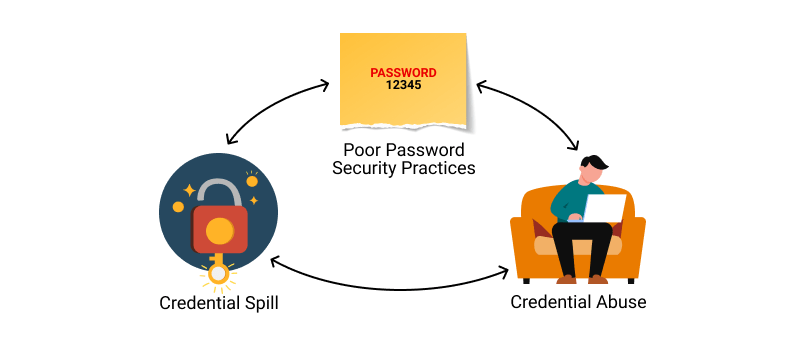
Those hackers know that all too many people recycle their passwords. Once they find a working username and password pair, they try the same credentials on other sites. You may not be so worried about losing access to your old Dropbox account, but if you used the same login on your bank’s website, you are in big trouble.

Passwords 2
Using the same credentials on websites

It gets worse. If someone else takes control of your email account, they can lock you out by changing the password. Then they can break into your other accounts by having a password reset link emailed to that account. Worried yet? You should be!!!!

Using personal information as the basis for your passwords is awfully tempting, but it’s a bad idea. Whether your dog’s name is Fifi or Khaleesi, that name probably appears in the dictionaries hackers use for brute-force attacks. Other possibilities such as the initials and birthdate of a family member probably will not fall to a brute-force attack. If someone wants to hack your account specifically, that personal data can fuel a trial-and-error guessing attack.

Do not think for a minute that your personal details are private. There are dozens of sites people can use to find details about anybody: address, birthdate, marital status, and more. Your social media posts can be another source of personal info, especially if you have not properly secured your accounts. A determined hacker (or a nosy neighbor) can probably guess any password you build based on your data.

If you are not using a password manager, you have surely experienced forgetting the password for a site. It’s all too common. That is why virtually every login page includes a “Forgot your password?” link. Some sites send a reset link to your email address, while others let you reset the password after answering your security questions. And that opens a back door to anyone wanting to hack your account.

Most sites offer abysmal options for security questions like:

  • What is your mother’s maiden name?
  • Where did you go to high school?
  • What was your first job?

As noted, your personal life is an open book to anyone with internet searching skills. When possible, ignore the preset questions. Create your own question, with a unique answer you will always remember but nobody else could guess.

It’s harder when the site does not let you define your own questions. In that case, your best bet is to use a memorable answer that’s a total LIE like:

  • My mother’s maiden name is Fauci.
  • I went to school at More Science High School.
  • For my first job, I was a linotype operator.

There is an element of risk since you might forget which lie you chose. We suggest storing these oddball answers in the iPhone Notes app or on Google Drive.

We hope we have convinced you that using common passwords is a rotten idea, as is building passwords from personal information. Even the best strong, random password becomes a liability if you use it everywhere. If you are ready to spring into action, here are some starting points:

  • Use a password manager
  • Switch to a better password manager
  • Remember an extremely secure master password for your password manager and keep it on another app. Better yet, just remember the master password.
  • Take advantage of a random password generator to upgrade your old, bad passwords
  • You could even create your own random password generator in Excel
  • Enable multi-factor authentication wherever available

If a secure site does not take care of security, you could still lose that site’s credentials to a data breach, but by making all your passwords long, strong, and unique, you can rest assured that you have done everything you can to protect your online accounts from password-based attacks.

Passwords 3
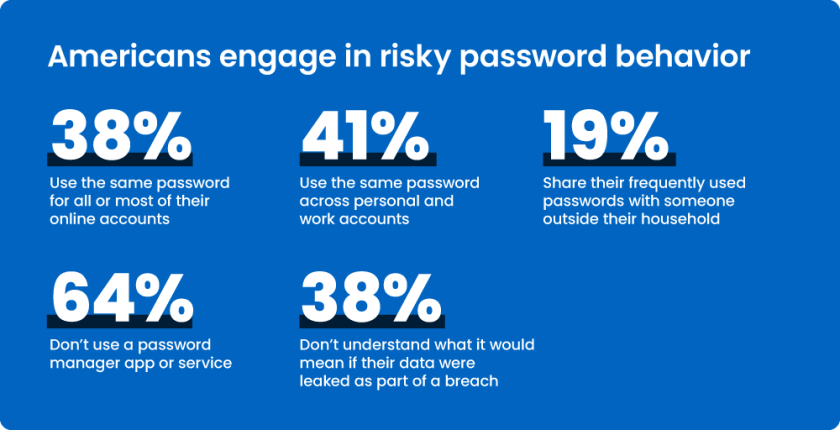
Risky password behavior

You may want to switch to using Passkeys or Passphrases.

Source: PC Mag

Disclaimer

Technology is always changing. Rarely is there static tech for smartphones and desktops. Thus, the contents of this post are only valid at the time of writing. Blog posts older than six months may have directions incompatible with your device or OS. Hopefully, older post content will continue to work as advertised. Thank you for reading TechSavvy.Life for Technology at Work For You.

“Try and keep on trying until that which seems difficult becomes possible and that which seems only possible becomes habit and a real part of you.”

Dieter F Uchtdorf

That’s it. Please feel free to share this post! One way to share is via Twitter.

Just click the Tweet icon below. This will launch Twitter where you click its icon to post the Tweet.

Checkout TechSavvy.Life for blog posts on smartphones, PCs, and Macs! You may email us at contact@techsavvy.life for comments or questions.

Was this post helpful? We would love to hear your comments. Do you have a computer or smart device tech question? I will do my best to answer your inquiry. Just send an email to contact@techsavvy.life. Please mention the device, app, and version you are using. To help us, you can send screenshots of the data related to your question.

You can access the E-book from a Kindle device, or the Kindle App for a desktop or smartphone. The apps are free.

The author’s Vietnam eBook on the Battle for Tra Bong Vietnam: Events and Aftermath

How to Find Out Who Is Calling You

This post discusses how to identify legitimate calls and avoid scammers, addressing phone verification, spoofed numbers, and web searching. It provides options like reverse phone lookup websites and tools like WhoCallsMe, Spy Dialer, PeopleFinders, and USPhoneBook. It also suggests utilizing mobile carrier solutions, reporting to the FTC, and the National Do Not Call Registry to combat spam calls.

RAYMOND OGLESBY @RaymondOglesby2
June 11, 2024

This is for any browser on a desktop, laptop, or smartphone. Screenshots are from Google Chrome on Windows 10

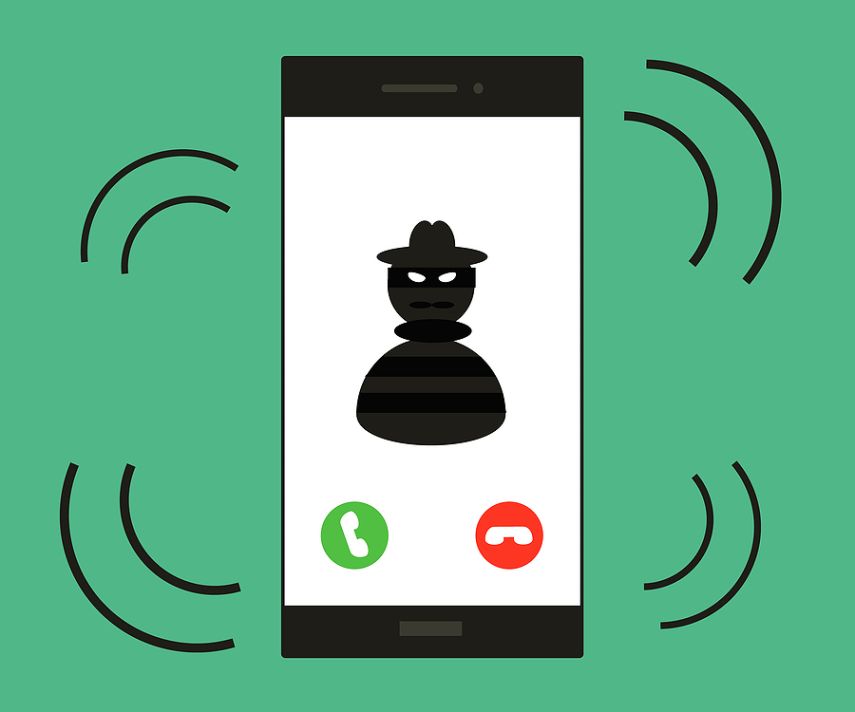
The phone rings and it’s a number you do not recognize. Or perhaps an unknown number shows up in your missed calls. You are curious but do not want to pick up or call back if it’s a telemarketer or scammer. Instead of playing robocall roulette let’s explore five ways to see who is calling before you engage.

You may have noticed that America has a problem with scam calls. Scammers took $10 billion from unsuspecting victims in 2023, and it’s hard to see the problem going away anytime soon. If you get a call, there are a few ways to tell if it’s legit or not.

  • What does the phone say? When a call comes in, look for a displayed number and location. If your phone is not showing any information and says something like Unknown, chances are there’s a scammer on the other end. Anyone can hide their number, but it’s best to let this one go to voicemail and call back if it’s someone you know. If the phone says Scam Likely, it’s typically correct; just ignore the call.
  • Look for verification. Carriers have started verifying phone numbers when you receive a call. Google’s phone app also adds a badge on incoming calls that can be attached to a business. Unfortunately, this does not verify every call from a legitimate business or weed out legitimate businesses that use robocalls.
  • Watch out for spoofed numbers. Have you ever gotten a call from what looks to be your own phone number, only it’s a few numbers off? Do not pick those calls up; scammers like to spoof phone numbers and trick you into picking up. They think you are more likely to pick up if the call is from your area code or someone you know.

Note! We recommend ou not click or tap on any icon off the main screen. These buttons launch web sites that may introduce malware or be blocked by your browser security. Also, any screen that has flashing items, immediately exit the screen.

If you click or tap on a button that starts a scanning process for addresses,emails, public information, criminal records, etc., the process will take several minutes. On the desktop, you can stop the process by hitting Cntl-Alt-Del keys, then select Task Manger. Next, right=-click on your browser entry and select End Task. Your browser will exit stopping the scanning process.

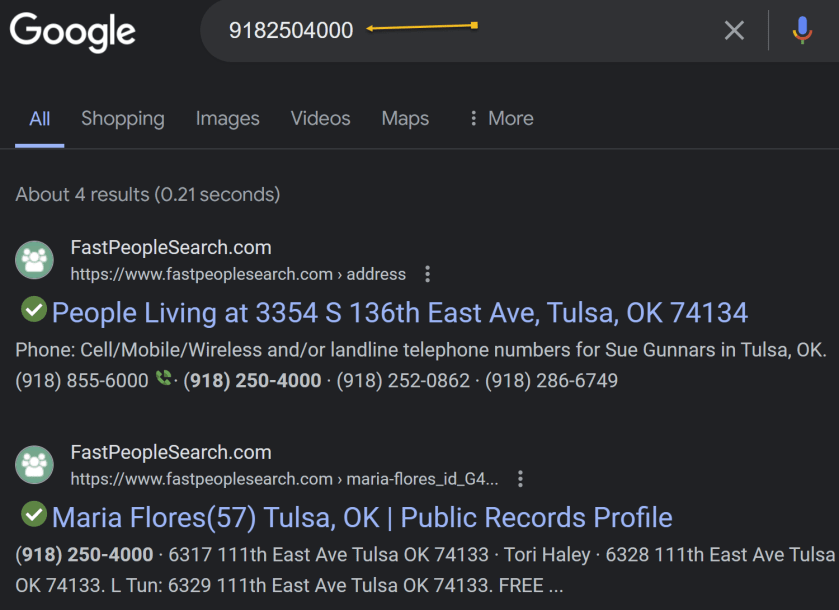
If you want to quickly know whether a caller is legit or a scammer, do a quick web search. As a rule of thumb, if the search results are primarily reverse phone lookup websites, it’s safe to say other people have received unwarranted calls from that same number and are reporting it to warn others. Refer to the below image:

Calls You 1
Search the web

Speaking of reverse phone lookups, if you want to do some digging about a certain phone number, many websites can help you. You usually have to pay to get any worthwhile information, but there are a few tools that can help you for free. Even though they are free if you want additional information about the phone number, the sites charge for their service.

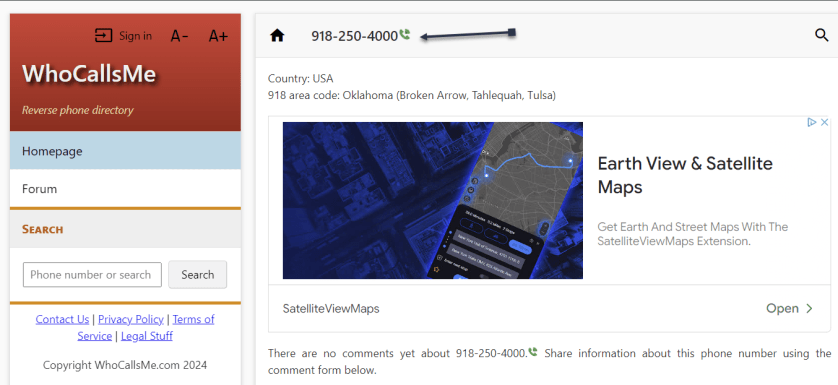
At WhoCallsMe, users can report their experiences with specific phone numbers. Enter a number and the website will tell you where the area code is from. You can then enter your own report or view what others say about it. See the below image:

Calls You 2
WhoCallsMe main screen

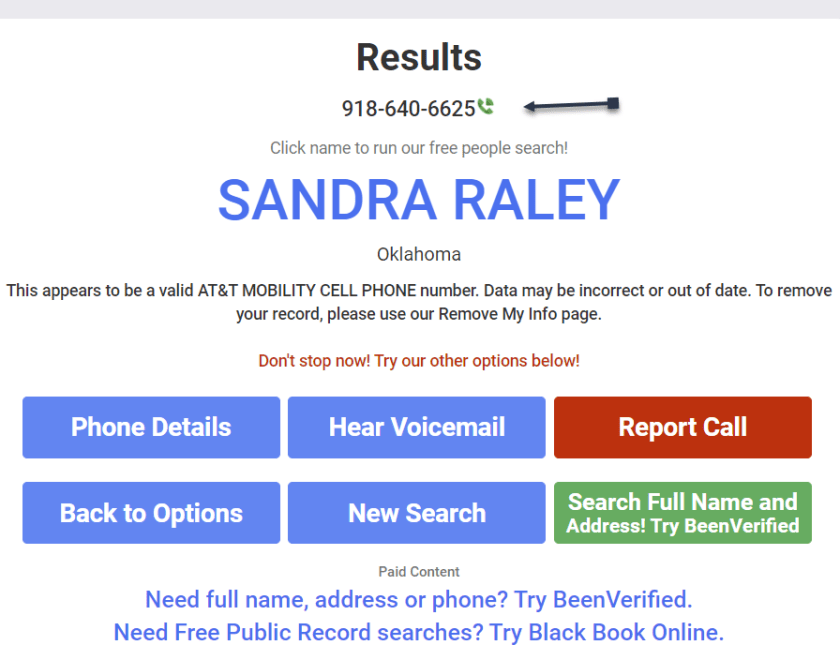
Spy Dialer allows you to search for phone numbers, names, addresses, and emails. Enter a phone number, then choose if you want to look up any linked names or photos, listen to the number’s outbound voicemail, or confirm if the number is spam or not. Spy Dialer can tell you with whom the number is registered, their general location, and whether or not the number has been reported as spam before.

For more information, click Phone Details to see how long the line has been in service and if the number is spoofed. Choose Hear Voicemail to get the caller’s outbound voicemail, if available. You can click Report Call to file a complaint with Spy Dialer.

We recommend this site over the others because it’s faster and offers more information. See the following image:

Calls You 3
Spy Dialer main screen

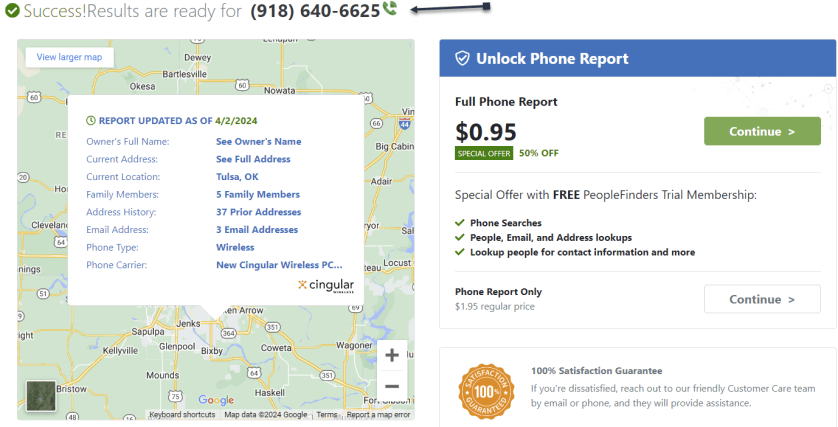
PeopleFinders allows you to look up a phone number, name, address, or email. Enter a phone number into the search bar to get the caller’s general location, carrier, and phone type. More revealing information, such as the caller’s full name and address, is hidden requiring a fee. Refer to the below image:

Calls You 4
PeopleFinders main screen

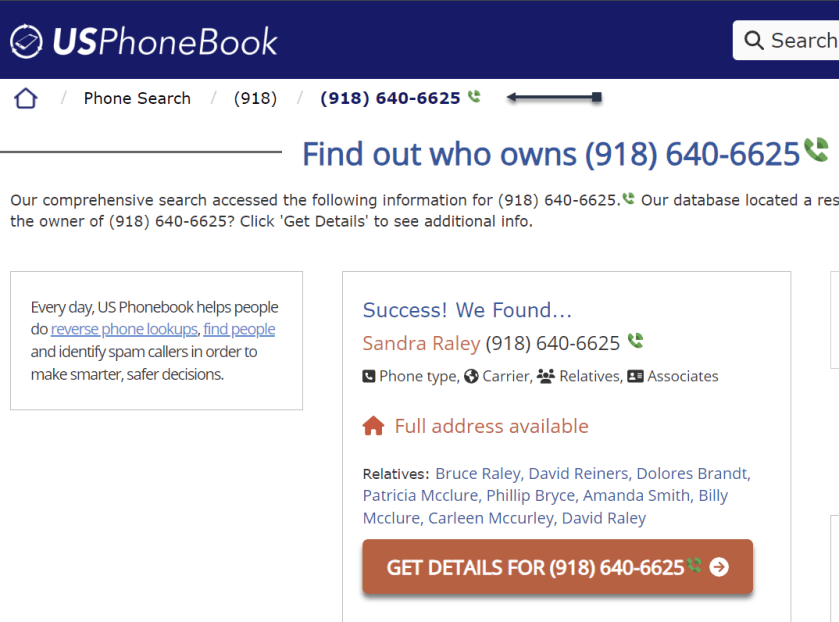
You can look up phone numbers, names, and addresses at USPhoneBook, though this works better for identifying individuals rather than businesses. Enter a number to find the person connected to it. The site will display a list of people who may be related to the person. You can then mark the number as safe or spam. Keep in mind that these listings can be outdated.

Click Get Details to view extra information about the person. This will include their age, current (and former) addresses, phone numbers associated with them, a list of relatives and associates, and even related email addresses. See the below image:

Calls You 5
USPhoneBook main screen

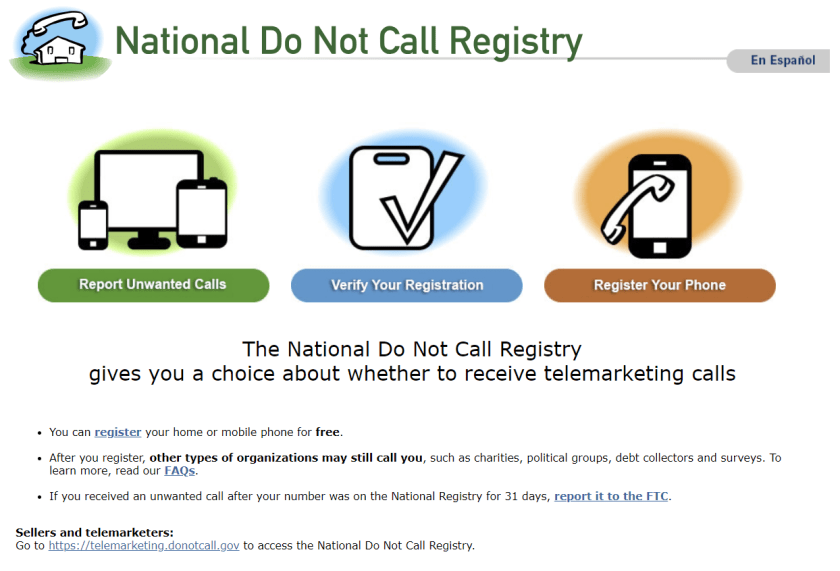
One option is to look at your mobile carrier’s anti-spam solutions for stopping spam calls and robo texts. Additionally, apps likeRoboKiller and Truecaller help keep the spam callers at bay. You can also report unwanted calls to the FTC and register your number with the National Do Not Call Registry, though those wishing to do you harm will undoubtedly ignore this. See the following image:

Calls You 6
National Do Not Call Registry main screen

Disclaimer

Technology is always changing. Rarely is there static tech for smartphones and desktops. Thus, the contents of this post are only valid at the time of writing. Blog posts older than six months may have directions incompatible with your device or OS. Hopefully, older post content will continue to work as advertised. Thank you for reading TechSavvy.Life for Technology at Work For You.

. Motivation is what gets you started. Habit is what keeps you going.

Jim Rohn

You are finished. Please feel free to share this post! One way to share is via Twitter.

Just click the Tweet icon below. This will launch Twitter where you click its icon to post the Tweet.

Checkout TechSavvy.Life for blog posts on smartphones, PCs, and Macs! You may email us at contact@techsavvy.life for comments or questions.

Was this post helpful? We would love to hear your comments. Do you have a computer or smart device tech question? I will do my best to answer your inquiry. Just send an email to contact@techsavvy.life. Please mention the device, app, and version you are using. To help us out, you can send screenshots of your data related to your question.

You can access the E-book from a Kindle device, or the Kindle App for a desktop or smartphone. The apps are free.

The author’s Vietnam eBook on the Battle for Tra Bong Vietnam: Events and Aftermath

How to Remove Your Personal Information From Google Search

The content provides a guide on safeguarding personal information from appearing in Google search results. Users can monitor their information’s visibility and request removal if necessary. Specific steps are outlined for monitoring, requesting removal, and reporting illegal content. .

RAYMOND OGLESBY @RaymondOglesby2
May 14, 2024

This is for devices using Google Search. Works best on a desktop/laptop. Screenshots are from Windows 10

Table of Contents

Learn When Your Information Appears
Submit a Manual Request
Illegal Activity
Find Your Results
Step 1: Find Results About You
Step 2: Review the Results About You
Step 3: Request Removal of Results About You
View Your Results
Step 1: Report URLs on Google Search
Step 2: Check for Email Confirmation
Step 3: Monitor the Status of Your Requests
Policy Requirements for Removal Requests
Invisible? Not!
Email Notifications
Related

Looking for more privacy? Here’s how to remove your phone number, email, physical address, and lots of other personal data about yourself from Google’s search results.

Personally Identifiable Information (PII) is what every bad actor wants. If they get their hands on it, it can be used to rob, impersonate, or even endanger you on the internet and in the real world. One of the prime places to find it is via Google, and while Google can not stop that info from appearing on other websites, you can try to remove it from search results. 

Let’s explore how to get notified when your PII appears in a search and how to tell Google to stop it from happening again. Like with other endless settings and features in Google, this is a complex process.

You are unable to tell Google to delete your info if the search is not even finding and displaying it. Google has an option to notify you when that happens. 

The spot to visit is called the Results About You activity page. You have to be logged into Google for it to work. Follow the prompts on the screen as Google asks you for your physical addresses, emails, and phone numbers. Tell Google how you want to be notified (email or push notification via the Google app). Then wait. Refer to the below images:

Search Removal 1
Your Get Started page
Search Removal 2
Fill in your criteria
Search Removal 3
How to be notified
Search Removal 4
Google Search is working

After a few hours, you should receive a report from Google on what’s turning up that’s yours PII-wise. You can also just go back to the Results About You page to check it. Plus, you can tick off the boxes next to any result you want to make sure is removed from the search. The status of your request will also be displayed (eventually). Just be patient.

The above is just your address/contact Info. Google will also let you request to remove other things online that you may find harmful. That includes:

  • National/government ID numbers
  • Bank accounts
  • Credit card numbers
  • Personal signatures
  • Login info and credentials
  • Medical records
  • “Irrelevant pornography” (that is, explicit material somehow tied to your name)
  • Login credentials
  • Deepfake porn you may appear in against your will

You can request this without even having to prove that the data floating out there is a problem (with some exceptions).

The first stop is this Google Search Help page, which has a rundown of the options above but also shows the direct link to the request to remove your personal information from search. See the below image:

Search Removal 5
Your manual request

If you own the website displaying the information you do not want to show, Google spells out how to block a URL or specific site pages from Google search results.

Removing info requires that you know if it is appearing only in Google search results or in results on a separate website. If the latter, Google may not be very effective, and it asks whether you have contacted the site’s owner first to remove the information. It also suggests ways to get in touch with a site.

Maybe you do not want to get in touch with a site or you have already tried and were unsuccessful. Google asks you a series of questions, such as what type of info you would like removed, narrowing it down to one specific thing when possible. It will also ask whether the content is being shared with the intent of doxing you; that’s when someone shares your PII with the intent to harm you. You may need to enter a lot of data, but the more detail you provide, the less likely it is that Google will have to follow up with you before nuking the PII in search results.

Google says if your PII appears on a live page you control and you have already updated it to remove the information, it should eventually go away. But the page might be cached by the search engine, so you should request to remove outdated web pages. You will need specific URLs for the pages; you can submit up to 1,000 on the form. See the following images:

Search Removal 6
Request to refresh outdated content
Search Removal 7
Submit your request

If you see something in a Google search that’s illegal, such as potentially criminal content, intellectual property infringement, or Child Sexual Abuse Material (CSAM), Refer to the below image:

Search Removal 8
Reporting illegal activity

You can also go to Google’s Report Content for Legal Reasons. Google has a whole video about it.

When you use Results about you, you can find out if your personal contact info, like your home address, phone number, or email address shows up in search results.

Step 1: Find Results About You

  1. Go to the Results about you page.
  • In the Google App:
  1. Log in to the Google app.
  2. To open the menu, click your Google Account avatar.
  3. From the menu, select Results about you.
  • From the mobile web or desktop:
  1. Log in to your Google Account.
  2. To open the menu, click your Google Account avatar.
  3. From the menu, select Manage your Google Account > Data & privacy.
  4. In the History settings, select My Activity >  Other activity.
  5. Scroll down to the Results about you section, and select Manage results about you.
  6. Select Get started or Settings.
  7. Enter your name and the contact info that you want to find in search results.
  8. Google uses this information to check for search results that show this info.
  • You can also enter these types of contact info in the form:
  1. Nickname
  2. Maiden Name
  3. Multiple personal phone numbers
  4. Multiple addresses
  5. Multiple email addresses
  6. Set up notifications

You can choose to receive email notifications if Google finds results with your contact info. You can also receive push notifications through the Google app. If you have notifications on, you will receive a notification to let you know if the results match your info. After that, you will receive a new notification when new results are found that match your contact info.

Step 2: Review the Results About You

If you have notifications on, you will get a notification within a few hours to let you know if any search results match your name and personal contact info. You can also check directly from the Results about you page.

To view your results, from the Results about you page, go to the Results to review tab.

When you select a result, you can learn more about it, like the website it’s from, or the contact info it contains.

Step 3: Request Removal of Results About You

If you see a result that you would rather keep private, you can request to remove it from search results.

To remove more than one result, select the checkbox next to each result, then click Request to remove.

To remove a single result, select the result to expand, then click Request to remove.

If you do not want to start a removal request, you can also choose Mark as reviewed.

Google considers some results valuable to the public. These can include government or educational websites, online newspapers, or business websites. If your result is from a website like this, you won’t find a Remove result option.

To confirm your removal request and for status updates when your request has been reviewed, you will get an email. You can check the status of your requests anytime from Results about you under Removal requests.

Step 1: Report URLs on Google Search

  1. On desktop or mobile, log in with your Google Account.
  • You will get an update on the status of your requests through the email address associated with your account.
  • If you want to request the removal of a result for someone else, or if you do not want to log in, you can use the detailed removal request form instead.
  1. On Google Search, search for your name.
  • To find results that show your personal contact info, you can search for your name and your home city, or your name and your home address.
  1. To reach About this result panel, click More.
  2. Select Remove result > It shows my personal contact info.
  3. Go through the reporting flow.
  4. Submit your request.
  5. After you submit your request, select I’m done.

Tip: Make sure to enter your name and the personal contact info shown on the result page exactly as they appear on the result. For example, if the result shows:

Additional Information

  • Your nickname: Enter your nickname in the form.
  • An old home address: Enter the old home address in the form.
  • More than one type of contact info: You only need to include one type of contact info in your request form. This includes your phone number and your home address.
  • More than one type of contact info: You do not need to submit multiple removal requests for the same URL.

Step 2: Check for Email Confirmation

Within the next few hours, you will receive an email confirmation that your request was submitted.

Step 3: Monitor the Status of Your Requests

Click the Results about you page, to check if your request is:

  • In progress
  • Approved
  • Denied
  • Undone

After you select a specific request, you can check details like the:

  • Link to the page you flagged
  • Submission day and time
  • Request ID
  • Contact info you flagged on the page

Tip: There may be a delay between when a request is approved and the result is removed from search results. You can check if your info is already removed within a few hours after it was approved.

After you submit a request, Google will review it to make sure it meets policy requirements for removal. Requests must meet the following policy requirements:

  • The contact info displayed on the result has to be your personal info. To request to remove professional info that’s been posted with the intent to harm you, use the detailed removal request form.
  • You do not control the info yourself. This means contact info that you can remove from the internet yourself, like info on a social media page or a personal blog that you own.
  • As Google Search seeks to provide users with useful info, it won’t remove info that’s valuable to the public. For example, Google won’t remove results for web pages that are owned by:
    • Educational or government institutions
    • Newspapers

See the following image for your request being processed:

Search Removal 9
Your removal request is in process

For now, just wait while Google processes the request. When Google has finished the Removal requests status will change. Refer to the below image:

Search Removal 10
Your removal request is approved

You will receive a Request approved notification. Just click the See details button for additional information. Refer to the below image:

Search Removal 11
Confirmation of your removal request

Your removal request details are now displayed. See the following image:

Search Removal 12
Details of your removal request

Scrubbing the search engines of your digital footprint is not the same as taking it off the internet. Search engines did not put the info out there; they indexed it, grabbing the data from some other source. They might snag it again from a different source.

You are never going to be completely free of search engine results unless you delete any traces of yourself and get offline entirely. You could always try services such as Abine’s DeleteMe or other personal data removal services and many others, which do what they can to prevent your information from being used by data brokers, though for a subscription fee.

Until you delete all your old email accounts, stop using mobile apps and location services, quit social media, stop online shopping, and never sign into anything ever again, some entity will have something on you. Trying to hide something only makes it easier to find.

Once you have set up Google Search based on your criteria, you will receive emails regarding new search results about you. Refer to the below image:

Search Removal 13
Email notification of new results about you

-Source: Google

Related

Set Up a Dark Web Monitoring Profile

Disclaimer

Technology is always changing. Rarely is there static tech for smartphones and desktops. Thus, the contents of this post are only valid at the time of writing. Blog posts older than six months may have directions incompatible with your device or OS. Hopefully, older post content will continue to work as advertised. Thank you for reading TechSavvy.Life for Technology at Work For You.

You don’t learn to walk by following rules. You learn by doing and falling over.

-Richard Branson

That’s it. Please feel free to share this post! One way to share is via Twitter.

Just click the Tweet icon below. This will launch Twitter where you click its icon to post the Tweet.

Checkout TechSavvy.Life for blog posts on smartphones, PCs, and Macs! You may email us at contact@techsavvy.life for comments or questions.

Please feel free to leave a comment. I would love to hear from you. Do you have a computer or smart device tech question? I will do my best to answer your inquiry. Just send an email to contact@techsavvy.life. Please mention the device, app, and version you are using. To help us out, you can send screenshots of your data related to your question.

You can access the E-book from a Kindle device, or the Kindle App for a desktop or smartphone. The apps are free.
The author’s Vietnam eBook on the Battle for Tra Bong Vietnam: Events and Aftermath

How to Spot Phishing Attempts

Phone and email scammers are running rampant. Here are some real-life phishing lures and how to stop scammers in their tracks.

RAYMOND OGLESBY @RaymondOglesby2
November 14, 2023

This is for devices using Text Messaging and Email.

Phone and email scammers are running rampant. Here are some real-life phishing lures and how to stop scammers in their tracks.

Recently, Google warned that hackers were sending phishing emails to YouTube creators, offering antivirus software in exchange for a review on the channel. The antivirus was, in fact, malware designed to steal passwords and browser cookies, which can also hold login credentials.

Identifying legitimate contact is difficult in the age of frequent phishing attempts. Recently after helping a friend figure out whether an email purporting to be from Facebook was a phishing lure. In the end, that email turned out to be a real marketing message from Facebook, but he had to go through several steps to determine the message’s legitimacy. Even we have difficulty determining the authenticity of messages from Facebook and other companies.

Facebook keeps a list of verified correspondence in the account area of your profile, so it’s easy to match emails you receive in your inbox with the messages you see from Facebook in your account. But what if you want to verify that an email came from someone you know and contains safe links? The US Federal Trade Commission offers a few steps you can take to stay safe:

  1. Look at the From email address. If you do not recognize the address or the sender, think twice about opening any links contained within the email.
  2. Spot a generic greeting. A business email usually will not begin with a casual greeting such as, “Hi Dear.” An email from a friend usually will not spell your name wrong or address you with an honorific like “Mr., Mrs., or Miss.”
  3. Look at the link URLs. Mouse over links before you click on them. Your browser will reveal the web address for each one. If the link looks suspicious (for instance, a link purporting to be from Netflix takes you to an entirely different domain), do not click on it! Delete the email or report it as spam and move on.
  4. Be wary of any emails that invite you to click on a link, whether to update your payment details, update your account information, receive a coupon for free stuff, or examine an invoice you are not expecting.

Our son is a cyber severity expert. He says, “Don’t click that link”.

Even the most vigilant email user can be caught unaware of a malicious link in an email. Add extra layers of protection to your online life so you can mitigate the damage done by scammers:

  • Use security software. The best antivirus and security suites have phishing protection built right in. Set the software to update automatically and run in the background to protect you from phishing attempts.
  • Use multi-factor authentication everywhere you can online. Even if a scammer manages to get a hold of your username or password, if you set up multi-factor to be something you have (a hardware security key or an authenticator app passcode), or something you are (a scan of your fingerprint, retina, or face), it’s harder for the bad guys to log into your accounts.
  • Back up your data. Copy your important documents and information regularly and store them on an external hard drive or with an online backup or storage service.

Recently there have been SMS text messages using phishing attempts, also known as “smishing.” Here are some examples of smishing:

Phishing 4
Phishing text messages

If you are not careful, these types of messages may fool you into giving up valuable information about yourself or downloading malware onto your phone.

Both messages came from an unknown phone number. Also, both requested action related to a finance-related problem, and both contained suspicious links. The first message is from an unknown company about a product we never purchased, and the use of the bit.ly link shortener is a common way for smishers to encourage their victims to click. The Citibank message is worrying because the link address is slightly off, featuring a dash instead of a period between “support” and “citi.”

For years, security researchers have noted that SMS spam could be curtailed by mobile carriers if they stopped offering unlimited texting plans. Until that happens, the best way to fight back against mobile spam in the United States is to forward the messages to short code SPAM (7726).

Here are a couple of email phishing attempts. The first one is an email from a company we do not use and with a weird link.

Phishing 1
Phishing email on desktop

The second one has links that are way too long (only partially displayed) and a white dotted line at the top, and we did not request their help.

Phishing 3
Phishing email on desktop

Technology is always changing and rarely is there static tech for smartphones and desktops. Thus, the contents of this post are only valid at the time of writing. Blog posts older than six months may have directions incompatible with your device or OS. Hopefully, older post content will continue to work as advertised. Thank you for reading TechSavvy.Life for Technology at Work For You.

Failure is an option here. If things are not failing, you are not innovating enough.

Elon Musk

That’s it. Please feel free to share this post! One way to share is via Twitter.

Just click the Tweet icon below. This will launch Twitter where you click its icon to post the Tweet.

Checkout TechSavvy.Life for blog posts on smartphones, PCs, and Macs! You may email us at contact@techsavvy.life for comments or questions.

Please feel free to leave a comment. I would love to hear from you. Do you have a computer or smart device tech question? I will do my best to answer your inquiry. Just send an email to contact@techsavvy.life. Please mention the device, app, and version you are using. To help us out, you can send screenshots of your data related to your question.

You can access the e-book from a Kindle device, the Kindle App for the desktop or smartphone, which is a free app.

The author’s Vietnam eBook on the Battle for Tra Bong Vietnam: Events and Aftermath

How to Block or Hide Your Phone Number

This article outlines ways to hide your caller ID on Android and iPhone, preventing recipients from seeing your number. One method involves dialing a specific shortcode (*67 for US) before a number. Alternatively, you can permanently block your number via the phone’s operating system. However, this may lead to missed calls from contacts who may not pick up unidentified calls. It also mentions ways to deal with spammy no caller ID calls.

RAYMOND OGLESBY @RaymondOglesby2
October 24, 2023

This is for iPhone and Android. Screenshots are from iPhone 14 Pro running iOS 16+

Nobody likes receiving calls from No Caller ID numbers, as they are usually scams. But there might be cases where you will want your iPhone or Android to hide your phone number to protect your privacy. Whether the person at the other end of the line picks up or not, you can still block your phone number so it’s hidden when you call others.

There are two ways to hide your phone number. One involves using a specific shortcode before the phone number you want to dial. The other is having the operating system block your number permanently. We will show you both, and a tip that makes blocking your number a two-second process.

If you plan on blocking your number only for certain calls, there’s no reason to mess with the iPhone or Android phone’s settings. Instead, just add *67 before the number you are about to dial. When you do this, it tells your carrier not to show any Caller ID for that call.

An example of the phone number string to dial would be *67-555-555-5555.

Each country has different shortcodes to hide phone numbers. This is the US version. In the UK, you would need to dial 141 before the number.

If you want to hide your phone number routinely, you will need to go into the phone’s settings to enable it.

On iPhone, head to:

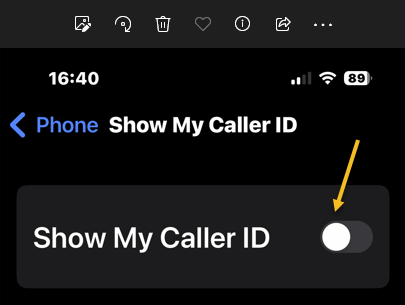
Settings > Phone > Show My Call ID

You might have to wait a short while until the toggle appears. Toggle the switch to OFF. Refer to the below image:

Block 1
Disable showing Caller ID

The feature can come in handy if you are using your personal phone number for work-related calls and do not want others to find out your number. But it can be a hassle if you forget to reenable it when calling family and friends. They will see No Caller ID appear on their devices and might not pick up.

The same warning applies to Android. You can block your phone number on Android phones just as easily as on iPhones. But you will have to remember to unblock it for your closest contacts to see your Caller ID.

To hide your phone number on Android, go to:

Phone > Setting > Calls and Additional Settings > Hide Number

and toggle the switch to OFF.

Repeat the steps to reenable the Caller ID on your Android phone when you are done blocking access to it.

While we are at it, we will remind you there are ways to deal with spammy No Caller IDs on iPhone and Android and ensure they are not too big a hassle for you. Check a related post below to avoid no Caller ID calls.

RELATED

Block No Caller ID

Disclaimer

Technology is always changing and rarely is there static tech for smartphones and desktops. Thus, the contents of this post are only valid at the time of writing. Blog posts older than six months may have directions incompatible with your device or OS. Hopefully, older post content will continue to work as advertised. Thank you for reading TechSavvy.Life for Technology at Work For You.

When you innovate, you’ve got to be prepared for people telling you that you are nuts.

Larry Ellison

That’s it. Please feel free to share this post! One way to share is via Twitter.

Just click the Tweet icon below. This will launch Twitter where you click its icon to post the Tweet.

Checkout TechSavvy.Life for blog posts on smartphones, PCs, and Macs! You may email us at contact@techsavvy.life for comments or questions.

Please feel free to leave a comment. I would love to hear from you. Do you have a computer or smart device tech question? I will do my best to answer your inquiry. Just send an email to contact@techsavvy.life. Please mention the device, app, and version you are using. To help us out, you can send screenshots of your data related to your question.

You can access the e-book from a Kindle device, the Kindle App for the desktop or smartphone, which is a free app.

The author’s Vietnam eBook on the Battle for Tra Bong Vietnam: Events and Aftermath

How to Reverse Image Search With Google Images

Google Image Search allows users to perform a reverse image search by either using a URL from a website or a local image on your device. To do so, paste the image’s URL or upload the image file onto the Google Images search bar. Google will then provide visually similar images and may also help identify the original source of the image. However, pinpointing the exact origin of the image may not always be successful.

RAYMOND OGLESBY @RaymondOglesby2
October 10, 2023

This is for devices using Google. Screenshots are from Windows 10

Google Image Search is a great way to find images similar to one you already have or to help you track down the original source of a photo. Let’s find out how to do a reverse image search.

If you would like to search for an image that appears on a website, you can paste the URL into the Google Images search bar; drag and drop an image or browse your files. We will show you how to do both.

For the first method, you need the URL of the image itself, not just the address for the page on which the image appears. The easiest way to grab that URL is to right-click the image and select the Copy image address. Refer to the below image:

Google Image 1
Selecting the Copy image address option

Next, with the URL in your clipboard, head to Google Images and click the Google Lens icon. See the below image:

Google Image 6
Selecting the Google Lens icon

Now, in the Paste image link text box, paste the URL you copied earlier and click Search. See the following image:

Google Image 3
Paste the image link

Next, you will see visually similar images in the right sidebar, and you can click Find image source to see where the image originated from. Keep in mind that this is not an exact science. Google often can not find the source, if there is one. Refer to the below image:

Google Image 4
Selecting Find image source

Now, if there’s a specific part of the image you would like to search for, you can use the handles to adjust which part of the image is selected. See the below image:

Google Image 5
Find image source by using the handles

That’s it! This is definitely the easiest method for searching Google with images. There are also ways to do reverse image searches on Android and iPhone or iPad.

To search Google Images with a local image you already have; maybe one you downloaded from the web; use the Google Lens icon in the Google Images search bar. You will be able to drag and drop an image or browse your files.

First, head on over to the Google Images page and click the Google Lens icon. See the following image:

Google Image 6
Selecting the Google Lens icon

Next, you can either drag an image from another window; such as the file explorer; or click upload a file to browse for photos on your computer. Refer to the below image:

Google Image 8
Selecting to drag and drop an image or upload a file

Now, after the image uploads, you will be brought to a page with visually similar images in the right sidebar. Click Find image source to see where the image originated from. One thing to note is with images that have not been grabbed from the web, it’s not as easy to find the original source. See the below image:

Google Image 4
Selecting Find image source

Next, if there’s a specific part of the image you would like to search for, you can use the handles to adjust which part of the image is selected. See the following image:

Google Image 5
Find image source by using the handles

How about that! This is a great way to find similar images, or maybe you want to find different sizes of an image you already have. Google Search is a powerful tool, and Google Lens drives a lot of image-related search functions. It’s a pretty impressive tool in itself.

Disclaimer

Technology is always changing and rarely is there static tech for smartphones and desktops. Thus, the contents of this post are only valid at the time of writing. Blog posts older than six months may have directions incompatible with your device or OS. Hopefully, older post content will continue to work as advertised. Thank you for reading TechSavvy.Life for Technology at Work For You.

When you want to succeed as bad as you want to breathe, then you’ll be successfull.

Eric Thomas

That’s it. Please feel free to share this post! One way to share is via Twitter.

Just click the Tweet icon below. This will launch Twitter where you click its icon to post the Tweet.

Checkout TechSavvy.Life for blog posts on smartphones, PCs, and Macs! You may email us at contact@techsavvy.life for comments or questions.

Please feel free to leave a comment. I would love to hear from you. Do you have a computer or smart device tech question? I will do my best to answer your inquiry. Just send an email to contact@techsavvy.life. Please mention the device, app, and version you are using. To help us out, you can send screenshots of your data related to your question.

The author’s Vietnam eBook on the Battle for Tra Bong Vietnam: Events and Aftermathsd

What Is the Green Dot on Facebook and Messenger

Wondering why Facebook displays a green dot on someone’s profile picture, in the Messenger app, and next to the camera icon in Messenger? What the green dot means is context-dependent.

RAYMOND OGLESBY @RaymondOglesby2
September 19, 2023

This is for mobile devices and desktops using Facebook and Messenger. Screenshots are from Windows 10

Wondering why Facebook displays a green dot on someone’s profile picture, in the Messenger app, and next to the camera icon in Messenger? What the green dot means is context-dependent. Let’s decode this green dot.

Key Points

  •  The green dot on someone’s Facebook profile picture indicates that they are active on the Facebook platform, whether on the site, through the app, or on the Messenger app.
  •  In Facebook Messenger, the green dot next to people’s profile pictures confirms that they are currently active on Facebook, either through Messenger, the app, or the site.
  •  A green dot next to the camera icon in Messenger means that the user is available for a video call.
  • Disable the feature so others do not know you are active on Facebook or Messenger.

Green Dot on Facebook

On Facebook’s desktop site or mobile app, when you visit someone’s profile page, you might have seen a green dot. This green dot indicates that the user is active on the Facebook platform. Refer to the below image:

Green Dot 1
The user is active on the Facebook platform

The dot does not necessarily mean the user is active on the Facebook site. The user may be using the Facebook app or even the Messenger app. But if you see it, it means the user is active somewhere within the Facebook network and it can stand in as an online indicator.

Green Dot on Messenger

While scrolling chat lists in the Messenger app, you may have seen green dots appearing in the bottom-right corner of people’s profile pictures. These green dots indicate that those users are currently active on Facebook. See the below image:

Green Dot 2

Those users may be active on Messenger, the Facebook app, or the Facebook site. The dot just indicates that they are active somewhere on the Facebook platform.

Green Dot Next to Camera Icon on Messenger

When you see a green dot next to the camera icon in the Messenger app, it means that the user is available for a video call in the app. This indicator is separate from the profile picture indicator we discussed in the previous two sections and only references video call availability. See the following image:

Green Dot 3
The user is available for a video call

So when you see the camera-adjacent green dot you know the user has Messenger installed, and it’s possible for you to initiate a video call with them.

Disable Active Status on Desktop Facebook Website

  1. In a browser, log in to Facebook and then click the Messenger icon in the top-right corner of the page.
  2. Click the Menu icon (three dots)  at the top of the chats window.
  3. Click Active Status.
  4. Toggle off the switch next to Active Status: ON to disable it. The switch will be turned OFF.

You can enable the Active Status at any time. by toggling the switch to the ON position.

Note! A couple of additional options in the Active Status window allow you to appear active for some friends, but not others, and vice versa. Simply tap the edit button to select which friends you want to include in either list. Refer to the below image:

Green Dot 4
Active Status options

You can disable the feature on your mobile device but it’s more complicated.

Disclaimer

Technology is always changing and rarely is there static tech for smartphones and desktops. Thus, the contents of this post are only valid at the time of writing. Blog posts older than six months may have directions incompatible with your device or OS. Hopefully, older post content will continue to work as advertised. Thank you for reading TechSavvy.Life for Technology at Work For You.

Quote For the Day

When you find an idea that you just can’t stop thinking about, that’s probably a good one to pursue.

Josh James

Tweet Info

You are finished. Please feel free to share this post! One way to share is via Twitter.

Just click the Tweet icon below. This will launch Twitter where you click its icon to post the Tweet.

Checkout TechSavvy.Life for blog posts on smartphones, PCs, and Macs! You may email us at contact@techsavvy.life for comments or questions.

I Would Like to Hear From You

Please feel free to leave a comment. I would love to hear from you. Do you have a computer or smart device tech question? I will do my best to answer your inquiry. Just send an email to contact@techsavvy.life. Please mention the device, app, and version you are using. To help us out, you can send screenshots of your data related to your question.

Author’s E-Book

You can access the e-book from a Kindle device, the Kindle App for the desktop or smartphone, which is a free app.

The author’s Vietnam eBook on the Battle for Tra Bong Vietnam: Events and Aftermath

How to Hide and Unhide Spotify Songs

If you do not wish to listen to certain songs or hide those songs so they do not play when you are using Spotify, we will show you how. You can unhide your songs in the future if you change your mind.

RAYMOND OGLESBY @RaymondOglesby2
September 12, 2023

This is for iPhone and Android. Screenshots are from iPhone 14 Pro running iOS 16+ and Windows 10

If you do not wish to listen to certain songs or hide those songs so they do not play when you are using Spotify, we will show you how. You can unhide your songs in the future if you change your mind.

Note: You can not hide songs in your own playlists. If you do not want a specific song in your playlist, simply remove it from the list.

Hide Songs on Spotify

To hide a song so it does not play when you are listening to your music, use the following steps in the Spotify app on your iPhone or Android phone.

First, launch Spotify on your phone and find the music track to hide. Then, next to the song, tap the three dots (the Menu icon). Refer to the below image:

Spotify 1
Accessing the Menu of the song to Hide

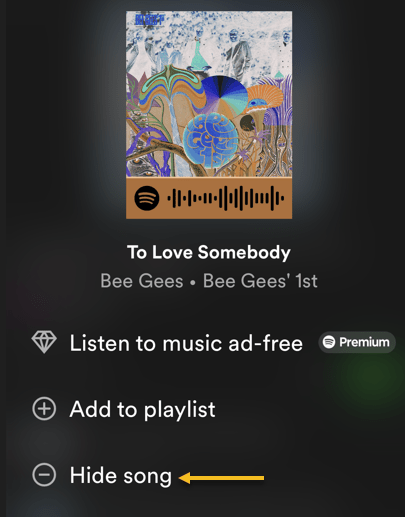
Next, in the menu that opens, select Hide Song. See the below image:

Spotify 2
Selecting the option to Hide your song

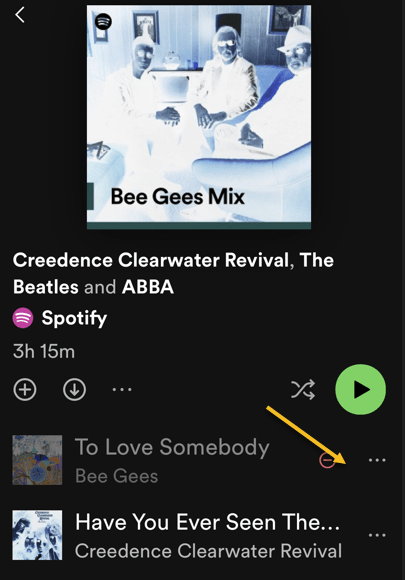
Now, Spotify will immediately hide your song in your list. See the following image:

Spotify 3
Your hidden song is greyed out

Unhide Songs on Spotify

If you have changed your mind about a song and want to unhide that song, follow the following steps to see your hidden songs and unhide them.

First, open Spotify on your phone. Then, find the playlist or album where you hid your song.

Next, find your hidden song (which will be grayed out), and next to that song, tap the three dots (the Menu icon). Refer to the below image:

Spotify 4
Accessing the Menu to unhide a song

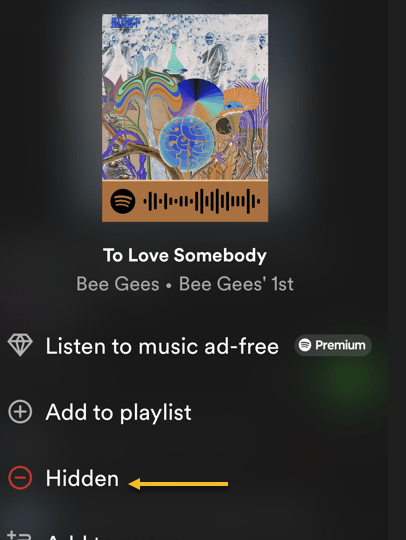
Now, in the open menu, select Hidden. See the below image:

Spotify 5
Selecting the option to unhide your song

Now, Spotify will unhide your song, allowing you to tap and play it. See the following image:

Spotify 6
Your hidden song is now visible


For Desktop Only

You can not hide songs on Spotify’s desktop and web versions. Only the platform’s mobile app allows you to hide and unhide songs, as of this writing.

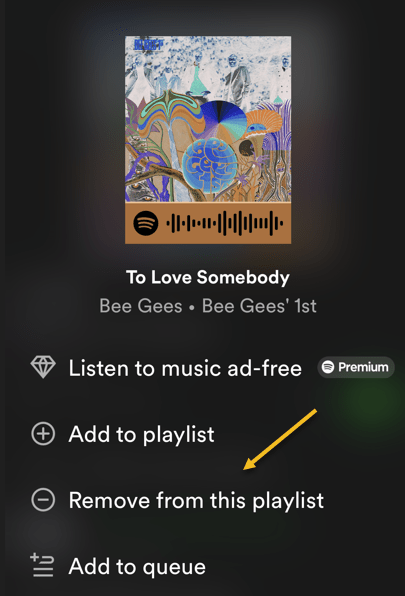
If you have an unwanted song in your playlist (not a Spotify sample playlist), remove it from your list and the app will not play it. To do that, access your playlist and find that song. Next to the song, click the three dots (the Menu icon) and choose Remove from this playlist. See the following image:

Spotify 7
Selecting to remove your song on the desktop

Spotify will remove the selected song from your playlist, and you are all done.

Disclaimer

Technology is always changing and rarely is there static tech for smartphones and desktops. Thus, the contents of this post are only valid at the time of writing. Blog posts older than six months may have directions incompatible with your device or OS. Hopefully, older post content will continue to work as advertised. Thank you for reading TechSavvy.Life for Technology at Work For You.

Quote For the Day

“Motivation is what gets you started. Habit is what keeps you going.

Jim Rohn

Tweet Info

That’s it. Please feel free to share this post! One way to share is via Twitter.

Just click the Tweet icon below. This will launch Twitter where you click its icon to post the Tweet.

Checkout TechSavvy.Life for blog posts on smartphones, PCs, and Macs! You may email us at contact@techsavvy.life for comments or questions.

I Would Love to Hear From You

Please feel free to leave a comment. I would love to hear from you. Do you have a computer or smart device tech question? I will do my best to answer your inquiry. Just send an email to contact@techsavvy.life. Please mention the device, app, and version you are using. To help us out, you can send screenshots of your data related to your question.

Author’s E-Book

You can access the e-book from a Kindle device, the Kindle App for the desktop or smartphone, which is a free app.

The author’s Vietnam eBook on the Battle for Tra Bong Vietnam: Events and Aftermath