

RAYMOND OGLESBY @RaymondOglesby2
August 4, 2026 – 4 minutes read time
Overview
App developers tend to release updates frequently, whether it be to fix bugs or add new features. Keeping your apps up to date ensures you have the latest stable version compatible with your iOS version.
You can update your apps through the App Store. You can change your settings to update all apps automatically, or you can check which updates are available for your apps and download them manually.
.If you are wondering how to update apps on your iPhone all at once, this article is for you. Continue reading to find out how.
Key Takeaways
- Update all your apps at once instead of manually updating one at a time.
- Force apps to install the latest updates if they are out of date.
System Requirements
This tip was performed on an iPhone 17 Pro running iOS 26.5.
Click here to learn how to update your iPhone to the latest iOS version.
Update All Apps
- Open the App Store. Refer to the image below:

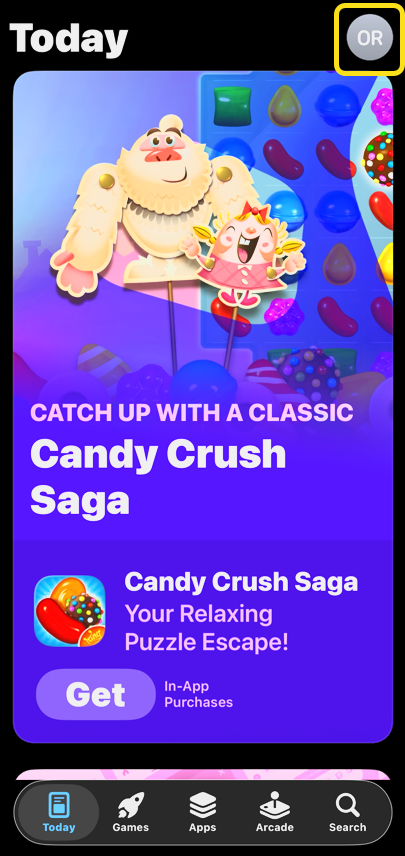
2. Tap your profile icon at the top of the page. See the image below:
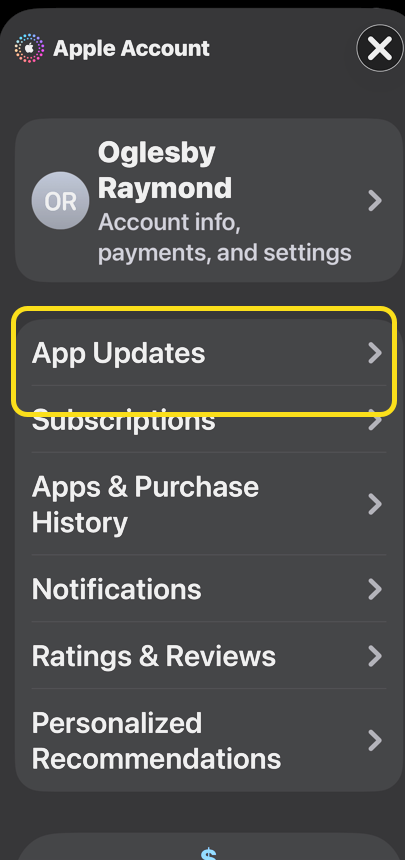
3. Tap App Updates. See the following image:
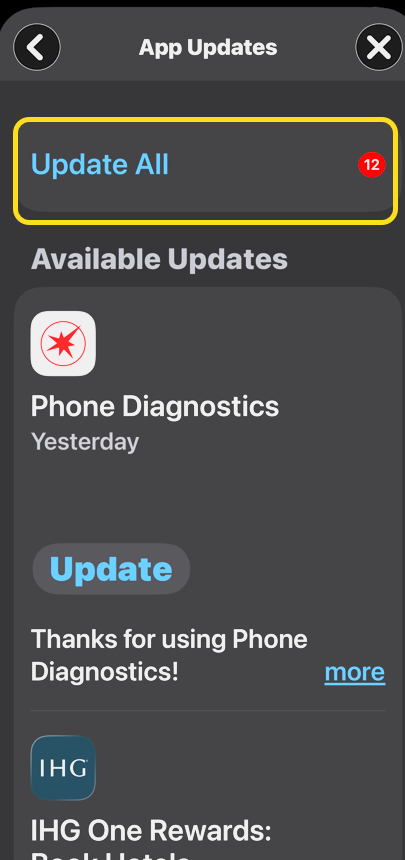
4. The apps you need to update will be listed under Available Updates or Upcoming Automatic Updates. Update all your apps at once by tapping Update All. Refer to the image below:
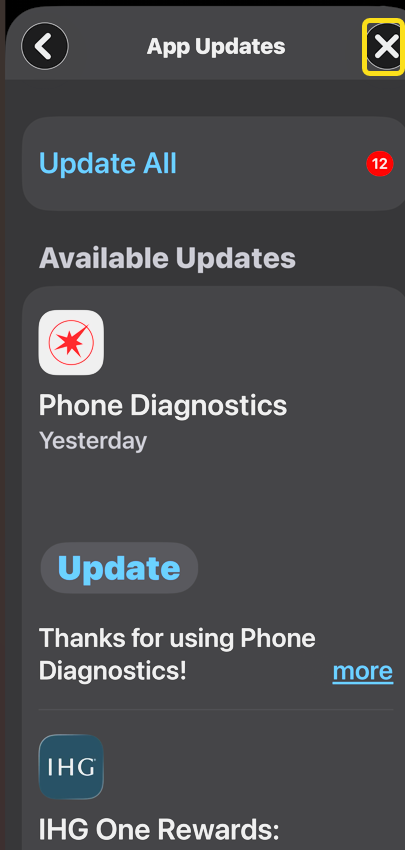
5. Tap the X icon to close this screen. Your apps will continue updating in the background. See lthe image below:
Now, you can update all apps on your iPhone whenever you want. All the apps will begin downloading their updates, and you will be good to go!
Update Apps Manually
However, if you decide you do not like having your apps update automatically, you can also update your iPhone apps manually.
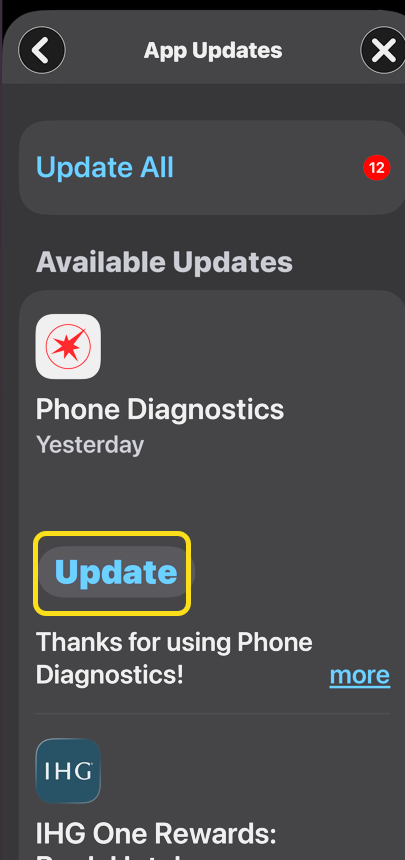
6. To do this, in step 4 above, tap the Update option for a particular app. See the following image:
Hands-Off App Uodates
Instead of checking for app updates, you can set your Settings to hands-off app updates.
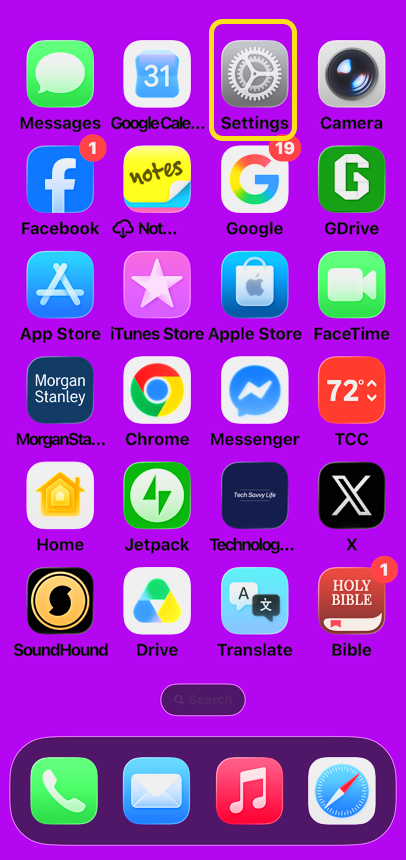
7. Open the Settings app. Refer to the image below:
8. Scroll to the bottom and tap Apps. See the image below:

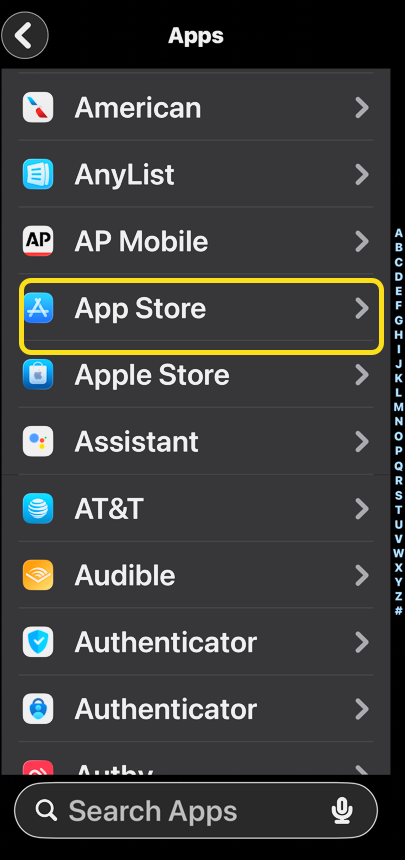
9. Tap App Store (not the Apple Store). See the following image:
10. Under the Automatic Downloads section, toggle ON for App Downloads, App Updates, and In-App Content. The three toggles will turn green. Now, all your apps will begin downloading their updates in the background. You may now exit Settings.
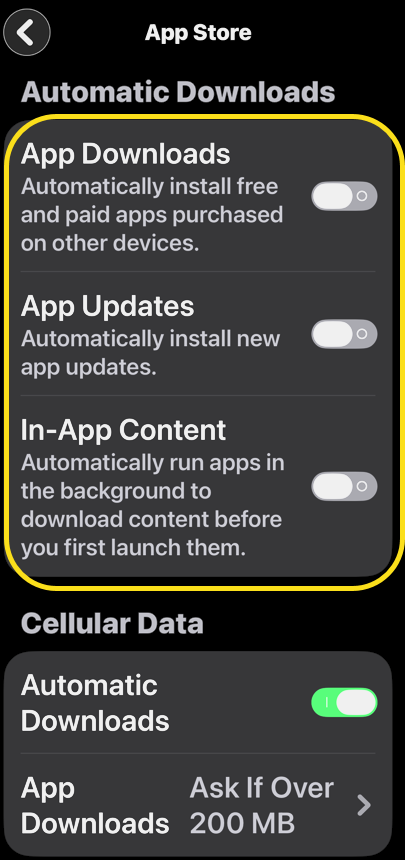
To us, this is by far the most convenient way to keep your apps up to date.
Disclaimer
Technology is constantly evolving, and smartphone and desktop tech rarely remains static. Therefore, the information in this post is only accurate as of the date it was written. Blog posts that are older than six months may contain instructions that are no longer compatible with your device or operating system. We hope that the content from previous posts continues to function as intended. Thank you for reading TechSavvy.Life, where technology works for you.
Quote For the Day
Once a new technology rolls over you, if you’re not part of the steamroller, you’re part of the road.
– Stewart Brand
(X) Twitter Info
That was easy. Please feel free to share this post! One way to share is via Twitter.
Just click the Tweet icon below. This will launch Twitter where you click its icon to post the Tweet.
Checkout TechSavvy.Life for blog posts on smartphones, PCs, and Macs! You may email us at contact@techsavvy.life for comments or questions.
Tweet
I Would Like to Hear From You
We value your feedback! Was this post helpful? Please share your comments with us. If you have a tech question related to your computer or smart device, feel free to reach out. Just send an email to contact@techsavvy.life, and be sure to include the device, app, and version you are using. To assist us further, you can also attach screenshots related to your inquiry.
The author’s Vietnam eBook, “Battle for Tra Bong Vietnam: Events and Aftermath”, is available on Kindle devices and the Kindle App for desktop, laptop, and smartphone. The apps are free.

