How to Batch Rename Multiple Files in Windows 10

On Windows 10, the process to rename a single file is easy, but it can become troublesome quickly when trying to change the name (or extension) to a long list of files within a folder.

On Windows 10, the process to rename a single file is easy, but it can become troublesome quickly when trying to change the name (or extension) to a long list of files within a folder.

Although, you can always built-in Windows 10 various tools to change the name of files like File Explorer, Command Prompt, and PowerShell, we are going to use another Microsoft tool, the PowerRename module in PowerToys.

This is for Windows 10

Dilbert and Audit
Copyright Scott Adams, Inc./Distributed by Universal Uclick for UFS

PowerRename Module in PowerToys

The PowerRename module is part of the free PowerToys. To download PowerToys from the Microsoft website, visit this link in your favorite browser and look for the latest release toward the top of the page. Download that file and run it to install the app

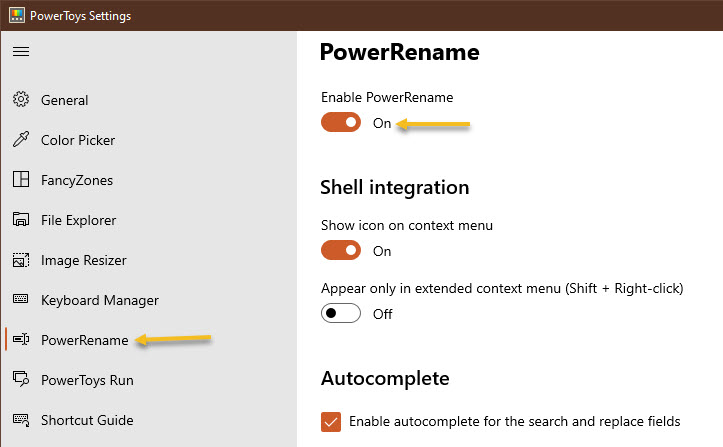
Once installed, an icon will be placed in your Tray Bar. Click on the icon to run PowerToys. Now, launch PowerToys Settings, and click PowerRename in the sidebar. Next, ensure that the switch beside Enable PowerRename is turned on. Refer to below image:

Rename 1
Enabling PowerRename

Now, close the PowerToys Settings window.

Renaming Options

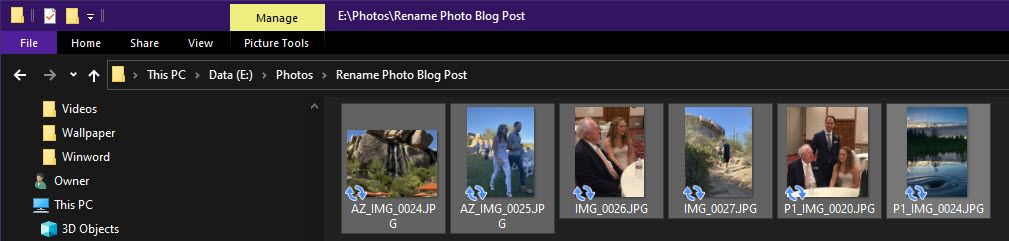
Now that you have the app installed, renaming a bunch of files is as easy as a right-click a menu choice. First, locate the files that you want to rename in File Explorer or on the desktop and select them. See below image:

Rename 2
Photos to be renamed

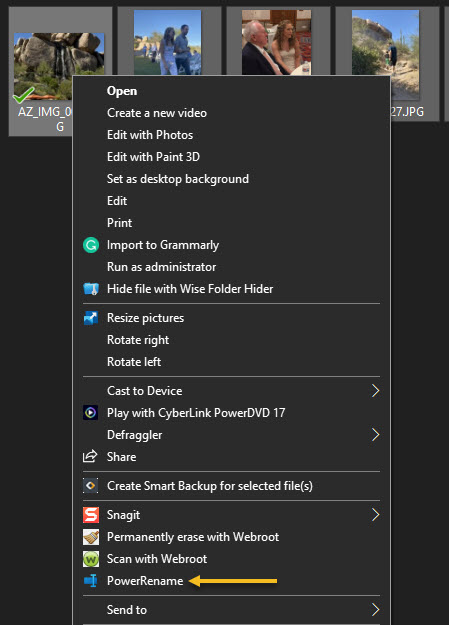
Then right-click the files and select PowerRename from the menu that appears. See following image:

Rename 3
Selecting PowerRename

The PowerRename pop-up window will open. Refer to below image:

Rename 4
The PowerRename window

First, enter the criteria that will determine what gets renamed. By default, PowerRename works with simple search-and-replace functionality. In the first text box, type a search term. On the next line, enter what you want to replace it with. PowerRename will replace the first occurrence (or every occurrence if you check a box) of that term in all of the file names you have selected with the replacement text.

Here is an example where “P1_” in each file name has been replaced with “Photo_.” The neat thing is that PowerRename provides a preview of what the renamed files will look like right there in the window. That way, you do not have to guess what the result might be. See below image:

Rename 5
Selecting the criteria for the rename

Near the middle of the window, you will see other options that change how PowerRename works. Consider each one and place a checkmark beside those that you want to use. Here is what each option does:

  • Use Regular Expressions: This allows the use of powerful search strings known as regular expressions which can enable very in-depth or complex search-and-replace operations.
  • Case Sensitive: This option makes searches sensitive, whether the letters are capital or lowercase. For example, the term “cat” would match different results than “Cat.”
  • Match All Occurrences:Normally, only the first instance of the search term is replaced (from left to right). With this checked, all instances of the search term will be replaced.
  • Exclude Files: If this is checked, the operation will only apply to folders and not files.
  • Exclude Folders: If this is checked, the operation will only apply to files and not folders.
  • Exclude Subfolder Items: This excludes items in selected sub-folders from rename operations. For example, if you select a directory that has files within sub-folders, those will not be affected.
  • Enumerate Items: This will add a number, counting upward, to the end of each file that is renamed.
  • Item Name Only: If checked, the operation will only apply to the file or folder’s name and not its extension.
  • Item Extension Only: If checked, the operation will only apply to the file or folder’s extension and not its name.

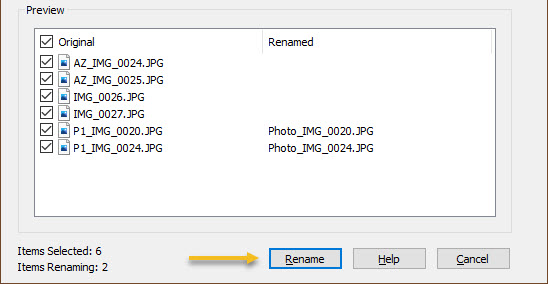
When you are ready, click the Rename button, and PowerRename will perform the operation you have specified. See following image:

Rename 6
Selecting the Rename butoon to rename your file(s)

If you do not like the result, you can press Ctrl+Z in File Explorer to undo the rename process. A very handy shortcut to undo your change.

A Practical Example

What if you do not want to just replace a word in a file, but rather, you would like to replace the entire filename with something completely new? In that case, you would want a wildcard to match all of the files you have selected. To do that, you will need to use a very simple, regular expression, “.*”, which means “everything.”

In the below example, we are going to replace all file names selected with a base file name that gets progressively numbered. First, enter “.*” in the Search for box, then enter the name you would like to use in the Replace with box. Then check Use Regular Expressions, Enumerate Items, and Item Name Only. Refer to below image:

Rename 7
A Rename example

Now, you will end up with a series of similarly named files that are numbered in sequential order. When you are done setting it up, click Rename, and the operation will finish.

You are finioshed. Please feel free to share this post! One way to share is via Twitter.

Just click the Tweet icon below. This will launch Twitter where you click its icon to post the Tweet.

Check out TechSavvy.Life for blog posts on smartphones, PCs, and Macs! You may email us at contact@techsavvy.life for comments or questions.

I Would Like to Hear From You

Please feel free to leave a comment. I would love hearing from you. Do you have a computer or smart device tech question? I will do my best to answer your inquiry. Just send an email to contact@techsavvy.life. Please mention the device, app and version that you are using. To help us out, you can send screenshots of your data related to your question.


The author’s Vietnam eBook on the Battle for Tra Bong: Events and Aftermath

How to Disable ‘Meet Now’ in Windows 10

Meet Now in Windows 10 is a new feature that allows users to host and attend meetings remotely using Skype. Microsoft quietly introduced this feature in Windows 10. It was released to the general public in version “20H2” in October 2020.

Meet Now in Windows 10 is a new feature that allows users to host and attend meetings remotely using Skype. Microsoft quietly introduced this feature to the Windows 10 taskbar. It was released to the general public in version “20H2” in October 2020.

Since the feature was announced, folks have had mixed feelings about Microsoft’s approach, with some users calling ‘Meet Now’ bloatware. Author Note! Unless you have and use Skype, there is no reason to store the icon in your taskbar. With that said, let’s explore how to hide or disable this feature.

This is for devices running Windows 10

Dilbert and Call
Copyright Scott Adams, Inc./Distributed by Universal Uclick for UFS

The Meet Now

The Meet Now icon looks like a small video camera symbol with curved lines above and below it. By default, it appears in the notification area of the Windows 10 taskbar. Refer to below image:

Meet Now 1
The Meet Now icon in your taskbar

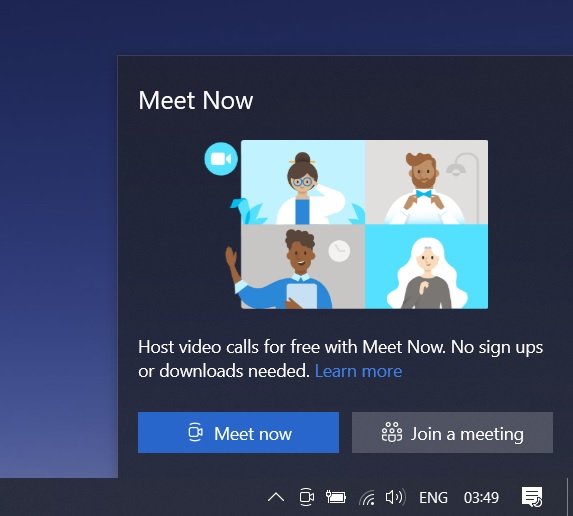
When clicked, the Meet Now button opens a small pop-up window that includes links to start or join meetings using Skype, a teleconferencing service owned by Microsoft. See below image:

Meet Now 2
The Meet Now window

If you do not have the Skype application installed, both links open the Skype website in your default web browser. If you do have Skype installed, the links will open the Skype application. There is no ‘Meet Now’ application.

How to Hide Meet Now

To hide the Meet Now icon, right-click it and select Hide from its context menu. See following image:

Meet Now 3
Hiding the Meet Now icon

The Meet Now icon in the taskbar will disappear. It will not reappear unless you enable it again (see the section at the end). This action effectively “disables” Meet Now, since the button is merely a set of links to Skype.

How to Disable Meet Now

First, launch Settings by clicking the gear icon in your Start menu (in lower left-hand corner) or by pressing Windows + I on your keyboard. Refer to below image:

Meet Now 4
Accessing Settings

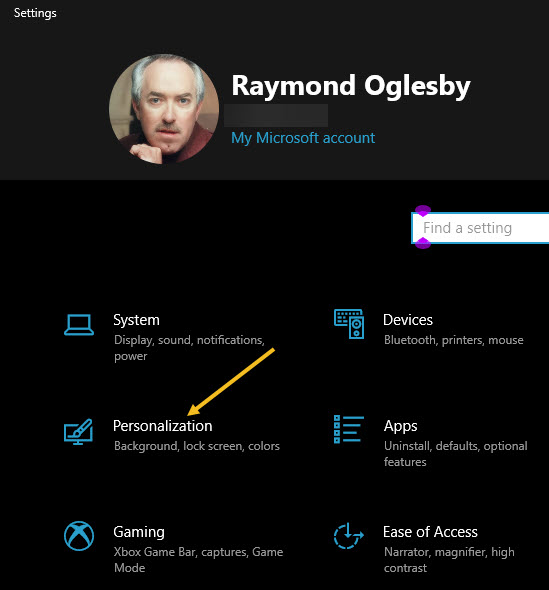
Next, click the Personalization option. See below image:

Meet Now 5
Accessing the Personalization option

Now, click the Taskbar option. See following image:

Meet Now 6
Accessing the Taskbar option

Next, in the Taskbar settings menu, scroll down and locate the Notification Area section and then click the Turn system icons on or off link. Refer to below image:

Meet Now 7
Accessing the Turn system icons on or off link

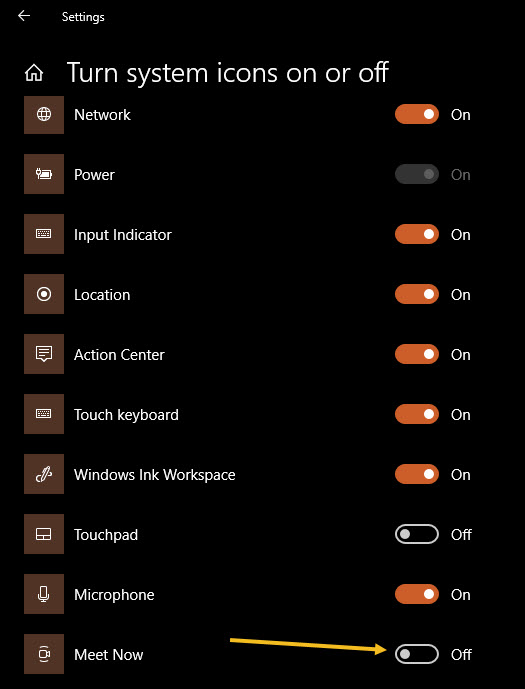
On this page, locate the Meet Now option (usually at the bottom right of your screen) and toggle the switch to turn it Off. See below image:

Meet Now 8
Disabling the Meet Now option

Now, the Meet Now icon will be disabled.

How to Restore Meet Now

If you have hidden or disabled the Meet Now button and you would like to see it again, open Settings by clicking the gear icon in your Start menu (in lower left-hand corner) or by pressing Windows + I on your keyboard. Now, navigate to

Personalization > Taskbar > Turn system icons on or off

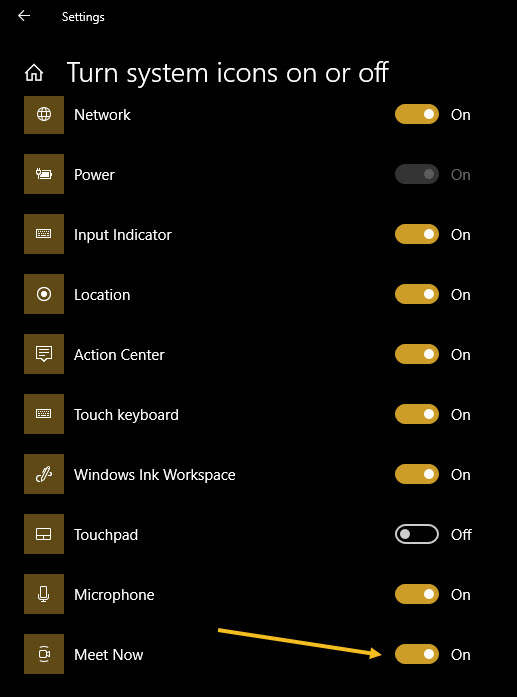
Next, flip the toggle beside Meet Now (usually at the bottom right of your screen) to turn it On. See following image:

Meet Now 9
Enabling the Meet Now option

The Meet Now icon will appear in the taskbar immediately, and it will remain there unless you hide or disable it again.

You are done with the Meet Now feature. Please feel free to share this post! One way to share is via Twitter.

Just click the Tweet icon below. This will launch Twitter where you click its icon to post the Tweet.

Check out TechSavvy.Life for blog posts on smartphones, PCs, and Macs! You may email us at contact@techsavvy.life for comments or questions.

I Would Like to Hear From You

Please feel free to leave a comment. I would love hearing from you. Do you have a computer or smart device tech question? I will do my best to answer your inquiry. Just send an email to contact@techsavvy.life. Please mention the device, app and version that you are using. To help us out, you can send screenshots of your data related to your question.
The author’s Vietnam eBook on the Battle for Tra Bong: Events and Aftermath

How to See Thumbnails of Open Windows in Windows 10

Windows 10 includes a number of ways to manage application windows. One of them is Task View, a built-in feature that shows thumbnails of all your open windows.

Windows 10 includes a number of ways to manage application windows. One of them is Task View, a built-in feature that shows thumbnails of all your open windows.

While using Windows 10, it’s easy to see thumbnails of all your open windows. Lets explore how to view your thumbnail in Windows 10.

This is for devices running Windows 10

Dilbert and Work
Copyright Scott Adams, Inc./Distributed by Universal Uclick for UFS

Open Task View

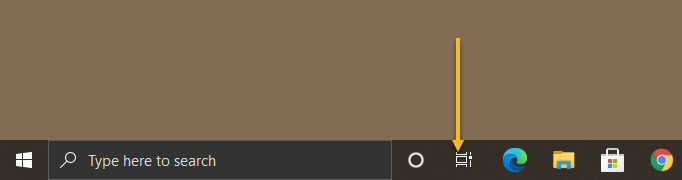
Click the Task View button on your taskbar, which is located just to the right of the Start button. Or you can press Windows+Tab keys on your keyboard. Refer to below image:

Task View 1
Launch Task View

If you can not find the button, right-click the taskbar and enable Show Task View Button in the context menu. See below image:

Task View 3
Show Task View

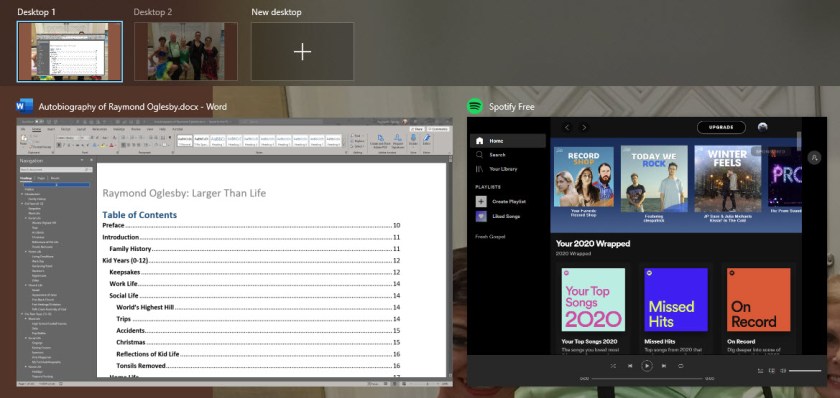
Once Task View opens, you will see thumbnails of every window you have open, and they will be arranged in neat rows. See following image:

Task View 2
Your open Windows 10 screens

Manage Task View

While open, use your keyboard’s arrow keys to select the window you want to view, then press the Enter key. Or you can just click the thumbnail with your mouse.

If the window you selected was already open, Windows 10 will open it in front of all other open windows. If it was minimized it will be restored and brought to the foreground.

If you want to close a window, hover over its thumbnail with your mouse until the “X” button appears, then click it. Alternately, you can select the window using your cursor keys and press the Delete key to close it. Refer to below image:

Task View 4

Close Task View

To close Task View and return to the desktop, just click any blank area of the screen or press the Escape key.

You are finished. Please feel free to share this post! One way to share is via Twitter, as mentioned below.

Just click the Tweet icon below. This will launch Twitter where you click its icon to post the Tweet.

Check out TechSavvy.Life for blog posts on smartphones, PCs, and Macs! You may email us at contact@techsavvy.life for comments or questions.

I Would Like to Hear From You

Please feel free to leave a comment. I would love hearing from you. Do you have a computer or smart device tech question? I will do my best to answer your inquiry. Just send an email to contact@techsavvy.life. Please mention the device, app and version that you are using. To help us out, you can send screenshots of your data related to your question.
The author’s Vietnam eBook on the Battle for Tra Bong: Events and Aftermath

How to Enable Edge’s InPrivate Mode for an Extension

Microsoft Edge is the default web browser app in Windows 10. It’s a universal Store app which has extension support, a fast rendering engine, and a simplified user interface. If you are using its InPrivate feature frequently, you might want to enable your favorite extensions in private mode.

Microsoft Edge is the default web browser app in Windows 10. It’s a universal Store app which has extension support, a fast rendering engine, and a simplified user interface. If you are using its InPrivate feature frequently, you might want to enable your favorite extensions in private mode.

By default, Microsoft Edge disables extensions in InPrivate mode to prevent unintentional privacy leaks. But sometimes you might need to use an extension while staying private.

The browser allows making specific extensions available in InPrivate mode. This can be done for each extension individually. Let’s explore how to do this.

This is for devices using Edge in Windows 10

Dilbert and Home
Copyright Scott Adams, Inc./Distributed by Universal Uclick for UFS

First, open Edge. Now, in any Edge window, click the menu button (the three dots in upper right-hand corner) and select Extensions. Refer to below image:

Edge 1
Accessing Extensions

Next, in the Extensions tab, you will see a list of extensions you have installed, and each will have its own box. Now, locate the extension you would like to enable in InPrivate mode and click its Details link. See below image:

Edge 2
Accessing an installed Extension details

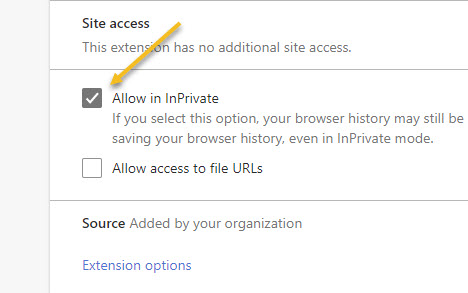
Now, on the Details screen for the extension, scroll down and check the box beside Allow in InPrivate. This will enable the extension to be used during private browsing.

Note! After checking this box, the extension could potentially collect and share your browsing history with a third party, so be sure you trust the extension before turning this feature on. See following image:

Edge 3
Enabling InPrivate browsing for an installed Extension

The change will take effect immediately. If you would like to use other extensions while private browsing, press back once to return to the Extensions screen and repeat these steps with each extension you would like to enable in InPrivate mode.

When you are done, close the Extensions tab. The next time you open an InPrivate window, you will notice that the extensions you enabled now work in that window too.

You are finished. Please feel free to share this post! One way to share is via Twitter.

Just click the Tweet icon below. This will launch Twitter where you click its icon to post the Tweet.

Check out TechSavvy.Life for blog posts on smartphones, PCs, and Macs! You may email us at contact@techsavvy.life for comments or questions.

I Would Like to Hear From You

Please feel free to leave a comment. I would love hearing from you. Do you have a computer or smart device tech question? I will do my best to answer your inquiry. Just send an email to contact@techsavvy.life. Please mention the device, app and version that you are using. To help us out, you can send screenshots of your data related to your question.
The author’s Vietnam eBook on the Battle for Tra Bong: Events and Aftermath

How to Easily Open Chrome to Incognito Mode

If you do not want Google Chrome to remember your activity, you can browse the web privately in Incognito mode.

If you do not want Google Chrome to remember your activity, you can browse the web privately in Incognito mode.

It is easy to quickly open an Incognito window using a keyboard shortcut. Lets explore how to do this.

This is devices running Google Chrome

Dilbert and Class
Copyright Scott Adams, Inc./Distributed by Universal Uclick for UFS

First, open Chrome. Next, with any Chrome browser window open, press the following keyboard combination to open a new Incognito window:

  • Windows, Linux, or Chrome OS: Press Ctrl + Shift + N.
  • Mac: Press ⌘ + Shift + N.

After pressing the keyboard shortcut, a special Incognito window will open. If you want to block third-party cookies, just toggle the switch to On, the default setting. Refer to below image:

Incognito 1
The Incognito window

Whenever you are in Incognito mode, you will be able to tell because the Chrome browser window’s toolbar will have a darker color scheme and there will be a small Incognito icon beside the address bar in the toolbar. See below image:

Incognito 2
The icon and text telling you are in Incognito mode

You can switch between Incognito windows and regular Chrome windows. You will only browse in private when you are using an Incognito window.

While browsing within an Incognito window, Chrome will not locally store your browsing history, site data, cookies, or saved form data once you close the Incognito window. However, downloaded files and bookmarks will be saved unless you manually remove them.

At any time, you can press Ctrl+T (or ⌘ + T on Mac) to open a new tab within the Incognito window, and browsing activity within that tab will be locally private as well.

Remember that Incognito mode is not perfect, and it does not protect you from those who might view your activity on the web remotely, such as your employer, school, ISP, or the websites you visit. It is only to prevent local snooping of your browsing history.

If you see a number next to the Incognito text at the top right, you have more than one Incognito window open. See following image:

Incognito 3
The number of Incognito windows open

When you are ready to stop private browsing, you will need to close the Incognito window(s). To do so using a keyboard shortcut:

  • Windows, Linux, or Chrome OS: Press Alt + F4
  • Mac: Press ⌘ + Shift + W

Or you can just click the “X” in the corner of the window with your mouse.

That’s it. Please feel free to share this post! One way to share is via Twitter, as mentioned below.

I hope you have found this post helpful. If so, click the Tweet icon below. This will launch Twitter where you click its icon to post the Tweet.

Check out TechSavvy.Life for blog posts on smartphones, PCs, and Macs! You may email us at contact@techsavvy.life for comments or questions.

I Would Like to Hear From You

Please feel free to leave a comment. I would love hearing from you. Do you have a computer or smart device tech question? I will do my best to answer your inquiry. Just send an email to contact@techsavvy.life. Please mention the device, app and version that you are using. To help us out, you can send screenshots of your data related to your question.
The author’s Vietnam eBook on the Battle for Tra Bong: Events and Aftermath

How to Change Your Display Name In Gmail

Gmail allows you to change the name that is associated with your email address. Your display name and your email address will show up when you send an email from your Gmail account.

Gmail allows you to change the name that is associated with your email address. Your display name and your email address will show up when you send an email from your Gmail account.

Your Google username is what pops up whenever you send someone an email. It is how people identify you, and how they know that it is okay to open those messages, even if your email address does not include your full name or another way of identifying who you are.

Keep in mind that changing your username is not the same as changing your email address; you would need to create a new account for that.

Before diving in, keep in mind that this action is not yet supported on mobile devices like Android, iPhone, or iPad. This can only be done on your desktop/laptop browser and you have to be logged into your Gmail account to get started.

This is for the PC

Dilbert and Weekend
Copyright Scott Adams, Inc./Distributed by Universal Uclick for UFS

Setting Menus

To change the name on your Gmail account, first, log in to your account through mail.google.com on your desktop/laptop browser. Note! You may already be logged in, if so, you can just launch Gmail.

Now, click the gear icon to open the Settings menu. Refer to below image:

gmail 1
Accessing Gmail Settings

Next, select See All Settings link at the top of the drop-down menu. See below image:

gmail 2
Accessing See All Settings link

You will now be in the General tab of Gmail’s Settings menu. Now, click the Accounts and Import tab. See following image:

gmail 3
Selecting the Accounts and Import tab

Your Display Name

Notice in the Send Mail As section, you will see your email address and the display name associated with your address. Author’s Note! Email addresses have been grayed out for privacy purposes.

Next, click the Edit Info button to change your display name. Refer to below image:

gmail 4
Selecting Edit Info button

A new window will appear. Here, you can change your display name by clicking the bubble next to the text box and then typing the new display name in that text box.

Now, click Save Changes to apply your change. See below image:

gmail 5
Changing your display name

Your Changed Display Name

Now, you will see your newly entered display name next to the Send Mail As section in Gmail’s Settings menu. See following image:

gmail 6
Showing your new display name

Final Notes

The next time you send an email, your new display name will be shown to the recipient.

While Google allows you to change your display name, you can not actually change your username (which is different than your display name) or your email address. As mentioned previously, if you really need a new email address, you can always create another Google account. Also, you can migrate your data from your “old” account to the newly created one.

You are finished. Please feel free to share this post! One way to share is via Twitter, as mentioned below.

I hope you have found this post helpful. If so, click the Tweet icon below. This will launch Twitter where you click its icon to post the Tweet.

Check out TechSavvy.Life blog posts about smart phone apps, PCs, and Macs! You may email us at contact@techsavvy.life for comments or questions.

I Would Like to Hear From You

Please feel free to leave a comment. I would love hearing from you. Do you have a computer or smart device tech question? I will do my best to answer your inquiry. Just send an email to contact@techsavvy.life. Please mention the device, app and version that you are using. To help us out, you can send screenshots of your data related to your question.
The author’s Vietnam eBook on the Battle for Tra Bong: Events and Aftermath

How to Clear Your Google Chrome Browsing Data

Need to clear your Google Chrome browsing data? Your browsing data is stored in a “cache” and at times, may cause a problem with the actual data stored on a website. By clearing your browsing data, you are starting with a “fresh cache” to avoid inconsistencies.

Need to clear your Google Chrome browsing data? Your browsing data is stored in a “cache” and at times, may cause a problem with the actual data stored on a website. By clearing your browsing data, you are starting with a “fresh cache” to avoid inconsistencies.

This is for PCs, Macs, iPhone and iPad

Dilbert and Time
Copyright Scott Adams, Inc./Distributed by Universal Uclick for UFS

FIRST, before doing any of the following, launch your Google Chrome app. For the iPhone or iPad

  1. Open an article or your account and tap the the hamburger icon (the 3 dots) in lower right-hand corner.
  2. Tap History. (It may be labeled More History). Also, you can view more of your history at historygoogle.com
  3. At the bottom, tap Clear Browsing Data.
  4. Check Browsing history. It may be checked by default.
  5. Uncheck any other items you don’t want to delete.
  6. Tap Clear Browsing Data. Tap Clear Browsing Data again or Cancel if you do not want to proceed.
  7. At the top right, tap Done, then tap Done again.

Refer to below image:

Chrome 1
Clearing Chrome browsing data on an iPhone or iPad

For Windows, Mac, or Linux

  1. Press Cntl+Shift+Delete keys for Windows or Linux. Press Command+Shift+Backspace for a Mac. The backspace key is labeled “Delete”.
  2. Uncheck any items you don’t want to delete.
  3. Press Clear data button in lower right.
  4. Hit Enter or Return key.

See below image:

Chrome 2
Clearing Chrome browsing data for Windows, Mac, or Linux

IMPORTANT: Be sure and close/quit your browser and restart it after clearing your browsing data.

Your browsing history will be cleared to the level you have chosen. You may repeat the above process to clear any unchecked items.

That’s it. Please feel free to share this post! One way to share is via Twitter, as mentioned below.

I hope you have found this post helpful. If so, click the Tweet icon below. This will launch Twitter where you click its icon to post the Tweet.

Check out TechSavvy.Life for blog posts on smartphones, PCs, and Macs! You may email us at contact@techsavvy.life for comments or questions.

I Would Like to Hear From You

Please feel free to leave a comment. I would love hearing from you. Do you have a computer or smart device tech question? I will do my best to answer your inquiry. Just send an email to contact@techsavvy.life. Please mention the device, app and version that you are using. To help us out, you can send screenshots of your data related to your question.
The author’s Vietnam eBook on the Battle for Tra Bong: Events and Aftermath

How to Open the System Control Panel in Windows 10

Microsoft says the System option in the Control Panel has been removed from Windows 10. As of the October 2020 Update, there is no way to access it. Here is a hidden command that opens the System Control Panel if it is missing. This command also works for the May 2020 Update.

Microsoft says the System option in the Control Panel  has been removed from Windows 10. As of the October 2020 Update,  there is no way to access it. There is a hidden command that opens the System Control Panel if it is missing. This command also works for the May 2020 Update.

This is for devices running Windows 10 operating system

Dilbert and Suffering
Copyright Scott Adams, Inc./Distributed by Universal Uclick for UFS

Run the Command

To run the command, press Windows+R to open the Run dialog. Next, copy and paste the following command into the Run dialog, then press Enter or click OK.

explorer.exe shell:::{BB06C0E4-D293-4f75-8A90-CB05B6477EEE}

Refer to below image:

Control Panel 1
Entering Run command for the System panel

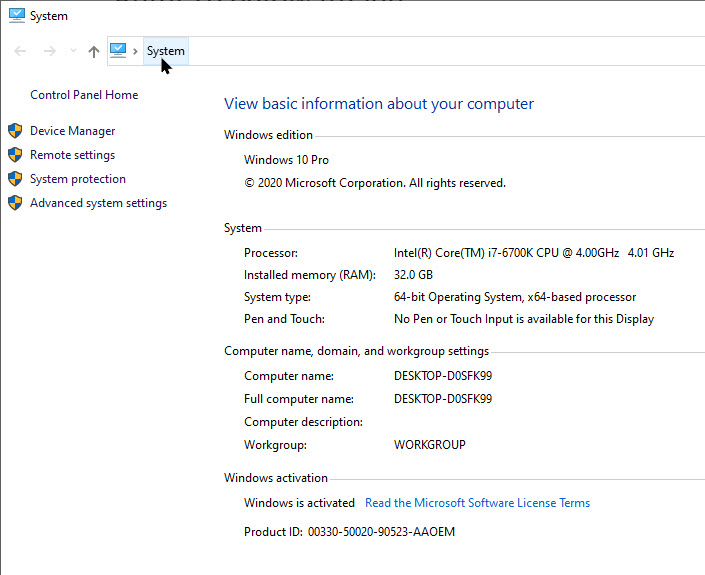
Now, your System Control Panel will be displayed. See below image:

Control Panel 2
The System Control panel

Create a Shortcut

If you want easier access, you can create a shortcut that opens it. Here’s how to do this.

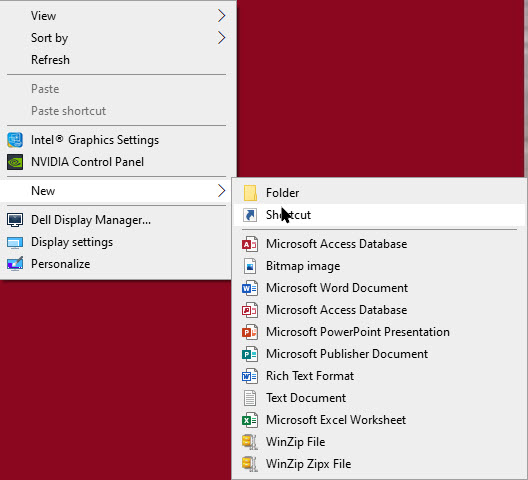
On your desktop or in any folder, right-click and select

New > Shortcut

See following image:

Control 3
Setup shortcut

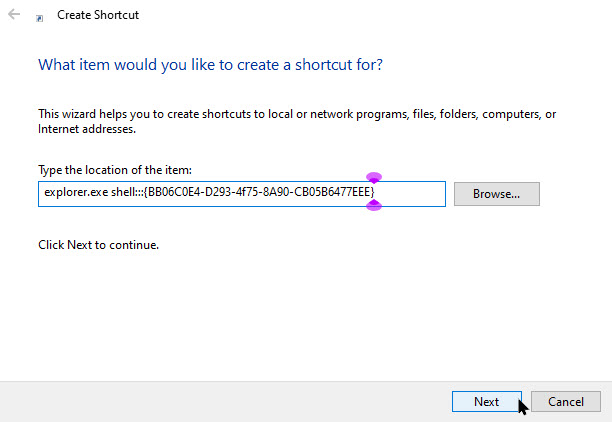
Now, in the Type Location box, copy and paste the the following command

explorer.exe shell:::{BB06C0E4-D293-4f75-8A90-CB05B6477EEE}

and press Next. Refer to below image:

Control Panel 4
Entering shortcut command

Next, assign a name for the shortcut and click Finish. In my example, it is named System Control Panel. See below image:

Control Panel 5
Assigning a name for the shortcut

Change Shortcut Icon

To change its icon, right-click it, and select

Properties > Shortcut tab > Change icon

Then, choose an icon and click OK.

Microsoft may remove the System pane completely from future versions of Windows 10. If so, this command will stop working.

Thanks to Spartan@HIDevolution on the NotebookReview forums for discovering this command!

That’s it. You now have a shortcut that opens the System Control Panel. I hope you have found this post helpful. If so, click the Tweet icon below. This will launch Twitter where you click its icon to post the Tweet.

I have found TechSavvy.Life blog posts extremely helpful. Check them out for posts on smartphones, Macs, and PCs! You may email us at contact@techsavvy.life for comments or questions.

I Would Like to Hear From You

Please feel free to leave a comment. I would love hearing from you. Do you have a computer or smart device tech question? I will do my best to answer your inquiry. Just send an email to contact@techsavvy.life. Please mention the device, app and version that you are using. To help us out, you can send screenshots of your data related to your question.
The author’s Vietnam eBook on the Battle for Tra Bong: Events and Aftermath

How to Use the Windows Terminal for Windows 10

The Terminal combines many command-line tools and shells such as Command Prompt, PowerShell and WSL (Windows Subsystem for Linux). Thus, in one application, you can have Command Prompt, and Powershell for Windows, as well as something for Linux terminal power users in one app.

Who would expect that Microsoft would develop a new terminal app that combines a command-like tool, open source, and customizable.

The Terminal combines many command-line tools and shells such as a Command Prompt, PowerShell, and WSL (Windows Subsystem for Linux). Thus, in one application, you can have all three plus other installed shell environments in one app.

This is for devices running Windows 10

Dilbert and Laptop
Copyright Scott Adams, Inc./Distributed by Universal Uclick for UFS

The key features of the Windows Terminal include multiple tabs, split panes, Unicode and UTF-8 character support, GPU-accelerated text rendering engine, and an easy way to change between themes and configuration options. Copy and Paste “just work” when you press Ctrl+C and Ctrl+V. There’s even a new font, named Cascadia Code.

Windows Terminal is an open-source project, which will continue to expand its features leveraging a growing community of contributors.

At Build 2020 on May 19, 2020, version “20H1”, Microsoft announced that the new Windows Terminal was stable and “ready for enterprise use”.

You can download the Windows Terminal from the Microsoft Store. You can even get the source code on GitHub.

Finally There Are Tabs

Windows finally has a command-line environment with built-in tabs. To open a new tab after launching the Terminal, just click the plus “+” button on the tab bar or press Ctrl+Shift+T.

You can use familiar keyboard shortcuts to move through the tabs, like Ctrl+Tab to switch to the tab on the right and Ctrl+Shift+Tab to switch to the tab on the left. Ctrl+Shift+W will close the current tab. You can drag and drop the tabs to reorder them on the tab bar, too. Refer to below image for two tabs:

Terminal 1
Multiple tabs

Multiple Environments

By default, the Terminal will open PowerShell tabs. But it supports many types of shell environments. You can now have multiple types of shell environment in the same window.

If you click the arrow to the right of the New Tab button, you will see a list of sessions you can open (if they are installed). See below image of the sessions:

Terminal 2
Listing of sessions to chose from

Split Panes

To create a new pane, press Alt+Shift+D. The Terminal will split the current pane into two and give you a second one. Click a pane to select it. You can click a pane and press Alt+Shift+D to keep splitting it.

These panes are linked to tabs, so you can easily have several multi-pane environments in the same Terminal window and switch between them from the tab bar.

Here are some other keyboard shortcuts for working with panes:

  • Create a new pane, splitting horizontally: Alt+Shift+- (Alt, Shift, and a minus sign)
  • Create a new pane, splitting vertically: Alt+Shift++ (Alt, Shift, and a plus sign)
  • Move pane focus: Alt+Left, Alt+Right, Alt+Down, Alt+Up
  • Resize the focused pane: Alt+Shift+Left, Alt+Shift+Right, Alt+Shift+Down, Alt+Shift+Up
  • Close a pane: Ctrl+Shift+W
  • Increase Windows translucent: Ctrl+Shift and scroll down with the mouse wheel

See following image where I have drive C:, D:, and E: in its own separate Command Prompt pane:

Terminal 3
Split panes of Command Prompt

See following image where PowerShell is split into three panes:

Terminal 3A
Split panes of PowerShell

Better Zooming

The new text-rendering system means smoother, better zooming. To zoom and enlarge or shrink the text in the Terminal, hold Ctrl and rotate the mouse wheel.

In the new Terminal, only the size of the text changes and leaves the window size alone. Refer to below image:

Terminal 4
Zooming feature

Settings

The Windows Terminal is packed with customization options you can change. To access them, click the down arrow to the right of the New Tab button and select Settings. See below image:

Terminal 5
Selecting the Settings option

You’ll see a text-based JavaScript Object Notation (JSON) file full of options. As a developer tool, Windows Terminal currently makes you configure these options by modifying the text file rather than with a graphical interface. Since it is a text file, you will need to open the file with a program like WordPad. If you reinstall Terminal, any changes you make may be lost.

That’s it. Please feel free to share this post! One way to share is via Twitter, as mentioned below.

I hope you have found this post helpful. If so, click the Tweet icon below. This will launch Twitter where you click its icon to post the Tweet.

Check out TechSavvy.Life for blog posts on smartphones, PCs, and Macs! You may email us at contact@techsavvy.life for comments or questions.

I Would Like to Hear From You

Please feel free to leave a comment. I would love hearing from you. Do you have a computer or smart device tech question? I will do my best to answer your inquiry. Just send an email to contact@techsavvy.life. Please mention the device, app and version that you are using. To help us out, you can send screenshots of your data related to your question.

The author’s Vietnam eBook on the Battle for Tra Bong: Events and Aftermath

WhatsApp to Delay Privacy Policy Update After Users Flee to Other Services

A privacy policy update that subtly points out data can be shared with Facebook prompted a user exodus, so WhatsApp is now giving them until May 15 to agree to the changes.

A privacy policy update that subtly points out data can be shared with Facebook prompted a user exodus, so WhatsApp is now giving them until May 15, 2021 to agree to the changes.

This is for WhatsApp users

Dilbert and Moroon
Copyright Scott Adams, Inc./Distributed by Universal Uclick for UFS

WhatsApp is hitting the brakes on a privacy policy update that has prompted users to flee the Facebook-owned platform for rival messaging apps like Signal.

Background

WhatsApp’s original plan required people to agree to the new privacy policy on February 8, 2021. If they did not, the app implied it would shut down their accounts. To make things more confusing, the update also said WhatsApp partnered with Facebook on new “integrations,” without specifically saying how the data sharing works.

But on Friday, WhatsApp said it was postponing the plan amid an apparent user exodus. “We’re now moving back the date on which people will be asked to review and accept the terms. No one will have their account suspended or deleted on February 8. We are also going to do a lot more to clear up the misinformation around how privacy and security works on WhatsApp,” the service said in a blog post.

The Problem

The heart of the problem is trust (or the lack of it). WhatsApp is owned by Facebook, which has a notorious tecord on digital privacy. The social network has repeatedly tried to clarify that the updated WhatsApp policy will not result in real changes for users when talking with friends or family. But many refuse to give Facebook the benefit of the doubt.

Users Fleeing

This became apparent last week when Telsa CEO Elon Musk urged his followers on Twitter to use competing messaging app Signal. Since then, Signal has seen a massive influx of new users, numbering in the tens of millions.

Company Response

On Friday, WhatsApp reiterated that it will continue to use end-to-end encryption, meaning no one—not even Facebook—will be able to read your messages. “We also can not see your shared location and we don’t share your contacts with Facebook,” the app added.

The company went on to say the policy update itself deals primarily with businesses using WhatsApp to send and store messages with consumers. “This update does not expand our ability to share data with Facebook,” it added.

Doubt Remains

Nevertheless, the updated privacy policy is still a reminder that WhatsApp does share some user data with Facebook. A FAQ outlines how the data from businesses messaging with you can be used for ad targeting over Facebook.

At the same time, the updated privacy policy itself uses broad, but abstract language concerning the data sharing, making it unclear what Facebook can collect from your WhatsApp usage and why.

We will have to wait and see if WhatsApp can clear up the confusion and win back users. In the meantime, the company is indicating it will not begin asking users to opt into the privacy policy until May 15. “We are going to do more over the coming weeks to make sure everyone knows how WhatsApp secures your messages,” added Will Cathcart, the head of WhatsApp.

This blog post is courtesy of PCMag.com updated January 15, 2021.

I hope you have found this post helpful. If so, click the Tweet icon below. This will launch Twitter where you click its icon to post the Tweet.


Check out TechSavvy.Life for blog posts on smartphones, PCs, and Macs! You may email us at contact@techsavvy.life for comments or questions.

I Would Like to Hear From You

Please feel free to leave a comment. I would love hearing from you. Do you have a computer or smart device tech question? I will do my best to answer your inquiry. Just send an email to contact@techsavvy.life. Please mention the device, app and version that you are using. To help us out, you can send screenshots of your data related to your question.

The author’s Vietnam eBook on the Battle for Tra Bong: Events and Aftermath