How to Switch to the New Facebook Interface

Facebook’s new website interface change is not well known. At some point, it will probably be the new standard. The interface is getting a visual overhaul that almost everyone can access. You can now update to this brand new, less cluttered design with the click of a button. If you don’t like the change, you can easily switch back to the classic interface.

This if for a desktop/laptop, Macs and smartphones supporting Facebook

Dilbert and Human Interaction
Copyright Scott Adams, Inc./Distributed by Universal Uclick for UFS

Enabling the New Interface

Note! This post relates to a PC, other devices will be similar. If you don’t see the new Facebook option then Facebook has yet to rollout the change to your device.

Fire up your device and log in to your Facebook account.

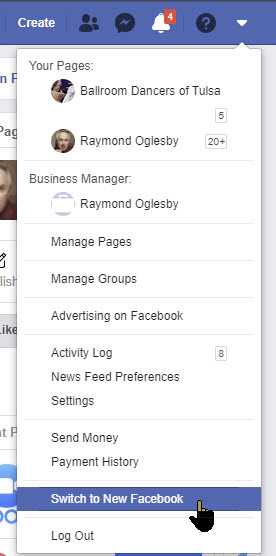
Next, click on the down arrow in the top-right corner of the interface. Select the Switch To New Facebook option. The page will refresh and the new interface design will load. Refer to below image:

Facebook New 1
Switch to the new Facebook option

A welcome message will appear the first time that you switch to the new Facebook design. Facebook claims that the redesign has faster loading time, cleaner look and bigger text. Additionally, Facebook now includes a dark mode that you can enable whenever you want.

Additionally, this update comes with a user-friendly redesign of the Groups tab and an overhaul of the News Feed. See below image:

Facebook New 2
The Welcome message for the new interface

Simply click the Next button. You will see the following image allowing you to select how yout interface will look.

Facebook New 3
Selecting your interface look

Just click the Get Started button. That’s it, you are all set with the new desktop interface. If you aren’t a fan of the Dark mode, you can switch back to Light whenever you like.

Switching Back to the Classic Interface

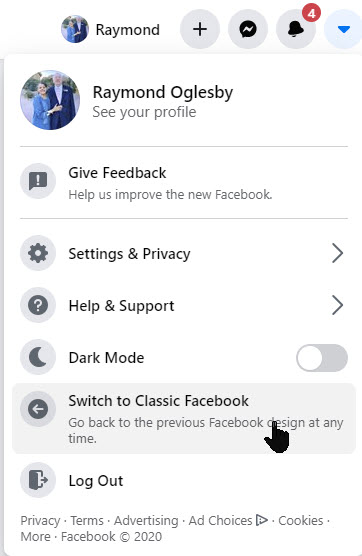
Once you’ve enabled the new interface, you can always revert the change from your Facebook account’s front page. Just click on the down arrow in the top-right and then select Switch To Classic Facebook. See following image:

Facebook New 4
Reverting back to the Classic interface

At some point in the future, Facebook may decide to roll out the new design permentally for all platforms. If so, reverting back to the classic interface will no longer be an option.

I Would Like to Hear from You

Please feel free to leave a comment. I would love hearing from you. Do you have a computer or smart device tech question? I will do my best to answer your inquiry. Please mention the device, app and version that you are using. To help us out, you can send screenshots of your data related to your question.

The author’s Vietnam eBook on the Battle for Tra Bong: Events and Aftermath

How to Record a Zoom Meeting

Why take notes during a Zoom meeting when you can refer back to a recording of the entire call? Here’s how to record a Zoom meeting, whether you’re the host or not.

Important meetings need good records, and anyone who has taken notes knows that some details can be missed. The best way to preserve a record of a meeting is to have a video recording.

 That goes doubly for remote meetings, where distractions, tech issues and other problems can lead to you missing out on essential information.

If you are using an Enterprise account to host a meeting, you may not be able to record a Zoom meeting unless your IT team has given you permission. Be sure to check with your administrator before the meeting to grant you access if you don’t have it.

If using a PC or Mac, be sure your computer has a microphone and/or camera to use Zoom to its fullest. You may also use your smartphone to record the meeting.

This if for a PC, Macs, iPhone/iPad and Android devices that support Zoom

Dilbert and Future 1
Copyright Scott Adams, Inc./Distributed by Universal Uclick for UFS

Accessing Zoom Settings

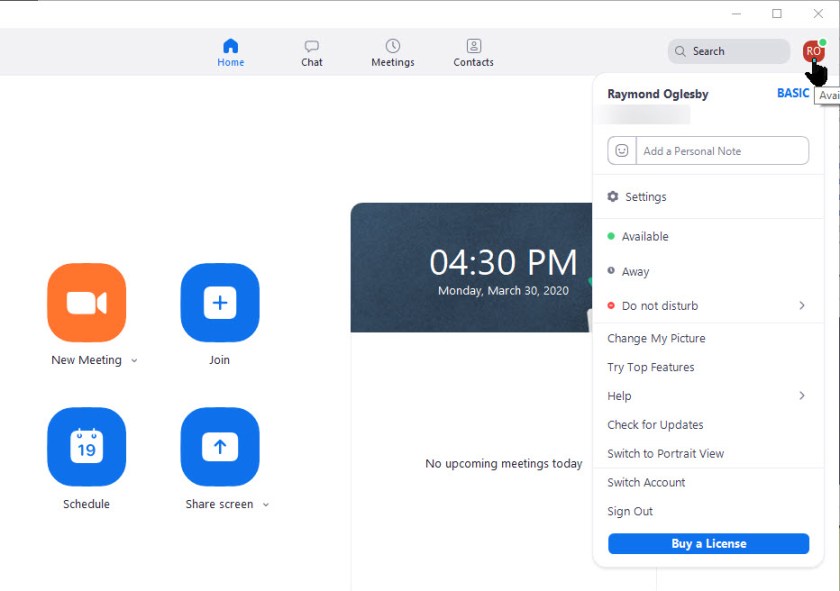
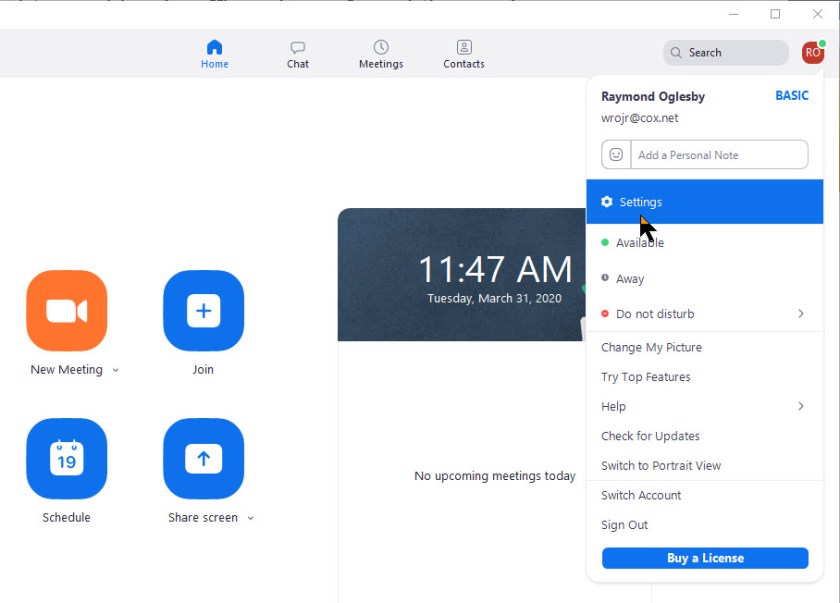
First, fire up Zoom and join an active meeting. Then click on your small profile photo in upper right-hand corner. This will open up the dialog options window. See below image:

Zoom Record 1
Zoom dialog Options window

Recording a Zoom Meeting

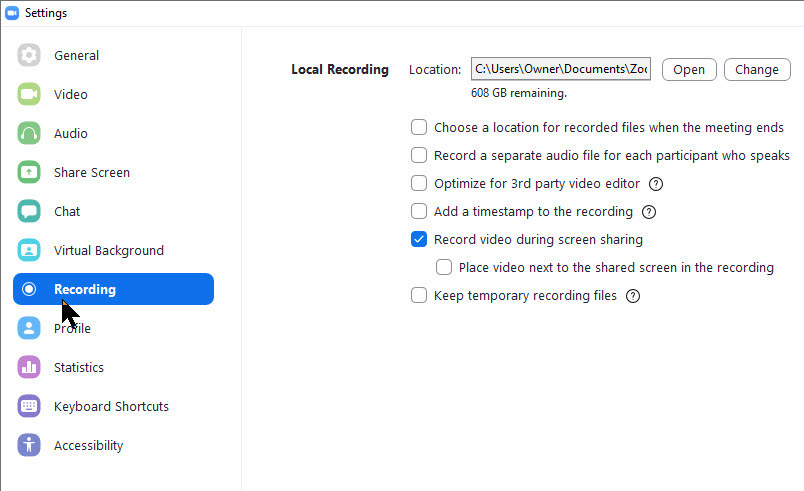
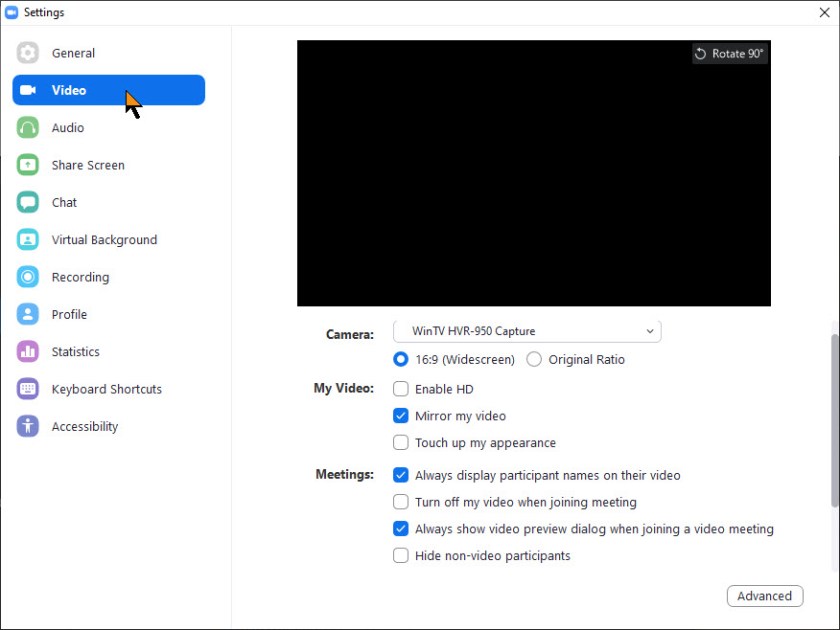
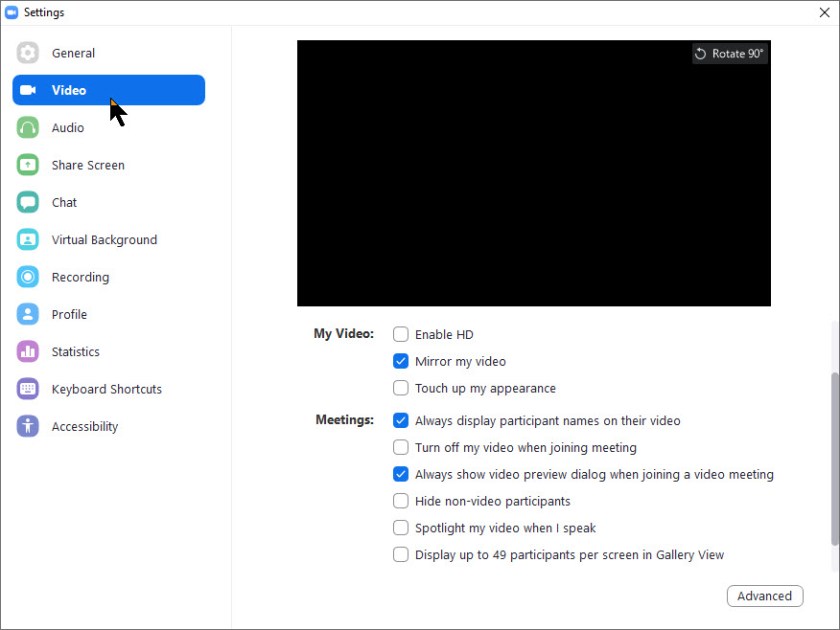
Next, click on the Settings option. The Settings options will be displayed. The Record video during screen sharing option should be checkmarked. Also, at the top of the screen is the location where your video will be stored upon completion. This folder was created when you installed Zoom. Refer to below image:

Zoom Record 2
Settings options for recording a video

By default, only the meeting host can record the meeting, but it’s easy to grant other participants the ability to do so. The meeting host can do so by clicking on Participants while in a meeting, looking for the More button next to an individual’s name and selecting Allow Record

Once in a meeting, those wanting to record only need to click the Record button to start capture, at which point the Record button will change into two buttons: One to Pause the recording and one to Stop recording.

When you’re done recording video, Zoom stores it temporarily in the location mentioned above. The video is encoded into MP4 format once the meeting has ended.

I Would Like to Hear from You

Please feel free to leave a comment. I would love hearing from you. Do you have a computer or smart device tech question? I will do my best to answer your inquiry. Please mention the device, app and version that you are using. To help us out, you can send screenshots of your data related to your question.
The author’s Vietnam eBook on the Battle for Tra Bong: Events and Aftermath

Online Conferencing Solutions

In this Coronavirus pandemic, many people are working from home. Our local TV news and weather people have live audio and video streaming from their homes for the daily news broadcast. Working from home has become the new norm.

This will continue after the crisis is over. Instead of going to an office or to a clients location, you will collaborate through an audio and video service.

I researched some web sites for the top call services. They have a similar mix of apps, just in a different order. Some of the web sites have organizations I never heard of. So, I like the ranking from Office Watch. Click here to read their review.

This is for modern web browsers and apps on Apple, Android and Microsoft platforms

Their top seven online call services are as follows:

  1. FaceTime – handles up to 32 people
  2. Skype – up to 50 people
  3. WhatsApp – handles 4 people
  4. Signal – one-on-one calls only
  5. Zoom and Meetings – up to 100 people for the free version; 1000 for their enterprise paid version
  6. Microsoft Teams and Live Events – can handle 4 participates, up to 10,000 for the paid version
  7. Google Hangouts – up to 150 people

I recommend Facetime or Skype for a small busines; Zoom for a medium business; and Zoom Meetings for a large enterprise. Facetime and basic Zoom are free. Click here to read the review of their rankings.

I Would Like to Hear From You

Please feel free to leave a comment. I would love hearing from you. Do you have a computer or smart device tech question? I will do my best to answer your inquiry. Please mention the device, app and version that you are using. To help us out, you can send screenshots of your data related to your question.
The author’s Vietnam eBook on the Battle for Tra Bong: Events and Aftermath

How to Setup Contacts in Zoom

Is your business using Zoom for collaboration during the Coronavirus outbreak? Zoom has become a key tool for working at home and a top choice for vittual meetings. Zoom is free for one-on-one calls that last as long as you like. For three or more people, your calls are limited to 40 minutes. Zoom also has a paid version for an enterprise; it can handle 1000 people.There’s also a plan for small and medium businesses that supports up to 300 participates per call..

Click here for a detailed review of Zoom from PCMag Labs

Click here for setup and install of Zoom from Office Watch

Zoom Meeting’s free account is generous. You can host up to 100 people on a call for free and you can see as many as 49 people on an active call in a gallery-style view. There’s no limit on how many meetings you can host. 

So, how do we setup our contacts with coworkers using Zoom? In this post we offer insight on how to do this.

This post is for Windows 7 or greater, iPhone or iPad with iOS 7 or later, Android 4 or greater, Web browsers, Macs and the Zoom app or program

Dilber and Ted Talk
Copyright Scott Adams, Inc./Distributed by Universal Uclick for UFS

Before you Begin

Of course, you have already setup the app. Linking to other people in Zoom is necessary before you can call them. A person has to be added to your Zoom contacts list and they have to add you before a call is made.

Zoom contacts are separate from Outlook and other contacts list.

Zoom links people by matching email addresses. Some people have multiple email addresses; for example, personal and work or different ones for different purposes or multiple old email addresses.

Which Email Address to Use?

Before adding a person to your contacts list it’s a good idea to check with them on which email address they use to login to Zoom.

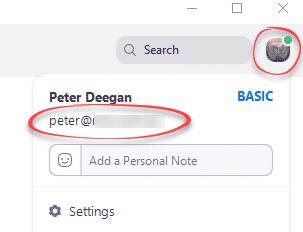
To check, they can click on their Zoom Profile in the top right where their name and address is displayed. Refer to below image:

Zoom Contacts 1
Locate the correct email address

Invite a Contact

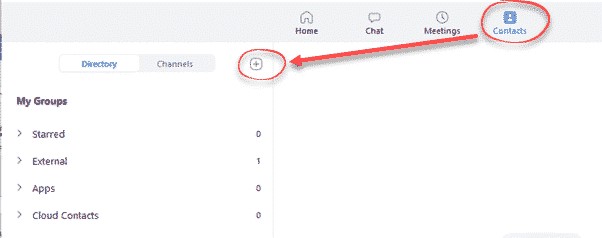
To link with someone, in the Zoom app, go to the Contacts section, then click the plus “+ “symbol. See following image:

Zoom Contacts 2
Linking a Zoom contact

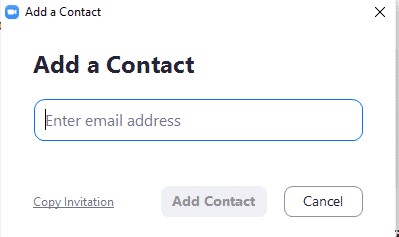
Enter the email address of the contact you want to add to Zoom. See below image:

Zoom Contacts 3
Adding a Zoom contact

Then you have two options:

  1. Add Contact – sends a contact request to that person’s Zoom account.
  2. Copy Invitation – copies to your clipboard with web link.  Paste that into an email or instant message.

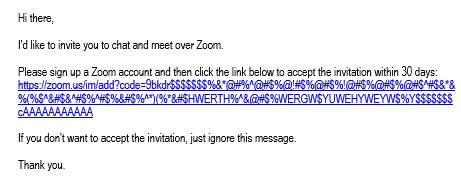
Refer to below image:

Zoom Contacts 4
Web address for the Zoom contact

There is no need to paste the entire text, change it to suit you. The web link is the important part to pass along. Make sure you include the whole web link; it’s a long link using multiple lines.

Accept a Contact Request

If a participate adds you to their Zoom contact list, you’ll see a pop-up alert. See following image:

Zoom Contacts 5
Pop-up box for a contact request

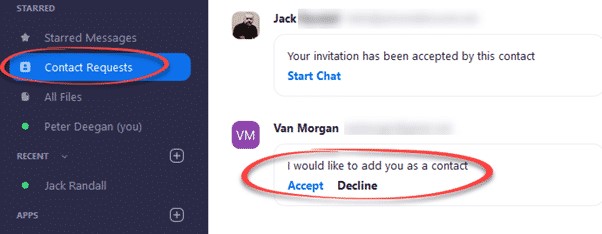
Or open your Zoom app/web page. Under Contacts look at Contact Requests.  The request will be displayed with options to Accept or Decline. Refer to below image:

Zoom Contacts 6
Accept or Decline a contact request

As you can see above, the Contact Requests you’ve made will also appear with their current status.

What to Do Next?

Now that you’ve linked with someone on Zoom, you can call them (voice, video, text, etc). If someone wants to invite you into a Zoom meeting, give them you Zoom linked email address.

That’s it on setting up your Zoom contacts. Try it out.

I Would Like to Hear from You

Please feel free to leave a comment. I would love hearing from you. Do you have a computer or smart device tech question? I will do my best to answer your inquiry. Please mention the device, app and version that you are using. To help me out, you can send screenshots of your data related to your question.

The author’s Vietnam eBook on the Battle for Tra Bong: Events and Aftermath