How to Remove Twitter Followers

If you do not like someone following you on Twitter but do not want to block them, you can remove them from your follower list. This only takes a few clicks.

RAYMOND OGLESBY @RaymondOglesby2
April 20, 2022

If you do not like someone following you on Twitter but do not want to block them, you can remove them from your follower list. This only takes a few clicks. Let’s explore how to do it on Twitter’s desktop and mobile site.

This is for the devices using Twitter

Dilbert and Spy
Copyright Scott Adams, Inc./Distributed by Universal Uclick for UFS

Note: As of the writing, the option to remove a follower is only available on Twitter’s desktop and mobile site. The option is not yet available on Twitter for Android or iOS.

The Old and New Methods

Twitter has launched the ability to remove followers at the end of 2021. Earlier, if you wanted to remove a follower, you had to block them. Doing so basically removed that user from your follower’s list, prevented them from following you again, and also hid your tweets from them.

In the new method of removing followers, you can remove someone from your follower’s list without blocking them. Twitter does not notify a user when you remove them from your follower’s list. However, they may notice they are not following you anymore, and they can then choose to follow you again. You will need to block them if you do not want them capable of following you, or choose the nuclear option and delete your Twitter account as a last resort.

Remove Followers Using Desktop

To delete a follower from your Twitter profile on a Windows, Mac, Linux, or Chromebook computer, use the Twitter desktop website.

First, open a web browser on your computer and launch the desktop Twitter site. Log in to your account if you have not already done so.

Next, in Twitter’s left sidebar, click the Profile option (the person icon). Refer to the below image:

Twitter 1
Selecting your Profile

Now, your profile page will open. Here, beneath your profile information, click the Followers link to see your followers list. See the below image:

Twitter 2
Selecting your Followers link

Next, on the follower’s page, find the follower you want to remove. Then, next to that user’s name, click the Menu icon (the three dots). See the following image:

Twitter 3
Selecting the Menu for a follower

Now, in the three-dots Menu, click Remove this follower. Refer to the below image:
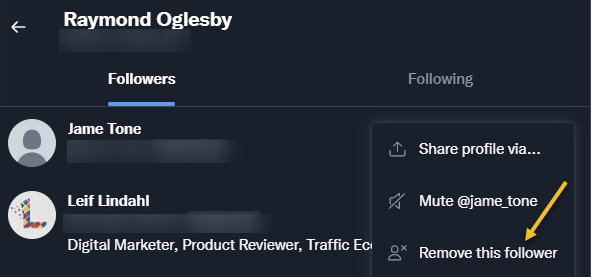
Twitter 4
Selecting to Remove this follower

Next, you will see a Remove this follower prompt. Just click the Remove button. See the below image:

Warning: Make sure you really want to remove that follower before clicking “Remove.” Twitter will not show any further prompts and will immediately remove that user from your followers list.
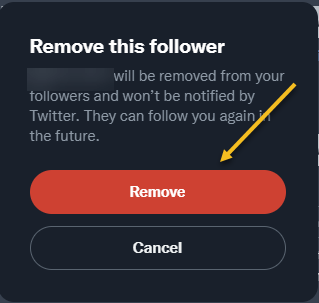
Twitter 5
Remove the follower

Now, you are all set. Your selected follower is now removed from your Twitter followers list.

Remove Followers Using Mobile

If you are on an iPhone, iPad, or Android phone, you can use Twitter’s mobile site to remove a follower from your account.

First, open a web browser on your phone and launch the mobile Twitter site (mobile.twitter.com/home). If you launch Twitter.com (as you do on the desktop), the removal process will not work. Sign in to your Twitter account if not already done so.

Next, in Twitter’s top left-hand corner, tap your Profile icon. See the following image:

Twitter 6
Selecting your Profile

Now, an Account info menu will open. Here, tap the Followers link. Refer to the below image:
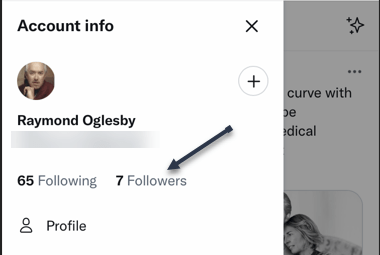
Twitter 7
Selecting your Followers link

Next, on the follower’s page, find the follower you want to remove. Then, next to that user’s name, tap the Menu icon (the three dots). See the below image:

Twitter 8
Selecting the Menu for a follower

Now, in the three-dots Menu, tap Remove this follower. See the following image:
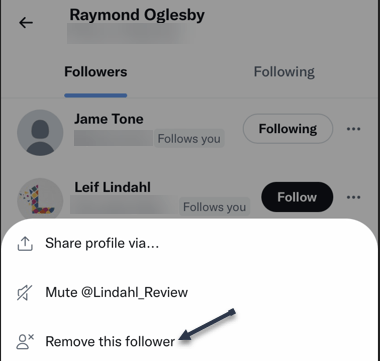
Twitter 9
Selecting to Remove this follower

Next, you will see a Remove this follower prompt. Just tap the Remove button. Refer to the below image:

Warning: Make sure you really want to remove that follower before clicking “Remove.” Twitter will not show any further prompts and will immediately remove that user from your followers list.
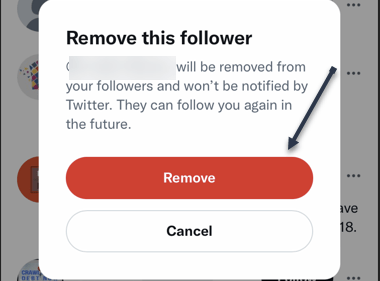
Twitter 10
Remove the follower

Now, you are all set. Your selected follower is now removed from your Twitter followers list.

Quote For the Day

I have not failed. I’ve just found 10,000 ways that won’t work.

Thomas Edison

That’s it. Please feel free to share this post! One way to share is via Twitter.

Just click the Tweet icon below. This will launch Twitter where you click its icon to post the Tweet.

Check out TechSavvy.Life for blog posts on smartphones, PCs, and Macs! You may email us at contact@techsavvy.life for comments or questions.

I Would Like to Hear From You

Please feel free to leave a comment. I would love to hear from you. Do you have a computer or smart device tech question? I will do my best to answer your inquiry. Just send an email to contact@techsavvy.life. Please mention the device, app, and version you are using. To help us out, you can send screenshots of your data related to your question.

Author’s E-book

You can access the e-book from a Kindle device, the Kindle App for the desktop or smartphone, which is a free app.
The author’s Vietnam eBook on the Battle for Tra Bong Vietnam: Events and Aftermath

How to Really Shut Down Windows

Sometimes you need to shut down your Windows 10 or 11 PC, but thanks to something called Fast Startup, you might not be shutting it down all the way, with a fresh OS reload on the next power-up.

RAYMOND OGLESBY @RaymondOglesby2
April 19, 2022

Sometimes you need to shut down your Windows 10 or 11 PC, but thanks to something called Fast Startup, you might not be shutting it down all the way, with a fresh OS reload on the next power-up. Let’s explore how to really shut down your desktop completely.

This is for Windows 10 and 11. Screenshots are from Windows 10

Dilbert and Manager
Copyright Scott Adams, Inc./Distributed by Universal Uclick for UFS

Fast Startup

Usually, you do not need to shut down your PC. Sleep Mode can place your PC into a low-power state that is quick to resume whenever you need to use your PC again.

But there are times when you might want to shut down your PC in a way that forces Windows 10 or 11 to reload completely when you boot it back up.

With a feature called Fast Startup, many PCs that support hibernation mode actually “shut down” to a state similar to hibernation, which saves the state of the operating system (in RAM) to a file called hiberfil.sys. This lets Windows load quickly when you power up your PC again.

So if Fast Startup is enabled on your PC and you select Shut Down in the Start menu, you are not getting a clean restart when you power it back up again.

Disable Fast Startup

It’s important to know that not all PCs support Fast Startup mode. So your PC might already be shutting down completely. (Restarting bypasses Fast Startup, as shown in the last section of this post). You will see another way to tell in the steps ahead.

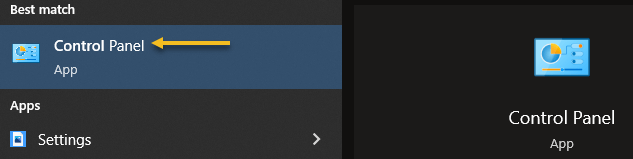
To disable Fast Startup, first, open the Control Panel in Windows 10 or 11. For Windows 10, type “control panel” in the Cortana search box, then click the Control Panel app in the search results. For Windows 11, open the Start menu and type “control panel,” then click the Control Panel icon when it appears. Refer to the below image:

Windows Shutdown 1
Accessing the Control Panel in Windows 10

Next, when the Control Panel opens, click Hardware and Sound section. See the below image:

Windows Shutdown 2
Selecting the Hardware and Sound section

Now, under the Power Options section, click Change what the power buttons do link. See the following image:

Windows Shutdown 2
Selecting Change what the power buttons do link

Next, on the Define power buttons and turn on password protection page, first, click the Change settings that are currently unavailable link near the top of the page.

Now, look under the Shutdown Settings section near the bottom. If you see Turn on fast startup (recommended), remove the checkmark beside it. Refer to the below image:

Windows Shutdown 4
Turn off Fast Start

Note: If you do not see the Fast Startup option, it means your PC does not support Fast Startup and is already shutting down completely, so no changes are necessary.

Next, click Save Changes and exit the Control Panel.

The next time you shut down your Windows PC, it will shut down completely without any hibernation. And the next time you start it up, you will get a clean boot with a full reload of Windows.

Just Restart

It’s important to note that if you need a completely clean Windows boot, you can also achieve it by using the “Restart” feature built into Windows; no disabling Fast Startup is necessary. Restarting this way bypasses Fast Startup if you have it enabled. Microsoft implemented it this way because people often restart their computers to fix problems, and a full shutdown and restart might refresh the Windows system kernel or your computer’s hardware drivers if either is stuck in a bad state.

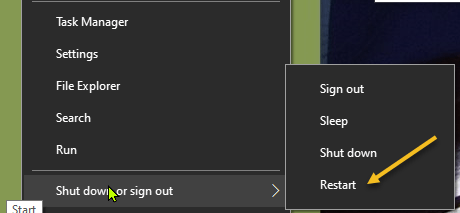
To restart your PC, first, click the Start menu, then select the Power icon (located on the left side in Windows 10 and on the right side in Windows 11). In the menu that pops up, select Restart. See the below image:

Windows Shutdown 5
Selecting Restart in Windows 10

Your PC will restart completely with a fresh reload of Windows, which will hopefully solve any temporary problems that you have been troubleshooting.

Quote For the Day

The person who dumps garbage into your mind will do you considerably more harm than the person who dumps garbage on your floor, because each load of mind garbage negatively impacts your possibilities and lowers your expectations.

Zig Ziglar

That’s it. Please feel free to share this post! One way to share is via Twitter.

Just click the Tweet icon below. This will launch Twitter where you click its icon to post the Tweet.

Check out TechSavvy.Life for blog posts on smartphones, PCs, and Macs! You may email us at contact@techsavvy.life for comments or questions.

I Would Like to Hear From You

Please feel free to leave a comment. I would love to hear from you. Do you have a computer or smart device tech question? I will do my best to answer your inquiry. Just send an email to contact@techsavvy.life. Please mention the device, app, and version you are using. To help us out, you can send screenshots of your data related to your question.

Author’s E-book

You can access the e-book from a Kindle device, the Kindle App for the desktop or smartphone, which is a free app.
The author’s Vietnam eBook on the Battle for Tra Bong Vietnam: Events and Aftermath

How to Save Google Chrome Passwords

Google Chrome can save your website passwords and help you automatically fill them the next time you visit your sites.

RAYMOND OGLESBY @RaymondOglesby2
April 13, 2022

Google Chrome can save your website passwords and help you automatically fill them the next time you visit your sites.

There are several ways to turn on the password saving feature in Chrome. Note that Chrome syncs your passwords with your Google account, which means if you enable Chrome to save passwords on one device, that change automatically applies to all your signed-in devices. Let’s explore this feature on both desktop and mobile devices.

This is for desktop and mobile running Chrome. Screenshots are from Windows 10 and iPhone XR

Dilbert and Bonus
Copyright Scott Adams, Inc./Distributed by Universal Uclick for UFS

Save Passwords on Desktop

To enable Chrome’s password manager on your Windows, Mac, Linux, or Chromebook computer, first, open Chrome on your computer.

Next, in Chrome’s top right-hand corner, click the three dots (the Menu icon). Refer to the below image:

Passwords 1
Selecting the Menu icon

Now, from the three-dots Menu icon, select the Settings option. See the below image:

Passwords 1
Accessing the Settings option

Next, on the left sidebar of the Settings page, click the Autofill option. See the following image:

Passwords 3
Accessing the Autofill option

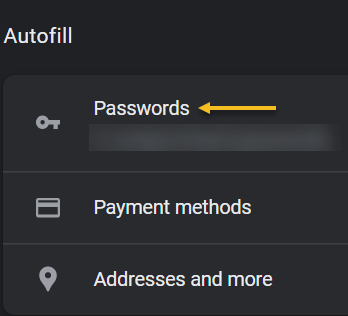
Now, on the right of the Autofill section, click the Passwords option. Refer to the below image:

Passwords 4
Selecting the Passwords option

Next, toggle the Offer to save passwords option to ON at the top of the Passwords page. See the below image:

Passwords 5
Enable Offer to save passwords

Note! If you decide you do not want password prompts, just toggle the Offer to save passwords to OFF.

From now on, when you log in to a site in Chrome on any of your devices, the browser will ask you to save your password for that site. 

Save Passwords on Mobile

First, open Chrome on your iPhone, iPad, or Android device.

Next, tap the three dots (the Menu icon) in Chrome on your device. If you are on Android, these dots are in Chrome’s top right-hand corner. If you are on an iPhone or iPad, you will find the Menu icon in the bottom right-hand corner. See the following image:

Passwords 6
Accessing the Menu icon

Now, in the menu that opens, tap the Settings option. Refer to the below image:

Passwords 7
Accessing the Settings option

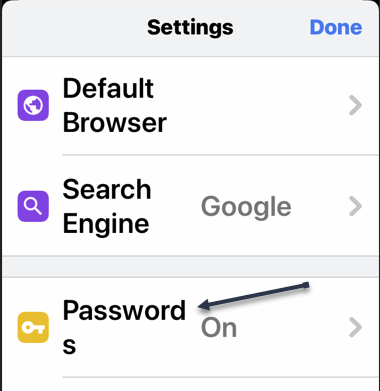
Next, in the Basics section of the Settings page, tap the Passwords option. See the below image:

Passwords 8
Accessing the Passwords option

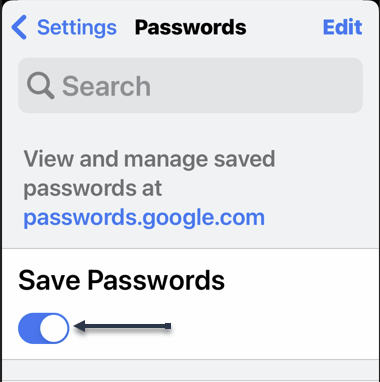
Now, on the Passwords page, toggle the Save Passwords option to ON. See the following image:

Passwords 9
Enable Save Passwords

Save Passwords Using Password Manager Site

To use this method, first, open a web browser on your device and access the Google Password Manager site. Log in to the site with the same Google account that you use in Chrome.

Now, when the Password Manager site opens, in the top right-hand corner, click the password options (the gear icon). Refer to the below image:

Passwords 10
Accessing Password options

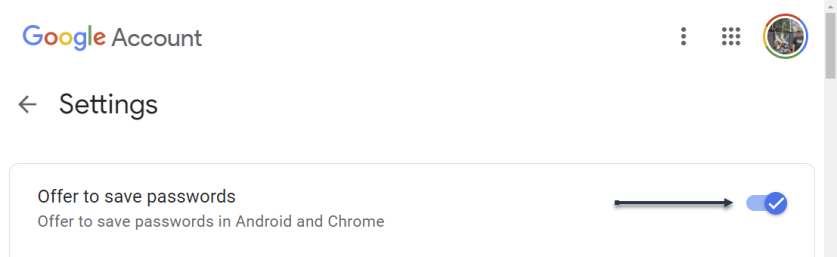
Next, the Settings page will open. Here, at the top, toggle the Offer to save passwords option to ON. See the below image:

Passwords 11
Enable Offer to sasve passwords

From now on, no matter what method you used above, Chrome will start prompting you to save passwords on all your signed-in devices. 

Quote For the Day

If people like you, they’ll listen to you, but if they trust you, they’ll do business with you.

Zig Ziglar

You are finished. Please feel free to share this post! One way to share is via Twitter.

Just click the Tweet icon below. This will launch Twitter where you click its icon to post the Tweet.


Check out TechSavvy.Life blog posts on smartphones, PCs, and Macs! You may email us at contact@techsavvy.life for comments or questions.

I Would Like to Hear From You

Please feel free to leave a comment. I would love to hear from you. Do you have a computer or smart device tech question? I will do my best to answer your inquiry. Just send an email to contact@techsavvy.life. Please mention the device, app, and version you are using. To help us out, you can send screenshots of your data related to your question.

Author’s E-book

You can access the e-book from a Kindle device, the Kindle App for the desktop or smartphone, which is a free app.

The author’s Vietnam eBook on the Battle for Tra Bong Vietnam: Events and Aftermath

How to Turn Off the Prompt “Sign In With Google”

Some websites show you a “Sign in with Google” prompt to help you quickly sign in to that website. If you would like to avoid this prompt, there’s an easy way to disable it from your Google account’s Settings menu

RAYMOND OGLESBY @RaymondOglesby2
April 7, 2022

Some websites show you a “Sign in with Google” prompt to help you quickly sign in to that website. If you would like to avoid this prompt, there’s an easy way to disable it from your Google account’s Settings menu. Let’s see how this is done.

This is for devices using Google. Screenshots are from Windows 10

Dilbert and Experiment
Copyright Scott Adams, Inc./Distributed by Universal Uclick for UFS

The “Sign in with Google” prompt is tied to your Google account and not to a particular web browser. This means that you will need to disable the prompt in your account to prevent it from appearing across all your web browsers, including both desktop and mobile browsers.

First, open your Google My Account site in a web browser on your Windows, Mac, or Linux computer. Then, log in to your Google account if you have not already done so.

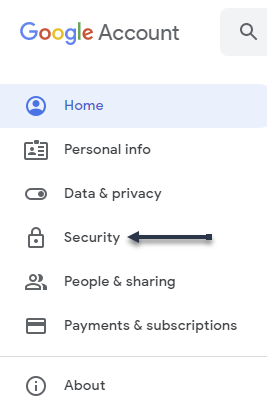
Next, when the site loads, first, select Security in the left sidebar. Refer to the below image:

Signin Google 1
Selecting Security option

Now, on the Security page, scroll down to the Signing in to other sites section. Here, click the Signing in with Google option. See the below image:

Signin Google 2
Selecting Google sign in

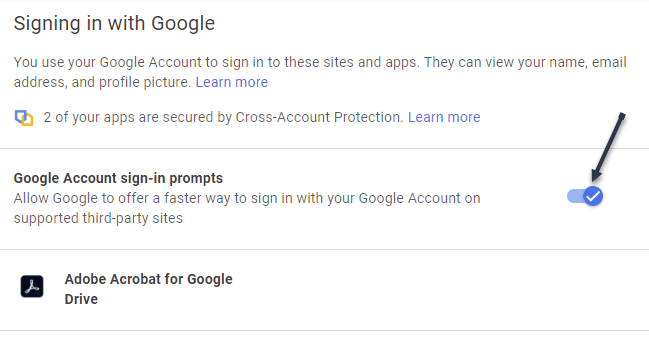
On the next page, under the Signing in with Google section, toggle OFF the Google Account sign-in prompts. See the following image:

Signin Google 3
Disable Google sign in

Now, you will see an Updated message in the lower left-hand corner of your browser telling you that your settings are saved. Refer to the below image:

Signin Google 4
Your updated change notification

Note: If you are logged in to multiple Google accounts in your web browser, repeat the above process for each account to get rid of the Sign in with Google prompt.

If you want to reverse this action, simply repeat the above steps and toggle ON the Google Account sign-in prompts.

From now on, you will not see the Sign in with Google prompt on any website.

Quote For The Day

Time can be an ally or an enemy. What it becomes depends entirely upon you, your goals, and your determination to use every available minute.

Zig Ziglar

That’s it. Please feel free to share this post! One way to share is via Twitter.

Just click the Tweet icon below. This will launch Twitter where you click its icon to post the Tweet.

Check out TechSavvy.Life for blog posts on smartphones, PCs, and Macs! You may email us at contact@techsavvy.life for comments or questions.

I Would Like to Hear From You

Please feel free to leave a comment. I would love to hear from you. Do you have a computer or smart device tech question? I will do my best to answer your inquiry. Just send an email to contact@techsavvy.life. Please mention the device, app, and version you are using. To help us out, you can send screenshots of your data related to your question.

Author’s E-book

You can access the e-book from a Kindle device, the Kindle App for the desktop or smartphone, which is a free app.

The author’s Vietnam eBook on the Battle for Tra Bong Vietnam: Events and Aftermath

How to Change the Mouse Pointer snd Text Indicator on Windows 10

Windows 10 lets you increase the mouse cursor’s size and change its color as well as changed the text indicator.. Want a black mouse cursor instead? You can choose that. Want a huge yellow inverted cursor that’s easier to see? You can choose that, too. Want the cursor indicator that you can see? In our example, we will create a Scheme of yellow inverted size three cursor and a blue text indicator with a thickness of three.

RAYMOND OGLESBY @RaymondOglesby2
April 5, 2022

Windows 10 lets you increase the mouse cursor’s size and change its color as well as changed the text indicator. Want a black mouse cursor instead? You can choose that. Want a huge yellow inverted cursor that’s easier to see? You can choose that, too. Want the cursor indicator that you can see? In our example, we will create a Scheme of yellow inverted size three cursor and a blue text indicator with a thickness of three. Let’s explore how this is done.

This is for devices running Windows 10

Dilbert and Problem
Copyright Scott Adams, Inc./Distributed by Universal Uclick for UFS

Change the Mouse Settings

First, open Mouse Settings. In the Cortana search box at the lower left-hand corner, type in “mouse settings“. From the results, in the upper left-hand corner, click the Mouse settings result. The Mouse window will then open.

Next, in this window, you can adjust:

  • Cursor speed – move the slider from slow to fast
  • Mouse wheel scroll – select Multiple lines at a time
  • Lines to scroll – as you move the slider, hover on it to see the number to scroll
  • Scroll inactive windows – to enable, switch the toggle to ON

Refer to the below image:

Adjust the mouse options

When finished, click Adjust mouse & cursor size in the upper right-hand corner. Now, on the window that opens, you can adjust:

  • Pointer size – change the size from small to large
  • Pointer color – change the color by clicking the second and fourth tile. A color picker will appear for you to choose a color
  • Set touch feedback – change touch feedback toggle to ON

See the below image:

Cursor 3
Adjust the mouse pointer options

Change the Text Indicator

Next, in the pane on the left, select the Text cursor option. See the following image:

Cursor 4
Select the Text cursor option

Now, on the menu that opens, you can adjust:

  • Text cursor indicator – toggle the switch to ON
  • Text cursor size – from small to large
  • Text cursor indicator color – select a color from the tiles
  • Text cursor thickness – as you move the slider, hover on it to see the number for thickness

When finished, navigate back to the Mouse settings window. In the find a setting box in the upper left-hand corner, type in “mouse” and choose Mouse settings option.

Next, on the window that opens, select Additional mouse options in the upper right-hand corner. Refer to the below image:

Cursor 6
Select Additional mouse options

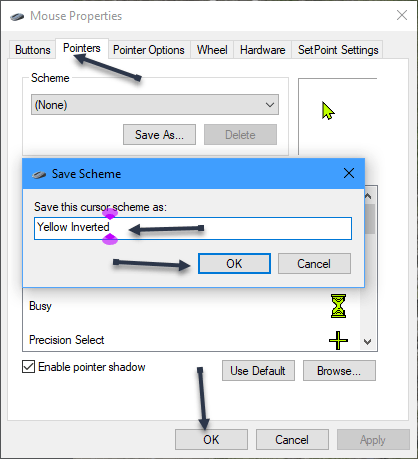
Now, the Mouse Properties window will open. Select the Pointers tab. Then label the Scheme by clicking the drop-down box and type in a name, click OK. When finished, click OK at the bottom. See the below image:

Cursor 7
Adjust the Mouse properties

In our example, we have created a Scheme of yellow inverted size three cursor and a blue text indicator with a thickness of three.

Quote For the Day

Yesterday ended last night. Today is a brand-new day.

Zig Ziglar

That’s it. If you ever want to tweak your mouse cursor again, just come back here. Please feel free to share this post! One way to share is via Twitter.

I hope you have found this post helpful. If so, click the Tweet icon below. This will launch Twitter where you click its icon to post the Tweet.

Check out TechSavvy.Life for blog posts on smartphones, PCs, and Macs! You may email us at contact@techsavvy.life for comments or questions.

I Would Like to Hear From You

Please feel free to leave a comment. I would love to hear from you. Do you have a computer or smart device tech question? I will do my best to answer your inquiry. Just send an email to contact@techsavvy.life. Please mention the device, app, and version you are using. To help us out, you can send screenshots of your data related to your question.

Author’s E-book

You can access the e-book from a Kindle device, the Kindle App for the desktop or smartphone, which is a free app.

The author’s Vietnam eBook on the Battle for Tra Bong Vietnam: Events and Aftermath

Need to Change Your PayPal Password?

You should change your PayPal password as you have done with other sensitive accounts. PayPal makes it easy to change your current password to a stronger password in your account. This is accomplished from PayPal’s website and not the mobile app.

RAYMOND OGLESBY @RaymondOglesby2
March 31, 2022

You should change your PayPal password as you have done with other sensitive accounts. PayPal makes it easy to change your current password to a stronger password in your account. This is accomplished from PayPal’s website and not the mobile app. Let’s get started.

This is for the desktop using PayPal. Screenshots are from Windows 10

Dilbert and Team
Copyright Scott Adams, Inc./Distributed by Universal Uclick for UFS

First, start the password change process by opening a web browser on your device and launching the PayPal website. Log in to your account with your current password.

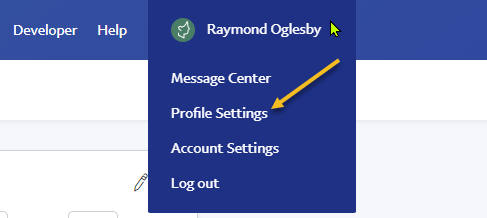
Next, once you have logged in, at PayPal’s top right-hand corner, below your name, select Profile Settings. Refer to the below image:

PayPal 1
Accessing your Profile Settings

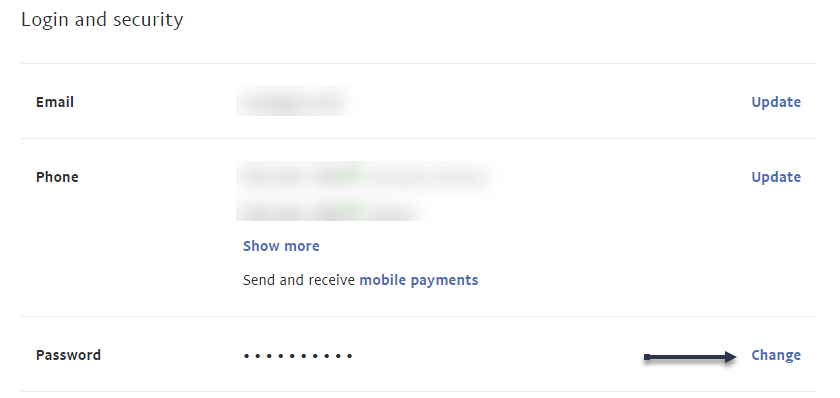
Now, the Login and security window will open. On the Password option, click on Change. See the below image:

PayPal 2
Selecting to Change your Password

Next, a Change Your Password window will open. In this window, click the Current Password field and type your current PayPal password. Then click the New Password field and type the new password you want to use with your account.

Now, click the Confirm New Password field and re-enter your new password. Then save your changes by clicking Change Password at the bottom. See the following image:

PayPal 3
Change your Password and confirm the change

And that’s it. Your PayPal account password is now changed. Going forward, you will use this new password to sign in to your account on all your devices.

Quote For the Day

If you aim at nothing, you’ll hit it every time.

Zig Ziglar

That was easy. Please feel free to share this post! One way to share is via Twitter.

Just click the Tweet icon below. This will launch Twitter where you click its icon to post the Tweet.

Check out TechSavvy.Life for blog posts on smartphones, PCs, and Macs! You may email us at contact@techsavvy.life for comments or questions.

I Would Like to Hear From You

Please feel free to leave a comment. I would love to hear from you. Do you have a computer or smart device tech question? I will do my best to answer your inquiry. Just send an email to contact@techsavvy.life. Please mention the device, app, and version you are using. To help us out, you can send screenshots of your data related to your question.

Author’s E-book

You can access the e-book from a Kindle device, the Kindle App for the desktop or smartphone, which is a free app.
The author’s Vietnam eBook on the Battle for Tra Bong Vietnam: Events and Aftermath

How to Invite Others to Like a Facebook Page

Have you come across an interesting Facebook page that you think your friends would like? If so, invite your friends to like that page so they all see the page’s content in their news feed.

RAYMOND OGLESBY @RaymondOglesby2
March 29, 2022

Have you come across an interesting Facebook page that you think your friends would like? If so, invite your friends to like that page so they all see the page’s content in their news feed. Here’s how to do this on desktop and mobile.

This is for the desktop and mobile using Facebook. Images are from Windows 10 and iPhone XR

Dilbert and Finance
Copyright Scott Adams, Inc./Distributed by Universal Uclick for UFS

You can only invite your friends to like a Facebook page. If you want to invite someone who is not your friend, you will have to add them as a friend first. Later, if your friends do not Like a page, they can remove their like from the page to stop seeing the page’s content in their feed.

Invite Friends on Desktop

On a desktop computer, like Windows, Mac, Linux, or Chromebook, use the Facebook website to send out page like invitations.

First, open a web browser on your computer and launch Facebook. On the site, access the page to which you want to invite people.

Once you see the page, in the tab list beneath the page name, click the three dots menu icon (at the far right). Refer to the below image:

FB Like 1
Accessing the menu

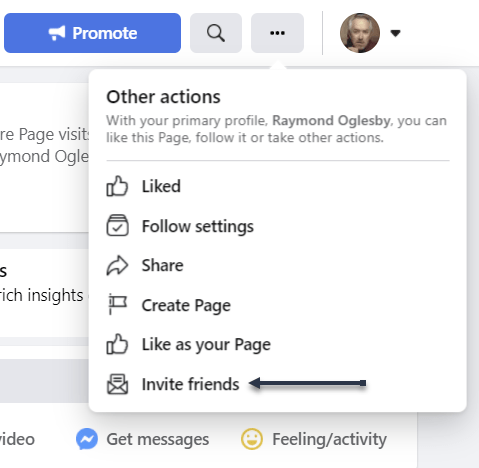
Next, in the menu that opens, click Invite Friends. See the below image:

FB Like 2
Selecting Invite Friends option

Now, you will see an Invite Your Friends window, where you will choose your friend(s) to send an invitation to.

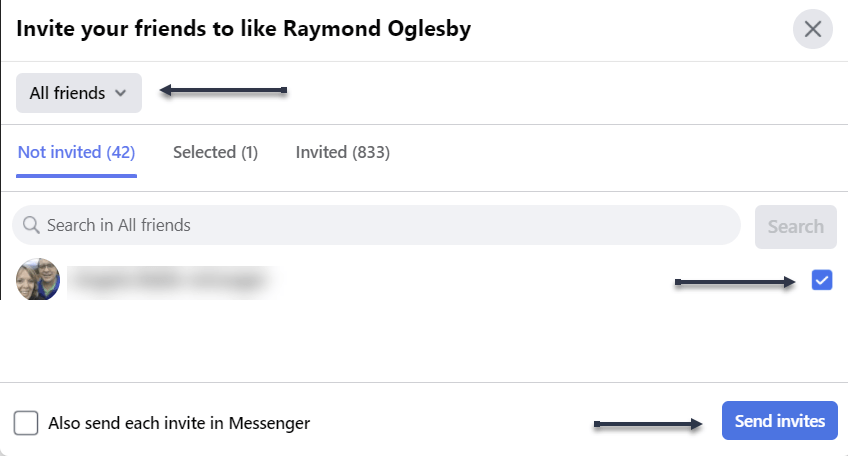
Next, to ensure all your friends are listed, at the top of this window, click the drop-down menu and choose All Friends. Then, from the list that opens, select the people to invite to like the page. In the window’s bottom right-hand corner, click Send Invites. See the following image:

FB Like 3B
Select your friends and send invites

Tip: To let Facebook also send invites via Messenger, then in the window’s bottom left-hand corner, enable the Also send each invite in Messenger option.

Now, Facebook will send a notification to your selected friends asking them to like your page. They can then either accept or decline your invite for the page Like. Refer to the below image:

FB Like 8
Your invites are sent

Invite Friends on Mobile

If you are on an iPhone, iPad, or Android phone, use the Facebook app to send invitations to like a page.

First, launch the Facebook app on your phone. In the app, open the page to which you want to invite people.

Next, on the page screen, beneath the page name, tap the three dots menu icon. See the below image:

FB Like 9
Accessing the menu

Now, scroll down and click Invite Friends. See the following image:

FB Like 10
Selecting Invite Friends

Next, an Invite Friends screen will open. Here, select the friends you would like to invite. Then, at the bottom, tap Send Invites. Refer to the below image:

FB Like 11
Select your friends and send invites

Now, your selected friend(s) will receive an invitation to like your Facebook page. See the below image:

FB Like 12
Your invites are sent

And that’s how you let your friends know about pages that exist on Facebook.

Quote For the Day

Positive thinking will let you do everything better than negative thinking will.

Zig Ziglar

You are finished. Please feel free to share this post! One way to share is via Twitter.

Just click the Tweet icon below. This will launch Twitter where you click its icon to post the Tweet.

Check out TechSavvy.Life for blog posts on smartphones, PCs, and Macs! You may email us at contact@techsavvy.life for comments or questions.

I Would Like to Hear From You

Please feel free to leave a comment. I would love to hear from you. Do you have a computer or smart device tech question? I will do my best to answer your inquiry. Just send an email to contact@techsavvy.life. Please mention the device, app, and version you are using. To help us out, you can send screenshots of your data related to your question.

Author’s E-book

You can access the e-book from a Kindle device, the Kindle App for the desktop or smartphone, which is a free app.

The author’s Vietnam eBook on the Battle for Tra Bong Vietnam: Events and Aftermath

How to Drag and Drop Browser Links to Desktop

In four major browsers; Chrome, Edge, Firefox, and Safari; on Windows, Mac, and Linux, you can easily drag and drop a shortcut link to a website straight to your desktop.

RAYMOND OGLESBY @RaymondOglesby2
JMarch 1, 2022

In four major browsers; Chrome, Edge, Firefox, and Safari; on Windows, Mac, and Linux, you can easily drag and drop a shortcut link to a website straight to your desktop. Let’s see how easily this is done.

This is for PCs, Macs, and web browsers. Screenshots are from Windows 10

Dilbert and Plan
Copyright Scott Adams, Inc./Distributed by Universal Uclick for UFS

Create Shortcut Using Chrome, Edge, and Firefox

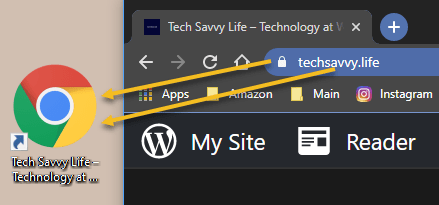
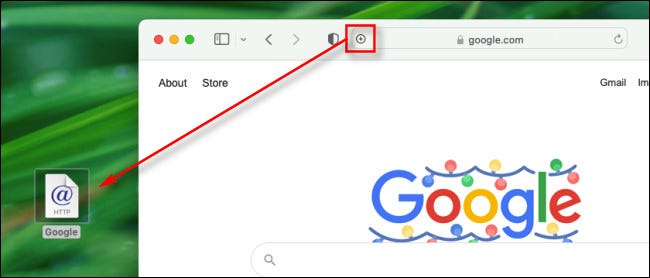
To create a desktop web shortcut, first open a Chrome, Edge, or Firefox browser window and navigate to the site you want to create a shortcut from. In the address bar at the top of the window, click and drag the Padlock icon (located to the left of the address) out of the browser window, or drag and drop the URL address onto your desktop. Refer to the below image:

Links 1
Drag to create a shortcut on the desktop

Next, as soon as you click and drag, you will see the title or address of the website besides your pointer. When you are hovering over the desktop, release your mouse button, and a shortcut icon will be created. To use the shortcut, double-click it at any time, and the site will open in your default browser.

This shortcut does not have to stay on your desktop either; you can move it to any folder on your PC.

Create Shortcut Using Safari on Mac

To make a desktop web shortcut on a Mac, first, open a Safari browser window and navigate to the site you want to create a shortcut to.

Next, in that window, hover your mouse cursor over the address bar at the top of the window, and a small Plus (“+”) icon will appear on the far left side. Click and drag the Plus icon onto your desktop and release your mouse or trackpad button. A shortcut icon will appear. See the below image:

Links 2
Drag to create a shortcut on Mac

Now, you can double-click the shortcut icon, and your default browser app will open and automatically load the website stored in the link.

By the way, this is not the only drag-and-drop trick you can do with browsers. Most browsers also allow you to drag tabs between open windows of the same browser.

How to Drag Tabs Between Browser Windows

Quote For the Day

If you learn from defeat, you haven’t really lost.

Zig Ziglar

That’s it. Please feel free to share this post! One way to share is via Twitter.

Just click the Tweet icon below. This will launch Twitter where you click its icon to post the Tweet.

Check out TechSavvy.Life for blog posts on smartphones, PCs, and Macs! You may email us at contact@techsavvy.life for comments or questions.

I Would Like to Hear From You

Please feel free to leave a comment. I would love to hear from you. Do you have a computer or smart device tech question? I will do my best to answer your inquiry. Just send an email to contact@techsavvy.life. Please mention the device, app, and version you are using. To help us out, you can send screenshots of your data related to your question.

Author’s E-book

You can access the e-book from a Kindle device, the Kindle App for the desktop or smartphone, which is a free app.

The author’s Vietnam eBook on the Battle for Tra Bong Vietnam: Events and Aftermath

Want to Change Your LinkedIn Profile URL?

Your LinkedIn profile‘s web address (URL) is customizable, which means you can set it to whatever you want.

RAYMOND OGLESBY @RaymondOglesby2
February 17, 2022

Your LinkedIn profile‘s web address (URL) is customizable, which means you can set it to whatever you want. Let’s see how to change your profile URL on LinkedIn on a desktop and mobile.

This is for devices using LinkedIn. Screenshots are from Windows 10 and iPhone XR

Dilbert and Doom
Copyright Scott Adams, Inc./Distributed by Universal Uclick for UFS

When you change your URL, it will always start with the following:

www.linkedin.com/in/

After the in/ is where your custom URL will appear. The new URL must have a minimum of 3 and a maximum of 300 characters. You can not use spaces, symbols, or special characters in your URL.

You will likely want to change it to your name in some fashion. Keep in mind, though, that your profile URL is not case-sensitive, which means both “RaymondOglesby” and “raymondoglesby” are the same.

While changing the URL, also keep in mind that you can only do this five times in a six months period.

Change on the Desktop

On a Windows, Mac, Linux, or Chromebook computer, use the LinkedIn site to customize your profile URL.

First, launch a web browser on your computer and open LinkedIn. Sign in to your account, if not already.

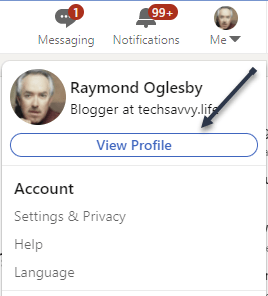
Next, in LinkedIn’s top right-hand corner, click:

Me > View Profile

Refer to the below image:

Linkedin 1
Accessing View Profile

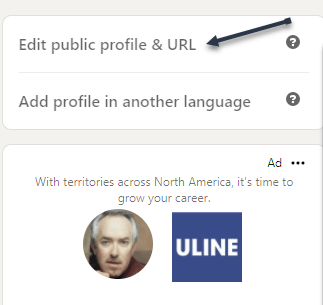
Now, on the right sidebar, at the top, click Edit public profile & URL. See the below image:

Linkedin 2
Accessing your Profile URL

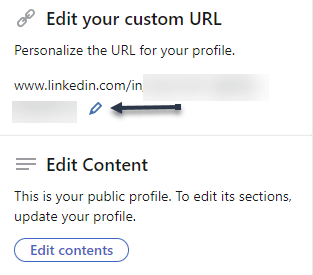
Next, at the top of the right sidebar, in the Edit your custom URL section, click Edit (the pencil icon). See the following image:

Linkedin 3
Edit your Profile URL

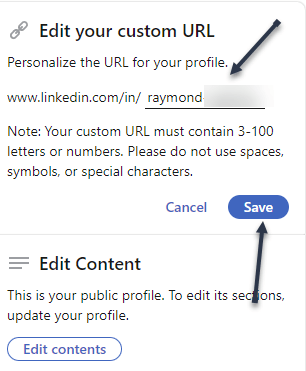
Your profile URL is now editable. Next, clear the existing URL, type in a new URL of your choice, then click Save. Refer to the below image:

Linkedin 4
Changing your Profile URL and Save

And your LinkedIn profile URL has been successfully changed. Compared to changing your profile URL on a mobile device, this method is much easier. People will now need to use the new URL to access your profile. Be sure to update your other social media with your new link.

If you would like to revert back to the previous URL, you can do so using the above steps.

Change on Mobile

On your iPhone, iPad, or Android phone, use the LinkedIn app to change your Linkedin web address.

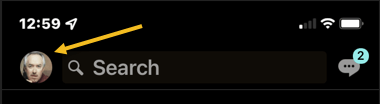
First, launch the LinkedIn app on your phone. In the app’s top left-hand corner, tap your profile icon. See the below image:

Linkedin 5
Accessing your Profile icon

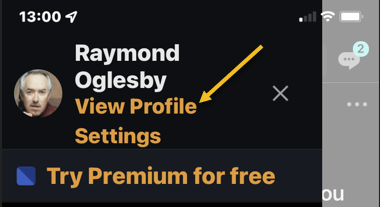
Next, in the menu that opens, at the top, tap View Profile. See the following image:

Linkedin 6
Accessing View Profile

Now, your profile page will open. Next to your profile image, tap the Edit (the pencil icon). Refer to the below image:

Linkedin 7
Accessing Edit

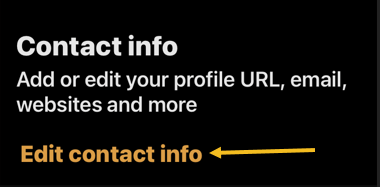
Next, your profile page will open. Scroll down the page to the Contact info section, then tap Edit contact info. See the below image:

Linkedin 8
Accessing Edit contact info link

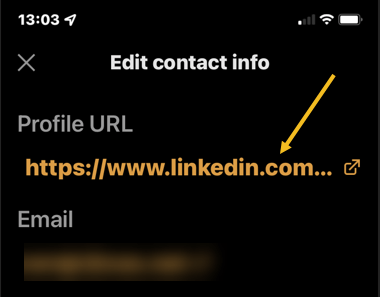
Now, in the Edit contact info section, tap your current profile URL. See the following image:

Linkedin 9
Accessing your current Profile link

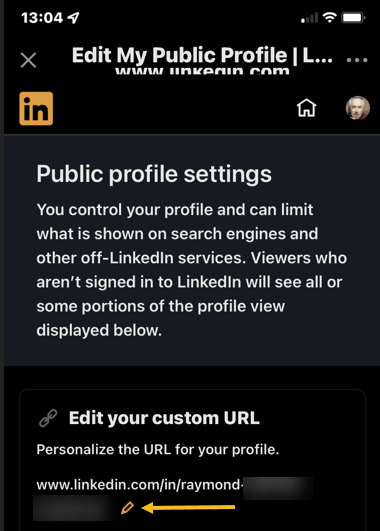
Next, in the Edit My Public Profile section, tap the Edit (the pencil icon) below Edit your custom URL

Linkedin 10
Accessing to Edit your Profile URL

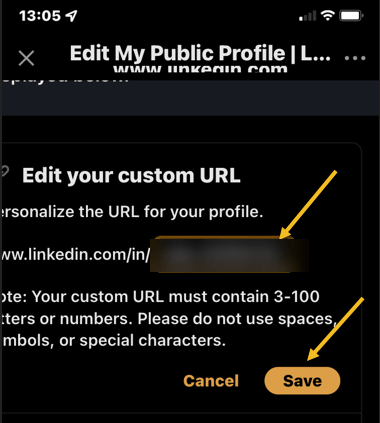
Your profile URL is now editable. Now, clear the existing URL, type in a new URL of your choice, then click Save. Refer to the below image:

Linkedin 11
Changing your Profile URL and Save

And that’s all. Your LinkedIn profile URL is now changed.

Quote For the Day

Move fast and break things. Unless you are breaking stuff, you are not moving fast enough.

Mark Zuckerberg

That’s it. Please feel free to share this post! One way to share is via Twitter.

Just click the Tweet icon below. This will launch Twitter where you click its icon to post the Tweet.

Check out TechSavvy.Life for blog posts on smartphones, PCs, and Macs! You may email us at contact@techsavvy.life for comments or questions.

I Would Like to Hear From You

Please feel free to leave a comment. I would love to hear from you. Do you have a computer or smart device tech question? I will do my best to answer your inquiry. Just send an email to contact@techsavvy.life. Please mention the device, app, and version you are using. To help us out, you can send screenshots of your data related to your question.

Author’s E-book

You can access the e-book from a Kindle device, the Kindle App for the desktop or smartphone, which is a free app.

The author’s Vietnam eBook on the Battle for Tra Bong Vietnam: Events and Aftermath


How to Disable/Enable Google Search Dark Theme

Google Search’s Dark Theme looks great, but it’s not for everyone. If you would prefer performing your searches on a light theme, here’s how to turn off/on Dark Theme on Google Search on desktop and mobile.

RAYMOND OGLESBY @RaymondOglesby2
February 15, 2022

Google Search’s Dark Theme looks great, but it’s not for everyone. If you would prefer performing your searches on a light theme, here’s how to turn off/on Dark Theme on Google Search on desktop and mobile.

This is for devices using Google Search. Screenshots are from Windows 10 and iPhone XR

Dilbert and Murder
Copyright Scott Adams, Inc./Distributed by Universal Uclick for UFS

Turn Off on Desktop

To disable Google Search’s Dark theme on your Windows, Mac, Linux, or Chromebook computer, first, launch your web browser and access the Google site.

Next, in the bottom-right-hand corner of the Google site, click Settings. Refer to the below image:

Searvh 1
Accessing Settings

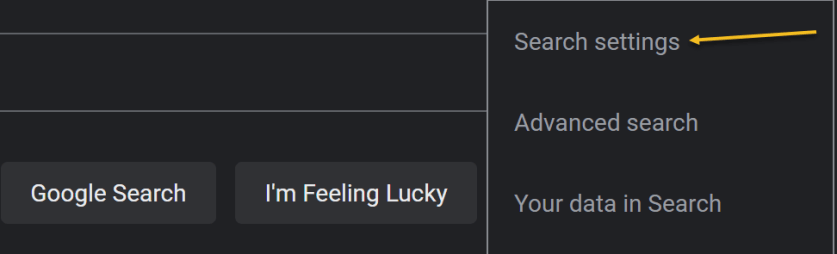
Now, in the menu that opens, select Search Settings. See the below image:

Search 2
Selecting Search settings option

Next, on the Search Settings page, in the left sidebar, click Appearance. See the following image:

Search 3
Selecting Appearance option

Now, in the Appearance section on the right, enable the Light theme option. This disables the Dark theme and enables the Light theme. Simply do the opposite to re-enable the Dark theme.

Next, to save your settings, at the bottom of the Appearance section, click Save. Refer to the below image:

Search 4
Save your change

Now, you will see a Your preferences have been saved prompt. Click OK. See the below image:

Search 5
Confirm your change

Next, your Google Search will be displayed in the Light theme. See the following image:

Search 6
Your Light theme

Turn Off on Mobile

To deactivate Dark theme on Google Search on your iPhone, iPad, or Android phone, first, launch your web browser and open the Google site.

Next, in Google’s top left-hand corner, tap the Hamburger menu (the three horizontal lines). Refer to the below image:

Search 7
Selecting the menu

Next, from the menu that opens, select Settings. See the below image:

Search 8
Accessing Settings

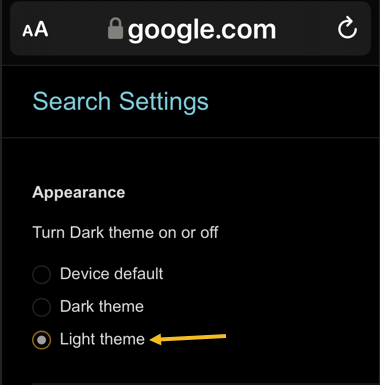
Now, on the Search Settings page, in the Appearance section, enable the Light theme option. See the following image:

Search 9
Selecting Light theme

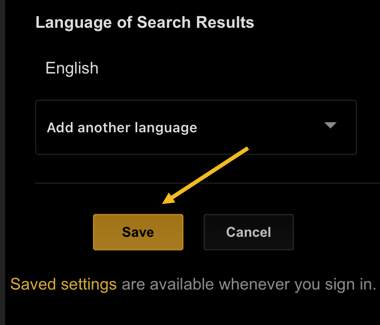
Now, to save your changes, scroll the Search Settings page to the bottom. and tap Save. Refer to the below image:

Search 10
Save your change

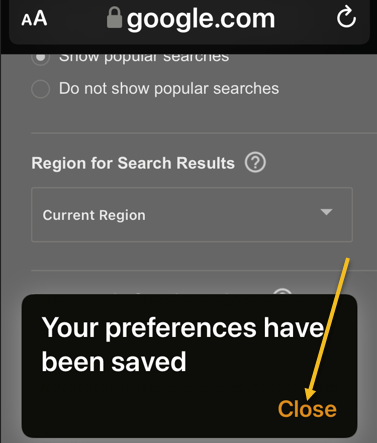
Next, in the Your preferences have been saved prompt, tap Close. See the below image:

Search 11
Close the dialog

And your favorite search engine is now back to Light theme. Simply do the opposite to re-enable the Dark theme.

Now, your Google Search will be displayed in the Light theme. See the following image:

Search 12
Your Light theme

Quote For the Day

When you combine ignorance and leverage, you get some pretty interesting results.

Warren Buffett

You are finished. Please feel free to share this post! One way to share is via Twitter.

Just click the Tweet icon below. This will launch Twitter where you click its icon to post the Tweet.

Check out TechSavvy.Life for blog posts on smartphones, PCs, and Macs! You may email us at contact@techsavvy.life for comments or questions.

I Would Like to Hear From You

Please feel free to leave a comment. I would love to hear from you. Do you have a computer or smart device tech question? I will do my best to answer your inquiry. Just send an email to contact@techsavvy.life. Please mention the device, app, and version you are using. To help us out, you can send screenshots of your data related to your question.

Author’s E-book

You can access the e-book from a Kindle device, the Kindle App for the desktop or smartphone, which is a free app.

The author’s Vietnam eBook on the Battle for Tra Bong Vietnam: Events and Aftermath