Not everyone you invite to a meeting may be a required guest. There might be someone that you want to give the choice to attend. Google Calendar provides the ability to make attendees optional, but it’s not obvious.
It could be your supervisor, a coworker who may not be available, or someone else with an interest in the meeting. By marking them optional, they can decide for themselves if they should or want to attend. And you can make guests optional at the time you create the Google Calendar event or afterward.
This is for devices using Google Calendar
Copyright Scott Adams, Inc./Distributed by Universal Uclick for UFS
When Creating the Event
First, launch Google Calendar and sign in if necessary. When you click to create a new event in Google Calendar, you see a small pop-up window to add all the details including your attendees. But you will not spot the optional feature for your guests immediately.
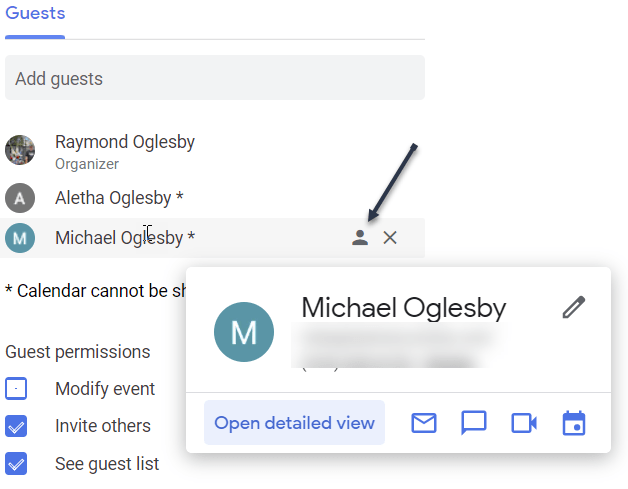
Next, hover your cursor over the attendee’s name or email address after you add it. To the right, you will see a gray contact (person) icon. Click that icon to mark your guest as optional. Refer to the below image:
Marking a guest as Optional
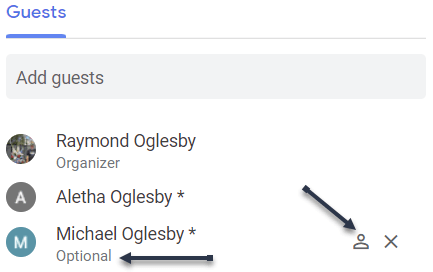
Now, the icon will appear white indicating the Optional status. You can click it again to make the guest required. See the below image:
Guest is Optional
After Creating the Event
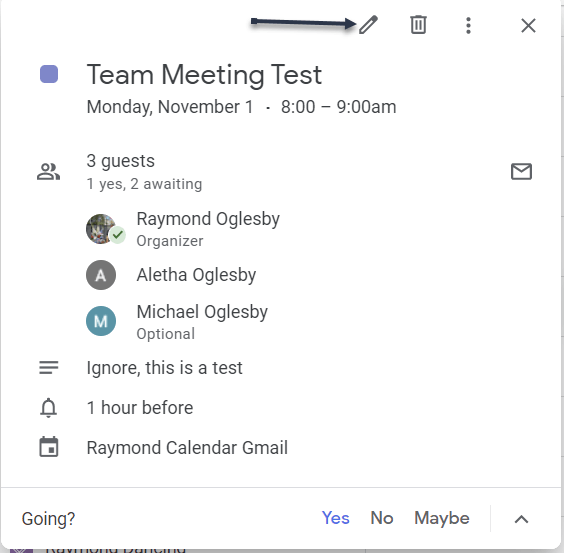
If you have already created the event, you can still make an attendee optional. Select the event on your Google Calendar to open the small detail window and then click the pencil icon to edit it. See the following image:
Selecting to Edit the event
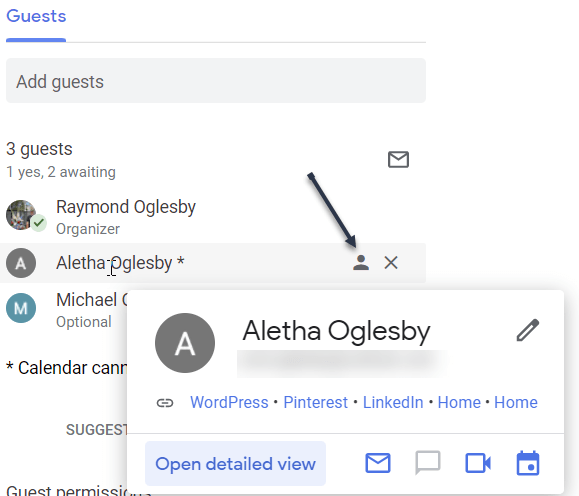
Next, on the event detail screen, hover your cursor over the attendee you want to make optional in the Guests section. To the right, click the gray contact icon. Refer to the below image:
Marking a guest as Optional
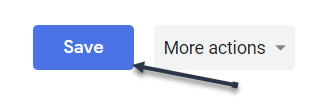
Now, click Save at the top to apply your change. See the below image:
Save your changes
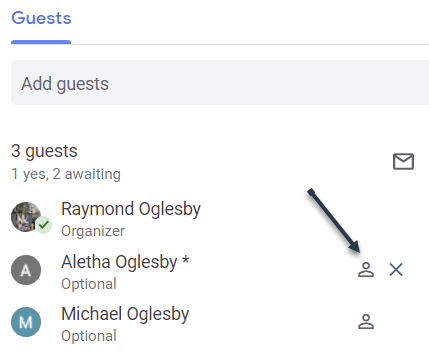
Next, the icon turns white and shows you the person is optional. If you want to make the attendee required again, just click that icon and hit Save. See the following image:
Guest is Optional
What Guest See
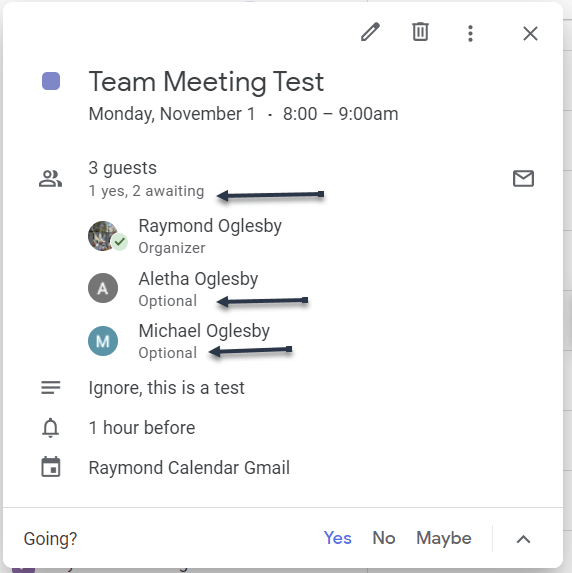
When you make an attendee optional for your event, the word Optional appears below their name. Anyone in the list of guests without the word Optional is required. Refer to the below image:
Viewing guests who are Optional
If you are setting up a meeting, conference call, or video call in Google Calendar and have certain guests that may want to attend but are not required to, you can easily use the Optional feature.
Quote For the Day
If we did all the things we are capable of, we would literally astound ourselves.
Thomas A Edison
That’s it. Now you know a seldom-used feature for making guests Optional in a Google Calendar event. Please feel free to share this post! One way to share is via Twitter.
Just click the Tweet icon below. This will launch Twitter where you click its icon to post the Tweet.
Check out TechSavvy.Life for blog posts on smartphones, PCs, and Macs! You may email us at contact@techsavvy.life for comments or questions.
Please feel free to leave a comment. I would love hearing from you. Do you have a computer or smart device tech question? I will do my best to answer your inquiry. Just send an email to contact@techsavvy.life. Please mention the device, app, and version you are using. To help us out, you can send screenshots of your data related to your question.

The author’s Vietnam eBook on the Battle for Tra Bong Vietnam: Events and Aftermath
On your iPhone or iPad, you can easily customize the Safari Start Page in iOS 15 and iPadOS 15 (or higher). You can make the page blank (mostly), add a background image, or pick and choose what you want to see.
On your iPhone or iPad, you can easily customize the SafariStart Page in iOS 15 and iPadOS 15 (or higher). You can make the page blank (mostly), add a background image, or pick and choose what you want to see. Let’s explore how this is done.
This is for iPhone and iPad running iOS or iPadOS 15 or higher
Copyright Scott Adams, Inc./Distributed by Universal Uclick for UFS
First, open Safari on your iPhone or iPad and open a new tab by tapping the tabs button (two overlapping rectangles in the bottom toolbar), then tapping the plus (“+”) button. Refer to the below image:
Selecting the Tabs button
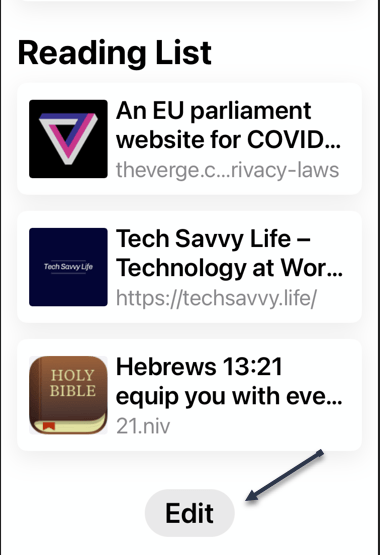
Next, you will see Safari’sStart Page by default. To edit what’s on the Start Page, scroll down, if necessary, and tap the Edit button. See the below image:
Selecting the Edit button
Now, a Customize Start Page window will appear. Use the switches beside the listed options to turn them ON or OFF. Here’s what each option does.
Favorites: This displays items from your Favorites list (like bookmarks).
Frequently Visited: You will see a list of frequently visited websites.
Shared With You: This gives you a list of items shared with you from other people through the Messages app.
Privacy Report: This shows a report on the number of trackers Safari has blocked recently.
Siri Suggestions: This displays suggestions from Siri related to what’s in your history and bookmarks.
Reading List: This shows items from your Reading List.
iCloud Tabs: This shows Safari tabs that are synchronized across iCloud from your other devices.
See the following image:
Turning On or Off the Start Page switches
Next, you can use the “three lines” handle beside each item to reorder the items on your Start Page by tapping and dragging the item. Refer to the below image:
Reorder your list
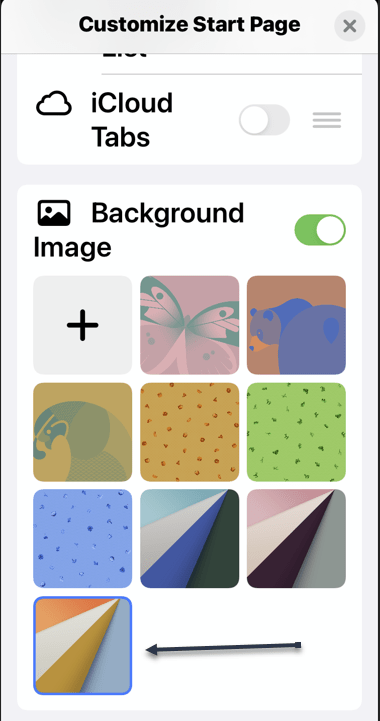
Now, if you turn the switch beside Background Image into the ON position, you can select a background picture that will display behind the content on your Start Page. Tap an image in the thumbnails or tap the plus (“+”) button to select a custom image from your photo library. See the below image:
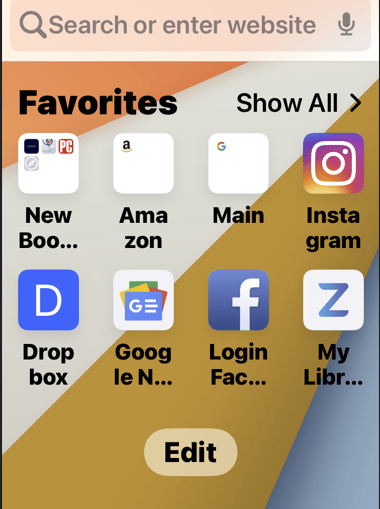
Next, if you want to make your Start Page as minimalist as possible, switch off every item on the Customize Start Page list. (Unfortunately, you will still see the Edit button.) See the following image where all items are turned OFF except for Favorites:
Your new Start Page
When you are done, click the “X” button to close the Customize Start Page window. The changes you have made take effect immediately.
If you want a different blank Start Page, see the related link below.
Please feel free to leave a comment. I would love hearing from you. Do you have a computer or smart device tech question? I will do my best to answer your inquiry. Just send an email to contact@techsavvy.life. Please mention the device, app, and version you are using. To help us out, you can send screenshots of your data related to your question.

The author’s Vietnam eBook on the Battle for Tra Bong Vietnam: Events and Aftermath
Privacy is an important thing to consider when putting all of your conversations into a messaging app. With Facebook Messenger’s Vanish Mode, you can make sensitive messages disappear after the recipient has read them. It’s a nice privacy trick.
Vanish Mode is also available on Instagram and it works exactly the same as Facebook Messenger. The idea is you start Vanish Mode, say what you want to say, then leave Vanish Mode. After your messages have been seen, they disappear.
This is for iPhone, iPad, and Android using Messenger
Copyright Scott Adams, Inc./Distributed by Universal Uclick for UFS
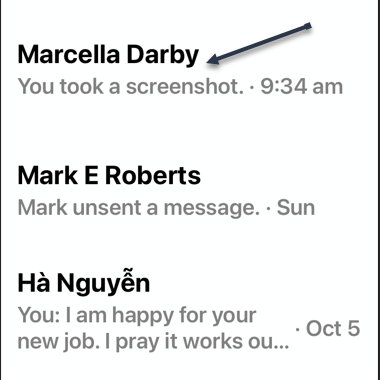
First, open Messenger and start a conversation with someone you are friends with. Refer to the below image:
Selecting a friend to start a conversation
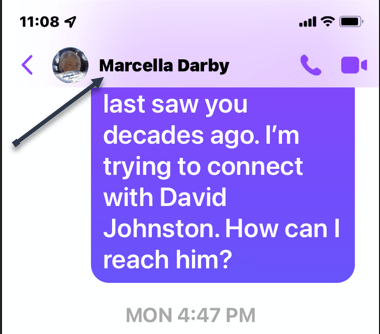
Next, while in the conversation view, press down and hold while swiping up from the text box. You will see a little indicator to help you get into Vanish Mode. The tiny dot is barely visible. On the below screenshot, you will notice the top of the screen has changed color. See the below image:
Entering Vanish Mode
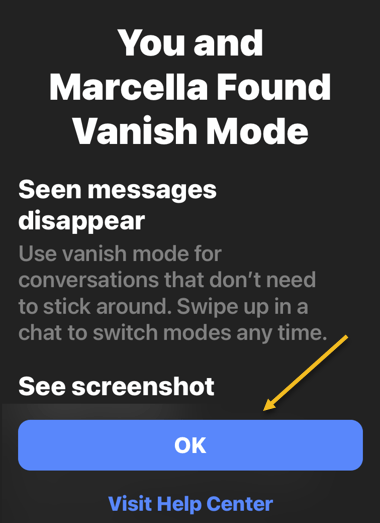
Now, on your first use of Vanish Mode, a confirmation screen will be displayed. Tap OK to continue. See the following image:
Vanish Mode confirmation
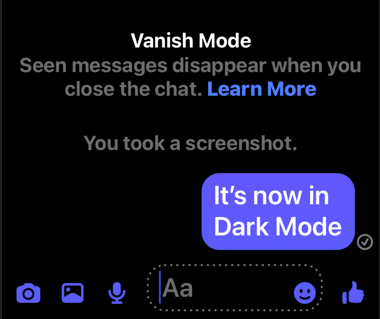
Next, in Vanish Mode, the background will be dark. You can now have a conversation like you normally would. Refer to the below image:
In Vanish Mode
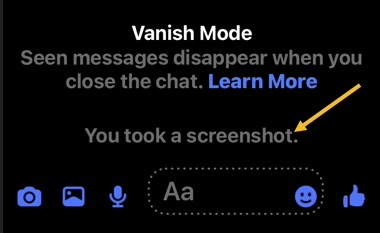
Now, if you or the recipient takes a screenshot while you are in Vanish Mode, you will be notified. See the below image:
Notification either you or the recipient has taken a screenshot
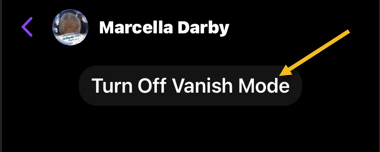
Next, when you are ready for everything to disappear, tap on Turn Off Vanish Mode. You can also do the swipe-up gesture again. See the following image:
Exiting Vanish Mode
Note!Messenger retains your Vanish Mode media and texts for up to an hour after they have been deleted. This is in case the recipient files a report for abuse and harassment and Messenger needs the Vanish Mode data to take action.
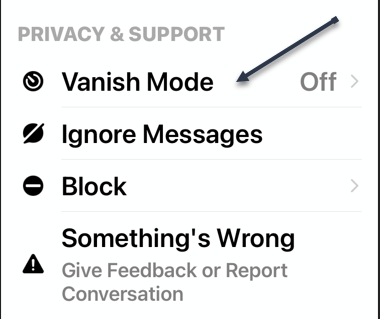
You can also turn on Vanish Mode via the recipient profile. Scroll down to the Privacy & Support section and toggle Vanish Mode to ON. Refer to the below image:
Entering Vanish Mode from recipient profile
Quote For the Day
The reason that Apple is able to create products like the iPad is because we’ve always tried to be at the intersection of technology and the liberal arts.
Steve Jobs
That’s all there is to it. Think of it like walking into a sound-proof room to have a secret conversation. You can enter Vanish Mode for a while and then leave when you are done.
Just click the Tweet icon below. This will launch Twitter where you click its icon to post the Tweet.
Check out TechSavvy.Life for blog posts on smartphones, PCs, and Macs! You may email us at contact@techsavvy.life for comments or questions.
Please feel free to leave a comment. I would love hearing from you. Do you have a computer or smart device tech question? I will do my best to answer your inquiry. Just send an email to contact@techsavvy.life. Please mention the device, app, and version you are using. To help us out, you can send screenshots of your data related to your question.
The author’s Vietnam eBook on the Battle for Tra Bong Vietnam: Events and Aftermath
Got a new photo and want to show it off to your Instagram followers? Instagram makes it easy to change your profile picture.
Unlike Facebook, you can change your profile picture without posting. There is no notification when you change your profile photo, it just changes. Let’s explore how this is done.
This is for. iPhone/iPad and Android using Instagram
Copyright Scott Adams, Inc./Distributed by Universal Uclick for UFS
On your iPhone/iPad or Android phone, use the Instagram app to update your profile picture.
First, launch the Instagram app on your phone. In the app, from the bar at the bottom, select the profile icon (which is the last icon in that row). Refer to the below image:
Accessing your profile
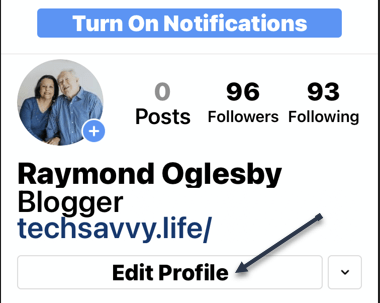
Next, on your profile screen, beneath your profile details, tap the Edit Profile option. See the below image:
Selecting Edit Profile option
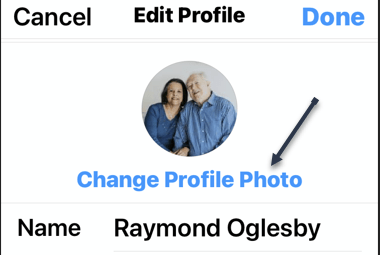
Now, beneath your current profile picture, tap Change Profile Photo. See the following image:
Selecting to change profile photo
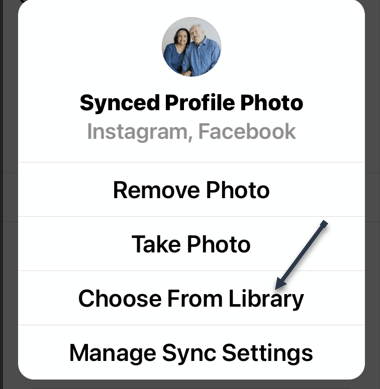
Next, from the bottom of your app, Instagram will open a Change Profile Photo or Synced Profile Photo menu.
Now, if you want to replace your profile picture with a picture saved on your phone, tap New Profile Photo in the menu. To add a photo from your Facebook profile, tap Import from Facebook.
Tip: Use the Remove Profile Photo option if you simply want to delete the current picture from your Instagram profile.
We will choose the Choose From Library option. Refer to the below image:
Selecting where to get your profile photo
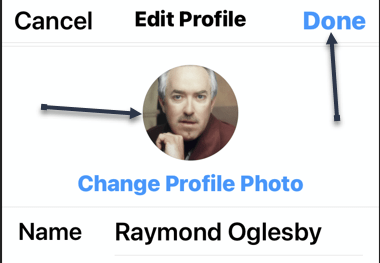
Next, Instagram will open your phone’s gallery. Here, select the photo that you would like to make your profile picture on Instagram. When you select a photo, the app will display editing options that are optional. Tap Done to continue. See the below image:
Selecting your profile photo
Now, Instagram will take you to your profile page, and you will see your new profile picture there. Tap Done to continue. See the following image:
Your new profile photo
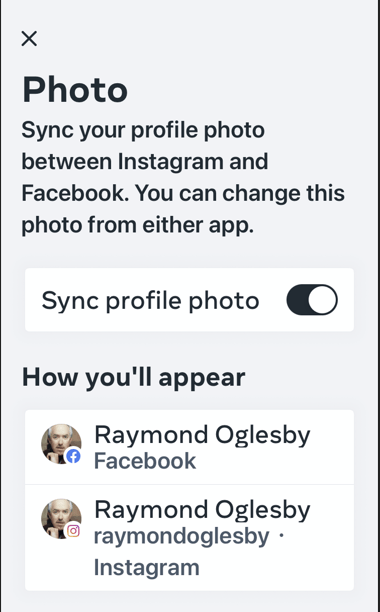
Next, if you have enabled Sync profile photo, (from Choose From Library screen above) your new photo will be synced to Facebook. Tap OK to continue. Refer to the below image:
Syncing enabled
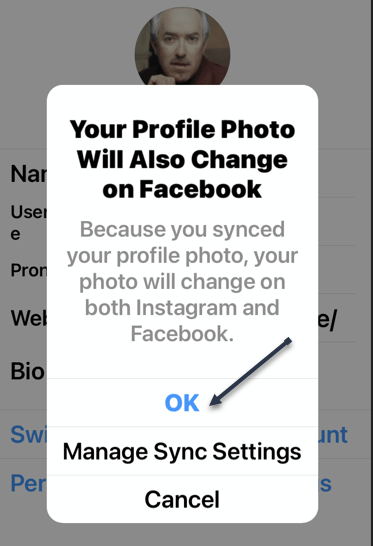
Now, go back to the above screen and tap Manage Sync Settings. A confirmation dialog will be displayed regarding your profile photo sync between Facebook and Instagram. See the below image:
Your sync confirmation
Next, exit Instagram.
Quote For the Day
Older people sit down and ask, ‘What is it?’ but the boy asks, ‘What can I do with it?’.
Steve Jobs
That’s it. Please feel free to share this post! One way to share is via Twitter.
Just click the Tweet icon below. This will launch Twitter where you click its icon to post the Tweet.
Check out TechSavvy.Life blog posts on smartphones, PCs, and Macs! You may email us at contact@techsavvy.life for comments or questions.
Please feel free to leave a comment. I would love to hear from you. Do you have a computer or smart device tech question? I will do my best to answer your inquiry. Just send an email to contact@techsavvy.life. Please mention the device, app, and version you are using. To help us out, you can send screenshots of your data related to your question.
The author’s Vietnam eBook on the Battle for Tra Bong Vietnam: Events and Aftermath
In iOS/iPad OS 15, Apple’s Focus feature lets you set up Focus modes, that when enabled, help reduce distractions and allow you to turn your attention to things more important.
iOS/iPadOS 15 comes with a handful of pre-set Focus modes, like Sleep, Personal, and Work, and you can also create your own custom configurations to filter notifications based on what you are doing. But how do you delete a Focus you no longer use? Let’s explore how to do this.
This is for the iPhone and iPad running iOS or iPadOS 15 or higher
Copyright Scott Adams, Inc./Distributed by Universal Uclick for UFS
Can I Remove Any Focus
Along with the custom Focus, you can also delete the default Personal, Sleep, and Work modes, provided you have set them up. Since Focus syncs to all your devices connected to the same iCloud account, removing one from iPhone or iPad will also erase it from the other devices.
Remove a Focus
First, open the Settings app on your iPhone or iPad. Refer to the below image:
Accessing the Settings app
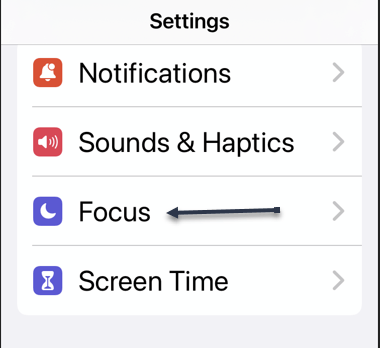
Next, scroll down and tap on Focus. See the below image:
Selecting the Focus option
Now, if you want to delete a Focus from just one iPhone or iPad, then you will need to toggle OFF the switch for Share Across Devices. After that, the changes you make to the Focus modes on your iPhone or iPad will not sync to the other devices connected to the same iCloud account. If you want it deleted from all devices, continue on to the next step. See the following image:
Toggle OFF the Share Across Devices for deletion of Focus on one device
Next, on the confirmation pop up, tap OK. Refer to the below image:
Confirm your Share Across Device toggle
Now, tap on a Focus mode you wish to remove. When it opens, scroll down and select Delete Focus. See the below image:
Selecting to delete a Focus
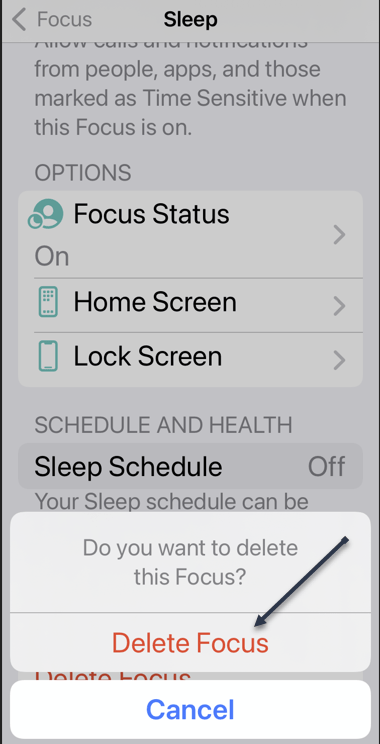
Next, select Delete Focus from the confirmation pop-up window. See the following image:
Deleting a Focus
Repeat the process for each Focus you want to remove, then close the Settings app.
Quote For the Day
That’s been one of my mantras – focus and simplicity. Simple can be harder than complex: You have to work hard to get your thinking clean to make it simple. But it’s worth it in the end because once you get there, you can move mountains.
Steve Jobs
You are finished. Please feel free to share this post! One way to share is via Twitter.
Just click the Tweet icon below. This will launch Twitter where you click its icon to post the Tweet.
Check out TechSavvy.Life for blog posts on smartphones, PCs, and Macs! You may email us at contact@techsavvy.life for comments or questions.
Please feel free to leave a comment. I would love to hear from you. Do you have a computer or smart device tech question? I will do my best to answer your inquiry. Just send an email to contact@techsavvy.life. Please mention the device, app, and version you are using. To help us out, you can send screenshots of your data related to your question.
The author’s Vietnam eBook on the Battle for Tra Bong Vietnam: Events and Aftermath
In iOS 15, Apple introduced a range of changes to its native iPhone web browser, Safari. Some of them were controversial, such as the decision to move the URL address bar to the bottom of the screen, but others were less so, and Apple eventually provided options so that you could customize the browser to suit their own preferences.
One of those options is the ability to disable website tinting. Tinting happens when the color of the Safari interface changes around the tabs, bookmark, and navigation button areas to match the color of the website you are viewing.
The idea behind tinting is that it allows the browser interface to fade into the background and create a more immersive experience. However, the effect does not sit well with everyone, and some users are put off by it. Fortunately, Apple chose to include an option to turn it off. It’s easy to disable this feature, let’s find out.
This is for devices using Safari in iOS or iPadOS 15 or higher
Copyright Scott Adams, Inc./Distributed by Universal Uclick for UFS
On the iPhones X and later models with a notch, it’s pretty prominent. But the older iPhone models will only see it while scrolling.
First, open the Settings app on your iPhone or iPad, Refer to below image:
Accessing Settings app
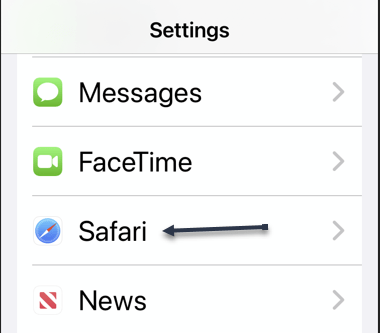
Next, scroll down to Safari, and select it. See below image:
Accessing Safari option
Now, scroll down till you see the Tabs section. From there, toggle OFF (it is ON by default) the switch for Allow Website Tinting. See the following image:
Disable Tinting feature
Next, close the Settings app. You will have to force quit Safari on your iPhone or iPad and reopen it to see the change.
Quote For the Day
Be a yardstick of quality. Some people aren’t used to an environment where excellence is expected.
Steve Jobs
That’s it. Please feel free to share this post! One way to share is via Twitter.
Just click the Tweet icon below. This will launch Twitter where you click its icon to post the Tweet.
Check out TechSavvy.Life blog posts for smartphones, PCs, and Macs! You may email us at contact@techsavvy.life for comments or questions.
Please feel free to leave a comment. I would love to hear from you. Do you have a computer or smart device tech question? I will do my best to answer your inquiry. Just send an email to contact@techsavvy.life. Please mention the device, app, and version you are using. To help us out, you can send screenshots of your data related to your question.
The author’s Vietnam eBook on the Battle for Tra Bong Vietnam: Events and Aftermath
For years, Apple devices have made it easy to share nearly anything. Website links, videos, photos; you name it, chances are it’s easy to share via Messages, especially if you are sharing with other Apple users. Finding the media and links others share with you was not always easy until now.
For years, Apple devices have made it easy to share nearly anything. Website links, videos, photos; you name it. Chances are it’s easy to share via Messages, especially if you are sharing with other Apple users. Finding the media and links others share with you was not always easy until now. Let’s explore this feature.
This is for iPhone and iPad running iOS or iPadOS 15 or higher
Copyright Scott Adams, Inc./Distributed by Universal Uclick for UFS
What is Shared with You
Shared with You is a feature built into multiple apps on both iPhone and iPad that automatically gathers together any content your contacts have sent you. It works in Messages, but is also built into Apple Music, Apple TV, Podcasts, Photos, and Safari.
This feature works in two ways. First, you can easily view all the various media a contact has shared with you in Messages. Second, you can view all the Apple TV shows, for example, that all of your contacts have shared with you, directly inside that app.
Shared with You is a new feature as of iOS 15 and iPadOS 15 or higher, but it works with content sent from older iOS and iPadOS versions. It will even work automatically with some content sent from other devices.
How to Use in Messages
The easiest way to use Shared with You is not all that different from how you would find a friend’s recommendations. First, open the Messages app, then find a conversation with the person whose content you wish to see. Refer to below image:
A Contact to share with
Now, on this screen you will see some of the contact’s details as you would have before. At the bottom of the screen, you will now notice a new section with media that contact has shared with you. See below image for sharing of Links:
Sharing a link
How to Use in Safari
Shared with You makes it easy to see all the links to various websites and articles that contacts have sent you.
First, open Safari, then open a new tab to get to the Start Page. Now, scroll down until you see the Shared with You section. Tap any of the links here to open them in a new tab. See the following image:
Safari Shared with You section
If you do not see a Shared with You section, you might not have it enabled in the Start Page.
To enable the Shared with You section, next, scroll to the bottom of the StartPage and tap Edit. Refer to below image:
Accessing Edit to enable Shared with You
Now, find and enable the Shared with You toggle. See below image:
Enable/disable Shared with You
How to Use in Other Apps
While the Messages app provides the easiest way to see everything a given contact has shared, it’s not the only way to use Shared with You. You can also see content shared by your contacts in any supported app.
As of this writing, Shared With You is available for Apple TV, Messages, Photos, Podcasts, and Music.
Too Much Sharing
We all know people who seem to share everything they stumble across on social media. If you know more than one of that sort of person, they could quickly overwhelm you with notifications and content.
The good news is that if you are not interested in seeing some or all Shared with You content, you can turn it off. You can either disable Shared with You entirely or simply turn off the feature on a per-app basis.
First, to disable Shared with You features, open the Settings app. See following image:
Accessing Settings app
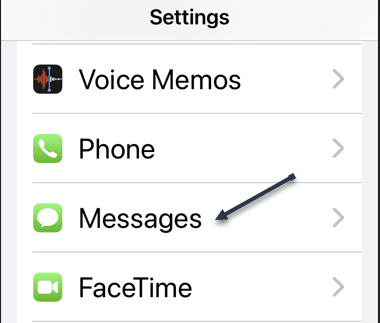
Now, go to Messages. Refer to below image:
Accessing Messages option
Next, tap Shared With You. See the below image:
Accessing Shared with You
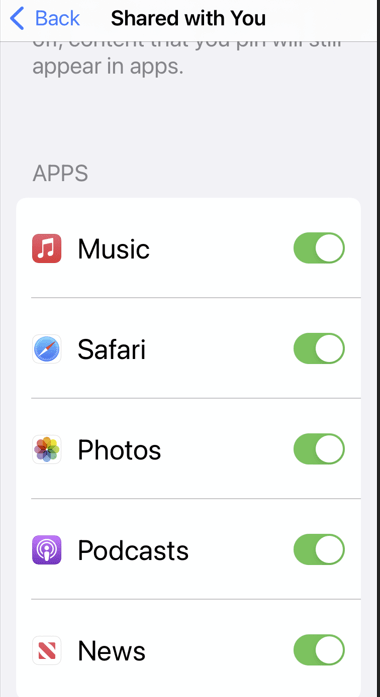
Here you can customize whether you want to use Shared with You at all or only in certain apps. See following image:
Enable/disable Shared with You
Quote For the Day
As individuals, people are inherently good. I have a somewhat more pessimistic view of people in groups. And I remain extremely concerned when I see what’s happening in our country, which is in many ways the luckiest place in the world. We don’t seem to be excited about making our country a better place for our kids.
Steve Jobs
That’s it for a few examples on how to use Shared with You. Please feel free to share this post! One way to share is via Twitter.
Just click the Tweet icon below. This will launch Twitter where you click its icon to post the Tweet.
Check out TechSavvy.Life for blog posts on smartphones, PCs, and Macs! You may email us at techsavvy.life for comments or questions.
Please feel free to leave a comment. I would love to hear from you. Do you have a computer or smart device tech question? I will do my best to answer your inquiry. Just send an email to contact@techsavvy.life. Please mention the device, app, and version you are using. To help us out, you can send screenshots of your data related to your question.
The author’s Vietnam eBook on the Battle for Tra Bong Vietnam: Events and Aftermath
With the introduction of iOS 15, Apple revamped its paid iCloud plans to “iCloud+” to reflect the fact that subscribers now get access to additional privacy features like Hide My Email.
This feature builds on the idea of Sign in With Apple by providing you with unique, random email addresses that forward to your personal inbox whenever you want to keep your personal email address private. Let’s explore how to set up Hide my Email feature.
This is for the iPhone and iPad running iOS 15 or higher
Copyright Scott Adams, Inc./Distributed by Universal Uclick for UFS
The Requirements
To use the Hide My Email feature, you need an iCloud+ or Apple One subscription. (Even the $0.99 per month subscription works.) You will also need an email address. Additionally, your iPhone or iPad must be running iOS 15 or iPadOS 15 (or higher.
It’s worth noting that Hide My Email originally debuted as part of the Sign in With Apple service that shipped with iOS 13 in 2019. If you do not have a paid iCloud+ account, you can still use Hide My Email as part of Sign in With Apple for free.
Privacy Breches
Is your email being comprised? If you are like millions of others, your email is comprised. Most major carriers have a mobile security app. We are using AT&T Mobile Security where we have comprised emails. Refer to the below image:
Our AT&T comprised emails
To find out if you have comprised passwords, head to:
Settings > Passwords > Security Recommendations
and tap an entry to see additional information. See the below image where our email address has been comprised for time.com:
Our comprised passwords
Create “Hide my Email”
To use Hide My Email, you will need to access your iCloud options in the Settings app. First, open Settings on your iPhone or iPad by tapping the grey gear icon, usually on your Home screen. See the following image:
Selecting Settings
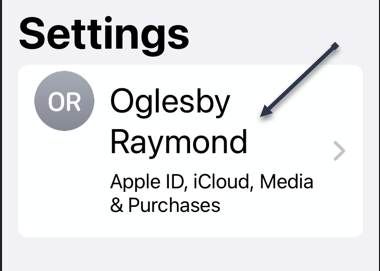
Next, tap your Apple ID name at the very top of Settings. Refer to the below image:
Accessing your Apple ID
Now, in Apple ID settings, tap iCloud. See the below image:
Accessing iCloud
Next, in iCloud settings, tap Hide My Email. If you do not see it listed, then you are not subscribed to iCloud+ or Apple One. See the following image:
Accessing Hide My Email option
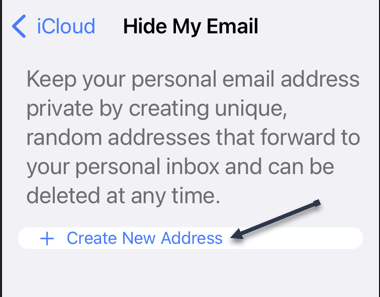
Now, tap the Create New Address link. Refer to the below image:
Selecting to create a new address
Next, tap Continue if you have yet to create an address. See the below image:
Selecting to continue
A potential email address will be randomly generated.
Now, type in a label for the address you just generated. We suggest using the name of the service you will be providing the random email address to (“Outlook,” for example). You can also make a note in a text box below the label. When you are done, tap Next in the upper right-hand corner of the window. See the following image:
Adding a Label for your new address
Next, on the All Set screen, you will confirm that a unique random email address has been created. Tap Done to continue.
Now, tap the Forward To to view a list of email addresses. Refer to the below image:
Selecting Forward To option
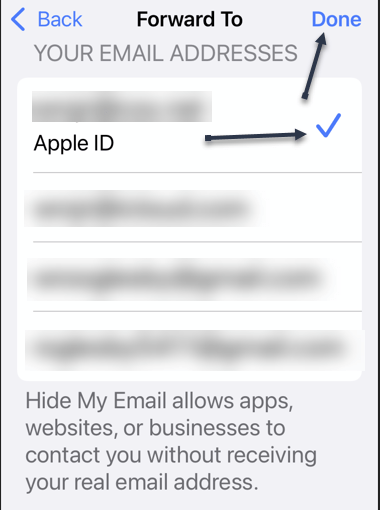
Next, select one from the list. When finished, tap Done in the upper right-hand corner. See the below image:
Selecting a Forward To entry
Now, you are ready to use your new email address. When a service asks for your email address, just type in the random one provided by Apple. You will receive emails from it as you normally would, but with one exception: It will have Hide My Email listed in the To field. From here, exit Settings.
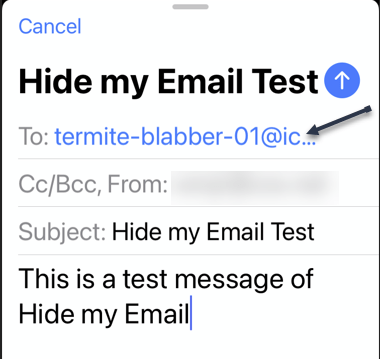
Next, open your email service and create an email. See the following image:
Create an email using the new email address
The new email will be displayed in your Inbox. Note! We created an email to ourselves. Refer to the below image:
Your newly created email in your Inbox
Now, navigate back to:
Settings > Apple ID > iCloud > Hide My Email
If you want to create another address, tap Create New Address. Or if you need to adjust which email address your Hide My Email addresses will forward to, tap Forward To.
Next, you will see the address you just created listed (alone with other addresses) on the Hide my Email screen.
Now, tap on your newly created entry. In our example, we are using Outlook. See the below image:
Accessing your labeled email
Please note, if you reply to an email forwarded from Hide My Email, the recipient will see your regular email address, not the random one, so you can not use it to hide your identity in a two-way conversation. Apple-designed Hide My Email as a one-way system, mostly for protection from commercial spam.
Deactivate/Delete “Hide my Email”
If you need to remove or delete a Hide My Email address on your iPhone or iPad, you can either deactivate it or delete it completely.
Next, on the detail screen for the email address, scroll down to the bottom and select Deactivate Email Address. See the following image:
Selecting to Deactivate an email address
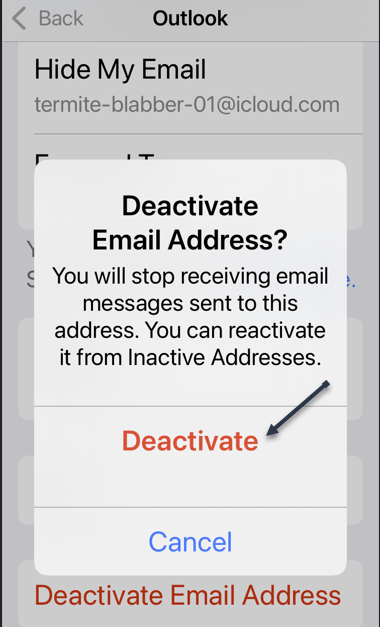
Now, confirm again in the pop-up by tapping Deactivate. Refer to the below image:
Confirming to Deactivate
Next, the deactivated email address will move into an Inactive Addresses section on the:
Settings > Apple ID > iCloud > Hide My Email
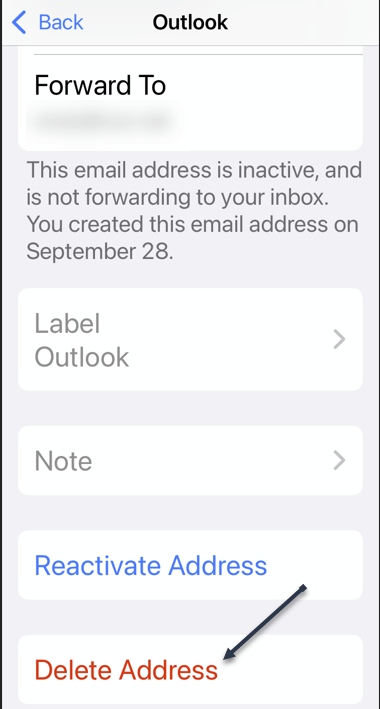
screen. To reactivate the address later, tap its name in that list, then select Reactivate Address. To delete the Hide My Email address permanently, tap Delete Address. See the below image:
Selecting to Delete an email address
After confirming, that particular Hide My Email address will be deleted. It will not affect any emails you have in your Inbox or any of your other email accounts or addresses. If you need to delete another Hide My Email address, repeat the process above.
Quote For the Day
Technology is nothing. What’s important is that you have a faith in people, that they’re basically good and smart, and if you give them tools, they’ll do wonderful things with them.
Steve Jobs
That’s it. It’s somewhat daunting to set up this Hide my Email feature, but worth your time. Please feel free to share this post! One way to share is via Twitter.
Just click the Tweet icon below. This will launch Twitter where you click its icon to post the Tweet.
Check out TechSavvy.Life for blog posts on smartphones, PCs, and Macs! You may email us at contact@techsavvy.life for comments or questions.
Please feel free to leave a comment. I would love to hear from you. Do you have a computer or smart device tech question? I will do my best to answer your inquiry. Just send an email to contact@techsavvy.life. Please mention the device, app, and version that you are using. To help us out, you can send screenshots of your data related to your question.
The author’s Vietnam eBook on the Battle for Tra Bong Vietnam: Events and Aftermath
Microsoft is leading the way for a passwordless future. You no longer are required passwords to login to your Microsoft account as you can now use the Microsoft Authenticator app, Windows Hello, a security key or a verification code sent via SMS or email.
Microsoft is leading the way for a passwordless future. You no longer are required passwords to login to your Microsoft account as you can now use the Microsoft Authenticator app, Windows Hello, a security key or a verification code sent via SMS or email. Let’s explore how to setup this feature.
The company has been preparing for a passwordless future for quite some time and its reason behind is the fact that passwords can be easily manipulated.
Vasu Jakkal, Corporate VP of Microsoft’s Security, Compliance and Identity, said “Weak passwords are the entry point for the majority of attacks across enterprise and consumer accounts. There are a whopping 579 password attacks every second—that’s 18 billion every year,” Jakkal added.
This is for devices using Microsoft Account. Screenshots are from iPhone XR.
Copyright Scott Adams, Inc./Distributed by Universal Uclick for UFS
First, install the Microsoft Authenticator app and link it to your Microsoft account. There are several authenticator apps, ensure you install the correct one from Microsoft. Refer to below image:
Download and install the Microsoft Authenticator app
Next, open your Microsoft account. See below image:
Your Microsoft account
Now, scroll down to Advanced security section and toggle on Passwordless account. See following image:
Setting Passwordless account option
Then follow the on-screen prompts and approve the notification from the Authenticator app.
Your Microsoft account is now passwordless. You can always go back to using a password for your account.
Quote For the Day
A lot of people in our industry haven’t had very diverse experiences. So they don’t have enough dots to connect, and they end up with very linear solutions without a broad perspective on the problem. The broader one’s understanding of the human experience, the better design we will have.
Steve Jobs
That’s it. Please feel free to share this post! One way to share is via Twitter.
Just click the Tweet icon below. This will launch Twitter where you click its icon to post the Tweet.
Check out TechSavvy.Life for blog posts on smartphones, PCs, and Macs! You may email us at contact@techsavvy.life for comments or questions.
Please feel free to leave a comment. I would love hearing from you. Do you have a computer or smart device tech question? I will do my best to answer your inquiry. Just send an email to contact@techsavvy.life. Please mention the device, app and version that you are using. To help us out, you can send screenshots of your data related to your question.
The author’s Vietnam eBook on the Battle for Tra Bong Vietnam: Events and Aftermath
Smartphone displays are rarely the same aspect ratio as YouTube videos. That leaves black bars on the sides. You can pinch-to-zoom to fill the screen, but if you are always doing that, you might as well make it default.
Smartphone displays are rarely the same aspect ratio as YouTube videos. That leaves black bars on the sides. You can pinch-to-zoom to fill the screen, but if you are always doing that, you might as well make it default. Let’s explore how to setup viewing a YouTube video in full screen.
This is is for the iPhone, iPad, and Android. Screenshots are from iPhone XR.
Copyright Scott Adams, Inc./Distributed by Universal Uclick for UFS
First, open the YouTube app on your iPhone, iPad, or Android device. Now, tap your profile icon in the top-right-hand corner. Refer to below image:
Accessing your Profile icon
Next, tap Settings from the menu. See below image:
Accessing Settings
Now, go to the General section. See following image:
Accessing General section
Next, toggle the switch for Zoom to fill screen to ON. Refer to below image:
Toggle ON the Zoom to fill screen
Now, you will no longer need to zoom in on every YouTube video to take up the entire screen.
Quote For the Day
An iPod, a phone, an internet mobile communicator… these are NOT three separate devices! And we are calling it iPhone! Today Apple is going to reinvent the phone. And here it is.
Steve Jobs
You are finished. Please feel free to share this post! One way to share is via Twitter.
Just click the Tweet icon below. This will launch Twitter where you click its icon to post the Tweet.
Check out TechSavvy.Life for blog posts on smartphones, PCs, and Macs! You may email us at contact@techsavvy.life for comments or questions.
Please feel free to leave a comment. I would love hearing from you. Do you have a computer or smart device tech question? I will do my best to answer your inquiry. Just send an email to contact@techsavvy.life. Please mention the device, app and version that you are using. To help us out, you can send screenshots of your data related to your question.

The author’s Vietnam eBook on the Battle for Tra Bong Vietnam: Events and Aftermath