How to View Your Most Used Apps on iPhone

A big part of your daily time is spent using your iPhone. Whether you want to understand your app usage, change your lifestyle, or just know which apps you need to cut down on, its helpful to know about your most used apps.

RAYMOND OGLESBY @RaymondOglesby2
August 25, 2021

A big part of your daily time is spent using your iPhone. Whether you want to understand your app usage, change your lifestyle, or just know which apps you need to cut down on, its helpful to know about your most used apps. Let’s explore this feature, called Screen Time.

This is for the iPhone

Dilbert and Story
Copyright Scott Adams, Inc./Distributed by Universal Uclick for UFS

Enable Screen Time

Before you can find out which apps you use the most on your iPhone, you will need to turn on a free feature built into iOS called Screen Time. This feature helps you keep track of how you use your iPhone. It can also help you put limits on your app usage if you would like, although that’s optional.

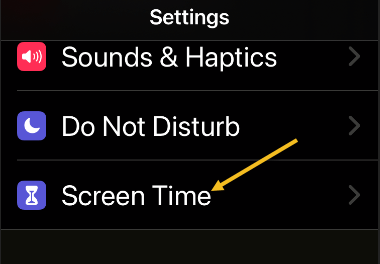
First, open the Settings app, and then tap the Screen Time option. Refer to below image:

Apps 1
Accessing Screen Time option

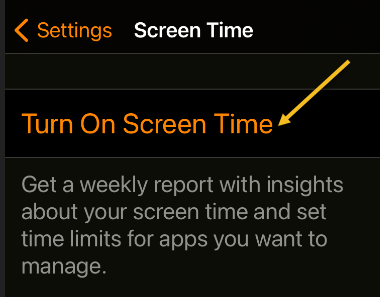
Next, tap Turn on Screen Time and tap This is My iPhone or This is My Child’s iPhone. See below image:

Apps 2
Enable Screen Time

Now, you will see a Screen Time summary page with no data, but we will fix that problem. Note! Each time you enable Screen Time, you data is removed.

Check Screen Time Again

The catch with using Screen Time is that it needs to be enabled to start gathering data about which apps you use the most. If you just turned it on, you will not have a most-used app list to look at.

So, now that Screen Time has been enabled, use your iPhone as you normally would. After a while, you can check back in with Screen Time and see some statistics.

Next, open the Settings app and tap Screen Time again. See following image:

Apps 1
Accessing Screen Time option

Now, on the Screen Time summary page, you will see a chart that shows your average daily activity. Just under that chart, tap See All Activity. Refer to below image:

Apps 4
Selecting to See All Activity

Next, choose whether you want to see your most used apps over the period of a day, week, month, or year at the top of the screen. See below image:

Apps 5
Selecting your time period

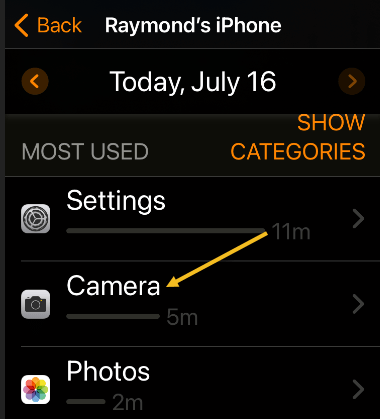
Now, scroll down to the Most Used section, and you will see a list of apps sorted by which you used the most over the selected time period, with your most used apps listed at the top. Tap an app to see more details. See following image:

Apps 6
Selecting an app to view its details

Add a Limit

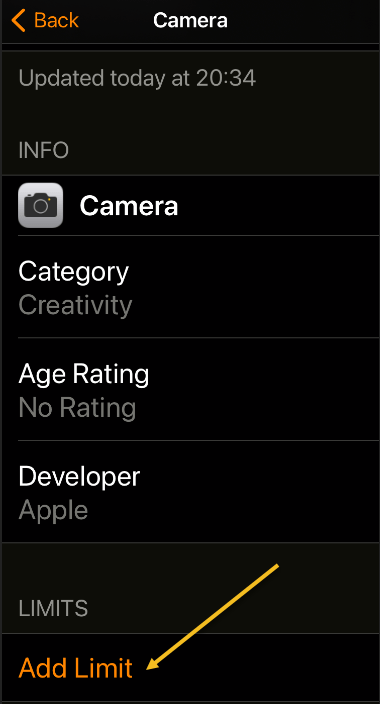
Next, while on the detailed-view screen, if you want to set a time limit to prevent you from using the app too much, scroll down and tap Add Limit. Refer to below image:

Apps 7
Selecting Add a Limit to control how much time you spend using the app

Now, you will see a screen where you can set a time limit for the app in hours or minutes. When you’re done, tap Add. See below image:

Apps 8
Setting the time limit

From now on, whenever your time is up, you will see an alert pop up, reminding you not to use the app anymore.

Quote For the Day

True terror is to wake up one morning and discover that your high school class is running the country.

Kurt Vonnegut

That’s it. Please feel free to share this post! One way to share is via Twitter.

Just click the Tweet icon below. This will launch Twitter where you click its icon to post the Tweet.

Check out TechSavvy.Life for blog posts on smartphones, PCs, and Macs! You may email us at contact@techsavvy.life for comments or questions.

I Would Like to Hear From You

Please feel free to leave a comment. I would love hearing from you. Do you have a computer or smart device tech question? I will do my best to answer your inquiry. Just send an email to contact@techsavvy.life. Please mention the device, app and version that you are using. To help us out, you can send screenshots of your data related to your question.

The author’s Vietnam eBook on the Battle for Tra Bong: Events and Aftermath

How to Use Reminders on iPhone and iPad

The Reminders app has seen significant improvements with iOS 13 and iOS 14. Earlier it was a simple application with basic functionalities. Now, Reminders is laden with robust features that let you add subtasks, images, and more! iOS 14.5 even lets you print reminders and sort them accordingly.

RAYMOND OGLESBY @RaymondOglesby2
August 11, 2021

The Reminders app has seen significant improvements with iOS 13 and iOS 14. Earlier it was a simple application with basic functionalities. Now, Reminders is laden with robust features that let you add subtasks, images, and more! iOS 14.5 even lets you print reminders and sort them accordingly. Let’s explore some basic features.

This is for iPhone and iPad

Dilbert and Botox
Copyright Scott Adams, Inc./Distributed by Universal Uclick for UFS

Before You Begin: Make sure iCloud Reminders are set up so that everything syncs across all your Apple devices.

On iPhone and iPad: Open:

Settings app → your name from the top → iCloud

and make sure the switch for Reminders is turned ON.

Add a List

First, open your Reminders app or use Spotlight Search (your very first screen) to locate it and open. Next, tap the Add List blue link in lower right-hand corner. Refer to below image:

Reminders 5
Selecting Add List

Now, give the list a name and tap Done. See below image:

Reminders 6
Naming the Reminder

Add a Reminder

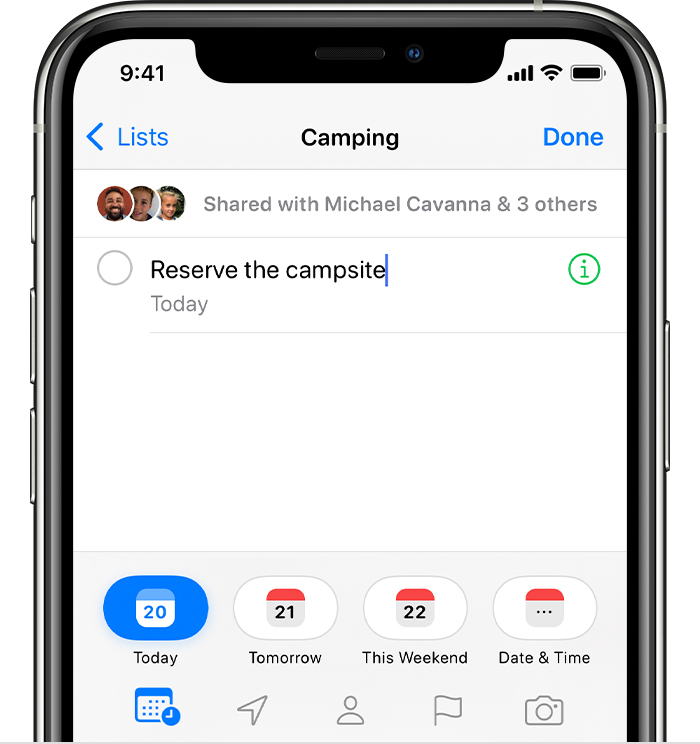
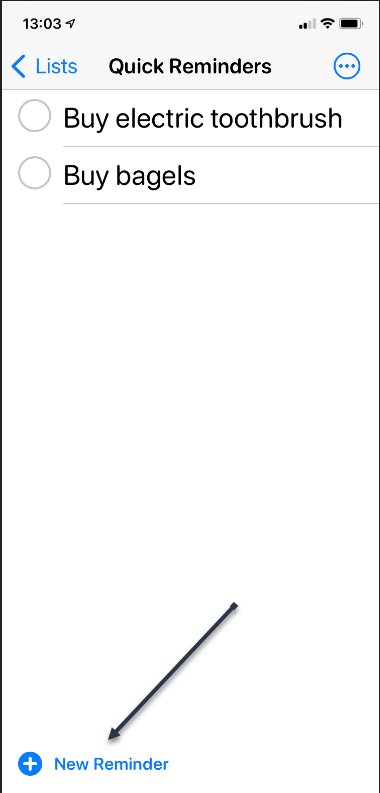
First, tap the New Reminder blue link at the bottom or tap a blank area on your screen and enter your reminder text. See following image:

Reminder 2
Selecting a New Reminder

Next, tap the Reminder, then tap the Info Circle icon to set your optional Details for the reminder. Refer to below image:

Reminder 8
Selecting more information for the Reminder

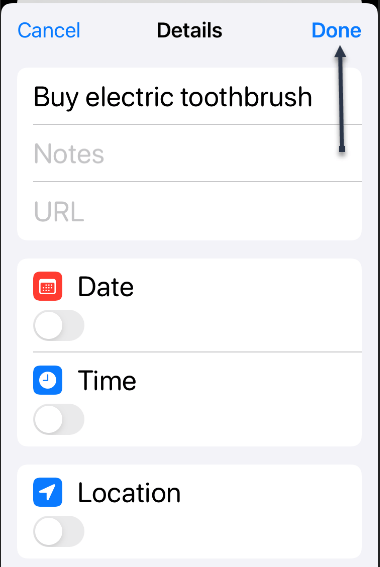
Now, after you have set your optional details like Date, Time, Location, and more, tap Done. See below image:

Reminder 7
Setting the Details options

Delete a Reminder

Tap the circle next to the reminder text and tap Done. A unique way to do this is just tap the circle, wait a moment, and your Reminder disappears. See following image:

Reminder 1
Delete a Reminder

View Your Reminders

Tap your Reminders icon, then tap your newly created list to view your Reminders. Refer to below image:

Reminder 4
Viewing your Reminders

Quote For the Day

There is a cult of ignorance in the United States, and there has always been. The strain of anti-intellectualism has been a constant thread winding its way through our political and cultural life, nurtured by the false notion that democracy means that my ignorance is just as good as your knowledge.

Isaac Asimov

You are finished. Please feel free to share this post! One way to share is via Twitter.

Just click the Tweet icon below. This will launch Twitter where you click its icon to post the Tweet.

Check out TechSavvy.Life for blog posts on smartphones, PCs, and Macs! You may email us at contact@techsavvy.life for comments or questions.

I Would Like to Hear From You

Please feel free to leave a comment. I would love hearing from you. Do you have a computer or smart device tech question? I will do my best to answer your inquiry. Just send an email to contact@techsavvy.life. Please mention the device, app and version that you are using. To help us out, you can send screenshots of your data related to your question.
The author’s Vietnam eBook on the Battle for Tra Bong: Events and Aftermath

How to Free Up Space in Google Drive

It’s easy to run out of space on Google Drive, since it stores data across much of your Google account. Fortunately, it’s also easy to delete data and free up some storage. As you will see, I am running out of space. Let’s explore how to do this.

RAYMOND OGLESBY @RaymondOglesby2
August 10, 2021

It’s easy to run out of space on Google Drive, since it stores data across much of your Google account. Fortunately, it’s also easy to delete data and free up some storage. As you will see, I am running out of space. Let’s explore how to do this.

This is for devices using Google Drive. Screenshots are from Drive on Windows 10 PC

Dilbert and Sane
Copyright Scott Adams, Inc./Distributed by Universal Uclick for UFS

If you use Google Drive to share large files, it’s quite easy to hit the 15GB free data limit on your Google account. While you can upgrade, for a price, it’s best to manually delete some data for more space first. After doing this, I upgraded to the 100GB plan, yet I am still out of space.

You will not need to spend hours combing through every nook and cranny in Google Drive. The website has a storage management feature that lists all your files, sorting them based on their file size.

First, open the Drive website in your browser.

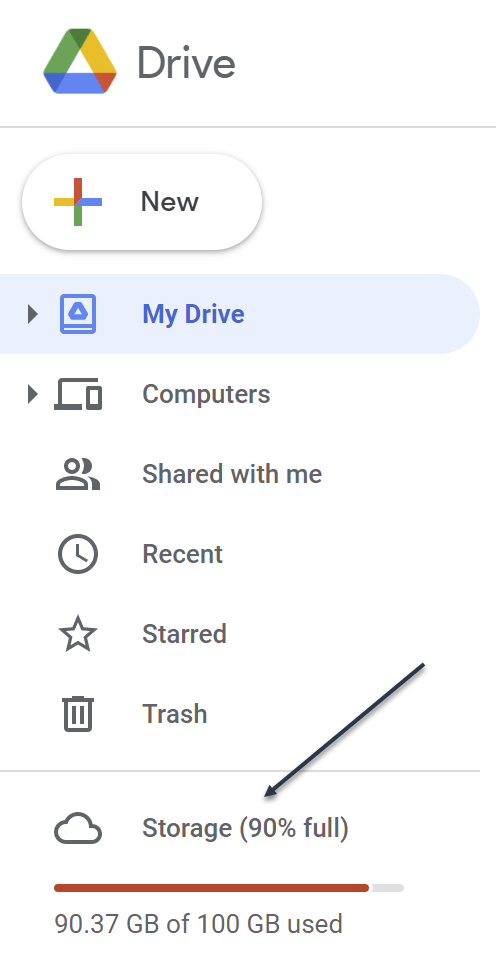
You will see the Storage section at the bottom of the left sidebar. This will show you how much storage space you have left in your account. Now, click the Storage button. Refer to below image:

Drive 1
Your used Storage space

Next, you will see a list of all the large files in your account. Just click a file to select it. To select multiple files, hold the Command/Control key while selecting the file.

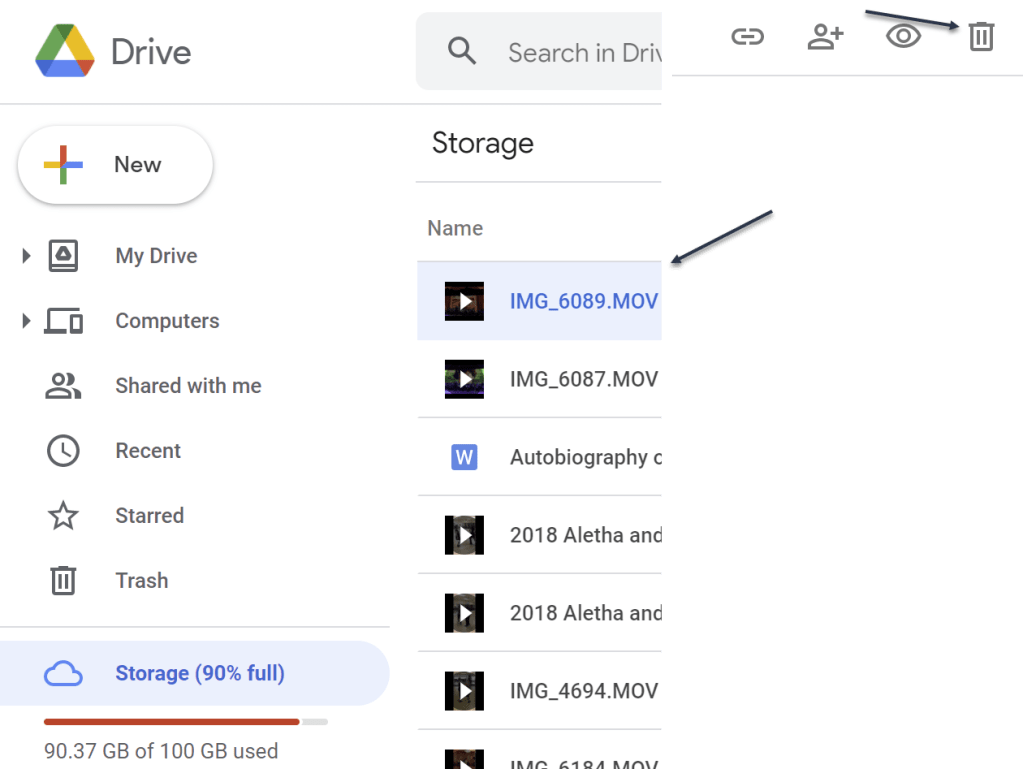
Now, to delete the file (or files), click the Remove button (the Trashcan icon) in the top toolbar. See below image:

Drive 2
Delete a file

Google Drive will remove the file and send it to the Trash.

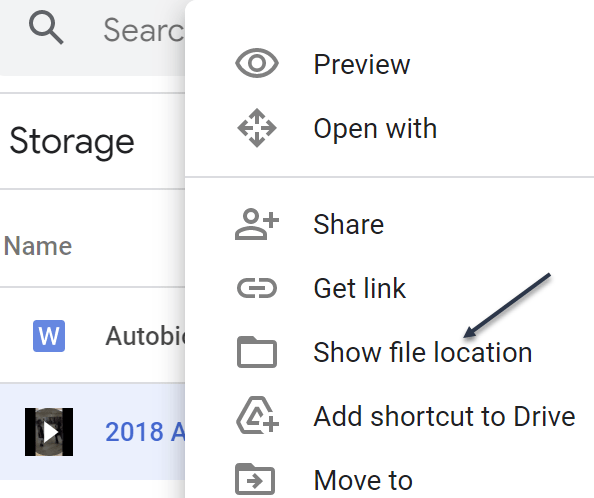
If you want to find and open a folder where a particular file is saved (or find more files to delete), right-click and choose the Show File Location option. See following image:

Drive 3
Find more files

Next, you can select multiple files and use the Remove (Trashcan icon) in the toolbar to delete all the files at once. (You can use this method to delete entire folders as well.)

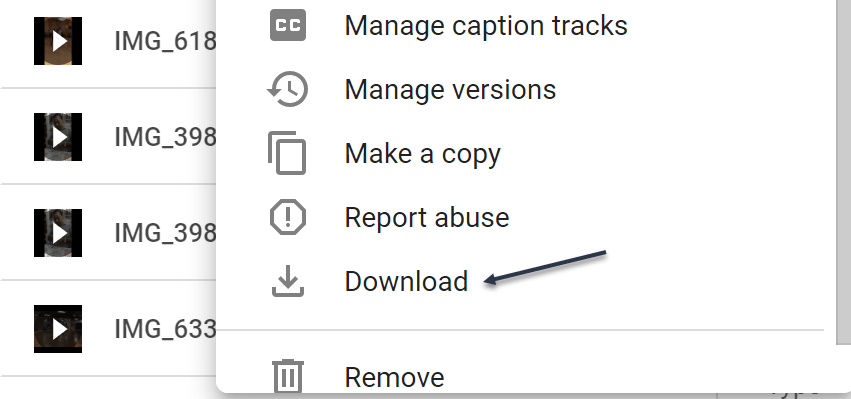
If you do not have a backup of the file that you are planning to delete, click the Download button in the right-click menu to download a copy of the file to your local storage. Refer to below image:

Drive 4
Download a file before deletion

Once you delete files like this, the files are no longer available in Google Drive, but you have not recovered any storage space yet. That’s because Google Drive does not actually delete the files for 30 days. So, if you change your mind, you have up to 30 days to recover the data.

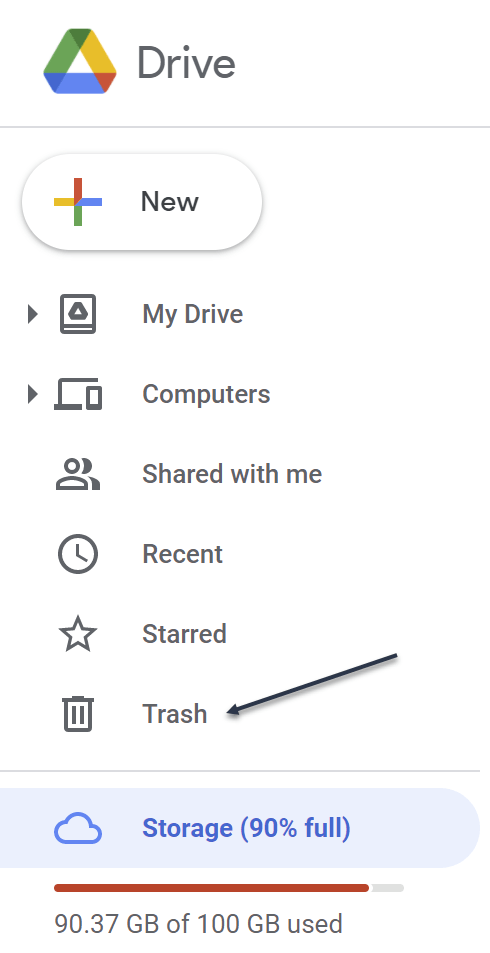
If you want to reclaim the storage space, you will have to force Google Drive to permanently delete the data. To do this, go to the Trash or Bin section in the sidebar. See below image:

Drive 5
Accessing the Trash

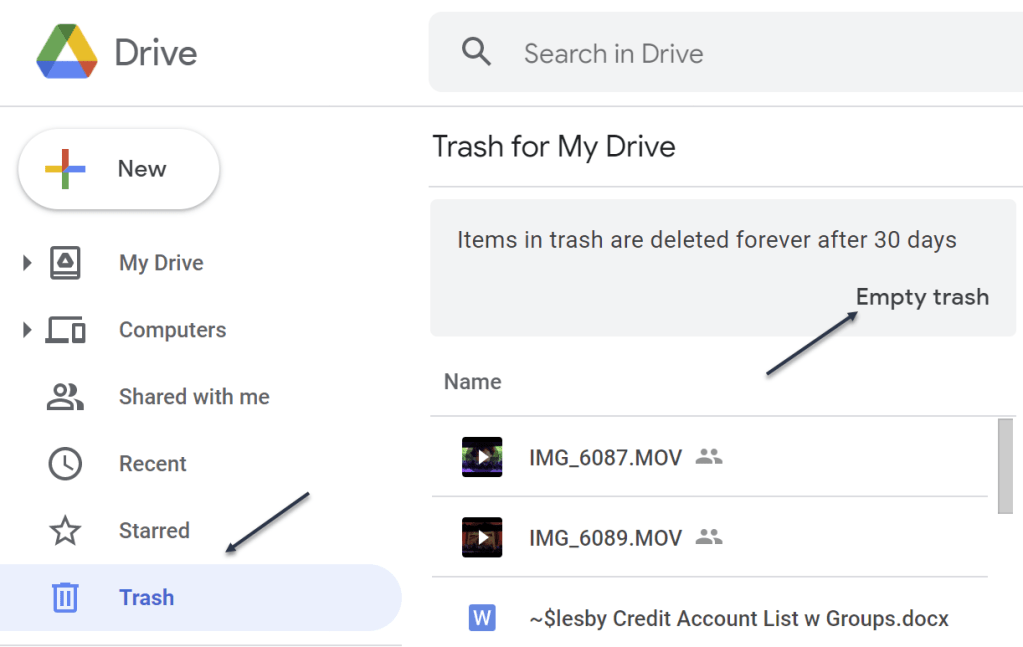
Now, in the Trash, you will see a list of files that have yet to be deleted. To individually delete a file, right-click and choose the Delete Forever option. Or, click Empty Trash to delete all the files. See following image:

Drive 6
Delete your file(s)

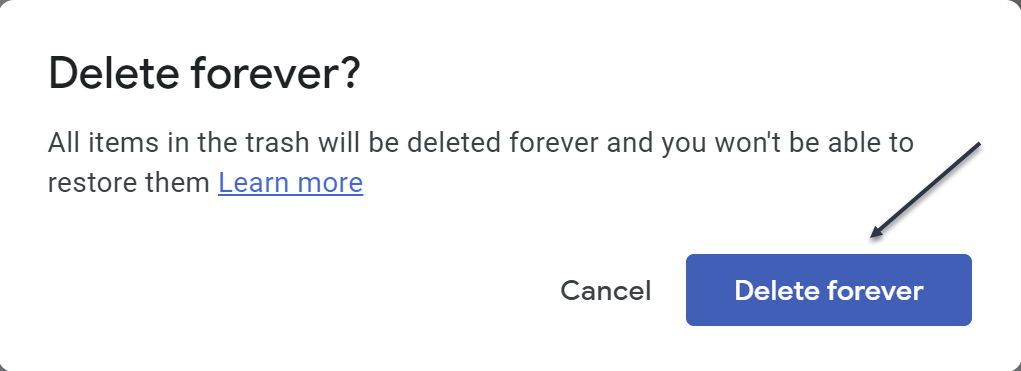
Next, in the pop-up that appears, confirm using the Delete Forever button. Refer to below image:

Drive 7
Confirm to delete the file(s) forever

Now, all the files will be deleted. Once you reload the page, you will see that the storage space has been recovered.

Quote For the Day

I have noticed even people who claim everything is predestined, and that we can do nothing to change it, look before they cross the road.

Stephen Hawking

You now know how to clean up storage space on Google Drive. Please feel free to share this post! One way to share is via Twitter.

Just click the Tweet icon below. This will launch Twitter where you click its icon to post the Tweet.

Check out TechSavvy.Life for blog posts on smartphones, PCs, and Macs! You may email us at contact@techsavvy.life for comments or questions.

I Would Like to Hear From You

Please feel free to leave a comment. I would love hearing from you. Do you have a computer or smart device tech question? I will do my best to answer your inquiry. Just send an email to contact@techsavvy.life. Please mention the device, app and version that you are using. To help us out, you can send screenshots of your data related to your question.
The author’s Vietnam eBook on the Battle for Tra Bong: Events and Aftermath

Lossless Playback Now Available in Apple Music

In June 2021, Apple offered lossless audio for iPhone and iPad running iOS and iPadOS 14.6 or higher, and the Mac for all subscriptions at no extra cost

RAYMOND OGLESBY @RaymondOglesby2
August 4,2021

In June 2021, Apple offered lossless audio for iPhone and iPad running iOS and iPadOS 14.6 or higher, and the Mac for all subscriptions at no extra cost. Let’s explore this feature.

This is for iPhone and iPad running iOS and iPadOS 14.6 or higher, and Mac

Dilbert and Fired
Copyright Scott Adams, Inc./Distributed by Universal Uclick for UFS

You can stream most music in lossless format except for broadcast radio, live and on-demand content, and music videos.

What is Lossless Playback

Music is compressed to save on space, particularly when it comes to streaming. The bitrate of a particular file or stream determines the quality of the music, with more bits generally meaning better quality. When you choose a higher bitrate, you will also consume more bandwidth (streaming) or space on your device (downloading).

Until recently, Apple Music could only be streamed using “lossy” AAC (Advanced Audio Codec) compression. While Apple claims that “the difference between AAC and lossless audio is virtually indistinguishable,” the company now offers lossless compression that uses ALAC (Apple Lossless Audio Codec) instead.

ALAC is an open-source format that uses around 50% of the space of uncompressed audio. Support ranges from 16-bit/44.1 kHz CD quality to more modern 24-bit/192kHz recordings. Enabling lossless audio playback for Apple Music is easy and comes at no extra financial cost, but there’s more to lossless than simply flipping a switch.

Check Your OS

First, go to;

Settings > General > Software Update

There you will see your version number. If not 14.6 or higher, tap the blue link to download and install. After installation, go back to your Home Screen.

Enable Lossless Playback on iPhone and iPad

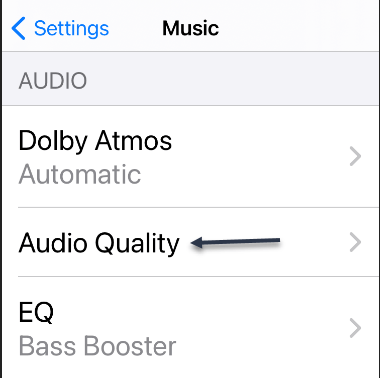
First, you must be a subscriber to Apple Music to enable Lossless audio. After subscribing (3 months free trial), then launch Settings and tap on Music. Next, tap on Audio Quality. Refer to below image:

Lossless 1
Selecting Audio Quality option

Now, under Audio Quality, toggle Lossless Audio to ON. See below image:

Lossless 2
Enabling Lossless Audio

Next, tap Wi-Fi Streaming. See following image:

Lossless 3
Accessing Wi-Fi Streaming

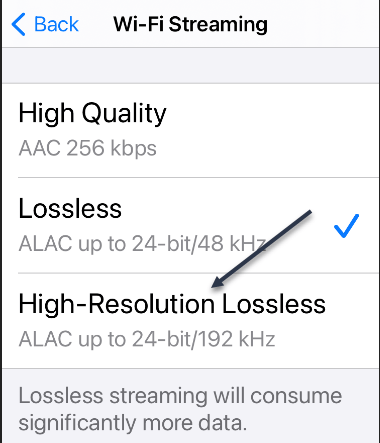
:Now, choose between a Lossless 48kHz sample rate or a High-Resolution Lossless 192kHz sample rate. Refer to below image

Lossless 4
Selecting High-Resolution Lossless option

If you choose High-Resolution Lossless and do not have a converter, you will receive a message. See below image:

Lossless 5
Message about using a DAC converter

Next, make a choice and exit Settings.

Enable Lossless Playback on a Mac

First, open your Apple Music app, and then click on

Music > Preferences

in the menu bar. Now, on the Playback tab, select Audio Quality. Next, toggle Lossless to ON. Next, choose between 48kHz and 192kHz sample rates. If you do not see the option, you may need to update your macOS.

Using AirPods

Wireless headphones and earphones use compression to stream music from your iPhone to your ears. This includes Apple’s AirPods, AirPods Pro, AirPods Max, and the Beats range of earphones and headphones. Since audio must be compressed for use with wireless Bluetooth audio, lossless audio offers no benefits.

To enjoy lossless audio, you will need to use a wired pair of headphones or speakers or the built-in speakers on your iPhone.

But wait, there is a catch. The iPhone cannot output the higher sample rate of 192kHz (Hi-Res Lossless) without an external digital-to-analog converter (DAC). The DAC in the iPhone is limited to 48kHz output.

Listening Difference

If you are frustrated that your expensive AirPods Max will not support lossless audio, consider for a minute that most people can not tell the difference. The best that you can do is to make sure that high-quality streaming is enabled under

Settings > Music

on your iPhone or iPad so that you are getting the best possible quality that’s available to you.

Quote For the Day

Imagination will often carry us to worlds that never were. But without it we go nowhere.

Carl Sagan

That’s it. Please feel free to share this post! One way to share is via Twitter

Just click the Tweet icon below. This will launch Twitter where you click its icon to post the Tweet.

Check out TechSavvy.Life for blog posts on smartphones, PCs, and Macs! You may email us at contact@techsavvy.life for comments or questions.

I Would Like to Hear From You

Please feel free to leave a comment. I would love hearing from you. Do you have a computer or smart device tech question? I will do my best to answer your inquiry. Just send an email to contact@techsavvy.life. Please mention the device, app and version that you are using. To help us out, you can send screenshots of your data related to your question.
The author’s Vietnam eBook on the Battle for Tra Bong: Events and Aftermath

How to Find and Install Third Party Shortcuts on iPhone and iPad

The Shortcuts app that comes pre-installed on iOS and iPadOS devices has proven to be incredibly useful especially with the release of iOS & iPadOS 14. There are so many things that you can do now with the Shortcuts app, Although you have access to a set of suggested shortcuts, you are not limited to using those alone. In fact, third-party shortcuts created by the community can be installed on your device too.

The Shortcuts app that comes pre-installed on iOS and iPadOS devices has proven to be incredibly useful especially with the release of iOS & iPadOS 14. There are so many things that you can do now with the Shortcuts app, Although you have access to a set of suggested shortcuts, you are not limited to using those alone. In fact, third-party shortcuts created by the community can be installed on your device too. Let’s explore how to do this.

This is for the iPhone and iPad

Dilbert and Zoom
Copyright Scott Adams, Inc./Distributed by Universal Uclick for UFS

There are several shortcuts websites to chose from. We will be focused on using the Shortcuts Gallery, one of the largest repositories of shortcuts. It includes proper descriptions, steps, and download links. Shortcuts are also sorted by category, so it’s easy to find what you want.

Enable Untrusted Shortcuts

Before you can start installing third-party shortcuts, you have to enable the feature. By default, shortcuts downloaded from the web are blocked because they have not been verified by Apple.

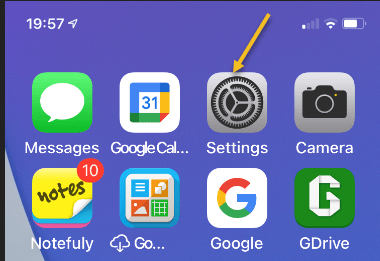
First, tap your Settings app on your iPhone or iPad. Refer to below image:

hortcuts 1
Accessing Settings

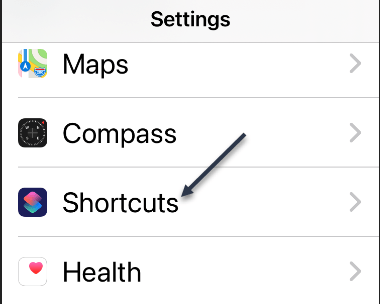
Next, scroll down and tap Shortcuts. See below image:

Shortcuts 2
Accessing Shortcuts

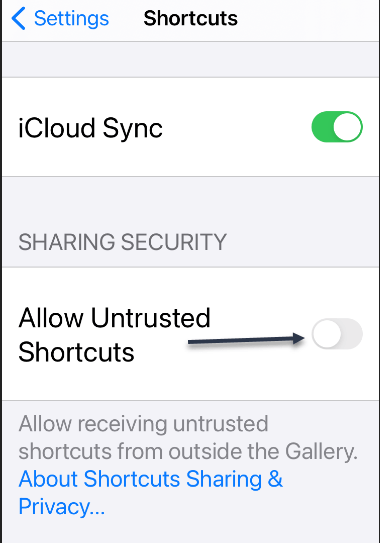
Now, toggle to On the Untrusted Shortcuts option. (Note! If you see a message saying you must first run a shortcut, then download a Shortcut from your Shortcut app and run it.) See following image:

Shortcuts 3
Enabling Untrusted Shortcuts

Next, in the pop-up message that appears, tap Allow. Refer to below image:

Shortcuts 4
Allow Untrusted Shortcuts

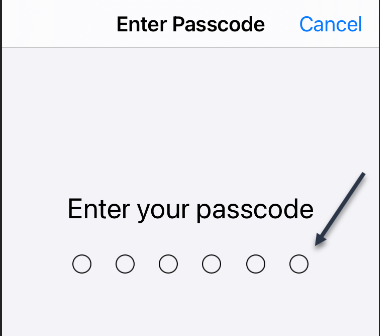
Next, enter your device’s passcode to verify that you own this iPhone or iPad. See below image:

Shortcuts 5
Entering your Passcode

You are ready to go to install third-party shortcuts.

Install Third-Party Shortcuts

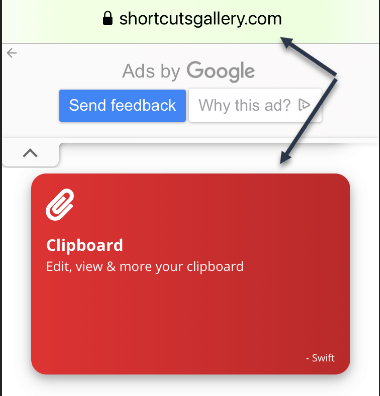
 In our example, we will install the Clipboard shortcut from the Shortcuts Gallery website. Open the website in your browser on your iPhone or iPad. Now, tap the shortcut you want to download. See following image:

Shortcuts 6
Finding a Shortcut

Next, tap the Get Shortcut button. Refer to below image:

Shortcuts 7
Get the chosen Shortcut

Now, the shortcut in the Shortcuts app will open. Scroll to the bottom, and then tap Add Untrusted Shortcut. See below image:

Shortcuts 8
Adding the Untrusted Shortcut

Your new shortcut will be at the top of the list in your My Shortcuts. Just tap it to start using it. See following image:

Shortcuts 9
Your newly added Shortcut

After you have downloaded more shortcuts, you can organize them in folders. This will make it easier to launch them from an iPhone Home screen Widget.

Quote For the Day

We cannot solve our problems with the same thinking we used when we created them.

Albert Einstein

That’s it. Please feel free to share this post! One way to share is via Twitter.

Just click the Tweet icon below. This will launch Twitter where you click its icon to post the Tweet.

Check out TechSavvy.Life for blog posts on smartphones, PCs, and Macs! You may email us at contact@techsavvy.life for comments or questions.

I Would Like to Hear From You

Please feel free to leave a comment. I would love hearing from you. Do you have a computer or smart device tech question? I will do my best to answer your inquiry. Just send an email to contact@techsavvy.life. Please mention the device, app and version that you are using. To help us out, you can send screenshots of your data related to your question.
The author’s Vietnam eBook on the Battle for Tra Bong: Events and Aftermath

How to Pin/Unpin a Twitter Tweet

Generally speaking, the more you tweet, the further your past tweets move down your profile page. However, Twitter makes it possible to pin a tweet so that it stays at the top of your page until you remove it.

If you use Twitter regularly, you may occasionally post a message that gains attention with other users or that you want to stand out from the rest of your feed.

Generally speaking, the more you tweet, the further your past tweets move down your profile page. However, Twitter makes it possible to pin a tweet so that it stays at the top of your page until you remove it.

Pinning tweets to the top of your Twitter profile will not take more than a few seconds, and you can unpin a tweet or choose a new one to pin in its place at any time. Let’s explore how to do this.

Note! You can only have one pinned tweet at a time. Pinning a new tweet will unpin any tweet you already have pinned.

This is for the iPhone and Android using Twitter

Dilbert and Hackers
Copyright Scott Adams, Inc./Distributed by Universal Uclick for UFS

Pin a Tweet

Twitter’s mobile apps for iOS and Android allow you to pin tweets to your profile. You can also do this on your desktop.

First, open the Twitter app. Make sure you are logged in to your account.

Next, in the top-left corner of the app, tap the three horizontal lines. Refer to below image:

Twitter 1
Accessing the Twitter menu

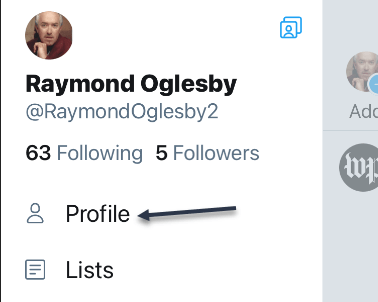
In the menu that opens, select Profile. See below image:

Twitter 2
Accessing your Profile

Your Twitter profile opens. Now, scroll down and find the tweet to pin.

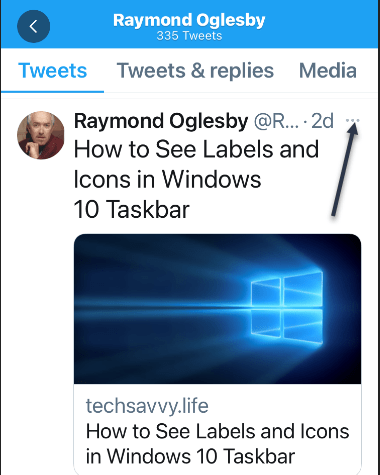
When you find the tweet, at the top-right corner of that tweet, tap the three-dots hamburger menu. See following image:

Twitter 3
Accessing the Tweet menu

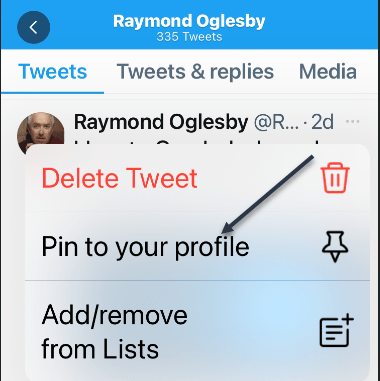
From the menu that pops up from the bottom of your phone’s screen, select Pin to profile. Refer to below image:

Twitter 4
Accessing Pin tweet to your Profile

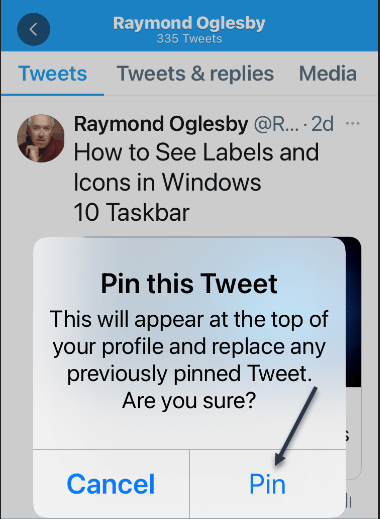
Select Pin in the prompt that appears in the middle of your phone’s screen. See below image:

Twitter 5
Pin your tweet

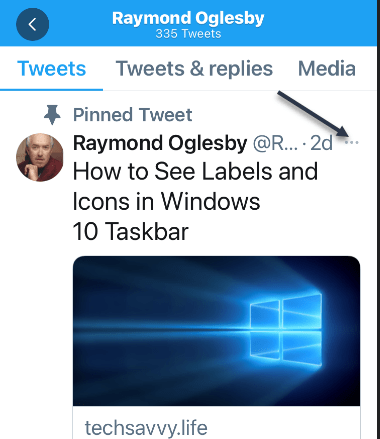
Your selected tweet is now pinned to your profile page. See following image:

Twitter 6
Your pinned tweet

Unpin a Tweet

To unpin the tweet, scroll to the top of your profile page in Twitter’s mobile app. Then, at the top-right corner of the pinned tweet, tap the three-dots hamburger menu. Refer to below image:

Twitter 7
Accessing your tweet menu

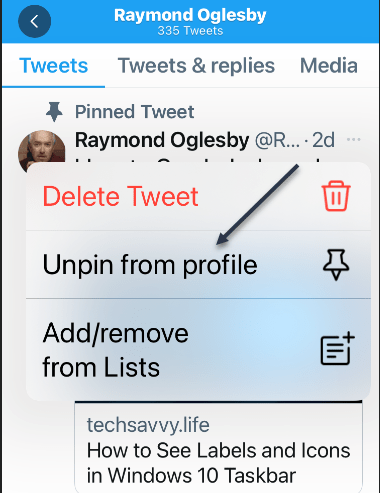
In the menu that appears from the bottom of your phone’s screen, tap Unpin from profile. See below image:

Twitter 8
Accessing Unpin tweet from your Profile

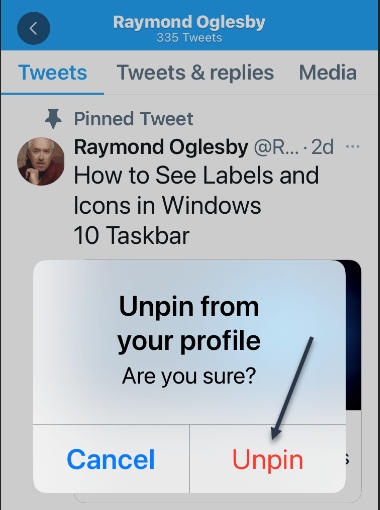
Select Unpin in the prompt. See following image:

Twitter 9
Unpin your tweet

And your tweet disappears from the top area of your Twitter profile.

It’s easy to pin and unpin tweets on Twitter, and you should make use of this feature to display your most important tweet at the top of your profile page.

Quote For the Day

The true sign of intelligence is not knowledge but imagination.

Albert Einstein

That’s it, a nifty feature. Please feel free to share this post! One way to share is via Twitter.

Just click the Tweet icon below. This will launch Twitter where you click its icon to post the Tweet.

Check out TechSavvy.Life for blog posts on smartphones, PCs, and Macs! You may email us at contact@techsavvy.life for comments or questions.

I Would Like to Hear From You

Please feel free to leave a comment. I would love hearing from you. Do you have a computer or smart device tech question? I will do my best to answer your inquiry. Just send an email to contact@techsavvy.life. Please mention the device, app and version that you are using. To help us out, you can send screenshots of your data related to your question.
The author’s Vietnam eBook on the Battle for Tra Bong: Events and Aftermath

How to Delete Screenshots on iPhone and iPad

If your iPhone or iPad storage is full, or you just want to clean up, it’s easy to delete screenshots that you might not need on your device using the built-in Photos app. The latest iOS and iPadOS versions have a separate folder for just screenshots.

If your iPhone or iPad storage is full, or you just want to clean up, it’s easy to delete screenshots that you might not need on your device using the built-in Photos app. The latest iOS and iPadOS versions have a separate folder for just screenshots. Let’s explore how to delete screenshots.

This is for the iPhone and iPad

Dilbert and Wrong
Copyright Scott Adams, Inc./Distributed by Universal Uclick for UFS

Accessing Media Types

First, open the Photos app on your iPhone or iPad. If you can not find it, swipe downward with one finger from the middle of the home screen to open Spotlight search. Now, type “photos,” and then tap the Photos app icon. Refer to below image:

Screenshots 1
Accessing Photos

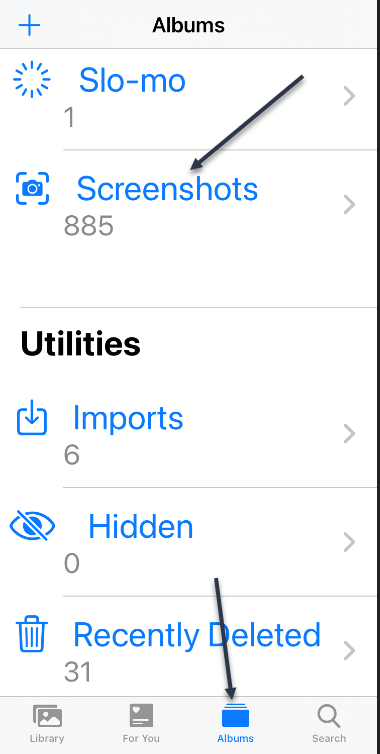
For the iPhone: Tap Albums at the bottom of the screen, and then select Screenshots from the Media Types list. See below image:

Screenshots 2
Accessing Screenshots for iPhone

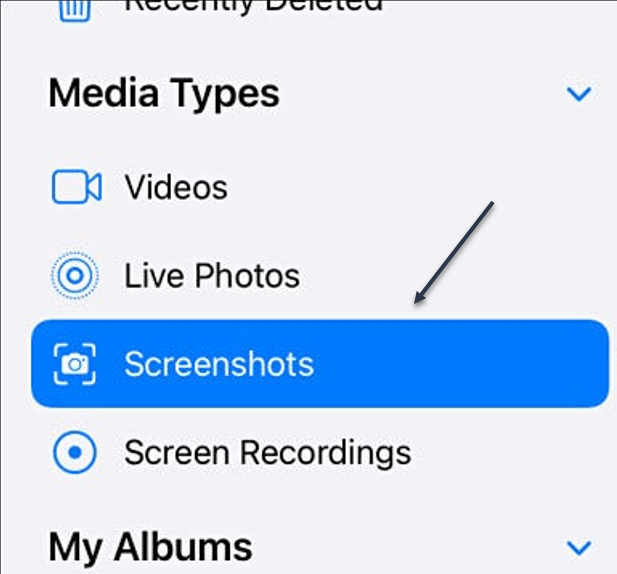
For the iPad: In Photos, open the sidebar by tapping Photos in the upper-left corner of the screen. Now, select Screenshots from the Media Types section. See following image:

Screenshots 3
Accessing Screenshots for iPad

Delete a Screenshot

Your album of all the screenshots stored on your device will be displayed. To delete a single screenshot, tap its thumbnail to open it in a detailed view. Refer to below image:

Screenshots 4
Open a Screenshot

Next, when you have a screenshot open for closer viewing, delete it by tapping the Trashcan icon in the lower-left (iPhone) or upper-right (iPad) corner of the screen. See below image:

Screenshots 5
Delete a single Screenshot

Now, you will see a pop-up menu asking to confirm. Just select Delete Photo.

Delete Multiple Screenshots

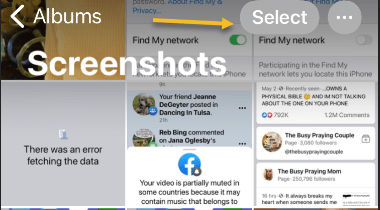
To delete multiple screenshots, go back to the Screenshots album overview that shows thumbnails of all your screenshots. Next, tap the Select button in the upper-right corner of the screen. See following image:

Screenshots 6
Selecting multiple Screenshots

You are now in selection mode. You can select all the screenshots in the album by tapping Select All, or you can select multiple screenshots by tapping their thumbnails. When it’s selected, each photo’s thumbnail will have a small circle with a check mark in the lower-right corner. Refer to below image:

Screenshots 7
Your selected Screenshots

You can also quickly select a large number of screenshots by tapping a thumbnail with your finger and holding it down lightly while you drag it halfway down the screen. The screenshot thumbnail list will start scrolling while selecting images. To stop selecting, lift your finger.

When you have selected all the screenshots that you want to delete, tap the Trashcan icon in the corner of the screen. Next, when you are asked to confirm, tap Delete Photos. See below image:

Screenshots 8
Delete your selected Screenshots

By default, the screenshots that you just deleted will be permanently removed from your device in 30 days.

Delete All Screenshots

If you want to permanently remove the screenshots sooner, first, navigate to your Recently Deleted album in the Photos app.

  • For the iPhone: Navigate to Albums > Recently Deleted.
  • For the iPad: Open the sidebar and tap Recently Deleted under Utilities.

See following image:

Screenshots 9
Open Recently Deleted album

When you see the gallery of your recently deleted screenshot thumbnails, you can individually select and delete them with the Delete button. To delete all Recently Deleted images at once, tap Select in the corner of the screen, and then select Delete All. Refer to below image:

Screenshots 10
Delete All Screenshots

Now, when you are asked to confirm, tap Delete Photos. All of your screenshots will be permanently deleted.

Quote For the Day

Look up at the stars and not down at your feet. Try to make sense of what you see, and wonder about what makes the universe exist. Be curious.

Stephen Hawking

You are finished. Please feel free to share this post! One way to share is via Twitter.

Just click the Tweet icon below. This will launch Twitter where you click its icon to post the Tweet.

Check out TechSavvy.Life blog posts for smartphones, PCs, and Macs! You may email us at contact@techsavvy.life for comments or questions.

I Would Like to Hear From You

Please feel free to leave a comment. I would love hearing from you. Do you have a computer or smart device tech question? I will do my best to answer your inquiry. Just send an email to contact@techsavvy.life. Please mention the device, app and version that you are using. To help us out, you can send screenshots of your data related to your question.
The author’s Vietnam eBook on the Battle for Tra Bong: Events and Aftermath

How to Turn Off and Restart an iPhone

Turning off your iPhone seems like it should be a simple task; and it is, provided you remember the specific buttons you are supposed to press to power down your device. The challenge is that Apple has changed the method every few models so that turning off your iPhone on an older device is quite different than what’s required to turn off the newer models.

Turning off your iPhone seems like it should be a simple task; and it is, provided you remember the specific buttons you are supposed to press to power down your device. The challenge is that Apple has changed the method every few models so that turning off your iPhone on an older device is quite different than what’s required to turn off the newer models. Let’s explore how to turn off and on your device.

This is for the iPhone

Dilbert and Pandemic
Copyright Scott Adams, Inc./Distributed by Universal Uclick for UFS

To help you turn off your iPhone, there are the different ways you can shut down an iPhone based on Apple’s assorted models. It all comes down to the position of the Sleep/Wake button and whether your iPhone is unlocked with a Passcode, Touch ID, or FaceID.

Sometimes you need to completely shut down your iPhone, perhaps to help with troubleshooting, or to save your battery life during a long period of inactivity, or the device is acting strangely. Fortunately, it’s easy to do.

What is Sleep Mode vs Shutting Down

Normally, when you briefly press the top or side button on your iPhone, the screen on your device turns off, but the iPhone stays running. This is called sleep mode or lock mode. While it turns off the screen, it does not completely power off the device.

In contrast, shutting down your iPhone starts a special software shutdown process where your iPhone cleans up and prepares for power-off. Then, your iPhone turns off completely.

Perform Hardware Shutdown

If you need to turn off your iPhone, the easiest way to do so is by using a hardware button on your device. How to do this varies slightly by model, since certain iPhones include different types of buttons:

  • On iPhones without a Home Button: Simultaneously hold the side button and the volume up or down button for about four seconds until the power-off slider appears on the screen.
  • On iPhones with a Home Button and a Side Button: Hold the side button for a few seconds until the power-off slider appears.
  • On iPhones with a Home Button and a Top Button: Press and hold the top button until the power-off slider appears.

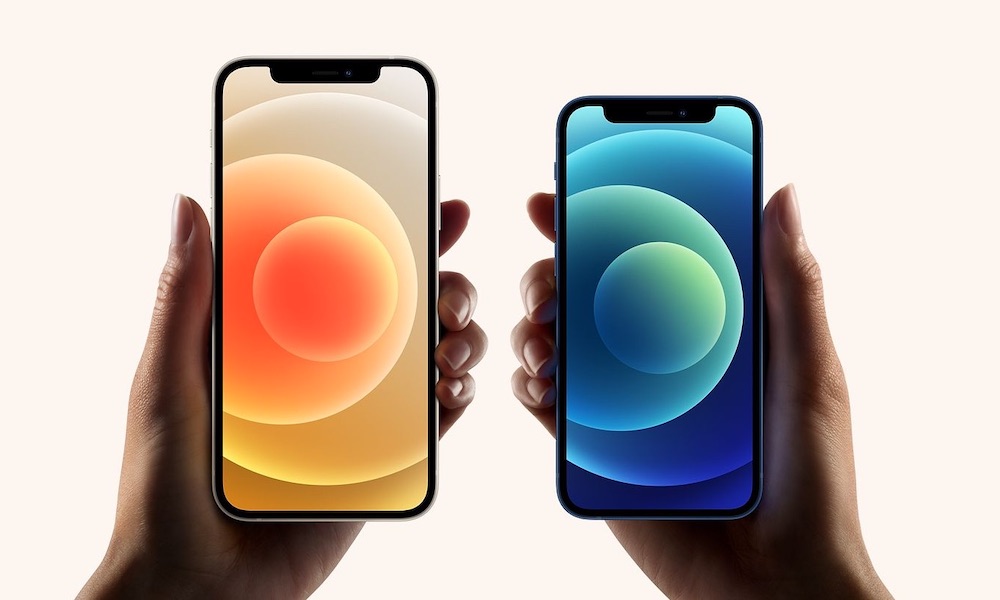
Refer to below image:

Turn Off 1
Apple

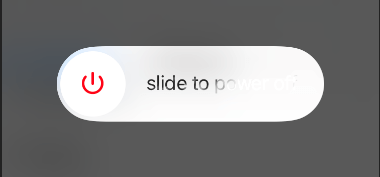
When the Slide to Power Off slider appears, swipe your finger to the right. See below image:

Turn Off 2
Hardware shut down

Now, your iPhone will shut down and power off completely.

Perform Shutdown via Settings

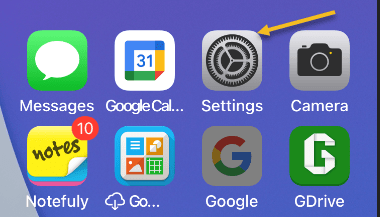
First, open Settings on your iPhone. See following image:

Turn Off 3
Accessing Settings

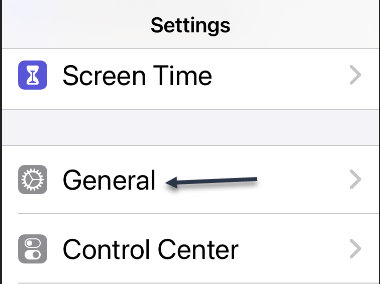
Next, in the Settings app, tap General. Refer to below image:

Turn Off 4
Accessing General option

Now, on the General page, scroll down to the bottom of the page and tap Shut Down. See below image:

Turn Off 5
Accessing Shut Down option

When the Slide to Power Off slider appears, swipe your finger to the right. See following image:

Turn Off 6
Software shut down

Now, your iPhone will shut down and power off completely.

Restart

If you just powered off, waiting 10 seconds is a good rule of thumb before a restart.

For newer models, (12, 11, 10), press and quickly release the volume up button, press and quickly release the volume down button, then press and hold the side button. When the Apple logo appears, release the button.

For iPhone SE (2nd generation), 8, 7, or 6, press and hold the side button until you see the Apple logo, then release the button.

Quote For the Day

A little more persistence, a little more effort, and what seemed hopeless failure may turn to glorious success.

Elbert Hubbard

That was easy.. Please feel free to share this post! One way to share is via Twitter.

Just click the Tweet icon below. This will launch Twitter where you click its icon to post the Tweet.

Check out TechSavvy.Life for blog posts on smartphones, PCs, and Macs! You may email us at techsavvy.life for comments or questions.

I Would Like to Hear From You

Please feel free to leave a comment. I would love hearing from you. Do you have a computer or smart device tech question? I will do my best to answer your inquiry. Just send an email to contact@techsavvy.life. Please mention the device, app and version that you are using. To help us out, you can send screenshots of your data related to your question.
The author’s Vietnam eBook on the Battle for Tra Bong: Events and Aftermath

How to Bookmark Multiple Tabs in Safari

Safari on the iPhone and iPad has a hidden feature that lets you quickly bookmark all open websites to a single folder. To keep things as you had left it, quickly bookmark all the tabs in Safari using this feature.

Safari on the iPhone and iPad has a hidden feature that lets you quickly bookmark all open websites to a single folder. To keep things as you had left it, quickly bookmark all the tabs in Safari using this feature.

This is for iPhone and iPad

Dilbert and Auditors
Copyright Scott Adams, Inc./Distributed by Universal Uclick for UFS

First, open the Safari app on your iPhone or iPad and then tap the URL bar. Here, enter a URL and then press the Go button to open the website. Repeat this process to open all of the websites that you want to bookmark at once. Refer to below image:

Tabs 1
Entering a URL to save

Method 1 – Closing a Few Bookmarks

If you already have websites open, tap the Tabs button, and close any webpage that you do not want to bookmark.

Method 2 – Closing All Bookmarks

If you have lots of open bookmarks, tap and hold the Bookmarks button and then view the Add Bookmarks For X Tabs option. You may want to close all, then add tabs using the above process. (In my example. I am closing 208 and adding 4 bookmarks). Once you have done this, select the Add Bookmarks For X Tabs option.

Related

How To Close Safari Tabs Automatically on iPhone or iPad

See below image:

Tabs 2
Adding bookmarks you have saved

Creating a New Bookmarks Folder

Now, from the next page, give the new folder a name. By default, Safari will save the folder in Favorites but you can tap the button to see all available locations.

Next, after choosing the folder, tap the Save button. (In my example, I entered a new folder of New Bookmarks with 4 tabs). See following image:

Tabs 3
Creating a new bookmarks folder

Safari has now saved all of your open tabs. To access the tabs later, tap the Bookmarks button from the bottom toolbar. Refer to below image:

Tabs 4
Accessing the bookmarks

Now, locate the folder where you saved the bookmarks. Then tap and hold the folder to see the options. See below image:

Tabs 5
Accessing your new bookmarks folder

Deletion Process

Next, tap the Open In New Tabs button to reopen all of the tabs. Also, you can tap the Delete button to delete the folder. See following image:

Tabs 6
Open or Delete bookmark(s)

Now, select a tab to see its options, then tap the Delete option to delete the bookmark. Note! If you do not select a bookmark and press Delete, all your tabs will be deleted, so be careful. Refer to below image:

Tabs 7
Delete a bookmark

Quote For the Day

The past, like the future, is indefinite and exists only as a spectrum of possibilities.

Stephen Hawking

That’s it. Please feel free to share this post! One way to share is via Twitter.

Just click the Tweet icon below. This will launch Twitter where you click its icon to post the Tweet

Check out TechSavvy.Life for blog posts on smartphones, PCs, and Macs! You may email us at contact@techsavvy.life for comments or questions.

I Would Like to Hear From You

Please feel free to leave a comment. I would love hearing from you. Do you have a computer or smart device tech question? I will do my best to answer your inquiry. Just send an email to contact@techsavvy.life. Please mention the device, app and version that you are using. To help us out, you can send screenshots of your data related to your question.
The author’s Vietnam eBook on the Battle for Tra Bong: Events and Aftermath

How to Access Saved Credit Cards in Safari

Autofill gives you the ability to save contact and credit card information on Safari so you do not have to re-enter the long card number and expiration date every time you buy something on the Web.

Autofill gives you the ability to save contact and credit card information on Safari so you do not have to re-enter the long card number and expiration date every time you buy something on the Web.

Old cards remain saved on Autofill, even when they have expired. Let’s explore this feature.

This is for iPhone and iPad

Dilbert and Late
Copyright Scott Adams, Inc./Distributed by Universal Uclick for UFS

View Your Credit Cards

First, open Settings on your iPhone or iPad. Refer to below image:

Accessing Settings

Next, in Settings, tap Safari. See below image:

Accessing Safari option

Now, in Safari, tap AutoFill. See following image:

Accessing AutoFill option

Next, in Safar’s AutoFill settings, tap Saved Credit Cards. Refer to below image:

Accessing your Saved Credit Cards

Now, when prompted, enter your PIN or validate your identity with Touch ID or Face ID, Next, you will see a list of credit cards that Safari has saved. Tap any entry in the list to see more details.

On the details screen, you will see the full credit card number and expiration date for the card if Safari has saved that information (Note that the three-digit CVV number on the card’s back is never stored.) See below image:

Viewing Saved Credit Card list

Next, if you need to edit the information on the card, tap Edit in the upper right-hand corner. See following image:

Editing a credit card

Now, when you are done editing, tap Done.

Add a Credit Card

If you go back one screen to the credit card list, you can also add a credit card to the list by tapping Add Credit Card. Just enter your information for the credit card. Refer to below image:

Adding a credit card

Delete a Credit Card

As well as add, you can delete a card from the list by tapping Edit, checkmark the card, and tapping Delete. See below image:

Deleting a credit card

A pop-up message will appear asking you to confirm the deletion. See following image:

Confirming the deletion

When you are done, exit Settings.

Quote For the Day

Technology is a useful servant but a dangerous master.

Christian Lous Lange

You are finished. Please feel free to share this post! One way to share is via Twitter.

Just click the Tweet icon below. This will launch Twitter where you click its icon to post the Tweet.

Check out TechSavvy.Life for blog posts on smartphones, PCs, and Macs! You may email us at contact#@techsavvy.life for comments or questions.

I Would Like to Hear From You

Please feel free to leave a comment. I would love hearing from you. Do you have a computer or smart device tech question? I will do my best to answer your inquiry. Just send an email to contact@techsavvy.life. Please mention the device, app and version that you are using. To help us out, you can send screenshots of your data related to your question.
Copyright Scott Adams, Inc./Distributed by Universal Uclick for UFS