How to Record a Zoom Meeting

Why take notes during a Zoom meeting when you can refer back to a recording of the entire call? Here’s how to record a Zoom meeting, whether you’re the host or not.

Important meetings need good records, and anyone who has taken notes knows that some details can be missed. The best way to preserve a record of a meeting is to have a video recording.

 That goes doubly for remote meetings, where distractions, tech issues and other problems can lead to you missing out on essential information.

If you are using an Enterprise account to host a meeting, you may not be able to record a Zoom meeting unless your IT team has given you permission. Be sure to check with your administrator before the meeting to grant you access if you don’t have it.

If using a PC or Mac, be sure your computer has a microphone and/or camera to use Zoom to its fullest. You may also use your smartphone to record the meeting.

This if for a PC, Macs, iPhone/iPad and Android devices that support Zoom
Dilbert and Future 1
Copyright Scott Adams, Inc./Distributed by Universal Uclick for UFS

Accessing Zoom Settings

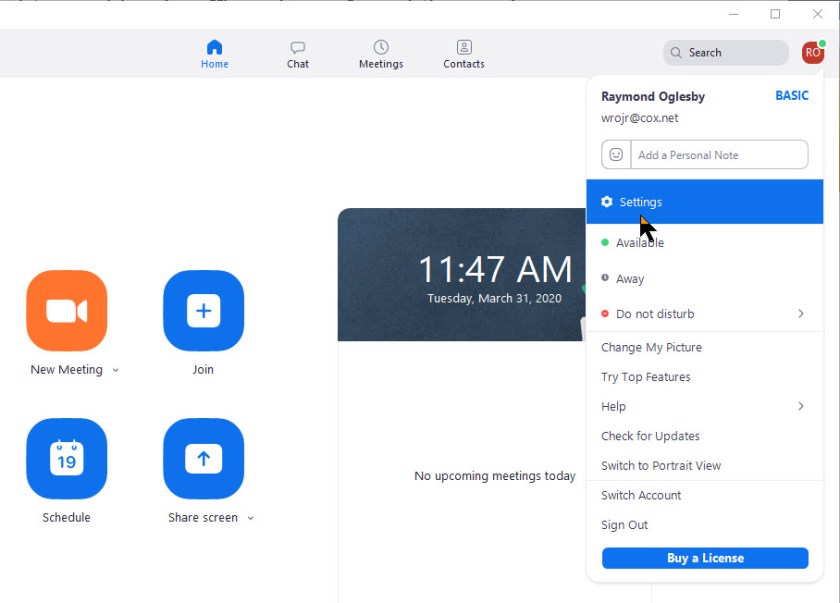
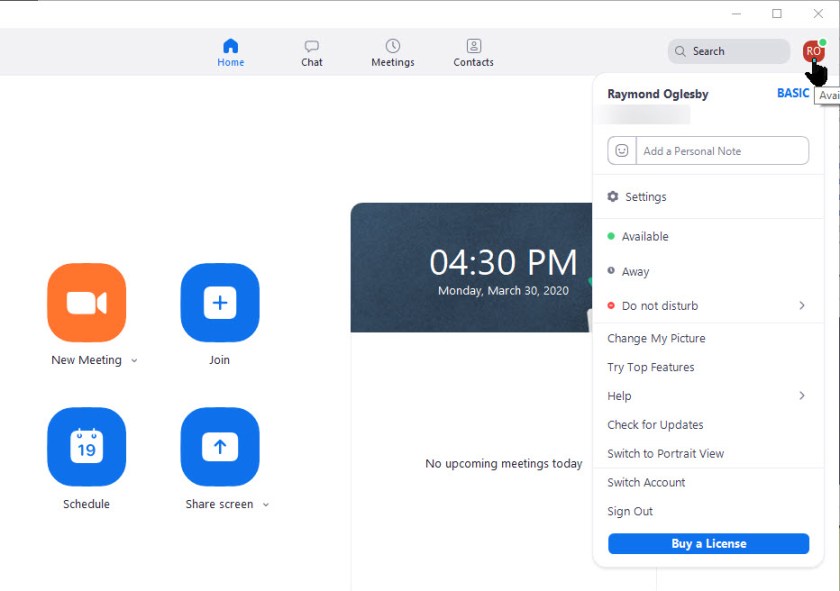
First, fire up Zoom and join an active meeting. Then click on your small profile photo in upper right-hand corner. This will open up the dialog options window. See below image:

Zoom Record 1
Zoom dialog Options window

Recording a Zoom Meeting

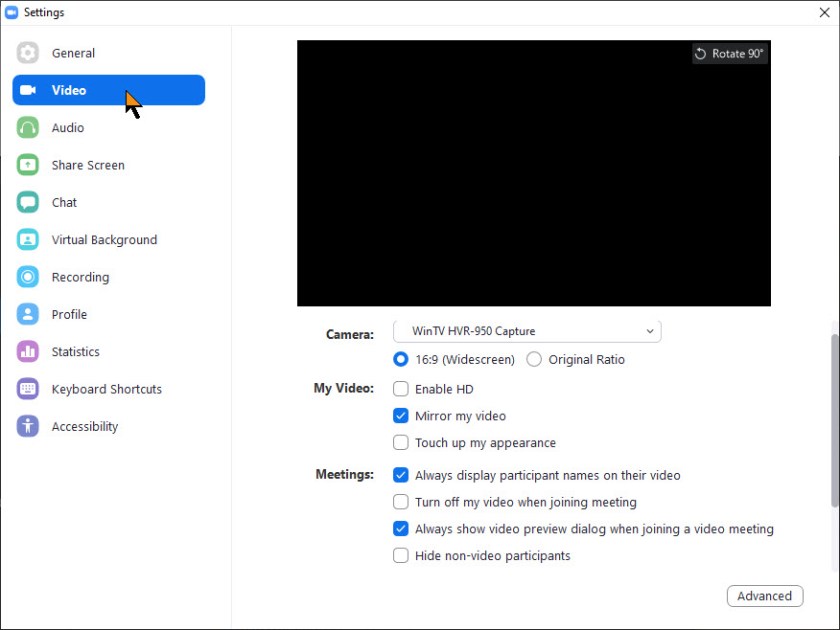
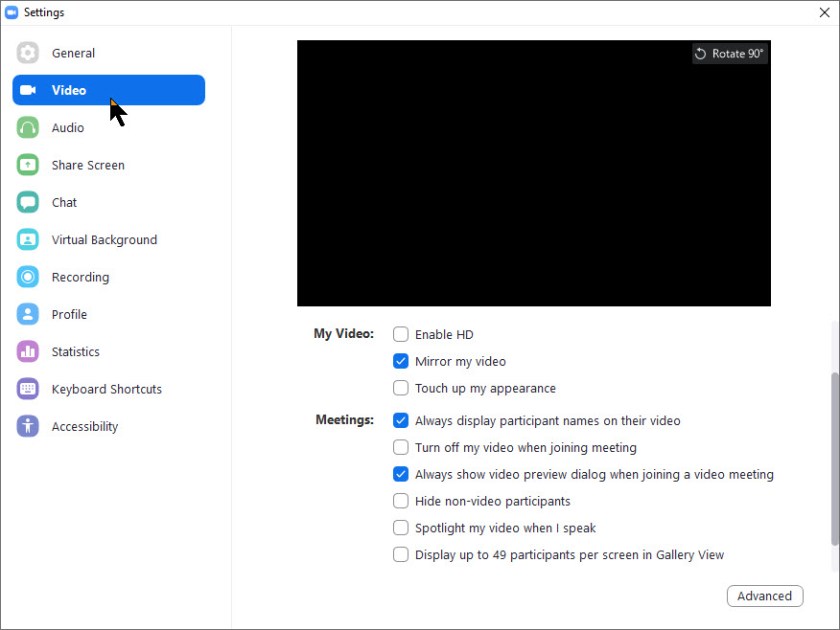
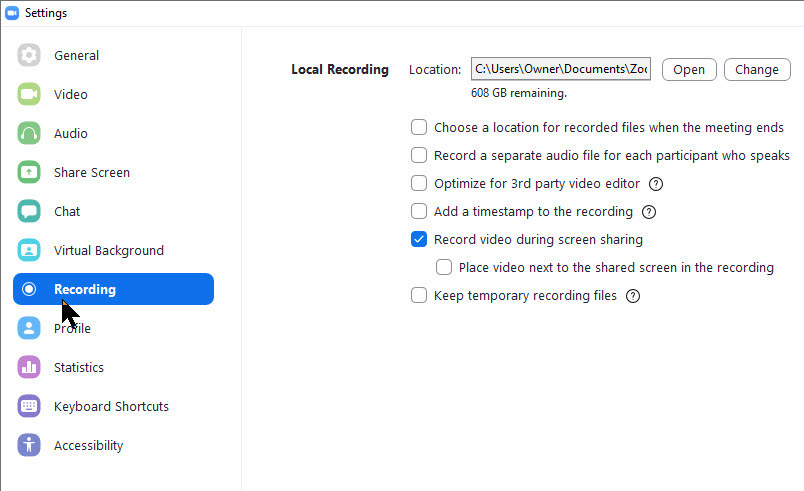
Next, click on the Settings option. The Settings options will be displayed. The Record video during screen sharing option should be checkmarked. Also, at the top of the screen is the location where your video will be stored upon completion. This folder was created when you installed Zoom. Refer to below image:

Zoom Record 2
Settings options for recording a video

By default, only the meeting host can record the meeting, but it’s easy to grant other participants the ability to do so. The meeting host can do so by clicking on Participants while in a meeting, looking for the More button next to an individual’s name and selecting Allow Record

Once in a meeting, those wanting to record only need to click the Record button to start capture, at which point the Record button will change into two buttons: One to Pause the recording and one to Stop recording.

When you’re done recording video, Zoom stores it temporarily in the location mentioned above. The video is encoded into MP4 format once the meeting has ended.

I Would Like to Hear from You

Please feel free to leave a comment. I would love hearing from you. Do you have a computer or smart device tech question? I will do my best to answer your inquiry. Please mention the device, app and version that you are using. To help us out, you can send screenshots of your data related to your question.

The author’s Vietnam eBook on the Battle for Tra Bong: Events and Aftermath

How to Use FaceTime During the Time of Social Distancing

During our time of social distancing, you can still reach out to your friends or relatives using FaceTime video or audio on your iPhone or iPad.

You can use FaceTime over Wi-Fi or over cellular on iOS 12.1 or later devices. Also, you need an iPhone 6s or later. FaceTime supports up to 32 people simultaneously.

This is for iPhone or iPad

Turn on FaceTime

Open the FaceTime app and sign in with your Apple ID. You can also do this from Settings > FaceTime

If you’re using an iPhone, FaceTime automatically registers your phone number. To also register your email address on your iPhone or iPad, go to Settings > FaceTime > Use your Apple ID for FaceTime and sign in with your Apple ID.

Make a FaceTime Call

To make a FaceTime call, you need the person’s phone number or registered email address. There are a few ways to make a FaceTime call:

  • In the FaceTime app, tap the plus button and type the person’s phone number or email address. Tap the number or address, then tap Audio or Video
  • If you have the person’s phone number or email address saved in your Contacts, you can start typing their name and tap the name when it appears. Then tap Audio or Video
  • You can also start a FaceTime video call from your iPhone during a phone call. Tap the FaceTime icon in the iPhone app to switch to FaceTime.

Now you don’t have to be alone, you can reach out to people using your Apple smart devices.

I Would Like to Hear From You

Please feel free to leave a comment. I would love hearing from you. Do you have a computer or smart device tech question? I will do my best to answer your inquiry. Please mention the device, app and version that you are using. To help me out, you can send screenshots of your data related to your question.

How to Lock your iPhone or iPad Screen Orientation

Do you get frustrated when your smart device switches to landscape from portrait mode (or vice versa) when you don’t want it to? There is a way to prevent this behavior through Orientation Lock.

This is for iOS devices iPhone and iPad running iOS 7 and above

Set the Lock

To do this, launch the Control Center by one of the following ways:

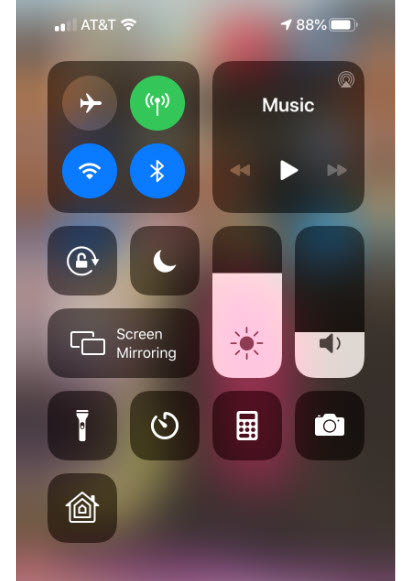
1. iPhone 10 and above – Swipe down from upper right hand corner

2. iPhone 8 or earlier – Swipe up from bottom of screen

See below image:

iPhone Screen Lock 1
The Orientation Lock screen
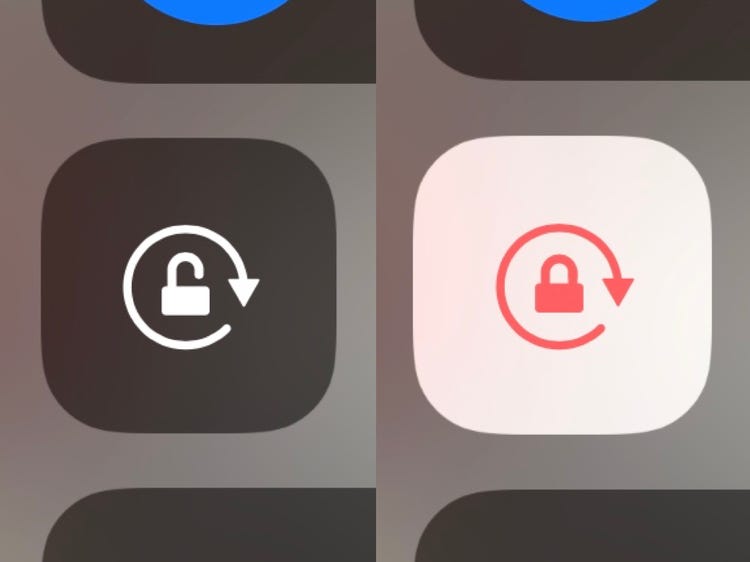
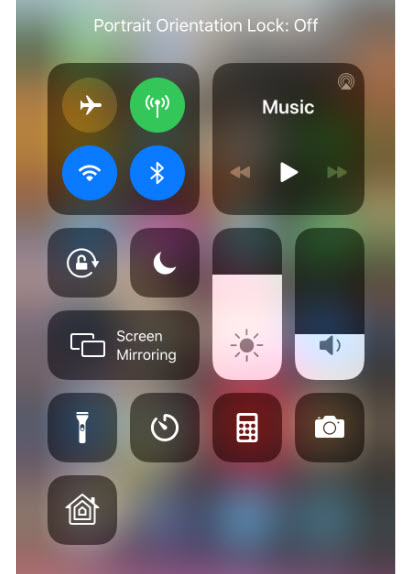
  • Tap the Orientation Lock icon (the one with an open lock and a curved arrow) to set the lock to its current position. A brief message will appear at the top to confirm the lock and the icon will be highlighted. Refer to following image:
iPhone Screen Lock 2
Turning on the Orientation Lock
  • Swipe to close Control Center

Verify the Lock

  • Launch the Control Center. A small lock icon will be displayed in the Status Bar next to the Battery Level icon. See following image:
iPhone Screen Lock 3
Verifying the Orientation Lock is on
  • Swipe to close Control Center

Turn Off the Lock

  • Launch the Control Center
  • Tap the Orientation Lock icon

A brief message will appear at the top to confirm the lock is turned off and the icon will no longer be highlighted. See following image:

iPhone Screen Lock 4
Turning off the Orientation Lock
  • Swipe to close the Control Center

Note! Not all apps support screen rotation. Some apps only work in portrait or landscape mode. This is particularly true of some games and video apps. For those apps, your screen rotation settings don’t matter. The app will only display in the orientation it supports.

I Would Like to Hear from You

Please feel free to leave a comment. I would love hearing from you. Do you have a computer tech or smart device question? I will do my best to answer your inquiry. Please mention the device, app and version that you are using. To help us out, you can send screenshots of your data related to your question.

The author’s Vietnam eBook on the Battle for Tra Bong: Events and Aftermath

How to Listen to Podcasts on Your Amazon Echo

Yes, you can now hear Podcasts on your Amazon Echo device. Apple Podcasts and others, like Spotify and iHeartRadio, are now options to choose from for your favorite podcasts.

We are going to link your Echo device to one of these podcast services. Our example is linking Apple Podcasts to the Amazon Echo. The ways this is done is somewhat clumsy. The Echo seems to be hard to program; it’s not straightforward. But follow along, it’s not time consuming and is worth it.

This is for iOS devices (iPhone and iPad) and the Amazon Echo

Starting Alexa

  • Open the Alexa app on your smart device. If you have yet to download the app, head to the Apple Store to download and install.
  • Tap the hamburger icon, the one with 3 dots in upper right hand corner or tap on the menu icon in upper left hand corner
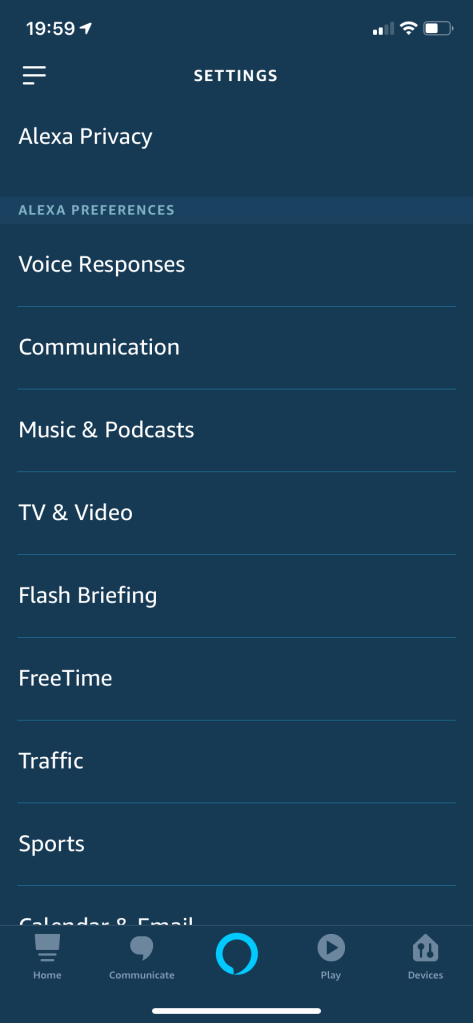
  • Select Settings. You will see the following screen:
Apple Podcasts 1
The Settings image
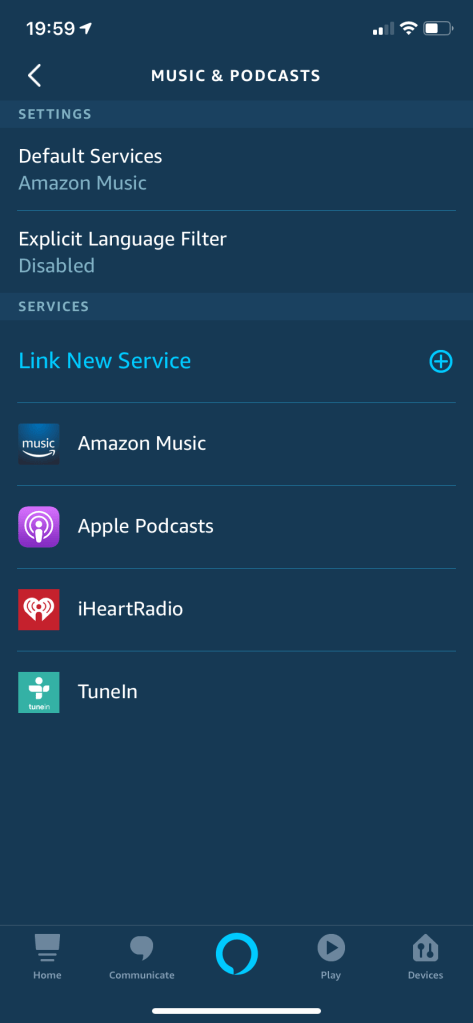
  • Select Music & Podcasts. Refer to following image:
Apple Podcasts 2
The Music & Podcasts screen

Setting up the Link

  • Select Link New Service.
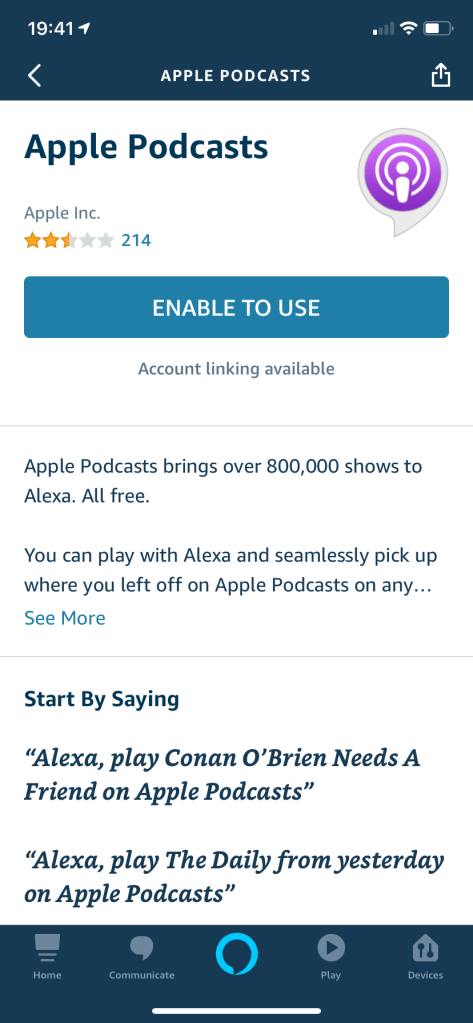
  • Select Apple Podcasts. Refer to following image:
Apple Podcasts 3
Enabling the Apple Podcasts image
  • Tap ENABLE TO USE.

You will be asked to enter your Apple ID, Password and Passcode depending on your login procedure

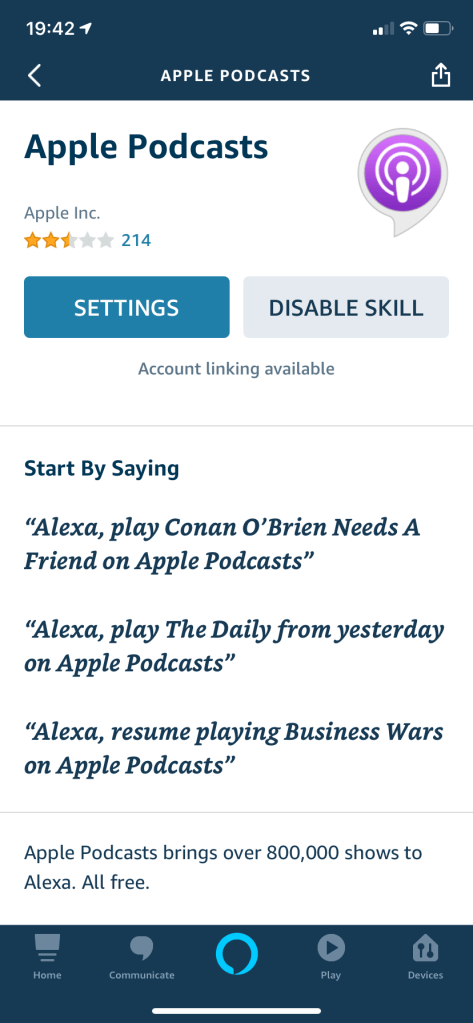
  • Tap SETTINGS. See following screen:
Apple Podcasts 4
The Apple Podcasts settings screen.

Linking the Service to Echo

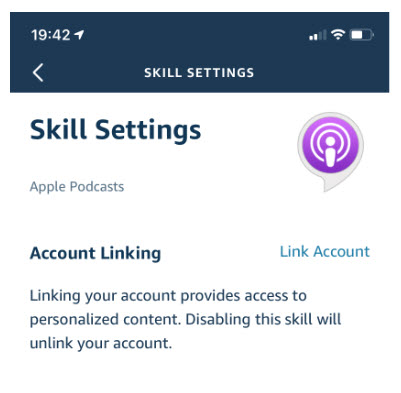
  • On the Skill Settings screen, tap on the Link Account link. See below image:
Apple Podcasts 5
The link screen for Apple Podcasts

Allowing Access for the Link

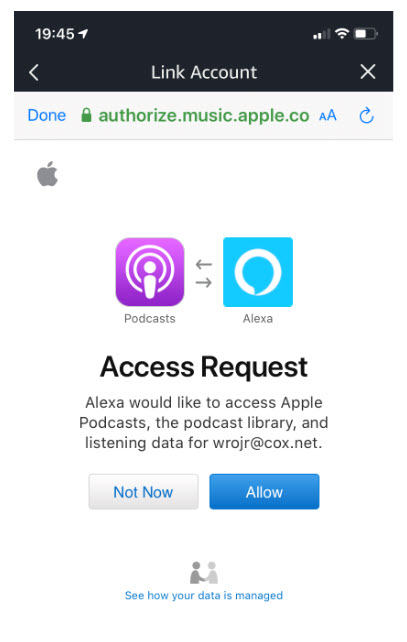
  • Tap Allow on the Access Request screen. You may see a different screen depending on what service you are linking. Refer to below image for Apple Podcasts:
Apple Podcasts 6
Allowing the link to Apple Podcasts image

Linkage for the Podcast Service Completed

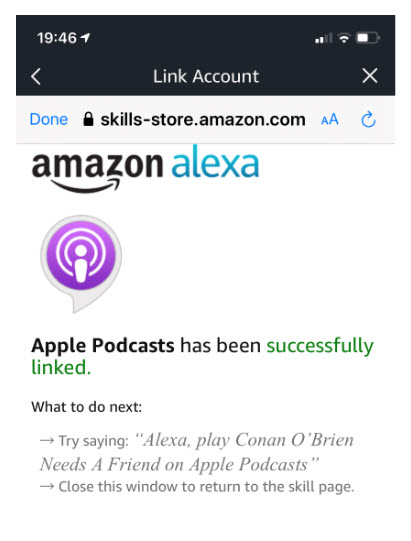
You will see that Apple Podcasts has been successfully linked. See following image:

Apple Podcasts 7
Apple Podcasts now linked to Amazon Echo screen
  • Click Done

Now you can listen to your favorite Apple Podcasts. Just repeat the above steps to add other podcast service(s).

I Would Like to Hear from You

Please feel free to leave a comment. I would love hearing from you. Do you have a computer or smart device tech question? I will do my best to answer your inquiry. Please mention the device, app and version that you are using. To help me out, you can send screenshots of your data related to your question.

The author’s Vietnam eBook on the Battle for Tra Bong: Events and Aftermath

How to Clean Your Device

The Coronavirus is in the news in a big way, almost a Pandemic by World Health Organization. The news has you aware of how many times you touch your face, how many times do you touch your device?

What you Will Need

What can we do about this? To get our gadgets gleaming, you will need microfiber cloths, cotton swabs, isopropyl alcohol, compressed air spray and distilled water. Before you apply any cleaning, unplug or turn off your device. We are going to disinfect your device and give everything else a general cleaning.

Cleaning your Phone or Tablet

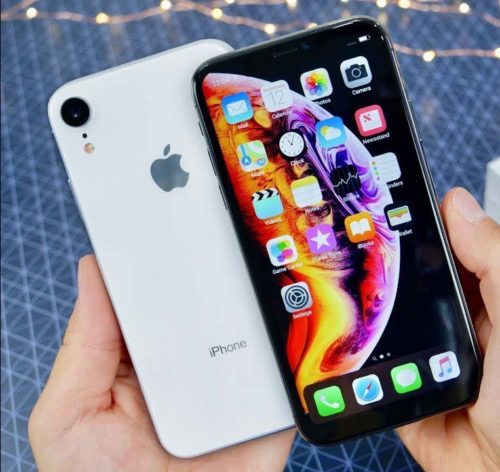
iPhone Image

Phones and tablets have fingerprint resistent coating that could come off. Manufactures generally recommend wiping them down with distilled water on a microfiber cloth, then using cotton swabs to clean around the edges of the screen, buttons and camera lens.

What To Do

Apple recently released its updated guidelines for cleaning. They endorse using 70 percent isopropyl alcohol wipe or Clorox Disinfecting Wipes. You may gently wipe the nonporous surfaces such as the screen, keyboard or other exterior surfaces.

You can create a mixure by using 70 percent alcohol and 30 percent water in a spray bottle. Be sure to wash your hands before starting the cleaning. Then remove any case (leave on any protective screen), spritz the cloth with the solution and thoroughly wipe down your device. Let it dry completely. Then be sure to wash your hands again.

What To Avoid

  • Do not use bleach
  • Avoid getting moisture in any opening
  • Do not submerge your Apple device in any cleaning agents
  • Don’t use the wipes on fabric or leather surfaces
  • Do not reuse the microfiber cloth
  • Avoid using Windex

Cleaning Your Desktop or Laptop

Laptop

First unplug your device and remove the battery for a laptop. Turn your laptop or PC keyboard upside down and (gently) shake out to get rid of dirt and crumbs. Then grab a can of compressed air blaster (available at WalMart and similar places) and blast it. Use cotton swaps to get inside the crevices like the keys.

Lightly spray a microfiber cloth with your solution and wipe down the plastic and metal surfaces to include external devices.

To clean the screen, use a screen cleaning product or your mixture and spray onto a microfiber cloth. For a laptop, a one stop solution is to try 3M Notebook and Tablet Cleaning Wipes. If you have a touch screen, clean it with a microfiber cloth; for smudges, use only water or eyeglass cleaner applied to the cloth to remove them.

Don’t forget the mouse. Using the same mixture, dab it on a cotton swab and run it over the feet of the mouse and any crevices. Then take a microfiber cloth dipped in the mixture and go over the body of the mouse and cord.

I Would Like to Hear from You

Please feel free to leave a comment. I would love hearing from you. Do you have a computer or smart device tech question? I will do my best to answer your inquiry. Please mention the device, app and version that you are using. To help us out, you can send screenshots of your data related to your question.

Five Tips for Using Your iPhone at Night

Apple added the Dark Mode feature in iOS 13+. This allows less eye strain, especially at night, and promotes a healthier sleep. You can use Dark Mode all the time or have your iPhone automatically turn it on.

This is for iPhone and iPad

1. Enable Dark Mode

  • Tap Settings
  • Tap Display and Brightness
  • Select Light or Dark
  • Toggle on Automatic to enable auto switching. You can also setup a schedule under Options. Refer to following image:
Dark Mode 1
Enable Dark Mode on automatic schedule

Note! Not all apps support Dark Mode, especially Facebook and Messenger.

2. Enable Night Shift

This feature is for iOS 9.3 and above. It limits blue light and makes the iPhone “warmer” for a healthier sleep.

  • Tap Settings
  • Tap Display and Brightness
  • Tap Night Shift
  • You can enable a “Sunset to Sunrise” automatic schedule or choose a custom schedule. See following image:
Dark Mode 2
Enabling Night Shift on a schedule

3. Enable Night Vision

Night vision naturally occurs in low light as our pupils adjust to reduced light. By using a red filter, the iPhone simulates night vision. This feature places a red filter across the screen. You can adjust the amount of red color being displayed.

  • Tap Settings
  • Tap Accessibility
  • Tap Display and Text Size
  • Scroll down and tap Color Filters and toggle it on. Tap Color Tint from the list. Move the Intensity and Hue sliders all the way to the right. The screen will be very red in color. Refer to following image: (Note! The reddish color does not show up in a screenshot)
Dark Mode 3
Enabling Night Vision

4. Adjust the Flashlight

To do this, launch the Control Center by one of the following ways:

1. iPhone 10 and above – Swipe down from upper right hand corner

2. iPhone 8 or earlier – Swipe up from bottom of screen

See below image:

  • Tap and hold the Flashlight icon. You will see a segmented bar in five sections. Tap a section to control the brightness of the Flashlight. It will keep this brightness setting until you change it by following the above steps. Refer to below image:
Dark Mode 5
Adjusting the Flashlight intensity

5. Enable Led Flash for Alerts

Let’s say you are on silent mode and want to be notified of alerts at night. We can use the camera flash to alert you of a push notification or a phone call.

  • Tap Settings
  • Tap Accessibility
  • Tap Audio/Visual
  • Toggle on LED Flash for Alerts. Optionally, you can toggle on Flash on Silent. See following image:
Dark Mode 4
Enabling LED flash on alerts

Personally, I like the auto switching of Dark Mode. This feature reduced my eye strain at night. I wrote this post at night using Dark Mode on my iPhone. It was much easier to write and edit than using Light Mode.

I Would Like to Hear from You

Please feel free to leave a comment. I would love hearing from you. Do you have a computer tech or smart device question? I will do my best to answer your inquiry. Please mention the device, app and version that you are using. To help us out, you can send screenshots of your data related to your question.
How to Find an App on iPhone or iPad

If you are like me, you have dozens of apps on your smart device. Instead of swiping screen by screen to locate and launch an app, let’s explore another method using Spotlight Search.

This is for iPhone and iPad

Launch Spotlight Search

  • Near the middle of any screen, especially the Home screen, tap and swipe down. This will open the Spotlight with a keyboard and a search bar. See below image:
iPhone Find App 1
Launch of Spotlight

Finding an App

  • Type a few letters of the app name. In my example, I am searching for “TV App”. See following image:
iPhone Find App 2
Finding an app using Spotlight search
  • Spotlight will suggest a “Top Hit” and other possibilities. Refer to below image:
iPhone Find App 3
Spotlight Top Hit for your search

Launch the App

  • Once you find your app, tap it’s icon to launch. See following image for launching “TV App”:
iPhone Find App 4
Launching the Spotlight search app
  • You can also use Siri to locate and launch an app. Once Siri is activated, just say “Launch” followed by the app name.

I Would Like to Hear from You

Please feel free to leave a comment. I would love hearing from you. Do you have a computer tech or smart device question? I will do my best to answer your inquiry. Please mention the device, app and version that you are using. To help me out, you can send screenshots of your data related to your question.

Related

How to hide an app on your iPhone or iPad

How to Hide an App on Your iPhone or iPad

You have some choices but you can’t completely “hide” an app. You can delete an app by a tap and hold on the icon until the “X” appears, then tap it.

The choices are making the app hard to find via a search or using Siri. To do this we are going to turn off some of an app features.

This is for iPhone and iPad

Hide an App

  • Launch Settings
  • Tap Siri and Search. See below image:
iPhone Hide App 1
The Settings screen for Siri & Search
  • Find the app you want to “hide” from your list of installed apps. I selected the app “Yale Cleaners”. Refer to below image:
Phone Hide App 2
My Yale Cleaners app
  • On this screen, disable all items by toggling them off. The Show App toggle will be revealed; disable this toggle as well. This will exclude the app from all search results and and suggestions screens. See below image:
Phone Hide App 3
Disabling all Yale Cleaners searches

Note! The Settings app does not follow the rules. Any app you try to “hide” will appear in Settings and it’s search field.

Find Your Hidden App

To find the “hidden” app, you have to find its icon somewhere among your installed apps to launch it.

Unhide Your App

  • Launch Settings
  • Find the app from your list of installed apps.
  • Tap Siri & Search and toggle on each feature
  • Tap Notifications and toggle it on. Refer to below image:
iPhone Hide App 4
Unhide Yale Cleaners for searches

I Would Like to Hear from You

Please feel free to leave a comment. I would love hearing from you. Do you have a computer tech or smart device question? I will do my best to answer your inquiry. Please mention the device, app and version that you are using. To help me out, you can send screenshots of your data related to your question.
Related

How to find an app on your iPhone or iPad

Five Areas to Update your LinkedIn Profile

LinkedIn software can be a dauting task to setup and maintain. You should update your LinkedIn profile regularly to attract recruiters, coworkers and friends. Of course, most of us don’t have the time, so we put off this task. If you want to take a little time, you should addrtess fives areas of your profile.

This feature is for your iOS (iPhone/iPad), Android device, Windows 10 or whatever smart device supports LinkedIn

1. Your Heading Statement

This is the short statement that appears below your name. That Heading is what the recruiter’s search for. The Heading needs to say what you do or want to do. It should hit these points using keywords. People who haven’t updated their profile in a while might have their current job title followed by a comma and then their employer or department name. If so, I suggest changing the Heading to some keywords that match what you want to do.

See below image for my Heading as a Blogger: (Note! I used the tips in this post to update my LinkedIn profile for blogging purposes).

LinkedIn Heading statement

2. Updating your Photo

Does the photo reflect who you are today? It would be unwise to visit a recruiter looking completely different from your photo. Of course, you want a headshot photo of you smiling. Put on an appropriate shirt or blouse because it might show up in the photo. You want a photo that will impress recruiters, coworkers or friends.

3. Using Keywords in your Profile

We have discussed using keywords in your Heading. Using keywords in your Skills & Endorsements is also very important. You can use a ton of keywords. Make sure you hit the top words that reflect your experience. Click the “plus” sign in upper right hand corner to add skill(s). Refer to following image:

LinkedIn Skills section

Tap in the Skill search box. Then go thru the aphabet, keying in one letter, ie, key in A, then select your keyword(s); then key in B, etc. through the alphabet to see which LinkedIn keywords to apply. See below image:

LinkedIn adding Skills using keywords

4. Using your Geography

If you are looking for work, it helps to provide a location. Its best to use a general location in a greater city areas, like Oklahoma City/Tulsa metro area instead of a just a single city. This will open up more possibilites for recruiters to locate a matching job.

5. How Open are you to Recruiters?

LinkedIn has a setting you can turn on which tells only recruiters that you are open to being contacted. When you turn on this setting, no one else can see it, only people who have recruiter accountgs. This setting is found in several places in your profile. The setting is labeled Only recuriters.

Go to your profile and look just below your Heading (refer to the first image in this post). When you tap Only recruiters, you are taken to the Job preferences screen. See below image:

LinkedIn Job Preferences

Tap the Edit icon (the pencil in upper right hand corner). Here you can add Job titles, Job locations and select Job types. Refer to below image:

LinkedIn adding Job titles, locations and types
  • Tap the Only recruiters drop down arror to allow your job information to be shown to anyone using LinkedIn or just Recruiters.

Updating these five areas of your profile will open up more job opportunities and attract more recruiters.

I Would Like to Hear from You

Please feel free to leave a comment. I would love hearing from you. Do you have a computer or smart device tech question? I will do my best to answer your inquiry. Please mention the device, app and version that you are using. To help me out, you can send screenshots of your data related to your question.
How to Disable Google from Tracking You

Whereever you go, Goggle is tracking you, especially Google Maps, and archives that activity in your Google Timeline. It is both a blessing and a curse. It can take you down memory lane, but as a curse, it leaves the door wide open to your privacy.

With Timeline, Google Maps can show where you are going and where you have been. Even photos taken and uploaded to Google Photos can reveal your location. You can also share your location in realtime on your smartphone.

If you prefer to keep your location private, you can remove your location history and stop Google from following you.

This feature is for your iOS (iPhone/iPad), Android device, Windows 10 or whatever smart device supports Google

Stop Activity and Location Tracking

  • Open your Google browser
  • Log into your account at myaccount.google.com
  • Select Data & personalization
  • You can disable what Google can tract and collect from you by managing your Activity controls. To stop tracking, click on the Title and toggle the switch to off. See below image:
Google Tracking 1
Google Activity controls

Warning! Turning off these Activity controls will effect the use of their features.

Delete your Activities

Your activities are kept until you manually delete them (the default). You have the option of deleting all data for the past 18 months or past 3 months.

  • Navigate to your Google account at myaccount.google.com
  • Select Data & personalization>Web & App Activity>Manage Activity>Choose to delete automatically. See below image:
Google Tracking 2
Google Deletion process
  • Select the 18 or 3 month option
  • Tap Next. See below image:
Google Tracking 3
Google selection of how long to keep your activity
  • Google will show you what is about to be deleted
  • Tap Confirm at the bottom of your screen. See below image:
Google Tracking 9
Google confirmation of your activity deletion
  • Also, you can delete a particular day’s browsing activity by taping the Trash icon next to the day. Refer to second image above.

To select a custom range, an hour or a date:

  • Tap the Menu icon located next to My Activity
  • Select Delete activity by. See below image:
Google Tracking 4
Google custom deletion
  • Choose one of the following options. See below image:
Goo5le Tracking 6
Google selecting your custom deletion
  • There are other privacy settings you can explore such as Location Services under Settings>Privacy and Security>Location>Location. A set of apps that use Location Services can be toggled on or off. See the following screen:
Google Tracking 8
Google Location Services to turn on or off

Warning! Turning off these Apps Location Services will effect the use of their features.

Go Incognito

The best and easist way to “hide” your browsing is to set the Incognito Mode. This feature allows you to browse without Google compiling history, cookies, site data or form information. Google has extended the feature to Maps and YouTube. Maps will stop tracking your location history; YouTube will no longer track your search and view history.

  • Launch Google
  • Tap the More icon in bottom right hand corner (the 3 dots)
  • Tap Turn on incognito. See below image:
Google Tracking 10
Google setting for Incognito Mode

You will see the following screen:

Google Tracking 7
Google Incognito Mode turned on

To turn off Incognito Mode:

  • Launch Google
  • Tap the More icon in the bottom right hand corner (the 3 dots)
  • Tap In incognito mode
  • Tap Turn off incognito. Refer to following image:
Google Tracking 7
Google Incognito Mode turned off

I Would Like to Hear from You

Please feel free to leave a comment. I would love hearing from you. Do you have a computer or smart device tech question? I will do my best to answer your inquiry. Please mention the device, app and version that you are using. To help me out, you can send screenshots of your data related to your question.