How to Change Link Handling in Outlook for Windows

You may have noticed that opening a link in Outlook behaves differently and not in your chosen browser. That’s because Microsoft wants to push their Edge browser, though they have some excuses for the change.

RAYMOND OGLESBY @RaymondOglesby2
July 11, 2023

This is for devices running Microsoft Outlook. Screenshots are from Microsoft Outlook 365 in Windows 10

You may have noticed that opening a link in Outlook behaves differently and not in your chosen browser. That’s because Microsoft wants to push their Edge browser, though they have some excuses for the change.

When you click on a link in Outlook for Windows, it might open in the Edge browser, even though you have chosen a different default browser in Windows settings (like Chrome or Firefox).

And instead of just opening the web page, the email appears in a right side-pane alongside the link you clicked. Refer to the below image:

Link Handling 1
Side-by-Side View

According to Microsoft, this change means “No more disruptive switching—just your email and the web content you need to reference, in a single, side-by-side view.” They may have a point and it’s a change that suits some people.  

It’s also a shameless attempt to push people to the Edge browser by overriding their browser choice with Microsoft’s preference.

This applies to Windows 10 or 11 only. Microsoft only says this is for ‘Outlook’ not which versions, but presumably Outlook 365 for Windows. For now, it only works on Microsoft-hosted emails including Outlook.com/Hotmail however it will be extended to Gmail later.

Change Browser via Windows

First, the default browser is chosen in Windows. To set up this browser, head to:

Settings | Apps | Default Apps

and choose your preferred browser. See the below image:

Link Handling 2
Setting Chrome as the web browser in Windows

Change the Search Engine and Default Browser

Next, for Chrome, ensure you have set the search engine. To find out, open Chrome and head to:

Menu (the 3 dots in the upper right) | Settings | Search engine

and, if necessary, set your search engine to Chrome. See the following image:

Link Handling 3
Setting Chrome as the search engine

Now, for Chrome, ensure you have set the default browser. To find out, open Chrome and head to:

Menu (the 3 dots in the upper right) | Settings | Default browser

Refer to the below image:

Link Handling 5
Your default browser

The reason why we are doing the above is to ensure we are using Google products. You can have Firefox as your browser and Chrome as your search engine.

Change Outlook Links Default Browser

Next, open Outlook and go to:

File | Options | Advanced | Link Handling

to change the browser to Default Browser. See the below image:

Link Handling 4
Setting Default Browser in Outlook

Side-by-Side View May Not Work

To be honest, you may not get this feature to work no matter what combination of Outlook, Windows, and Edge you try. We prefer to test for ourselves and not take Microsoft’s word. If your email links open in your browser with no side-by-side view, do not worry.

Disclaimer

Technology is always changing and rarely is there static tech for smartphones and desktops. Thus, the contents of this post are only valid at the time of writing. Blog posts older than six months may have directions incompatible with your device or OS. Hopefully, older post content will continue to work as advertised. Thank you for reading TechSavvy.Life for Technology at Work For You.

Quote For the Day

Ideas are easy. Implementation is hard.

Guy Kawasaki

Tweet Info

That’s it. Please feel free to share this post! One way to share is via Twitter.

Just click the Tweet icon below. This will launch Twitter where you click its icon to post the Tweet.

Checkout TechSavvy.Life for blog posts on smartphones, PCs, and Macs! You may email us at contact@techsavvy.life for comments or questions.

I Would Like to Hear From You

Please feel free to leave a comment. I would love to hear from you. Do you have a computer or smart device tech question? I will do my best to answer your inquiry. Just send an email to contact@techsavvy.life. Please mention the device, app, and version you are using. To help us out, you can send screenshots of your data related to your question.

Author’s E-Book

You can access the e-book from a Kindle device, the Kindle App for the desktop or smartphone, which is a free app.

The author’s Vietnam eBook on the Battle for Tra Bong Vietnam: Events and Aftermath

How to Add Weather to Your Lock Screen in Windows 10 and 11

People love to check the weather. On your phone, smartwatch, or computer, it’s nice to have easy access to this information.

RAYMOND OGLESBY @RaymondOglesby2
June 27, 2023

This is for devices running Windows 10 and 11

People love to check the weather. On your phone, smartwatch, or computer, it’s nice to have easy access to this information. Windows 10 and Windows 11 allow you to put the weather on the Lock Screen.

For Windows 10

To add Weather to the Windows 10 Lock Screen, here’s a summary.

Settings > Personalization > Lock Screen > Change the background to “Windows Spotlight” > Choose “Weather” as the app to display.

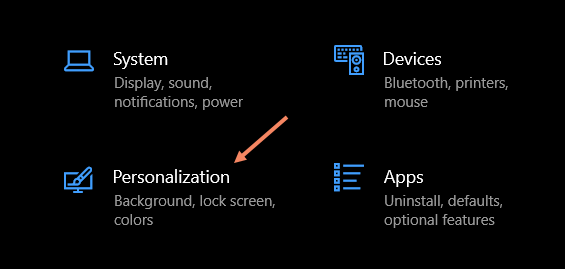
Now, for the details. First, open Settings on your Windows 10 PC and go to the Personalization section. Refer to the below image:

Weather 1
Accessing Personalization

Next, select the Lock Screen section. See the below image:

Weather 2
Selecting the Lock Screen section

Now, make sure the Background drop-down menu is set to Windows spotlight. See the following image:

Weather 3
Selecting Windows spotlight

Next, select the app icon under the text that reads: Choose one app to show detailed status on the lock screen. Refer to the below image:

Weather 4
Selecting the one app icon

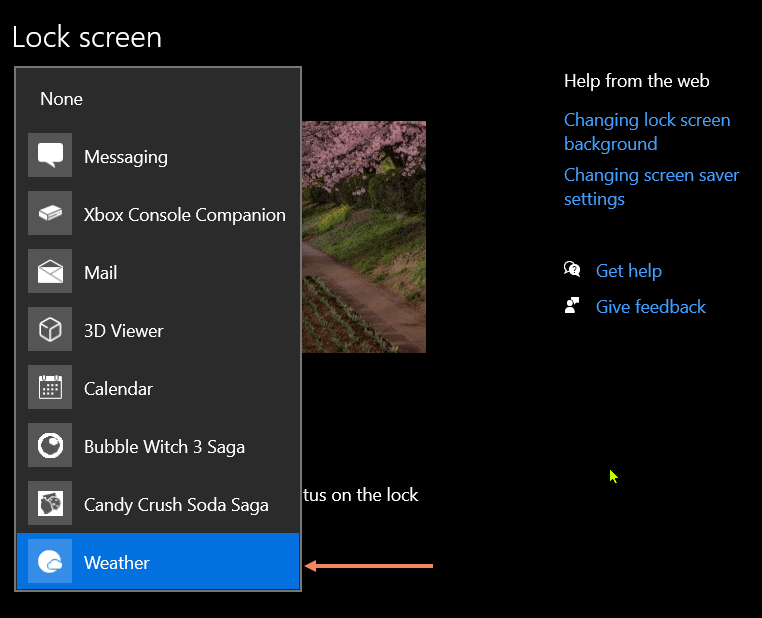
Now, choose Weather from the list of available apps. See the below image:

Weather 5
Selecting Weather app

That’s all there is to it! The weather information will be shown underneath the clock and the date on the Lock Screen.

For Windows 11

To add Weather to the Windows 11 Lock Screen, here’s a summary.

Settings > Personalization > Lock Screen > Choose “Weather” for the “Lock Screen Status” feature.

Note! You need to have Microsoft’s MSN Weather app installed for this to be available.

First, open Settings on your Windows 11 PC and select Personalization. See the following image:

Weather 6
Accessing Personalization

Now, go to the Lock Screen section. Refer to the below image:

Weather 7
Selecting the Lock Screen option

Next, look for Lock Screen Status and select Weather from the drop-down menu. This will not be available if you do not have the MSN Weather app installed. See the below image:

Weather 8
Selecting Weather app

That’s it! The weather information will appear centered at the bottom of the Lock Screen.

You may not look at the Lock Screen on your Windows PC as much as your smartphone, but it’s mostly a blank canvas for glanceable information.

Disclaimer

Technology is always changing and rarely is there static tech for smartphones and desktops. Thus, the contents of this post are only valid at the time of writing. Blog posts older than six months may have directions incompatible with your device or OS. Hopefully, older post content will continue to work as advertised. Thank you for reading TechSavvy.Life for Technology at Work For You.

Quote For the Day

There is a difference between what technology enables and what historical business practices enable.

Bill Gates

Tweet Info

That’s it. Please feel free to share this post! One way to share is via Twitter.

Just click the Tweet icon below. This will launch Twitter where you click its icon to post the Tweet.

Checkout TechSavvy.Life for blog posts on smartphones, PCs, and Macs! You may email us at contact@techsavvy.life for comments or questions.

I Would Like to Hear From You

Please feel free to leave a comment. I would love to hear from you. Do you have a computer or smart device tech question? I will do my best to answer your inquiry. Just send an email to contact@techsavvy.life. Please mention the device, app, and version you are using. To help us out, you can send screenshots of your data related to your question.

Author’s E-Book

You can access the e-book from a Kindle device, the Kindle App for the desktop or smartphone, which is a free app.
The author’s Vietnam eBook on the Battle for Tra Bong Vietnam: Events and Aftermath

Is it Okay to Run Your Laptop With the Lid Closed

If you use your laptop with an external display docked at a desk, you may want to run it with its lid closed to save space. However, your laptop was not designed to run full-tilt with a closed lid, right?

RAYMOND OGLESBY @RaymondOglesby2
June 20, 2023

This is for laptops

If you use your laptop with an external display docked at a desk, you may want to run it with its lid closed to save space. However, your laptop was not designed to run full-tilt with a closed lid, right?

Depends on the Laptop

The main concern when using a laptop with the lid closed is inadequate cooling. However, whether this is true depends on the cooling design of the specific laptop. If we are talking about the fanless, low-power M1 or M2 MacBook Air computers, you can run them this way. You can even buy stands designed for this use case.

On the other hand, if you have a workstation or gaming laptop, there is a good chance that the top deck of the computer plays a role in ventilation. If you close the lid, it can affect airflow. Some laptops are designed to lift the bottom of the laptop off the surface of your desk when the screen opens. With this type of design, running the system with the lid closed is not a good idea.

If you are unsure, check with the manufacturer whether they condone running the system under load with the lid closed.

Heat Can Damage the LCDs

Even if your laptop can adequately cool its CPU and GPU with the lid closed, another consideration is whether the LCD panel could be damaged by being close to the hot laptop body during operation.

Like any electronic device, LCD panels have a maximum safe operating temperature. The exact numbers differ from one device to the next but are typically between 40C and 60C, based on the specifications we have read. Since a closed laptop screen traps a layer of air between itself and the laptop body, it’s conceivable that the temperature in that gap can reach the point where it affects the lifespan of the liquid crystals or the screen’s coating.

Of course, it’s difficult to state conclusively that the heat from your high-performance laptop will damage the laptop’s LCD in either the short or the long term. However, it stands to reason that subjecting an LCD to temperatures outside the room-temperature range it was designed for is a bad idea.

Cooling Pads?

Cooling pads are popular as laptop stands with integrated cooling fans and vents. The idea is that they remove heat from the laptop through its vents and body so that the internal fans do not have to work as hard.

In theory, this is not a bad idea, but it depends on the exact cooling design of your laptop and the cooling pad. Even then, cooling pads offer relatively small drops in temperature, and they are not helping cool the gap between your screen and laptop body directly.

Running Overnight or as a Server?

Some users are not looking to run a laptop with its lid closed while attached to an external display. For example, you might be using your old laptop as an in-home server, or downloading to run overnight.

Assuming you are sure any vents are not blocked (and enabled it to run while the lid’s closed), you can leave the laptop running with the lid closed if it’s only doing medium or low-intensity work that will not heat it up much.

However, you can go the middle way and close the lid just enough to switch off the screen, but not enough to close the laptop entirely. As long as hot air is not venting directly onto the screen, this should work. However, it will not do much to keep dust out, so be prepared to clean your laptop regularly.

So What Is the Problem?

If your laptop is overheating or throttling its performance when you have the lid closed, that’s clearly an issue, and you should strongly consider opening the lid to prevent this from happening. If you are mainly worried that heat exposure will ruin your laptop screen, there’s no clear evidence we could find that this is the case. We have run laptops with their lids closed for years and have never experienced a display failure that could be directly linked to heat. That being said, it’s impossible to rule it out entirely.

Ultimately, the only safe option is to run your laptop with the lid open. Besides, this offers a second screen if you are using an external monitor, which is almost always more useful than only having a single display. Then again, running your laptop with the lid closed frees up space-saving benefits, so the tradeoff depends on how much you value form over function, or what specific job you need your laptop to do.

Disclaimer

Technology is always changing and rarely is there static tech for smartphones and desktops. Thus, the contents of this post are only valid at the time of writing. Blog posts older than six months may have directions incompatible with your device or OS. Hopefully, older post content will continue to work as advertised. Thank you for reading TechSavvy.Life for Technology at Work For You.

Quote For the Day

Art is obsolete now. New technologies are taking over.

Jeff Koons

Tweet Info

That’s it. Please feel free to share this post! One way to share is via Twitter.

Just click the Tweet icon below. This will launch Twitter where you click its icon to post the Tweet.

Checkout TechSavvy.Life for blog posts on smartphones, PCs, and Macs! You may email us at contact@techsavvy.life for comments or questions.

I Would Like to Hear From You

Please feel free to leave a comment. I would love to hear from you. Do you have a computer or smart device tech question? I will do my best to answer your inquiry. Just send an email to contact@techsavvy.life. Please mention the device, app, and version you are using. To help us out, you can send screenshots of your data related to your question.

Author’s E-Book

You can access the e-book from a Kindle device, the Kindle App for the desktop or smartphone, which is a free app.

The author’s Vietnam eBook on the Battle for Tra Bong Vietnam: Events and Aftermath

OneNote New Scribble Feature for Quick Deletion

OneNote is one of the most underrated apps in the Microsoft 365 suite, especially if you have a tablet with a stylus. Now, it’s easier than ever to erase stuff you wrote.

RAYMOND OGLESBY @RaymondOglesby2
June 13, 2023

This is for devices using Microsoft 365 OneNote on Windows 11

OneNote is one of the most underrated apps in the Microsoft 365 suite, especially if you have a tablet with a stylus. Now, it’s easier than ever to erase stuff you wrote.

OneNote for Windows has just introduced a brand new gesture to quickly erase things you wrote. In many handwriting apps, you need to reach for the eraser tool if you want to get rid of something you wrote. Now, though, it’s much easier. Just scratch it out, draw a scribble on top of the ink content you want to erase, and watch it disappear. It’s basically like striking through handwriting in real life, except this motion actually makes content disappear. Click on the below Microsoft video to watch Scribble in action:

OneNote Scribble in Action for Quick Deletion

If you frequently make mistakes in notes, constantly reaching for the eraser and switching back can be an annoying experience, which is why this is a huge improvement in usability. If you do not like it for whatever reason, you can also disable it by going to:

File > Options > Advanced > Pen

The new erase gesture is only available to people in the Beta Channel of OneNote for Windows, but if testing goes well, it will likely roll out to everyone within the next few weeks or months. It’s not coming to the “OneNote for Windows 10” app, since Microsoft is working on replacing that app entirely with the regular Windows version.

Source: Microsoft

Disclaimer

Technology is always changing and rarely is there static tech for smartphones and desktops. Thus, the contents of this post are only valid at the time of writing. Blog posts older than six months may have directions incompatible with your device or OS. Hopefully, older post content will continue to work as advertised. Thank you for reading TechSavvy.Life for Technology at Work For You.

Quote For the Day

The real problem is not whether machines think but whether men do.

B.F. Skinner

Tweet Info

That’s it. Please feel free to share this post! One way to share is via Twitter.

Just click the Tweet icon below. This will launch Twitter where you click its icon to post the Tweet.

Checkout TechSavvy.Life for blog posts on smartphones, PCs, and Macs! You may email us at contact@techsavvy.life for comments or questions.

I Would Like to Hear From You

Please feel free to leave a comment. I would love to hear from you. Do you have a computer or smart device tech question? I will do my best to answer your inquiry. Just send an email to contact@techsavvy.life. Please mention the device, app, and version you are using. To help us out, you can send screenshots of your data related to your question.

Author’s E-Book

You can access the e-book from a Kindle device, the Kindle App for the desktop or smartphone, which is a free app.

The author’s Vietnam eBook on the Battle for Tra Bong Vietnam: Events and Aftermath

How to Use Bionic Reading in Chrome

We are all constantly absorbing information online. Bionic Reading is an approach to reading that can help you read faster, retain more information, and boost your productivity in your favorite web browser, like Chrome.

RAYMOND OGLESBY @RaymondOglesby2
June 6, 2023

This is for desktops using Chrome or other browsers. Screenshots are from Windows 10

We are all constantly absorbing information online. Bionic Reading is an approach to reading that can help you read faster, retain more information, and boost your productivity in your favorite web browser, like Chrome.

Bionic Reading Explained

Bionic reading is a method of reading that combines traditional reading with technology-assisted tools. This helps readers increase their reading speed, improve their comprehension and retention, and ultimately become more productive in their reading activities.

Was the above paragraph easier and quicker to read? If you said yes, then you have just experienced some of the benefits of Bionic Reading. Now, imagine that but for a whole article, essay, or book.

Your brain does not always read every letter of every word. It only intakes enough information for you to understand a word, and then it moves on to the next one. The bolding of the first half of each word lets your mind fast-track through paragraphs.

The bolding aspect is the most notable factor in Bionic Reading, but there’s more as well. A lot of apps and extensions also remove colors from images and change white or black backgrounds to gray. These changes help your eyes focus on the text.

Why Use Bionic Reading

Using Bionic Reading in Chrome, or any other web browser, can offer several benefits.

It can help you read faster and more efficiently, which allows you to cover more material in less time.

Bionic Reading can also help you retain more information by training your brain to focus on the most important parts of any text.

As a result of the two above-mentioned benefits, it can improve your productivity by allowing you to process information more effectively. This can be particularly useful in academic or work-related settings.

Bionic Reading in any browser can be a valuable tool for anyone looking to optimize their online reading experience.

Think of Bionic Reading as akin to Speed Reading but they are different in their approach. Speed Reading is the process of rapidly recognizing and absorbing phrases or sentences on a page all at once, rather than identifying individual words.

How Bionic Reading Helps You

Bionic Reading helps you read faster and more efficiently with techniques including skimming, scanning, chunking, and altering images to be easier on the eye. Refer to the below image:

Bionic Reader 1
Bionic Reading example from Chrome Web Store

For example, when you skim a text, you quickly glance through it to get a general idea of the content without reading every word. Similarly, when you scan a text, you search for specific keywords or phrases that are relevant to your reading goals.

By using these techniques, you can save time and energy. Bionic Reading tools like web browser extensions or apps can help automate some of these techniques.

Bionic Reading Trains Your Brain to Retain Information

By using Bionic Reading, you can begin to retain more information by training your brain to focus on the most crucial parts of any text, such as key concepts, arguments, or evidence.

Through using techniques like skimming or scanning (as mentioned above), you can quickly identify the main points of the text and decide what information is relevant to your reading goals. In turn, this uses less mental energy.

By consistently applying these techniques, you can train your brain to become more efficient at processing and retaining information. Studying, researching, and editing your own work can become easier as a result.

Bionic Reading Improves Your Productivity

Before we go into how Bionic Reading increases your productivity, you need a frame of reference for how your productivity can suffer through everyday means.

Using your eyes takes up about 50% of your brain power. That’s more than any of your other senses. We, as humans, heavily rely on our vision for pretty much everything we do.

As your brain becomes able to retain more information, you will need to re-read the same text less often.

Reading faster and more efficiently drastically cuts down on the stress your eyes and brain suffer while researching, writing, and doing similar work, especially when you are mentally digesting new information.

To summarize, by improving your reading efficiency and training your brain to better retain information, your productivity should increase.

Bionic Reading Chrome Extension

You can get the Bionic Reading extension for Chrome on the Chrome Web Store. See the below image:

Bionic Reader 2
Adding Bionic Reading Chrome extension

At the top of a Chrome window, click the Menu icon (the 3 dots) to open the Menu. Now, click More Tools > Extensions to view the extension. See the following image:

Bionic Reader 3
Bionic Reading Chrome extension

After installing it, you can manage the Bionic Reading extension through the Extensions menu at the top-right of your window (click the little jigsaw piece icon). Refer to the below image:

Bionic Reader 4

Activate Bionic Reading

You are now ready to begin using the Bionic Reading extension! When you want to activate it on any given webpage, all you need to do is click the jigsaw piece icon at the top-right of your window and then click the Bionic Reading icon. To turn Bionic Reading off, do the same thing again. See the below image:

Bionic Reader 5
Bionic Reading example

Everything is removed from the web page but the text. That’s all there is to it! Start saving your energy for tougher tasks by letting Bionic Reading do the heavy visual lifting.

Disclaimer

Technology is always changing and rarely is there static tech for smartphones and desktops. Thus, the contents of this post are only valid at the time of writing. Blog posts older than six months may have directions incompatible with your device or OS. Hopefully, older post content will continue to work as advertised. Thank you for reading TechSavvy.Life for Technology at Work For You.

Quote For the Day

I would like to die on Mars. Just not on impact.

Elon Musk

Tweet Info

That’s it. Please feel free to share this post! One way to share is via Twitter.

Just click the Tweet icon below. This will launch Twitter where you click its icon to post the Tweet.

Checkout TechSavvy.Life for blog posts on smartphones, PCs, and Macs! You may email us at contact@techsavvy.life for comments or questions.

I Would Like to Hear From You

Please feel free to leave a comment. I would love to hear from you. Do you have a computer or smart device tech question? I will do my best to answer your inquiry. Just send an email to contact@techsavvy.life. Please mention the device, app, and version you are using. To help us out, you can send screenshots of your data related to your question.

Author’s E-Book

You can access the e-book from a Kindle device, the Kindle App for the desktop or smartphone, which is a free app.

The author’s Vietnam eBook on the Battle for Tra Bong Vietnam: Events and Aftermath

Using a Keyboard Shortcut to Clear Your Browser History

Want to clear your browser history quickly? There’s a keyboard shortcut for that. It works in any browser, including Google Chrome, Apple Safari, Microsoft Edge, and Mozilla Firefox (on both Windows PCs and Macs.)

RAYMOND OGLESBY @RaymondOglesby2
May 30, 2023

This is for popular browsers on a PC or Mac

Want to clear your browser history quickly? There’s a keyboard shortcut for that. It works in any browser, including Google Chrome, Apple Safari, Microsoft Edge, and Mozilla Firefox (on both Windows PCs and Macs.)

Depending on your web browser of choice, you can speed things up in the future by activating the Clear button with a few keystrokes. You may have to tab through the interface to select the Clear button before hitting Enter.

Here’s how it works on a few popular browsers on a Windows 10 or Windows 11 PC:

  • Google Chrome: Press Ctrl+Shift+Delete and press Enter.
  • Mozilla Firefox: Press Ctrl+Shift+Delete and press Enter.
  • Microsoft Edge: Press Ctrl+Shift+Delete and press Enter.

You can now configure exactly what you want to delete. Your browser will remember the settings you pick here, so you will only have to set this up once.

You can pick a time range, or history from a time period like the last hour, last 24 hours, last week, or from all time. You can also pick the types of data: browsing history, download history, cookies, cached files, and more.

When you are done, click the Clear data or Clear now button. Refer to the below image for Chrome:

Clear Chrome 1
Selecting to Clear data in Chrome

Incognito Mode

In the future, you can eliminate the need to clear your browser history by browsing in a private-browsing mode, like Incognito Mode in Chrome. You will just have to close the private-browsing window, and your browser will immediately forget the history associated with your private browsing.

You can use keyboard shortcuts to open and close a private-browsing mode window, too.

  • Google Chrome: Press Ctrl+Shift+N
  • Mozilla Firefox: Press Ctrl+Shift+P
  • Safari or Chrome on a Mac: Press Command instead of Ctrl; for example, press Shift+Command+N.

When you are done, press Ctrl+W to close a single tab or Ctrl+Shift+W to close an entire window. (On a Mac, press Command instead of Ctrl.)

Just remember that Incognito Mode does not offer complete privacy online. It only prevents your web browser from storing your browsing history locally. You may want to combine it with a VPN to boost your online privacy.

Disclaimer

Technology is always changing and rarely is there static tech for smartphones and desktops. Thus, the contents of this post are only valid at the time of writing. Blog posts older than six months may have directions incompatible with your device or OS. Hopefully, older post content will continue to work as advertised. Thank you for reading TechSavvy.Life for Technology at Work For You.

Quote For the Day

Knowledge is of no value unless you put it into practice.

Anton Chekhov

Tweet Info

That was easy. Please feel free to share this post! One way to share is via Twitter.

Just click the Tweet icon below. This will launch Twitter where you click its icon to post the Tweet.

Checkout TechSavvy.Life for blog posts on smartphones, PCs, and Macs! You may email us at contact@techsavvy.life for comments or questions.

I Would Like to Hear From You

Please feel free to leave a comment. I would love to hear from you. Do you have a computer or smart device tech question? I will do my best to answer your inquiry. Just send an email to contact@techsavvy.life. Please mention the device, app, and version you are using. To help us out, you can send screenshots of your data related to your question.

Author’s E-Book

You can access the e-book from a Kindle device, the Kindle App for the desktop or smartphone, which is a free app.

The author’s Vietnam eBook on the Battle for Tra Bong Vietnam: Events and Aftermath

Amazon RxPass for Your Prescriptions

Hot on the heels of shutting down the AmazonSmile charity platform, a new add-on to Amazon Prime has been revealed. It aims to fill prescriptions for generic medications for one low monthly price.

RAYMOND OGLESBY @RaymondOglesby2
May 11, 2023

Hot on the heels of shutting down the AmazonSmile charity platform, a new add-on to Amazon Prime has been revealed. It aims to fill prescriptions for generic medications for one low monthly price.

This is for devices using Amazon

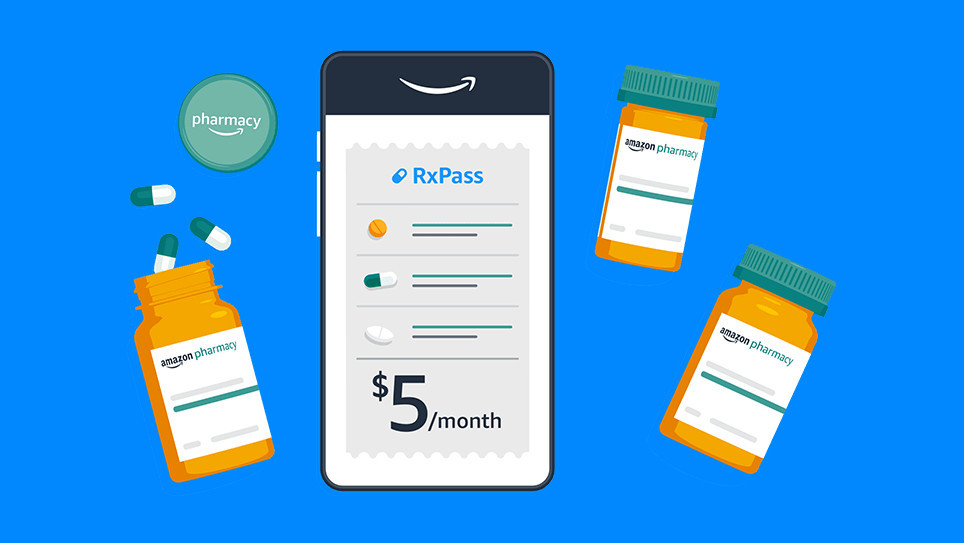
Amazon already runs a pharmacy through its online store, bolstered by the purchase of PillPack in 2018, but now the company is going a step further. Instead of buying each drug individually, Amazon is launching an optional subscription called RxPass, priced at $5 per month in the United States. No health insurance is required, but most (if not all) of the medications are controlled substances that require a prescription from a doctor.

RxPass does not cover every drug Amazon sells, but it does provide access to “commonly prescribed generic medications that treat more than 80 common health conditions.” There’s a full list on the RxPass website (scroll down to see the list), which includes anti-inflammatory drugs like Piroxicam and Naproxen, nine medications for high blood pressure and cardiac dysrhythmias, and even some drugs for treating Parkinson’s disease.

The new subscription could potentially save some people a lot of money, but there is a darker side to RxPass. CNN reports the subscription is almost certainly a loss leader for Amazon, meaning it’s intended to maintain subscriptions to Amazon Prime rather than be self-sustaining. You are probably going to be less likely to cancel Amazon Prime on the next price hike if it’s responsible for your access to critical medication, and Amazon’s FAQ page says canceling Prime will also cancel RxPass.

Disclaimer

Technology is always changing, and rarely is there static tech for smartphones and desktops. Thus, the contents of this post are only valid at the time of writing. Blog posts older than six months may have directions incompatible with your device or OS. Hopefully, older post content will continue to work as advertised. Thank you for reading TechSavvy.Life for Technology at Work For You.

Quote For the Day

We live in a society exquisitely dependent on science and technology, in which hardly anyone knows anything about science and technology.

Carl Sagan

Tweet Info

That’s it. Please feel free to share this post! One way to share is via Twitter.

Just click the Tweet icon below. This will launch Twitter where you click its icon to post the Tweet.

Checkout TechSavvy.Life for blog posts on smartphones, PCs, and Macs! You may email us at contact@techsavvy.life for comments or questions.

I Would Like to Hear From You

Please feel free to leave a comment. I would love to hear from you. Do you have a computer or smart device tech question? I will do my best to answer your inquiry. Just send an email to contact@techsavvy.life. Please mention the device, app, and version you are using. To help us out, you can send screenshots of your data related to your question.

Author’s E-Book

You can access the e-book from a Kindle device, the Kindle App for the desktop or smartphone, which is a free app.

The author’s Vietnam eBook on the Battle for Tra Bong Vietnam: Events and Aftermath

How to Disable Windows 11 or 10 Firewall

For troubleshooting, testing, or other similar purposes, you may need to turn off your Windows 11 or Windows 10’s firewall. It’s easy to disable this feature on your PC.

RAYMOND OGLESBY @RaymondOglesby2
March 7, 2023

For troubleshooting, testing, or other similar purposes, you may need to turn off your Windows 11 or Windows 10’s firewall. It’s easy to disable this feature on your PC. Let’s explore this feature.

This is for Windows 11/10. Screenshots are from Windows 10

Note! The Dilbert comic will be suspended until further notice. Due to racists remarks by the creater of Dilbert, Scott Adams on a talk show, Dilbert has been removed from the Internet and newspapers. We have been following Dilbert for three decades and we thought the comic titted in with the theme of these posts.

Disable Your Firewall Only If You Have To

Turning off Windows’ firewall allows unauthorized network access on your PC. So unless you have a strong reason to disable the feature, you must keep the firewall turned on at all times.

The only times you may need to disable your firewall are when you are troubleshooting an issue, testing an app, or using a third-party firewall on your computer. Even then, if you are disabling the firewall to let an app through your network, add that app to the Firewall Exception list instead of turning the entire feature off.

When you are finished with your task, remember to turn the firewall back on to stay secure.

Turn Off Firewall

On both Windows 11 and 10, you will use the built-in Windows Security app to disable and enable the firewall.

First, launch Windows Security on your PC. Do this by opening the Start menu, searching for Windows Security, then click the app in the search results. Refer to the below image:

Firewall 1
Launch Windows Security

Next, in the window that opens, click Firewall & network protection. See the below image:

Firewall 2
Launch Firewall & Network Protection option

Now, on the Firewall & network protection page, select your network profile. To disable the firewall for your current profile, you will see Active next to that profile, so click that option. See the following image:

Firewall 3
Launch the Private Network (Active) option

Next, in the Microsoft Defender Firewall section, toggle OFF the option. Later, to re-enable the firewall, toggle ON the option. Refer to the below image:

Firewall 4
Disable Firewall

Now, select Yes in the User Account Control prompt, and your Windows firewall is now disabled. You may now continue your troubleshooting, testing, or other similar tasks.

Remember to turn the firewall back on when you are finished.

Disclaimer

Technology is always changing and rarely is static for smartphones and desktops. Thus, the contents of this post are only valid at the time of writing. Blog posts older than six months may have directions incompatible with your device or OS. Hopefully, older post content will continue to work as advertised. Thank you for reading TechSavvy.Life for Technology at Work For You.

Quote For the Day

Communication tools don’t get socially interesting until they get technologically boring.

Clay Shirky

Tweet Info

That’s it. Please feel free to share this post! One way to share is via Twitter.

Just click the Tweet icon below. This will launch Twitter where you click its icon to post the Tweet.

Checkout TechSavvy.Life for blog posts on smartphones, PCs, and Macs! You may email us at contact@techsavvy.life for comments or questions.

I Would Like to Hear From You

Please feel free to leave a comment. I would love to hear from you. Do you have a computer or smart device tech question? I will do my best to answer your inquiry. Just send an email to contact@techsavvy.life. Please mention the device, app, and version you are using. To help us out, you can send screenshots of your data related to your question.

Author’s E-Book

You can access the e-book from a Kindle device, the Kindle App for the desktop or smartphone, which is a free app.

The author’s Vietnam eBook on the Battle for Tra Bong Vietnam: Events and Aftermath

How to Remove Annoying Ads on Windows 10

Microsoft continues to double down on its most annoying feature by keeping advertisements inside Windows 10 (and adding even more to Windows 11). Let’s explore how to remove

RAYMOND OGLESBY @RaymondOglesby2
February 21, 2023

Microsoft continues to double down on its most annoying feature by keeping advertisements inside Windows 10 (and adding even more to Windows 11). Let’s explore how to remove these ads.

Thankfully, most of these ads have a Settings menu. (The same goes for the ads in Windows 11).

This is for devices running Windows 10. Screenshots are from Windows 10

Dilbert and New Years
Copyright Scott Adams, Inc./Distributed by Universal Uclick for UFS

You may have to check Settings from time to time to ensure everything is still how you want it as Windows updates add more ads. The steps below may not remove everything but should tone things down to some extent.

Remove Ads from Start Menu

First, you can turn these ads off if you head to the:

Settings > Personalization > Start

and toggle OFF the Show suggestions occasionally in the Start option. Refer to the below image:

Ads 1
Remove Start Menu ads

Next, if you have a problem with any of the Live Tiles on your Start screen, some of which are pre-installed junk or trials, you can right-click on the one that’s bugging you, Just hover over the More option, and choose turn Live Tile to OFF. That way, it will merely act as a shortcut to the app. Or you can right-click on it to choose Uninstall to remove the app entirely.

Block Tips and suggestions From Lock Screen

First, to remove these tips and suggestions, head to

Settings > Personalization > Lock Screen

and set your background to Picture or Slideshow. Here, you can then toggle OFF for Get fun facts, tips, and more… See the below image:

Ads 2
Remove Tips and Suggestions ads

Remove Ads From Taskbar and Action Center

First, you can get rid of these ads by going to

Settings > System > Notifications & Actions

and unchecking Get tips, tricks, and suggestions as you use Windows.

Next, you may also want to untick the Show me the Windows welcome experience… option here, which shows those annoying tours after you update Windows, as well as the Suggest ways I can finish setting up my device

Now, toggle OFF any manufacturer-installed apps that may be sending them, such as Lenovo Vantage on Lenovo ThinkPads. (You could also uninstall them entirely; just make sure they do not provide some useful features you want, (like updating certain drivers.) See the following image:

Ads 3
Remove Taskbar and Action Center ads

Remove Ads From File Explorer

First, you can get rid of these space-wasting suggestions by clicking

View > Options in File Explorer, then click the View tab in the window that appears.

Next, scroll. down to Show sync provider notifications and uncheck that box. That should prevent ads from showing up in File Explorer again. Refer to the below image:

Ads 4
Remove File Explorer ads

Remove Targeted Advertising

Windows gives you an Advertising ID that it uses to track your interests and serve you more relevant ads within apps. While you are turning OFF all of Windows’ built-in ads, you may want to turn this setting OFF as well.

First, head to

Settings > Privacy > General

and toggle OFF the Let apps use advertising ID…, if you would rather have non-targeted ads. See the below image:

Ads 5
Remove Targeted ads
Disclaimer

Technology is always changing and rarely is static for smartphones and desktops. Thus, the contents of this post are only valid at the time of writing. Blog posts older than six months may have directions incompatible with your device or OS. Hopefully, older post content will continue to work as advertised. Thank you for reading TechSavvy.Life for Technology at Work For You.

Quote For the Day

People who are really serious about software should make their own hardware.

Alan Kay

Tweet Info

That’s it. Please feel free to share this post! One way to share is via Twitter.

Just click the Tweet icon below. This will launch Twitter where you click its icon to post the Tweet.

Checkout TechSavvy.Life for blog posts on smartphones, PCs, and Macs! You may email us at contact@techsavvy.life for comments or questions.

I Would Like to Hear From You

Please feel free to leave a comment. I would love to hear from you. Do you have a computer or smart device tech question? I will do my best to answer your inquiry. Just send an email to contact@techsavvy.life. Please mention the device, app, and version you are using. To help us out, you can send screenshots of your data related to your question.

Author’s E-Book

You can access the e-book from a Kindle device, the Kindle App for the desktop or smartphone, which is a free app.
The author’s Vietnam eBook on the Battle for Tra Bong Vietnam: Events and Aftermath

How to Create a System Restore Point in Windows 11/10

System Restore lets you restore key Windows system files and Registry settings to a known-good state. Windows automatically creates them in certain situations, but you may want to manually create them before installing hardware drivers or making other major system changes. Let’s explore how to create a System Restore Point.

RAYMOND OGLESBY @RaymondOglesby2
February 16, 2023

System Restore lets you restore key Windows system files and Registry settings to a known-good state. Windows automatically creates them in certain situations, but you may want to manually create them before installing hardware drivers or making other major system changes. Let’s explore how to create a System Restore Point.

This is for devices running Windows 11 or 10. Screenshots are from Windows 10

Dilbert and Crypto
Copyright Scott Adams, Inc./Distributed by Universal Uclick for UFS

System Restore Point Explained

Windows 11 and 10 include a utility app called System Restore that can repair malfunctioning Windows installations by reverting certain system files and Windows Registry settings to a prior state. It does this by using restore points, which are snapshots of system files and the registry made either automatically or manually before problems arise.

Restore points are stored in a hidden folder called System Volume Information which is located at the root of each drive. Creating a restore point does not make any changes to your system, but restoring it later does. The instructions are the same in each Windows version.

Note: Windows will automatically create System Restore points in certain situations, so you may be able to restore to a previous system state even if you have never manually created one. However, you may want to manually create System Restore points before making major changes to your computer’s settings, installing drives, or installing large applications.

Manually Create a System Restore Point

First, open the Start Menu and type “Restore Point”. In the results that appear, select Create a Restore Point. Refer to the below image:

Restore 1
Accessing the option to Create a Restore Point

Next, the System Properties window will open with the System Protection tab selected. This is the main interface for managing restore points within Windows. Click the Create button toward the bottom of the window. See the below image:

Restore 2
Selecting to Create a Restore Point

Now, type in the name of the restore point. A good rule of thumb is to use a name that identifies why you are making the restore point, such as before a major installation or upgrade. For example “Before Drivers Update”, or “Before OneDrive Installation.”. When you are ready, click Create. See the following image:

Restore 3
Naming your Restore Point

Next, you will see a progress bar, then if all goes well, a message that says The restore point was created successfully. Just click Close. Refer to the below image:

Restore 4
Close the window

After that, you are finished creating the restore point.

Automatically Create a System Restore Point

First, use the same System Protection tab in System Properties. Select the drive you would like to protect, then click Configure. In the window that opens, select Turn on System Protection, then click OK. See the below image:

Restore 4a
Enabling Create a Restore Point

When you are done, click OK or close the System Properties window.

Restore a System Restore Point

To restore a System Restore point in Windows 111/10, we will use the same System Protection tab in the instructions above. First, open the Start Menu and type “Restore Point”, then click Create a Restore Point in the results. See the following image:

Restore 1
Accessing the option to Create a Restore Point

Now, in the System Restore window that opens, click Next when you see the introductory information. On the following screen, you will see a list of system restore points available on your PC. Select the one you want to restore and click Next. Refer to the below image:

Note: On this same screen, you can select a restore point and click “Scan For Affected Programs” to see a list of installed apps that will be affected by the restore process. This might help you make a decision about which restore point to choose.

Restore 7
Selecting a Restore Point to restore

Next, you will see a summary screen. Click Finish. See the below image:

Restore 8
Finish creating a Restore Point

Warning: By clicking “Yes” in the next step, you are about to make a permanent change to your system that could make your apps not work properly. System restore replaces your system files with older versions, and that can potentially break things. Only use it if you are recovering from a serious error. Also, you will not be able to use your PC while the system restore process is taking place.

If you are ready to begin the system restore, click Yes on the final warning screen. See the following image:

Restore 9
Confirm the restore

Your system will restart and the restore process will begin. After it’s complete, if everything went well, you will be able to log into Windows and use your PC as normal.

Disclaimer

Technology is always changing and rarely is static for smartphones and desktops. Thus, the contents of this post are only valid at the time of writing. Blog posts older than six months may have directions incompatible with your device or OS. Hopefully, older post content will continue to work as advertised. Thank you for reading TechSavvy.Life for Technology at Work For You.

Quote For the Day

Communication tools don’t get socially interesting until they get technologically boring.

Clay Shirky

Tweet Info

You are finished. Please feel free to share this post! One way to share is via Twitter.

Just click the Tweet icon below. This will launch Twitter where you click its icon to post the Tweet.

Checkout TechSavvy.Life for blog posts on smartphones, PCs, and Macs! You may email us at contact@techsavvy.life for comments or questions.

I Would Like to Hear From You

Please feel free to leave a comment. I would love to hear from you. Do you have a computer or smart device tech question? I will do my best to answer your inquiry. Just send an email to contact@techsavvy.life. Please mention the device, app, and version you are using. To help us out, you can send screenshots of your data related to your question.

Author’s E-Book

You can access the e-book from a Kindle device, the Kindle App for the desktop or smartphone, which is a free app.

The author’s Vietnam eBook on the Battle for Tra Bong Vietnam: Events and Aftermath