The article discusses how to quickly view notifications from the Lock screen on an iPhone 17 Pro running iOS 26.3. It outlines two methods: swiping up on the Lock screen or tapping the unread notification count. Additionally, it provides a setup guide for enabling notification previews.
RAYMOND OGLESBY @RaymondOglesby2 March 24, 2026 – 3 minutes read time
Overview
Want to view notifications fast? There are two ways of doing this from your Lock screen. We used to open my iPhone to view notifications; now there’s a faster way. Let’s explore this nifty feature.
Key Takeaways
View your notifications quickly. See the number of unread notifications from the Lock screen.
System Requirements
This tip was performed on an iPhone 17 Pro running iOS 26.3.
Click here to learn how to update your iPhone to the latest iOS version.
Setting Up Easy Access to Notifications
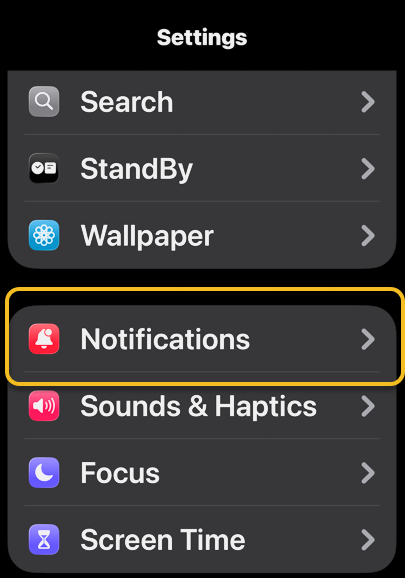
First, open Settings, then tap Notifications. Refer to the image below:
Selecting the Notifications option
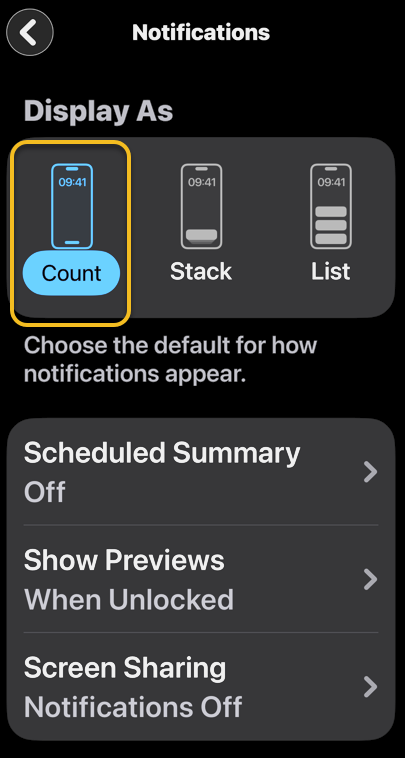
Next, under Display As, tap on the Count option. See the below image;
Selecting the Count option
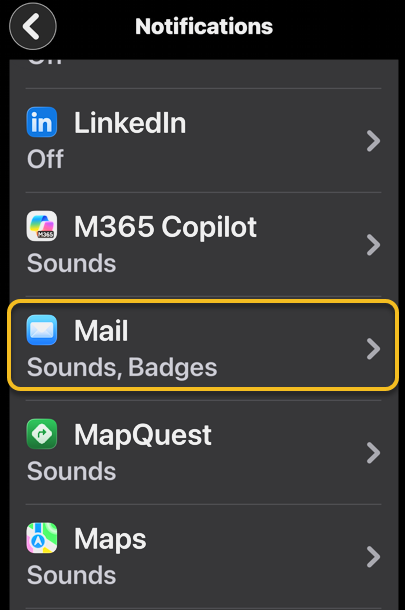
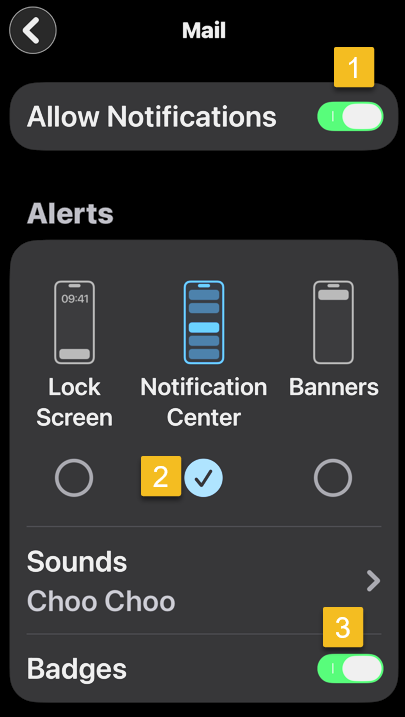
Now, scroll down to Notification Style section and tap on the Mail option. See the following image
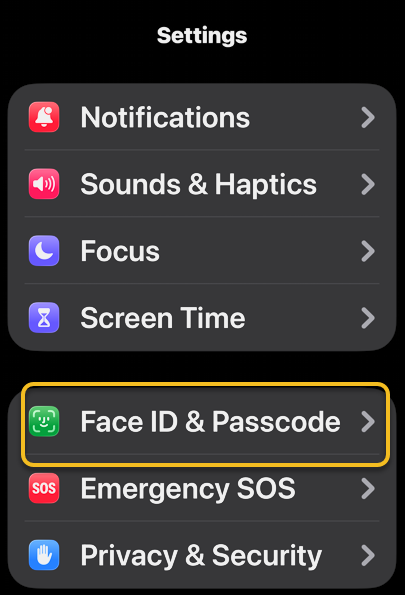
Now, under Settings, tap Face ID & Passcode option. See the image below:
Selecting the Face ID & Passcode option
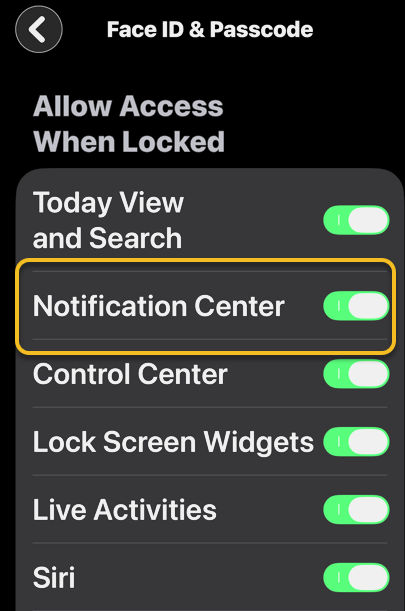
Next, enable the Notification Center toggle. See the following image:
Enabling the NotificationCenter toggle
Two Ways to View Notifications
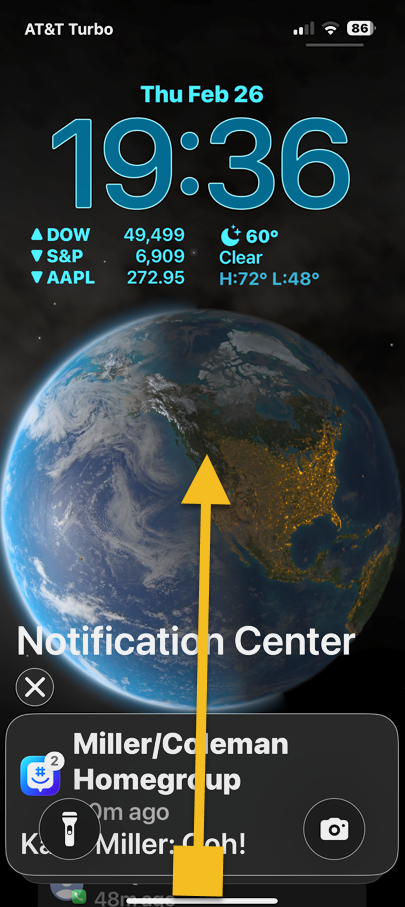
Now that you have finished the setup process, there are two ways to view your notifications on the Lock screen. On your activated Lock screen, hold your finger near the bottom and slowly swipe up until the Notification Center appears. Refer to the image below:
Slowly swipe up to reveal Notification Center
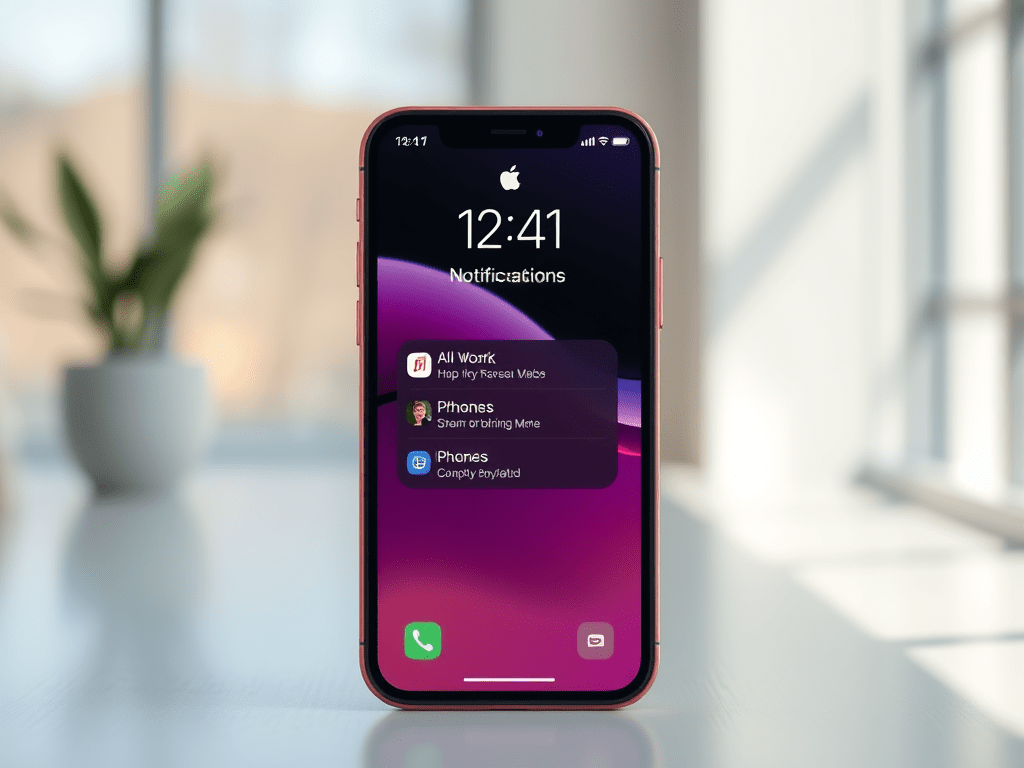
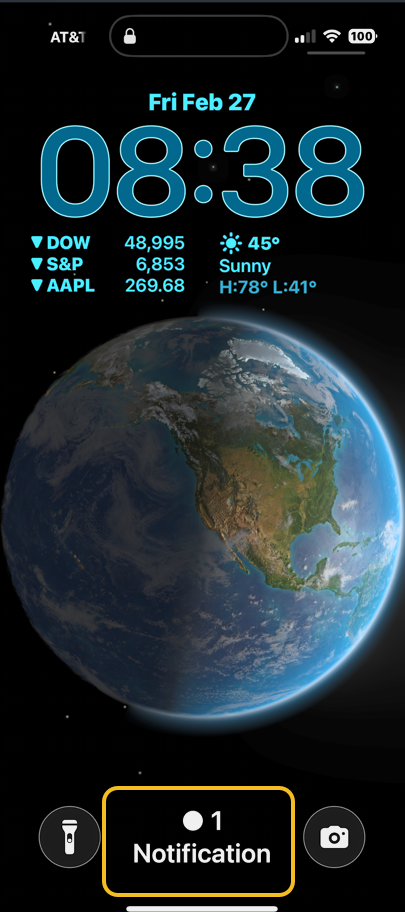
Or if you have unread Notifications, the number will be displayed at the bottom of your Lock screen. Just tap on it to view your notifications. See the image below:
Tap on Notification to reveal the Notification Center
Disclaimer
Technology is constantly evolving, and smartphone and desktop tech rarely remains static. Therefore, the information in this post is only accurate as of the date it was written. Blog posts that are older than six months may contain instructions that are no longer compatible with your device or operating system. We hope that the content from previous posts continues to function as intended. Thank you for reading TechSavvy.Life, where technology works for you.
Quote For the Day
We are stuck with technology when what we really want is just stuff that works.
– Douglas Adams
(X) Twitter Info
– Douglas AdamsThat’s it. Please feel free to share this post! One way to share is via Twitter.
Just click the Tweet icon below. This will launch Twitter where you click its icon to post the Tweet.
Checkout TechSavvy.Life for blog posts on smartphones, PCs, and Macs! You may email us at contact@techsavvy.life for comments or questions.
We value your feedback! Was this post helpful? Please share your comments with us. If you have a tech question related to your computer or smart device, feel free to reach out. Just send an email to contact@techsavvy.life, and be sure to include the device, app, and version you are using. To assist us further, you can also attach screenshots related to your inquiry.
The author’s Vietnam eBook, “Battle for Tra Bong Vietnam: Events and Aftermath,” is available on Kindle devices and the Kindle App for desktop, laptop, and smartphone. The apps are free.
The author’s Vietnam eBook on the Battle for Tra Bong Vietnam: Events and Aftermath
This post explains how to quickly disable specific app notifications from the iPhone Lock Screen, simplifying the process compared to accessing the Notification Settings. Users can swipe left on a notification, select Options, and then turn off alerts, but must be cautious as there’s no confirmation to revert changes.
RAYMOND OGLESBY @RaymondOglesby2 January 27, 2026 – 3 minutes read time
Overview
Did you know that you can quickly turn off specific app notifications without having to dig deep in your notifications settings? Let’s learn how to turn notifications off on iPhone’s Lock Screen in just a few quick steps. This is an easy way to reduce declutter by turning off iPhone notifications as soon as they pop up.
You may already know how to turn off notifications on iPhone in the Notification Settings. However, it is even easier to turn off an unwanted app notification the moment it pops up, directly from your Lock Screen.
Key Takeaways
Turn off specific app notifications the moment you get them.
Avoid the hassle of navigating to Notification Settings and disable notifications directly from your Lock Screen.
System Requirements
This tip was performed on an iPhone 17 Pro running iOS 26.2.
Click here to learn how to update your iPhone to the latest iOS version.
Turning Off Notifications
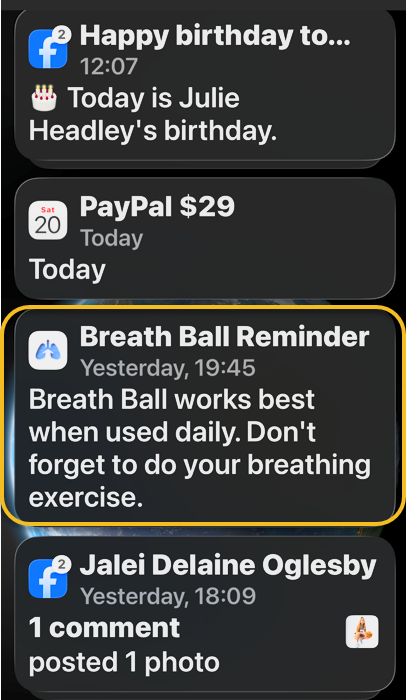
First, locate a notification from an app on your Lock Screen that you wish to silence. Refer to the image below:
Selecting a notification
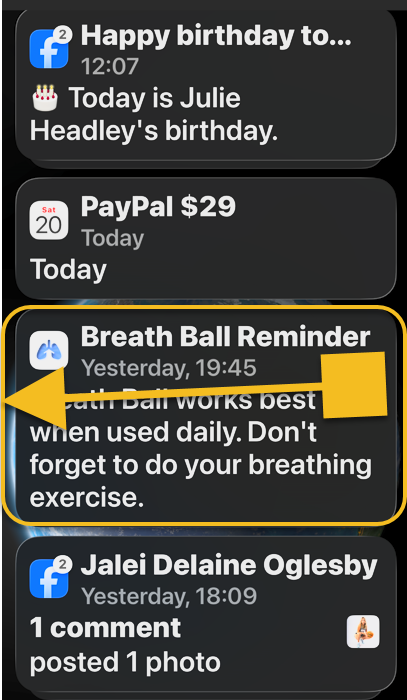
Next, swipe slowly from right to left over the notification. See the below image:
Swipe the notification slowly
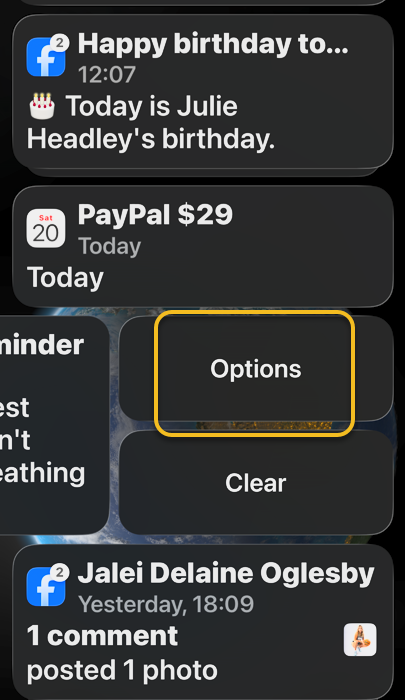
Now, tap Options. If you tap Clear, just this one notification will be removed. See the following image:
Selecting Options
Next, select Turn Off. Refer to the image below:
Selecting to Turn Off all notifications for this app
Another trick is that instead of tapping Turn Off, you can tap View Settings which will take you to the page with all the settings for that particular app.
Note! There is no confirmation step once you tap Turn Off, so if you accidentally turn off the wrong app notifications, you will have to turn them back on via Settings
Also, for example if you turn off Best Buy app Deals notifications it will generally disable all alerts from the app, to include order and shipping uupdates, so be careful what you turn off.
Now you know how to turn off iPhone notifications directly from the Lock Screen!
Disclaimer
Technology is constantly evolving, and smartphone and desktop tech rarely remains static. Therefore, the information in this post is only accurate as of the date it was written. Blog posts that are older than six months may contain instructions that are no longer compatible with your device or operating system. We hope that the content from previous posts continues to function as intended. Thank you for reading TechSavvy.Life, where technology works for you.
Quote For the Day
The saddest aspect of life right now is that science gathers knowledge faster than society gathers wisdom.
– Isaac Asimov
(X) Twitter Info
That’s it. Please feel free to share this post! One way to share is via Twitter.
Just click the Tweet icon below. This will launch Twitter where you click its icon to post the Tweet.
Checkout TechSavvy.Life for blog posts on smartphones, PCs, and Macs! You may email us at contact@techsavvy.life for comments or questions.
We value your feedback! Was this post helpful? Please share your comments with us. If you have a tech question related to your computer or smart device, feel free to reach out. Just send an email to contact@techsavvy.life, and be sure to include the device, app, and version you are using. To assist us further, you can also attach screenshots related to your inquiry.
The author’s Vietnam eBook on the “Battle for Tra Bong Vietnam: Events and Aftermath” can be accessed from a Kindle device or the Kindle App for a desktop or smartphone. The apps are free.
The author’s Vietnam eBook on the Battle for Tra Bong Vietnam: Events and Aftermath
The article explains how to quickly access Apple Wallet from the iPhone Lock Screen using the double-click side button shortcut. This feature allows users to make contactless payments and retrieve passes without needing to pull out a physical wallet. It also requires setup of Apple Pay and verification through Face ID.
RAYMOND OGLESBY @RaymondOglesby2 October 7, 2025 – 4 minutes read time
Overview
Did you know you can open Apple Wallet from the iPhone Lock Screen? With this Apple Pay shortcut, you can access your saved cards plus the passes and loyalty cards found in your Apple Wallet quickly, so you can get ready to make a payment or bring up your boarding pass while you wait in line.
Let’s explore how to pull up Apple Pay from your Lock Screen.
Before we learn how to set up and then how to access Apple Wallet from the Lock Screen, make sure you have gone over how to set up Apple Pay and how to change your Apple Pay Payment preferences. When you have this set up, you can pay at any establishment that accepts Apple Pay, without ever pulling out your wallet!
Why You Will Like Rhis Tip
Get quick access to your payment methods for no-contact payment.
Quickly pull up your boarding passes, concert tickets, discount cards, and more.
System Requirements
This tip was performed on an iPhone 14 Pro running iOS 18.6.
Click here to learn how to update your iPhone to the latest iOS version.
Setup the Shortcut
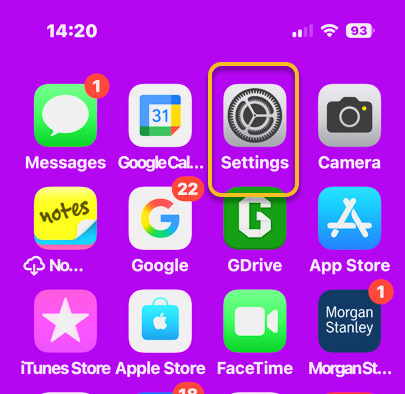
First, open the Settings app. Refer to the image below:
Selecting the Settings app
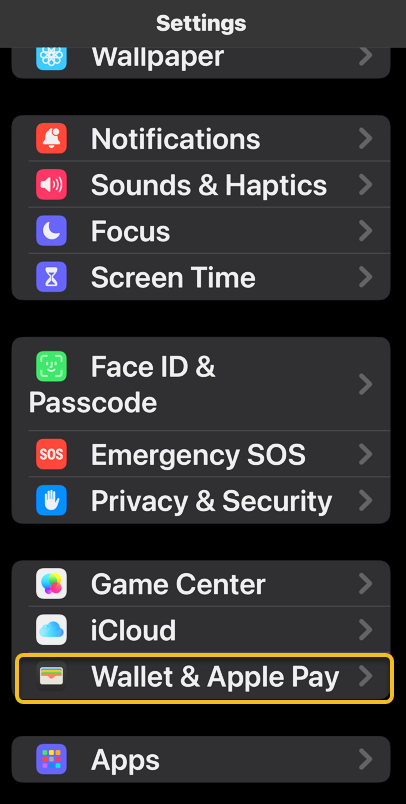
Next, scroll down and tap Wallet & Apple Pay. See the image below:
Selecting Wallet & Apple Pay option
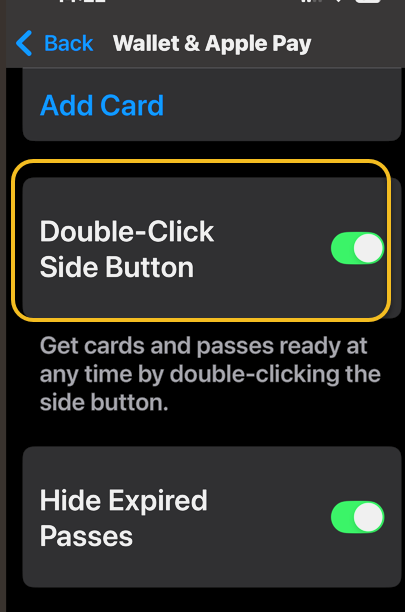
Now, ensure the toggle next to Double-Click Side Button is enabled. See the following image:
Enable Double-Click Side Button toggle
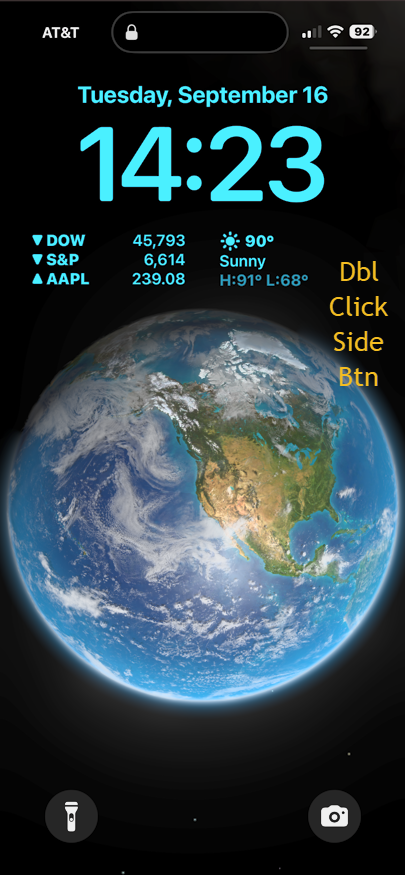
Next, when you want to access the Wallet app from the Lock Screen on an iPhone, all you need to do is double-click the side button. Refer to the image below:
Access the wallet by a double-click of the Side button
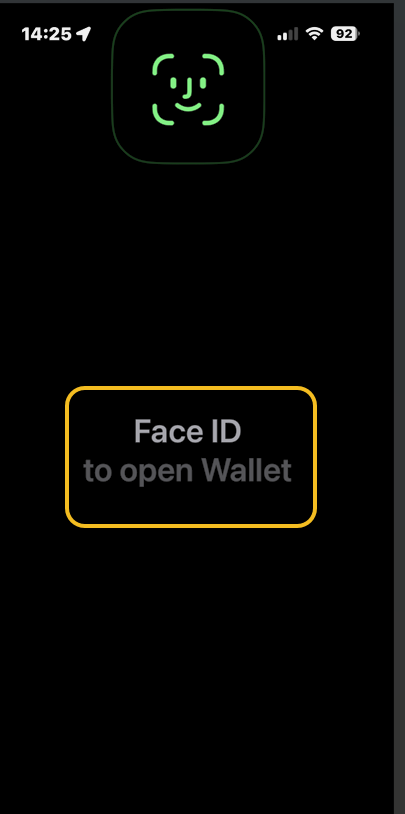
Now, you will need to verify with Face ID. See the image below:
Verify access with Face ID
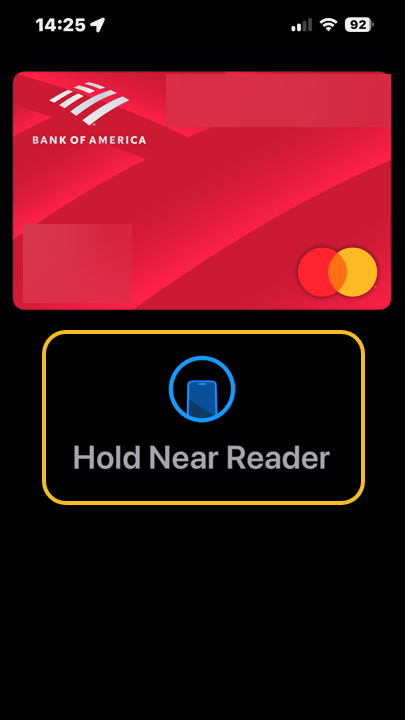
Next, once unlocked, you will be prompted to hold your phone up to the card reader. See the following image:
Hold phone to card reader to pay
Pro Tip
You do not have to be on the Lock Screen to invoke Apple Pay. This double-click action works anywhere, whether you are scrolling Facebook, responding to a text, or snapping a photo.
Summary
That’s how to access your wallet on the iPhone’s Lock Screen. Your days of fumbling in your purse or physical wallet for your credit cards are over, and you should be ready to use this Apple Wallet shortcut from your Lock Screen at a moment’s notice. Keep in mind that if you do not have a credit or debit card set up for Apple Pay, this will not open the app.
Disclaimer
Technology is constantly evolving, and smartphone and desktop tech rarely remains static. Therefore, the information in this post is only accurate as of the date it was written. Blog posts that are older than six months may contain instructions that are no longer compatible with your device or operating system. We hope that the content from previous posts continues to function as intended. Thank you for reading TechSavvy.Life, where technology works for you.
Quote For the Day
“If you double the number of experiments you do per year, you’re going to double your inventiveness.”
” – Jeff Bezos, Founder of Amazon
(X) Twitter Info
That’s it. Please feel free to share this post! One way to share is via Twitter.
Just click the Tweet icon below. This will launch Twitter where you click its icon to post the Tweet.
Checkout TechSavvy.Life for blog posts on smartphones, PCs, and Macs! You may email us at contact@techsavvy.life for comments or questions.
We value your feedback! Was this post helpful? Please share your comments with us. If you have a tech question related to your computer or smart device, feel free to reach out. Just send an email to contact@techsavvy.life, and be sure to include the device, app, and version you are using. To assist us further, you can also attach screenshots related to your inquiry.
The author’s Vietnam eBook on the “Battle for Tra Bong Vietnam: Events and Aftermath” can be accessed from a Kindle device or the Kindle App for a desktop or smartphone. The apps are free.
The author’s Vietnam eBook on the Battle for Tra Bong Vietnam: Events and Aftermath
This post discusses a solution for showing digital tickets on an iPhone lock screen to avoid unlocking the phone for scanning. It describes how to set up a lock screen wallpaper displaying the ticket, enabling easy access without compromising security. The process involves taking a screenshot, setting the image as a wallpaper, and switching back afterward.
This is for the iPhone. Screenshots are from iPhone 14 Pro running iOS 17+
What to Know
Problem With Apple Wallet
Lock Screen Solution
Show Digital Tickets on the Lock Screen
Summary
We hate giving our iPhones to strangers asking to scan a digital ticket with an unlocked screen. Yes, it’s incredibly easy to pull up a barcode or QR code on the screen so you can prove you have a valid ticket, loyalty program membership, or discount. And it’s very easy to add most of these digital tickets to Apple Wallet. In fact, you should do that whenever you can.
There will be instances where you may not perform the scan yourself. In such cases, you will have to unlock the iPhone, open the app that contains the digital ticket, and show or hand your phone to your friend. Now, we know the person handling my iPhone has better things to do than swipe up and snoop on our texts and photos. But it’s the principle of the thing.
The iPhone’s security is only as good as the Lock Screen password. And who knows what else can happen in a crowded place with people waiting for their tickets to be scanned?
But the iPhone’s Lock Screen offers a brilliant solution. We can set temporary wallpapers that display whatever digital ticket we might have to show to gain entry to an event or place. And we will never have to unlock the iPhone when handing it over to others to have a ticket scanned.
It’s incredibly easy to set up, and it’s an easy way to have all your digital tickets and subscriptions ready, whether they support Apple Wallet or not.
Problem With Apple Wallet
We mentioned Apple Wallet a few times, which is the place to store your credit cards, digital keys, and tickets. But to access its contents, you would still have to authenticate via Face ID, Touch ID, or your PIN to unlock the screen.
Also, not all apps support Apple Wallet. Or you might not be using Apple Wallet to begin with. Maybe you are using a code you photographed in real life. In such scenarios, you will not be able to add your digital tickets to Apple Wallet.
We also would point out that you can use both the Apple Ballet and the Lock Screen trick at the same time.
Lock Screen Solution
After the iOS 16 upgrade, we could use the Lock Screen customization support to set up as many wallpapers as we wanted and then just switch between them.
That is, screenshots of the digital ticket were the only way to do it is to hand off our iPhones.
Show Digital Tickets on the Lock Screen
Longtime iPhone users may have realized how the whole thing works. But if you still do not know how to pull it off, we will describe the steps below.
First, go to the app that shows the digital ticket. Maybe it’s an email or an app for an airline. Or a ticket to a concert, or a loyalty card you have to scan often. Whatever it is, find the barcode or QR code and take a screenshot.
You can crop the code if there’s a lot of stuff in the screenshot you do not need. We usually take a few seconds to crop the image.
Next, go to the Lock Screen, tap, and hold it until the wallpaper carrousel pops into view. Refer to the below image:
Your lock screen
Now, tap on the Add New icon. See the below image:
Selecting to add a wallpaper
Next, go to Photos and tap All. See the following image:
Accessing your photos
Now, select the screenshot of the digital ticket you have just saved. Refer to the below image:
Your QR screenshot
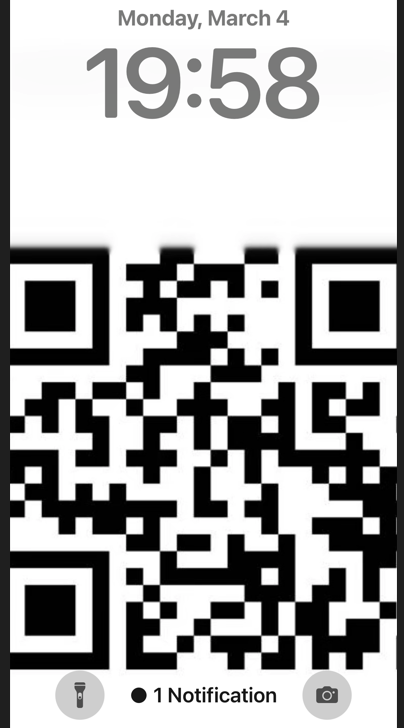
Next, comes the tricky part. Whether you have cropped the digital ticket in the screenshot or not, you will have to fit it on the Lock Screen. That means some cropping will follow as you will want to ensure that the code is not covered with any other elements, like screen widgets, the clock, or the Flashlight and Camera buttons. See the the below image:
Your finished lock screen with the QR code
As you can see, we have squeezed a QR code between the Flashlight and Camera buttons.
Now, once you have figured out the position of the digital ticket, save the wallpaper.
That’s it. You are now ready to have your ticket scanned.
Summary
Next time you give the phone to someone else to check their ticket, just hand them your iPhone without unlocking it. Tell them to tap the screen, and the ticket will come into view. Ask them to keep tapping the screen if they need more time because the screen will turn off quickly when your iPhone is locked.
Once you are done, switch back to the wallpaper you want to use.
You can repeat this for any type of digital ticket/membership you routinely have to show around. You can save as many Lock Screens as you want, so they cover all your memberships.
Remember, you should delete the Lock Screens once the digital tickets showing on them are no longer valid.
Disclaimer
Technology is always changing and rarely is there static tech for smartphones and desktops. Thus, the contents of this post are only valid at the time of writing. Blog posts older than six months may have directions incompatible with your device or OS. Hopefully, older post content will continue to work as advertised. Thank you for reading TechSavvy.Life for Technology at Work For You.
Quote For the Day
Don’t find customers for your products, find products for your customers.
Seth Godin
Tweet Info
That’s it. Please feel free to share this post! One way to share is via Twitter.
Just click the Tweet icon below. This will launch Twitter where you click its icon to post the Tweet.
Checkout TechSavvy.Life for blog posts on smartphones, PCs, and Macs! You may email us at contact@techsavvy.life for comments or questions.
Please feel free to leave a comment. I would love to hear from you. Do you have a computer or smart device tech question? I will do my best to answer your inquiry. Just send an email to contact@techsavvy.life. Please mention the device, app, and version you are using. To help us out, you can send screenshots of your data related to your question.
Author’s E-Book
You can access the e-book from a Kindle device, the Kindle App for the desktop or smartphone, which is a free app.
The author’s Vietnam eBook on the Battle for Tra Bong Vietnam: Events and Aftermath
People love to check the weather. On your phone, smartwatch, or computer, it’s nice to have easy access to this information. Windows 10 and Windows 11 allow you to put the weather on the Lock Screen.
For Windows 10
To add Weather to the Windows 10 Lock Screen, here’s a summary.
Settings > Personalization > Lock Screen > Change the background to “Windows Spotlight” > Choose “Weather” as the app to display.
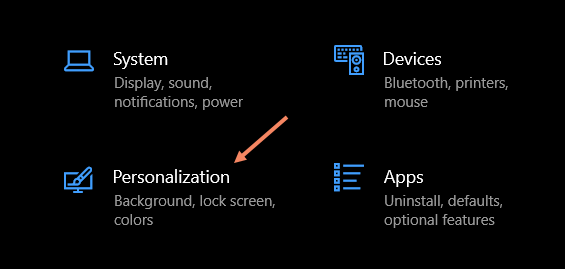
Now, for the details. First, open Settings on your Windows 10 PC and go to the Personalization section. Refer to the below image:
Accessing Personalization
Next, select the Lock Screen section. See the below image:
Selecting the Lock Screen section
Now, make sure the Background drop-down menu is set to Windows spotlight. See the following image:
Selecting Windows spotlight
Next, select the app icon under the text that reads: Choose one app to show detailed status on the lock screen. Refer to the below image:
Selecting the one app icon
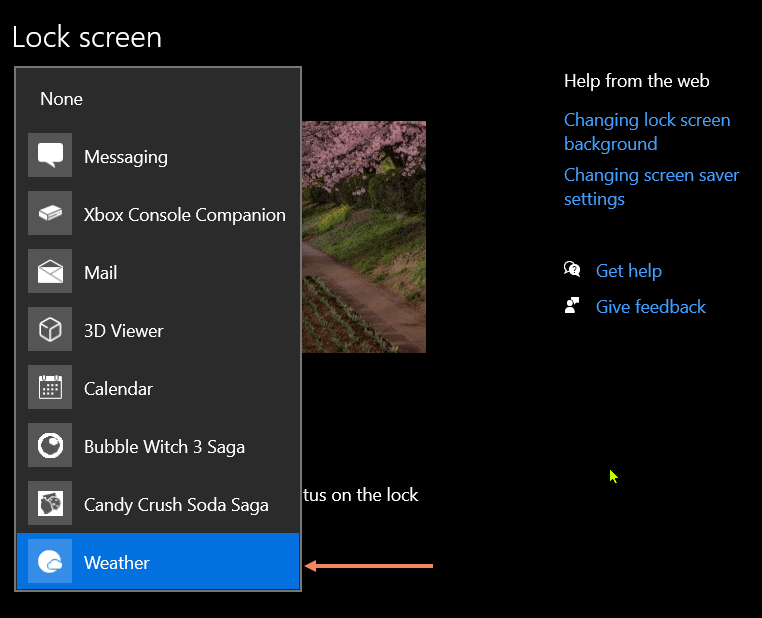
Now, choose Weather from the list of available apps. See the below image:
Selecting Weather app
That’s all there is to it! The weather information will be shown underneath the clock and the date on the Lock Screen.
For Windows 11
To add Weather to the Windows 11 Lock Screen, here’s a summary.
Settings > Personalization > Lock Screen > Choose “Weather” for the “Lock Screen Status” feature.
Note! You need to have Microsoft’s MSN Weather app installed for this to be available.
First, open Settings on your Windows 11 PC and select Personalization. See the following image:
Accessing Personalization
Now, go to the Lock Screen section. Refer to the below image:
Selecting the Lock Screen option
Next, look for Lock Screen Status and select Weather from the drop-down menu. This will not be available if you do not have the MSN Weather app installed. See the below image:
Selecting Weather app
That’s it! The weather information will appear centered at the bottom of the Lock Screen.
You may not look at the Lock Screen on your Windows PC as much as your smartphone, but it’s mostly a blank canvas for glanceable information.
Disclaimer
Technology is always changing and rarely is there static tech for smartphones and desktops. Thus, the contents of this post are only valid at the time of writing. Blog posts older than six months may have directions incompatible with your device or OS. Hopefully, older post content will continue to work as advertised. Thank you for reading TechSavvy.Life for Technology at Work For You.
Quote For the Day
There is a difference between what technology enables and what historical business practices enable.
Bill Gates
Tweet Info
That’s it. Please feel free to share this post! One way to share is via Twitter.
Just click the Tweet icon below. This will launch Twitter where you click its icon to post the Tweet.
Checkout TechSavvy.Life for blog posts on smartphones, PCs, and Macs! You may email us at contact@techsavvy.life for comments or questions.
Please feel free to leave a comment. I would love to hear from you. Do you have a computer or smart device tech question? I will do my best to answer your inquiry. Just send an email to contact@techsavvy.life. Please mention the device, app, and version you are using. To help us out, you can send screenshots of your data related to your question.
Author’s E-Book
You can access the e-book from a Kindle device, the Kindle App for the desktop or smartphone, which is a free app.
The author’s Vietnam eBook on the Battle for Tra Bong Vietnam: Events and Aftermath
Changing your iPhone Lock screen and Home screen wallpaper is probably the most effective way of making your phone look and feel unique. Now you can take your wallpaper to the next level by creating or modifying your own designs in just a few taps; no app is required.
This is for the iPhone running iOS 16+. Screenshots are from iPhone XR
Copyright Scott Adams, Inc./Distributed by Universal Uclick for UFS
iOS 16 Required
You can access the new wallpaper creation tools and Lock Screen gallery using iOS 16. If you do not see the Lock screen gallery when you long-press your Lock screen, you might need to update your iPhone to iOS 16.
If you need to, you can upgrade to iOS 16 by going to:
Settings > General > Software Update
Create a Wallpaper
You can create your own wallpapers using the Lock screen gallery. To access the gallery, first, tap and hold the Lock screen to reveal it.
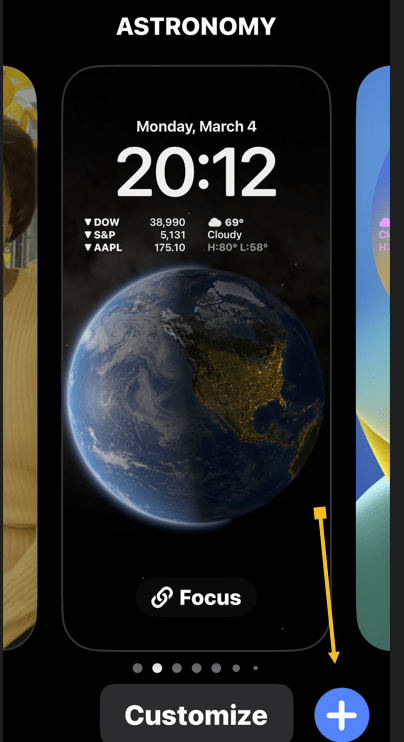
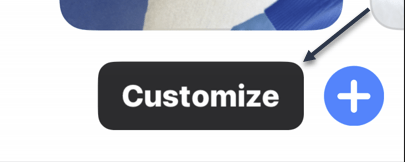
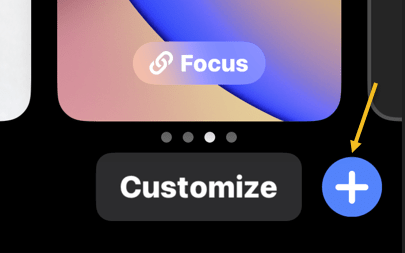
Next, tap Customize to modify your existing Lock screen or tap the plus “+” icon to create a new Lock screen. Refer to the below image:
Customize or add a wallpaper
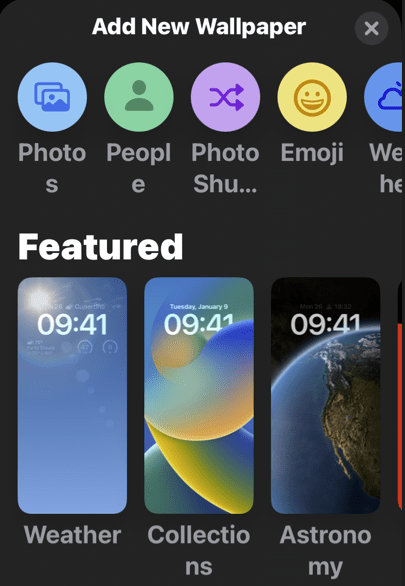
Now, creating a new Lock screen will take you straight to the wallpaper picker. You will then see a few options at the top of the screen that will allow you to create your own wallpaper:
Photos: Pick a photo from your media library, then customize it by swiping left and right to apply different filters.
Photo Shuffle: Using shuffle mode, you can choose more than one background image. These photos will then change throughout the day. You can also have your iPhone pick photos for you.
Emoji: Pick your favorite emoji, then choose from different patterns and background colors.
Weather: The weather option is a dynamic background that changes based on the weather conditions in your area.
Astronomy: This dynamic background changes based on the position of the earth, the moon, or the planets in our solar system.
Color: Pick a solid color, then swipe left and right to choose different effects like gradients and color intensity.
Next, you can create multiple wallpapers and save them to the Lock screen gallery, then switch between them as you please by tapping and holding your Lock screen at any time. See the below image:
Select a wallpaper
Now, the most fun you can have here is by creating custom Emoji and color wallpapers. Creating wallpapers using your own photos is easier using these tools too. There’s no need to edit or apply filters to your photos inside the Photos app first.
Next, some photos can even be used to create a Depth Effect that overlays subjects on top of the clock (though getting this to work is a bit hit-and-miss).
Using Existing Designs
You can also use the Lock screen gallery to pick from existing or featured designs. Now, take a look at the Featured and Collections areas to see some of Apple’s best offerings. See the following image :
Select template wallpapers
Next, iOS will also put photos in the Suggested Photos slider that should work well on a Lock screen, many of which are compatible with the Depth Effect mentioned above.
If you use Widgets on your Lock screen, you forgo the ability to use the Depth Effect.
There’s also a huge range of apps in the App Store for creating or downloading custom wallpapers, including, Vellum, Everpix, and Pixs. Unlike those apps, Apple’s built-in options are completely free to use.
Please feel free to leave a comment. I would love to hear from you. Do you have a computer or smart device tech question? I will do my best to answer your inquiry. Just send an email to contact@techsavvy.life. Please mention the device, app, and version you are using. To help us out, you can send screenshots of your data related to your question.
Author’s E-Book
You can access the e-book from a Kindle device, the Kindle App for the desktop or smartphone, which is a free app.
The author’s Vietnam eBook on the Battle for Tra Bong Vietnam: Events and Aftermath
Your iPhone has Lock screen widgets that give you quick access to information regarding your schedule, the weather, and more. You can even tie these widgets to specific Focus Modes so that different widgets appear (or disappear) depending on what you are doing.
Your iPhone has Lock screen widgets that give you quick access to information regarding your schedule, the weather, and more. You can even tie these widgets to specific Focus Modes so that different widgets appear (or disappear) depending on what you are doing. Let’s ex[ore this feature.
This is for the iPhone running iOS 16+. Screenshots are from iPhone XR
Copyright Scott Adams, Inc./Distributed by Universal Uclick for UFS
Tip: It is recommended you view the post on “How to Use Lock and Home Screen Wallpapers on iPhone in iOS 16+” before implementing this post.
Using the Lock Screen Galleries
First, tap and hold your Lock screen anywhere to show the Lock screen gallery, then tap on the plus “+” icon to add a new Lock screen. Refer to the below image:
About to add a wallpaper
Next, select a wallpaper to appear on your Lock screen. Tap on the Photos option to use an image you have taken or saved to your device. You can also use emojis, the weather, the position of the planets, and more. See the below image:
Selecting a wallpaper from the gallery
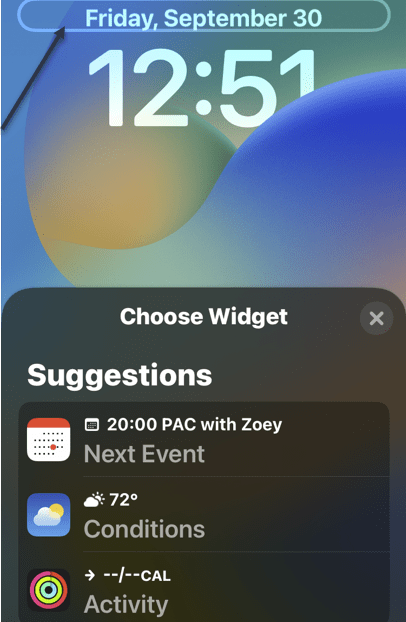
Now, with your wallpaper chosen, modify your Lock screen by tapping on the various elements. You can tap on the date to change what information is displayed here, which will add more information to the date display like how much energy you have burned or upcoming calendar events. See the following image:
Browse your suggestions
Next, you can also tap on the time to choose a specific font and color scheme, and swipe left and right on the wallpaper to change how your background is displayed with filters. Refer to the below image:
Choosing elements
Finally, tap on the Add Widgets box to add a single row of widgets to your Lock screen. See the below image:
Selecting to add widgets
Choosing Widgets
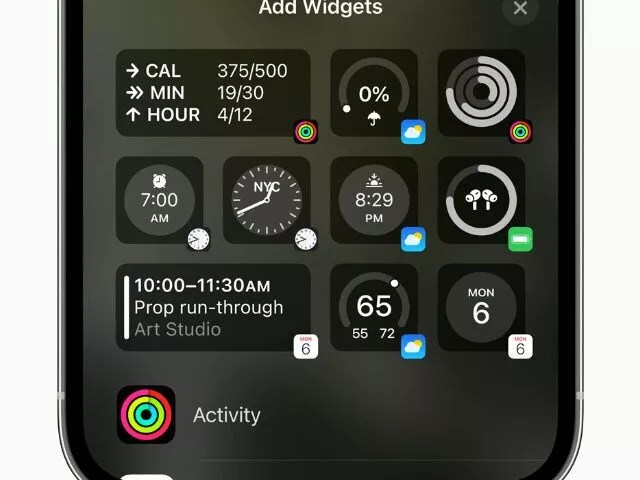
Widgets are information that you can easily see from your Lock screen. Many of these appear as smaller circles, of which you can fit four on a single Lock screen. See the below image:
Adding the weather widget
Others take the form of double-length rectangles, including a more detailed weather forecast, upcoming reminders, news headlines, and information about markets and stocks. You can fit two of these, or one rectangular and two smaller circular widgets. See the following image:
The added weather widget
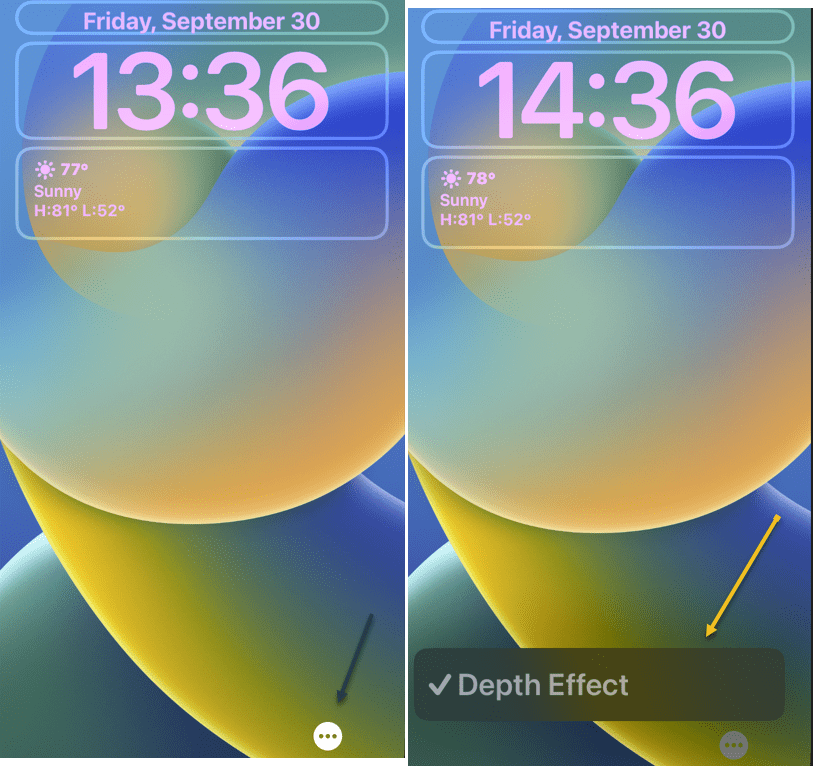
When you choose to use widgets, you forego the ability to use the Depth Effect with your wallpaper. This can be toggled using the “…” ellipsis button while customizing a wallpaper. Refer to the below image:
Adding Depth Effect
This effect makes it possible to overlay some elements of an image over the clock, for a more dynamic feel. It looks impressive, but it’s not particularly useful and widgets are arguably more useful.
At this point, save your newly created Lock screen wallpaper. Tap Done in the upper right-hand corner. See the below image:
Save your wallpaper
Focus Modes
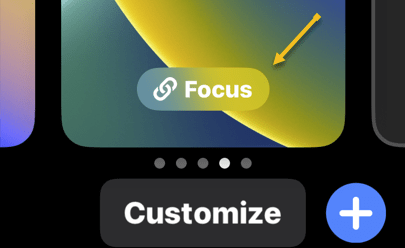
While selecting a Lock screen from the Lock screen gallery, tap on the Focus button to tie your chosen Lock screen to a particular Focus Mode. Assuming you have set up Focus Modes already, this lets you show relevant information while specific Focus Modes are active. See the following image:
Accessing Focus
You can set up a custom Focus that triggers a particular activity or use one of the common ones. Refer to the below image:
Selecting a Focus Mode
The Lock screen gallery and its associated widgets are available with the iOS 16 update. If you do not see these options, make sure you have updated your iPhone (and that your device is compatible with iOS 16).
Quote For the Day
Just because something doesn’t do what you planned it to do doesn’t mean it’s useless.
Thomas Edison
Tweet Info
That’s it. Please feel free to share this post! One way to share is via Twitter.
Just click the Tweet icon below. This will launch Twitter where you click its icon to post the Tweet.
Checkout TechSavvy.Life for blog posts on smartphones, PCs, and Macs! You may email us at contact@techsavvy.life for comments or questions.
Please feel free to leave a comment. I would love to hear from you. Do you have a computer or smart device tech question? I will do my best to answer your inquiry. Just send an email to contact@techsavvy.life. Please mention the device, app, and version you are using. To help us out, you can send screenshots of your data related to your question.
Author’s E-Book
You can access the e-book from a Kindle device, the Kindle App for the desktop or smartphone, which is a free app.
The author’s Vietnam eBook on the Battle for Tra Bong Vietnam: Events and Aftermath
Wallpaper is probably the easiest way to customize the look of your iPhone, and you have two areas to do it; the Home screen and the Lock screen. Let’s explore this iOS 16+ feature.
This is for the iPhone. Screenshots are from iPhone XR running iOS 16+
Copyright Scott Adams, Inc./Distributed by Universal Uclick for UFS
Tip: It is recommended you view the post on “How to Add Widgets on iPhone Lock Screen in iOS 16+” next.
The iPhone has supported separate wallpapers on the Home screen and Lock screen for a while, but iOS 16 introduced a big reworking of the process in 2022.
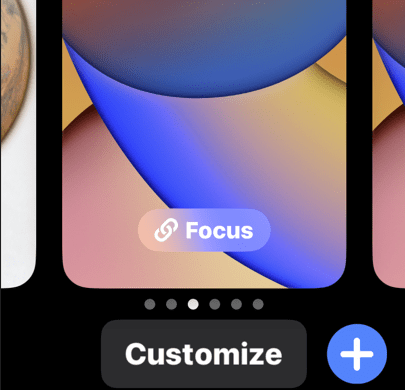
First, unlock your iPhone and tap and hold on a blank space on the Lock screen. The Lock screen will zoom out, and you will see a Customize and a plus button. Tap the plus button. Refer to the below image:
Selecting to add a wallpaper
If this is your first time playing with the Lock screen wallpaper in iOS 16, you will need to tap Add New when prompted. This will switch you over to the new Lock screen style. See the below image:
Add a new wallpaper
Next, you have a bunch of different options for wallpapers. At the top, you can select from a few categories. Scroll down to see a bunch of pre-made Lock screens. Choose a wallpaper for the Lock screen to proceed. See the following image:
Choosing a wallpaper
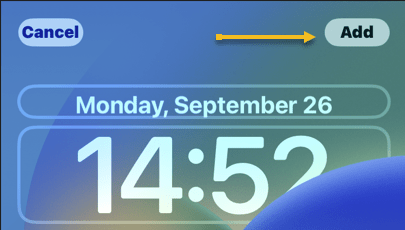
Now, once you have a wallpaper that you want to use for the Lock screen, tap the Add button in the top right-hand corner. Refer to the below image:
Selecting the Add button
Next, here’s where you have to option to use a different wallpaper for the Home screen. Tap Customize Home Screen to proceed. See the below image:
Selecting Customize Home Screen button
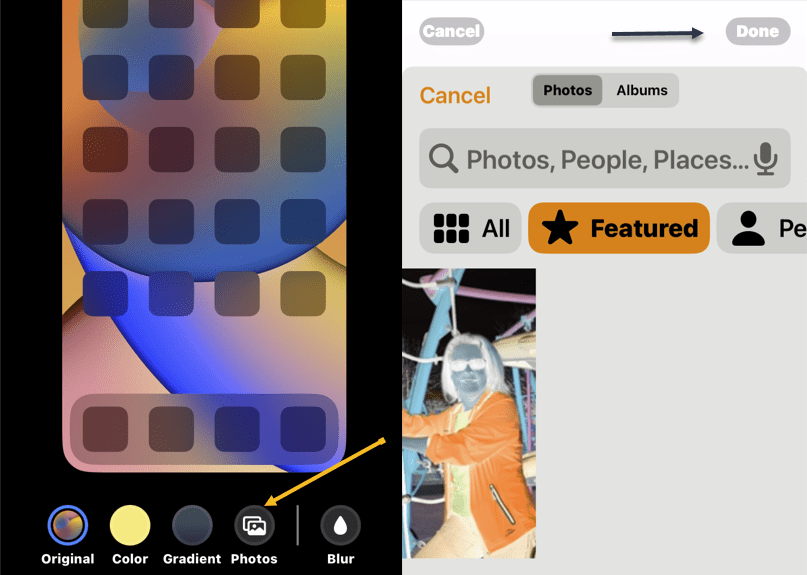
Now, you have a few options to choose from. You can blur the Lock screen wallpaper, choose a color based on the Lock screen wallpaper, a gradient based on the Lock screen wallpaper, or from your photos. After you have made your selection, tap Done in the top right-hand corner (if you choose a photo, you will need to tap Done twice). See the following image:
Adding a Home Screen wallpaper
Next, you will be brought back to the Lock screen preview screen. Tap the Lock screen to leave and see your new Lock screen and Home screen wallpapers! Refer to the below image:
Your Lock Screen
This is just a fraction of what you can do with the Lock screen on iOS 16+. You can also add widgets, customize the clock font, and apply a cool 3D depth effect to some wallpapers. More on this in another post as mentioned above.
Delete a Wallpaper
First, unlock your iPhone. Next, long-press anywhere on the unlocked Lock screen. See the below image:
Accessing the Lock Screen for deletion
Now, when the Lock screen goes into edit mode, you will see your current Lock screen as a preview among other Lock screens. Swipe to the wallpaper you want to delete. Then, swipe up on the wallpaper preview to reveal more options.
Note: The swipe-up gesture only works if you have another wallpaper added to your Lock screen collections. If you are trying to delete the only remaining Lock screen wallpaper from your iPhone, you will not be able to perform the swipe gesture on this wallpaper.
Next, you will now see a red-colored Trash icon below the selected wallpaper. Tap on the Trash icon to delete this Lock screen wallpaper permanently from your iPhone. See the following image:
Selecting the Trash icon to delete
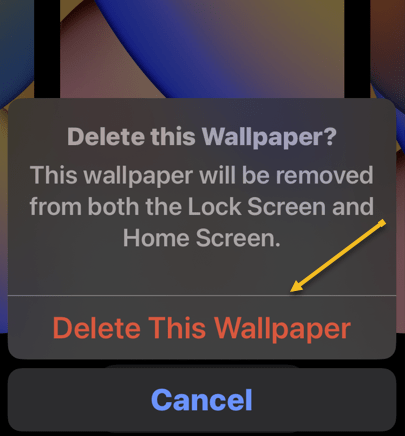
Now, to confirm your action, tap on Delete This Wallpaper in the prompt that appears at the bottom. Refer to the below image:
Confirming the deletion
The selected wallpaper will now be removed from the edit screen and iOS will now load up your previous wallpaper for your Lock screen.
Quote For the Day
Technology like art is a soaring exercise of the human imagination.
Daniel Bell
Tweet Info
You are finished. Please feel free to share this post! One way to share is via Twitter.
Just click the Tweet icon below. This will launch Twitter where you click its icon to post the Tweet.
Checkout TechSavvy.Life for blog posts on smartphones, PCs, and Macs! You may email us at contact@techsavvy.life for comments or questions.
I Would Like to Hear From You
Please feel free to leave a comment. I would love to hear from you. Do you have a computer or smart device tech question? I will do my best to answer your inquiry. Just send an email to contact@techsavvy.life. Please mention the device, app, and version you are using. To help us out, you can send screenshots of your data related to your question.
Author’s E-Book
You can access the e-book from a Kindle device, the Kindle App for the desktop or smartphone, which is a free app.
The author’s Vietnam eBook on the Battle for Tra Bong Vietnam: Events and Aftermath






















 Tech Savvy Life