How to Edit Office Documents Directly in GMail

Google is making it even easier to work with Microsoft Office files, with the company now allowing you to directly edit attached Office files in Gmail as well as Google Docs, Sheets and Slides. It’s available to all Gmail users, free and paid accounts. No more document conversion hassles, at long last!

Google is making it even easier to work with Microsoft Office files, with the company now allowing you to directly edit attached Office files in Gmail as well as Google Docs, Sheets and Slides. It’s available to all Gmail users, free and paid accounts. No more document conversion hassles, at long last!

This is for devices using Google Gmail

Dilbert and Smell
Copyright Scott Adams, Inc./Distributed by Universal Uclick for UFS

Google Editing Explained

Previously, documents had to be imported into Google Drive in order to edit or modify them; while emailed attachments were only able to be viewed.

The new workflow, however, streamlines that process considerably. Now, you can directly open and edit an Office file using the Google Docs editor just by clicking on it; just like you would a native Google Docs. But the new editing function does not convert Office files into Google Docs, instead preserving the original file format.

Gmail will allow you to respond to the original email and include the now-updated file (still in an Office file format) without first requiring you to download and re-attach the updated file.

This means you can now edit your Word, Excel and PowerPoint files without ever leaving Gmail.

For example, when you receive a Word document as an email attachment, you can open it and start editing in Docs with a single click while still preserving the Word file format.

With the new change, Microsoft Office attachments will have a new “edit” option and when edits are complete, there will be a new option to share the document via email.

Remove a Chrome Extension

First, you must remove an Extension (if installed) from Google Chrome.

  1. Sign into your managed Google Account.
  2. In a Chrome browser, click More.
  3. Scroll down to More tools.
  4. Click Extensions.
  5. Find the Office Editing for Docs, Sheets. & Slides extension and click Remove.

Once you have removed the Extension you can use the Office editing feature.

Directly Edit Office Attachments

Any incoming email with a Microsoft Office document appears in the Inbox list with icons, preview pane, and the name of the document attachment. Refer to below image:

Gmail 1
Accessing the email with attached Office files

Clicking one of those panes opens a pop-up windows with various options. At top right there is a download button; use that to save a copy for opening in Word, Excel or PowerPoint on your computer. Now, click on the Edit icon to edit your file. See below image where we are selecting the Word file to edit:

Gmail 2
Selecting the Edit for a Word file

Hover your mouse over each attachment to see some options:

  • Download – save to your computer
  • Save to Google Drive
  • Edit with Google Docs – opens a new browser window ready to edit.

After Google Editing

Once you have edited the attachment, there are various options for sharing the revised document. Look under the File menu. See following image for the Email option:

Gmail 4
Your Email option

Now, checkout your various options to save the document. Refer to below image for the Download options:

Gmail 5
Your Download options

Google Editing of Office Files

Word docx files can be edited directly with Google Docs, look for the .DOCX icon at top left. See below image:

Gmail 6
Edit a Word document

Excel xlsx files can be edited directly with Google Sheets look for the .XLSX icon at top left. See following image:

Gmail 7
Edit an Excel file

PowerPoint .pptx files can be edited directly with Google Slides, look for the .PPTX icon at top left. Refer to below image:

Gmail 8
Edit a PowerPoint file

Note! There may be compatibility problems between Excel and Sheets or PowerPoint and Slides.

You are finished. Please feel free to share this post! One way to share is via Twitter.

Just click the Tweet icon below. This will launch Twitter where you click its icon to post the Tweet.

Check out TechSavvy.Life for blog posts on smartphones, PCs, and Macs! You may contact us at contact@techsavvy.life for comments or questions.

I Would Like to Hear From You

Please feel free to leave a comment. I would love hearing from you. Do you have a computer or smart device tech question? I will do my best to answer your inquiry. Just send an email to contact@techsavvy.life. Please mention the device, app and version that you are using. To help us out, you can send screenshots of your data related to your question.


The author’s Vietnam eBook on the Battle for Tra Bong: Events and Aftermath

How to Use Different Time Zones in Google Calendar on Mobile Devices

You can change your time zone and create events with certain time zones. This helps if you will be traveling when the event happens, or if you are creating events for people in different time zones.

You can change your time zone and create events with certain time zones. This helps if you will be traveling when the event happens, or if you are creating events for people in different time zones.

Time might be constant, but your time zone does not have to be. You can set a one-off time zone to an event, or set primary and secondary (desktop version only) time zones for an entire calendar or account.

This is for Android, iPhone, and iPad running Google Calendar

Copyright Scott Adams, Inc./Distributed by Universal Uclick for UFS

How Your Calendar Uses Time Zones

According to Google:

  • For Events; When you create an event, you will see it in your local time zone. It will also show up in the local time zones for anyone you invite, even if they are in a different time zone.
  • For Reminders: Reminders always show up at the same hour regardless of time zone. For example, a daily 9 AM MT reminder becomes a 9 AM ET reminder if you travel from Denver to New York.
  • For Tasks: Tasks adapt to the new time zone if the Calendar’s time zone is changed after a task is created. For example, a 9 AM MT task changes to an 11 AM ET task if you travel from Denver to New York.

Confused, I am. Why not make all these options the same? I do not know why Google treats each option differently. Lets explore how to set a Google Calendar time zone.

Change Your Time Zone for One Event

You can change the time zone for a new or existing event in the Google Calendar app on Android, iPhone, and iPad.

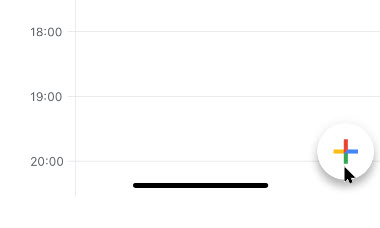
To create a new event, click the Add button in the bottom-right corner and select the type of event you wish to create. Refer to below image:

Calendar 1
Add an Event

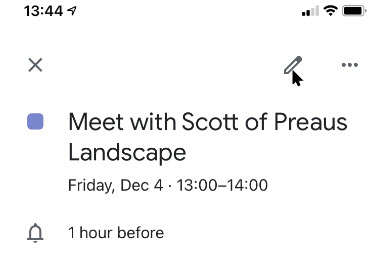
To edit an existing event, tap on that event in your calendar view and then tap the Edit Event button. See below image:

Calendar 2
Edit an Event

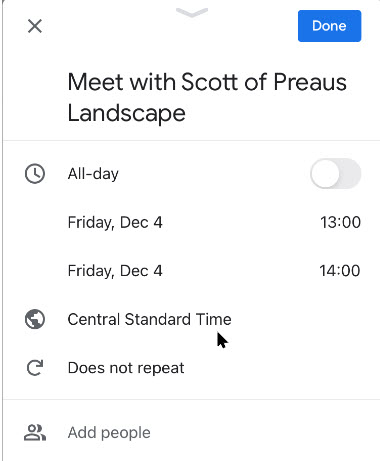
Next, in the event details menu, tap the current time zone. (Note!. You may have to tap More options to see the time zone). See following image:

Calendar 3
The current time zone for the Event

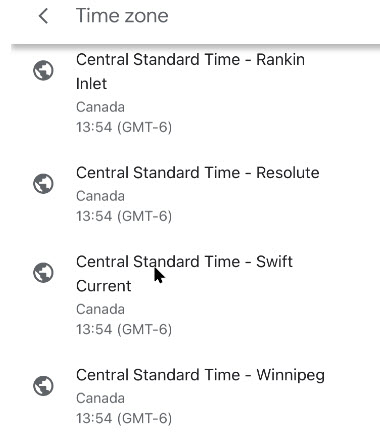
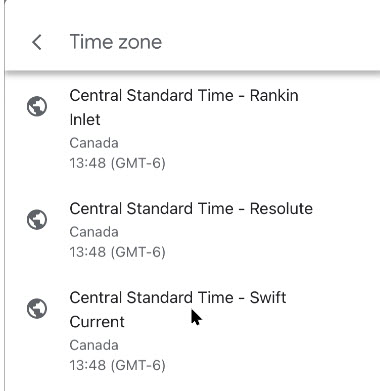
In the next menu, search for a country or specific time zone. Next, tap one of the results to select it as the new time zone. (Note! I kept the Event in CST). Refer to below image:

Calendar 4
Selecting a time zone for the Event

The time zone for the event will be added immediately after selecting it from the Search menu.

Confirm the rest of the event details are correct. Now, tap the Save button in the top-right corner to save the Event with the new time zone details. See below image:

Calendar 5
Save your changes

Change Your Time Zone Settings for All Events

When you travel to a different time zone, you can see your calendar in the local time. This can be confusing. The time zone is updated depending on if you are creating an event, reminder, or task. To keep your event times in your local time, I recommend not to create events, reminders, or tasks while in a different time zone, espicially if you are only going to be away from home a short while; wait till you get back to your local time zone to create them.

To change this setting:

Launch the Google Calendar app.

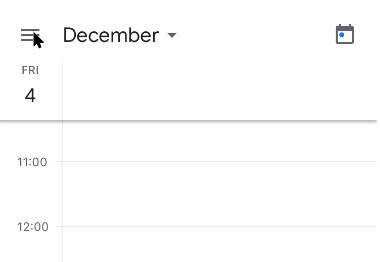
Next, tap the Menu hamburger icon in top left of your screen. See following image:

Calendar 6
Acccess the Menu

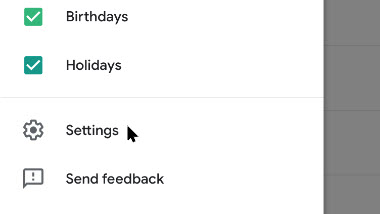
Now, swipe down and tap the Settings option. Refer to below image:

Calendar 7
Access Settings

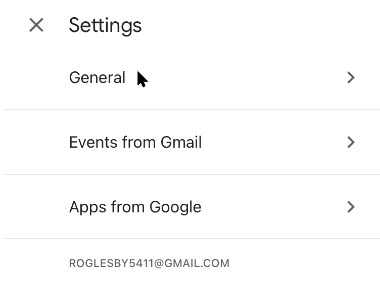
Next, tap the General option. See below image:

Calendar 8
Access the General option

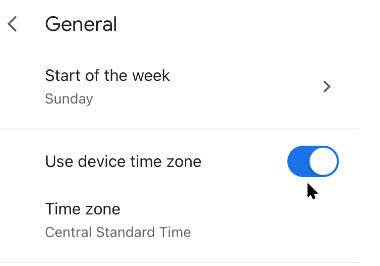
Now, tap Use device time zone on or off. If On, your device will update automatically as you travel. See following image:

Calendar 9
Selecting Use device time zone toggle

If Off, you can select a new time zone from the drop down menu. (Note! I kept the Events in CST). Refer to below image:

Calendarr 10
=Select a time zone for all Events

The new time zone for Google Calendar on your device will be applied automatically. Any entries in your Google Calendar will now be displayed in this new time zone on your mobile device. As I mentioned previously, this can be confusing, at least to me it is, so make sure what time zone you want to create events, teminders, or tasks. Now, tap back and exit Settings.

You are finished. Now you know how to see time zones in Google Calendar for events, remindars, or tasks. Please feel free to share this post! One way to share is via Twitter, as mentioned below.

Just click the Tweet icon below. This will launch Twitter where you click its icon to post the Tweet.

Check out TechSavvy.Life for blog posts on smartphones, PCs, and Macs! You may email us at contact@techsavvy.life for comments or questions.

I Would Like to Hear From You

Please feel free to leave a comment. I would love hearing from you. Do you have a computer or smart device tech question? I will do my best to answer your inquiry. Just send an email to contact@techsavvy.life. Please mention the device, app and version that you are using. To help us out, you can send screenshots of your data related to your question.
The author’s Vietnam eBook on the Battle for Tra Bong: Events and Aftermath

WhatsApp to Delay Privacy Policy Update After Users Flee to Other Services

A privacy policy update that subtly points out data can be shared with Facebook prompted a user exodus, so WhatsApp is now giving them until May 15 to agree to the changes.

A privacy policy update that subtly points out data can be shared with Facebook prompted a user exodus, so WhatsApp is now giving them until May 15, 2021 to agree to the changes.

This is for WhatsApp users

Dilbert and Moroon
Copyright Scott Adams, Inc./Distributed by Universal Uclick for UFS

WhatsApp is hitting the brakes on a privacy policy update that has prompted users to flee the Facebook-owned platform for rival messaging apps like Signal.

Background

WhatsApp’s original plan required people to agree to the new privacy policy on February 8, 2021. If they did not, the app implied it would shut down their accounts. To make things more confusing, the update also said WhatsApp partnered with Facebook on new “integrations,” without specifically saying how the data sharing works.

But on Friday, WhatsApp said it was postponing the plan amid an apparent user exodus. “We’re now moving back the date on which people will be asked to review and accept the terms. No one will have their account suspended or deleted on February 8. We are also going to do a lot more to clear up the misinformation around how privacy and security works on WhatsApp,” the service said in a blog post.

The Problem

The heart of the problem is trust (or the lack of it). WhatsApp is owned by Facebook, which has a notorious tecord on digital privacy. The social network has repeatedly tried to clarify that the updated WhatsApp policy will not result in real changes for users when talking with friends or family. But many refuse to give Facebook the benefit of the doubt.

Users Fleeing

This became apparent last week when Telsa CEO Elon Musk urged his followers on Twitter to use competing messaging app Signal. Since then, Signal has seen a massive influx of new users, numbering in the tens of millions.

Company Response

On Friday, WhatsApp reiterated that it will continue to use end-to-end encryption, meaning no one—not even Facebook—will be able to read your messages. “We also can not see your shared location and we don’t share your contacts with Facebook,” the app added.

The company went on to say the policy update itself deals primarily with businesses using WhatsApp to send and store messages with consumers. “This update does not expand our ability to share data with Facebook,” it added.

Doubt Remains

Nevertheless, the updated privacy policy is still a reminder that WhatsApp does share some user data with Facebook. A FAQ outlines how the data from businesses messaging with you can be used for ad targeting over Facebook.

At the same time, the updated privacy policy itself uses broad, but abstract language concerning the data sharing, making it unclear what Facebook can collect from your WhatsApp usage and why.

We will have to wait and see if WhatsApp can clear up the confusion and win back users. In the meantime, the company is indicating it will not begin asking users to opt into the privacy policy until May 15. “We are going to do more over the coming weeks to make sure everyone knows how WhatsApp secures your messages,” added Will Cathcart, the head of WhatsApp.

This blog post is courtesy of PCMag.com updated January 15, 2021.

I hope you have found this post helpful. If so, click the Tweet icon below. This will launch Twitter where you click its icon to post the Tweet.


Check out TechSavvy.Life for blog posts on smartphones, PCs, and Macs! You may email us at contact@techsavvy.life for comments or questions.

I Would Like to Hear From You

Please feel free to leave a comment. I would love hearing from you. Do you have a computer or smart device tech question? I will do my best to answer your inquiry. Just send an email to contact@techsavvy.life. Please mention the device, app and version that you are using. To help us out, you can send screenshots of your data related to your question.
The author’s Vietnam eBook on the Battle for Tra Bong: Events and Aftermath

How to Use Emoji in Microsoft Word

One of the most common forms of shorthand communication developed for the mobile age is the icon-based vocabulary known as Emoji. You have seen those seen Emoji pictures on social media. It’s available for Microsoft Word in Windows 10, MacOS, iOS, iPadOS, and Android.

One of the most common forms of shorthand communication developed for the mobile age is the icon-based vocabulary known as Emoji. You have seen those seen Emoji pictures on social media. It’s available for Microsoft Word in Windows 10, MacOS, iOS, iPadOS, and Android.

Microsoft Word is an indisputable application in the documentation world. When preparing documentations, you can easily insert Emoji to jazz up a Word document on various devices.

You can enter an Emoji in Word in the same way you can enter an Emoji in any other application. While typing in a Word document, just use the appropriate keyboard shortcut for your operating system. Let!s explore how this is done.

This is for devices supporting Microsoft Word. Screenshots are from Windows 10

Dilbert and Attention
Copyright Scott Adams, Inc./Distributed by Universal Uclick for UFS

Open Rmoji Keyboard

Open your Word document and position the cursor where you want to insert the Emoji.

  • For Windows 10 – Press, “Windows + Period” keys or “Windows + Semicolon” keys to open the Emoji picker.
  • For MaOS – Press “Command + Control + Space” keys to open Emoji keyboard on a Mac, which is a Character Viewer app in MacOS.
  • For iPhone, iPad, or Android phone, you can use the standard Emoji keyboard.

These keyboard shortcuts work in basically all Windows or Mac applications.

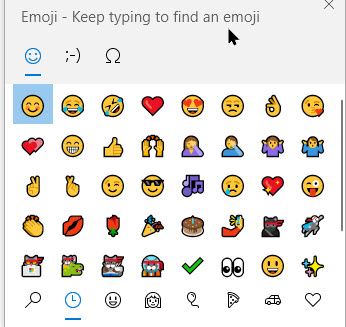
A pop-up will be displayed with all popular emoji symbols. The most frequently used Emoji will appear first. Refer to below image:

Emoji 1
The Emoji keyboard

Searching for an Emoji

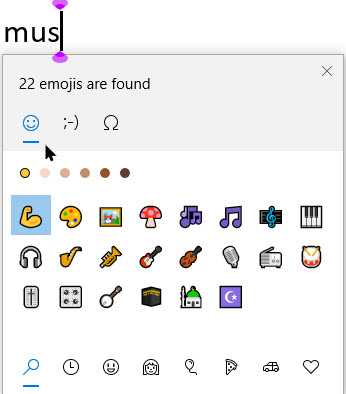
On both Windows and Mac, you can start typing the name of an Emoji to search for it. For example, to find “music” related Emoji, just start typing a few characters of the keyword. You can also just scroll through the long list of Emoji to find one.

Use the arrow keys and press Enter or click an Emoji to insert it. See below image:

Emoji 2
Searching for a music Emoji

The Emoji you insert into your document will appear as a colorful icon. You can resize them. adjust their font size, just as you would with any other text in the document.

See following image for an inserted “music”Emoji followed by text:

Emojii 3
Inserting an Emoji followed by some text

I hope you have found this post helpful. If so, click the Tweet icon below. This will launch Twitter where you click its icon to post the Tweet.

I have found TechSavvy.Life blog posts extremely helpful. Check them out for posts on smart phone apps, Macs and PCs!

I Wouild Like to Hear From You

Please feel free to leave a comment. I would love hearing from you. Do you have a computer or smart device tech question? I will do my best to answer your inquiry. Please mention the device, app and version that you are using. To help us out, you can send screenshots of your data related to your question.
The author’s Vietnam eBook on the Battle for Tra Bong: Events and Aftermath

Covid -19 Contact Tracing Is Coming on Your Smartphone

Yes, it is coming for your iPhone and Android smartphones. As a matter of fact, some of the features have already been available in iOS 13.5 and above for the iPhone that was released in May 2020. Google and Apple are working with public health organizations on contact-tracing apps.

Yes, it is coming for your iPhone and Android smartphones. As a matter of fact, some of the features have already been available in iOS 13.5 and above for the iPhone that was released in May 2020. Google and Apple are working with public health organizations on contact-tracing apps.

The piece that is missing, for now, is authorized apps from your health authorities. This is where you’ll report any sickness. Apple and Google are not releasing apps; they are collaborating to allow these apps to work across iOS and Android to collect data and send out alerts.

The following guidelines are for the iPhone. Android devices will be similar.

This is for iPhone and Android smartphones. Screenshots are from the iPhone

Dilbert and Suggestions
Copyright Scott Adams, Inc./Distributed by Universal Uclick for UFS

Check out TechSavvy.Life for similar blog posts!

What Is Contact Tracing

Conventional contact tracing is a technique used by public health authorities to measure and slow the spread of infectious diseases. It requires manually gathering information from infected individuals about the people they have previously been in contact with. These people can then be notified by public health authorities to take appropriate safety measures, such as undertaking self-quarantine and getting tested to break the chain of transmission. While this process will continue to be important to contact tracing efforts, systems that are being developed can alleviate some of the challenges with this process.

First there is a significant organizational burden from a manual process, as many public health workers are needed to perform these tasks. Second, the process can be slow as it requires finding and interviewing infected individuals and then reaching out and talking to their high risk contacts; all of whom may not be able to remember or know all of the people that they came in contact with in the past days to weeks.

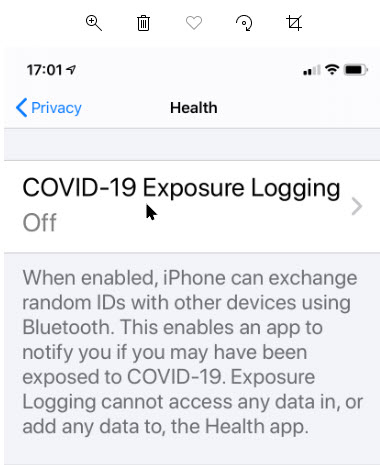
The contact tracing is called “COVID-19 Exposure Logging” and is automatically turned off. When contact tracing apps are installed, you can enable the feature.

Setting Up On iPhone

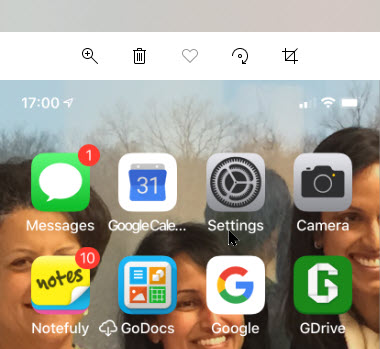
First, launch Settings. Refer to below image:

Contact Tracing 1
The Settings icon

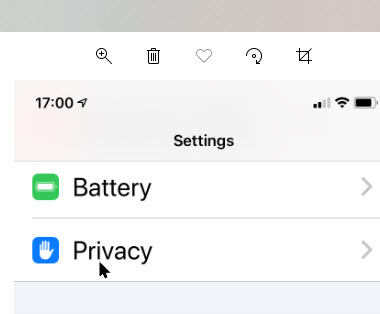
Next, scroll down to the Privacy option and tap it. See below image:

Contact Tracing 2
The Privacy option

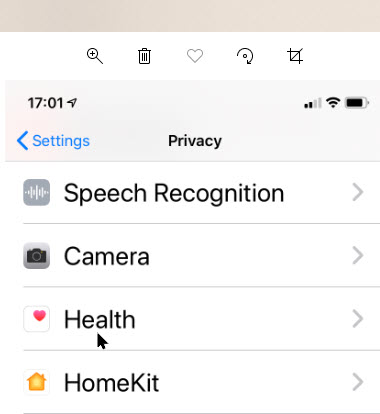
Now, tap the Health option. See following image:

Contact Tracing 3
The Health option

You wil see the COVID-19 Exposure Logging option; just tap it. Refer to below image:


Contact Tracing 4
COVID-19 Exposure Logging option

How It Works

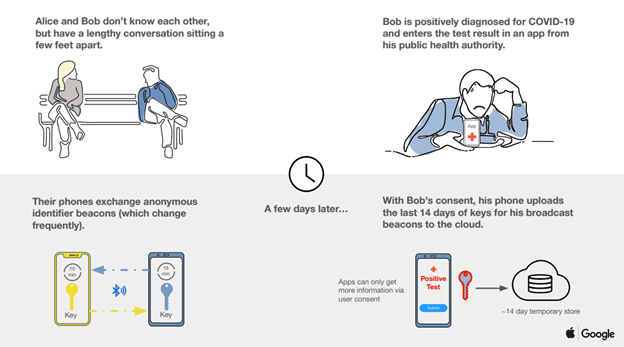
Once enabled, users’ devices will regularly send out a beacon via Bluetooth that includes a random Bluetooth identifier; basically, a string of random numbers (IDs) that are not tied to a user’s identity and change every 10-20 minutes for additional protection. Other phones will be listening for these beacons and broadcasting theirs as well. When each phone receives another beacon, it will record and securely store that beacon on the device. Refer to below diagram:

Contact Tracing Diagram, 1
Contact Tracing Diagram

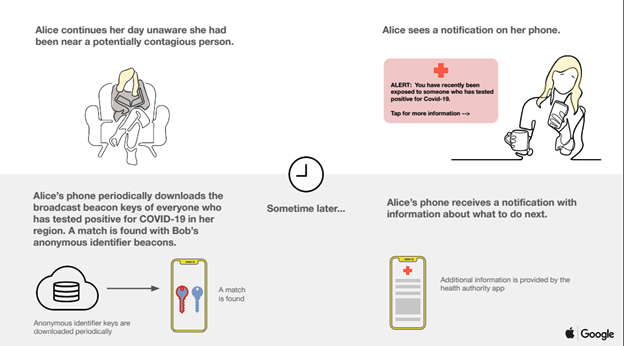
At least once per day, the system will download a list of the keys for the beacons that have been verified as belonging to people confirmed as positive for COVID-19. Each device will check the list of beacons it has recorded against the list downloaded from the server. If there is a match between the beacons stored on the device and the positive diagnosis list, the user may be notified and advised on steps to take next. See below diagram:

Contact Tracing Diagram 2
Contact Tracing Diagram

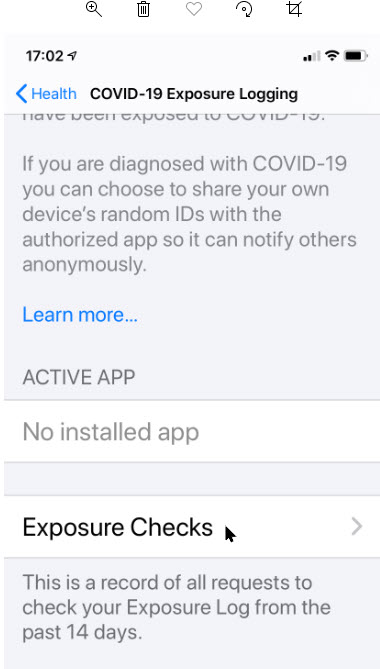
Active Apps

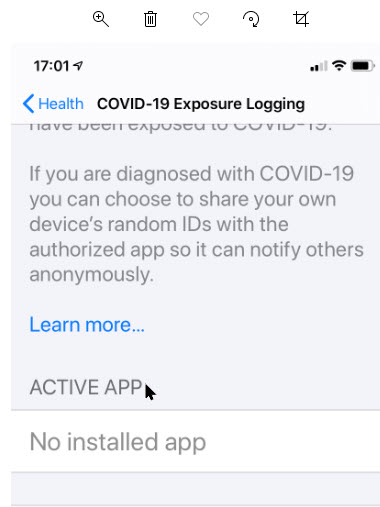
Now, scroll down to the Active App section. Here you will find your installed apps that works with contact tracing. Once available from local, state or federal authorities, you will need to install the apps then they will appear here. (As of this writing, there is one app available from Center for Disease Control; for a list of States that will participate or have an app available, click here . See below image:

Contact Tracing 5
Active Apps for contact tracing that are installed

For these apps to work, you will need your phone’s Bluetooth and location tracking features turned on, though your actual physical location is not tracked; the apps will not know where in the world you are or how many times you have left the house today. They’ll only know which random IDs your phone has come into contact with.

Check for Exposure

To see if the option is working, tap on Exposure Checks. See following image:

Contact Tracing 6
Accessing Exposure Checks option

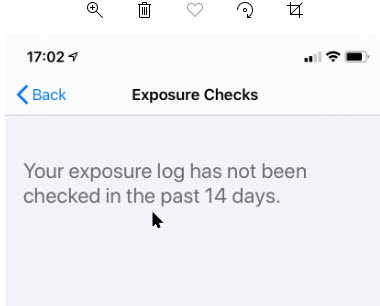
Now, you will see the following image about any exposure within the last 14 days. Refer to below image:

Contact Tracing 7
Checking to see if you have been exposed

The Fine Print

Now, tap the Back button then tap on the Learn More blue link. See below image:

Contact Tracing 8
Accessing the Terms andConditions

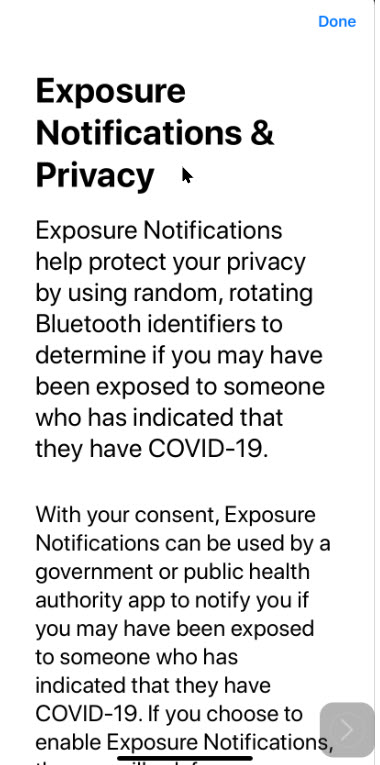
Information on Exposure Notifications & Privacy terms and conditions will be displayed. See following image:

Contact Tracing 9
The Terms and Conditions for contact tracing and exposure

I have found TechSavvy.Life blog posts extremely helpful. Check them out for posts on smart phone apps, Macs and PCs!<

I Would Like to Hear From You

Please feel free to leave a comment. I would love hearing from you. Do you have a computer or smart device tech question? I will do my best to answer your inquiry. Please mention the device, app and version that you are using. To help us out, you can send screenshots of your data related to your question.
The author’s Vietnam eBook on the Battle for Tra Bong: Events and Aftermath

How to Check if Your iPhone or Android is Running Smoothly

Want to checkout your iPhone or Android with diagnostics? Maybe you are wanting to sell the device and need to see if the device is working properly. Or you just wish to checkout the performance of your device. Whatever the reason, let’s explore a couple of apps from Apple’s or Google’s App Store.

Want to checkout your iPhone or Android with diagnostics? Maybe you are wanting to sell the device and need to see if the device is working properly. Or you just wish to checkout the performance of your device. Whatever the reason, let’s explore a couple of apps from Apple’s or Google’s App Store.

The apps are TestM and Phone Diagnostics. Both apps are free but come with ads. You can remove the ads for Phone Diagnostics for a small fee. The apps run similar diagnostic tests for touch screen, audio, video, camera, microphone, sensors and other components on your phone.

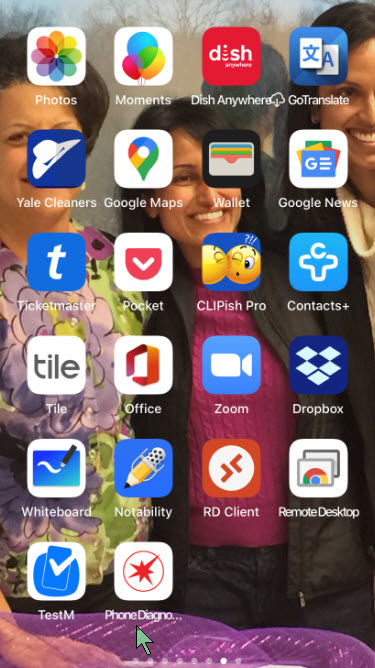
After you have installed these apps, their associated icons will appear on your Home screen (see left bottom corner) like the image below:

iPhone Diagnostics 1
The installed Diagnostic apps

This is for the iOS and Android devices. Screenshots are for the iPhone

Dilbert and Stupid Again
Copyright Scott Adams, Inc./Distributed by Universal Uclick for UFS

Check out TechSavvy.Life for similar blog posts!

TestM App for iPhone and Android

Designed for iOS and Android, the free TestM app can run diagnostics on your phone’s touch screen, sound, camera, sensors, network connectivity and other hardware.

The app gives you full control over the tests you want to run. Opt for a quick test to check three key features: touch screen, earpiece audio and high-frequently audio; or commit to a full test to check out all supported features. Otherwise, you can test just one specific feature, like the accelerometer, Bluetooth connectivity, camera flash and Face ID on an iPhone.

Most of the tests are interactive. The touch-screen test asks you to draw on the screen, the microphone test asks you to speak, the audio test prompts you to tap the numbers you hear and the camera test requests that you pose for a picture. One of the nifty tests is the Internet Speed Test to measure your phone’s upload and download speed.

After you’ve completed your testing, TestM compiles a report that reveals the key stats of your phone along with the outcome of the tests you ran. Each individual feature tested receives a green checkmark for good or a red checkmark for bad.

Any features that flunk can be re-tested from the report screen. You can share the report with someone else via email, messaging, or another app or service. TestM can even generate a list of local repair shops that might be able to fix whatever hardware ailment is affecting your phone. Refer to below image:

iPhone Diagnostics 2
The TestM app Home screen

Phone Diagnostics for iPhone

Available for the iPhone, the Phone Diagnostics app offers a range of tests you can run one after the other. The app can check your touch screen, multi-touch capabilities, camera, flash, speaker, microphone, Wi-Fi, cellular access, sensors and other components. Just tap the button for the test you wish to run. Alternatively, tap the Play button in the middle of the screen to run all the tests one after the other. Unlike TestM, you can remove ads by paying a small fee.

The multi-touch test asks you to place three fingers on the screen. The camera test snaps photos using the front and rear cameras, while the video record test shoots a quick video using the rear camera. The motion test asks you to move your phone around, and the GPS test verifies your location on a map.

The app doesn’t generate any reports or results, but each successful test paints its button in green, while a failed or interrupted test appears in red. The app also attempts to steer you to a repair shop should your iPhone need to be fixed. See below image:

iPhone Diagnostics 3
The Phone Diagnostics app Home screen

I have found TechSavvy.Life blog posts extremely helpful. Check them out for posts on smart phone apps, Macs and PCs!

I Would Like to Hear From You

Please feel free to leave a comment. I would love hearing from you. Do you have a computer or smart device tech question? I will do my best to answer your inquiry. Please mention the device, app and version that you are using. To help us out, you can send screenshots of your data related to your question.

The author’s Vietnam eBook on the Battle for Tra Bong: Events and Aftermath

How to Record and Annouce Your Name on LinkedIn

Pronouncing a name correctly isn’t just polite. It’s a way of recognizing someone’s identity. LinkedIn has introduced a new feature that lets members add a 10-second audio recording of their name pronunciation. Other users will be able to hear the clip by pressing a small speaker icon on a member’s profile.

Pronouncing a name correctly isn’t just polite. It’s a way of recognizing someone’s identity. LinkedIn has introduced a new feature that lets members add a 10-second audio recording of their name pronunciation. Other users will be able to hear the clip by pressing a small speaker icon on a member’s profile.

To use the feature, you’ll have to record your name on a mobile device (iOS or Android), but you’ll be able to play name pronunciations on mobile or a desktop. Let’s explore how to enable this feature.

This is for devices supporting LinkedIn

Dilbert and Morale
Copyright Scott Adams, Inc./Distributed by Universal Uclick for UFS

I like TechSavvy.Life!

Updating Your Profile

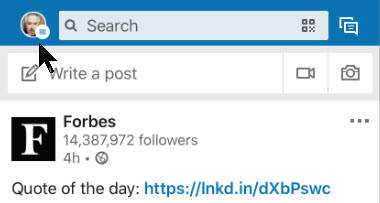
First, open the LinkedIn app on your smart device (iOS or Android). Next, from the the upper left hand corner, tap your Profile Photo. Refer to below image:

Linkedin 1
Accessing your Profile

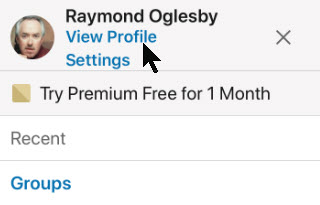
Now, in the top menu, select the View Profile blue link . See below image

Linkedin 2
Selecting viewing your Profile

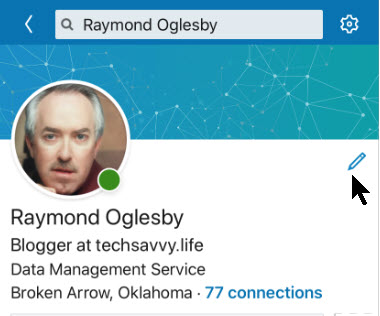
Next, tap on the Pencil icon next to your photo to edit your Profile. See following image:

Linkedin 3
Selecting edit your Profile

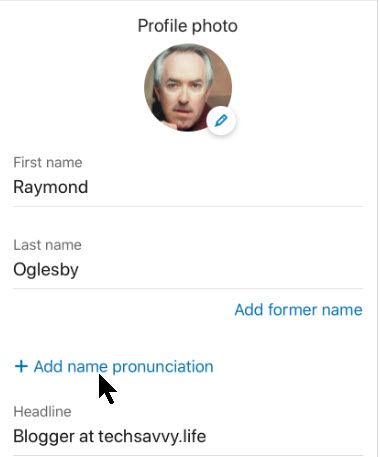
Next, tap on the Add Name Pronunciation blue link found under your First and Last name sections. Refer to below image:

Linkedin 4
Selecting add a recording of your name

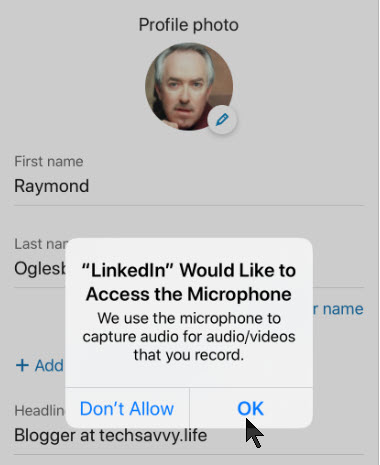
Now, grant the LinkedIn app permission to access your smart device’s microphone. See below image:

Linkedin 5
Giving permission to access your microphone

Recording Your Name

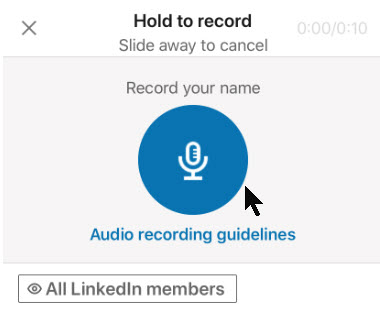
Press and hold on the blue microphone button to record your name. You have up to 10 seconds to record your first and last name. LinkedIn recommends that you limit background noise, speak slowly and pronounce clearly. Also, hold your phone about four inches from your mouth. See following image:

Linkedin 6
Recording your name

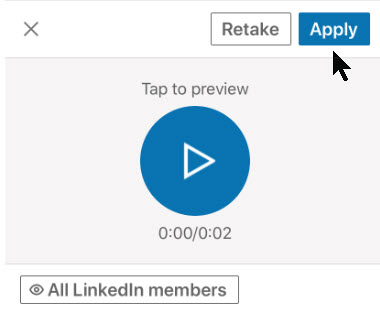
Tap the Play button to hear your audio recording played back to you. If you aren’t happy with it, select the Retake button. When you are satisfied with the recording, tap the Apply button. Refer to below image:

Linkedin 7
Saving your name recording

Choosing Your Audience

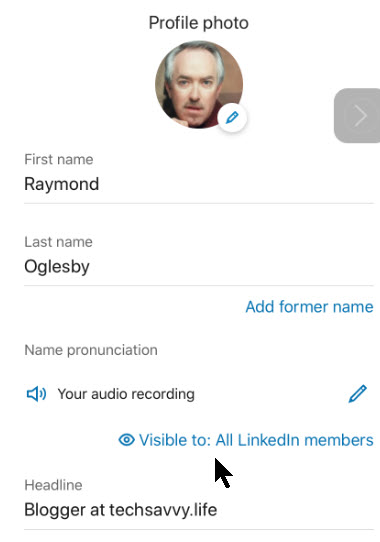
Before you leave the editing page, you can modify who can listen to your name pronunciation recording. To do so, tap the Visible To blue link at the bottom of the screen. See below image:

Linkedin 8
Accessing your audience

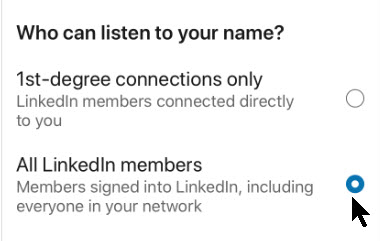
Here you have two sharing options to choose from. Either all Linkedin members can listen to your name (the default option) or only 1st-degree connections only. See following image:

Linkedin 9
Selecting your audience

Saving Your Changes

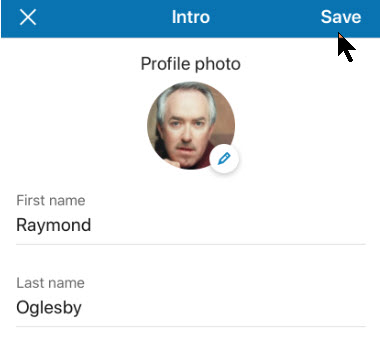
When you’re all set to exit the LinkedIn profile editing process, in the top right hand corner, tap the Save button. Refer to below image:

Linkedin 10
Saving your changes

View and Test Your Recording

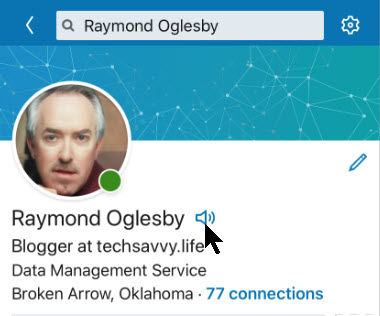
Now, you (or someone else) should see the tiny Audio icon next to your profile name. Select the icon to hear your name pronunciation. See following image:

Linkedin 11
Testing your name recording

That its. You and those you have selected can now hear the proper annunciation of your name.

I find TechSavvy.Life blog posts extremely helpful!

I Would Like to Hear From You

Please feel free to leave a comment. I would love hearing from you. Do you have a computer or smart device tech question? I will do my best to answer your inquiry. Please mention the device, app and version that you are using. To help us out, you can send screenshots of your data related to your question.
The author’s Vietnam eBook on the Battle for Tra Bong: Events and Aftermath

How to Send a Message with Google Maps

By using Google Maps you can find the location of a restaurant, store or some other company. How about asking the business a question? In some cases, you can do so through Google Maps. If the entity supports Google Maps messaging feature, you can send a message to that company. If the company responds, you can carry on a back-and-forth conversation; like texting, but instead you are using Google Maps.

To date, this is the most unusual post I have written. Its relatively unknown to the business community. I recommend you try out my example before searching for a business in your area that uses Google Maps for messaging.

This feature is for your iOS (iPhone/iPad) or Android device or whatever smart device supports Google Maps

If you haven’t already done so, download and install Google Maps to your device.

Dilbert Purchasing
Copyright Scott Adams, Inc./Distributed by Universal Uclick for UFS

Search for a Business

  1. Launch Google Maps
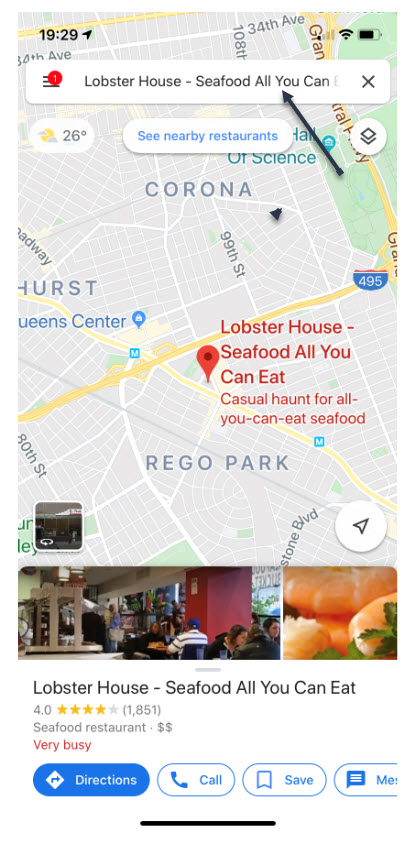
  2. Search for a business you want to use or visit. In my example, I am searching for “Lobster House”. Refer to following image:
Google Maps 1
Search for Lobster House

If using my example, select the first entry. Refer to following screenshot:

Google Maps 2
Selecting First Entry for Lobster House

View the Overview Tab

Swipe Up below the map till you see the Overview tab, like the following image:

Google Maps 3
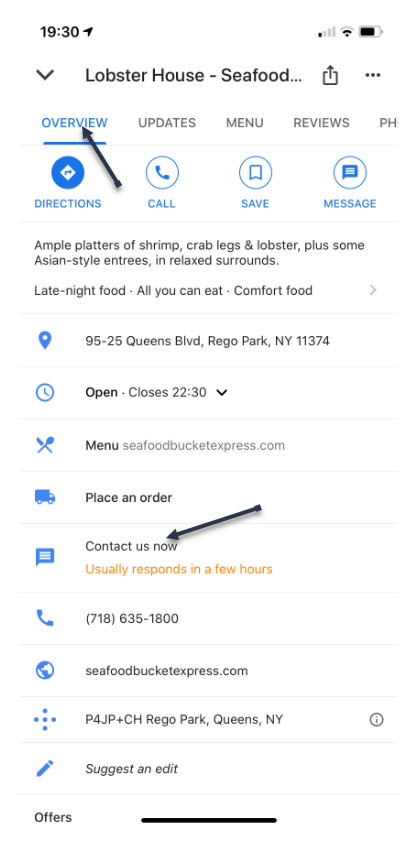
Overview Tab for Lobster House

If the company supports Google Maps messaging, in the center of the screen you will see a link that says “Contact us now

Type in Your Message

  1. Tap on this link
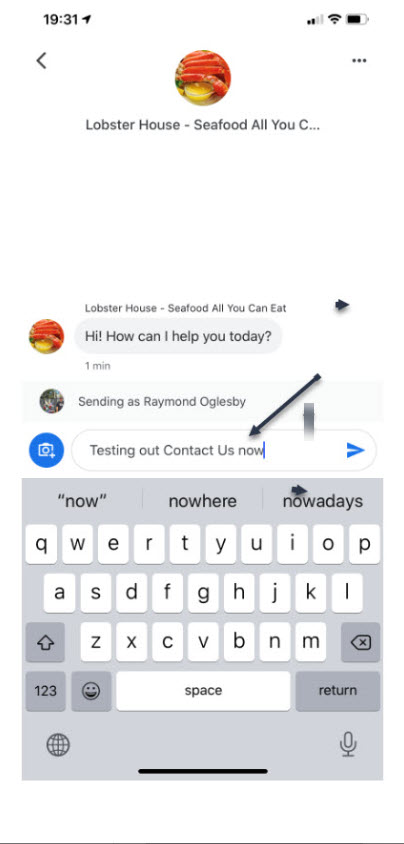
  2. Type in your message and tap the Send icon. A pertinent question might be reserving a table at a certain time instead of my example. Refer to following screen:
Google Maps 5
Messaging Lobster House

In my example of the “Lobster House”, they usually respond within a few hours. So, revisit the “Lobster House” for their reply by:

Search for Messages

  1. Searching for the business
  2. Swipe Up to view the Overview Tab
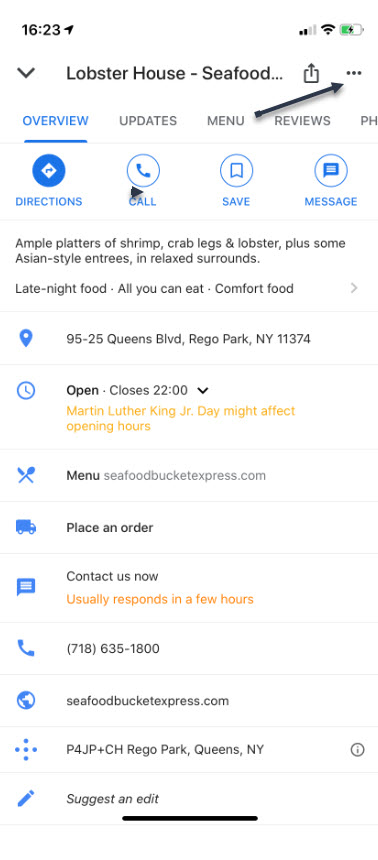
  3. Tap the 3 dots in upper right hand corner. Refer to following image:
Google Maps 6
Check for a Response

Reply to Messages

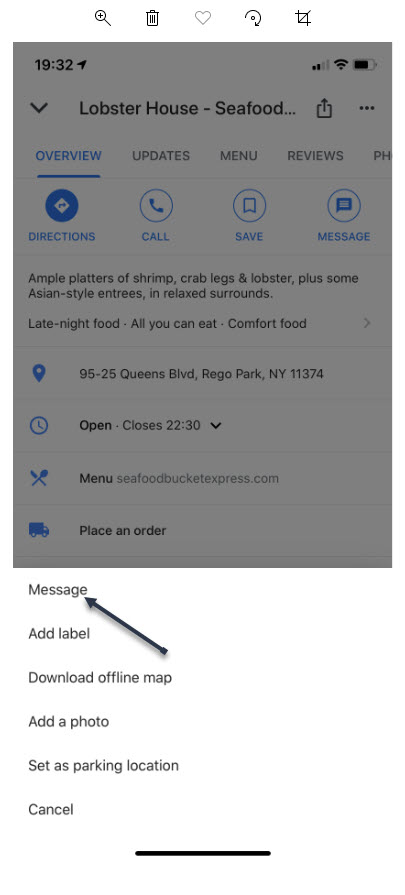
You will see the following screen. Tap on Message to view their reply. You can then reply back to the business if you need to.

Google Maps 7
The Message Screen

Whats challenging about this feature is finding a business that supports Google Maps messaging. Unfortunately, many do not. But, if a business of interest does offer messaging, you can use this feature to obtain more information about the company or perhaps, setup a reservation.

I Would Like to Hear from You

Please feel free to leave a comment. I would love hearing from you. Do you have a computer or smart device tech question? I will do my best to answer your inquiry. Please mention the device, app and version that you are using. To help us out, you can send screenshots of your data related to your question.
The author’s Vietnam eBook on the Battle for Tra Bong: Events and Aftermath

How to Backup Facebook Photos and Videos

You have searched for a favorite photo or video on Facebook but are unable to locate it. Facebook has an option to backup most anything saved through its app. This would allow for easier searching instead of scrolling endlessly through Facebook posts.

You may have decided to deactivate your account for health reasons or you just want a backup. There is no such thing as “too many backups”. In my IT career, I have been “burned” by not having adequate backups resulting in lost time in recreating them.

Depending on how long you have been a Facebook user, the backup file can be quite large. If you have limited storage or on a free storage plan for your mobile device, you might consider backing up to a PC or Mac.

Using this post as a guide, I am backing up thirteen years of Facebook photos and videos on a Windows 10 PC. My backup file, in Zip format, was a 1.4 GB file.

This is for PCs, Mac, mobile devices and similar platforms using Facebook

Dilbert and Coronavirus
Copyright Scott Adams, Inc./Distributed by Universal Uclick for UFS

Accessing Facebook Settings

Launch Facebook. in the upper right hand corner, click on the Account icon. Next, click the Settings & Privacy option. See below image

Facebook Photo Backup 1
The Settings and Privacy option

Next, click on the Settings option. Refer to below image:

Facebook Photo Backup 2
The Settings option

Downloading Your Facebook Information

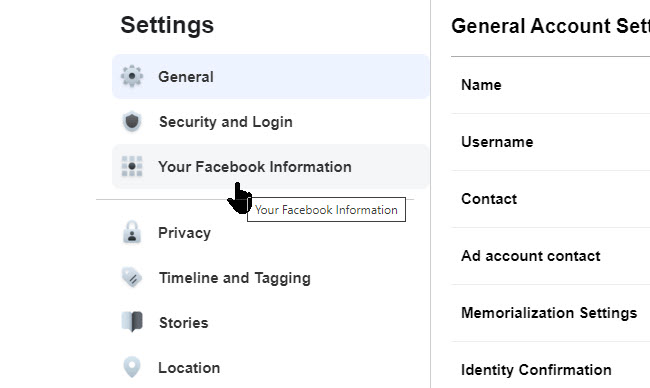
Then click on Your Facebook Information. See following image:

Facebook Photo Backup 3
The Facebook Information option

Next, click on Download Your Information. See below image:

Facebook Photo Backup 4
Download your information option

Selecting ONLY Photos and Videos

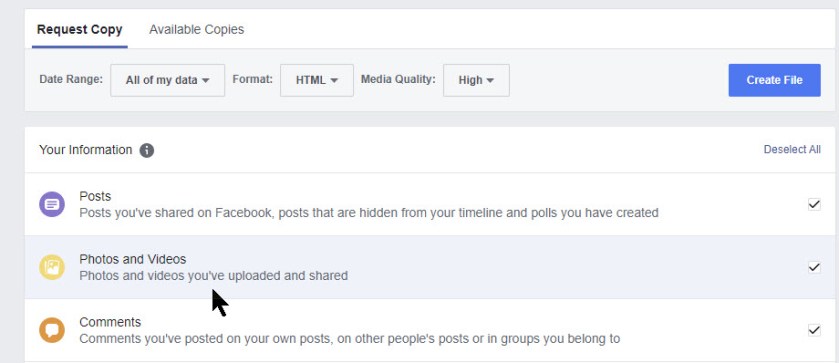
From here, click on Deselect All link. Then select only Photos and Videos option. From this screen there are many options on what to backup. For our purposes, we only want photos and videos. Refer to below image:

Facebook Photo Backup 5
Deselecting all, then selecting only photos and videos option

Once photos and videos have been selected and all other option are unselected, click the Create File button. See below image:

Facebook Photo Backup 6
Clicking the Create File option

Messages and Emails From Facebook

You will receive a pop-up message regarding the creation of your Facebook backup for photos and videos. Refer to below image:

Facebook Photo Backup 7
Facebook response to iyour request

Check your email that is associated with your Facebook account for the file request. See below image:

Facebook Photo Backup 8
Email from Facebook about your request

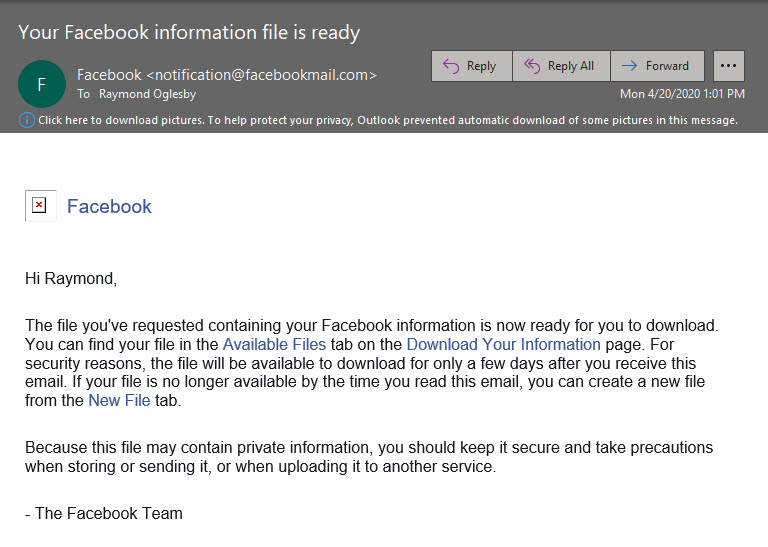
It may take several hours for Facebook to process your request. When the file is ready, you will receive an email that your file is ready. Follow the directions in the message. Refer to below image:

Facebook Photo Backup 9
Email from Facebook that your backup file is ready

Downloading Your Photos and Videos Backup

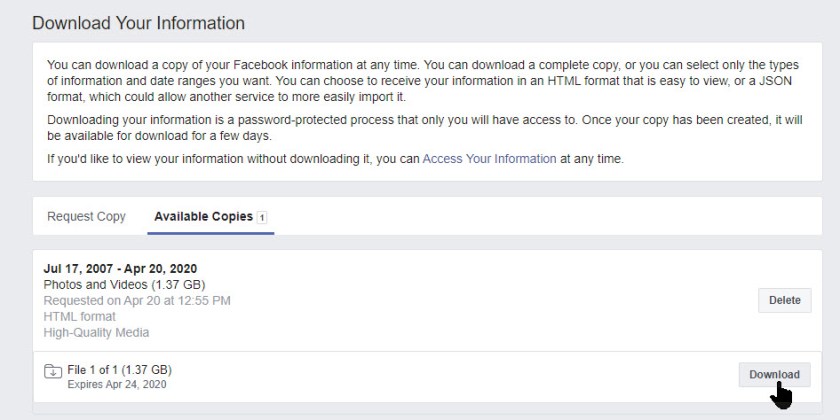
Click on the link for Download Your Information. Then, click the Available Copies tab. You should see information about your download file. Now, click the Download button. See following image:

Facebook Photo Backup 10
Download option to your Downloads folder

Facebook will ask you to enter your Password, then click Submit. See below image:

Facebook Photo Backup 11
Submitting your password

Viewing Your Downloaded Zip File via File Explorer

Your photos and videos backup file will be in your Downloads folder in Zip format. Below is a screenshot of my backup file. Notice it contains over 3000 files. Your backuped file number will depend on how often you post photos and videos and how many years on Facebook. Refer to below image:

Facebook Photo Backup 12
An example of your downloaded Facebook photos and videos file

What I would like to see is an option to select a date range for the backup instead of everything.

I Would Like to Hear From You

Please feel free to leave a comment. I would love hearing from you. Do you have a computer or smart device tech question? I will do my best to answer your inquiry. Please mention the device, app and version that you are using. To help us out, you can send screenshots of your data related to your question.
The author’s Vietnam eBook on the Battle for Tra Bong: Events and Aftermath

Using Zoom During the COVID-19 Outbreak

This is a summary of Zoom posts I have blogged about over the past few weeks. During the COVID-19 pandemic, many of us are working from home using Zoom for video/audio conferencing. If you take some time, you can make the video meeting a smooth experience for all participants. The host of the Zoom meeting has the responsiblity to setup and run the meeting. By exploring the following blog posts, you can achieve your goal of hosting a successful meeting, making it easy for the participants to join the video conference and keeping the Zoom troll attacks at a minimum.

This if for a PCs and Macs browsers and smartdevices that support Zoom

Dilbert and Lists
Copyright Scott Adams, Inc./Distributed by Universal Uclick for UFS

Following are my blog links for a Zoom video/audio meeting:

How to Setup Contacts in Zoom

How to Record a Zoom Meeting

How to Join a Zoom Meeting Without Installing the App

How to Hide and Unhide a Zoom Video

Nine Tips to Stabilize a Zoom Meeting

Testimonials

I love you addressed nearly every frustrating feature change I have! Thanks for sharing and educating me. 

marilyn1998

I was just checking into the zoom meeting stuff. Thanks Raymond.

Debi Holcomb

I Would Like to Hear from You

Please feel free to leave a comment. I would love hearing from you. Do you have a computer or smart device tech question? I will do my best to answer your inquiry. Please mention the device, app and version that you are using. To help us out, you can send screenshots of your data related to your question.
The author’s Vietnam eBook on the Battle for Tra Bong: Events and Aftermath