How to Quickly Lock Your iPhone Screen Orientation

This post discusses how to easily enable and disable the Portrait Orientation Lock on iPhones and iPads via the Control Center. It explains the significance of locking screen orientation to prevent unwanted rotations when switching device positions. Tips are provided for troubleshooting issues with screen orientation.

RAYMOND OGLESBY @RaymondOglesby2
October 21, 2025 –3 minutes read time

It’s super convenient to be able to rotate your screen from portrait to landscape mode automatically, as well as lock it later when you need to. Luckily, both the iPhone’s and iPad’s screen rotation lock buttons are easily accessible via the Control Panel. With the Orientation Lock enabled, you can keep your screen from adjusting regardless of whether the device is rotated vertically or horizontally.

What does “portrait orientation lock” mean? The Portrait Orientation Lock button is located in the Control Center. When it is on, your iPhone or iPad will not automatically rotate. If you get annoyed when your iPhone or iPad screen flips and flops around every time you shift positions, this is the tip for you. Let’s explore how to rotate the screen on your iPhone and iPad.

  • Learn how to quickly access the Portrait Orientation lock to enable or disable automatic screen rotation.
  • Lock your screen’s orientation as horizontal or vertical so you can read or watch videos on your devices in any position.

This tip was performed on an iPhone 14Pro running iOS 26.

Click here to learn how to update your iPhone to the latest iOS version.

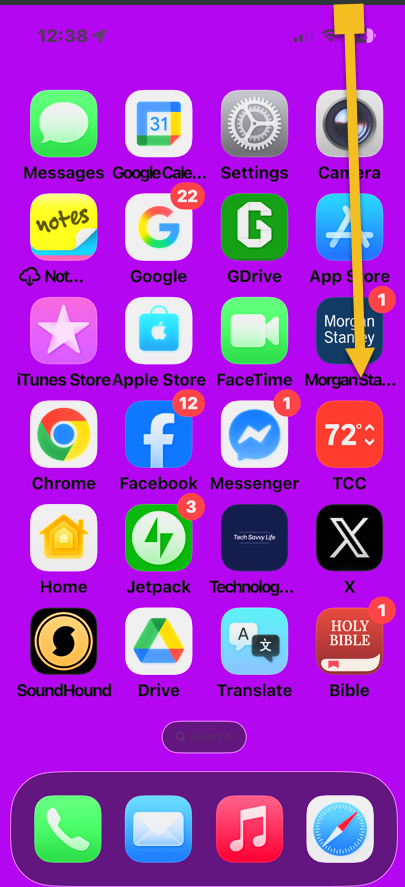
First, from the Home Screen of your iPhone, swipe down from the top right to access the Control Panel.

Note! Your Control Center will likely look different from the one in the screenshots below. We have customized the Control Center and rearranged the icons.

Refer to the image below:

Portrait 1
Scrolling down from the top right to access the Control Panel

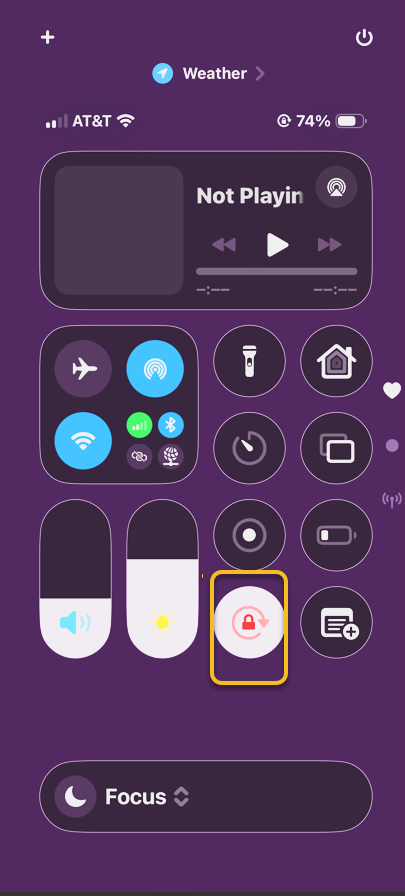
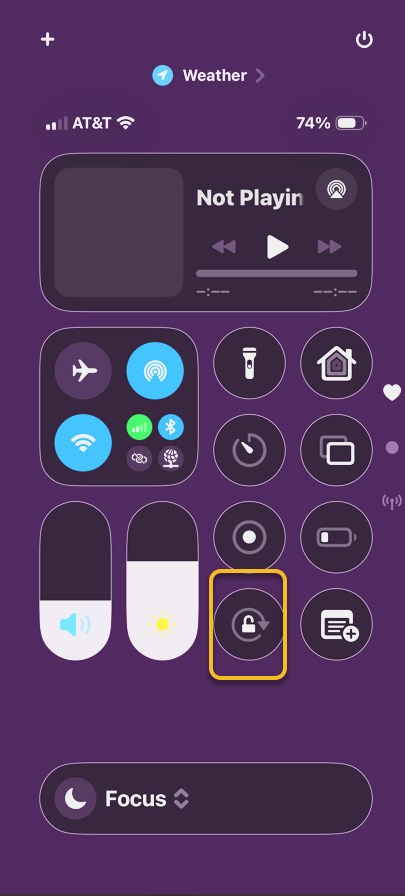
Next, the Portrait Orientation Lock is the button with a round arrow containing a lock. It will be gray when disabled. This means your iPhone will automatically rotate according to how you are holding it. See the image below:

Portrait 2
Selecting the Orientation Lock option

To lock your screen orientation, tap  Portrait Orientation Lock. It will be white when enabled. See the following image:

Portrait 3
Orientation Lock is enabled

With your iPhone rotation lock enabled, your screen will no longer rotate when you turn your phone sideways unless you use an app that only has landscape mode. Using the iPhone orientation lock will prevent apps that offer both modes from auto-rotating. However, apps that are only available in landscape mode will not switch to portrait mode.

But what does the rotation lock button look like on my iPad? Well, the steps are essentially the same on the iPad. Just open your iPad’s Control Center and look for the circular arrow icon.

If you find your iPhone stuck on landscape mode, try turning the lock on and off until it rotates again. If you keep experiencing problems, restarting your iPhone should help.

Technology is constantly evolving, and smartphone and desktop tech rarely remains static. Therefore, the information in this post is only accurate as of the date it was written. Blog posts that are older than six months may contain instructions that are no longer compatible with your device or operating system. We hope that the content from previous posts continues to function as intended. Thank you for reading TechSavvy.Life, where technology works for you.

“Cybersecurity is much more than an IT topic—it’s a business imperative.” 

– Raj Samani, Chief Scientist at Rapid7

That’s it. Please feel free to share this post! One way to share is via Twitter.

Just click the Tweet icon below. This will launch Twitter where you click its icon to post the Tweet.

Checkout TechSavvy.Life for blog posts on smartphones, PCs, and Macs! You may email us at contact@techsavvy.life for comments or questions.

We value your feedback! Was this post helpful? Please share your comments with us. If you have a tech question related to your computer or smart device, feel free to reach out. Just send an email to contact@techsavvy.life, and be sure to include the device, app, and version you are using. To assist us further, you can also attach screenshots related to your inquiry.

Author’s eBook

The author’s Vietnam eBook on the “Battle for Tra Bong Vietnam: Events and Aftermath” can be accessed from a Kindle device or the Kindle App for a desktop or smartphone. The apps are free.

The author’s Vietnam eBook on the Battle for Tra Bong Vietnam: Events and Aftermath

How to Access Your iPhone or iPad App Privacy Report

Apple prioritizes user privacy on iPhones and iPads, featuring an App Privacy Report that details how apps utilize personal data and device features. Users can easily access this report through the Settings app to monitor data access, app interactions, and website visits, enhancing understanding of app behavior and privacy.

RAYMOND OGLESBY @RaymondOglesby2
July 1, 2025 – 4 minutes read time

Apple takes privacy very seriously when it comes to its products. The iPhone and iPad are no exception, and both include an App Privacy Report. The iOS App Privacy Report shows you how certain apps have been using your data and accessing certain device features.

Accessing the App Privacy Report on an iPhone or iPad is surprisingly easy. The amount of data it reveals is outstanding. Let’s explore this feature.

  • Check your app privacy report to see what type of data your apps have been accessing.
  • Use your app privacy report to see which apps or websites are the most intrusive.

This tip was performed on an iPhone 14 Pro running iOS 18.5.

Click here to learn how to update your iPhone to the latest iOS version.

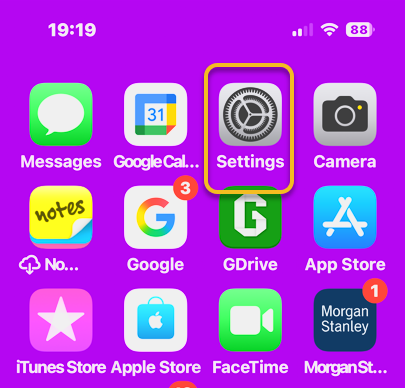
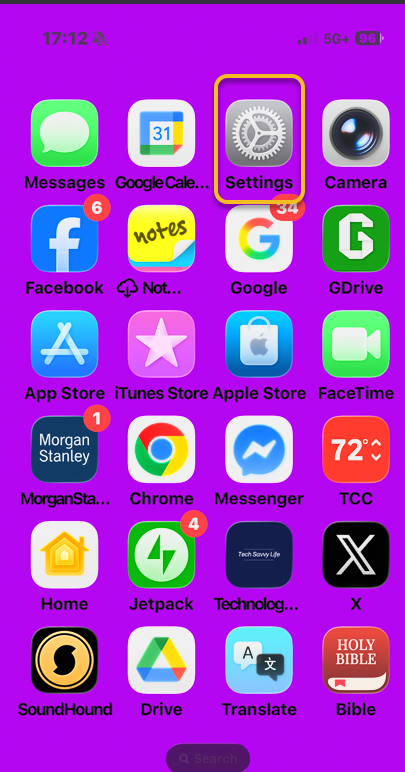
First, open the Settings app. Refer to the image below:
Privacy 1
Selecting the Settings app

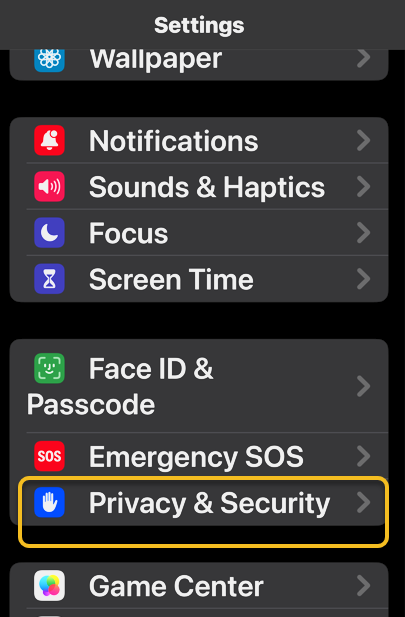
Next, tap Privacy & Security.option.See the image below:

Privacy 2
Selecting the Privacy & Security option

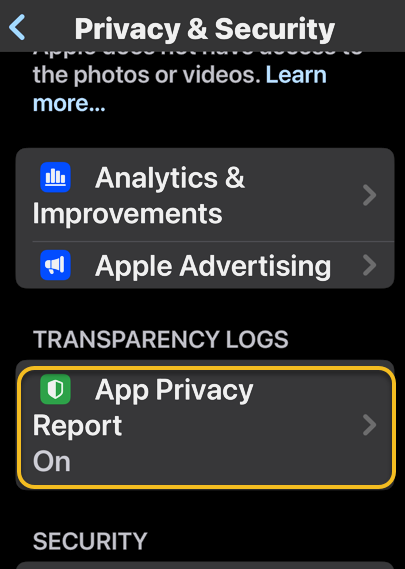
Now, scroll down and tap App Privacy Report. See the following image:

Privacy 3
Selecting the App Privacy Report option

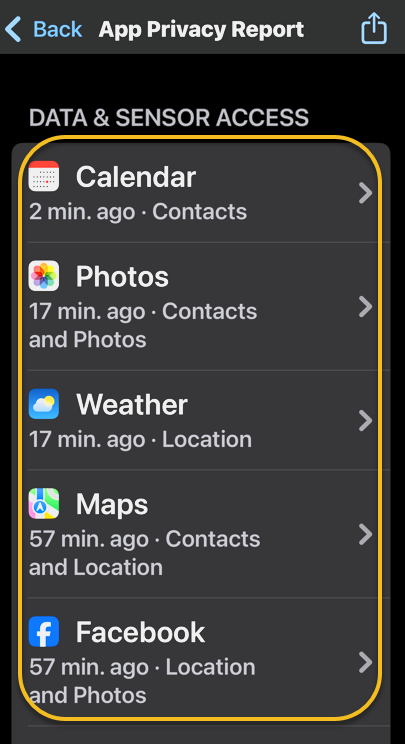
Next, if this is the first time you have accessed this screen, you might see an option to turn on App Privacy Report. If you already have this feature turned on, you will see a list of apps that have accessed your data or sensors in the past week. Refer to the image below:

Privacy 4
Your Data & Sensor Access

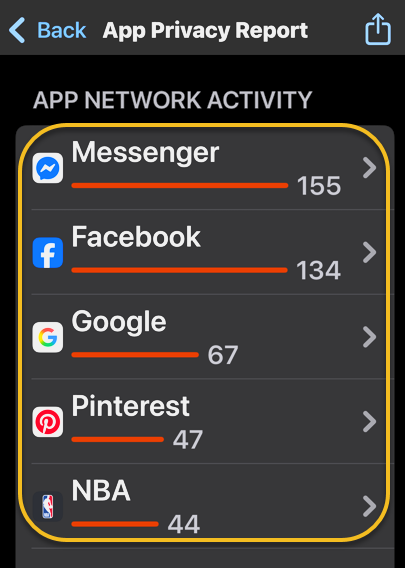
Now, under that section, there is App Network Activity. These are apps that have contacted domains in the last week. See the image below:

Privacy 5
Your App Network Activity

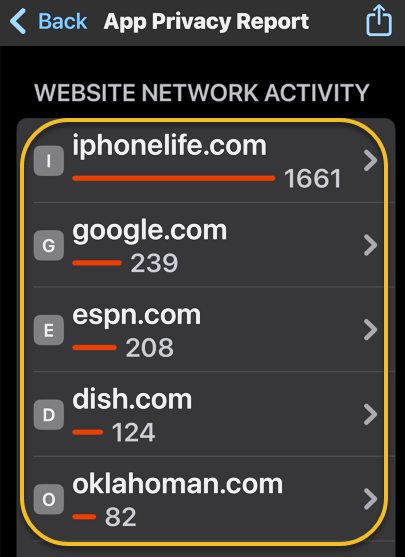
Next is Website Network Activity. These are websites that you have visited in the last week, including your most contacted domains. See the following image:

Privacy 6
Your Website Network Activity

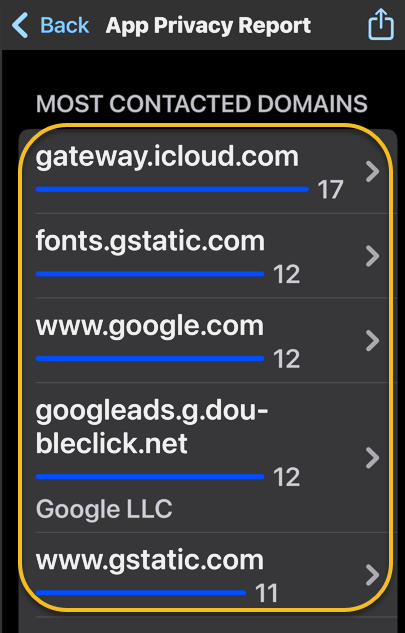
Next is Most Contacted Domains, all of which were contacted by one or more apps or websites in the past seven days. Refer to the image below:

Privacy 7
Your Most Contacted Domains

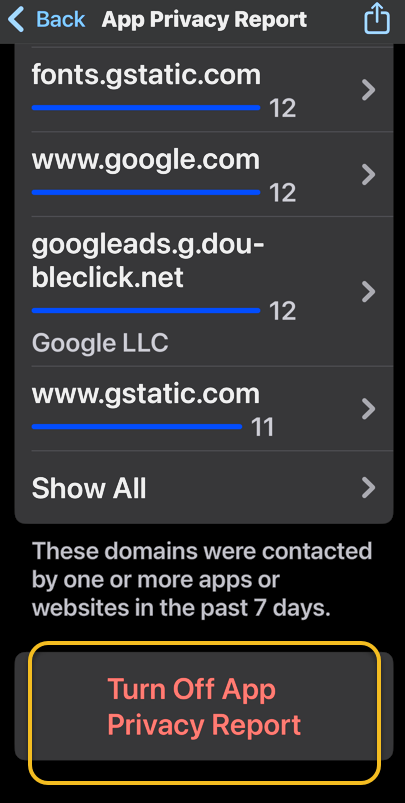
Now, at the bottom is an option to Turn Off App Privacy Report. See the image below:

Privacy 8
Selecting the Turn Off App Privacy Report option

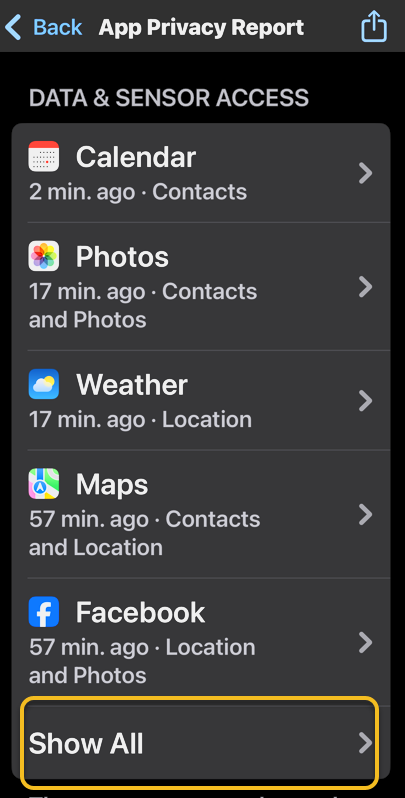
Next, under any section, you can tap Show All to see more apps, websites, domains, etc. See the following image:

Privacy 9
Selecting to Show All

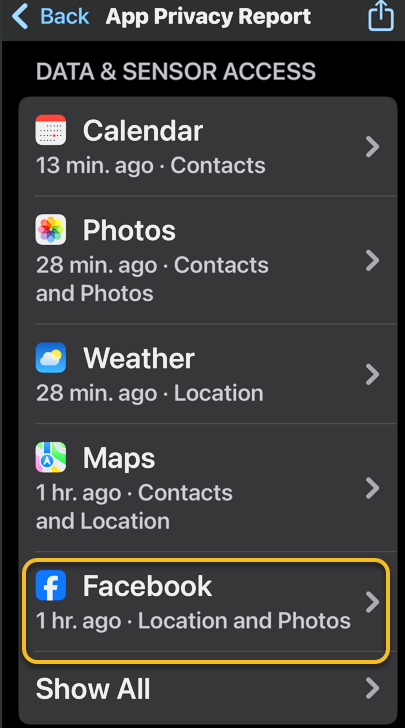
Now, you can also tap any app or domain in any section to see additional information about it. For example, we selected Facebook. Refer to the image below:

Privacy 10
Selecting Facebook access

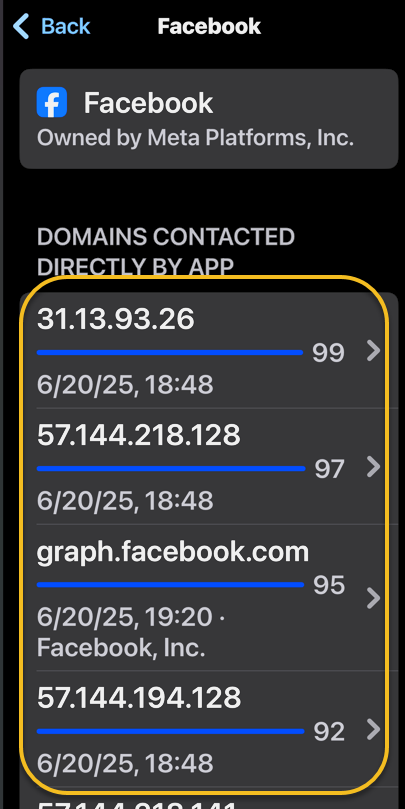
Next, you will see a list of the domains this app has contacted. If you were to tap a domain rather than an app in the previous step, you would see a list of apps that have contacted that domain. See the image below:

Privacy 11
Your Domains contacted by Facebook

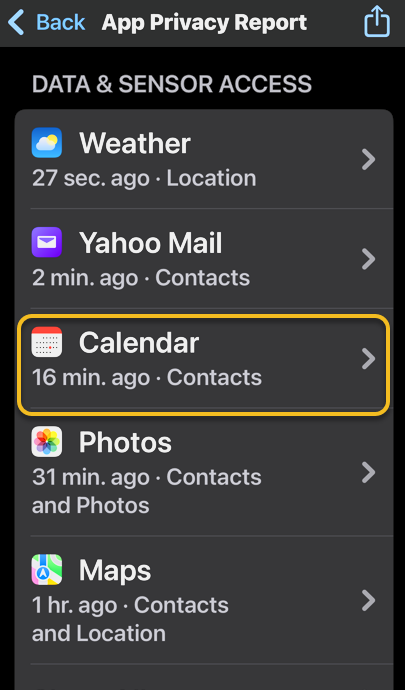
Now, if you tap an app under Data & Sensor Access list, you can see exactly what kind of data that app is collecting. See the following image:

Privacy 12
Selecting the Calendar app

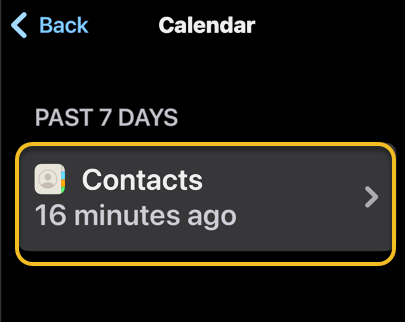
For example, we can see that the Calendar app accessed my contacts 16 minutes ago. Refer to the image below:

Privacy 13
Your Contacts last accessed

That’s the iPadOS and iOS App Privacy Report. You can access this report on your iPhone or iPad at any time and get the most up-to-date data.

Disclaimer

Technology is constantly evolving, and smartphone and desktop tech rarely remains static. Therefore, the information in this post is only accurate as of the date it was written. Blog posts that are older than six months may contain instructions that are no longer compatible with your device or operating system. We hope that the content from previous posts continues to function as intended. Thank you for reading TechSavvy.Life, where technology works for you.

“The rise of powerful AI will be either the best or the worst thing ever to happen to humanity.”

– Stephen Hawking, Theoretical Physicist

That’s it. Please feel free to share this post! One way to share is via Twitter.

Just click the Tweet icon below. This will launch Twitter where you click its icon to post the Tweet.

Checkout TechSavvy.Life for blog posts on smartphones, PCs, and Macs! You may email us at contact@techsavvy.life for comments or questions.

We value your feedback! Was this post helpful? Please share your comments with us. If you have a tech question related to your computer or smart device, feel free to reach out. Just send an email to contact@techsavvy.life, and be sure to include the device, app, and version you are using. To assist us further, you can also attach screenshots related to your inquiry.

Author’s eBook

The author’s Vietnam eBook on the “Battle for Tra Bong Vietnam: Events and Aftermath” can be accessed from a Kindle device or the Kindle App for a desktop or smartphone. The apps are free.
The author’s Vietnam eBook on the Battle for Tra Bong Vietnam: Events and Aftermath

How to Alphabetize Notes on iPhone and iPad

The Notes app on Apple devices sorts notes by default based on the most recent update. However, users can change settings to organize notes alphabetically by title or first line. This enhances note accessibility and organization. The guide also addresses setting defaults for new notes.

RAYMOND OGLESBY @RaymondOglesby2
June 3, 2025– 3 minutes read time

Can you alphabetize in Notes? Yes! By default, the Notes app sorts your notes by most recently updated. Even if you created a note years ago, if you edit that note, it will appear at the top of the list afterward.

But you can easily sort your notes alphabetically by changing your Settings. Your notes will then be sorted according to either the title or first line (if the note does not have a title). Let explore how to sort Apple Notes alphabetically on iPhone or iPad.

  • Alphabetize notes by note titles or the beginning of your note, instead of by date created or last edited.
  • Alphabetize notes on iPhone and iPad to make your notes more organized and easier to find.

This tip was performed on an iPhone 14 Pro running iOS 18.5.

Click here to learn how to update your iPhone to the latest iOS version.

First, open the Settings app. Refer to below image:

Notes 1
Selecting Settings

Next, scroll down and tap Apps. See the image below:

Notes 2
Selecting Apps

Now, rap Notes. See the following image:

Notes 3
Selecting Notes

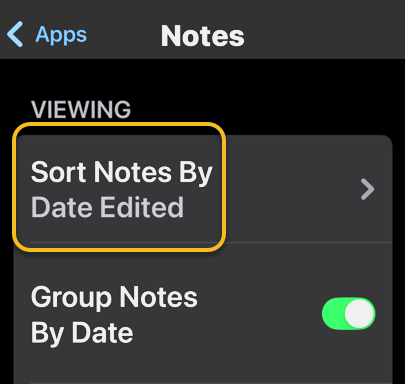
Next, tap Sort Notes By: Refer to image below:

Notes 4
Selecting the Sort Notes By option

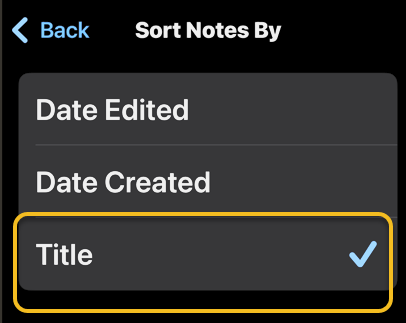
Now, tap Title. See the image below:

Notes 5
Selecting the Title option

Choosing Title will sort your Notes alphabetically. You can also select Date Created if you would rather have all your notes sorted by the day each was started.

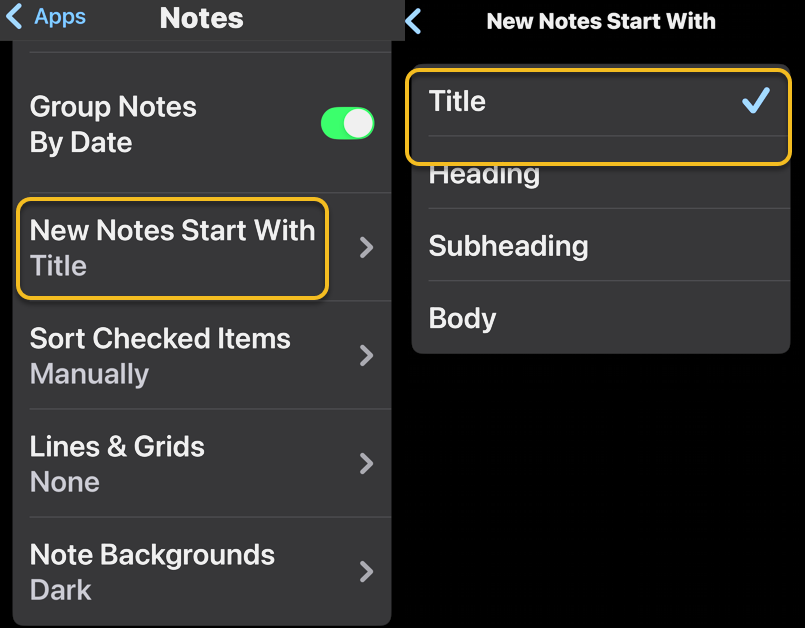
You may want to set a couple of defaults. One is to set the Title as the default heading for a New Note. See the following image:

Notes 6
Selecting the New Notes Start With Title option

If you prefer a New Note with lines or grids, you can choose from various styles. Refer to the image below:

Notes 7
Selecting a Style for a New Note

Disclaimer

Technology is constantly evolving, and smartphone and desktop tech rarely remains static. Therefore, the information in this post is only accurate as of the date it was written. Blog posts that are older than six months may contain instructions that are no longer compatible with your device or operating system. We hope that the content from previous posts continues to function as intended. Thank you for reading TechSavvy.Life, where technology works for you.

“Technology is not just a tool. It can give learners a voice that they may not have had before.”

― George Couros

You are finished. Please feel free to share this post! One way to share is via Twitter.

Just click the Tweet icon below. This will launch Twitter where you click its icon to post the Tweet.

Checkout TechSavvy.Life for blog posts on smartphones, PCs, and Macs! You may email us at contact@techsavvy.life for comments or questions.

We value your feedback! Was this post helpful? Please share your comments with us. If you have a tech question related to your computer or smart device, feel free to reach out. Just send an email to contact@techsavvy.life, and be sure to include the device, app, and version you are using. To assist us further, you can also attach screenshots related to your inquiry.

Author’s eBook

The author’s Vietnam eBook on the “Battle for Tra Bong Vietnam: Events and Aftermath” can be accessed from a Kindle device or the Kindle App for a desktop or smartphone. The apps are free.
The author’s Vietnam eBook on the Battle for Tra Bong Vietnam: Events and Aftermath

How to Disable AI Overviews in Google Search

This post provides tips for handling AI-generated summaries in Google search results. It explains how to disable these overviews using specific search modifiers.

RAYMOND OGLESBY @RaymondOglesby2
July 23, 2024 – 3 minutes read time

This is for devices running Google or Bing. Screenshots are from Windows 10 desktop

Open Google, click the 3-dot menu icon (upper right corner), then click the Settings option. If Google is outdated, it will automatically update.

  • View your Google or Bing search results without an AI-generated summary.
  • Narrow your search results to what you just want to preview.

We rely on Google every day to provide us information. But what happens when our source of knowledge becomes messy and unreliable? AI Overviews utilize Google’s Gemini AI to provide an answer to your query right on the search page; no need to click.

Still in its infancy, this feature occasionally surfaces incorrect information, so some web surfers look to disable it entirely. There are a few ways to make an AI Overview go away, but no method is as simple as tricking Google itself into getting rid of it. Google uses search modifiers, named operators, which help narrow search results. Here are a few examples:

  • Use quotations (” “) to search for the exact phrase
  • Add site: to search a single website
  • Search for a certain type of file with filetype:
  • Exclude terms with a minus (-) symbol. The minus symbol stands for NOT.

If we ask “who owns Facebook” an AI-generated summary will be displayed. Refer to the below image:

Google Tip 1
With AI-generated summary

And if you add the term -AI at the end of the query, an overview is not generated. It’s a very simple solution to the AI Overview problem that can be quickly repeated on subsequent queries without needing multiple steps. See the below image:

Google Tip 2
Without AI-generated summary

However, it’s worth noting that this does not work because of the -AI modifier. On subsequent tests, we found that putting pretty much anything in there (Ex: -isports, -farm) also did the same thing.

So, no, Google did not add a secret AI kill switch to its search engine. Instead, AI Overviews are likely only available under certain conditions, and by using a search modifier, you circumvent those parameters. Still, it’s an easy way to game the system until we get an easier way to disable these overlays.

Technology is always changing. Rarely is there static tech for smartphones and desktops. Thus, the contents of this post are only valid at the time of writing. Blog posts older than six months may have directions incompatible with your device or OS. Hopefully, older post content will continue to work as advertised. Thank you for reading TechSavvy.Life for Technology at Work For You.

“Real gs move in silence like lasagna.”

Lil Wayne

That was easy. Please feel free to share this post! One way to share is via Twitter.

Just click the Tweet icon below. This will launch Twitter where you click its icon to post the Tweet.

Checkout TechSavvy.Life for blog posts on smartphones, PCs, and Macs! You may email us at contact@techsavvy.life for comments or questions.

Was this post helpful? We would love to hear your comments. Do you have a computer or smart device tech question? I will do my best to answer your inquiry. Just send an email to contact@techsavvy.life. Please mention the device, app, and version you are using. To help us, you can send screenshots of the data related to your question.

The author’s Vietnam eBook on the “Battle for Tra Bong Vietnam: Events and Aftermath” can be accessed from a Kindle device or the Kindle App for a desktop or smartphone. The apps are free.
The author’s Vietnam eBook on the Battle for Tra Bong Vietnam: Events and Aftermath

How to Download/Save Images Using Google Image Search

Google’s Image Search results are sometimes so impressive that you want to save some of those images to your device.

RAYMOND OGLESBY @RaymondOglesby2
February 2, 2023

Google’s Image Search results are sometimes so impressive that you want to save some of those images to your device. If you have found yourself in this situation, let’s explore how to download those images from your search results.

This is for mobile and desktop devices. Screenshots are from Windows 10 and iPhone 14 Pro running iOS 16+

Dilbert and Batteries
Copyright Scott Adams, Inc./Distributed by Universal Uclick for UFS

Save Images On Desktop

To download an image on a desktop, you just pick your image, click an option, and your image is saved to your computer.

First, launch your favorite web browser on your computer and open Google Image Search. There, find the image you want to save to your machine. Refer to the below image:

Google Image Search 1
Search Google Images

Next, on the search results page, access the image that you want to download. See the below image:

Google Image Search 2
Find an image

Now, right-click your image, and from the menu that opens, choose to Save image as. See the following image:

Google Image Search 3
Check the option to save your image

Next, your browser will open your computer’s standard Save As window. Here, select a folder to save your image in, type your image name in the File Name field, then click Save. Refer to the below image:

Google Image Search 4
Save your image

Now, you have successfully downloaded your favorite image from your Image Search results. If you are not sure exactly where the image file went, check your Downloads folder from File Explorer.

If your downloaded file is of low resolution, then try downloading that image directly from the source site. To do that, on the Image Search results page, click the link, beneath the image, and not the image, to be taken to the image site. There, right-click the image and choose Save image as.

Download Images On Mobile

On your mobile phone, you can download images from Google’s Image Search results using Google Chrome, Apple Safari, or Microsoft Edge. Mozilla Firefox does not offer the option to save images.

To start, first, open your web browser (we are using Safari) and launch Google Image Search or type into the search box “images.google.com”. Find the image you would like to save to your phone.

Next, on the search results page, tap the image to download. See the below image:

Google Image Search 5
Tap an image you want to download

Now, on your image full-screen page, tap and hold the image. See the following image:

Google Image Search 6
Press and hold your image

Next, on iPhone or iPad, from the menu that opens in Safari, tap Save to Photos. Refer to the below image:

Google Image Search 7
Select the option to save your image

Your iPhone will download and save the image on your local storage or in our example using Safari, your Photos app. See the below image:

Google Image Search 6
Your saved image
Disclaimer

Technology is always changing and rarely is static for smartphones and desktops. Thus, the contents of this post are only valid at the time of writing. Blog posts older than six months may have directions incompatible with your device or OS. Hopefully, older post content will continue to work as advertised. Thank you for reading TechSavvy.Life for Technology at Work For You.

Quote For the Day

The technology you use impresses no one. The experience you create with it is everything.

Sean Cerety

Tweet Info

You are finished. Please feel free to share this post! One way to share is via Twitter.

Just click the Tweet icon below. This will launch Twitter where you click its icon to post the Tweet.

Checkout TechSavvy.Life for blog posts on smartphones, PCs, and Macs! You may email us at contact@techsavvy.life for comments or questions.

I Would Like to Hear From You

Please feel free to leave a comment. I would love to hear from you. Do you have a computer or smart device tech question? I will do my best to answer your inquiry. Just send an email to contact@techsavvy.life. Please mention the device, app, and version you are using. To help us out, you can send screenshots of your data related to your question.

Author’s E-Book

You can access the e-book from a Kindle device, the Kindle App for the desktop or smartphone, which is a free app.

The author’s Vietnam eBook on the Battle for Tra Bong Vietnam: Events and Aftermath

How to Use Picture-in-Picture from YouTube on iPhone

YouTube on Android has had Picture-in-Picture support for several years, but the iPhone app lagged behind. That finally changed, and you can now watch YouTube in a floating window on your iPhone or iPad, too.

RAYMOND OGLESBY @RaymondOglesby2
October 11, 2022

YouTube on Android has had Picture-in-Picture support for several years, but the iPhone app lagged behind. That finally changed, and you can now watch YouTube in a floating window on your iPhone or iPad, too. Let’s explore this feature.

This is for the iPhone and iPad. Screenshots are from iPhone XR running iOS 15.6+

Dilbert and Finance
Copyright Scott Adams, Inc./Distributedsfd by Universal Uclick for UFS

It was a long journey for iOS and iPadOS devices to get Picture-in-Picture for YouTube. The feature started out as an experiment for Premium subscribers in August 2021. A few months later, the experiment ended. In July 2022, Google started rolling it out for real.

Non-Premium Members: Everyone in the U.S. can use Picture-in-Picture in the YouTube app regardless of whether they have a Premium subscription or not. PiP only works with non-music videos.

Premium Members: Premium subscribers in all areas of the world can use Picture-in-Picture in the YouTube app for both music and non-music videos.

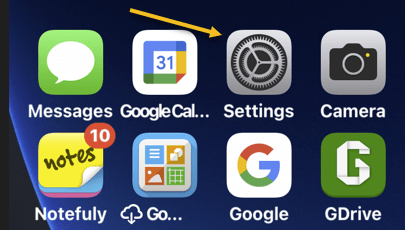
First, we need to make sure your iPhone or iPad has Start PiP Automatically enabled. To do so, open the Settings app. Refer to the below image:

PIP 1
Accessing Settings app

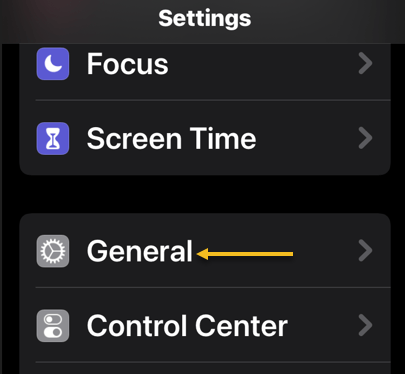
Next, go to General. See the below image:

PIP 2
Accessing General option

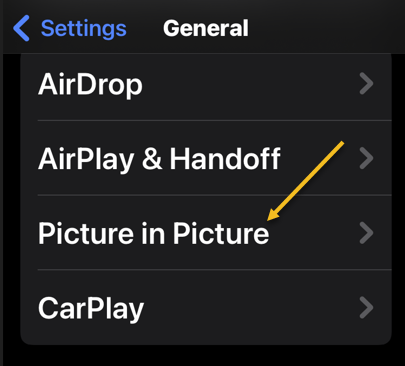
Now, select Picture in Picture. See the following image:

PIP 3
Accessing the Picture in Picture option

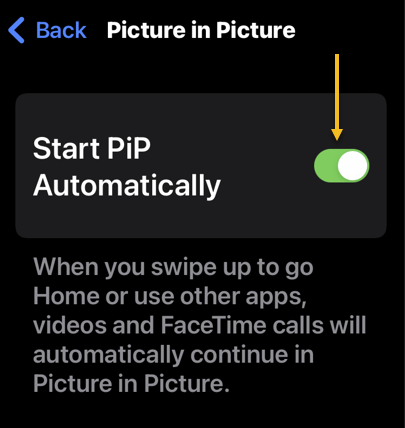
Next, make sure Start PiP Automatically is toggled to ON. Refer to the below image:

PIP 4
Enabling PiP

Using Picture-in-Picture

Using Picture-in-Picture mode is actually very easy. The feature is enabled by default once you get it. First, watch a video and swipe up on the bottom of the screen to go to your Home screen. The video will display the PiP mode. See the below image:

PIP 5
Your YouTube video

Next, if you want to double-check to make sure Picture-in-Picture is ON or turn it OFF, you can do so in the YouTube settings under:

Settings > General > Picture-in-Picture

and toggle it ON or OFF. See the following image:

PIP 6
Enabling Picture-in-Picture on YouTube

Picture-in-Picture is a great feature to have on a phone or tablet. Now you enjoy YouTube on your Apple device while being able to do other things at the same time.

Quote For the Day

Modern technology has become a total phenomenon for civilization, the defining force of a new social order in which efficiency is no longer an option but a neccisity imposed on all human activity.

Jacques Ellul

Tweet Info

You are finished. Please feel free to share this post! One way to share is via Twitter.

Just click the Tweet icon below. This will launch Twitter where you click its icon to post the Tweet.

Checkout TechSavvy.Life for blog posts on smartphones, PCs, and Macs! You may email us at contact@techsavvy.life for comments or questions.

I Would Like to Hear From You

Please feel free to leave a comment. I would love to hear from you. Do you have a computer or smart device tech question? I will do my best to answer your inquiry. Just send an email to contact@techsavvy.life. Please mention the device, app, and version you are using. To help us out, you can send screenshots of your data related to your question.

Author’s E-Book

You can access the e-book from a Kindle device, the Kindle App for the desktop or smartphone, which is a free app.

The author’s Vietnam eBook on the Battle for Tra Bong Vietnam: Events and Aftermath