How to Set Up Auto-Reply on iPhone’s Driving Focus

The Driving Focus feature on iPhones allows users to set personalized auto-replies for texts received while driving. This function, available in iOS 15 and newer versions, enables customized messages for specific contact groups. Adjustments can be made in the Settings app under Focus and Driving modes to enhance communication.

RAYMOND OGLESBY @RaymondOglesby2
December 16, 2025 – 4 minutes read time

The Driving Focus allows you to send a customized auto-reply text on your iPhone to friends and family, explaining that you are unable to respond right now, but in a friendly way without relying on cold, scripted replies.

Driving is currently the only Focus mode that can send an auto-reply text message on iPhone, but others may include this functionality in later updates. However, the iPhone’s auto-reply text does not indicate that it is from Driving Focus except through the default message, so you can easily customize the message to suit other times you might want to send automatic text replies from your iPhone.

Let’s dive into how to set up the automatic text reply on your iPhone!

  • Set an auto-reply message, so you never leave someone hanging when they text you while you are driving.
  • Apple’s scripted auto-reply messages can sound terse, but you can personalize your message to sound more like you!

This tip works on iPhones running iOS 15 or newer but is demonstrated on an iPhone 17 Pro running iOS 26.1.

Click here to learn how to update your iPhone to the latest iOS version.

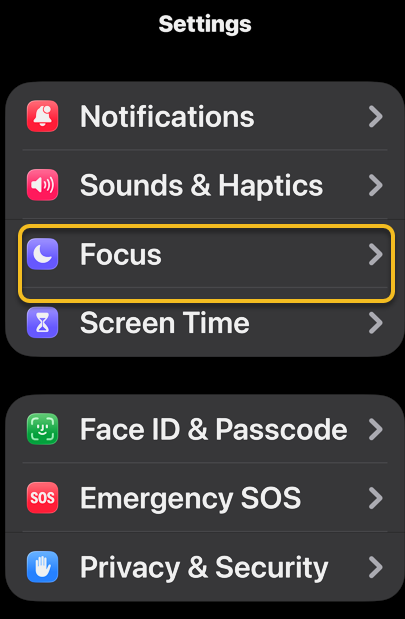
First, open Settings, and tap Focus. Refer to the image below:

Auto Reply 1
Selecting the Focus option

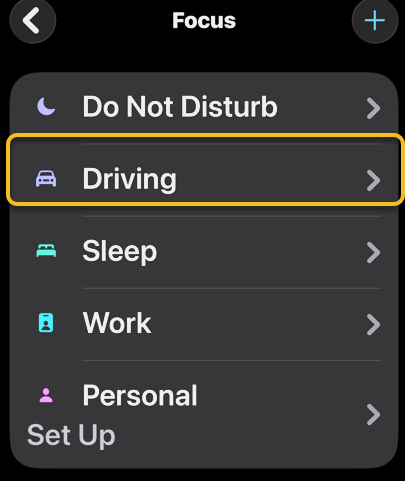
Bext, tap on Driving. If you do not see this option, you may have deleted it, so you’ will need to tap the Plus icon in the top right corner and select Driving. See the image below:

Auto Reply 2
Selecting the Driving option

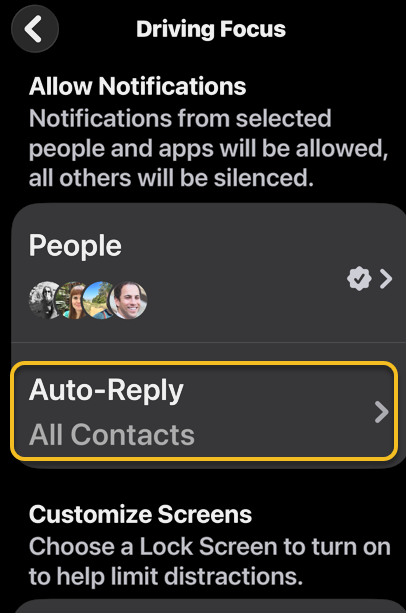
Now, tap Auto-Reply. see the following image:

Auto Reply 3
Selecting the Auto-Reply option

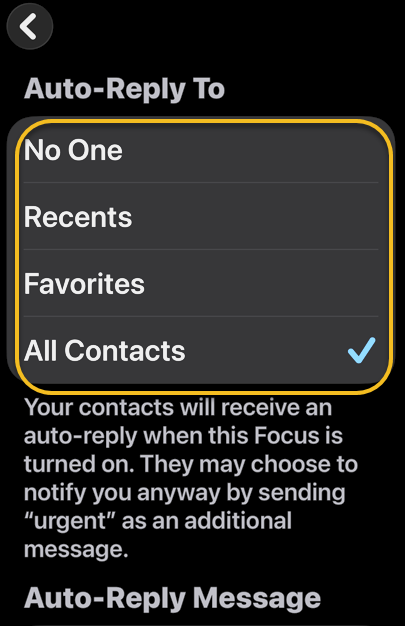
Next, chose who will receive your auto-replies: No OneRecentsFavorites, or All Contacts. If you select No One, Auto-Reply will be disabled. If you select Recents, contacts you’ve responded to within the last day will receive an auto-reply text when Focus is enabled. If yoselect Favorites, contacts in your Favorites list will receive an auto-reply text. If you select All Contacts, all of your contacts will receive an auto-reply text. Refer to the image below:

Auto Reply 4
Selecting who is to receive the auto-reply text

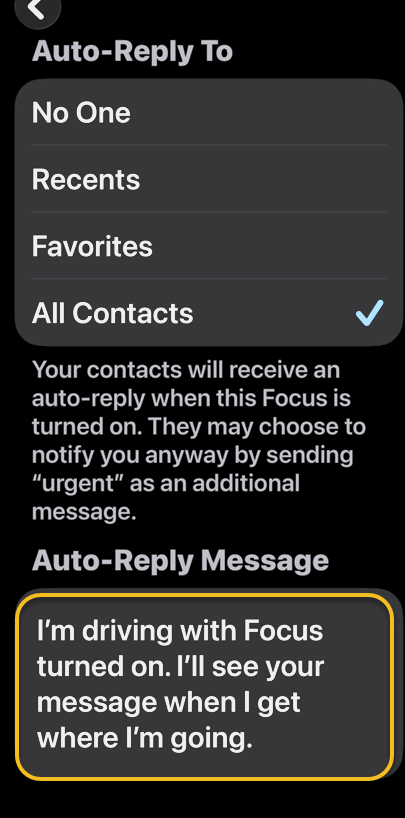
Now, edit the Auto-Reply Messageto say whatever you would like it to say. Your changes will be saved automatically, so you can leave the settings however you prefer. See the image below:

Auto Reply 5
Your auto-reply message

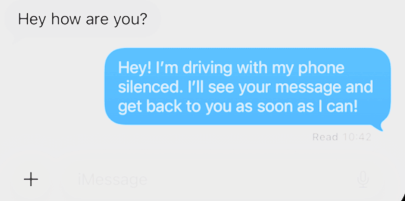
Next, when you receive a text while your Driving Focus mode is on, the auto-response text will be sent like a regular text message. See the following image:

Auto Reply 6
The auto-reply message sent to your recipients

Tip: If your Auto-Replies do not seem to be going out as intended, check the Settings for Messages and make sure the toggle next to Focus under Allow Messages to Access is turned on (green). If it’s off, it does not matter how your Focus is set up; no Auto-Reply will go out, no matter what happens.

That’s how to auto-respond to text messages on your iPhone. Now, whenever you enable the Driving Focus filter, the group of contacts you selected will receive your personalized auto-reply text when they try to contact you.

Technology is constantly evolving, and smartphone and desktop tech rarely remains static. Therefore, the information in this post is only accurate as of the date it was written. Blog posts that are older than six months may contain instructions that are no longer compatible with your device or operating system. We hope that the content from previous posts continues to function as intended. Thank you for reading TechSavvy.Life, where technology works for you.

“AI is probably the most important thing humanity has ever worked on.”

– Sundar Pichai, CEO of Alphabet and Google

That’s it. Please feel free to share this post! One way to share is via Twitter.

Just click the Tweet icon below. This will launch Twitter where you click its icon to post the Tweet.

Checkout TechSavvy.Life for blog posts on smartphones, PCs, and Macs! You may email us at contact@techsavvy.life for comments or questions.

We value your feedback! Was this post helpful? Please share your comments with us. If you have a tech question related to your computer or smart device, feel free to reach out. Just send an email to contact@techsavvy.life, and be sure to include the device, app, and version you are using. To assist us further, you can also attach screenshots related to your inquiry.

Author’s eBook

The author’s Vietnam eBook on the “Battle for Tra Bong Vietnam: Events and Aftermath” can be accessed from a Kindle device or the Kindle App for a desktop or smartphone. The apps are free.
The author’s Vietnam eBook on the Battle for Tra Bong Vietnam: Events and Aftermath

Fix Facebook Tagging Issues on iPhone

The post discusses issues with tagging friends on the Facebook app for iPhone, providing potential solutions like checking privacy settings, updating the app, clearing the cache, and adjusting user settings. It also suggests searching by username and using the “@” symbol to facilitate tagging. Overall, it emphasizes troubleshooting methods to resolve tagging issues effectively.

RAYMOND OGLESBY @RaymondOglesby2
December 2, 2025 –5 minutes read time

Recently Facebook on this iPhone quit tagging friends. We would type in a Facebook contact, and their name or a similar name would not pop up to tag in a post. Usually, as you type in a friend’s name, their name appears.

So we tried tagging Facebook friends on a desktop, and it worked just fine.

If you cannot tag friends on iPhone Facebook app, it’s likely due to their privacy settings, your cache, temporary app glitches, or an issue with your own settings.

Mote! We recommend you read entire post before diving in to fix the problem. We tried all methods listed below, only the last one worked.

Key Takeaways

  • Learn how to tag friends in a Facebook post.
  • Resolve Facebook not working correctly when tagging friends.
  • The best methods to force Facebook to tag friends.

System Requirements

This tip was performed on an iPhone 14 Pro running iOS 26.1

Click here to learn how to update your iPhone to the latest iOS version.

The most common reason is that the person you’re trying to tag has disabled the ability for others to tag them. They may also have a setting enabled that requires them to review and approve tags before they appear on their profile.

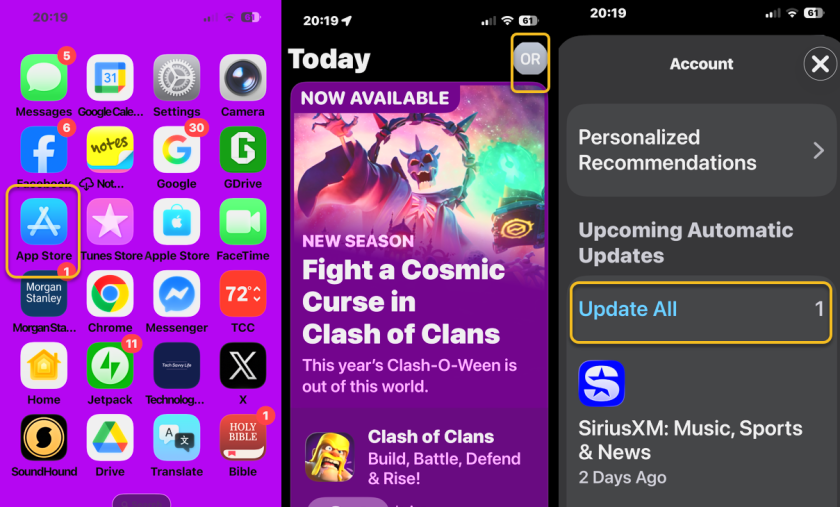
Make sure you have the latest version of the Facebook app installed on your iPhone. Old versions may contain bugs that affect features such as tagging.

  1. Open the App Store on your iPhone.
  2. Tap your profile icon or “My Account” button at the top right of the screen.
  3. Scroll down to the “Available Updates” or “Updates” section.
  4. Find Facebook in the list and tap the Update button next to it.
  5. If you do not see “Update,” tap  “Update All ” or check your other apps. 

Refer to the below image:

FB Tag 1
Selecting Update All option
  1. Go to your iPhone’s Settings.
  2. Tap App Store.
  3. Turn on the toggle next to App Updates under the “Automatic Downloads” section. 

A corrupted cache can cause various issues. Clearing it can resolve glitches that prevent tagging from working correctly.

This clears data for websites you’ve visited within the Facebook app. 

  1. Open the Facebook app.
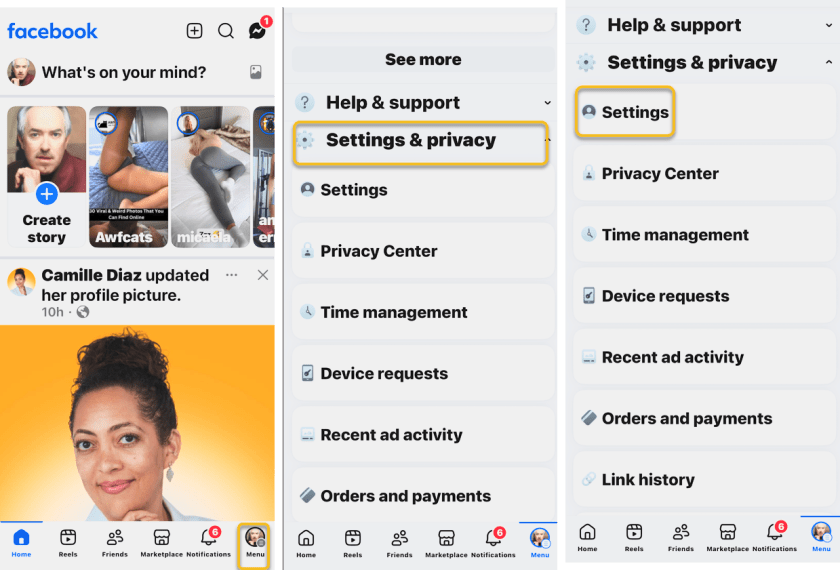
  2. Tap the menu icon (either your profile picture or three lines) and go to Settings & Privacy.
  3. Tap Settings.
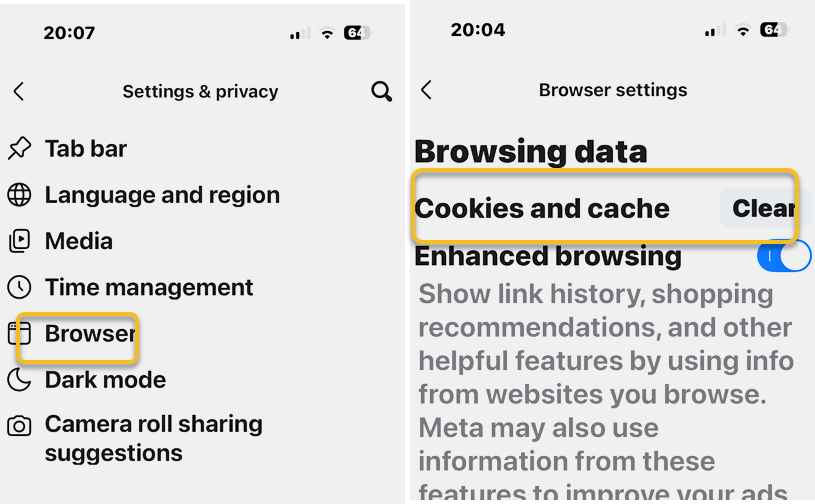
  4. Scroll to the “Preferences” section and tap Browser.
  5. Tap Clear next to “Cookies and cache” and confirm. 

See the below images:

FB Tag 2
Accessing Facebook Settings
FB Tag 2f
Selecting to Clear Cookies and cache
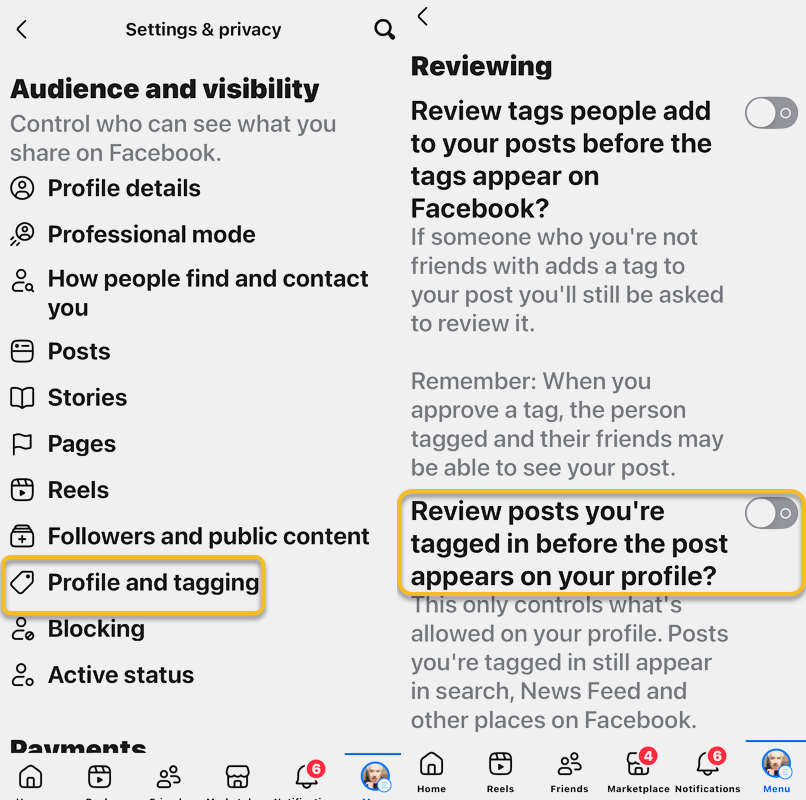
  • Profile and tagging: Go to your settings to review your “Profile and tagging” options. Ensure “Review posts you’re tagged in before they appear on your profile” is set to a level you’re comfortable with. Turning this OFF will allow tags to post automatically.

To find Settings for your personal profile:

  1. Open Facebook and tap the Menu or your profile picture in the top right or bottom right of the screen.
  2. Scroll down and select Settings & privacy, then tap Settings.
  3. Scroll down to the “Audience and visibility” section and tap Profile and tagging
  4. Set “Review posts you’re tagged in before the post appears on your profile” to OFF.

See the following image:

FB Tag 2
Accessing Facebook Settings
FB Tag 3
Turning off Preview posts option

The person who created the original post might have their own audience restrictions set up that prevent you from being visible in the post. Ask them to check the audience settings for their post.

If you are unable to find a friend by their display name, try searching for their unique username instead. 

Uninstall Facebook 

  1. Press and hold: the Facebook app icon on your home screen until a pop-up menu appears. 
  2. Tap “Remove App”. 
  3. Select “Delete App”. 
  4. Confirm the deletion to remove the app from your iPhone

Reinstall Facebook 

  1. Open the App Store on your iPhone. 
  2. Tap the Search tab in the bottom right corner. 
  3. Type “Facebook” in the search bar and tap Search
  4. Find and select the official Facebook app (from Meta). 
  5. Tap the download icon (a cloud with a down arrow) to begin reinstalling the app. 
  6. Wait for the download and installation to complete.
  7. Restart your iPhone
  8. Find the Facebook app on your home screen to sign back in. 
  • Use the @ symbol: Sometimes, simply typing  @ before a friend’s name can bring up the correct tag. This worked for us.

For example: @Raymond Oglesby

Technology is constantly evolving, and smartphone and desktop tech rarely remains static. Therefore, the information in this post is only accurate as of the date it was written. Blog posts that are older than six months may contain instructions that are no longer compatible with your device or operating system. We hope that the content from previous posts continues to function as intended. Thank you for reading TechSavvy.Life, where technology works for you.

“Technology is nothing. What’s important is that you have a faith in people.

– Steve Jobs, Co-founder of Apple Inc.

That’s it for this post. Please feel free to share this post! One way to share is via Twitter.

Just click the Tweet icon below. This will launch Twitter where you click its icon to post the Tweet.

Checkout TechSavvy.Life for blog posts on smartphones, PCs, and Macs! You may email us at contact@techsavvy.life for comments or questions.

We value your feedback! Was this post helpful? Please share your comments with us. If you have a tech question related to your computer or smart device, feel free to reach out. Just send an email to contact@techsavvy.life, and be sure to include the device, app, and version you are using. To assist us further, you can also attach screenshots related to your inquiry.

Author’s eBook

s The author’s Vietnam eBook on the “Battle for Tra Bong Vietnam: Events and Aftermath” can be accessed from a Kindle device or the Kindle App for a desktop or smartphone. The apps are free.
The author’s Vietnam eBook on the Battle for Tra Bong Vietnam: Events and Aftermath

Customize Email Summaries in iOS 26 Mail App

The iOS 26 Mail app’s new feature allows users to customize email summaries, ranging from one to five lines. Users can disable this preview feature if it isn’t useful. Instructions for adjusting these settings are provided.

RAYMOND OGLESBY @RaymondOglesby2
November 25, 2025 – 3 minutes read time

Some people love the Mail app Preview feature, while others want to know how to turn off Mail Preview.

The iOS 18 Mail app update included an Apple Intelligence feature that gives you email summaries. With iOS 26, you can shrink or enlarge those email summaries.

Here’s how to turn off Mail Preview, as well as how to change the length of the previews you see in the Mail app, so you can get a preview that’s actually helpful for you.

  • Choose anywhere from a one-line to a five-line summary of your emails in the Mail app.
  • Turn off email summaries if you do not find them useful.

This tip was performed on an iPhone 14 Pro running iOS 26.1.

Click here to learn how to update your iPhone to the latest iOS version.

First, open the Settings app. Refer to the image below:

Email Preview 1
Selecting the Settings app

Next, rap Apps option.See the image below:

Email Preview 2
Selecting the Apps option

Now, tap the Mail app,See the following image:

Email Preview 3
Selecting the Mail app

Next, scroll down and tap the Preview option.Refer to the image below:

Email Preview 4
Selecting the Preview option

Now, tap None1 Line2 Lines3 Lines4 Lines, or 5 Lines for your preview length. See the below image:

Email Preview 5
Selecting preview lines to display

Now you know how to turn off email previews or change the length of your iPhone and iPad email previews to anywhere from none to five lines.

Technology is constantly evolving, and smartphone and desktop tech rarely remains static. Therefore, the information in this post is only accurate as of the date it was written. Blog posts that are older than six months may contain instructions that are no longer compatible with your device or operating system. We hope that the content from previous posts continues to function as intended. Thank you for reading TechSavvy.Life, where technology works for you.

“First we build the tools, then they build us.”

Marshall McLuhan, Media Theorist

That’s it. Please feel free to share this post! One way to share is via Twitter.

Just click the Tweet icon below. This will launch Twitter where you click its icon to post the Tweet.

Checkout TechSavvy.Life for blog posts on smartphones, PCs, and Macs! You may email us at contact@techsavvy.life for comments or questions.

We value your feedback! Was this post helpful? Please share your comments with us. If you have a tech question related to your computer or smart device, feel free to reach out. Just send an email to contact@techsavvy.life, and be sure to include the device, app, and version you are using. To assist us further, you can also attach screenshots related to your inquiry.

Author’s eBook

The author’s Vietnam eBook on the “Battle for Tra Bong Vietnam: Events and Aftermath” can be accessed from a Kindle device or the Kindle App for a desktop or smartphone. The apps are free.
The author’s Vietnam eBook on the Battle for Tra Bong Vietnam: Events and Aftermath

Stop Spam Calls with iOS 26 Call Screening

iOS 26 introduces Call Screening, a feature designed to reduce spam calls by silencing unknown numbers and asking callers to identify themselves. Users can then decide to accept calls based on transcriptions of the caller’s responses. This feature, currently glitchy, is compatible with iPhone 14 Pro and newer plus iOS 26.

RAYMOND OGLESBY @RaymondOglesby2
November 18, 2025 – 3 minutes read time

Tired of getting spam calls? Well, the newest version of iOS has a feature that should alleviate the annoyance of spam: Call Screening. This useful tool will silence unknown callers and ask them to give their reason for calling, allowing you to decide whether you want to pick up the phone.

Call Screening on iPhone is an iOS 26 feature that silences incoming calls from unknown numbers and prompts the caller to provide their name and reason for calling. Then, your phone will ring and display a transcript of the caller’s answer, allowing you to easily decide whether or not you want to pick up the call. Let’s explore how to stop spam calls with Call Screening.

  • Never worry about spam again since you will always know who is calling.
  • Avoid picking up the phone without knowing the reason for the call.

This tip was performed on an iPhone 14 Pro running iOS 26.1. It does not work with earlier iOS versions.

Click here to learn how to update your iPhone to the latest iOS version.

First, open the Settings app and select Apps.Refer to the image below:

Call Screen 1
Selecting the Apps option

Next, find the Phone app in the list or use the search bar. See the image below:

Call Screen 2
Selecting the Phone app

Now, scroll down to Screen Unknown Callers, and select Ask Reason for Calling. See the following image.

Call Screen 3
Selecting the Ask Reason for Calling option

Next, when you receive a call from an unknown number, you should see a transcription of the caller’s name and reason for calling. Refer to the image below:

Call Screen 4
Call Screening message

Note! This feature has been glitchy, so if you experience problems getting Call Screening to work, you are not alone. We expect the feature to become more stable with future iOS updates.

That’s how to turn on Call Screening on the iPhone! Whether you have phone anxiety or you are just tired of receiving spam calls, this feature is sure to come in handy.

Technology is constantly evolving, and smartphone and desktop tech rarely remains static. Therefore, the information in this post is only accurate as of the date it was written. Blog posts that are older than six months may contain instructions that are no longer compatible with your device or operating system. We hope that the content from previous posts continues to function as intended. Thank you for reading TechSavvy.Life, where technology works for you.

“We’re entering a world where anyone can create, connect, and collaborate—and that’s changing everything.”

 – Reid Hoffman, Co-founder of LinkedIn

IYou are finished. Please feel free to share this post! One way to share is via Twitter.

Just click the Tweet icon below. This will launch Twitter where you click its icon to post the Tweet.

Checkout TechSavvy.Life for blog posts on smartphones, PCs, and Macs! You may email us at contact@techsavvy.life for comments or questions.

We value your feedback! Was this post helpful? Please share your comments with us. If you have a tech question related to your computer or smart device, feel free to reach out. Just send an email to contact@techsavvy.life, and be sure to include the device, app, and version you are using. To assist us further, you can also attach screenshots related to your inquiry.

Author’s eBook

The author’s Vietnam eBook on the “Battle for Tra Bong Vietnam: Events and Aftermath” can be accessed from a Kindle device or the Kindle App for a desktop or smartphone. The apps are free.
The author’s Vietnam eBook on the Battle for Tra Bong Vietnam: Events and Aftermath

Quick Tips to Unsend Emails in iPhone Mail

The post discusses how to unsend emails on iPhones running iOS 16 or later, allowing users up to 30 seconds to retract a sent email. It outlines steps for using the Mail app and adjusting the “Undo Send Delay” setting for a longer timeframe. This feature helps prevent embarrassment and confusion.

RAYMOND OGLESBY @RaymondOglesby2
November 11, 2025 –4 minutes read time

Have you ever tapped send and immediately realized something was wrong with your email? We have all been there. You can unsend an email on your iPhone if you recognize your mistake within a set time. This can save you a lot of embarrassment and the pain of having to write a follow-up correction email.

If you change your mind after tapping send on an email, iOS 16 and later has your back. If you wish to unsend an email that you sent via the Mail app, you have up to 30 seconds to do so.

  • Learn how to take back an email you wish you had not sent.
  • Avoid conflict, confusion, or embarrassment by unsending emails.
  • Change the timeframe you have to unsend emails, from 10, 20, pr 30 seconds.

This tip works on iPhones running iOS 16 or later. Screenshots are from iPhone 14 Pro running iOS 26.1.

Click here to learn how to update your iPhone to the latest iOS version.

First, open the Mail app on your iPhone. Refer to the below image:

Unsend Email 1
Selecting the Mail app

Next, draft an email and select a recipient; you can create a practice one to send to yourself. See the image below:

Unsend Email 2
Drafting an email to myself

Now, tap Send. See the following image:

Unsend Email 3
Sending the email

Next, depending on your iOS version, you will see an Undo Send button at the top or bottom of your phone. Tap it to stop the email from sending. Refer to the image below:

Unsend Email 4
Unsending the email

Now, after you stop the email from sending, your Mail app will open the draft again, so you can edit it and resend if necessary.

Tip: While this feature is new to the Mail app, other email apps, such as Gmail, have a longer unsending period.

If you wait longer than 10 seconds, you will not be able to unsend the email unless you change the Mail Undo Send Delay in your settings. You can unsend an email regardless of whether the recipient has an iPhone or is running the latest software.

If you would like to give yourself some more time to unsend an email, you can do so in the settings:

First, open Settings. See the below image:

Unsend Email 5
Selecting Settings

Next, in iOS 18 or later, tap Apps. See the following image:

Unsend Email 6
Selecting Apps

Now, tap Mail. Refer to the image below:

Unsend Email 7
Selecting the Mail app

Next, scroll to the bottom and tap Undo Send Delay. See the image below:

Unsend Email 8
Selecting Undo Send Delay option

Now, you can pick between Off, 10 Seconds, 20 Seconds, and 30 Seconds. Tap one to select it. See the following image:

Unsend Email 9
Selecting a delay of 30 seconds

We like to do 30 seconds because it usually takes us a while to realize we made a mistake, so the more time we have, the better. We wish this could be even longer!

Technology is constantly evolving, and smartphone and desktop tech rarely remains static. Therefore, the information in this post is only accurate as of the date it was written. Blog posts that are older than six months may contain instructions that are no longer compatible with your device or operating system. We hope that the content from previous posts continues to function as intended. Thank you for reading TechSavvy.Life, where technology works for you.

“We don’t do things differently. We do different things.”

– Steve Jobs, Visionary Entrepreneur

That’s it. Please feel free to share this post! One way to share is via Twitter.

Just click the Tweet icon below. This will launch Twitter where you click its icon to post the Tweet.

Checkout TechSavvy.Life for blog posts on smartphones, PCs, and Macs! You may email us at contact@techsavvy.life for comments or questions.

We value your feedback! Was this post helpful? Please share your comments with us. If you have a tech question related to your computer or smart device, feel free to reach out. Just send an email to contact@techsavvy.life, and be sure to include the device, app, and version you are using. To assist us further, you can also attach screenshots related to your inquiry.

Author’s eBook

The author’s Vietnam eBook on the “Battle for Tra Bong Vietnam: Events and Aftermath” can be accessed from a Kindle device or the Kindle App for a desktop or smartphone. The apps are free.
The author’s Vietnam eBook on the Battle for Tra Bong Vietnam: Events and Aftermath

How to Enable Adaptive Power Mode on iOS 26

Apple’s new Adaptive Power mode in iOS 26 optimizes battery life by dynamically adjusting performance and resource allocation based on usage, unlike the Low Power Mode. It’s easy to enable on iPhone 15 Pro or later, requiring seven days to learn charging habits. This feature balances battery preservation with device performance effectively.

RAYMOND OGLESBY @RaymondOglesby2
November 4, 2025 – 4 minutes read time

One of the best practical uses of Apple Intelligence is the new Adaptive Power mode. Adaptive Power mode, new in iOS 26, allows your phone to adjust its resources and performance to optimize battery life during high-power use. It’s easy to turn on, and then you just let your iPhone do the rest.

Adaptive Power Mode enables your phone to adjust idoing things like automatically dimming your screen or slightly slowing down some apps. Unlike Low Power Mode, this mode does not go into power-saving measures 100% of the time. So, you can toggle this on and leave it running all the time, preserving performance when your phone is not working as hard and helping you prevent battery drain well before the little icon turns red. Let’s explore how to enable Adaptive Power Mode:

  • Find the perfect balance between performance and battery saving.
  • Allow your phone to adjust its settings based on your current usage.

This tip requires an iPhone 15 Pro or later running iOS 26. If you do not see the Power Mode option, you are using an older iPhone.

Click here to learn how to update your iPhone to the latest iOS version.

First. Ipen your Settings app. Refer to the image below:

Battery 1
Selecting Settings

Next, tap Battery. See the image below:

Battery 2
Selecting the Battery option

Now, tap Power Mode. See the following image:

Battery 3
Selecting Power Mode option

Next toggle on Adaptive Power. Refer to the image below:

Battery 4
Selecting Adaptive Power option

Now, tap the back arrow to return to Settings. See the image below:

Battery 5
Saving your setting

Note! Adaptive Power needs at least seven days to learn your charging habits, so it will not engage before then.

Now your iPhone will adjust its performance to optimize your battery when needed. If you want to turn this feature off, just follow the above steps and toggle Adaptive Power off instead.

Technology is constantly evolving, and smartphone and desktop tech rarely remains static. Therefore, the information in this post is only accurate as of the date it was written. Blog posts that are older than six months may contain instructions that are no longer compatible with your device or operating system. We hope that the content from previous posts continues to function as intended. Thank you for reading TechSavvy.Life, where technology works for you.

When you innovate, you’ve got to be prepared for everyone telling you you’re nuts.” 

– Larry Ellison, Co-founder of Oracle

That’s it. Please feel free to share this post! One way to share is via Twitter.

Just click the Tweet icon below. This will launch Twitter where you click its icon to post the Tweet.

Checkout TechSavvy.Life for blog posts on smartphones, PCs, and Macs! You may email us at contact@techsavvy.life for comments or questions.

We value your feedback! Was this post helpful? Please share your comments with us. If you have a tech question related to your computer or smart device, feel free to reach out. Just send an email to contact@techsavvy.life, and be sure to include the device, app, and version you are using. To assist us further, you can also attach screenshots related to your inquiry.

Author’s eBook

The author’s Vietnam eBook on the “Battle for Tra Bong Vietnam: Events and Aftermath” can be accessed from a Kindle device or the Kindle App for a desktop or smartphone. The apps are free.
The author’s Vietnam eBook on the Battle for Tra Bong Vietnam: Events and Aftermath

How to Quickly Lock Your iPhone Screen Orientation

This post discusses how to easily enable and disable the Portrait Orientation Lock on iPhones and iPads via the Control Center. It explains the significance of locking screen orientation to prevent unwanted rotations when switching device positions. Tips are provided for troubleshooting issues with screen orientation.

RAYMOND OGLESBY @RaymondOglesby2
October 21, 2025 –3 minutes read time

It’s super convenient to be able to rotate your screen from portrait to landscape mode automatically, as well as lock it later when you need to. Luckily, both the iPhone’s and iPad’s screen rotation lock buttons are easily accessible via the Control Panel. With the Orientation Lock enabled, you can keep your screen from adjusting regardless of whether the device is rotated vertically or horizontally.

What does “portrait orientation lock” mean? The Portrait Orientation Lock button is located in the Control Center. When it is on, your iPhone or iPad will not automatically rotate. If you get annoyed when your iPhone or iPad screen flips and flops around every time you shift positions, this is the tip for you. Let’s explore how to rotate the screen on your iPhone and iPad.

  • Learn how to quickly access the Portrait Orientation lock to enable or disable automatic screen rotation.
  • Lock your screen’s orientation as horizontal or vertical so you can read or watch videos on your devices in any position.

This tip was performed on an iPhone 14Pro running iOS 26.

Click here to learn how to update your iPhone to the latest iOS version.

First, from the Home Screen of your iPhone, swipe down from the top right to access the Control Panel.

Note! Your Control Center will likely look different from the one in the screenshots below. We have customized the Control Center and rearranged the icons.

Refer to the image below:

Portrait 1
Scrolling down from the top right to access the Control Panel

Next, the Portrait Orientation Lock is the button with a round arrow containing a lock. It will be gray when disabled. This means your iPhone will automatically rotate according to how you are holding it. See the image below:

Portrait 2
Selecting the Orientation Lock option

To lock your screen orientation, tap  Portrait Orientation Lock. It will be white when enabled. See the following image:

Portrait 3
Orientation Lock is enabled

With your iPhone rotation lock enabled, your screen will no longer rotate when you turn your phone sideways unless you use an app that only has landscape mode. Using the iPhone orientation lock will prevent apps that offer both modes from auto-rotating. However, apps that are only available in landscape mode will not switch to portrait mode.

But what does the rotation lock button look like on my iPad? Well, the steps are essentially the same on the iPad. Just open your iPad’s Control Center and look for the circular arrow icon.

If you find your iPhone stuck on landscape mode, try turning the lock on and off until it rotates again. If you keep experiencing problems, restarting your iPhone should help.

Technology is constantly evolving, and smartphone and desktop tech rarely remains static. Therefore, the information in this post is only accurate as of the date it was written. Blog posts that are older than six months may contain instructions that are no longer compatible with your device or operating system. We hope that the content from previous posts continues to function as intended. Thank you for reading TechSavvy.Life, where technology works for you.

“Cybersecurity is much more than an IT topic—it’s a business imperative.” 

– Raj Samani, Chief Scientist at Rapid7

That’s it. Please feel free to share this post! One way to share is via Twitter.

Just click the Tweet icon below. This will launch Twitter where you click its icon to post the Tweet.

Checkout TechSavvy.Life for blog posts on smartphones, PCs, and Macs! You may email us at contact@techsavvy.life for comments or questions.

We value your feedback! Was this post helpful? Please share your comments with us. If you have a tech question related to your computer or smart device, feel free to reach out. Just send an email to contact@techsavvy.life, and be sure to include the device, app, and version you are using. To assist us further, you can also attach screenshots related to your inquiry.

Author’s eBook

The author’s Vietnam eBook on the “Battle for Tra Bong Vietnam: Events and Aftermath” can be accessed from a Kindle device or the Kindle App for a desktop or smartphone. The apps are free.
The author’s Vietnam eBook on the Battle for Tra Bong Vietnam: Events and Aftermath

How to Use the Camera Level on Your iPhone

The iPhone Camera app includes a helpful Camera Level feature that ensures photos are straight by displaying a leveling indicator on the screen. It automatically adjusts for landscape or portrait orientations and disappears when intentionally off-level. To enable it, access the Camera settings and toggle the Level option on.

RAYMOND OGLESBY @RaymondOglesby2
October 14, 2025 – 3 minutes read time

A cool feature in the Camera app is the Camera Level. What is the level on the iPhone camera? It appears on the iPhone screen as you are taking your photo. The level will help you ensure that the photos you take are as straight as possible without obstructing too much of the picture while you’re taking it.

The level feature is really helpful and simple to use. One of the cool things about it is that it understands whether you’re taking the image in landscape or portrait and will automatically adjust. It also disappears if the photo you are taking is intentionally off-level. Let’s explore how to enable the level on the iPhone camera:.

  • Always take level photos with the leveler right on the screen in the Camera app.
  • Instead of straightening your image in the editing process, take the photo straight the first time.

This tip was performed on an iPhone 14 Pro running iOS 18.7.

Click here to learn how to update your iPhone to the latest iOS version.

Durst, open your iPhone, open the Settings app, and tap Camera. Refer to the image below:

Camera 1
Accessing the Camera app

Next, under the Composition section, tap the Level toggle to the ON position.

Note! To experience the grid feature, you can enable the Grid toggle from this screen.

See the image below:

Camera 2
Enabling the Camera Level toggle

Now, open the Camera app. See the following image:

Camera 3
Selecting the Camera app

Next, the Camera Level will appear as a white line.

Note! The level will only appear if you are holding the camera upright; if you are taking a bird’s eye view picture, a cross will appear to help you hold your phone level.

Refer to the image below:

Camera 4
Align your photo

Now, when the corners turn yellow and do not shake, you will know the image is level. Additionally, a slight vibration may indicate that it is level. You can now take your shot. See the image below:

Camera 5
Take your photo

That’s how to adjust the iPhone Camera Level setting! Now you can make sure all your photos are perfectly level.

Technology is constantly evolving, and smartphone and desktop tech rarely remains static. Therefore, the information in this post is only accurate as of the date it was written. Blog posts that are older than six months may contain instructions that are no longer compatible with your device or operating system. We hope that the content from previous posts continues to function as intended. Thank you for reading TechSavvy.Life, where technology works for you.

“Technology should improve your life, not become your life.”

“Technology should improve your life, not become your life.”

That was easy. Please feel free to share this post! One way to share is via Twitter.

Just click the Tweet icon below. This will launch Twitter where you click its icon to post the Tweet.

Checkout TechSavvy.Life for blog posts on smartphones, PCs, and Macs! You may email us at contact@techsavvy.life for comments or questions.

We value your feedback! Was this post helpful? Please share your comments with us. If you have a tech question related to your computer or smart device, feel free to reach out. Just send an email to contact@techsavvy.life, and be sure to include the device, app, and version you are using. To assist us further, you can also attach screenshots related to your inquiry.

Author’s eBook

The author’s Vietnam eBook on the “Battle for Tra Bong Vietnam: Events and Aftermath” can be accessed from a Kindle device or the Kindle App for a desktop or smartphone. The apps are free.
The author’s Vietnam eBook on the Battle for Tra Bong Vietnam: Events and Aftermath

Quick Access to Apple Wallet on iPhone Lock Screen

The article explains how to quickly access Apple Wallet from the iPhone Lock Screen using the double-click side button shortcut. This feature allows users to make contactless payments and retrieve passes without needing to pull out a physical wallet. It also requires setup of Apple Pay and verification through Face ID.

RAYMOND OGLESBY @RaymondOglesby2
October 7, 2025 – 4 minutes read time

Did you know you can open Apple Wallet from the iPhone Lock Screen? With this Apple Pay shortcut, you can access your saved cards plus the passes and loyalty cards found in your Apple Wallet quickly, so you can get ready to make a payment or bring up your boarding pass while you wait in line.

Let’s explore how to pull up Apple Pay from your Lock Screen.

Before we learn how to set up and then how to access Apple Wallet from the Lock Screen, make sure you have gone over how to set up Apple Pay and how to change your Apple Pay Payment preferences. When you have this set up, you can pay at any establishment that accepts Apple Pay, without ever pulling out your wallet!

  • Get quick access to your payment methods for no-contact payment.
  • Quickly pull up your boarding passes, concert tickets, discount cards, and more.

This tip was performed on an iPhone 14 Pro running iOS 18.6.

Click here to learn how to update your iPhone to the latest iOS version.

First, open the Settings app. Refer to the image below:

Wallet
Selecting the Settings app

Next, scroll down and tap Wallet & Apple Pay. See the image below:

Wallet 2
Selecting Wallet & Apple Pay option

Now, ensure the toggle next to Double-Click Side Button is enabled. See the following image:

Wallet 3
Enable Double-Click Side Button toggle

Next, when you want to access the Wallet app from the Lock Screen on an iPhone, all you need to do is double-click the side button. Refer to the image below:

Wallet 4
Access the wallet by a double-click of the Side button

Now, you will need to verify with Face ID. See the image below:

Wallet 5
Verify access with Face ID

Next, once unlocked, you will be prompted to hold your phone up to the card reader. See the following image:

Wallet 6
Hold phone to card reader to pay

You do not have to be on the Lock Screen to invoke Apple Pay. This double-click action works anywhere, whether you are scrolling Facebook, responding to a text, or snapping a photo.

That’s how to access your wallet on the iPhone’s Lock Screen. Your days of fumbling in your purse or physical wallet for your credit cards are over, and you should be ready to use this Apple Wallet shortcut from your Lock Screen at a moment’s notice. Keep in mind that if you do not have a credit or debit card set up for Apple Pay, this will not open the app.

Technology is constantly evolving, and smartphone and desktop tech rarely remains static. Therefore, the information in this post is only accurate as of the date it was written. Blog posts that are older than six months may contain instructions that are no longer compatible with your device or operating system. We hope that the content from previous posts continues to function as intended. Thank you for reading TechSavvy.Life, where technology works for you.

“If you double the number of experiments you do per year, you’re going to double your inventiveness.” 

” – Jeff Bezos, Founder of Amazon

That’s it. Please feel free to share this post! One way to share is via Twitter.

Just click the Tweet icon below. This will launch Twitter where you click its icon to post the Tweet.

Checkout TechSavvy.Life for blog posts on smartphones, PCs, and Macs! You may email us at contact@techsavvy.life for comments or questions.

We value your feedback! Was this post helpful? Please share your comments with us. If you have a tech question related to your computer or smart device, feel free to reach out. Just send an email to contact@techsavvy.life, and be sure to include the device, app, and version you are using. To assist us further, you can also attach screenshots related to your inquiry.

Author’s eBook

The author’s Vietnam eBook on the “Battle for Tra Bong Vietnam: Events and Aftermath” can be accessed from a Kindle device or the Kindle App for a desktop or smartphone. The apps are free.
The author’s Vietnam eBook on the Battle for Tra Bong Vietnam: Events and Aftermath

Quickly Add Items to Grocery List with Siri

This post discusses how to use Siri to add items to grocery and other specific lists in the Reminders app hands-free. By enabling voice commands, users can quickly create reminders without opening the app. The post also highlights the importance of keeping organized lists and adapting to technology changes.

RAYMOND OGLESBY @RaymondOglesby2
September 30, 2025 –4 minutes read time

We usually only remember to add salt to our Grocery List when we are using the last of it at dinner. That means, by the time we are writing our shopping list, we have usually forgotten all about it! Fortunately, we can ask Siri to add items to our Grocery List in the Reminders app without interrupting what we are doing! If you want the reminder added to a different list, that’s possible too. You just have to phrase your request a little differently.

Using Siri to add items to specific lists is pretty handy, as it’s faster than manually opening the Reminders app and adding them yourself. We like to use Siri to quickly add items to our Grocery List when we notice we are running low on something. Let’s explore how to use Siri to add reminders to specific lists.

  • Quickly add items to your Grocery list in Reminders hands-free.
  • Build your list without having to open the app.
  • Add items to lists on the go, so you do not forget by the time you’re sitting down to write your shopping list.

This tip was run on an iPhone 14 Pro using iOS 18.6.
Click here to learn how to update your iPhone to the latest iOS version.

First, to type in a response to Siri, you need to enable the feature. Head to:

Settings > Accessibility > Siri

and turn the toggle Type to Siri to the ON position. Refer to the image below:

Grocery 1
Setting Type to Siri option

Next, lets enable the Side button to activate Siri. Head to:

Settings> Siri > Talk to Siri

and turn the toggle Press Side Button for Siri to the ON position. See the image below:

Grocery 2
Setting Press Side Button for Siri option

Now, activate Siri by saying “Siri”/”Hey Siri,” or by pressing and holding the Side button. Then, simply say or type, “Add [item] to [list name].” For example, we told Siri, “Add eggs to grocery list.” Once the item has been added, a confirmation window will appear. You can tap the confirmation window to open the list and manually make any desired changes. See the following image:

Grocery 3
Adding an item to the Grocery List

This also works with more than just grocery lists. If you want the reminder added to a specific Reminders list, instead of saying, “Hey Siri, remind me to grocery shop,” say something like, 

  • “Siri add grocery shopping to my Personal Reminders list,” or 
  • Add Bass pro shop to my Monthly bills list,” instead.

Note! If the list does not exist, Siri will prompt you to create it. In our example, if the Monthly bills list does not exist, you can make it, and then the item will be added.

Refer to the image below:

Grocery 4
Creating a new list and adding an item to it

Next, open your Reminders app to view your Grocery and Monthly bills lists. See the image below:

Grocery 5
Viewing your lists

If you have multiple reminders list that you like to keep organized, quickly using Siri to add reminders to a list is a great way to do that.

Technology is constantly evolving, and smartphone and desktop tech rarely remains static. Therefore, the information in this post is only accurate as of the date it was written. Blog posts that are older than six months may contain instructions that are no longer compatible with your device or operating system. We hope that the content from previous posts continues to function as intended. Thank you for reading TechSavvy.Life, where technology works for you.

“The best minds of my generation are thinking about how to make people click ads.”

– Jeff Hammerbacher, Data Scientist and Co-founder of Cloudera

You are finished. Please feel free to share this post! One way to share is via Twitter.

Just click the Tweet icon below. This will launch Twitter where you click its icon to post the Tweet.

Checkout TechSavvy.Life for blog posts on smartphones, PCs, and Macs! You may email us at contact@techsavvy.life for comments or questions.

We value your feedback! Was this post helpful? Please share your comments with us. If you have a tech question related to your computer or smart device, feel free to reach out. Just send an email to contact@techsavvy.life, and be sure to include the device, app, and version you are using. To assist us further, you can also attach screenshots related to your inquiry.

Author’s eBook

The author’s Vietnam eBook on the “Battle for Tra Bong Vietnam: Events and Aftermath” can be accessed from a Kindle device or the Kindle App for a desktop or smartphone. The apps are free.
The author’s Vietnam eBook on the Battle for Tra Bong Vietnam: Events and Aftermath