Facebook can feel a little overwhelming. What if you miss a post and you can not find it later? Thankfully, Facebook has a bookmarking feature to help you keep track of things and save them for later.
You can save shared links, posts, photos, videos, and even pages and events. These things can all be organized into Collections. Let’s explore how to do this.
This is for iPhone, iPad, and Android using Facebook
Copyright Scott Adams, Inc./Distributed by Universal Uclick for UFS
How to Save Facebook Posts
First, find any Facebook post you would like to save. Tap or click the three-dot hambuger icon in the upper right-hand corner of the post. Refer to below image:
Accessing the hamburger icon for a post
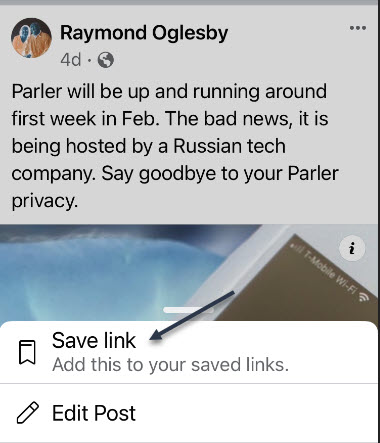
Next, select Save Post (or Save Event, Save Link, etc). In my example I am saving a link. See below image:
Accessing Save link option
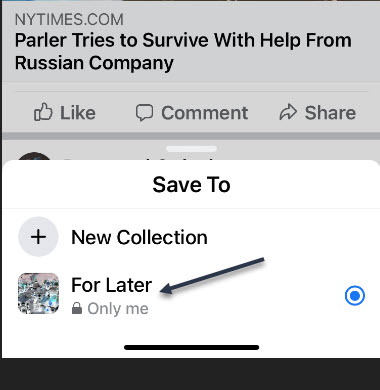
After you select Save Post or Link, etc, you will immediately get the choice to save it to a collection or create a new one. See following image:
Saving the link to collection For Later
How to Access Facebook Posts
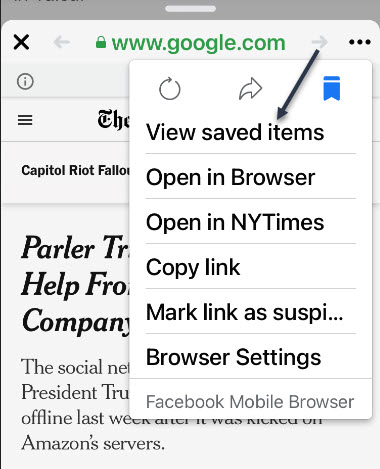
Now, you will need to open the post (if it is a link) and tap the hamburger icon. Next, select View Saved Items. Refer to below image:
Accessing View saved items option
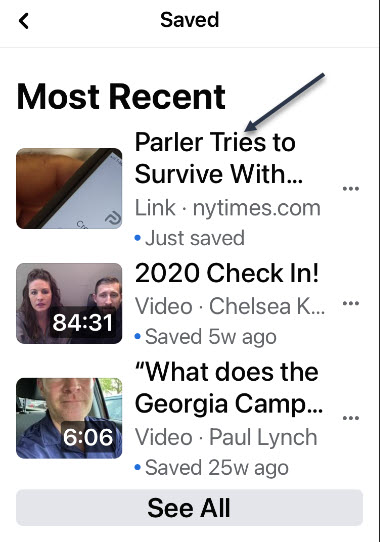
The most recent items will appear at the top, and Collections can be found underneath. See below image:
Listing of your most recent saves
Thje steps are similar for your desktop version of Facebook. That’s it! This is a nice little trick to save posts you enjoyed or to remember to read something later.
Just click the Tweet icon below. This will launch Twitter where you click its icon to post the Tweet.
Check out TechSavvy.Life for blog posts on smartphones, PCs, and Macs! You may email us at contact@techsavvy.life for comments or questions.
Please feel free to leave a comment. I would love hearing from you. Do you have a computer or smart device tech question? I will do my best to answer your inquiry. Just send an email to contact@techsavvy.life. Please mention the device, app and version that you are using. To help us out, you can send screenshots of your data related to your question.

The author’s Vietnam eBook on the Battle for Tra Bong: Events and Aftermath
If you are like me, you are not too keen on being tracked. So when an app asks you if it can track your iPhone activity across other programs and websites for ads, the answer is pretty much always “NO”. If you are tired of choosing Ask App Not to Track over and over again, there is a way to stop apps from even being able to ask in the first place.
While the setting was available in earlier versions of iOS 14, it was not useful because developers were not required to ask for tracking permission until iOS 14.4. So if you are not running iOS 14.4 or later, you may see the setting, but you will not get any tracking requests from apps.
With one system-wide setting disabled, most of the apps on your iPhone will not be able to (or are not supposed to) track your activity across other apps and websites.
But, permission is not a hard and fast rule. According to Apple, some apps might try to track you without getting the “OK” from you first.
With that in mind, let us explore this “not asking” feature.
This is for iPhone and iPad running iOS or iPadOS 14.4+
Copyright Scott Adams, Inc./Distributed by Universal Uclick for UFS
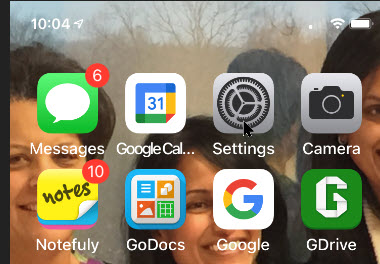
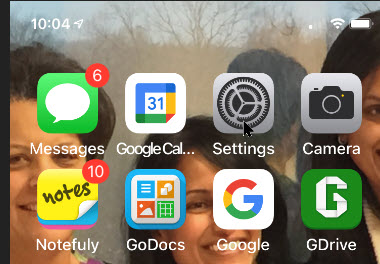
First, open Settings (the gear icon) on your iPhone or iPad. Refer to below image:
Accessing Settings
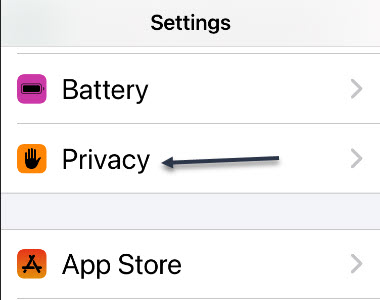
Next, scroll down to the Privacy option and tap it. See below image:
Accessing Privacy option
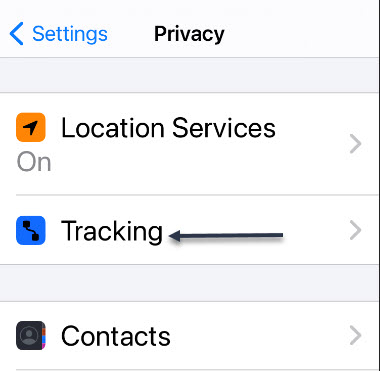
Now, tap Tracking near the top of your screen. See following image:
Accessing Tracking option
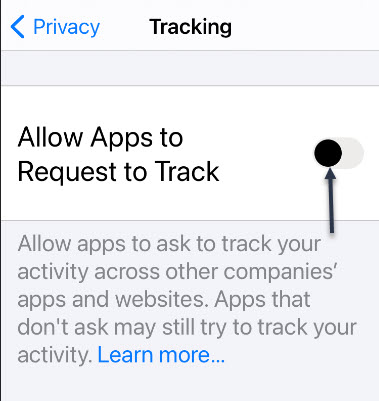
Next, tap the toggle beside Allow Apps to Request to Track to turn it off (to the left position). Refer to below image:
Disabling Request to Track option
Now, exit Settings. From now on, apps will no longer pop-up requests asking to track you. This means that you are telling all apps not to profile you for targeted advertising; unless you have previously given them permission to do so.
To change which apps can track you for targeted advertising individually, follow the above steps and turn off the toggles beside any app listed there. It is important to note that even with this option disabled, you can still be tracked while using the web on your iPhone or iPad.
That’s it. Please feel free to share this post! One way to share is via Twitter.
Just click the Tweet icon below. This will launch Twitter where you click its icon to post the Tweet.
Check out TechSavvy.Life for blog posts on smartphones, PCs, and Macs. You may email us at contact@techsavvy.life for comments or questions.
Please feel free to leave a comment. I would love hearing from you. Do you have a computer or smart device tech question? I will do my best to answer your inquiry. Just send an email to contact@techsavvy.life. Please mention the device, app and version that you are using. To help us out, you can send screenshots of your data related to your question.

The author’s Vietnam eBook on the Battle for Tra Bong: Events and Aftermath
If your iPhone or iPad is displaying contact names differently than what you want, like last name before the first name (or vice versa,) you can fix it. This will change how names appear in Mail, Messages, Phone, Contacts, and other apps that follow this setting.
This is for iPhone and iPad
Copyright Scott Adams, Inc./Distributed by Universal Uclick for UFS
First, launch Settings (the gear icon). Refer to below image:
Accessing Settings
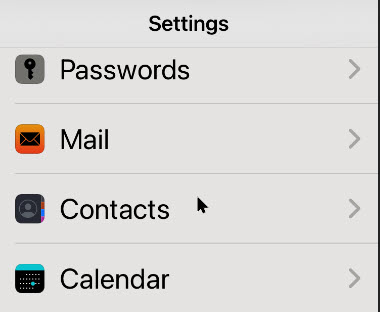
Next, scroll down to the Contacts option and tap it. See below image:
Accessing Contacts option
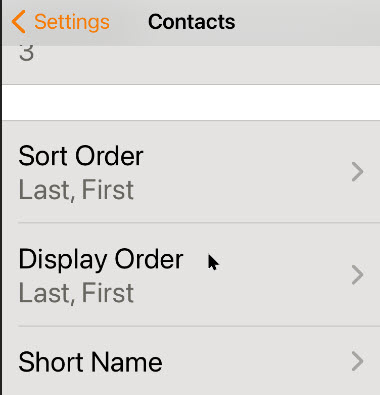
Now, in the Contacts settings, tap Display Order. See following image:
Accessing Display Order option
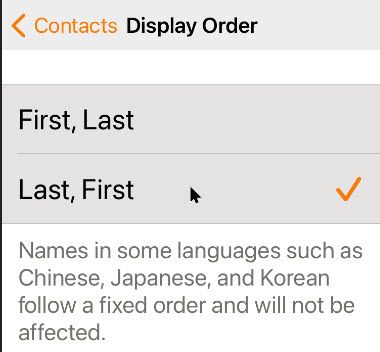
In Display Order you have two choices. Choose whichever one you prefer. Refer to below image:
Selecting your Display Order preference
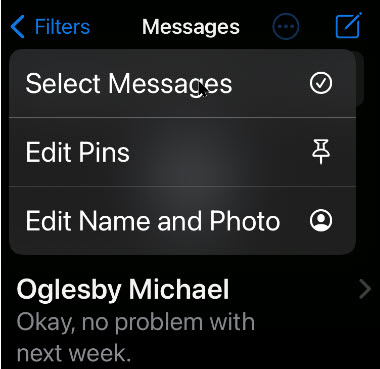
The Short Name feature in the Contacts settings also determines how you will see names in apps such as Mail. With Short Name enabled, the app may display only a first name instead of the full name order you just set. See below image:
Accessing Short Name option
By default, Short Name is enabled. If you would like to see a full name with the order you just chose instead, tap the switch to turn Short Name off. See following image:
Enable/disable Short Name option
Now, tap Back once, then exit Settings.
The next time you use an app that pulls information from your contacts (like Apple’s Mail app), you will see the names in the order you just set. If you do not see the changes reflected yet, you might need to exit the application first so it can reload the settings. Then, tap the app icon to launch it again.
You are finished. Please feel free to share this post! One way to share is via Twitter.
Just click the Tweet icon below. This will launch Twitter where you click its icon to post the Tweet.
Check out TechSavvy.Life for blog posts on smartphones, PCs, and Macs! You may email us at contact@techsavvy.life for comments or questions.
Please feel free to leave a comment. I would love hearing from you. Do you have a computer or smart device tech question? I will do my best to answer your inquiry. Just send an email to contact@techsavvy.life. Please mention the device, app and version that you are using. To help us out, you can send screenshots of your data related to your question.

The author’s Vietnam eBook on the Battle for Tra Bong: Events and Aftermath
Google is making it even easier to work with Microsoft Office files, with the company now allowing you to directly edit attached Office files in Gmail as well as Google Docs, Sheets and Slides. It’s available to all Gmail users, free and paid accounts. No more document conversion hassles, at long last!
This is for devices using Google Gmail
Copyright Scott Adams, Inc./Distributed by Universal Uclick for UFS
Google Editing Explained
Previously, documents had to be imported into Google Drive in order to edit or modify them; while emailed attachments were only able to be viewed.
The new workflow, however, streamlines that process considerably. Now, you can directly open and edit an Office file using the Google Docs editor just by clicking on it; just like you would a native Google Docs. But the new editing function does not convert Office files into Google Docs, instead preserving the original file format.
Gmail will allow you to respond to the original email and include the now-updated file (still in an Office file format) without first requiring you to download and re-attach the updated file.
This means you can now edit your Word, Excel and PowerPoint files without ever leaving Gmail.
For example, when you receive a Word document as an email attachment, you can open it and start editing in Docs with a single click while still preserving the Word file format.
With the new change, Microsoft Office attachments will have a new “edit” option and when edits are complete, there will be a new option to share the document via email.
Remove a Chrome Extension
First, you must remove an Extension (if installed) from Google Chrome.
Sign into your managed Google Account.
In a Chrome browser, click More.
Scroll down to More tools.
Click Extensions.
Find the Office Editing for Docs, Sheets. & Slides extension and click Remove.
Once you have removed the Extension you can use the Office editing feature.
Directly Edit Office Attachments
Any incoming email with a Microsoft Office document appears in the Inbox list with icons, preview pane, and the name of the document attachment. Refer to below image:
Accessing the email with attached Office files
Clicking one of those panes opens a pop-up windows with various options. At top right there is a download button; use that to save a copy for opening in Word, Excel or PowerPoint on your computer. Now, click on the Edit icon to edit your file. See below image where we are selecting the Word file to edit:
Selecting the Edit for a Word file
Hover your mouse over each attachment to see some options:
Download – save to your computer
Save to Google Drive
Edit with Google Docs – opens a new browser window ready to edit.
After Google Editing
Once you have edited the attachment, there are various options for sharing the revised document. Look under the File menu. See following image for the Email option:
Your Email option
Now, checkout your various options to save the document. Refer to below image for the Download options:
Your Download options
Google Editing of Office Files
Word docx files can be edited directly with Google Docs, look for the .DOCX icon at top left. See below image:
Edit a Word document
Excel xlsx files can be edited directly with Google Sheets look for the .XLSX icon at top left. See following image:
Edit an Excel file
PowerPoint .pptx files can be edited directly with Google Slides, look for the .PPTX icon at top left. Refer to below image:
Edit a PowerPoint file
Note! There may be compatibility problems between Excel and Sheets or PowerPoint and Slides.
You are finished. Please feel free to share this post! One way to share is via Twitter.
Just click the Tweet icon below. This will launch Twitter where you click its icon to post the Tweet.
Check out TechSavvy.Life for blog posts on smartphones, PCs, and Macs! You may contact us at contact@techsavvy.life for comments or questions.
Please feel free to leave a comment. I would love hearing from you. Do you have a computer or smart device tech question? I will do my best to answer your inquiry. Just send an email to contact@techsavvy.life. Please mention the device, app and version that you are using. To help us out, you can send screenshots of your data related to your question.
The author’s Vietnam eBook on the Battle for Tra Bong: Events and Aftermath
If you have a large number of unread text messages on your iPhone or iPad, dealing with them one-by-one can be a hassle. Thanks to Apple, it’s easy to mark every one of your unread messages as read but the feature is not well known. Let’s explore how to mark all text messages as read.
This is for iPhone and iPad
Copyright Scott Adams, Inc./Distributed by Universal Uclick for UFS
First, open your Messages app. Now, on an iPhone, look in the upper-right corner of the screen and tap the ellipses button, which looks like three dots in a circle. Refer to below image:
The Messages app
For the iPad, tap the Edit button in upper left-hand corner.
A pop-up menu will be displayed. Next, tap the Select Messages option. See below image:
Select Messages option
Now, your messages will enter “Edit” mode. But you don’t need to deal with individual messages. On both iPhone and iPad, look for the Read All button in the lower left- hand corner of your screen and tap it. See following image:
Select Read All option
At first glance, you may be thinking that the Read All means “I am going to read all my messages”. Actually, it means “I have read all my messages”. Apple should have put in a clarification note as to what Read All means.
After that, all unread messages will be marked as read. You will receive no notification that they all read but they will be. Cool feature!
That’s it. Please feel free to share this post! One way to share is via Twitter, as mentioned below.
I hope you have found this post helpful. If so, click the Tweet icon below. This will launch Twitter where you click its icon to post the Tweet.
I have found TechSavvy.Life blog posts extremely helpful. Check them out for blog posts on smartphones, Macs, and PCs! You may email us at contact@techsavvy.life for comments or questions.
Please feel free to leave a comment. I would love hearing from you. Do you have a computer or smart device tech question? I will do my best to answer your inquiry. Just send an email to contact@techsavvy.life. Please mention the device, app and version that you are using. To help us out, you can send screenshots of your data related to your question.
The author’s Vietnam eBook on the Battle for Tra Bong: Events and Aftermath
You can change your time zone and create events with certain time zones. This helps if you will be traveling when the event happens, or if you are creating events for people in different time zones.
Time might be constant, but your time zone does not have to be. You can set a one-off time zone to an event, or set primary and secondary (desktop version only) time zones for an entire calendar or account.
This is for Android, iPhone, and iPad running Google Calendar
Copyright Scott Adams, Inc./Distributed by Universal Uclick for UFS
How Your Calendar Uses Time Zones
According to Google:
For Events; When you create an event, you will see it in your local time zone. It will also show up in the local time zones for anyone you invite, even if they are in a different time zone.
For Reminders: Reminders always show up at the same hour regardless of time zone. For example, a daily 9 AM MT reminder becomes a 9 AM ET reminder if you travel from Denver to New York.
For Tasks: Tasks adapt to the new time zone if the Calendar’s time zone is changed after a task is created. For example, a 9 AM MT task changes to an 11 AM ET task if you travel from Denver to New York.
Confused, I am. Why not make all these options the same? I do not know why Google treats each option differently. Lets explore how to set a Google Calendar time zone.
Change Your Time Zone for One Event
You can change the time zone for a new or existing event in the Google Calendar app on Android, iPhone, and iPad.
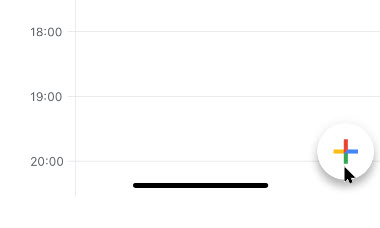
To create a new event, click the Add button in the bottom-right corner and select the type of event you wish to create. Refer to below image:
Add an Event
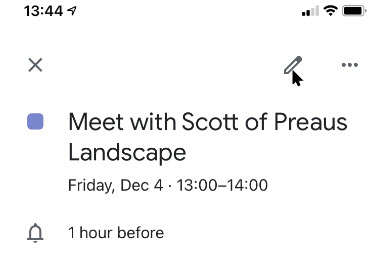
To edit an existing event, tap on that event in your calendar view and then tap the Edit Event button. See below image:
Edit an Event
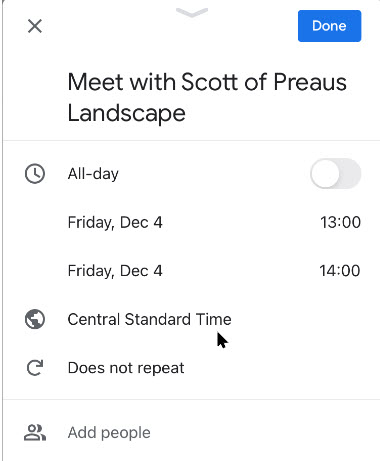
Next, in the event details menu, tap the current time zone. (Note!. You may have to tap More options to see the time zone). See following image:
The current time zone for the Event
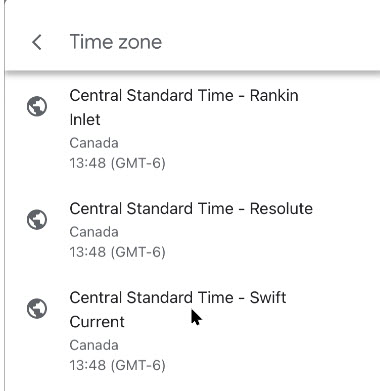
In the next menu, search for a country or specific time zone. Next, tap one of the results to select it as the new time zone. (Note! I kept the Event in CST). Refer to below image:
Selecting a time zone for the Event
The time zone for the event will be added immediately after selecting it from the Search menu.
Confirm the rest of the event details are correct. Now, tap the Save button in the top-right corner to save the Event with the new time zone details. See below image:
Save your changes
Change Your Time Zone Settings for All Events
When you travel to a different time zone, you can see your calendar in the local time. This can be confusing. The time zone is updated depending on if you are creating an event, reminder, or task. To keep your event times in your local time, I recommend not to create events, reminders, or tasks while in a different time zone, espicially if you are only going to be away from home a short while; wait till you get back to your local time zone to create them.
To change this setting:
Launch the Google Calendar app.
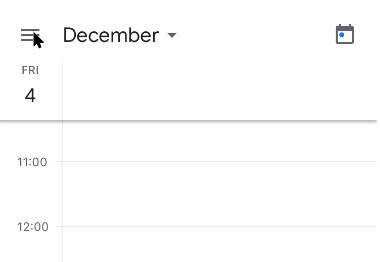
Next, tap the Menu hamburger icon in top left of your screen. See following image:
Acccess the Menu
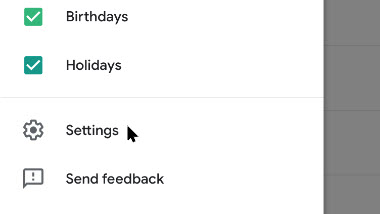
Now, swipe down and tap the Settings option. Refer to below image:
Access Settings
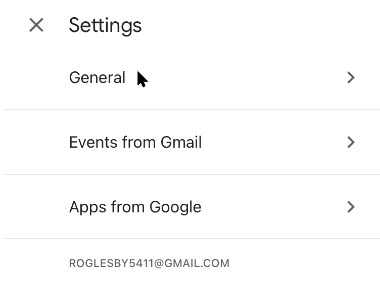
Next, tap the General option. See below image:
Access the General option
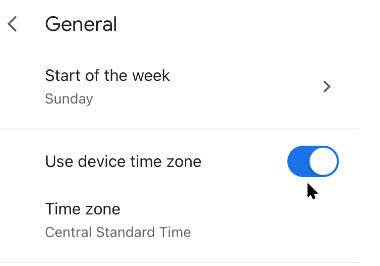
Now, tap Use device time zone on or off. If On, your device will update automatically as you travel. See following image:
Selecting Use device time zone toggle
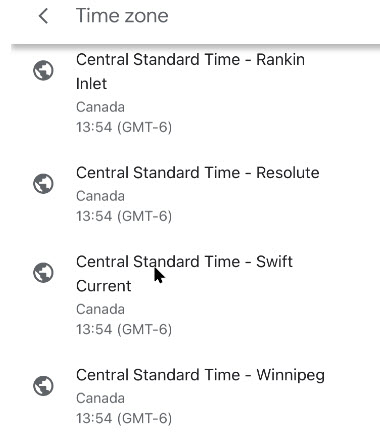
If Off, you can select a new time zone from the drop down menu. (Note! I kept the Events in CST). Refer to below image:
=Select a time zone for all Events
The new time zone for Google Calendar on your device will be applied automatically. Any entries in your Google Calendar will now be displayed in this new time zone on your mobile device. As I mentioned previously, this can be confusing, at least to me it is, so make sure what time zone you want to create events, teminders, or tasks. Now, tap back and exit Settings.
You are finished. Now you know how to see time zones in Google Calendar for events, remindars, or tasks. Please feel free to share this post! One way to share is via Twitter, as mentioned below.
Just click the Tweet icon below. This will launch Twitter where you click its icon to post the Tweet.
Check out TechSavvy.Life for blog posts on smartphones, PCs, and Macs! You may email us at contact@techsavvy.life for comments or questions.
Please feel free to leave a comment. I would love hearing from you. Do you have a computer or smart device tech question? I will do my best to answer your inquiry. Just send an email to contact@techsavvy.life. Please mention the device, app and version that you are using. To help us out, you can send screenshots of your data related to your question.
The author’s Vietnam eBook on the Battle for Tra Bong: Events and Aftermath
Apple released a software update for iPhones and iPads in their operating system that includes a built-in music recognition icon that can help you quickly identify a song that is playing.
Apple released a software update for iPhones and iPads in their operating system that includes a built-in music recognition app that can help you quickly identify a song that is playing.
It is one way Apple is using Shazam, which it acquired in 2018. Since it is built-in, you don’t need to have the Shazam app installed for this to work. All you do is add a button to the Control Center menu and then, when you hear a song you like and want to know who the artist is, you just tap the button.
This is for iPhone and iPad
Copyright Scott Adams, Inc./Distributed by Universal Uclick for UFS
Setting Up Music Recognition
We need to check your software updates, enable Siri, and download/install the Shamaz app.
First, let’s check your software updates. Head to
Settings > General > SoftwareUpdate
for the iOS or iPadOS 14.2 update (or higher) and update if necessary.
Next, head to the Apple Store to download/install the Shazam app.
Here.is how the feature works. When you tell your iPhone to listen for a song, it uses its microphone to record the audio around you. That audio data is uploaded to a server and analyzed, matching it to a known song in a database.
Listen by Siri
Let’s examine another built-in feature that does not require the lastest software update; Siri. To enable Siri, go to
Settings > Siri & Search
and toggle on Listen for Hey Siri. You may also want to enable Press Side Button for Siri. Refer to below image:
Enabling Siri
You can ask Siri what song is playing by saying something like “What’s that song?” or “What’s playing?”.
To activate Siri, long-press the Power button. Say “What’s that song?”. If you have Hey Siri set up, you can also say “Hey Siri, what’s that song?” without pressing any buttons.
Siri will pop up and say something like “Let me listen” or “Naming that tune.” Be sure your iPhone can hear the music properly. If you are in a noisy location or someone is talking loudly over the music, it might not hear the song well enough. If you have a problem, try moving your iPhone closer to the sound source playing the music, reducing noise in the area, or turning the volume up on the speaker playing the song. See below image where Siri is listening for a song:
Listening by Siri
If your device hears the song well enough, it will show you the song. If not, you will receive a message like “I can’t seem to recognize this song”.
Listen by Shazam in Control Center
As of the iOS and iPadOS 14.2 update, there is now a quick Control Center button you can use to start identifying a song. However, it is not enabled by default. Why; I do not know. Why does Apple want to hide this feature? But that is the reason for this post; to show you how to setup and use the Shazam built-in app.
First, head to Settings (the gear icon). See following image:
Accessing Settings
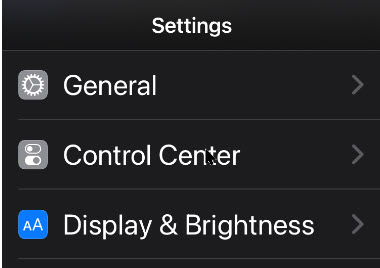
Next, scroll down to Control Center. Refer to below image:
Accessing Control Center option
Now, scroll down and tap the plus (+) sign to the left of the Music Recognition button to add the feature to the Control Center. If you do not see this option on the Settings screen, you have not updated your iPhone or iPad to 14.2 or higher yet. See below image:
Enabling Music Recognition in Control Center
You can then drag it up or down in the list to rearrange the Control Center layout.
With the button added, you can now swipe down from the top-right corner of your device screen to open the Control Center. (On an older iPhone without a notch, you will have to swipe up from the bottom of the screen instead.)
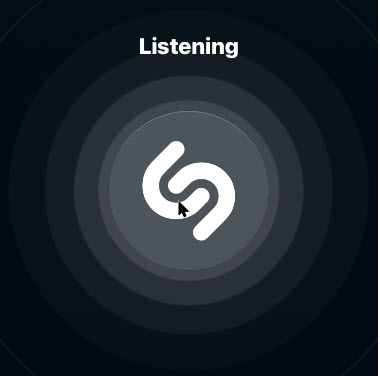
Now, tap the button with the Shazam logo. The button will light up and pulse while it listens to the audio around you. Ensure your iPhone can hear the audio source properly. See following image:
Listening by Shazam in Control Center
When the process is complete (it can take 10-15 seconds), you will see a “Music Recognition” notification banner showing you what song is playing. This notification appears along with all your other apps’ notifications in your notification center. If it can not identify a song in that period of time, you will see a notification saying a song was not detected.
Listen by the Shazam App
If you want more features, you will need a separate music recognition app on your device. The integrated music recognition features rely on Shazam, the music recognition app Apple purchased.
Shazam still has an app for your device that you can install, and it has more features. For example, the Shazam app supports Autp Shazam. In this mode, Shazma will stay in the background on your iPhone or iPad, listen to everything around you, and store a history of songs it’s heard. For example, let’s say you are at a party or ballroom dance competition and you love the playlist. You can enable Auto Shazma mode and your phone or tablet will automatically remember all the songs that was played. You can even keep using other apps on your device while Shazma listens.
To use this feature, install the Shazma app as mentioned in the beginning of this post. Now, launch it, and long-press the big Shazma button, to enable Auto Shazma mode. Refer to below image:
Listening by Shazam app
Listen by Google
Although, not an Apple product, here is another music recognition method.
If a song you are trying to identify is trapped in your head and all you can remember is the song’s melody, there is still something you can do. With the Google app, you can hum or whistle a song’s tune to identify it.
Launch Google Search
Tap the microphone icon
Tap the Search A Song button
Now, start humming or whistling the song you are trying to identify. If Google can find similar matches, the results will appear labeled with match percentages. Tap More Results to see more possible matches. If Google does not find a match, you will receive a message saying so.
That’s it. Please feel free to share this post! One way to share is via Twitter, as mentioned below.
Just click the Tweet icon below to launch Twitter where you click its icon to post the Tweet.
Check out TechSavvy.Life for blog posts on smartphones, PCs, and Macs! You may email us at contact@techsavvy.life for comments or questions.
Please feel free to leave a comment. I would love hearing from you. Do you have a computer or smart device tech question? I will do my best to answer your inquiry. Just send an email to contact@techsavvy.life. Please mention the device, app and version that you are using. To help us out, you can send screenshots of your data related to your question.
The author’s Vietnam eBook on the Battle for Tra Bong: Events and Aftermath
Need to clear your Google Chrome browsing data? Your browsing data is stored in a “cache” and at times, may cause a problem with the actual data stored on a website. By clearing your browsing data, you are starting with a “fresh cache” to avoid inconsistencies.
This is for PCs, Macs, iPhone and iPad
Copyright Scott Adams, Inc./Distributed by Universal Uclick for UFS
FIRST, before doing any of the following, launch your Google Chrome app. For the iPhone or iPad
Open an article or your account and tap the the hamburger icon (the 3 dots) in lower right-hand corner.
Tap History. (It may be labeled MoreHistory). Also, you can view more of your history at historygoogle.com
At the bottom, tap Clear Browsing Data.
Check Browsing history. It may be checked by default.
Uncheck any other items you don’t want to delete.
Tap Clear Browsing Data. Tap Clear Browsing Data again or Cancel if you do not want to proceed.
At the top right, tap Done, then tap Done again.
Refer to below image:
Clearing Chrome browsing data on an iPhone or iPad
For Windows, Mac, or Linux
Press Cntl+Shift+Delete keys for Windows or Linux. Press Command+Shift+Backspace for a Mac. The backspace key is labeled “Delete”.
Uncheck any items you don’t want to delete.
Press Clear data button in lower right.
Hit Enter or Return key.
See below image:
Clearing Chrome browsing data for Windows, Mac, or Linux
IMPORTANT: Be sure and close/quit your browser and restart it after clearing your browsing data.
Your browsing history will be cleared to the level you have chosen. You may repeat the above process to clear any unchecked items.
That’s it. Please feel free to share this post! One way to share is via Twitter, as mentioned below.
I hope you have found this post helpful. If so, click the Tweet icon below. This will launch Twitter where you click its icon to post the Tweet.
Check out TechSavvy.Life for blog posts on smartphones, PCs, and Macs! You may email us at contact@techsavvy.life for comments or questions.
Please feel free to leave a comment. I would love hearing from you. Do you have a computer or smart device tech question? I will do my best to answer your inquiry. Just send an email to contact@techsavvy.life. Please mention the device, app and version that you are using. To help us out, you can send screenshots of your data related to your question.
The author’s Vietnam eBook on the Battle for Tra Bong: Events and Aftermath
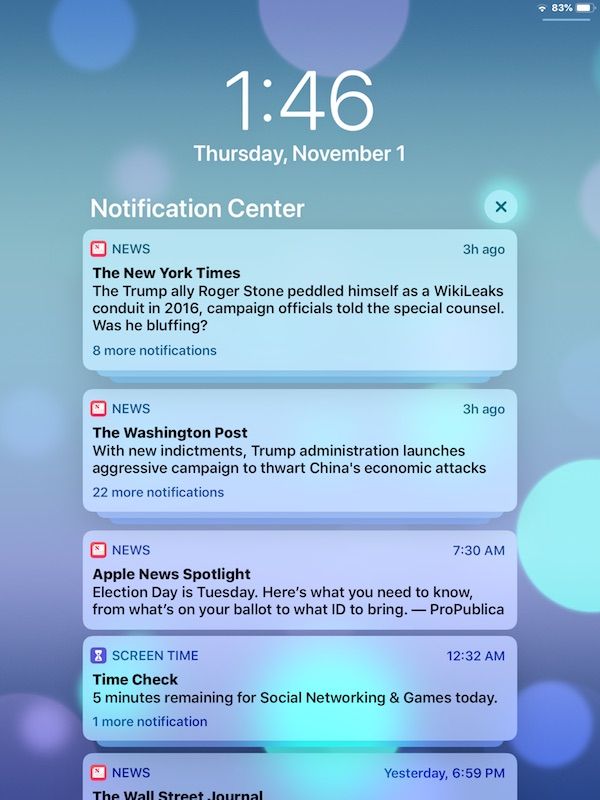
By now you familiar with notifications and how they can be overwhelming. It’s like having another Inbox to wade through. I have way too many notifications because of way too many apps on this iPhone. Luckily, Apple provides a single location where you can view and manage them called the Notification Center.
Ii is a centralized interface for reviewing notifications on your device that have been received from apps or the operating system itself.
This is for the iPhone and iPad
Copyright Scott Adams, Inc./Distributed by Universal Uclick for UFS
View From Unlocked Screen
To view the Notification Center while your iPhone or iPad is unlocked, swipe downward from the center of the upper edge of the screen. If you have iOS 14 or above you may also swipe down from upper left of your screen.
As a side note, swiping down from upper right will bring up the Control Center. Swiping down from the center will launch the Search screen.
View From Locked Screen
To view NotificationCenter on the Lock screen, swipe upward from the middle of the screen until it appears.
You can enable or disable Notification Center on the Lock screen by going to
Settings > Touch ID & Passcode or Face ID & Passcode
Then enter your Passcode and scroll down till you see the toggle for NotificationCenter.
Your Notifications
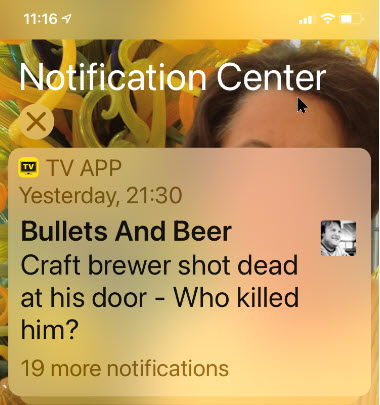
Once launched, you will see a special screen titled Notification Center that lists your recent notifications. If an app has sent more than one notification, the notifications may be stacked (there will be a number in the notification). Tap the stack to see all of the notifications expanded. Refer to below image where I have 19 stacked notifications :
Your Notification Center
Now, you can swipe to the right on a particular notification to open it in the originating app. If you swipe quickly to the left, you can clear that notification away. Or if you want to clear all notifications at once, this is a two step process. First, tap the small “X” button beside the Notification Center heading. See below image:
About to Clear all notifications
Second, tap the Clear text button (where the “X” was) to clear all notifications. See following image:
Accessing to Clear all notifications
You can also turn off certain notifications from this screen by slowing swiping your finger to the left of a notification. Next, tap Manage in the options that appear. Refer to below image:
Manage a notification
If notifications continue to get on your nerves, you can disable them on a per app basis in Settings. Head to
Settings > Notifications
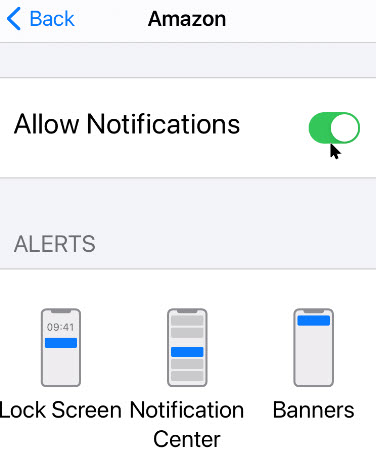
then tap an app you would like to manage. There, you can select the type notifications you would like to receive or disable them completely. For your apps, enable or disable the Allow Notifications toggle as you wish. When finished, tap the Back text button and exit Settings. See below image:
Toggle for Allow Notifications on per app basis
That’s it. Please feel free to share this post! One way to share is via Twitter, as mentioned below.
I hope you have found this post helpful. If so, click the Tweet icon below. This will launch Twitter where you click its icon to post the Tweet.
Check out TechSavvy.Life for blog posts on smartphones, PCs, and Macs! You may email us at contact@techsavvy.life for comments or questions.
Please feel free to leave a comment. I would love hearing from you. Do you have a computer or smart device tech question? I will do my best to answer your inquiry. Just send an email to contact@techsavvy.life. Please mention the device, app and version that you are using. To help us out, you can send screenshots of your data related to your question.
The author’s Vietnam eBook on the Battle for Tra Bong: Events and Aftermath
The iPhone has been out for over a decade, and for most of that time, Apple has only allowed one browser to be the default. Safari, the one they built; till iOS 14 and higher, has been the only supported browser.
This means that Google Chrome fans can finally set the app as their default, and use it for all their browsing.
As long as your device is running the latest version of the operating system, this setting should be available to you.
You can change the default browser in the Settings app. First, though, make sure you have downloaded the latest version of Chrome from the App Store and opened it at least once.
This is for iPhone and iPad
Copyright Scott Adams, Inc./Distributed by Universal Uclick for UFS
First, launch your Settings app (the gear icon). Refer to below image:
Accessing Settings
Next, scroll way down to the Chrome section and tap on it. See below image:
Selecting Chrome app settings
Now, tap the Default Browser App option. See following image:
Selecting Default Browser App option
You will see a list of installed browsers. Tap the Chrome app to place a checkmark by it. Refer to below image:
Selecting Chrome as the default browser
To ensure your setting, tap the Back text button. You may now exit Settings.
That’s all you need to do! Chrome is now your default browser on your iPhone and/or iPad.
You may still see Safari if an app uses this browser by default. If this happens, you can simply tap the associated browser icon to reopen the page in Chrome.
If you want to revert back to Safari or choose another browser, navigate back to the Default Browser App section in the Chrome or Safari settings.
You are done. Please feel free to share this post! One way to share is via Twitter, as mentioned below.
I hope you have found this post helpful. If so, click the Tweet icon below. This will launch Twitter where you click its icon to post the Tweet.
Check out TechSavvy.Life for blog posts on smartphones, PCs, and Macs! You may email us at contact@techsavvy.life for comments or questions
Please feel free to leave a comment. I would love hearing from you. Do you have a computer or smart device tech question? I will do my best to answer your inquiry. Just send an email to contact@techsavvy.life. Please mention the device, app and version that you are using. To help us out, you can send screenshots of your data related to your question.
The author’s Vietnam eBook on the Battle for Tra Bong: Events and Aftermath