How to Make a Slideshow on Google Photos

Using Google Photos‘ slideshow feature, you can have all or specific album photos play one after another automatically. You can make this slideshow on both your desktop and your mobile device.

RAYMOND OGLESBY @RaymondOglesby2
July 25, 2023

This is for the desktop and smartphones. Screenshots are from Windows 10 and iPhone 14 Pro running iOS 16+

Using Google Photos‘ slideshow feature, you can have all or specific album photos play one after another automatically. You can make this slideshow on both your desktop and your mobile device. Let’s explore how this is done.

On Your Desktop

To create a slideshow on your desktop computer, first, open a web browser and launch the Google Photos site. Sign in to your account on the site if you have not already.

Next, once you see your photos, if you want to include all your photos in the slideshow, then click the first photo on the main screen to open it in full screen.

Now, once the photo opens in full screen, at the top-right corner, click the three dots (the Menu icon). Refer to the below image:

Photos 1
Selecting the Menu icon

Next, in the menu that opens, click Slideshow. See the below image:

Photos 2
Selecting the Slideshow option

Now, your browser will go full screen and your slideshow will start playing. Sit back, relax, and enjoy recollecting your memories with your photos.

Next, you can stop the slideshow at any time by pressing the Esc key on your keyboard. See the following image:

Photos 3
Exiting the Slideshow

Now, if you would like to make a slideshow using photos from a specific album, then access that album on Google Photos. On the album page, in the top-right corner, click the three dots (the Menu icon). Refer to the below image:

Photos 4
Selecting the Menu icon

Next, from the three dots (the Menu icon), select Slideshow to start playing your photos. You can close the slideshow by pressing the Esc key. See the below image:

Photos 5
Selecting the Slideshow option

On Your Mobile

To play your photos slideshow on your phone, first, launch the Google Photos app on your phone.

Next, to include all your photos in the slideshow, then tap the first photo on the main screen.

Now, when your photo opens in full screen, in the top-right corner, tap the three dots (the Menu icon). See the following image:

Photos 6
Selecting the Menu icon

Next, from the three dots (the Menu icon), select Slideshow to start playing your photos. Refer to the below image:

Photos 7
Selecting the Slideshow option

Now, Google Photos will start playing a slideshow for all your photos. If you would like to stop this slideshow, tap anywhere on the screen then tap Done in the top-left corner. See the below image:

Photos 8
Exiting the Slideshow

To create a slideshow using photos from a particular album, first, tap Library and choose your photo album. Select the first photo in the album, then in the top-right corner, tap the three dots (the Menu icon). See the following image:

Photos 9
Selecting the Menu icon

Next, in the menu that opens, tap Slideshow. Refer to the below image:

Photos 10
Selecting the Slideshow option

Now, your slideshow containing photos only from the selected album will play. If you would like to stop this slideshow, tap anywhere on the screen then tap Done in the top-left corner. See the below image:

Photos 11
Exiting the Slideshow

Disclaimer

Technology is always changing; there is rarely static tech for smartphones and desktops. Thus, the contents of this post are only valid at the time of writing. Blog posts older than six months may have directions incompatible with your device or OS. Hopefully, older post content will continue to work as advertised. Thank you for reading TechSavvy.Life for Technology at Work For You.

Quote for the Day

My view is that if your philosophy is not unsettled daily then you are blind to all the universe has to offer.

Neil deGrasse Tyson

Tweet Info

That’s it. Please feel free to share this post! One way to share is via Twitter.

Just click the Tweet icon below. This will launch Twitter where you click its icon to post the Tweet.

Checkout TechSavvy.Life for blog posts on smartphones, PCs, and Macs! You may email us at contact@techsavvy.life for comments or questions.

Author’s E-Book

You can access the e-book from a Kindle device, the Kindle App for the desktop or smartphone, which is a free app.

The author’s Vietnam eBook on the Battle for Tra Bong Vietnam: Events and Aftermath

Threads the New Social Media App

Meta, formerly known as Facebook, has made a history of copying features from other platforms. This time, Meta has launched Threads, a social media app connected to Instagram that works more like Twitter and should eventually connect to Mastodon.

RAYMOND OGLESBY @RaymondOglesby2
July 18, 2023

As of this writing, We have reached 50,000 views in 487 posts!!!

This is for devices that use social media

Meta, formerly known as Facebook, has made a history of copying features from other platforms. This time, Meta has launched Threads, a social media app connected to Instagram that works more like Twitter and should eventually connect to Mastodon.

Meta, as the maker of Facebook, Instagram, and WhatsApp, has been after Twitter for many, many years. The company attempted to buy Twitter back in 2008, but that did not work out. Last year, Elon Musk acquired Twitter, and then promptly ran it into the ground. That has led to a surge in popularity for Twitter-like platforms, and now Meta’s app is live.

What Is Threads

Threads is a micro-blogging platform that looks and feels just like Twitter, letting you post texts up to 500 characters. This is almost twice Twitter’s 280-character standard limit, but still just enough for posts to not look like so much text. The platform itself is heavily linked to Instagram, and if you have an Instagram account, you can sign up for Threads with a couple of taps. All handles are pre-reserved; your username on Instagram will be your username on Threads. Refer to the below image of Threads:

Threads 2

Threads is actually seeing plenty of adoption, with the platform getting up to 20 million users within the first hours of launch. However, many of those accounts are brands instead of actual people. Instagram’s user base is in the billions, so we can only expect this number to keep increasing as time passes.

As it keeps growing, we can also expect a number of other changes, too. Threads is supposed to play nice with Mastodon and the Fediverse, and it will be getting ActivityPub support down the road. The exact degree to which Mastodon and Threads will be interoperable remains to be seen, but you will be able to follow and interact with Mastodon users from Threads. Likewise, Mastodon users will be able to follow Threads users by using their full username, such as “@john@threads.net.”

Pause Before You Download

Be aware of Threads Privacy Policy and the Dara the app collects. In our opinion, the app collects way too much data about you. This includes Data from your: Health/Fitness, Financial info, Contact info, User Content, Browsing history, Usage data, Diagnostics, Purchases, Location, Contacts, Search history, Identifiers, Sensitive data, and Other data.

In contrast, Facebook and Instagram only track Contact info, Identifiers, and Other data.

According to its Privacy Policy, you cannot delete your Threads account, until you delete your Instagram account. You can deactivate your Threads account at any time but you can not delete your Threads account without also deleting your Instagram account.

Our Summary

We recommend you wait until the Data collection and Privacy Policy issues are addressed.

If You Want to Download the App

If you want to give it a spin, Threads is now available from the Apple App Store and the Google Play Store. In the Apple App Store and Google Play Store, the app name is “Threads, an Instagram app”. There are other Threads apps, so ensure you download the correct one.

Disclaimer

Technology is always changing and rarely is there static tech for smartphones and desktops. Thus, the contents of this post are only valid at the time of writing. Blog posts older than six months may have directions incompatible with your device or OS. Hopefully, older post content will continue to work as advertised. Thank you for reading TechSavvy.Life for Technology at Work For You.

Quote For the Day

Always deliver more than expected.

Larry Page

Tweet Info

That’s it. Please feel free to share this post! One way to share is via Twitter.

Just click the Tweet icon below. This will launch Twitter where you click its icon to post the Tweet.

Just click the Tweet icon below. This will launch Twitter where you click its icon to post the Tweet.

I Would Like to Hear From You

Please feel free to leave a comment. I would love to hear from you. Do you have a computer or smart device tech question? I will do my best to answer your inquiry. Just send an email to contact@techsavvy.life. Please mention the device, app, and version you are using. To help us out, you can send screenshots of your data related to your question.

Author’s E-Book

You can access the e-book from a Kindle device, the Kindle App for the desktop or smartphone, which is a free app.

The author’s Vietnam eBook on the Battle for Tra Bong Vietnam: Events and Aftermath

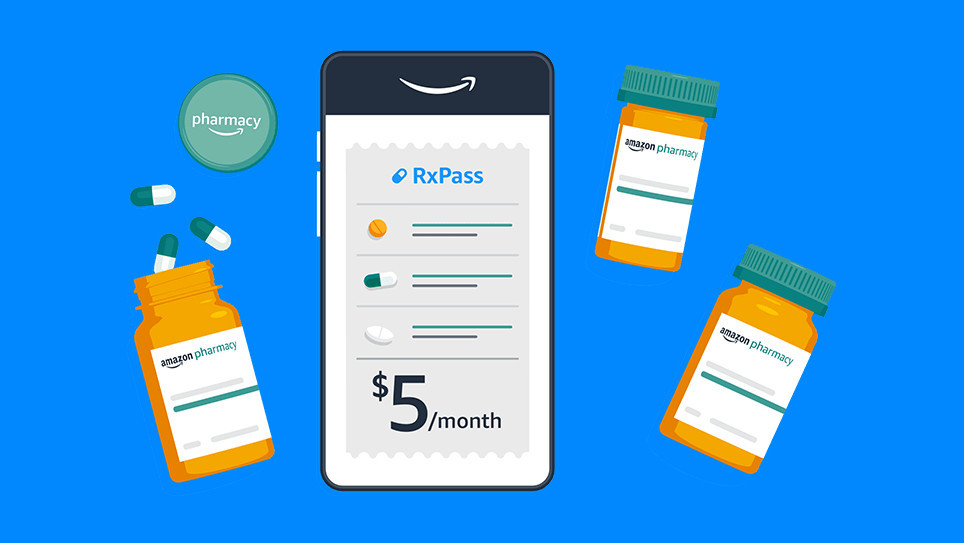
Amazon RxPass for Your Prescriptions

Hot on the heels of shutting down the AmazonSmile charity platform, a new add-on to Amazon Prime has been revealed. It aims to fill prescriptions for generic medications for one low monthly price.

RAYMOND OGLESBY @RaymondOglesby2
May 11, 2023

Hot on the heels of shutting down the AmazonSmile charity platform, a new add-on to Amazon Prime has been revealed. It aims to fill prescriptions for generic medications for one low monthly price.

This is for devices using Amazon

Amazon already runs a pharmacy through its online store, bolstered by the purchase of PillPack in 2018, but now the company is going a step further. Instead of buying each drug individually, Amazon is launching an optional subscription called RxPass, priced at $5 per month in the United States. No health insurance is required, but most (if not all) of the medications are controlled substances that require a prescription from a doctor.

RxPass does not cover every drug Amazon sells, but it does provide access to “commonly prescribed generic medications that treat more than 80 common health conditions.” There’s a full list on the RxPass website (scroll down to see the list), which includes anti-inflammatory drugs like Piroxicam and Naproxen, nine medications for high blood pressure and cardiac dysrhythmias, and even some drugs for treating Parkinson’s disease.

The new subscription could potentially save some people a lot of money, but there is a darker side to RxPass. CNN reports the subscription is almost certainly a loss leader for Amazon, meaning it’s intended to maintain subscriptions to Amazon Prime rather than be self-sustaining. You are probably going to be less likely to cancel Amazon Prime on the next price hike if it’s responsible for your access to critical medication, and Amazon’s FAQ page says canceling Prime will also cancel RxPass.

Disclaimer

Technology is always changing, and rarely is there static tech for smartphones and desktops. Thus, the contents of this post are only valid at the time of writing. Blog posts older than six months may have directions incompatible with your device or OS. Hopefully, older post content will continue to work as advertised. Thank you for reading TechSavvy.Life for Technology at Work For You.

Quote For the Day

We live in a society exquisitely dependent on science and technology, in which hardly anyone knows anything about science and technology.

Carl Sagan

Tweet Info

That’s it. Please feel free to share this post! One way to share is via Twitter.

Just click the Tweet icon below. This will launch Twitter where you click its icon to post the Tweet.

Checkout TechSavvy.Life for blog posts on smartphones, PCs, and Macs! You may email us at contact@techsavvy.life for comments or questions.

I Would Like to Hear From You

Please feel free to leave a comment. I would love to hear from you. Do you have a computer or smart device tech question? I will do my best to answer your inquiry. Just send an email to contact@techsavvy.life. Please mention the device, app, and version you are using. To help us out, you can send screenshots of your data related to your question.

Author’s E-Book

You can access the e-book from a Kindle device, the Kindle App for the desktop or smartphone, which is a free app.

The author’s Vietnam eBook on the Battle for Tra Bong Vietnam: Events and Aftermath

What is the New Rapid Response from Apple

Rapid Security Responses are a new software release for iPhone, iPad, and Mac. They deliver important security improvements between software updates — for example, improvements to the Safari web browser, the WebKit framework stack, or other critical system libraries. They may also be used to mitigate some security issues more quickly, such as issues that might have been exploited or reported to exist “in the wild.”

RAYMOND OGLESBY @RaymondOglesby2
May 9, 2023

This is for iPhone, iPad, and Mac

Rapid Security Responses deliver significant security improvements between software updates.

Rapid Security Responses are a new software release for iPhone, iPad, and Mac. They deliver important security improvements between software updates; for example, improvements to the Safari web browser, the WebKit framework stack, or other critical system libraries. They may also be used to mitigate some security issues more quickly, such as issues that might have been exploited or reported to exist “in the wild.”

New Rapid Security Responses are delivered only for the latest version of iOS, iPadOS, and macOS — beginning with iOS 16.4.1, iPadOS 16.4.1, and macOS 13.3.1.

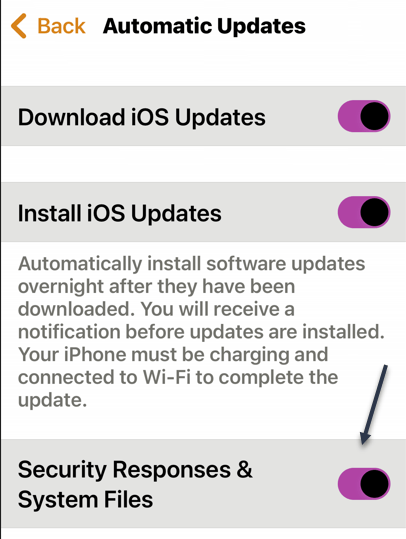
By default, your device allows Rapid Security Responses to be applied automatically and, if necessary, will prompt you to restart your device. To check your device settings:

On iPhone or iPad head to:

  • Settings > General > Software Update > Automatic Updates

Then make sure that Security Responses & System Files are turned on. Refer to the below image:

Rapid 1
Security Responses enabled

On a Mac head to:

  • Apple menu  > System Settings >General > Software Update > Show Details button next to Automatic Updates

Then make sure that Install Security Responses and system files are turned on.

When a Rapid Security Response has been applied, a letter appears after the software version number, as in this example: iOS 16.4.1 (a).

Suppose you choose to turn off this setting or not to apply Rapid Security Responses when they are available. In that case, your device will receive relevant fixes or mitigations when they have included in a subsequent software update.

Source: Apple Support

Disclaimer

Technology is always changing and rarely is there static tech for smartphones and desktops. Thus, the contents of this post are only valid at the time of writing. Blog posts older than six months may have directions incompatible with your device or OS. Hopefully, older post content will continue to work as advertised. Thank you for reading TechSavvy.Life for Technology at Work For You.

Quote For the Date

Even in such technical lines as engineering, about 15% of one’s financial success is due one’s technical knowledge and about 85% is due to skill in human engineering, to personality and the ability to lead people.

Dale Carnegie

Tweet Info

That’s it. Please feel free to share this post! One way to share is via Twitter.

Just click the Tweet icon below. This will launch Twitter where you click its icon to post the Tweet.

Checkout TechSavvy.Life for blog posts on smartphones, PCs, and Macs! You may email us at contact@techsavvy.life for comments or questions.

I Would Like to Hear From You

Please feel free to leave a comment. I would love to hear from you. Do you have a computer or smart device tech question? I will do my best to answer your inquiry. Just send an email to contact@techsavvy.life. Please mention the device, app, and version you are using. To help us out, you can send screenshots of your data related to your question.

Author’s E-Book

You can access the e-book from a Kindle device, the Kindle App for the desktop or smartphone, which is a free app.

The author’s Vietnam eBook on the Battle for Tra Bong Vietnam: Events and Aftermath

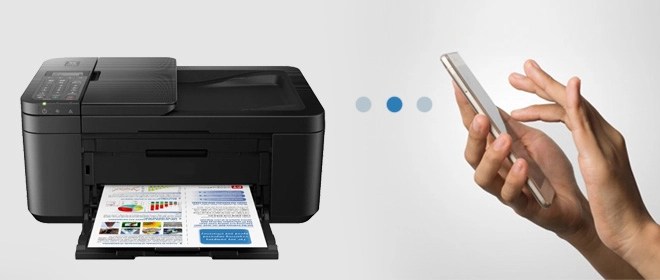
How to Print Using iPhone or iPad

To print from your iPhone or iPad, find the print button in the app you are using and select your printer’s name in the print options.

RAYMOND OGLESBY @RaymondOglesby2
February 28, 2023

To print from your iPhone or iPad, find the print button in the app you are using and select your printer’s name in the print options. If your printer does not appear automatically, it probably does not support AirPrint, in which case you can usually connect using your printer manufacturer’s app instead. Let’s check this out.

Note! The Dilbert comic will be suspended until further notice. Due to racists remarks by the creater of Dilbert, Scott Adams on a talk show, Dilbert has been removed from the Internet and newspapers. We have been following Dilbert for three decades and we thought the comic titted in with the theme of these posts.

Print Using AirPrint

AirPrint is Apple’s easy-to-use wireless printing protocol. It requires next to no setup, provided your printer is powered on and connected to the same wireless network as your iPhone or iPad.

Many printers now come with AirPrint as standard, especially since we increasingly use our mobile devices for all manner of tasks. If you are not sure if your printer has AirPrint, you can try printing anyway and see what happens. The printer should just show up if you satisfy the requirements.

Our HP Inkjet network printer is over 5 years old and it supports AirPrint.

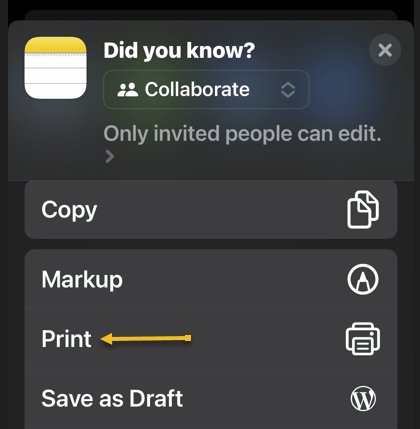
First, to print from your iPhone or iPad using AirPrint, select Print in whatever app you are using. Refer to the below image for selecting to print from the Notes app:

iPhone Print 1
Selecting the Print option

This is often hidden under the Share menu, as is the case in apps like Safari and Notes. Just tap the Share icon. See the below image on printing from the Notes app:

iPhone Print 0
Selecting the Share option

This is not the case for all apps. For example, in Reminders, you will need to tap the “…” icon.

Next, tap on Printer to show a list of nearby printers you can use. If your printer supports AirPrint and has been set up correctly, it should show under this menu. Tap on a printer to select it. See the following image:

iPhone Print 2
Selecting your printer

Now, you may see a notice about the app you are using wanting permission to search for devices on your local network. Allow this when prompted. (And if you are having trouble, head to the app preferences under Settings and make sure the Local Network toggle is ON).

Next, with your printer selected, you can change print preferences by choosing how many copies, whether to print in black and white or color, whether to use double-sided printing if available, plus specify the paper size currently loaded in the printer. You may also get additional settings for Media & Quality and Layout depending on your model. Refer to the below image:

iPhone Print 4
Selecting your print options

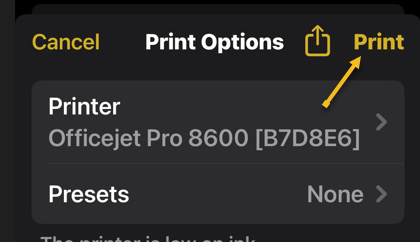
Now, hit Print in the top right-hand corner of the screen to send your job to your printer. You can also use the Share button next to it to save to Files or to a PDF version of your file locally if you would like. See the below image:

iPhone Print 5
Selecting to print your file

Print Without AirPrint

Just because your printer does not have AirPrint does not mean you can not print wirelessly. Many printers include wireless functionality but lack support for Apple’s AirPrint protocol.

Print Using the Manufacturer’s App

If you have a printer that’s Wi-Fi enabled but lacks AirPrint, there’s a good chance that wireless printing is supported using an app. You can usually search the web for your printer’s model to see whether this feature is supported.

Then it’s simply a case of downloading an app like HP Smart, Canon PRINT, Epson iPrint, Brother iPrint&Scan on your device and following the instructions. Some of these apps have the added benefit of remote printing over the internet, which allows you to send a job to your printer at home regardless of where you are.

Purchase a Printer That Supports AirPrint

If you still need a printer, particularly one you can use with your iPhone or iPad, it’s worth investing in something that makes your life a little easier. For the most part, AirPrint “just works” over the local wireless network and allows you (and your guests to print wirelessly whenever you are within range.

When choosing a printer do not only consider the price of the unit itself but also the cost of the refills over the life of the product. You may find that refills cost more than a printer.

Disclaimer

Technology is always changing, and rarely is there static tech for smartphones and desktops. Thus, the contents of this post are only valid at the time of writing. Blog posts older than six months may have directions incompatible with your device or OS. Hopefully, older post content will continue to work as advertised. Thank you for reading TechSavvy.Life for Technology at Work For You.

Quote For the Day

Don’t become a slave to technology – manage your phone, don’t let it manage you.

 Richard Branson

Tweet Info

That’s it. Please feel free to share this post! One way to share is via Twitter.

Just click the Tweet icon below. This will launch Twitter where you click its icon to post the Tweet.

Checkout TechSavvy.Life for blog posts on smartphones, PCs, and Macs! You may email us at contact@techsavvy.life for comments or questions.

I Would Like to Hear From You

Please feel free to leave a comment. I would love to hear from you. Do you have a computer or smart device tech question? I will do my best to answer your inquiry. Just send an email to contact@techsavvy.life. Please mention the device, app, and version you are using. To help us out, you can send screenshots of your data related to your question.

Author’s E-Book

You can access the e-book from a Kindle device, the Kindle App for the desktop or smartphone, which is a free app.

The author’s Vietnam eBook on the Battle for Tra Bong Vietnam: Events and Aftermath

How to Download/Save Images Using Google Image Search

Google’s Image Search results are sometimes so impressive that you want to save some of those images to your device.

RAYMOND OGLESBY @RaymondOglesby2
February 2, 2023

Google’s Image Search results are sometimes so impressive that you want to save some of those images to your device. If you have found yourself in this situation, let’s explore how to download those images from your search results.

This is for mobile and desktop devices. Screenshots are from Windows 10 and iPhone 14 Pro running iOS 16+

Dilbert and Batteries
Copyright Scott Adams, Inc./Distributed by Universal Uclick for UFS

Save Images On Desktop

To download an image on a desktop, you just pick your image, click an option, and your image is saved to your computer.

First, launch your favorite web browser on your computer and open Google Image Search. There, find the image you want to save to your machine. Refer to the below image:

Google Image Search 1
Search Google Images

Next, on the search results page, access the image that you want to download. See the below image:

Google Image Search 2
Find an image

Now, right-click your image, and from the menu that opens, choose to Save image as. See the following image:

Google Image Search 3
Check the option to save your image

Next, your browser will open your computer’s standard Save As window. Here, select a folder to save your image in, type your image name in the File Name field, then click Save. Refer to the below image:

Google Image Search 4
Save your image

Now, you have successfully downloaded your favorite image from your Image Search results. If you are not sure exactly where the image file went, check your Downloads folder from File Explorer.

If your downloaded file is of low resolution, then try downloading that image directly from the source site. To do that, on the Image Search results page, click the link, beneath the image, and not the image, to be taken to the image site. There, right-click the image and choose Save image as.

Download Images On Mobile

On your mobile phone, you can download images from Google’s Image Search results using Google Chrome, Apple Safari, or Microsoft Edge. Mozilla Firefox does not offer the option to save images.

To start, first, open your web browser (we are using Safari) and launch Google Image Search or type into the search box “images.google.com”. Find the image you would like to save to your phone.

Next, on the search results page, tap the image to download. See the below image:

Google Image Search 5
Tap an image you want to download

Now, on your image full-screen page, tap and hold the image. See the following image:

Google Image Search 6
Press and hold your image

Next, on iPhone or iPad, from the menu that opens in Safari, tap Save to Photos. Refer to the below image:

Google Image Search 7
Select the option to save your image

Your iPhone will download and save the image on your local storage or in our example using Safari, your Photos app. See the below image:

Google Image Search 6
Your saved image
Disclaimer

Technology is always changing and rarely is static for smartphones and desktops. Thus, the contents of this post are only valid at the time of writing. Blog posts older than six months may have directions incompatible with your device or OS. Hopefully, older post content will continue to work as advertised. Thank you for reading TechSavvy.Life for Technology at Work For You.

Quote For the Day

The technology you use impresses no one. The experience you create with it is everything.

Sean Cerety

Tweet Info

You are finished. Please feel free to share this post! One way to share is via Twitter.

Just click the Tweet icon below. This will launch Twitter where you click its icon to post the Tweet.

Checkout TechSavvy.Life for blog posts on smartphones, PCs, and Macs! You may email us at contact@techsavvy.life for comments or questions.

I Would Like to Hear From You

Please feel free to leave a comment. I would love to hear from you. Do you have a computer or smart device tech question? I will do my best to answer your inquiry. Just send an email to contact@techsavvy.life. Please mention the device, app, and version you are using. To help us out, you can send screenshots of your data related to your question.

Author’s E-Book

You can access the e-book from a Kindle device, the Kindle App for the desktop or smartphone, which is a free app.

The author’s Vietnam eBook on the Battle for Tra Bong Vietnam: Events and Aftermath

Explore the World of Radio Stations

While radio is not particularly hard to access; you just need a device capable of tuning into radio frequencies; listening to the radio outside of your area can be difficult. This app, however, lets you listen to any radio station in any country worldwide, complete with a colorful interface.

RAYMOND OGLESBY @RaymondOglesby2
January 10,2023

While radio is not particularly hard to access; you just need a device capable of tuning into radio frequencies. Listening to the radio outside of your area can be difficult. This app, however, lets you listen to any radio station in any country worldwide, complete with a colorful interface. Let’s check this out.

This is for computers and mobiles running a web browser. Screenshots are from Windows 10 PC

Dilbert and Dating
Copyright Scott Adams, Inc./Distributed by Universal Uclick for UFS

Radio Garden is available as a web version, and it also has mobile apps for Android and iOS. Its whole premise is that you can listen to several radio stations in many different countries and cities. You will see a bunch of small green dots all across the globe, and those are radio stations that you can tune into immediately. You do not need a login or any kind of subscription. All you need is a device that can access the internet, like your computer or smartphone. Refer to the below image:

Radio 1
South Carolina

You can zoom in or out, move the round circle to any part of the world, or tap a green dot to listen to a station. Check out the Settings menu for options. We suggest you ignore the ads, they take you where you may not want to go; just close them. You can purchase the app for $2.99 (under Settings) to remove the virtual ads.

Some examples of Radio Garden stations:

Radio 2
Brazil
Radio 3
Ukraine
Radio 4
North Korea

It’s a lot of fun to play around with the app and learn something new.

Disclaimer

Technology is always changing and rarely is there static for smartphones and desktops. Thus, the contents of this post are only valid at the time of writing. Blog posts older than six months may have directions incompatible with your device or OS. Hopefully, older post content will continue to work as advertised. Thank you for reading TechSavvy.Life for Technology at Work For You.

Quote For the Day

Good, bad or indifferent, if you are not investing in new technology, you are going to be left behind.

Philip Green

Tweet Info

That’s it. Please feel free to share this post! One way to share is via Twitter.

Just click the Tweet icon below. This will launch Twitter where you click its icon to post the Tweet.

Checkout TechSavvy.Life for blog posts on smartphones, PCs, and Macs! You may email us at contact@techsavvy.life for comments or questions.

I Would Like to Hear From You

Please feel free to leave a comment. I would love to hear from you. Do you have a computer or smart device tech question? I will do my best to answer your inquiry. Just send an email to contact@techsavvy.life. Please mention the device, app, and version you are using. To help us out, you can send screenshots of your data related to your question.

Author’s E-Book

You can access the e-book from a Kindle device, the Kindle App for the desktop or smartphone, which is a free app.

The author’s Vietnam eBook on the Battle for Tra Bong Vietnam: Events and Aftermath

Checkout James Webb Telescope Photo Gallery

NASA launched the James Webb Space Telescope (JWT) in December 2021, giving scientists a fresh look at the universe and giving the rest of us some cool wallpapers.

RAYMOND OGLESBY @RaymondOglesby2
December 20, 2022

NASA launched the James Webb Space Telescope (JWT) in December 2021, giving scientists a fresh look at the universe and giving the rest of us some cool wallpapers. There’s an easy way to check out the latest images and save them for your device’s wallpaper. Let’s explore how.

This is for desktop and mobile devices

Flicker Main
MACS NIRCam Image – Dense Cosmic Knot in the Early Universe

Processed images from JWT have been published on Twitter, the telescope’s official website (this is a really cool site), and other locations, but there’s another portal you may not have seen. NASA operates a Flickr site for the telescope, which contains images of engineering tests, control centers, and best of all, space pictures. To see all the photos, you need to signup for Flickr in the top right-hand corner. Refer to the below image for an example of their gallery:

Flickr 1
Deep Space – Pillars of Creation – Emerging Galaxies

You can browse through the whole collection in your browser, and saving the full-resolution version of an image is as easy as clicking the Download button (the arrow pointing down). If you have a Flickr account, you can also follow the account to see new pictures. After creating your Flickr account, in the Search box (located in the upper right-hand corner), type in James Web Telescope to view the images.

The first few photos from JWT were already excellent wallpapers, but the Flickr gallery is being updated with the latest images. There are the Pillars of Creationtwo galaxies mergingJupiter in infrared, and the fiery hourglass.

In the 32-year run (and counting) of the Hubble Space Telescope is any indication, the JWT should continue giving us fantastic images for years to come.

Disclaimer

Technology is always changing and rarely is there static for smartphones and desktops. Thus, the contents of this post are only valid at the time of writing. Blog posts older than six months may have directions that are incompatible with your device or OS. Hopefully, older post content will continue to work as advertised. Thank you for reading TechSavvy.Life for Technology at Work For You.

Quote For the Day

Technology means you can now do amazing things easily; but you couldn’t easily do them legally.

Lawrence lessig

Tweet Info

That’s it. Please feel free to share this post! One way to share is via Twitter.

Just click the Tweet icon below. This will launch Twitter where you click its icon to post the Tweet.

Checkout TechSavvy.Life for blog posts on smartphones, PCs, and Macs! You may email us at contact@techsavvy.life for comments or questions.

I Would Like to Hear From You

Please feel free to leave a comment. I would love to hear from you. Do you have a computer or smart device tech question? I will do my best to answer your inquiry. Just send an email to contact@techsavvy.life. Please mention the device, app, and version you are using. To help us out, you can send screenshots of your data related to your question.

Author’s E-Book

You can access the e-book from a Kindle device, the Kindle App for the desktop or smartphone, which is a free app.

The author’s Vietnam eBook on the Battle for Tra Bong Vietnam: Events and Aftermath

Five Useful YouTube Features

YouTube has been around since 2005, and it’s one of the most visited websites in the world. Tons of features have been added to the YouTube website and apps over the years.

RAYMOND OGLESBY @RaymondOglesby2
October 13, 2022

YouTube has been around since 2005, and it’s one of the most visited websites in the world. Tons of features have been added to the YouTube website and apps over the years. Here are some features you may not know about.

This is for devices using YouTube. Screenshots are from iPhone XR running iOS 15.6+

Dilbert and Dilbert
Copyright Scott Adams, Inc./Distributed by Universal Uclick for UFS

Save Videos to Watch Later

You have probably been browsing YouTube and come across a video that looks interesting. What if you do not have the time to watch it right at that moment? The Watch Later feature is perfect for this.

Watch Later is essentially just a playlist that you can add videos to for watching later. It’s great for saving videos that you do not want to forget about, and it works everywhere you can access the YouTube website or app.

First, find a YouTube video you want to watch later. Next, tap the Save icon in the toolbar below the video. Now, from the Menu that opens, select the Watch Later option. Refer to the below image:

YouTube Features 1
Selecting Watch Later option

Set YouTube Videos to Fill Your iPhone Screen

It’s pretty common for your phone’s display to have a different aspect ratio than YouTube videos. You can pinch to zoom to fill the full screen when watching a video, but you have to do that every time.

You can actually make it so videos will always fill the full screen. You will not have to pinch-to-zoom every time, but you will be able to zoom out if too much of the video is being cut off.

First, open the YouTube app on your iPhone or iPad device. Next, double-tap your profile icon in the top right-hand corner. Now, from the Manu that opens, select

Settings > General

and toggle Zoom to Fill Screen to ON. See the below image:

YouTube Features 2
Enabling Zoom to fill the screen

Skip Forward/Backward Fast

Here’s a quick tip that will save you a lot of time watching videos on the YouTube mobile app. Rather than using the seek bar to skip forward and back in the video, simply double-tap the left or right side of the video. See the following image:

YouTube Features 5
Skip Forward or Backward

Change the Double-Tap Skip Time

Speaking of double-tapping to skip forward or back in a video, you can adjust the length of these skips. By default, it’s 10-seconds. You can customize this length from 5 to 60 seconds. It’s a great thing to do if you find yourself tapping the video too much.

First, open the YouTube app on your iPhone or iPad, device. Next, double-tap your profile icon in the top right-hand corner. Now, from the Manu that opens, select

Settings > General

and select the Skip Forward and Back option. Next, choose one of the time increments from the Menu. Refer to the below image:

YouTube features 3
Set timer for Skip Forward and Backward

Speed Up or Slow Down a Video

YouTube videos do not have to be played at the speed of how they were uploaded. You can speed up or slow down any video you want. This is super handy for rewatching moments in slow motion or getting through long videos a little faster.

The Playback Speed controls can be accessed on the web and mobile apps. You can select a speed anywhere between 0.25- 2 times the normal speed, with 1 being the normal speed.

First, open the YouTube app and play a video. Next, tap the screen once to bring up the toolbar, Now, tap the Settings icon located in the upper right-hand corner of the video frame.

Next, in the Menu that pops up, select Playback speed. In the list that appears, select the speed you would like. See the below image:

YouTube Features 4
Set timer for Playback speed

Now, close the Menu, and the video will resume at the selected speed. If you need to change it back to the regular speed, repeat the above and change the speed to 1 for normal speed.

Quote For the Day

An outlook… at the vast mysteries of the universe should only confirm our belief in the certainty of its Creator.

Wernher Von Braun

Tweet Info

That’s it. Please feel free to share this post! One way to share is via Twitter.

Just click the Tweet icon below. This will launch Twitter where you click its icon to post the Tweet.

Checkout TechSavvy.Life for blog posts on smartphones, PCs, and Macs! You may email us at contact@techsavvy.life for comments or questions.

I Would Like to Hear From You

Please feel free to leave a comment. I would love to hear from you. Do you have a computer or smart device tech question? I will do my best to answer your inquiry. Just send an email to contact@techsavvy.life. Please mention the device, app, and version you are using. To help us out, you can send screenshots of your data related to your question.

Author’s E-Book

You can access the e-book from a Kindle device, the Kindle App for the desktop or smartphone, which is a free app.

The author’s Vietnam eBook on the Battle for Tra Bong Vietnam: Events and Aftermath

How to Use Picture-in-Picture from YouTube on iPhone

YouTube on Android has had Picture-in-Picture support for several years, but the iPhone app lagged behind. That finally changed, and you can now watch YouTube in a floating window on your iPhone or iPad, too.

RAYMOND OGLESBY @RaymondOglesby2
October 11, 2022

YouTube on Android has had Picture-in-Picture support for several years, but the iPhone app lagged behind. That finally changed, and you can now watch YouTube in a floating window on your iPhone or iPad, too. Let’s explore this feature.

This is for the iPhone and iPad. Screenshots are from iPhone XR running iOS 15.6+

Dilbert and Finance
Copyright Scott Adams, Inc./Distributedsfd by Universal Uclick for UFS

It was a long journey for iOS and iPadOS devices to get Picture-in-Picture for YouTube. The feature started out as an experiment for Premium subscribers in August 2021. A few months later, the experiment ended. In July 2022, Google started rolling it out for real.

Non-Premium Members: Everyone in the U.S. can use Picture-in-Picture in the YouTube app regardless of whether they have a Premium subscription or not. PiP only works with non-music videos.

Premium Members: Premium subscribers in all areas of the world can use Picture-in-Picture in the YouTube app for both music and non-music videos.

First, we need to make sure your iPhone or iPad has Start PiP Automatically enabled. To do so, open the Settings app. Refer to the below image:

PIP 1
Accessing Settings app

Next, go to General. See the below image:

PIP 2
Accessing General option

Now, select Picture in Picture. See the following image:

PIP 3
Accessing the Picture in Picture option

Next, make sure Start PiP Automatically is toggled to ON. Refer to the below image:

PIP 4
Enabling PiP

Using Picture-in-Picture

Using Picture-in-Picture mode is actually very easy. The feature is enabled by default once you get it. First, watch a video and swipe up on the bottom of the screen to go to your Home screen. The video will display the PiP mode. See the below image:

PIP 5
Your YouTube video

Next, if you want to double-check to make sure Picture-in-Picture is ON or turn it OFF, you can do so in the YouTube settings under:

Settings > General > Picture-in-Picture

and toggle it ON or OFF. See the following image:

PIP 6
Enabling Picture-in-Picture on YouTube

Picture-in-Picture is a great feature to have on a phone or tablet. Now you enjoy YouTube on your Apple device while being able to do other things at the same time.

Quote For the Day

Modern technology has become a total phenomenon for civilization, the defining force of a new social order in which efficiency is no longer an option but a neccisity imposed on all human activity.

Jacques Ellul

Tweet Info

You are finished. Please feel free to share this post! One way to share is via Twitter.

Just click the Tweet icon below. This will launch Twitter where you click its icon to post the Tweet.

Checkout TechSavvy.Life for blog posts on smartphones, PCs, and Macs! You may email us at contact@techsavvy.life for comments or questions.

I Would Like to Hear From You

Please feel free to leave a comment. I would love to hear from you. Do you have a computer or smart device tech question? I will do my best to answer your inquiry. Just send an email to contact@techsavvy.life. Please mention the device, app, and version you are using. To help us out, you can send screenshots of your data related to your question.

Author’s E-Book

You can access the e-book from a Kindle device, the Kindle App for the desktop or smartphone, which is a free app.

The author’s Vietnam eBook on the Battle for Tra Bong Vietnam: Events and Aftermath