How to Upload a Smartphone Video to YouTube

Do you have videos on your smartphone that you want to upload to YouTube but not sure how to do this? If you have recorded videos with your smartphone, you can upload them directly to your YouTube channel from your iPhone or Android device.

RAYMOND OGLESBY @RaymondOglesby2
October 27, 2021

Do you have videos on your smartphone that you want to upload to YouTube but not sure how to do this? If you have recorded videos with your smartphone, you can upload them directly to your YouTube channel from your iPhone or Android device. Let’s see how this is done.

This is for iPhone and Android

Dilbert and No
Copyright Scott Adams, Inc./Distributed by Universal Uclick for UFS

First, to upload a video to YouTube from your iPhone or Android device, you will need the official YouTube app on your phone. Download and install the app on your iPhone or Android device, if you have not already done so. To search for the app on an iPhone, go to your very first screen, the Spotlight Search, and type in “YouTube” to locate the app.

Uploading a Video

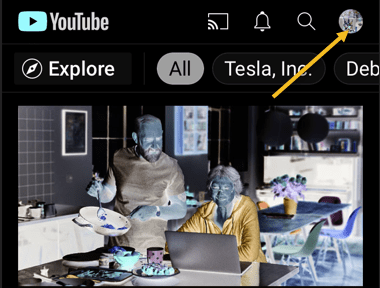
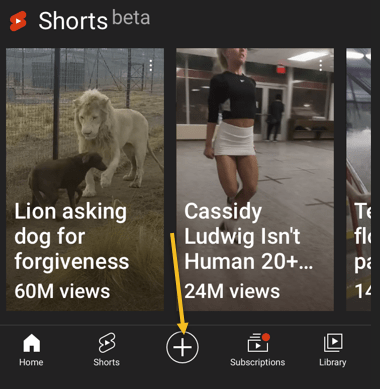
Next, launch the YouTube app on your phone and log in to your YouTube (Google) account. Then, from the bar at the bottom of the app, select the “+” (plus) sign. Refer to below image:

YouTube 1
Accessing the Add icon

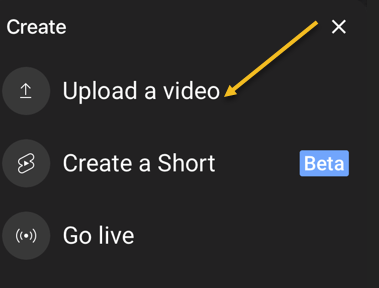
Now, YouTube will open a Create menu. Select Upload a video from this menu. Note! If you want to make a YouTube Short, tap the Create a Short option, or, to stream a video, tap the Go live option. See below image:

YouTube 2
Selecting to Upload a video

Next, you will see an Upload screen that displays all your phone’s videos. Here, tap the video that you would like to upload to YouTube. Then, when the video begins to play, tap NEXT at the top-right corner of the app. See following image:

YouTube 3
Your Video to upload

Add Details

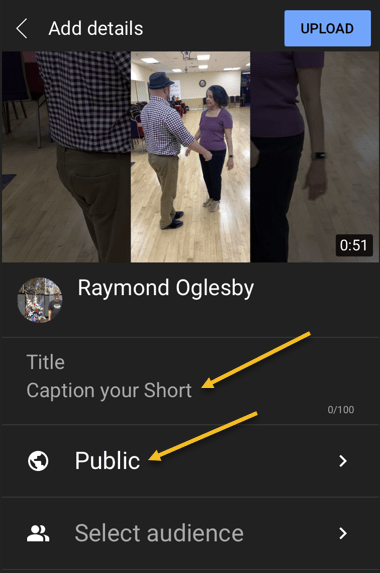
Now, you are on the Add details screen. Here, tap the Title field and enter a title for your video. Then tap Public to choose who can watch your video on YouTube. Refer to below image:

YouTube 4
Add some details about your Video

Set Visibility, Schedule, and Audience

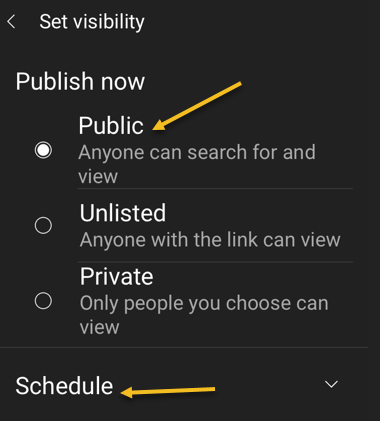
Next, on the Set Visibility screen, select one of these visibility options for your video:

  • Public: This allows anyone on YouTube to watch your video.
  • Unlisted: With this option, only the people you share your video’s link with can watch the video.
  • Private: Only you and the people you choose can watch the video.

Now, tap Schedule to release your video on YouTube at a specific time. See below image:

YouTube 5
Selecting who can see your Video

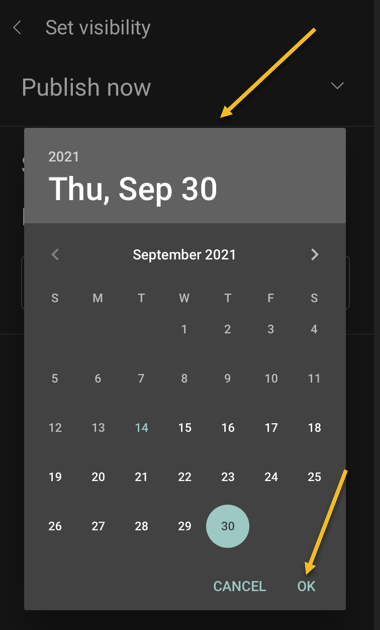
Set your date then tap OK. See following image:

YouTube 6
Selecting the Video scheduled date

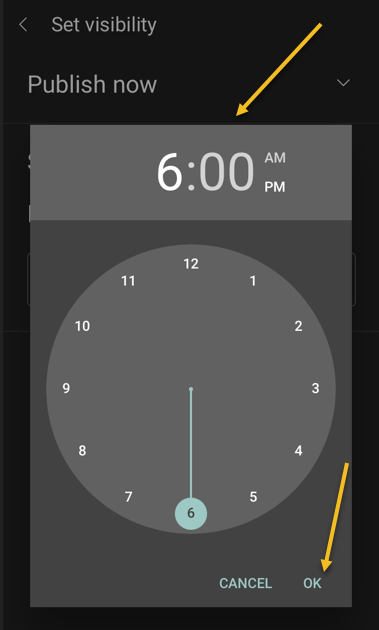
Set your time then tap OK. Refer to below image:

YouTube 7
Selecting the Video scheduled time

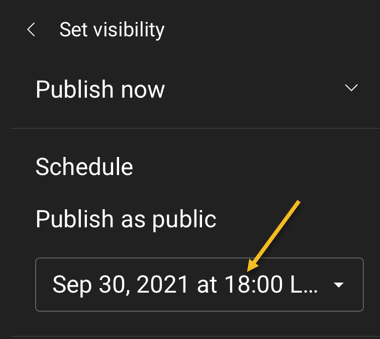
Your scheduled release of the video is displayed. See below image:

YouTube 8
Your Video release date and time

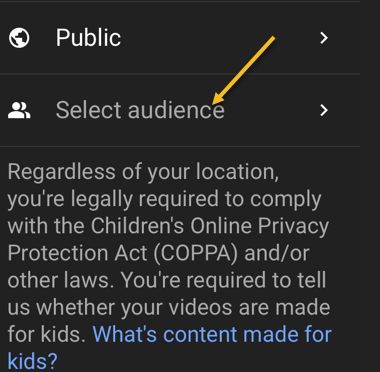
Next, tap the Select audience option. See following image:

YouTube 9
Selecting your Audience

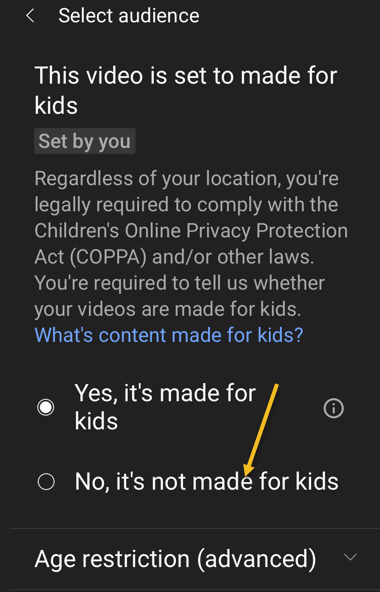
If your video is meant for kids, select the Yes, it’s made for kids option. Otherwise, select the No, it’s not made for kids option. If you choose the No… option, you can specify further options by tapping Age restriction (advanced). Next, at the top-right corner of the app, tap Upload (not shown). Refer to below image where we selected the video is made for kids:

YouTube 10
Selecting who is your Audience

Edit Your Video Details

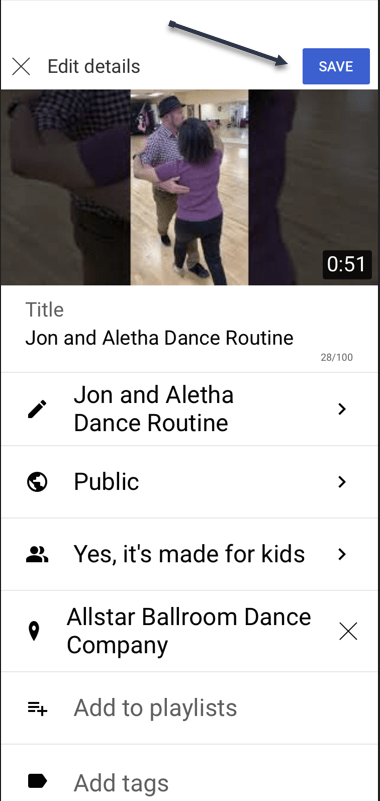
Your video will begin to upload to YouTube. When that’s done, go to Library > Your videos section of the YouTube app. Then, tap the video 3 dots menu button. Now, tap Edit to open the Edit Details screen and make any changes. When you are finished, tap Save. See below image:

YouTube 12
Edit your Video details

Your Videos Listing

Next, access Your videos section to see your uploaded video. See following image:

YouTube 13
Your recently uploaded Video

And that’s how you begin your journey of becoming a YouTuber!

Quote For the Day

Remembering that you are going to die is the best way I know to avoid the trap of thinking you have something to lose. You are already naked. There is no reason not to follow your heart.

Steve Jobs

You are finished. Please feel free to share this post! One way to share is via Twitter.

Just click the Tweet icon below. This will launch Twitter where you click its icon to post the Tweet.

Check out TechSavvy.Life for blog posts on smartphones, PCs, and Macs! You may email us at contact@techsavvy.life for comments or questions.

I Would Like to Hear From You

Please feel free to leave a comment. I would love hearing from you. Do you have a computer or smart device tech question? I will do my best to answer your inquiry. Just send an email to contact@techsavvy.life. Please mention the device, app and version that you are using. To help us out, you can send screenshots of your data related to your question.


The author’s Vietnam eBook on the Battle for Tra Bong Vietnam: Events and Aftermath

How to Use Paste Special for Simple Calculations in Microsoft Excel

Do you find yourself doing a lot of copy and paste of data in your spreadsheets? Did you know that you can use a special Excel’s paste feature to perform simple calculations? You can add, subtract, multiply, or divide in a few clicks with the paste special in Excel.

RAYMOND OGLESBY @RaymondOglesby2
October 26, 2021

Do you find yourself doing a lot of copy and paste of data in your spreadsheets? Did you know that you can use a special Excel’s paste feature to perform simple calculations? You can add, subtract, multiply, or divide in a few clicks with the paste special in Excel. Let’s see how this is done.

This is for devices using Microsoft Excel. We are using Excel for Office 365.

Dilbert and Like
Copyright Scott Adams, Inc./Distributed by Universal Uclick for UFS

Maybe you have prices that you want to increase or costs that you want to decrease by dollar amounts. Or, perhaps you have inventory that you want to increase or decrease by unit amounts. You can perform these types of calculations quickly on a large number of cells with Excel’s paste special operations.

Setup Paste Special

For each of your simple calculations, you will open the Paste Special dialog box. Next, you will start copying the data and then selecting the cell(s) that you are pasting to.

First, open Microsoft Excel. To copy, you can press Ctrl+C or right-click and select Copy. Refer to below image:

Paste Special 1
Selecting Copy option

Now, do one of the following to access Paste Special.

  • Click the Paste drop-down arrow in the ribbon on the Home tab, then select Paste Special.
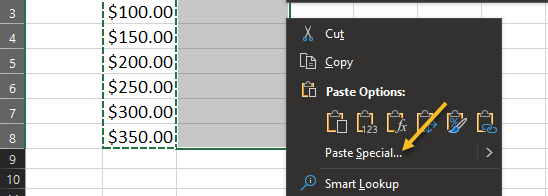
  • Right-click cells that you are pasting to and select Paste Special in the shortcut menu.

See below image:

Paste Special 2
Selecting Paste Special option

Use Simple Calculations With Paste Special

For basic numbers, decimals, and currency, you can choose from All, Values, or Values and Number Formats in the Paste section of the window. Use the best option for your data.

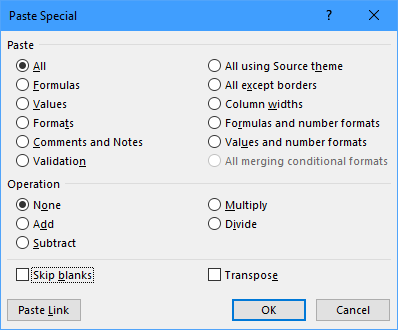
Next. you will use the section labeled Operation to add, subtract, multiply, or divide. See following image:

Paste Special 3
The Paste Special dialog box

Let’s look at a simple example of one operation to see how it all works.

Add With Paste Special

For this example, we want to add $50 to each of the amounts for our ski jacket prices to accommodate an increase.

We enter $50 into a cell outside of our data set and copy it. You might already have the data in your sheet or workbook that you need to copy. Refer to below image:

Paste Special 4
Selecting the amount for the increase

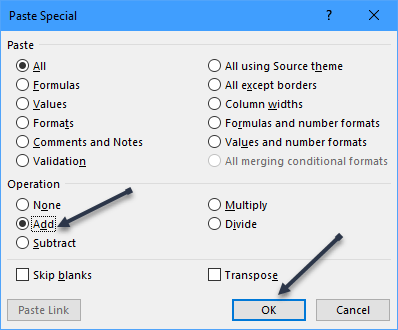
Now, we select the cells that we want to add $50 to and access Paste Special as described. Next, we choose Add in the Operation section and click OK. See below image:

Paste Special 5
Selecting to Add

And that’s it. All of the cells in your selection have increased by $50. See following image:

Paste Special 6
Your final result; all Ski Jackets are increased by $50

Subtract, multiply, or divide an amount works the same way. For multiply or divide, you would use units instead of currency.

Be sure to switch the operation back to None when you are finished.

The next time you need to add, subtract, multiply, or divide a large group of cells in Excel by the same amount, remember this trick using Paste Special.

Quote For the Day

I’m sorry, if you were right, I’d agree with you.

Robin Williams

That’s it. Please feel free to share this post! One way to share is via Twitter.

Just click the Tweet icon below. This will launch Twitter where you click its icon to post the Tweet.

Check out TechSavvy.Life for blog posts on smartphones, PCs, and Macs! You may email us at contact@techsavvy.life for comments or questions.

I Would Like to Hear From You

Please feel free to leave a comment. I would love hearing from you. Do you have a computer or smart device tech question? I will do my best to answer your inquiry. Just send an email to contact@techsavvy.life. Please mention the device, app and version that you are using. To help us out, you can send screenshots of your data related to your question.

The author’s Vietnam eBook on the Battle for Tra Bong Vietnam: Events and Aftermath

How to Set Chrome As Your Default Browser in Windows and iPhone/iPad

Features like Google account’s password and bookmark sync, extension support, cross-device migration, etc., make Chrome the number one choice over competitors. Chrome is the most installed web browser used today.

RAYMOND OGLESBY @RaymondOglesby2
October 20, 2021

Features like Google account’s password and bookmark sync, extension support, cross-device migration, etc., make Chrome the number one choice over competitors. Chrome is the most installed web browser used today. Let’s explore how to set Chrome as your default browser.

This is for Windows 10 and iPhone/iPad running Chrome

Dilbert and CEO
Copyright Scott Adams, Inc./Distributed by Universal Uclick for UFS

Before we go any further, you need to have the Google Chrome browser installed on your computer or iPhone/iPad. You can download the Chrome app from the app or play store for your iPhone/iPad or from Google’s website if you are using a desktop or laptop.

Set Chrome as Default Browser on Windows 10

First, open System settings by pressing Windows key+I, and then click on Apps. Refer to below image:

Chrome 1
Selecting Apps from Settings

Next, from the pane on the left side, click Default Apps. See below image:

Chrome 2
Selecting Default Apps

Now, locate the Web Browser section, click on your current default browser, and then scroll through the list and select Google Chrome. See following image where Google Chrome is already my default browser:

Chrome 3
Setting Chrome as default web browser

Next, close Settings. Chrome is now your default web browser.

Set Chrome as Default Browser on iPhone/iPad

If you are running iOS 14 and iPadOS 14 or higher, Apple made it possible to change the default web browser on iPhone/iPad.

First, locate your Settings app on your iPhone/iPad and tap it. Use Apple’s built-in Spotlight Search (your first screen) to quickly find the app if you can not locate it on your Home screen. Refer to below image:

Chrome 4
Accessing Settings

Next, scroll down and select the Chrome app. See below image:

Chrome 5
Selecting Chrome

Now, select the Default Browser App from the menu. If the setting has not been changed before, it will list Safari as the default. See following image:

Chrome 6
Selecting Default Browser app

Next, choose Chrome from the list of installed web browser apps. Refer to below image:

Chrome 7
Setting Chrome as default web browser

Now, close Settings. The next time you click on a link in any app installed on your iPhone/iPad, it will automatically open Chrome.

Quote For the Day

I was born not knowing and have had only a little time to change that here and there.

Richard Feynman

And that’s it. Please feel free to share this post! One way to share is via Twitter.

Just click the Tweet icon below. This will launch Twitter where you click its icon to post the Tweet.

Checkout TechSavvy.Life for blog posts on smartphones, PCs, and Macs! You may email us at contact@techsavvy.life for comments or questions.

I Would Like to Hear From You

Please feel free to leave a comment. I would love hearing from you. Do you have a computer or smart device tech question? I will do my best to answer your inquiry. Just send an email to contact@techsavvy.life. Please mention the device, app and version that you are using. To help us out, you can send screenshots of your data related to your question.

The author’s Vietnam eBook on the Battle for Tra Bong Vietnam: Events and Aftermath

How to Open HEIC Files on Windows

Apple’s iPhone and iPad takes photos in the HEIF image format by default. These photos have the HEIC file extension. Windows 10 can view HEIC files in just a few clicks; or you can convert them to standard JPEGs and view them anywhere.

RAYMOND OGLESBY @RaymondOglesby2
October 19, 2021

Apple’s iPhone and iPad takes photos in the HEIF image format by default. These photos have the HEIC file extension. Windows 10 can view HEIC files in just a few clicks; or you can convert them to standard JPEGs and view them anywhere. Let’s explore how this is done.

This is for devices running Windows 10, iPhone, and iPad

Dilbert and Directors
Copyright Scott Adams, Inc./Distributed by Universal Uclick for UFS

What is HEIC

HEIC is the name that Apple gave to its container for the HEIF (High Efficiency Image File) image format and is based on the HEVC (High Efficiency Video Compression) video format.

What it means for you are high-quality images that take up less storage space thanks to a more modern compression method.  

You can disable HEIC on the iPhone, but since its introduction in iOS 11, it has become Apple’s default photo storage format.

How to View HEIC Files

On modern versions of Windows 10, you can install support for HEIC image files.

First, locate an HEIC file in File Explorer on your computer and double-click it. If you are asked which application you want to open it in, select Photos.

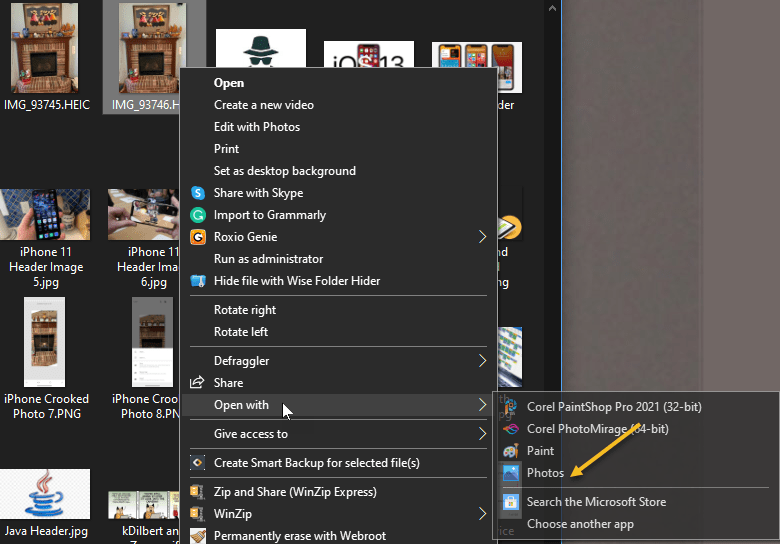
Note! If the HEIC file does not open in the Photos app, right-click the HEIC file and select

Open With > Photos

Refer to below image:

HEIC 1
Selecting how to open HEIC photos

The Photos app will tell you that the HEIF Image Extension is required to display this file. Click the Download and install it now link to get it from the Microsoft Store. It’s a free download. If you do not see this requirement screen, do a Google search and install the extension. See below image:

HEIC 2
Google search for HEIF extension

If Windows asks Did you mean to switch apps?, select Yes.

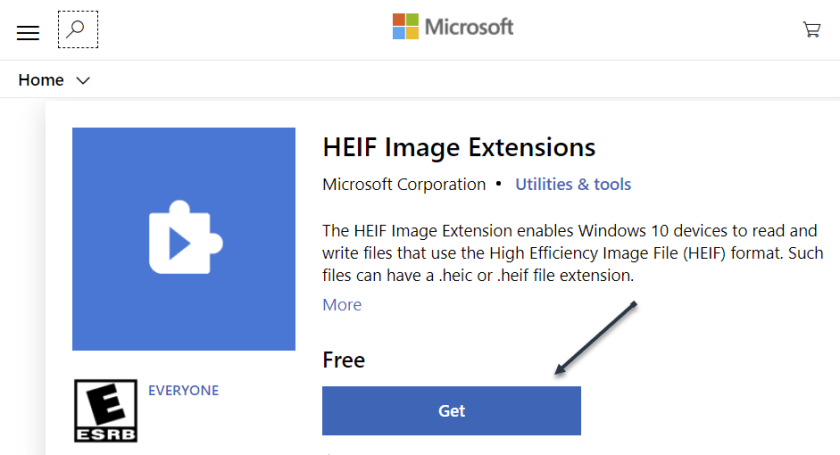
This will open the HEIF Image Extensions page in the Microsoft Store app. Click the Install or Get button to download support for HEIC image files (which use the HEIF format.) See following image:

HEIC 3
Get or Install the HEIF extension

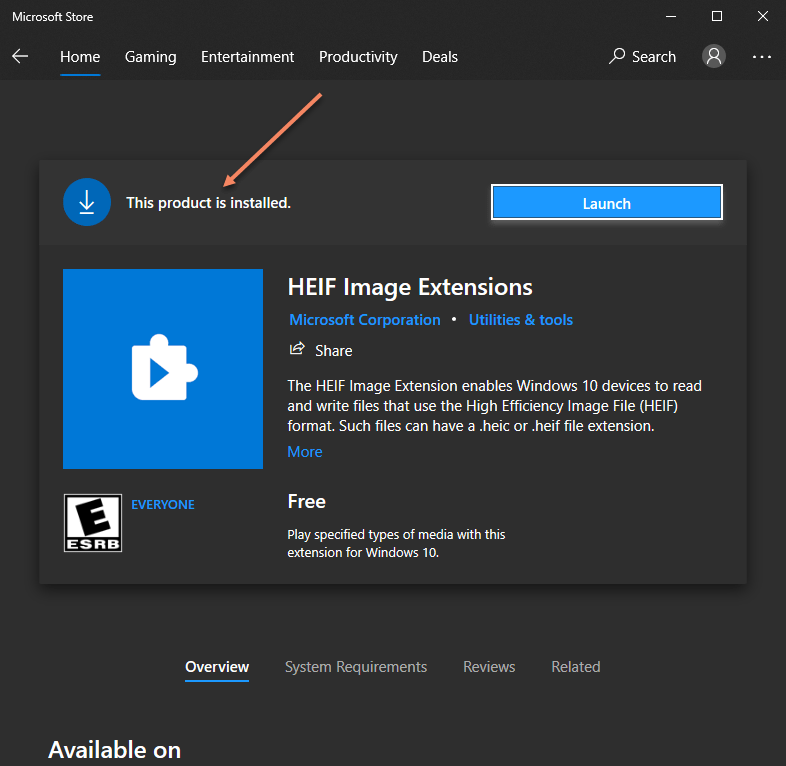
On the next screen, if the extension is already installed, you are set. If not, the Launch button will display Install instead. Just click to install the extension. Refer to below image:

HEIC 4
Status of the extension

Now, when you open an HEIC image in the Photos app, you will be able to view it like you would any other image file, like a JPEG, PNG, GIF, or BMP. See below image:

HEIC 5
HEIC photo

Windows 10’s File Explorer will automatically generate and display thumbnails for your HEIC image files, too. See following image:

HEIC 6
Thumbnails of HEIC photos in File Explorer

Convert HEIC to JPEG

To quickly and easily convert HEIC files to standard JPEG images on Windows, we recommend you download and install CopyTrans HEIC for Windows.

This tool installs full support for HEIC images in Windows, so it’s particularly useful on Windows 7 and older versions of Windows 10 that do not have integrated support in the Photos app. It adds support for HEIC images to the classic Windows Photo Viewer.

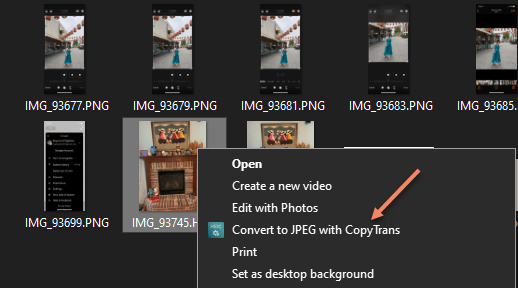
CopyTrans HEIC also allows you to right-click an HEIC file in File Explorer and select Convert to JPEG to easily convert it to a JPEG file. Select the option and you will get a JPEG version of the image automatically placed in the same folder as the original HEIC file.

JPEG files are more widely supported, so this will help you use the HEIC file in applications that support JPEG images but not HEIC files. Refer to below image:

HEIC 7
Selecting to convert HEIC to JPEG

Change the Default

If you find dealing with HEIC files inconvenient, you can also configure your iPhone to always take photos in JPEG format.

Go to

Settings > Camera > Formats > (and checkmark) Most Compatible

instead of High Efficiency. See below image:

HEIC 8
changing the default on iPhone

However, HEIC offers higher image quality in smaller file sizes. It’s a more modern image format, and we recommend sticking with it if the applications you use support it.

Quote For the Day

When you’re older you want to learn from other people.

Ray Bradbury

That’s it. Please feel free to share this post! One way to share is via Twitter.

Just click the Tweet icon below. This will launch Twitter where you click its icon to post the Tweet.

Checkout TechSavvy.Life for blog posts on smartphones, PCs, and Macs! You may email us at contact@techsavvy.life for comments or questions.

I Would Like to Hear From You

Please feel free to leave a comment. I would love hearing from you. Do you have a computer or smart device tech question? I will do my best to answer your inquiry. Just send an email to contact@techsavvy.life. Please mention the device, app and version that you are using. To help us out, you can send screenshots of your data related to your question.

The author’s Vietnam eBook on the Battle for Tra Bong Vietnam: Events and Aftermath

How to Turn on Captions in Siri on iPhone and iPad

The all-new compact Siri interface, available with iOS and iPadOS 14, renders just a small animated orb at the display bottom along with a compact, banner-style response that slides into view.

RAYMOND OGLESBY @RaymondOglesby2
October 13, 2021

The all-new compact Siri interface, available with iOS and iPadOS 14, renders just a small animated orb at the display bottom along with a compact, banner-style response that slides into view. Lets explore how this is done with a few simple steps.

This is for iPhone and iPad

Copyright Scott Adams, Inc./Distributed by Universal Uclick for UFS

That’s an improvement over Siri in earlier iOS version that would take up the whole display. To keep the interface as minimal as possible, Siri in iOS and iPadOS 14 does not show Caption for spoken text nor does it display a live transcription of what you have spoken.

Thankfully, you can easily enable Siri Captions on an iPhone, iPad or iPod Touch. Doing so will help you verify that you have heard Siri’s response correctly.

Enable Siri Captions

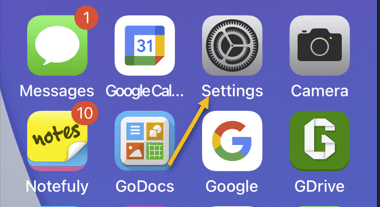
First, open Settings on your iPhone or iPad. Refer to below image:

Siri 1
Selecting the Settings app

Next, in Settings, tap Siri & Search. See below image:

Siri 2
Selecting Siri & Search option

Now, in Siri & Search, scroll down and tap Siri Responses. See following image:

Siri 3
Selecting Siri Responses option

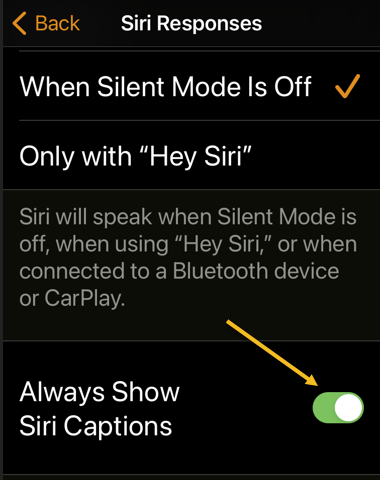
Next, in Siri Responses, toggle the switch beside Always Show Siri Captions into the ON position.

Note! if you have trouble seeing toggle colors, you can turn on toggle labels in Settings as well. Refer to below image:

Siri 4
Toggle on Captions

Now, close Settings. Launch Siri and ask it a question. If your phone is not silenced, Siri will speak the response, and you will see the same response written on the screen in the form of a Caption. See below image:

Siri 5
Your Siri Caption

Disable Siri Captions

If you ever want to disable the Captions, revisit

Settings > Siri & Search > Siri Responses

and toggle Always Show Siri Captions to OFF.

Note! you will still see Siri’s responses as Captions if your device is set to silent mode and you have Spoken Responses in Settings > Siri & Search > Siri Responses set to When Silent Mode is OFF.

Quote For the Day

It has not yet become obvious to me that there’s no real problem. I cannot define the real problem; therefore, I suspect there’s no real problem, but I’m not sure there’s no real problem.

Richard Feynman

You are finished. Please feel free to share this post! One way to share is via Twitter.

Just click the Tweet icon below. This will launch Twitter where you click its icon to post the Tweet.

Check out TechSavvy.Life for blog posts on smartphones, PCs, and Macs! You may email us at contact@techsavvy.life for comments or questions.

I Would Like to Hear From You

Please feel free to leave a comment. I would love hearing from you. Do you have a computer or smart device tech question? I will do my best to answer your inquiry. Just send an email to contact@techsavvy.life. Please mention the device, app and version that you are using. To help us out, you can send screenshots of your data related to your question.
The author’s Vietnam eBook on the Battle for Tra Bong Vietnam: Events and Aftermath

How to Use Incognito Mode in Google Search on iPhone and iPad

Incognito Mode is a common feature in web browsers that allows you to use the web somewhat anonymously. On an iPhone or iPad, if you are using the Google app as a web browser instead of Safari or Chrome, you can browse in Incognito.

RAYMOND OGLESBY @RaymondOglesby2
October 6, 2021

Incognito Mode is a common feature in web browsers that allows you to use the web somewhat anonymously. On an iPhone or iPad, if you are using the Google app as a web browser instead of Safari or Chrome, you can browse in Incognito.

The Google app for the iPhone and iPad offers an all-in-one experience. All of the searching and browsing results happens within the app. It’s essentially a mini-browser of its own but you may not want your activity recorded. Let’s setup this feature.

This is for iPhone and iPad

Dilbert and Tails
Copyright Scott Adams, Inc./Distributed by Universal Uclick for UFS

First, open the Google app on your iPhone or iPad. Use Apple’s Spotlight Search (your first screen) to locate the app if you can not find it on your Home page or App Library. Refer to below image:

Search 1
Accessing Google app

Next, tap your Profile icon in the top right-hand corner. See below image:

Search 2
Accessing your Profile

Now, select Turn on Incognito from the drop-down menu. See following image:

Search 3
Enabling Incognito

Next, you will see a screen saying you are in Incognito Mode . You can now do searches and browse the Internet without the activity being saved to your account. Refer to below image:

Search 4
In Incognito Mode

To reset Incognito Mode, return to the Google App’s home page and tap the Turn Off button. See below image:

Search 5
Turn off Incognito Mode

And that’s it. Just like Incognito Mode in a browser, your search and browsing history will not be saved to your account. This is a nice little trick to know if you find yourself using the Google app like a browser a lot.

Quote For the Day

Don’t think. Thinking is the enemy of creativity. It’s self-conscious, and anything self-conscious is lousy. You can’t try to do things. You simply must do things.

Ray Bradbury

Please feel free to share this post! One way to share is via Twitter.

Just click the Tweet icon below. This will launch Twitter where you click its icon to post the Tweet.

Check out TechSavvy.Life blog posts on smartphones, PCs, and Macs! You may email us at contact@techsavvy.life for comments or questions.

I Would Like to Hear From You

Please feel free to leave a comment. I would love hearing from you. Do you have a computer or smart device tech question? I will do my best to answer your inquiry. Just send an email to contact@techsavvy.life. Please mention the device, app and version that you are using. To help us out, you can send screenshots of your data related to your question.

The author’s Vietnam eBook on the Battle for Tra Bong Vietnam: Events and Aftermath

How to Pin/UnPin a Facebook Post

What does it mean to pin a post on Facebook? A pinned post is a status update that you manually select to stay at the top of your page’s timeline, meaning it will not slip down as you continue to add other posts to your page.

RAYMOND OGLESBY @RaymondOglesby2
October 5, 2021

What does it mean to pin a post on Facebook? A pinned post is a status update that you manually select to stay at the top of your page’s timeline, meaning it will not slip down as you continue to add other posts to your page. Let’s explore how to do this.

This is for devices running Facebook

Dilbert and Phone
Copyright Scott Adams, Inc./Distributed by Universal Uclick for UFS

You can only have one post pinned to your profile at a time. If you try to pin a second post, that second post gets pinned and the first post gets unpinned.

Pin to Your Profile

First, launch a web browser on your computer and access the Facebook site. Next, log in to your account and in the top right-hand corner of the site, click your profile icon. Refer to below image:

FB 1
Accessing your Profile

Now, on your profile page that opens, find the post you want to pin. At the top right-hand corner of the post, click the three dots menu. See below image:

FB 2
Selecting the 3 dots menu

Next, from the three-dots menu, select Pin post. See following image:

FB 3
Selecting to Pin your post

And immediately, Facebook will pin the selected post to the top of your profile page. Scroll up your profile and your pinned post will appear there. Refer to below image:

FB 4
Your pinned post

To unpin a pinned post, from the top right-hand corner of the pinned post, select the three dots menu and click Unpin post in the menu. See below image:

FB 5
Selecting to Unpin your post

Facebook will remove the post from the top of your profile page. It will continue to appear at its original location in your profile, though. Now, refresh the page or exit Facebook.

Related

How to Pin/Unpin a Twitter Tweet

Pin to Your Page

In addition to your personal profile, you can pin a post to your Facebook page, too.

First, access your page and find a post to pin. (Note! I am doing this on my business page using my iPhone). Next, at the top right-hand corner of the post, click the three dots menu. See following image:

FB 6
Selecting the 3 dots menu

Now, from the three-dots menu, select Pin to Top. Refer to below image:

FB 7
Selecting to Pin your post

Next, Facebook will add your selected post to the top of the page.

To remove the post from the top of the page, from the top right-hand corner of the post, click the three dots menu. Next, from the menu that opens, select “Unpin from Top. See below image:

FB 8
Selecting to Unpin your post

Quote For the Day

You can’t just ask customers what they want and then try to give that to them. By the time you get it built, they’ll want something new.

Steve Jobs

That’s it. You now know how to pin/unpin a Facebook post. Please feel free to share this post! One way to share is via Twitter.

Just click the Tweet icon below. This will launch Twitter where you click its icon to post the Tweet.

Check out TechSavvy.Life for blog posts on smartphones, PCs, and Macs! You may email us at contact@techsavvy.life for comments or questions.

I Would Like to Hear From You

Please feel free to leave a comment. I would love hearing from you. Do you have a computer or smart device tech question? I will do my best to answer your inquiry. Just send an email to contact@techsavvy.life. Please mention the device, app and version that you are using. To help us out, you can send screenshots of your data related to your question.
The author’s Vietnam eBook on the Battle for Tra Bong Vietnam: Events and Aftermath

How to Change Back to Old Safari on iPhone

iOS 15 introduced a redesigned Safari interface that puts the address bar at the bottom of the screen.

If you prefer to keep it at the top of the screen, like most web browsers, it can be easily swapped

RAYMOND OGLESBY @RaymondOglesby2
September 29, 2021

iOS 15 introduced a redesigned Safari interface that puts the address bar at the bottom of the screen. Refer to below image:

Safari 1
New Safari

If you prefer to keep it at the top of the screen, like most web browsers, it can be easily swapped. Let’s explore how this is done.

This is for the iPhone running iOS 15 or above

Dilbert and Project
Copyright Scott Adams, Inc./Distributed by Universal Uclick for UFS

There are a few advantages to having the address bar at the bottom. First, it’s easier to reach with one hand on a large screen. Second, it puts all the browser controls in one place. If you are still not convinced to give it a try, let’s switch it back. Personally, I like the old Safari.

First, open the Settings app from the home screen. See below image:

Safari 2
Accessing Settings

Now, scroll way down and tap Safari. See following image:

Safari 3
Accessing Safari

Next, go to the Tabs section and switch it to Single Tab. Refer to below image:

Safari 4
Toggle to Single Tab

Now, the address bar is back at the top of the screen and the other browser controls are still at the bottom. See below image:

Safari 5
The old Safari

Regardless of which interface you prefer, the same amount of content is visible, so it’s just a matter of what you like best.

Quote For the Day

Creativity is just connecting things. When you ask creative people how they did something, they feel a little guilty because they didn’t really do it, they just saw something. It seemed obvious to them after a while. That’s because they were able to connect experiences they’ve had and synthesize new things.

Steve Jobs

That’s it for getting back the old Safari interface. Please feel free to share this post! One way to share is via Twitter.

Just click the Tweet icon below. This will launch Twitter where you click its icon to post the Tweet.

Check out TechSavvy.Life for blog posts on smartphones, PCs, and Macs! You may email us at contact@techsavvy.life for comments or questions.

I Would Like to Hear From You

Please feel free to leave a comment. I would love hearing from you. Do you have a computer or smart device tech question? I will do my best to answer your inquiry. Just send an email to contact@techsavvy.life. Please mention the device, app and version that you are using. To help us out, you can send screenshots of your data related to your question.

The author’s Vietnam eBook on the Battle for Tra Bong Vietnam: Events and Aftermath

How to Add the Developer Tab in Office Apps

Sooner or later, you will need the Developer Tab in Word, Excel, PowerPoint, or Outlook. Even if you know nothing about programming, there are buttons on the Developer tab that are necessary for some of the clever features in Office.

RAYMOND OGLESBY @RaymondOglesby2
September 28, 2021

Sooner or later, you will need the Developer Tab in Word, Excel, PowerPoint, or Outlook. Even if you know nothing about programming, there are buttons on the Developer tab that are necessary for some of the clever features in Office.

The Developer tab is not displayed by default, but you can add it to the ribbon in a few easy steps.

This is for devices running Microsoft Office

Dilbert and Yets
Copyright Scott Adams, Inc./Distributed by Universal Uclick for UFS

First, open an Office app, like Word, and any document. Now, right-click within any Tab in the Ribbon and select Customize the Ribbon. Refer to below image:

Ribbon 1
Select Customize the Ribbon option

Next, in the right-hand side, select All Tabs from the drop down menu and simply checkmark the Developer tab box. Now, select OK to enable the Developer tab. See below image:

Ribbon 2
Enable the Developer tab

Next, exit your Office app, restart the app and load your document. You will see the Developer tab in your ribbon. Just click the tab to view its options. See following image:

Ribbon 3
Your Developer tab

Quote For the Day

‘Fahrenheit 451’ postulates a lot of things I didn’t want to have happen.

Ray Bradbury

That was easy. Please feel free to share this post! One way to share is via Twitter.

Just click the Tweet icon below. This will launch Twitter where you click its icon to post the Tweet.

Check out TechSavvy.Life for blog posts on smartphones, PCs, and Macs! You may email us at contact@techsavvy.life for comments or questions.

I Would Like to Hear From You

Please feel free to leave a comment. I would love hearing from you. Do you have a computer or smart device tech question? I will do my best to answer your inquiry. Just send an email to contact@techsavvy.life. Please mention the device, app and version that you are using. To help us out, you can send screenshots of your data related to your question.

The author’s Vietnam eBook on the Battle for Tra Bong Vietnam: Events and Aftermath

How to Crop Photos on iPhone and iPad

The stock Photos app for iOS and iPadOS comes with a built-in editing tool that can let you automatically resize a pic. Besides, you can also get rid of the unwanted parts manually to ensure there is no blemish. You do not need any photo editing apps to rotate, crop, or straighten your photos. 

RAYMOND OGLESBY @RaymondOglesby2
September 22, 2021

There could be all sorts of reasons why you would like to crop photos on your iPhone and iPad. Maybe you are not pleased with the actual size of the image or want to make it perfectly fit a frame.

The stock Photos app for iOS and iPadOS comes with a built-in editing tool that can let you automatically resize a photo. Besides, you can also get rid of the unwanted parts manually to ensure there is no blemish. You do not need any photo editing apps to rotate, crop, or straighten your photos.

However, the best part is that you can go back to the original size just in case the end result does not turn out as expected. Let’s see how this is done.

This is for the iPhone and iPad

Dilbert and Genes
Copyright Scott Adams, Inc./Distributed by Universal Uclick for UFS

Crop Your Photo

First, open the Photos app on your iPhone or iPad and navigate to the photo that you want to crop. In the top right-hand corner, tap the Edit button. Refer to below image:

Crop 1
Selecting to Edit a photo

Now, in the photo editing view, you will see the bottom toolbar. Tap the Crop button which looks like a box with arrows around it. See below image:

Crop 2
Selecting the Crop button

Next, you will see the image surrounded by a white frame. Swipe in from any edge to crop the image. You can do this from all corners. Just, lift your finger to see the cropped image. See following image:

Crop 3
Cropping a photo

Now, you can also crop the image using a specific aspect ratio if you need the photo to be a perfect square. Tap the Aspect Ratio button in the top toolbar which looks like overlapping boxes. Refer to below image:

Crop 4
Selecting the Aspect Ratio button to crop a photo

Next, you can choose the Aspect Ratio (such as “4:3” or “16:9”) or switch between the Portrait and Landscape formats.

Even after selecting the Aspect Ratio, you can continue to crop the image. The difference is that now, the Aspect Ratio will be locked. If you do not want to use the Aspect Ratio feature, choose the Original option. See below image:

Crop 5
Selecting an Aspect Ratio

Now, if you are satisfied with the crop dimensions, tap the Done button in the bottom toolbar on iPhone. See following image:

Crop 6
Selecting the Done button

Your photo will be cropped, and the result displayed on the screen. Refer to below image:

Crop 7
Original on left, cropped on right

Do not forget that you can share the photo with your friends using the Share button in the bottom toolbar which looks like a box with an arrow coming out of it. See below image:

Crop 8
Selecting the Share icon

Undo Your Crop

All edits in the Photos app are non-destructive. This means that you can revert any photo to its original state.

First, open the photo in the Photos app. Tap the Edit button in the top right-hand corner. See following image:

Crop 9
Selecting the Edit button

Now, in the bottom right-hand corner on iPhone, tap the Revert button. Refer to below image:

Crop 10
Selecting the Revert button

Next, in the pop-up, choose the Revert to Original option. See below image:

Crop 11
Revert your photo back to the original

Now, your photo will be back to its original form!

Quote For the Day

We are cups, constantly and quietly being filled. The trick is, knowing how to tip ourselves over and let the beautiful stuff out.

Ray Bradbury

And that’s it. Please feel free to share this post! One way to share is via Twitter.

\Just click the Tweet icon below. This will launch Twitter where you click its icon to post the Tweet.

Check out TechSavvy.Life for blog posts on smartphones, PCs, and Macs! You may email us at contact@techsavvy.life for comments or questions.

I Would Like to Hear From You

Please feel free to leave a comment. I would love hearing from you. Do you have a computer or smart device tech question? I will do my best to answer your inquiry. Just send an email to contact@techsavvy.life. Please mention the device, app and version that you are using. To help us out, you can send screenshots of your data related to your question.

The author’s Vietnam eBook on the Battle for Tra Bong Vietnam: Events and Aftermath