How to Rearrange Albums in iPhone Photos

This post provides a guide on rearranging albums in Apple’s Photos app on iPhone and iPad. Users can sort albums by Date Modified, Name, or Custom Order, and utilize the drag-and-drop method for moving albums. The instructions are applicable for iOS 18.5 and emphasize a precise drag method for successful rearrangement.

IRAYMOND OGLESBY @RaymondOglesby2
July 15, 2025 – 3 minutes read time

Want to learn how to rearrange albums on an iPhone or iPad in Apple’s Photos app? When you make a photo album on your iPhone, the Photos app automatically sorts in the Albums tab when it was created.

You can rearrange albums on iPhone in two different ways. Let’s explore how to rearrange your albums in the Photos app.

  • Learn how to rearrange albums in Photos on your iPhone or iPad using the drag and drop method.
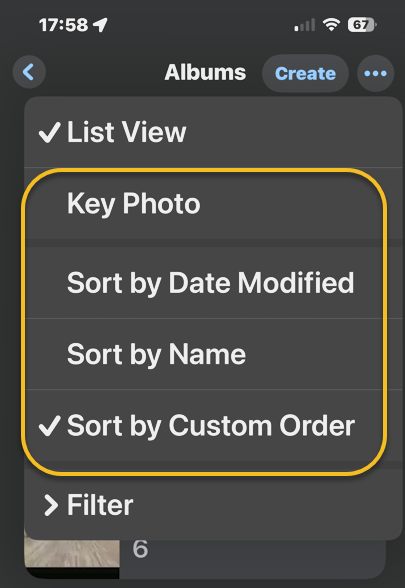
  • Learn how to sort albums on iPhone by Date Modified, Name, or Custom Order. 
  • Learn how to move albums around on iPhone so you can find your albums quickly and easily. 

This tip was performed in iPhone 14 Pro running iOS 18.5.

Click here to learn how to update your iPhone to the latest iOS version.

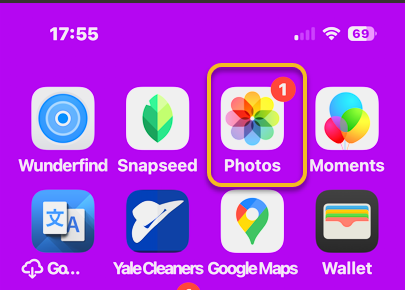
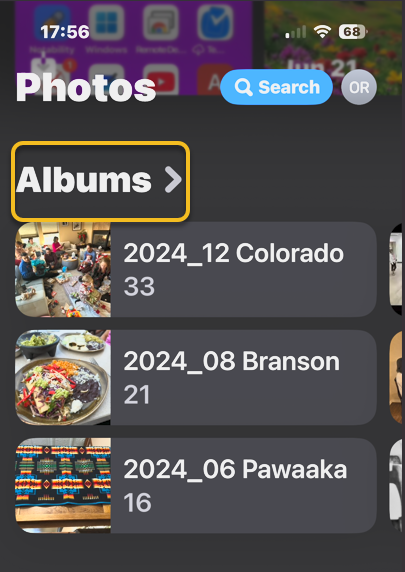
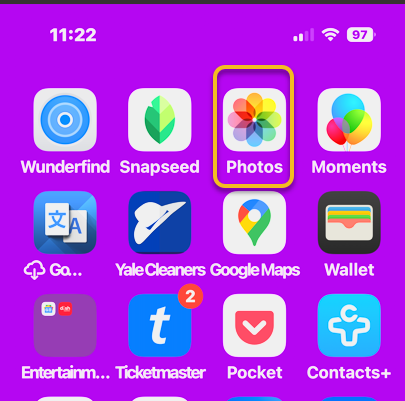
First, ipen the Photos app. Refer to the image below:

Photos 1
Selecting the Photos app

Next, scroll down and tap Albums. See the image below:

Photos 2
Selecting Albums

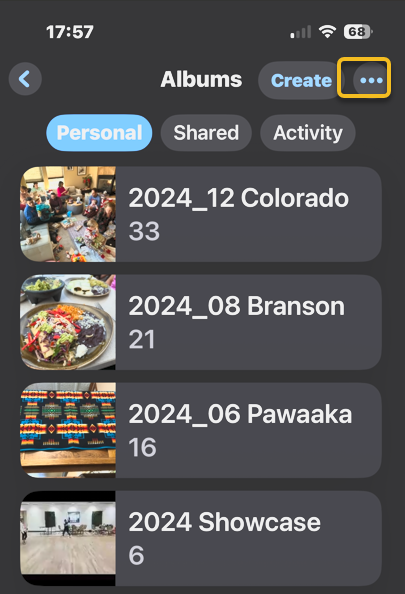
Now, tap the More icon. See the following image:

Photos 3
Selecting the More icon

Next, tap a photo album sorting option. Refer to the image below:

Photos 4
Accessing the sort options

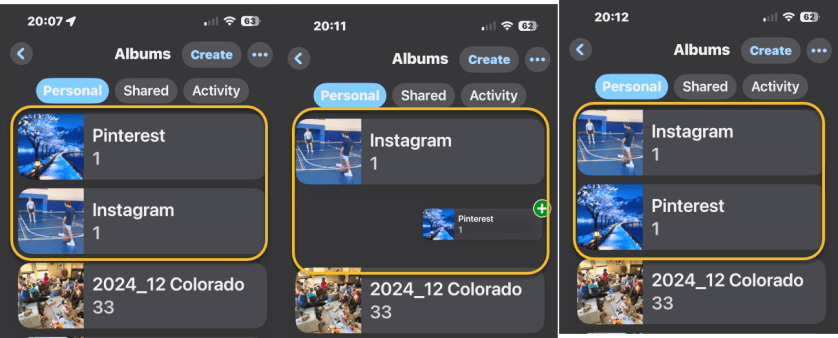
Now, back in Albums, you can also touch and hold the center of a photo album you want to move, then drag it to a new place. Release your finger to drop the album in its new location.

Note! Make sure you drag down or up and to the right. Dragging the album straight up or down will not work. In our example, we are moving the Pinterest album below the Instagram album. See the image below:

Photos 5
Moving the Pinterest album below the Instagram album

When you are done, close the Photos app, and you are finished rearranging albums on your iPhone or iPad.

Now you know how to reorder albums on iPhone and iPad!

Disclaimer

Technology is constantly evolving, and smartphone and desktop tech rarely remains static. Therefore, the information in this post is only accurate as of the date it was written. Blog posts that are older than six months may contain instructions that are no longer compatible with your device or operating system. We hope that the content from previous posts continues to function as intended. Thank you for reading TechSavvy.Life, where technology works for you.

“If you think technology can solve your security problems, then you don’t understand the problems and you don’t understand the technology.”

– Bruce Schneier, Security Technologist

That’s it. Please feel free to share this post! One way to share is via Twitter.

Just click the Tweet icon below. This will launch Twitter where you click its icon to post the Tweet.

Checkout TechSavvy.Life for blog posts on smartphones, PCs, and Macs! You may email us at contact@techsavvy.life for comments or questions.

We value your feedback! Was this post helpful? Please share your comments with us. If you have a tech question related to your computer or smart device, feel free to reach out. Just send an email to contact@techsavvy.life, and be sure to include the device, app, and version you are using. To assist us further, you can also attach screenshots related to your inquiry.

Author’s eBook

The author’s Vietnam eBook on the “Battle for Tra Bong Vietnam: Events and Aftermath” can be accessed from a Kindle device or the Kindle App for a desktop or smartphone. The apps are free.

The author’s Vietnam eBook on the Battle for Tra Bong Vietnam: Events and Aftermath

How to Access Your iPhone or iPad App Privacy Report

Apple prioritizes user privacy on iPhones and iPads, featuring an App Privacy Report that details how apps utilize personal data and device features. Users can easily access this report through the Settings app to monitor data access, app interactions, and website visits, enhancing understanding of app behavior and privacy.

RAYMOND OGLESBY @RaymondOglesby2
July 1, 2025 – 4 minutes read time

Apple takes privacy very seriously when it comes to its products. The iPhone and iPad are no exception, and both include an App Privacy Report. The iOS App Privacy Report shows you how certain apps have been using your data and accessing certain device features.

Accessing the App Privacy Report on an iPhone or iPad is surprisingly easy. The amount of data it reveals is outstanding. Let’s explore this feature.

  • Check your app privacy report to see what type of data your apps have been accessing.
  • Use your app privacy report to see which apps or websites are the most intrusive.

This tip was performed on an iPhone 14 Pro running iOS 18.5.

Click here to learn how to update your iPhone to the latest iOS version.

First, open the Settings app. Refer to the image below:

Privacy 1
Selecting the Settings app

Next, tap Privacy & Security.option.See the image below:

Privacy 2
Selecting the Privacy & Security option

Now, scroll down and tap App Privacy Report. See the following image:

Privacy 3
Selecting the App Privacy Report option

Next, if this is the first time you have accessed this screen, you might see an option to turn on App Privacy Report. If you already have this feature turned on, you will see a list of apps that have accessed your data or sensors in the past week. Refer to the image below:

Privacy 4
Your Data & Sensor Access

Now, under that section, there is App Network Activity. These are apps that have contacted domains in the last week. See the image below:

Privacy 5
Your App Network Activity

Next is Website Network Activity. These are websites that you have visited in the last week, including your most contacted domains. See the following image:

Privacy 6
Your Website Network Activity

Next is Most Contacted Domains, all of which were contacted by one or more apps or websites in the past seven days. Refer to the image below:

Privacy 7
Your Most Contacted Domains

Now, at the bottom is an option to Turn Off App Privacy Report. See the image below:

Privacy 8
Selecting the Turn Off App Privacy Report option

Next, under any section, you can tap Show All to see more apps, websites, domains, etc. See the following image:

Privacy 9
Selecting to Show All

Now, you can also tap any app or domain in any section to see additional information about it. For example, we selected Facebook. Refer to the image below:

Privacy 10
Selecting Facebook access

Next, you will see a list of the domains this app has contacted. If you were to tap a domain rather than an app in the previous step, you would see a list of apps that have contacted that domain. See the image below:

Privacy 11
Your Domains contacted by Facebook

Now, if you tap an app under Data & Sensor Access list, you can see exactly what kind of data that app is collecting. See the following image:

Privacy 12
Selecting the Calendar app

For example, we can see that the Calendar app accessed my contacts 16 minutes ago. Refer to the image below:

Privacy 13
Your Contacts last accessed

That’s the iPadOS and iOS App Privacy Report. You can access this report on your iPhone or iPad at any time and get the most up-to-date data.

Disclaimer

Technology is constantly evolving, and smartphone and desktop tech rarely remains static. Therefore, the information in this post is only accurate as of the date it was written. Blog posts that are older than six months may contain instructions that are no longer compatible with your device or operating system. We hope that the content from previous posts continues to function as intended. Thank you for reading TechSavvy.Life, where technology works for you.

“The rise of powerful AI will be either the best or the worst thing ever to happen to humanity.”

– Stephen Hawking, Theoretical Physicist

That’s it. Please feel free to share this post! One way to share is via Twitter.

Just click the Tweet icon below. This will launch Twitter where you click its icon to post the Tweet.

Checkout TechSavvy.Life for blog posts on smartphones, PCs, and Macs! You may email us at contact@techsavvy.life for comments or questions.

We value your feedback! Was this post helpful? Please share your comments with us. If you have a tech question related to your computer or smart device, feel free to reach out. Just send an email to contact@techsavvy.life, and be sure to include the device, app, and version you are using. To assist us further, you can also attach screenshots related to your inquiry.

Author’s eBook

The author’s Vietnam eBook on the “Battle for Tra Bong Vietnam: Events and Aftermath” can be accessed from a Kindle device or the Kindle App for a desktop or smartphone. The apps are free.
The author’s Vietnam eBook on the Battle for Tra Bong Vietnam: Events and Aftermath

How to Jump to the Top or Bottom of Pages on iPhone

This post discusses a useful iPhone gesture that allows users to quickly scroll to the top of any app or page by tapping the Clock or Battery Indicator. It also explains how to use the Scrollbar to reach the bottom of web pages. The tips can enhance navigation across various applications.

RAYMOND OGLESBY @RaymondOglesby2
June 24, 2025– 4 minutes read time

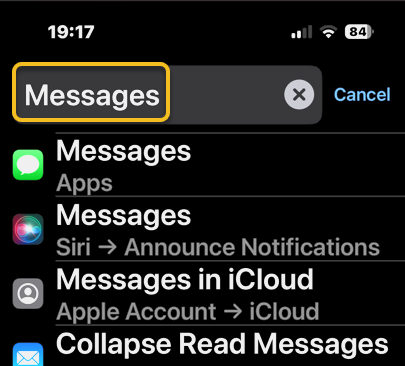
Did you know that a simple iPhone gesture can save you seconds or millions of tedious scrolling back to the top of most apps? Across all apps, pages, and platforms, this simple tip will automatically return you to the top of any screen. Whether you want to know how to scroll to the top of Messages or Photos on iPhone, Instagram, or Facebook, or you have been searching in the Settings app, we will show you this simple feature.

One of my guiltiest pastimes is spending way too much time scrolling through Wikipedia pages on the Safari app. Some of the articles, while extremely informative, are excessively long. This simple trick will shoot you right back to the top of that Wikipedia article or any app.

Although not as fast, you can “scroll to the bottom” of web pages and certain documents through the Scrollbar. Let’s explore how to scroll up to the top or down to the bottom.

  • Don’t waste time scrolling all the way back up to the top or down to the bottom.
  • You can use this “scroll to the top” tip on any app, platform, or page.
  • You can access the bottom of a page using the Scrollbar.

This tip was performed on an iPhone 14 Pro running iOS 18.5.

Click here to learn how to update your iPhone to the latest iOS version.

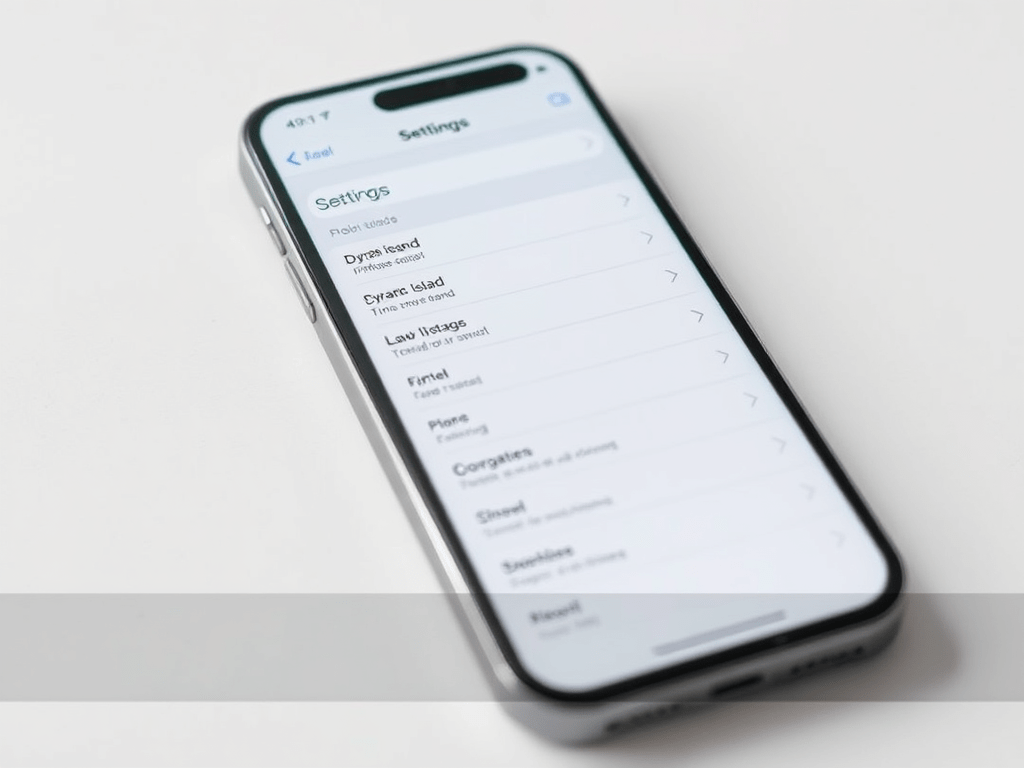
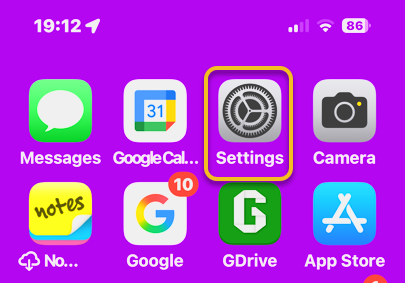
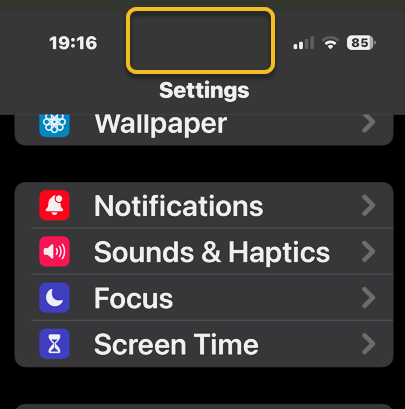
First, open any app, and simply tap either the Clock, the Battery Indicator, or even the Dynamic Island itself at the top of your screen. Refer to the image below:

Scroll 1
Opening the Settings app, scroll to the bottom and tapping the Dynamic Island area

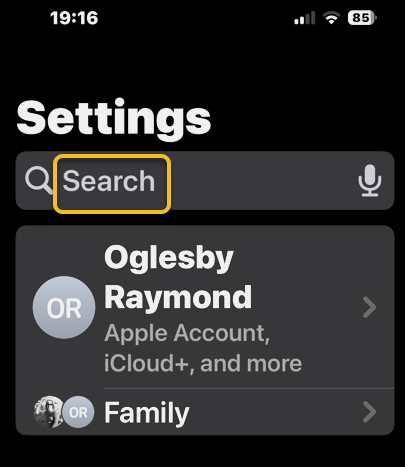
It should return you back to the top immediately. Be sure when you are doing this, you are tapping at the level of the Clock or Battery Indicator. If you tap just below, nothing will happen. See the image below:

Scroll 2
You are taken to the top of the Settings app

First, swipe once to reveal the Scrollbar on the right side of a page; then, tap and hold on the gray pill on the edge.

Next, when you feel a haptic (feedback) tap on your iPhone. That’s your signal you have now picked up the Scrollbar.

Now, while holding your finger on the Scrollbar swipe downwards to quickly scroll to the bottom of the page. Once you’ve reached the bottom, release your finger from the screen. See the following image:

Scroll 3
Using the Scrollbar

It’s that simple! This “scroll to the top” tip works in nearly any app with screens you can scroll down on, whether you have scrolled through endless emails, a playlist in music, etc. The use of the Scrollbar allows you to quickly go to the bottom of a page. So, now you know how to jump to the top or bottom on an iPhone.

Disclaimer

Technology is constantly evolving, and smartphone and desktop tech rarely remains static. Therefore, the information in this post is only accurate as of the date it was written. Blog posts that are older than six months may contain instructions that are no longer compatible with your device or operating system. We hope that the content from previous posts continues to function as intended. Thank you for reading TechSavvy.Life, where technology works for you.

“I think that’s the single best piece of advice: constantly think about how you could be doing things better and questioning yourself.” 

Elon Musk,

That’s it. Please feel free to share this post! One way to share is via Twitter.

Just click the Tweet icon below. This will launch Twitter where you click its icon to post the Tweet.

Checkout TechSavvy.Life for blog posts on smartphones, PCs, and Macs! You may email us at contact@techsavvy.life for comments or questions.

We value your feedback! Was this post helpful? Please share your comments with us. If you have a tech question related to your computer or smart device, feel free to reach out. Just send an email to contact@techsavvy.life, and be sure to include the device, app, and version you are using. To assist us further, you can also attach screenshots related to your inquiry.

Author’s eBook

The author’s Vietnam eBook on the “Battle for Tra Bong Vietnam: Events and Aftermath” can be accessed from a Kindle device or the Kindle App for a desktop or smartphone. The apps are free.
The author’s Vietnam eBook on the Battle for Tra Bong Vietnam: Events and Aftermath

How to Change Your iPhone to 24-Hour Clock Format

The article explains how to change an iPhone’s clock format from the default 12-hour cycle to a 24-hour format. This option, known as military time, helps prevent confusion between a.m. and p.m. It details the steps to toggle the feature on, enhancing clarity in time management.

RAYMOND OGLESBY @RaymondOglesby2
June 17, 2025 – 3 minutes read time

If you are in the US, your iPhone Clock app is automatically set to a 12-hour cycle. But did you know that you can change the time format on your iPhone? A 24-hour clock format, also known as military time, is a popular way to tell time worldwide.

Perks of the 24-hour time format include never accidentally setting an alarm for noon instead of midnight! If you already know how to change the time on your phone, you should have an easy time switching to a 24-hour clock. Let’s explore setting your iPhone to 24-hour format.

  • Get in sync with the rest of the world by using a 24-hour clock in the US.
  • If you mix up a.m. and p.m., make sure your alarms are set for the right time of day.

This tip should work on all versions of iOS, but the steps and screenshots below were captured on an IPhone 14 Pro running iOS 18.5.

CClick here to learn how to update your iPhone to the latest iOS version.

First, head to:

Settings > General > Date & Time

Refer to the image below:

Time 4
Accessing the Date & Time option

Next, toggle on 24-Hour Time. See the image below:

Time 5
Toggle on 24-Hour Time

Now, the time on your iPhone will be in 24-hour format. See the following image:

Time 6
Your Home screen time in a 24-hour format

Disclaimer

Technology is constantly evolving, and smartphone and desktop tech rarely remains static. Therefore, the information in this post is only accurate as of the date it was written. Blog posts that are older than six months may contain instructions that are no longer compatible with your device or operating system. We hope that the content from previous posts continues to function as intended. Thank you for reading TechSavvy.Life, where technology works for you.

“The rise of powerful AI will be either the best or the worst thing ever to happen to humanity.”

– Stephen Hawking

That was easy. Please feel free to share this post! One way to share is via Twitter.

Just click the Tweet icon below. This will launch Twitter where you click its icon to post the Tweet.

Checkout TechSavvy.Life for blog posts on smartphones, PCs, and Macs! You may email us at contact@techsavvy.life for comments or questions.

We value your feedback! Was this post helpful? Please share your comments with us. If you have a tech question related to your computer or smart device, feel free to reach out. Just send an email to contact@techsavvy.life, and be sure to include the device, app, and version you are using. To assist us further, you can also attach screenshots related to your inquiry.

Author’s eBook

The author’s Vietnam eBook on the “Battle for Tra Bong Vietnam: Events and Aftermath” can be accessed from a Kindle device or the Kindle App for a desktop or smartphone. The apps are free.
The author’s Vietnam eBook on the Battle for Tra Bong Vietnam: Events and Aftermath

Quick Tips for Voicemail Recovery on iPhone

This post guides iPhone users on recovering deleted voicemails and managing storage. It details steps to undelete voicemails, clear all deleted messages, or select specific ones for deletion. The content highlights system requirements, emphasizes storing voicemails, and serves as a tech resource.

RAYMOND OGLESBY @RaymondOglesby2
June 10, 2025 – 4 minutes read time

We have all accidentally deleted an important voicemail or deleted a voicemail only to realize we need it back. Fortunately, we can show you how to recover deleted voicemail on your iPhone. Let’s explore how this is accomplished.

  • Save voicemails you accidentally moved to the trash.
  • Retrieve deleted voicemail on iPhone in just a few easy steps.
  • Free up storage space by removing deleted voicemails.

This tip was performed on an iPhone 14 Pro running iOS 18.5.

Click here to learn how to update your iPhone to the latest iOS version.

You cannot directly set a limit to the number of active voicemails on an iPhone, as this is a function of your carrier’s service and storage capacity. You cannot dictate how many voicemails can be stored before they are considered “full”. Instead, you can manage the voicemail system by deleting old messages or by choosing a voicemail service that offers more storage. 

First, open the Phone app. Refer to the image below:

Voicemail 1
Selecting the Phone app

Next, tap Voicemail. See the image below:

Voicemail 2
Selecting the Voicemail icon

Now, scroll to the very bottom of your voicemails and tap Deleted Messages. See the following image:

Voicemail 3
Selecting the Deleted Messages option

Next, tap the voicemail you want to undelete. (Make sure to tap in the middle of the voicemail, not the info icon to the side). Refer to the image below:

Voicemail 4
Selecting a Voicemail to undelete

Now, tap the Undelete icon (red trashcan with a slash through it). The message will automatically be moved back into your main voicemail box. See the image below:

Voicemail 5
Selecting the Undelete icon to retrieve the Voicemail

If you have a lot of deleted voicemails (like us, we have 800), you have a couple of options.

First, in the Deleted Messages section, tap Clear All to permanently remove all deleted voicemails from your iPhone. 

Next, you may be prompted to confirm the deletion. If so, tap Clear All again to proceed.

See the following image:

Voicemail 6
Selecting the Clear All option to remove all deleted Voicemails

If you just have certain voicemails you want to remove, just tap the Edit button at the top of the screen. Refer to the image below:

Voicemail 7
Selecting the Edit option

Next, tap the buttons to the left of the voicemails to select the ones you wish to remove. You can then tap Delete at the bottom of the screen. See the image below:

Voicemail 8
Selecting a Voicemail to delete

Disclaimer

Technology is constantly evolving, and smartphone and desktop tech rarely remains static. Therefore, the information in this post is only accurate as of the date it was written. Blog posts that are older than six months may contain instructions that are no longer compatible with your device or operating system. We hope that the content from previous posts continues to function as intended. Thank you for reading TechSavvy.Life, where technology works for you.

. “Technology is the knack of so arranging the world that we do not experience it.”

― Rollo May

That’s it. Please feel free to share this post! One way to share is via Twitter.

Just click the Tweet icon below. This will launch Twitter where you click its icon to post the Tweet.

Checkout TechSavvy.Life for blog posts on smartphones, PCs, and Macs! You may email us at contact@techsavvy.life for comments or questions.

We value your feedback! Was this post helpful? Please share your comments with us. If you have a tech question related to your computer or smart device, feel free to reach out. Just send an email to contact@techsavvy.life, and be sure to include the device, app, and version you are using. To assist us further, you can also attach screenshots related to your inquiry.

Author’s eBook

The author’s Vietnam eBook on the “Battle for Tra Bong Vietnam: Events and Aftermath” can be accessed from a Kindle device or the Kindle App for a desktop or smartphone. The apps are free.

The author’s Vietnam eBook on the Battle for Tra Bong Vietnam: Events and Aftermath

How to Alphabetize Notes on iPhone and iPad

The Notes app on Apple devices sorts notes by default based on the most recent update. However, users can change settings to organize notes alphabetically by title or first line. This enhances note accessibility and organization. The guide also addresses setting defaults for new notes.

RAYMOND OGLESBY @RaymondOglesby2
June 3, 2025– 3 minutes read time

Can you alphabetize in Notes? Yes! By default, the Notes app sorts your notes by most recently updated. Even if you created a note years ago, if you edit that note, it will appear at the top of the list afterward.

But you can easily sort your notes alphabetically by changing your Settings. Your notes will then be sorted according to either the title or first line (if the note does not have a title). Let explore how to sort Apple Notes alphabetically on iPhone or iPad.

  • Alphabetize notes by note titles or the beginning of your note, instead of by date created or last edited.
  • Alphabetize notes on iPhone and iPad to make your notes more organized and easier to find.

This tip was performed on an iPhone 14 Pro running iOS 18.5.

Click here to learn how to update your iPhone to the latest iOS version.

First, open the Settings app. Refer to below image:

Notes 1
Selecting Settings

Next, scroll down and tap Apps. See the image below:

Notes 2
Selecting Apps

Now, rap Notes. See the following image:

Notes 3
Selecting Notes

Next, tap Sort Notes By: Refer to image below:

Notes 4
Selecting the Sort Notes By option

Now, tap Title. See the image below:

Notes 5
Selecting the Title option

Choosing Title will sort your Notes alphabetically. You can also select Date Created if you would rather have all your notes sorted by the day each was started.

You may want to set a couple of defaults. One is to set the Title as the default heading for a New Note. See the following image:

Notes 6
Selecting the New Notes Start With Title option

If you prefer a New Note with lines or grids, you can choose from various styles. Refer to the image below:

Notes 7
Selecting a Style for a New Note

Disclaimer

Technology is constantly evolving, and smartphone and desktop tech rarely remains static. Therefore, the information in this post is only accurate as of the date it was written. Blog posts that are older than six months may contain instructions that are no longer compatible with your device or operating system. We hope that the content from previous posts continues to function as intended. Thank you for reading TechSavvy.Life, where technology works for you.

“Technology is not just a tool. It can give learners a voice that they may not have had before.”

― George Couros

You are finished. Please feel free to share this post! One way to share is via Twitter.

Just click the Tweet icon below. This will launch Twitter where you click its icon to post the Tweet.

Checkout TechSavvy.Life for blog posts on smartphones, PCs, and Macs! You may email us at contact@techsavvy.life for comments or questions.

We value your feedback! Was this post helpful? Please share your comments with us. If you have a tech question related to your computer or smart device, feel free to reach out. Just send an email to contact@techsavvy.life, and be sure to include the device, app, and version you are using. To assist us further, you can also attach screenshots related to your inquiry.

Author’s eBook

The author’s Vietnam eBook on the “Battle for Tra Bong Vietnam: Events and Aftermath” can be accessed from a Kindle device or the Kindle App for a desktop or smartphone. The apps are free.

The author’s Vietnam eBook on the Battle for Tra Bong Vietnam: Events and Aftermath

How to Change Your iPhone Default Browser Easily

The post provides a step-by-step guide on how to change the default web browser on an iPhone from Safari to a preferred alternative, such as Chrome. It includes tips, system requirements, and FAQs regarding browser functionalities, catering to users seeking to customize their browsing experience on Apple devices.

RAYMOND OGLESBY @RaymondOglesby2
May 27, 2025 – 3 minutes read time

On Apple devices, Safari is the default browser. However, many people prefer to use other browsers, such as Chrome, instead of Safari. Fortunately, you can easily change the default web browser on your iPhone to your preferred one. Here’s how to change the default browser on an iPhone.

  • Easily change default browser from Safari.
  • You have different preferences than Apple’s standard browser.

This tip was performed in iPhone 14 Pro running iOS 18.5

Click here to learn how to update your iPhone to the latest iOS version.

First, open the Settings app. Refer to the image below:

Default Browser 1
Selecting Settings

Next, tap Apps. See the image below:

Default Browser 2
Selecting Apps

Now, scroll down to the app list to find your preferred browser, such as Chrome, and tap it. See the following image:

Default Browser 3
Selecting preferred browser

Next, tap Default Browser App. Refer to the image below:

Default Browser 4
Selecting Defsult Briwser App option

Now, tap whichever browser you would like to use as your default browser. See the image below:

Default Browser 5
Selecting a browser

Next, when you haveselected your new default browser, you will see a blue check mark next to it. See the following image:

Default Browser 6
Your preferred browser selected

Now that you know how to change the default browser on your iPhone, you can easily open links in your preferred web browser, whether it’s Safari, Chrome, Edge, or another browser.

  • How do I clear my Safari history on my iPhone? To clear your Safari history on an iPhone, tap the Bookmark icon, then the History tab, then choose which parts of your Safari history you want to delete. 
  • How do I make Safari the default browser again? Follow the same steps above and select Safari from Apps. Alternatively, if you uninstall the browser app that is set as default, your iPhone will automatically switch back to Safari.
  • What do I do if Safari is not working on my iPhone? If Safari is not working on your iPhone, make sure you have a strong Wi-Fi or cellular connection. Additionally, verify that Screen Time limits are not enabled.

Disclaimer

Technology is constantly evolving, and smartphone and desktop tech rarely remains static. Therefore, the information in this post is only accurate as of the date it was written. Blog posts that are older than six months may contain instructions that are no longer compatible with your device or operating system. We hope that the content from previous posts continues to function as intended. Thank you for reading TechSavvy.Life, where technology works for you.

 “Technology means you can now do amazing things easily, but you can’t easily do them legally.”

― Lawrence Lessig

That’s it. Please feel free to share this post! One way to share is via Twitter.

Just click the Tweet icon below. This will launch Twitter where you click its icon to post the Tweet.

Checkout TechSavvy.Life for blog posts on smartphones, PCs, and Macs! You may email us at contact@techsavvy.life for comments or questions.

We value your feedback! Was this post helpful? Please share your comments with us. If you have a tech question related to your computer or smart device, feel free to reach out. Just send an email to contact@techsavvy.life, and be sure to include the device, app, and version you are using. To assist us further, you can also attach screenshots related to your inquiry.

Author’s eBook

The author’s Vietnam eBook on the “Battle for Tra Bong Vietnam: Events and Aftermath” can be accessed from a Kindle device or the Kindle App for a desktop or smartphone. The apps are free.

The author’s Vietnam eBook on the Battle for Tra Bong Vietnam: Events and Aftermath

How to Add Another Face ID on iPhone

The article explains how to set up an Alternate Appearance for Face ID on iPhones, allowing other users to unlock the device in emergencies. This is useful for shared phones. Instructions are provided for adding a second face, including using it while wearing a mask. Full access is granted to added faces.

RAYMOND OGLESBY @RaymondOglesby2
May 20, 2025– 5 minutes read time

Face ID has been the default security feature for Apple’s smartphones since its debut. However, if you would like to share your iPhone with a partner, friend, or child, unlocking might be a little difficult. Fortunately, just like Touch ID allows you to save multiple fingerprints, there is a way to enable another person’s face to unlock your iPhone. Let’s explore how to add another Face ID.

  • Set up an Alternate Appearance for Face ID to allow other family members or friends to unlock your device in case of emergency.
  • If someone is sharing an iPhone, adding two appearances to Face ID ensures both users can get into the phone.

This tip was performed on an iPhone 14 Pro running iOS 18.4.1.

Click here to learn how to update your iPhone to the latest iOS version.

Before we begin, it’s essential to note that the Alternate Appearance option is designed to enable the use of Face ID and Apple Pay while wearing glasses, sunglasses, facemasks, hats, and other similar accessories.

Please be aware that if you set up this feature to add the face of a partner, friend, or child so that they can unlock your phone, they will have full access to your device.

Now, here’s how to add a second Face ID by adding an alternate appearance.

First, open the Settings app, and select Face ID & Passcode option. You will be prompted to enter your passcode to continue. Refer to the image below:

Face ID 1
Selecting the Face ID & Passcode option

Next, tap Set Up an Alternate Appearance option. See the image below:

Face ID 2
Selecting the Setup Up an Alternate Appearance option

Now, tap Get Started and follow the on-screen prompts to add a second face to Face ID. See the following image:

Face ID 3
Selecting Get Started, then Done when finished

Next, if you do not see the Set Up an Alternate Appearance button, you may already have an alternate appearance saved. The only way to remove an alternate appearance and add a new one is to tap Reset Face ID. When resetting Face ID, you will need to set up your own face again before setting up the alternate appearance. Refer to the image below:

Face ID 4
Selecting the Reset Face ID option

That’s how to add another face to Face ID. Once you have set up an Alternate Appearance for Face ID, they should have no problem using Face ID to unlock your device. This can be incredibly useful in the event of an emergency in which you are unable to unlock your phone yourself.

Be aware that if you have locked any apps with Face ID, any other faces you have saved as alternate appearances will also be able to unlock them. Alternate faces will also be able to make purchases with Face ID.

Additionally, you can setup an Alternate Appearance when wearing a mask. First, head to:

Settings > Face IO & Passcode

You will be prompted to enter your passcode to continue. See the image below:

Face ID 1
Selecting the Face ID & Passcode option

Next, scroll down and tap Setup Face ID with a Mask for Alternate Appearance. See the following image:

Face ID 6
Selecting the Set Up Face ID with a Mask for the Alternate Appearance option

Now, tap Use Face ID with a Mask and follow the on-screen prompts. Refer to the image below:

Face ID 7
Selecting the Use Face ID with a Mask option

Disclaimer

Technology is constantly evolving, and smartphone and desktop tech rarely remains static. Therefore, the information in this post is only accurate as of the date it was written. Blog posts that are older than six months may contain instructions that are no longer compatible with your device or operating system. We hope that the content from previous posts continues to function as intended. Thank you for reading TechSavvy.Life, where technology works for you.

“Humanity is acquiring all the right technology for all the wrong reasons.”

― R. Buckminster Fuller

You are finished. Please feel free to share this post! One way to share is via Twitter.

Just click the Tweet icon below. This will launch Twitter where you click its icon to post the Tweet.

Checkout TechSavvy.Life for blog posts on smartphones, PCs, and Macs! You may email us at contact@techsavvy.life for comments or questions.

We value your feedback! Was this post helpful? Please share your comments with us. If you have a tech question related to your computer or smart device, feel free to reach out. Just send an email to contact@techsavvy.life, and be sure to include the device, app, and version you are using. To assist us further, you can also attach screenshots related to your inquiry.

Author’s eBook

The author’s Vietnam eBook on the “Battle for Tra Bong Vietnam: Events and Aftermath” can be accessed from a Kindle device or the Kindle App for a desktop or smartphone. The apps are free.
The author’s Vietnam eBook on the Battle for Tra Bong Vietnam: Events and Aftermath

How to Enable Dark Mode on Your iPhone

The iPhone Dark Mode feature enhances user experience by darkening backgrounds and lightening text for better contrast, reducing eye strain, and improving battery life. Accessible through Settings or Control Center, it can be toggled manually or set to activate automatically. This feature is available on most iPhone models.

RAYMOND OGLESBY @RaymondOglesby2
May 13, 2025 – 3 minutes read time

The iPhone Dark Mode feature reverses the color scheme on your iPhone, darkening the background and lightening text to provide higher contrast. This change will affect the theme for built-in apps, including Files, Messages, Music, Notes, Safari, and Settings.

Additionally, it can help reduce eye strain caused by looking at bright screens, or just look better to some users. To enable Dark Mode on iPhones of most models, simply make a quick change in the Settings app.

Enabling Dark Mode on your iPhone is easy, as it can be turned on and off as needed, or you can set it to activate automatically in the evenings. Let’s explore this feature.

  • Dark Mode on iPhone is a neat setting that can help reduce eye strain while you use your iPhone.
  • You can also enjoy longer battery life and improved focus while using Dark Mode for iPhone.
  • Your phone can automatically toggle between Light and Dark Mode, depending on the time of day!

This tip was performed on an iPhone 14 Pro running iOS 18.4.1 but will work on most models and older software versions.

Click here to learn how to update your iPhone to the latest iOS version.

First, open Settings. Refer to the image below:

Dark Mode 1
Selecting the Settings app

Next, tap Disply & Brightness. See the image below:

Dark Mode 2
Selecting the Display & Brightness option

Now, tap the circle under Dark. See the following image:

Dark Mode 3
Running on Dark Mode

Next, to make Dark Mode turn on automatically when the sun sets and off again when the sun rises, make sure that Automatic is toggled on. Refer to the image below:

Dark Mode 4
Enabling automatic Dark Mode

Now, Dark Mode is turned on for your iPhone, and you can enjoy some battery saving, improved focus, and reduced eye strain!

You can also access Dark Mode from your Control Center. Simply open your Control Center by swiping down from the upper right corner. Then, touch and hold the Brightness bar and select Dark Mode. See the image below:

Dark Mode 5
Accessing Dark Mode via Control Center

The fastest way to turn Dark Mode on or off is to just ask Siri. “Hey Siri, turn on Dark Mode. See the following image:

Dark Mode 6
Using Siri to access Dark Mode

Disclaimer

Technology is constantly evolving, and smartphone and desktop tech rarely remains static. Therefore, the information in this post is only accurate as of the date it was written. Blog posts that are older than six months may contain instructions that are no longer compatible with your device or operating system. We hope that the content from previous posts continues to function as intended. Thank you for reading TechSavvy.Life, where technology works for you.

. “I’d rather check my Facebook than face my checkbook.”

― Craig Coelho

That’s it. Please feel free to share this post! One way to share is via Twitter.

Just click the Tweet icon below. This will launch Twitter where you click its icon to post the Tweet.

Checkout TechSavvy.Life for blog posts on smartphones, PCs, and Macs! You may email us at contact@techsavvy.life for comments or questions.

We value your feedback! Was this post helpful? Please share your comments with us. If you have a tech question related to your computer or smart device, feel free to reach out. Just send an email to contact@techsavvy.life, and be sure to include the device, app, and version you are using. To assist us further, you can also attach screenshots related to your inquiry.

Author’s eBook

The author’s Vietnam eBook on the “Battle for Tra Bong Vietnam: Events and Aftermath” can be accessed from a Kindle device or the Kindle App for a desktop or smartphone. The apps are free.
The author’s Vietnam eBook on the Battle for Tra Bong Vietnam: Events and Aftermath

How to Forward Text Messages on iPhone

The post details how to forward text messages, including photos, on an iPhone. To forward a message, users should long press the message, select “More,” choose additional messages if desired, tap the forward icon, enter the recipient’s contact, and send it. This method allows efficient sharing without creating group texts.

RAYMOND OGLESBY @RaymondOglesby2
May 6, 2025– 4 minutes read time

You can easily forward texts from the Messages app, including photos. Just press and hold the message you want to forward. Let’s explore how to forward a text message on an iPhone.

Why You Will Like This Tip

  • Learn how to forward a text on iPhone to quickly send pictures you received in Messages to friends and family.
  • Use text message forwarding to send the same message to multiple people without making it a group text

This tip was performed on an iPhone 14 Pro running iOS 18.4..1.

Click here to learn how to update your iPhone to the latest iOS version.

Whether it’s sharing important information, funny memes, or heartfelt messages, we often find ourselves wanting to pass along these texts to others. Fortunately, forwarding a text message is a simple task that can be accomplished on most smartphones.

Text message forwarding allows you to send a message you have received to another recipient, either within the same messaging app or through a different platform like email. This feature is handy for sharing information quickly and efficiently.  However, remember that forwarded text messages can not be deleted once sent to another contact.

First, open the Messages app. Refer to the image below.

Forward 1
Selecting the Messages app

Next, tap the conversation containing the text you want to forward. See the below image:

Forward 2
Selecting a conversation

Now, long press on the body of the message you want to forward, then tap More. See the following image:

Forward 3
Selecting the More option

Next, all the messages will have small circles that will appear to the left of each text, with the chosen message already selected. If desired, tap the circle next to any other messages you want to forward. Refer to the image below:

Forward 4
Tapping the circle next to the message you want to forward

Now, tap the Forward icon, and a new message will open. See the below image:

Forward 5
Selecting the Forward icon

Next, enter your recipient’s contact information and tap the contact when it pops up. See the following image:

Forward 6
Entering a contact

Now, tap the Send icon. Refer to the image below:

Forward 5
Selecting the Send icon

Your friend will receive the text you have forwarded. So much easier than retyping a whole message or using copy and paste!

Disclaimer

Technology is constantly evolving, and smartphone and desktop tech rarely remains static. Therefore, the information in this post is only accurate as of the date it was written. Blog posts that are older than six months may contain instructions that are no longer compatible with your device or operating system. We hope that the content from previous posts continues to function as intended. Thank you for reading TechSavvy.Life, where technology works for you.

. “Even the technology that promises to unite us divides us. Each of us is now electronically connected to the globe, and yet we feel utterly alone.”

― Dan Brown

That’s it. Please feel free to share this post! One way to share is via Twitter.

Just click the Tweet icon below. This will launch Twitter where you click its icon to post the Tweet.

Checkout TechSavvy.Life for blog posts on smartphones, PCs, and Macs! You may email us at contact@techsavvy.life for comments or questions.

We value your feedback! Was this post helpful? Please share your comments with us. If you have a tech question related to your computer or smart device, feel free to reach out. Just send an email to contact@techsavvy.life, and be sure to include the device, app, and version you are using. To assist us further, you can also attach screenshots related to your inquiry.

Author’s eBook

The author’s Vietnam eBook on the “Battle for Tra Bong Vietnam: Events and Aftermath” can be accessed from a Kindle device or the Kindle App for a desktop or smartphone. The apps are free.

The author’s Vietnam eBook on the Battle for Tra Bong Vietnam: Events and Aftermath