If you keep many Google Chrome windows open to organize your tabs like me, you can go one step further and name each window. Chrome’s built-in naming feature makes it easy to remember the windows name in the Taskbar or the overview screen (Alt+Tab).
If you keep many Google Chrome windows open to organize your tabs like me, you can go one step further and name each window. Chrome’s built-in naming feature makes it easy to remember the windows name in the Taskbar or the overview screen (Alt+Tab).
The Windows naming feature was introduced in Chrome 90 and is available for Chrome on Windows 10, Mac, and Linux. It is easy to use and can save you from opening the wrong window.
This is for devices running Chrome 90. Screenshots are from Windows 10
Copyright Scott Adams, Inc./Distributed by Universal Uclick for UFS
First, launch Chrome and open a Chrome window. Next, click the three-dot menu (the hamburger) icon in the top-right of the Chrome window. Refer to below image:
Accessing the main menu
Now, from the drop-down menu, select More Tools. See below image:
Selecting More Tools option
Next, from the expanded options, click Name Window. If you don’t see this, you are not running Chrome 90. To check your Chrome version, go to:
Click the three-dot menu (the hamburger) icon > Help > About Google Chrome
Now, your Google version will be displayed. Google should auto update to the latest version.
See following image for your expanded options:
Accessing Name window option
A pop-up text box will appear. Now, enter the name for the window and click OK. Refer to below image:
Naming your window
Alternatively, you can right-click the title bar of the Chrome window and select Name Window from the drop-down menu and go through the process of assigning it a name. See below image:
Accessing Name window option from title bar
You will now see this name in the Alt+Tab on Windows 10. See following image:
Your Alt+Tab named window
Additionally, this name will appear in the Taskbar on Windows 10. Refer to below image:
Your Taskbar named window
Quote For the Day
The more you eliminate the inefficient use of information, the better it is for productivity.
Mitch Kapor
You are finished. This is probably a pretty niche feature, but for those of us who like to organize Chrome tabs by separating them out into windows, it’s a handy little trick.
Please feel free to share this post! One way to share is via Twitter.
Just click the Tweet icon below. This will launch Twitter where you click its icon to post the Tweet.
Check out TechSavvy.Life for blog posts on smartphones, PCs, and Macs! You may email us at contact@techsavvy.life for comments or questions.
Please feel free to leave a comment. I would love hearing from you. Do you have a computer or smart device tech question? I will do my best to answer your inquiry. Just send an email to contact@techsavvy.life. Please mention the device, app and version that you are using. To help us out, you can send screenshots of your data related to your question.
The author’s Vietnam eBook on the Battle for Tra Bong: Events and Aftermath
We have all been there; looking up a word on Google just to find out how it’s spelled. No matter the typos, Google usually knows what you want to type. Thankfully, Google allows you to use its spell-check feature everywhere in your Chrome web browser.
We have all been there; looking up a word on Google just to find out how it’s spelled. No matter the typos, Google usually knows what you want to type. Thankfully, Google allows you to use its spell-check feature everywhere in your Chrome web browser.
Called the Enhanced spell check, this setting allows you to access Google’s more advanced spell check whenever you type something on the Internet.
But as is the case with most Google services, there is a privacy cost to this. Turning on Enhanced spell check in Chrome also means agreeing to send everything you type on the web to Google’s server. So enable it at your own risk. But, you can also enable Basic spell check without sending data to Google. Lets explore how to do this.
This is for PCs, Macs, Chrome OS, or Linux running Chrome
dCopyright Scott Adams, Inc./Distributed by Universal Uclick for UFS
First, open your Google Chrome browser. Next, click the three-dot hamburger icon located in the top right-hand corner. Refer to below image:
Accessing the menu hamburger icon
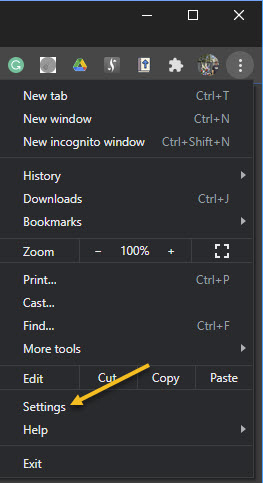
Now, from the drop-down menu that appears, select Settings. See below image:
Accessing Settings
Alternatively, you can press the Cmd+Comma keyboard shortcut on a Mac or Alt+E on a Windows PC to access the Settings option.
Next, in the sidebar, click Advanced to reveal the advanced menu. Now, choose Languages from the list. See following image:
Accessing Languages under the Advanced section
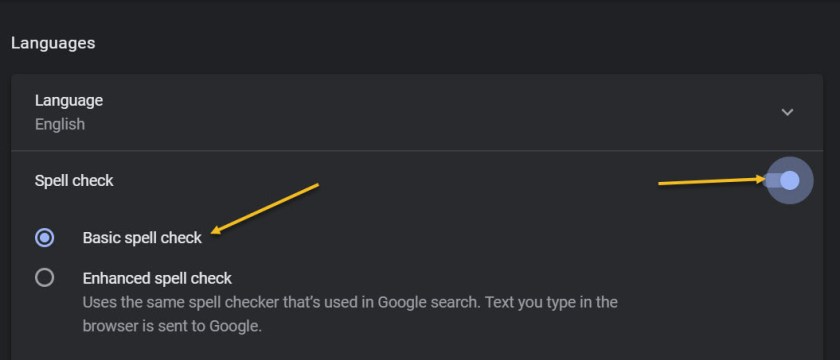
Under the Spell check section, toggle the radio button in front of the Basic spell check option to turn it On. If you want enhanced spell checking, toggle the radio button in front of the Enhanced spell check to turn it On. Keep in mind, the enhanced option means you are sending your browser activity to Google. Refer to below image:
Enabling Basic spell check option
At the time of writing, Enhanced spell check is not available for Google Chrome’s Android and iPhone clients.
The number one benefit of information technology is that it empowers people to do what they want to do. It lets people be creative. It lets people be productive. It lets people learn things they didn’t think they could learn before, and so in a sense it is all about potential.
Steve Ballmer, Microsoft
That’s it. Please feel free to share this post! One way to share is via Twitter.
Just click the Tweet icon below. This will launch Twitter where you click its icon to post the Tweet.
Check out TechSavvy.Life for blog posts on smartphones, PCs, and Macs! You may email us at contact@techsavvy.life for comments or questions.
There might be times when it would be helpful to add a YouTube video to a Microsoft Word document. It can help you get your point across or help with training. Inserting the YouTube video directly into the document makes it easier to watch it. Word allows you to include the video right inside the document. Then the reader does not need to click a link to the video and launch a separate browser instance.
There might be times when it would be helpful to add a YouTube video to a Microsoft Word document. It can help you get your point across or help with training. Inserting the YouTube video directly into the document makes it easier to watch it. Word allows you to include the video right inside the document. Then the reader does not need to click a link to the video and launch a separate browser instance. Let’s explore how this is done.
This is for Word. Screenshots are from Word in Office 365 and Chrome using Windows 10
Copyright Scott Adams, Inc./Distributed by Universal Uclick for UFS
If you follow my example, I will be using a YouTube video from the 2008 Winner in a Poland ballroom dance competition on BBC One. I have been ballroom dancing for 15 years and this is one of the best ballroom dance videos I have found. As of this writing, the video has been viewed over 3.9 million times. I hope you enjoy the video and this post.
Copy YouTube Video URL
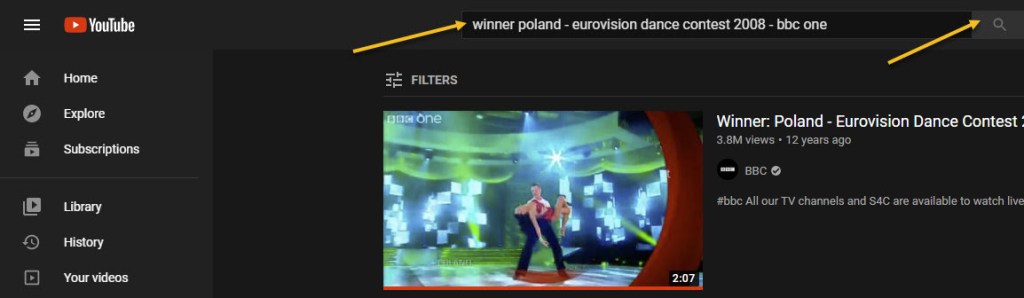
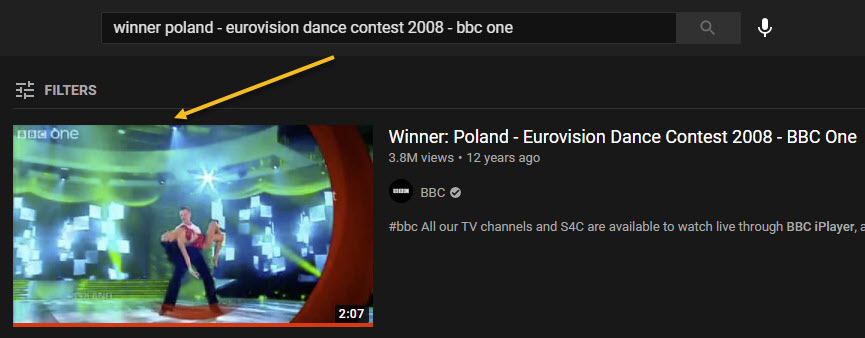
To insert a YouTube video into your Word document, open your browser of choice (I am using Chrome) and go to the YouTube website. Now, search for a YouTube video that you want to use by typing the name of the video in the search bar. Next, click the search button or simply press Enter. Refer to below image:
Entering your YouTube video name
Next, select the video from the search results by clicking it. See below image:
Accessing your YouTube video
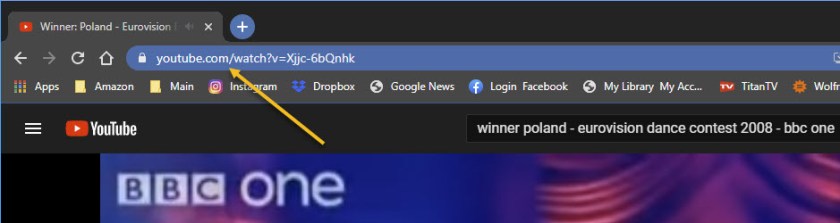
Now, highlight the video’s URL in the browser’s address bar. Right-click and then select Copy from the context menu. (This is the easiest option). See following image:
Copy the URL of your YouTube video
Copy YouTube Embed Code
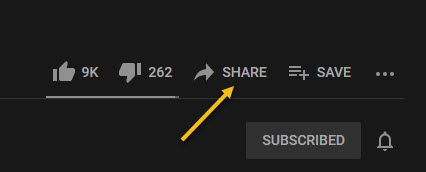
Alternately, to get the embed code, click Share under the video. Refer to below image:
Accessing your YouTube video Share option
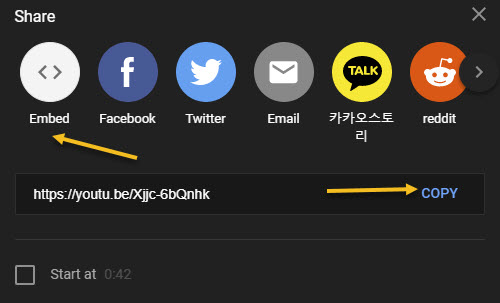
Next, in the Share window, select Embed. See below image:
Selecting your YouTube video Embed option
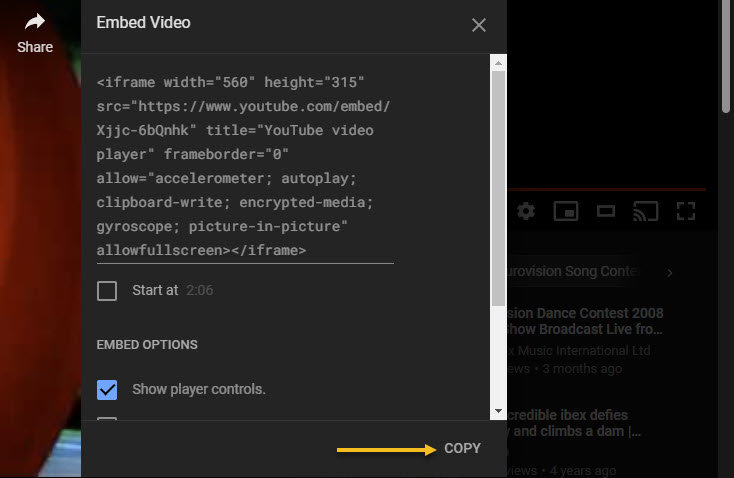
Now, the Embed Video window will appear. Click Copy to copy the code to your clipboard. Optionally, if you want to start the video from a specific time, check the box next to Start At and enter the desired time. See following image:
Copy your YouTube video Embed code
Insert URL or Embed Code
With the URL or embed code copied to your clipboard, open Word. Next, place your pointer where you want to insert your video.
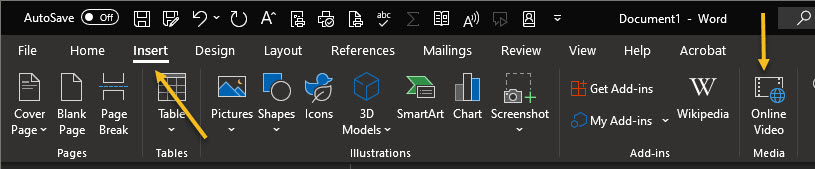
Now, from the top toolbar, click the Insert tab, then select Online Video in the Media group. Refer to below image:
Selecting the Inset option for Online Video
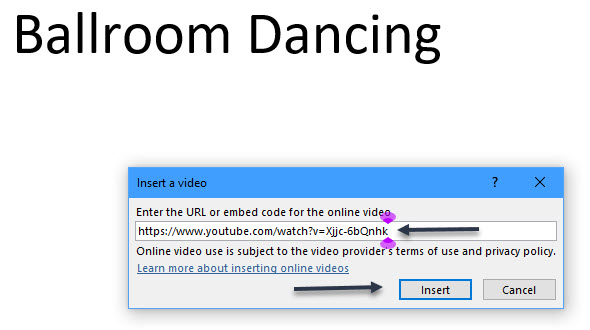
The Insert a Video dialog box will appear. Next, paste (Ctrl+V or right-click > Paste) the URL or embed code in the text box, then click Insert. See below image where I used the URL:
Copy/Paste the URL of your YouTube video
The video will now be inserted into the Word document. Clicking the play button will make the video pop out in the foreground while the background is dimmed. Press the Play button again to start. To pause, just click the video.
Your YouTube Video in Word
All of the normal video controls you would find on YouTube are also available for the video inserted into your Word document. See following image on how the video is displayed in Word:
Your YouTube video inside of a Word document
Quote For the Day
Everybody gets so much information all day long that they lose their common sense.”
Gertrude Stein
That’s it. Please feel free to share this post! One way to share is via Twitter.
Just click the Tweet icon below. This will launch Twitter where you click its icon to post the Tweet.
Check out TechSavvy.Life for blog posts on smartphones, PCs, and Macs! You may email us at contact@techsavvy.life for comments or questions.
Please feel free to leave a comment. I would love hearing from you. Do you have a computer or smart device tech question? I will do my best to answer your inquiry. Just send an email to contact@techsavvy.life. Please mention the device, app and version that you are using. To help us out, you can send screenshots of your data related to your question.
The author’s Vietnam eBook on the Battle for Tra Bong: Events and Aftermath
You can use Google Chrome or Microsoft Edge to convert a website into an app. Although it works for Window 8 or 7, we are using Windows 10 for creating this blog post. This lets you use your sites as if they were normal apps.
You can use Google Chrome or Microsoft Edge to convert a website into an app. Although it works for Window 8 or 7, we are using Windows 10 for creating this blog post. This lets you use your sites as if they were normal apps.
This is for devices running Windows 10, and Google Chrome or Microsoft Edge
Copyright Scott Adams, Inc./Distributed by Universal Uclick for UFS
How Website Apps Work
Your website looks and works exactly the same in your app as it does in your web browser. The only difference you will see is that there will not be any browser elements in your app window, such as the bookmarks bar, address bar, and other toolbar elements.
If you use Chrome, the website app will be using Chrome in the background. If you use Edge, the browser app will use Microsoft Edge. However, normal browser elements are stripped off so that you get the actual app-like experience. These web apps get their own separate windows, taskbar icons, and desktop shortcuts.
Turn a Website Into an App Using Chrome
You can use Chrome’s main menu to turn any website into a Windows app.
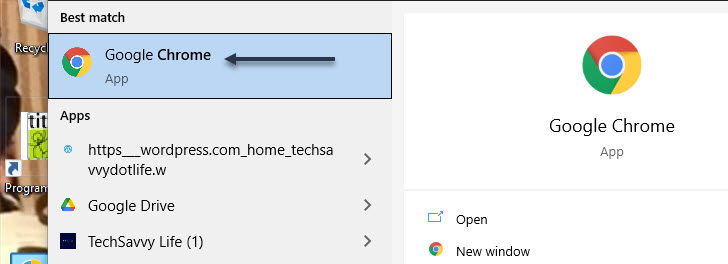
First, open the Start menu. Next, enter “Google Chrome” in the Cortana search box at bottom left-hand corner. Now, click the browser in the results at top left-hand corner. Refer to below image:
Selecting Chrome
Next, open any website that you want to turn into an app. Navigate to the specific web page that you want your app to start with.
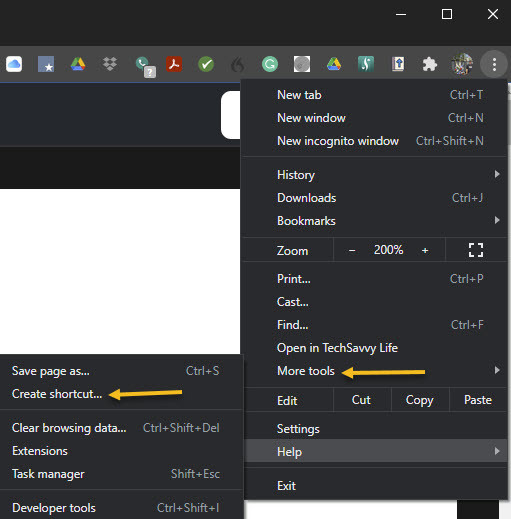
When the site has loaded, click its hamburger menu button (the three dots) in the top-right corner of the window and select:
More Tools > Create Shortcut
See below image:
Create a shortcut
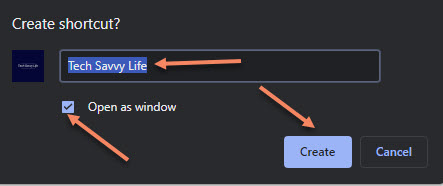
A prompt will appear asking for your new app name. Enter a name for your new app, enable the Open as window checkbox, and click Create. See following image:
Name the shortcut
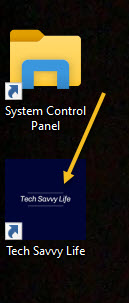
A shortcut will be placed on your desktop. You can launch your app from this desktop shortcut. Refer to below image:
Your desktop shortcut
Also, Chrome will create the app for your site and add it to the Start menu. You can now search and launch your app using your PC’s Start menu. See below image:
Use the Start menu to launch your Chrome app
Turn a Website Into an App Using Edge
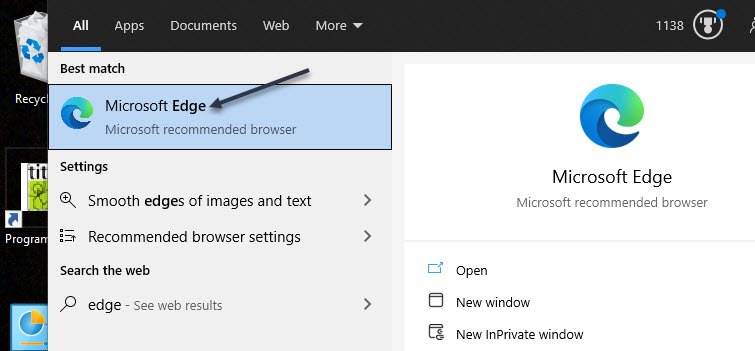
You can also use Microsoft Edge to make a website into an app. This creates the exact same kind of app that Chrome does. First, open the Start menu. Next, enter “Microsoft Edge” in the Cortana search box at bottom left-hand corner. Now, click the browser in the results at top left-hand corner. See following image:
Selecting Edge
Navigate to the website that you want to make an app for, then navigate to the specific page that you want to use for the app.
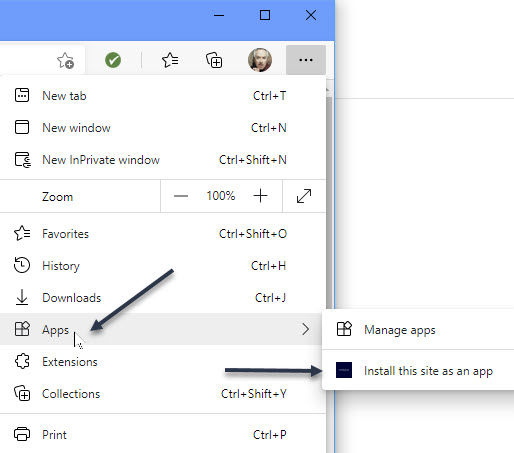
Now, click the menu hamburger button (the three dots) in the top-right corner of the window and select:
Apps > Install this site as an app
Refer to below image:
Select to install as an app
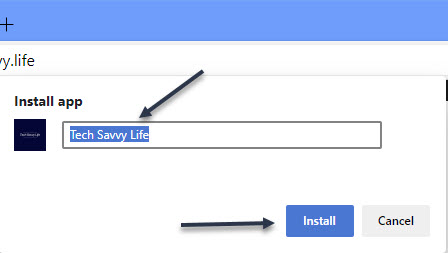
Type a name for your new app, then click Install. See below image:
Name the shortcut
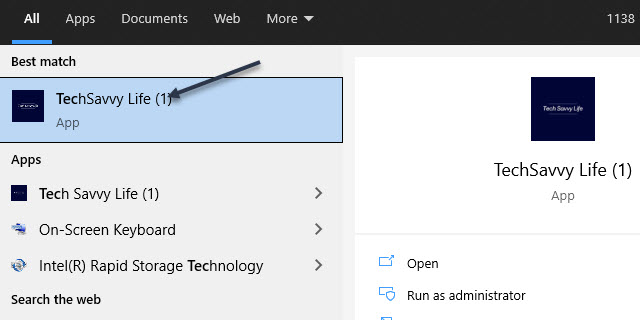
You can now launch your newly created app from the Start menu. See following image where TechSavvy.Life (1) is the Chrome version, TechSavvy.Life is the Edge version:
Use the Start menu to launch your Edge app
Create a Desktop Shortcut for Your Apps
Your website apps will have their own shortcuts in your Start menu’s All Apps list. You can also create a desktop shortcut for your apps in order to quickly access them on your PC’s desktop, if you like.
If you used Chrome to make your apps, your desktop shortcuts are already created. But if you used Microsoft Edge, you will need to manually add shortcuts to your desktop.
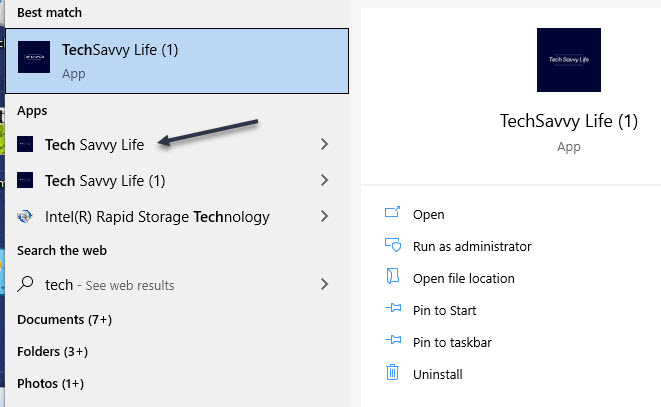
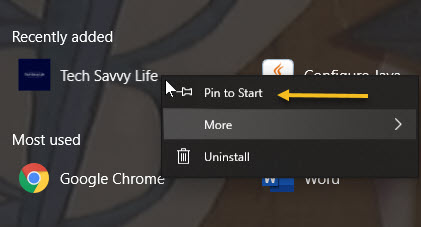
To do this, open the Start menu and search for your newly created app. Right-click your app and select Pin to Start.
You need to do this because Windows does not let you directly make a desktop shortcut for this kind of app in Edge. Refer to below image:
Pin to Start menu in Edge
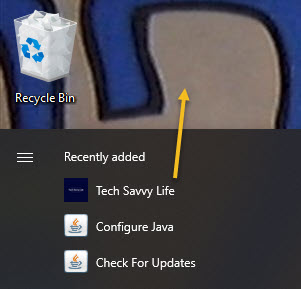
Open the Start menu again, and you will see your app on the right. Drag it over to your desktop and a desktop shortcut for it will be created. See below image:
Drag the Edge app to your desktop
Create a Taskbar Shortcut for Your Apps
You can also make a taskbar shortcut for your website apps.
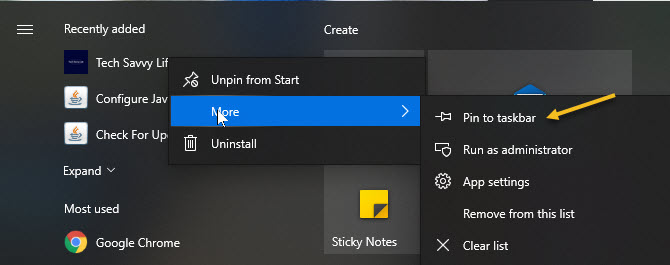
To do this, open the Start menu again, search for your app or find your desktop shortcut, right-click your app, click More, and select Pin to taskbar. See following image:
Pin to Taskbar
Assign an Icon
By default, Windows uses your website’s favicon as the icon for your app. You can change this icon if you want to give a little makeover to your new app.
You can use an icon file from your computer or one of Windows 10’s built-in icons for your new app.
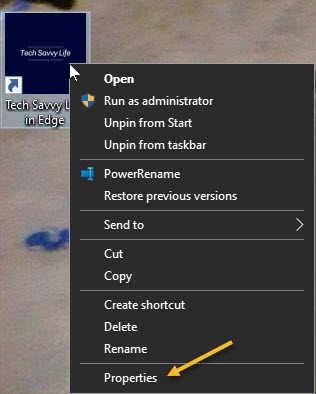
To change your app’s icon, right-click your app shortcut on your desktop and select Properties. Refer to below image:
Access Propetties
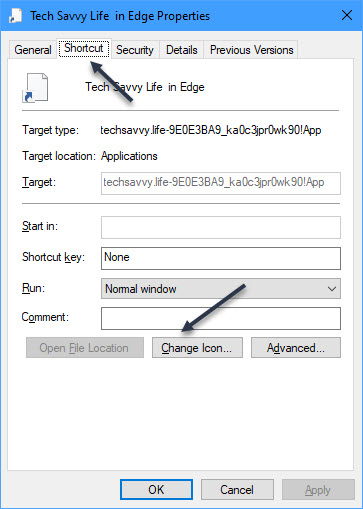
In the Properties box, click Shortcut at the top, and then click Change Icon. See below image:
Select change the icon button
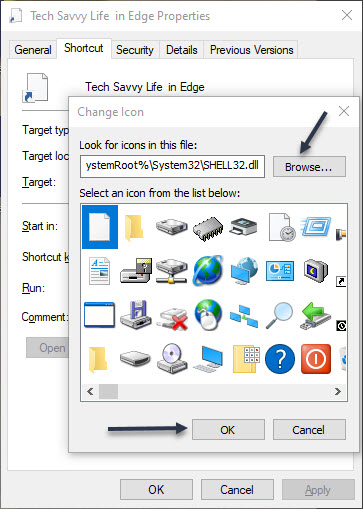
Click Browse in the window that opens and select the icon that you want to use for your app.
If you want to use one of Windows 10’s stock icons, browse to:
C:\Windows\System32 folder
and double-click the imageres.dll file in this folder.
You will see a list of Windows 10’s built-in icons. Select the one that you want to use and click OK. Even though this file is for 32-bit operating system, it will work on a 64-bit system. See following image:
Browse or use Windows 10 stock icons
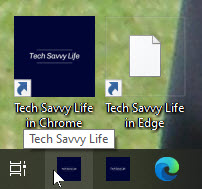
To save your settings, click Apply and then select OK. Refer to below image for my final desktop and taskbar shortcuts:
Your finished icons on desktop and taskbar
Quote For the Day
“The first rule of any technology used in a business is that automation applied to an efficient operation will magnify the efficiency. The second is that automation applied to an inefficient operation will magnify the inefficiency”.
Bill Gates
You are finished with turning a website into a Windows 10 app. Please feel free to share this post! One way to share is via Twitter.
Just click the Tweet icon below. This will launch Twitter where you click its icon to post the Tweet.
Check out TechSavvy.Life for blog posts on smartphones, PCs, and Macs! You may contact us at contact@techsavvy.life for comments or questions.
Please feel free to leave a comment. I would love hearing from you. Do you have a computer or smart device tech question? I will do my best to answer your inquiry. Just send an email to contact@techsavvy.life. Please mention the device, app and version that you are using. To help us out, you can send screenshots of your data related to your question.
The author’s Vietnam eBook on the Battle for Tra Bong: Events and Aftermath
While changing your browser’s font may not be a pressing issue, sometimes it is fun to make a change. We going to explore how to change the default fonts in Google Chrome.
While changing your browser’s font may not be a pressing issue, sometimes it is fun to make a change. We going to explore how to change the default fonts in Google Chrome.
This is for devices running Google Chrome
Copyright Scott Adams, Inc./Distributed by Universal Uclick for UFS
Changing Chrome’s Fonts
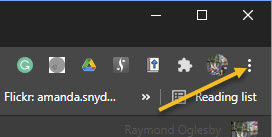
In order to change the fonts in Google Chrome, you will need to access your Customize Fonts section. First, open your Chrome browser. Next, click on the three 3-dot (hamburger icon) in the upper right-hand corner. Refer to below image:
Accessing your Chrome menu
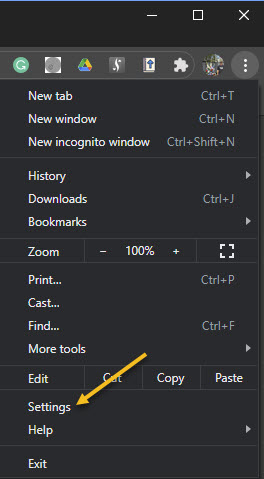
Now, click on Settings. See below image:
Accessing Settings
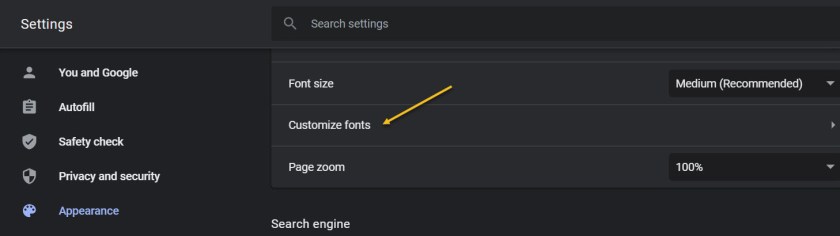
Next, click on the Appearance tab in the sidebar. Now, scroll down until you get to the Customize Fonts section and click on it. See following image:
Accessing your customize fonts section from the Appearance tab
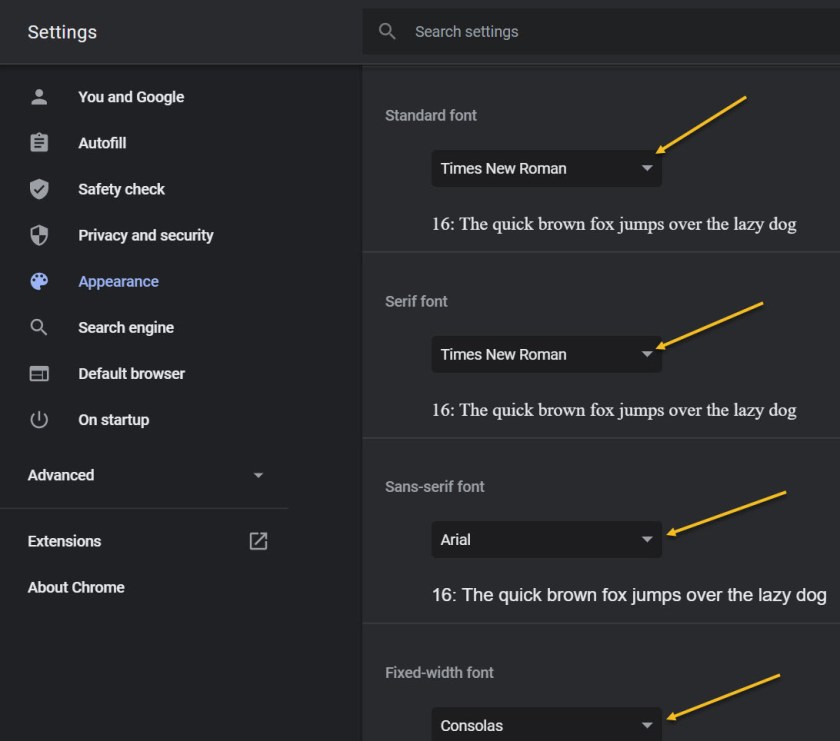
Now, you can change all your font settings. Just click on each drop-down box and select a font from the listing. It is recommended you write down the default fonts in case you want to revert to the original ones. Refer to below image:
Accessing the drop-down boxes to change your fonts
When finished, exit Settings and restart your Chrome browser for the changes to take effect.
Quote for the Day
If future generations are to remember us more with gratitude than sorrow, we must achieve more than just the miracles of technology. We must also leave them a glimpse of the world as it was created, not just as it looked when we got through with it.
Lyndon B. Johnson, Former President of the United States of America
That’s it. Please feel free to share this post! One way to share is via Twitter.
Just click the Tweet icon below. This will launch Twitter where you click its icon to post the Tweet.
Check out TechSavvy.Life for blog posts on smartphones, PCs, and Macs! You may email us at contact@techsavvy.life for comments or questions.
Please feel free to leave a comment. I would love hearing from you. Do you have a computer or smart device tech question? I will do my best to answer your inquiry. Just send an email to contact@techsavvy.life. Please mention the device, app and version that you are using. To help us out, you can send screenshots of your data related to your question.
The author’s Vietnam eBook on the Battle for Tra Bong: Events and Aftermath
Visiting your favorite websites or just any website can be kind of frustrating when the on-screen text is hard to read. Fortunately, the Google Chrome web browser on the iPhone and iPad has a text-specific zoom feature. You can adjust the default text size on any website by using the Zoom Text function.
Visiting your favorite websites or just any website can be kind of frustrating when the on-screen text is hard to read. Fortunately, the Google Chrome web browser on the iPhone and iPad has a text-specific zoom feature. You can adjust the default text size on any website by using the Zoom Text function.
It’s easy to get confused as to which browser this applies to. This feature is for your Google Chrome browser, notthe default Safari web browser.
What’s neat is that Chrome remembers your preference and will show the designated text size going forward (no need to adjust the text every time).
Let’s explore how to change text size on websites in Chrome for iPhone and iPad.
This is for iPhone and iPad using Chrome
Copyright Scott Adams, Inc./Distributed by Universal Uclick for UFS
To begin, open your Chrome app on your iPhone or iPad. Next, visit the web page that you want to increase the text size. Refer to below image:
Selecting a website on Chrome
Now, from the bottom toolbar, tap the three-dot hamburger menu button. See below image:
Selecting the menu button
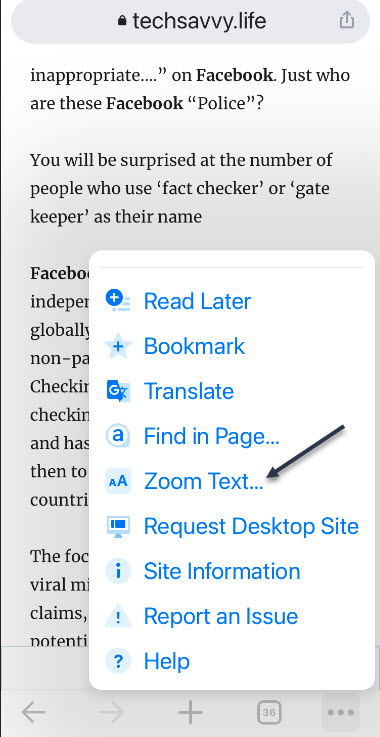
Next, from the drop-down menu that appears, scroll down and choose the Zoom Text option. See following image:
Selecting the Zoom Text option
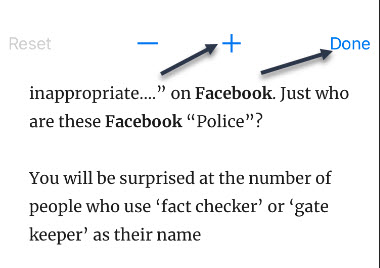
Now, you will now see a new toolbar at the top of your screen. Tap the “+” button to increase the text size or the “–” button to reduce the text size. You can select the Reset button to go back to the default text size. Once you are finished, tap the Done button. Refer to below image:
Selecting to increase the text size
A comparison between the default text size and zoomed text can be seen in the below image:
Default text size versus zoomed text
Quote For the Day
Getting information off the Internet is like taking a drink from a fire hydrant.
Mitch Kapor
You are finished. Please feel free to share this post! One way to share is via Twitter.
Just click the Tweet icon below. This will launch Twitter where you click its icon to post the Tweet.
Check out TechSavvy.Life for blog posts on smartphones, PCs, and Macs! You may email us at contact@techsavvy.life for comments or questions.
Please feel free to leave a comment. I would love hearing from you. Do you have a computer or smart device tech question? I will do my best to answer your inquiry. Just send an email to contact@techsavvy.life. Please mention the device, app and version that you are using. To help us out, you can send screenshots of your data related to your question.
The author’s Vietnam eBook on the Battle for Tra Bong: Events and Aftermath
Have you ever noticed the message you see when you install a browser extension in Chrome, for example? For most browser extensions, a message appears stating that the extension can “Read and modify all of your information on the websites you visit.”
Have you ever noticed the message you see when you install a browser extension in Chrome, for example? For most browser extensions, a message appears stating that the extension can “Read and modify all of your information on the websites you visit.” Refer to below image where we are looking at DuckDuckGo Privacy Essentials extension, an Internet privacy company, on their permissions:
Viewing a Chrome extension for permissions
What! Does not look secure to me as it reads all data on your device. You want to remove this browser extension and similar extensions for privacy issues.
To review your Chrome browser extensions:
Open Chrome, and click the 3-dot hamburger icon in upper-right hand corner.
Click on More Tools, then Extensions. They will be listed alphabetically.
Find a browser Extension that is enabled. Click on its Details button. Now, scroll down to the Permissions and Site Access sections to view how it is accessing your data.
You may be surprised as to the information the Extension is collecting on you. Let’s explore what this is about.
This is for modern day browsers like Edge, Chrome, Firefox, and Safari. Screenshots are from Chrome desktop version
Copyright Scott Adams, Inc./Distributed by Universal Uclick for UFS
This means that the browser extension has full access to all web pages you visit. It can see which web pages you are browsing, read their content and look at everything you write. It can even modify the web pages; for example by inserting additional ads. If the extension is malicious, it can collect all your private information; from web activity and emails you write to your passwords and financial information; and send it to a remote server on the Internet.
I am tired of receiving fake emails, texts, tweets, posts, and so on. Recently I have been receiving media from Thank You, USPS, Wells Fargo, Cox Communications, and so on.
This is primarily due to my accounts being compromised and sold. Another reason is some browser extensions is watching my activity.
If a browser extension is completely reliable and trustworthy, that’s fine. The browser extension may behave responsibly and not capture any data or interfere with your banking information.
We do not say that you have to uninstall every browser extension you have. Instead, you just realize the enormous access you give to the browser extensions you install and act on accordingly.
See below image for a popular Chrome extension, Todolist, permissions allowing access to its web site:
Viewing a Chrome extension for permissions
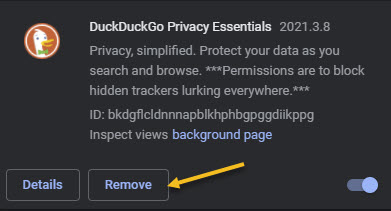
But keep this in mind; if you do not trust the add-on, you may not want to run it in the first place. We recommend you click the Remove button to delete any extension you do not trust. See following image:
Removing a Chrome extension
That’s it. Please feel free to share this post! One way to share is via Twitter.
Just click the Tweet icon below. This will launch Twitter where you click its icon to post the Tweet.
Check our TechSavvy.Life for blog posts on smartphones, PCs, and Macs! You may email us at contact@techsavvy.life for comments or questions.
Please feel free to leave a comment. I would love hearing from you. Do you have a computer or smart device tech question? I will do my best to answer your inquiry. Just send an email to contact@techsavvy.life. Please mention the device, app and version that you are using. To help us out, you can send screenshots of your data related to your question.
The author’s Vietnam eBook on the Battle for Tra Bong: Events and Aftermath
Google has some built-in tools in Chrome that attempt to make browsing safer. Enhanced Safe Browsing is one such tool.
With Safe Browsing, you get alerts about malware, risky extensions, phishing, or sites on Google’s list of potentially unsafe sites.
Google has some built-in tools in Chrome that attempt to make browsing safer. Enhanced Safe Browsing is one such tool. Let’s explore how to turn on this feature.
This is for the desktop version of Chrome and Android. Screenshots are from Chrome on Windows 10.
Copyright Scott Adams, Inc./Distributed by Universal Uclick for UFS
Enhanced Safe Browsing Explained
Safe Browsing is a list of dangerous URLs that is maintained by Google and used to protect users from malicious sites. Enhanced Safe Browsing builds upon this feature with some additional tools.
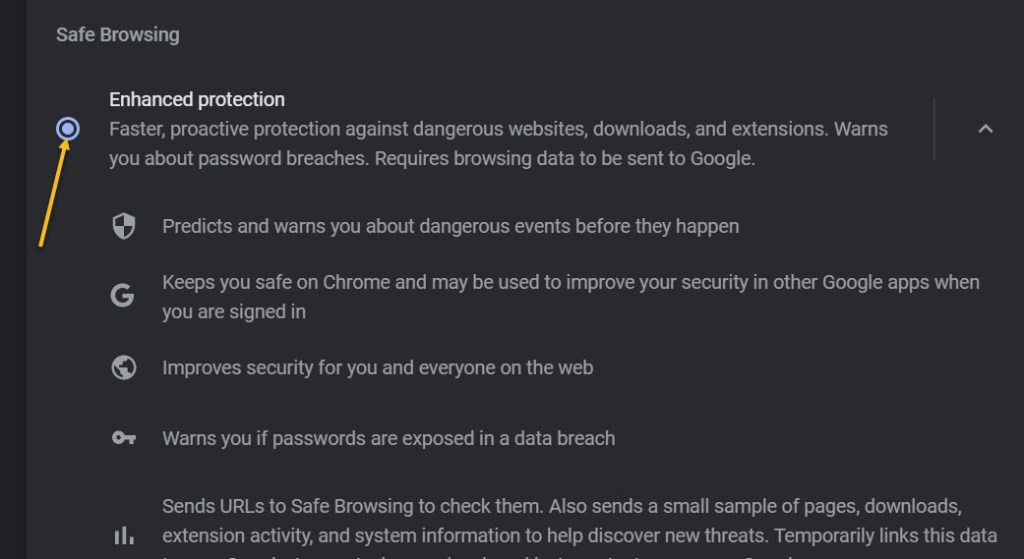
With Enhanced Safe Browsing enabled, Chrome shares even more browsing data with Google. This allows for threat assessments to be more accurate and proactive, though it does present a privacy concern in itself. You are letting Google monitor your browsing.
Per Google’s description, Enhanced Safe Browsing enables the following:
It predicts and warns you about dangerous events before they happen.
It keeps you safe on Chrome and may be used to improve your security in other Google apps when you are signed in.
It improves security for you and everyone on the web.
It warns you if passwords are exposed in a data breach.
Enable This Feature
The feature is available for Chrome on the desktop and Android. It is not available for iPhone and iPad. The process for enabling it is very similar on both platforms.
First, launch Chrome. Next, select the three-dot menu (the hamburger) icon in the top-right corner of Chrome. Now, choose Settings from the menu. Refer to below image:
Selecting Settings
Next, go to the Privacy and Security section. See below image:
Accessing Privacy and security option
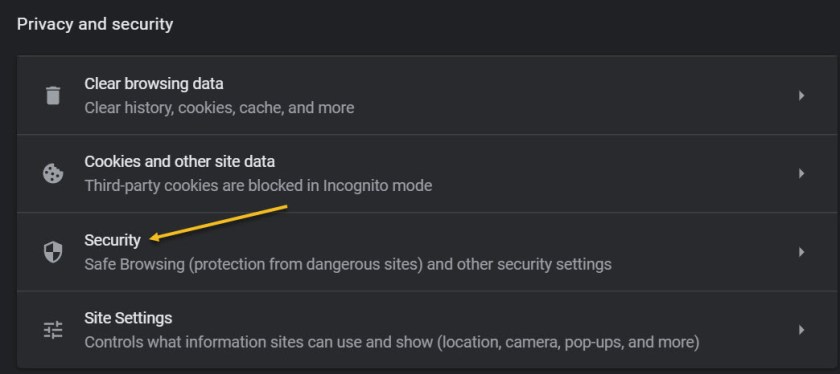
Now, on the desktop, click Security. On the Android, it is called Safe Browsing. See following image:
Accessing the Security option
Next, click or tap on the radio button to enable Enhanced protection. Refer to below image:
Enabling Enhanced protection
Now, exit Settings. You are finished. You will not notice anything different in your everyday browsing, but you will now have better protection. In the event that something is amiss, Google Chrome will give you a warning.
Please feel free to share this post! One way to share is via Twitter.
Just click the Tweet icon below. This will launch Twitter where you click its icon to post the Tweet.
Check out TechSavvy.Life for blog possts on smartphones, PCs, and Macs! You may email us at contact@techsavvy.life for comments or questions.
Please feel free to leave a comment. I would love hearing from you. Do you have a computer or smart device tech question? I will do my best to answer your inquiry. Just send an email to contact@techsavvy.life. Please mention the device, app and version that you are using. To help us out, you can send screenshots of your data related to your question.
The author’s Vietnam eBook on the Battle for Tra Bong: Events and Aftermath
Let’s say you are in the middle of a complex task in Chrome but you need to restart, log out, or Chrome has crashed. With one quick settings change, Chrome can remember all of your open tabs and reload them automatically the next time you start Chrome. Let’s explore how to setup this feature.
Let’s say you are in the middle of a complex task in Chrome but you need to restart, log out, or Chrome has crashed. With one quick settings change, Chrome can remember all of your open tabs and reload them automatically the next time you start Chrome. Let’s explore how to setup this feature.
This is for devices running Google Chrome. Screenshots are from Windows 10
Copyright Scott Adams, Inc./Distributed by Universal Uclick for UFS
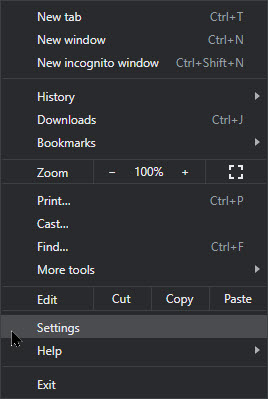
First, launch Chrome. In any window, click the three vertical dots button (the hamburger icon) in the upper right-hand corner and select Settings from the menu. Refer to below image:
Accessing Settings
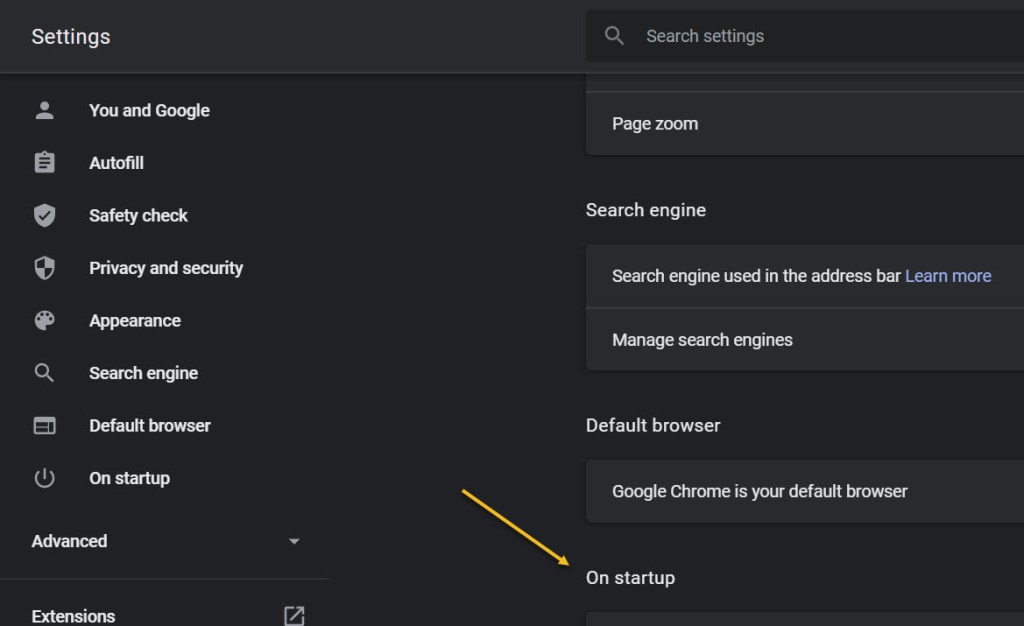
Next, select On startup option in the sidebar. See below image:
Selecting On startup option
Now, in the On startup section, select the radio button beside Continue where you left off. See following image:
Enabling opening your previous tabs
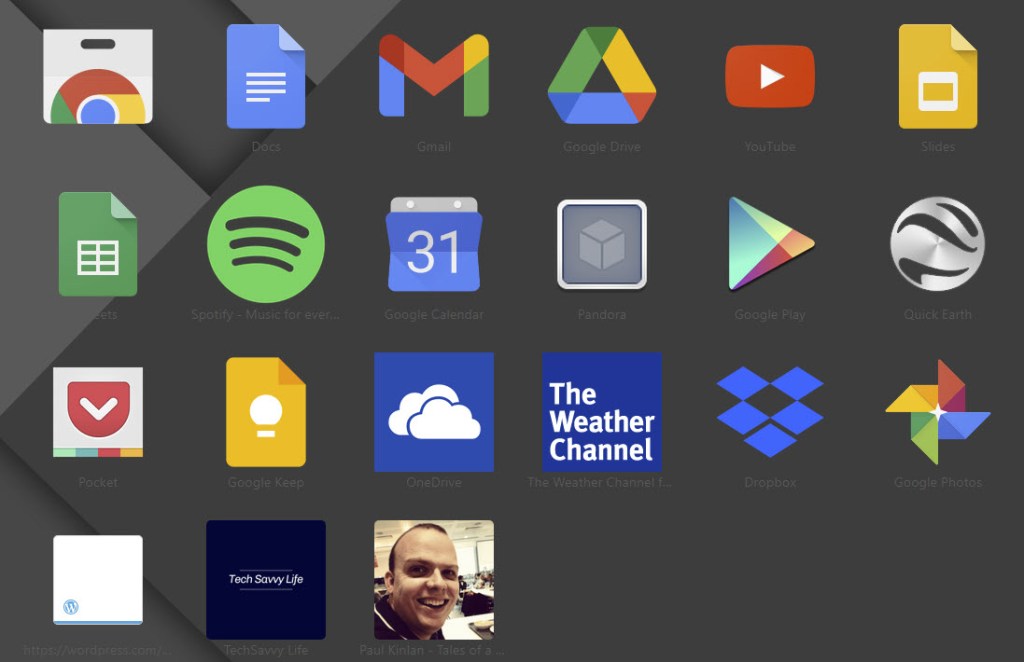
You can also force Chrome to launch with a set of your favorite pages. In the same On startup page in Chrome Settings just select Open a specificpage or set of pages instead. Refer to below image where you can open the browser to Chrome apps using the text of chrome://apps/.
Enabling open to a specific page
Here you will see your Google (and non Google) apps. Yes, you can add third party apps to your opening Chrome apps page. See below image:
Your Google apps screen
If you want Chrome to always open with a fresh, empty browser state, you can head back to this screen and select Open the New Tab page instead.
After that, close Settings, The next time you restart Chrome, all of your tabs will open again exactly where you left off.
Note! If you were browsing through Incognito (private mode) and you lose your tabs, Chrome will not remember them.
That’s it. Please feel free to share this post! One way to share is via Twitter.
Just click the Tweet icon below. This will launch Twitter where you click its icon to post the Tweet.
Check out TechSavvy.Life for blog posts on smartphones, PCs, and Macs! You may email us at contact@techsavvy.life for comments or questions.
Please feel free to leave a comment. I would love hearing from you. Do you have a computer or smart device tech question? I will do my best to answer your inquiry. Just send an email to contact@techsavvy.life. Please mention the device, app and version that you are using. To help us out, you can send screenshots of your data related to your question.
The author’s Vietnam eBook on the Battle for Tra Bong: Events and Aftermath
If you use the Google Assistant often, you might be getting tired of hearing the Assistant reply in the same voice. Fortunately, Google realized their customers wanted voice options for their devices, and introduced the ability to change your Assistant’s voice some time ago; and added a few surprise options.
If you use the Google Assistant often, you might be getting tired of hearing the Assistant reply in the same voice. Fortunately, Google realized their customers wanted voice options for their devices, and introduced the ability to change your Assistant’s voice some time ago; and added a few surprise options.
With a few simple steps, you can change the voice on all of your Google-powered devices, including your Chromebook and smartphones. Here’s the simple guide on how to change the Google Assistant’s voice.
This is for smartdevices using Google. Screenshots are from iPhone XR
Copyright Scott Adams, Inc./Distributed by Universal Uclick for UFS
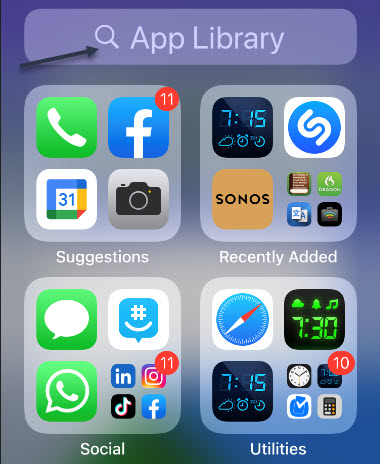
First, open the Google Assistant app from your iPhone App Library. Hold, swipe right, and release using the Dots bar at the bottom or swipe left all the way to open the App Library. Refer to below image:
Using the Dots bar
Next, at the top of your screen you will see a Search box. See below image:
The App Library screen
Now, in the Search bar, type in google assistant and tap the app to open. See following image:
The Google Assistant app
Here you will see a list of things you can do with the app. Locate the Assistant voice option and tap it. Refer to below image:
The Assistant Voice option
The default voice will be displayed, usually Red. At the bottom of your screen you will see the list of devices supporting this voice. See below image:
Selecting the Red voice, the default
To change the voice setting, just swipe the Dots bar to highlight one or tap a color bubble to hear a voice sample. After your selection, that voice will remain as your Google Assistant Voice setting. See following image;
Selecting the Amber voice
Google Assistant also has the option to assume a variety of celebrity voices, giving you some very unique options for your voice assistant. The range of celebrity voices available continues to grow, but popular options currently include John Legend and Issa Rae.
You may have found the celebrity voice options when looking at the voice settings we mentioned earlier, but there’s an, easier way to give your Google Home a celebrity voice. All you have to do is say, “Hey Google, talk like John Legend,” or whoever you prefer, and the voice assistant will address you in that voice until you tell it otherwise. All voices are not available in all areas.
Now, exit the Assistant. That’s it. Please feel free to share this post! One way to share is via Twitter.
Just click the Tweet icon below. This will launch Twitter where you click its icon to post the Tweet.
spacer
Check out TechSavvy.Life for blog posts on smartphones, PCs, and Macs! You may email us at contact@techsavvy.life for comments or questions.
Please feel free to leave a comment. I would love hearing from you. Do you have a computer or smart device tech question? I will do my best to answer your inquiry. Just send an email to contact@techsavvy.life. Please mention the device, app and version that you are using. To help us out, you can send screenshots of your data related to your question.
The author’s Vietnam eBook on the Battle for Tra Bong: Events and Aftermath























 Tech Savvy Life