How to Add the Developer Tab in Office Apps

Sooner or later, you will need the Developer Tab in Word, Excel, PowerPoint, or Outlook. Even if you know nothing about programming, there are buttons on the Developer tab that are necessary for some of the clever features in Office.

RAYMOND OGLESBY @RaymondOglesby2
September 28, 2021

Sooner or later, you will need the Developer Tab in Word, Excel, PowerPoint, or Outlook. Even if you know nothing about programming, there are buttons on the Developer tab that are necessary for some of the clever features in Office.

The Developer tab is not displayed by default, but you can add it to the ribbon in a few easy steps.

This is for devices running Microsoft Office

Dilbert and Yets
Copyright Scott Adams, Inc./Distributed by Universal Uclick for UFS

First, open an Office app, like Word, and any document. Now, right-click within any Tab in the Ribbon and select Customize the Ribbon. Refer to below image:

Ribbon 1
Select Customize the Ribbon option

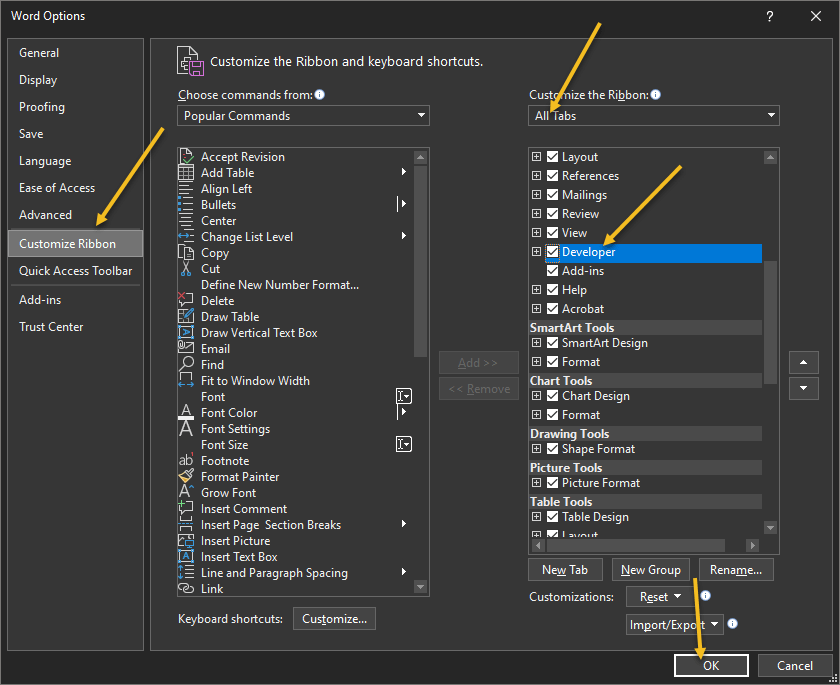
Next, in the right-hand side, select All Tabs from the drop down menu and simply checkmark the Developer tab box. Now, select OK to enable the Developer tab. See below image:

Ribbon 2
Enable the Developer tab

Next, exit your Office app, restart the app and load your document. You will see the Developer tab in your ribbon. Just click the tab to view its options. See following image:

Ribbon 3
Your Developer tab

Quote For the Day

‘Fahrenheit 451’ postulates a lot of things I didn’t want to have happen.

Ray Bradbury

That was easy. Please feel free to share this post! One way to share is via Twitter.

Just click the Tweet icon below. This will launch Twitter where you click its icon to post the Tweet.

Check out TechSavvy.Life for blog posts on smartphones, PCs, and Macs! You may email us at contact@techsavvy.life for comments or questions.

I Would Like to Hear From You

Please feel free to leave a comment. I would love hearing from you. Do you have a computer or smart device tech question? I will do my best to answer your inquiry. Just send an email to contact@techsavvy.life. Please mention the device, app and version that you are using. To help us out, you can send screenshots of your data related to your question.
The author’s Vietnam eBook on the Battle for Tra Bong Vietnam: Events and Aftermath

How to Access Power User Menu in Windows 10

The Power User Menu is available by default (you do not have to download it) in Windows 10, Windows 8.1, or Windows 8 as a pop-up menu with shortcuts to management, configuration, and other “power user” Windows tools.

RAYMOND OGLESBY @RaymondOglesby2
September 23, 2021

The Power User Menu is available by default (you do not have to download it) in Windows 10, Windows 8.1, or Windows 8 as a pop-up menu with shortcuts to management, configuration, and other “power user” Windows tools.

It’s also referred to as the Win+X Menu.

This is for devices running Windows 10

Dilbert and Messages
Copyright Scott Adams, Inc./Distributed by Universal Uclick for UFS

What’s in the Power User Menu

The Power User Menu is, at its most basic, a context menu that provides quick access to some of Windows 10’s more advanced or frequently accessed features.

Here’s a list of what’s on the Power User Menu by default, along with a shortcut key that you can use to launch that program from the menu. With the Power User Menu already open, just hit one of those keys to immediately open that shortcut. (Note! According to your configuration, all of these options may not be listed.)

  • Apps and Features (F): Opens Apps & Features in the Settings app.
  • Mobility Center: Opens Windows Mobility Center, a place in which to quickly adjust certain audio, visual, and battery settings.
  • Power Options (B): Opens Power & Sleep in the Settings app.
  • Event Viewer (O): Opens Event Viewer, which shows a log of app and system messages.
  • System (V): Shows the system information of your machine in the Settings app.
  • Device Manager (M): Opens Device Manager, which lets you configure and/or troubleshoot your PC hardware.
  • Network Connections (W): Opens your network status information in the Settings app.
  • Disk Management (K): Opens Disk Management, which allows you to manage your disks and drives.
  • Computer Management (G): Opens Computer Management, a feature that contains admin tools like Event Viewer and Disk Management.
  • Windows PowerShell (i): Launches PowerShell.
  • Windows PowerShell Admin (A): Launches PowerShell as an admin.
  • Task Manager (T): Opens Task Manager, which displays resource usage and process statistics.
  • Settings (N): Opens the Windows Settings app.
  • File Explorer (E): Opens File Explorer.
  • Search (S): Opens Windows Search and places the cursor in the Search bar.
  • Run (R): Opens Run, a feature that lets you open folders and run programs with commands.
  • Shut Down or Sign Out: (First, press U, and then press i to Sign Out, S to Sleep, U to Shut Down, or R to Restart).
  • Desktop (D): Minimizes everything.

Open the Power Menu

There are two equally simple ways to access the Power User Menu. If you are a fan of keyboard shortcuts, then press Win+X The Power User Menu will open. Another way is by just right-clicking the Start menu in the bottom-left-hand corner of your desktop. The Power User Menu will then open. Refer to below image:

Menu 1
The Power User Menu

How to Customize the Menu

One of the easiest ways to remove, reorder, rename, or add items to Power User Menu, is to use a graphical program that can do it for you.

The favorite is Win+X Menu Editor, which lets you add your own programs to the menu as well as Control Panel shortcuts, Administrative Tools items, and other shutdown options like Hibernation and Switch User. It’s also just a click away to restore all the defaults and get the regular Power User Menu back. The problem with this app is its preinstalled software requirements. The Editor wants you to install WinZip and WinZip Driver Updater. The WinZip app has a trial version (21 days), the Updater does not offer a trial version. To me, these requirements are a major downside to installing the Editor unless the apps are already installed.

Quote For the Day

You’re unlikely to discover something new without a lot of practice on old stuff, but further, you should get a heck of a lot of fun out of working out funny relations and interesting things.

Richard P Feynman

That’s it. Now you know what the Power User Menu is and how to access it. Please feel free to share this post! One way to share is via Twitter.

Just click the Tweet icon below. This will launch Twitter where you click its icon to post the Tweet.

Check out TechSavvy.Life for blog posts on smartphones, PCs, and Macs! You may email us at contact@techsavvy.life for comments or questions.

I Would Like to Hear From You

Please feel free to leave a comment. I would love hearing from you. Do you have a computer or smart device tech question? I will do my best to answer your inquiry. Just send an email to contact@techsavvy.life. Please mention the device, app and version that you are using. To help us out, you can send screenshots of your data related to your question.

The author’s Vietnam eBook on the Battle for Tra Bong Vietnam: Events and Aftermath

How to Check if Chrome 93 is Installed

Google Chrome 93 is officially here. There is plenty to be excited about. For example, with Chrome 93, progressive web apps (PWAs) feel a lot more like native desktop apps, as clicking on a link can open an associated web app. There’s also improved multi-screen support for web apps, making this an update web app users will love.

RAYMOND OGLESBY @RaymondOglesby2
JSeptember 21, 2021

Google Chrome 93 is officially here. There is plenty to be excited about. For example, with Chrome 93, progressive web apps (PWAs) feel a lot more like native desktop apps, as clicking on a link can open an associated web app. There’s also improved multi-screen support for web apps, making this an update web app users will love. Let’s explore how to install Chrome 93.

This is for Windows, Android, Mac, iPhone, and iPad

Dilbert and Stats
Copyright Scott Adams, Inc./Distributed by Universal Uclick for UFS

Some new features are related to recently closed tabs, a Material You theme for Android 12, a new Google Search UI on Android, the ability to sync Two-Factor OTP codes across devices (a true game-changer), the ability to use note-taking apps right from the browser, a new context menu on iPhone, and so much more.

Chrome 93 will now also show Google Drive documents on the New Tab page. The suggested documents will appear in a card underneath the Search Bar, allowing you to easily access recently edited Google Docs or Sheets.

First, you can check for an update by going to the three-dot menu hamburger icon on the top-right of Chrome. Next, click Help followed by About Google Chrome. Refer to below image:

Chrome 93 1
Selecting the About option

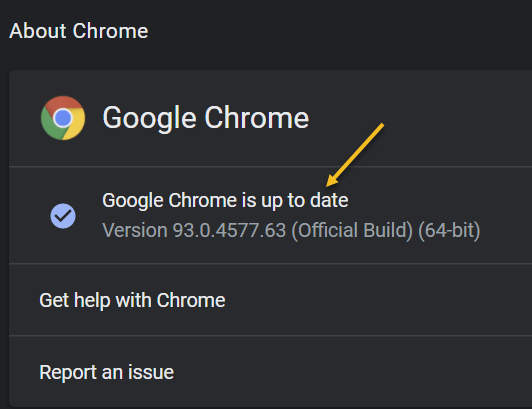
Now, the Chrome Settings window open. If Chrome is outdated, it will automatically download and install the latest version. See below image:

Chrome 93 2
Your Chrome version

Now, close Chrome and restart the app.

If you are on iPhone or Android, update the app as you would for any other application.

Quote For the Day

The most remarkable discovery in all of astronomy is that the stars are made of atoms of the same kind as those on the earth.

Richard P Feynman

You are finished. Please feel free to share this post! One way to share is via Twitter.

Just click the Tweet icon below. This will launch Twitter where you click its icon to post the Tweet.

Check out TechSavvy.Life for blog posts on smartphones, PCs, and Macs. You may email us at contact@techsavvy.life for comments or questions.

I Would Like to Hear From You

Please feel free to leave a comment. I would love hearing from you. Do you have a computer or smart device tech question? I will do my best to answer your inquiry. Just send an email to contact@techsavvy.life. Please mention the device, app and version that you are using. To help us out, you can send screenshots of your data related to your question.

The author’s Vietnam eBook on the Battle for Tra Bong Vietnam: Events and Aftermath

How to Turn Off Mouse Acceleration in Windows 10

If your cursor keeps overshooting your target on your Windows 10 desktop, the culprit might be a feature known as Mouse Acceleration. Disabling it might increase your pointer accuracy, letting you land right on point every time.

RAYMOND OGLESBY @RaymondOglesby2
September 14, 2021

If your cursor keeps overshooting your target on your Windows 10 desktop, the culprit might be a feature known as Mouse Acceleration. Disabling it might increase your pointer accuracy, letting you land right on point every time.

This is for devices running Windows 10

Dilbert and Praying
Copyright Scott Adams, Inc./Distributed by Universal Uclick for UFS

What is Mouse Acceleration

Mouse Acceleration in Windows 10 is a feature that increases the distance and speed at which your cursor moves across the screen in response to the speed with which you move your physical mouse.

With Mouse Acceleration enabled, if you were to quickly move your physical mouse three inches, your cursor could travel from one side of the screen to the other. However, if you were to move your mouse the exact same distance, only much slower, your cursor might only make it halfway across the screen.

This feature is enabled on Windows 10 devices by default, and the goal is to enhance the precision of your cursor. For many, it has the exact opposite effect; especially for gamers. If you find this to be the case for you, you can disable it.

Turn Off the Feature

First, in the Cortana search box (next to the Windows logo key), type Mouse and click Mouse settings from the search results in upper left-hand corner. Refer to below image:

Mouse 1
Selecting Mouse settings

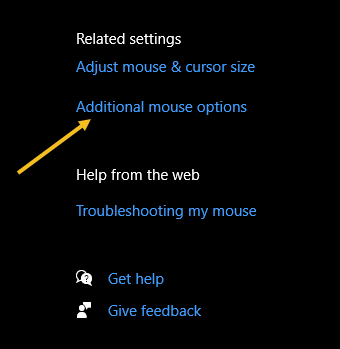
Next, find the Related settings group to the right of the Mouse settings window (or the bottom if your window size is small). Now, click Additional mouse options. See below image:

Mouse 2
Selecting more mouse options

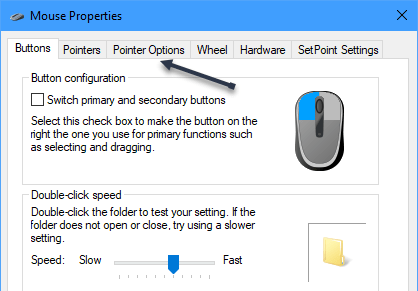
Next, in the Mouse Properties window, click the Pointer Options tab. See following image:

Mouse 3
Selecting Pointer Options tab

Now, under the Motion group, uncheck Enhance pointer precision, and then click Apply. Refer to below image:

Mouse 4
Turn off pointer precision

Now close the Mouse Properties window and exit Settings. Your mouse acceleration is now disabled.

This should help you more accurately land on your targets. But if you are a gamer and you are still having problems, you may want to read up on “mouse DPI and polling rates” and invest in a mouse that’s designed for gaming.

Quote For the Day

There are worse crimes than burning books. One of them is not reading them.

Ray Bradbury

That’s it. Please feel free to share this post! One way to share is via Twitter.

Just click the Tweet icon below. This will launch Twitter where you click its icon to post the Tweet.

Check out TechSavvy.Life for blog posts on smartphones, PCs, and Macs! You may email us at contact@techsavvy.life for comments or questions.

I Would Like to Hear From You

Please feel free to leave a comment. I would love hearing from you. Do you have a computer or smart device tech question? I will do my best to answer your inquiry. Just send an email to contact@techsavvy.life. Please mention the device, app and version that you are using. To help us out, you can send screenshots of your data related to your question.

The author’s Vietnam eBook on the Battle for Tra Bong Vietnam: Events and Aftermath

How to Create a People Graph in Excel

If you take advantage of Excel’s charts for helpful visual displays of your data, check out the People Graph option to create a simple depiction of the number of people or items you have logged in your spreadsheet.

RAYMOND OGLESBY @RaymondOglesby2
September 9, 2021

If you take advantage of Excel’s charts for helpful visual displays of your data, check out the People Graph option to create a simple depiction of the number of people or items you have logged in your spreadsheet.

This is for devices running Excel. Screenshots are from Excel for Office 365 and Windows 10.

Dilbert and Lunch
Copyright Scott Adams, Inc./Distributed by Universal Uclick for UFS

You can display things like the number of visitors to your website, downloads of your app, sign-ups for your event, calls to your support center, and much more.

Add People Graph Add-In

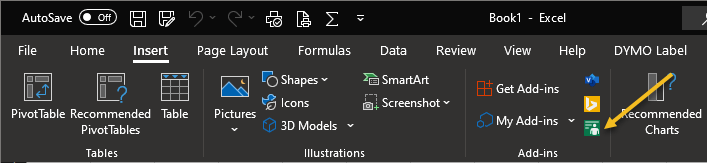
People Graph is an Add-In developed by Microsoft, and there’s already a button for it in your Excel ribbon. But before you can use it, you will have to trust the add-in to install it. First, open the Insert tab in Excel and look for the Add-ins group. Click the button for People Graph. Refer to below image:

Graph 1
Select the Add-In

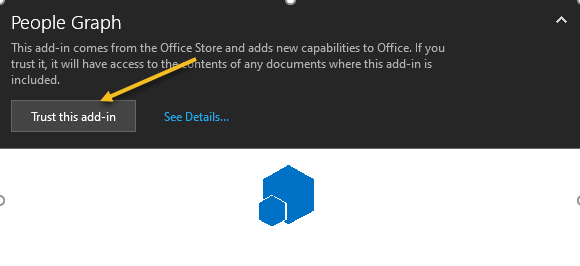
Next, You will see a pop-up window with a link to See Details. This takes you to the Add-In on the Office Store, where you can read an overview, reviews, and other details. Click Trust this add-in to get started. See below image:

Graph 2
Trust the Add-In option

Now, once the add-in is installed in Excel, you can click the button on the Insert tab to use the feature.

Insert a People Graph

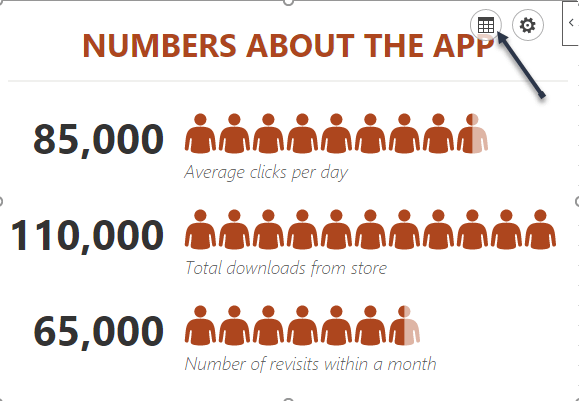
Whenever you hit the People Graph button in the ribbon, you will see a sample graph. First. click the Data icon that looks like a small grid. See following image:

Graph 3
Select the People Graph button

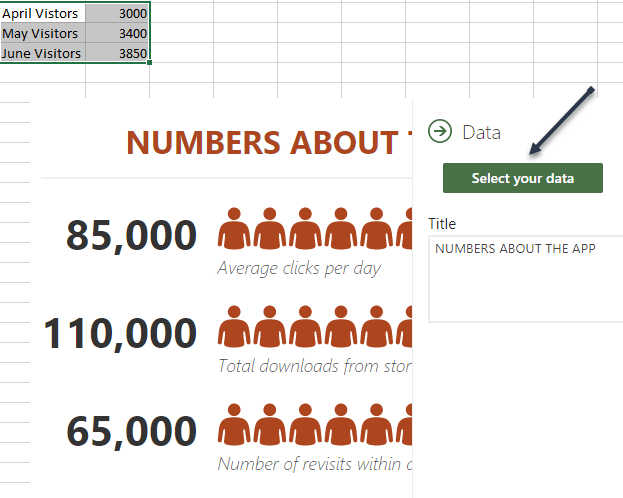
Optionally, you can enter your graph Title before selecting your data, or you can just head back to this spot to add the title later. Next, click Select your data, and then drag through the cells that you want to use. Currently, you must use two columns of data, but you can have multiple rows. Refer to below image:

Graph 4
Select your data

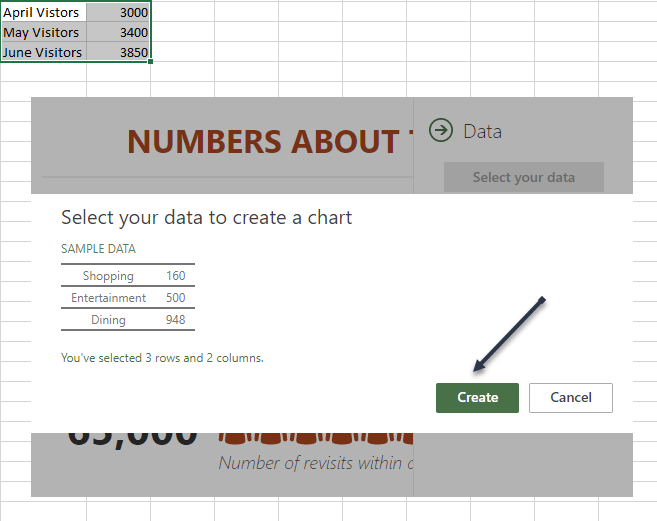
Now, click Create on the People Graph screen. See below image:

Graph 5
Create the People Graph

Customize Your People Graph

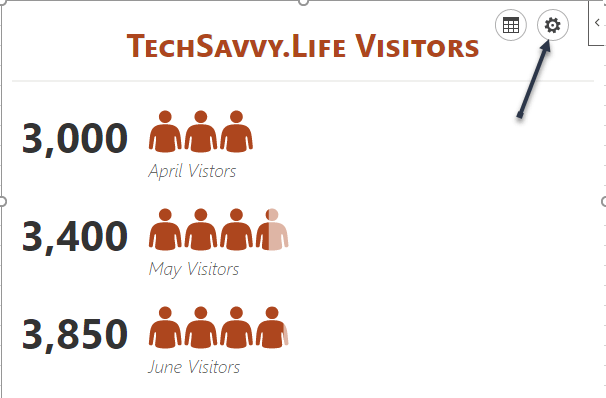
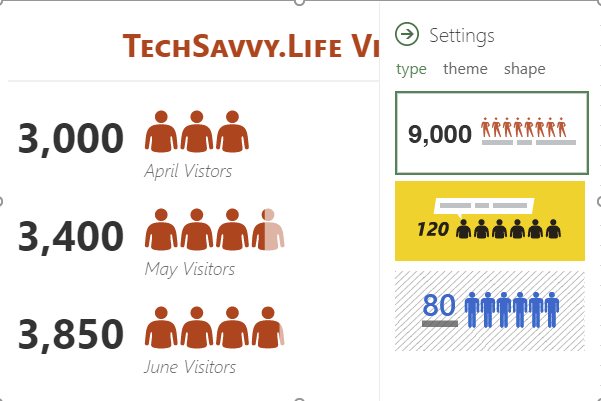
First, click the gear icon to open the Settings. You can then move through the three settings for type, theme, and shape. See following image;

Graph 6
Select the Settings gear icon

You can currently pick from three graph types. Each has a slightly different layout and appearance. Now, click Type, and then choose one on the right side. Refer to below image:

Graph 7
Select your Type of graph

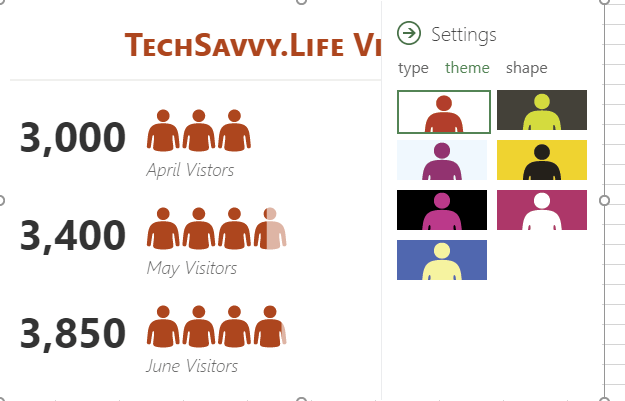
Next, you can select a Theme that changes the background and colors of your graph. Click Theme, and choose one of the seven options. See below image:

Graph 8
Select your theme for the graph

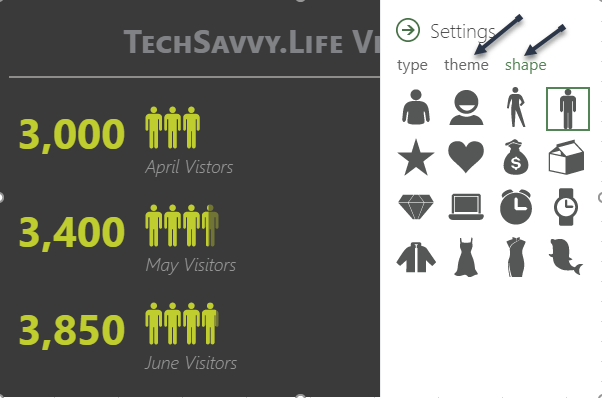
Finally, you can use a different Shape. So if your data is better represented by a Shape other than people, you can choose the best fit. Now, click Shape and pick from the 16 options. See following image:

Graph 9
Select the Shape of your graph

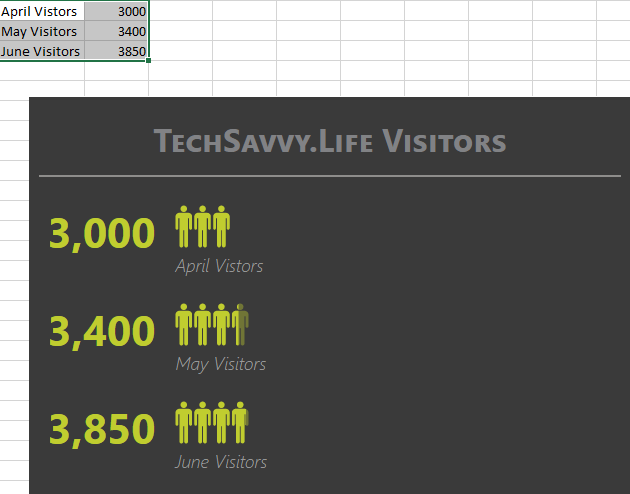
Next, you can select and drag your People Graph wherever you want it on your spreadsheet. And if you edit the data on which the graph is based, Excel will update the graph automatically. Refer to below image:

Graph 10
Your final result

Other Options

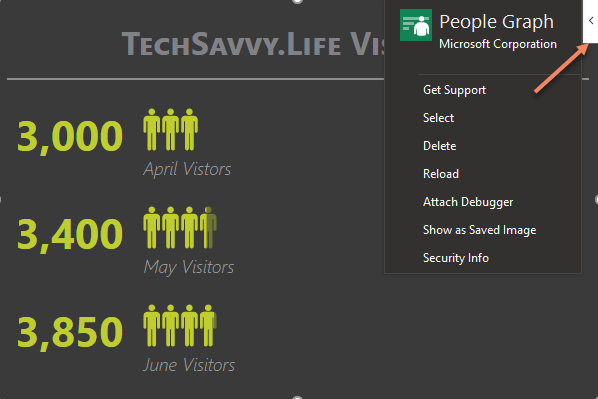
On the top right of your People Graph, you will see an arrow (Windows) or an Info icon (Mac). When you click, you will see several actions .Choose Reload to refresh the graph, Delete to remove it, and Select to select the graph if you want to move it. You also have options to Get Support, Attach Debugger, and view the Security info. See below image:

Graph 11
Select Other Options

If you are looking for a simple way to visually display data, especially if it includes a number of people like customers, clients, or contacts, try out the People Graph in Microsoft Excel.

Quote For the Day

If you don’t like what you’re doing, then don’t do it

Ray Bradbury

That’s it. Please feel free to share this post! One way to share is via Twitter.

Just click the Tweet icon below. This will launch Twitter where you click its icon to post the Tweet.

Check out TechSavvy.Life for blog posts on smartphones, PCs, and Macs! You may email us at contact@techsavvy.life for comments or questions.

I Would Like to Hear From You

Please feel free to leave a comment. I would love hearing from you. Do you have a computer or smart device tech question? I will do my best to answer your inquiry. Just send an email to contact@techsavvy.life. Please mention the device, app and version that you are using. To help us out, you can send screenshots of your data related to your question.

The author’s Vietnam eBook on the Battle for Tra Bong Vietnam: Events and Aftermath

How to Save Office Default Save Location in Windows 10

Saving documents from the Microsoft 365 suite is a simple process. As you do, your Word, Excel, and PowerPoint files are saved to the default location of your choosing. If you wish to change this location, you can do so.

RAYMOND OGLESBY @RaymondOglesby2
September 2, 2021

Saving documents from the Microsoft 365 suite is a simple process. As you do, your Word, Excel, and PowerPoint files are saved to the default location of your choosing. If you wish to change this location, you can do so. Let’s explore how this is done.

This is for Windows and Office 365

Dilbert and Decision
Copyright Scott Adams, Inc./Distributed by Universal Uclick for UFS

Microsoft’s recommendation is to save files to your OneDrive location. However, you might want to save all of your Microsoft 365 files to your local drive. By default, Office will use your Documents folder when you save files on your PC.

Thankfully, you do not have to change the saved location every time manually. Instead, you can set a new default. Better still, if you make the change in one Microsoft 365 app, the change carries over to every other one.

Make Your PC the Default Save Location

First, open an Office application, like Word, and click File > Options. (The Options is found in lower left-hand pane). Refer to below image:

Office 1
Selecting Options

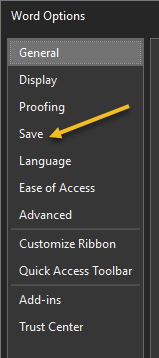
Next, the Word Options window will appear. Click the Save tab in the left-hand pane. See below image:

Office 2
Selecting Save option

Now, under the Save Documents section, check the box next to Save to computer by default and click Browse. This will launch File Explorer for you to choose a location. See following image:

Office 3
Set default location

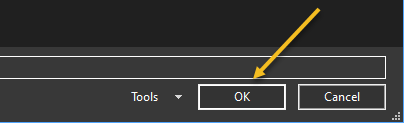
Next. click the OK button in the bottom-right corner of the window to apply the change. Refer to below image:

Office 4
Apply your change

Now, check your default save file location and click OK. Your Word option screen will close. The next time you save an Office file, your computer will be the default save location to the drive or folder you have chosen. (Note! I did not change the default location. This is for demonstration purposes only). See below image:

Office 5
Check default location and save

Quote For the Day

People who think they know everything are a great annoyance to those of us who do.

Isaac Asimov

That’s it. Please feel free to share this post! One way to share is via Twitter.

Just click the Tweet icon below. This will launch Twitter where you click its icon to post the Tweet.

Check out TechSavvy.Life for blog posts on smartphones, PCs, and Macs! You may email us at contact@techsavvy.life for comments or questions.

I Would Like to Hear From You

Please feel free to leave a comment. I would love hearing from you. Do you have a computer or smart device tech question? I will do my best to answer your inquiry. Just send an email to contact@techsavvy.life. Please mention the device, app and version that you are using. To help us out, you can send screenshots of your data related to your question.
The author’s Vietnam eBook on the Battle for Tra Bong: Events and Aftermath

How to Download PDFs Instead of Viewing Them Using Chrome

When you click a PDF link in Chrome, the browser opens the PDF in a preview window. If you do not want this, you can change its default behavior.

RAYMOND OGLESBY @RaymondOglesby2
August 19, 2021

When you click a PDF link in Chrome, the browser opens the PDF in a preview window. If you do not want this, you can change its default behavior.

The Chrome browser has a built-in option to change this default setting. You can instruct Chrome to automatically download the PDF file without opening it in a preview window.

Instead, Chrome will prompt you to save your PDFs. Let’s explore how to set this feature in Google Chrome.

This is for devices running Google Chrome

Dilbert and Jesus
Copyright Scott Adams, Inc./Distributed by Universal Uclick for UFS

First, open Google Chrome on your computer. Next, click the Chrome menu (three dots hamburger icon) in the top right-hand corner of your window. Now, select Settings. Refer to below image:

PDF 1
Accessing Settings

Next, in Chrome settings, click Privacy and security in the left sidebar. Click Site Settings on the right. See below image:

PDF 2
Accessing Site Settings

Now, scroll down in Site Settings and click Additional content settings at the very bottom of your screen. See following image:

PDF 3

Accessing additional content

Next, in the expanded menu, select PDF documents on the left. Refer to below image:

PDF 4
Accessing PDF documents

Now, toggle ON the Download PDF files instead of automatically opening them in Chrome option. Refer to below image:

PDF 5
Enable download of PDF documents instead of preview

Chrome will now display the standard save prompt for PDFs.

Quote For the Day

But the fact that some geniuses were laughed at does not imply that all who are laughed at are geniuses. They laughed at Columbus, they laughed at Fulton, they laughed at the Wright Brothers. But they also laughed at Bozo the Clown.

Carl Sagan

You are finished. Please feel free to share this post! One way to share is via Twitter.

Just click the Tweet icon below. This will launch Twitter where you click its icon to post the Tweet.

Check out TechSavvy.Life for blog posts on smartphones, PCs, and Macs! You may email us at contact@techsavvy.life for comments or questions.

I Would Like to Hear From You

Please feel free to leave a comment. I would love hearing from you. Do you have a computer or smart device tech question? I will do my best to answer your inquiry. Just send an email to contact@techsavvy.life. Please mention the device, app and version that you are using. To help us out, you can send screenshots of your data related to your question.
The author’s Vietnam eBook on the Battle for Tra Bong: Events and Aftermath

How to Use the Microsoft Measurement Converter

Microsoft Word, PowerPoint, and Outlook offer a hidden measurement converter to save you from doing measurement conversions manually. If you are working with a document, presentation, or email that contains measurements, you will find this time-saving feature useful.

RAYMOND OGLESBY @RaymondOglesby2
August 17, 2021

Microsoft Word, PowerPoint, and Outlook offer a hidden measurement converter to save you from doing measurement conversions manually. If you are working with a document, presentation, or email that contains measurements, you will find this time-saving feature useful. Lets explore this feature.

This is for Office 365. Screenshots are from Windows 10 PC.

Dilbert and Employee
Copyright Scott Adams, Inc./Distributed by Universal Uclick for UFS

Enable Converter in Word and PowerPoint

First, open a document in Microsoft Word or a presentation in PowerPoint. Next, click

File > Options

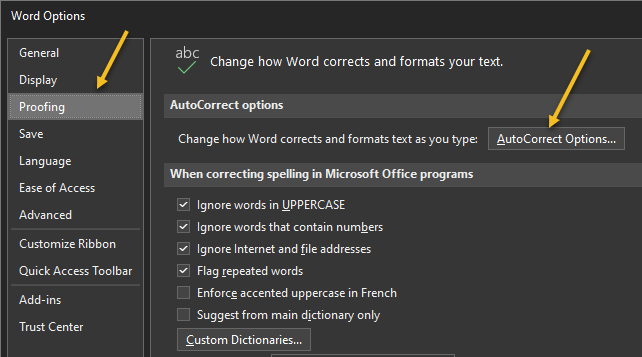
from the menu. Now, select Proofing on the left and click AutoCorrect Options on the right. Refer to below image:

Accessing AutoCorrect.Options

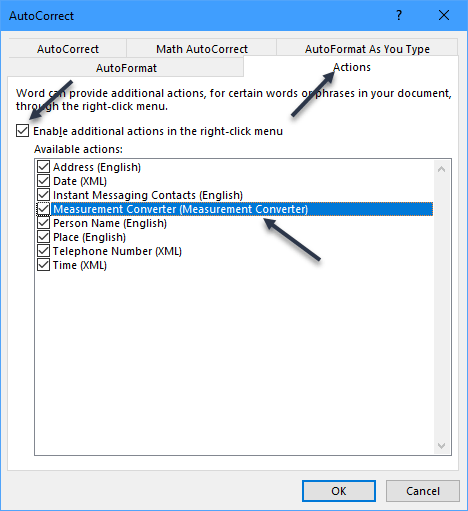
Next, select the Actions tab. Now, check the boxes for Enable Additional Actions in the right-click menu then Measurement Converter from the list. You will notice other actions you can enable. Just checkmark any additional ones you would like to use. See below image:

Enabling Measurement Converter option

Click OK, then OK once more to save and exit the options menu.

Enable Converter in Outlook

First, open Microsoft Outlook and click

File > Options

from your inbox or an email window.

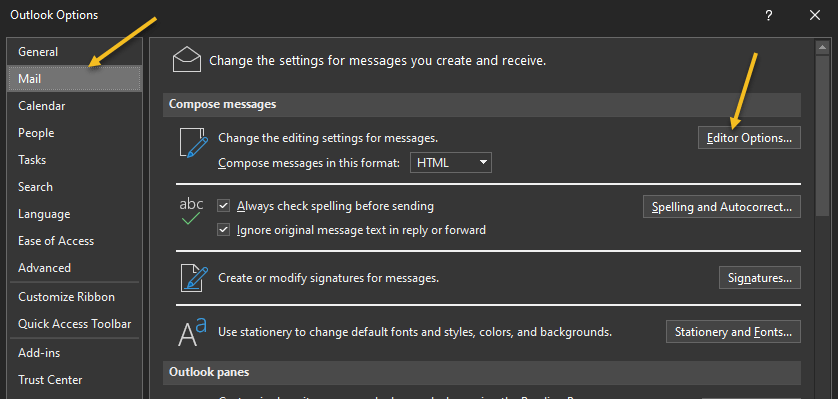
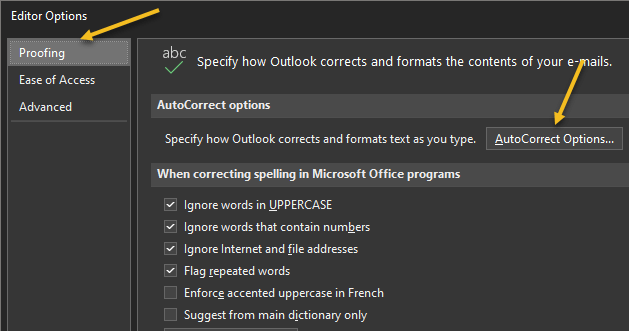
Now, select Mail on the left and click Editor Options on the right. See following image:

Accessing Editor Options

On the next screen, choose Proofing on the left and AutoCorrect Options on the right. Refer to below image:

Accessing AutoCorrect Options

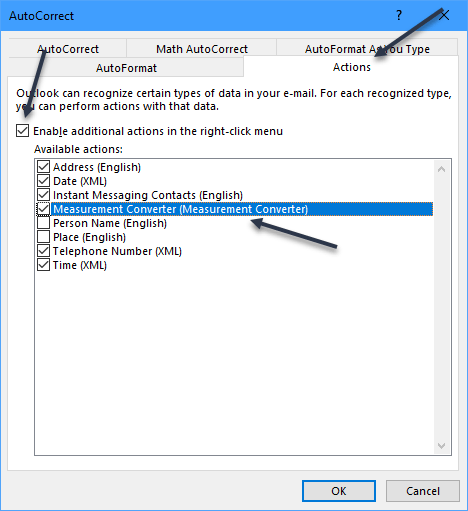
Next, select the Actions tab. Now, check the boxes for Enable Additional Actions in the right-click menu, and Measurement Converter in the list. Like with Word and PowerPoint you can checkmark the boxes for any other actions you would like to use. See below image:

Enabling Measurement Converter option

Next click OK on all screens to save and exit,

Use the Converter in Office

When you receive a document that includes unfamiliar measurements, such as those from a foreign country, this tool takes the work out of manual conversions. And if you are creating the document yourself, you can convert the measurement for your audience.

Just, select the text containing the measurement. You can do this by dragging your cursor through it.

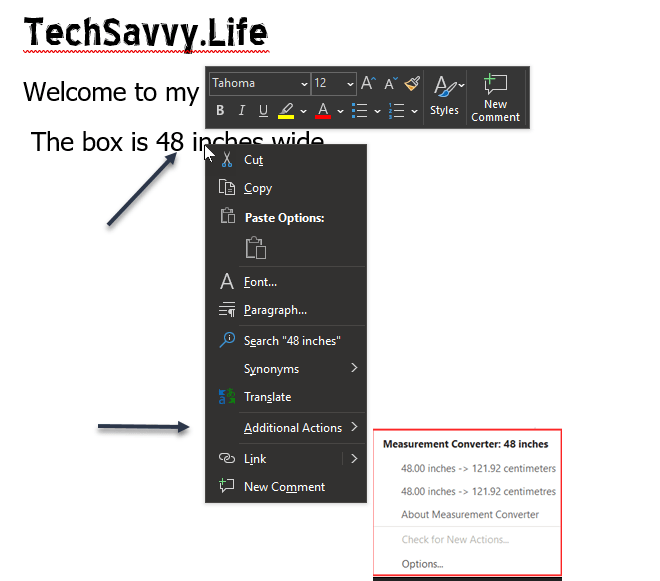
Now, right-click and move your cursor down to Additional Actions in the menu. You will see the Measurement Converter in the pop-out window. Refer to below image:

Accessing Measurement Converter

This lets you view the conversion. Additionally, you can click to select a conversion from the list and it will replace the measurement in your document, presentation, or email. This is convenient when you are preparing an item for someone expecting a different unit of measurement.

Quote For the Day

The greatest mistake you can make in life is continually fearing that you’ll make one.

Elbert Hubbard

That’s it. Please feel free to share this post! One way to share is via Twitter.

Just click the Tweet icon below. This will launch Twitter where you click its icon to post the Tweet.

Check out TechSavvy.Life for blog posts on smartphones, PCs, and Macs! You may email us at contact@techsavvy.life for comments or questions.

I Would Like to Hear From You

Please feel free to leave a comment. I would love hearing from you. Do you have a computer or smart device tech question? I will do my best to answer your inquiry. Just send an email to contact@techsavvy.life. Please mention the device, app and version that you are using. To help us out, you can send screenshots of your data related to your question.
The author’s Vietnam eBook on the Battle for Tra Bong: Events and Aftermath

How to Change Chrome New Tab Background

It’s easy to get bored at Chrome’s single white image background. Can we change this background image when opening a new tab? Yes we can. Chrome allows you to automatically switch the new tab page’s wallpaper every day.

RAYMOND OGLESBY @RaymondOglesby2
August 12, 2021

It’s easy to get bored at Chrome’s single white image background. Can we change this background image when opening a new tab? Yes we can. Chrome allows you to automatically switch the new tab page’s wallpaper every day. Let’s explore how this is done.

This is for devices running Google Chrome

Dilbert and Zoom
Copyright Scott Adams, Inc./Distributed by Universal Uclick for UFS

First, launch the Google Chrome browser on your Windows 10, Mac, Chrome OS, or Linux computer. Next, open a new tab and click the Customize pencil icon in the bottom-right corner of your screen. Refer to below image:

Background 1
Accessing new tab Customize icon

Now, in the pop-up window that appears, make sure that you are in the Background section. See below image:

Background 2
The Background section

Next, on the Background page, you will find a number of preset collections of backdrops, such as “Textures,” “Seascapes,” “Art,” and “Earth.” Google Chrome can automatically apply a new wallpaper from any one of these collections every day on your new tab page.

Let’s say that you want Google Chrome to display a new wallpaper from the “Seascapes” collection on your new tab page.

To do this, first, click the collection’s thumbnail in the grid. See following image:

Background 3
Accessing the Seascapes collection

Now, on the next page, Google Chrome will list all of the collection’s wallpapers. Turn on the Refresh Daily switch in the top-right corner of the pop-up window. Refer to below image:

Background 4
Enabling daily switch

Now, click Done to save your preferences. See below image:

Background 5
Your Done

Next, the new tab page on your Google Chrome browser will show a fresh backdrop from the “Seascapes” collection (or whichever collection you have chosen) every day.

If you like one of the background images, you can see the name of the current background’s creator and its source in the bottom-left corner of the new tab page. See following image:

Background 6
Info about the backdrop

There are plenty of other ways that you can customize Google Chrome, such as edit more elements of the new tab page, or create your own browser theme.

Quote For the Day

Only two things are infinite, the universe and human stupidity, and I’m not sure about the former.

Albert Einstein

I like this little known feature of Chrome. Please feel free to share this post! One way to share is via Twitter.

Just click the Tweet icon below. This will launch Twitter where you click its icon to post the Tweet.

Check out TechSavvy.Life for blog posts on smartphones, PCs, and Macs! You may email us at contact@techsavvy.life for comments or questions.

I Would Like to Hear From You

Please feel free to leave a comment. I would love hearing from you. Do you have a computer or smart device tech question? I will do my best to answer your inquiry. Just send an email to contact@techsavvy.life. Please mention the device, app and version that you are using. To help us out, you can send screenshots of your data related to your question.

The author’s Vietnam eBook on the Battle for Tra Bong: Events and Aftermath

How to Free Up Space in Google Drive

It’s easy to run out of space on Google Drive, since it stores data across much of your Google account. Fortunately, it’s also easy to delete data and free up some storage. As you will see, I am running out of space. Let’s explore how to do this.

RAYMOND OGLESBY @RaymondOglesby2
August 10, 2021

It’s easy to run out of space on Google Drive, since it stores data across much of your Google account. Fortunately, it’s also easy to delete data and free up some storage. As you will see, I am running out of space. Let’s explore how to do this.

This is for devices using Google Drive. Screenshots are from Drive on Windows 10 PC

Dilbert and Sane
Copyright Scott Adams, Inc./Distributed by Universal Uclick for UFS

If you use Google Drive to share large files, it’s quite easy to hit the 15GB free data limit on your Google account. While you can upgrade, for a price, it’s best to manually delete some data for more space first. After doing this, I upgraded to the 100GB plan, yet I am still out of space.

You will not need to spend hours combing through every nook and cranny in Google Drive. The website has a storage management feature that lists all your files, sorting them based on their file size.

First, open the Drive website in your browser.

You will see the Storage section at the bottom of the left sidebar. This will show you how much storage space you have left in your account. Now, click the Storage button. Refer to below image:

Drive 1
Your used Storage space

Next, you will see a list of all the large files in your account. Just click a file to select it. To select multiple files, hold the Command/Control key while selecting the file.

Now, to delete the file (or files), click the Remove button (the Trashcan icon) in the top toolbar. See below image:

Drive 2
Delete a file

Google Drive will remove the file and send it to the Trash.

If you want to find and open a folder where a particular file is saved (or find more files to delete), right-click and choose the Show File Location option. See following image:

Drive 3
Find more files

Next, you can select multiple files and use the Remove (Trashcan icon) in the toolbar to delete all the files at once. (You can use this method to delete entire folders as well.)

If you do not have a backup of the file that you are planning to delete, click the Download button in the right-click menu to download a copy of the file to your local storage. Refer to below image:

Drive 4
Download a file before deletion

Once you delete files like this, the files are no longer available in Google Drive, but you have not recovered any storage space yet. That’s because Google Drive does not actually delete the files for 30 days. So, if you change your mind, you have up to 30 days to recover the data.

If you want to reclaim the storage space, you will have to force Google Drive to permanently delete the data. To do this, go to the Trash or Bin section in the sidebar. See below image:

Drive 5
Accessing the Trash

Now, in the Trash, you will see a list of files that have yet to be deleted. To individually delete a file, right-click and choose the Delete Forever option. Or, click Empty Trash to delete all the files. See following image:

Drive 6
Delete your file(s)

Next, in the pop-up that appears, confirm using the Delete Forever button. Refer to below image:

Drive 7
Confirm to delete the file(s) forever

Now, all the files will be deleted. Once you reload the page, you will see that the storage space has been recovered.

Quote For the Day

I have noticed even people who claim everything is predestined, and that we can do nothing to change it, look before they cross the road.

Stephen Hawking

You now know how to clean up storage space on Google Drive. Please feel free to share this post! One way to share is via Twitter.

Just click the Tweet icon below. This will launch Twitter where you click its icon to post the Tweet.

Check out TechSavvy.Life for blog posts on smartphones, PCs, and Macs! You may email us at contact@techsavvy.life for comments or questions.

I Would Like to Hear From You

Please feel free to leave a comment. I would love hearing from you. Do you have a computer or smart device tech question? I will do my best to answer your inquiry. Just send an email to contact@techsavvy.life. Please mention the device, app and version that you are using. To help us out, you can send screenshots of your data related to your question.
The author’s Vietnam eBook on the Battle for Tra Bong: Events and Aftermath