By using Google Maps you can find the location of a restaurant, store or some other company. How about asking the business a question? In some cases, you can do so through Google Maps. If the entity supports Google Maps messaging feature, you can send a message to that company. If the company responds, you can carry on a back-and-forth conversation; like texting, but instead you are using Google Maps.
To date, this is the most unusual post I have written. Its relatively unknown to the business community. I recommend you try out my example before searching for a business in your area that uses Google Maps for messaging.
This feature is for your iOS (iPhone/iPad) or Android device or whatever smart device supports Google Maps
If you haven’t already done so, download and install Google Maps to your device.
Copyright Scott Adams, Inc./Distributed by Universal Uclick for UFS
Search for a Business
Launch Google Maps
Search for a business you want to use or visit. In my example, I am searching for “Lobster House”. Refer to following image:
Search for Lobster House
If using my example, select the first entry. Refer to following screenshot:
Selecting First Entry for Lobster House
View the Overview Tab
Swipe Up below the map till you see the Overview tab, like the following image:
Overview Tab for Lobster House
If the company supports Google Maps messaging, in the center of the screen you will see a link that says “Contact us now“
Type in Your Message
Tap on this link
Type in your message and tap the Send icon. A pertinent question might be reserving a table at a certain time instead of my example. Refer to following screen:
Messaging Lobster House
In my example of the “Lobster House”, they usually respond within a few hours. So, revisit the “Lobster House” for their reply by:
Search for Messages
Searching for the business
Swipe Up to view the Overview Tab
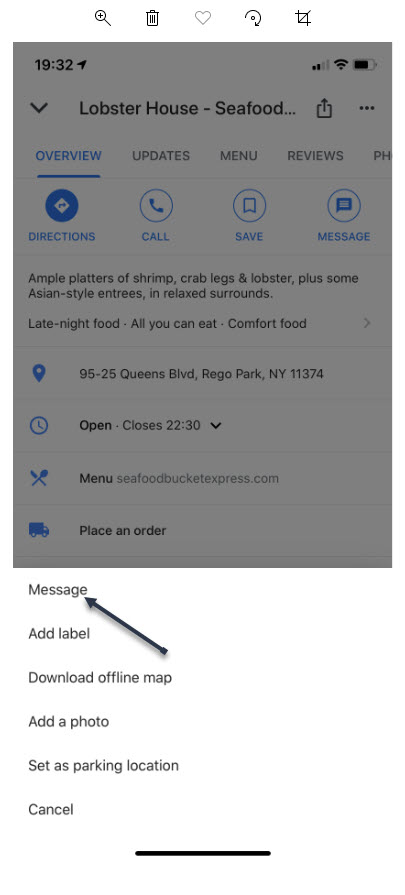
Tap the 3 dots in upper right hand corner. Refer to following image:
Check for a Response
Reply to Messages
You will see the following screen. Tap on Message to view their reply. You can then reply back to the business if you need to.
The Message Screen
Whats challenging about this feature is finding a business that supports Google Maps messaging. Unfortunately, many do not. But, if a business of interest does offer messaging, you can use this feature to obtain more information about the company or perhaps, setup a reservation.
I Would Like to Hear from You
Please feel free to leave a comment. I would love hearing from you. Do you have a computer or smart device tech question? I will do my best to answer your inquiry. Please mention the device, app and version that you are using. To help us out, you can send screenshots of your data related to your question.
The author’s Vietnam eBook on the Battle for Tra Bong: Events and Aftermath
Word’s Caption feature allows you to insert captions after figures, tables or equations in your document. You can choose to have Word insert them automatically or do it yourself manually. Lets learn how to add and edit captions to set apart elements in your document.
You are not limited to figures, tables or equations; you can create a new label like Picture or Photo. If you are using Chapters in your document, you can add the Chapter number to your caption. Almost any object or inserted item in Word can be captioned.
This is for PCs, Macs and similar platforms that support Microsoft Word
Copyright Scott Adams, Inc./Distributed by Universal Uclick for UFS
Add a Caption
There are two ways to add a caption:
Select the figure/table/equation, right click and select Insert Caption. (Note! This method works only for figures and tables, not equations.)
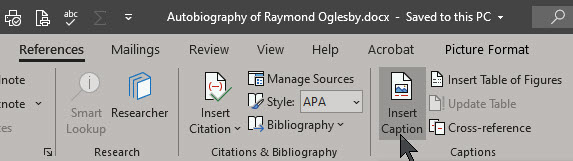
Select the figure/table/equation, go to the References tab on the ribbon and select Insert Caption. See below image:
If you don’t select the object and choose References > Insert Caption the caption will be inserted where the cursor is placed.
Your Caption Options
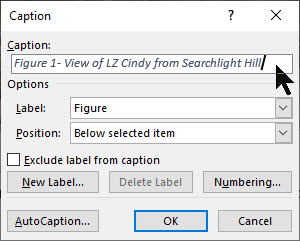
The Caption dialog box will now open, with a number of options for you to set. Refer to below image;
Below are the options to chose from:
Captions – type in the label you want
Label – or more correctly caption prefix. Choose table, equation or figure. This will automatically add that label to the caption.
New Label – If you want your captions to have a label other than the ones provided, you can add a new one from the New Label option. (For example, Word provides the options Equation, Figure and Table, but if you are including photos in your document, you may prefer to label them Picture or Photo.)
Exclude Label from Captions – check this box and no label/prefix will be included. The caption will just contain the number and the text that you enter.
Position – caption to appear above or below the object. Only works if the object is selected before Insert Caption. Otherwise this field will be disabled and the caption placed where you have set your cursor.
AutoCaption certain types of objects can be automatically captioned when they are included in a document.
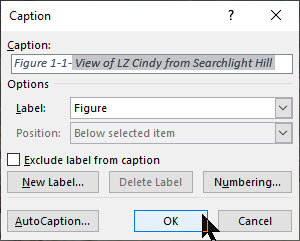
The caption will now appear in the specified location, with its number automatically allocated. See following image:
Figure 1- View of LZ Cindy from Searchlight Hill
Numbering Options for Your Captions
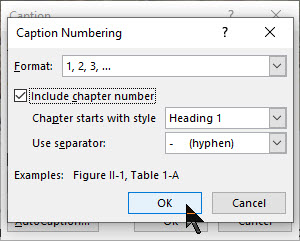
If you want to change the format of the numbering system on your captions, do this by clicking the Numbering button in the Caption dialog box. Refer to below image:
The Caption Numbering dialog box will open. See below image:
Format: Choose the numbering format you want to use:
Numerals (1, 2, 3, 4…)
Lowercase letters (a, b, c, d…)
Uppercase letters (A, B, C, D…)
Lowercase Roman numerals (i, ii, iii, iv…)
Uppercase Roman numerals (I, II, III, IV…)
And others depending on the installed language packs.
Include Chapter Number: If your document contains chapters, you can choose to have the numbering restart for each chapter and have the chapter number included in the caption numbering system.
First select the Caption in your Word document. Then you need to link the Style (e.g. Heading 1) with a multi-level list at Home > Paragraph > Multi-Level List > Define Multi-Level List > More. This adds automatic numbering to each style so the captions have a number to show. See following image;
Chapter Starts with Style: Select what level of heading you would like to signify a new chapter.
Use Separator: Choose the separator that you would like to use between the chapter number and the caption number (hyphen, period, colon or em-dash).
Change Your Caption Settings
Changing the caption settings isn’t obvious because right-clicking doesn’t show an option to open the Caption dialog.
The trick is to select the whole caption then References > Captions > Insert Caption. Refer to below image:
This opens the Caption dialog with the current settings.
Updating Your Caption Numbering
At the core of captions are field codes. Updating the caption numbering is the same as any other field code updates.
Select the whole document with Ctrl+A then update fields with F9 (or right-click to choose Update Field).
Change Your Caption Text
The text after the caption label can be edited in the document. Just click in the caption text and type as usual. See following image;
I Would Like to Hear From You
Please feel free to leave a comment. I would love hearing from you. Do you have a computer or smart device tech question? I will do my best to answer your inquiry. Please mention the device, app and version that you are using. To help us out, you can send screenshots of your data related to your question.
The author’s Vietnam eBook on the Battle for Tra Bong: Events and Aftermath
The Insert Key was needed in early versions of Windows. In our modern day of Windows, the key is no longer needed. Now, we just place our cursor where we want to insert text and start typing. If we use the Insert Key, our text is overwritten. This can be frustrating as we find ourselves clicking Undo and starting over.
Every key has a corresponding key scan code that tells Windows how to handle the keystroke. We can find this code and change it to a null character in the Windows Registry, which disables the key.
Instead of editing the Registry directly, we are going to use a free software utility to perform this task.
This is for desktop/laptop using Windows 10. SharpKeys will run on Vista through Windows 10.
Copyright Scott Adams, Inc./Distributed by Universal Uclick for UFS
Running Regbak Software
First, open and run the program. Next, click on the New Backup button to create a Registry backup. Refer to below image:
Selecting a new backup
A backup dialog box will appear. Here you can chose a Backup Folder. It is recommended you use the default. Next, give the backup a Description of your choice, then click Start. See below image:
Chosing the backup location and entering a description
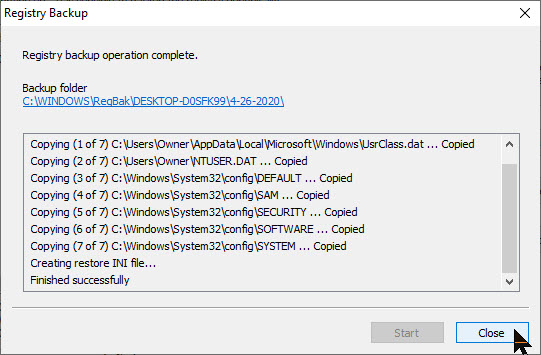
When the program has finished, you will receive a message at the top of the screen that the backup operation has completed. At the bottom of the dialog box, check for the mesage that the operation finished successfully. Now, click Close. See following image:
Completing the process
A final dialog box will appear showing your newly created Registry backup entry. Additionally, by highlighting an entry you can either Restore or Delete a Registry backup. Click Close to end the program. Refer to below image:
Exit the program
SharpKeys Overview
SharpKeys is free software for you to edit specific Registry entries. It uses a Graphical User Interface (GUI) to remap keys on your keyboard. This software makes it easy to edit the Registry without using the built-in Registry Editor. Using the Editor is time consuming and error prone.
Note! This program requires Administrative Privileges to run. Please open the program as an Administrator by right-clicking on the program under Start, and click on More > Run as Administrator.
Once the program is running, click the Add button. See below image:
Opening the program
Scroll through the list on the left and click on Special: Insert (E0_52). Next, click on Turn Key Off (00_00) from the list on the right. To remap the Insert Key, click OK. Refer to below image:
Selecting the Insert Key to be remapped
The value in parentheses is the key scan code associated with it. We are replacing the Insert Key code of E0_52 to a non-existence code of 00_00, which will disable the key.
Next, click the Write to Registry button. The software will add the new code for the Insert Key to the Registry for you. See following image:
Write the null key scan code to the Registry
To complete the process, click OK. Refer to below image:
Restart message
To exit the program, click Close. See below image:
Exit the program
For the changes to take effect, you will need to log out or restart your computer.
You can use SharpKeys to remap a host of other keyboard characters.
Undoing Your Change
If you have made no other changes, you can use Wise Registry Cleaner or Regbak to restore the Registry depending on which software you used to create a Registry backup. If you have made other changes and wish to restore the Insert Key function, those changes will be lost.
Another method is using the Registry Editor to reenable the Insert Key function. This method is very technical, frustrating and error prone; so I don’t recommend doing this.
I Would Like to Hear From You
Please feel free to leave a comment. I would love hearing from you. Do you have a computer or smart device tech question? I will do my best to answer your inquiry. Please mention the device, app and version that you are using. To help us out, you can send screenshots of your data related to your question.
The author’s Vietnam eBook on the Battle for Tra Bong: Events and Aftermath
You have searched for a favorite photo or video on Facebook but are unable to locate it. Facebook has an option to backup most anything saved through its app. This would allow for easier searching instead of scrolling endlessly through Facebook posts.
You may have decided to deactivate your account for health reasons or you just want a backup. There is no such thing as “too many backups”. In my IT career, I have been “burned” by not having adequate backups resulting in lost time in recreating them.
Depending on how long you have been a Facebook user, the backup file can be quite large. If you have limited storage or on a free storage plan for your mobile device, you might consider backing up to a PC or Mac.
Using this post as a guide, I am backing up thirteen years of Facebook photos and videos on a Windows 10 PC. My backup file, in Zip format, was a 1.4 GB file.
This is for PCs, Mac, mobile devices and similar platforms using Facebook
Copyright Scott Adams, Inc./Distributed by Universal Uclick for UFS
Accessing Facebook Settings
Launch Facebook. in the upper right hand corner, click on the Account icon. Next, click the Settings & Privacy option. See below image
The Settings and Privacy option
Next, click on the Settings option. Refer to below image:
The Settings option
Downloading Your Facebook Information
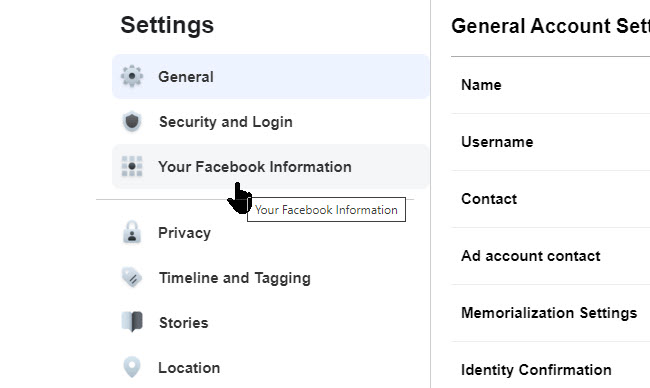
Then click on Your Facebook Information. See following image:
The Facebook Information option
Next, click on Download Your Information. See below image:
Download your information option
Selecting ONLY Photos and Videos
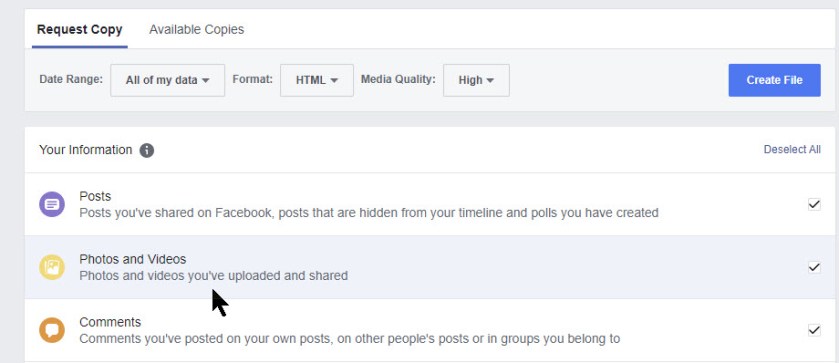
From here, click on Deselect All link. Then select only Photos and Videos option. From this screen there are many options on what to backup. For our purposes, we only want photos and videos. Refer to below image:
Deselecting all, then selecting only photos and videos option
Once photos and videos have been selected and all other option are unselected, click the Create File button. See below image:
Clicking the Create File option
Messages and Emails From Facebook
You will receive a pop-up message regarding the creation of your Facebook backup for photos and videos. Refer to below image:
Facebook response to iyour request
Check your email that is associated with your Facebook account for the file request. See below image:
Email from Facebook about your request
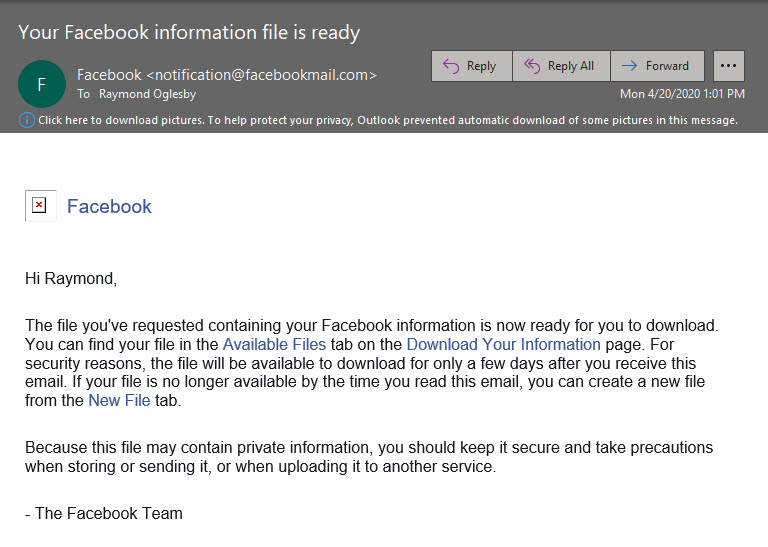
It may take several hours for Facebook to process your request. When the file is ready, you will receive an email that your file is ready. Follow the directions in the message. Refer to below image:
Email from Facebook that your backup file is ready
Downloading Your Photos and Videos Backup
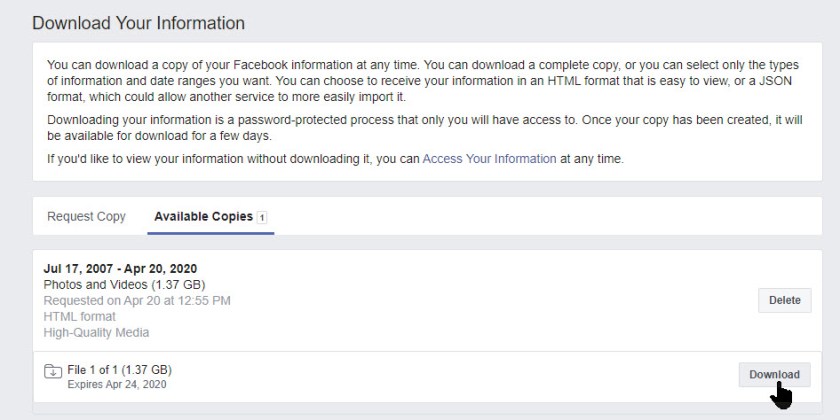
Click on the link for Download Your Information. Then, click the Available Copies tab. You should see information about your download file. Now, click the Download button. See following image:
Download option to your Downloads folder
Facebook will ask you to enter your Password, then click Submit. See below image:
Submitting your password
Viewing Your Downloaded Zip File via File Explorer
Your photos and videos backup file will be in your Downloads folder in Zip format. Below is a screenshot of my backup file. Notice it contains over 3000 files. Your backuped file number will depend on how often you post photos and videos and how many years on Facebook. Refer to below image:
An example of your downloaded Facebook photos and videos file
What I would like to see is an option to select a date range for the backup instead of everything.
I Would Like to Hear From You
Please feel free to leave a comment. I would love hearing from you. Do you have a computer or smart device tech question? I will do my best to answer your inquiry. Please mention the device, app and version that you are using. To help us out, you can send screenshots of your data related to your question.
The author’s Vietnam eBook on the Battle for Tra Bong: Events and Aftermath
If your Windows computer is being redirected to unwanted sites, advertisements are popping up while you browse the Internet, or a message saying a virus was detected, then it is possible that you have malware installed on your computer.
This is for Windows 7 through 10, also applies to Macs and mobile devices. The wording in this post is for Windows 10
Copyright Scott Adams, Inc./Distributed by Universal Uclick for UFS
Malware refers to any type of malicious software that tries to infect a computer or mobile device. Hackers use malware for any number of reasons such as, extracting personal information or passwords, stealing money or preventing owners from accessing their device.
Malware includes computer viruses, ransomware, worms, trojan horses, rootkits, keyloggers, dialers, spyware, adware, malicious BHOs, rogue security software and other malicious programs. The majority of malware threats are usually worms or trojans rather than viruses.
Following are some examples of an infected PC:
Your web browser (e.g., Microsoft Internet Explorer, Mozilla Firefox, Google Chrome) freezes, hangs or is unresponsive
You get redirected to web pages other than the one you intended to go to
You receive numerous web-browser popup messages
Strange or unexpected toolbars appear at the top of your web browser
Your computer runs slower than usual
Your computer freezes, hangs or is unresponsive
Your computer restarts by itself (but not a restart caused by Windows Updates)
You see unusual error messages (e.g., messages saying there are missing or corrupt files folders)
For several months, I had malware that crashed my PC on a daily basis. I read lots of help articles and followed its advice. I soon came to realize that no one piece of software will remove the malware. In my case, the virus would attach itself to a Dell executable (exe) file. I located the suspected file and renamed it, no luck here. So, I deleted the file; the suspected file would recreate itself with the virus attached. I did a scan of the Registry to find the infected file, it was not found. What the heck is going on? Then I came across an in-depth article on removing malware. In summary, to remove the malware, perform the following:
Restart your machine and stop all running programs
Download, install and run the following programs one at a time in order as shown below. There is a free or trial version for each software. Do not install any third-party tools associated with the installs. The softare title and links are as follows:
Now, restart your machine. The malware should be eliminated. Since this is a one-time removal, uninstall each program. If left installed and active, they will interfere with each other and cause other problems.
I Would Like to Hear From You
Please feel free to leave a comment. I would love hearing from you. Do you have a computer or smart device tech question? I will do my best to answer your inquiry. Please mention the device, app and version that you are using. To help us out, you can send screenshots of your data related to your question.
The author’s Vietnam eBook on the Battle for Tra Bong: Events and Aftermath
Whenever you log-in to Windows 10, your name appears above the password entry. What if you want to change your name? This post addresses this issue.
Whether you use a local account or a Microsoft Account, it’s relative easy to change your display name.
This is for Windows 10 devices
Copyright Scott Adams, Inc./Distributed by Universal Uclick for UFS
Changing Your Display Name for a Microsoft Account
To change you name for a Microsoft Account, you need to open your account preferences on the Microsoft website.
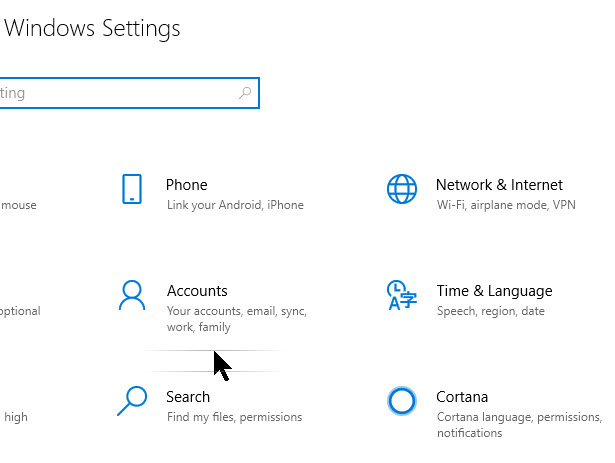
Opens the Settings app by pressing the Windows key+I or type in Settings in the Cortana search field, then click the Settings app at top of the screen. Then click on the Accounts option. Refer to below image:
Selecting your Accounts option
Below your name and photo, click on Manage my Microsoft account. See following image:
Selecting Manange my Microsoft account
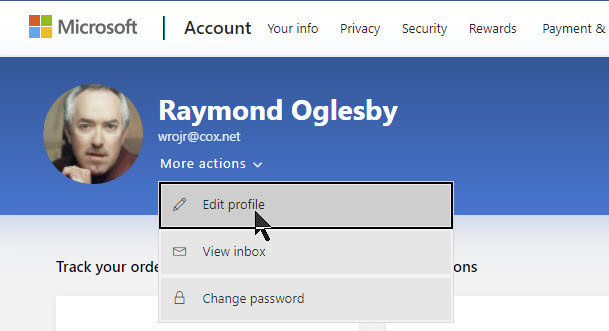
Signin to your Microsoft Account if not already signed. This will open your account preferences in your browser. After your browser opens, click the More Actions drop-down box, then click on Edit Profile from the options list. See below image:
Selecting Edit Profile
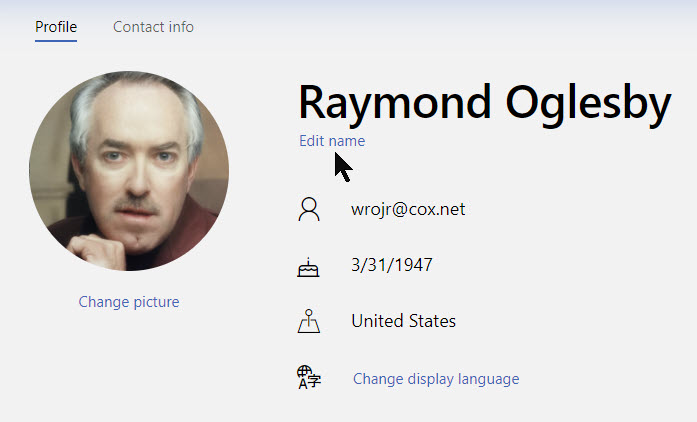
Below your name, click Edit Name. Refer to below image:
Selecting Edit your name
Enter your first and last name, solve the CAPTCHA challenge, then click Save to update your name. See following image:
Changing your firsr and/or last name and entering the CAPTCHA letters
When your Profile page reloads, it will update with the name change.
Note! When you change your Microsoft Account name, it changes on all devices that you use to log-in with this account.
For your new name to show on your Windows 10 log-in screen, you will have to log out of Windows 10. Be sure to save any unsaved work or applications before signing out.
Changing Your Display Name for a Local Account
A local account is a basic approach in using Windows 10. Local accounts don’t have the added features like syncing files, settings, browser history, etc. across multiple devices.
If you want to change your local account name, fire up the Control Panel. In the Cortana search box, type in Control Panel then click on the Control Panel app at the top of the screen.
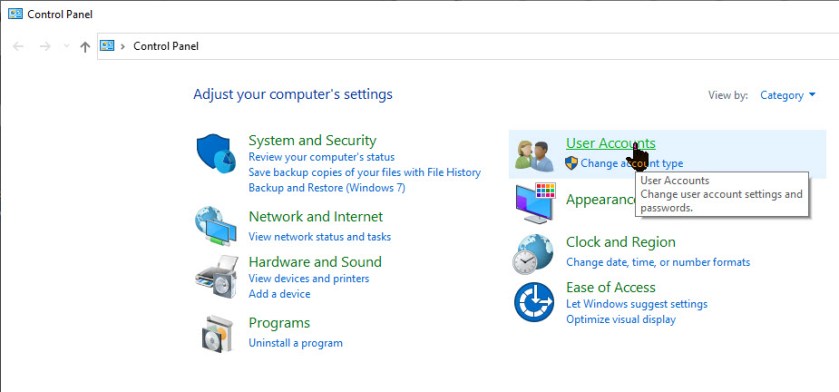
Next click on the User Accounts option. Refer to below image:
Selecting User Accounts from the Control Panel
Now click on User Accounts one more time. See below image:
Selecting User Accounts again
Now, select Change your account name option to change your log-in name. See following image:
Selection for changing your account name
Note:If an organization manages your device or you don’t have administrator privileges, you won’t be able to change your name.
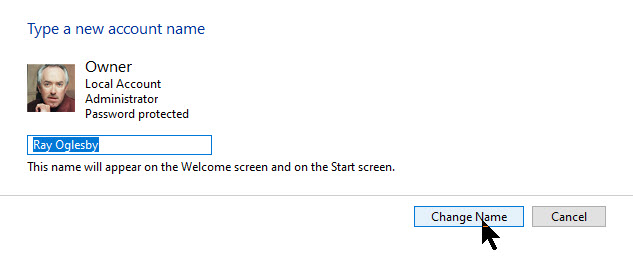
Enter the new log-in name into the text field, then click the Change Name button to save your changes. Refer to below image:
Changing your log-in name
You are done and may now close the Control Panel window. For your new name to show on your Windows 10 log-in screen, you will have to log out of Windows 10. Be sure to save any unsaved work or applications before signing out.
I Would Like to Hear From You
Please feel free to leave a comment. I would love hearing from you. Do you have a computer or smart device tech question? I will do my best to answer your inquiry. Please mention the device, app and version that you are using. To help me out, you can send screenshots of your data related to your question.
The author’s Vietnam eBook on the Battle for Tra Bong: Events and Aftermath
Creating and using custom AutoText entries for frequently used phrases is a great way to speed up your content creation in Microsoft Word. By default, Word has very few entries so you may want to add your own. The good news is you can set up these time-savers in just a few clicks!
The software does come with lots of AutoText Document fields, like Author, Company Info, Status and other built-in entries such as Headers, Footers, Tables, Watermarks, etc., that you can choose for your document. You can use these entries in addition to your own AutoText entries for your documents.
Note! Your AutoText entries maintain its formatting when inserted into a document.
This is for PCs, Macs and other platforms that support Word
Copyright Scott Adams, Inc./Distributed by Universal Uclick for UFS
Creating an AutoText Entry
To begin, highlight the text in your Word document that you’d like to use to create your new AutoText entry. Refer to below image:
Selecting the text for your AutoText entry
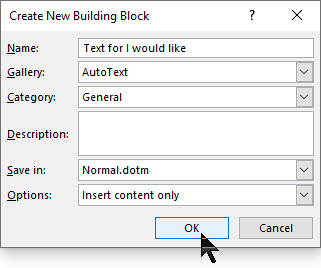
Press Alt+F3 to open the Create New Building Block window. Then, type in a name (within the 32-character limit) for your AutoText entry. Next, click OK. See following image:
Saving your AutoText entry
Your AutoText entry will be saved. Now that was easy.
Using an AutoText Entry
To use your AutoText entry, place your cursor where you want to insert the text in your Word document. Navigate to the Insert tab and click the Explore Quick Parts icon in the Text group. See below image:
Accessing your AutoText
A drop-down menu will be displayed. Hover your pointer over AutoText. Refer to below image:
Selecting the AutoText feature
A list of AutoText entries will appear. Select the one you want to use. See below image:
Inserting your custom AutoText entry
The entry you selected will be inserted into your document.
Deleting an AutoText Entry
If your AutoText list is getting crowded, or you made a mistake when you created a custom entry, you can delete them.
To do so, go back to the Insert tab and select the Text group. Then click the Explore Quick Parts icon, and then hover your pointer over AutoText.
From here, right-click the AutoText entry you want to delete. In the context pop-up menu that appears, click the option Organize and Delete. Refer to following image:
Accessing the Delete option
The Building Blocks Organizer window will be displayed with your AutoText entry highlighted. At the bottom of this dialog box, click on Delete. See below image:
The delete button at the end of the AutoText entries
A message box will appear asking you to confirm the deletion of your entry. To delete this entry, click Yes. Refer to below image:
Confirming your custom AutoText deletion
Now your entry will be deleted. You have successfully adding, inserted and deleted an AutoText entry. That’s it.
I Would Like to Hear from You
Please feel free to leave a comment. I would love hearing from you. Do you have a computer or smart device tech question? I will do my best to answer your inquiry. Please mention the device, app and version that you are using. To help us out, you can send screenshots of your data related to your question.
The author’s Vietnam eBook on the Battle for Tra Bong: Events and Aftermath
Your hard drive has been acting strange. It’s making clicking or screeching sounds, it’s unable to find files, crashes on boot, slow transfer speed or seems to be moving slowly. Your hard drive is dying.
Since it is a mechanical device it has moving parts unlike a Solid State Device (SSD) which has none. But even a SSD will eventually fail.
Even if your hard drive is healthy, over time, it will die. You should keep an eye on it’s health once in a while for your peace of mind. Let’s see how to do this.
This is for Windows 10 devices and Macs
Copyright Scott Adams, Inc./Distributed by Universal Uclick for UFS
To Tweet about this post, click the Tweet icon below to launch Twitter, then click its Tweet icon to post.
Check out TechSavvy.Life for their blog posts on smartphone apps, PCs. and Macs!
Most modern drives have a feature called S.M.A.R. T. (Self-Monitoring, Analysis and Reporting Technology) that monitors different drive attributes in an attempt to detect a failing disk. That way, your computer will automatically notify you before data loss occurs and the drive can be replaced while it still remains functional.
Check in Windows
In Windows 10, you can manually check the S.M.A.R.T. status of your drives from the Command Prompt. Just right-click the Start button, select Run, and type “cmd“, then click OK or type “cmd” into the Cortana search bar, then click OK. In the Command Prompt pop-up box, type:
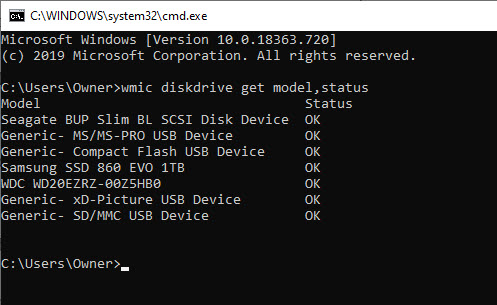
wmic diskdrive get model,status
It will return “Pred Fail” if your drive’s death is imminent; “Bad”, “Unknown” or “Caution” if its time to take care of a drive or “OK” if it thinks a drive is doing fine. Refer to below image:
Checking your hard drives health
Check on a Mac
On a Mac, you can check S.M.A.R.T. status by opening the Disk Utility program, clicking on the drive and looking at “S.M.A.R.T. Status” in the bottom left, which will either read “Verified” or “Failing”.
SMART Status can be Misleading
However, this basic S.M.A.R.T. information can be misleading. You only know when your drive is near death, but you can start to experience problems even if the basic S.M.A.R.T. status is okay.
You can also use Defraggler program I discussed in a previous post. When you use the Analyze feature of the program, it will show your disk health. Click here for the post on using Defraggler.
Manufacture Check
If you want an even deeper, more accurate picture into your drive’s health, check its manufacturer’s website for a dedicated tool; for example, Seagate has SeaTools for its drives, Western Digital has Data Lifeguard Diagnostic for its drives and Samsung has Samsung Magician for its SSDs. These tools can sometimes take into account certain technologies specific to their hard drives and SSDs.
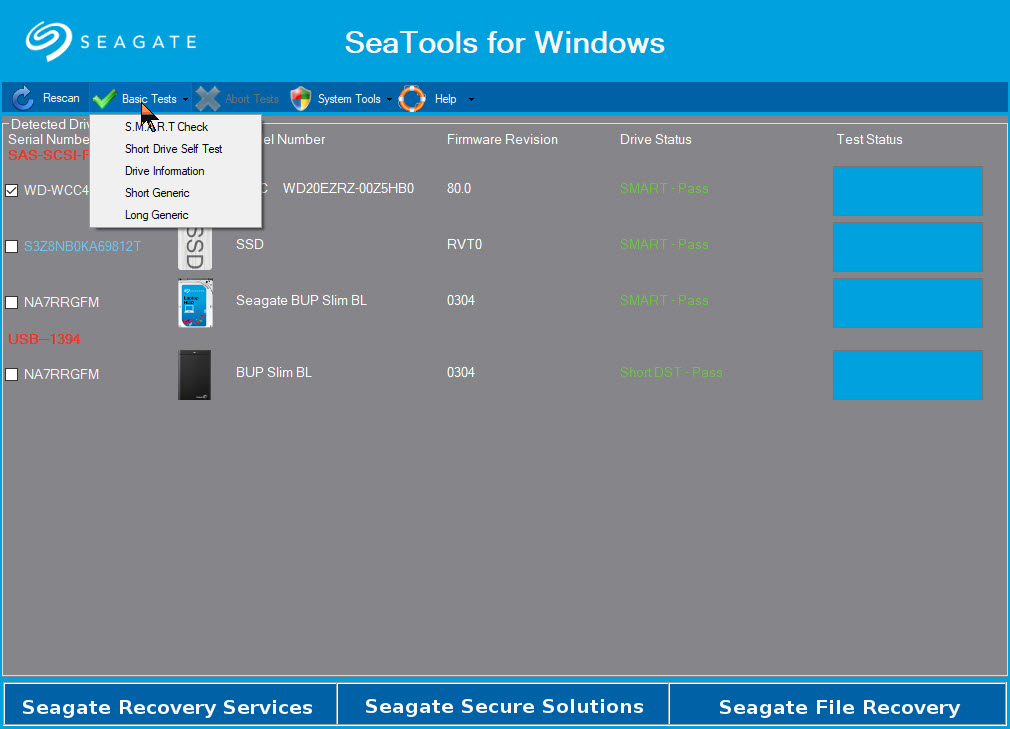
Note! You may find that the SeaTools (Seagate) utility is the only software you will need. In the below image, it can diagnose Samsung, Western Digital as well as Seagate using several methods:
SeaTools for Windows options
Is Your Drive Almost Dead
Drives with the “Pred Fail” status won’t necessarily fail tomorrow. They could chug along for a year or be dead as a doornail in a few days if not hours.
If you’re getting warnings, it’s time to back up your files before your drive fails. Failure to act may cost you serious money to recover your data.
Now is not the time for a full backup, however: you don’t want to stress the drive with too many reads or it could fail while you’re backing up. Instead, plug in an external drive and copy your most important files onto it; family photos, work documents and anything else that can’t easily be replaced. Then, once you know those are safe, you can try doing a full drive clone with something like EaseUS Todo Backup Free.
I got a S.M.A.R.T. status of “Pred Fail” on my main hard drive. I quickly backed up my important files to an external drive. I never finished before it died. I tried the trick off turning my desktop on its side, then upside down. I got a little more life from the hard drive. Then I removed the hard drive and gently shook the device. I could hear the spindle sliding; then I knew if was totally dead. But it’s worth trying this trick.
Is Your Drive Dead
If your hard drive has already stopped working, things get a lot tougher and you’ll probably need a professional data recovery service which can cost $1,000 or more. But if you have pricelrss data on the drive, it may be worth it to you.
Prepare for Hard Drive Failure
It’s not a matter of “if” your hard drive will fail; it’s a matter of “when”. All hard drives fail eventually and if you want to avoid losing all your important files, you absolutely have to back up your computer regularly; including when the drive is healthy.
Take some time to set up an automatic, cloud based backup like Google Backup and Sync using Google Drive. It is one of the best things you can do to protect yourself from heartache later on. Or at least back up to an external drive using Windows 10 built-in File History Tool.
If your drive failed catastrophically with no warning, you can get back up and running in no time by having an up-to-date backup.
That’s it. Please feel free to share this post! One way to share is via Twitter, as mentioned below.
I hope you have found this post helpful. If so, click the Tweet icon below. This will launch Twitter where you click its icon to post the Tweet.
I have found TechSavvy.Life blog posts extremely helpful. Check them out for posts on smart phone apps, Macs and PCs!
Please feel free to leave a comment. I would love hearing from you. Do you have a computer or smart device tech question? I will do my best to answer your inquiry. Please mention the device, app and version that you are using. To help me out, you can send screenshots of your data related to your question.
The author’s Vietnam eBook on the Battle for Tra Bong: Events and Aftermath
Microsoft Excel is getting a quick summary view of workbook statistics. This simple dialog box includes the boundaries of the sheets, tables, links, formulas and notes.
In a couple of clicks you can now view the workbook statistics.
This is for Excel in Office 365 on PCs and Macs
Copyright Scott Adams, Inc./Distributed by Universal Uclick for UFS
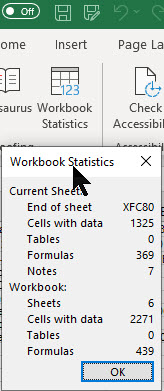
First, open an existing Excel workbook. Navigate to the Review tab and click on it. In the menu bar, head to the Proofing group. You will see the icon Workbook Statistics, just click on it to view. Refer to below image:
There are details for current sheet and the entire workbook. It is similar to Microsoft Word’s Word Count feature.
I Would Like to Hear From You
Please feel free to leave a comment. I would love hearing from you. Do you have a computer or smart device tech question? I will do my best to answer your inquiry. Please mention the device, app and version that you are using. To help us out, you can send screenshots of your data related to your question.
The author’s Vietnam eBook on the Battle for Tra Bong: Events and Aftermath
If you know the right keyboard shortcut and the right commands, the Windows 10 Run command can be a powerful tool. Lets explore 12 Run commands everyone should know.
With a simple keyboard shortcut and a few keystrokes, you can reach your destination before other users can click their mouse on the right icon.
The key is learning and knowing these common Run commands.
The examples are for Windows 10 operating system. Also works for Windows 7 and Windows 8.
Copyright Scott Adams, Inc./Distributed by Universal Uclick for UFS
Open the Run Command Dialog Box
To use these commands we need to bring up the Run command dialog box. There are two comman ways of doing this as follows:
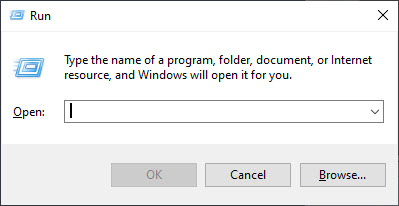
1. Right click the Start menu icon and select the Run command from a list 2. Use the keyboard shortcut by selecting and holding the Window icon button and press the “R” key. See following image:
The Run dialog box
You will simply enter your Run command and press the Enter key or press OK.
The Run Commands
Note! The quotation marks are for emphasis only; they are not part of the command itself and should not be included in the Run command box. Also, the Run remembers your command(s).
1.“\” – Open the default drive, usually drive “C“ This will display the contents of your default configuration to include your Quick Access library. The presumption is that this is where your documents, photos and other files can be most easily found. At times you may just want to open File Explorer to the main hard drive root folder.
2. “.” – Open the Home folder of the current user This command will open the Home folder for the current user.
3. “..” – Open the Users folder Typing two periods (“..”) will open File Explorer in the Users folder, giving quick access to all the user’s folders, providing you have the proper credentials. This is a good command for performing system administrative tasks.
4. “control” – Open the Control Panel Windows 10 has placed many of the common configuration settings into an area known as Settings, which can be found as an entry in the Start menu. While this is fine for many configuration settings, there are times when you have to load the full Windows 10 Control Panel. On those occasions, type control into the Run command box. Refer to below image:
The Control Panel
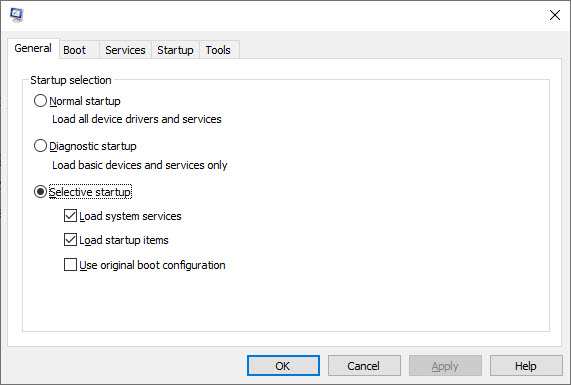
5. “msconfig” – Open System Configuration The System Configuration app is a holdover from previous versions of the Windows operating system, but it is still useful for Windows 10. This command will open an app that grants you access to boot variations including certain startup services during the boot sequence. Also, their are many options to view, add or change under the Tools tab. See following image:
System Configuration screen
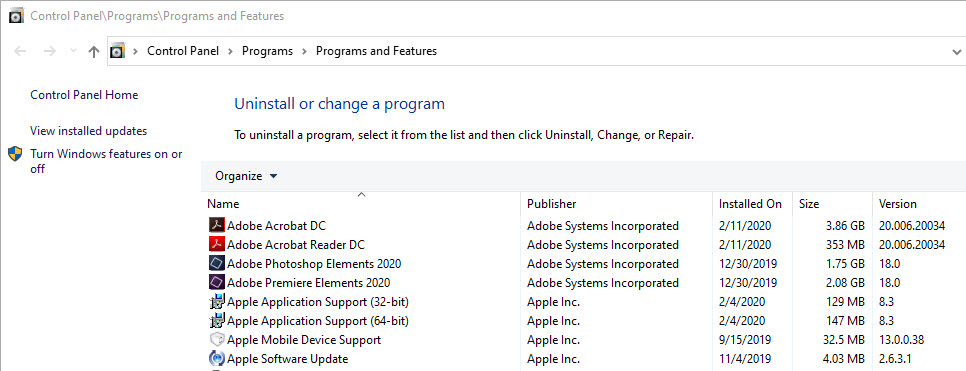
6. “appwiz.cpl” – Open Programs and Features Lets say you want to uninstall a program; you may use this command to do so. Although you can use the Control Panel command to accomplish this task, using this command is much faster. See below image:
Uninstall a program
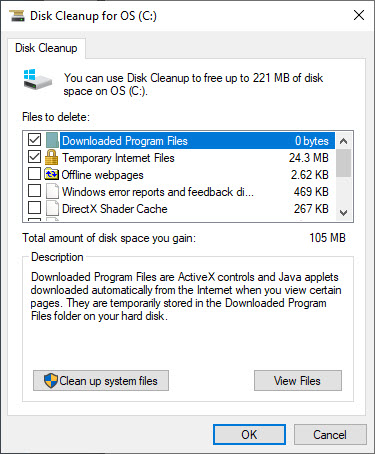
7. “cleanmgr” – Open Disk Cleanup utility Another holdover from previous versions of Windows is the Disk Cleanup utility. Most disk cleanup processes in Windows 10 are handled automatically behind the scenes, but there are occasions where you may want to perform disk cleanup manually. Refer to below image:
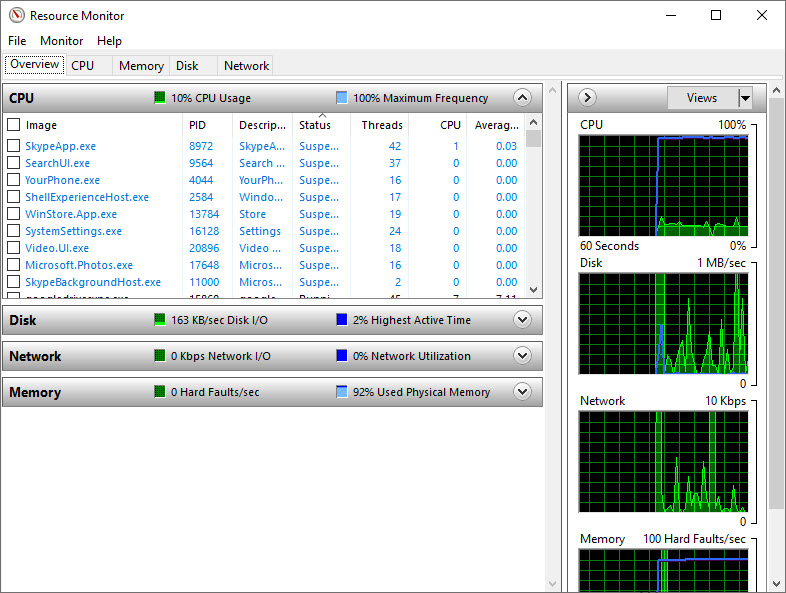
8. “resmon” – Open Resource Monitor A utility app that most users ignore, but really shouldn’t, is the Windows 10 Resource Monitor. If your PC starts lagging or the hard drive seems to be spinning up without cause, run this command and troubleshoot the problem. See below image:
The Resource Monitor
9. “calc”, “notepad”, “mspaint”, etc – Open common apps Another good use for the Run command is to start basic Microsoft applications that you may not use every day and don’t want on your desktop or taskbar but that you still use from time to time.
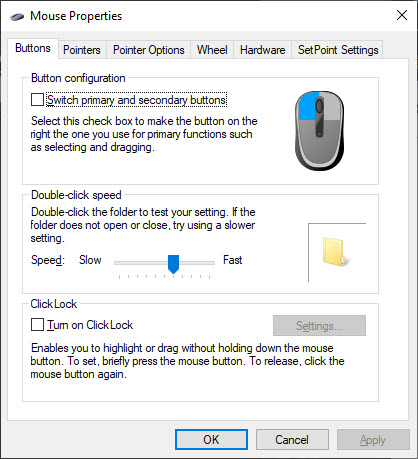
10. “main.cpl” – Adjust your mouse settings One of the first things you need to adjust on a new Windows 10 PC are the mouse settings. A mouse cursor that is too small or moves too slowly across the screen can be frustrating. This is fastest way to get to those settings. Refer to below image:
Settings for the mouse
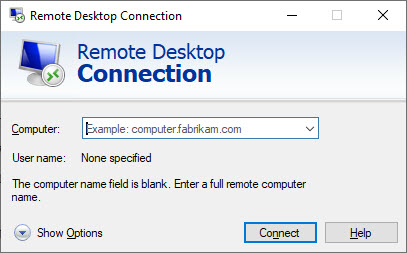
11. “mstsc” – Open Remote Desktop A modern workforce is a mobile workforce, which means many of us have to access our workstation PCs remotely using the Windows 10 Remote Desktop app. See following image:
Open Remote Desktop
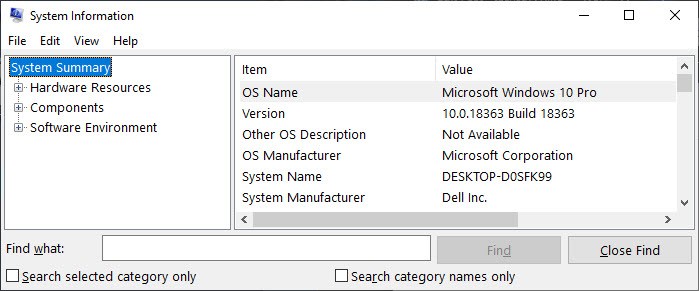
12. “msinfo32” – Access System Information While troubleshooting problems with help desks, it is not uncommon for the technician to ask for detailed system information. Rather than clicking through several different screens, use this Run command. Refer to below image:
System Ongormation scree
You Don’t Have to Remember the Commands
Tip: As you try these Run commands, you will notice that your previous entry is displayed. You can scroll through all previous commands by using the up and down arrow keys or click the drop down arrow to see your entries. This allows less keystrokes, faster access and best of all, you don’t have to memorize these Run commands. They are available even if you Shutdown or Restart your device.
Please feel free to leave a comment. I would love hearing from you. Do you have a computer or smart device tech question? I will do my best to answer your inquiry. Please mention the device, app and version that you are using. To help us out, you can send screenshots of your data related to your question.
The author’s Vietnam eBook on the Battle for Tra Bong:Events and Aftermath








































 Tech Savvy Life