Take Control of Your Social Media Feed with These Tips

Social media feeds are controlled by algorithms that track user interactions to serve content. Although helpful, they can misinterpret preferences. To regain control, users can reset their watch history on YouTube, adjust settings on Facebook and Instagram, and modify interests on LinkedIn and Twitter, or even create new accounts for a fresh start.

RAYMOND OGLESBY @RaymondOglesby2
October 15, 2024 – 9 minutes read time

This is for devices using Social Media. Screenshots are from iPhone 14 Pro running iOS 17.6.1

Click here to learn how to update your iPhone to the latest iOS version.

Almost everything you see in your social media feeds today is governed by algorithms. Think of them as the digital rules and intelligence that social media companies use to deliver a steady stream of interesting content to your eyes. They are invisible conductors that note everything you like, click, or comment on and use that information to serve up more content you likely engage with.

Algorithms are far from perfect, though. Sometimes, they pick up on the wrong signals and stuff your feed with things you do not care about. If you find yourself increasingly uninterested in the posts you see in your feed, it’s often possible to reset those algorithms. Doing it correctly can completely change what your social networks show when you log in. 

Let’s explore how to take back control of your social media.

YouTube feeds you content based on what you watch, search for, and subscribe to. As YouTube says on some pages (accessible below), “Keeping your history makes YouTube more personal.” But familiarity can breed contempt. 

First, reset your Watch History. On the mobile app:

Tap your name > Cog icon > Settings > Manage All History

Refer to the below image:

YOUTUBE WATCH HISTORY IMAGE
Manage YouTube history

From here, you have a few options. You likely have Auto-Delete (Off) set up; click that, and you can tell YouTube to delete the tracked history of anything older than 36, 18, or 3 months. The shorter the time frame, the bigger the reset to your suggestions will be. 

Alternatively, click where it says DELETE with a down arrow to access a menu to delete what you have seen today, in a custom range of time, or everything for all time. That final one is the nuclear option. Your suggestions will be totally fresh. 

While here, click the Saving Your YouTube History link to change what YouTube saves. You may not want it to save searches because you may look for some wacky stuff. Or set it to turn off any YouTube history saving whatsoever. Scroll down the page to YouTube Customize Your Feed Feedback and click Delete to get rid of videos you specifically picked for your home feed in the past. 

(On the desktop, click your avatar at the upper right and select Your Data in YouTube. Scroll down to YouTube Watch History and toggle the On button to Off so your history storage is paused. Click Manage your YouTube Watch History to access the menus as mentioned above, like Auto-Delete).

Clicking “Not Interested” under select videos can also impact the algorithm. 

For a genuinely full reset, unsubscribe to every YouTube channel you follow.

On mobile, click Subscriptions at the bottom, then click All at the top, and you will see the full list. Click the bell icon to the right of each for a menu that includes Unsubscribe. (On Desktop, use Subscriptions> Manage to get to the list with the menus.)

Facebook’s main display is called the Feed. It features updates, photos, videos, and more from people, Pages, and groups you follow.  posts based on what it believes you will like. 

Thankfully, there are plenty of ways to adjust the Facebook Feed. Click your avatar profile pic at the upper right on the desktop and go to 

Settings and Privacy > Feed

You will see options here to manage your favorites (people/groups you want to see the most), unfollows (people you do not want to dump, but do not want to see as much of), snoozes (people you want to temporarily unfollow), and reconnect (it lets you turn off unfollows). See the below image:

Facebook Feed Settings
Manage Facebook feed

You can also opt to avoid looking at Facebook’s main page. Go right to Feeds (via the left-hand navigation), and then you can view only the Favorites, Friends, Groups, or Pages you want to see. 

As you use Facebook daily, be sure to perform hides, snoozes, and unfollows on posts as you encounter them to “train” the algorithm and steer it toward the kinds of content you actually want to see. 

You also can and should go into Facebook Ad Preferences and change things so you can impact the advertising in your Feed. You can also do this with ads as they pop up. Click the X to hide an ad immediately, or use the three-dot menu to hide or report it. You can also limit advertising topics you see by going to:

Settings & Privacy > Settings > Account Center > Ad Preferences > Customize ads

then click “See All” next to Ad Topics

You can use Page Moderation to block certain words or phrases so they do not appear, at least in the comments. Go to:

Settings > Followers and Public Content > Hide comments containing specific words

You choose the list of words to block.  

Since everything you see on Facebook is tied entirely to who you friend and follow, a complete reset would require you to unfriend everyone. Starting a new profile is more manageable. This is also pretty easy; click your profile pic to see a button that says See all profiles. In the following menu, it shows + Create new profile or Page. A personal profile is just for individuals, but you can make a new one to get a fresh, clean feed. A page is more for a business or organization, that multiple people can control. No matter what you create, you can easily switch back and forth between the profiles/pages. See the following image:

FACEBOOK NEW PROFILE.
Create Facebook profile

Instagram is part of Meta, just like Facebook, so many of the same rules we listed above apply. For example, the Ad Preferences/Ad Topics are similar. Access them by clicking:

Menu > Settings > Account Center > Ad Preferences

Again, there’s no direct way to reset the algorithm, but you can manipulate things by clicking the three-dot menu on posts to set the person as an unfollow or to add to favorites. Click into the account of someone you see, and on the following menu, you can add a person as Close Friend, Favorite, Mute (Posts and/or Stories), Restrict (which limits interaction without a complete block), or Unfollow.

Under Settings, you will find Muted accounts, Blocked accounts, Close Friends, and other lists you can change as desired. 

The best reset is to open a new account. You can do that by logging out of Instagram and creating a new user profile. After that, log in to either account, go to:

Settings > Account Center > Accounts > Add Account

and log into the second one. You can link the two accounts (or even a Facebook account) and switch between them. Remember, if you follow all the same people on the new account, it will look like the previous one. 

Twitter gives you so little control over your feed that if you want to reset the type of content that the platform serves you, your best bet is to start a totally new account. If that’s a bit too drastic for you, try to adjust your existing feed by going to

Settings & Privacy > Privacy and Safety > Content You See

This will let you uncheck topics and interests the service believes you are into. Sadly, you can not uncheck them all at once. Also, under Privacy and Safety, scroll down to Ads Preferences, and uncheck all that. 

When using the service, click the 3-dot ellipsis menu on any ads you do not like to block them. Same with anyone you follow that you have lost interest in. If you want to really get rid of everyone you follow to start fresh, go to Following and click the Following button (it will turn to a red Unfollow) next to every name to unfollow; this will take a while if there are a lot of them. If you do not want to do it manually, there’s a Chrome extension called X (Twitter) Mass Unfollow.

Microsoft’s social network for businesspeople (or those looking for work) does a pretty good job of just showing you the people you follow, but likes to sneak in a few ads based on what it thinks you like. Under your profile, pick:

Settings & Privacy > Advertising Data > Interests and traits

uncheck anything you are not into. Or turn them all off, but of course, then your ads are less relevant.  In fact, go through all the “Data collected on LinkedIn” and “Third-party data” entries. If you turn them all off, you will get a totally new feed, albeit probably irrelevant.

Source: Social Media platforms

Technology is always changing. Rarely is there static tech for smartphones and desktops. Thus, the contents of this post are only valid at the time of writing. Blog posts older than six months may have directions incompatible with your device or OS. Hopefully, older post content will continue to work as advertised. Thank you for reading TechSavvy.Life for Technology at Work For You.

“Proverbs are all very fine when there’s nothing to worry you, but when you’re in real trouble, they’re not a bit of help.”

LM Montgomery

That’s it. Please feel free to share this post! One way to share is via Twitter.

Just click the Tweet icon below. This will launch Twitter where you click its icon to post the Tweet.

Checkout TechSavvy.Life for blog posts on smartphones, PCs, and Macs! You may email us at contact@techsavvy.life for comments or questions.

Was this post helpful? We would love to hear your comments. Do you have a computer or smart device tech question? I will do my best to answer your inquiry. Just send an email to contact@techsavvy.life. Please mention the device, app, and version you are using. To help us, you can send screenshots of the data related to your question.

The author’s Vietnam eBook on the “Battle for Tra Bong Vietnam: Events and Aftermath” can be accessed from a Kindle device or the Kindle App for a desktop or smartphone. The apps are free.

The author’s Vietnam eBook on the Battle for Tra Bong Vietnam: Events and Aftermath

Threads the New Social Media App

Meta, formerly known as Facebook, has made a history of copying features from other platforms. This time, Meta has launched Threads, a social media app connected to Instagram that works more like Twitter and should eventually connect to Mastodon.

RAYMOND OGLESBY @RaymondOglesby2
July 18, 2023

As of this writing, We have reached 50,000 views in 487 posts!!!

This is for devices that use social media

Meta, formerly known as Facebook, has made a history of copying features from other platforms. This time, Meta has launched Threads, a social media app connected to Instagram that works more like Twitter and should eventually connect to Mastodon.

Meta, as the maker of Facebook, Instagram, and WhatsApp, has been after Twitter for many, many years. The company attempted to buy Twitter back in 2008, but that did not work out. Last year, Elon Musk acquired Twitter, and then promptly ran it into the ground. That has led to a surge in popularity for Twitter-like platforms, and now Meta’s app is live.
What Is Threads

Threads is a micro-blogging platform that looks and feels just like Twitter, letting you post texts up to 500 characters. This is almost twice Twitter’s 280-character standard limit, but still just enough for posts to not look like so much text. The platform itself is heavily linked to Instagram, and if you have an Instagram account, you can sign up for Threads with a couple of taps. All handles are pre-reserved; your username on Instagram will be your username on Threads. Refer to the below image of Threads:
Threads 2

Threads is actually seeing plenty of adoption, with the platform getting up to 20 million users within the first hours of launch. However, many of those accounts are brands instead of actual people. Instagram’s user base is in the billions, so we can only expect this number to keep increasing as time passes.

As it keeps growing, we can also expect a number of other changes, too. Threads is supposed to play nice with Mastodon and the Fediverse, and it will be getting ActivityPub support down the road. The exact degree to which Mastodon and Threads will be interoperable remains to be seen, but you will be able to follow and interact with Mastodon users from Threads. Likewise, Mastodon users will be able to follow Threads users by using their full username, such as “@john@threads.net.”

Pause Before You Download

Be aware of Threads Privacy Policy and the Dara the app collects. In our opinion, the app collects way too much data about you. This includes Data from your: Health/Fitness, Financial info, Contact info, User Content, Browsing history, Usage data, Diagnostics, Purchases, Location, Contacts, Search history, Identifiers, Sensitive data, and Other data.

In contrast, Facebook and Instagram only track Contact info, Identifiers, and Other data.

According to its Privacy Policy, you cannot delete your Threads account, until you delete your Instagram account. You can deactivate your Threads account at any time but you can not delete your Threads account without also deleting your Instagram account.

Our Summary

We recommend you wait until the Data collection and Privacy Policy issues are addressed.

If You Want to Download the App

If you want to give it a spin, Threads is now available from the Apple App Store and the Google Play Store. In the Apple App Store and Google Play Store, the app name is “Threads, an Instagram app”. There are other Threads apps, so ensure you download the correct one.

Disclaimer

Technology is always changing and rarely is there static tech for smartphones and desktops. Thus, the contents of this post are only valid at the time of writing. Blog posts older than six months may have directions incompatible with your device or OS. Hopefully, older post content will continue to work as advertised. Thank you for reading TechSavvy.Life for Technology at Work For You.

Quote For the Day

Always deliver more than expected.

Larry Page

Tweet Info

That’s it. Please feel free to share this post! One way to share is via Twitter.

Just click the Tweet icon below. This will launch Twitter where you click its icon to post the Tweet.

Just click the Tweet icon below. This will launch Twitter where you click its icon to post the Tweet.

I Would Like to Hear From You

Please feel free to leave a comment. I would love to hear from you. Do you have a computer or smart device tech question? I will do my best to answer your inquiry. Just send an email to contact@techsavvy.life. Please mention the device, app, and version you are using. To help us out, you can send screenshots of your data related to your question.

Author’s E-Book

You can access the e-book from a Kindle device, the Kindle App for the desktop or smartphone, which is a free app.

The author’s Vietnam eBook on the Battle for Tra Bong Vietnam: Events and Aftermath

How to Flag a Tweet for Sensitive Content

If you need to tweet an image or video of something with a content warning, it’s a good idea to mark the media as “sensitive.” Doing so will hide the image or video unless someone clicks the Show button.

RAYMOND OGLESBY @RaymondOglesby2
May 10, 2022

If you need to tweet an image or video of something with a content warning, it’s a good idea to mark the media as “sensitive.” Doing so will hide the image or video unless someone clicks the Show button. Here’s how to do this.

This is for devices using Twitter. Screenshots are from iPhone XR

Dilbert and Energy
Copyright Scott Adams, Inc./Distributed by Universal Uclick for UFS

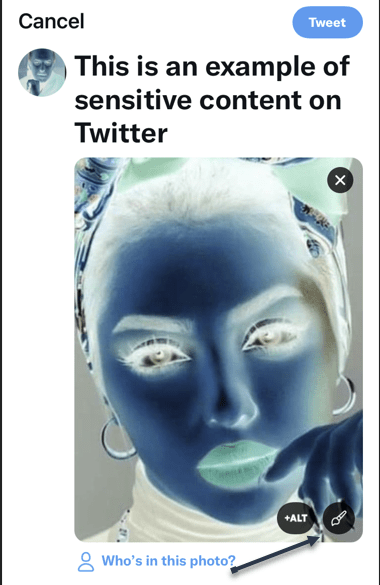
First, visit the Twitter website or open the Twitter app. Begin composing a tweet and attach an image or a video. For this post, we are using an image in reverse color. Your video or image should display normally.

If you are using the Twitter app, tap the Paintbrush icon below the image thumbnail to begin editing. If you are on the web version of Twitter, click Edit in the lower right-hand corner of the image. Refer to the below image:

Twitter 1
Edit the image

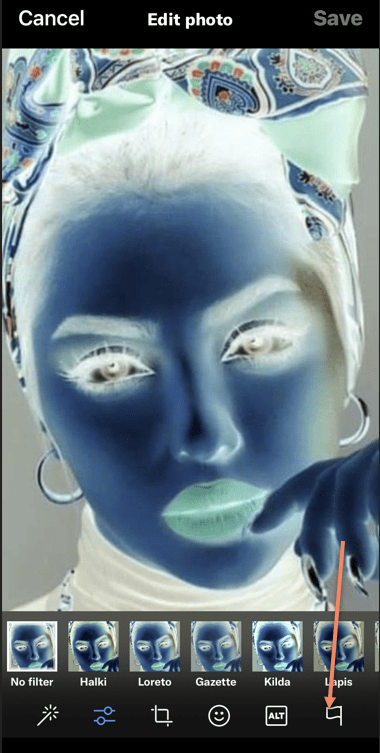
Next, tap or click the Flag icon. On the Twitter app, it’s in the lower right-hand corner of the screen. On the web, you will find the Flag as a tab in the upper right-hand corner, just above the image thumbnail. See the below image:

Twitter 2
Select the Flag icon

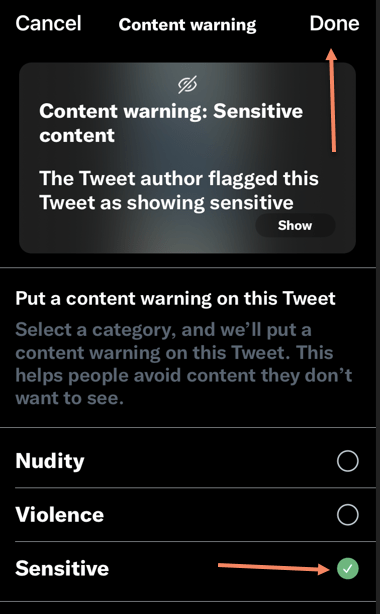
Now, under the Put a content warning on this tweet menu, place a checkmark beside any of the items that apply. If you are posting a spoiler on Twitter, the Sensitive setting works the best. Once finished, tap Done then Save on the Twitter app, or just Save on the web version of Twitter. See the following image:

Twitter 3
Select your option(s)

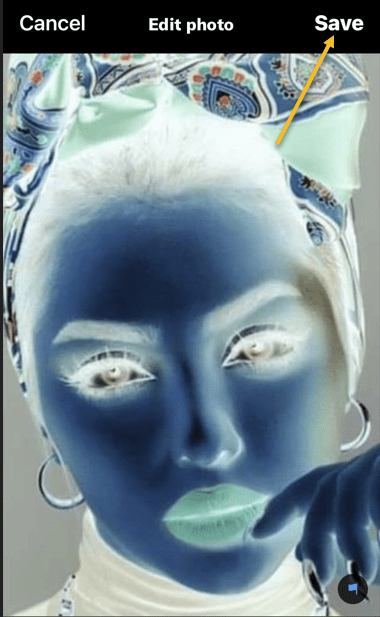
Next, tap Save on the Twitter app. Refer to the below image:

Twitter 4
Select Save if using the Twitter app

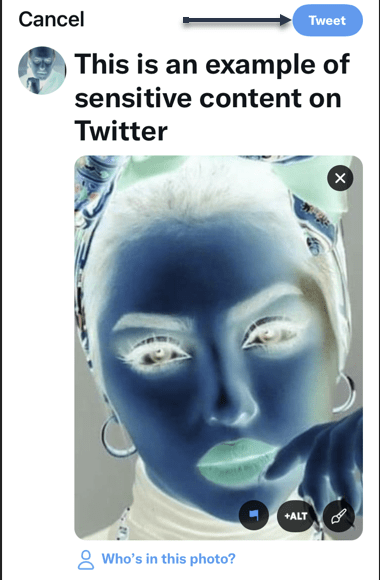
Now, Tweet your post. See the below image:

Twitter 5
Tweet your post

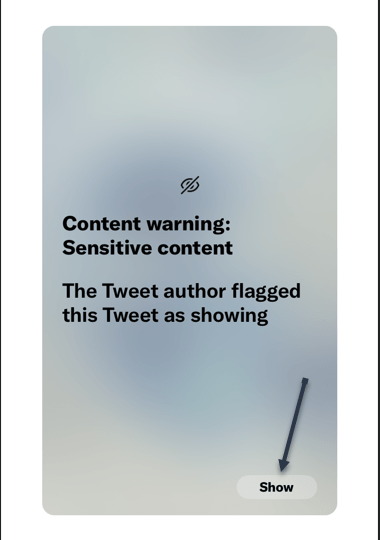
Next, after tweeting, other Twitter users will see the content warning obscuring your image or video unless they click or tap the Show button. See the following image:

Twitter 6
Select Show to see the image

The final image is as follows:

Twitter 7
The final image

Pretty easy, Just make sure that you do not violate Twitter’s terms of service along the way.

Quote For the Day

People don’t notice whether it’s winter or summer when they’re happy.

Anton Chekhov

Tweet Info

That’s it. Please feel free to share this post! One way to share is via Twitter.

Just click the Tweet icon below. This will launch Twitter where you click its icon to post the Tweet.

Check out TechSavvy.Life for blog posts on smartphones, PCs, and Macs! You may email us at contact@techsavvy.life for comments or questions.

I Would Like to Hear From You

Please feel free to leave a comment. I would love to hear from you. Do you have a computer or smart device tech question? I will do my best to answer your inquiry. Just send an email to contact@techsavvy.life. Please mention the device, app, and version you are using. To help us out, you can send screenshots of your data related to your question.

Author’s E-book

You can access the e-book from a Kindle device, the Kindle App for the desktop or smartphone, which is a free app.

The author’s Vietnam eBook on the Battle for Tra Bong Vietnam: Events and Aftermath

How to Remove Twitter Followers

If you do not like someone following you on Twitter but do not want to block them, you can remove them from your follower list. This only takes a few clicks.

RAYMOND OGLESBY @RaymondOglesby2
April 20, 2022

If you do not like someone following you on Twitter but do not want to block them, you can remove them from your follower list. This only takes a few clicks. Let’s explore how to do it on Twitter’s desktop and mobile site.

This is for the devices using Twitter

Dilbert and Spy
Copyright Scott Adams, Inc./Distributed by Universal Uclick for UFS

Note: As of the writing, the option to remove a follower is only available on Twitter’s desktop and mobile site. The option is not yet available on Twitter for Android or iOS.

The Old and New Methods

Twitter has launched the ability to remove followers at the end of 2021. Earlier, if you wanted to remove a follower, you had to block them. Doing so basically removed that user from your follower’s list, prevented them from following you again, and also hid your tweets from them.

In the new method of removing followers, you can remove someone from your follower’s list without blocking them. Twitter does not notify a user when you remove them from your follower’s list. However, they may notice they are not following you anymore, and they can then choose to follow you again. You will need to block them if you do not want them capable of following you, or choose the nuclear option and delete your Twitter account as a last resort.

Remove Followers Using Desktop

To delete a follower from your Twitter profile on a Windows, Mac, Linux, or Chromebook computer, use the Twitter desktop website.

First, open a web browser on your computer and launch the desktop Twitter site. Log in to your account if you have not already done so.

Next, in Twitter’s left sidebar, click the Profile option (the person icon). Refer to the below image:

Twitter 1
Selecting your Profile

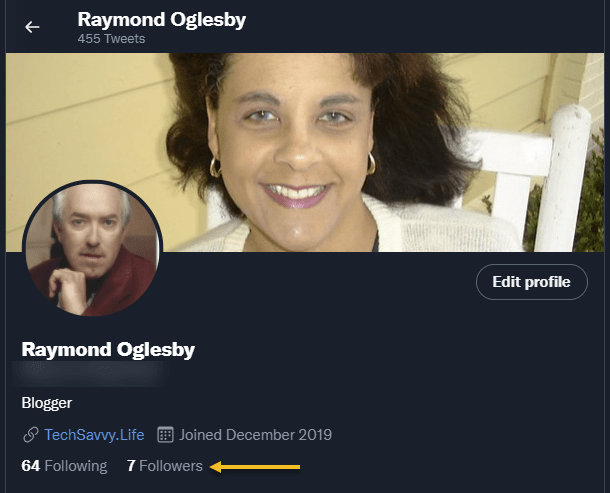
Now, your profile page will open. Here, beneath your profile information, click the Followers link to see your followers list. See the below image:

Twitter 2
Selecting your Followers link

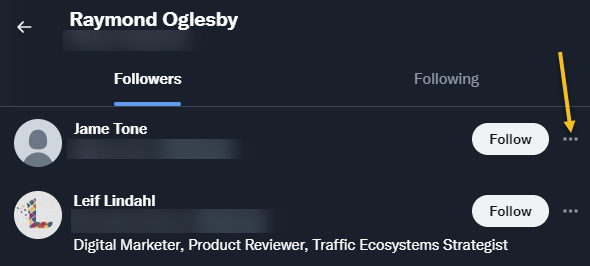
Next, on the follower’s page, find the follower you want to remove. Then, next to that user’s name, click the Menu icon (the three dots). See the following image:

Twitter 3
Selecting the Menu for a follower

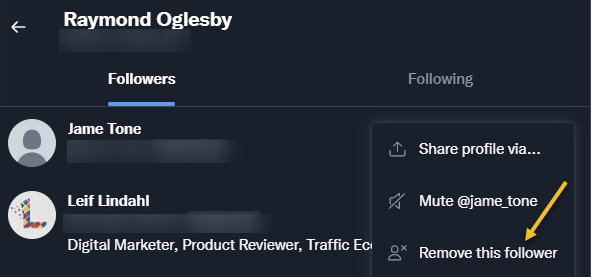
Now, in the three-dots Menu, click Remove this follower. Refer to the below image:

Twitter 4
Selecting to Remove this follower

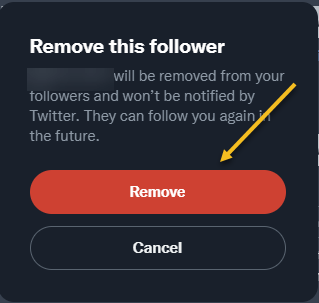
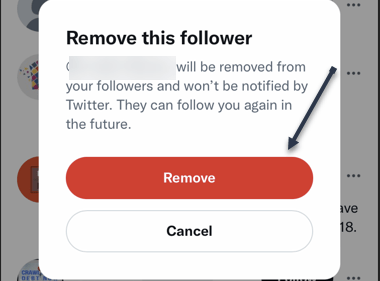
Next, you will see a Remove this follower prompt. Just click the Remove button. See the below image:

Warning: Make sure you really want to remove that follower before clicking “Remove.” Twitter will not show any further prompts and will immediately remove that user from your followers list.

Twitter 5
Remove the follower

Now, you are all set. Your selected follower is now removed from your Twitter followers list.

Remove Followers Using Mobile

If you are on an iPhone, iPad, or Android phone, you can use Twitter’s mobile site to remove a follower from your account.

First, open a web browser on your phone and launch the mobile Twitter site (mobile.twitter.com/home). If you launch Twitter.com (as you do on the desktop), the removal process will not work. Sign in to your Twitter account if not already done so.

Next, in Twitter’s top left-hand corner, tap your Profile icon. See the following image:

Twitter 6
Selecting your Profile

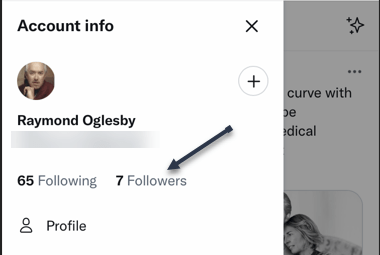
Now, an Account info menu will open. Here, tap the Followers link. Refer to the below image:

Twitter 7
Selecting your Followers link

Next, on the follower’s page, find the follower you want to remove. Then, next to that user’s name, tap the Menu icon (the three dots). See the below image:

Twitter 8
Selecting the Menu for a follower

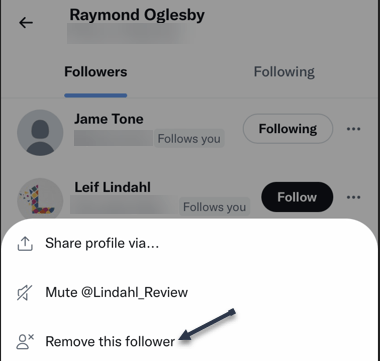
Now, in the three-dots Menu, tap Remove this follower. See the following image:

Twitter 9
Selecting to Remove this follower

Next, you will see a Remove this follower prompt. Just tap the Remove button. Refer to the below image:

Warning: Make sure you really want to remove that follower before clicking “Remove.” Twitter will not show any further prompts and will immediately remove that user from your followers list.

Twitter 10
Remove the follower

Now, you are all set. Your selected follower is now removed from your Twitter followers list.

Quote For the Day

I have not failed. I’ve just found 10,000 ways that won’t work.

Thomas Edison

That’s it. Please feel free to share this post! One way to share is via Twitter.

Just click the Tweet icon below. This will launch Twitter where you click its icon to post the Tweet.

Check out TechSavvy.Life for blog posts on smartphones, PCs, and Macs! You may email us at contact@techsavvy.life for comments or questions.

I Would Like to Hear From You

Please feel free to leave a comment. I would love to hear from you. Do you have a computer or smart device tech question? I will do my best to answer your inquiry. Just send an email to contact@techsavvy.life. Please mention the device, app, and version you are using. To help us out, you can send screenshots of your data related to your question.

Author’s E-book

You can access the e-book from a Kindle device, the Kindle App for the desktop or smartphone, which is a free app.

The author’s Vietnam eBook on the Battle for Tra Bong Vietnam: Events and Aftermath

How to Add a Cover Image to Twitter

Want to change your cover image or add one to your Twitter account? If you have not inserted an image, you will see a blue blank area at top of your account.

RAYMOND OGLESBY @RaymondOglesby2
January 25, 2022

Want to change your cover image or add one to your Twitter account? If you have not inserted an image, you will see a blue blank area at top of your account. Let’s explore how to add a cover image.

This is for devices using Twitter. Screenshots are from iPhone XR.

Dilbert and Work
Copyright Scott Adams, Inc./Distributed by Universal Uclick for UFS

First, log in to Twitter, if not already logged in, and open Twitter. Here, tap your Profile icon. Refer to the below image:

Twitter Header 1
Selecting your Profile icon

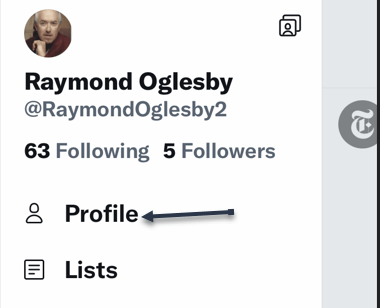
Next, in the pop-up window that opens, tap on Profile. See the below image:

Twitter Header 2
Selecting the Profile option

Now, in the upper right-hand corner, tap the Edit profile link. See the following image:

Twitter Header 3
Selecting Edit Profile link

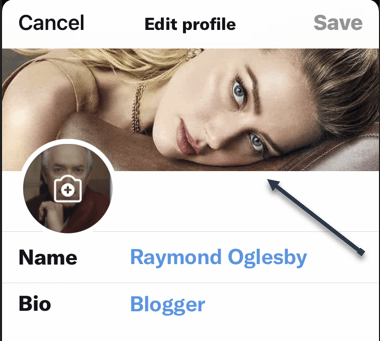
Next, tap on the top of your screen or on an existing image to open your Photos. (On the desktop, click the Camera icon in the image area). Depending on your Twitter settings, you may not see any images. If so, tap on Manage to change your settings or the plus “+” sign to open your photos. Refer to the below image:

Twitter Header 4
Selected image from Photos

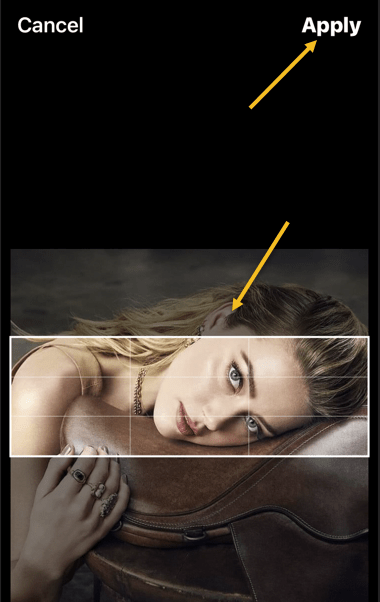
Now, position your image to your liking. Then in the upper right-hand corner, tap Apply. See the below image:

Twitter Header 5
Position your image and Apply

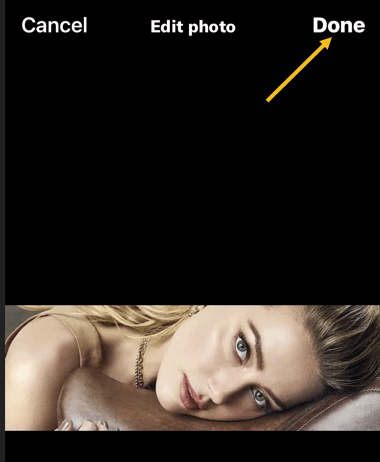
Next, in the upper right-hand corner, tap Done. See the following image:

Twitter Header 6
Finish your change

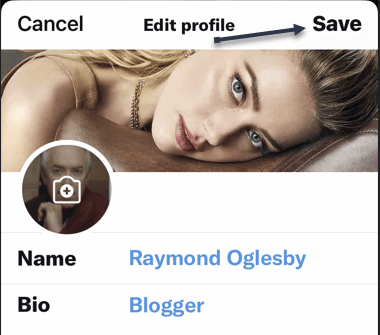
Now, tap Save in the upper right-hand corner. Refer to the below image:

Twitter Header 7
Save your change

Instantly, your saved image is now your cover photo. See the below image:

Twitter Header 8
Your finished image

Quote For the Day

We become what we repeatedly do.

Stephen Covey

That’s it. Please feel free to share this post! One way to share is via Twitter.

Just click the Tweet icon below. This will launch Twitter where you click its icon to post the Tweet.

Checkout TechSavvy.Life for blog posts on smartphones, PCs, and Macs! You may email us at contact@techsavvy.life for comments or questions.

I Would Like to Hear From You

Please feel free to leave a comment. I would love to hear from you. Do you have a computer or smart device tech question? I will do my best to answer your inquiry. Just send an email to contact@techsavvy.life. Please mention the device, app, and version you are using. To help us out, you can send screenshots of your data related to your question.

The author’s Vietnam eBook on the Battle for Tra Bong Vietnam: Events and Aftermath

How to Use Advanced Search to Find Tweets

Twitter has tons of information that flows by faster than we can comprehend. Fortunately, it’s possible to search for tweets using various parameters.

5RAYMOND OGLESBY @RaymondOglesby2
August 5, 2021

Twitter has tons of information that flows by faster than we can comprehend. Fortunately, it’s possible to search for tweets using various parameters. Let’s explore this feature.

This is for devices running Twitter

Copyright Scott Adams, Inc./Distributed by Universal Uclick for UFS

Search Tweets by Dates Range

Twitter provides both a mobile and a desktop browser Advanced Search page that lets you search for tweets posted within a certain date range. If you are on a mobile device, open your browser and click here for mobile. For the desktop browser, open your browser and click here for desktop.

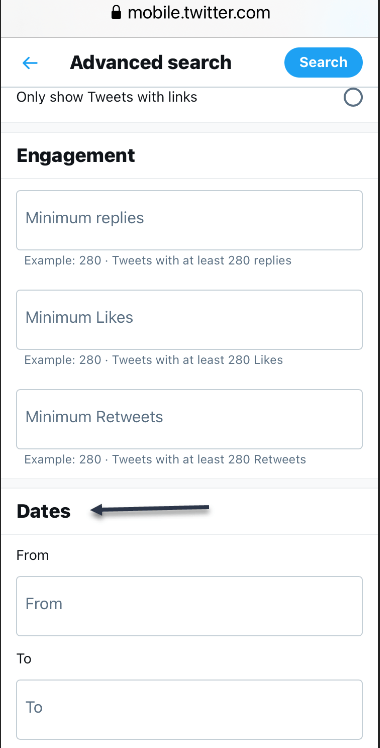
Now, on the Advanced Search page, scroll all the way down to the bottom to the Dates section. There, you will find two parameters: From and To. Refer to below image:

Accessing Dates section

Next, choose your desired month, day, and year for each parameter. Here’s what they do:

  • From: Set this to find tweets posted after midnight (12:00 a.m.) on this date.
  • To: Set this to find tweets posted up until midnight (12:00 a.m.) on this date.

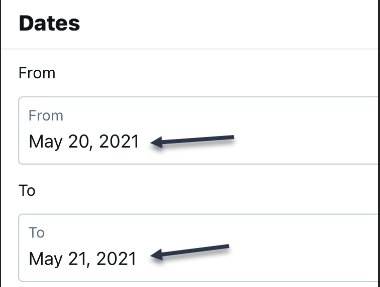
While this sounds simple, using the parameters can be confusing. For example, if you want to find tweets only from May 20, 2021, you would set From to “May 20, 2021” and To to “May 21, 2021.” You will get tweets posted between midnight on May 20 until midnight on May 21. You would not set both fields to the same date. See below image:

Setting From and To date

Similarly, if you wanted to find only tweets from the month of May 2021, you would set From to “May 1, 2021” and To to “June 1, 2021.” That way, your search will cover all 31 days of May.

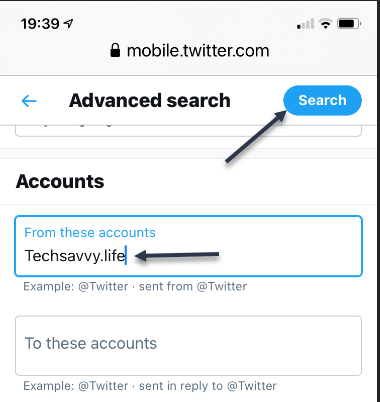
Now, scroll up and enter another parameter, such as a search term in the Words section, or an account name in the Accounts section. Next, click Search when you are done. See following image for an Account search:

Search an Account

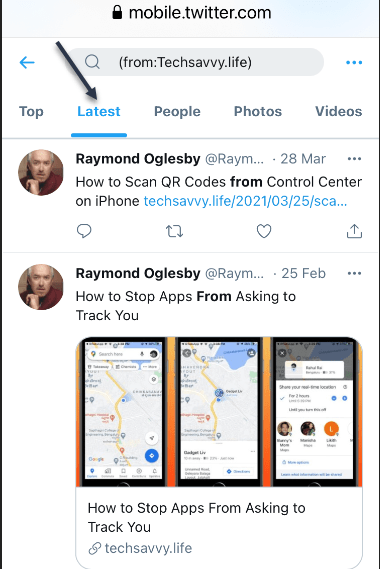
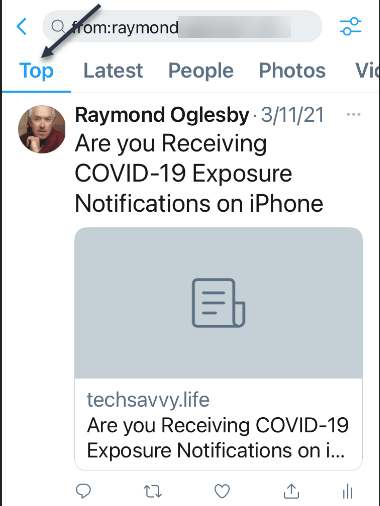
When you see the results, you can further sort them by different criteria using tabs located just below the search bar. Top shows the matching tweets with the most engagements. Latest shows all matching tweets in reverse chronological order. Refer to below image for the Latest using my domain name:

Display Latest posts for an Account

See below image for my Top posts using my Twitter name:

Display Top posts for a Twitter name

If you need to do another search, just revisit Twitter’s advanced search page and search again. It includes many parameters that allow you to narrow down tweets on certain dates, people, photos, videos, and much more.

Search Tweets by Date Range Using Inline Parameters

Another way of searching for tweets from a specific date or dates is using inline search parameters that you type directly into the search box in the Twitter app or on the Twitter website.

Here are three parameters that you can use:

Note! the following are just examples, not for literal input.

  • From: Find tweets posted only by this Twitter account. For example: from:raymondxxx  or from:techsavvy.
  • Since: Find tweets posted since 12:00 a.m. on this date. The date format is YYYY-MM-DD. For example: since:2021-05-01.
  • Until: Find tweets posted until 12:00 a.m. on this date. The date format is YYYY-MM-DD. For example: until:2021-06-01.

For example, if you would like to see all tweets posted by the “techsavvy” Twitter account between May 1, 2021 and June 1, 2021, you would type the following into the Twitter search box:

from:techsavvy until:2021-06-01 since:2021-05-01

If you wanted to find all posts about “Safari” by “raymondxxx” posted on May 15, 2021, you would enter:

safari from:raymondxxx since:2021-05-15 until:2021-05-16

And so on. This kind of quick inline search can be quite powerful once you get the syntax of the date format. You can also find embarrassing old tweets and delete them.

Quote For the Day

There ain’t no answer. There ain’t gonna be any answer. There never has been an answer. That’s the answer.

Gertrude Stein

You are finished with learning how to find tweets using Advance Search. Please feel free to share this post! One way to share is via Twitter.

Just click the Tweet icon below. This will launch Twitter where you click its icon to post the Tweet.

Check out TechSavvy.Life for blog posts on smartphones, PCs, and Macs! You may email us at contact@techsavvy.life for comments or questions.

I Would Like to Hear From You

Please feel free to leave a comment. I would love hearing from you. Do you have a computer or smart device tech question? I will do my best to answer your inquiry. Just send an email to contact@techsavvy.life. Please mention the device, app and version that you are using. To help us out, you can send screenshots of your data related to your question.

The author’s Vietnam eBook on the Battle for Tra Bong: Events and Aftermath

How to Pin/Unpin a Twitter Tweet

Generally speaking, the more you tweet, the further your past tweets move down your profile page. However, Twitter makes it possible to pin a tweet so that it stays at the top of your page until you remove it.

If you use Twitter regularly, you may occasionally post a message that gains attention with other users or that you want to stand out from the rest of your feed.

Generally speaking, the more you tweet, the further your past tweets move down your profile page. However, Twitter makes it possible to pin a tweet so that it stays at the top of your page until you remove it.

Pinning tweets to the top of your Twitter profile will not take more than a few seconds, and you can unpin a tweet or choose a new one to pin in its place at any time. Let’s explore how to do this.

Note! You can only have one pinned tweet at a time. Pinning a new tweet will unpin any tweet you already have pinned.

This is for the iPhone and Android using Twitter

Dilbert and Hackers
Copyright Scott Adams, Inc./Distributed by Universal Uclick for UFS

Pin a Tweet

Twitter’s mobile apps for iOS and Android allow you to pin tweets to your profile. You can also do this on your desktop.

First, open the Twitter app. Make sure you are logged in to your account.

Next, in the top-left corner of the app, tap the three horizontal lines. Refer to below image:

Twitter 1
Accessing the Twitter menu

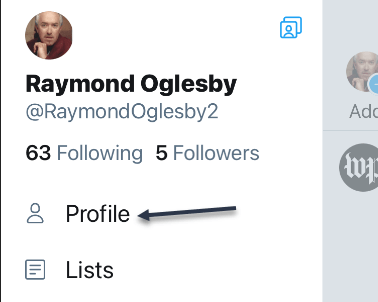
In the menu that opens, select Profile. See below image:

Twitter 2
Accessing your Profile

Your Twitter profile opens. Now, scroll down and find the tweet to pin.

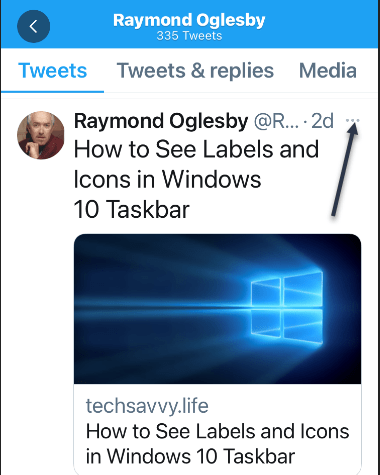
When you find the tweet, at the top-right corner of that tweet, tap the three-dots hamburger menu. See following image:

Twitter 3
Accessing the Tweet menu

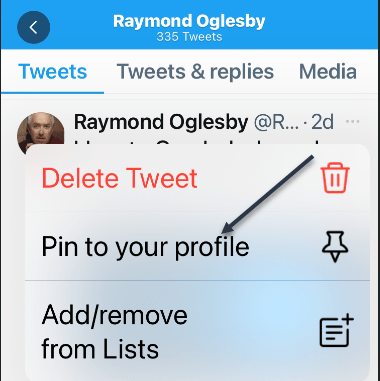
From the menu that pops up from the bottom of your phone’s screen, select Pin to profile. Refer to below image:

Twitter 4
Accessing Pin tweet to your Profile

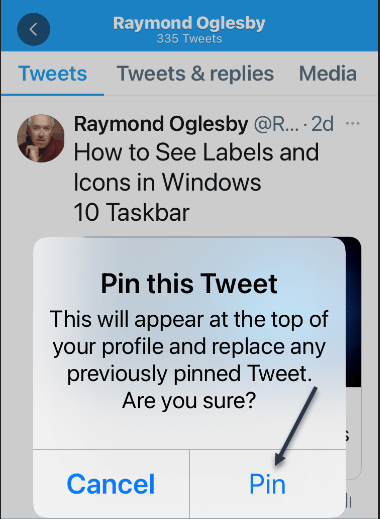
Select Pin in the prompt that appears in the middle of your phone’s screen. See below image:

Twitter 5
Pin your tweet

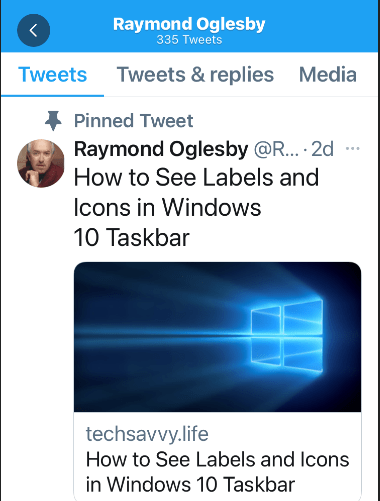
Your selected tweet is now pinned to your profile page. See following image:

Twitter 6
Your pinned tweet

Unpin a Tweet

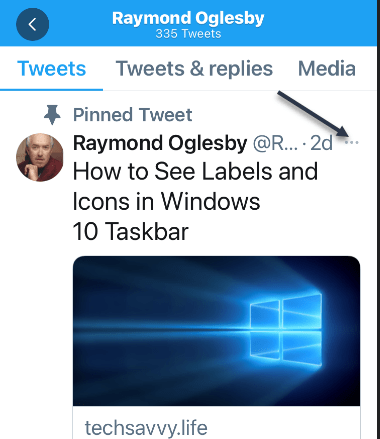
To unpin the tweet, scroll to the top of your profile page in Twitter’s mobile app. Then, at the top-right corner of the pinned tweet, tap the three-dots hamburger menu. Refer to below image:

Twitter 7
Accessing your tweet menu

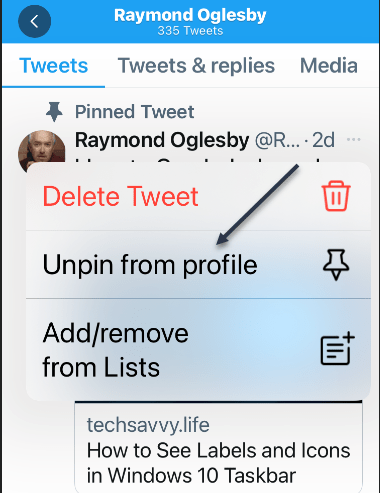
In the menu that appears from the bottom of your phone’s screen, tap Unpin from profile. See below image:

Twitter 8
Accessing Unpin tweet from your Profile

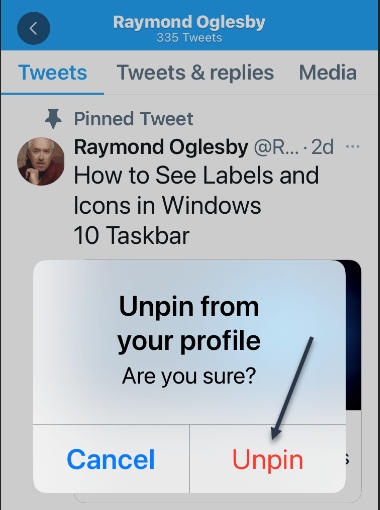
Select Unpin in the prompt. See following image:

Twitter 9
Unpin your tweet

And your tweet disappears from the top area of your Twitter profile.

It’s easy to pin and unpin tweets on Twitter, and you should make use of this feature to display your most important tweet at the top of your profile page.

Quote For the Day

The true sign of intelligence is not knowledge but imagination.

Albert Einstein

That’s it, a nifty feature. Please feel free to share this post! One way to share is via Twitter.

Just click the Tweet icon below. This will launch Twitter where you click its icon to post the Tweet.

Check out TechSavvy.Life for blog posts on smartphones, PCs, and Macs! You may email us at contact@techsavvy.life for comments or questions.

I Would Like to Hear From You

Please feel free to leave a comment. I would love hearing from you. Do you have a computer or smart device tech question? I will do my best to answer your inquiry. Just send an email to contact@techsavvy.life. Please mention the device, app and version that you are using. To help us out, you can send screenshots of your data related to your question.

The author’s Vietnam eBook on the Battle for Tra Bong: Events and Aftermath

How to Log Out All Devices in Twitter

Are you concerned someone may have access to your Twitter account? Do you know what devices are logged in? What if you moving to a new device; have you logged out of Twitter on the old device?

Your smart device keeps you logged in to such apps as Amazon, Apple, Facebook, Messenger, Microsoft and others. Each app has a feature to log out all devices. We want to explore logging out all devices for Twitter. Just follow these steps.

This is for iPhone or iPad and Twitter

Your Profile Screen

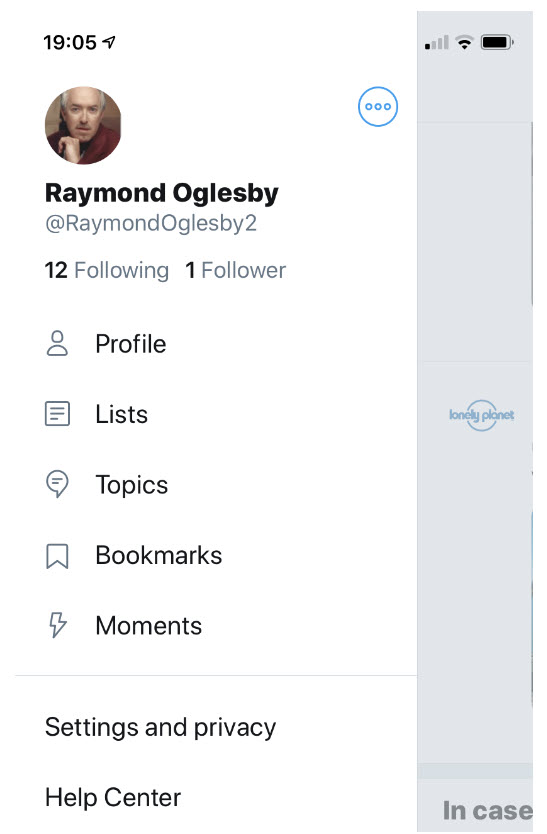
  • Tap your profile photo or swipe left to right. You will see the following image:
Twitter Log Out Profile
Twitter Log Out Profile screenshot

Your Settings Screen

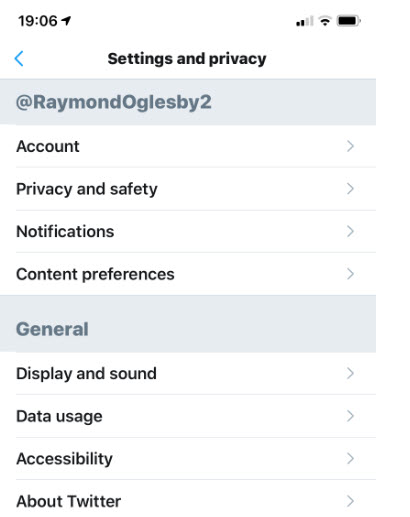
  • Tap on Settings and privacy. You will see the following screen:
Twitter Log Out Settings
Twitter Log Out Settings screenshot

Your Account Screen

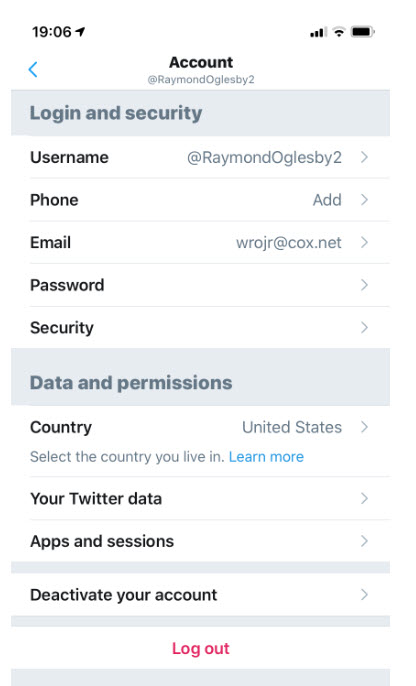
  • Tap on Account. Following is a screenshot:
Twitter Log Out Account
Twitter Log Out Account screenshot

Your Sessions Screen

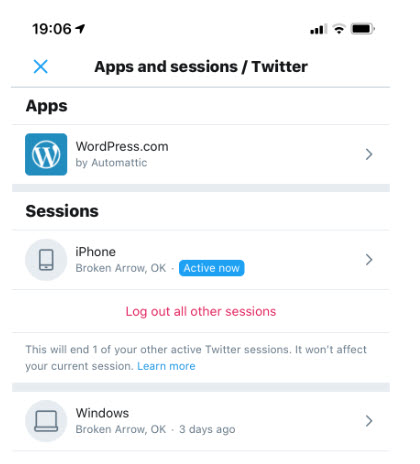
  • Tap on Apps and sessions. You will see the following screen:
Twitter Log Out Devices
Twitter Log Out Devices screenshot

Your Log Out Screen

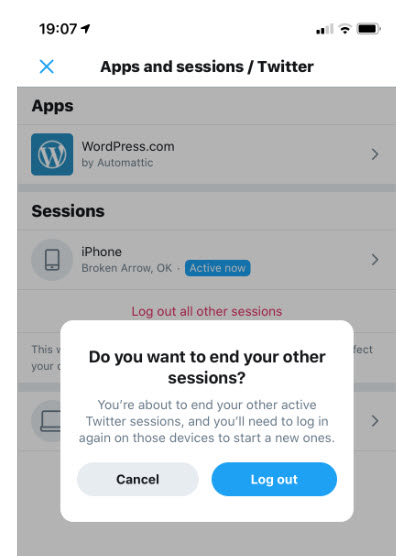
  • Your devices that have access to your account is displayed. Tap on Log out all other sessions. You will see the following screen:
Twitter Log Out All Sessions
Twitter Log Out All Sessions screenshot
  • Tap Log out

That’s it. You are done. You now will have to log back in to use Twitter.

Your Two Factor Authentication Screen

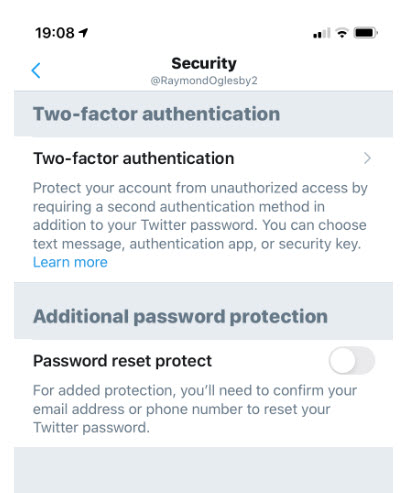
To make your Twitter account more secure, you may want to setup Two-factor authentication. This is on the third screen in this post, under the Account option. Just tap on Security and you will see the following screen:

Twitter Log Out Two-Factor Authentication
Twitter Log Out Two-Factor Authentication screenshot
  • Select Two-factor authentication, choose one of three options displayed on your screen and follow its directions.

I recommend setting up Two-factor authentication whenever the option is available.

I Would Like to Hear from You

Please feel free to leave a comment. I would love hearing from you. Do you have a computer tech question? I will do my best to answer your inquiry. Please mention the app and version that you are using. To help me out, you can send screenshots of your data related to your question.

How to Tweet a Live Photo as a GIF

Starting with the iPhone 6s series, taking a Live Photo is on your device. This tip applies to iPhone and iPad.

This is for iPhone, iPad and Mac or similar devices.\

How to Take a Live Photo

  1. Open the Camera app.
  2. Make sure that your Camera is set to photo mode and that Live Photo is turned on. When it’s on, you see the Live Photo button (3 concentric circles icon) highlighted at the top of your Camera.
  3. Hold your device still
  4. Tap the shutter button

Live Photo is on by default. If you want to take a still image, tap the Live Photo button to turn off Live Photo. You can preserve your Camera settings so that Live Photo is always on or off. Go to Settings > Camera > Preserve Settings.

Tweet Your Live Photo as a GIF

  1. Open your Twitter app
  2. In the bottom right hand corner, tap on the Compose button. Its icon features a feather encased in a blue circle.
  3. Locate and tap on your Live Photo in the quick-access image bar. You should see the Live icon overlayed on the thumbnail. If you are unable to find the Live Photo, select the Gallery button and then tap on your desired image.
  4. With the Live Photo loaded into the Tweet preview, tap on the “GIF” button found in the lower left hand corner. The Live Photo will be converted into a GIF and will play. You can select the Play button that appears when it stops to see the animation again.
  5. Type a brief message to go along with your GIF and tap the Tweet button.

That’s it. You are done.

How to find and play your Live Photos

  1. Open the Photos app
  2. Go to the Photos tab
  3. Tap the Live Photo
  4. Firmly press the screen and hold

Also, you can Edit or add Effects to your Live Photo by tapping the appropriate option.

What if you want to transform a Live Photo to a static photo?

Instructions are for iOS 13:

  1. Open your Photos app
  2. Select the Live Photo
  3. Tap Edit
  4. Tap the Live Photo icon at bottom of the screen from the available actions
  5. Tap the Live Photo icon at the top of the screen so that it is not enabled
  6. Tap Done

Now, if you press hard on the photo, you won’t see any movement. You can always restore a Live Photo that you’ve edited by following those steps and tapping the icon to highlight it.

I Would Like to Hear from You

Please feel free to leave a comment. I would love hearing from you. Do you have a computer tech question? I will do my best to answer your inquiry. Please mention the app and version that you are using. To help me out, you can send screenshots of your data related to your question.