Find iPhone Settings Fast with Search Bar Tips

The post discusses the iPhone Settings Search feature, allowing users to easily locate specific settings without extensive scrolling. By tapping the Dynamic Island to reveal the Search bar, users can search for app settings or other iPhone features directly. This tool enhances efficiency when managing iPhone settings.

RAYMOND OGLESBY @RaymondOglesby2
July 22, 2025 –4 minutes read time

There are numerous iPhone settings, too many to remember. Fortunately, there is a way to search for any iPhone setting with your iPhone Settings Search bar. This is particularly useful when searching for settings for a specific app or feature, but you are unsure exactly where to find them.

For instance, if you wanted to set your iPhone to Dark Mode permanently, but you are not sure if it is located under Display, Focus, or Accessibility. Using the Settings Search bar bypasses the need to know exactly where everything is. Let’s explore how to search an iPhone Settings menu.

  • Easily locate settings options without having to scroll through the whole iPhone Settings menu.
  • Quickly find settings and preferences you’re unfamiliar with instead of clicking hopelessly.

This tip was performed on iPhone 14 Pro running iOS 18.5,

Click here to learn how to update your iPhone to the latest iOS version.

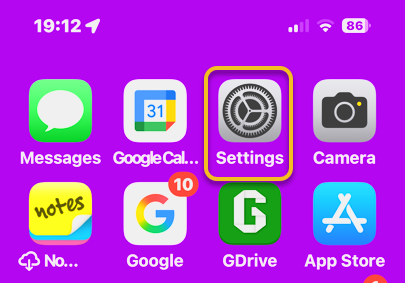
First, tap your Settings icon to open. Refer to the image below:
Settings 1
Selecting the Settings app

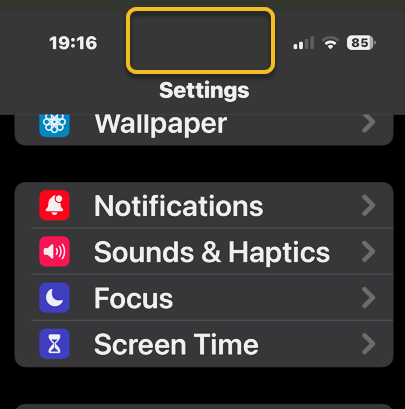
Next, if you do not see the Starch box, tap the “notch”area (the Dynamic Island)” at top of screen to reveal the iPhone Settings Search bar. See the image below;
Settings 2
Tapping the Dynamic Island to reveal the Search bar

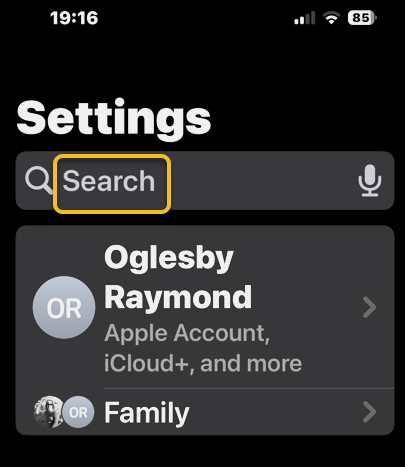
Now, if you want to search for a particular app’s settings, tap the Search bar. See the following image:
Settings 3
Accessing the Search bar

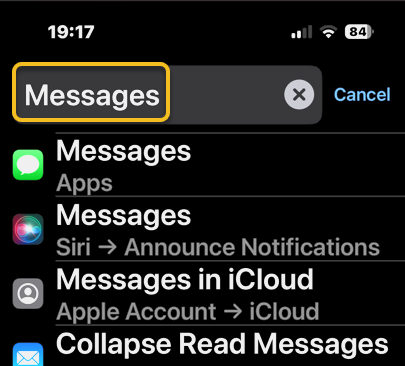
Next, type in the name of an app. Refer to the image below:
Settings 4
Entering an app in the Search bar

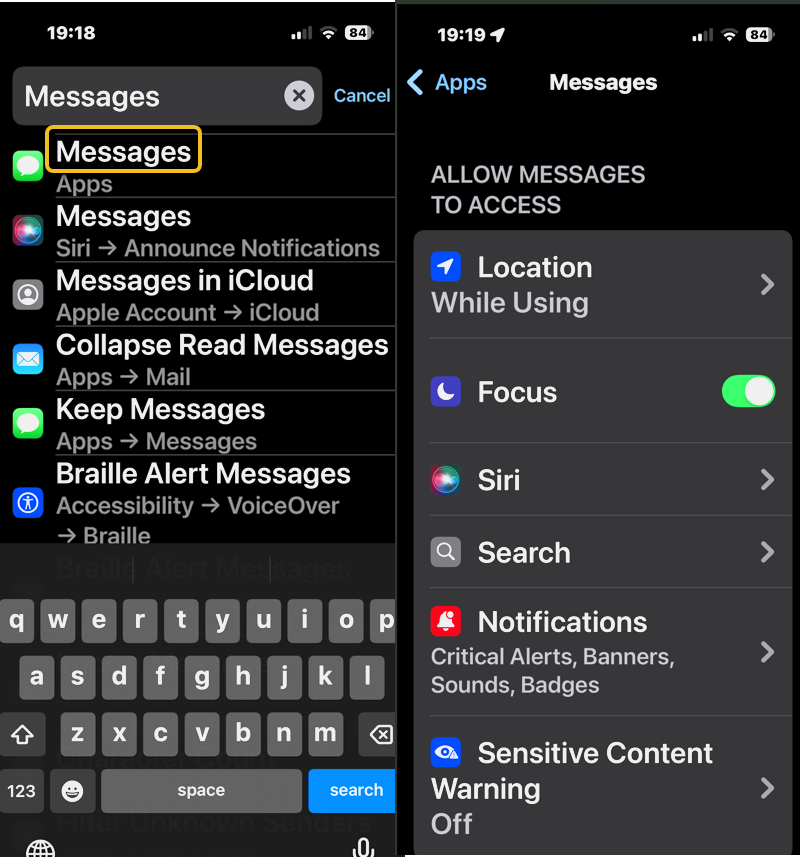
Now, tap the app when it appears to access its settings. See the image below:
Settings 5
Revealing the settings for the app

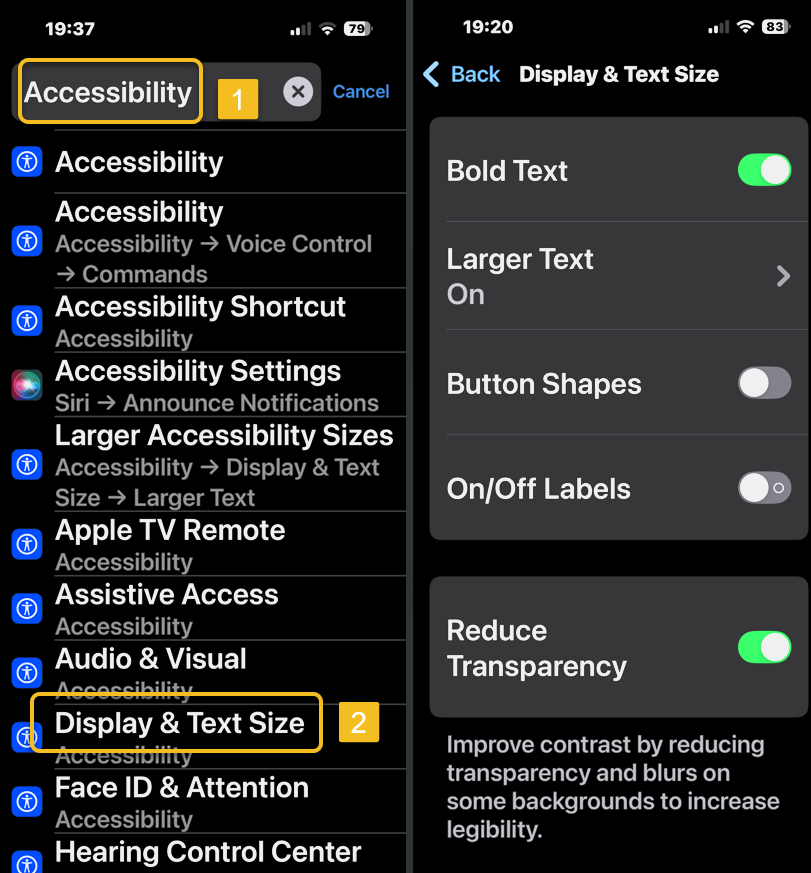
Next, if you want to search for a particular iPhone setting, but are unsure where it’s located, type in the name of the setting. In this case, Accessibility, and all Accessibility settings appear underneath. Now, tap one of the Search results, and you will be taken to the appropriate settings! See the following image:
Settings 6
Revealing the settings for an option

Isn’t that so convenient? Now you know how to find the iPhone Settings Search bar and find that particular iPhone setting you have been looking for!

Disclaimer

Technology is constantly evolving, and smartphone and desktop tech rarely remains static. Therefore, the information in this post is only accurate as of the date it was written. Blog posts that are older than six months may contain instructions that are no longer compatible with your device or operating system. We hope that the content from previous posts continues to function as intended. Thank you for reading TechSavvy.Life, where technology works for you.

“Computers are like Old Testament gods: lots of rules and no mercy.”

 – Joseph Campbell, Mythologist and Writer

That’s it. Please feel free to share this post! One way to share is via Twitter.

Just click the Tweet icon below. This will launch Twitter where you click its icon to post the Tweet.

Checkout TechSavvy.Life for blog posts on smartphones, PCs, and Macs! You may email us at contact@techsavvy.life for comments or questions.

We value your feedback! Was this post helpful? Please share your comments with us. If you have a tech question related to your computer or smart device, feel free to reach out. Just send an email to contact@techsavvy.life, and be sure to include the device, app, and version you are using. To assist us further, you can also attach screenshots related to your inquiry.

Author’s eBook

The author’s Vietnam eBook on the “Battle for Tra Bong Vietnam: Events and Aftermath” can be accessed from a Kindle device or the Kindle App for a desktop or smartphone. The apps are free.

The author’s Vietnam eBook on the Battle for Tra Bong Vietnam: Events and Aftermath

How to Forward Text Messages on iPhone

The post details how to forward text messages, including photos, on an iPhone. To forward a message, users should long press the message, select “More,” choose additional messages if desired, tap the forward icon, enter the recipient’s contact, and send it. This method allows efficient sharing without creating group texts.

RAYMOND OGLESBY @RaymondOglesby2
May 6, 2025– 4 minutes read time

You can easily forward texts from the Messages app, including photos. Just press and hold the message you want to forward. Let’s explore how to forward a text message on an iPhone.

Why You Will Like This Tip

  • Learn how to forward a text on iPhone to quickly send pictures you received in Messages to friends and family.
  • Use text message forwarding to send the same message to multiple people without making it a group text

This tip was performed on an iPhone 14 Pro running iOS 18.4..1.

Click here to learn how to update your iPhone to the latest iOS version.

Whether it’s sharing important information, funny memes, or heartfelt messages, we often find ourselves wanting to pass along these texts to others. Fortunately, forwarding a text message is a simple task that can be accomplished on most smartphones.

Text message forwarding allows you to send a message you have received to another recipient, either within the same messaging app or through a different platform like email. This feature is handy for sharing information quickly and efficiently.  However, remember that forwarded text messages can not be deleted once sent to another contact.

First, open the Messages app. Refer to the image below.

Forward 1
Selecting the Messages app

Next, tap the conversation containing the text you want to forward. See the below image:

Forward 2
Selecting a conversation

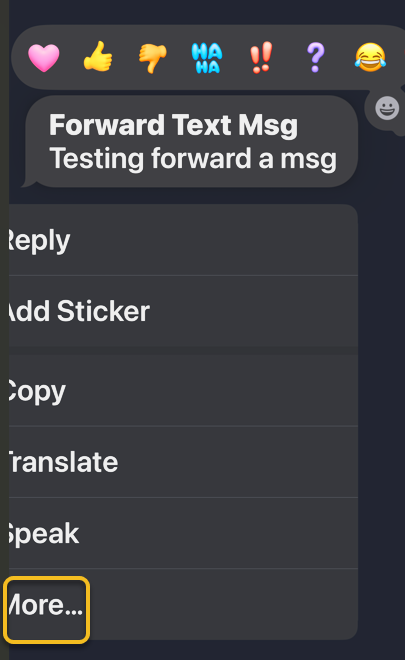
Now, long press on the body of the message you want to forward, then tap More. See the following image:

Forward 3
Selecting the More option

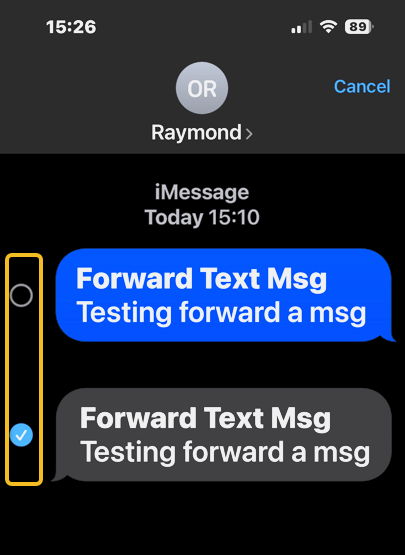
Next, all the messages will have small circles that will appear to the left of each text, with the chosen message already selected. If desired, tap the circle next to any other messages you want to forward. Refer to the image below:

Forward 4
Tapping the circle next to the message you want to forward

Now, tap the Forward icon, and a new message will open. See the below image:

Forward 5
Selecting the Forward icon

Next, enter your recipient’s contact information and tap the contact when it pops up. See the following image:

Forward 6
Entering a contact

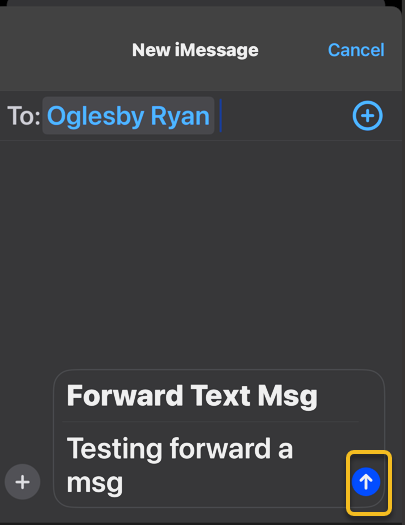
Now, tap the Send icon. Refer to the image below:

Forward 5
Selecting the Send icon

Your friend will receive the text you have forwarded. So much easier than retyping a whole message or using copy and paste!

Disclaimer

Technology is constantly evolving, and smartphone and desktop tech rarely remains static. Therefore, the information in this post is only accurate as of the date it was written. Blog posts that are older than six months may contain instructions that are no longer compatible with your device or operating system. We hope that the content from previous posts continues to function as intended. Thank you for reading TechSavvy.Life, where technology works for you.

. “Even the technology that promises to unite us divides us. Each of us is now electronically connected to the globe, and yet we feel utterly alone.”

― Dan Brown

That’s it. Please feel free to share this post! One way to share is via Twitter.

Just click the Tweet icon below. This will launch Twitter where you click its icon to post the Tweet.

Checkout TechSavvy.Life for blog posts on smartphones, PCs, and Macs! You may email us at contact@techsavvy.life for comments or questions.

We value your feedback! Was this post helpful? Please share your comments with us. If you have a tech question related to your computer or smart device, feel free to reach out. Just send an email to contact@techsavvy.life, and be sure to include the device, app, and version you are using. To assist us further, you can also attach screenshots related to your inquiry.

Author’s eBook

The author’s Vietnam eBook on the “Battle for Tra Bong Vietnam: Events and Aftermath” can be accessed from a Kindle device or the Kindle App for a desktop or smartphone. The apps are free.

The author’s Vietnam eBook on the Battle for Tra Bong Vietnam: Events and Aftermath

Master the Look Up Feature on iPhone

The Look Up feature on iPhones allows users to quickly access definitions, thesaurus entries, and related websites by highlighting text and selecting the option. Available on iOS 16 or later, it enhances vocabulary learning and information retrieval across apps.

RAYMOND OGLESBY @RaymondOglesby2
February 18, 2025 – 3 minutes read time

Sometimes, while browsing the internet, you will come across words you do not understand or subjects you want to learn more about.

The Look Up feature allows you to easily look up the definition of words. Its menu provides links to several options: Apple’s dictionary, other dictionaries, Siri-suggested websites, Wikipedia, the App Store, and more.

You can even use Look Up as a free thesaurus app, or use the Look Up feature in Safari to find additional references to a word or phrase on the internet.

Let’s explore looking up words on iPhone with the Look Up feature.

  • Quickly check the definition of words or phrases with just a few taps.
  • Easily find websites or apps related to specific words.

This tip works on iPhones running iOS 16 or later.

Screenshots are from iPhone 14 Pro running iOS 18.3

Click here to learn how to update your iPhone to the latest iOS version.

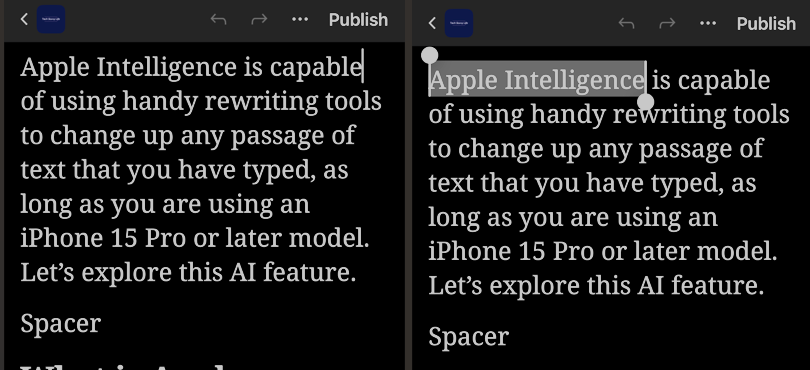
First, anywhere you can select text, tap and hold to highlight the text. Refer to the below image:

Lookup 1
Highlight text to look up

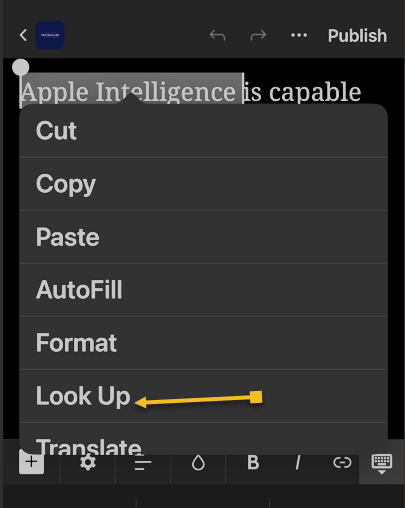
Next, above the word or phrase, a horizontal menu or a drop down menu will appear depending on your iOS. Tap the arrow to the right or select the Look Up option (as shown). See the below image:

Lookup 2
Selecting the Look Up option

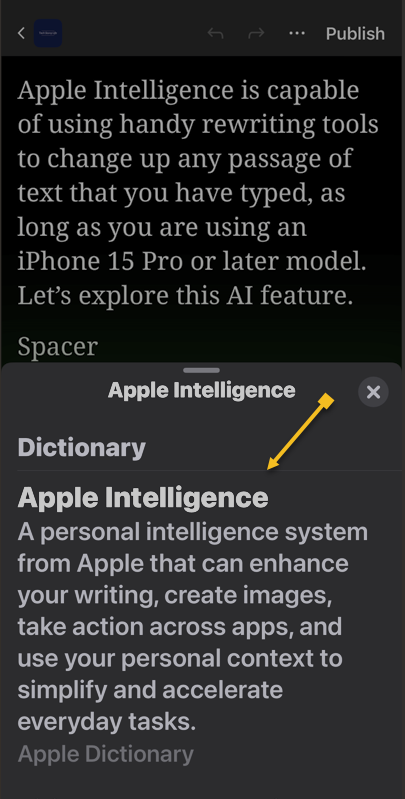
Now the results will appear in a pop-up. Usually, you will see a dictionary definition of the word(s). Pull up on the window to see more results. See the following image:

Lookup 3
The dictionary meaning of the highlighted text

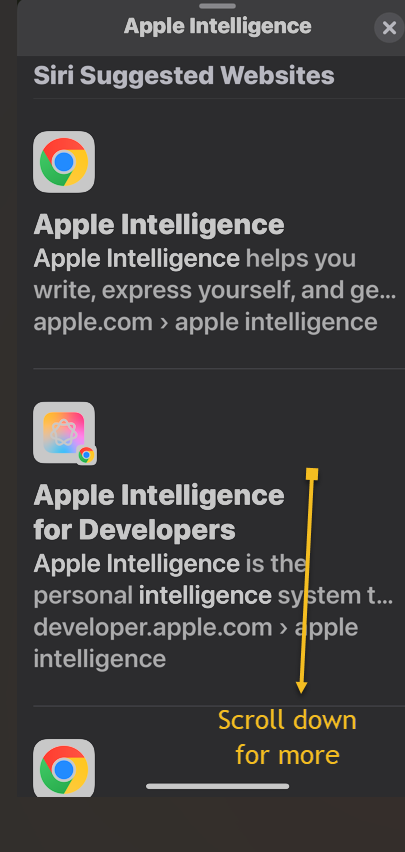
Bext, depending on the text you selected, you will see various results from different websites and apps. Scroll down to see more results. Refer to the below image:

Lookup 5
Additional results for the highlighted text

That’s how to use the Look Up feature on your iPhone. While we demonstrated this feature from a WordPress blog, it can be used anywhere where you can select text.

Technology is constantly evolving, and smartphone and desktop tech rarely remains static. Therefore, the information in this post is only accurate as of the date it was written. Blog posts that are older than six months may contain instructions that are no longer compatible with your device or operating system. We hope that the content from previous posts continues to function as intended. Thank you for reading TechSavvy.Life, where technology works for you.

Technology is nothing. What’s important is that you have faith in people, that they’re basically good and smart, and if you give them tools, they’ll do wonderful things with them.

– Steve Jobs

That’s it. Please feel free to share this post! One way to share is via Twitter.

Just click the Tweet icon below. This will launch Twitter where you click its icon to post the Tweet.

Checkout TechSavvy.Life for blog posts on smartphones, PCs, and Macs! You may email us at contact@techsavvy.life for comments or questions.

We value your feedback! Was this post helpful? Please share your comments with us. If you have a tech question related to your computer or smart device, feel free to reach out. Just send an email to contact@techsavvy.life, and be sure to include the device, app, and version you are using. To assist us further, you can also attach screenshots related to your inquiry.

Author’s eBook

The author’s Vietnam eBook on the “Battle for Tra Bong Vietnam: Events and Aftermath” can be accessed from a Kindle device or the Kindle App for a desktop or smartphone. The apps are free.
The author’s Vietnam eBook on the Battle for Tra Bong Vietnam: Events and Aftermath

How to Enable Google Chrome Dark Mode

Google Chrome has had a built-in dark theme like Mozilla Firefox and Microsoft Edge since Chrome 74. You can even apply a dark theme to every web page you visit using third-party themes or an extension.

RAYMOND OGLESBY @RaymondOglesby2
January 26, 2023

Google Chrome has had a built-in dark theme like Mozilla Firefox and Microsoft Edge since Chrome 74. You can even apply a dark theme to every web page you visit using third-party themes or an extension. Let’s explore this dark mode feature.

This is for devices running Windows 11 or 10. Screenshots are from Windows 10

Dilbert and Robot
Copyright Scott Adams, Inc./Distributed by Universal Uclick for UFS

Chrome offers a built-in dark mode on Windows 11 and Windows 10. It even makes all of Chrome’s context menus dark, too.

Dark Mode for Windows 11

First, open the Settings app and navigate to:

Personalization > Color

Next, click the drop-down menu to the right of Choose Your Mode and select Dark. Refer to the below image:

Dark Mode 1
Setting Dark Mode for Windows 11

Next, close out the Settings app and launch Google Chrome. Unless you have manually set Chrome’s theme, it will match your system.

Dark Mode for Windows 10

First, head to:

Settings > Personalization > Colors

and select Dark under Choose your default app mode. See the below image:

Dark Mode 2
Setting Dark Mode for Windows 10

Apply a Dark Theme

Chrome supports user-created themes, which you can download from the Chrome Web Store. To give Chrome a dark interface, all you have to do is install a dark theme. Google even provides a helpful collection of editor-selected dark themes. This will give your Chrome browser a dark mode on Windows 7, Linux, Chrome OS, and any operating system without a native dark theme.

Note! Google now offers some official Chrome browser themes, including a “Just Black” dark mode theme. You may want to give that a try.

We recommend Morpheon Dark, which is the most popular dark theme in the Store. Unlike some other dark themes, it provides a decent amount of contrast between your active tab, which is a bit lighter, and your inactive tabs, which are darker.

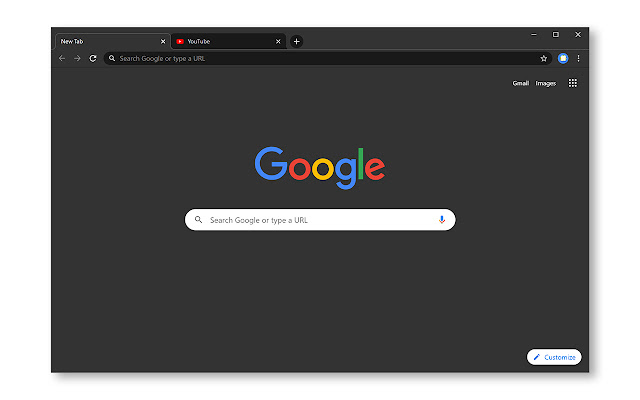
This theme turns darkens the Tab Bar, Title Bar, Toolbar, and New Tab page. That’s all you can theme in Chrome. You can not make Chrome’s Context Menus or Settings page dark, for example. See the following image:

Dark Mode 3
Apply Morpheon Dark Mode

If you ever want to switch back to Chrome’s default theme you can. Head to:

Menu > Settings

Look for the Themes option under Appearance and then click Reset to Default. Refer to the below image:

Reset to the default theme
Disclaimer

Technology is always changing, and rarely is their static tech for smartphones and desktops. Thus, the contents of this post are only valid at the time of writing. Blog posts older than six months may have directions incompatible with your device or OS. Hopefully, older post content will continue to work as advertised. Thank you for reading TechSavvy.Life for Technology at Work For You.

Quote For the Day

Even the technology that promises to unite us, divides us. Each of us is now electronically connected to the globe, and yet we feel utterly alone.

Dan Brown

Tweet Info

You are finished. Please feel free to share this post! One way to share is via Twitter.

Just click the Tweet icon below. This will launch Twitter where you click its icon to post the Tweet.

Checkout TechSavvy.Life for blog posts on smartphones, PCs, and Macs! You may email us at contact@techsavvy.life for comments or questions.

I Would Like to Hear From You

Please feel free to leave a comment. I would love to hear from you. Do you have a computer or smart device tech question? I will do my best to answer your inquiry. Just send an email to contact@techsavvy.life. Please mention the device, app, and version you are using. To help us out, you can send screenshots of your data related to your question.

Author’s E-Book

You can access the e-book from a Kindle device, the Kindle App for the desktop or smartphone, which is a free app.

The author’s Vietnam eBook on the Battle for Tra Bong Vietnam: Events and Aftermath