

RAYMOND OGLESBY @RaymondOglesby2
September 15,2026 – 4 minutes read time
Overview
Cache is all the data your phone stores locally, but it can build up over time and slow things down.
Is your iPhone feeling sluggish lately? If your web pages take forever to load, your phone’s cache may be to blame. This data is collected as you visit websites and use apps, so it can deliver faster results. Your phone’s cache makes using your devices more convenient, but over time, or after an update, it can actually slow things down.
When this happens you will need to clear your cache, like you would for a web browser, to wipe out the collection of data in your phone’s browsers and apps. It’s a simple task that you should be performing once every few months to boost your phone’s performance. Let’s explore how to do this for your phone’s browsers and individual apps.
Key Takeaways
- Improve the performance of your iPhone.
- Offload apps you are not using for more storage space. and faster response.
System Requirements
This tip was performed on an iPhone 17 Pro running iOS 26.5.
Click here to learn how to update your iPhone to the latest iOS version.
Clear Browser Cache
Let’s start with browsers. First, close all those tabs that you no longer need. The process varies for each browser, but here are instructions for Safari and Chrome.
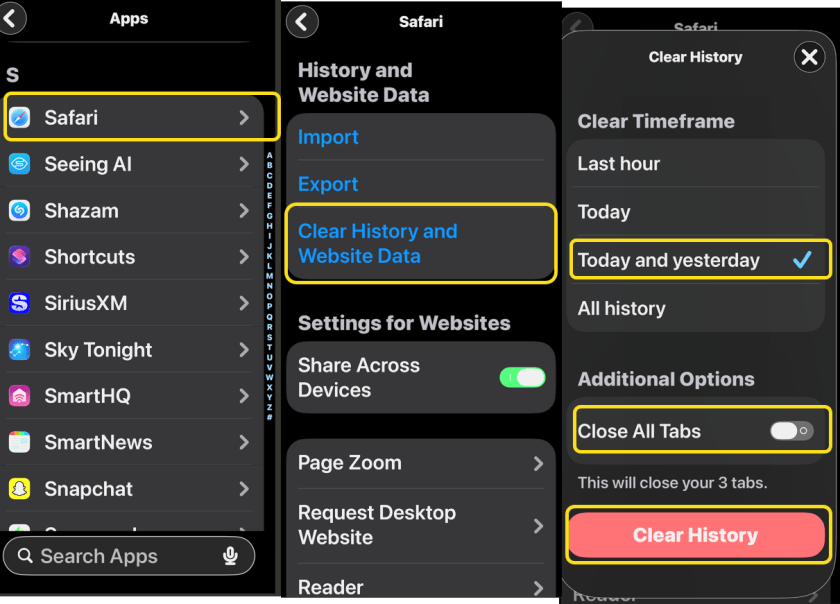
Safari: Go to:
Settings > Apps > Safari > Clear History and Website Data
Then choose whether to clear the Last Hour, Today, Today and Yesterday, or All History. (There’s also the option to Close All Tabs from this menu.) To complete the action, tap Clear History. Refer to the image below:
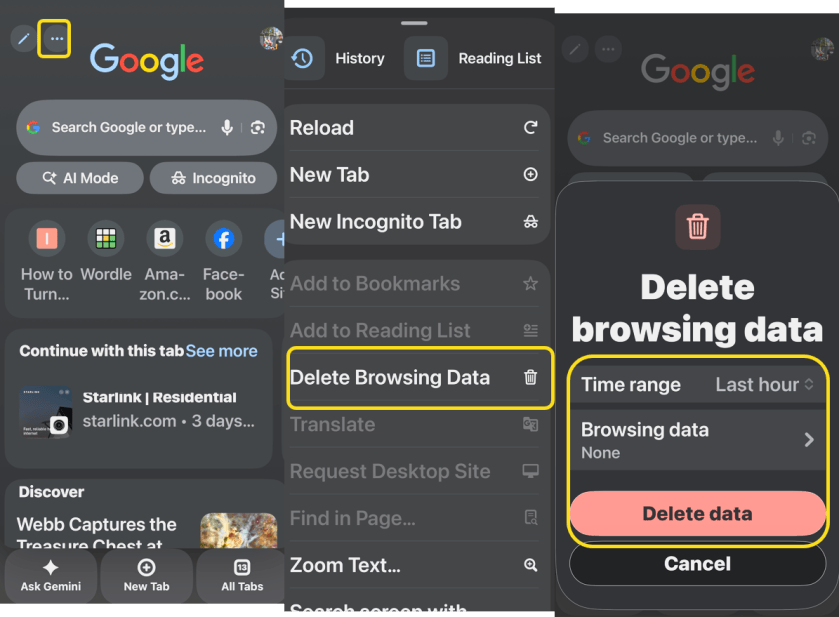
Chrome: Open the ap then select:
More > Delete Browsing Data > Browsing Data
and select what you want to remove via Time range, and/or Browsing data. When you are done, tap Delete data.
You will need to sign back into your online accounts once the cache is cleared. See the image below:
Clear App Cache
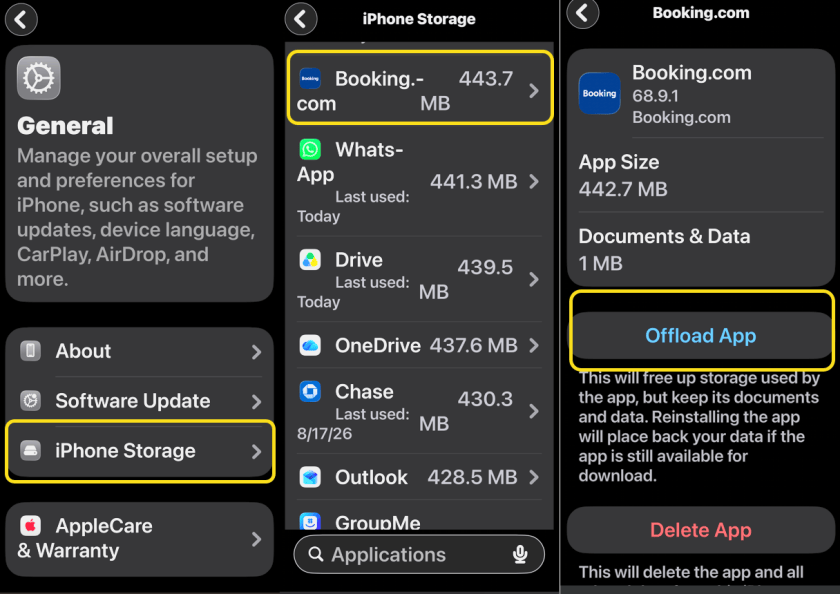
You can not technically clear individual app caches on an iPhone, but offloading an app will essentially achieve the same thing. Go to:
Settings > General > iPhone Storage
to see what apps you use the least. Tap any apps you do not need on your phone right now and select Offload App. The app will remain on your Home screen, but you will need to tap it to re-download before you can get back in. See the following image:
Disclaimer
Technology is constantly evolving, and smartphone and desktop tech rarely remains static. Therefore, the information in this post is only accurate as of the date it was written. Blog posts that are older than six months may contain instructions that are no longer compatible with your device or operating system. We hope that the content from previous posts continues to function as intended. Thank you for reading TechSavvy.Life, where technology works for you.
Quote For the Day
Technology is nothing. What’s important is that you have a faith in people, that they’re basically good and smart, and if you give them tools, they’ll do wonderful things with them.
– Steve Jobs
(X) Twitter Info
That’s it. Please feel free to share this post! One way to share is via Twitter.
Just click the Tweet icon below. This will launch Twitter where you click its icon to post the Tweet.
Checkout TechSavvy.Life for blog posts on smartphones, PCs, and Macs! You may email us at contact@techsavvy.life for comments or questions.
Tweet
I Would Like to Hear From You
We value your feedback! Was this post helpful? Please share your comments with us. If you have a tech question related to your computer or smart device, feel free to reach out. Just send an email to contact@techsavvy.life, and be sure to include the device, app, and version you are using. To assist us further, you can also attach screenshots related to your inquiry.
The author’s Vietnam eBook, “Battle for Tra Bong Vietnam: Events and Aftermath”, is available on Kindle devices and the Kindle App for desktop, laptop, and smartphone. The apps are free.

