

RAYMOND OGLESBY @RaymondOglesby2
September 20, 2026 – 5 minutes read time
Overview
Tired of pulling out your ID at the airport? Tou can add your driver’s license and passport to your phone for easy scanning at TSA checkpoints and other supported locations.
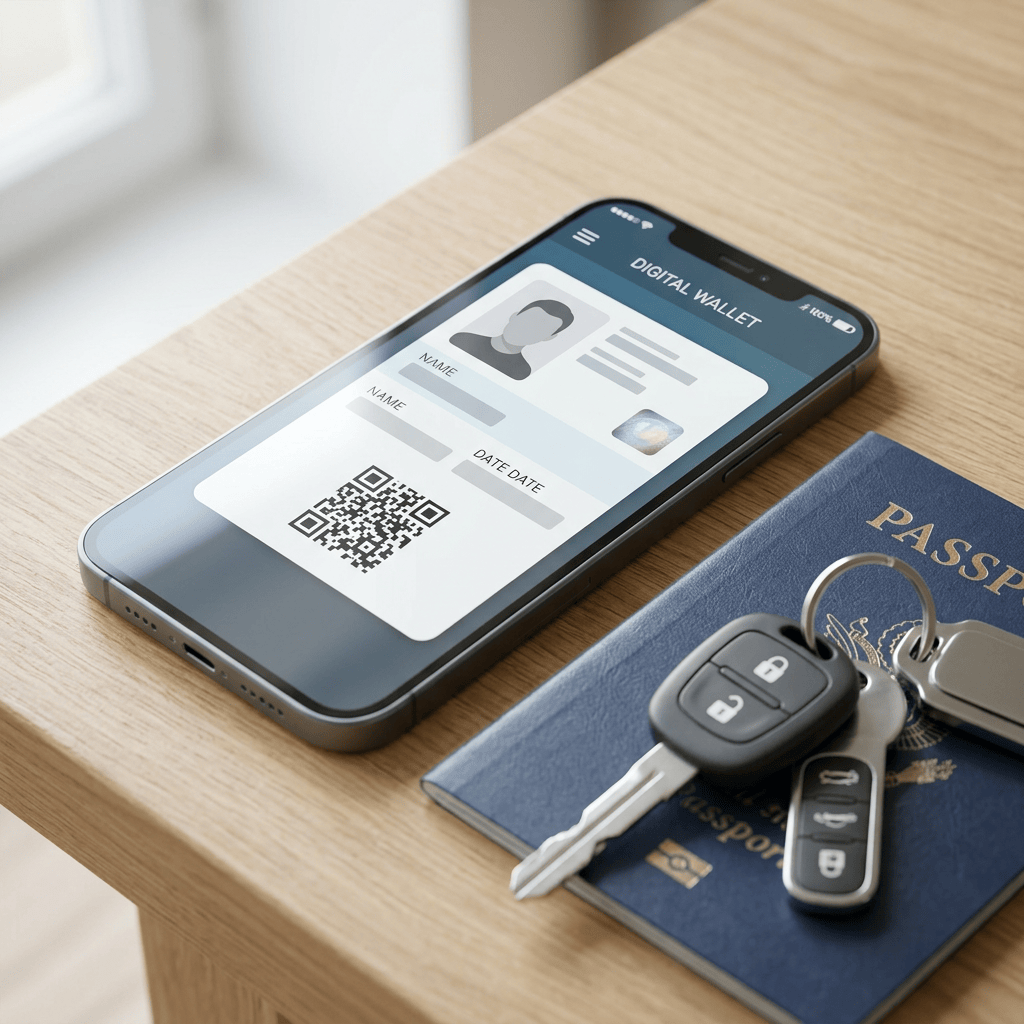
From credit cards and car keys to event tickets and transit passes, your phone can now hold all the physical objects you once crammed inside a pocket, wallet, or purse. But did you also know you can add your state-issued driver’s license and passport.
Several states let you quickly store digital versions of your identification on Apple, Google and Samsung Wallet app to get through TSA checkpoints a little faster. Certain states also have third-party ID apps. Here’s what you need to know before you add your own.
Key Takeaways
- Save time at TSA checkpoints.
- Maintain a backup of your documents on your smartphone.
System Requirements
This post was performed on iPhone 17 Pro running iOS 26.5.
An iPhone 8 or later is required add add anState ID; iPhone 11 or later to add a passport.
Click here to learn how to update your iPhone to the latest iOS version.
Which US States Support Digital Driver’s Licenses?
As of this writing, there are 22 states that allow digital IDs. (Click here to view the list), Your digital ID is not intended to replace physical credentials, but it can be used to quickly move through supported TSA checkpoints at airports (with a Real ID) and other locations.
Adding Your Driver’s License
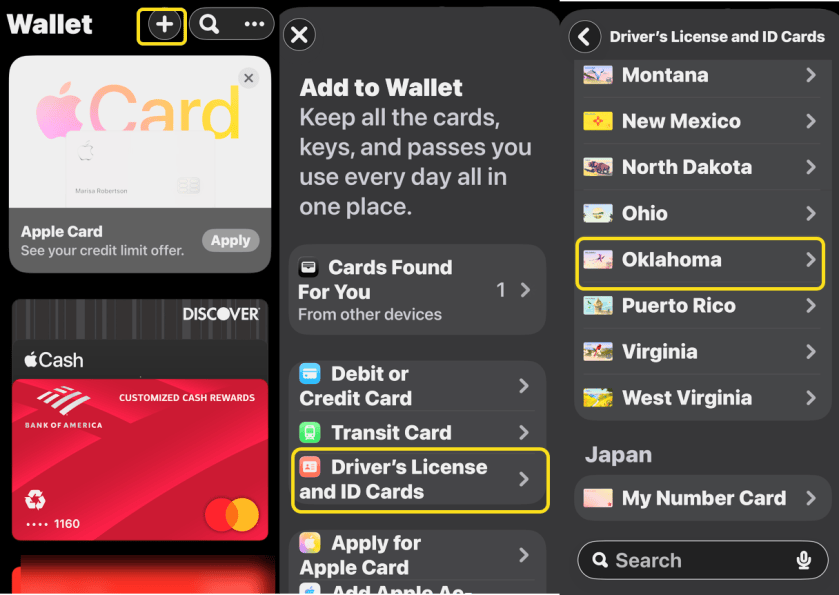
To add your Driver’s License to your phone, you will need to set it up in your Wallet app. For the purpose of this post we are using Apple Wallet. For other Wallet apps the exact steps are different athough the process is similar. Head to:
Wallet > Plus sign > Driver’s License or State ID > [your State]
Since we live in Oklahoma, we are selecting that state. Refer to the image below:
On the next screen, tap the Continue button. Now, you will need to scan your Driver’s License.For a state-issued ID, this will include the front and back of the physical card. Just follow the instructions through the process. See the image below:
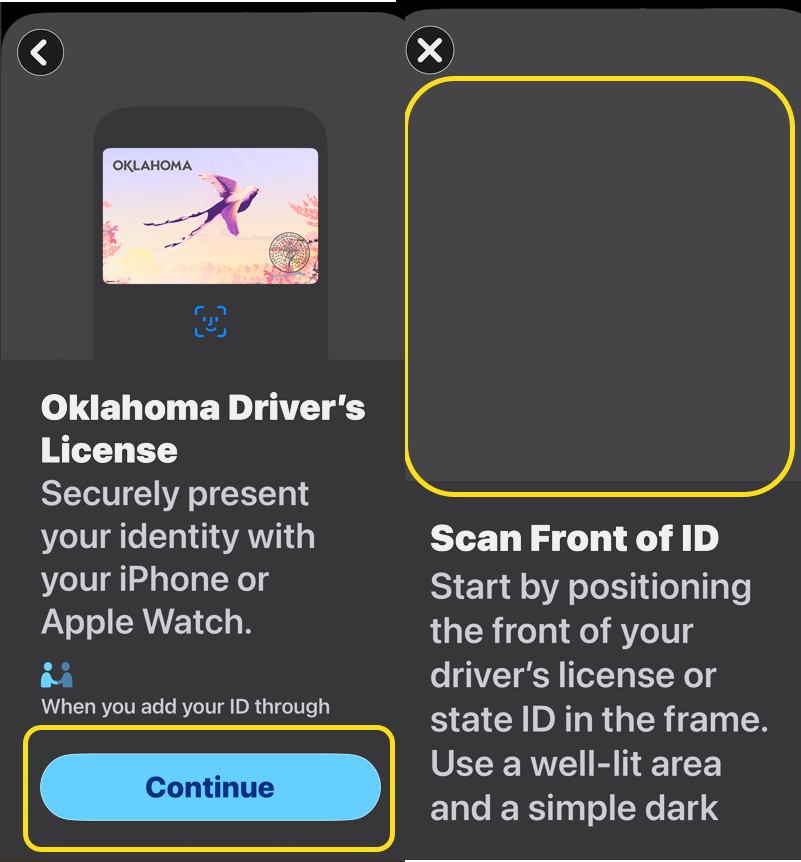
You will also have the option to add the State ID to a connected Apple Watch.
Adding Your Passport
The steps to add your passport is similar to adding your Drivers License. Head to :
Wallet > Plus sign > Driver’s License or State ID > Digital ID
See the following image:
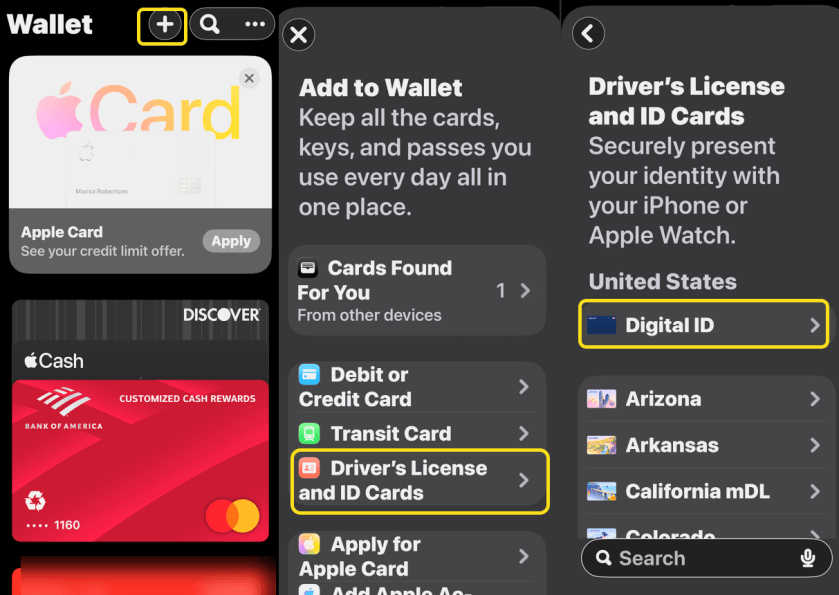
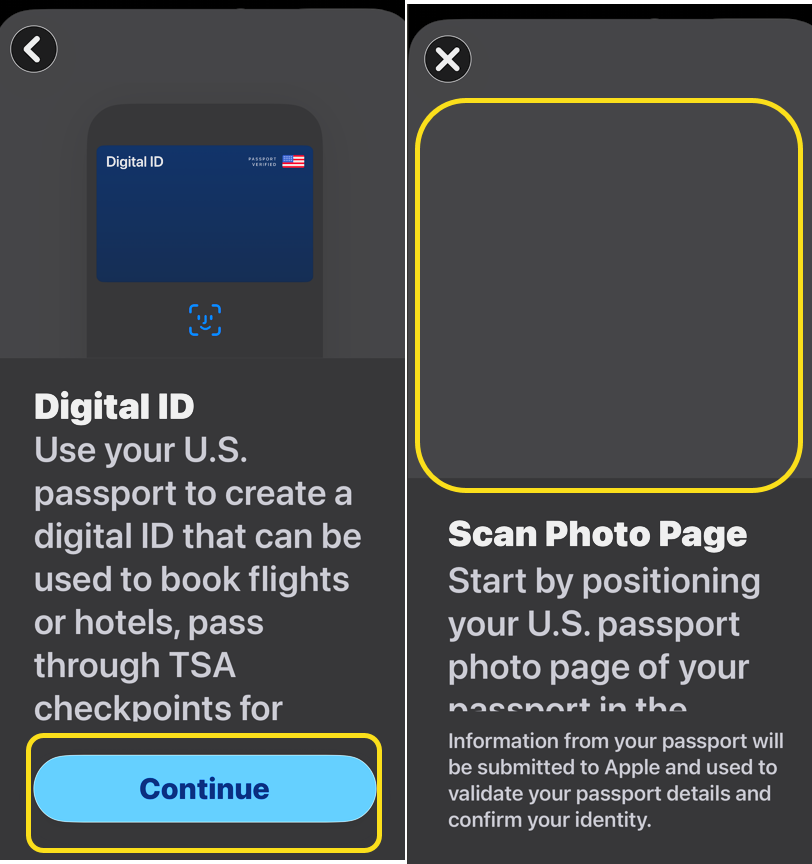
On the next screen, tap the Continue button. You are asked to scan the document’s chip. Next, you will need to verify your identity to the ID issuer by taking a series of photos or videos of your face. Refer to the image below:
What Happens Next
This process is not instantaneous. Once finished, you will need to wait for confirmation from the ID issuer that you have been approved. You should get a notification on your phone. If your application is rejected, you can try again.
Which iPhones Support Digital IDs?
In order to add an ID or passport to your I iPhone, you will need to meet a few requirements. Take note that more devices support a Driver’s license than passports:
For a State ID, you will need an iPhone 8 or later, or an Apple Watch Series 4 or later. If you want to save your passport, it will require an iPhone 11 or later, or an Apple Watch Series 6 or later.
What Can You Do With a Digital ID?
For now, the practical uses for a digital driver’s license or passport on your phone are a bit limited. Apple bill these features as quick and easy ways to verify your age or identity through an app or at more than 250 supported TSA checkpoints. However, you are still expected to carry your physical documents on your person. It’s also crucial to note that this is not a replacement for a Real ID, which is now required to board domestic flights in the United States.
Also, you will not find much support for digital passports outside the United States.
Disclaimer
Technology is constantly evolving, and smartphone and desktop tech rarely remains static. Therefore, the information in this post is only accurate as of the date it was written. Blog posts that are older than six months may contain instructions that are no longer compatible with your device or operating system. We hope that the content from previous posts continues to function as intended. Thank you for reading TechSavvy.Life, where technology works for you.
Quote For the Day
Books don’t need batteries.
– Nadine Gordimer
(X) Twitter Info
You are finished.. Please feel free to share this post! One way to share is via Twitter.
Just click the Tweet icon below. This will launch Twitter where you click its icon to post the Tweet.
Checkout TechSavvy.Life for blog posts on smartphones, PCs, and Macs! You may email us at contact@techsavvy.life for comments or questions.
Tweet
I Would Like to Hear From You
We value your feedback! Was this post helpful? Please share your comments with us. If you have a tech question related to your computer or smart device, feel free to reach out. Just send an email to contact@techsavvy.life, and be sure to include the device, app, and version you are using. To assist us further, you can also attach screenshots related to your inquiry.
The author’s Vietnam eBook, “Battle for Tra Bong Vietnam: Events and Aftermath”, is available on Kindle devices and the Kindle App for desktop, laptop, and smartphone. The apps are free.

