How to Check if Your iPhone or Android is Running Smoothly

Want to checkout your iPhone or Android with diagnostics? Maybe you are wanting to sell the device and need to see if the device is working properly. Or you just wish to checkout the performance of your device. Whatever the reason, let’s explore a couple of apps from Apple’s or Google’s App Store.

Want to checkout your iPhone or Android with diagnostics? Maybe you are wanting to sell the device and need to see if the device is working properly. Or you just wish to checkout the performance of your device. Whatever the reason, let’s explore a couple of apps from Apple’s or Google’s App Store.

The apps are TestM and Phone Diagnostics. Both apps are free but come with ads. You can remove the ads for Phone Diagnostics for a small fee. The apps run similar diagnostic tests for touch screen, audio, video, camera, microphone, sensors and other components on your phone.

After you have installed these apps, their associated icons will appear on your Home screen (see left bottom corner) like the image below:
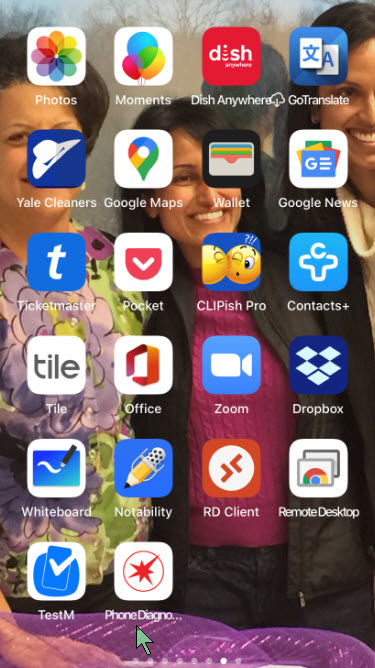
iPhone Diagnostics 1
The installed Diagnostic apps

This is for the iOS and Android devices. Screenshots are for the iPhone
Dilbert and Stupid Again
Copyright Scott Adams, Inc./Distributed by Universal Uclick for UFS

Check out TechSavvy.Life for similar blog posts!

TestM App for iPhone and Android

Designed for iOS and Android, the free TestM app can run diagnostics on your phone’s touch screen, sound, camera, sensors, network connectivity and other hardware.

The app gives you full control over the tests you want to run. Opt for a quick test to check three key features: touch screen, earpiece audio and high-frequently audio; or commit to a full test to check out all supported features. Otherwise, you can test just one specific feature, like the accelerometer, Bluetooth connectivity, camera flash and Face ID on an iPhone.

Most of the tests are interactive. The touch-screen test asks you to draw on the screen, the microphone test asks you to speak, the audio test prompts you to tap the numbers you hear and the camera test requests that you pose for a picture. One of the nifty tests is the Internet Speed Test to measure your phone’s upload and download speed.

After you’ve completed your testing, TestM compiles a report that reveals the key stats of your phone along with the outcome of the tests you ran. Each individual feature tested receives a green checkmark for good or a red checkmark for bad.

Any features that flunk can be re-tested from the report screen. You can share the report with someone else via email, messaging, or another app or service. TestM can even generate a list of local repair shops that might be able to fix whatever hardware ailment is affecting your phone. Refer to below image:

iPhone Diagnostics 2
The TestM app Home screen

Phone Diagnostics for iPhone

Available for the iPhone, the Phone Diagnostics app offers a range of tests you can run one after the other. The app can check your touch screen, multi-touch capabilities, camera, flash, speaker, microphone, Wi-Fi, cellular access, sensors and other components. Just tap the button for the test you wish to run. Alternatively, tap the Play button in the middle of the screen to run all the tests one after the other. Unlike TestM, you can remove ads by paying a small fee.

The multi-touch test asks you to place three fingers on the screen. The camera test snaps photos using the front and rear cameras, while the video record test shoots a quick video using the rear camera. The motion test asks you to move your phone around, and the GPS test verifies your location on a map.

The app doesn’t generate any reports or results, but each successful test paints its button in green, while a failed or interrupted test appears in red. The app also attempts to steer you to a repair shop should your iPhone need to be fixed. See below image:

iPhone Diagnostics 3
The Phone Diagnostics app Home screen

I have found TechSavvy.Life blog posts extremely helpful. Check them out for posts on smart phone apps, Macs and PCs!

I Would Like to Hear From You

Please feel free to leave a comment. I would love hearing from you. Do you have a computer or smart device tech question? I will do my best to answer your inquiry. Please mention the device, app and version that you are using. To help us out, you can send screenshots of your data related to your question.

The author’s Vietnam eBook on the Battle for Tra Bong: Events and Aftermath

How to Protect Your Google Drive on iPhone and iPad

Storing important and or sensitive documents in Google Drive isn’t the most secure way to protect your data, but if you are, your iPhone and iPad can help keep everything safe. Let’s see how to protect this cloud storage mobile app using Face ID or Touch ID.

Your mobile device may already be setup to use Face ID or Touch ID. You may ask, why set this up for a particular app, the Google Drive? A friend may ask to see your device. What if they accessed your documents via Google Drive without your knowledge? There is nothing to stop them because you already unlocked your device. So, we are going to add another layer of protection. Of course, enabling two factor authentication for your Google account is the best way to keep prying eyes out of your cloud files.

Note! To follow this guide, you will need the Passcode for your device. The screenshots are for an iPhone.

This is for iPhone and iPad devices

Dilbert and Health
Copyright Scott Adams, Inc./Distributed by Universal Uclick for UFS

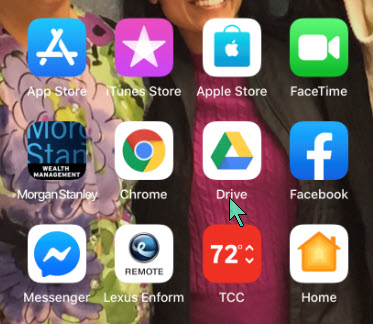
Open Google Drive

Start by opening the Google Drive app. Use Apple’s built-in Spotlight Search if you can’t find it on your Home screen. Refer to below image:

Google Drive Protect 1
Locating Google Drive app

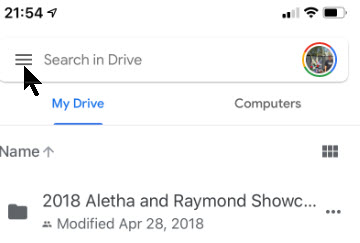
Next, tap the Hamburger icon in upper left of the screen. See following image:

Google Drive Protect 2
The Hamburger icon

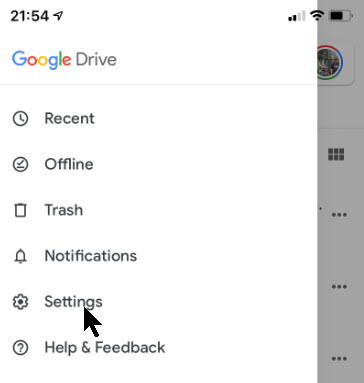
Open the Settings

From the slide out menu that appears, select the Settings option. See below image:

Google Drive Protect 3
Opening Settings

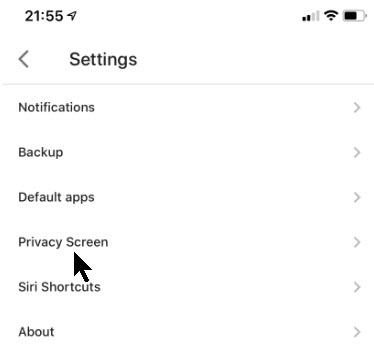
Next, tap on the Privacy Screen option. Refer to below image:

Google Drive Protect 4
Opening the Privacy Screen option

Set the Privacy Option

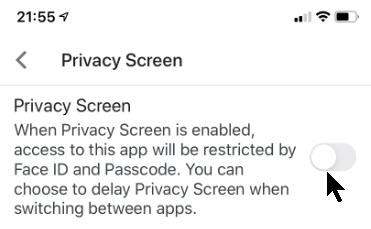
From here, toggle on the Privacy Screen option. See following image:

Google Drive Protect 5
Turning on the Privacy Screen option

Allow Permission

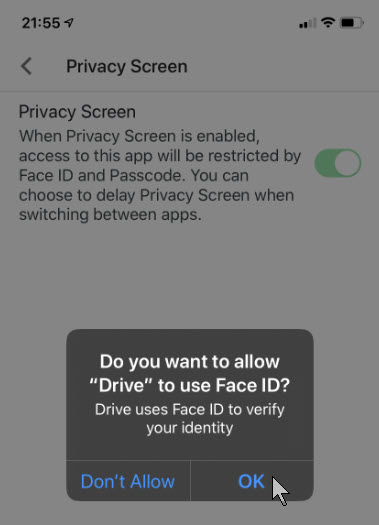
Now, your iPhone or iPad will display a pop-up box asking for permission to access Face ID or Touch ID. Tap the OK button to allow permission. Refer to below image:

Google Drive Protect 6
Allowing permission for Google Drive by Face ID

The next time you exit and reopen Google Drive, you will be presented a screen for your face or fingerprint to access your cloud storage.

Now that the Privacy Screen setting is enabled, you will see several new options to customize the feature further.

Set Privacy Screen Delay

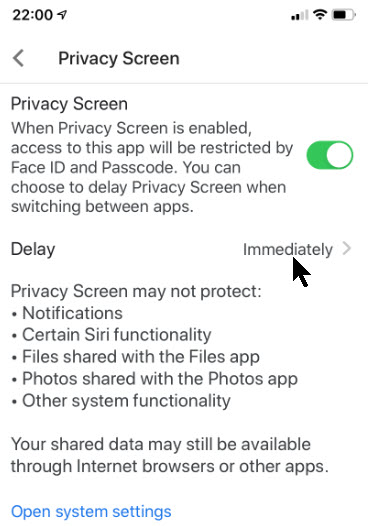
By default, the Privacy Screen feature locks the Drive app the moment you lock your iPhone’s or iPad’s display or leave the app. If you want to add a time delay, tap on the option that corresponds to the Delay listing. See below image:

Google Drive Protect 10
Accessing Privacy Screen Delay options

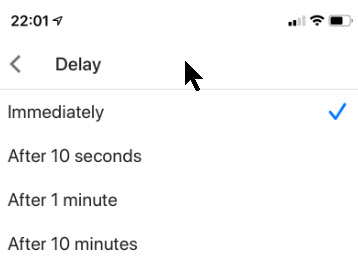
You have four options to choose from:

  • Immediately (the default)
  • After 10 seconds
  • After 1 minute
  • After 10 minutes

Once you have checkmarked your selection, tap the Back arrow. By default, the Immediately option is selected and is the recommended setting. Refer to below image:

Google Drive Protect 11
Setting the Privacy Screen Delay option

Using the Passcode Method

You have the option of using your Passcode to protect your files instead of your Face ID or Touch ID. This feature offers a more secure method of accessing Google Drive.

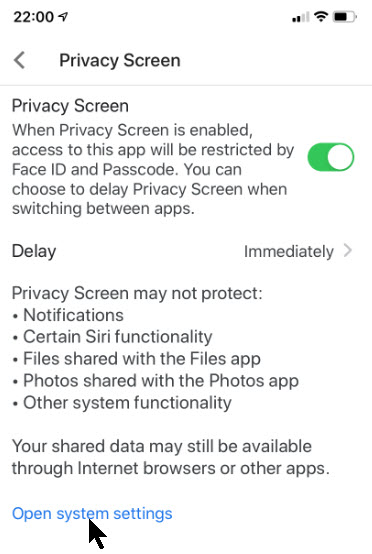
To do this, let’s go back to the Privacy Screen settings menu, then tap the Open System Settings blue link. See following image:

Google Drive Protect 7
Opening System Settings to change access method

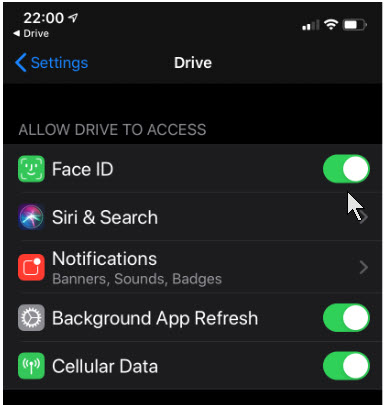
You are taken to the Drive’s section for your iPhone or iPad Settings menu. Here, just toggle off permission to use Face ID or Touch ID. See below image:

Google Drive Protect 8
Turning off Face ID permission

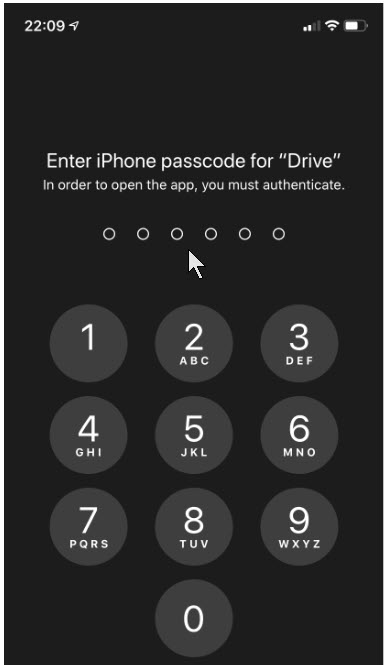
Now, the next time you open the Google Drive app,you will be required to enter your device’s lock screen Passcode. Refer to below image:

Google Drive Protect 9
Entering your Passcode to access Google Drive

You have successfully locked your Google Drive app either using your Face ID/Touch ID or your Passcode. That’s it.

I Would Like to Hear From You

Please feel free to leave a comment. I would love hearing from you. Do you have a computer or smart device tech question? I will do my best to answer your inquiry. Please mention the device, app and version that you are using. To help us out, you can send screenshots of your data related to your question.
The author’s Vietnam eBook on the Battle for Tra Bong: Events and Aftermath

I

How to Clear Chrome Data

Every once in a while you should delete Chrome’s data for faster load times and to correct erratic behavior. If this is your first time to do this, be patient, it may take a minute or so.

If you’re trying to fix loading or formatting issues to improve your browsing experience on Google Chrome, clearing your data is an excellent place to start.

For example, if Chrome is slow or unresponsive or you change a document like deleting a sentence but the sentence is still there after saving the document, its time to clear your Chrome browser data. Before doing this, log out or exit your running applications. If an application’s behavior is erratic, its recommended you log out instead of just exiting the program.

This is for Google Chrome on multiple platforms

Dilbert and Future
Copyright Scott Adams, Inc./Distributed by Universal Uclick for UFS

What Happens When your Data is Deleted?

When you visit a website, it will save (or remember) certain information on your hard or SSD drive. Cookies save a user’s browsing data and cache (stored information) helps webpages load more quickly by remembering images, videos, text and other parts of the webpage from your last visit instead of reloading everything with each visit.

When you clear your data, all information gets deleted. You control how much data is deleted. The load time of previously visited sites will increase because Chrome needs to load the content of the webpage again.

Clearing Chrome’s Data

To clear your data in Chrome, you’ll need to access the browser’s Settings menu. There are three different ways to do this.

Related

How to Use Wise Disk Cleaner Program to Delete Bad Files
How to Delete Junk Files on a PC

The first way is to click the three vertical dots icon (the hamburger icon) in the top-right corner of the screen, hovering over the More Tools option and then selecting Clear Browsing Data. Refer to below image:

Clear Chrome 1
Clear your browing data option

In the above image, you may notice the shortcut key. To go straight to the page to clear your data, hold and press down on the Ctrl + Shift + Delete keys.

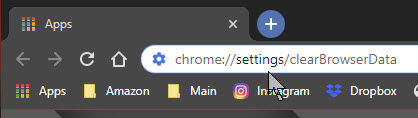
The third way is to enter chrome://settings/clearBrowserData in the address bar. See following image:

Alternate way to clear your browsing data

Now, the Clear Browsing Data window will be displayed.

The first thing you’ll do here is select the Time range for deleting the data. Click the drop down arrow next to Time range to expand the menu, then select the desired Time range; the default is All Time. It is recommended you use the default Time range. See below image:

Clear Chrome 3
Selecting your time range for clearing your data

Next, check the four boxes next to Browsing history, Download history, Cookies and 0ther site data and Cached images and files. If you want to clear passwords (not recommended), then checkmark Passwords and other sign-in data. Checking this box will force you to re-enter passwords you have setup before entering a website(s). Refer to below image:

Clear Chrome 4
Selecting your options for clearing data

Now click the Clear Data button to clear your data. See following image:

Clear Chrome 5
The last option for clearing your data

The process of clearing your data will take a litte while. If this is the first time, it may take several minutes, just be patient.

I Would Like to Hear from You

Please feel free to leave a comment. I would love hearing from you. Do you have a computer or smart device tech question? I will do my best to answer your inquiry. Please mention the device, app and version that you are using. To help us out, you can send screenshots of your data related to your question.
The author’s Vietnam eBook on the Battle for Tra Bong: Events and Aftermath

How to Pin a Website to Windows 10 Taskbar or Start Menu

This post will show you how to allow easy access to your favorite websites. We will discuss adding a desktop shortcut for any website to your Windows 10 Taskbar or Start Menu.

This is for Windows 10 devices

Using Google Chrome

  • Navigate to the website you want to pin
  • Click the Menu icon (the one with the 3 dots) in upper right hand corner
  • Hover your mouse over More Tools
  • Click Create Shortcut
  • In the popup menu, change the name of the shortcut, if desired
  • Click Create. See below image:
Win 10 Pin 1
Creating Desktop shortcut for pinning

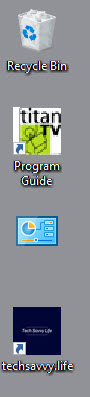
This will create a desktop shortcut. Refer to below image for my techsavve.life shortcut at the bottom:

Win 10 Pin 2

If you select the option Open in window, Chrome will open the page in its own window.

  • Right click on the shortcut and either click Pin to Start or Pin to taskbar. Once you have pinned the website for one or both ways, you can delete the desktop shortcut.

Using the new Microsoft Edge

The new Microsoft Chromium based browser works similar to Google Chrome. Yes, Microsoft has embraced the Chrome browser, even the version number is the same.

  • Navigate to the website you want to pin
  • Click the Settings and more icon (the one with the 3 dots) in upper right hand corner
  • Hover your mouse over More Tools
  • Click Pin to taskbar

The new Edge has a new feature called Launch taskbar pinning wizard. It is located just below Pin to taskbar in the menu dialog box.

  • Click the wizard. Edge will guide you through a short menu that lets you pin the most popular websites and Microsoft web apps to your taskbar. See below image for the first of the three screen wizard:
Win 10 Pin 3
The Pin to to the taskbar wizard, one of three screens

Note! The new Edge does not have the feature Pin to Start

The Classic Edge

The classic version of Edge came with the original version of Windows 10. If you have yet to update to the new Edge, then use the following for pinning:

To pin the website to the Taskbar:

  • Navigate to the website you want to pin
  • Click the Menu icon (the one with the 3 dots) in upper right hand corner
  • Click Pin this page to the taskbar

To pin the website to the Start menu:

  • Navigate to the website you want to pin
  • Click the Menu icon (the one with the 3 dots) in upper right hand corner
  • Hover your mouse over More Tools
  • Click Pin this page to Start

You can now delete any created desktop shortcut(s).

I Would Like to Hear from You

Please feel free to leave a comment. I would love hearing from you. Do you have a computer or smart device tech question? I will do my best to answer your inquiry. Please mention the device, app and version that you are using. To help me out, you can send screenshots of your data related to your question.
The author’s Vietnam eBook on the Battle for Tra Bong: Events and Aftermath

How to Setup Contacts in Zoom

Is your business using Zoom for collaboration during the Coronavirus outbreak? Zoom has become a key tool for working at home and a top choice for vittual meetings. Zoom is free for one-on-one calls that last as long as you like. For three or more people, your calls are limited to 40 minutes. Zoom also has a paid version for an enterprise; it can handle 1000 people.There’s also a plan for small and medium businesses that supports up to 300 participates per call..

Click here for a detailed review of Zoom from PCMag Labs

Click here for setup and install of Zoom from Office Watch

Zoom Meeting’s free account is generous. You can host up to 100 people on a call for free and you can see as many as 49 people on an active call in a gallery-style view. There’s no limit on how many meetings you can host. 

So, how do we setup our contacts with coworkers using Zoom? In this post we offer insight on how to do this.

This post is for Windows 7 or greater, iPhone or iPad with iOS 7 or later, Android 4 or greater, Web browsers, Macs and the Zoom app or program

Dilber and Ted Talk
Copyright Scott Adams, Inc./Distributed by Universal Uclick for UFS

Before you Begin

Of course, you have already setup the app. Linking to other people in Zoom is necessary before you can call them. A person has to be added to your Zoom contacts list and they have to add you before a call is made.

Zoom contacts are separate from Outlook and other contacts list.

Zoom links people by matching email addresses. Some people have multiple email addresses; for example, personal and work or different ones for different purposes or multiple old email addresses.

Which Email Address to Use?

Before adding a person to your contacts list it’s a good idea to check with them on which email address they use to login to Zoom.

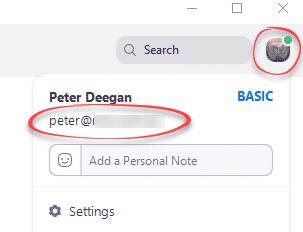
To check, they can click on their Zoom Profile in the top right where their name and address is displayed. Refer to below image:

Zoom Contacts 1
Locate the correct email address

Invite a Contact

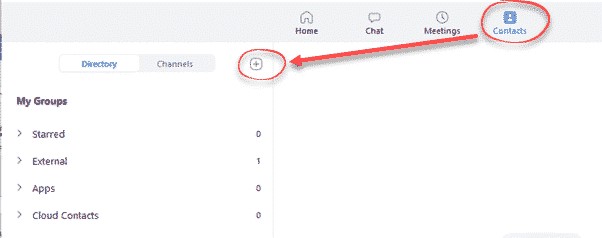
To link with someone, in the Zoom app, go to the Contacts section, then click the plus “+ “symbol. See following image:

Zoom Contacts 2
Linking a Zoom contact

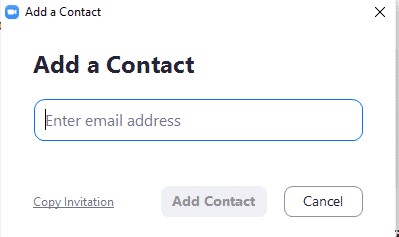
Enter the email address of the contact you want to add to Zoom. See below image:

Zoom Contacts 3
Adding a Zoom contact

Then you have two options:

  1. Add Contact – sends a contact request to that person’s Zoom account.
  2. Copy Invitation – copies to your clipboard with web link.  Paste that into an email or instant message.

Refer to below image:

Zoom Contacts 4
Web address for the Zoom contact

There is no need to paste the entire text, change it to suit you. The web link is the important part to pass along. Make sure you include the whole web link; it’s a long link using multiple lines.

Accept a Contact Request

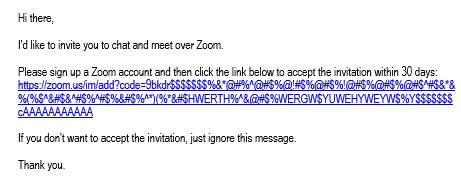
If a participate adds you to their Zoom contact list, you’ll see a pop-up alert. See following image:

Zoom Contacts 5
Pop-up box for a contact request

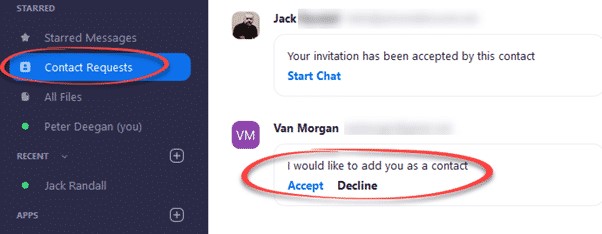
Or open your Zoom app/web page. Under Contacts look at Contact Requests.  The request will be displayed with options to Accept or Decline. Refer to below image:

Zoom Contacts 6
Accept or Decline a contact request

As you can see above, the Contact Requests you’ve made will also appear with their current status.

What to Do Next?

Now that you’ve linked with someone on Zoom, you can call them (voice, video, text, etc). If someone wants to invite you into a Zoom meeting, give them you Zoom linked email address.

That’s it on setting up your Zoom contacts. Try it out.

I Would Like to Hear from You

Please feel free to leave a comment. I would love hearing from you. Do you have a computer or smart device tech question? I will do my best to answer your inquiry. Please mention the device, app and version that you are using. To help me out, you can send screenshots of your data related to your question.
The author’s Vietnam eBook on the Battle for Tra Bong: Events and Aftermath

How to Disable Google from Tracking You

Whereever you go, Goggle is tracking you, especially Google Maps, and archives that activity in your Google Timeline. It is both a blessing and a curse. It can take you down memory lane, but as a curse, it leaves the door wide open to your privacy.

With Timeline, Google Maps can show where you are going and where you have been. Even photos taken and uploaded to Google Photos can reveal your location. You can also share your location in realtime on your smartphone.
If you prefer to keep your location private, you can remove your location history and stop Google from following you.

This feature is for your iOS (iPhone/iPad), Android device, Windows 10 or whatever smart device supports Google

Stop Activity and Location Tracking

  • Open your Google browser
  • Log into your account at myaccount.google.com
  • Select Data & personalization
  • You can disable what Google can tract and collect from you by managing your Activity controls. To stop tracking, click on the Title and toggle the switch to off. See below image:
Google Tracking 1
Google Activity controls

Warning! Turning off these Activity controls will effect the use of their features.

Delete your Activities

Your activities are kept until you manually delete them (the default). You have the option of deleting all data for the past 18 months or past 3 months.

  • Navigate to your Google account at myaccount.google.com
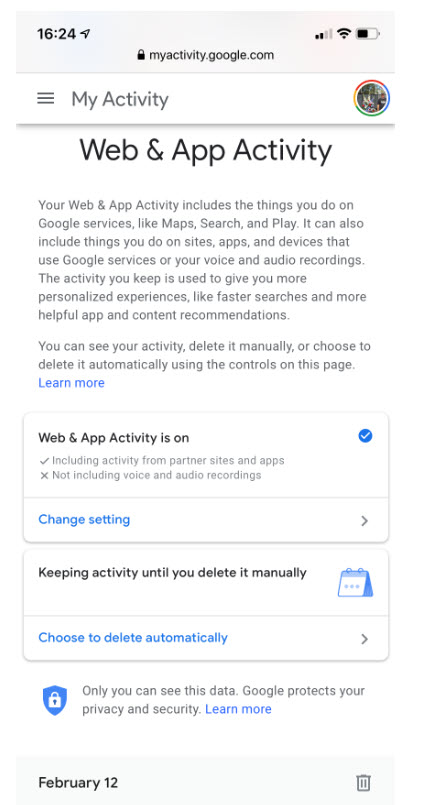
  • Select Data & personalization>Web & App Activity>Manage Activity>Choose to delete automatically. See below image:
Google Tracking 2
Google Deletion process
  • Select the 18 or 3 month option
  • Tap Next. See below image:
Google Tracking 3
Google selection of how long to keep your activity
  • Google will show you what is about to be deleted
  • Tap Confirm at the bottom of your screen. See below image:
Google Tracking 9
Google confirmation of your activity deletion
  • Also, you can delete a particular day’s browsing activity by taping the Trash icon next to the day. Refer to second image above.

To select a custom range, an hour or a date:

  • Tap the Menu icon located next to My Activity
  • Select Delete activity by. See below image:
Google Tracking 4
Google custom deletion
  • Choose one of the following options. See below image:
Goo5le Tracking 6
Google selecting your custom deletion
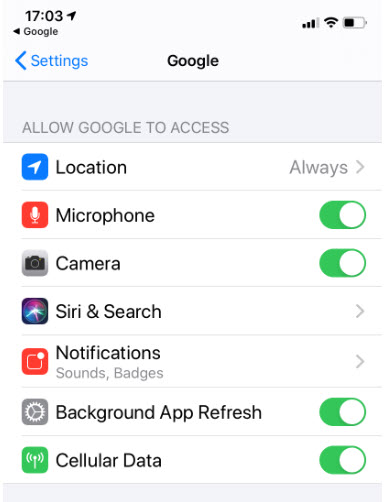
  • There are other privacy settings you can explore such as Location Services under Settings>Privacy and Security>Location>Location. A set of apps that use Location Services can be toggled on or off. See the following screen:
Google Tracking 8
Google Location Services to turn on or off

Warning! Turning off these Apps Location Services will effect the use of their features.

Go Incognito

The best and easist way to “hide” your browsing is to set the Incognito Mode. This feature allows you to browse without Google compiling history, cookies, site data or form information. Google has extended the feature to Maps and YouTube. Maps will stop tracking your location history; YouTube will no longer track your search and view history.

  • Launch Google
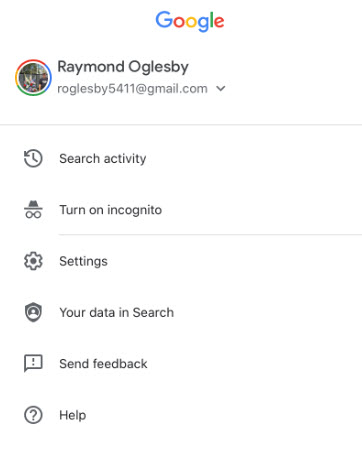
  • Tap the More icon in bottom right hand corner (the 3 dots)
  • Tap Turn on incognito. See below image:
Google Tracking 10
Google setting for Incognito Mode

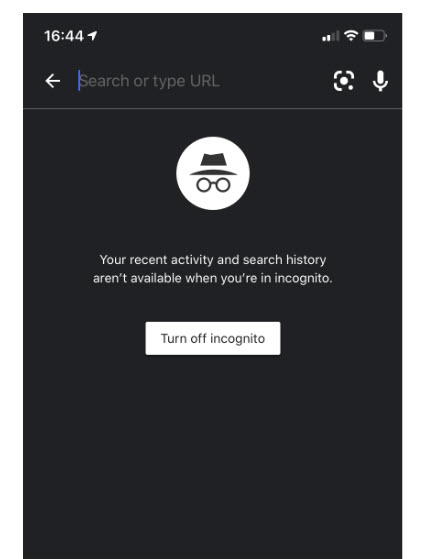
You will see the following screen:

Google Tracking 7
Google Incognito Mode turned on

To turn off Incognito Mode:

  • Launch Google
  • Tap the More icon in the bottom right hand corner (the 3 dots)
  • Tap In incognito mode
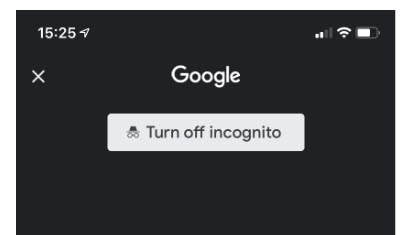
  • Tap Turn off incognito. Refer to following image:
Google Tracking 7
Google Incognito Mode turned off

I Would Like to Hear from You

Please feel free to leave a comment. I would love hearing from you. Do you have a computer or smart device tech question? I will do my best to answer your inquiry. Please mention the device, app and version that you are using. To help me out, you can send screenshots of your data related to your question.