How to Access Two-Factor Authentication for Major Apps

Two-Factor authentication (2FA) adds an extra security layer to your accounts across the internet. 2FA means your accounts require information beyond user name and password to confirm you are who you say you are before you can get into the accounts. Let’s explore how to access 2FA.

Two-Factor authentication (2FA) adds an extra security layer to your accounts across the internet. 2FA means your accounts require information beyond user name and password to confirm you are who you say you are before you can get into the accounts. Let’s explore how to access 2FA.

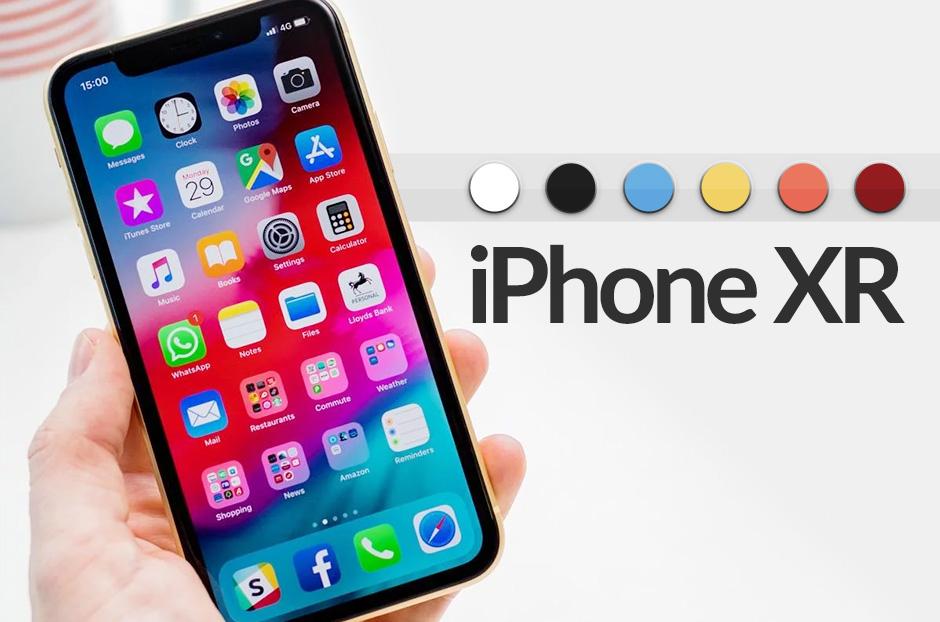
This is for iPhone, iPad, PCs and Macs. Screenshots are from Windows 10 and iPhone XR

Dilbert and Zoom
Copyright Scott Adams, Inc./Distributed by Universal Uclick for UFS

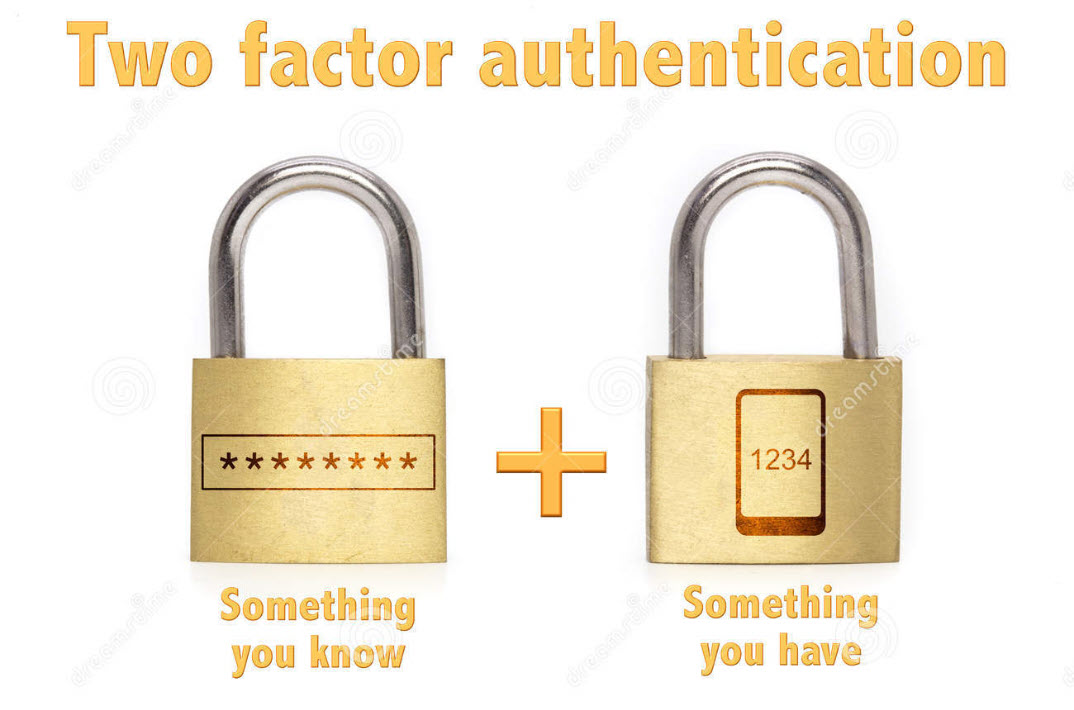
The “second factor” comes in after you enter your username and password, which are considered to be the “first factor.” 2FA can be used to confirm your identity by asking for an extra piece of information. The additional information can be:

  • Something you know, like an additional passcode.
  • Something you have, like your phone to receive a one time authorization code.
  • Something you are, like a fingerprint or voice print. This is also called biometric security.

The idea is to provide another piece of information a hacker would not have, making it harder for the bad guy to break into your account.

The following is not an exhaustive list of services with 2FA ability, but we cover the major services everyone tends to use, and walk you through how to access. We will cover Amazon, Apple, Facebook, Google, Instagram, LinkedIn, Microsoft, and Twitter. Activate 2FA on all of these and you will be more secure. Once you have found their 2FA screens you can can set it up for each app.

Amazon

First, launch Amazon.com on the desktop and login in to your account. Next, click the Menu icon in upper left-hand corner. Now, scroll down the drop-down menu to Your Account option.

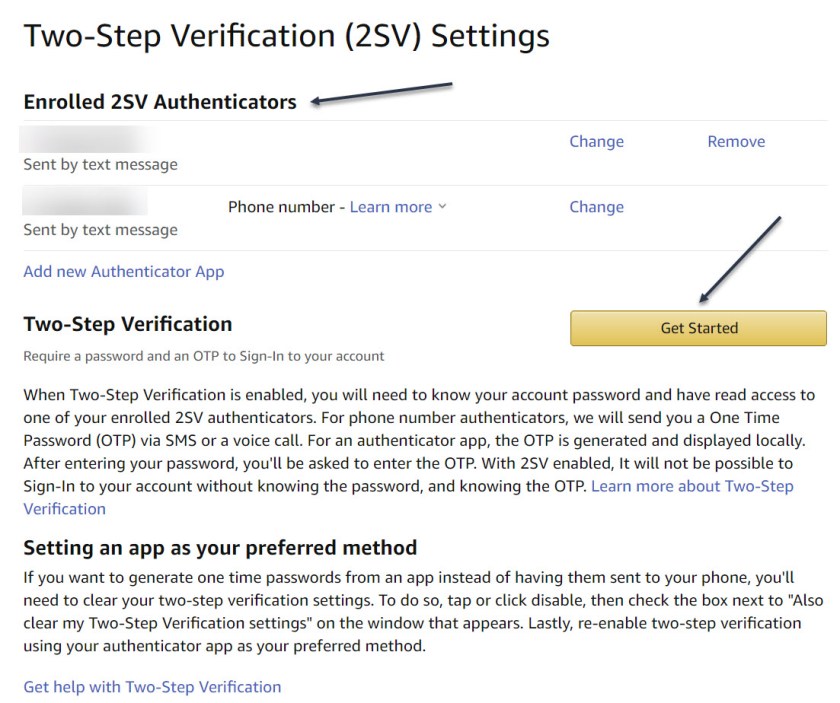
Next, click on the Login & Security big button. Now, on the next page, click Edit next to Two-Step Verification (2SV) Settings. The preferred method is an authentication app (scan the QR code); phone number(s) are the backup method. Refer to below image where I already have 2SV based on my phone number (which is dimmed out):
2FA 1
Amazon 2SV

If you think your account has been comprised, go back to Login & Security and click the Edit button next to Secure Your Account.

Apple

Following are the steps on how to access 2FA for Apple using either iOS or macOS.

On iOS go to:

Settings > [your name at the top] > Password & Security > Turn on Two-Factor Authentication.

On macOS go to:

System Preferences > iCloud, then sign in, click Account Details > Security > Turn on Two-Factor Authentication.

Note! once Apple 2FA is activated for two weeks, you can not turn it off. “Certain features in the latest versions of iOS and macOS require this extra level of security, which is designed to protect your information,” according to Apple. See below image for iOS:
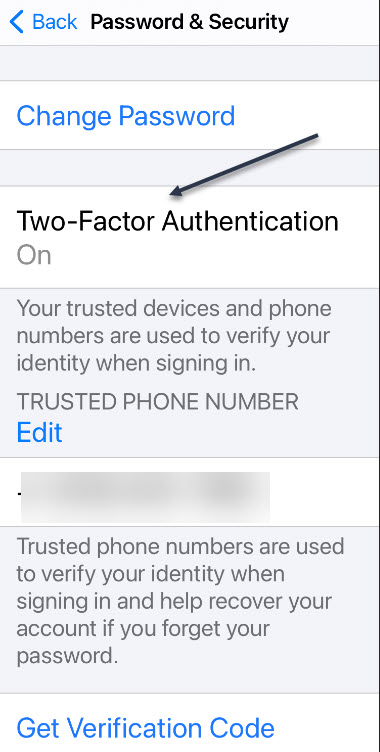
2FA 2
Apple 2FA

Facebook

First, login to Facebook on your desktop. Next, click the Down arrow in upper right-hand corner. Now, from the drop-down menu that appears, click on the Settings & Privacy option. On the next screen, click the Privacy & Checkup option. From there, click on the topic How to keep your account secure. Under this topic, you can access 2FA for Facebook. See following image where 2FA is On with a backup method of sending a text message to a phone number.

2FA 3
Facebook 2FA

Related

How to Perform a Privacy Checkup on Facebook

Google

First, sign in to your Google account on your smart device. Next, at the top of the screen, locate the Security tab and tap it. Now, scroll down and tap the 2- Step Verification option. You can continuing scrolling to see more ways to verify you. Refer to below image where my 2SV is already turned On and I am using the backup method of Voice or text message:
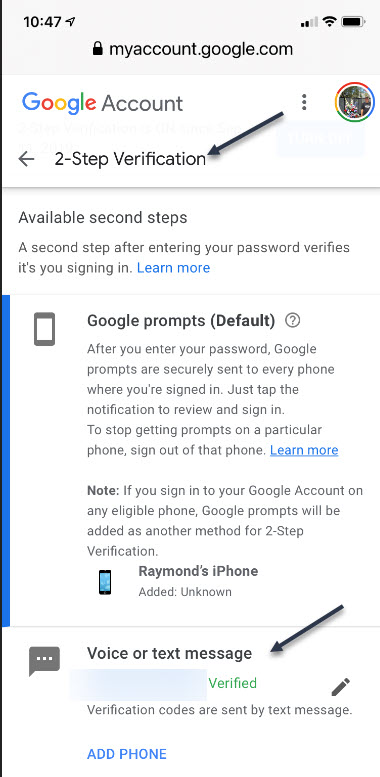
2FA 4
Google 2SV

Google calls its system 2SV . It’s all about identifying you via phone. When you enter a password to access your Google account for almost any service, if 2SV is on, there are multiple options to get that second step. First among them now: the Google Prompt. You simply add your smartphone to your account, make sure the Google search app is on the phone, and at login, you can go to the phone and simply acknowledge with a tap that you are the one signing in.

Instagram

First, launch Instagram on your smart device. Next, go to your Profile in lower right-hand corner, then tap the menu (the hamburger icon) on the top-right. Tap Settings > Security > Two-Factor Authentication. There you can choose how you would like to get your authentication code by tapping the Get Started button. See below image:

2FA 5
Instagram 2FA

Linkedin

Business social network Linkedin makes it easy to set up verification, either by SMS texts or authentication app.

First, launch Linkedin on you smart device, then go to your Profile at upper left-hand screen. Next, go to Settings > Sign in & Security > Account > Two-step verification to activate it or deactivate. See following image:

2FA 6
Linkedin 2SV

Microsoft

First sign into your Microsoft account on your smart device. Now, tap your Profile. Next, scroll down and tap Security. 2FA is the second option, tap on it. Once again, tap Two -step verification > Manage. Microsoft will suggest you get app passwords as needed for older service or devices (like Xbox 360); go in later to generate one as needed. Refer to below image:

2FA 7
Microsoft 2SV

Twitter

First, to activate Login Verification on Twitter.com on the desktop, login to Twitter, Click the More menu on the left (the three dots) and select Security & Account Access > Security > Two-Factor Authentication. See following image:
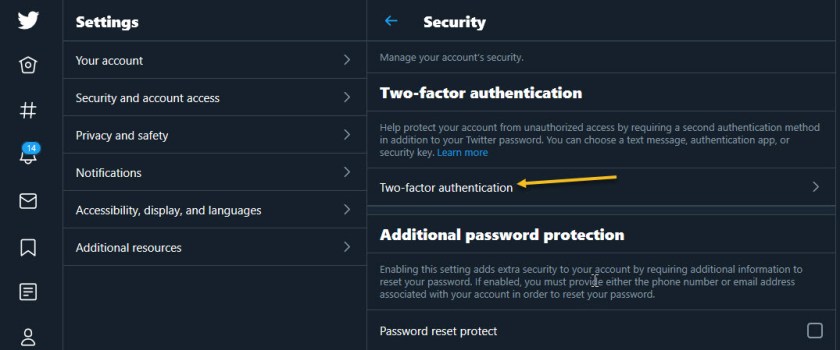
2FA 8
Twitter 2FA

Quote For the Day

Technology is a useful servant but a dangerous master.

Christian Louis Lange

That’s it. With 2FA activated on these apps you are more secure. Please feel free to share this post! One way to share is via Twitter.

Just click the Tweet icon below. This will launch Twitter where you click its icon to post the Tweet.

Check out TechSavvy.Life for blog posts on smartphones, PCs, and Macs! You may email us at contact@techsavvy.life for comments or questions.

I Would Like to Hear From You

Please feel free to leave a comment. I would love hearing from you. Do you have a computer or smart device tech question? I will do my best to answer your inquiry. Just send an email to contact@techsavvy.life. Please mention the device, app and version that you are using. To help us out, you can send screenshots of your data related to your question.

The author’s Vietnam eBook on the Battle for Tra Bong: Events and Aftermath

How to Copy an Image or Video From Files to Photos

If you have downloaded images or videos to your Files app on your iPhone or iPad, you might be wondering if you can copy them to your Photos library. The answer is yes.

If you have downloaded images or videos to your Files app on your iPhone or iPad, you might be wondering if you can copy them to your Photos library. The answer is yes. Let’s explore how this is done.

This is for the iPhone and iPad

Copyright Scott Adams, Inc./Distributed by Universal Uclick for UFS

First, open the Files app. Refer to below image:

Accessing the Files app

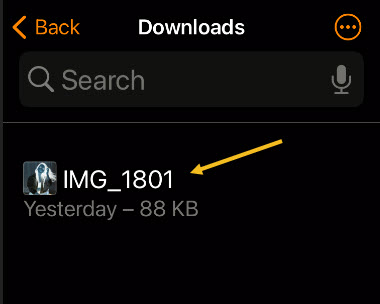
Now, navigate to the folder that contains the media files that you would like to copy to your Photos. In our example, we are using the Downloads folder on the iPhone, but the files could just as easily be copied from other folders in Files, such as Dropbox or your iCloud Drive. See below image:

Accessing the Downloads folder on my iPhone

If it’s a single photo or video, (like our example), tap on it to open up its detailed view.

If you want to select multiple files on an iPhone, tap the ellipsis button (three dots in a circle) in the upper-right corner of the screen and choose Select. (On an iPad, just tap Select). Then, place check marks on the items you want to copy to Photos. See following image:

Accessing a single image

Either way, once you have a single item opened or multiple items selected, tap the Share button. On the iPad, it’s in the upper-right corner of the screen. On the iPhone, it’s located in the lower left-hand corner. Refer to below image for the iPhone:

Accessing the Share button

On the Share pop-up list, tap Save Image or Save Video. If you selected multiple items, tap Save X Items, where X is the number of items you have selected. See below image:

Saving the single image to Photos

The next time you open your Photos app, you will see the images or videos you saved from Files.

This process works both ways. If you want to copy photos or images from Photos to Files, select them in the Photos app, tap Share, then select Save to Files.

Quote For the Day

Technology is a gift of God. After the gift of life it is perhaps the greatest of God’s gifts. It is the mother of civilizations, of arts and of sciences.

Freeman Dyson

That’s it. Please feel free to share this post! One way to share is via Twitter.

Just click the Tweet icon below. This will launch Twitter where you click its icon to post the Tweet.

Checkout TechSavvy.Life for blog posts on smartphones, PCs, and Macs! You may email us at contact@techsavvy.life for comments or questions.

I Would Like to Hear From You

Please feel free to leave a comment. I would love hearing from you. Do you have a computer or smart device tech question? I will do my best to answer your inquiry. Just send an email to contact@techsavvy.life. Please mention the device, app and version that you are using. To help us out, you can send screenshots of your data related to your question.

The author’s Vietnam eBook on the Battle for Tra Bong: Events and Aftermath

How to Preview Safari Links Before Opening

Peeking at the URL of a link that you are about to open is a good way to make sure the URL is what you expect and not a trick by the website.

Peeking at the URL of a link that you are about to open is a good way to make sure the URL is what you expect and not a trick by the website. Let’s explore how to preview Safari links for iPhone, iPad and Mac.

This is for iPhone, iPad, and Mac using Safari

Dilbert and Zoom
Copyright Scott Adams, Inc./Distributed by Universal Uclick for UFS

How to Preview Safari Links on a Mac

Popular desktop web browsers have featured URL status bars for decades. But Safari for Mac does not enable one by default. If you want to quickly check the URL of a link, you can do so by enabling the status bar.

First, open the Safari app on your Mac. Click the View section in the menu bar and choose the Show Status Bar option. Refer to below image:

Safari Link 1
Enabling Status Bar option

Now, with this enabled, when you hover over any link, you will see its full URL address in the status bar in the bottom-left corner of the page. See below image:

Safari Link 2
Displaying URL address

If you ever want to disable this link preview, click:

View > Hide Status Bar

in the menu bar at the top of the screen.

How to Preview Safari Links on iPhone and iPad

Unlike the Mac, Safari on iPhone and iPad does not have a status bar. But it does let you peek into the page that you want to open. You can tap and hold any link to load the page in a pop-up preview window. If you do not like the full preview, you can switch to only viewing the URL (Like Safari on Mac).

First, open a page in Safari on your iPhone or iPad. Next, tap and hold any link on the page. See following image:

Safari Link 3
Accessing a link

Note! For this feature to work, you need to be running iOS 13, iPadOS 13, or higher. You will see a thumbnail preview of the page pop-up. To preview the URL instead, tap the Hide Preview button located at the top of the pop-up window. Refer to below image:

Safari Link 4
Accessing Hide Preview option

The thumbnail will disappear and you will see the URL listed in the box. If it looks safe and you want to open the page from this pop-up, tap the Open button in the menu list. See below image:

Safari Link 5
Open the link

If you want to get the thumbnail peek back, just tap and hold a link again and select Tap to show preview at the top of the pop-up window.

Keeping an eye on URLs is one way that browsing with more knowledge will help you avoid web-based scams and keep you safer on the web.

Quote For the Day

Common sense and a sense of humor are the same thing, moving at different speeds. A sense of humor is just common sense, dancing.

Clive James

That’s it. Please feel free to share this post! One way to share is via Twitter.

Just click the Tweet icon below. This will launch Twitter where you click its icon to post the Tweet.

Check out TechSavvy.Life for blog posts on smartphones, PCs, and Macs! You may email us at contact@techsavvy.life for comments or questions.

I Would Like to Hear From You

Please feel free to leave a comment. I would love hearing from you. Do you have a computer or smart device tech question? I will do my best to answer your inquiry. Just send an email to contact@techsavvy.life. Please mention the device, app and version that you are using. To help us out, you can send screenshots of your data related to your question.

The author’s Vietnam eBook on the Battle for Tra Bong: Events and Aftermath

How to Clear Recent History in Safari

As tracking goes, Safari keeping your recent browsing history is less about privacy and more about just being useful. It’s your history that means Safari remembers where to go to when you choose forward and back within a site, for instance.

As tracking goes, Safari seeing your recent browsing history is less about privacy and more about just being useful. It’s your history that means Safari remembers where to go to when you choose forward and back within a site, for instance.

While it’s possible to completely wipe your History in Settings, you can also erase only more recent history if you would like. Let’s explore this feature.

This is for the iPhone and iPad. Screenshots are from iPhone

Copyright Scott Adams, Inc./Distributed by Universal Uclick for UFS

Clear Recent History

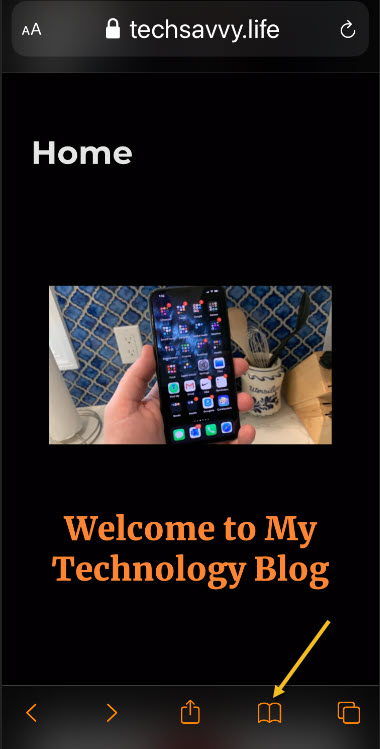
First, open Safari on your iPhone or iPad. Tap the Bookmarks button. On the iPad, you will find it in the upper-left corner of the screen beside the address bar. On an iPhone, it’s at the bottom of the screen. Refer to below image:

Accessing Bookmarks button

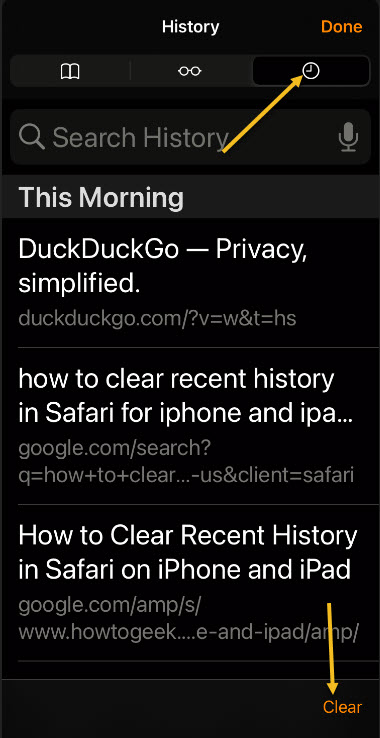
Next, in the pop-up that appears, tap the History tab (which looks like a clock face), and then tap the Clear button. See below image:

Accessing History tab

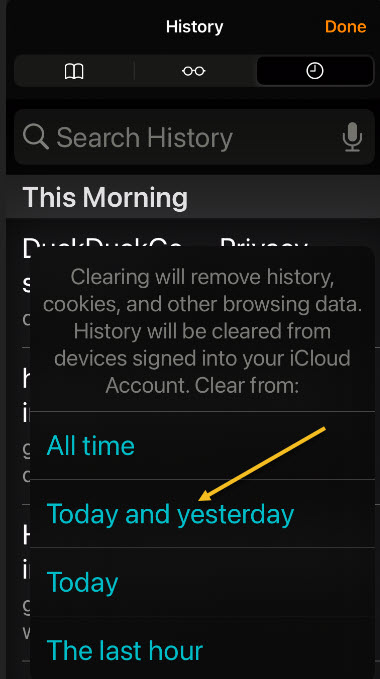
Now, after you tap Clear, another pop-up will give you another choice. You can select All time, Today and yesterday, Today, or The last hour.

Choosing one of these options will remove your browsing history, cookies, and other browsing data from the point you select until now. For example, if you click Today, all the browsing history from sites you visited today will disappear, but everything earlier than that will remain on the list.

Next, tap the option you would prefer (or you can tap outside the pop-up box to cancel). See following image:

Selecting an option for deletion of Recent history

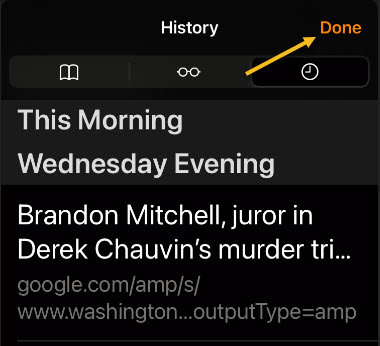
If you made a selection from the pop-up list, your browsing history will be cleared accordingly. Now, tap the Done button in upper right-hand corner to exit.

Erase a Single Entry

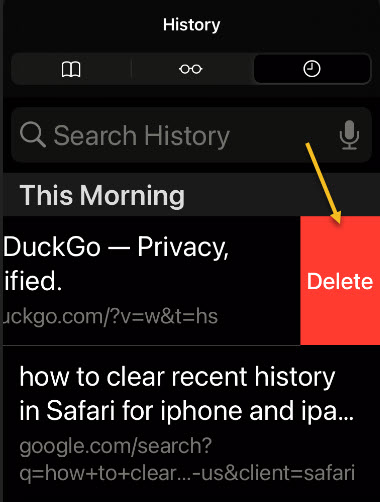
Also, you can delete individual entries by swiping to the left on them with your finger. When a red Delete button appears on the right, tap it. Refer to below image:

Selecting to delete a single Recent history item

When you are finished deleting single entries, tap the Done button in upper right-hand corner. See below image:

Exiting the History tab

Using this method, only the single entry you just swiped will be erased. This can be a easy way of erasing certain history items without having to clear everything at once.

Quote For the Day

Everybody gets so much information all day long that they lose their common sense.

Gertrude Stein

That’s it. Please feel free to share this post! One way to share is via Twitter.

Just click the Tweet icon below. This will launch Twitter where you click its icon to post the Tweet.

Check out TechSavvy.Life blog posts on smartphones, PCs, and Macs! You may email us at contact@techsavvy.life for comments or questions.

I Would Like to Hear From You

Please feel free to leave a comment. I would love hearing from you. Do you have a computer or smart device tech question? I will do my best to answer your inquiry. Just send an email to contact@techsavvy.life. Please mention the device, app and version that you are using. To help us out, you can send screenshots of your data related to your question.
The author’s Vietnam eBook on the Battle for Tra Bong: Events and Aftermath

How to Perform a Privacy Checkup on Facebook

The Privacy Checkup tool allows you to determine how much or how little information you reveal, and to whom.

Facebook has tons of privacy checks that it would take three or more blog posts to cover the topic. In this post we are going to tackle two topics. The Privacy Checkup is tedious and laborious, plus, there are way too many checks. In our opinion, Facebook is a giant bureaucracy, too big for its own good Regardless, you may be surprised at the kinds and amount of information you are sharing, I know I was. Just take the time to discover what you are sharing using Facebook’s Privacy Checkup tool.

The Privacy Checkup tool allows you to determine how much or how little information you reveal, and to whom. Let’s explore this Facebook tool.

This is for devices running Facebook. Screenshots are from Windows 10

Dilbert and Deal
Copyright Scott Adams, Inc./Distributed by Universal Uclick for UFS

Start Privacy Checkup

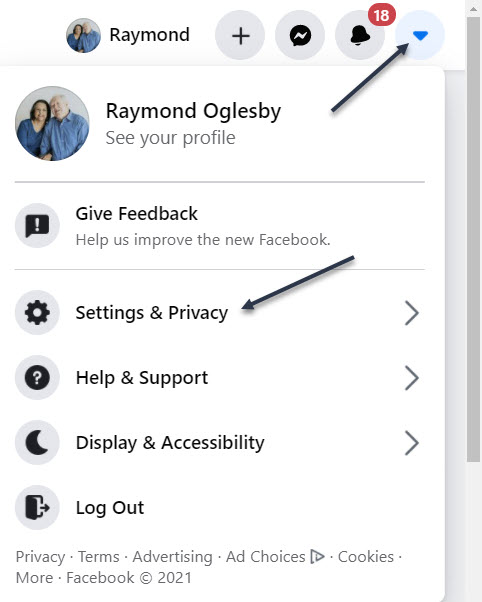
To run the latest version of Facebook’s Privacy Checkup tool, first, launch Facebook. Next, click the down arrow icon in the upper right-hand corner, then click on Settings & Privacy. Refer to below image:

Privacy 1
Accessing Settings & Privacy

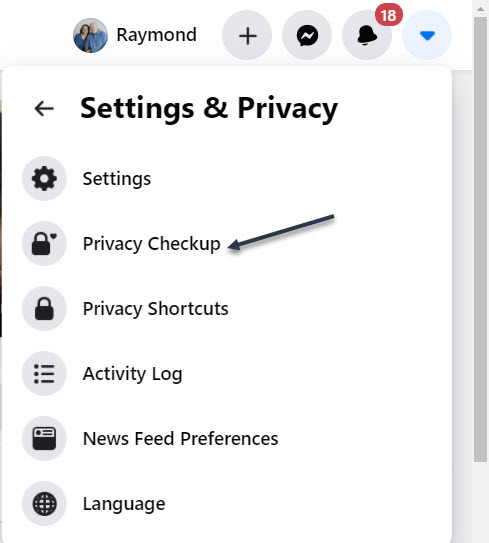
Now, select Privacy Checkup. See below image:

Privacy 2
Accessing Privacy Checkup tool

Choose the First Topic

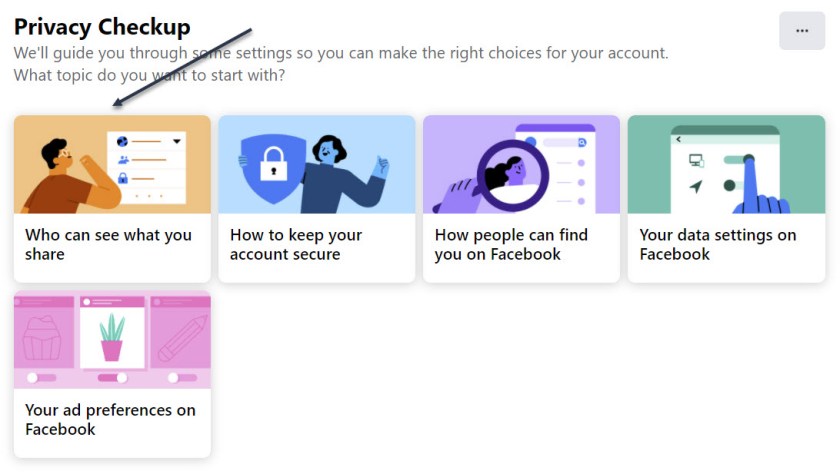
Next, in the Privacy Checkup window, click the first topic, Who can see what you share. See following image:

Privacy 3
Selecting the first topic

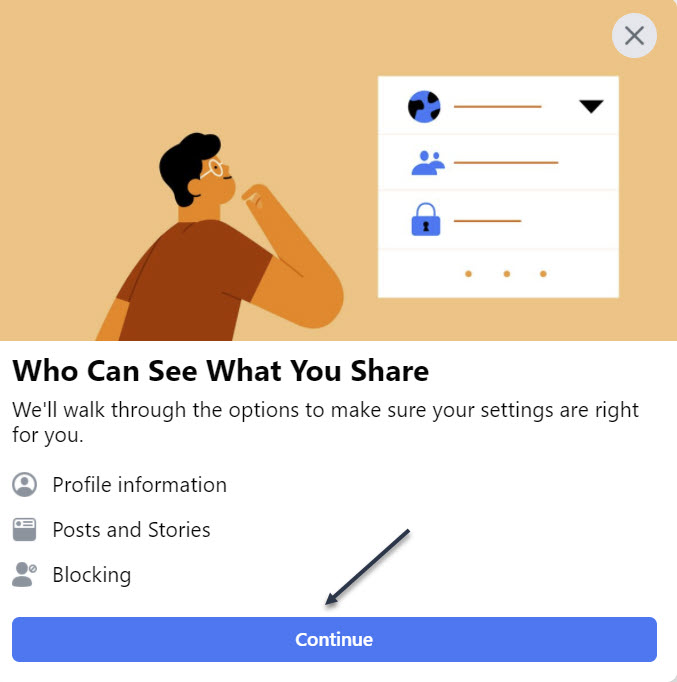
Now, click Continue. Refer to below image:

Privacy 4
Verbiage about the topic, continue to next screen

Your Profile Information

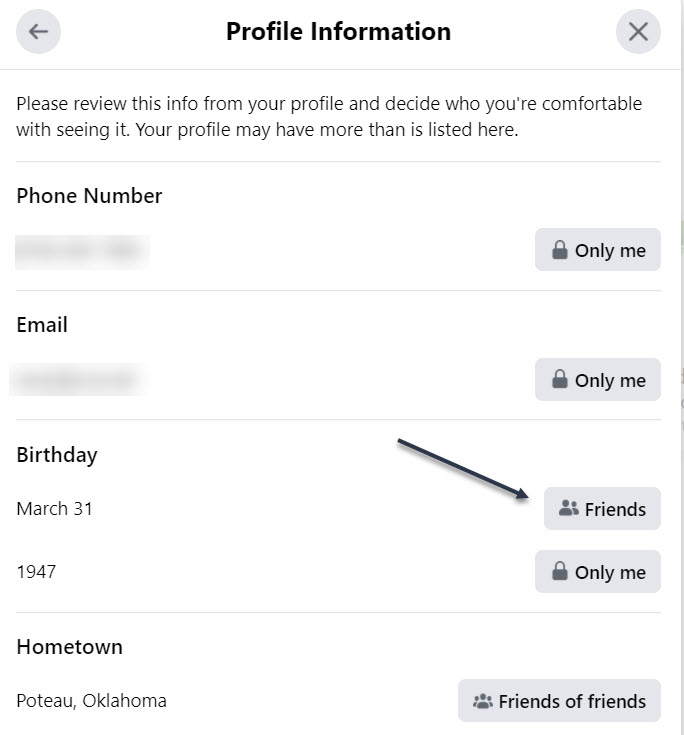
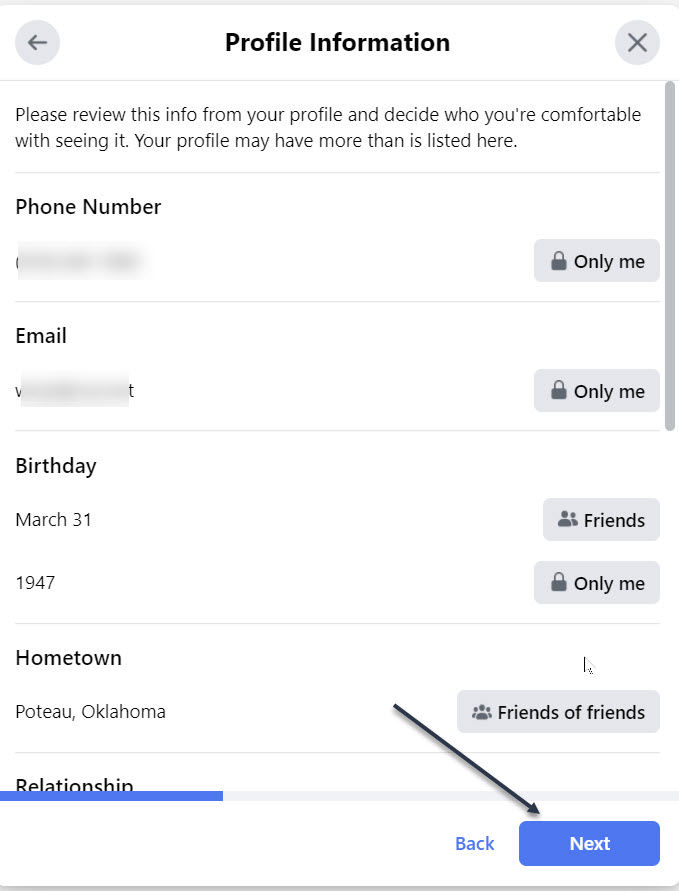
Next, at the Profile Information window, review the settings for your phone number, email addresses, and birthday. Click the button next to each one, and choose whether to change it to Public, Friends, Only Me, or a specific Facebook list. See below image:

FB Security
What and who sees your Profile Information

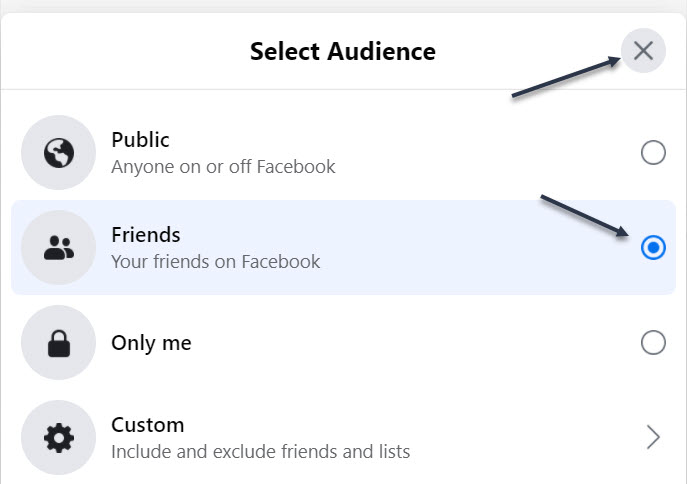
I changed my Birthday to Friends (it was already Friends, I kept it the same). To exit, click the “X” in upper right-hand corner. See following image:

Privacy 6
Changing who sees your Birthday

You probably want this information to remain private or only visible to friends or a specific group. When done, click Next. Refer to below image:

FB Security 1
Continue to the next screen

Your Posts

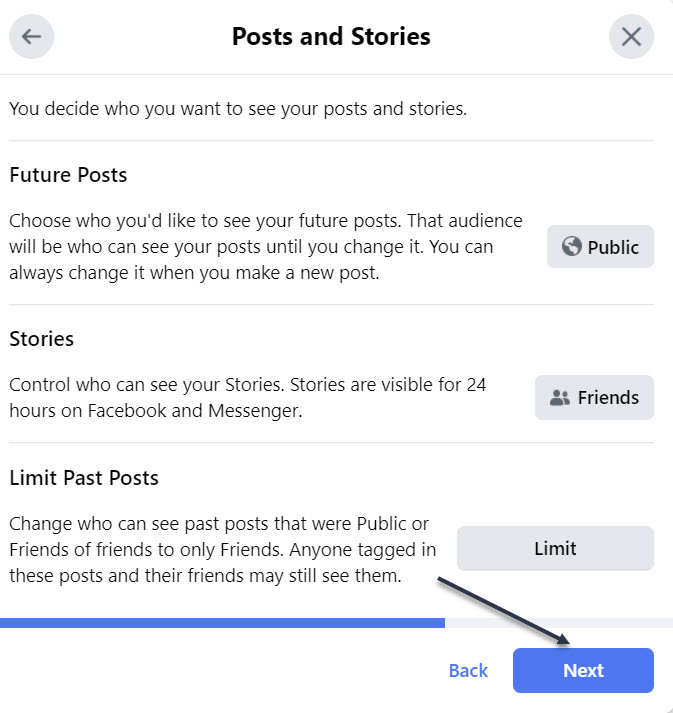
Now, at the Posts window, set the option for who should see future posts. You would likely want to set this to Friends. The Limit Past Posts option changes past posts that were seen by the Public or Friends of Friends to only Friends. Click Next to continue. See below image:

Privacy 8
Who sees your Posts, continue to next screen

Your Blocked People

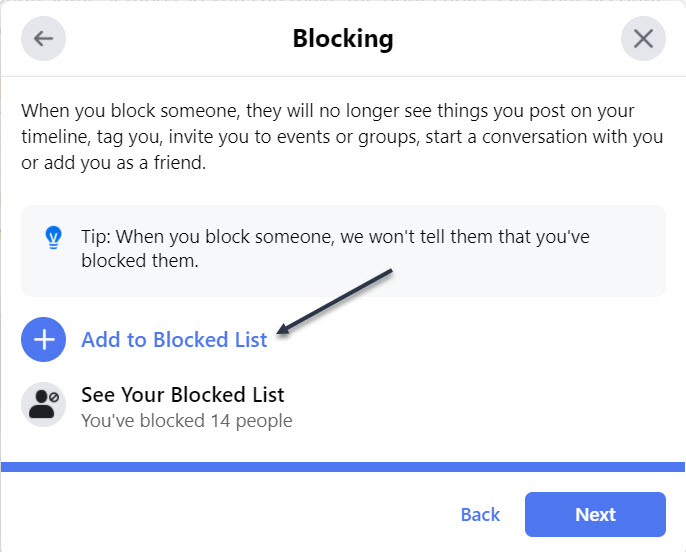
Next, at the Block screen, you can block specific people from seeing things you post, starting conversations with you, or trying to add you as a friend. To do this, click Add to Blocked list link. See following image:

Privacy 9
Selecting your Blocked List option

Related

How to Block Fact Checkers and Gate Keepers On Facebook

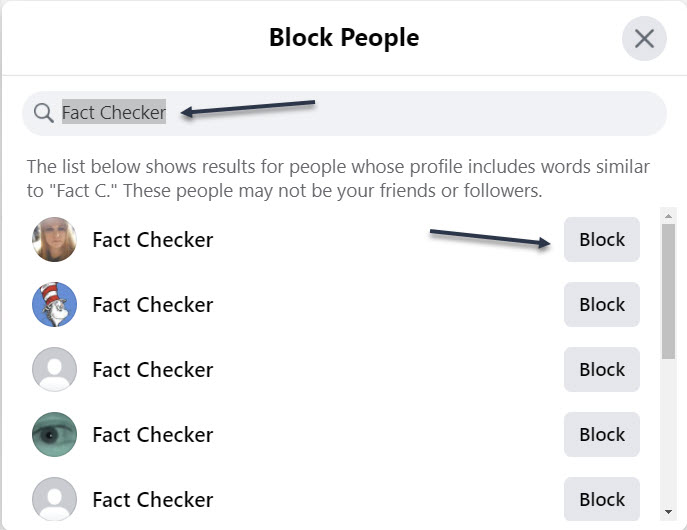
Now, type the name of the person or account you wish to block. From the list of suggestions, click the Block button for the correct person, then click Next. Refer to below image:

Privacy 10
Entering a name to block

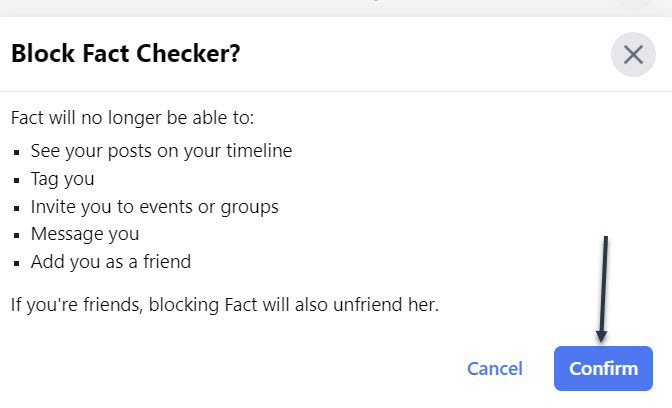
Next, click Confirm to block the person and continue. See below image:

Privacy 11
Confirming a blocked person

Now, you will be taken back to the Block screen. You may select another person to block. When finished, click the “X” in upper right-hand corner. See following image:

Privacy 12
Exiting the blocked persons screen

Next, to continue, click Next. Refer to below image:

Privacy 13
Continue to the next screen

You Are Finished With First Topic

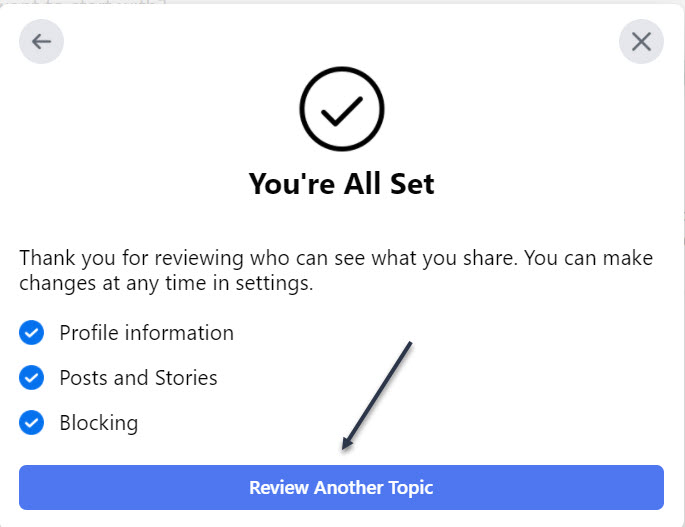
Now, the You’re All Set window will open indicating you are finished with the topic. To continue, click the Review Another Topic button. See below image:

Privacy 14
You have finished this topic screen

Choose Your Second Topic

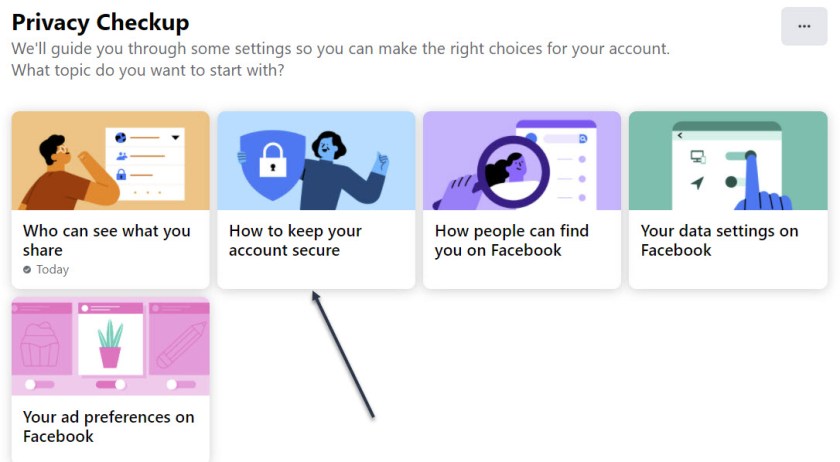
Next, select How to keep your account secure. See following image:

Privacy 15
Select the second topic

Note! My Password is OK and Two-factor authentication is on. Now, click Continue. Refer to below image:

Privacy 16
Verbiage about the topic, continue to next screen

Check Your Password

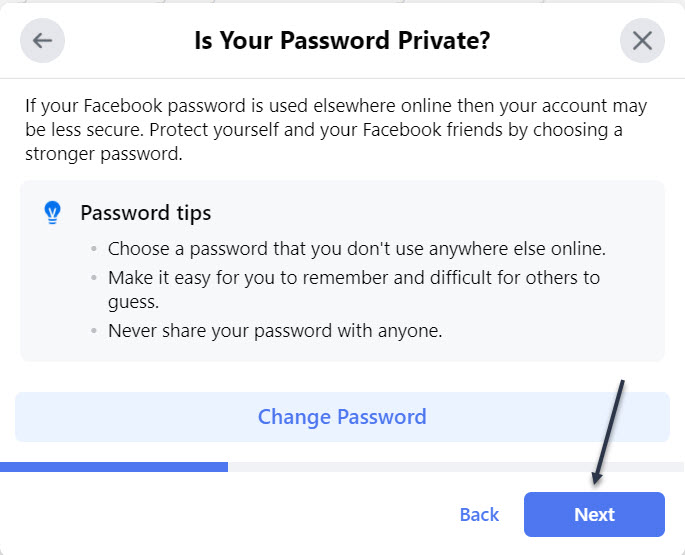
Next, at the window for Is Your Password Private, click Change Password if you are concerned that it was compromised or you want to change it to something more secure then click Next. See below image:

Privacy 17
Manage your password, continue to next screen

Check Your Two-Factor Authentication

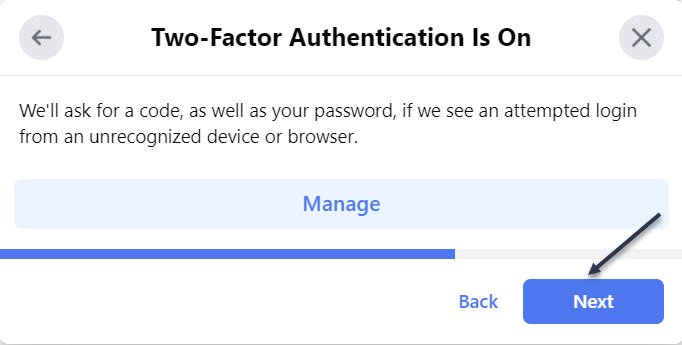
If Two-factor authentication is off, click the Get Started button to add Two-Factor authentication to protect your Facebook account. You want to do this. Just, follow the steps to set this up. Now, click Next to continue. See following image:

Privacy 18
Manage Two-Factor Authentication, continue to next screen

Check Your Alerts

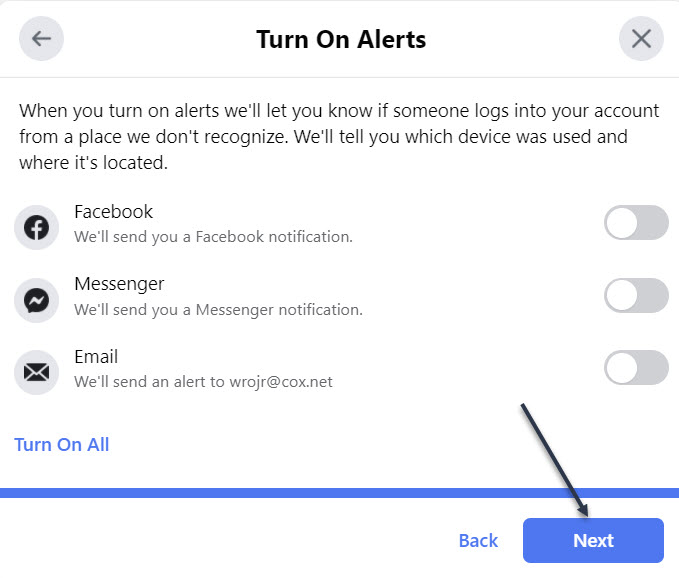
Next, at the window for Turn On Alerts, turn on the switch for any alerts you wish to receive if you or someone else signs into your Facebook account from a new or different location, then click Next. Refer to below image:

Privacy 19
Enable/Disable Alerts, continue to next screen

You Are Finished With Second Topic

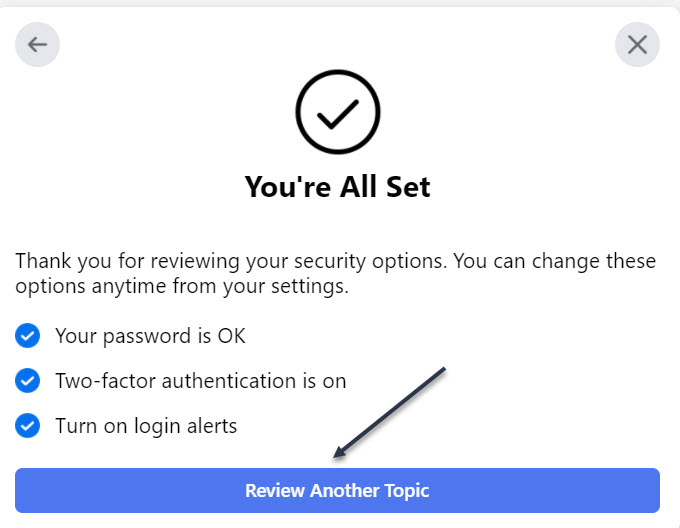
Now, the You’re All Set window will open indicating you are finished with the topic. To continue, click the Review Another Topic button. See below image:

Privacy 19
You have finished this topic

You may continue to one or more of the next three topics and follow its directions.


Quote For the Day

“Technology is a useful servant but a dangerous master”.

Christian Lous Lange

That’s it. You now have controlled your Privacy settings in Facebook. Please feel free to share this post! One way to share is via Twitter.

Just click the Tweet icon below. This will launch Twitter where you click its icon to post the Tweet.

Check out TechSavvy.Life for blog posts on smartphones, PCs, and Macs! You may email us at contact@techsavvy.life for comments or questions.

I Would Like to Hear From You

Please feel free to leave a comment. I would love hearing from you. Do you have a computer or smart device tech question? I will do my best to answer your inquiry. Just send an email to contact@techsavvy.life. Please mention the device, app and version that you are using. To help us out, you can send screenshots of your data related to your question.

The author’s Vietnam eBook on the Battle for Tra Bong: Events and Aftermath

How to Enable and Use AssistiveTouch on iPhone and iPad

AssistiveTouch is an Accessibility option. This feature allows you a one tap access to “canned” shortcuts. You no longer have to swipe through pages or visit your first or last page for certain options.

AssistiveTouch is an Accessibility option. This feature allows you a one tap access to “canned” shortcuts. You no longer have to swipe through pages or visit your first or last page for certain options. Let’s explore how to enable and use this feature.

This is for the iPhone and iPad

Dilbert and Love
Copyright Scott Adams, Inc./Distributed by Universal Uclick for UFS

To use AssistiveTouch you need to enable the feature. First, launch Settings. Refer to below image:

Touch 1
Accessing Settings

In Settings, locate and tap Accessibility. See below image:

Touch 2
Accessing Accessibility option

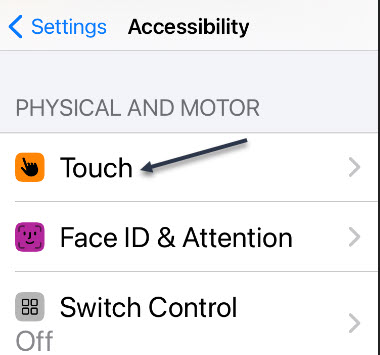
Now, in Accessibility, tap Touch. See following image:

Touch 3
Accessing Touch option

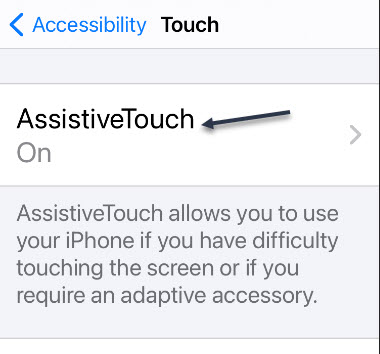
In Touch settings, tap AssistiveTouch. Refer to below image where the option is already turned On:

Touch 4
Accessing AssistiveTouch option

In AssistiveTouch, tap the toggle to turn it On. See below image:

Touch 5
Enabling AssistiveTouch option

When you flip the toggle beside AssistiveTouch, a special button (that resembles a rounded gray rectangle with a white circle in the middle) will appear near the edge of the screen. (This button does not appear in a screenshot). It will be translucent until pressed. You can drag it around the edge of the screen with your finger to reposition it. Next, exit Settings.

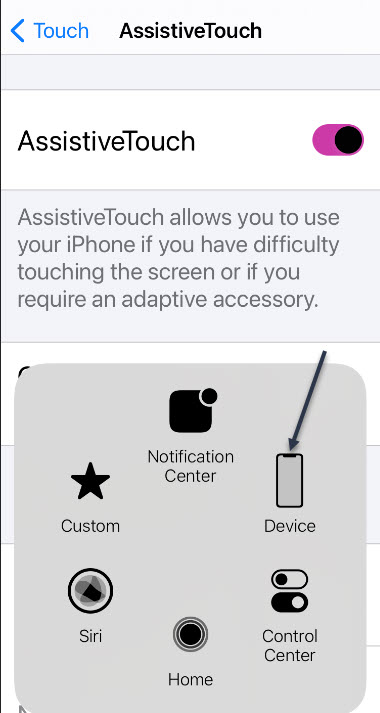
Now, locate and tap the button to preview the main AssistiveTouch screen. From here, lets tap the Device button. See following image:

Touch 6
Accessing Device button

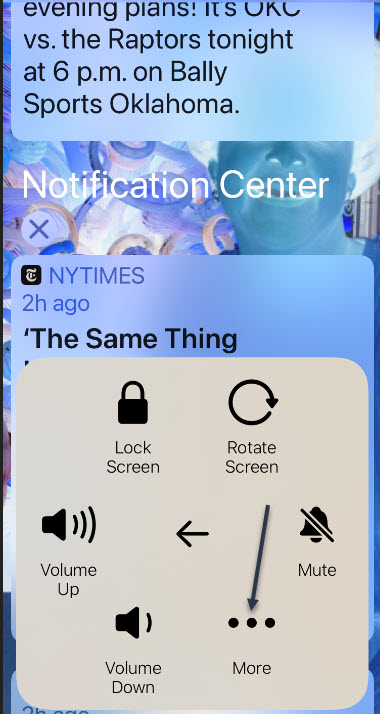
To access other shortcuts, tap the 3-dot menu button. Refer to below image:

Touch 7
First set of shortcuts under the Device option

Now, you will see the last screen under the Device button. See below image:

Touch 8
Second set of shortcuts under the Device option

Next, just tap an empty space in the shortcuts screen to go back, or tap the Back Arrow in the center until the AssistiveTouch screen disappears.

Quote For the Day

For a successful technology, reality must take precedence over public relations, for Nature cannot be fooled.

Richard P Feynman

You are finished. Please feel free to share this post! One way to share is via Twitter.

Just click the Tweet icon below. This will launch Twitter where you click its icon to post the Tweet.

Check out TechSavvy.Life for blog posts on smartphones, PCs, and Macs! You may email us at contact@techsavvy.life for comments or questions.

I Would Like to Hear From You

Please feel free to leave a comment. I would love hearing from you. Do you have a computer or smart device tech question? I will do my best to answer your inquiry. Just send an email to contact@techsavvy.life. Please mention the device, app and version that you are using. To help us out, you can send screenshots of your data related to your question.

The author’s Vietnam eBook on the Battle for Tra Bong: Events and Aftermath

How to Flip Photos or Images on iPhone and IPad

The photo editor on the iPhone and iPad comes with a built-in tool for flipping photos horizontally (sideways). But if you want to flip photos vertically (upside down), you will need to use a free third-party app like Photoshop Express.

Sometimes you end up taking photos that are mirrored horizontally. This is quite common when you take selfies. Want to change the direction of a photo (or a face)?

The photo editor on the iPhone and iPad comes with a built-in tool for flipping photos horizontally (sideways). But if you want to flip photos vertically (upside down), you will need to use a free third-party app like Photoshop Express. Let’s explore how to flip photos using Photoshop Express since it has more features.

This is for the iPhone and iPad using Photoshop Express

Dilbert and Work
Copyright Scott Adams, Inc./Distributed by Universal Uclick for UFS

This app is a feature-rich photo editing tool on your iPhone or iPad. In some ways, you can think of it as the mobile version of the Photoshop app. While many of its pro features are hidden behind a subscription, you can use the free version to make simple edits.

One of the features available on the free version is the ability to flip images both vertically and horizontally.

First, download the free app from the Apple Store iCloud service. Now, open the app and give it permission to access your photos. Next, from the Home tab, tap the Edit section button. Refer to below image:

Flip 1
Accessing Edit section

Here, choose the photo that you want to edit. See below image:

Flip 2
Selecting a Photo

From the photo editing view, go to the Crop button and tap it. See following image:

Flip 3
Accessing the Crop button

From here, choose the Rotate option. Refer to below image:

Flip 4
Accessing the Rotate option

Now, swipe left on the bottom toolbar to see the different flip options. See below image:

Flip 5
Accessing the flip options

Next, you can flip the photo as you please. See following image for the flipped photo:

Flip 6
The photo flipped

Once you are done, tap the Share button from the top toolbar. Refer to below image:

Flip 7
Accessing the Share button

Here, tap the Camera Roll button. The final flipped photo will be exported and saved to your Photos app. See below image where I saved the original:

Flip 8
Selecting to export and save the photo to the Camera Roll

Your original photo is left intact.

Quote For the Day

The only way to discover the limits of the possible is to go beyond them into the impossible.

Arthur C Clarke

You are finished. Please feel free to share this post! One way to share is via Twitter.

Just click the Tweet icon below. This will launch Twitter where you click its icon to post the Tweet.

Check out TechSavvy.Life for blog posts on smartphones, PCs, and Macs! You may email us at contact@techsavvy.life for comments or questions.

I Would Like to Hear From You

Please feel free to leave a comment. I would love hearing from you. Do you have a computer or smart device tech question? I will do my best to answer your inquiry. Just send an email to contact@techsavvy.life. Please mention the device, app and version that you are using. To help us out, you can send screenshots of your data related to your question.

The author’s Vietnam eBook on the Battle for Tra Bong: Events and Aftermath

How to Change Safari Text Size For a Website on iPhone and iPad

When you are browsing the web using Safari on your iPhone or iPad, sometimes it can be difficult to read small fonts on the screen. On the other hand, you might find a site that has huge fonts and it makes things equally difficult to read. If you are using Safari on your iPhone or iPad, here’s how to make the text size on a website larger or smaller.

When you are browsing the web using Safari on your iPhone or iPad, sometimes it can be difficult to read small fonts on the screen. On the other hand, you might find a site that has huge fonts and it makes things equally difficult to read. If you are using Safari on your iPhone or iPad, here’s how to make the text size on a website larger or smaller.

This is for iPhone and iPad running iOS 13+

Copyright Scott Adams, Inc./Distributed by Universal Uclick for UFS

You can use Safari’s built-in text zoom feature. This feature only changes the text size of the web page. It keeps everything else as it is. The images and other UI elements will stay the same. Once you have changed the text size of a website, Safari will remember it the next time you open the page.

First, open the Safari browser on your iPhone or iPad and visit the web page where you want to increase or decrease the text size.

Next, tap the “aA” button on the top left-hand side. Refer to below image:

Selecting Text Size button

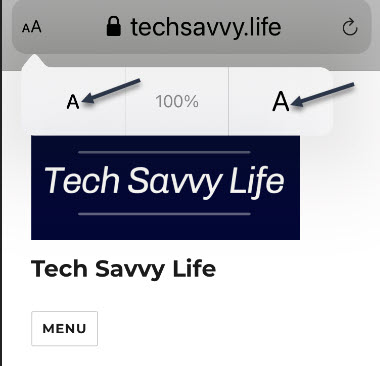
Now, tap the “a” button to reduce the text size, or tap the “A” button to increase the text size. See below image:

Decrease or increase Text Size

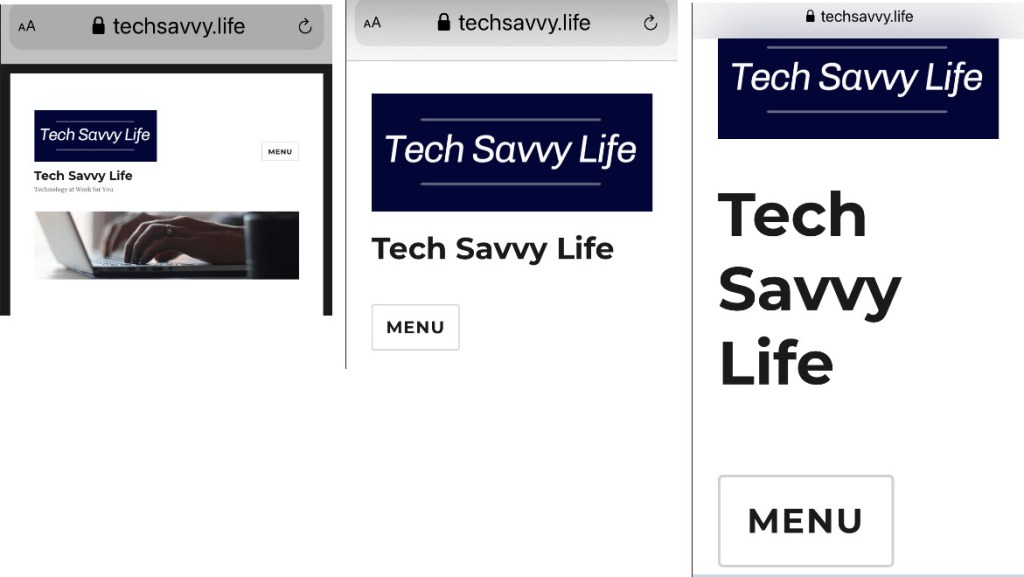
The default text zoom is set as 100%. You can reduce the text size to 50% or take it up all the way to 300%. See following image where the screen is displayed at 50%, 150%, and 300%:

Display of 50%, 150%, 300%

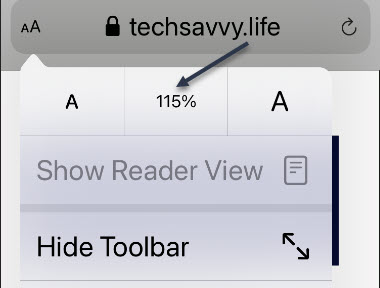
If you want to quickly reset the text size to the default, simply tap the percentage value in the middle. Refer to below image:

Reset Text Size

Safari’s text zoom feature works in the Reader Mode as well. If you would like to read a long article without the site elements in larger text size, we recommend that you use Reader View.

Now, after loading the page, tap and hold the “aA” button to enable the Reader View.

Note! Not all websites support Reader View.

See below image:

Enabling Reader View

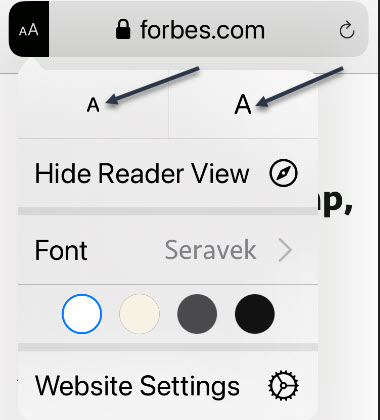
Next, tap the “aA” button again. From here, you can increase or decrease the text size. See following image:

Set Text Size in Reader View

Quote For the Day

One machine can do the work of fifty ordinary men. No machine can do the work of one extraordinary man.

Elbert Hubbard

That’s it. Please feel free to share this post! One way to share is via Twitter.

Just click the Tweet icon below. This will launch Twitter where you click its icon to post the Tweet.

Check out TechSavvy.Life for blog posts on smartphones, PCs, and Macs! You may email us at contact@techsavvy.life for comments or questions.

I Would Like to Hear From You

Please feel free to leave a comment. I would love hearing from you. Do you have a computer or smart device tech question? I will do my best to answer your inquiry. Just send an email to contact@techsavvy.life. Please mention the device, app and version that you are using. To help us out, you can send screenshots of your data related to your question.

The author’s Vietnam eBook on the Battle for Tra Bong: Events and Aftermath

How to Change the Default Fonts in Your Chrome Browser

While changing your browser’s font may not be a pressing issue, sometimes it is fun to make a change. We going to explore how to change the default fonts in Google Chrome.

While changing your browser’s font may not be a pressing issue, sometimes it is fun to make a change. We going to explore how to change the default fonts in Google Chrome.

This is for devices running Google Chrome

Dilbert and Issue
Copyright Scott Adams, Inc./Distributed by Universal Uclick for UFS

Changing Chrome’s Fonts

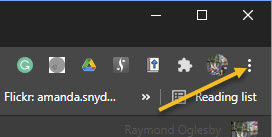
In order to change the fonts in Google Chrome, you will need to access your Customize Fonts section. First, open your Chrome browser. Next, click on the three 3-dot (hamburger icon) in the upper right-hand corner. Refer to below image:

Font 1
Accessing your Chrome menu

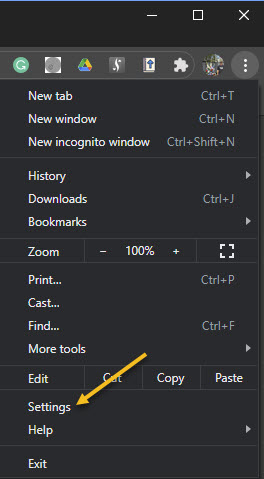
Now, click on Settings. See below image:

Font 2
Accessing Settings

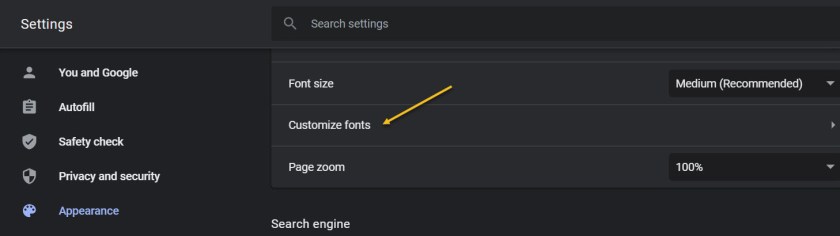
Next, click on the Appearance tab in the sidebar. Now, scroll down until you get to the Customize Fonts section and click on it. See following image:

Font 3
Accessing your customize fonts section from the Appearance tab

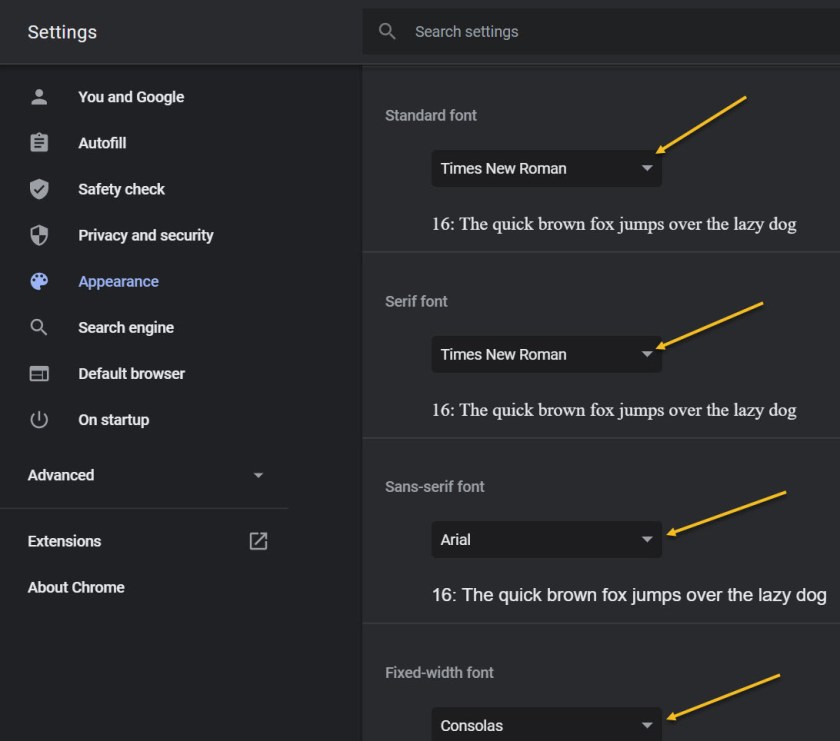
Now, you can change all your font settings. Just click on each drop-down box and select a font from the listing. It is recommended you write down the default fonts in case you want to revert to the original ones. Refer to below image:

Font 4
Accessing the drop-down boxes to change your fonts

When finished, exit Settings and restart your Chrome browser for the changes to take effect.

Quote for the Day

If future generations are to remember us more with gratitude than sorrow, we must achieve more than just the miracles of technology. We must also leave them a glimpse of the world as it was created, not just as it looked when we got through with it.

Lyndon B. Johnson, Former President of the United States of America

That’s it. Please feel free to share this post! One way to share is via Twitter.

Just click the Tweet icon below. This will launch Twitter where you click its icon to post the Tweet.

Check out TechSavvy.Life for blog posts on smartphones, PCs, and Macs! You may email us at contact@techsavvy.life for comments or questions.

I Would Like to Hear From You

Please feel free to leave a comment. I would love hearing from you. Do you have a computer or smart device tech question? I will do my best to answer your inquiry. Just send an email to contact@techsavvy.life. Please mention the device, app and version that you are using. To help us out, you can send screenshots of your data related to your question.

The author’s Vietnam eBook on the Battle for Tra Bong: Events and Aftermath

How to Change Websites Text Size in Chrome for iPhone and iPad

Visiting your favorite websites or just any website can be kind of frustrating when the on-screen text is hard to read. Fortunately, the Google Chrome web browser on the iPhone and iPad has a text-specific zoom feature. You can adjust the default text size on any website by using the Zoom Text function.

Visiting your favorite websites or just any website can be kind of frustrating when the on-screen text is hard to read. Fortunately, the Google Chrome web browser on the iPhone and iPad has a text-specific zoom feature. You can adjust the default text size on any website by using the Zoom Text function.

It’s easy to get confused as to which browser this applies to. This feature is for your Google Chrome browser, not the default Safari web browser.

What’s neat is that Chrome remembers your preference and will show the designated text size going forward (no need to adjust the text every time).

Let’s explore how to change text size on websites in Chrome for iPhone and iPad.

This is for iPhone and iPad using Chrome

Dilbert and Stock
Copyright Scott Adams, Inc./Distributed by Universal Uclick for UFS

To begin, open your Chrome app on your iPhone or iPad. Next, visit the web page that you want to increase the text size. Refer to below image:

Text Size 1
Selecting a website on Chrome

Now, from the bottom toolbar, tap the three-dot hamburger menu button. See below image:

Text Size 2
Selecting the menu button

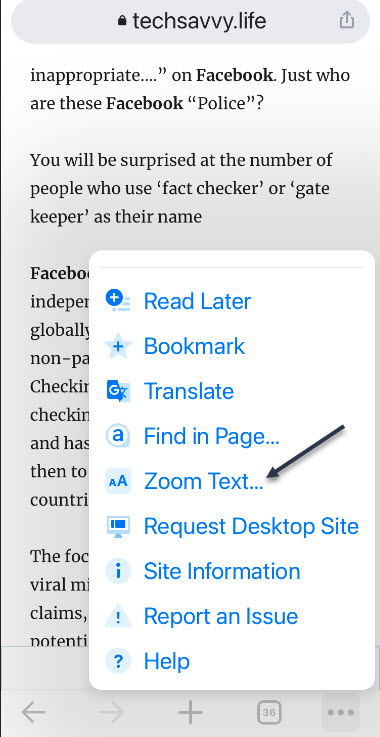
Next, from the drop-down menu that appears, scroll down and choose the Zoom Text option. See following image:

Text Size 3
Selecting the Zoom Text option

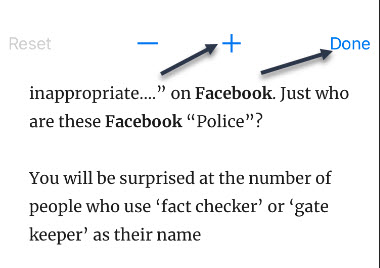
Now, you will now see a new toolbar at the top of your screen. Tap the “+” button to increase the text size or the “” button to reduce the text size. You can select the Reset button to go back to the default text size. Once you are finished, tap the Done button. Refer to below image:

Text Size 4
Selecting to increase the text size

A comparison between the default text size and zoomed text can be seen in the below image:

Text Size 5
Default text size versus zoomed text

Quote For the Day

Getting information off the Internet is like taking a drink from a fire hydrant.

Mitch Kapor

You are finished. Please feel free to share this post! One way to share is via Twitter.

Just click the Tweet icon below. This will launch Twitter where you click its icon to post the Tweet.

Check out TechSavvy.Life for blog posts on smartphones, PCs, and Macs! You may email us at contact@techsavvy.life for comments or questions.

I Would Like to Hear From You

Please feel free to leave a comment. I would love hearing from you. Do you have a computer or smart device tech question? I will do my best to answer your inquiry. Just send an email to contact@techsavvy.life. Please mention the device, app and version that you are using. To help us out, you can send screenshots of your data related to your question.

The author’s Vietnam eBook on the Battle for Tra Bong: Events and Aftermath