I am Raymond Oglesby, an Information Technology (IT) specialist with 30 years in the field. I have taught Microsoft Applications and troubleshot computers in 15 countries and many States. My career was focused on mainframes and desktops from application development to implementation. I have written hundreds of programs for various architectures. I decided to start a blog to share my knowledge and experiences with you. I plan on updating this blog at least twice a week about smart phone apps to Windows.
Please feel free to leave a Comment or Tweet. I would love to hear from you. Do you have a computer tech question? I will do my best to answer your inquiry. Please mention the app and version that you are using. To help me out, you can send screenshots of your data related to your question.
The post provides instructions for blocking contacts and numbers. It covers blocking contacts in the phone app and blocking numbers from recent calls.
RAYMOND OGLESBY @RaymondOglesby2 September 10, 2024 – 3 minutes read time
Overview
You can easily block any number if you receive texts and calls from a saved contact or a random number. Let’s explore how this is accomplished.
System Requirements
This post works on iPhones running iOS 15 or later. Screenshots are from iPhone 14 Pro running iOS 17.6.1
Click here to learn how to update your iPhone to the latest iOS version.
Block a Person in Your Contacts
If the person you want to block is already saved in your iPhone’s contact list, you can block them via the contacts tab in the Phone app.
First, open your Phone app. Refer to the below image:
Accessing your Phone app
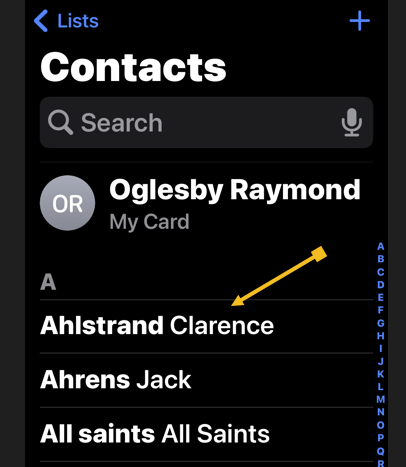
Next, tap the Contacts icon. See the below image:
Selecting your Contacts icon
Now, tap the contact you want to block. See the following image:
Selecting a Contact to block
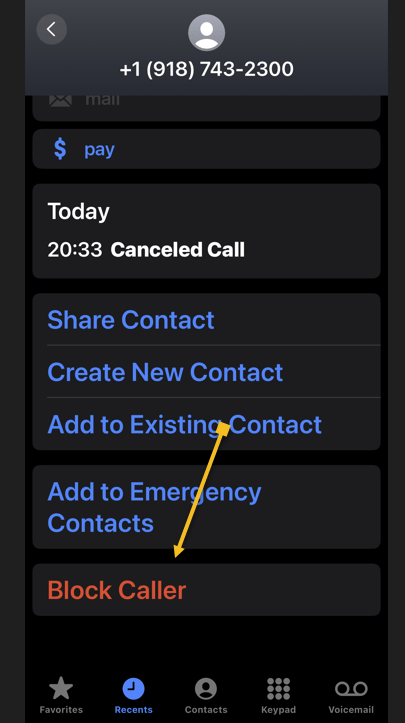
Next, tap the Block Caller option. Refer to the below image:
Selecting the Block Caller option
Now, tap the Block Contact menu option. See the below image:
Selecting the Block Contact option
Block a Number
If the number you want to block is not saved in your iPhone contact list, you can still block it in the Phone app.
First, open the Phone app. Refer to the below image:
Accessing your Phone app
Next, tap the Recents icon. See below image:
Selecting your Recents icon
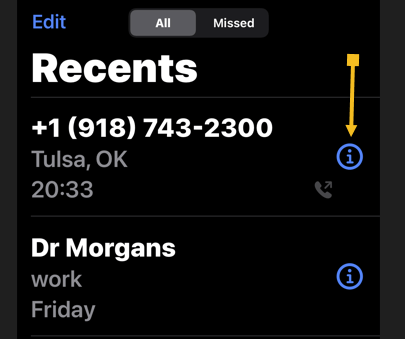
Now, fund the number you want to block and tap the Info button. See the following image:
Selecting the Info button of the number to block
Next, tap the Block Caller option. Refer to the below image:
Selecting the Block Caller option
Now, tap the Block Contact menu option. See the below image:
Selecting the Block Contact option
And that’s how you block a number or a contact on your iPhone. You can always unblock a caller by the above steps and tapping the Unblock Caller option.
Disclaimer
Technology is always changing. Rarely is there static tech for smartphones and desktops. Thus, the contents of this post are only valid at the time of writing. Blog posts older than six months may have directions incompatible with your device or OS. Hopefully, older post content will continue to work as advertised. Thank you for reading TechSavvy.Life for Technology at Work For You.
Quote For the Day
“Success is not achieved by winning all the time. Real success comes when we rise after we fall. Some mountains are higher than others. Some roads steeper than the next. There are hardships and setbacks but you cannot let them stop you. Even on the steepest road you must not turn back.”
Muhammad Ali
X (Twitter Info
Yea, you are finished. Please feel free to share this post! One way to share is via Twitter.
Just click the Tweet icon below. This will launch Twitter where you click its icon to post the Tweet.
Checkout TechSavvy.Life for blog posts on smartphones, PCs, and Macs! You may email us at contact@techsavvy.life for comments or questions.
Was this post helpful? We would love to hear your comments. Do you have a computer or smart device tech question? I will do my best to answer your inquiry. Just send an email to contact@techsavvy.life. Please mention the device, app, and version you are using. To help us, you can send screenshots of the data related to your question.
The author’s Vietnam eBook on the “Battle for Tra Bong Vietnam: Events and Aftermath” can be accessed from a Kindle device or the Kindle App for a desktop or smartphone. The apps are free.
The author’s Vietnam eBook on the Battle for Tra Bong Vietnam: Events and Aftermath
This post provides instructions for using the Dynamic Island feature to control the flashlight on iPhone 14 Pro and iPhone 15 models. The upcoming iOS 18 update will introduce new features for controlling the flashlight.
RAYMOND OGLESBY @RaymondOglesby2 September 3, 2024 – 3 minutes read
This is for iPhone 14 Pro, iPhone 14 Max, and iPhone 15 running iOS 17+. Screenshots are from iPhone 14 Pro running iOS 17.5.1.
Click here to learn how to update your iPhone to the latest iOS version.
Overview
Did you know you can use the Dynamic Island to control your iPhone’s flashlight? The Dynamic Island is one of the most useful features, thanks to shortcuts like this.
There are many different ways to turn off the flashlight on your iPhone. The iPhone 14 Pro and any iPhone 15 models introduced an extra option for switching off your flashlight with Dynamic Island. Let’s explore this feature.
What is Dynamic Island
The Dynamic Island is a relatively new interactive iOS 16 feature housing the TrueDepth front camera notch.
Dynamic Island is a pill-shaped zone on the upper side of the iPhone display. It adapts the camera hardware and is a shape-shifting hub for vital iPhone alerts or your ongoing activity. Since the feature is triggered automatically, you can view a multitasking bar within seconds without additional actions.
This UI area displays;
Alerts and Notifications
Background Activity
Access to Controls
Real-Time Updates
Turning On/Off the Flashlight
First, access the Flashlight by swiping down on your Home Screen from the upper right. Refer to the below image:
Swiping down to reveal the Control Panel
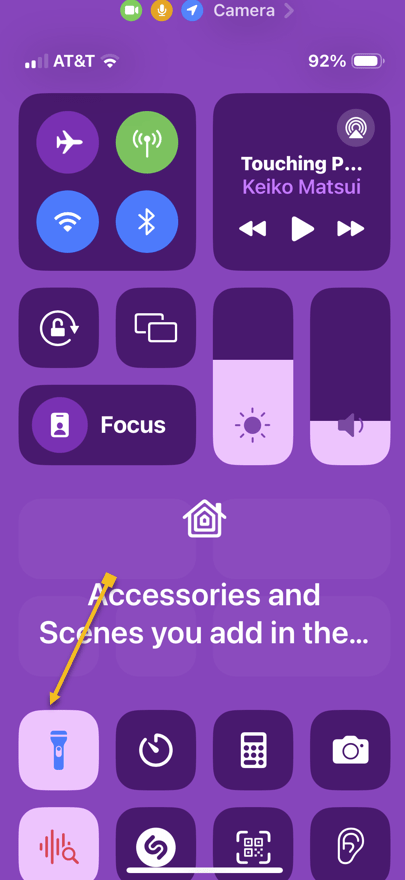
Now, the Control Center will be displayed. See the below image:
Your Control Panel
Next, tap the Flashlight icon. See the following image:
Selecting the Flashlight icon
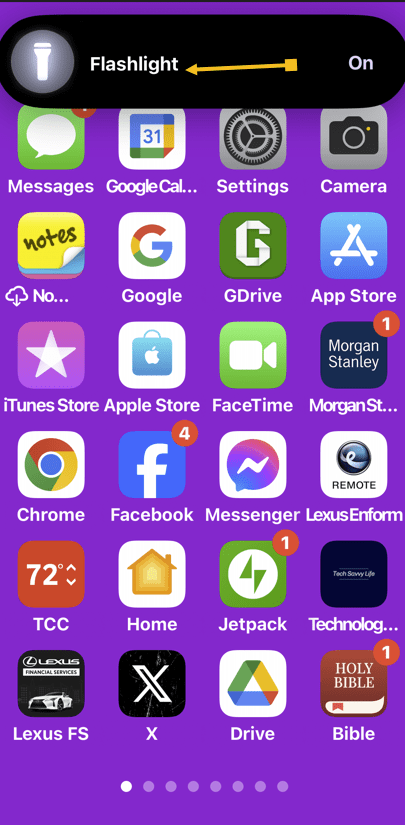
Now, you will see a tiny flashlight icon in the Dynamic Island. Tap it. Refer to the below image:
Taping the Flashlight icon in the Dynamic Island
Next, your Flashlight status will be shown in the Dynamic Island. Tap the icon to turn off the Flashlight. See the below image:
Taping the Flashlight icon to turn it off
New Flashlight Feature
In the September 2024 iOS 18 update Apple will add swipe capabilities to control the Flashlight beam and brightness.
Disclaimer
Technology is always changing. Rarely is there static tech for smartphones and desktops. Thus, the contents of this post are only valid at the time of writing. Blog posts older than six months may have directions incompatible with your device or OS. Hopefully, older post content will continue to work as advertised. Thank you for reading TechSavvy.Life for Technology at Work For You.
Quote For the Day
. “Real science can be far stranger than science fiction and much more satisfying.”
– Stephen Hawking
X (Twitter) Info
You are finished. Please feel free to share this post! One way to share is via Twitter.
Just click the Tweet icon below. This will launch Twitter where you click its icon to post the Tweet.
Checkout TechSavvy.Life for blog posts on smartphones, PCs, and Macs! You may email us at contact@techsavvy.life for comments or questions.
Was this post helpful? We would love to hear your comments. Do you have a computer or smart device tech question? I will do my best to answer your inquiry. Just send an email to contact@techsavvy.life. Please mention the device, app, and version you are using. To help us out, you can send screenshots of the data related to your question.
The author’s Vietnam eBook on the “Battle for Tra Bong Vietnam: Events and Aftermath” can be accessed from a Kindle device or the Kindle App for a desktop or smartphone. The apps are free.
The author’s Vietnam eBook on the Battle for Tra Bong Vietnam: Events and Aftermath
The content discusses how to play music on Amazon Echo using various services and how to set default music and podcast services. It also covers connecting and streaming music via Bluetooth.
RAYMOND OGLESBY @RaymondOglesby2 August 27, 2024– 7 minutes read time
This is for devices using Amazon Echo device. Screenshots are from iPhone 14 Pro running iOS 17.6.1
Alexa is a jack of all trades, but Amazon’s digital assistant can also help you listen to music via Pandora, Spotify, and other streaming services on your Echo device. Let’s explore listening to music on your Echo.
Your Amazon Echo possesses various skills, but its ability to play music is most useful and enjoyable. You can listen to music in various ways, though the process differs depending on whether you want to hear your own media library or stream songs from a specific service.
Amazon does not make it easy if you are looking to listen to music that you own, though it’s still doable. Your best bet is to stream music from your phone to your Echo over Bluetooth.
The simplest way to play music on your Echo device is to listen through a music streaming service. By default, your Echo will link to Amazon Music, or Amazon Music Prime if you are a Prime member. You can also connect to other popular music services and wirelessly stream songs directly from your mobile device.
Link to Streaming Services
After you set up your Amazon Echo, you can link your favorite music services, including Amazon Music, Apple Music, Deezer, iHeartRadio, Pandora, SiriusXM, Spotify, Tidal, TuneIn, Vevo, and Global Player. They all need an account with each one before accessing it through your Echo.
While most of these services have premium subscription options, you do not need to pay to play music through your Echo device. If the service offers a free tier, you can still listen (in a limited capacity). Refer to the below image:
Available Echo services
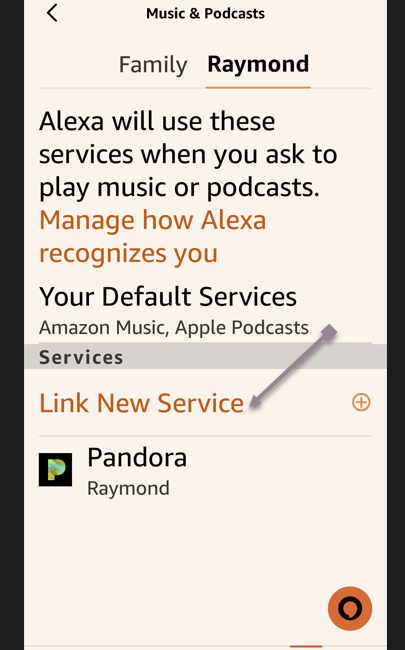
First, open the Alexa app on your mobile device to start playing music through your service of choice.
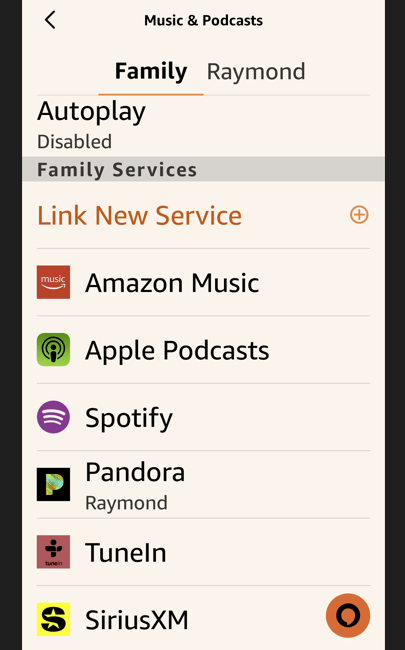
Next, tap More > Music & More, then swipe down the screen to the Link New Service section
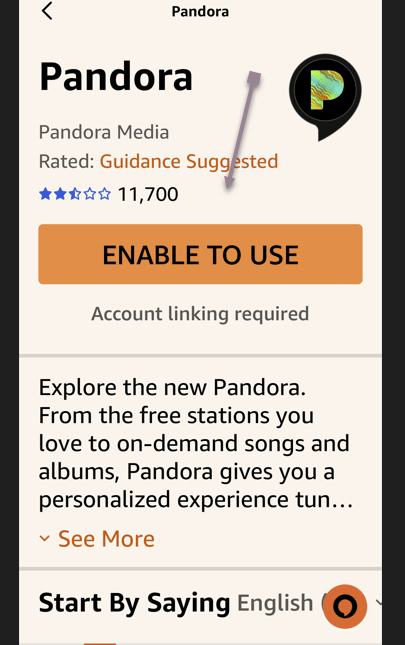
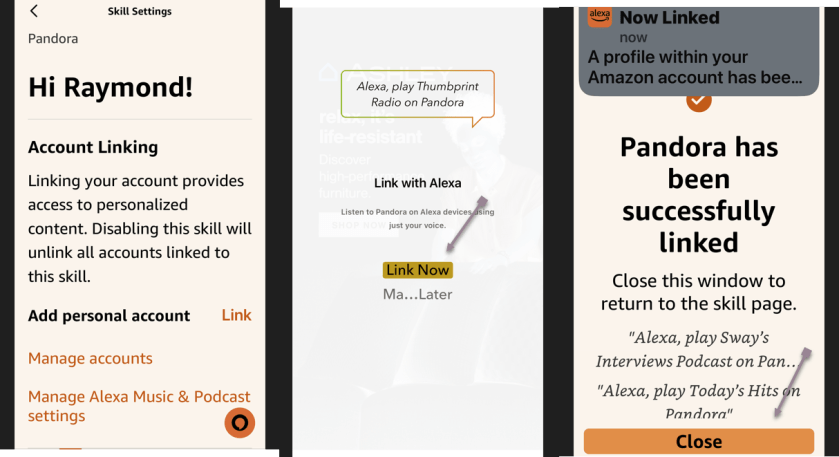
Now, tap the service name (we are selecting (Pandora), you want to add and choose Enable to Use. See the below image:
Enabling a service (Pandora)
Alternatively, tap the settings gear at the top right of the Music & More screen and tap Link New Service to see all the available services you can add. See the following image:
Selecting to link a new service (Pandora)
Next, sign in to that service and agree to let Alexa access your data. Refer to the below image:
Successful linking a new service (Pandora)
Now, after you finish adding your services, scroll to the bottom of the Music page in the Alexa app. You should see all the new services you previously added. To start playing music, you can open a streaming app and select your Echo as the destination to begin listening.
You can also ask your Echo to play music by specifying the name of the service. For example, you could say something like “Alexa, play the Rolling Stones from Apple Music,” or “Alexa, play country music from Pandora“.
Selecting Default Services
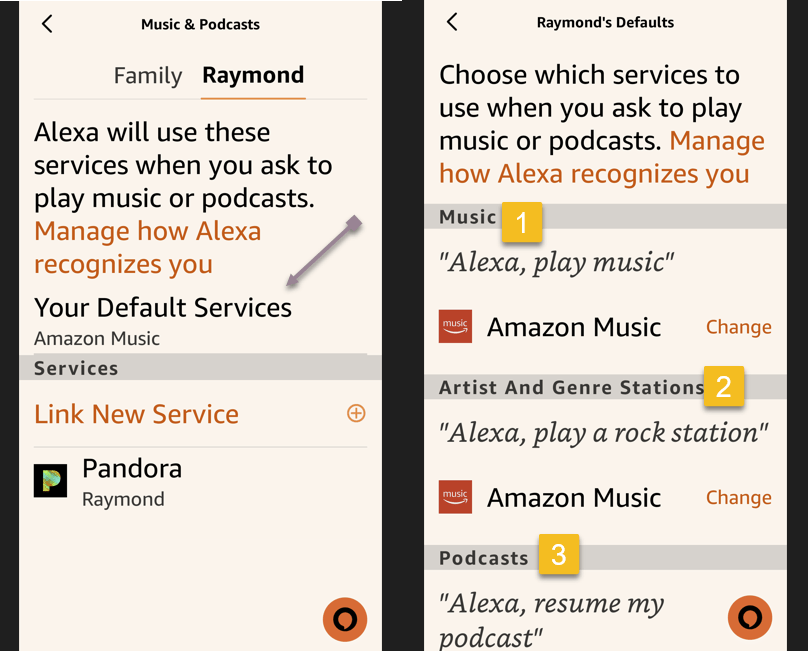
You must set one as the default to avoid specifying a service in your command. You can do this for both music and podcasts. First, head back to the Music & More screen in the Alexa app, tap the Settings icon at the top, and then select Default Services.
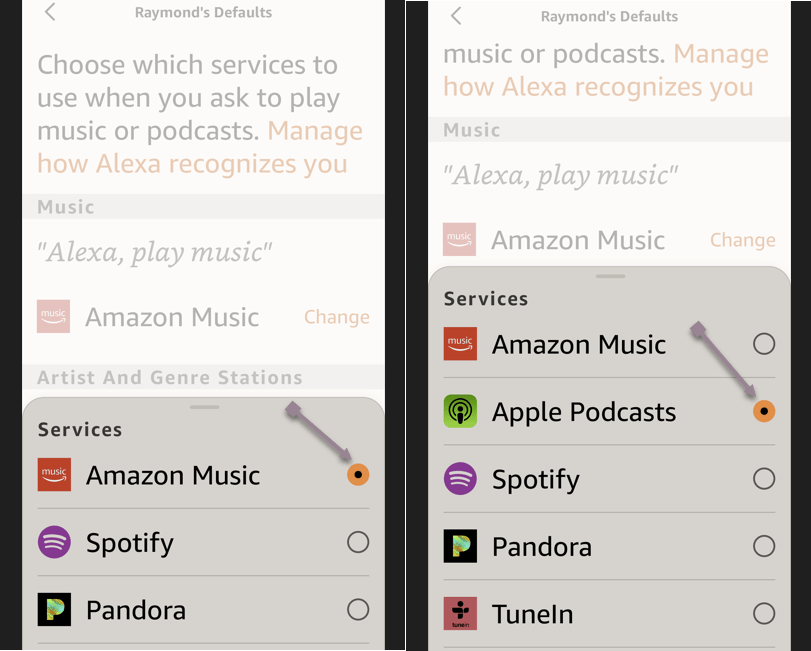
Next, tap Change next to Music and select the service you wish to set as the default for playing music. Tap Change next to Artist and Genre Stations to set default stations for a specific artist and genre. You can then tell Alexa to play music from an artist or genre, and it will play it from your default. service. See the below image:
Selecting to change your default services
Now, tap Change next to Music to set your music default service. Then tap Change next to Podcasts to set your default podcast service. See the following image:
Changing your default services
When you ask Alexa to play a song, album, artist, genre, or station, you can simply tell it what you want to play, and it will pull the music from the appropriate place without you needing to specify the name of the service. Refer to the below image:
Playing your selection
You may need to change the default speaker if you do not hear sound from your Echo device.
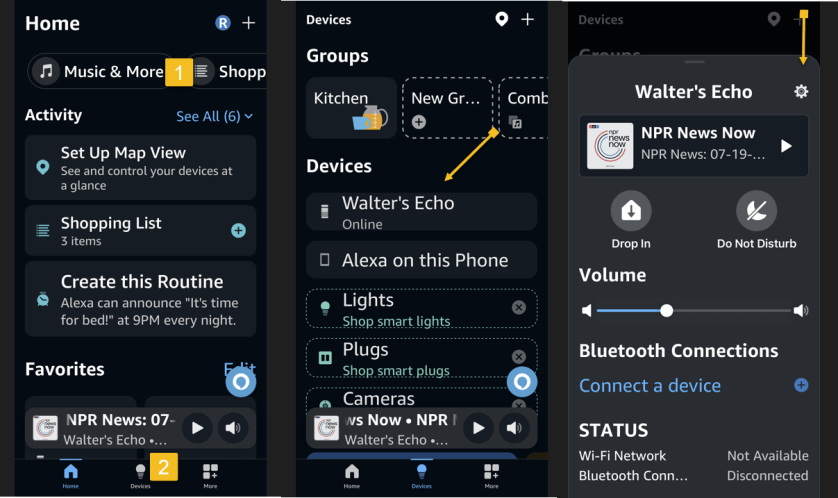
First, head to Music & More and tap the Groups icon in the bottom middle of the screen.
Next, tap your Echo device, then tap its Settings gear icon. See the below image:
Accessing Settings for your Echo device
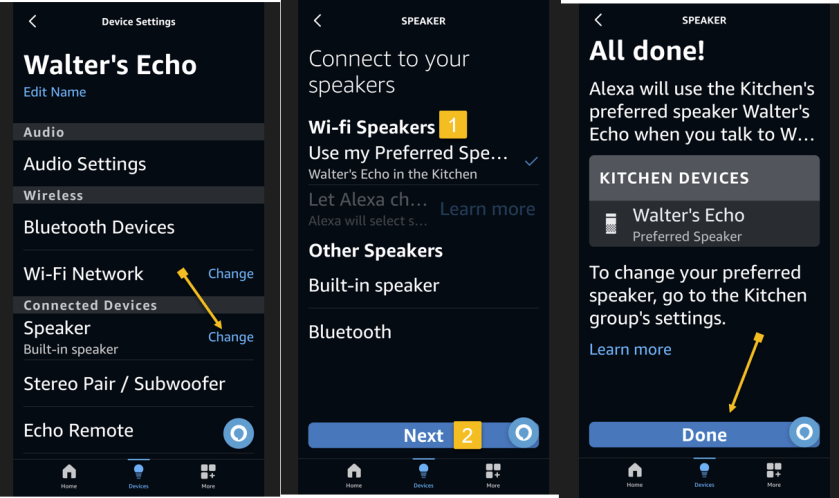
Now, tap the Change link and select your preferred speaker.
Next, tap the Next button. You will receive a message that your preferred speaker has been set. Simply tap Done to close the message. See the following image:
Changing your default speaker
Stream Music Over Bluetooth
Instead of listening to music directly from your Amazon Echo device, you can stream songs from your mobile device or computer to the speaker through Bluetooth.
Stream From a Mobile Device
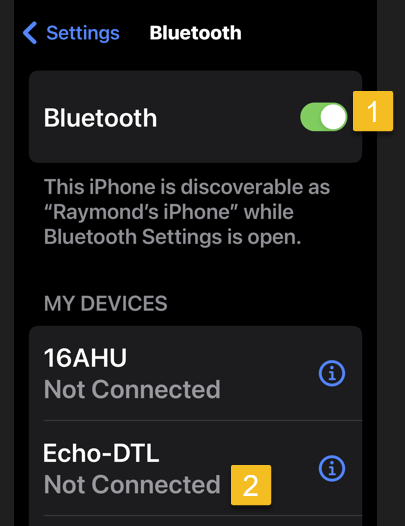
With your phone or tablet nearby, say “Alexa, pair,” and your Echo will enter pairing mode. Open the Bluetooth settings screen on your device and tap your Echo (it should appear as Echo-XXX) when it shows up. Alexa then announces the connection. Refer to the below image:
Choosing to connect your Echo device
Alternatively, you can pair the Echo to your mobile device through the Alexa app. Head to Devices and select the Echo you want to pair with your phone or tablet.
Connect to Echo
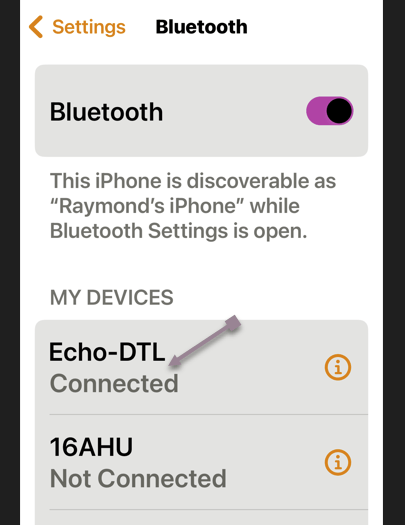
First, under Bluetooth Connections for that device, tap Connect a device. Choose your device, and your Echo is connected. See the below image:
Your Echo device is connected
Now, the audio will go through your Echo device when you play music from your phone or tablet. You can then control playback from your mobile device or Alexa.
Disconnect/reConnect From/To Echo
To disconnect your Echo from your mobile device, say, “Alexa, disconnect from [name of device].”
You can always reconnect the device by saying “Alexa, connect to [name of device]”.
Disclaimer
Technology is always changing. Rarely is there static tech for smartphones and desktops. Thus, the contents of this post are only valid at the time of writing. Blog posts older than six months may have directions incompatible with your device or OS. Hopefully, older post content will continue to work as advertised. Thank you for reading TechSavvy.Life for Technology at Work For You.
Quote For the Day
“In the real world, the smartest people are people who make mistakes and learn. In school, the smartest people don’t make mistakes.”
Robert T Kiyosaki
X (Twitter) Info
That’s it. Please feel free to share this post! One way to share is via Twitter.
Just click the Tweet icon below. This will launch Twitter where you click its icon to post the Tweet.
Checkout TechSavvy.Life for blog posts on smartphones, PCs, and Macs! You may email us at contact@techsavvy.life for comments or questions.
Was this post helpful? We would love to hear your comments. Do you have a computer or smart device tech question? I will do my best to answer your inquiry. Just send an email to contact@techsavvy.life. Please mention the device, app, and version you are using. To help us out, you can send screenshots of your data related to your question.
The post discusses the accessibility features on iPhone and iPad, emphasizing their importance for users with visual or audio impairments. It provides a detailed guide on enabling Accessibility Shortcut and Back Tap gestures, highlighting various options such as AssistiveTouch, Color Filters, and Voice Control.
RAYMOND OGLESBY @RaymondOglesby2 August 20, 2024 – 7 minutes read time
This is for iPhone and iPad. Screenshots are from iPhone 14 Pro running iOS 17+
Accessibility is always important since it makes devices easier for those with visual or audio impairments. Apple always does a great job with accessibility, and you will find plenty of accessibility options on your iPhone or iPad to make life easier. Perhaps you need to have more sound on one side of your favorite headphones, or you just need to make text easier to read. No matter what you need, iOS 17 and iPadOS 17 are very inclusive, so you will not feel left behind. And to make it even easier to access your favorite accessibility tools, there is the Accessibility Shortcut on your favorite iPhone or iPad.
How to Enable
Launch the Settings app on your iPhone or iPad.
Tap on Accessibility.
Tap on Accessibility Shortcut; it’s all the way to the bottom. Refer to the below image:
Selecting Accessibility Shortcut option
Tap the action you would like to perform when you triple-click the Home or Side button so that a blue checkmark appears next to it. You can assign multiple functions to the shortcut.
If you want to reorder the options, just drag and drop. Tap and hold the handle on the right side of each option to move it.
Triple-click your Home button (Touch ID devices) or Side button (Face ID devices) to perform the action you have assigned to the shortcut.
If you have assigned multiple options, simply choose the action you want to perform from the menu. See the below image:
Assigning multiple shortcuts and reordering them
Here’s a brief description of the options you have and what they are:
AssistiveTouch: Adds the ability to access many common hardware buttons and gesture controls with single taps; a useful feature for those with motor impairments.
Background Sounds: A new feature in iOS 15, Background Sounds lets you play soothing white noise to help you concentrate. Using the Accessibility Shortcut toggles your selected sound. First, you need to set up your Background Sounds.
Classic Invert Colors: A great option for anyone with a visual impairment such as color blindness. All colors across iOS will be inverted.
Color Filters: Changes the color layout of the screen for those with color blindness.
Full Keyboard Access: This allows you to navigate the iOS interface without using touch input. A physical keyboard is required to use this feature.
Increase Contrast: This will increase the contrast of visual elements on the screen, making it easier to see and read text.
Left/Right Balance: This turns on your custom audio balance setting if you have one set up. For example, if you want more sound on the left or right side of your earbuds or headphones, you will want to adjust that audio balance. Turning this off will go back to the default setting.
Magnifier: Triggers a camera-style viewfinder with sharp zoom controls so you can see small text. You will need the Magnifier enabled to have this option available.
People Detection: With People Detection, your iPhone 12 or iPhone 13 uses Machine Learning with the LiDAR scanner to determine if an object in the camera is a person. You will receive audio feedback to help you determine how far away or close a person is to you.
Reduce Motion: This turns on the Reduce Motion setting, which reduces motion in the user interface, including the parallax with app icons. This can also help conserve some battery power.
Reduce Transparency: This reduces the transparency used in apps and websites, including blurred backgrounds. Having this on improves the legibility of text.
Reduce White Point: Reduces the intensity of bright colors for those with sensitivities or color blindness.
Smart Invert Colors: Same as Classic Invert Colors, except it does not change photos, media, and some apps.
Switch Control: This lets you use external switches, or the screen itself, as a switch for motor accessibility.
Voice Control: This lets you speak commands to your iPhone or iPad.
VoiceOver: Allows your iPhone or iPad to speak to you when enabled. Commonly used by folks with visual impairments.
Zoom: Allows you to zoom your content for better visibility. You can then use two and three-finger gestures to tap and pan around.
Guided Access: This keeps the iPhone in a single app and allows you to control which features are available. You need the Guided Access feature enabled before it is available as an Accessibility Shortcut option.
Once you have made your selection for the Accessibility Shortcut on iPhone and iPad, you can simply triple-click the Home button or the Side button on iPhones and iPads with Face ID from anywhere, not just from Settings, and your iPhone or iPad will enable the function you have selected. To disable it, just triple-click the button again. If multiple functions are assigned, tap the option you want to use.
Back Tap
iOS 14 added a new Back Tap gesture. With the Back Tap, you can double-tap or even triple-tap the back of your iPhone for quicker access to some commonly used actions, such as accessing the Notification Center or Control Center. You can also use the Back Tap gesture to launch Shortcuts that you have created, opening up a whole new world of possibilities.
Launch Settings on your iPhone or iPad.
Tap Accessibility.
Tap Touch. See the following image
Selecting the Touch option
Tap Back Tap at the bottom.
Tap Double Tap or Triple Tap to choose an action. Refer to the below image:
Selecting Back Tap options
Select an action for your chosen Back Tap. Options include the Accessibility Shortcut that we just created, or you can choose from System, Accessibility, Scroll Gestures, or your own Shortcuts actions. See the below image:
Selecting Double and TripleTtap functions.
Quick Access
As you can see, having an Accessibility Shortcut and Back Tap gestures can make your life easier. It adds another layer of customization to your device, and you do not need to fiddle around in the settings every time to get to certain accessibility actions. Even if you are not visually or hearing impaired, these accessibility features are handy for everyone.
Disclaimer
Technology is always changing. Rarely is there static tech for smartphones and desktops. Thus, the contents of this post are only valid at the time of writing. Blog posts older than six months may have directions incompatible with your device or OS. Hopefully, older post content will continue to work as advertised. Thank you for reading TechSavvy.Life for Technology at Work For You.
Quote For the Day
“Real work is completed in silence and strikes a chord in the minds of only a very few.”
CG Jung
X (Tweeter) Info
That’s it. Please feel free to share this post! One way to share is via Twitter.
Just click the Tweet icon below. This will launch Twitter where you click its icon to post the Tweet.
Checkout TechSavvy.Life for blog posts on smartphones, PCs, and Macs! You may email us at contact@techsavvy.life for comments or questions.
Was this post helpful? We would love to hear your comments. Do you have a computer or smart device tech question? I will do my best to answer your inquiry. Just send an email to contact@techsavvy.life. Please mention the device, app, and version you are using. To help us out, you can send screenshots of the data related to your question.
The author’s Vietnam eBook on the “Battle for Tra Bong Vietnam: Events and Aftermath” can be accessed from a Kindle device or the Kindle App for a desktop or smartphone. The apps are free.
The author’s Vietnam eBook on the Battle for Tra Bong Vietnam: Events and Aftermath
This post emphasizes the importance of strong, unique passwords and the use of password managers to enhance security. It highlights the risks of using common or personal information-based passwords and provides tips for creating and managing secure passwords.
RAYMOND OGLESBY @RaymondOglesby2 August 13, 2024 -9 minutes read time
This is for devices using passwords. Screenshots are from iPhone 14 Pro running iOS 17.5.1+
If you are still using “qwerty” or “starwars” as a password, you should stop doing this. Let’s find out what makes a bad password, why you should care, and how to make a good one.
The Case For Strong Passwords
Don’t have the password to get into your bank account? You are out of luck unless you can trick the bouncer into telling you the password is “kangaroo.” A simple password like that would be a terrible choice to protect your access to a bank site. And yet, chances are good you are using something just as bad, because stronger passwords are too hard to remember.
The only safe way to store proper passwords is in a password manager. If you are not using one, you probably rely on a highly crackable password like “baseball” or “12345”, or you have memorized one complex password, like “Jazz2day4Me!” and use it everywhere. Password security is no small matter. Given the enormous risk, you need to keep your passwords safe.
Even the best password manager does not guarantee the safety of your accounts; not if you use it to store the same old, tired passwords. You have to switch out your old and weak passwords for new and stronger ones.
Once you have replaced all your lame passwords with strong, unique ones, you can relax, at least until a data breach forces a change. The National Institute of Standards and Technology (NST) no longer recommends changing passwords every 90 days. NIST now recommends using long phrases like “Correct-Horse-Battery-Staple” and changing them only when necessary. If you have terrible passwords, “when necessary” means right now.
Bad passwords
Just what makes a bad password? Let’s look at some of the attributes of terrible passwords, and then some pointers on improving them.
Ditch the Dictionary
Every few months a news outlet posts a list of the worst passwords. We see a lot of easy-to-type options, like“12345” and “qwerty”. Easy for you to type? Sure. But also easy for hackers to crack. Other common (and poor) passwords consist of simple dictionary words, like “baseball”, “monkey”, and “starwars” in the list of worst passwords. These, too, are easy to crack.
A few of the best password managers (tap or click a button to view):
Some secure websites lock down after a given number of wrong password attempts, but many do not. For those with no bad guess lockout, hackers can cross a list of email addresses with a list of popular passwords and set up an automated process to keep trying combinations until they get in.
A properly secured website does not store your password anywhere. Instead, it runs the password through a hashing algorithm, a one-way encryption. The same input always produces the same output, but there’s no way to return to the original password from the resulting hash. If the password you type hashes to the same one that’s stored, you gain access. Even if hackers capture the site’s user data, they do not get passwords, just hashes.
But smart hackers can crack weak passwords if they know the site’s hashing function. They start by running a huge dictionary of common passwords through the hashing function. Then they look for the resulting hashes in the captured data. Each match is a cracked password. Sites with the best security enhance the hash function with password salting, which makes table-based cracking impossible, but why take the risk? Just stay out of the dictionary.
Think Differently
What about this perfect password: 1qaz2wsx3edc4rfv. You just “type” it by sliding a finger down four slanted columns of the keyboard. You think it’s so perfect, that you use it everywhere. And that is a big mistake.
Hardly a week goes by without news of a breach at some company or website, exposing thousands or millions of usernames and passwords. Smart victims change their passwords immediately. Those who ignore the problem may find themselves locked out of their accounts after the hackers have reset your passwords.
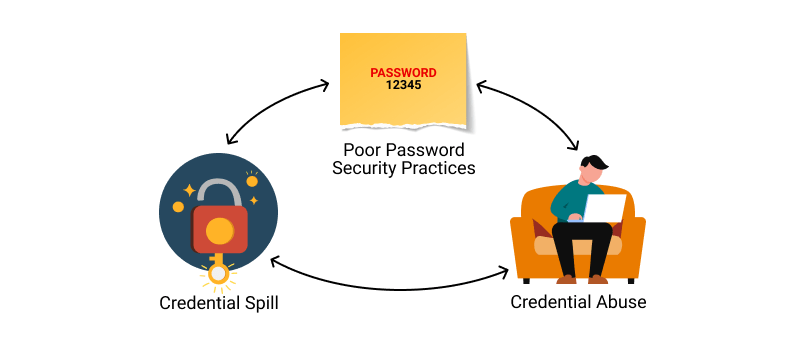
Those hackers know that all too many people recycle their passwords. Once they find a working username and password pair, they try the same credentials on other sites. You may not be so worried about losing access to your old Dropbox account, but if you used the same login on your bank’s website, you are in big trouble.
Using the same credentials on websites
It gets worse. If someone else takes control of your email account, they can lock you out by changing the password. Then they can break into your other accounts by having a password reset link emailed to that account. Worried yet? You should be!!!!
Stay Away From Being Personal
Using personal information as the basis for your passwords is awfully tempting, but it’s a bad idea. Whether your dog’s name is Fifi or Khaleesi, that name probably appears in the dictionaries hackers use for brute-force attacks. Other possibilities such as the initials and birthdate of a family member probably will not fall to a brute-force attack. If someone wants to hack your account specifically, that personal data can fuel a trial-and-error guessing attack.
Do not think for a minute that your personal details are private. There are dozens of sites people can use to find details about anybody: address, birthdate, marital status, and more. Your social media posts can be another source of personal info, especially if you have not properly secured your accounts. A determined hacker (or a nosy neighbor) can probably guess any password you build based on your data.
Shut the Back Door
If you are not using a password manager, you have surely experienced forgetting the password for a site. It’s all too common. That is why virtually every login page includes a “Forgot your password?” link. Some sites send a reset link to your email address, while others let you reset the password after answering your security questions. And that opens a back door to anyone wanting to hack your account.
Most sites offer abysmal options for security questions like:
What is your mother’s maiden name?
Where did you go to high school?
What was your first job?
As noted, your personal life is an open book to anyone with internet searching skills. When possible, ignore the preset questions. Create your own question, with a unique answer you will always remember but nobody else could guess.
It’s harder when the site does not let you define your own questions. In that case, your best bet is to use a memorable answer that’s a total LIE like:
My mother’s maiden name is Fauci.
I went to school at More Science High School.
For my first job, I was a linotype operator.
There is an element of risk since you might forget which lie you chose. We suggest storing these oddball answers in the iPhone Notes app or onGoogle Drive.
What To Do Now
We hope we have convinced you that using common passwords is a rotten idea, as is building passwords from personal information. Even the best strong, random password becomes a liability if you use it everywhere. If you are ready to spring into action, here are some starting points:
Use a password manager
Switch to a better password manager
Remember an extremely secure master password for your password manager and keep it on another app. Better yet, just remember the master password.
Take advantage of a random password generator to upgrade your old, bad passwords
You could even create your own random password generator in Excel
Enable multi-factor authentication wherever available
If a secure site does not take care of security, you could still lose that site’s credentials to a data breach, but by making all your passwords long, strong, and unique, you can rest assured that you have done everything you can to protect your online accounts from password-based attacks.
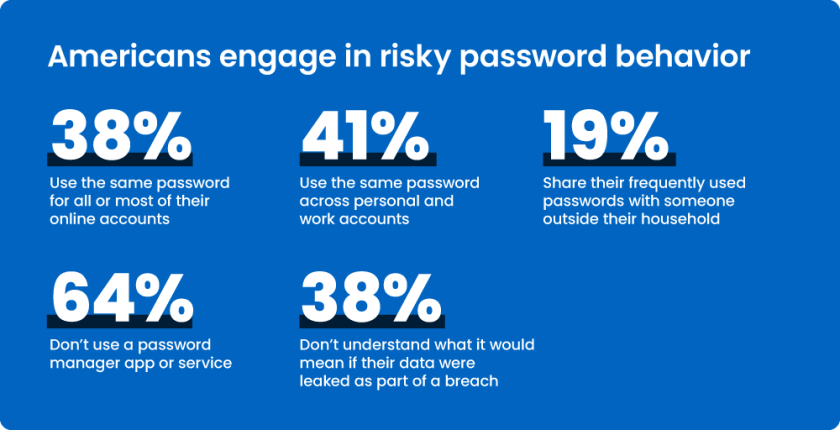
Risky password behavior
You may want to switch to using Passkeys or Passphrases.
Source: PC Mag
Disclaimer
Technology is always changing. Rarely is there static tech for smartphones and desktops. Thus, the contents of this post are only valid at the time of writing. Blog posts older than six months may have directions incompatible with your device or OS. Hopefully, older post content will continue to work as advertised. Thank you for reading TechSavvy.Life for Technology at Work For You.
Quote For the Day
“Try and keep on trying until that which seems difficult becomes possible and that which seems only possible becomes habit and a real part of you.”
Dieter F Uchtdorf
X (Twitter) Info
That’s it. Please feel free to share this post! One way to share is via Twitter.
Just click the Tweet icon below. This will launch Twitter where you click its icon to post the Tweet.
Checkout TechSavvy.Life for blog posts on smartphones, PCs, and Macs! You may email us at contact@techsavvy.life for comments or questions.
Was this post helpful? We would love to hear your comments. Do you have a computer or smart device tech question? I will do my best to answer your inquiry. Just send an email to contact@techsavvy.life. Please mention the device, app, and version you are using. To help us, you can send screenshots of the data related to your question.
The post provides advice on cleaning Apple AirPods to prevent dirt and bacteria accumulation, which can affect performance and cause irritation or infection. It provides specific cleaning instructions for AirPods, AirPods Pro, and AirPods Max. Regular maintenance is emphasized to extend their life. Additionally, the post advises on cleaning the case.
RAYMOND OGLESBY @RaymondOglesby2 August 6, 2024 – 5 minutes read time
This is for Apple AirPod. AirPod Pro and AirPod Max.
Overview
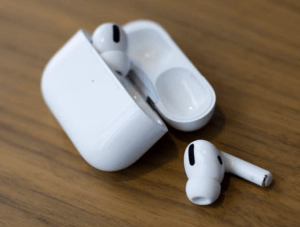
AirPods, Pro, and Max can accumulate dirt and bacteria you do not want to introduce into your ear canal because they can cause irritation or infection. As for your AirPods, an accumulation of wax, sweat, and other substances can affect their performance.
Cleaning those small white AirPods and AirPods Pro can seem pretty delicate. And even the bulky AirPods Max can be baffling because of the mix of materials they are made out of. Let’s explore how to clean your AirPods.
AirPodsAirPods ProAirPods Max
Prevention
The first thing you can do is a bit of prevention. To keep AirPods and AirPods Pro out of dirt and water as much as possible, consider getting a third-party strap so they are attached to each other, making them less likely to fall. You can find many styles, from simple silicone to glitzy gold. When your AirPods Max are not in use, stash them in their case instead of leaving them out or letting them go loose in a bag.
Products to Use and Avoid
The things to have on hand if you want to keep your AirPods clean are pretty simple: lint-free cloths, cotton swabs, and a bit of water will do the job in most instances.
Apple used to only recommend water and lint-free cloths for cleaning most of its products before the pandemic. Now it says it’s okay to use 70% isopropyl alcohol wipes, 75% ethyl alcohol wipes, or Clorox Disinfecting Wipes on the exterior parts of AirPods, AirPods Pro, and AirPods Max. But you should avoid using such wipes on the knit mesh or ear cushion parts of the AirPods Max.
And you should not use bleach or anything with hydrogen peroxide to clean any AirPods.
Maintenance
Maintenance is key to extending the life of your AirPods. For maintenance, clean AirPods, AirPods Pro, and AirPods Max with a dry, lint-free cloth. It does not have to be expensive or fancy like the $19 Polishing Cloth Apple sells. You can clean any microphone and speaker meshes with a dry cotton swab.
Dive Into a Deeper Clean
If your AirPods have gotten something on them like lotion or food (it happens), or have stood up to a lot of sweat, you can take a lint-free cloth, dampen it with a bit of water, and give them a light rubdown. Dry them off with a lint-free cloth and then let them sit out a bit before you put them back in the case. If there’s earwax present, hold your AirPods with the mesh facing toward the ground and go over the mesh lightly with a dry cotton swab. If it’s still stuck, carefully try a toothpick or other small pointed object around the edges of the mesh but be aware that if you exert too much force, you can loosen or dislodge the mesh itself.
The AirPods Pro has an ear tip, so if you want a more thorough cleaning, remove the tips and rinse them with water. If there is earwax or anything else still stuck to them, use a dampened cotton swab to remove it. Dry the ear tips with a lint-free cloth and don’t put them back on until they’re thoroughly dry.
For the AirPods Max, a good cleaning involves wiping them down with a slightly dampened lint-free cloth and then a dry one after. Because the AirPods Max are headphones, there’s more surface area to attract dirt. If the cushions and headband look or feel grimy, you can give them a bit of a wash. Remove the ear cushions first to clean them separately. Then combine a teaspoon of mild detergent with a cup of water and use a lint-free cloth to wipe the band and cushions down with the solution. Follow that with a wipe of just water on a cloth and then dry all the components completely.
Cleaning Your Case
Since your AirPods are often in their case, you also want to keep that clean. You can use a clean, lint-free cloth slightly dampened with water or an alcohol wipe if the case really needs it. Ensure the case is completely dry before you put your AirPods back in. You would do well to turn the case upside down while it dries.
Disclaimer
Technology is always changing. Rarely is there static tech for smartphones and desktops. Thus, the contents of this post are only valid at the time of writing. Blog posts older than six months may have directions incompatible with your device or OS. Hopefully, older post content will continue to work as advertised. Thank you for reading TechSavvy.Life for Technology at Work For You.
Quote For the Day
Tell the world what you intend to do, but first show it.
Napoleon Hill
X (Twitter) Info
That’s it. Please feel free to share this post! One way to share is via Twitter.
Just click the Tweet icon below. This will launch Twitter where you click its icon to post the Tweet.
Checkout TechSavvy.Life for blog posts on smartphones, PCs, and Macs! You may email us at contact@techsavvy.life for comments or questions.
Was this post helpful? We would love to hear your comments. Do you have a computer or smart device tech question? I will do my best to answer your inquiry. Just send an email to contact@techsavvy.life. Please mention the device, app, and version you are using. To help us out, you can send screenshots of the data related to your question.
The iPhone’s night vision mode turns the screen red to reduce eye strain. This feature is beneficial for low-light environments and can be enabled in the device’s settings. The red screen helps with quicker eye adaptation in the dark and can be useful for various activities such as stargazing and viewing smartphones discreetly in dark environments.
This is for the iPhone. Screenshots are from iPhone 14 Pro running iOS 17.5.1+
The iPhone has a “night vision” feature that turns your screen red. More than giving a spy movie vibe, a red screen could help sharpen people’s night vision by reducing the harmful effect of the bright displays we stare at all day.
Overview
Night vision mode is helpful at night and when we first wake up, since the regular light the iPhone displays can cause fatigue and harm our eyes. Apple already offers some built-in options to protect our eyes, such as:
Warn that the iPhone is too close to your face.
Night Mode, which reduces blue light and reduces fatigue.
True Tone, which adjusts the display color based on your environment.
Dark Mode, which switches the bright whites to black or dark gray colors, puts less stress on your eyes.
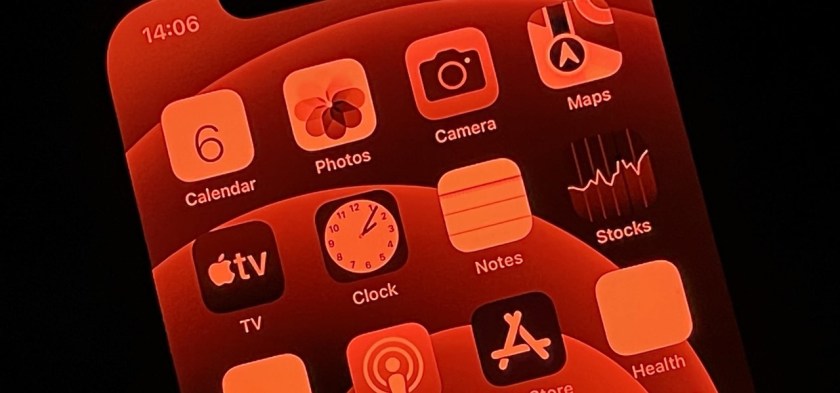
Still, there are benefits to turning your iPhone screen red. The color is more difficult to see than other light frequencies, so it tricks our eyes into thinking it’s less bright than it actually is. In a dark room, for example, your pupils will not have to adjust as much to the light. Also, when you look away, your eyes adapt quicker to the darkness around you. Refer to the below image:
iPhone Red Screen for Night Vision
In addition, this iPhone feature can also help you use star map apps for astronomy, sneaking your phone at the theaters, eyesight animals, or when you check your phone in the middle of the night.
Enable Night Vision
With that in mind, Apple has this Night Vision mode. Here’s how you can enable it.
On your iPhone, open Settings
In the Accessibility tab, search for Display & Text Size
Turn on Color Filters
Move Intensity to the far-right position for the full red-screen effect.
Select Color Tint
Quickly Turn the Screen to Red
Now that you know how to turn on this iPhone’s feature, there are three options to make turning it on and off more straightforward.
Triple click:
On Settings, Accessibility, Accessibility Shortcut, choose Color Filters to triple-click the side button and activate this setting.
Control Center:
On Settings, Control Center, and Accessibility Shortcuts, you can add this shortcut to your Control Center, so it’s just one tap away from changing your display from bright white to red.
Siri:
You can ask Siri to either enable or disable color filters.
Disclaimer
Technology is always changing. Rarely is there static tech for smartphones and desktops. Thus, the contents of this post are only valid at the time of writing. Blog posts older than six months may have directions incompatible with your device or OS. Hopefully, older post content will continue to work as advertised. Thank you for reading TechSavvy.Life for Technology at Work For You.
Quote For the Day
An ounce of action is worth a ton of theory.
Friedrick Engels
X (Twitter) Info
That’s it. Please feel free to share this post! One way to share is via Twitter.
Just click the Tweet icon below. This will launch Twitter where you click its icon to post the Tweet.
Checkout TechSavvy.Life for blog posts on smartphones, PCs, and Macs! You may email us at contact@techsavvy.life for comments or questions.
Was this post helpful? We would love to hear your comments. Do you have a computer or smart device tech question? I will do my best to answer your inquiry. Just send an email to contact@techsavvy.life. Please mention the device, app, and version you are using. To help us out, you can send screenshots of your data related to your question.
The author’s Vietnam eBook on the “Battle for Tra Bong Vietnam: Events and Aftermath” can be accessed from a Kindle device or the Kindle App for a desktop or smartphone. The apps are free.
The author’s Vietnam eBook on the Battle for Tra Bong Vietnam: Events and Aftermath
Apple Maps now offers indoor maps for certain malls and airports, accessible through the app on iPhone and iPad. This feature eliminates the need for physical maps, allowing users to easily navigate these indoor spaces. By following specific steps within the Maps app, users can view indoor locations and access additional details.
This is for the iPhone and iPad using Apple Maps. Screenshots are from iPhone 14 Pro running iOS 17.5.1
For certain malls and airport locations, Apple has indoor maps viewing directly from the Maps app. You will love this feature because it allows you to figure out where you are without locating a directory or physical map somewhere inside the location. Let’s explore this feature.
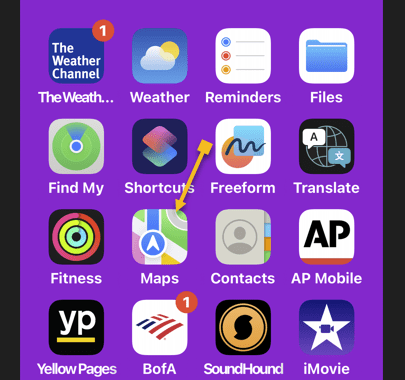
First, open Maps on your iPhone. Refer to the below page:
Accessing the Maps app
Next, tap the Search box and type in the name of the airport or mall. See the below image:
Selecting the Search box
Now, tap it or swipe up to access the menu options until you see the location you want and tap it. See the following image:
Selecting your search criteria
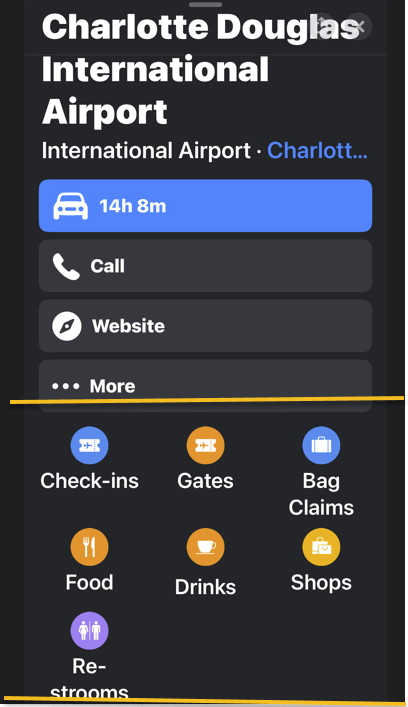
Next, depending on what map you are looking at, you will see options for various stores and/or locations within the building. Tap one of the options to see it plotted on the map. Refer to the below image:
Search menu options
Now, you will see all the gates, shops, or other type of location you selected. For example, we are accessing the Charlotte Douglas International Airport airport gates. See the below image:
Selecting Gates for the airport
Next, swipe up for a list of all locations. See the following image:
Selecting aGate from the listing
Now, when you tap a location, it will get larger on the map, making it easier to find. Refer to the below image:
And that’s how you view indoor maps! Apple is constantly updating its inventory of indoor maps, so hopefully, we will have access to even more of them in the future.
Disclaimer
Technology is always changing. Rarely is there static tech for smartphones and desktops. Thus, the contents of this post are only valid at the time of writing. Blog posts older than six months may have directions incompatible with your device or OS. Hopefully, older post content will continue to work as advertised. Thank you for reading TechSavvy.Life for Technology at Work For You.
Quote For the Day
“You will either step forward into growth or you will step back into safety.”
Abraham Maslow
X (Twitter) Info
That’s it. Please feel free to share this post! One way to share is via Twitter.
Just click the Tweet icon below. This will launch Twitter where you can tap the Post icon to post the Tweet.
Checkout TechSavvy.Life for blog posts on smartphones, PCs, and Macs! You may email us at contact@techsavvy.life for comments or questions.
Was this post helpful? We would love to hear your comments. Do you have a computer or smart device tech question? I will do my best to answer your inquiry. Just send an email to contact@techsavvy.life. Please mention the device, app, and version you are using. To help us out, you can send screenshots of your data related to your question
The Flower icon in iPhone Pro indicates macro mode for close-up photography. To disable the macro lens, tap the Flower icon in the camera app. In settings, under Camera, toggle Macro Control to disable the Flower icon. The iPhone 15 Pro models support macro photography, while the standard model does not.
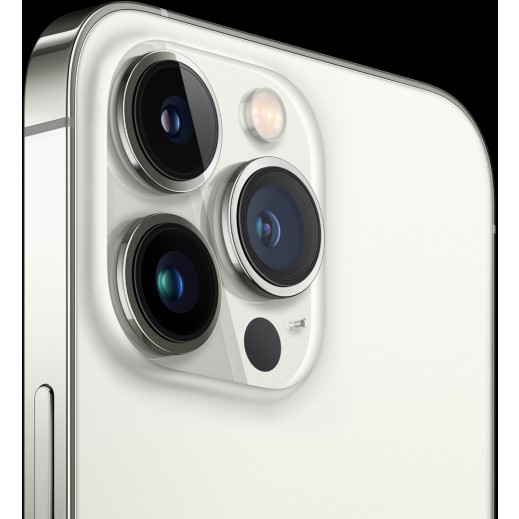
This is for the iPhone Pro. Screenshots are from iPhone 14 Pro running iOS 17.5.1
If you have a Pro iPhone, you have probably noticed the Flower icon while taking photos on your iPhone camera. This icon should only appear when your camera enters Macro mode for taking close-up pictures. Let’s explore how to use and disable the Macro mode Flower icon.
What is the Flower Icon on Your iPhone Camera
As you might have guessed, the icon indicates your iPhone’s macro camera is enabled. iPhone macro photography lets you take clear, extreme close-up shots of nearly any subject. If you do not need to use the iPhone’s macro lens, you can easily disable it from the camera by tapping the Flower icon.
How to Turn Off the Macro Lens
If you are uninterested in iPhone macro photography, you can disable the macro lens.
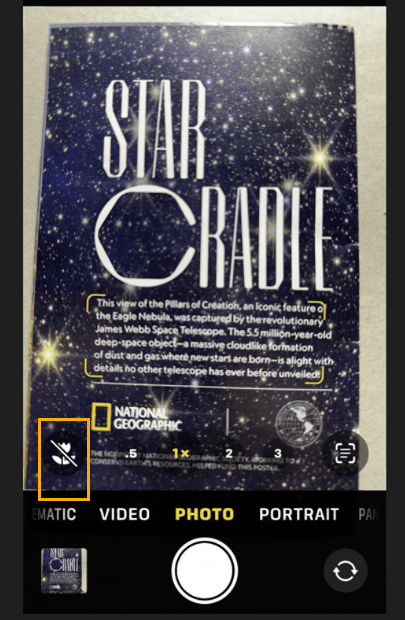
First, when the camera is open, tap the yellow Flower icon. Refer to the below image:
Maco Mode is enabled
Next, when it is gray with a slash through it, that means it has been disabled. See the below image:
Macro Mode is disabled
That’s how to disable the macro photography lens. If you want to disable the icon itself, see the below section.
How to Disable the Flower Icon in iPhone Camera
If you do not want the Flower icon to appear on your iPhone camera, you can disable that in the Settings app.
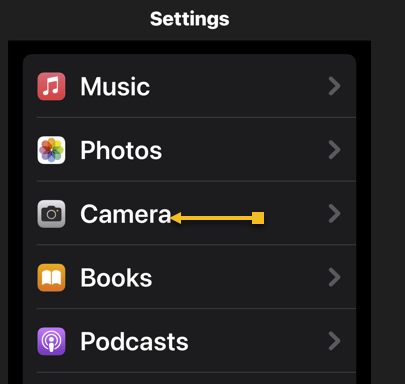
First, the Settings app, and tap Camera. See the following image:
Accessing your Camera option
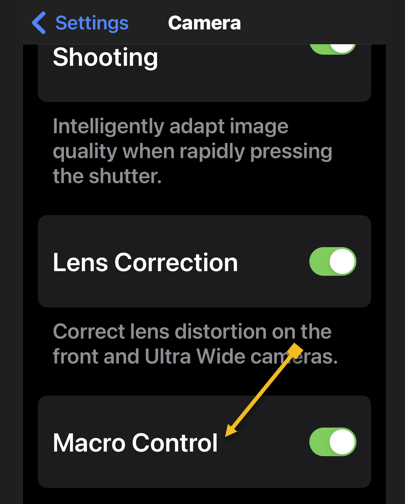
Next, scroll to the bottom and tap the toggle next to Macro Control to disable or enable the Flower icon. Refer to the below image:
Disable or enable Macro Control
Note! This does not disable Macro mode, only the Flower icon. You will not be able to turn off Macro mode if you turn off the above toggle.
FAQ
What does Macro mode do?
Macro mode keeps the image clear while taking extreme close-up shots. This means you can take crisp photos of smaller subjects, like plants or animals.
Does the iPhone 15 have macro photography?
The standard iPhone 15 model does not have a Macro mode. However, all Pro models iPhones, including the iPhone 15 Pro and Pro Max, can capture macro photography images.
Disclaimer
Technology is always changing. Rarely is there static tech for smartphones and desktops. Thus, the contents of this post are only valid at the time of writing. Blog posts older than six months may have directions incompatible with your device or OS. Hopefully, older post content will continue to work as advertised. Thank you for reading TechSavvy.Life for Technology at Work For You.
Quote For the Day
“Don’t believe everything you hear: Real eyes, Realize, Real lies.”
Tupac Shakur
X (Twitter) Info
That’s it. Please feel free to share this post! One way to share is via Twitter.
Just click the Tweet icon below. This will launch Twitter where you click its icon to post the Tweet.
Checkout TechSavvy.Life for blog posts on smartphones, PCs, and Macs! You may email us at contact@techsavvy.life for comments or questions.
Was this post helpful? We would love to hear your comments. Do you have a computer or smart device tech question? I will do my best to answer your inquiry. Just send an email to contact@techsavvy.life. Please mention the device, app, and version you are using. To help us out, you can send screenshots of your data related to your question.
This post provides detailed instructions on recovering deleted photos and videos on iPhone, emphasizing the 30-day recovery period and the importance of backups. It also suggests using Google Photos and mentions third-party solutions for permanent deletions.
This is for the iPhone. Screenshots are from iPhone 14 Pro running iOS 17+
The first thing we used to do to free storage on my previous iPhones was to head to the Photos app and delete pictures and videos. We usually did this after a backup or AirDrop the files we wanted to keep to our PC. However, there were exceptions to the rule, and we sometimes accidentally deleted photos and videos we still needed.
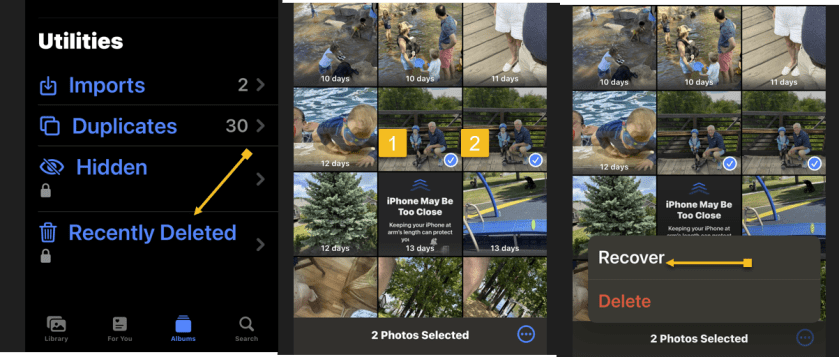
If you accidentally delete files while cleaning up, you should not panic. The files are not actually lost. Go to the Albums section of your iPhone and look for the Recently Deleted folder. You must unlock it with Face ID, Touch ID, or PIN code. In there, tap the Select button and check the photos you deleted by mistake, tap the three dots menu button at the bottom, and then tap Recover. Refer to the below image:
Selecting your photos to recover
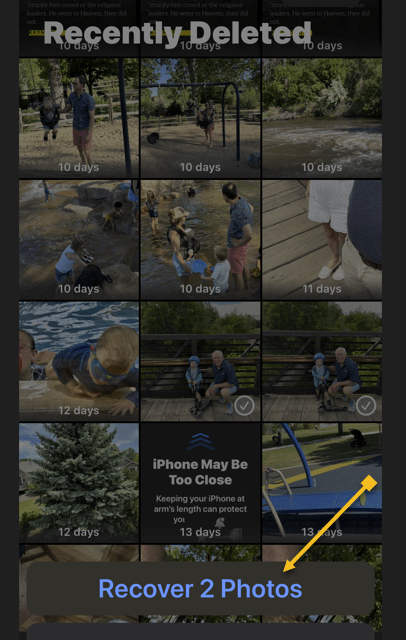
If you have selected more than one photo, click the recover multiple photos button. See the below image:
Recover your photos
We already knew how to rescue those files, as there’s a simple rule about deleting stuff on iPhone. The files do not get permanently removed. Instead, they sit for 30 days in the Trash folders of the various apps where you can delete content. The Photos app is one of them. And that’s how easy it is to recover those deleted photos and videos.
It gets even better if you do regular backups via iCloud or use a third-party alternative to Apple Photos. Google Photos easily comes to mind, as it’s a great app to store and back up photos.
Default Photo App
Most iPhone users will use the default Photos app. That’s where to start when viewing photos and videos and managing the storage.
Another option is to bring a single photo into view and then look for the same Recover button. This method only lets you recover photos and videos one by one.
Once that’s done, the recovered files will be available in the Photos app.
You have to remember to recover your deleted photos within 30 days. That’s how long you have until the iPhone permanently removes them. We went to this folder on iPhones with lower storage than my current iPhone 14 Pro to permanently delete the files we did not need. That’s the only way to free storage immediately.
The best way to ensure your photos and videos are safe is to perform routine backups. Whether via iCloud or your PC, the backups will help you recover files. Another option is to manually transfer the photos to a computer and store them on external devices.
There are many Photo Recovery apps from the App Store you can install.
Using Google Photos
Google Photos is a handy tool for storing images and photos on your iPhone. But, like the default Apple Photos app, you can accidentally delete files in Google Photos.
The solution is similar to Apple Photos. Google does not delete the images directly, moving them to a Trash file in the Library tab. You have 30 days to recover the file if the photo or video was not backed up to the cloud. That goes up to 60 days if the files you deleted accidentally were backed up to the cloud.
Google Photos is also available on the web and other devices.
What if You Deleted Your Photos for Good?
Whether you forget the 30-day recovery deadline or accidentally empty the trash, recovering permanently deleted files might be a big problem. Third-party software solutions might help you get those files back.
But as Gizmodo points out, not all of them might work. The blog also mentions Stellar Data Recovery as a well-reviewed solution for recovering deleted files from iPads and iPhones.
The software is not free, starting at $49.99, and there are no guarantees it will work. But if you must try anything to recover a particularly dear deleted photo from your iPhone, you will want to look into third-party apps that claim they can do the job.
Disclaimer
Technology is always changing. Rarely is there static tech for smartphones and desktops. Thus, the contents of this post are only valid at the time of writing. Blog posts older than six months may have directions incompatible with your device or OS. Hopefully, older post content will continue to work as advertised. Thank you for reading TechSavvy.Life for Technology at Work For You.
Quote For the Day
Kites rise highest against the wind, not with it.
Winston Churchill
X (Tweeter) Info
That’s it. Please feel free to share this post! One way to share is via Twitter.
Just click the Tweet icon below. This will launch Twitter where you click its icon to post the Tweet.
Checkout TechSavvy.Life for blog posts on smartphones, PCs, and Macs! You may email us at contact@techsavvy.life for comments or questions.
Was this post helpful? We would love to hear your comments. Do you have a computer or smart device tech question? I will do my best to answer your inquiry. Just send an email to contact@techsavvy.life. Please mention the device, app, and version you are using. To help us out, you can send screenshots of your data related to your question.