Incognito Mode is a common feature in web browsers that allows you to use the web somewhat anonymously. On an iPhone or iPad, if you are using the Google app as a web browser instead of Safari or Chrome, you can browse in Incognito.
Incognito Mode is a common feature in web browsers that allows you to use the web somewhat anonymously. On an iPhone or iPad, if you are using the Google app as a web browser instead of Safari or Chrome, you can browse in Incognito.
The Google app for the iPhone and iPad offers an all-in-one experience. All of the searching and browsing results happens within the app. It’s essentially a mini-browser of its own but you may not want your activity recorded. Let’s setup this feature.
This is for iPhone and iPad
Copyright Scott Adams, Inc./Distributed by Universal Uclick for UFS
First, open the Google app on your iPhone or iPad. Use Apple’s Spotlight Search (your first screen) to locate the app if you can not find it on your Home page or App Library. Refer to below image:
Accessing Google app
Next, tap your Profile icon in the top right-hand corner. See below image:
Accessing your Profile
Now, select Turn on Incognito from the drop-down menu. See following image:
Enabling Incognito
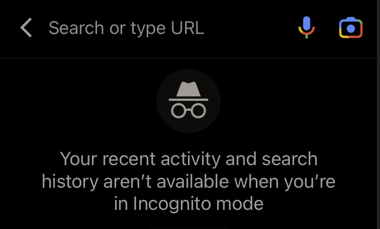
Next, you will see a screen saying you are in Incognito Mode . You can now do searches and browse the Internet without the activity being saved to your account. Refer to below image:
In Incognito Mode
To reset Incognito Mode, return to the Google App’s home page and tap the Turn Off button. See below image:
Turn off Incognito Mode
And that’s it. Just like Incognito Mode in a browser, your search and browsing history will not be saved to your account. This is a nice little trick to know if you find yourself using the Google app like a browser a lot.
Quote For the Day
Don’t think. Thinking is the enemy of creativity. It’s self-conscious, and anything self-conscious is lousy. You can’t try to do things. You simply must do things.
Ray Bradbury
Please feel free to share this post! One way to share is via Twitter.
Just click the Tweet icon below. This will launch Twitter where you click its icon to post the Tweet.
Check out TechSavvy.Life blog posts on smartphones, PCs, and Macs! You may email us at contact@techsavvy.life for comments or questions.
Please feel free to leave a comment. I would love hearing from you. Do you have a computer or smart device tech question? I will do my best to answer your inquiry. Just send an email to contact@techsavvy.life. Please mention the device, app and version that you are using. To help us out, you can send screenshots of your data related to your question.
The author’s Vietnam eBook on the Battle for Tra Bong Vietnam: Events and Aftermath
What does it mean to pin a post on Facebook? A pinned post is a status update that you manually select to stay at the top of your page’s timeline, meaning it will not slip down as you continue to add other posts to your page.
What does it mean to pin a post on Facebook? A pinned post is a status update that you manually select to stay at the top of your page’s timeline, meaning it will not slip down as you continue to add other posts to your page. Let’s explore how to do this.
This is for devices running Facebook
Copyright Scott Adams, Inc./Distributed by Universal Uclick for UFS
You can only have one post pinned to your profile at a time. If you try to pin a second post, that second post gets pinned and the first post gets unpinned.
Pin to Your Profile
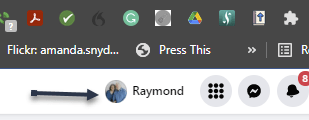
First, launch a web browser on your computer and access the Facebook site. Next, log in to your account and in the top right-hand corner of the site, click your profile icon. Refer to below image:
Accessing your Profile
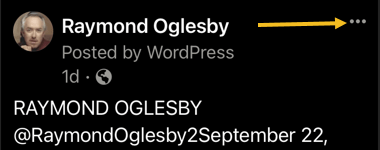
Now, on your profile page that opens, find the post you want to pin. At the top right-hand corner of the post, click the three dots menu. See below image:
Selecting the 3 dots menu
Next, from the three-dots menu, select Pin post. See following image:
Selecting to Pin your post
And immediately, Facebook will pin the selected post to the top of your profile page. Scroll up your profile and your pinned post will appear there. Refer to below image:
Your pinned post
To unpin a pinned post, from the top right-hand corner of the pinned post, select the three dots menu and click Unpin post in the menu. See below image:
Selecting to Unpin your post
Facebook will remove the post from the top of your profile page. It will continue to appear at its original location in your profile, though. Now, refresh the page or exit Facebook.
In addition to your personal profile, you can pin a post to your Facebook page, too.
First, access your page and find a post to pin. (Note! I am doing this on my business page using my iPhone). Next, at the top right-hand corner of the post, click the three dots menu. See following image:
Selecting the 3 dots menu
Now, from the three-dots menu, select Pin to Top. Refer to below image:
Selecting to Pin your post
Next, Facebook will add your selected post to the top of the page.
To remove the post from the top of the page, from the top right-hand corner of the post, click the three dots menu. Next, from the menu that opens, select “Unpin from Top. See below image:
Selecting to Unpin your post
Quote For the Day
You can’t just ask customers what they want and then try to give that to them. By the time you get it built, they’ll want something new.
Steve Jobs
That’s it. You now know how to pin/unpin a Facebook post. Please feel free to share this post! One way to share is via Twitter.
Just click the Tweet icon below. This will launch Twitter where you click its icon to post the Tweet.
Check out TechSavvy.Life for blog posts on smartphones, PCs, and Macs! You may email us at contact@techsavvy.life for comments or questions.
Please feel free to leave a comment. I would love hearing from you. Do you have a computer or smart device tech question? I will do my best to answer your inquiry. Just send an email to contact@techsavvy.life. Please mention the device, app and version that you are using. To help us out, you can send screenshots of your data related to your question.
The author’s Vietnam eBook on the Battle for Tra Bong Vietnam: Events and Aftermath
The stock Photos app for iOS and iPadOS comes with a built-in editing tool that can let you automatically resize a pic. Besides, you can also get rid of the unwanted parts manually to ensure there is no blemish. You do not need any photo editing apps to rotate, crop, or straighten your photos.
There could be all sorts of reasons why you would like to crop photos on your iPhone and iPad. Maybe you are not pleased with the actual size of the image or want to make it perfectly fit a frame.
The stock Photos app for iOS and iPadOS comes with a built-in editing tool that can let you automatically resize a photo. Besides, you can also get rid of the unwanted parts manually to ensure there is no blemish. You do not need any photo editing apps to rotate, crop, or straighten your photos.
However, the best part is that you can go back to the original size just in case the end result does not turn out as expected. Let’s see how this is done.
This is for the iPhone and iPad
Copyright Scott Adams, Inc./Distributed by Universal Uclick for UFS
Crop Your Photo
First, open the Photos app on your iPhone or iPad and navigate to the photo that you want to crop. In the top right-hand corner, tap the Edit button. Refer to below image:
Selecting to Edit a photo
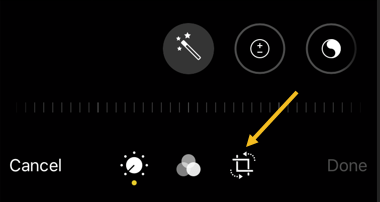
Now, in the photo editing view, you will see the bottom toolbar. Tap the Crop button which looks like a box with arrows around it. See below image:
Selecting the Crop button
Next, you will see the image surrounded by a white frame. Swipe in from any edge to crop the image. You can do this from all corners. Just, lift your finger to see the cropped image. See following image:
Cropping a photo
Now, you can also crop the image using a specific aspect ratio if you need the photo to be a perfect square. Tap the Aspect Ratio button in the top toolbar which looks like overlapping boxes. Refer to below image:
Selecting the Aspect Ratio button to crop a photo
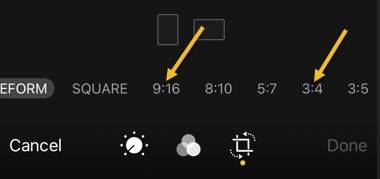
Next, you can choose the Aspect Ratio (such as “4:3” or “16:9”) or switch between the Portrait and Landscape formats.
Even after selecting the Aspect Ratio, you can continue to crop the image. The difference is that now, the Aspect Ratio will be locked. If you do not want to use the Aspect Ratio feature, choose the Original option. See below image:
Selecting an Aspect Ratio
Now, if you are satisfied with the crop dimensions, tap the Done button in the bottom toolbar on iPhone. See following image:
Selecting the Done button
Your photo will be cropped, and the result displayed on the screen. Refer to below image:
Original on left, cropped on right
Do not forget that you can share the photo with your friends using the Share button in the bottom toolbar which looks like a box with an arrow coming out of it. See below image:
Selecting the Share icon
Undo Your Crop
All edits in the Photos app are non-destructive. This means that you can revert any photo to its original state.
First, open the photo in the Photos app. Tap the Edit button in the top right-hand corner. See following image:
Selecting the Edit button
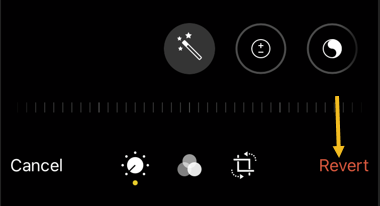
Now, in the bottom right-hand corner on iPhone, tap the Revert button. Refer to below image:
Selecting the Revert button
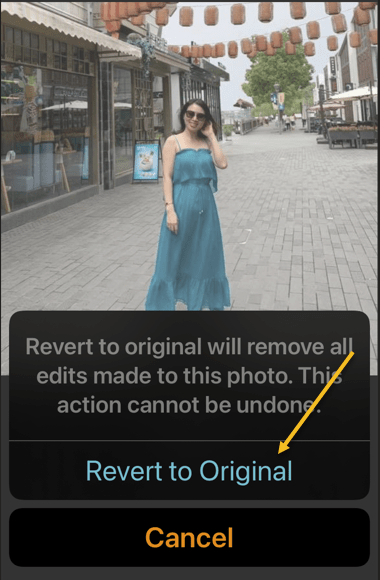
Next, in the pop-up, choose the Revert to Original option. See below image:
Revert your photo back to the original
Now, your photo will be back to its original form!
Quote For the Day
We are cups, constantly and quietly being filled. The trick is, knowing how to tip ourselves over and let the beautiful stuff out.
Ray Bradbury
And that’s it. Please feel free to share this post! One way to share is via Twitter.
\Just click the Tweet icon below. This will launch Twitter where you click its icon to post the Tweet.
Check out TechSavvy.Life for blog posts on smartphones, PCs, and Macs! You may email us at contact@techsavvy.life for comments or questions.
Please feel free to leave a comment. I would love hearing from you. Do you have a computer or smart device tech question? I will do my best to answer your inquiry. Just send an email to contact@techsavvy.life. Please mention the device, app and version that you are using. To help us out, you can send screenshots of your data related to your question.
The author’s Vietnam eBook on the Battle for Tra Bong Vietnam: Events and Aftermath
Google Chrome 93 is officially here. There is plenty to be excited about. For example, with Chrome 93, progressive web apps (PWAs) feel a lot more like native desktop apps, as clicking on a link can open an associated web app. There’s also improved multi-screen support for web apps, making this an update web app users will love.
Google Chrome 93 is officially here. There is plenty to be excited about. For example, with Chrome 93, progressive web apps (PWAs) feel a lot more like native desktop apps, as clicking on a link can open an associated web app. There’s also improved multi-screen support for web apps, making this an update web app users will love. Let’s explore how to install Chrome 93.
This is for Windows, Android, Mac, iPhone, and iPad
Copyright Scott Adams, Inc./Distributed by Universal Uclick for UFS
Some new features are related to recently closed tabs, a Material You theme for Android 12, a new Google Search UI on Android, the ability to sync Two-Factor OTP codes across devices (a true game-changer), the ability to use note-taking apps right from the browser, a new context menu on iPhone, and so much more.
Chrome 93 will now also show Google Drive documents on the New Tab page. The suggested documents will appear in a card underneath the Search Bar, allowing you to easily access recently edited Google Docs or Sheets.
First, you can check for an update by going to the three-dot menu hamburger icon on the top-right of Chrome. Next, click Help followed by About Google Chrome. Refer to below image:
Selecting the About option
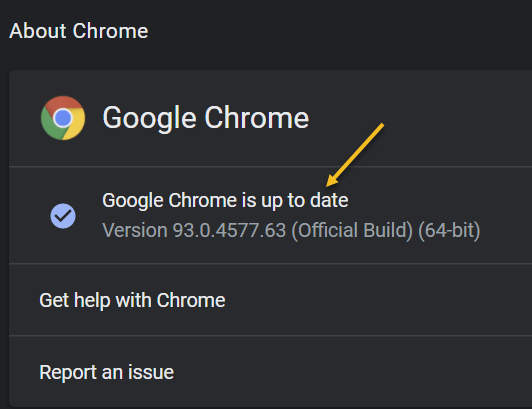
Now, the Chrome Settings window open. If Chrome is outdated, it will automatically download and install the latest version. See below image:
Your Chrome version
Now, close Chrome and restart the app.
If you are on iPhone or Android, update the app as you would for any other application.
Quote For the Day
The most remarkable discovery in all of astronomy is that the stars are made of atoms of the same kind as those on the earth.
Richard P Feynman
You are finished. Please feel free to share this post! One way to share is via Twitter.
Just click the Tweet icon below. This will launch Twitter where you click its icon to post the Tweet.
Check out TechSavvy.Life for blog posts on smartphones, PCs, and Macs. You may email us at contact@techsavvy.life for comments or questions.
Please feel free to leave a comment. I would love hearing from you. Do you have a computer or smart device tech question? I will do my best to answer your inquiry. Just send an email to contact@techsavvy.life. Please mention the device, app and version that you are using. To help us out, you can send screenshots of your data related to your question.
The author’s Vietnam eBook on the Battle for Tra Bong Vietnam: Events and Aftermath
The Reading List is a similar concept to bookmarks but intended for reading material that you find online. At the time of this writing, it’s available in Chrome on the desktop (Windows, Mac, and Linux) and for iPhone and iPad. The feature is not available on Android.
The Reading List is a similar concept to bookmarks but intended for reading material that you find online. At the time of this writing, it’s available in Chrome on the desktop (Windows, Mac, and Linux) and for iPhone and iPad. The feature is not available on Android. For this blog post, we will explore this feature for the iPhone and iPad.
This is for the iPhone and iPad using Google Chrome
Copyright Scott Adams, Inc./Distributed by Universal Uclick for UFS
Chrome for iPhone and iPad has two different ways to add web pages to your Reading List. It can either be done from Chrome or from another app.
Method 1 – Within Chrome
First, find a page to save for later, and then tap the Share icon in the address bar. Refer to below image:
Accessing the Share icon
Next, select Read Later from the menu. See below image:
Selecting Read Later option
That’s it! The page is now in your Reading List.
Method 2 – Use an App
The second method allows you to add things to the list from outside of Chrome. Now, find a news article or story that you would like to read later in any app. In our example, we are using Apple News. Next, find the Share icon in the app and tap it. See following image:
Accessing the Share icon
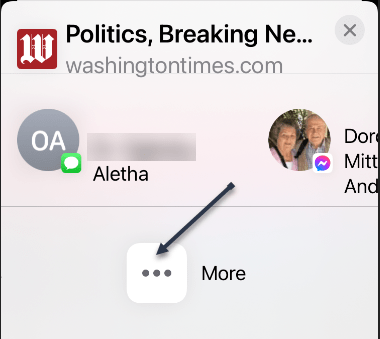
Now, find Chrome in the app row and select it. If you do not see Chrome, tap the three-dot More menu. Refer to below image:
Finding the Chrome app
Now, find Chrome from the app list and tap it. See below image:
Selecting Chrome app
Next, from the Chrome menu, tap Read Later. See following image:
Selecting Read Later option
To access the Reading List on your iPhone or iPad, first, open Chrome and tap the three-dot Menu icon at the bottom. Refer to below image:
Accessing the Menu icon
Next, select Reading List from the menu. You will notice a number that indicates unread pages. See below image:
Accessing Reading List option
Now, the Reading List will open with Unread pages at the top and Pages You’ve Read at the bottom. Pages marked with a green check are ready to read offline. See following image:
Your Reading List
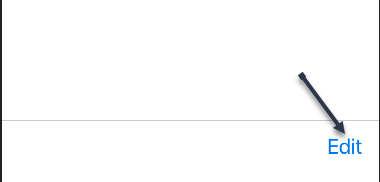
Next, tap Edit in the bottom corner to manage the list. Refer to below image:
Selecting to Edit your Reading List
From here, you can select pages and delete or mark them as read. See below image:
Selecting Delete or Mark as Read option
The Reading List is a nice, simple alternative to apps that provide similar services. It all happens right inside of Chrome without any additional software.
Quote For the Day
We’ve gotta reinvest in space travel. We should’ve never left the moon.
Ray Bradbury
That’s it. Please feel free to share this post! One way to share is via Twitter.
Just click the Tweet icon below. This will launch Twitter where you click its icon to post the Tweet.
Check out TechSavvy.Life for blog posts on smartphones, PCs, and Macs. You may email us at contact@techsavvy.life for comments or questions.
Please feel free to leave a comment. I would love hearing from you. Do you have a computer or smart device tech question? I will do my best to answer your inquiry. Just send an email to contact@techsavvy.life. Please mention the device, app and version that you are using. To help us out, you can send screenshots of your data related to your question.
The author’s Vietnam eBook on the Battle for Tra Bong Vietnam: Events and Aftermath
iPhones are awesome communication devices. So it makes sense that you would want to put the people you talk to the front and center.
Surprisingly, Apple does not make it clear that it’s even possible to do this. The functionality is buried in the powerful Shortcuts app. Let’s explore how this is done.
This is for the iPhone and iPad
Copyright Scott Adams, Inc./Distributed by Universal Uclick for UFS
There are basically two different actions that can be associated with contact Shortcuts. You can have the Shortcut give you the option of how you want to contact the person; Message, Call, FaceTime; or it can jump straight into one of those. We will be covering the first option.
Create the Shortcut
First, open the Shortcuts app on your iPhone or iPad. Refer to below image:
Accessing your Shortcuts app
Next, go to All Shortcuts See below image:
Find All Shortcuts
Now, switch to the Gallery tab in the bottom bar. See following image:
Open the Gallery of Shortcuts
Add the Contact
Next, do a search for Contact, and select the Contact on Home Screen shortcut. Refer to below image:
Search for a contact
Now, tap the Add Shortcut button. See below image:
Add contact Shortcut
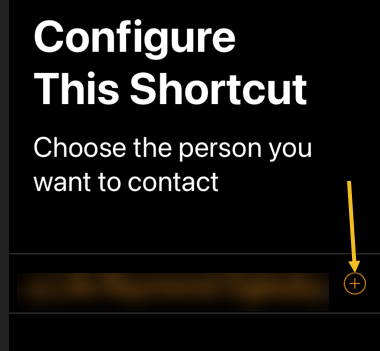
On the next screen is where you will select a person for the Shortcut. Tap the “+” button. See following image.
Selecting to add a contact
Now, find the person you want to use for the Shortcut in your contacts list. Refer to below image:
Locate a contact
Next, tap Done to finish. See below image:
Finish the setup
View the Newly Added Shortcut
Now, go back to the My Shortcuts tab, and you will see the newly added Shortcut. Touch and hold to bring up some options. See following image:
View your Shortcut
Next, select Details from the menu. Refer to below image:
Accessing Details for the Shortcut
Add to Home Screen and Customize
Now, select Add to Home Screen. See below image:
Add contact Shortcut to your Home screend
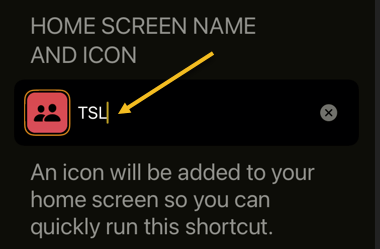
Next, tap the text to enter the name that you would see under the icon on the Home screen. See following image:
Label the Shortcut icon
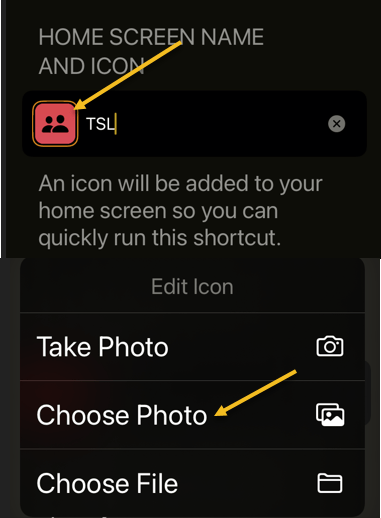
Now, select the icon to choose a photo for it or the other two options. Refer to below image:
Select a photo for the contact
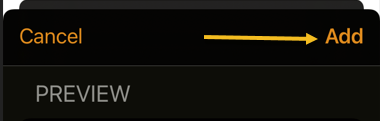
Next, once you are done customizing the icon, tap Add in the top right-hand corner. See below image:
Finish customizing
Now, the icon will be added to your Home screen. When you tap it, a menu with communication choices will appear. Simply do this for all of your favorite people! See following image:
Your Shortcut in action
Quote For the Day
It doesn’t matter how beautiful your theory is, it doesn’t matter how smart you are. If it doesn’t agree with experiment, it’s wrong.
Richard P Feynman
Pretty nifty feature. It’s like having a person on speed dial. Please feel free to share this post! One way to share is via Twitter.
Just click the Tweet icon below. This will launch Twitter where you click its icon to post the Tweet.
Check out TechSavvy.Life for blog posts on smartphones, PCs, and Macs! You may email us at contact@techsavvy.life for comments or questions.
Please feel free to leave a comment. I would love hearing from you. Do you have a computer or smart device tech question? I will do my best to answer your inquiry. Just send an email to contact@techsavvy.life. Please mention the device, app and version that you are using. To help us out, you can send screenshots of your data related to your question.
The author’s Vietnam eBook on the Battle for Tra Bong Vietnam: Events and Aftermath
Spotting things in a spreadsheet can be much quicker when you nightlight them. With conditional formatting in Microsoft Excel, you can make finding blank cells or formula errors easier.
Spotting things in a spreadsheet can be much quicker when you highlight them. With conditional formatting in Microsoft Excel, you can make finding blank cells or formula errors easier. Let’s explore how this feature works.
This is for devices running Microsoft Excel
Copyright Scott Adams, Inc./Distributed by Universal Uclick for UFS
Highlight Blank Cells
When you have a spreadsheet full of data that you expect to fill every cell, you can easily overlook cells that are left empty.
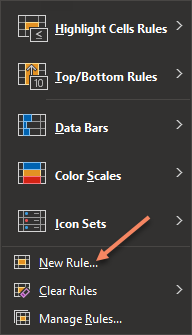
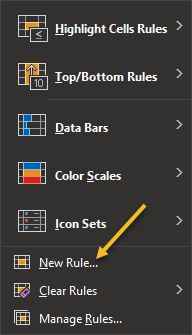
First, open the sheet and select the cells where you want to apply the formatting. Next, go to the Home tab and click Conditional Formatting in the Styles group of the Ribbon. Now, choose New Rule. Refer to below image:
Select New Rule option
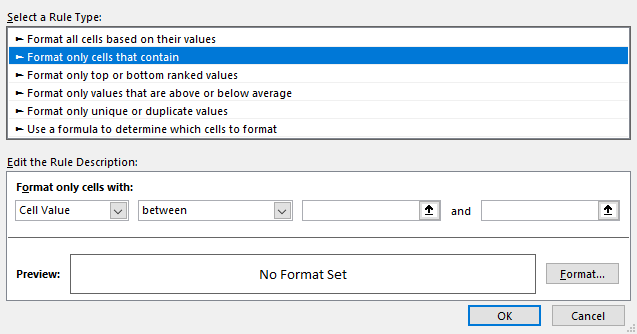
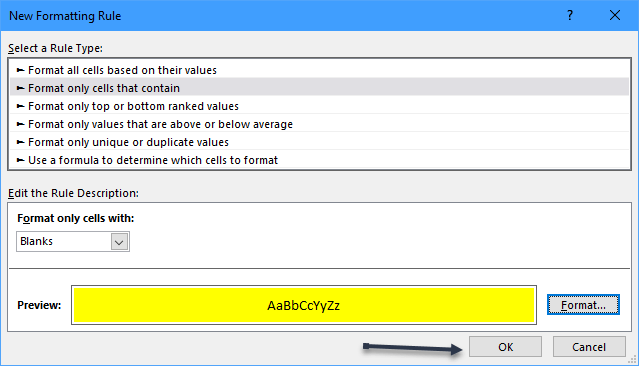
Next, in the New Formatting Rule window that appears, click Format only cells that contain under Select a Rule Type at the top. See below image:
Select a Rule Type option
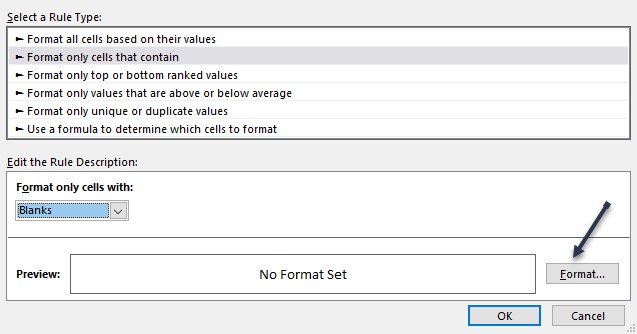
Now, at the bottom, pick Blanks in the Format only cells with drop-down box. Next, click Format to the lower right of the preview to select how to format the blank cells. See following image:
Select Format Cells with blanks
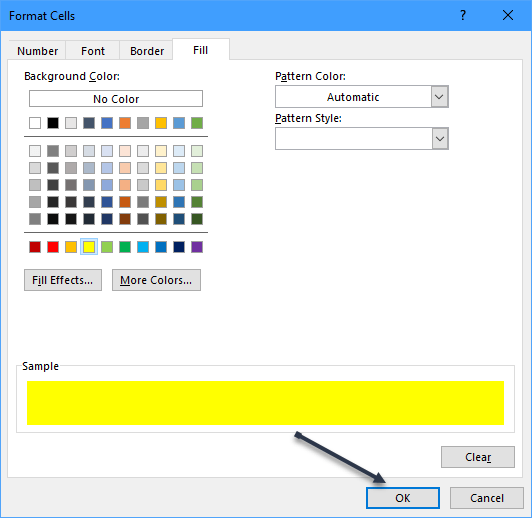
Now, in the Format Cells window, use the tabs at the top for Font, Border, and Fill to choose your formatting. Click OK. For our example, we are using Fill to color our blank cells bright yellow. Refer to below image:
Select choose a Fill color
You will be back on the New Formatting Rule window, where you will see a preview of the formatting for blank cells. If you are happy with it, click OK to apply the conditional formatting. See below image:
Save your changes
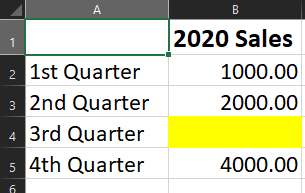
You should then see any empty cells in the range that you selected highlighted with the formatting that you picked. See following image:
Your final result
Highlight Error Cells
Even though Microsoft Excel does a decent job of of pointing errors out to you, they might not be noticeable if you have a large sheet to scroll through. To make sure that you see the errors quickly, conditional formatting is the way to go.
You will actually follow the same process that you used in the previous section to highlight blanks, but with one difference.
First, switch to the Home tab, click Conditional Formatting, and then choose New Rule. Refer to below image:
Select New Rule option
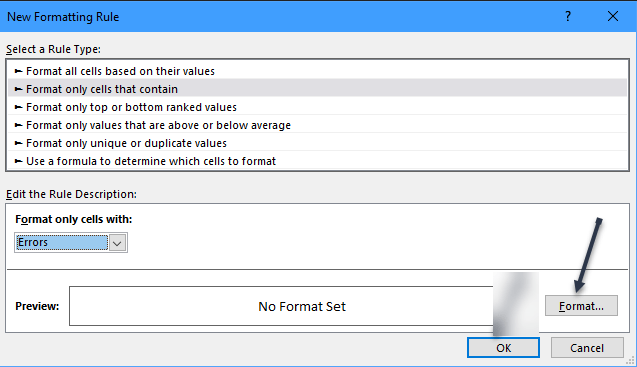
Next, in the New Formatting Rule window, pick Format only cells that contain at the top. But this time, pick Errors in the Format only cells with drop-down box at the bottom.Now, click Format to choose the formatting. See below image:
Select Format for errors
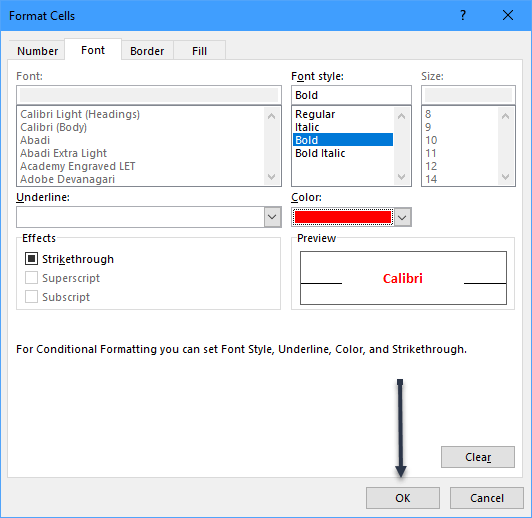
For this example, adjust the Font options to make the cells with errors bold and red. Click OK. After you pick the formatting, click OK again to apply the rule. See following image:
Select formatting for errors
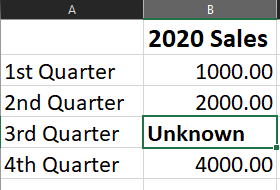
Now, those errors will be very visible! Refer to below image:
Your final result
Quote For the Day
The true delight is in the finding out rather than in the knowing
Isaac Asimov
You are finished. Please feel free to share this post! One way to share is via Twitter.
Just click the Tweet icon below. This will launch Twitter where you click its icon to post the Tweet.
Check out TechSavvy.Life for blog posts on smartphones, PCs, and Macs! You may email us at contact@techsavvy.life for comments or questions.
Please feel free to leave a comment. I would love hearing from you. Do you have a computer or smart device tech question? I will do my best to answer your inquiry. Just send an email to contact@techsavvy.life. Please mention the device, app and version that you are using. To help us out, you can send screenshots of your data related to your question.
The author’s Vietnam eBook on the Battle for Tra Bong: Events and Aftermath
The Reminders app has seen significant improvements with iOS 13 and iOS 14. Earlier it was a simple application with basic functionalities. Now, Reminders is laden with robust features that let you add subtasks, images, and more! iOS 14.5 even lets you print reminders and sort them accordingly.
The Reminders app has seen significant improvements with iOS 13 and iOS 14. Earlier it was a simple application with basic functionalities. Now, Reminders is laden with robust features that let you add subtasks, images, and more! iOS 14.5 even lets you print reminders and sort them accordingly. Let’s explore some basic features.
This is for iPhone and iPad
Copyright Scott Adams, Inc./Distributed by Universal Uclick for UFS
Before You Begin: Make sure iCloud Reminders are set up so that everything syncs across all your Apple devices.
On iPhone and iPad: Open:
Settings app → your name from the top → iCloud
and make sure the switch for Reminders is turned ON.
Add a List
First, open your Reminders app or use Spotlight Search (your very first screen) to locate it and open. Next, tap the Add List blue link in lower right-hand corner. Refer to below image:
Selecting Add List
Now, give the list a name and tap Done. See below image:
Naming the Reminder
Add a Reminder
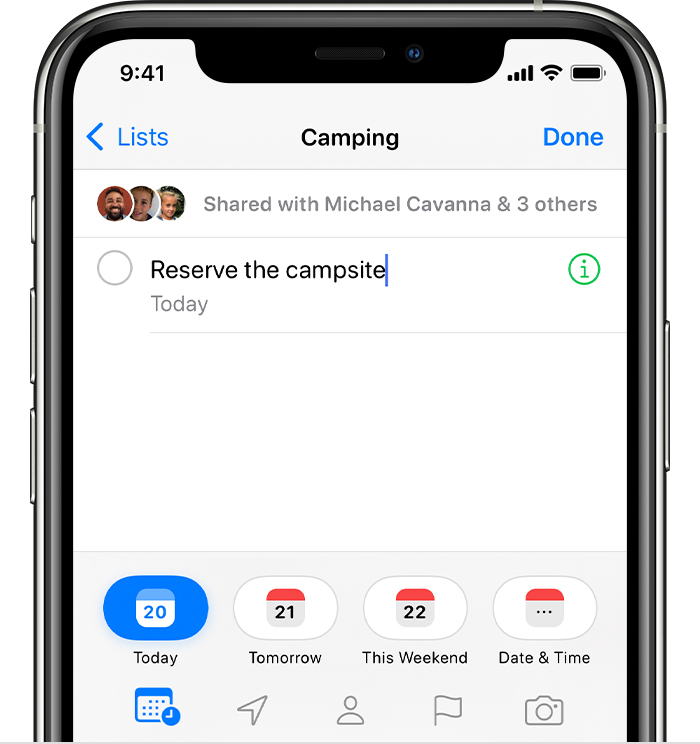
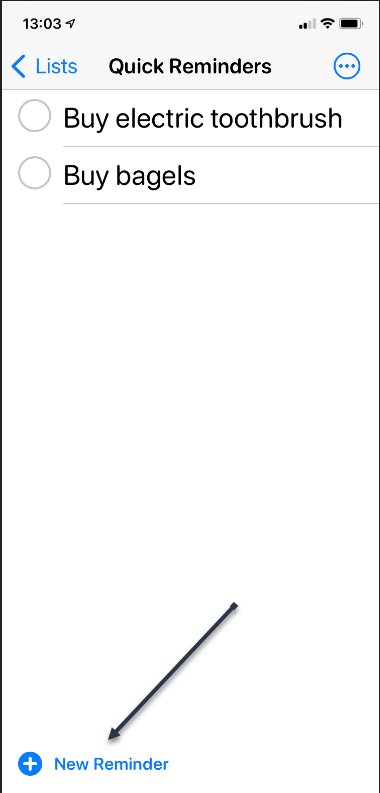
First, tap the New Reminder blue link at the bottom or tap a blank area on your screen and enter your reminder text. See following image:
Selecting a New Reminder
Next, tap the Reminder, then tap the Info Circle icon to set your optional Details for the reminder. Refer to below image:
Selecting more information for the Reminder
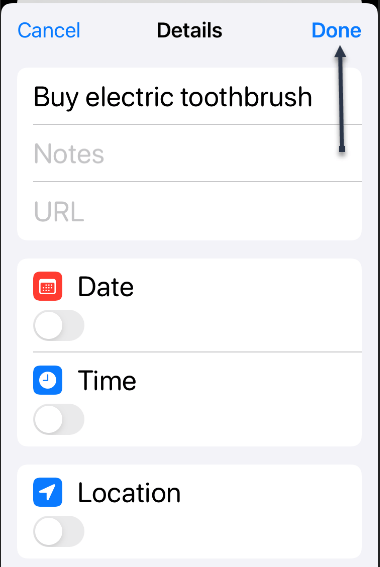
Now, after you have set your optional details like Date, Time, Location, and more, tap Done. See below image:
Setting the Details options
Delete a Reminder
Tap the circle next to the reminder text and tap Done. A unique way to do this is just tap the circle, wait a moment, and your Reminder disappears. See following image:
Delete a Reminder
View Your Reminders
Tap your Reminders icon, then tap your newly created list to view your Reminders. Refer to below image:
Viewing your Reminders
Quote For the Day
There is a cult of ignorance in the United States, and there has always been. The strain of anti-intellectualism has been a constant thread winding its way through our political and cultural life, nurtured by the false notion that democracy means that my ignorance is just as good as your knowledge.
Isaac Asimov
You are finished. Please feel free to share this post! One way to share is via Twitter.
Just click the Tweet icon below. This will launch Twitter where you click its icon to post the Tweet.
Check out TechSavvy.Life for blog posts on smartphones, PCs, and Macs! You may email us at contact@techsavvy.life for comments or questions.
Please feel free to leave a comment. I would love hearing from you. Do you have a computer or smart device tech question? I will do my best to answer your inquiry. Just send an email to contact@techsavvy.life. Please mention the device, app and version that you are using. To help us out, you can send screenshots of your data related to your question.
The author’s Vietnam eBook on the Battle for Tra Bong: Events and Aftermath
It’s easy to run out of space on Google Drive, since it stores data across much of your Google account. Fortunately, it’s also easy to delete data and free up some storage. As you will see, I am running out of space. Let’s explore how to do this.
It’s easy to run out of space on Google Drive, since it stores data across much of your Google account. Fortunately, it’s also easy to delete data and free up some storage. As you will see, I am running out of space. Let’s explore how to do this.
This is for devices using Google Drive. Screenshots are from Drive on Windows 10 PC
Copyright Scott Adams, Inc./Distributed by Universal Uclick for UFS
If you use Google Drive to share large files, it’s quite easy to hit the 15GB free data limit on your Google account. While you can upgrade, for a price, it’s best to manually delete some data for more space first. After doing this, I upgraded to the 100GB plan, yet I am still out of space.
You will not need to spend hours combing through every nook and cranny in Google Drive. The website has a storage management feature that lists all your files, sorting them based on their file size.
First, open the Drive website in your browser.
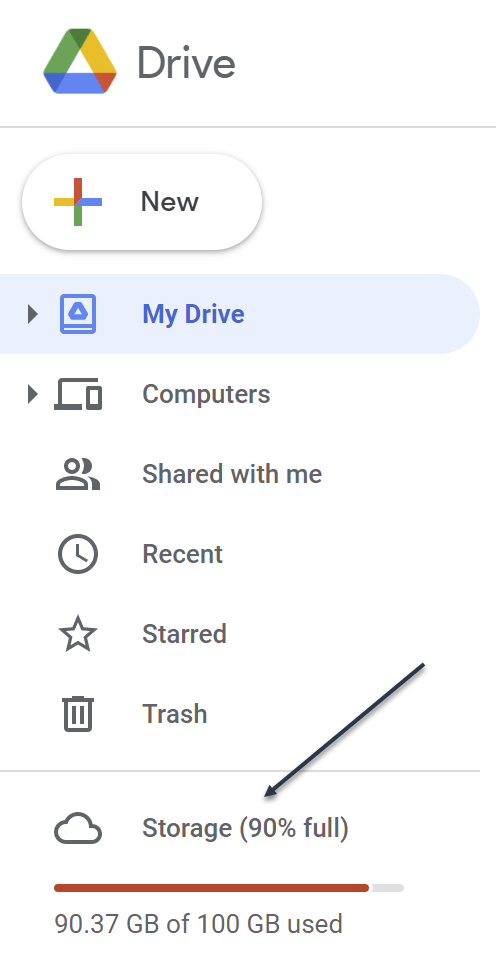
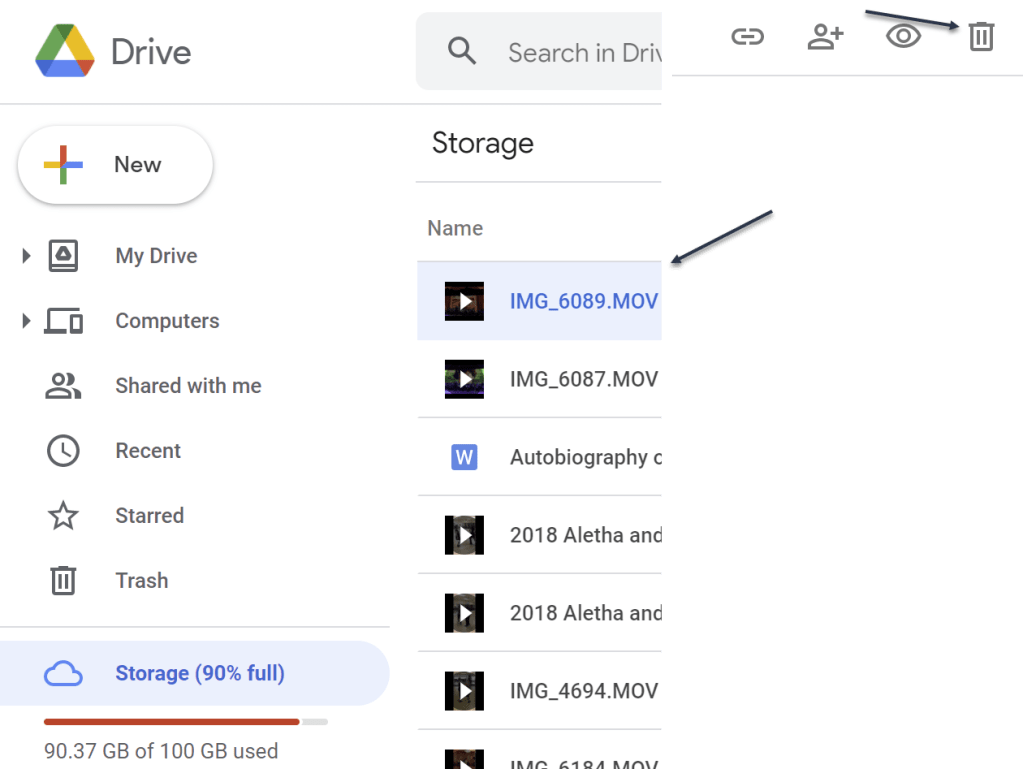
You will see the Storage section at the bottom of the left sidebar. This will show you how much storage space you have left in your account. Now, click the Storage button. Refer to below image:
Your used Storage space
Next, you will see a list of all the large files in your account. Just click a file to select it. To select multiple files, hold the Command/Control key while selecting the file.
Now, to delete the file (or files), click the Remove button (the Trashcan icon) in the top toolbar. See below image:
Delete a file
Google Drive will remove the file and send it to the Trash.
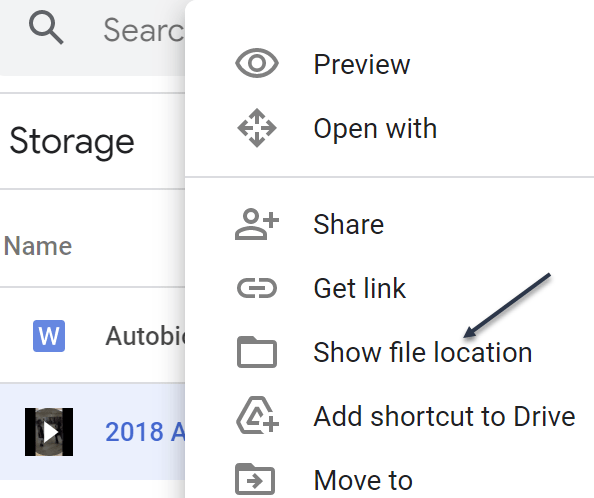
If you want to find and open a folder where a particular file is saved (or find more files to delete), right-click and choose the Show File Location option. See following image:
Find more files
Next, you can select multiple files and use the Remove (Trashcan icon) in the toolbar to delete all the files at once. (You can use this method to delete entire folders as well.)
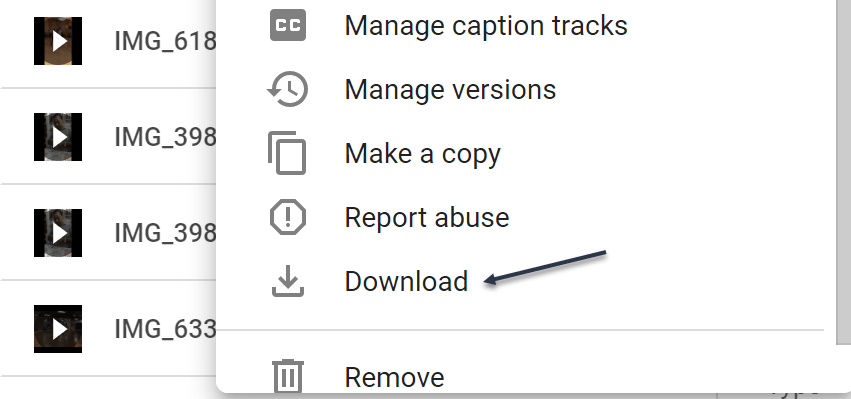
If you do not have a backup of the file that you are planning to delete, click the Download button in the right-click menu to download a copy of the file to your local storage. Refer to below image:
Download a file before deletion
Once you delete files like this, the files are no longer available in Google Drive, but you have not recovered any storage space yet. That’s because Google Drive does not actually delete the files for 30 days. So, if you change your mind, you have up to 30 days to recover the data.
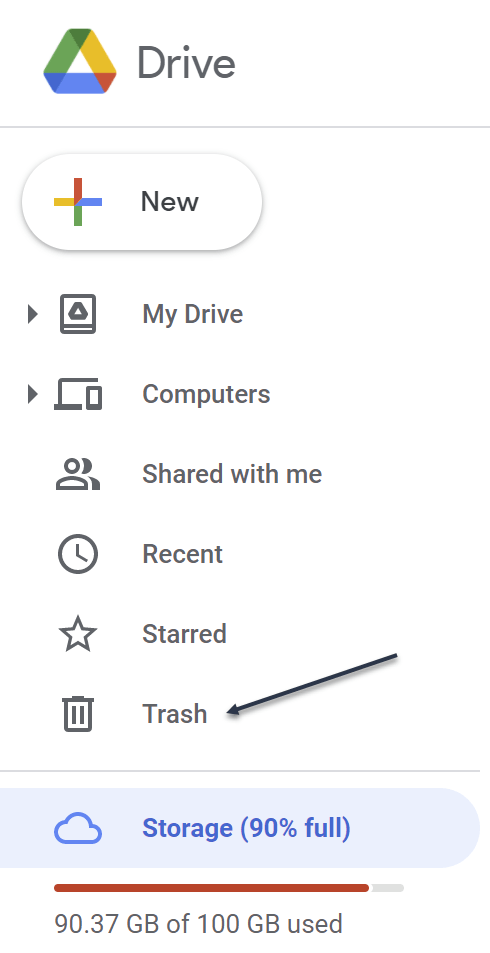
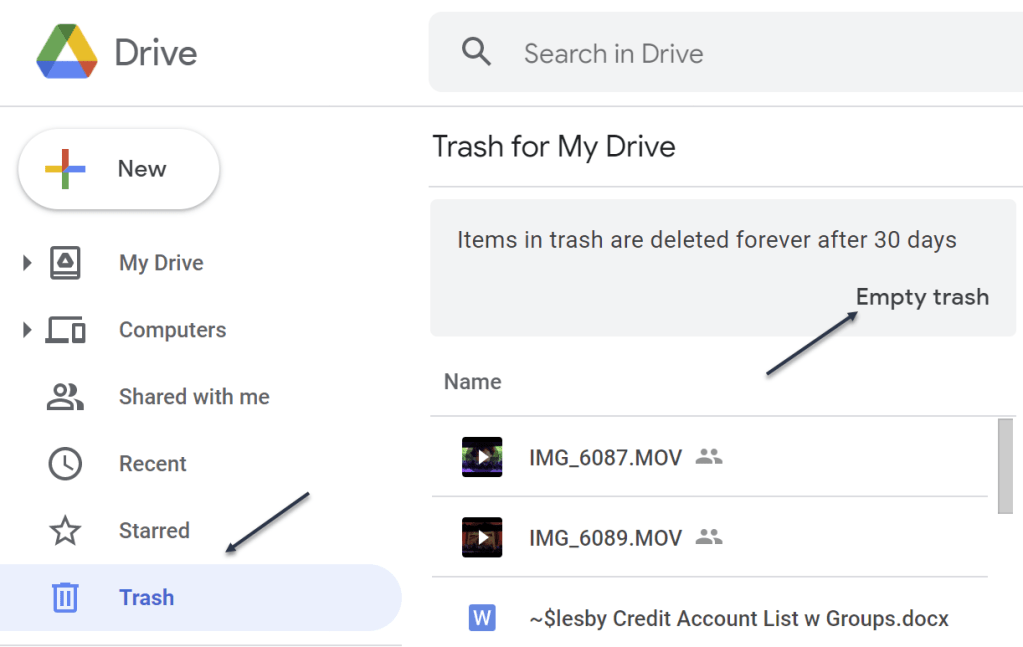
If you want to reclaim the storage space, you will have to force Google Drive to permanently delete the data. To do this, go to the Trash or Bin section in the sidebar. See below image:
Accessing the Trash
Now, in the Trash, you will see a list of files that have yet to be deleted. To individually delete a file, right-click and choose the Delete Forever option. Or, click Empty Trash to delete all the files. See following image:
Delete your file(s)
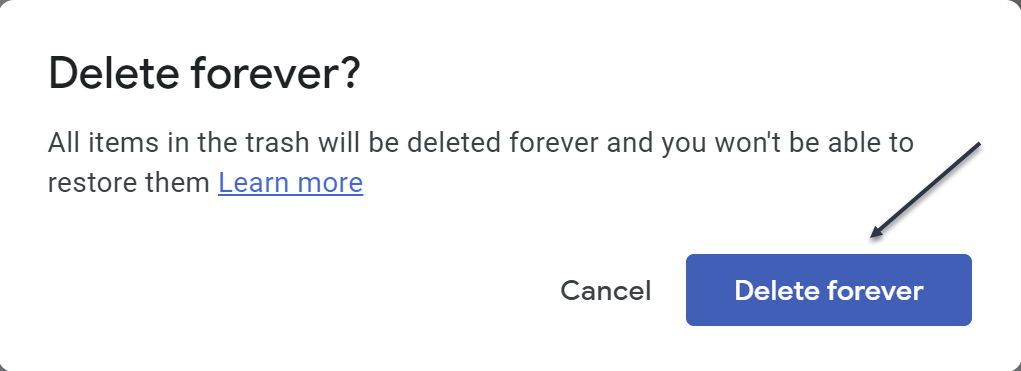
Next, in the pop-up that appears, confirm using the Delete Forever button. Refer to below image:
Confirm to delete the file(s) forever
Now, all the files will be deleted. Once you reload the page, you will see that the storage space has been recovered.
Quote For the Day
I have noticed even people who claim everything is predestined, and that we can do nothing to change it, look before they cross the road.
Stephen Hawking
You now know how to clean up storage space on Google Drive. Please feel free to share this post! One way to share is via Twitter.
Just click the Tweet icon below. This will launch Twitter where you click its icon to post the Tweet.
Check out TechSavvy.Life for blog posts on smartphones, PCs, and Macs! You may email us at contact@techsavvy.life for comments or questions.
Please feel free to leave a comment. I would love hearing from you. Do you have a computer or smart device tech question? I will do my best to answer your inquiry. Just send an email to contact@techsavvy.life. Please mention the device, app and version that you are using. To help us out, you can send screenshots of your data related to your question.
The author’s Vietnam eBook on the Battle for Tra Bong: Events and Aftermath
Twitter has tons of information that flows by faster than we can comprehend. Fortunately, it’s possible to search for tweets using various parameters. Let’s explore this feature.
This is for devices running Twitter
Copyright Scott Adams, Inc./Distributed by Universal Uclick for UFS
Search Tweets by Dates Range
Twitter provides both a mobile and a desktop browser Advanced Search page that lets you search for tweets posted within a certain date range. If you are on a mobile device, open your browser and click here for mobile. For the desktop browser, open your browser and click here for desktop.
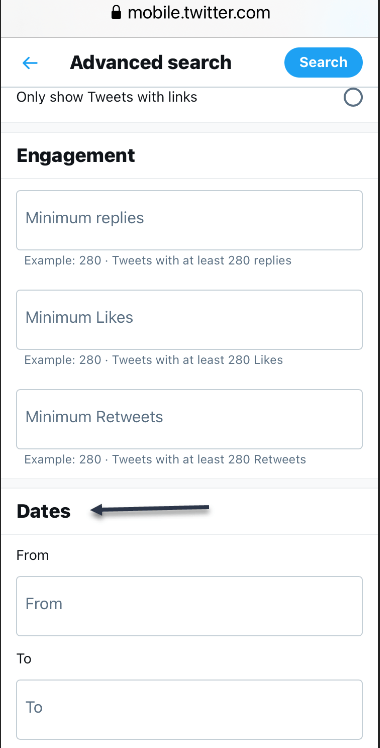
Now, on the Advanced Search page, scroll all the way down to the bottom to the Dates section. There, you will find two parameters: From and To. Refer to below image:
Accessing Dates section
Next, choose your desired month, day, and year for each parameter. Here’s what they do:
From: Set this to find tweets posted after midnight (12:00 a.m.) on this date.
To: Set this to find tweets posted up until midnight (12:00 a.m.) on this date.
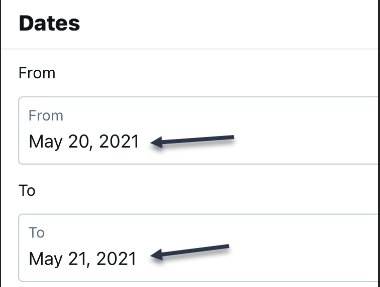
While this sounds simple, using the parameters can be confusing. For example, if you want to find tweets only from May 20, 2021, you would set From to “May 20, 2021” and To to “May 21, 2021.” You will get tweets posted between midnight on May 20 until midnight on May 21. You would not set both fields to the same date. See below image:
Setting From and To date
Similarly, if you wanted to find only tweets from the month of May 2021, you would set From to “May 1, 2021” and To to “June 1, 2021.” That way, your search will cover all 31 days of May.
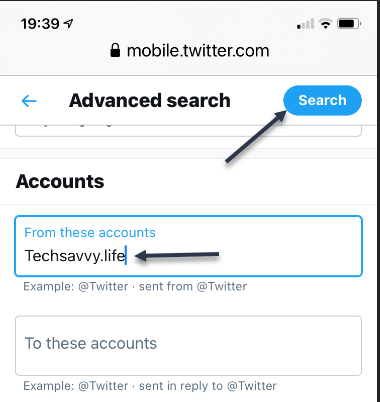
Now, scroll up and enter another parameter, such as a search term in the Words section, or an account name in the Accounts section. Next, click Search when you are done. See following image for an Account search:
Search an Account
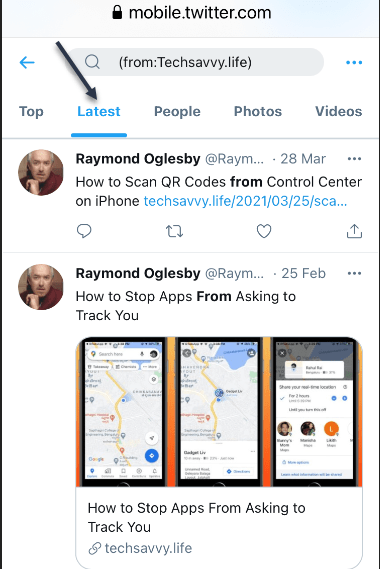
When you see the results, you can further sort them by different criteria using tabs located just below the search bar. Top shows the matching tweets with the most engagements. Latest shows all matching tweets in reverse chronological order. Refer to below image for the Latest using my domain name:
Display Latest posts for an Account
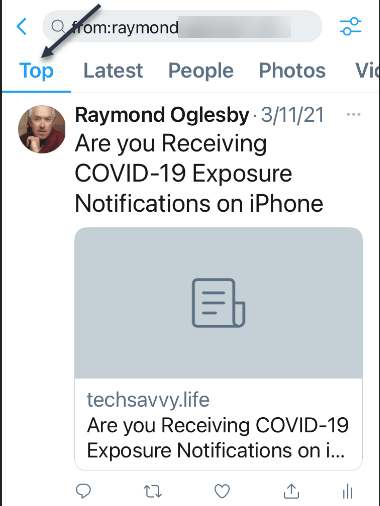
See below image for my Top posts using my Twitter name:
Display Top posts for a Twitter name
If you need to do another search, just revisit Twitter’s advanced search page and search again. It includes many parameters that allow you to narrow down tweets on certain dates, people, photos, videos, and much more.
Search Tweets by Date Range Using Inline Parameters
Another way of searching for tweets from a specific date or dates is using inline search parameters that you type directly into the search box in the Twitter app or on the Twitter website.
Here are three parameters that you can use:
Note! the following are just examples, not for literal input.
From: Find tweets posted only by this Twitter account. For example: from:raymondxxx or from:techsavvy.
Since: Find tweets posted since 12:00 a.m. on this date. The date format is YYYY-MM-DD. For example: since:2021-05-01.
Until: Find tweets posted until 12:00 a.m. on this date. The date format is YYYY-MM-DD. For example: until:2021-06-01.
For example, if you would like to see all tweets posted by the “techsavvy” Twitter account between May 1, 2021 and June 1, 2021, you would type the following into the Twitter search box:
from:techsavvy until:2021-06-01 since:2021-05-01
If you wanted to find all posts about “Safari” by “raymondxxx” posted on May 15, 2021, you would enter:
And so on. This kind of quick inline search can be quite powerful once you get the syntax of the date format. You can also find embarrassing old tweets and delete them.
Quote For the Day
There ain’t no answer. There ain’t gonna be any answer. There never has been an answer. That’s the answer.
Gertrude Stein
You are finished with learning how to find tweets using Advance Search. Please feel free to share this post! One way to share is via Twitter.
Just click the Tweet icon below. This will launch Twitter where you click its icon to post the Tweet.
Check out TechSavvy.Life for blog posts on smartphones, PCs, and Macs! You may email us at contact@techsavvy.life for comments or questions.
Please feel free to leave a comment. I would love hearing from you. Do you have a computer or smart device tech question? I will do my best to answer your inquiry. Just send an email to contact@techsavvy.life. Please mention the device, app and version that you are using. To help us out, you can send screenshots of your data related to your question.
The author’s Vietnam eBook on the Battle for Tra Bong: Events and Aftermath















































 Tech Savvy Life