How to Join a Zoom Meeting Without Installing the App

There is a way to have a Zoom web client meeting without the participates having to install the Zoom app. We are going to learn how to enable this option to make digital meetings even easier.

Zoom’s web client based system has many of the same features as the desktop app, but for users only needing to join meetings as participants it’s very useful. All a attendee has to do is click on the meeting invite link from the host and the web client will do the rest of the work.

There is a sticky problem in doing this type of meeting. The participtes joining a meeting without the app is not enabled by default. The host needs to turn this default on.

If you want your meeting attendees to be able to use the Zoom web client based system, you’ll have to start by logging into your Zoom account on Zoom’s website.

Note! We are NOT using the Zoom app; rather the Zoom web site program.

This if for a PCs and Macs browsers and smartdevices that support Zoom

Dilbert and Working
Copyright Scott Adams, Inc./Distributed by Universal Uclick for UFS

Sign in or Sign up to Zoom

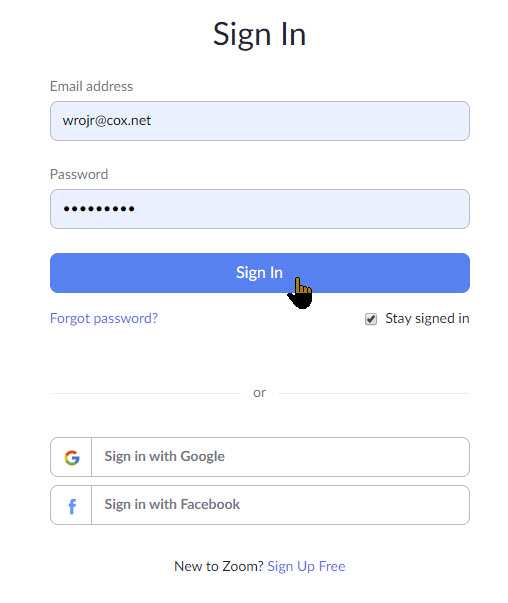
Open your browser and click here to sign in or sign up for Zoom. If the link does not work, with your browser open, type in https://zoom.us/signin in the search field. You will see the following screen for sign in or sign up. For my example, I have already signed up.

Zoom Web Meeting A
Sign in to Zoom web based client program

Once you’ve logged in, you should see your Profile screen:

Zoom Web Meeting B
Your Profile screen

Access the Settings Menu

Click on the Settings menu option. Refer to below image:

Zoom Web Meeting 1
Accessing the Setttings

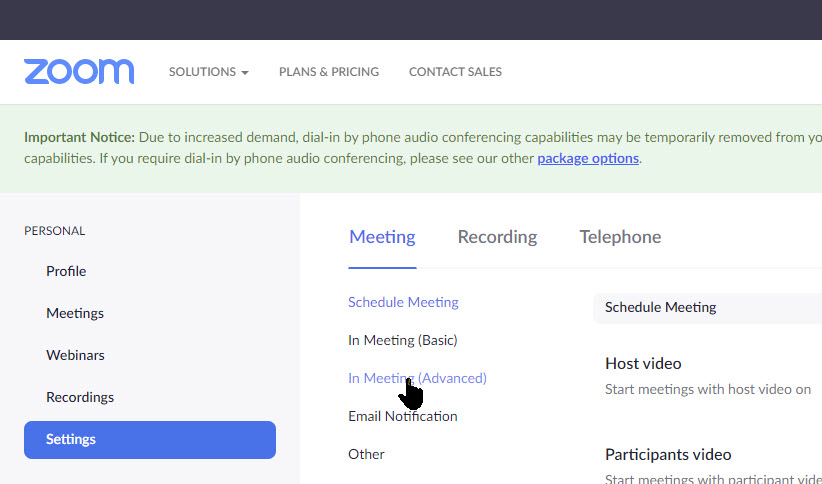
Now, click on In Meeting (Advanced) menu option. Refer to below screen:

Zoom Web Meeting 2
Chosing the In Meeting settings option

Join Using Your Browser

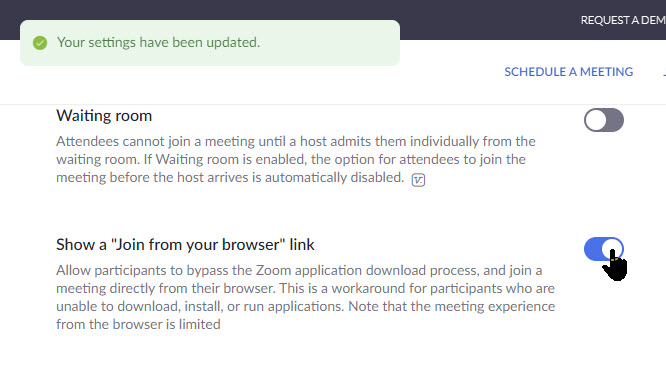
Then scroll down until you see the following screen displayed. Look for the option labeled Show a “Join From Your Browser” link.

Zoom Web Meeting 3
The Join a Meeting option

Now click the toggle switch to the On position. See below image:

Zoom Web Meeting 4
Enabling Join a Meeting option

Schedule a Meeting

If you want to schedule a meeting at this time, click on the link SCHEDULE MEETING in the top menu bar. If you perfer to schedule a meeting later, you may want to set the following options as displayed on the next three screens. Refer to following image:

Zoom Web Meeting 5
Selecting Schedule a Meeting option

Options for Scheduling a Meeting

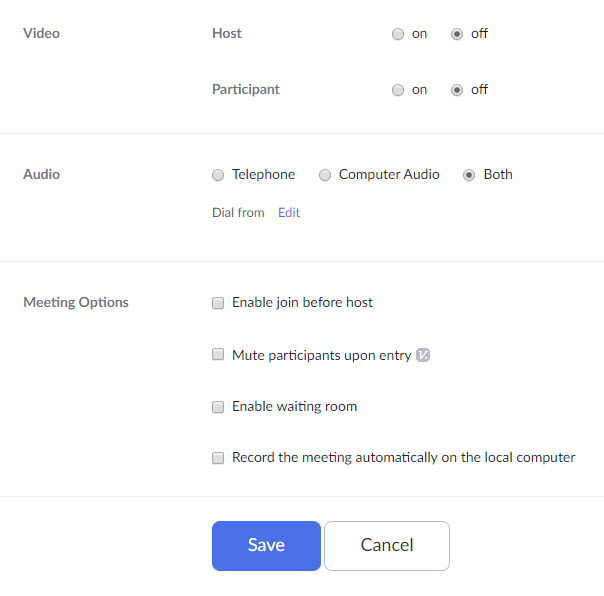
There are two options you may want to enable. Select Schedule A Meeting>Meetings>My Meetings and scroll down till you see the option Video>Host which allows you to record a video of the meeting. Also, at the bottom, checkmark the option Record the meeting automatically on the local computer. You have the option to let the parcipates also record the meeting as well. It is recommended not to enable this option in order to save bandwidth during the on-line meeting. See following image:

Zoom Web Meeting 6
Two Options to enable

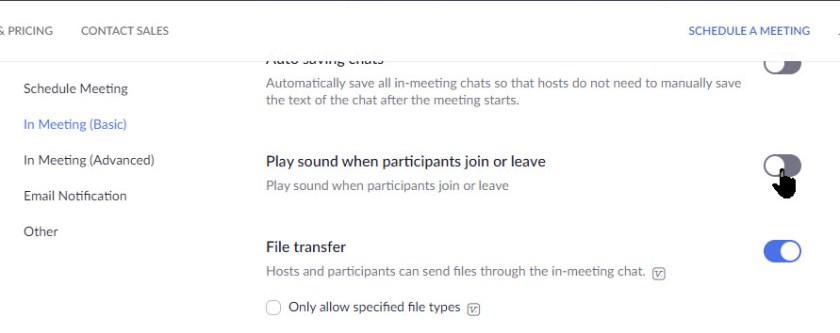
Additionally, under the In Meeting (Basic) menu option, you can turn on a sound when particpates either join or leave a meeting by enabling the Play sound when participates join or leave toggle. See below image:

Zoom Web Meeting 7
The Sound option to enable

Invitation to Join a Meeting

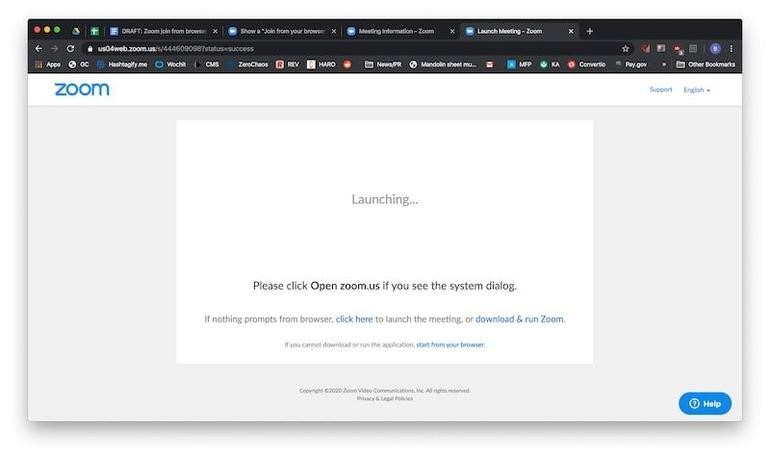
When a meeting attendee clicks on your invitation link to join a meeting they’ll have the option to download and install Zoom or Start From Your Browser. Tell your attendees to select the latter option, install the plugin for your browser and follow the on-screen instructions. Refer to below image:

Zoom Web Meeting 8
The participate invitation to Join a Meeting screen

There are fewer options, buttons and clicks required to join a meeting using the web client based Zoom, so hopefully it will eliminate some of the confusion that comes with using Zoom. Remember you are using your web browser to join a Zoom meeting, NOT the Zoom app on a smartdevice or the Zoom program on a PC or Mac.

I Would Like to Hear from You

Please feel free to leave a comment. I would love hearing from you. Do you have a computer or smart device tech question? I will do my best to answer your inquiry. Please mention the device, app and version that you are using. To help us out, you can send screenshots of your data related to your question.


The author’s Vietnam eBook on the Battle for Tra Bong: Events and Aftermath

How to Switch to the New Facebook Interface

Facebook’s new website interface change is not well known. At some point, it will probably be the new standard. The interface is getting a visual overhaul that almost everyone can access. You can now update to this brand new, less cluttered design with the click of a button. If you don’t like the change, you can easily switch back to the classic interface.

This if for a desktop/laptop, Macs and smartphones supporting Facebook

Dilbert and Human Interaction
Copyright Scott Adams, Inc./Distributed by Universal Uclick for UFS

Enabling the New Interface

Note! This post relates to a PC, other devices will be similar. If you don’t see the new Facebook option then Facebook has yet to rollout the change to your device.

Fire up your device and log in to your Facebook account.

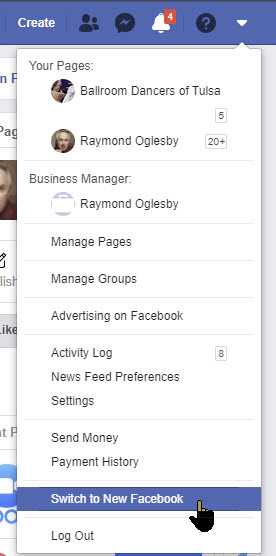
Next, click on the down arrow in the top-right corner of the interface. Select the Switch To New Facebook option. The page will refresh and the new interface design will load. Refer to below image:

Facebook New 1
Switch to the new Facebook option

A welcome message will appear the first time that you switch to the new Facebook design. Facebook claims that the redesign has faster loading time, cleaner look and bigger text. Additionally, Facebook now includes a dark mode that you can enable whenever you want.

Additionally, this update comes with a user-friendly redesign of the Groups tab and an overhaul of the News Feed. See below image:

Facebook New 2
The Welcome message for the new interface

Simply click the Next button. You will see the following image allowing you to select how yout interface will look.

Facebook New 3
Selecting your interface look

Just click the Get Started button. That’s it, you are all set with the new desktop interface. If you aren’t a fan of the Dark mode, you can switch back to Light whenever you like.

Switching Back to the Classic Interface

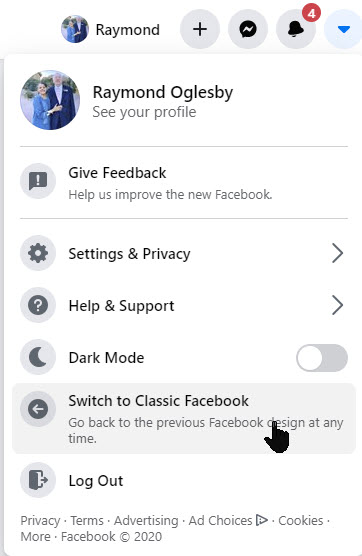
Once you’ve enabled the new interface, you can always revert the change from your Facebook account’s front page. Just click on the down arrow in the top-right and then select Switch To Classic Facebook. See following image:

Facebook New 4
Reverting back to the Classic interface

At some point in the future, Facebook may decide to roll out the new design permentally for all platforms. If so, reverting back to the classic interface will no longer be an option.

I Would Like to Hear from You

Please feel free to leave a comment. I would love hearing from you. Do you have a computer or smart device tech question? I will do my best to answer your inquiry. Please mention the device, app and version that you are using. To help us out, you can send screenshots of your data related to your question.

The author’s Vietnam eBook on the Battle for Tra Bong: Events and Aftermath

How to Use Spotify with Siri on iPhone

If you’re running iOS 13 or higher, you can directly ask Siri to play your favorite playlist, song or an artist on Spotify. iOS 13+ expands third-party support for Siri which now includes Spotify. This means you can get Apple Music style playback controls with Siri on your iPhone. Here’s how to set it up.

If you already have the Spotify app installed, and you’re logged into your account, all you have to do is start talking to Siri. Say “Play the Beatles on Spotify”.

This is for iPhone or iPad running iOS 13 or above

Dilbert Goals
Copyright Scott Adams, Inc./Distributed by Universal Uclick for UFS

Enable Spotify Access to Siri

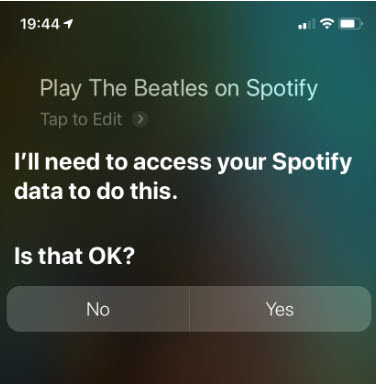
As this is your first time using Spotify with Siri, it will ask for permission to access your Spotify data. Simpily tap the Yes button. Refer to below image:

Siri and Spotify 1
Giving permission to access Spotify

Spotify will start playing the music you requested. You’ll see a Now Playing widget playback control on the Siri screen.

You can also control the Siri access for Spotify from your iPhone.

  • Open Settings
  • Select Spotify
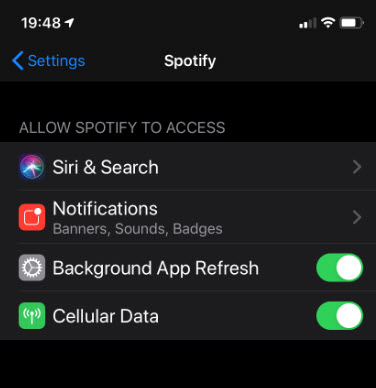
  • Select Siri & Search. See following image:
Siri and Spotify 2
Accessing Siri and Search

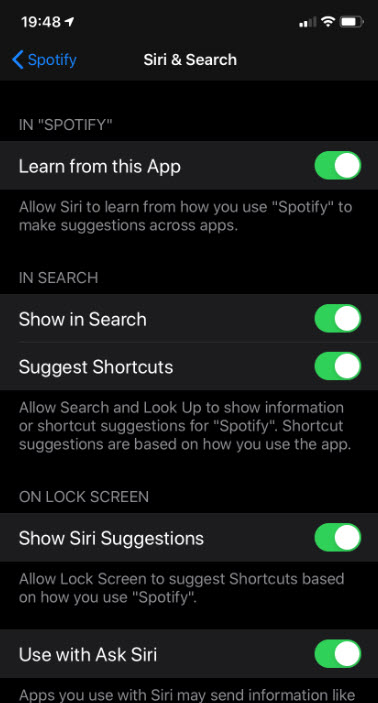
At the bottom of the screen, toggle on the Use with Ask Siri feature to enable Siri access for Spotify. Refer to below image:

Siri and Spotify 3
Toggle on the Use with Ask Siri

Control Spotify on Using Siri

Once Spotify is connected to Siri, you can use it to play any song, album, artist or playlist. You can also get specific about albums and years of release.

Below are some Spotify commands you can use with Siri:

  • Play [song name] on Spotify
  • Play [album name] on Spotify
  • Play [artist name] on Spotify
  • Play on Spotify
  • Play my liked songs on Spotify
  • Shuffle on Spotify
  • Play the latest album by [artist name] on Spotify
  • Play [genre] music on Spotify

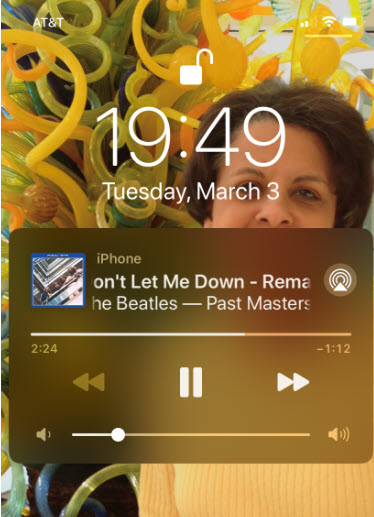
Other than these, you can use the standard playback controls in Siri as well. For instance, you can ask Siri to play, pause, skip, repeat, shuffle or go to the previous track. Refer to below image:

Siri and Spotify 4
The playback control

On your iPhone, you can also open Spotify and see what is playing at the bottom of the screen. See below image:

Siri and Spotify 5
Accessing Spotify to see what is playing

The following image is an example of using the Spotify command Play Easy Listening on Spotify:

Siri and Spotify 6
Listening to Easy Listening on Spotify

For now, Siri only supports playback features in Spotify. You can’t use Siri to interact with the app. For instance, you can’t search for something like a song in Spotify using Siri. You also can’t use Siri to add a song to a playlist either.

I Would Like to Hear from You

Please feel free to leave a comment. I would love hearing from you. Do you have a computer or smart device tech question? I will do my best to answer your inquiry. Please mention the device, app and version that you are using. To help us out, you can send screenshots of your data related to your question.

The author’s Vietnam eBook on the Battle for Tra Bong: Events and Aftermath

How to Record a Zoom Meeting

Why take notes during a Zoom meeting when you can refer back to a recording of the entire call? Here’s how to record a Zoom meeting, whether you’re the host or not.

Important meetings need good records, and anyone who has taken notes knows that some details can be missed. The best way to preserve a record of a meeting is to have a video recording.

 That goes doubly for remote meetings, where distractions, tech issues and other problems can lead to you missing out on essential information.

If you are using an Enterprise account to host a meeting, you may not be able to record a Zoom meeting unless your IT team has given you permission. Be sure to check with your administrator before the meeting to grant you access if you don’t have it.

If using a PC or Mac, be sure your computer has a microphone and/or camera to use Zoom to its fullest. You may also use your smartphone to record the meeting.

This if for a PC, Macs, iPhone/iPad and Android devices that support Zoom

Dilbert and Future 1
Copyright Scott Adams, Inc./Distributed by Universal Uclick for UFS

Accessing Zoom Settings

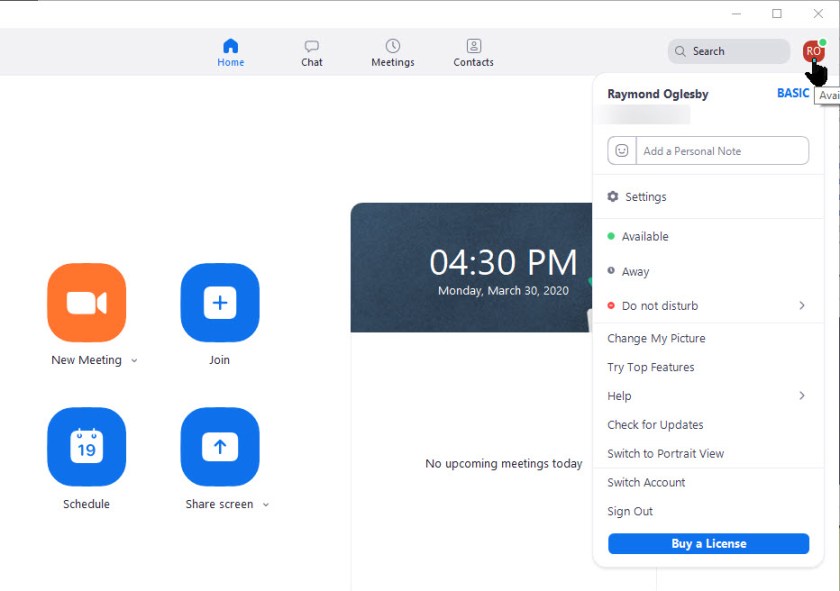
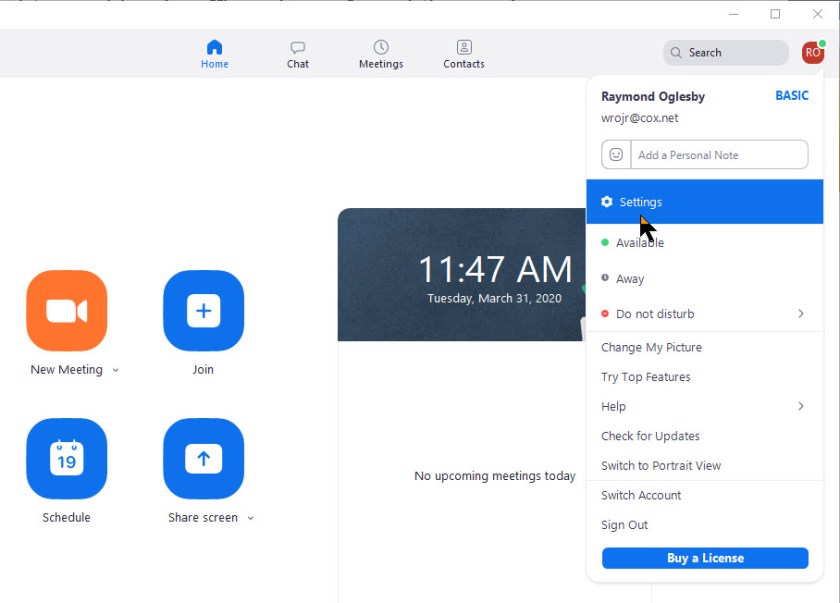
First, fire up Zoom and join an active meeting. Then click on your small profile photo in upper right-hand corner. This will open up the dialog options window. See below image:

Zoom Record 1
Zoom dialog Options window

Recording a Zoom Meeting

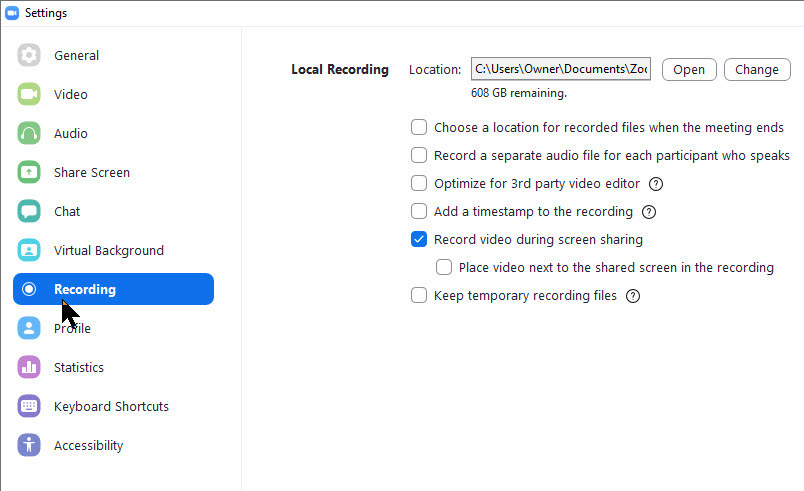
Next, click on the Settings option. The Settings options will be displayed. The Record video during screen sharing option should be checkmarked. Also, at the top of the screen is the location where your video will be stored upon completion. This folder was created when you installed Zoom. Refer to below image:

Zoom Record 2
Settings options for recording a video

By default, only the meeting host can record the meeting, but it’s easy to grant other participants the ability to do so. The meeting host can do so by clicking on Participants while in a meeting, looking for the More button next to an individual’s name and selecting Allow Record

Once in a meeting, those wanting to record only need to click the Record button to start capture, at which point the Record button will change into two buttons: One to Pause the recording and one to Stop recording.

When you’re done recording video, Zoom stores it temporarily in the location mentioned above. The video is encoded into MP4 format once the meeting has ended.

I Would Like to Hear from You

Please feel free to leave a comment. I would love hearing from you. Do you have a computer or smart device tech question? I will do my best to answer your inquiry. Please mention the device, app and version that you are using. To help us out, you can send screenshots of your data related to your question.
The author’s Vietnam eBook on the Battle for Tra Bong: Events and Aftermath

Online Conferencing Solutions

In this Coronavirus pandemic, many people are working from home. Our local TV news and weather people have live audio and video streaming from their homes for the daily news broadcast. Working from home has become the new norm.

This will continue after the crisis is over. Instead of going to an office or to a clients location, you will collaborate through an audio and video service.

I researched some web sites for the top call services. They have a similar mix of apps, just in a different order. Some of the web sites have organizations I never heard of. So, I like the ranking from Office Watch. Click here to read their review.

This is for modern web browsers and apps on Apple, Android and Microsoft platforms

Their top seven online call services are as follows:

  1. FaceTime – handles up to 32 people
  2. Skype – up to 50 people
  3. WhatsApp – handles 4 people
  4. Signal – one-on-one calls only
  5. Zoom and Meetings – up to 100 people for the free version; 1000 for their enterprise paid version
  6. Microsoft Teams and Live Events – can handle 4 participates, up to 10,000 for the paid version
  7. Google Hangouts – up to 150 people

I recommend Facetime or Skype for a small busines; Zoom for a medium business; and Zoom Meetings for a large enterprise. Facetime and basic Zoom are free. Click here to read the review of their rankings.

I Would Like to Hear From You

Please feel free to leave a comment. I would love hearing from you. Do you have a computer or smart device tech question? I will do my best to answer your inquiry. Please mention the device, app and version that you are using. To help us out, you can send screenshots of your data related to your question.
The author’s Vietnam eBook on the Battle for Tra Bong: Events and Aftermath

How to Setup Contacts in Zoom

Is your business using Zoom for collaboration during the Coronavirus outbreak? Zoom has become a key tool for working at home and a top choice for vittual meetings. Zoom is free for one-on-one calls that last as long as you like. For three or more people, your calls are limited to 40 minutes. Zoom also has a paid version for an enterprise; it can handle 1000 people.There’s also a plan for small and medium businesses that supports up to 300 participates per call..

Click here for a detailed review of Zoom from PCMag Labs

Click here for setup and install of Zoom from Office Watch

Zoom Meeting’s free account is generous. You can host up to 100 people on a call for free and you can see as many as 49 people on an active call in a gallery-style view. There’s no limit on how many meetings you can host. 

So, how do we setup our contacts with coworkers using Zoom? In this post we offer insight on how to do this.

This post is for Windows 7 or greater, iPhone or iPad with iOS 7 or later, Android 4 or greater, Web browsers, Macs and the Zoom app or program

Dilber and Ted Talk
Copyright Scott Adams, Inc./Distributed by Universal Uclick for UFS

Before you Begin

Of course, you have already setup the app. Linking to other people in Zoom is necessary before you can call them. A person has to be added to your Zoom contacts list and they have to add you before a call is made.

Zoom contacts are separate from Outlook and other contacts list.

Zoom links people by matching email addresses. Some people have multiple email addresses; for example, personal and work or different ones for different purposes or multiple old email addresses.

Which Email Address to Use?

Before adding a person to your contacts list it’s a good idea to check with them on which email address they use to login to Zoom.

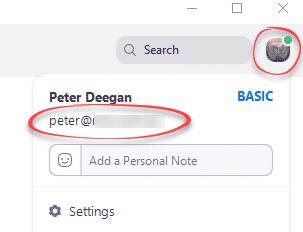
To check, they can click on their Zoom Profile in the top right where their name and address is displayed. Refer to below image:

Zoom Contacts 1
Locate the correct email address

Invite a Contact

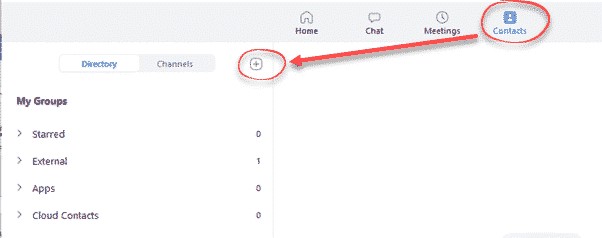
To link with someone, in the Zoom app, go to the Contacts section, then click the plus “+ “symbol. See following image:

Zoom Contacts 2
Linking a Zoom contact

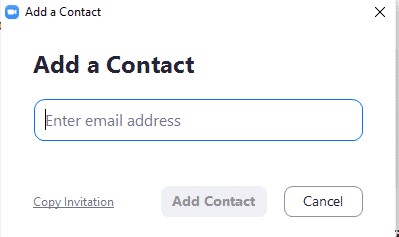
Enter the email address of the contact you want to add to Zoom. See below image:

Zoom Contacts 3
Adding a Zoom contact

Then you have two options:

  1. Add Contact – sends a contact request to that person’s Zoom account.
  2. Copy Invitation – copies to your clipboard with web link.  Paste that into an email or instant message.

Refer to below image:

Zoom Contacts 4
Web address for the Zoom contact

There is no need to paste the entire text, change it to suit you. The web link is the important part to pass along. Make sure you include the whole web link; it’s a long link using multiple lines.

Accept a Contact Request

If a participate adds you to their Zoom contact list, you’ll see a pop-up alert. See following image:

Zoom Contacts 5
Pop-up box for a contact request

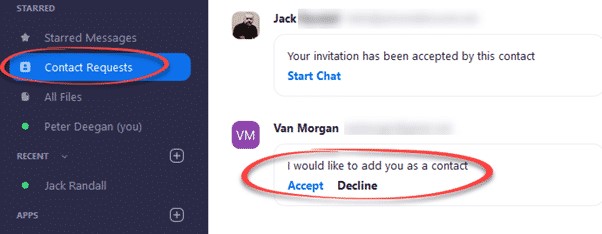
Or open your Zoom app/web page. Under Contacts look at Contact Requests.  The request will be displayed with options to Accept or Decline. Refer to below image:

Zoom Contacts 6
Accept or Decline a contact request

As you can see above, the Contact Requests you’ve made will also appear with their current status.

What to Do Next?

Now that you’ve linked with someone on Zoom, you can call them (voice, video, text, etc). If someone wants to invite you into a Zoom meeting, give them you Zoom linked email address.

That’s it on setting up your Zoom contacts. Try it out.

I Would Like to Hear from You

Please feel free to leave a comment. I would love hearing from you. Do you have a computer or smart device tech question? I will do my best to answer your inquiry. Please mention the device, app and version that you are using. To help me out, you can send screenshots of your data related to your question.

The author’s Vietnam eBook on the Battle for Tra Bong: Events and Aftermath

How to Use FaceTime During the Time of Social Distancing

During our time of social distancing, you can still reach out to your friends or relatives using FaceTime video or audio on your iPhone or iPad.

You can use FaceTime over Wi-Fi or over cellular on iOS 12.1 or later devices. Also, you need an iPhone 6s or later. FaceTime supports up to 32 people simultaneously.

This is for iPhone or iPad

Turn on FaceTime

Open the FaceTime app and sign in with your Apple ID. You can also do this from Settings > FaceTime

If you’re using an iPhone, FaceTime automatically registers your phone number. To also register your email address on your iPhone or iPad, go to Settings > FaceTime > Use your Apple ID for FaceTime and sign in with your Apple ID.

Make a FaceTime Call

To make a FaceTime call, you need the person’s phone number or registered email address. There are a few ways to make a FaceTime call:

  • In the FaceTime app, tap the plus button and type the person’s phone number or email address. Tap the number or address, then tap Audio or Video
  • If you have the person’s phone number or email address saved in your Contacts, you can start typing their name and tap the name when it appears. Then tap Audio or Video
  • You can also start a FaceTime video call from your iPhone during a phone call. Tap the FaceTime icon in the iPhone app to switch to FaceTime.

Now you don’t have to be alone, you can reach out to people using your Apple smart devices.

I Would Like to Hear From You

Please feel free to leave a comment. I would love hearing from you. Do you have a computer or smart device tech question? I will do my best to answer your inquiry. Please mention the device, app and version that you are using. To help me out, you can send screenshots of your data related to your question.

How to Lock your iPhone or iPad Screen Orientation

Do you get frustrated when your smart device switches to landscape from portrait mode (or vice versa) when you don’t want it to? There is a way to prevent this behavior through Orientation Lock.

This is for iOS devices iPhone and iPad running iOS 7 and above

Set the Lock

To do this, launch the Control Center by one of the following ways:

1. iPhone 10 and above – Swipe down from upper right hand corner

2. iPhone 8 or earlier – Swipe up from bottom of screen

See below image:

iPhone Screen Lock 1
The Orientation Lock screen
  • Tap the Orientation Lock icon (the one with an open lock and a curved arrow) to set the lock to its current position. A brief message will appear at the top to confirm the lock and the icon will be highlighted. Refer to following image:
iPhone Screen Lock 2
Turning on the Orientation Lock
  • Swipe to close Control Center

Verify the Lock

  • Launch the Control Center. A small lock icon will be displayed in the Status Bar next to the Battery Level icon. See following image:
iPhone Screen Lock 3
Verifying the Orientation Lock is on
  • Swipe to close Control Center

Turn Off the Lock

  • Launch the Control Center
  • Tap the Orientation Lock icon

A brief message will appear at the top to confirm the lock is turned off and the icon will no longer be highlighted. See following image:

iPhone Screen Lock 4
Turning off the Orientation Lock
  • Swipe to close the Control Center

Note! Not all apps support screen rotation. Some apps only work in portrait or landscape mode. This is particularly true of some games and video apps. For those apps, your screen rotation settings don’t matter. The app will only display in the orientation it supports.

I Would Like to Hear from You

Please feel free to leave a comment. I would love hearing from you. Do you have a computer tech or smart device question? I will do my best to answer your inquiry. Please mention the device, app and version that you are using. To help us out, you can send screenshots of your data related to your question.

The author’s Vietnam eBook on the Battle for Tra Bong: Events and Aftermath

How to Listen to Podcasts on Your Amazon Echo

Yes, you can now hear Podcasts on your Amazon Echo device. Apple Podcasts and others, like Spotify and iHeartRadio, are now options to choose from for your favorite podcasts.

We are going to link your Echo device to one of these podcast services. Our example is linking Apple Podcasts to the Amazon Echo. The ways this is done is somewhat clumsy. The Echo seems to be hard to program; it’s not straightforward. But follow along, it’s not time consuming and is worth it.

This is for iOS devices (iPhone and iPad) and the Amazon Echo

Starting Alexa

  • Open the Alexa app on your smart device. If you have yet to download the app, head to the Apple Store to download and install.
  • Tap the hamburger icon, the one with 3 dots in upper right hand corner or tap on the menu icon in upper left hand corner
  • Select Settings. You will see the following screen:
Apple Podcasts 1
The Settings image
  • Select Music & Podcasts. Refer to following image:
Apple Podcasts 2
The Music & Podcasts screen

Setting up the Link

  • Select Link New Service.
  • Select Apple Podcasts. Refer to following image:
Apple Podcasts 3
Enabling the Apple Podcasts image
  • Tap ENABLE TO USE.

You will be asked to enter your Apple ID, Password and Passcode depending on your login procedure

  • Tap SETTINGS. See following screen:
Apple Podcasts 4
The Apple Podcasts settings screen.

Linking the Service to Echo

  • On the Skill Settings screen, tap on the Link Account link. See below image:
Apple Podcasts 5
The link screen for Apple Podcasts

Allowing Access for the Link

  • Tap Allow on the Access Request screen. You may see a different screen depending on what service you are linking. Refer to below image for Apple Podcasts:
Apple Podcasts 6
Allowing the link to Apple Podcasts image

Linkage for the Podcast Service Completed

You will see that Apple Podcasts has been successfully linked. See following image:

Apple Podcasts 7
Apple Podcasts now linked to Amazon Echo screen
  • Click Done

Now you can listen to your favorite Apple Podcasts. Just repeat the above steps to add other podcast service(s).

I Would Like to Hear from You

Please feel free to leave a comment. I would love hearing from you. Do you have a computer or smart device tech question? I will do my best to answer your inquiry. Please mention the device, app and version that you are using. To help me out, you can send screenshots of your data related to your question.
The author’s Vietnam eBook on the Battle for Tra Bong: Events and Aftermath

How to Clean Your Device

The Coronavirus is in the news in a big way, almost a Pandemic by World Health Organization. The news has you aware of how many times you touch your face, how many times do you touch your device?

What you Will Need

What can we do about this? To get our gadgets gleaming, you will need microfiber cloths, cotton swabs, isopropyl alcohol, compressed air spray and distilled water. Before you apply any cleaning, unplug or turn off your device. We are going to disinfect your device and give everything else a general cleaning.

Cleaning your Phone or Tablet

iPhone Image

Phones and tablets have fingerprint resistent coating that could come off. Manufactures generally recommend wiping them down with distilled water on a microfiber cloth, then using cotton swabs to clean around the edges of the screen, buttons and camera lens.

What To Do

Apple recently released its updated guidelines for cleaning. They endorse using 70 percent isopropyl alcohol wipe or Clorox Disinfecting Wipes. You may gently wipe the nonporous surfaces such as the screen, keyboard or other exterior surfaces.

You can create a mixure by using 70 percent alcohol and 30 percent water in a spray bottle. Be sure to wash your hands before starting the cleaning. Then remove any case (leave on any protective screen), spritz the cloth with the solution and thoroughly wipe down your device. Let it dry completely. Then be sure to wash your hands again.

What To Avoid

  • Do not use bleach
  • Avoid getting moisture in any opening
  • Do not submerge your Apple device in any cleaning agents
  • Don’t use the wipes on fabric or leather surfaces
  • Do not reuse the microfiber cloth
  • Avoid using Windex

Cleaning Your Desktop or Laptop

Laptop

First unplug your device and remove the battery for a laptop. Turn your laptop or PC keyboard upside down and (gently) shake out to get rid of dirt and crumbs. Then grab a can of compressed air blaster (available at WalMart and similar places) and blast it. Use cotton swaps to get inside the crevices like the keys.

Lightly spray a microfiber cloth with your solution and wipe down the plastic and metal surfaces to include external devices.

To clean the screen, use a screen cleaning product or your mixture and spray onto a microfiber cloth. For a laptop, a one stop solution is to try 3M Notebook and Tablet Cleaning Wipes. If you have a touch screen, clean it with a microfiber cloth; for smudges, use only water or eyeglass cleaner applied to the cloth to remove them.

Don’t forget the mouse. Using the same mixture, dab it on a cotton swab and run it over the feet of the mouse and any crevices. Then take a microfiber cloth dipped in the mixture and go over the body of the mouse and cord.

I Would Like to Hear from You

Please feel free to leave a comment. I would love hearing from you. Do you have a computer or smart device tech question? I will do my best to answer your inquiry. Please mention the device, app and version that you are using. To help us out, you can send screenshots of your data related to your question.