How to Change Your iPhone Default Browser Easily

The post provides a step-by-step guide on how to change the default web browser on an iPhone from Safari to a preferred alternative, such as Chrome. It includes tips, system requirements, and FAQs regarding browser functionalities, catering to users seeking to customize their browsing experience on Apple devices.

RAYMOND OGLESBY @RaymondOglesby2
May 27, 2025 – 3 minutes read time

On Apple devices, Safari is the default browser. However, many people prefer to use other browsers, such as Chrome, instead of Safari. Fortunately, you can easily change the default web browser on your iPhone to your preferred one. Here’s how to change the default browser on an iPhone.

  • Easily change default browser from Safari.
  • You have different preferences than Apple’s standard browser.

This tip was performed in iPhone 14 Pro running iOS 18.5

Click here to learn how to update your iPhone to the latest iOS version.

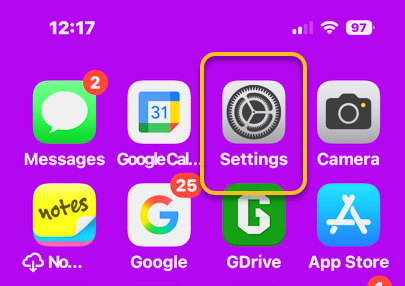
First, open the Settings app. Refer to the image below:
Default Browser 1
Selecting Settings

Next, tap Apps. See the image below:

Default Browser 2
Selecting Apps

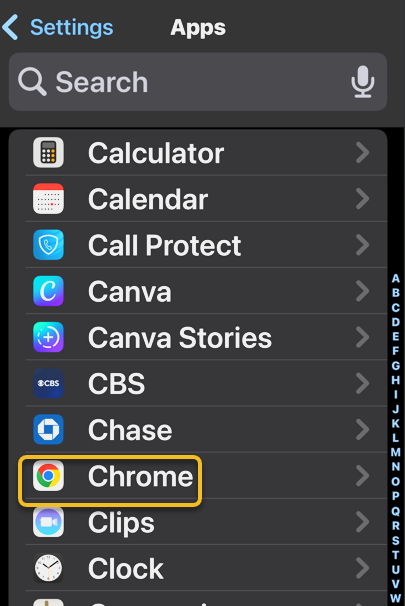
Now, scroll down to the app list to find your preferred browser, such as Chrome, and tap it. See the following image:
Default Browser 3
Selecting preferred browser

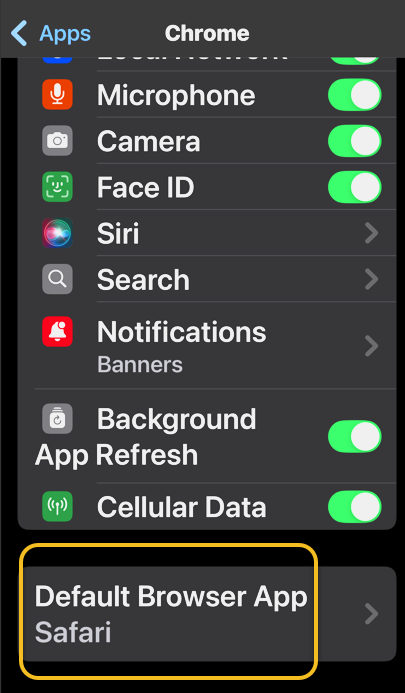
Next, tap Default Browser App. Refer to the image below:
Default Browser 4
Selecting Defsult Briwser App option

Now, tap whichever browser you would like to use as your default browser. See the image below:
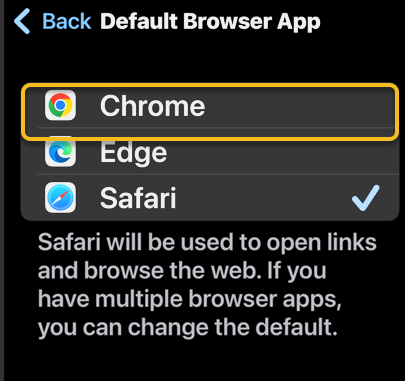
Default Browser 5
Selecting a browser

Next, when you haveselected your new default browser, you will see a blue check mark next to it. See the following image:
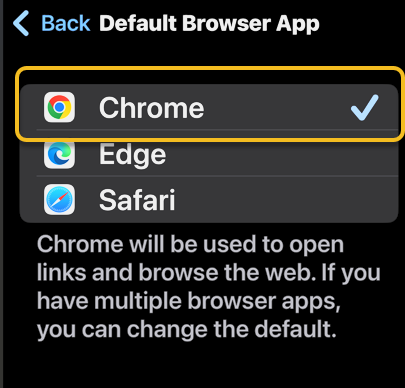
Default Browser 6
Your preferred browser selected

Now that you know how to change the default browser on your iPhone, you can easily open links in your preferred web browser, whether it’s Safari, Chrome, Edge, or another browser.

  • How do I clear my Safari history on my iPhone? To clear your Safari history on an iPhone, tap the Bookmark icon, then the History tab, then choose which parts of your Safari history you want to delete. 
  • How do I make Safari the default browser again? Follow the same steps above and select Safari from Apps. Alternatively, if you uninstall the browser app that is set as default, your iPhone will automatically switch back to Safari.
  • What do I do if Safari is not working on my iPhone? If Safari is not working on your iPhone, make sure you have a strong Wi-Fi or cellular connection. Additionally, verify that Screen Time limits are not enabled.

Disclaimer

Technology is constantly evolving, and smartphone and desktop tech rarely remains static. Therefore, the information in this post is only accurate as of the date it was written. Blog posts that are older than six months may contain instructions that are no longer compatible with your device or operating system. We hope that the content from previous posts continues to function as intended. Thank you for reading TechSavvy.Life, where technology works for you.

 “Technology means you can now do amazing things easily, but you can’t easily do them legally.”

― Lawrence Lessig

That’s it. Please feel free to share this post! One way to share is via Twitter.

Just click the Tweet icon below. This will launch Twitter where you click its icon to post the Tweet.

Checkout TechSavvy.Life for blog posts on smartphones, PCs, and Macs! You may email us at contact@techsavvy.life for comments or questions.

We value your feedback! Was this post helpful? Please share your comments with us. If you have a tech question related to your computer or smart device, feel free to reach out. Just send an email to contact@techsavvy.life, and be sure to include the device, app, and version you are using. To assist us further, you can also attach screenshots related to your inquiry.

Author’s eBook

The author’s Vietnam eBook on the “Battle for Tra Bong Vietnam: Events and Aftermath” can be accessed from a Kindle device or the Kindle App for a desktop or smartphone. The apps are free.

The author’s Vietnam eBook on the Battle for Tra Bong Vietnam: Events and Aftermath

How to Find Out Who Is Calling You

This post discusses how to identify legitimate calls and avoid scammers, addressing phone verification, spoofed numbers, and web searching. It provides options like reverse phone lookup websites and tools like WhoCallsMe, Spy Dialer, PeopleFinders, and USPhoneBook. It also suggests utilizing mobile carrier solutions, reporting to the FTC, and the National Do Not Call Registry to combat spam calls.

RAYMOND OGLESBY @RaymondOglesby2
June 11, 2024

This is for any browser on a desktop, laptop, or smartphone. Screenshots are from Google Chrome on Windows 10

The phone rings and it’s a number you do not recognize. Or perhaps an unknown number shows up in your missed calls. You are curious but do not want to pick up or call back if it’s a telemarketer or scammer. Instead of playing robocall roulette let’s explore five ways to see who is calling before you engage.

You may have noticed that America has a problem with scam calls. Scammers took $10 billion from unsuspecting victims in 2023, and it’s hard to see the problem going away anytime soon. If you get a call, there are a few ways to tell if it’s legit or not.

  • What does the phone say? When a call comes in, look for a displayed number and location. If your phone is not showing any information and says something like Unknown, chances are there’s a scammer on the other end. Anyone can hide their number, but it’s best to let this one go to voicemail and call back if it’s someone you know. If the phone says Scam Likely, it’s typically correct; just ignore the call.
  • Look for verification. Carriers have started verifying phone numbers when you receive a call. Google’s phone app also adds a badge on incoming calls that can be attached to a business. Unfortunately, this does not verify every call from a legitimate business or weed out legitimate businesses that use robocalls.
  • Watch out for spoofed numbers. Have you ever gotten a call from what looks to be your own phone number, only it’s a few numbers off? Do not pick those calls up; scammers like to spoof phone numbers and trick you into picking up. They think you are more likely to pick up if the call is from your area code or someone you know.

Note! We recommend ou not click or tap on any icon off the main screen. These buttons launch web sites that may introduce malware or be blocked by your browser security. Also, any screen that has flashing items, immediately exit the screen.

If you click or tap on a button that starts a scanning process for addresses,emails, public information, criminal records, etc., the process will take several minutes. On the desktop, you can stop the process by hitting Cntl-Alt-Del keys, then select Task Manger. Next, right=-click on your browser entry and select End Task. Your browser will exit stopping the scanning process.

If you want to quickly know whether a caller is legit or a scammer, do a quick web search. As a rule of thumb, if the search results are primarily reverse phone lookup websites, it’s safe to say other people have received unwarranted calls from that same number and are reporting it to warn others. Refer to the below image:

Calls You 1
Search the web

Speaking of reverse phone lookups, if you want to do some digging about a certain phone number, many websites can help you. You usually have to pay to get any worthwhile information, but there are a few tools that can help you for free. Even though they are free if you want additional information about the phone number, the sites charge for their service.

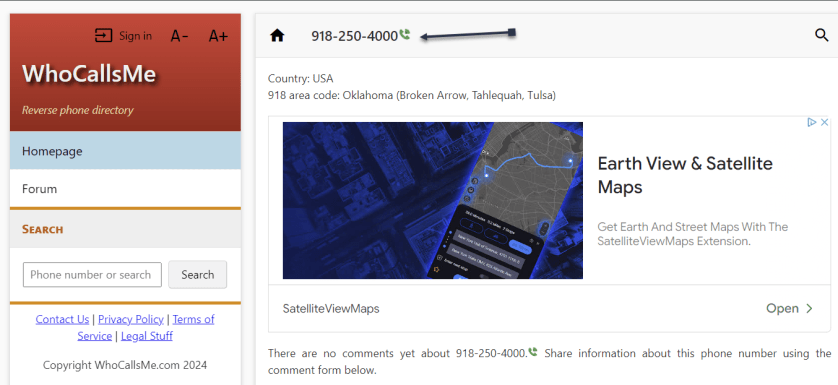
At WhoCallsMe, users can report their experiences with specific phone numbers. Enter a number and the website will tell you where the area code is from. You can then enter your own report or view what others say about it. See the below image:

Calls You 2
WhoCallsMe main screen

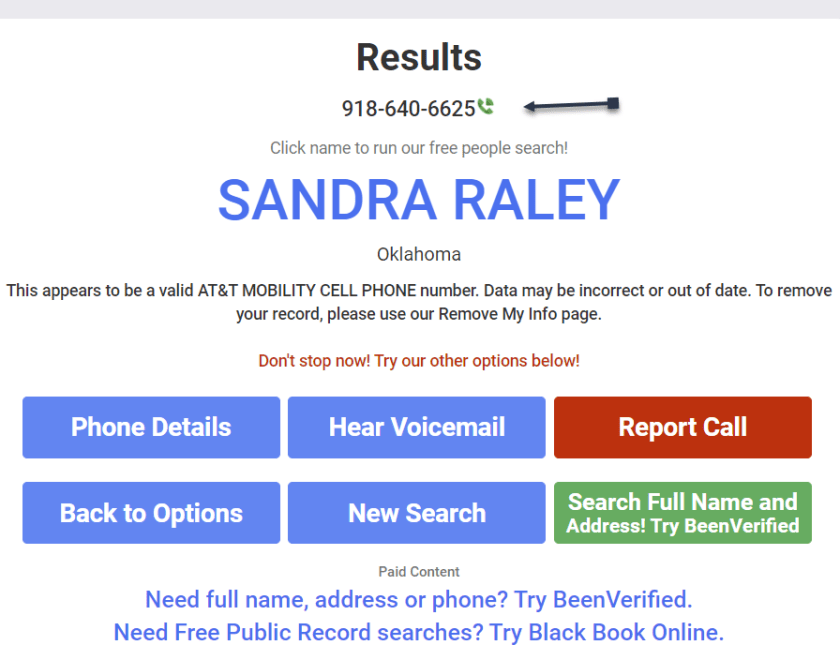
Spy Dialer allows you to search for phone numbers, names, addresses, and emails. Enter a phone number, then choose if you want to look up any linked names or photos, listen to the number’s outbound voicemail, or confirm if the number is spam or not. Spy Dialer can tell you with whom the number is registered, their general location, and whether or not the number has been reported as spam before.

For more information, click Phone Details to see how long the line has been in service and if the number is spoofed. Choose Hear Voicemail to get the caller’s outbound voicemail, if available. You can click Report Call to file a complaint with Spy Dialer.

We recommend this site over the others because it’s faster and offers more information. See the following image:

Calls You 3
Spy Dialer main screen

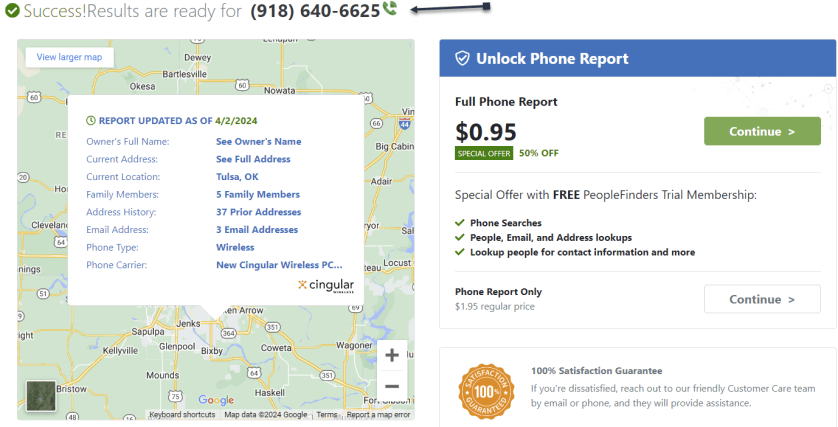
PeopleFinders allows you to look up a phone number, name, address, or email. Enter a phone number into the search bar to get the caller’s general location, carrier, and phone type. More revealing information, such as the caller’s full name and address, is hidden requiring a fee. Refer to the below image:

Calls You 4
PeopleFinders main screen

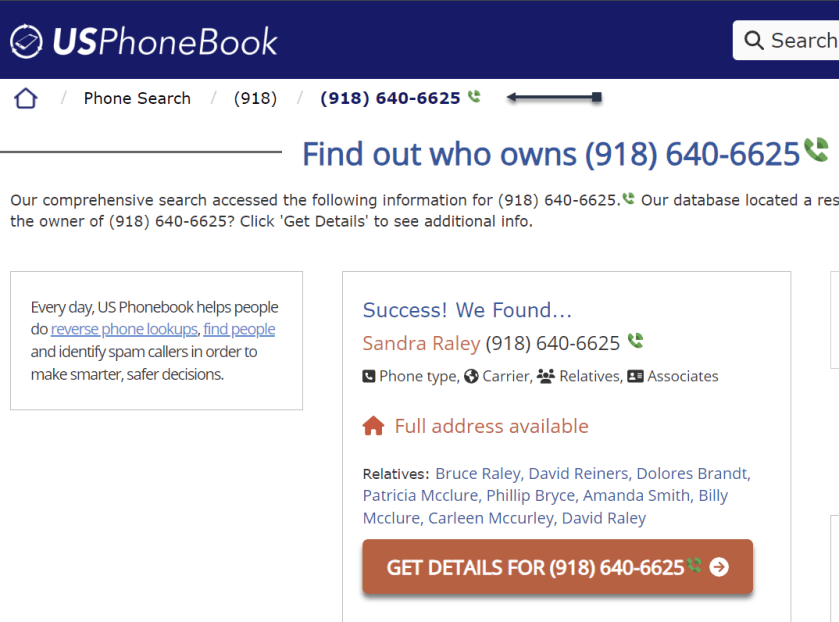
You can look up phone numbers, names, and addresses at USPhoneBook, though this works better for identifying individuals rather than businesses. Enter a number to find the person connected to it. The site will display a list of people who may be related to the person. You can then mark the number as safe or spam. Keep in mind that these listings can be outdated.

Click Get Details to view extra information about the person. This will include their age, current (and former) addresses, phone numbers associated with them, a list of relatives and associates, and even related email addresses. See the below image:

Calls You 5
USPhoneBook main screen

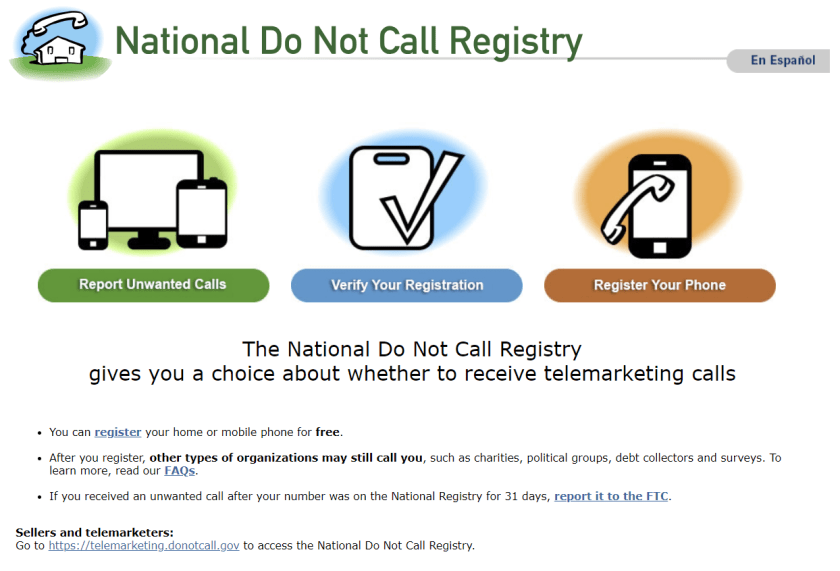
One option is to look at your mobile carrier’s anti-spam solutions for stopping spam calls and robo texts. Additionally, apps likeRoboKiller and Truecaller help keep the spam callers at bay. You can also report unwanted calls to the FTC and register your number with the National Do Not Call Registry, though those wishing to do you harm will undoubtedly ignore this. See the following image:

Calls You 6
National Do Not Call Registry main screen

Disclaimer

Technology is always changing. Rarely is there static tech for smartphones and desktops. Thus, the contents of this post are only valid at the time of writing. Blog posts older than six months may have directions incompatible with your device or OS. Hopefully, older post content will continue to work as advertised. Thank you for reading TechSavvy.Life for Technology at Work For You.

. Motivation is what gets you started. Habit is what keeps you going.

Jim Rohn

You are finished. Please feel free to share this post! One way to share is via Twitter.

Just click the Tweet icon below. This will launch Twitter where you click its icon to post the Tweet.

Checkout TechSavvy.Life for blog posts on smartphones, PCs, and Macs! You may email us at contact@techsavvy.life for comments or questions.

Was this post helpful? We would love to hear your comments. Do you have a computer or smart device tech question? I will do my best to answer your inquiry. Just send an email to contact@techsavvy.life. Please mention the device, app, and version you are using. To help us out, you can send screenshots of your data related to your question.

You can access the E-book from a Kindle device, or the Kindle App for a desktop or smartphone. The apps are free.
The author’s Vietnam eBook on the Battle for Tra Bong Vietnam: Events and Aftermath

How to Stop Edge From Putting a Shortcut on Your Desktop

Does Microsoft Edge keep placing its shortcut on your desktop without you telling it to do so? Your frustration will soon be over, as we will show you how to stop Microsoft’s web browser from creating its shortcut and cluttering your desktop.

RAYMOND OGLESBY @RaymondOglesby2
September 26, 2023

This is for the desktop running Edge. Screenshots are from Windows 10
Does Microsoft Edge keep placing its shortcut on your desktop without you telling it to do so? Your frustration will soon be over, as we will show you how to stop Microsoft’s web browser from creating its shortcut and cluttering your desktop. Let’s find out how this is done.
The most reliable way to prevent Edge from making its shortcut on your desktop is by tweaking a value in your Windows registry. This value tells Edge whether to make the shortcut and once you set it to OFF, the browser will not make any shortcuts.

Note: Making accidental incorrect changes in your Windows registry can make your PC unstable. So, be very careful while editing the values in your registry.

First, open the Run dialog box by pressing Windows+R. In the box, type the following and press Enter.

regedit

Next, in the User Account Control prompt, select Yes.

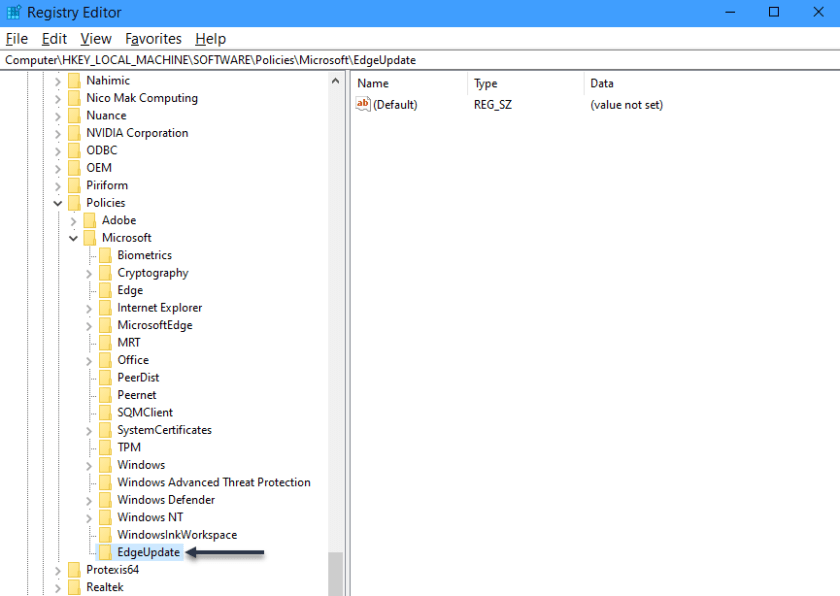
Now, in the Registry Editor, using the options on the left, navigate to the following path:

HKEY_LOCAL_MACHINE\SOFTWARE\Policies\Microsoft\EdgeUpdate

Next, if you do not see the EdgeUpdate path, create it manually by right-clicking Microsoft in the left sidebar, choosing

New > Key, using “EdgeUpdate

as the key name, and click Enter. Refer to the below image:

Edge Update 1
Editing the Registry

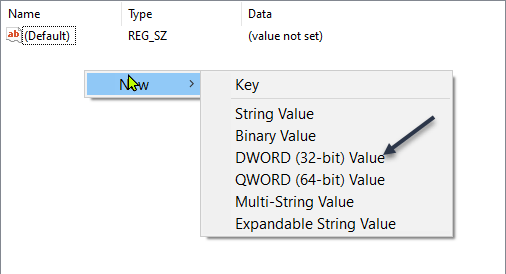
Now, on the right pane, click anywhere blank and select

New > DWORD (32-bit Value)

See the below image:

Edge Update 2
Accessing the DWORD option

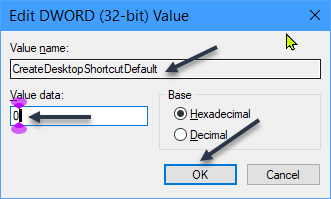
Next, use CreateDesktopShortcutDefault as the entry name and press Enter. Then, double-click the entry to open it. In the open box, click the Value Data field and type “0”. Then, choose OK. See the following image:

Edge Update 3
Setting the DWORD

Now, close the Registry Editor and restart your PC. You will notice that Edge does not create its shortcut anymore.

If for some reason the registry edit above does not work for you, you can also work to stop Edge from automatically launching on your PC’s boot. If you remove the program from your startup list, it will not be able to make the shortcut.

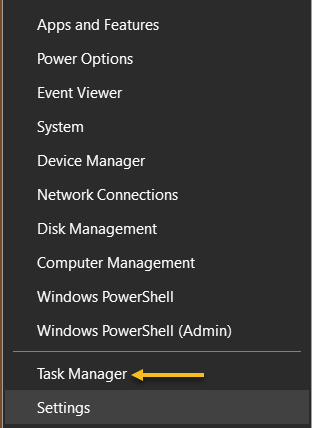
First, right-click your Start menu icon and choose Task Manager. Refer to the below image:

Edge Update 4
Accessing the Task Manager

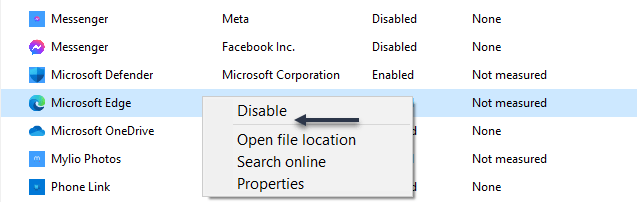
Next, in the Task Manager, access the Startup Apps section. Here, right-click msedge or Microsoft Edge and choose Disable. See the below image:

Edge Update 5
Disable Edge

Now, Windows stops Edge from automatically launching on boot, preventing it from making its desktop shortcut.

If you have set Edge as the default web browser, make it the non-default browser to prevent it from creating a desktop shortcut. You should use this method if the above methods have failed to work for you.

Ensure you have at least one non-Edge web browser installed on your PC. You have various web browsers to choose from, including Chrome, Firefox, and Brave.

First, navigate to

Settings > Apps > Default Apps

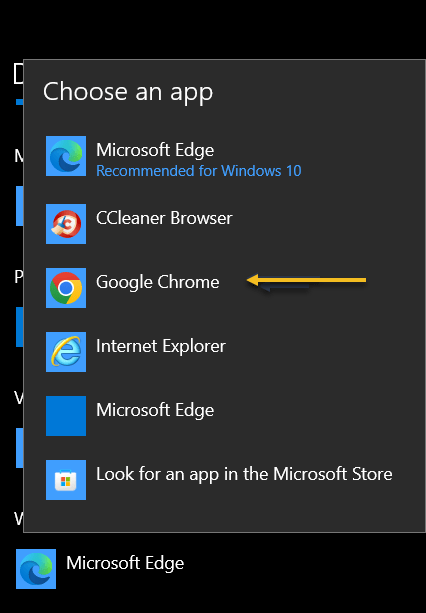
Next, in the Web Browser section, click Microsoft Edge and choose another web browser to make it the default. Refer to the following image:

Edge Update 6
Setting Chrome as the default browser

Now, restart your PC, and that’s it.

Disclaimer

Technology is always changing and rarely is there static tech for smartphones and desktops. Thus, the contents of this post are only valid at the time of writing. Blog posts older than six months may have directions incompatible with your device or OS. Hopefully, older post content will continue to work as advertised. Thank you for reading TechSavvy.Life for Technology at Work For You.

Don’t worry about failure; you only have to be right once.

Drew Houston

That’s it. Please feel free to share this post! One way to share is via Twitter.

Just click the Tweet icon below. This will launch Twitter where you click its icon to post the Tweet.

Checkout TechSavvy.Life for blog posts on smartphones, PCs, and Macs! You may email us at contact@techsavvy.life for comments or questions.

Please feel free to leave a comment. I would love to hear from you. Do you have a computer or smart device tech question? I will do my best to answer your inquiry. Just send an email to contact@techsavvy.life. Please mention the device, app, and version you are using. To help us out, you can send screenshots of your data related to your question.

You can access the e-book from a Kindle device, the Kindle App for the desktop or smartphone, which is a free app.

The author’s Vietnam eBook on the Battle for Tra Bong Vietnam: Events and Aftermath

How to Use Bionic Reading in Chrome

We are all constantly absorbing information online. Bionic Reading is an approach to reading that can help you read faster, retain more information, and boost your productivity in your favorite web browser, like Chrome.

RAYMOND OGLESBY @RaymondOglesby2
June 6, 2023

This is for desktops using Chrome or other browsers. Screenshots are from Windows 10

We are all constantly absorbing information online. Bionic Reading is an approach to reading that can help you read faster, retain more information, and boost your productivity in your favorite web browser, like Chrome.

Bionic Reading Explained

Bionic reading is a method of reading that combines traditional reading with technology-assisted tools. This helps readers increase their reading speed, improve their comprehension and retention, and ultimately become more productive in their reading activities.

Was the above paragraph easier and quicker to read? If you said yes, then you have just experienced some of the benefits of Bionic Reading. Now, imagine that but for a whole article, essay, or book.

Your brain does not always read every letter of every word. It only intakes enough information for you to understand a word, and then it moves on to the next one. The bolding of the first half of each word lets your mind fast-track through paragraphs.

The bolding aspect is the most notable factor in Bionic Reading, but there’s more as well. A lot of apps and extensions also remove colors from images and change white or black backgrounds to gray. These changes help your eyes focus on the text.

Why Use Bionic Reading

Using Bionic Reading in Chrome, or any other web browser, can offer several benefits.

It can help you read faster and more efficiently, which allows you to cover more material in less time.

Bionic Reading can also help you retain more information by training your brain to focus on the most important parts of any text.

As a result of the two above-mentioned benefits, it can improve your productivity by allowing you to process information more effectively. This can be particularly useful in academic or work-related settings.

Bionic Reading in any browser can be a valuable tool for anyone looking to optimize their online reading experience.

Think of Bionic Reading as akin to Speed Reading but they are different in their approach. Speed Reading is the process of rapidly recognizing and absorbing phrases or sentences on a page all at once, rather than identifying individual words.

How Bionic Reading Helps You

Bionic Reading helps you read faster and more efficiently with techniques including skimming, scanning, chunking, and altering images to be easier on the eye. Refer to the below image:

Bionic Reader 1
Bionic Reading example from Chrome Web Store

For example, when you skim a text, you quickly glance through it to get a general idea of the content without reading every word. Similarly, when you scan a text, you search for specific keywords or phrases that are relevant to your reading goals.

By using these techniques, you can save time and energy. Bionic Reading tools like web browser extensions or apps can help automate some of these techniques.

Bionic Reading Trains Your Brain to Retain Information

By using Bionic Reading, you can begin to retain more information by training your brain to focus on the most crucial parts of any text, such as key concepts, arguments, or evidence.

Through using techniques like skimming or scanning (as mentioned above), you can quickly identify the main points of the text and decide what information is relevant to your reading goals. In turn, this uses less mental energy.

By consistently applying these techniques, you can train your brain to become more efficient at processing and retaining information. Studying, researching, and editing your own work can become easier as a result.

Bionic Reading Improves Your Productivity

Before we go into how Bionic Reading increases your productivity, you need a frame of reference for how your productivity can suffer through everyday means.

Using your eyes takes up about 50% of your brain power. That’s more than any of your other senses. We, as humans, heavily rely on our vision for pretty much everything we do.

As your brain becomes able to retain more information, you will need to re-read the same text less often.

Reading faster and more efficiently drastically cuts down on the stress your eyes and brain suffer while researching, writing, and doing similar work, especially when you are mentally digesting new information.

To summarize, by improving your reading efficiency and training your brain to better retain information, your productivity should increase.

Bionic Reading Chrome Extension

You can get the Bionic Reading extension for Chrome on the Chrome Web Store. See the below image:

Bionic Reader 2
Adding Bionic Reading Chrome extension

At the top of a Chrome window, click the Menu icon (the 3 dots) to open the Menu. Now, click More Tools > Extensions to view the extension. See the following image:

Bionic Reader 3
Bionic Reading Chrome extension

After installing it, you can manage the Bionic Reading extension through the Extensions menu at the top-right of your window (click the little jigsaw piece icon). Refer to the below image:

Bionic Reader 4

Activate Bionic Reading

You are now ready to begin using the Bionic Reading extension! When you want to activate it on any given webpage, all you need to do is click the jigsaw piece icon at the top-right of your window and then click the Bionic Reading icon. To turn Bionic Reading off, do the same thing again. See the below image:

Bionic Reader 5
Bionic Reading example

Everything is removed from the web page but the text. That’s all there is to it! Start saving your energy for tougher tasks by letting Bionic Reading do the heavy visual lifting.

Disclaimer

Technology is always changing and rarely is there static tech for smartphones and desktops. Thus, the contents of this post are only valid at the time of writing. Blog posts older than six months may have directions incompatible with your device or OS. Hopefully, older post content will continue to work as advertised. Thank you for reading TechSavvy.Life for Technology at Work For You.

Quote For the Day

I would like to die on Mars. Just not on impact.

Elon Musk

Tweet Info

That’s it. Please feel free to share this post! One way to share is via Twitter.

Just click the Tweet icon below. This will launch Twitter where you click its icon to post the Tweet.

Checkout TechSavvy.Life for blog posts on smartphones, PCs, and Macs! You may email us at contact@techsavvy.life for comments or questions.

I Would Like to Hear From You

Please feel free to leave a comment. I would love to hear from you. Do you have a computer or smart device tech question? I will do my best to answer your inquiry. Just send an email to contact@techsavvy.life. Please mention the device, app, and version you are using. To help us out, you can send screenshots of your data related to your question.

Author’s E-Book

You can access the e-book from a Kindle device, the Kindle App for the desktop or smartphone, which is a free app.

The author’s Vietnam eBook on the Battle for Tra Bong Vietnam: Events and Aftermath

Using a Keyboard Shortcut to Clear Your Browser History

Want to clear your browser history quickly? There’s a keyboard shortcut for that. It works in any browser, including Google Chrome, Apple Safari, Microsoft Edge, and Mozilla Firefox (on both Windows PCs and Macs.)

RAYMOND OGLESBY @RaymondOglesby2
May 30, 2023

This is for popular browsers on a PC or Mac

Want to clear your browser history quickly? There’s a keyboard shortcut for that. It works in any browser, including Google Chrome, Apple Safari, Microsoft Edge, and Mozilla Firefox (on both Windows PCs and Macs.)

Depending on your web browser of choice, you can speed things up in the future by activating the Clear button with a few keystrokes. You may have to tab through the interface to select the Clear button before hitting Enter.

Here’s how it works on a few popular browsers on a Windows 10 or Windows 11 PC:

  • Google Chrome: Press Ctrl+Shift+Delete and press Enter.
  • Mozilla Firefox: Press Ctrl+Shift+Delete and press Enter.
  • Microsoft Edge: Press Ctrl+Shift+Delete and press Enter.

You can now configure exactly what you want to delete. Your browser will remember the settings you pick here, so you will only have to set this up once.

You can pick a time range, or history from a time period like the last hour, last 24 hours, last week, or from all time. You can also pick the types of data: browsing history, download history, cookies, cached files, and more.

When you are done, click the Clear data or Clear now button. Refer to the below image for Chrome:

Clear Chrome 1
Selecting to Clear data in Chrome

Incognito Mode

In the future, you can eliminate the need to clear your browser history by browsing in a private-browsing mode, like Incognito Mode in Chrome. You will just have to close the private-browsing window, and your browser will immediately forget the history associated with your private browsing.

You can use keyboard shortcuts to open and close a private-browsing mode window, too.

  • Google Chrome: Press Ctrl+Shift+N
  • Mozilla Firefox: Press Ctrl+Shift+P
  • Safari or Chrome on a Mac: Press Command instead of Ctrl; for example, press Shift+Command+N.

When you are done, press Ctrl+W to close a single tab or Ctrl+Shift+W to close an entire window. (On a Mac, press Command instead of Ctrl.)

Just remember that Incognito Mode does not offer complete privacy online. It only prevents your web browser from storing your browsing history locally. You may want to combine it with a VPN to boost your online privacy.

Disclaimer

Technology is always changing and rarely is there static tech for smartphones and desktops. Thus, the contents of this post are only valid at the time of writing. Blog posts older than six months may have directions incompatible with your device or OS. Hopefully, older post content will continue to work as advertised. Thank you for reading TechSavvy.Life for Technology at Work For You.

Quote For the Day

Knowledge is of no value unless you put it into practice.

Anton Chekhov

Tweet Info

That was easy. Please feel free to share this post! One way to share is via Twitter.

Just click the Tweet icon below. This will launch Twitter where you click its icon to post the Tweet.

Checkout TechSavvy.Life for blog posts on smartphones, PCs, and Macs! You may email us at contact@techsavvy.life for comments or questions.

I Would Like to Hear From You

Please feel free to leave a comment. I would love to hear from you. Do you have a computer or smart device tech question? I will do my best to answer your inquiry. Just send an email to contact@techsavvy.life. Please mention the device, app, and version you are using. To help us out, you can send screenshots of your data related to your question.

Author’s E-Book

You can access the e-book from a Kindle device, the Kindle App for the desktop or smartphone, which is a free app.

The author’s Vietnam eBook on the Battle for Tra Bong Vietnam: Events and Aftermath

How to Download/Save Images Using Google Image Search

Google’s Image Search results are sometimes so impressive that you want to save some of those images to your device.

RAYMOND OGLESBY @RaymondOglesby2
February 2, 2023

Google’s Image Search results are sometimes so impressive that you want to save some of those images to your device. If you have found yourself in this situation, let’s explore how to download those images from your search results.

This is for mobile and desktop devices. Screenshots are from Windows 10 and iPhone 14 Pro running iOS 16+

Dilbert and Batteries
Copyright Scott Adams, Inc./Distributed by Universal Uclick for UFS

Save Images On Desktop

To download an image on a desktop, you just pick your image, click an option, and your image is saved to your computer.

First, launch your favorite web browser on your computer and open Google Image Search. There, find the image you want to save to your machine. Refer to the below image:

Google Image Search 1
Search Google Images

Next, on the search results page, access the image that you want to download. See the below image:

Google Image Search 2
Find an image

Now, right-click your image, and from the menu that opens, choose to Save image as. See the following image:

Google Image Search 3
Check the option to save your image

Next, your browser will open your computer’s standard Save As window. Here, select a folder to save your image in, type your image name in the File Name field, then click Save. Refer to the below image:

Google Image Search 4
Save your image

Now, you have successfully downloaded your favorite image from your Image Search results. If you are not sure exactly where the image file went, check your Downloads folder from File Explorer.

If your downloaded file is of low resolution, then try downloading that image directly from the source site. To do that, on the Image Search results page, click the link, beneath the image, and not the image, to be taken to the image site. There, right-click the image and choose Save image as.

Download Images On Mobile

On your mobile phone, you can download images from Google’s Image Search results using Google Chrome, Apple Safari, or Microsoft Edge. Mozilla Firefox does not offer the option to save images.

To start, first, open your web browser (we are using Safari) and launch Google Image Search or type into the search box “images.google.com”. Find the image you would like to save to your phone.

Next, on the search results page, tap the image to download. See the below image:

Google Image Search 5
Tap an image you want to download

Now, on your image full-screen page, tap and hold the image. See the following image:

Google Image Search 6
Press and hold your image

Next, on iPhone or iPad, from the menu that opens in Safari, tap Save to Photos. Refer to the below image:

Google Image Search 7
Select the option to save your image

Your iPhone will download and save the image on your local storage or in our example using Safari, your Photos app. See the below image:

Google Image Search 6
Your saved image
Disclaimer

Technology is always changing and rarely is static for smartphones and desktops. Thus, the contents of this post are only valid at the time of writing. Blog posts older than six months may have directions incompatible with your device or OS. Hopefully, older post content will continue to work as advertised. Thank you for reading TechSavvy.Life for Technology at Work For You.

Quote For the Day

The technology you use impresses no one. The experience you create with it is everything.

Sean Cerety

Tweet Info

You are finished. Please feel free to share this post! One way to share is via Twitter.

Just click the Tweet icon below. This will launch Twitter where you click its icon to post the Tweet.

Checkout TechSavvy.Life for blog posts on smartphones, PCs, and Macs! You may email us at contact@techsavvy.life for comments or questions.

I Would Like to Hear From You

Please feel free to leave a comment. I would love to hear from you. Do you have a computer or smart device tech question? I will do my best to answer your inquiry. Just send an email to contact@techsavvy.life. Please mention the device, app, and version you are using. To help us out, you can send screenshots of your data related to your question.

Author’s E-Book

You can access the e-book from a Kindle device, the Kindle App for the desktop or smartphone, which is a free app.

The author’s Vietnam eBook on the Battle for Tra Bong Vietnam: Events and Aftermath

How to Use Text to Speech Tools

Reading is great, but sometimes you want or need to listen. Let your computer or phone do the reading for you.

RAYMOND OGLESBY @RaymondOglesby2
June 23, 2022

Reading is great, but sometimes you want or need to listen. Let your computer or phone do the reading for you. Let’s explore some tools to do this.

This is for the mobile or desktop

Dilbert and White
Copyright Scott Adams, Inc./Distributed by Universal Uclick for UFS

Some people struggle with reading text on a screen, or physically can not. Others might want their computer to read something to them aloud while they do something else. There are plenty of reasons to use a text-to-speech tool, also called a “screen reader”.

Although there are standalone text-to-speech apps, you probably do not need them. That’s because every operating system, and several well-known pieces of software, offer a text-to-speech feature, and they are all quite good.

Spoken Content for iPhone

The iPhone’s text-to-speech feature is very easy to use. First, to turn it on, head to:

Settings > Accessibiltu > Spoken Content

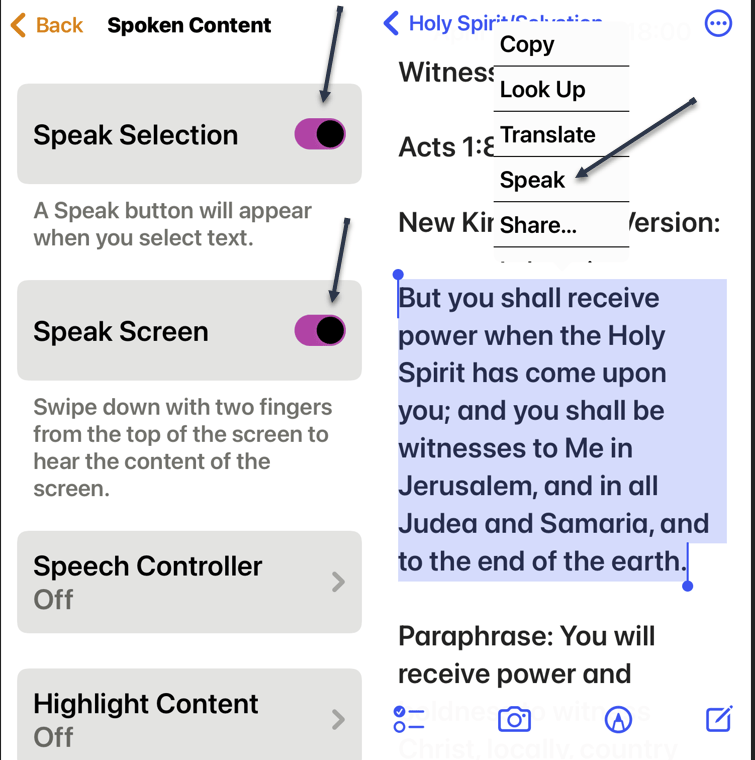
and enable Speak Selection and Speak Screen. Once enabled, any text you highlight in any application will have a Speak option, which you tap to activate. We have highlighted some text from the Notes app to be read to us. Refer to the below image:

Spoken Content for iPhone

Read Aloud for Browsers

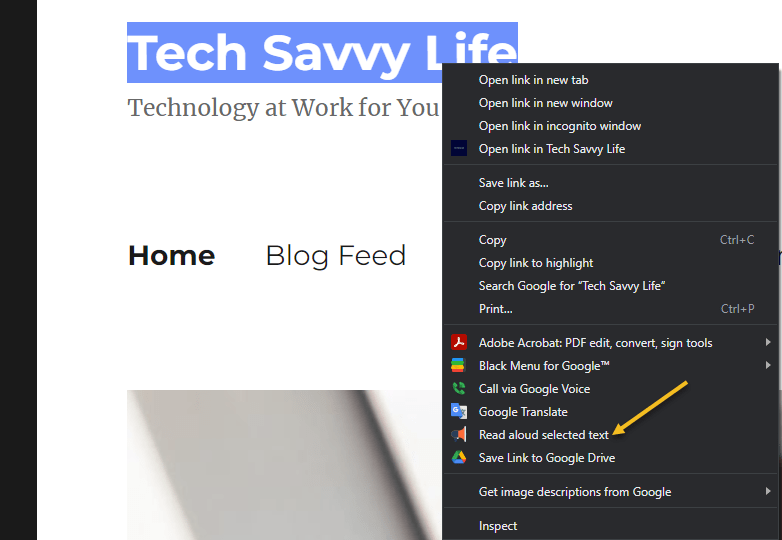
Read Aloud is an extension for Chrome, Firefox, and Edge that can read whatever website you currently have open. First, you will need to download the extension. After downloading, in Chrome, right-click on some highlighted text and choose the Read aloud selected text option. See the below image:

Text to Speech 3
Read Aloud for browsers

Immersive Reader for Office and Edge

Microsoft Office applications have a built-in text-to-speech feature but it’s a little hard to find. First, in any document, click the Immersive Reader tab. If you do not see it, search for it, and from then on it should appear in your interface permanently. Highlight some text, then right-click and select Read Aloud to hear your document read back to you with the corresponding word highlighted as it goes. Immersive Reader is perfect for copy editing and reviewing long documents. See the following image:

Text to Speech 3
Immersive Reader for Office

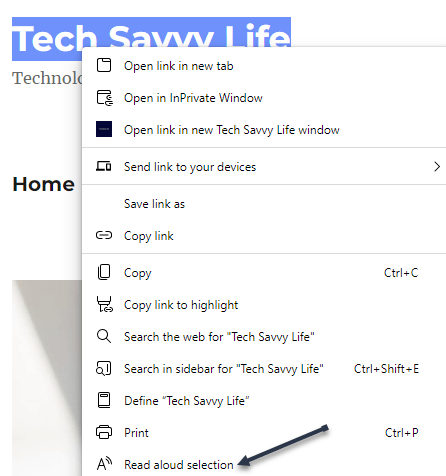
Microsoft Edge has this feature, too. Highlight some text, then right-click and select Real aloud selection. Refer to the below image:

Text to Speech 4
Immersive Reader for Edge

Natural Reader

First, download the mobile version (ours is for the iPhone). Then head to

NaturalReaders.com/online (note the plural in the URL)

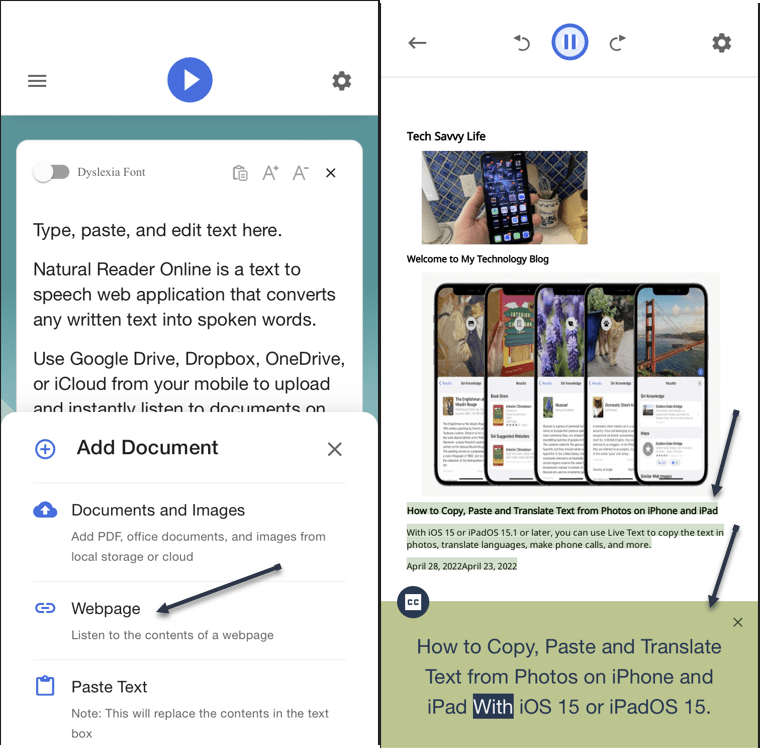
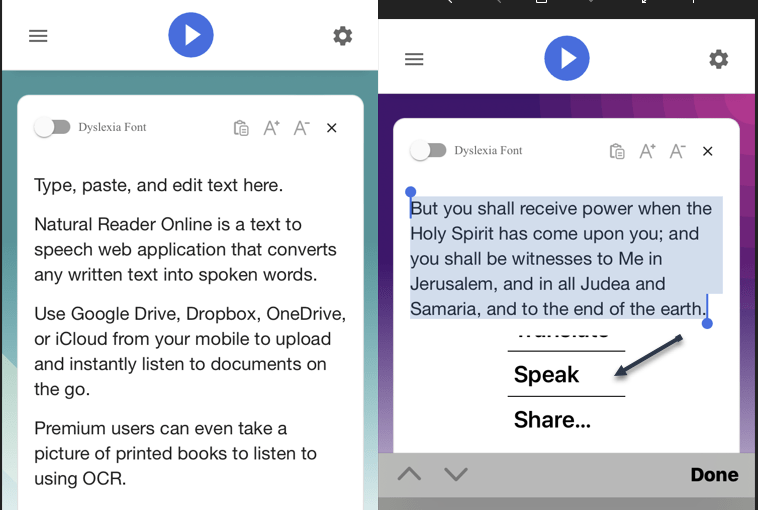
and paste some text, highlighting it to hear it read on a mobile device. See the below image:

Text to Speech 5
Natural Reader on mobile

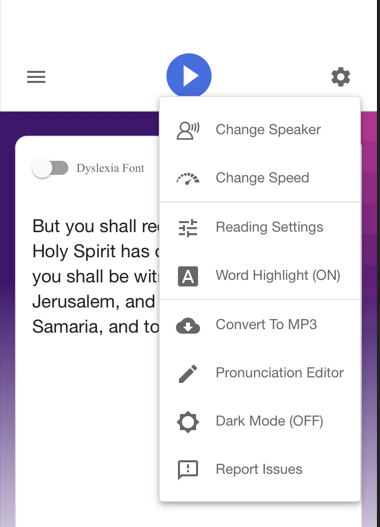
You can also drag documents into your browser window if you prefer. Natural Reader has a variety of voices, and you can control the speed of reading. Just click the Gear icon on the upper right-hand corner for options. See the following image:

Text to Speech 6
Natural Reader options

You can upgrade for features like a Chrome extension, OCR for scanned documents, higher quality voices, and the ability to create MP3 files; these features cost $9.99 a month. The paid version also supports uploading documents, including Microsoft Word, Apple’s Pages, and even image files with text on them. The free version is perfect for quick listening. Refer to the below image for an example of listening to a webpage:

Text to Speech 7
Natural Reader for web pages

Quote For the Day

Technology is so much fun but we can drown in our technology. The fog of information can drive out knowledge.

Daniel J Boorstin

Tweet Info

That’s it. Please feel free to share this post! One way to share is via Twitter.

Just click the Tweet icon below. This will launch Twitter where you click its icon to post the Tweet.

Check out TechSavvy.Life for blog posts on smartphones, PCs, and Macs! You may email us at contact@techsavvy.life for comments or questions.

I Would Like to Hear From You

Please feel free to leave a comment. I would love to hear from you. Do you have a computer or smart device tech question? I will do my best to answer your inquiry. Just send an email to contact@techsavvy.life. Please mention the device, app, and version you are using. To help us out, you can send screenshots of your data related to your question.

Author’s E-book

You can access the e-book from a Kindle device, the Kindle App for the desktop or smartphone, which is a free app.

The author’s Vietnam eBook on the Battle for Tra Bong Vietnam: Events and Aftermath

How to Drag and Drop Browser Links to Desktop

In four major browsers; Chrome, Edge, Firefox, and Safari; on Windows, Mac, and Linux, you can easily drag and drop a shortcut link to a website straight to your desktop.

RAYMOND OGLESBY @RaymondOglesby2
JMarch 1, 2022

In four major browsers; Chrome, Edge, Firefox, and Safari; on Windows, Mac, and Linux, you can easily drag and drop a shortcut link to a website straight to your desktop. Let’s see how easily this is done.

This is for PCs, Macs, and web browsers. Screenshots are from Windows 10

Dilbert and Plan
Copyright Scott Adams, Inc./Distributed by Universal Uclick for UFS

Create Shortcut Using Chrome, Edge, and Firefox

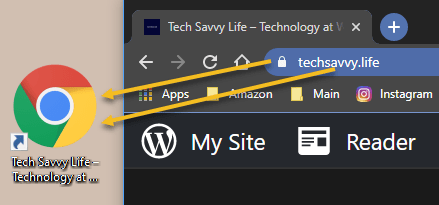
To create a desktop web shortcut, first open a Chrome, Edge, or Firefox browser window and navigate to the site you want to create a shortcut from. In the address bar at the top of the window, click and drag the Padlock icon (located to the left of the address) out of the browser window, or drag and drop the URL address onto your desktop. Refer to the below image:

Links 1
Drag to create a shortcut on the desktop

Next, as soon as you click and drag, you will see the title or address of the website besides your pointer. When you are hovering over the desktop, release your mouse button, and a shortcut icon will be created. To use the shortcut, double-click it at any time, and the site will open in your default browser.

This shortcut does not have to stay on your desktop either; you can move it to any folder on your PC.

Create Shortcut Using Safari on Mac

To make a desktop web shortcut on a Mac, first, open a Safari browser window and navigate to the site you want to create a shortcut to.

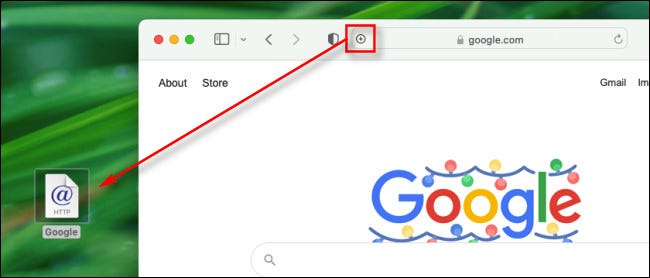
Next, in that window, hover your mouse cursor over the address bar at the top of the window, and a small Plus (“+”) icon will appear on the far left side. Click and drag the Plus icon onto your desktop and release your mouse or trackpad button. A shortcut icon will appear. See the below image:

Links 2
Drag to create a shortcut on Mac

Now, you can double-click the shortcut icon, and your default browser app will open and automatically load the website stored in the link.

By the way, this is not the only drag-and-drop trick you can do with browsers. Most browsers also allow you to drag tabs between open windows of the same browser.

How to Drag Tabs Between Browser Windows

Quote For the Day

If you learn from defeat, you haven’t really lost.

Zig Ziglar

That’s it. Please feel free to share this post! One way to share is via Twitter.

Just click the Tweet icon below. This will launch Twitter where you click its icon to post the Tweet.

Check out TechSavvy.Life for blog posts on smartphones, PCs, and Macs! You may email us at contact@techsavvy.life for comments or questions.

I Would Like to Hear From You

Please feel free to leave a comment. I would love to hear from you. Do you have a computer or smart device tech question? I will do my best to answer your inquiry. Just send an email to contact@techsavvy.life. Please mention the device, app, and version you are using. To help us out, you can send screenshots of your data related to your question.

Author’s E-book

You can access the e-book from a Kindle device, the Kindle App for the desktop or smartphone, which is a free app.

The author’s Vietnam eBook on the Battle for Tra Bong Vietnam: Events and Aftermath

How to Use Apple Notes in a Browser

Apple Notes syncs between devices for anyone with an Apple ID, which is required to use devices like the iPhone, iPad, and Mac computers. Unfortunately, there’s no native app for Windows or Android users, but the web version can make a suitable substitute.

RAYMOND OGLESBY @RaymondOglesby2
December 22, 2021

Apple Notes syncs between devices for anyone with an Apple ID, which is required to use devices like the iPhone, iPad, and Mac computers. Unfortunately, there’s no native app for Windows or Android users, but the web version can make a suitable substitute. Let’s explore how to use Apple Notes on the web.

This is for devices using Notes on iCloud

Dilbert and Time
Copyright Scott Adams, Inc./Distributed by Universal Uclick for UFS

Turn on iCloud Sync for Notes

If you use Apple Notes on an Apple device, first ensure you have iCloud sync enabled so that new notes and changes are pushed to all of your devices. This should be enabled by default, but it’s a good idea to check.

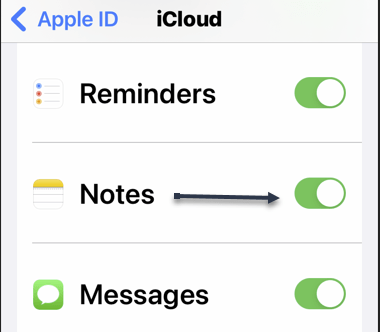
First, on an iPhone or iPad, you can do this under:

Settings > [Your Name] > iCloud

and enabling the Apple Notes setting. Refer to the below image:

Notes 1
Enabling iCloud Notes sync

On a Mac, this can be turned on under:

System Preferences > Apple ID

and checkmark the Notes setting.

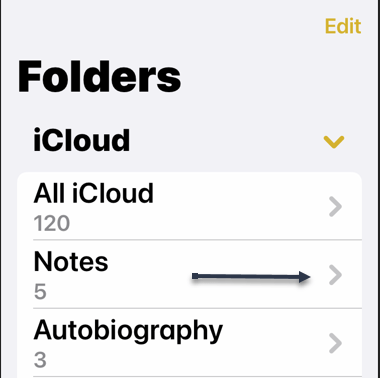
When making notes, make sure that you are placing them in your iCloud folders since it’s possible to have offline folders too that are device-specific. See the below image:

Notes 2
Ensuring Notes are under iCloud

Once enabled, new notes will be placed in iCloud by default.

Access Notes in a Browser via iCloud

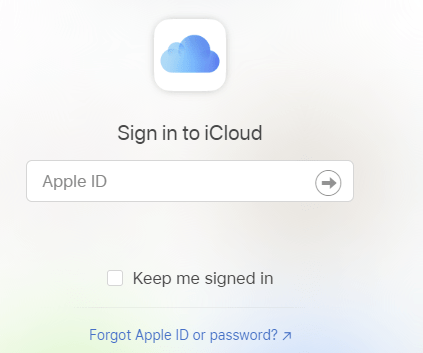
Next, with your Mac, iPhone, and iPad now syncing Apple Notes to iCloud, you can access them using a web browser by heading to iCloud.com and logging in with your Apple ID. See the following image:

Notes 3
Signing in to iCloud.com

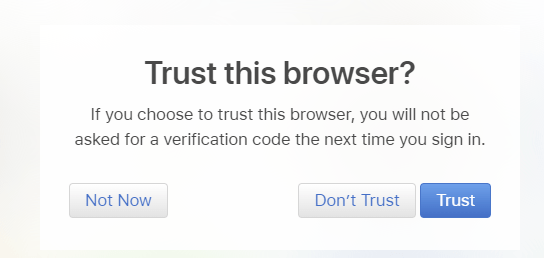
Now, you may need to pass a two-factor authentication check, so make sure you choose to Trust this computer if you want to log in faster in the future. You should only trust personal computers and smartphones that you own, and never trust a computer or device that you share with others. Refer to the below image:

Notes 4
Trusting your device

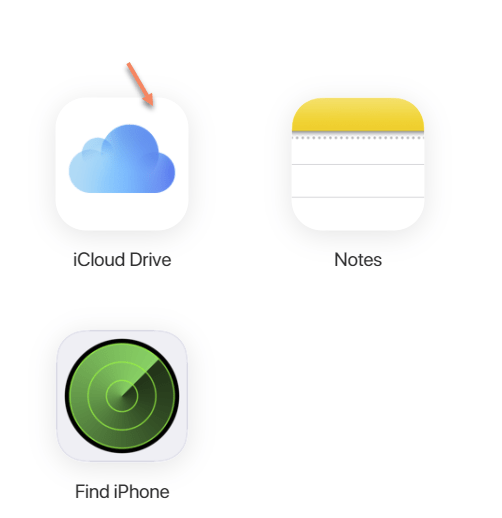
Next, once you are in, click on Notes to see a web-based version of the Apple Notes app. You can use this to access and edit existing notes, create new ones, and share with other iCloud users. See the below image:

Notes 5
Selecting iCloud Notes on the web

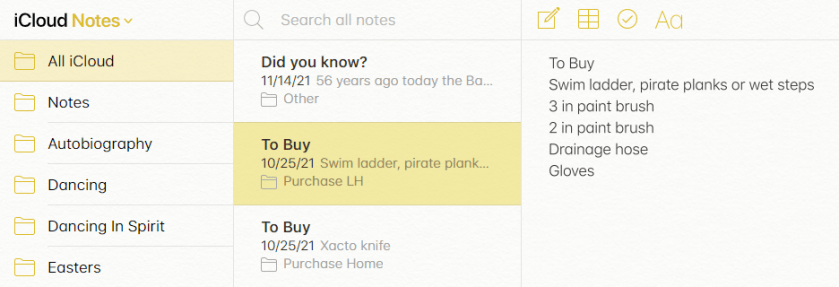
While you can access locked notes by entering your Apple ID password, you can not apply a lock to existing or new notes. See the following image for a listing of your Notes:

Notes 6
Listing of your iCloud Notes

Turn iCloud Into an App on Windows or Android

Now, you can keep Apple Notes open in its own pinned tab, but it may be more convenient to turn the web app into an application or shortcut you can run from your Start menu or Android home screen.

  • Windows users can do this using Chrome or Edge, pin it to your Taskbar, and apply a custom icon if you like. You will need to log in from time to time, but as long as you Trust your browser when entering the two-factor authentication code this process will not be quite as tedious.
  • Android users can also do this using Chrome, which places a shortcut on your home screen.

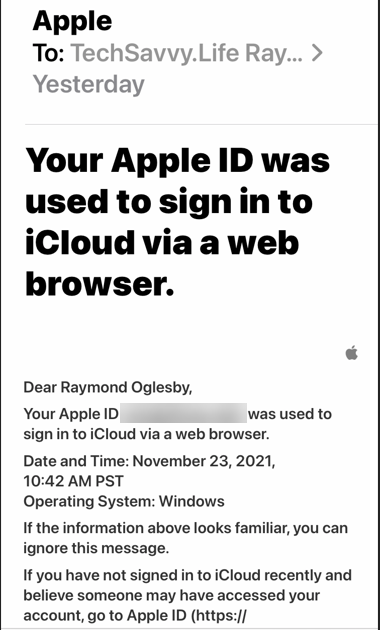
Next, you will receive a message about signing in to iCloud from a browser. Refer to the below image:

Notes 7
Apple message

Apple Notes is just one service you can take advantage of using a browser thanks to iCloud’s web interface.

Quote For the Day

Every time you think the problem is ‘out there,’ that very thought is the problem.

Stephen Covey

You are finished. Please feel free to share this post! One way to share is via Twitter.

Just click the Tweet icon below. This will launch Twitter where you click its icon to post the Tweet.

Checkout TechSavvy.Life for blog posts on smartphones, PCs, and Macs! You may email us at contact@techsavvy.life for comments or questions.

I Would Like to Hear From You

Please feel free to leave a comment. I would love to hear from you. Do you have a computer or smart device tech question? I will do my best to answer your inquiry. Just send an email to contact@techsavvy.life. Please mention the device, app, and version you are using. To help us out, you can send screenshots of your data related to your question.

The author’s Vietnam eBook on the Battle for Tra Bong Vietnam: Events and Aftermath

How to Turn a Website Into a Windows 10 App

You can use Google Chrome or Microsoft Edge to convert a website into an app. Although it works for Window 8 or 7, we are using Windows 10 for creating this blog post. This lets you use your sites as if they were normal apps.

You can use Google Chrome or Microsoft Edge to convert a website into an app. Although it works for Window 8 or 7, we are using Windows 10 for creating this blog post. This lets you use your sites as if they were normal apps.

This is for devices running Windows 10, and Google Chrome or Microsoft Edge

Dilbert and Crisis
Copyright Scott Adams, Inc./Distributed by Universal Uclick for UFS

How Website Apps Work

Your website looks and works exactly the same in your app as it does in your web browser. The only difference you will see is that there will not be any browser elements in your app window, such as the bookmarks bar, address bar, and other toolbar elements.

If you use Chrome, the website app will be using Chrome in the background. If you use Edge, the browser app will use Microsoft Edge. However, normal browser elements are stripped off so that you get the actual app-like experience. These web apps get their own separate windows, taskbar icons, and desktop shortcuts.

Turn a Website Into an App Using Chrome

You can use Chrome’s main menu to turn any website into a Windows app.

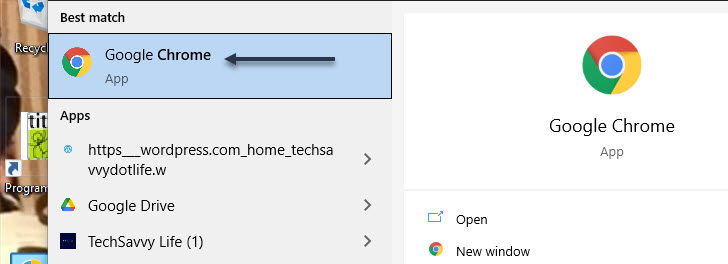
First, open the Start menu. Next, enter “Google Chrome” in the Cortana search box at bottom left-hand corner. Now, click the browser in the results at top left-hand corner. Refer to below image:

App 1
Selecting Chrome

Next, open any website that you want to turn into an app. Navigate to the specific web page that you want your app to start with.

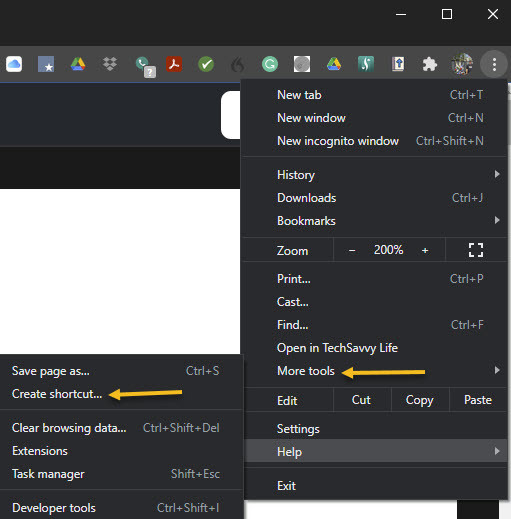
When the site has loaded, click its hamburger menu button (the three dots) in the top-right corner of the window and select:

More Tools > Create Shortcut

See below image:

App 2
Create a shortcut

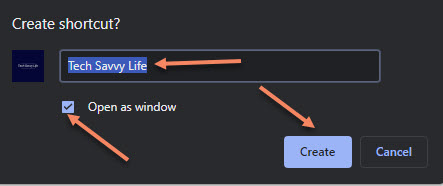
A prompt will appear asking for your new app name. Enter a name for your new app, enable the Open as window checkbox, and click Create. See following image:

App 3
Name the shortcut

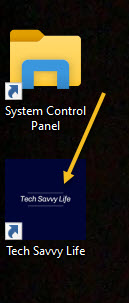
A shortcut will be placed on your desktop. You can launch your app from this desktop shortcut. Refer to below image:

App 4
Your desktop shortcut

Also, Chrome will create the app for your site and add it to the Start menu. You can now search and launch your app using your PC’s Start menu. See below image:

App 5
Use the Start menu to launch your Chrome app

Turn a Website Into an App Using Edge

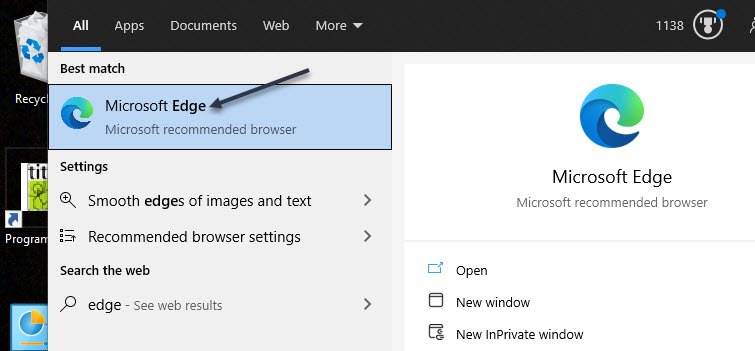
You can also use Microsoft Edge to make a website into an app. This creates the exact same kind of app that Chrome does. First, open the Start menu. Next, enter “Microsoft Edge” in the Cortana search box at bottom left-hand corner. Now, click the browser in the results at top left-hand corner. See following image:

App 6
Selecting Edge

Navigate to the website that you want to make an app for, then navigate to the specific page that you want to use for the app.

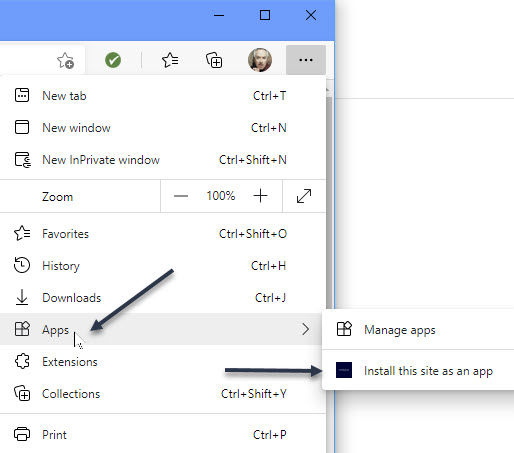
Now, click the menu hamburger button (the three dots) in the top-right corner of the window and select:

Apps > Install this site as an app

Refer to below image:

App 7
Select to install as an app

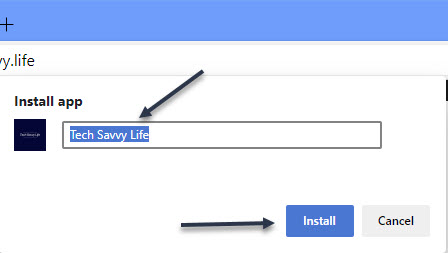
Type a name for your new app, then click Install. See below image:

App 8
Name the shortcut

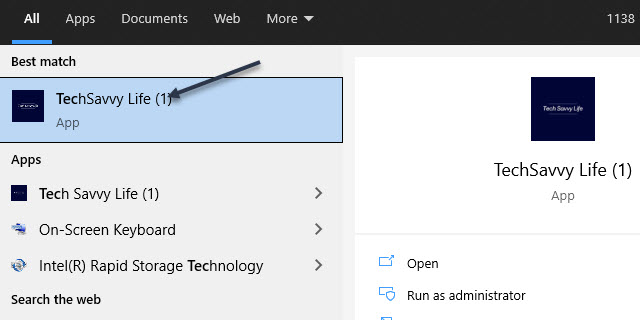
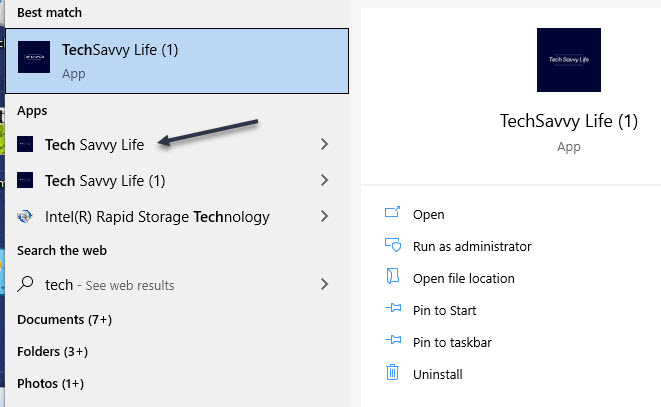
You can now launch your newly created app from the Start menu. See following image where TechSavvy.Life (1) is the Chrome version, TechSavvy.Life is the Edge version:

App 9
Use the Start menu to launch your Edge app

Create a Desktop Shortcut for Your Apps

Your website apps will have their own shortcuts in your Start menu’s All Apps list. You can also create a desktop shortcut for your apps in order to quickly access them on your PC’s desktop, if you like.

If you used Chrome to make your apps, your desktop shortcuts are already created. But if you used Microsoft Edge, you will need to manually add shortcuts to your desktop.

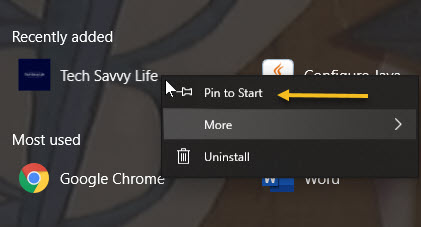
To do this, open the Start menu and search for your newly created app. Right-click your app and select Pin to Start.

You need to do this because Windows does not let you directly make a desktop shortcut for this kind of app in Edge. Refer to below image:

App 10
Pin to Start menu in Edge

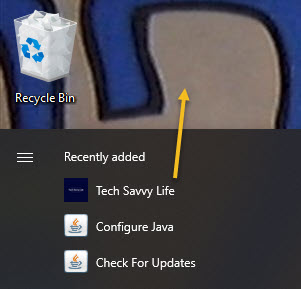
Open the Start menu again, and you will see your app on the right. Drag it over to your desktop and a desktop shortcut for it will be created. See below image:

App 11
Drag the Edge app to your desktop

Create a Taskbar Shortcut for Your Apps

You can also make a taskbar shortcut for your website apps.

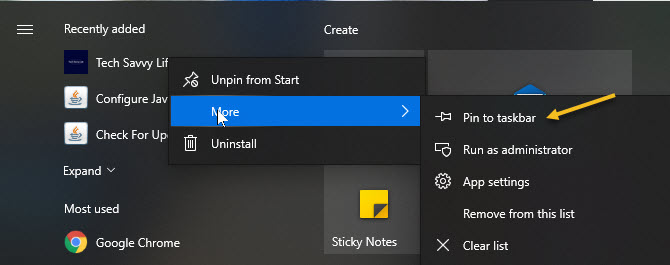
To do this, open the Start menu again, search for your app or find your desktop shortcut, right-click your app, click More, and select Pin to taskbar. See following image:

App 12
Pin to Taskbar

Assign an Icon

By default, Windows uses your website’s favicon as the icon for your app. You can change this icon if you want to give a little makeover to your new app.

You can use an icon file from your computer or one of Windows 10’s built-in icons for your new app.

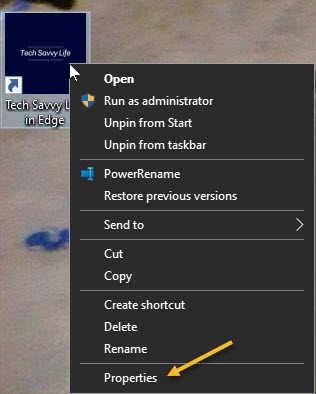
To change your app’s icon, right-click your app shortcut on your desktop and select Properties. Refer to below image:

App 13
Access Propetties

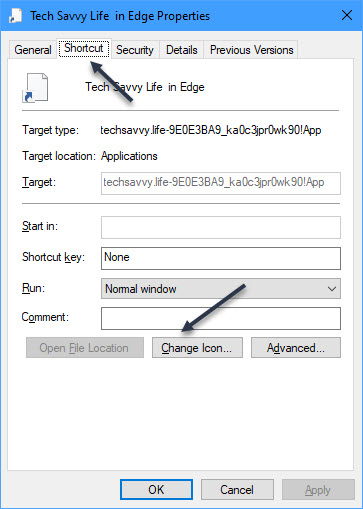
In the Properties box, click Shortcut at the top, and then click Change Icon. See below image:

App 14
Select change the icon button

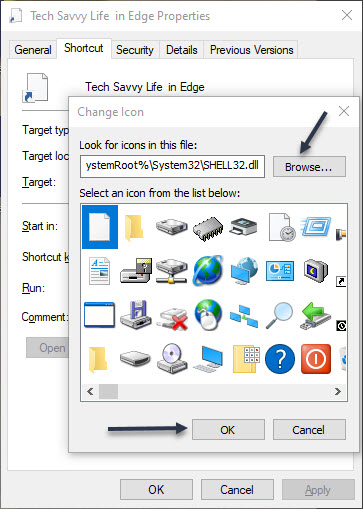
Click Browse in the window that opens and select the icon that you want to use for your app.

If you want to use one of Windows 10’s stock icons, browse to:

C:\Windows\System32 folder

and double-click the imageres.dll file in this folder.

You will see a list of Windows 10’s built-in icons. Select the one that you want to use and click OK. Even though this file is for 32-bit operating system, it will work on a 64-bit system. See following image:

App 15
Browse or use Windows 10 stock icons

To save your settings, click Apply and then select OK. Refer to below image for my final desktop and taskbar shortcuts:

App 16
Your finished icons on desktop and taskbar

Quote For the Day

“The first rule of any technology used in a business is that automation applied to an efficient operation will magnify the efficiency. The second is that automation applied to an inefficient operation will magnify the inefficiency”.

Bill Gates

You are finished with turning a website into a Windows 10 app. Please feel free to share this post! One way to share is via Twitter.

Just click the Tweet icon below. This will launch Twitter where you click its icon to post the Tweet.

Check out TechSavvy.Life for blog posts on smartphones, PCs, and Macs! You may contact us at contact@techsavvy.life for comments or questions.

I Would Like to Hear From You

Please feel free to leave a comment. I would love hearing from you. Do you have a computer or smart device tech question? I will do my best to answer your inquiry. Just send an email to contact@techsavvy.life. Please mention the device, app and version that you are using. To help us out, you can send screenshots of your data related to your question.

The author’s Vietnam eBook on the Battle for Tra Bong: Events and Aftermath