Oops! You just sent a Microsoft Outlook message that you did not want to send. You realize for one reason or another that the message has a mistake or that it shouldn’t have been sent at all. You can fix your mistake by recalling the message. Using the recall feature, under the right conditions, your email is deleted without the recipient ever seeing the message. You can also send the recipient a replacement email with the correct information.
Oops! You just sent a Microsoft Outlook message that you did not want to send. You realize for one reason or another that the message has a mistake or that it shouldn’t have been sent at all. You can fix your mistake by recalling the message. Using the recall feature, under the right conditions, your email is deleted without the recipient ever seeing the message. You can also send the recipient a replacement email with the correct information.
For a message to be recalled, both you and the recipient must have a Microsoft 365 Business Account or Microsoft Exchange email account in the same organization. The email must not not have been read by the recipient.
However, even if you and the recipient use different email accounts, the recall feature is useful. Though the initial email won’t be deleted, the recipient receives a follow-up message indicating that you want to recall the previous email. That tells them that your initial one is incorrect for some reason. You should then follow-up your initial email and recall message with another email that contains the right information or corrects the initial one.
To summarize, three emails are involved. The initial email with incorrect information, the recall message email, then the follow-up email with the correct information.
This is for Windows 10 PCs, Macs and other devices that support Microsoft Outlook
Copyright Scott Adams, Inc./Distributed by Universal Uclick for UFS
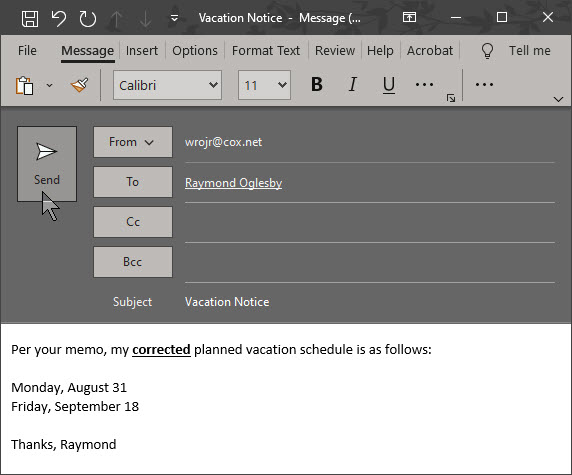
Let’s send an email. Open Outlook, start new email and address to a recipient, then send the email. Refer to below image:
Initial Outlook email
Now, let’s say you notice an error in your email and want to recall it. In our example, the vacation dates are incorrect.
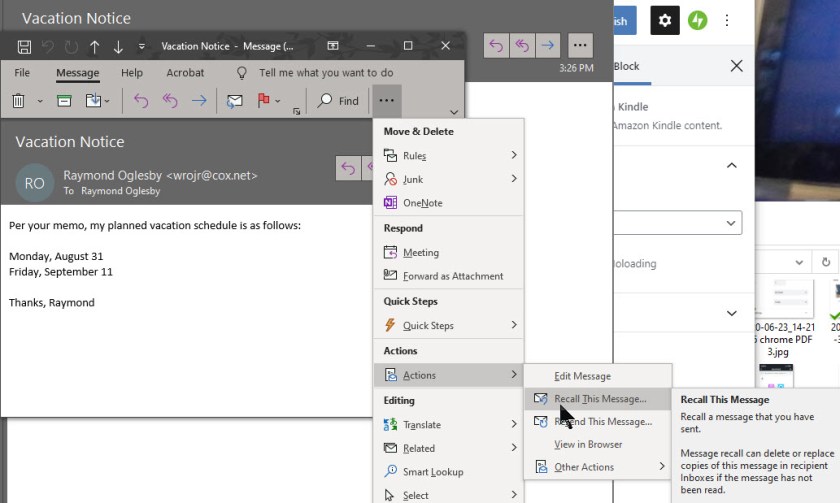
Open the email from your Sent Items folder. Select the Actions icon and click the option Recall This Message. See following image:
Recall initial Outlook email
The Recall This Message window opens to offer two options. Choosing Delete unread copies of this message tries to remove the message with no follow-up. Choosing Delete unread copies and replace with a new message provides the opportunity to send a follow-up message with the correct information. To learn of the recall’s success, ensure the box is checked for Tell me if the recall succeeds or fails for each recipient then click OK. Refer to below image:
Options for recalling initial Outlook email
If you chose the option to replace with a new message, a new email appears with the text from the initial email. You can fix any errors and send a corrected replacement message or a follow-up email with the corrected information. In my example, the recall message failed because I had already read the message. See following image:
Recall of initial Outlook email failed because recipent (me) had read the message
If you and the recipient use the same Microsoft 365 Business or Exchange, then the initial email should be deleted automatically. If so, you will receive an email saying the recall was successful for that recipient.
If you and the recipient use different email accounts, the initial emails remains in that person’s inbox. A follow-up email arrives that tells the recipient you would like to recall the message. You then have to rely on the recipient to delete or ignore the initial message. At this point, a third email could be sent with the corrected information. Refer to below image:
Please feel free to leave a comment. I would love hearing from you. Do you have a computer or smart device tech question? I will do my best to answer your inquiry. Please mention the device, app and version that you are using. To help us out, you can send screenshots of your data related to your question.
The author’s Vietnam eBook on the Battle for Tra Bong: Events and Aftermath
In Windows 10, sometimes thumbnail icons display improperly. This can be easily fixed by deleting the thumbnail cache files.
In Windows 10, sometimes thumbnail icons display improperly. This can be easily fixed by deleting the thumbnail cache files. Let’s explore how to do this.
This is for Windows 10 operating system
Copyright Scott Adams, Inc./Distributed by Universal Uclick for UFS
By default, instead of using generic icons for documents, Windows 10 creates small pictures of image or document contents called thumbnails. These tiny images are stored in a special file called the thumbnail cache. By using this file, Windows does not have to recreate thumbnail images every time you open a folder.
If you are seeing incorrect thumbnails, it’s likely that the thumbnails stored in the cache for those particular files have been corrupted or are missing. This could be due to a bug in Windows or perhaps an intermittent hardware problem.
In that case, the best course of action is to delete your thumbnail cache and allow Windows to recreate the faulty thumbnails the next time you restart your machine.
Clear the Thumbnail Cache
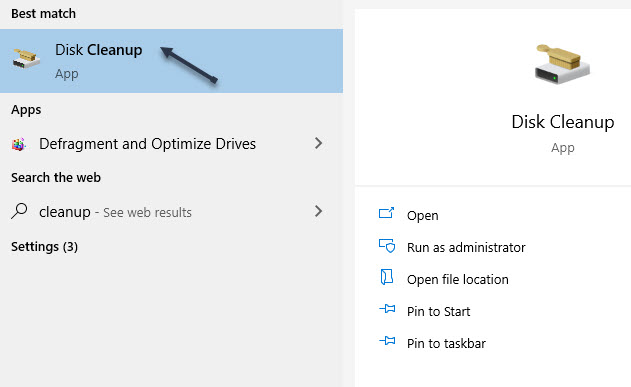
First, open the Start menu and in the Cortana search bar, type Disk Cleanup. Click on the Disk Cleanup app that appears in the upper left hand corner. See below image:
Accessomg Disk Cleanup app
In the Disk Cleanup window, locate the Files to Delete list. Uncheck all items except for Thumbmails. With Thumbnails checked, click OK to remove the thumbnail cache file. Refer to below image:
Checkmark the Thumbnails option
A pop-up dialog box will ask, Are you sure you want to permanently delete these files? Just click Delete Files. See following image:
Are you sure you want to delete prompt
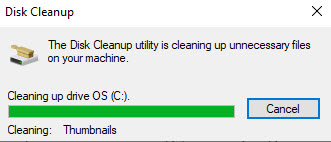
Another pop-up will appear, this time showing you the progress of deleting your Windows thumbnails. Refer to below image:
Progress of Disk Cleanup
After the thumbnail cache files have been deleted, restart your computer. Now, open File Explorer or look at the Desktop to see if this has fixed your problem. Hopefully, the thumbnails have been recreated and are now correct. If not, you may want to follow the guidelines below.
Disable Thumbnails
This is only recommended if the above guidelines fails to fix the problem.
Open the Start menu and type in File Explorer Options in the Cortana search bar. Next, click on the associated Control Panel app in the upper left hand corner. Refer to below image:
Accessing File Explorer Options app
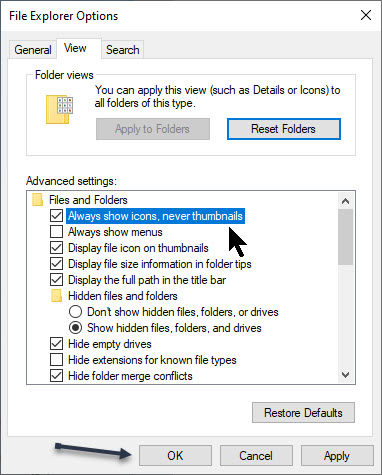
In the File Explorer Options window, click on the View tab. Then, in the Advanced Settings section, checkmark the option Always show icons, never thumbnails. Next, click OK to save your change. See below image:
Setting the Icons instead of Thumbnails option
Now, close the File Explorer Options window and restart your machine. Windows will now only display standard icons for documents instead of thumbnails
If you find TechSavvy.Life blog posts extremely helpful check them out for posts on smart phone apps, Macs and PCs!
Please feel free to leave a comment. I would love hearing from you. Do you have a computer or smart device tech question? I will do my best to answer your inquiry. Please mention the device, app and version that you are using. To help us out, you can send screenshots of your data related to your question.
The author’s Vietnam eBook on the Battle for Tra Bong: Events and Aftermath
If you spend any time examining the Task Manager, you will be amazed at the number of processes running on your PC. But what do they do and how can we find out? Is it safe to stop or disable them?
If you spend any time examining the Task Manager, you will be amazed at the number of processes running on your PC. But what do they do and how can we find out? Is it safe to stop or disable them?
This is for Windows operating system
Copyright Scott Adams, Inc./Distributed by Universal Uclick for UFS
A process or running process refers to a set of instructions currently being processed by the computer processor.
Windows Processes are Windows Services and background programs you normally don’t see running on the computer. A process may be a printer program that runs in the background and monitors the ink levels and other printer settings while the computer is running.
A typical computer has dozens to hundreds of processes running all of the time to help manage the operating system, its hardware and the software running on the computer. Refer to below image of my running processes (I have over 150) with one open application (WordPress) under Google Chrome. The sort order is by the Memory column.
Running Processes on my PC
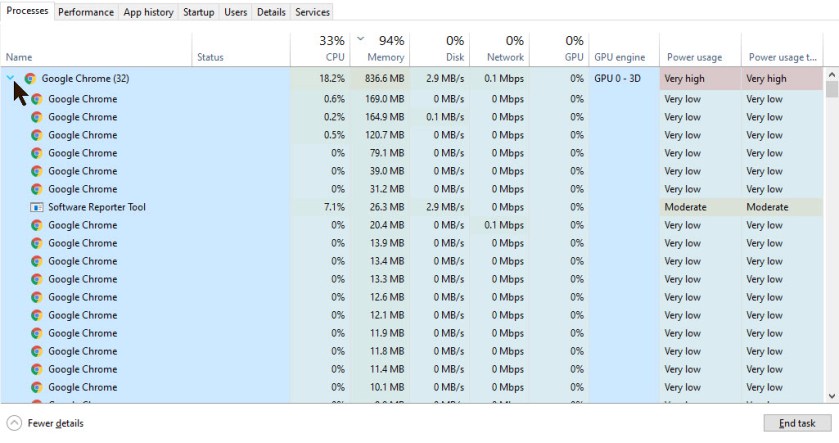
Also, note that Google Chrome has 32 instances of the program running. Just click the arrow next to the Name field to expand the list. See following image:
Instances of Googel Chrome processes
Start the Task Manager
There are a couple of ways to start the Task Manager.
Press Ctrl + Alt + Del and click on the Task Manager option
Right-click on the Start button then click on the Task Manager option. See below image;
Starting the Task Manager
Stop a Process
Next, highlight a running process, then right-click and select End Task. You would do this if you are unable to normally close a program/task or a program/ task is consuming a lot of memory and/or CPU. Refer to below image:
End a process
Search a Process
What is this process your machine is running? Highlight a process, right-click and select Search Online. Your Microsoft browser will open with the search results for your highlighted process. See below image:
Search online for the selected process definition
Other Features
You can sort any column by clicking on the column heading, just like in Excel.
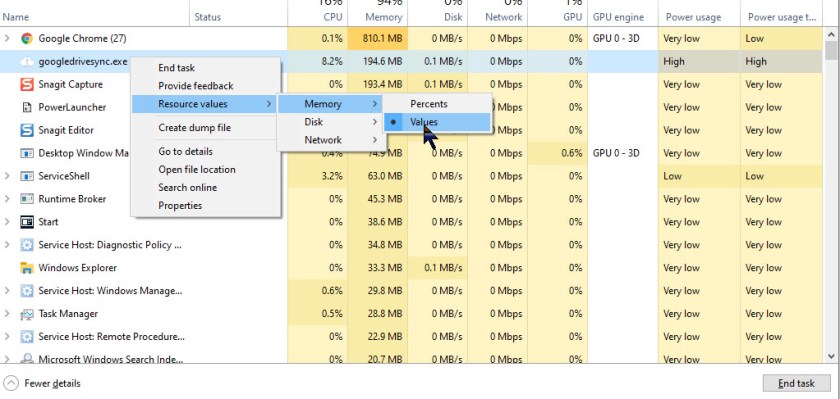
You may highlight a process, then select Resource value, From here, select an option, then select how you want to view the process, Percents or Values. See following image:
Showing Percents or Values option
Click to tweet if you find TechSavvy.Life blog posts extremely helpful. Check them out for posts on smart phone apps, Macs and PCs!
Please feel free to leave a comment. I would love hearing from you. Do you have a computer or smart device tech question? I will do my best to answer your inquiry. Please mention the device, app and version that you are using. To help us out, you can send screenshots of your data related to your question.
The author’s Vietnam eBook on the Battle for Tra Bong: Events and Aftermath
Microsoft keeps updating its PowerToys. A set of slightly unusual free Windows tools has been a part of the Windows operating system landscape since Windows 95, but their availability has been noticeably absent for Windows 10–at least until September 2019.
Microsoft keeps updating its PowerToys. A set of slightly unusual free Windows tools has been a part of the Windows operating system landscape since Windows 95, but their availability has been noticeably absent for Windows 10–at least until September 2019.
The toolset is available from Github as a free download. Just download the MSI file here and install. An icon will be placed in the system tray; just right-click on its Settings to access the toys.
In 2019, Microsoft, in partnership with development company Janea Systems, released the first two PowerToys accompanied by a promise of more releases in the nrar future. Let’s explore each available tool or feature provided by Microsoft’s official Windows 10 PowerToys.
This is for the Windows 10 operating system
Copyright Scott Adams, Inc./Distributed by Universal Uclick for UFS
The tools allow users, whether they considered themselves “power” or not, to more easily make tweaks to the look and feel of Windows without a deep dive into configuration screens or the dreaded and dangerous edit of the Registry.
All Windows 10 PowerToys are now included as part of a free downloadable system that users can configure. After installation and running the application, you will see the following screen:
PowerToys main menu
The latest version is available on GitHub right now. The latest main release 0.19.0 includes bug fixes for over 100 quality and stability issues across all the featured PowerToys utilities. The development team is also stressing the need for constructive feedback on the PowerToys project. As of this writing, the latest release is 0.19.2.
These PowerToys are currently available:
FancyZones
File Explorer Preview
Image Resizer
Keyboard Manager
PowerRename
PowerToys Run
Shortcut Guide
FancyZones
This tool allows users to manage where and how each separate application window will open on a Windows 10 desktop.
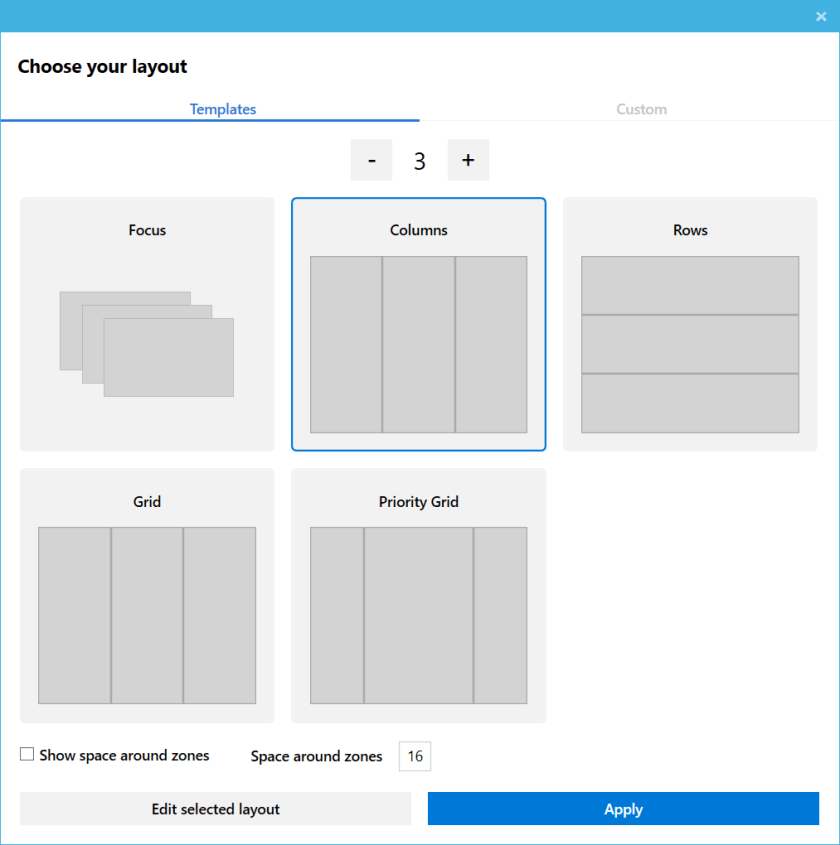
For example, you can set up a Windows 10 desktop where Outlook always displays on the right-hand side of the desktop, Twitter to always display on the left-hand side of the desktop and Word always displays in the middle between the other two. There would be three distinct zones displayed at all times. Refer to below image for choosing a layout:
FancyZones layouts
File Explorer Preview
This tool expands on the Preview Pane feature already available in the standard File Explorer application by adding additional file types. Preview Pane allows users to preview the contents of a file after clicking it in File Explorer without actually opening the file. Refer to below image:
Selecting the File Preview option
Image Resizer
This adds additional functionality to File Explorer by allowing users to apply bulk image resizing. You select images in File Explorer and then select the new Resize pictures item on the context menu revealed with a right-click on any image. See below image:
Image Resizer options
Keyboard Manager
This application is a simple keyboard re-mapper. Run the application from the Its menu and either remap a single key on your keyboard or remap a shortcut keyboard combination. Whatever you remap will remain active as long as Keyboard Manager is enabled and PowerToys is running in the background. See following image:
Keyboard Manager menu
PowerRename
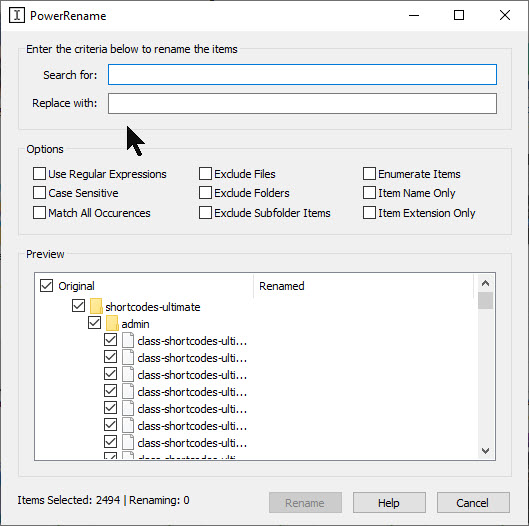
This tool provides users with advanced tools for bulk renaming of file names. The toy extends the Windows Shell Context Menu to add an entry for PowerRename to File Explorer. With this toy enabled, simple search and replace are added to your toolset. A preview area is displayed as you perform search and replace procedures so you can see how file names will change before initiating the action. See following image:
PowerRenam options
PowerToys Run
This toy acts as a quick launcher in Windows 10. It is an extension of the ALT+Tab concept and taps into the Windows 10 file indexing system. To activate the tool, first setup a keyboard combination, like CTRL+ALT+Space and start typing the name of your desired application. The Run will search the system and start listing possible applications, files and folders based on your search phrase. When the item you desire appears, click or tap to run. The old Window Walker toy has been merged into the Run toy. Refer to below image:
The Run dialog
Shortcut Guide
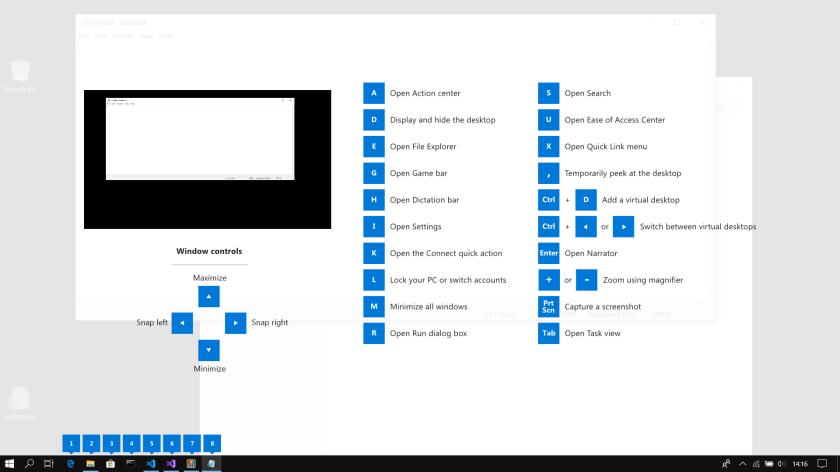
This tool will display all the available keyboard shortcuts for the current Windows 10 desktop. This PowerToy is activated by holding the Windows key down for the length of time specified in the tool’s configuration settings. The default is 900ms. Now users won’t have to remember all those Windows key-related shortcut combinations. See below image:
Please feel free to leave a comment. I would love hearing from you. Do you have a computer or smart device tech question? I will do my best to answer your inquiry. Please mention the device, app and version that you are using. To help us out, you can send screenshots of your data related to your question.
The author’s Vietnam eBook on the Battle for Tra Bong: Events and Aftermath
Congratulations! You are reading my 100th WordPress blog post. Thank you for reading and even sharing. I started blogging after Thanksgiving 2019. It has been a fun learning experience about smart devices and Windows. Please keep reading and leaving comments and/or Tweets.
Congratulations! You are reading my 100thWordPress blog post. Thank you for reading and even sharing. I started blogging after Thanksgiving 2019. It has been a fun learning experience about smart devices and Windows. Please keep reading and leaving comments and/or Tweets.
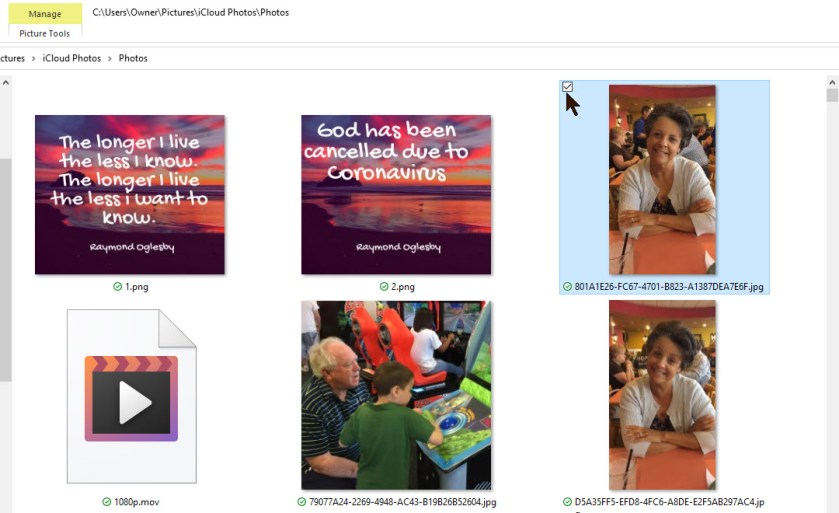
By default, Windows 10 displays checkboxes whenever you select a file. This was designed for easy file management on a touch screen. You might prefer the classic approach without the checkboxes. Let’s explore how to enable/disable this feature using two methods.
When enabled, a small square appears beside each file icon, thumbnail or file name. They appear in every File Explorer layout mode.
This feature first appeared in Vista and became enabled by default in Windows 8.
This is for Windows 10 operating system
Copyright Scott Adams, Inc./Distributed by Universal Uclick for UFS
This is my 100th blog post. Click to tweet on how you like TechSavvy.Life!
First, open File Explorer by pressing Windows + E or click the pinned File Explorer folder icon in your Taskbar. You may also click Start to locate the File Explorer. Refer to below image:
The File Explorer
Method 1: Enable/Disable Checkboxes
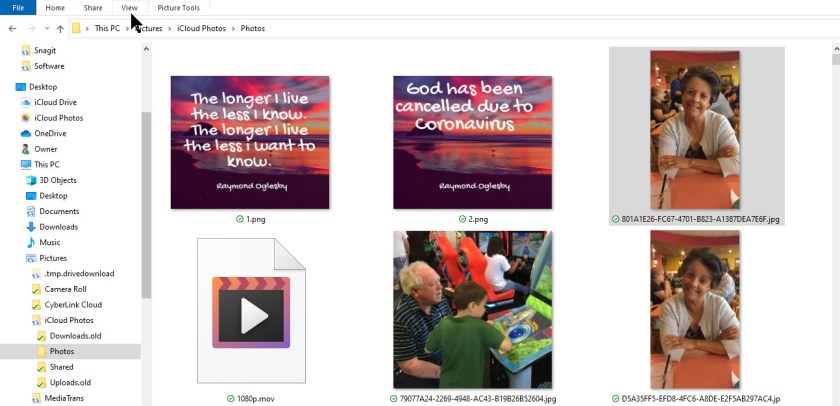
Once there, in the ribbon tab, click the View tab. See below image:
Selecting the View tab
Locate the option Item check boxes. Toggle the box to show or hide checkboxes. Your change is immediately applied. Refer to below image:
Enable/Disable the checkbox option
Method 2: The Folder Options
Access the File Explorer as mentioned above and click on the View tab.
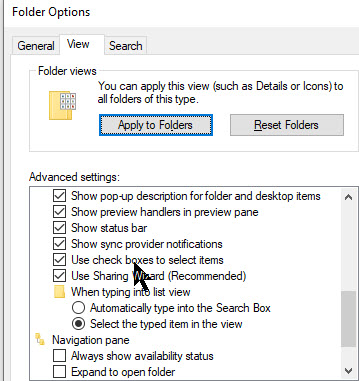
Next, click the Options button and select Change folder and search options to open the Folder options window. Now, select the View tab
Scroll down the list till you see Use check boxes to select items. Toggle the box to show or hide checkboxes. Click Apply to save your choice, then click OK. See following image:
Enable/Disable the checkbox option
This is my 100th blog post. Click to tweet if you find TechSavvy.Life blog posts extremely helpful. Check them out for posts on smart phone apps, Macs and PCs!
Please feel free to leave a comment. I would love hearing from you. Do you have a computer or smart device tech question? I will do my best to answer your inquiry. Please mention the device, app and version that you are using. To help us out, you can send screenshots of your data related to your question.
The author’s Vietnam eBook on the Battle for Tra Bong: Events and Aftermath
Microsoft new Windows 10 Power Toys Run feature offers you a quick way to locate and launch programs, files, folders and other items by typing their names. Let’s explore this new feature.
Microsoft new Windows 10 Power Toys Run feature offers you a quick way to locate and launch programs, files, folders and other items by typing their names. Let’s explore this new feature.
This is for Windows 10 operating system
Copyright Scott Adams, Inc./Distributed by Universal Uclick for UFS
New with PowerToys version .018 and above is a quick launch feature called PowerToys Run. After you trigger its keyboard shortcut, the program appears on your screen. Just simply start typing in the name of the program, file or folder you want to open. From the search results, simply click on your desired item. But there is more.
The Run feature also allows you to open windows and running processes, launch apps like the Control Panel or Task Manager and perform calculations.
Install PowerToys
You will find the latest version at Microsoft’s GitHub page for PowerToys. If you are upgrading or installing for the first time, the Microsoft’s Windows Desktop Runtime should be automatically installed as part of the feature.
After installation, click on the desktop shortcut you created in the install to launch the program. Now, click on the PowerToys icon in the System Tray. See below image:
PowerToys icon in System Tray
The Settings Menu
Right-click on the icon to access the the Settings option. In the PowerToys Settings screen, click on the entry for PowerToys Run. Next, click on the toggle switch to enable PowerToys Run.
By default, the feature shows you four search results. It is recommended that you increase this value to eight for a better result. Also, the default shortcut key is Alt + Spacebar, you can change this shortcut to your liking.
When you are finished, close the Settings screen. Refer to below image:
PowerToys Run menu
The Quick Laucher
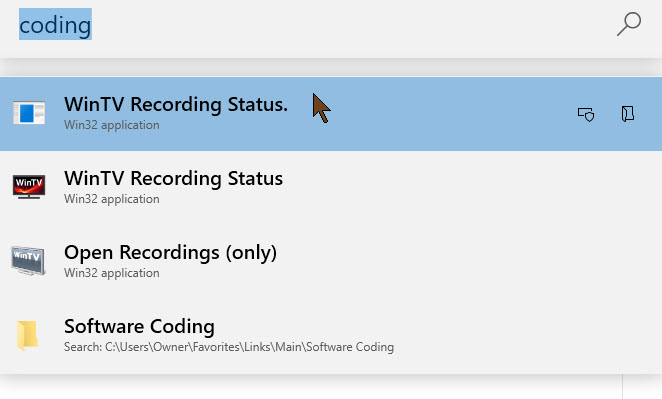
Lets restart PowerToys Run by pressing the shortcut you defined. The quick launcher appears on the screen with an invitation for you to start typing. Start typing the name of the application, folder or file you wish to access. From the search results, click on the correct result to open it. At the upper right hand corner are two small icons. The first icon lets you open the application as an administrator; the second one opens the folder that contains the application’s executable file. The launcher window and its results are saved for other searches. See below image:
The Quick Launcher search results for programs, files or folders
Next, you can find and launch open windows and running processes. At the Run launcher, type the name of an open application, file, web page or other process, and then select the item you wish to bring to the foreground. Refer to below image:
The Quick Laucher search results for open windows or running processes
You can also open shell plugins built into Windows, which include such items as Control Panel, Task Manager and Command Prompt. To trigger such a plugin at the launcher, type > followed by the first few letters of the plugin, such as > control or > task and then select the item you want from the results. See following image:
The Quick Launcher search results for plugins
The Calculator Feature
You can perform simple calculations at the launcher, a handy alternative to the Windows Calculator. To do this at the launcher, type the first number, followed by the symbol for the calculation (+ for addition, – for subtraction, * for multiplication or / for division), followed by the second number. After you finish the equation, the launcher displays the results. You can then click the result to copy it to the Clipboard. Refer to below image:
The Quick Launcher calculator
Click to tweet if you find TechSavvy.Life blog posts extremely helpful. Check them out for posts on smart phone apps, Macs and PCs!
Please feel free to leave a comment. I would love hearing from you. Do you have a computer or smart device tech question? I will do my best to answer your inquiry. Please mention the device, app and version that you are using. To help us out, you can send screenshots of your data related to your question.
The author’s Vietnam eBook on the Battle for Tra Bong: Events and Aftermath
With a feature called Clipboard History, you can see and use a recent list of items you have copied to the clipboard.
Clipboard History first appeared in October 2018 update for Windows 10, so you should have installed this update. The feature supports text, HTML (web pages) and images less than 4MB in size.
Clipboard History stores a maximum of 25 entries, with the older ones dropping off as new items appear. Unless an item is pinned, the list will reset every time your device is restarted.
This is for devices using Windows 10 operating system
Copyright Scott Adams, Inc./Distributed by Universal Uclick for UFS
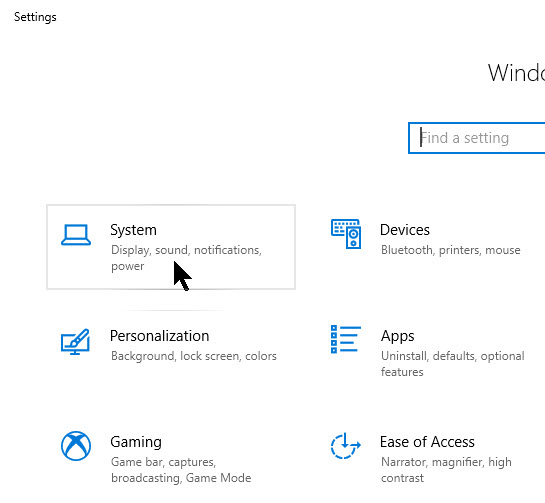
Navigate to Settings by pressing Windows + I. Once there, click the System option. Refer to below image:
Accessing the System option in Settings
On the sidebar, click on Clipboard. In this option, locate the section Clipboard History and toggle the switch to On. See below image:
Enable Clipboard History
Clipboard History is now enabled. You may close Settings and use the feature in any application.
View Clipboard History
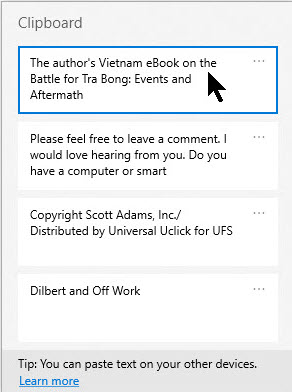
You can now call up a list of items you have copied recently while using any application. To do so, press Windows + V. See following image:
View Clipboard History items
A small floating window will pop up either near the application you are using, or if all windows are closed or minimized, in the lower-right corner of your screen. At the top of the list will be the most recent items you have copied. Refer to below image:
The Clipboard History items in mosr recent order
While the Clipboard History window is open, you can click on any item in the list to paste it into an open application or document at the location of your cursor. See following image:
Paste your Clipboard History item at the location of your cursor
Pin a Clipboard History Item
You can also pin an item to the Clipboard History list by clicking on the tiny Hamburger icon (the one with 3 dots) and selecting the Pin option. That way, the item will remain on the Clipboard History list even if you reboot the computer or click Clear all. See below image:
Pin a Clipboard History item
Remove a Clipboard History Item
To remove items from Clipboard History, click the Delete option beside an item on the list. Or you can clear the entire list by clicking the Clear all option. Refer to below image:
Delete or Clear all your Clipboard History item(s)
Disable Clipboard History
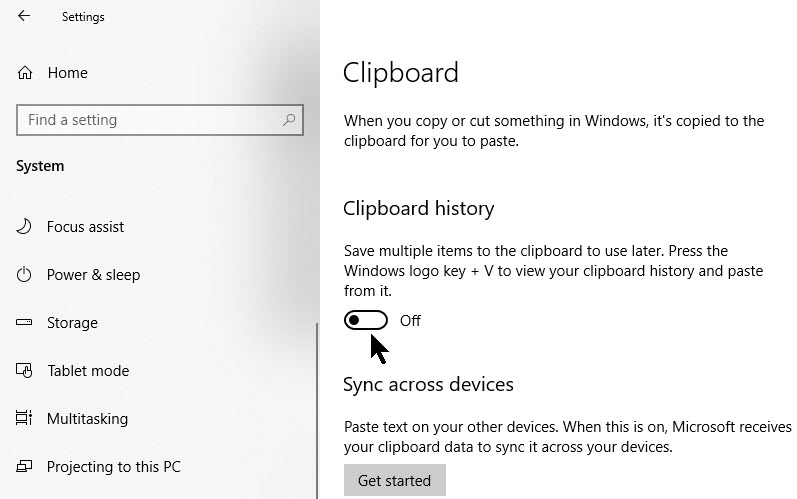
To turn off Clipboard History in Windows 10, navigate to Settings > System > Clipboard. Locate the option Clipboard History and toggle the switch to Off. See below image:
Turn off Clipboard History
You may now close Settings. Once the feature is disabled, if you press Windows + V, you will see a small window alerting you that Windows 10 cannot show your Clipboard History because the feature is turned off.
Click to tweet if you find TechSavvy.Life blog posts extremely helpful. Check them out for posts on smart phone apps, Macs and PCs!
Please feel free to leave a comment. I would love hearing from you. Do you have a computer or smart device tech question? I will do my best to answer your inquiry. Please mention the device, app and version that you are using. To help us out, you can send screenshots of your data related to your question.
The author’s Vietnam eBook on the Battle for Tra Bong: Events and Aftermath
The Microsoft Windows 10 Whiteboard app is fully integrated and can now be accessed by all users. Let’s learn how to use it and share your whiteboard projects with others.
The Microsoft Windows 10 Whiteboard app features cloud storage and collaboration which are dependent on an active Microsoft account. This post shows how to access the Microsoft Whiteboard and share your whiteboard creations with others.
This is for Wiondows 10 operating system
Copyright Scott Adams, Inc./Distributed by Universal Uclick for UFS
Access the Whiteboard App
Access to the Whiteboard app is available from the System Tray if you activate that feature in your taskbar settings. (Optionally, the app is available from the Start menu and can be pinned to the Taskbar). Right-click an empty area of the Windows 10 Taskbar and select the Show Windows Ink Workspace button item from the list. Refer to below image:
Enable the Whiteboard option
A new icon will be added to the System Tray. See below image:
The Whiteboard icon in the Tray Bar
Click the new icon and you will be able to choose the Whiteboard app. See following image:
Starting the Whiteboard app
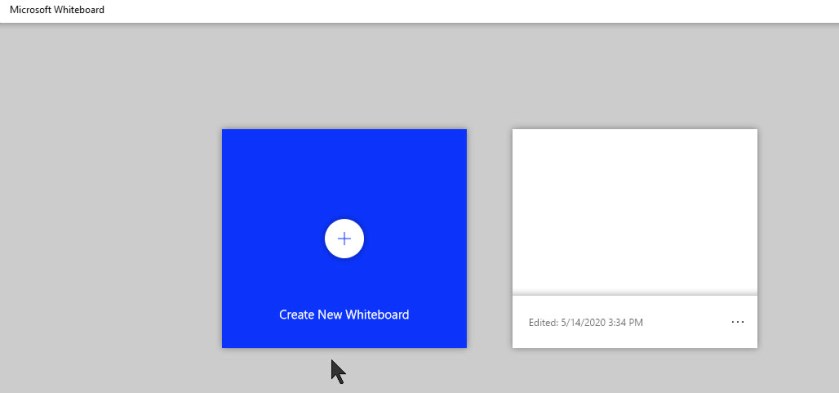
Now, click the Whiteboard app entry. You will be presented with thumbnails representing previous whiteboard projects, if any. Assuming you logged into Windows 10 with an active Microsoft account, those previous projects will be accessed from Microsoft’s cloud servers. Refer to below image for my screenshot with no whiteboard projects since this is my first time in using the Whiteboard app:
Opening the Whiteboard app
Create and Edit a Whiteboard
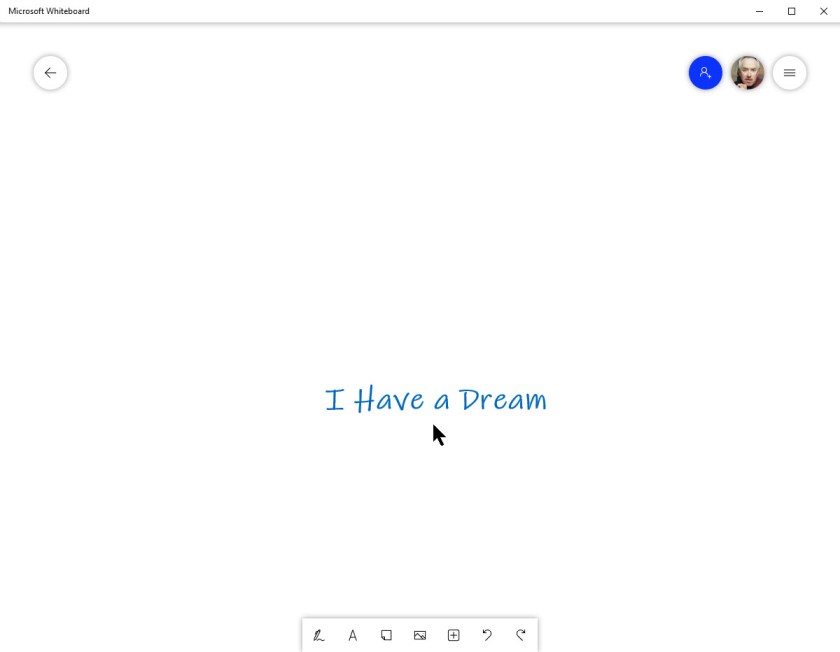
To create a Whiteboard project, simply click on the thumbnail Create New Whiteboard. If you have a touch screen you may use the pencil icon to draw on the whiteboard or just use text. There are several other options available such as add an image, insert a note and and add documents. Refer to below image:
Creating and editing a Whiteboard
Also, you can click on the Hamburger icon in upper right hand corner for the Settings menu. If you right-click on an empty whiteboard space, you will see even more features.
Share the Whiteboard
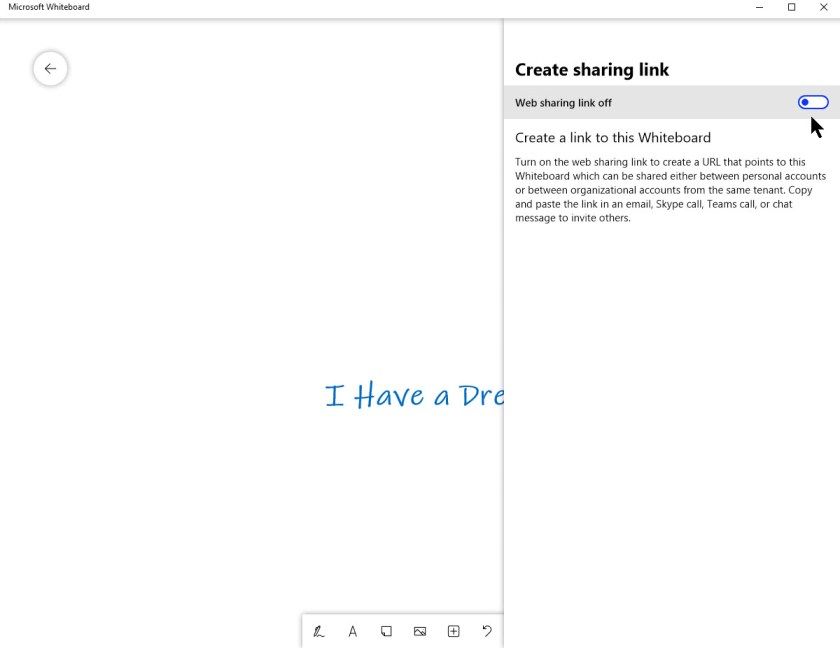
To share your current Whiteboard with another user, click the Invitation icon in upper left-hand corner. The app will ask you to turn on the feature. When turned on, the app will create a link that you can copy and paste in an email, text message or an online meeting. See below image:
Creating a Share link for the Whiteboard
Now, click the Copy link button. See following image:
Copying a share link for the Whiteboard
In my example I am sharing the link by an email to myself. Refer to below image for using Outlook as the email client:
Sending the share link by Outlook
View Your Whiteboard
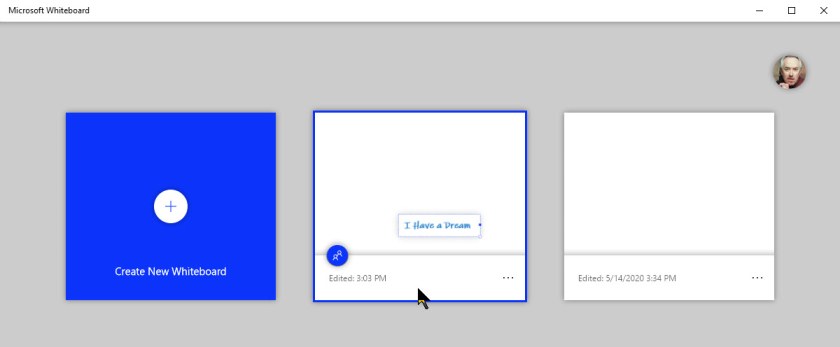
When you exit the Whiteboard your creation will be saved to your cloud storage. Now, when you restart the Whiteboard app, you will see thumbnails of your projects. See below image:
Viewing your shared Whiteboards
Of course, access to your Whiteboard creations will require proper credentials and authorizations arranged ahead of time.
If you want to share without collaboration, you can export your creation as an image file and send by a messaging interface.
While the Whiteboard will function with a mouse and keyboard combination, serious artistic collaboration will be more effective with a pencil input on a touchscreen device like a tablet. The Whiteboard has settings and features specifically designed to take advantage of that interface.
I Would Like to Hear From You
Please feel free to leave a comment. I would love hearing from you. Do you have a computer or smart device tech question? I will do my best to answer your inquiry. Please mention the device, app and version that you are using. To help us out, you can send screenshots of your data related to your question.
The author’s Vietnam eBook on the Battle for Tra Bong: Events and Aftermath
With the Remote Desktop Mobile app for iOS and Android, you can connect to and control a remote Windows computer to work with your files and applications. This can be done from computer to computer, or you can use Microsoft’s Remote Desktop Mobile toolto access a remote PC from an iOS or Android device. With it, you can view the screen, open files and work with applications as easily as if you were in front of that computer. Let’s explore how to use the mobile app to access a remote computer.
We will first discuss setting up your PC for remote access, then explore what needs to be done on your iPhone or iPad. The steps for an Android will be similar
This is for PCs running Windows 10 and iPhones. The screenshots are for a PC and iPhone. Android devices will be similar.
Copyright Scott Adams, Inc./Distributed by Universal Uclick for UFS
Allow Remote Access
First, open Settings by typing in Settings in the Cortana search bar followed by clicking the app in upper left hand corner or click the Start button then click on the Settings tile (the cog wheel).
Next, click on the System option. Refer to below image:
Access the System option
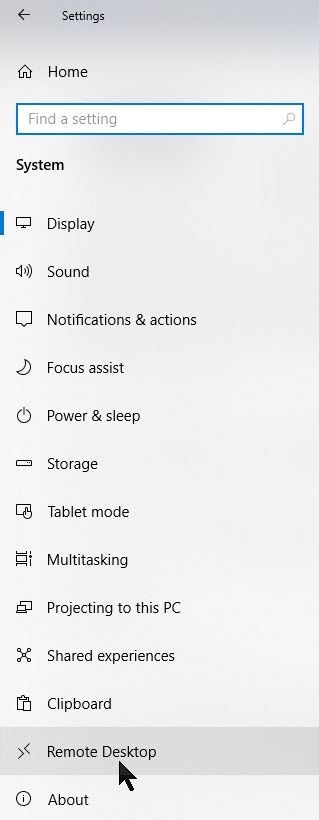
Now, click on the Remote Desktop option. See below image:
Access Remote Desktop option for the PC
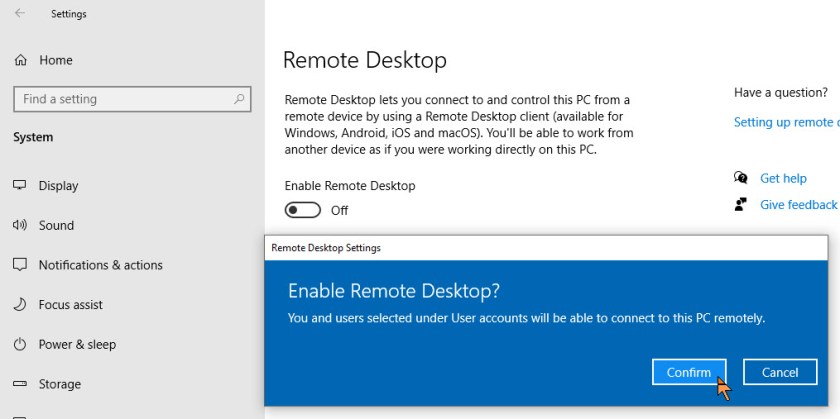
Next, slide the Enable Remote Desktop to the ON position. You will be presented with a confirmation screen. Just click Confirm to enable it. See following image:
Confirm Enable Remote Desktop access
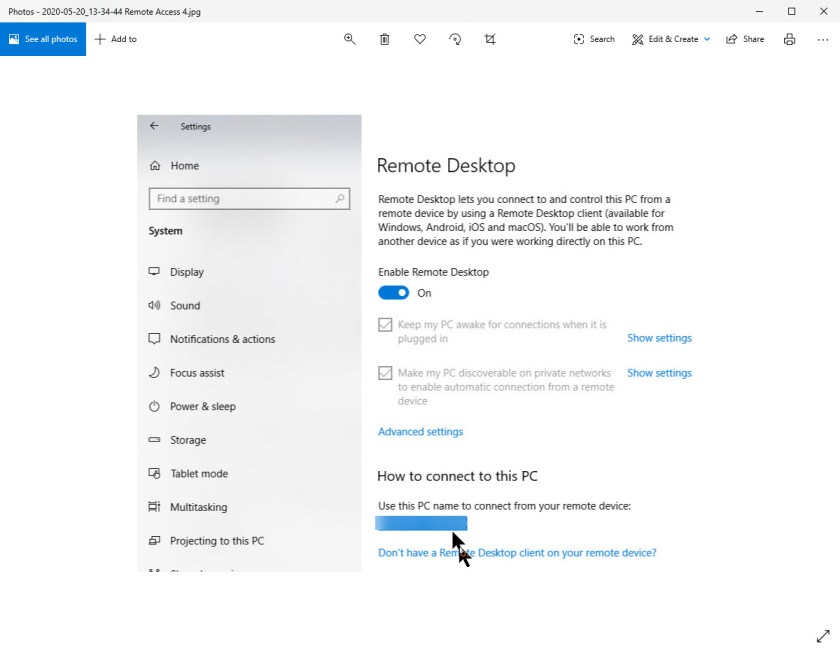
By default, the options for Keep your PC awake for connections when it is plugged in and Make my PC discoverable on private networks to enable automatic connection from a remote device may both be enabled. To view or modify either option, click the corresponding link to Show settings, but you can leave both turned on at this point.
While you’re here, write down or copy the name of the PC as you may need it when you set up the connection. Refer to below image:
The Remote Desktop options for the PC
Remote Access Settings
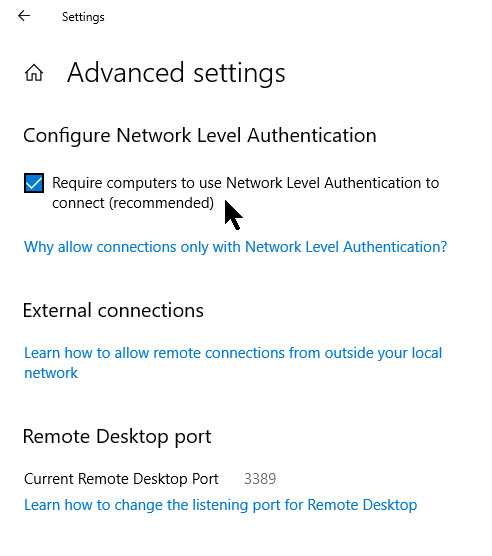
Let’s check a few more options while in Settings. Click the Advanced settings link and make sure the box for Configure Network Level Authentication is turned on. This feature provides an extra layer of protection to ward off uninvited guests.
If you’ll be connecting to the computer on the same network via a Virtual Private Network (VPN) or other means, ignore the section for External connections. The section for Remote Desktop port shows the default port to listen for and accept a remote connection. Refer to below image:
Advanced Settings for Remote Desktop
Allowing User to Signin Remotely
By default, any user who has an administrative account on the remote PC can access it. Assuming you’re using a Microsoft Account or company account to sign into Windows, your best bet is to use that account to sign in remotely.
If you want to give remote access to a different account, click the link at the bottom for Select users that can remotely access this PC. Click Add and enter the user name for the account you want to use. See below image:
Setup users to access the remote computer
Access Your IP Address
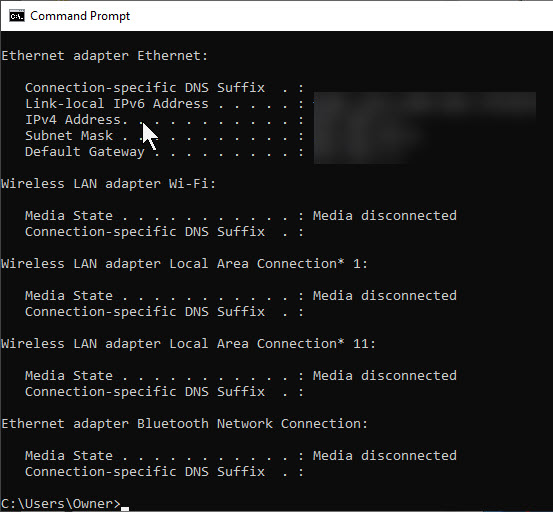
In the Cortana search box, enter cmd and press the Enter key. The Command Prompt app will open. Next, enter ipconfig and press the Enter key. Copy or write down your IP addresses (especially the IP4 address) for later use. Refer to below image: (Note! I have blanked out my IP addresses for security reasons).
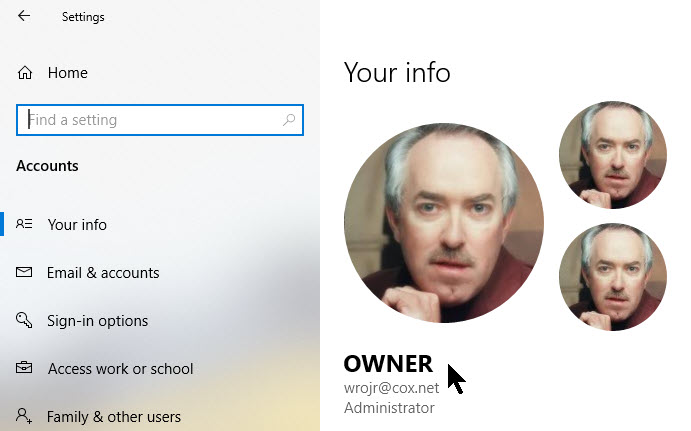
Access your User Account Name
If you are using a local account to sign in for Windows 10 and forgot your User Account name, navigate to the Settings app by:
Pressing the Windows key + I
Click the Accounts option
Click on Your Info
Your User Account name will be in bold under your profile photo. See my info below:
Your Settings info
Download Remote Access for Your iPhone or iPad
Now, let’s explore the second part of our remote access, the iPhone or iPad setup.
To access the computer from your iPhone or iPad, download and install the Remote Desktop Mobile app from Apple’s App Store. Open the app, tap the plus (+) symbol in upper right hand, and choose the option to Add PC. See following image:
Add a PC to connect remotely
Setup Remote Access for iOS
At the Add PC window, enter the computer name or IP Address (both copied down earlier, normally this would be your IP4 address) in the PC Name field. Type the account name you want to use in the User Account field and password or leave the field set to Ask When Required if you’d rather enter the name each time for security reasons.
Under the General section, type a name in the field for Friendly Name to add a more convenient label for this connection. Turning on the switch for Admin Mode connects you to a console session to manage a Windows server; normally you would leave this turned off. The option for Swap Mouse Buttons swaps the left and right mouse buttons.
In the Gateway section, you will need to enable and set up the option for Gateway only if your organization uses a Remote Desktop Gateway to secure remote connections. See below image:
The Add PC options
Configure Session Features
Swipe down to the Device & Audio Redirection section to enable any features on your iOS device that you wish to use during a remote connection. You’d likely want to direct the Sound to play on this device. You may also want to enable the Clipboard if you plan to copy and paste back and forth. You can also enable the Microphone, Camera and Remote Storage. When finished, tap Save in the upper-right corner. Refer to below image:
Configure device features
Connect to Remote PC on iOS
The computer you wish to access will be displayed in the app. Tap the name and icon of the computer connection you just set up. The first time you try to access the computer, Remote Desktop may ask to verify the connection to that computer. Enable the option for Don’t ask me again for connections to this computer and then tap Accept. You may click the hamburger icon (the 3 dots) in lower left hand corner to edit your entries. See following image:
The connect icon to a PC from your smart device
Remote Connection Toolbar for iOS
You now should be connected to the remote computer. You may now open apps and windows, manage the desktop and do just about everything you can do if you were sitting in front of the PC.
If you get the error code “0x204”, navigate back to the section Setup Remote Access for iOS and enter the IP4 address in the PC Name field. If you still get the error code, then click here on guidelines to resolve this issue.
To help you control your remote session, the app displays a small toolbar at the top. Tap the Magnifying glass icon to zoom in on the screen. Tap it again to zoom back out. Tap the Keyboard icon to display your device’s keyboard. Refer to below image:
The Remote Desktop Connection toolbar
Manage Remote Connections
Tap the middle icon to view all your remote connections. Tap on a different remote connection to jump to another session. This page has its own toolbar at the top. Tap the Home icon to return to the home screen, where you can set up or access another connection. Tap the Hand icon to switch to touch-screen mode and tap the Mouse icon to switch to mouse mode.
Tap the X button in the thumbnail to terminate the connection for that session. Otherwise, tap Disconnect All PCs to end every current session. See below image:
Access Remote Desktop options on the smartdevice
I Would Like to Hear From You
Please feel free to leave a comment. I would love hearing from you. Do you have a computer or smart device tech question? I will do my best to answer your inquiry. Please mention the device, app and version that you are using. To help us out, you can send screenshots of your data related to your question.
The author’s Vietnam eBook on the Battle for Tra Bong: Events and Aftermath
There are numerous books, eBooks, social media, online and printed magazine articles, and posts on how to improve the performance of your PC desktop, laptop or tablet running Windows. Out of hundreds of examples, we are going to explore three little know tips on how to speed up your device.
These enhancements involve a couple of Settings examples and one Control Panel tip. There are no Yes or Okay buttons to click, simple make the change and its automatically saved. So, lets get started.
This is for PCs and similar devices running Windows. Screenshots are for Windows 10.
Copyright Scott Adams, Inc./Distributed by Universal Uclick for UFS
Adjusting Your Restart Settings
First, we are going to open the Settings dialog for changing our Sign-in Privacy option to improve performance. There are three ways to open Settings on your device:
Navigate to the Settings app by clicking the Start button and then select the Settings option (the cog wheel) in lower left of the Start menu
Type in Settings in the Cortana search bar, located in lower left hand of your screen, then click on the Settings app in upper left hand of the screen
Click the Start button, then click on the Settings tile (the cog wheel) on your display
Now, select the Accounts option. Refer to below image:
Selecting the Accounts option
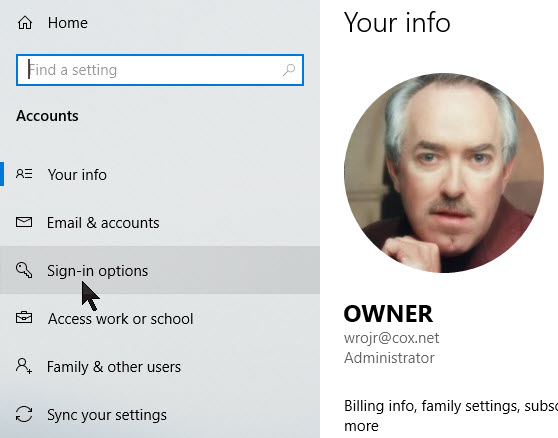
Next, select the Sign-in options. See below image:
Selecting the Sign-in options
Then, under the Privacy group, turn off the slider for Use my sign-in info to automatically finish setting up my device and reopen my apps after an update or restart. See following image:
Turning off the sign-in info option
Tweaking Your Power Plan
By default, Windows 10 uses the Balanced power usage plan that can sometimes hamper performance. We can increase the CPU speed by choosing another plan through the Control Panel.
First, type in Control Panel in the Cortana search bar, located in lower left hand of your screen.
Next, click on the app in the upper left hand of your screen. You will see a similar screen as displayed below.
Note! Your screen may be different depending on how the Control Panel is configured.
Selecting the System and Security option
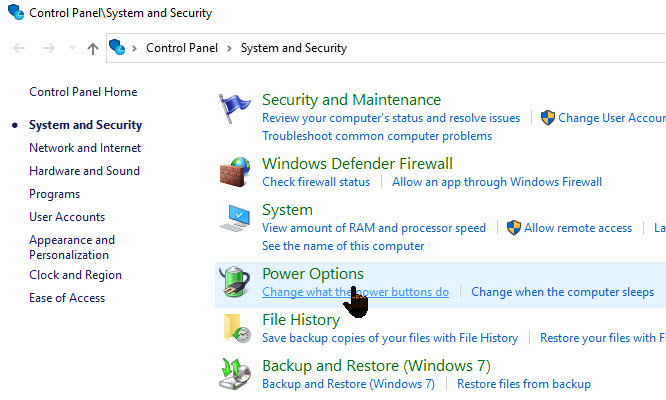
Now, select the Power Options. Refer to below image:
Selecting the Power Options
Then, select the High Performance option. We are not overclocking the CPU, that is a different option outside of Windows. See following image:
Turning on the High performance option
Recovering From a Sudden Slowdown
If your PC is suddenly slowing down, there are two culprits to look at, Microsoft updates and Malware.
First culprit may be Microsoft updates. Open the Settings app by one of the three methods listed under Adjusting Your Restart Settings at the beginning of this post.
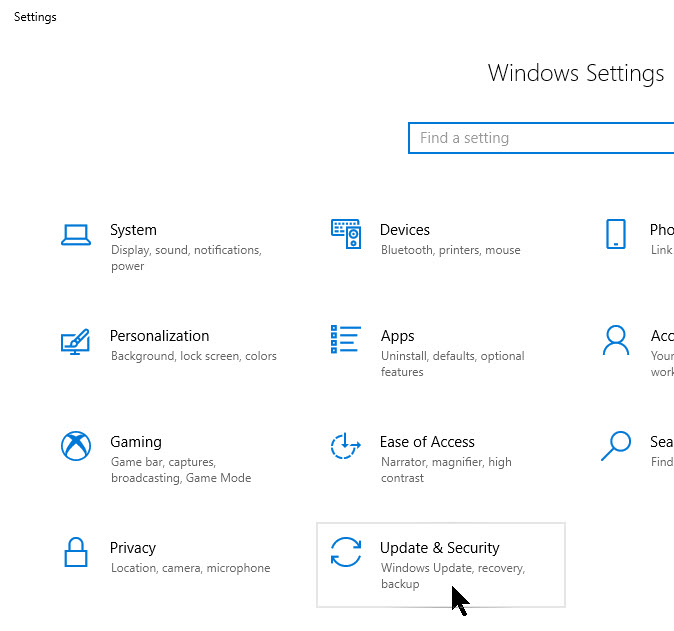
Now, select the Update & Security option. Refer to below image:
Selecting Update & Security option
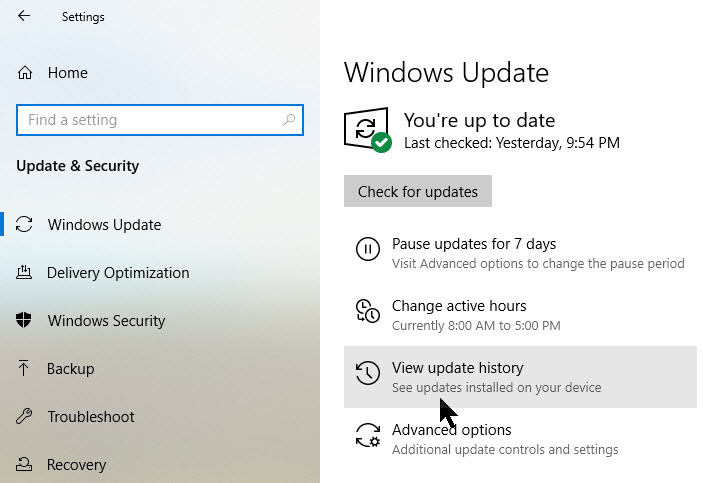
Next, select View update history. See below image:
Selecting View update history option
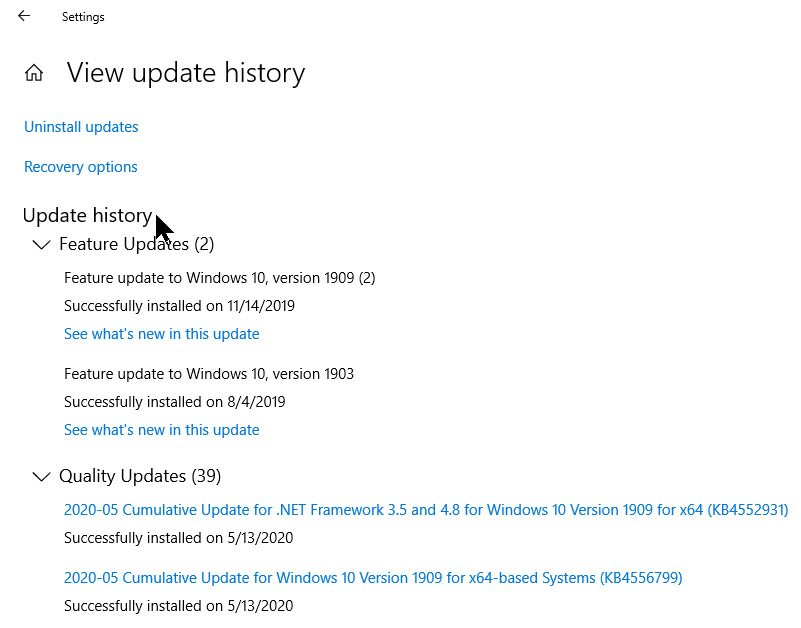
Your Microsoft updates will be displayed. Now, search online by the update’s Knowledge Base (KB) number (it’s in brackets at the end of each update title) to see if anyone else is having problems about the update from your browser results, PC news sites, forums or social media posts. To view infomation abou the update, just click the blue link for that KB number.
If lots of people are having trouble since that update, then you may need to uninstall it (click on Uninstall updates blue link at top of the screen and find the KB number) or wait for Microsoft to send a fix. See following image:
Please feel free to leave a comment. I would love hearing from you. Do you have a computer or smart device tech question? I will do my best to answer your inquiry. Please mention the device, app and version that you are using. To help us out, you can send screenshots of your data related to your question.
The author’s Vietnam eBook on the Battle for Tra Bong: Events and Aftermath









































 Tech Savvy Life