How to Insert and Use a Custom Word Footer in Three Clicks

Over the past few months, I have researched on how to do this, create a footer that I can use repeatly without doing a manual insert of footer elements. I finally found an article on how to partly do this. In my example, we are going in inset a document footer with the latest date on the left, the document name in the middle and the page number on the right. Yes, it will take a little time but it’s worth the one-time investment. You will save time and effort in using this feature.

If you’ve got a favorite document footer like mine, you can save that using the Quick Parts feature of Microsoft Word. What a lot of users don’t know is that Quick Parts can be saved under different categories to be accessible under different menus.

Let’s use my favorite footer as an example. I’ve constructed one in a blank document using a three column table: the left column has the current Date, the middle column contains the File Name and the right column shows “Page X of Y“. Also, I’ve turned off the borders in the table; those lines you see are simply the grid lines that display in Word.

This is for Word for Office 365 PCs and Macs that support Quick Parts. Other versions of Word will be similar.

Dilbert and Most Ted Talks
Copyright Scott Adams, Inc./Distributed by Universal Uclick for UFS

Lets get started.

Navigate to the the Insert tab, then to the Header option. Head to the bottom of the options and select Edit Footer. Your footer will be activated with the pointer in the left hand column.

Once again, go to the Insert tab, then select the Table option. Highlight the first 3 columns with your pointer. You will see 3 x 1 table description at top of your screen. Now, just click on the third grid element in the first row and the table will be inserted into your footer. See following image:

Word Footer A
Selecting the table to be inserted for the custom footer

Inserting Current Date

In the first column of the footer table, type in the text Date: (there is one space after the text) then navigate to the Insert tab and click on the Date & Time option in the Text group. Select your date format and click OK. See below image:

Word Footer 3
Selecting the current Date format to be inserted into your custom footer

Inserting File Name

Now, hit the Tab key once, or move your pointer to the middle column. Again, go to the the Insert tab, then to the Footer option. Navigate to the bottom of the options and select Edit Footer. In the Insert group, select Document Info, then select File Name.

UPDATE: If you do not see Document Info, in the Search box type in “Add document info” and follow its steps.

Refet to below image:

Word Footer H
Selecting the File Name to be inserted

Note! For demo purposes, I named this example document as &Filename. See below image:

Word Footer I
Showing the inserteed Date and File Name for your custom footer

Inserting Page Number

Now, tab once more or position your pointer in the right column. Once again, from the Insert tab, select Page Number from the Header & Footer group. Next, hoover your pointer over Current Position and select Bold Numbers under the Page X of Y group. Refer to below image:

Word Footer B
Inserting the Page Number as bold text for Page X of Y into your custom footer

Your footer elements will look similar to the following image:

Word Footer C
Showing all elements for your custom footer

Formatting the Custom Footer

Now, you may want to align your footer elements. In my example, I am aligning the File Name to be centered. For the Page Number, I am choosing right justified. The Date is already left justified. At this point, you can change the font and/or font size and other formatting options. You may want to change font size for File Name to allow for long document names. Refer to below image:

Word Footer D
Aligning the footer elements for your custom footer

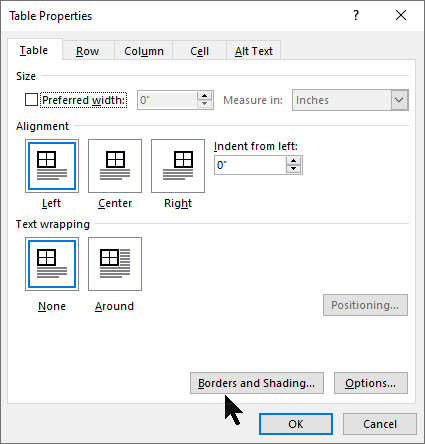
Next, lets remove the borders for our footer table. Right click on the “+” sign located to the left of the table, then select Table Properties. See below image:
Word Footer E
Accessing the Table Properties for your custom footer

Now, select Borders and Shadings option. Under the Borders tab, select the None option, then click OK, then click OK again to remove the borders. Refer to below image:
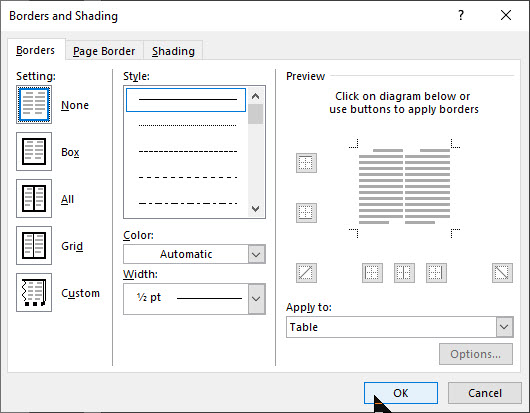
Word Footer F
Removing the borders for your custom footer

Your final footer result will be similar to the following image:

Word Footer G
The final result of your custom footer

If you make a mistake, start from the miscue or start from stratch. As you can see, there are a lot of manual steps. So, instead of repeating all of the above just to insert a footer, we can easily access our favorite footer by using the Quick Parts feature.

Setting Up the Quick Part Feature

Highlight the footer with your pointer or click on the “+“sign located to the left of the table. Next, navigate back to the Insert tab. Select the Quick Parts option in the Text group. Then choose Save Selection to Quick Park Gallery. See below image:

Word Footer K
Saving your custom footer to Quick Parts

Give the Footer a unique name, mine is My Best Footer. In the Gallery drop-down box, select Footers. In the Category drop-down box, select General. Now, give the footer a Description. When you are finished, click OK. Refer to below image:

Word Footer L
Setting up the custom footer building block

Now your favorite footer will be an available selection whenever you click Footer on the Insert tab. Refer to following image:

Word Footer M
Displaying your custom footer entry

Using Your Custom Footer

To try out your custom footer, open a blank document. Navigate to the Insert tab (click one), select the Footer option (click two). Locate your recent entry and click on it (click three). Your footer selection will be inserted. And you only used three clicks! See below image:

Word Footer N
Inserting your custom footer into a document

There are a whole bunch of other Quick Parts Galleries available for you to save your favorite snippets in. For example, you could have a Quick Parts that inserts your “ Initials _____” on the last page of a draft. Another Quick Parts would be creating and inserting your favorite Watermark.

Edit Your Custom Footer Properties

Navigate to the Insert tab. Select the Quick Parts option in the Text group. Then choose the Building Blocks Organizer option. Next, locate and click on your custom footer entry. Then, click on the Edit Prolerties tab. Here you can change the custom Name, the Gallery, the Category, etc. Its best to leave the Gallery set to Footers and Category set to General.

UPDATE: To make your custom footer float to the top, select enter a new Category, and label it Alpha instead of selecting General.

Once you are finished, click OK. Refer to below image:

Word Footer P
Editing your custom footer properties

Delete Your Custom Footer

Navigate back to the Insert tab. Select the Quick Parts option in the Text group. Then choose Building Blocks Organizer option. Next, locate and click on your custom footer entry. Then, click on the Delete tab. To complete the deletion process, click OK. See following image:

Word Footer O
Deleting your custom footer

When you Exit Microsoft Word, you will see the following screen. Make sure you click Save to save your custom footer in the Building Blocks.dotx file, where your custom footer is stored. This is easy to overlook. If you don’t Save, you will lose your custom footer or any other snippet you created during your Word session.
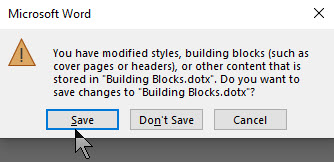
Word Footer Q
Your final dialog box upon exiting Word. You must click Save to save your work.

You have successfully created, inserted, edited and deleted a custom footer.

I Would Like to Hear From You

Please feel free to leave a comment. I would love hearing from you. Do you have a computer or smart device tech question? I will do my best to answer your inquiry. Please mention the device, app and version that you are using. To help us out, you can send screenshots of your data related to your question.


The author’s Vietnam eBook on the Battle for Tra Bong: Events and Aftermath

Using Zoom During the COVID-19 Outbreak

This is a summary of Zoom posts I have blogged about over the past few weeks. During the COVID-19 pandemic, many of us are working from home using Zoom for video/audio conferencing. If you take some time, you can make the video meeting a smooth experience for all participants. The host of the Zoom meeting has the responsiblity to setup and run the meeting. By exploring the following blog posts, you can achieve your goal of hosting a successful meeting, making it easy for the participants to join the video conference and keeping the Zoom troll attacks at a minimum.

This if for a PCs and Macs browsers and smartdevices that support Zoom

Dilbert and Lists
Copyright Scott Adams, Inc./Distributed by Universal Uclick for UFS

Following are my blog links for a Zoom video/audio meeting:

How to Setup Contacts in Zoom

How to Record a Zoom Meeting

How to Join a Zoom Meeting Without Installing the App

How to Hide and Unhide a Zoom Video

Nine Tips to Stabilize a Zoom Meeting

Testimonials

I love you addressed nearly every frustrating feature change I have! Thanks for sharing and educating me. 

marilyn1998

I was just checking into the zoom meeting stuff. Thanks Raymond.

Debi Holcomb

I Would Like to Hear from You

Please feel free to leave a comment. I would love hearing from you. Do you have a computer or smart device tech question? I will do my best to answer your inquiry. Please mention the device, app and version that you are using. To help us out, you can send screenshots of your data related to your question.

The author’s Vietnam eBook on the Battle for Tra Bong: Events and Aftermath

Nine Tips to Stablize a Zoom Meeting

Internet trolls are crashing Zoom video conferences and flooding them with inappropriate content. Here are some ways to stablize your meetings and keep Zoom running smoothly.

This if for a PCs and Macs browsers and smartdevices that support Zoom

Dilbert and Egg
opyright Scott Adams, Inc./Distributed by Universal Uclick for UFS

1. Close All Running Apps

Before you start your video conference call or join the on-line meeting, save your work and close all running apps. Too many open apps will slow down your computer while you’re on a video call. This is because the call requires a lot of resources, especially if you’re on a lightweight laptop.

2. Check the Speed of Your Browser

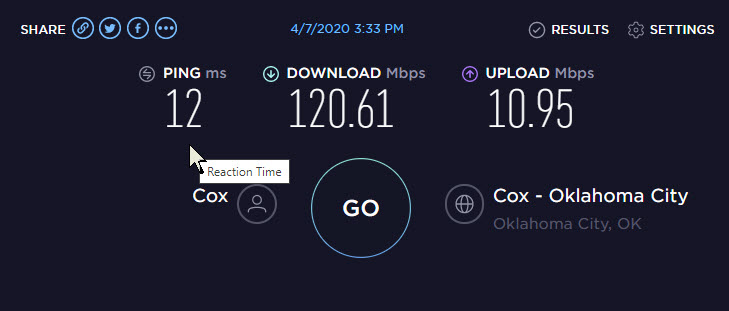
Before your call, use a speed test tool, like Fast.com or Speedtest.net, to test your internet speed. If you’re not getting enough speed, move closer to your Wi-Fi router or try some other tips to boost your Wi-Fi signal. You can also use one of these tools to speed up your internet connection. Minimum bandwidth is 600 Kbps (up/down) and recommended is 1.5 Mbps (up/down). You may need to call your internet service provider and/or upgrade your equipment, which would be the best choice, if your equipment does not meet the minimum.

If you run both programs, you will notice a signifance difference in the speed test. This is due to the time of day you run the test, servers they are using and its location. Hopefully, your equipment exceeds the minimum speed for a Zoom meeting.

Below are my results in running Speedtest for Windows (Note that I greatly exceed the minimum):

Zoom Tips Speedtest 2
Results in running SpeedTest on my browser

3. Test Your Audio and Video

You can also launch a test Zoom meeting anytime at zoom.us/test.  This will launch a meeting where you are the only participant (you can invite others).  This option lets you test your audio and video even if you don’t have the Zoom app installed.

See the article Joining A Test Meeting in the Zoom Help Center for more information about using the using the Zoom Test Meeting feature.

4. Mute Yourself When Not Speaking

When you’re in a video meeting with a lot of participants, it’s best to keep yourself muted. Only unmute yourself when you need to speak.

This eliminates any background noise on your end. Also, if anyone walks in the room and starts talking while you’re on a call, you won’t have to rush to find the mute button.

5. Never Use Your Personal Meeting ID

Each Zoom user has a personal meeting ID; think of it as your Zoom phone number. When creating a meeting, you can use your personal ID or generate a random one. You should always generate a random meeting ID.

If your personal meeting ID is leaked to the web, Zoom trolls are free to harass you with calls whenever they please. 

6. Always Use a Meeting Password

For a video meeting other than a large classroom, town hall or lecture meeting, passwords should be turned on. 

Make sure the password is kept safe. Zoom sends meeting passwords out to all invitees when invitations are sent. If you’re worried that someone unwanted may get the password, create the meeting without one set, update the meeting to add a password and send it out to invitees in a separate email or via another form of communication.

7. Set Join the Waiting Room Option

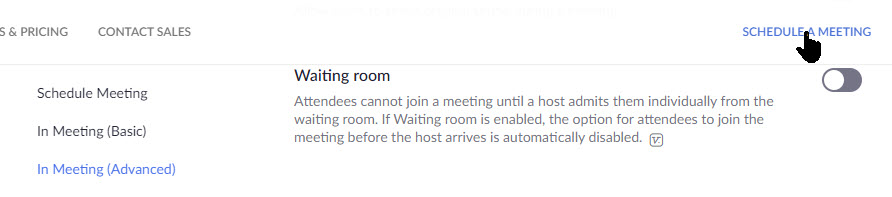
When you enable the waiting room for a Zoom meeting, each user who connects is put in a queue that the meeting host has to approve. If you don’t recognize someone in the waiting room, simply don’t let them in.

To enable this feature, navigate to Settings > In Meeting (Advanced), scroll down till you see the following option and toggle it to the On position. See below image:

Zoom Web Meeting 5
Setting Join Waiting Room option

8. Set Meeting Options

Under Meetings > Schedule a Meeting, set the following options:

  1. Video > Host to On
  2. Video > Participant to Off especially if your participates are using older equipment
  3. Audio set to Both
  4. Meeting Options set Emable waiting room to On. Set Record the meeting automatically on the local computer should only be set to On for the host. You don’t want each particpant to be recording and viewing at the same time. If a participate wants a recording, the host can send the video via email or some other form of communication.
  5. Always Save you changes. Refer to following image:

Zoom Web Meeting 6
Setting other options

9.Turn Off Screen Sharing

Zoom trolls need to be able to visually take over a meeting to be effective. Preventing anyone from sharing their screen aside from the meeting host stops them from being able to go on the attack.

Under Settings > In Meeting (Basic), scroll down till you see the Show Zoom windows during screen share and set the following options:

  1. Screen sharing, toggle to On
  2. Who can share, toggle Host Only to On
  3. Who can share when someone else is sharing, toggle Host Only to On
  4. Always Save your changes. Refer to below image:

Zoom Meeting 7A
Setting screen share option

I Would Like to Hear from You

Please feel free to leave a comment. I would love hearing from you. Do you have a computer or smart device tech question? I will do my best to answer your inquiry. Please mention the device, app and version that you are using. To help us out, you can send screenshots of your data related to your question.
The author’s Vietnam eBook on the Battle for Tra Bong: Events and Aftermath

How to Hide and Unhide a Zoom Video

If you don’t want to see your own face during a Zoom video meeting, here’s how to hide, unhide and tweak your video settings.

A lot of us used to working in offices have found ourselves working at home due to the outbreak of the Coronavirus and that means a lot of virtual meetings. Users new to Zoom’s desktop app may find it a bit odd when their face appears while speaking. If you want to hide your own video, adjust it so you don’t take over the screen or bring it back once it’s hidden, then this post is for you.

There are several options for hiding and unhiding videos during a Zoom meeting, both for yourself and other. Lets get started.

This if for a PC, Macs, iPhone/iPad and Android devices that support Zoom

Dilbert and Instagram
Copyright Scott Adams, Inc./Distributed by Universal Uclick for UFS

Accessing Zoom Settings

First, fire up Zoom and join an active meeting. Then click on your small profile photo in upper right-hand corner. This will open up the dialog options window. From here, click on the Settings option. See below image:

Zoom Video 1
Accessomg the Settings option

The Video Settings

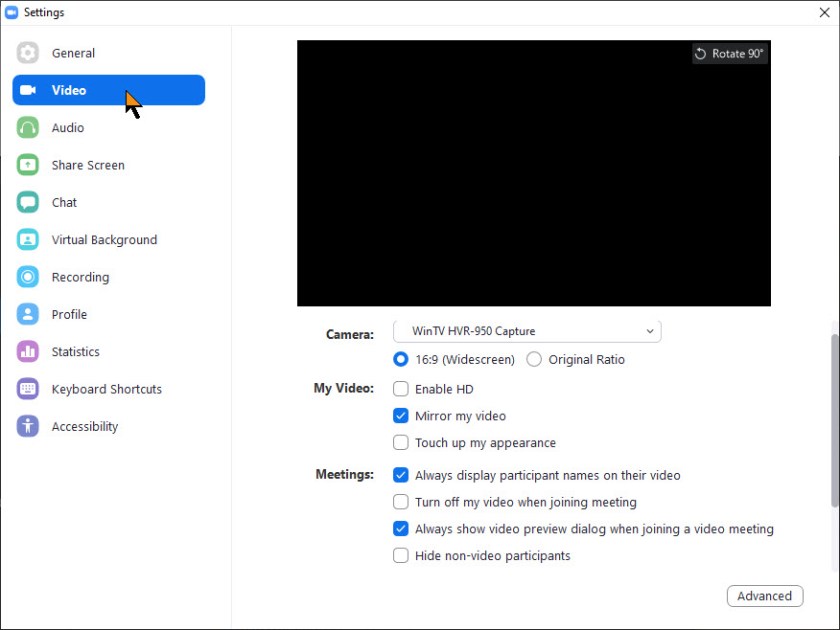
Once you click on the Settings option, the Settings dialog window will be revealed. Now, click on the Video tab. The below image only shows some of the settings.

Note! The black area on the below screens would show your online video image.

Zoom Video 2
The Video tab part one

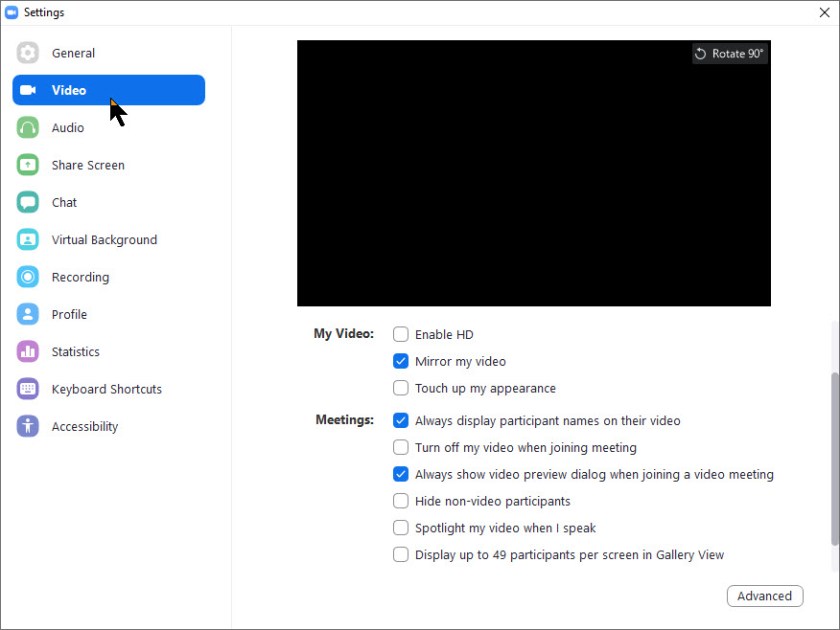
The Video tab has numerous options for configuring video in meetings that will change the way Zoom handles all videos in a meeting. The below image shows the rest of the settings.

Zoom Video 3
The Video tab part two

Hide/Unhide a Video

During a meeting, if you wish to hide your video from your own screen to make room for other participants, just right-click on your video and choose Hide Myself. If you want to bring your own video back onto your screen, just right-click on any other user and select Show Myself.

Note! This won’t disable your video from showing up for other participants; only from from your screen.

To disable your own video completely, you can select the checkbox in the Video Settings screen shown above that says Turn off my video when joining a meeting to disable it, or click the Stop Video button in a meeting to temporary turn it off for the video session.

I Would Like to Hear from You

Please feel free to leave a comment. I would love hearing from you. Do you have a computer or smart device tech question? I will do my best to answer your inquiry. Please mention the device, app and version that you are using. To help us out, you can send screenshots of your data related to your question.
The author’s Vietnam eBook on the Battle for Tra Bong: Events and Aftermath

How to Switch to the New Facebook Interface

Facebook’s new website interface change is not well known. At some point, it will probably be the new standard. The interface is getting a visual overhaul that almost everyone can access. You can now update to this brand new, less cluttered design with the click of a button. If you don’t like the change, you can easily switch back to the classic interface.

This if for a desktop/laptop, Macs and smartphones supporting Facebook

Dilbert and Human Interaction
Copyright Scott Adams, Inc./Distributed by Universal Uclick for UFS

Enabling the New Interface

Note! This post relates to a PC, other devices will be similar. If you don’t see the new Facebook option then Facebook has yet to rollout the change to your device.

Fire up your device and log in to your Facebook account.

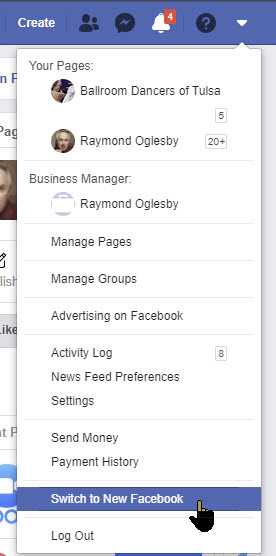
Next, click on the down arrow in the top-right corner of the interface. Select the Switch To New Facebook option. The page will refresh and the new interface design will load. Refer to below image:

Facebook New 1
Switch to the new Facebook option

A welcome message will appear the first time that you switch to the new Facebook design. Facebook claims that the redesign has faster loading time, cleaner look and bigger text. Additionally, Facebook now includes a dark mode that you can enable whenever you want.

Additionally, this update comes with a user-friendly redesign of the Groups tab and an overhaul of the News Feed. See below image:

Facebook New 2
The Welcome message for the new interface

Simply click the Next button. You will see the following image allowing you to select how yout interface will look.

Facebook New 3
Selecting your interface look

Just click the Get Started button. That’s it, you are all set with the new desktop interface. If you aren’t a fan of the Dark mode, you can switch back to Light whenever you like.

Switching Back to the Classic Interface

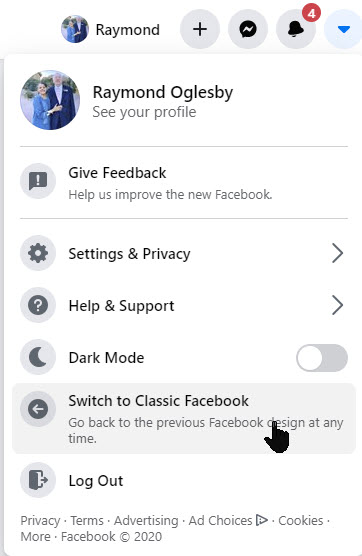
Once you’ve enabled the new interface, you can always revert the change from your Facebook account’s front page. Just click on the down arrow in the top-right and then select Switch To Classic Facebook. See following image:

Facebook New 4
Reverting back to the Classic interface

At some point in the future, Facebook may decide to roll out the new design permentally for all platforms. If so, reverting back to the classic interface will no longer be an option.

I Would Like to Hear from You

Please feel free to leave a comment. I would love hearing from you. Do you have a computer or smart device tech question? I will do my best to answer your inquiry. Please mention the device, app and version that you are using. To help us out, you can send screenshots of your data related to your question.
The author’s Vietnam eBook on the Battle for Tra Bong: Events and Aftermath

How to Record a Zoom Meeting

Why take notes during a Zoom meeting when you can refer back to a recording of the entire call? Here’s how to record a Zoom meeting, whether you’re the host or not.

Important meetings need good records, and anyone who has taken notes knows that some details can be missed. The best way to preserve a record of a meeting is to have a video recording.

 That goes doubly for remote meetings, where distractions, tech issues and other problems can lead to you missing out on essential information.

If you are using an Enterprise account to host a meeting, you may not be able to record a Zoom meeting unless your IT team has given you permission. Be sure to check with your administrator before the meeting to grant you access if you don’t have it.

If using a PC or Mac, be sure your computer has a microphone and/or camera to use Zoom to its fullest. You may also use your smartphone to record the meeting.

This if for a PC, Macs, iPhone/iPad and Android devices that support Zoom

Dilbert and Future 1
Copyright Scott Adams, Inc./Distributed by Universal Uclick for UFS

Accessing Zoom Settings

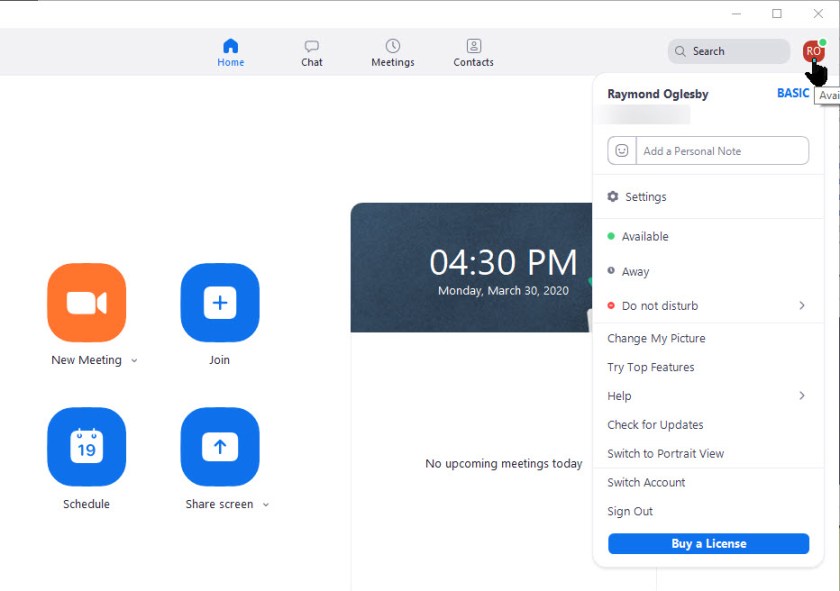
First, fire up Zoom and join an active meeting. Then click on your small profile photo in upper right-hand corner. This will open up the dialog options window. See below image:

Zoom Record 1
Zoom dialog Options window

Recording a Zoom Meeting

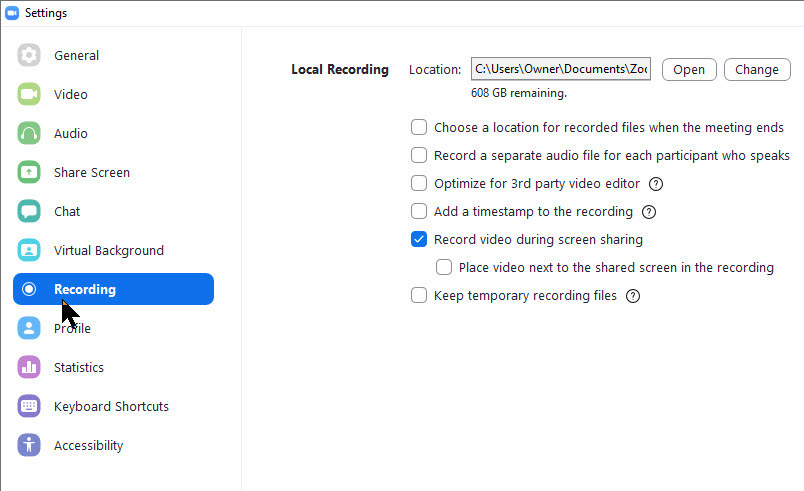
Next, click on the Settings option. The Settings options will be displayed. The Record video during screen sharing option should be checkmarked. Also, at the top of the screen is the location where your video will be stored upon completion. This folder was created when you installed Zoom. Refer to below image:

Zoom Record 2
Settings options for recording a video

By default, only the meeting host can record the meeting, but it’s easy to grant other participants the ability to do so. The meeting host can do so by clicking on Participants while in a meeting, looking for the More button next to an individual’s name and selecting Allow Record

Once in a meeting, those wanting to record only need to click the Record button to start capture, at which point the Record button will change into two buttons: One to Pause the recording and one to Stop recording.

When you’re done recording video, Zoom stores it temporarily in the location mentioned above. The video is encoded into MP4 format once the meeting has ended.

I Would Like to Hear from You

Please feel free to leave a comment. I would love hearing from you. Do you have a computer or smart device tech question? I will do my best to answer your inquiry. Please mention the device, app and version that you are using. To help us out, you can send screenshots of your data related to your question.
The author’s Vietnam eBook on the Battle for Tra Bong: Events and Aftermath

Online Conferencing Solutions

In this Coronavirus pandemic, many people are working from home. Our local TV news and weather people have live audio and video streaming from their homes for the daily news broadcast. Working from home has become the new norm.

This will continue after the crisis is over. Instead of going to an office or to a clients location, you will collaborate through an audio and video service.

I researched some web sites for the top call services. They have a similar mix of apps, just in a different order. Some of the web sites have organizations I never heard of. So, I like the ranking from Office Watch. Click here to read their review.

This is for modern web browsers and apps on Apple, Android and Microsoft platforms

Their top seven online call services are as follows:

  1. FaceTime – handles up to 32 people
  2. Skype – up to 50 people
  3. WhatsApp – handles 4 people
  4. Signal – one-on-one calls only
  5. Zoom and Meetings – up to 100 people for the free version; 1000 for their enterprise paid version
  6. Microsoft Teams and Live Events – can handle 4 participates, up to 10,000 for the paid version
  7. Google Hangouts – up to 150 people

I recommend Facetime or Skype for a small busines; Zoom for a medium business; and Zoom Meetings for a large enterprise. Facetime and basic Zoom are free. Click here to read the review of their rankings.

I Would Like to Hear From You

Please feel free to leave a comment. I would love hearing from you. Do you have a computer or smart device tech question? I will do my best to answer your inquiry. Please mention the device, app and version that you are using. To help us out, you can send screenshots of your data related to your question.

The author’s Vietnam eBook on the Battle for Tra Bong: Events and Aftermath

How to Setup Contacts in Zoom

Is your business using Zoom for collaboration during the Coronavirus outbreak? Zoom has become a key tool for working at home and a top choice for vittual meetings. Zoom is free for one-on-one calls that last as long as you like. For three or more people, your calls are limited to 40 minutes. Zoom also has a paid version for an enterprise; it can handle 1000 people.There’s also a plan for small and medium businesses that supports up to 300 participates per call..

Click here for a detailed review of Zoom from PCMag Labs

Click here for setup and install of Zoom from Office Watch

Zoom Meeting’s free account is generous. You can host up to 100 people on a call for free and you can see as many as 49 people on an active call in a gallery-style view. There’s no limit on how many meetings you can host. 

So, how do we setup our contacts with coworkers using Zoom? In this post we offer insight on how to do this.

This post is for Windows 7 or greater, iPhone or iPad with iOS 7 or later, Android 4 or greater, Web browsers, Macs and the Zoom app or program

Dilber and Ted Talk
Copyright Scott Adams, Inc./Distributed by Universal Uclick for UFS

Before you Begin

Of course, you have already setup the app. Linking to other people in Zoom is necessary before you can call them. A person has to be added to your Zoom contacts list and they have to add you before a call is made.

Zoom contacts are separate from Outlook and other contacts list.

Zoom links people by matching email addresses. Some people have multiple email addresses; for example, personal and work or different ones for different purposes or multiple old email addresses.

Which Email Address to Use?

Before adding a person to your contacts list it’s a good idea to check with them on which email address they use to login to Zoom.

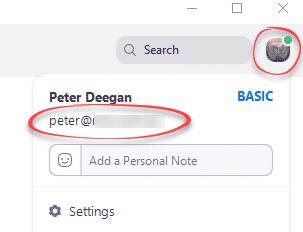
To check, they can click on their Zoom Profile in the top right where their name and address is displayed. Refer to below image:

Zoom Contacts 1
Locate the correct email address

Invite a Contact

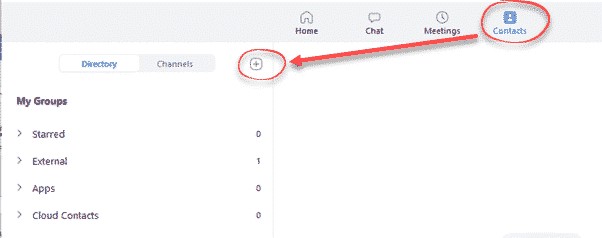
To link with someone, in the Zoom app, go to the Contacts section, then click the plus “+ “symbol. See following image:

Zoom Contacts 2
Linking a Zoom contact

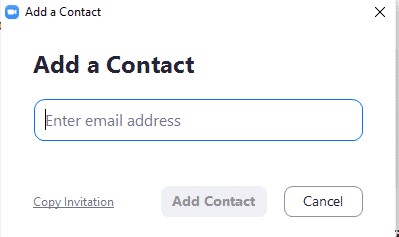
Enter the email address of the contact you want to add to Zoom. See below image:

Zoom Contacts 3
Adding a Zoom contact

Then you have two options:

  1. Add Contact – sends a contact request to that person’s Zoom account.
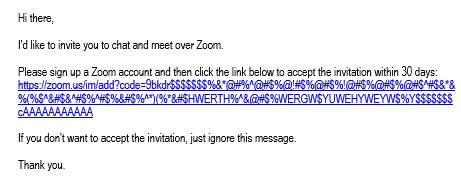
  2. Copy Invitation – copies to your clipboard with web link.  Paste that into an email or instant message.

Refer to below image:

Zoom Contacts 4
Web address for the Zoom contact

There is no need to paste the entire text, change it to suit you. The web link is the important part to pass along. Make sure you include the whole web link; it’s a long link using multiple lines.

Accept a Contact Request

If a participate adds you to their Zoom contact list, you’ll see a pop-up alert. See following image:

Zoom Contacts 5
Pop-up box for a contact request

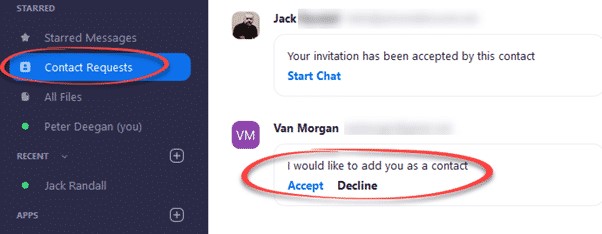
Or open your Zoom app/web page. Under Contacts look at Contact Requests.  The request will be displayed with options to Accept or Decline. Refer to below image:

Zoom Contacts 6
Accept or Decline a contact request

As you can see above, the Contact Requests you’ve made will also appear with their current status.

What to Do Next?

Now that you’ve linked with someone on Zoom, you can call them (voice, video, text, etc). If someone wants to invite you into a Zoom meeting, give them you Zoom linked email address.

That’s it on setting up your Zoom contacts. Try it out.

I Would Like to Hear from You

Please feel free to leave a comment. I would love hearing from you. Do you have a computer or smart device tech question? I will do my best to answer your inquiry. Please mention the device, app and version that you are using. To help me out, you can send screenshots of your data related to your question.
The author’s Vietnam eBook on the Battle for Tra Bong: Events and Aftermath