We all have our favorite smart device apps. This would include Facebook, Twitter, Instagram, LinkedIn, Tumblr, Reddit and others. What happens when you turn off your device, power off or shutdown? These apps are still active and readily available when your device is turned back on.
These apps offer you convenient access by keeping you logged in. When you log into a financial institution, say Bank of America or Morgan Stanley, you are logged out within two minutes of no activity.
Our favorite apps should do the same. By staying logged in, the apps are more subjective to hacks by others.
Of course, by logging out, means you have to reenter a UserID, Password and Passcode, if using Two Factor Authentication, to gain access. And that can be a pain but it’s worth it.
If you are selling or disposing a smart device, you should log out all apps. Also, you may consider erasing all data and/or resetting your device. Only do this if you no longer need the device.
I would like the app industry to follow the same logging out protocol as financial entities. What do you think? Please take the one question survey.
I Would Like to Hear from You
Please feel free to leave a comment. I would love hearing from you. Do you have a computer or smart device tech question? I will do my best to answer your inquiry. Please mention the device, app and version that you are using. To help me out, you can send screenshots of your data related to your question.
Apple had made some new enhancements to its feature browser, Safari, for the iPhone/iPad. There are a few notable features that increase our productivity regarding bookmarks and open tabs. Safari’s toolbar has only five choices for you to select from, Forward, Backward, Share, Bookmarks and New Tab/Page. Instead of just taping on a choice, we are going to press down on these icons and see what happens.
This is for an iPhone/iPad and Mac iOS 13 operating system
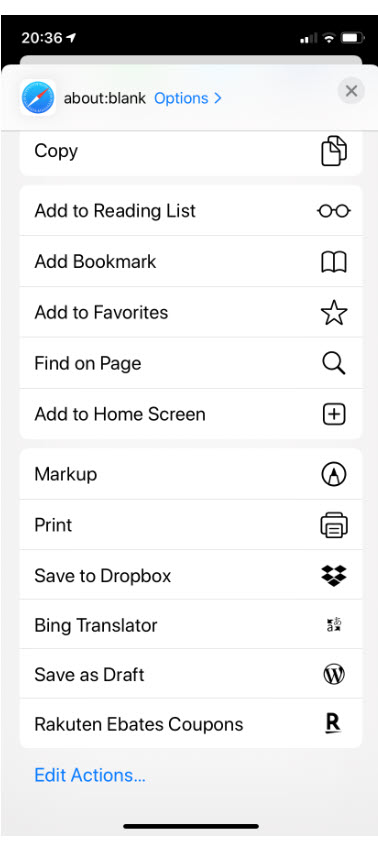
This seems to be an Apple feature. I have gotten into the habit of pressing down on every icon in iOS 13. Just press and hold the Share icon, the one with an up arrow, nothing happens until you release your hold. You will get the regular Share screen, like the image below:
Safari Share Behavior
So much for that.
The Bookmarks
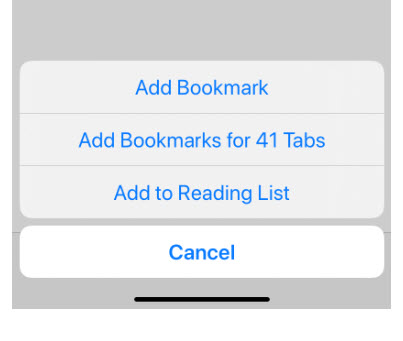
Let’s try pressing and holding the Bookmarks icon. You will get the following screenshot:
Well, that worked. I do not recommend adding Bookmarks for all open tabs; this would tend to make your bookmarks messy. It would be better just to add a Bookmark for the current tab.
Testing the New Tab/Page
Okay, lets press and hold the New Tab/Page icon. You should get the following screen:
Yea, two out of three have the press and hold feature. From this screen, you can close all open tabs or just the current one. Also, you can create a new Private Tab or a New Tab.
This time, just press the New Tab/Page icon to reveal your open tabs (normal behavior). Press and hold a tab to move it into a different location. This works in portrait or landscape mode.
Setting the Time Interval
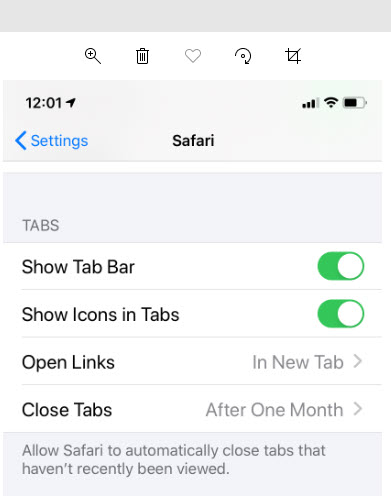
There is another feature to explore; setting a time interval as to when tabs are closed.
Go to Settings and select Safari. You will see the following image:
Click the Close Tabs button. Your screen should display options on when to close your Safari tabs like the following image:
Select your choice from the four options.
Okay, for now. Thanks for trying out these iPhone/iPad features for Safari in IOS 13+.
I Would Like to Hear from You
Please feel free to leave a comment. I would love hearing from you. Do you have a computer tech question? I will do my best to answer your inquiry. Please mention the app and version that you are using. To help me out, you can send screenshots of your data related to your question.
Have you ever wanted to share your iPhone contacts with your Windows 10 PC? I have wanted to do this for a year. It used to work but my PC went “south” last year. I finally did some research and came up with this post for you to implement. You can share your smart device contacts through Apple’s iCloud service. To use this service, your contacts must be synced with iCloud. So, lets get started.
This is for iPhone or iPad and Windows 10 operating system
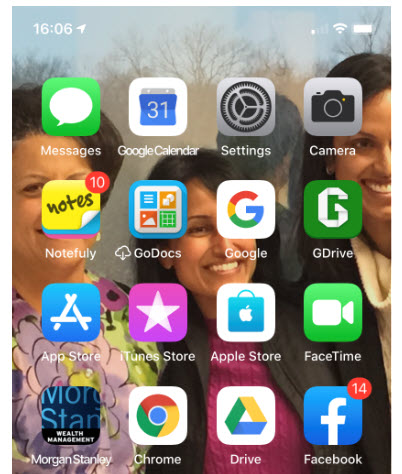
Open the Settings app on your iPhone. Its usually located on your home screen. Your screen should look similar to the following image:
My iPhone home screen
Tap your name at the top of the screen. See following screenshot:
My iPhone Settings screen
Syncing Contacts
Tap iCloud
Verify that your Contacts is being synced. Either the toggle switch will be green or you will see iCloud storage being used like the below image. If not, tap the toggle button to enable the process and sync your contacts.
My iPhone iCloud Storage screen
On your Windows 10 PC, log in to iCloud website with your Apple ID and Password
Click on the Contacts applet. See following screenshot:
iCloud applets on Windows 10 PC screen
Selecting/Exporting Contacts
Select a Contact from your list. See the following image for my selection of Chris Dow:
iCloud Contacts screen
Click the small gear icon at the bottom left corner
Select Export vCard. Refer to following screenshot:
Selecting and Exporting an iCloud Contact screen
You can select more than one contact by selecting a single name and using the “Shift” key to select the last contact. There is an option to Create Group at the bottom right for your multiple contact selection.
Note! It is best to export just one contact. Although you can select multiple contacts, only one contact data (the first one selected) is exported, especially for Outlook.
By default, the exported VCF file is placed in your PC Downloads folder.
Open your File Explore and find the VCF file. Refer to following image:
File Explorer Downloads folder screen with Chris Dow VCF file
Using Your VCF File
Right click on the VCF file and select Open
Select where you want to install your contact(s). You have several choices, like Outlook, the People app and Windows Contacts
Select your choice and click OK
Your choice will open for your review.
For Outlook, click the Save & Close option to complete the export. See following screen::
Exported VCF file from iCloud to Microsoft Outlook in Windows 10 screen
That’s it. You are done.
Enable iCloud Contacts Sharing
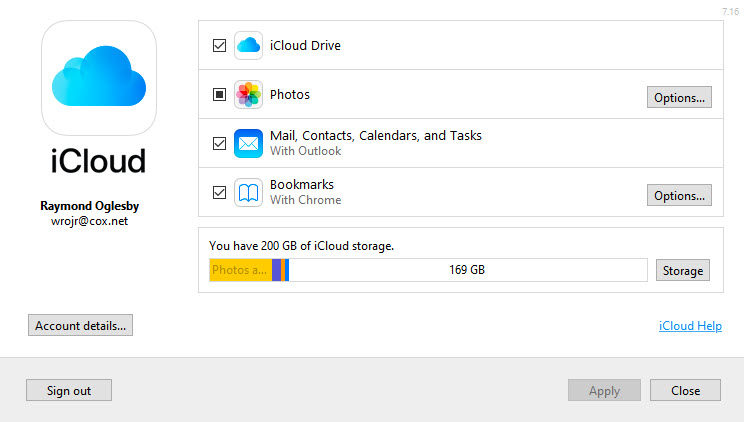
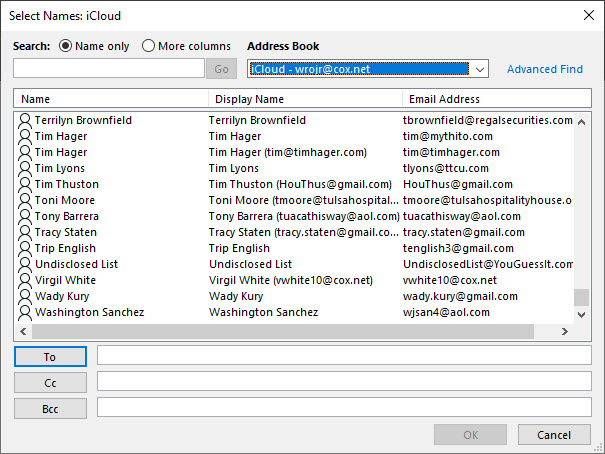
BUT WAIT, I want to share all my Contacts via iCloud to my Windows 10 PC, not just a few. You can use iCloud for Windows to synchronize your contacts and other data between your iOS device and Outlook. Lets get started.
This works with the following variations of Outlook:
Outlook for Office 365, Outlook 2019, Outlook 2016, Outlook 2013 and Outlook 2010
Please feel free to leave a comment. I would love hearing from you. Do you have a computer tech question? I will do my best to answer your inquiry. Please mention the app and version that you are using. To help me out, you can send screenshots of your data related to your question.
Are you concerned someone may have access to your Twitter account? Do you know what devices are logged in? What if you moving to a new device; have you logged out of Twitter on the old device?
Your smart device keeps you logged in to such apps as Amazon, Apple, Facebook, Messenger, Microsoft and others. Each app has a feature to log out all devices. We want to explore logging out all devices for Twitter. Just follow these steps.
This is for iPhone or iPad and Twitter
Your Profile Screen
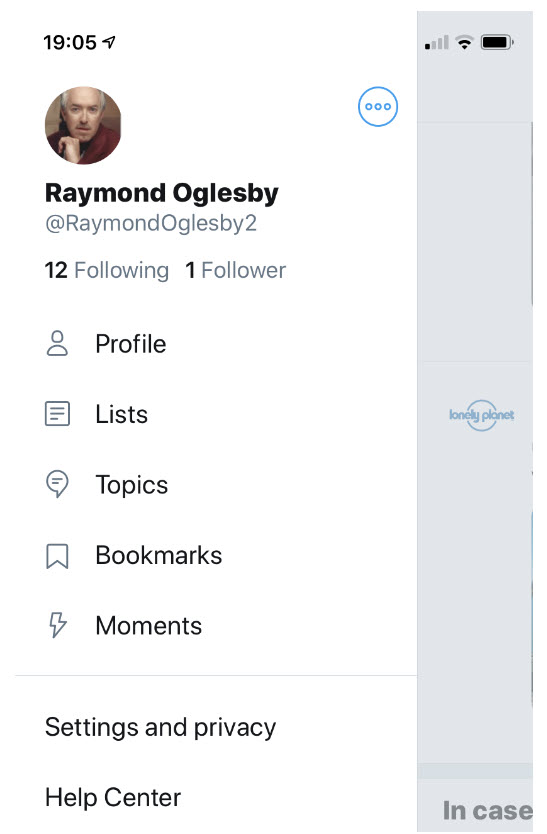
Tap your profile photo or swipe left to right. You will see the following image:
Twitter Log Out Profile screenshot
Your Settings Screen
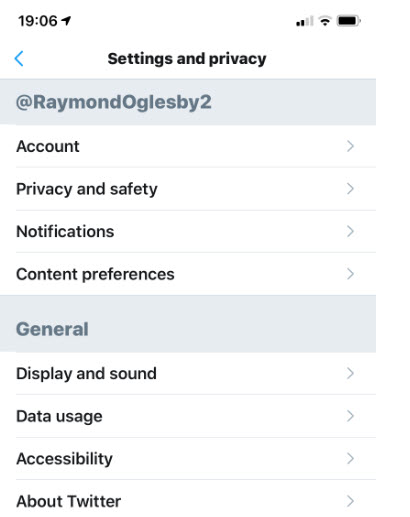
Tap on Settings and privacy. You will see the following screen:
Twitter Log Out Settings screenshot
Your Account Screen
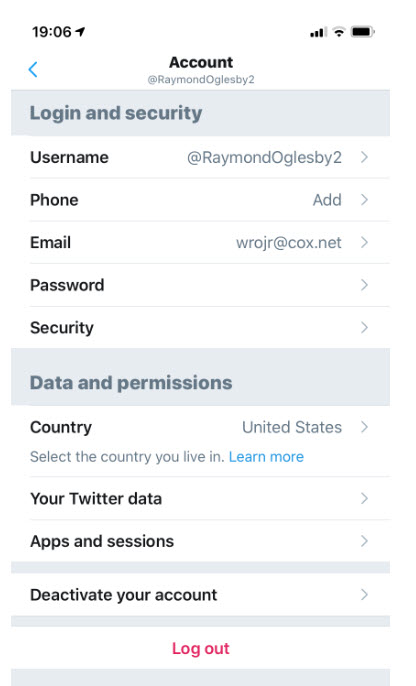
Tap on Account. Following is a screenshot:
Twitter Log Out Account screenshot
Your Sessions Screen
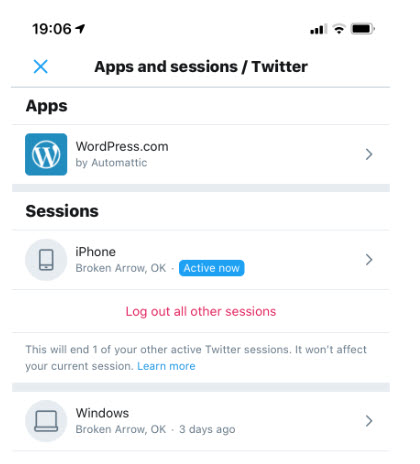
Tap on Apps and sessions. You will see the following screen:
Twitter Log Out Devices screenshot
Your Log Out Screen
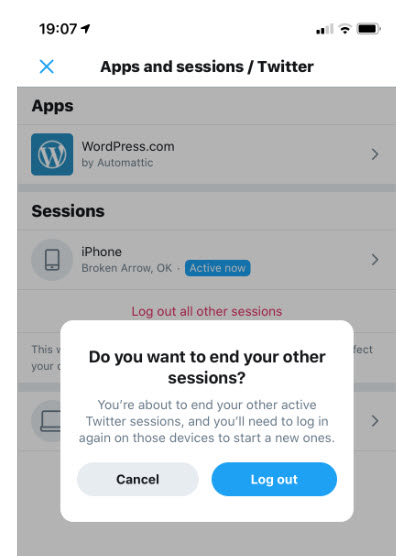
Your devices that have access to your account is displayed. Tap on Log out all other sessions. You will see the following screen:
Twitter Log Out All Sessions screenshot
Tap Log out
That’s it. You are done. You now will have to log back in to use Twitter.
Your Two Factor Authentication Screen
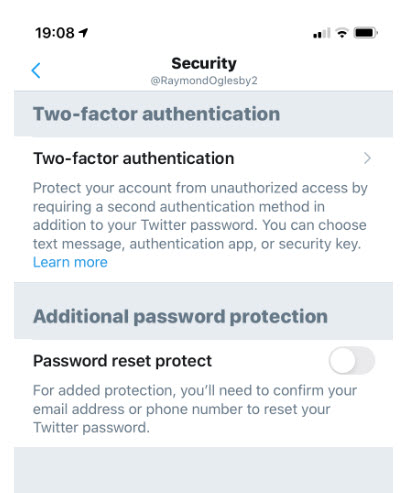
To make your Twitter account more secure, you may want to setup Two-factor authentication. This is on the third screen in this post, under the Account option. Just tap on Security and you will see the following screen:
Twitter Log Out Two-Factor Authentication screenshot
Select Two-factor authentication, choose one of three options displayed on your screen and follow its directions.
I recommend setting up Two-factor authentication whenever the option is available.
I Would Like to Hear from You
Please feel free to leave a comment. I would love hearing from you. Do you have a computer tech question? I will do my best to answer your inquiry. Please mention the app and version that you are using. To help me out, you can send screenshots of your data related to your question.
Apple has yet to make a big deal about their new operating system. In fact, some of these new features are hidden or have changed from their last update. I am going to discuss four new features; Battery Optimization, Update All, Rearranging Apps and Sharing Photo Location. You may want to check these out.
Apple unveils a new iPhone every year. Along with it comes a new mobile operating system (iOS), in this case iOS 13+. These features work on iPhones back to 6S and SE. If you have a 6 or 5s, you are stuck with iOS 12 variations.
This is for iPhone, iPad and Mac or any other device using iOS 13
Battery Optimization Feature
The first new feature I want to address is “Battery Optimization“. Its best to use for overnight charging. This feature learns how you charge your battery and sets up a routine of charging your phone to 80% until the time right before it knows you will wake up, at which point it will finish charging to 100%.
To set up, go to Settings>Battery>Battery Health and turn on Optimized Battery Charging. Once enabled, the slider control will be lit in green. Below is a screenshot:
Optimized Battery Charging screenshot
Where is the Update All Feature?
The second feature is somewhat tricky. I don’t know why Apple took something so simple in their previous iOS and made this feature difficult. I assume they want you to rely on automatic updates. The feature is “Update All Apps“. In the new iOS, this feature seems to be missing, but we will get it back. This feature is for those who don’t want to wait for automatic updates.
First, lets go ahead and setup “Automatic Downloads“. To setup, go to Settings>iTunes & App Store>Cellular Data. To enable this feature, turn on the Automatic Downloads. The slider control will be lit in green. We are doing this in case you forget to manually update your apps.
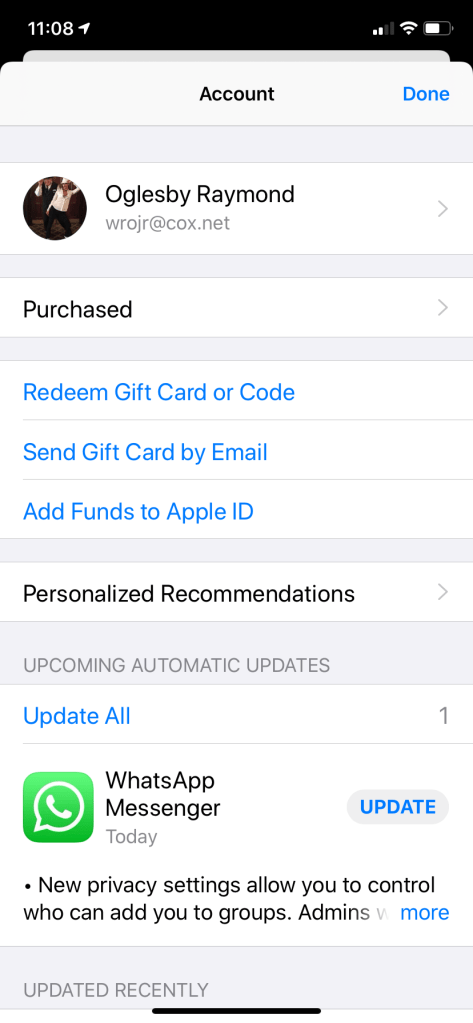
Now, lets get the Update All feature back. Go to the App Store app and click on your profile at the top (it should have a small photo of you). Your screen will look like the below screenshot:
Updated Recently screenshot
Your will notice the Updated Recently section followed by your iPhone Apps. To get the Update All feature, swipe down on the screen. Your screen will look as follows:
Update All screenshot
Notice the Update All feature magically appears IF you have pending updates. You can click this link to update all apps or manually update an app by clicking on its Update button.
Rearranging Apps Has Been Modified
The third feature is for Rearranging Apps. When you press and holdan app, a popup menu appears. These popups are different for each app. To get the “wiggles” for dragging an app to a different location or to create a folder by dragging apps on top of each other, continue topress and hold and the wiggles will appear. Even though the app icon may be hidden by the popup menu, just continue to press and hold. Tap Done at the top of the screen when finished.
A New Privacy Option for Photos
The last feature I want to mention is about a privacy option for photos. From the Photo app, select any number of photos you plan to share. Click the Share icon at the bottom. But before you share, click Options at the top; you will get the option to include location data or not. By removing the location data it makes it a lot harder for someone to track the location of the photo(s). Below is a screenshot of including the Location. To turn off, disable the Location slider control (the control will no longer be lit).
Location data for photos screenshot
I Would Like to Hear from You
Please feel free to leave a comment. I would love hearing from you. Do you have a computer tech question? I will do my best to answer your inquiry.Please mention the app and version that you are using. To help me out, you can send screenshots of your data related to your question.
Testimonials
I love you addressed nearly every frustrating feature change I have! Thanks for sharing and educating me.
Starting with the iPhone 6s series, taking a Live Photo is on your device. This tip applies to iPhone and iPad.
This is for iPhone, iPad and Mac or similar devices.\
How to Take a Live Photo
Open the Camera app.
Make sure that your Camera is set to photo mode and that Live Photo is turned on. When it’s on, you see the Live Photo button (3 concentric circles icon) highlighted at the top of your Camera.
Hold your device still
Tap the shutter button
Live Photo is on by default. If you want to take a still image,tap the Live Photo button to turn off Live Photo. You can preserve your Camera settings so that Live Photo is always on or off. Go to Settings > Camera > Preserve Settings.
Tweet Your Live Photo as a GIF
Open your Twitter app
In the bottom right hand corner, tap on the Compose button. Its icon features a feather encased in a blue circle.
Locate and tap on your Live Photo in the quick-access image bar. You should see the Live icon overlayed on the thumbnail. If you are unable to find the Live Photo, select the Gallery button and then tap on your desired image.
With the Live Photo loaded into the Tweet preview, tap on the “GIF” button found in the lower left hand corner. The Live Photo will be converted into a GIF and will play. You can select the Play button that appears when it stops to see the animation again.
Type a brief message to go along with your GIF and tap the Tweet button.
That’s it. You are done.
How to find and play your Live Photos
Open the Photos app
Go to the Photos tab
Tap the Live Photo
Firmly press the screen and hold
Also, you can Edit or add Effects to your Live Photo by tapping the appropriate option.
What if you want to transform a Live Photo to a static photo?
Instructions are for iOS 13:
Open your Photos app
Select the Live Photo
Tap Edit
Tap the Live Photo icon at bottom of the screen from the available actions
Tap the Live Photo icon at the top of the screen so that it is not enabled
Tap Done
Now, if you press hard on the photo, you won’t see any movement. You can always restore a Live Photo that you’ve edited by following those steps and tapping the icon to highlight it.
I Would Like to Hear from You
Please feel free to leave a comment. I would love hearing from you. Do you have a computer tech question? I will do my best to answer your inquiry. Please mention the app and version that you are using. To help me out, you can send screenshots of your data related to your question.











 Tech Savvy Life