You are using Windows 10, then suddenly; Snap. You have just dragged a window too close to the top edge of the screen, and now it’s maximized! If this automatic window snapping is not what you want, it’s easy to turn off.
You are using Windows 10, then suddenly; Snap. You have just dragged a window too close to the top edge of the screen, and now it’s maximized! If this automatic window snapping is not what you want, it’s easy to turn off.
This is for devices running Windows 10
Copyright Scott Adams, Inc./Distributed by Universal Uclick for UFS
Why Windows Snap
The fact that certain windows will maximize when dragged too close to the edge of the screen is thanks to a Windows 10 feature called Snap Assist. It allows you to quickly make windows snap to fill available spaces on the screen without having to resize each one.
To visualize this, let’s say you have a Web browser, Word document, File Explorer, and the Windows 10 Settings app all open on your Windows 10 device. When you snap one of those applications, like Microsoft Word, to the left side of your screen, Windows 10 will show you a layout of your remaining open apps on the right side of the screen. Clicking any one of them will maximize that app and snap it to the right side of the screen.
But not everyone enjoys this feature, and there’s an easy way to turn it off.
How to Disable Snap
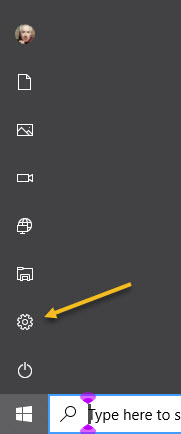
First, launch the Settings app by opening the Start menu and clicking the small gear icon in the left side of the Start menu. You can also press Windows+I to launch it. Refer to below image:
Accessing Settings app
Now, in Settings, click System. See below image:
Accessing System section
Next, in System settings, click Multitasking in the sidebar. Then, locate the Snap windows option and flip the toggle to turn it Off, See following image:
Turning Snap feature to Off; default is On
Now, close Settings. You can now position windows anywhere on the screen without them snapping into place.
Quote For the Day
Technology is supposed to make our lives easier, allowing us to do things more quickly and efficiently. But too often it seems to make things harder, leaving us with fifty-button remote controls, digital cameras with hundreds of mysterious features and book-length manuals, and cars with dashboard systems worthy of the space shuttle.
James Surowiecki
That’s it. Please feel free to share this post! One way to share is via Twitter.
Just click the Tweet icon below. This will launch Twitter where you click its icon to post the Tweet.
Check out TechSavvy.Life for blog posts on smartphones, PCs, and Macs! You may email us at contact@techsavvy.life for comments or questions.
Please feel free to leave a comment. I would love hearing from you. Do you have a computer or smart device tech question? I will do my best to answer your inquiry. Just send an email to contact@techsavvy.life. Please mention the device, app and version that you are using. To help us out, you can send screenshots of your data related to your question.
The author’s Vietnam eBook on the Battle for Tra Bong: Events and Aftermath
On Windows 10, you can reset the Settings app when it does not want to open, keeps crashing, or when you are experiencing other problems.
On Windows 10, you can reset the Settings app when it does not want to open, keeps crashing, or when you are experiencing other problems.
If you are dealing with these problems, Windows 10 includes a way to reset the Settings app using the built-in secret option. Let’s explore how to reset the Settings app when it’s not working.
This is for devices running Windows 10
Copyright Scott Adams, Inc./Distributed by Universal Uclick for UFS
Like with resetting any other app, when you reset the Settings app, it removes a variety of settings and brings them back to their default values. This can fix bugs and other problems that are caused by your custom settings.
To start resetting Settings, first, click your Start menu. Now, in the Cortana search box (next to the Start menu) type in “settings” (without the quotes). Next, in the search results, right-click the app and select App settings. Refer to below image:
sAccessing App settings
In the Settings window, scroll down to the Reset section and click Reset. See below image:
Accessing Reset section
You will get a prompt stating your app’s data will be deleted. Click Reset in the prompt to continue. See following image:
Selecting the Settings Reset option
The Settings app is now reset. Now, you can launch it as mentioned above or by pressing Windows+I.
If this does not fix your issue, you might want to reset your entire Windows 10 PC. (We recommend you only do this as a last resort). This brings all your settings to their default states, potentially fixing many issues on the computer.
The first principle is that you must not fool yourself and you are the easiest person to fool.
Richard P Feynman
That’s it. Please feel free to share this post! One way to share is via Twitter.
Just click the Tweet icon below. This will launch Twitter where you click its icon to post the Tweet.
Check out TechSavvy.Life for blog posts on smartphones, PCs, and Macs! You may email us at contact@techsavvy.life for comments or questions.
Please feel free to leave a comment. I would love hearing from you. Do you have a computer or smart device tech question? I will do my best to answer your inquiry. Just send an email to contact@techsavvy.life. Please mention the device, app and version that you are using. To help us out, you can send screenshots of your data related to your question.
The author’s Vietnam eBook on the Battle for Tra Bong: Events and Aftermath
If you keep many Google Chrome windows open to organize your tabs like me, you can go one step further and name each window. Chrome’s built-in naming feature makes it easy to remember the windows name in the Taskbar or the overview screen (Alt+Tab).
If you keep many Google Chrome windows open to organize your tabs like me, you can go one step further and name each window. Chrome’s built-in naming feature makes it easy to remember the windows name in the Taskbar or the overview screen (Alt+Tab).
The Windows naming feature was introduced in Chrome 90 and is available for Chrome on Windows 10, Mac, and Linux. It is easy to use and can save you from opening the wrong window.
This is for devices running Chrome 90. Screenshots are from Windows 10
Copyright Scott Adams, Inc./Distributed by Universal Uclick for UFS
First, launch Chrome and open a Chrome window. Next, click the three-dot menu (the hamburger) icon in the top-right of the Chrome window. Refer to below image:
Accessing the main menu
Now, from the drop-down menu, select More Tools. See below image:
Selecting More Tools option
Next, from the expanded options, click Name Window. If you don’t see this, you are not running Chrome 90. To check your Chrome version, go to:
Click the three-dot menu (the hamburger) icon > Help > About Google Chrome
Now, your Google version will be displayed. Google should auto update to the latest version.
See following image for your expanded options:
Accessing Name window option
A pop-up text box will appear. Now, enter the name for the window and click OK. Refer to below image:
Naming your window
Alternatively, you can right-click the title bar of the Chrome window and select Name Window from the drop-down menu and go through the process of assigning it a name. See below image:
Accessing Name window option from title bar
You will now see this name in the Alt+Tab on Windows 10. See following image:
Your Alt+Tab named window
Additionally, this name will appear in the Taskbar on Windows 10. Refer to below image:
Your Taskbar named window
Quote For the Day
The more you eliminate the inefficient use of information, the better it is for productivity.
Mitch Kapor
You are finished. This is probably a pretty niche feature, but for those of us who like to organize Chrome tabs by separating them out into windows, it’s a handy little trick.
Please feel free to share this post! One way to share is via Twitter.
Just click the Tweet icon below. This will launch Twitter where you click its icon to post the Tweet.
Check out TechSavvy.Life for blog posts on smartphones, PCs, and Macs! You may email us at contact@techsavvy.life for comments or questions.
Please feel free to leave a comment. I would love hearing from you. Do you have a computer or smart device tech question? I will do my best to answer your inquiry. Just send an email to contact@techsavvy.life. Please mention the device, app and version that you are using. To help us out, you can send screenshots of your data related to your question.
The author’s Vietnam eBook on the Battle for Tra Bong: Events and Aftermath
Chances are good you will never seen malware up close and personal. Even if you threw caution to the winds and visited a dangerous site or clicked a treacherous link, your antivirus software probably wiped out any offending program before the latter could say boo. So, you might wonder, just what does malware look like? Would I even recognize a malware program if I saw it?
Chances are good you will never seen malware up close and personal. Even if you threw caution to the winds and visited a dangerous site or clicked a treacherous link, your antivirus software probably wiped out any offending program before the latter could say boo. So, you might wonder, just what does malware look like? Would I even recognize a malware program if I saw it?
To be fair, a lot of malicious programs do not look like anything at all. A virus, for example, tries its best to hide from view while infecting other files and computers. A bot sits quietly on your computer until it gets orders from the command and control center to spew some spam or participate in a DDoS attack on a major website. Trojans, by contrast, appear to be useful, legitimate programs, putting up a pretty façade to hide background activities like stealing your personal data. And when ransomware hollers for your attention, it’s bad news.
This is for all devices
Copyright Scott Adams, Inc./Distributed by Universal Uclick for UFS
The Horror of Ransomware
If a ransomware attack hits your computer, you will not know it at first. The ransomware stays out of sight, quietly encrypting your important files. Once the dirty work is done, the malware totally demands your attention with its ransom note. The perpetrators promise that if you pay the specified ransom (usually in Bitcoin or some other cryptocurrency) you will get your files back, but if they take your money and run, you do not have any recourse. You really do not want a direct encounter with ransomware.
Malware Bundled
Sometimes the problem with an installation is notthe program itself, but the software that’s bundled with it. You may find completely legitimate software—even antivirus programs; bundled with adware, spyware, or other unwanted trash. In a case like that, the security vendor is not to blame. A third party created the deceptive bundle. AppEsteem is a young company with a mission to expose these deceptors and to warn legitimate companies when they stray too far toward the dark side of bundling.
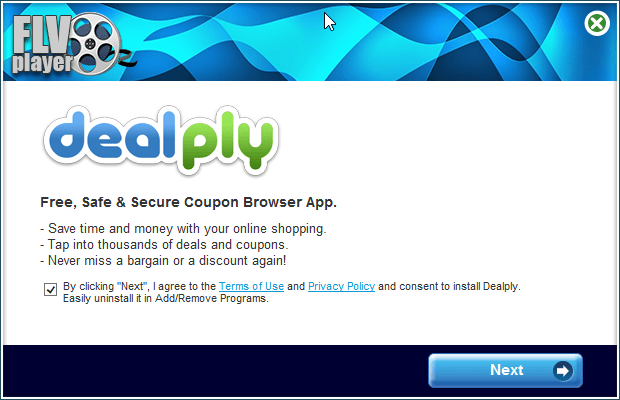
The installer shown here offers a free player for FLV video files. Along with the player you are privileged to receive a shady Adware program masquerading as a coupon browser. There’s a checkbox that says you agree to its terms; uncheck the box and you can not proceed. No video player for you! The best thing that can happen with this kind of bundling is that you’re forced to install a program you did not want. Mostly it’s worse than that, because the bundled bonus is malware. Refer to below image:
Bundled Malware
Now here’s something handy; a multi-utility install program. If you read Russian, you know it’s “the fastest and most convenient way to install programs.” Just check the boxes for the ones you want and turn the installer loose. The list includes browsers, messenger programs, video players, even antivirus utilities. But when you install them, you also get a dose of malware. See below image:
Utility Pack Malware
Trojan Horses
Here, we have a sharp-looking utility designed, apparently, to ensure that your PC does not limp along with old, outdated drivers. However, if you try to update any drivers, or back up your existing drivers, you must pay. This is a model used both by some legitimate programs and by rogue antivirus scareware utilities. Lucky you, though: there’s a promotional price that ends today. Its overt activities are just a wee bit suspicious. See following image:
Driver Malware
Want to get into smartphone repair? This set of tools and manuals looks like it might be a big help. Alas, you ca not see just what you’re getting until you pay for your registration. While you are perusing schematics, it collects personal information behind the scenes and takes orders for further unwanted activity from a remote command and control server. Refer to below image:
Smartphone Malware
You probably do not know this, but the EXE files that represent programs on your Windows computer are also called PE files, short for Portable Executable. Every PE file starts with an extensive header that contains a ton of information telling Windows about the program. Malware researchers learn a lot by digging into that header. See below image:
Portable Executable Malware
Lets Hope You Don’t See These
As you can see, malicious programs, like legitimate programs, run the gamut from sad-looking attempts to totally professional ones. With any luck, and with powerful, up-to-date antivirus protection, these images are the only malware you will ever see. Malware is just one of many threats to your devices and private information.
A few reminders to keep the bad guys away in your emails and phone calls:
Do not click that link. Instead hover your mouse over each element of the email and look for anything suspicious. If suspicious, do not click that link – per my son, VP at True Digital Security.
Do not open emails from FedX, USPS, Wells Fargo, Walmart, Cox Communications, Thank You, SSA, or VA if you have no dealings with them. They will contact you by mail not by phone.
Do not give out personal informati0n over the phone. If you need to contact someone, you initiate the call.
Never buy gift cards or give out their serial number.
If your Userid or Password has been leaked in a data breech, change them as soon as possible.
Quote For the Day
I don’t pretend we have all the answers. But the questions are certainly worth thinking about.
Arthur C Clarke
That’s it. Please feel free to share this post! One way to share is via Twitter.
Just click the Tweet icon below. This will launch Twitter where you click its icon to post the Tweet.
Check out TechSavvy.Life for blog posts on smartphones, PCs, and Macs! You may email us at contact@techsavvy.life for comments or questions.
Please feel free to leave a comment. I would love hearing from you. Do you have a computer or smart device tech question? I will do my best to answer your inquiry. Just send an email to contact@techsavvy.life. Please mention the device, app and version that you are using. To help us out, you can send screenshots of your data related to your question.
The author’s Vietnam eBook on the Battle for Tra Bong: Events and Aftermath
Two-Factor authentication (2FA) adds an extra security layer to your accounts across the internet. 2FA means your accounts require information beyond user name and password to confirm you are who you say you are before you can get into the accounts. Let’s explore how to access 2FA.
Two-Factor authentication (2FA) adds an extra security layer to your accounts across the internet. 2FA means your accounts require information beyond user name and password to confirm you are who you say you are before you can get into the accounts. Let’s explore how to access 2FA.
This is for iPhone, iPad, PCs and Macs. Screenshots are from Windows 10 and iPhone XR
Copyright Scott Adams, Inc./Distributed by Universal Uclick for UFS
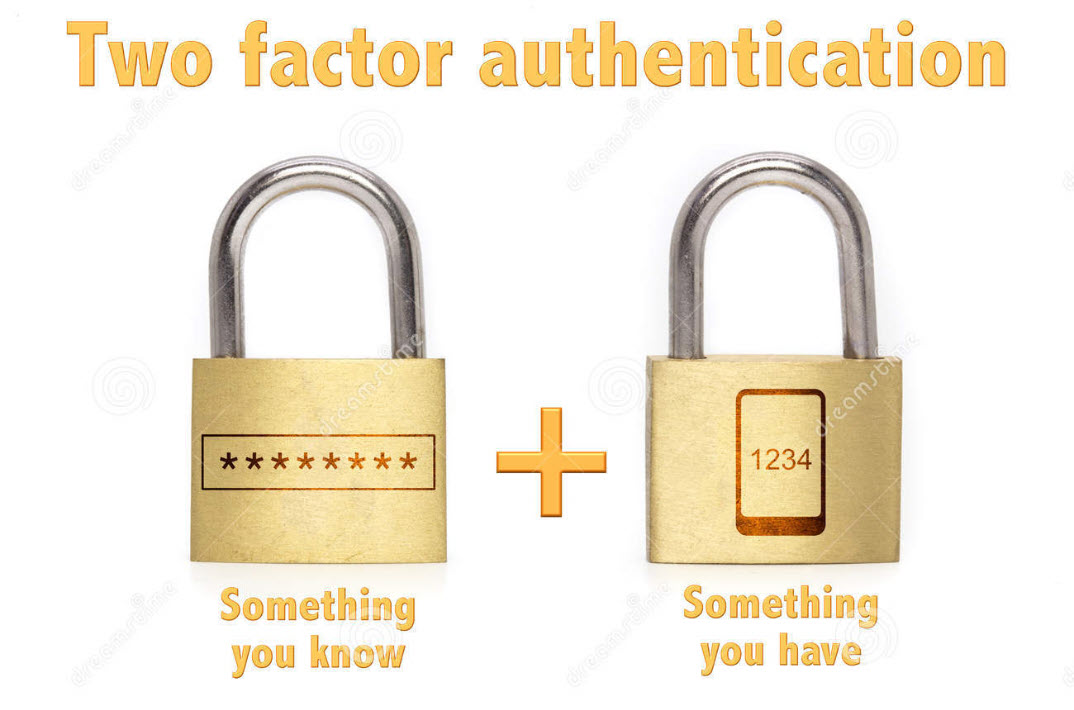
The “second factor” comes in after you enter your username and password, which are considered to be the “first factor.” 2FA can be used to confirm your identity by asking for an extra piece of information. The additional information can be:
Something you know, like an additional passcode.
Something you have, like your phone to receive a one time authorization code.
Something you are, like a fingerprint or voice print. This is also called biometric security.
The idea is to provide another piece of information a hacker would not have, making it harder for the bad guy to break into your account.
The following is not an exhaustive list of services with 2FA ability, but we cover the major services everyone tends to use, and walk you through how to access. We will cover Amazon, Apple, Facebook, Google, Instagram, LinkedIn, Microsoft, and Twitter. Activate 2FA on all of these and you will be more secure. Once you have found their 2FA screens you can can set it up for each app.
Amazon
First, launch Amazon.com on the desktop and login in to your account. Next, click the Menu icon in upper left-hand corner. Now, scroll down the drop-down menu to Your Account option.
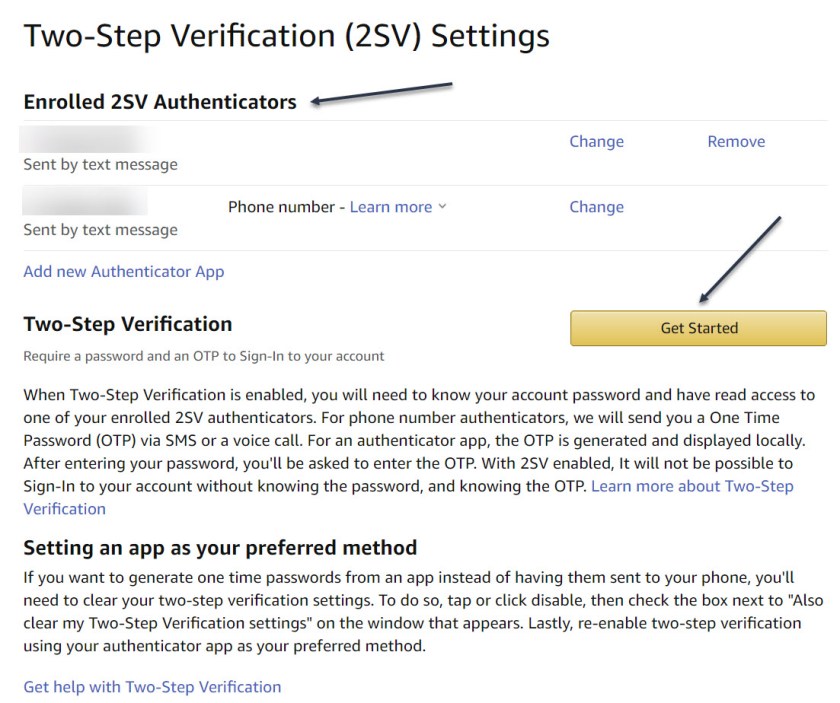
Next, click on the Login & Security big button. Now, on the next page, click Edit next to Two-Step Verification (2SV) Settings. The preferred method is an authentication app (scan the QR code); phone number(s) are the backup method. Refer to below image where I already have 2SV based on my phone number (which is dimmed out):
Amazon 2SV
If you think your account has been comprised, go back to Login & Security and click the Edit button next to Secure Your Account.
Apple
Following are the steps on how to access 2FA for Apple using either iOS or macOS.
On iOS go to:
Settings > [your name at the top] > Password & Security > Turn on Two-Factor Authentication.
On macOS go to:
System Preferences > iCloud, then sign in, click Account Details > Security > Turn on Two-Factor Authentication.
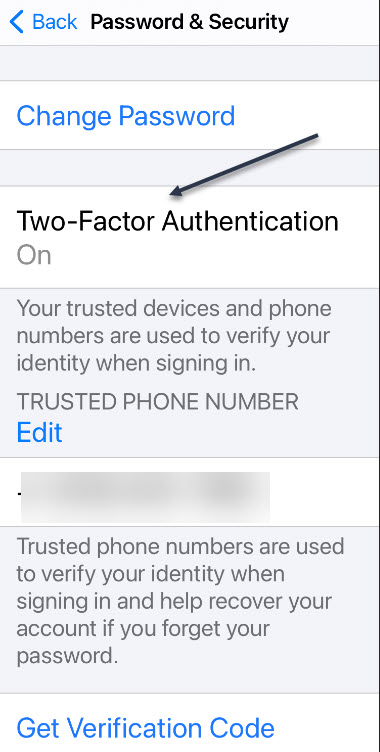
Note! once Apple 2FA is activated for two weeks, you can not turn it off. “Certain features in the latest versions of iOS and macOS require this extra level of security, which is designed to protect your information,” according to Apple. See below image for iOS:
Apple 2FA
Facebook
First, login to Facebook on your desktop. Next, click the Down arrow in upper right-hand corner. Now, from the drop-down menu that appears, click on the Settings & Privacy option. On the next screen, click the Privacy & Checkup option. From there, click on the topic How to keep your account secure. Under this topic, you can access 2FA for Facebook. See following image where 2FA is On with a backup method of sending a text message to a phone number.
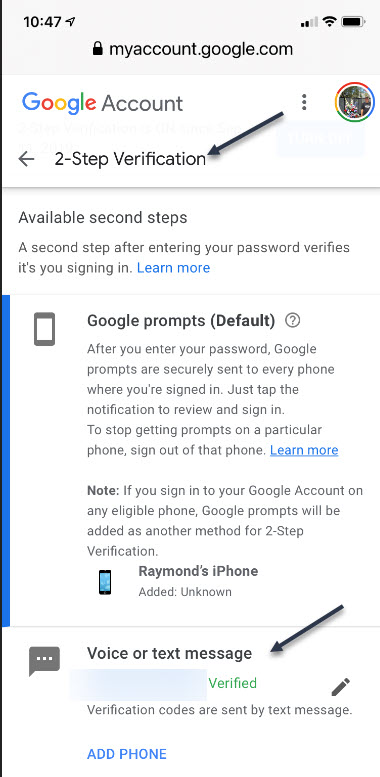
First, sign in to your Google account on your smart device. Next, at the top of the screen, locate the Security tab and tap it. Now, scroll down and tap the 2- Step Verification option. You can continuing scrolling to see more ways to verify you. Refer to below image where my 2SV is already turned On and I am using the backup method of Voice or text message:
Google 2SV
Google calls its system 2SV . It’s all about identifying you via phone. When you enter a password to access your Google account for almost any service, if 2SV is on, there are multiple options to get that second step. First among them now: the Google Prompt. You simply add your smartphone to your account, make sure the Google search app is on the phone, and at login, you can go to the phone and simply acknowledge with a tap that you are the one signing in.
Instagram
First, launch Instagram on your smart device. Next, go to your Profile in lower right-hand corner, then tap the menu (the hamburger icon) on the top-right. Tap Settings > Security > Two-Factor Authentication. There you can choose how you would like to get your authentication code by tapping the Get Started button. See below image:
Instagram 2FA
Linkedin
Business social network Linkedin makes it easy to set up verification, either by SMS texts or authentication app.
First, launch Linkedin on you smart device, then go to your Profile at upper left-hand screen. Next, go to Settings > Sign in & Security > Account > Two-step verification to activate it or deactivate. See following image:
Linkedin 2SV
Microsoft
First sign into your Microsoft account on your smart device. Now, tap your Profile. Next, scroll down and tap Security. 2FA is the second option, tap on it. Once again, tap Two -step verification > Manage. Microsoft will suggest you get app passwords as needed for older service or devices (like Xbox 360); go in later to generate one as needed. Refer to below image:
Microsoft 2SV
Twitter
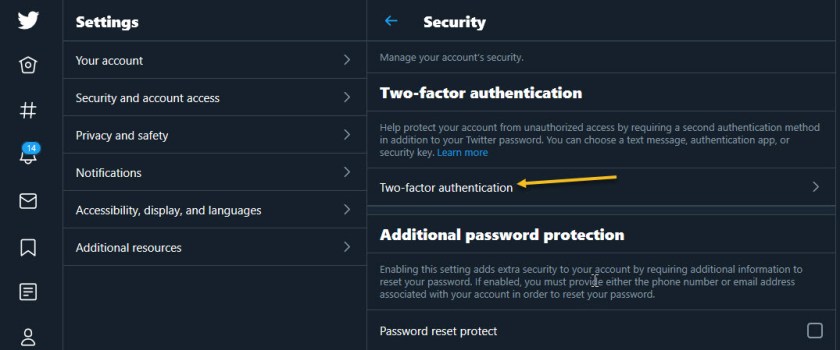
First, to activate Login Verification on Twitter.com on the desktop, login to Twitter, Click the More menu on the left (the three dots) and select Security & Account Access > Security > Two-Factor Authentication. See following image:
Twitter 2FA
Quote For the Day
Technology is a useful servant but a dangerous master.
Christian Louis Lange
That’s it. With 2FA activated on these apps you are more secure. Please feel free to share this post! One way to share is via Twitter.
Just click the Tweet icon below. This will launch Twitter where you click its icon to post the Tweet.
Check out TechSavvy.Life for blog posts on smartphones, PCs, and Macs! You may email us at contact@techsavvy.life for comments or questions.
Please feel free to leave a comment. I would love hearing from you. Do you have a computer or smart device tech question? I will do my best to answer your inquiry. Just send an email to contact@techsavvy.life. Please mention the device, app and version that you are using. To help us out, you can send screenshots of your data related to your question.
The author’s Vietnam eBook on the Battle for Tra Bong: Events and Aftermath
Adding an animated GIF GIF to your Word document is useful if you want to convey a message, demonstrate an activity, capture the audience’s attention, or just add some flair.
Adding an animated GIF to your Word document is useful if you want to convey a message, demonstrate an activity, capture the audience’s attention, or just add some flair. Let’s explore how this is done.
This is for devices running Windows 10 and Word. Screenshots are from Word in Office 365
Copyright Scott Adams, Inc./Distributed by Universal Uclick for UFS
Microsoft Word lets you insert animated GIFs stored on your computer’s hard drive. The process for inserting a GIF in a Word document is no different than inserting a photo. Unfortunately, this only works in Microsoft Word for Windows 10. If you are a Mac user, you can still insert a GIF, but it will not be animated.
First, launch Word and place the cursor in the document’s location where you want the GIF to appear. Now, in the Illustrations group of the Insert tab, click Pictures. Next, choose This Device from the drop-down menu. Refer to below image:
Selecting where to find a GIF
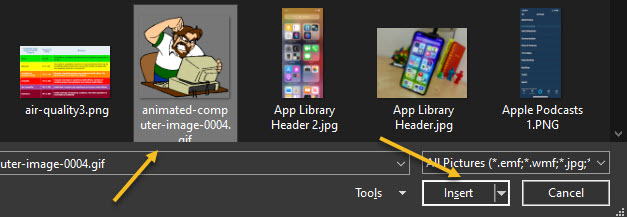
Now, the File Explorer will open. Next, locate and select the GIF you want to insert, then click Insert. See below image:
Selecting a GiF to insert
The GiF will appear in your Word document. If you want to pause the Animation, click the pause icon in the bottom-left corner of the image. See following image:
Your GIF inserted into Word
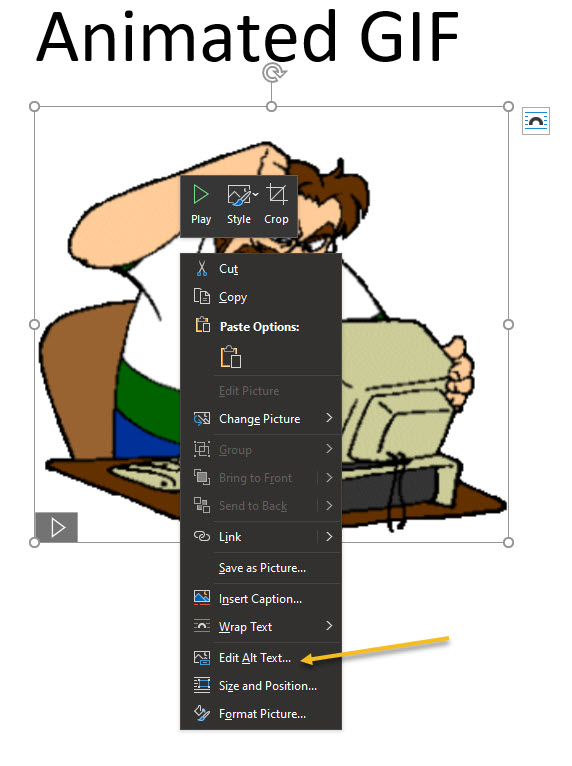
To add alt text, right-click the GIF and then select Edit Alt Text from the context menu. Refer to below image:
Selecting the Edit Alt Text option
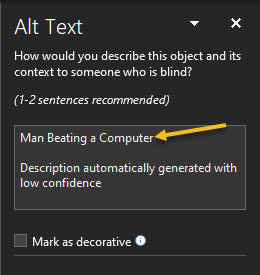
The Alt Text pane will appear to the right of the window. Type the desired alt text in the text box. See below image:
Entering your Alt Text
You have now learned how to insert an animated GIF into your Microsoft Word document. Congratulations!
Quote For the Day
If you are not sitting at the table, you are on the menu.
Jenny Boyer, MD, President of Tulsa County Medical Association
That’s it. Please feel free to share this post! One way to share is via Twitter.
Just click the Tweet icon below. This will launch Twitter where you click its icon to post the Tweet.
Check out TechSavvy.Life for blog posts on smartphones, PCs, and Macs! You may email us at contact@techsavvy.life for comments or questions.
Please feel free to leave a comment. I would love hearing from you. Do you have a computer or smart device tech question? I will do my best to answer your inquiry. Just send an email to contact@techsavvy.life. Please mention the device, app and version that you are using. To help us out, you can send screenshots of your data related to your question.
The author’s Vietnam eBook on the Battle for Tra Bong: Events and Aftermath
We have all been there; looking up a word on Google just to find out how it’s spelled. No matter the typos, Google usually knows what you want to type. Thankfully, Google allows you to use its spell-check feature everywhere in your Chrome web browser.
We have all been there; looking up a word on Google just to find out how it’s spelled. No matter the typos, Google usually knows what you want to type. Thankfully, Google allows you to use its spell-check feature everywhere in your Chrome web browser.
Called the Enhanced spell check, this setting allows you to access Google’s more advanced spell check whenever you type something on the Internet.
But as is the case with most Google services, there is a privacy cost to this. Turning on Enhanced spell check in Chrome also means agreeing to send everything you type on the web to Google’s server. So enable it at your own risk. But, you can also enable Basic spell check without sending data to Google. Lets explore how to do this.
This is for PCs, Macs, Chrome OS, or Linux running Chrome
dCopyright Scott Adams, Inc./Distributed by Universal Uclick for UFS
First, open your Google Chrome browser. Next, click the three-dot hamburger icon located in the top right-hand corner. Refer to below image:
Accessing the menu hamburger icon
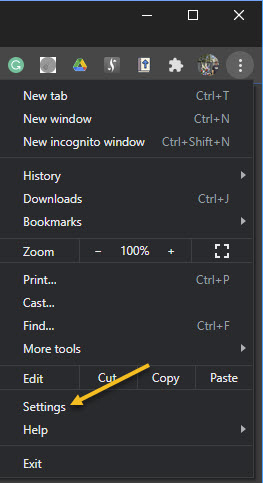
Now, from the drop-down menu that appears, select Settings. See below image:
Accessing Settings
Alternatively, you can press the Cmd+Comma keyboard shortcut on a Mac or Alt+E on a Windows PC to access the Settings option.
Next, in the sidebar, click Advanced to reveal the advanced menu. Now, choose Languages from the list. See following image:
Accessing Languages under the Advanced section
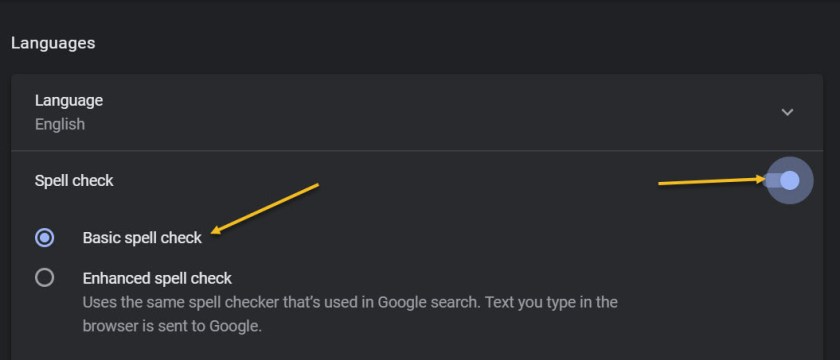
Under the Spell check section, toggle the radio button in front of the Basic spell check option to turn it On. If you want enhanced spell checking, toggle the radio button in front of the Enhanced spell check to turn it On. Keep in mind, the enhanced option means you are sending your browser activity to Google. Refer to below image:
Enabling Basic spell check option
At the time of writing, Enhanced spell check is not available for Google Chrome’s Android and iPhone clients.
The number one benefit of information technology is that it empowers people to do what they want to do. It lets people be creative. It lets people be productive. It lets people learn things they didn’t think they could learn before, and so in a sense it is all about potential.
Steve Ballmer, Microsoft
That’s it. Please feel free to share this post! One way to share is via Twitter.
Just click the Tweet icon below. This will launch Twitter where you click its icon to post the Tweet.
Check out TechSavvy.Life for blog posts on smartphones, PCs, and Macs! You may email us at contact@techsavvy.life for comments or questions.
The Privacy Checkup tool allows you to determine how much or how little information you reveal, and to whom.
Facebook has tons of privacy checks that it would take three or more blog posts to cover the topic. In this post we are going to tackle two topics. The Privacy Checkup is tedious and laborious, plus, there are way too many checks. In our opinion, Facebook is a giant bureaucracy, too big for its own good Regardless, you may be surprised at the kinds and amount of information you are sharing, I know I was. Just take the time to discover what you are sharing using Facebook’s Privacy Checkup tool.
The Privacy Checkup tool allows you to determine how much or how little information you reveal, and to whom. Let’s explore this Facebook tool.
This is for devices running Facebook. Screenshots are from Windows 10
Copyright Scott Adams, Inc./Distributed by Universal Uclick for UFS
Start Privacy Checkup
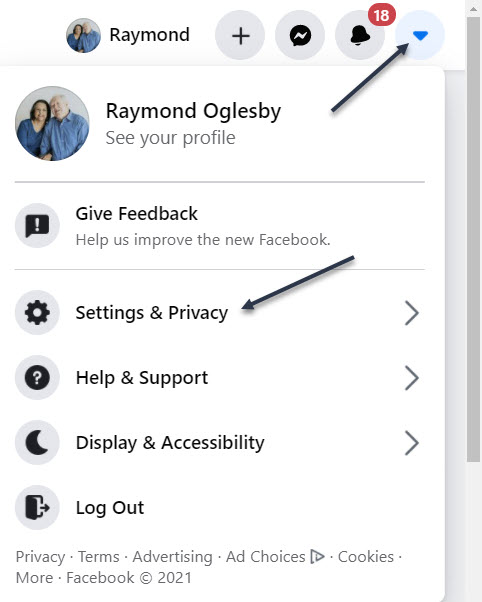
To run the latest version of Facebook’s Privacy Checkup tool, first, launch Facebook. Next, click the down arrow icon in the upper right-hand corner, then click on Settings& Privacy. Refer to below image:
Accessing Settings & Privacy
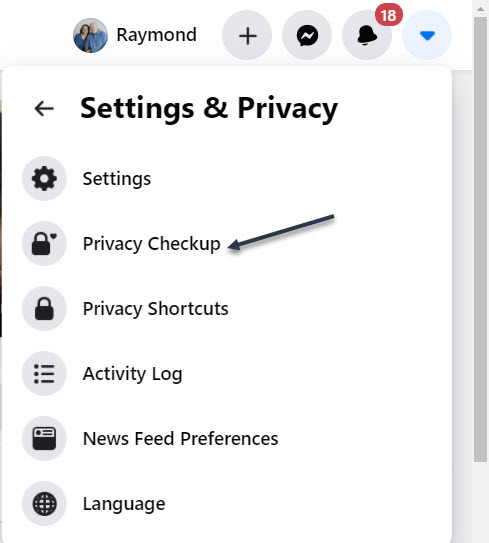
Now, select Privacy Checkup. See below image:
Accessing Privacy Checkup tool
Choose the First Topic
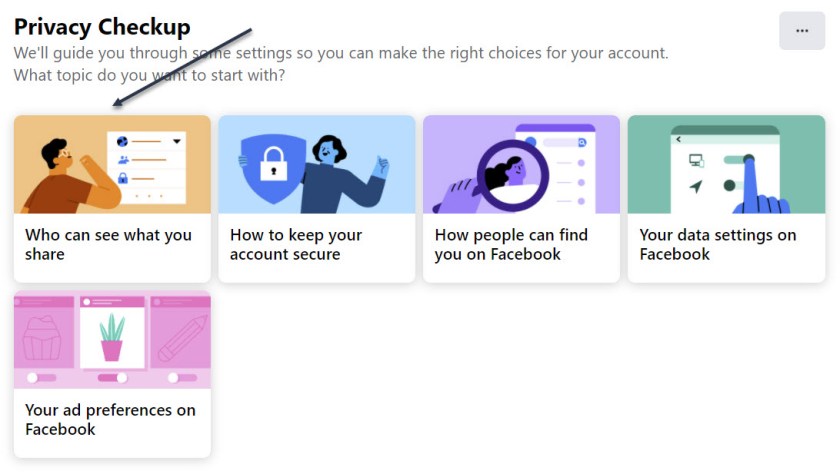
Next, in the Privacy Checkup window, click the first topic, Who can see what you share. See following image:
Selecting the first topic
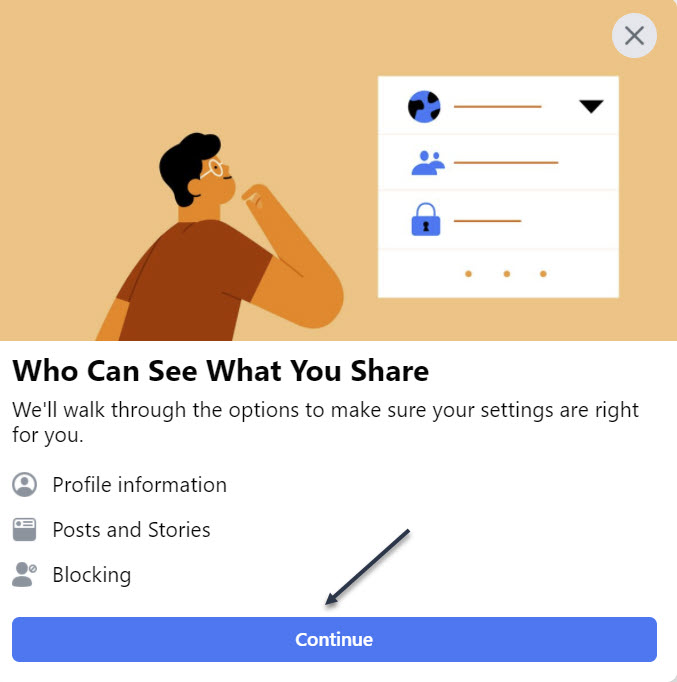
Now, click Continue. Refer to below image:
Verbiage about the topic, continue to next screen
Your Profile Information
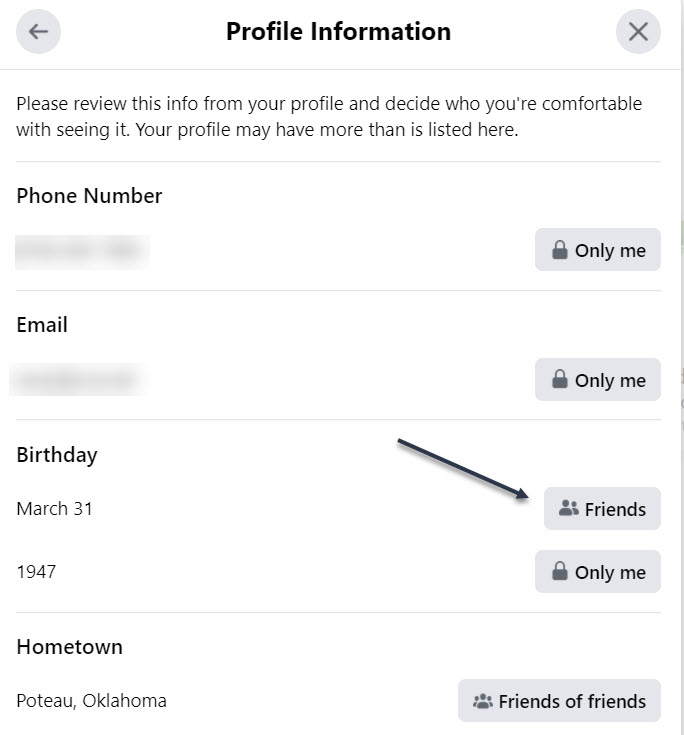
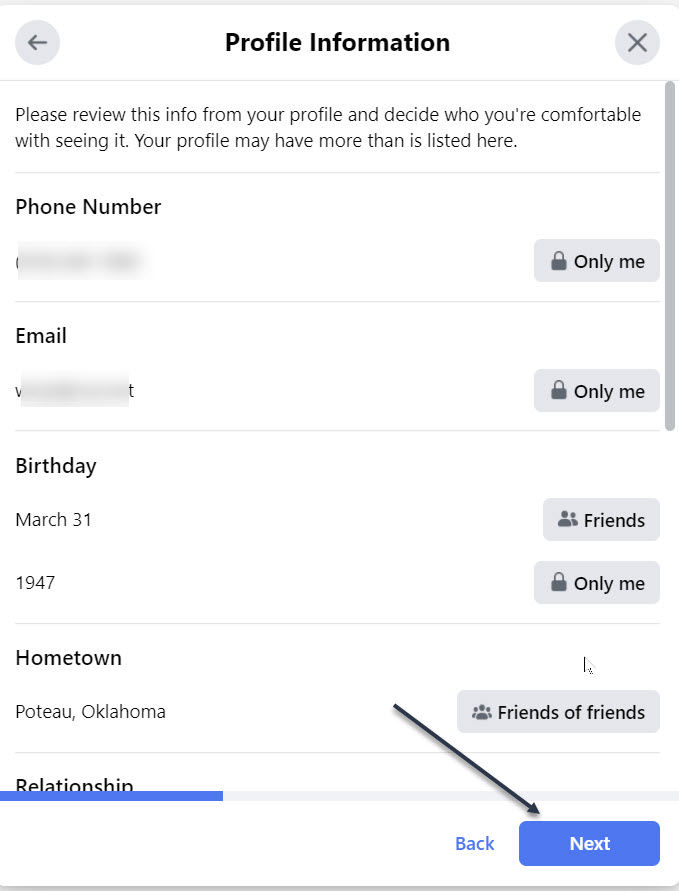
Next, at the Profile Information window, review the settings for your phone number, email addresses, and birthday. Click the button next to each one, and choose whether to change it to Public, Friends, Only Me, or a specific Facebook list. See below image:
What and who sees your Profile Information
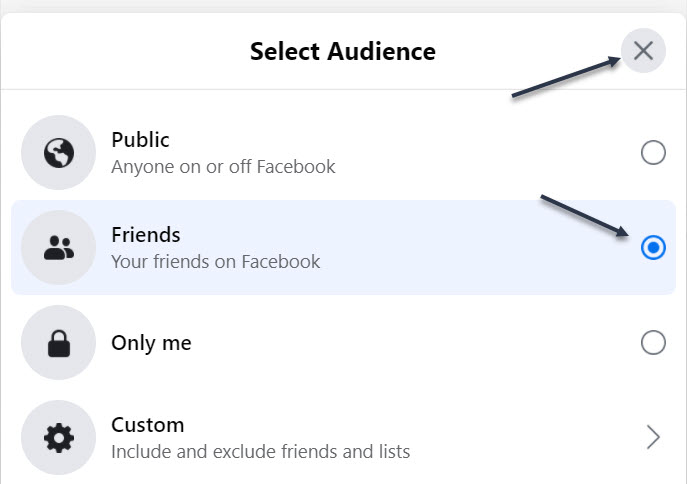
I changed my Birthday to Friends (it was already Friends, I kept it the same). To exit, click the “X” in upper right-hand corner. See following image:
Changing who sees your Birthday
You probably want this information to remain private or only visible to friends or a specific group. When done, click Next. Refer to below image:
Continue to the next screen
Your Posts
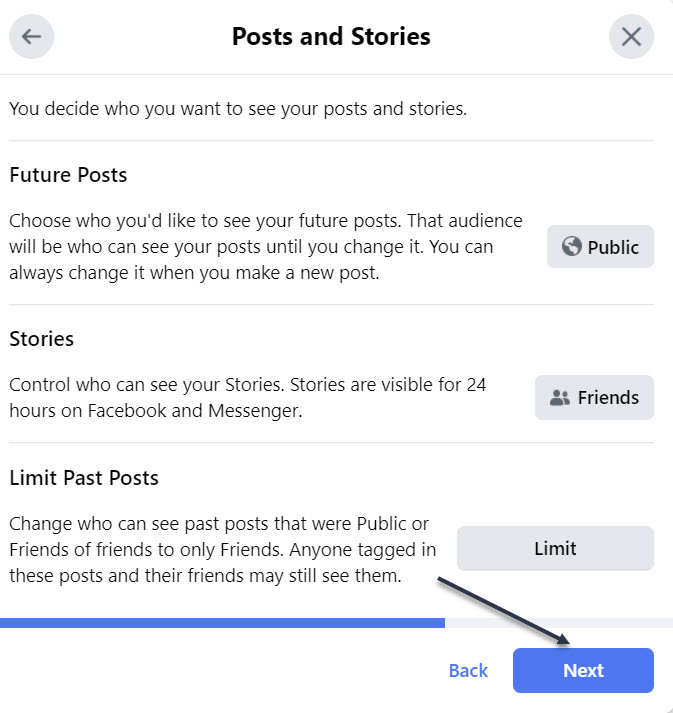
Now, at the Posts window, set the option for who should see future posts. You would likely want to set this to Friends. The Limit Past Posts option changes past posts that were seen by the Public or Friends of Friends to only Friends. Click Next to continue. See below image:
Who sees your Posts, continue to next screen
Your Blocked People
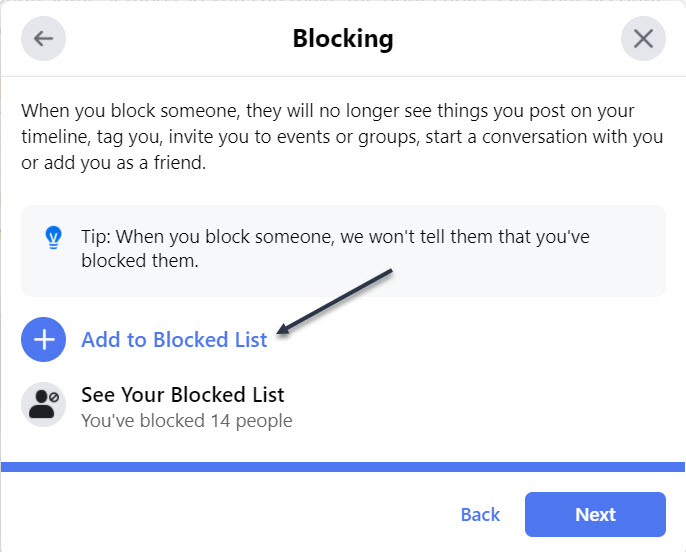
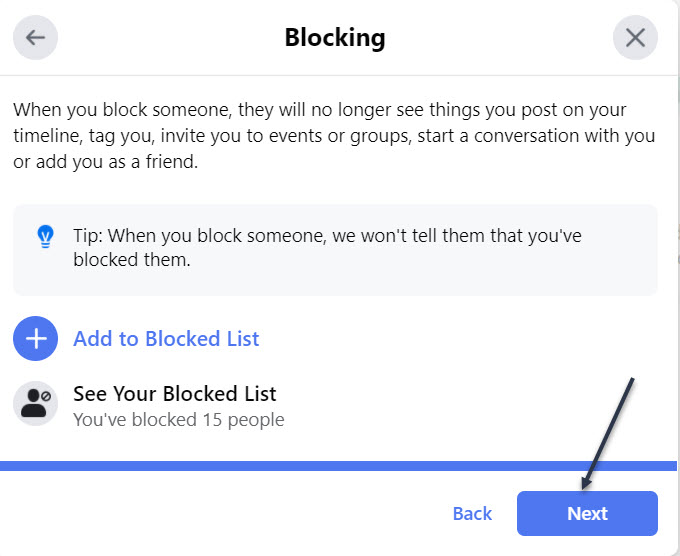
Next, at the Block screen, you can block specific people from seeing things you post, starting conversations with you, or trying to add you as a friend. To do this, click Add to Blocked list link. See following image:
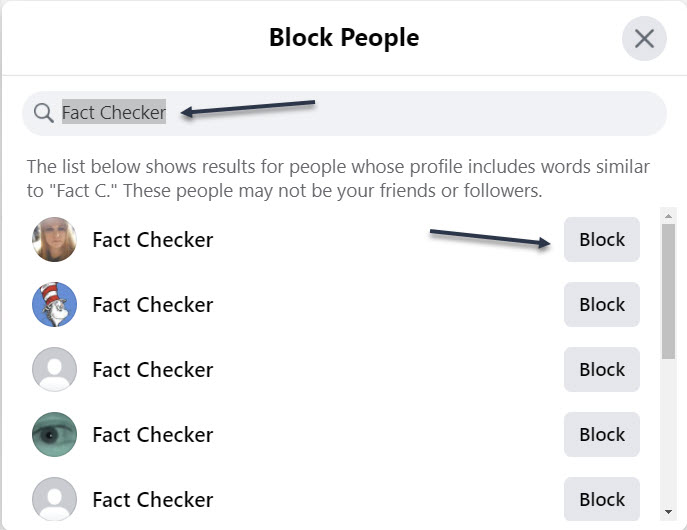
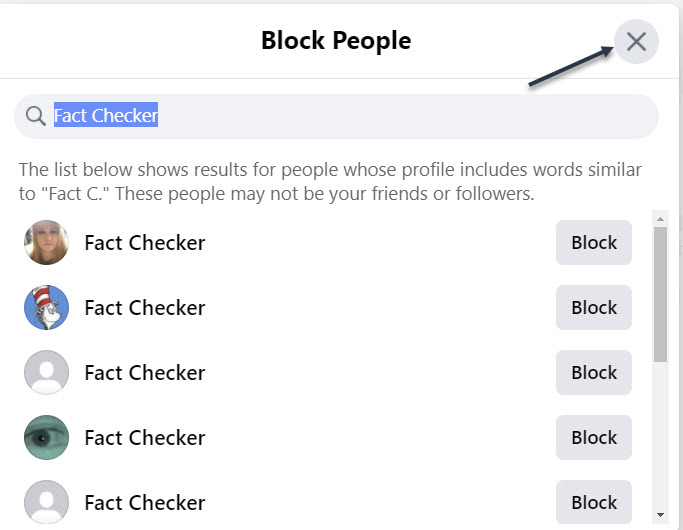
Now, type the name of the person or account you wish to block. From the list of suggestions, click the Block button for the correct person, then click Next. Refer to below image:
Entering a name to block
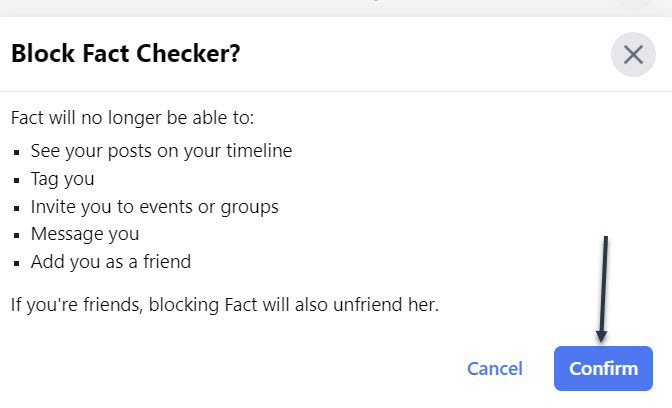
Next, click Confirm to block the person and continue. See below image:
Confirming a blocked person
Now, you will be taken back to the Block screen. You may select another person to block. When finished, click the “X” in upper right-hand corner. See following image:
Exiting the blocked persons screen
Next, to continue, click Next. Refer to below image:
Continue to the next screen
You Are Finished With First Topic
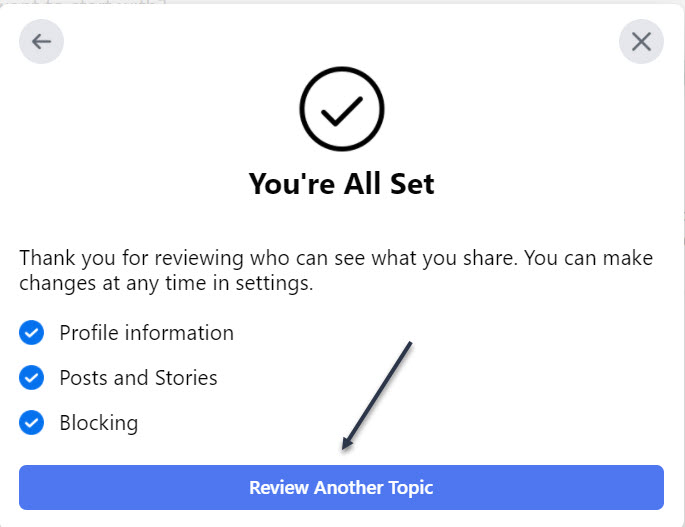
Now, the You’re All Set window will open indicating you are finished with the topic. To continue, click the Review Another Topic button. See below image:
You have finished this topic screen
Choose Your Second Topic
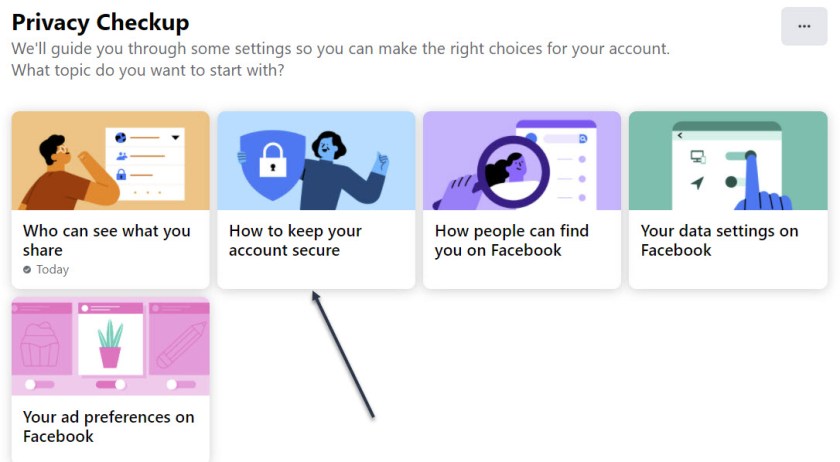
Next, select How to keep your account secure. See following image:
Select the second topic
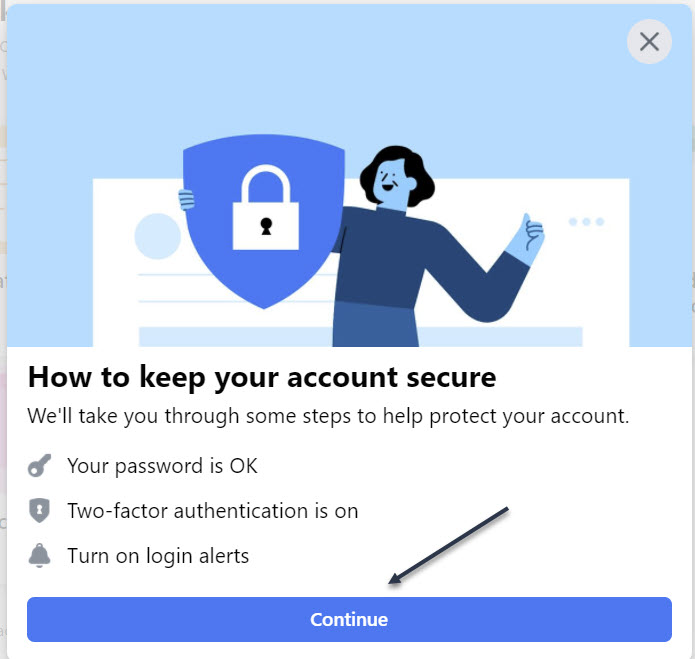
Note! My Password is OK and Two-factor authentication is on. Now, click Continue. Refer to below image:
Verbiage about the topic, continue to next screen
Check Your Password
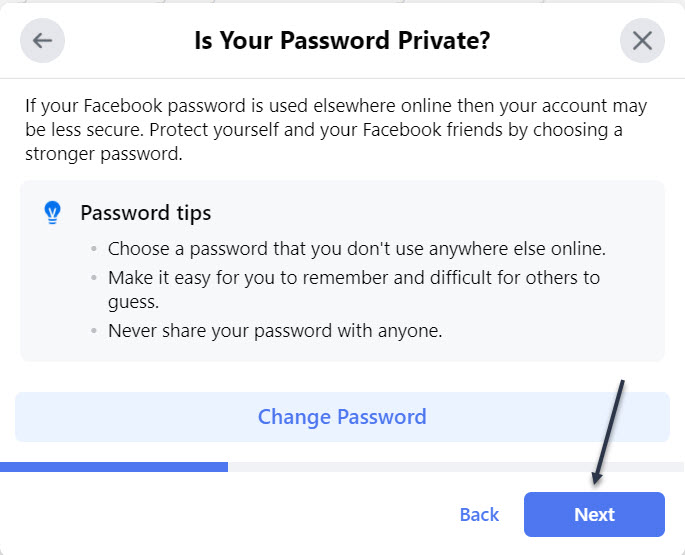
Next, at the window for Is Your Password Private, click Change Password if you are concerned that it was compromised or you want to change it to something more secure then click Next. See below image:
Manage your password, continue to next screen
Check Your Two-Factor Authentication
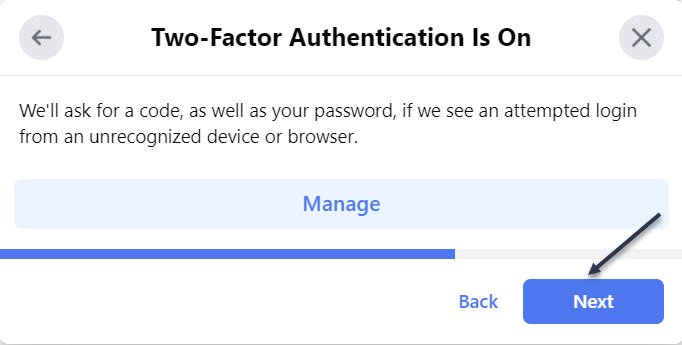
If Two-factor authentication is off, click the Get Started button to add Two-Factor authentication to protect your Facebook account. You want to do this. Just, follow the steps to set this up. Now, click Next to continue. See following image:
Manage Two-Factor Authentication, continue to next screen
Check Your Alerts
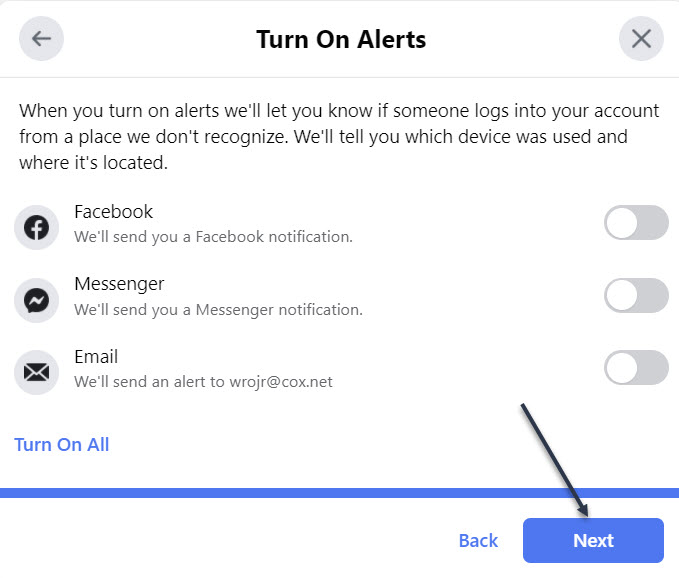
Next, at the window for Turn On Alerts, turn on the switch for any alerts you wish to receive if you or someone else signs into your Facebook account from a new or different location, then click Next. Refer to below image:
Enable/Disable Alerts, continue to next screen
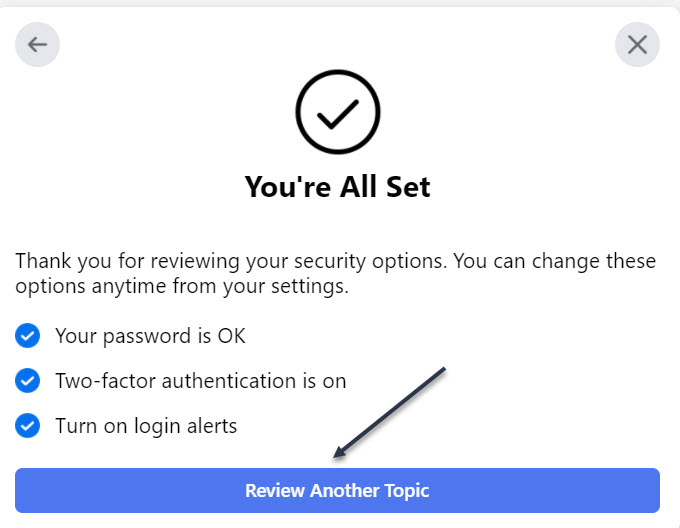
You Are Finished With Second Topic
Now, the You’re All Set window will open indicating you are finished with the topic. To continue, click the Review Another Topic button. See below image:
You have finished this topic
You may continue to one or more of the next three topics and follow its directions.
Quote For the Day
“Technology is a useful servant but a dangerous master”.
Christian Lous Lange
That’s it. You now have controlled your Privacy settings in Facebook. Please feel free to share this post! One way to share is via Twitter.
Just click the Tweet icon below. This will launch Twitter where you click its icon to post the Tweet.
Check out TechSavvy.Life for blog posts on smartphones, PCs, and Macs! You may email us at contact@techsavvy.life for comments or questions.
Please feel free to leave a comment. I would love hearing from you. Do you have a computer or smart device tech question? I will do my best to answer your inquiry. Just send an email to contact@techsavvy.life. Please mention the device, app and version that you are using. To help us out, you can send screenshots of your data related to your question.
The author’s Vietnam eBook on the Battle for Tra Bong: Events and Aftermath
Are you wondering how to create multiple folders in Windows 10 or even in Windows 7? That can be very useful if you’re a analyst, for instance. Say that you need to make a folder for each month of the year on your Windows PC. Sure, you can manually create a folder for each month, but that might take some time. Fortunately, there is a way to automate this.
Are you wondering how to create multiple folders in Windows 10 or even in Windows 7? That can be very useful if you are a analyst, for instance. Say that you need to make a folder for each month of the year on your Windows PC. Sure, you can manually create a folder for each month, but that might take some time. Fortunately, there is a way to automate this. Let’s see how to create multiple folders at once, using a simple Command Prompt.
This is for devices running Windows 10
Copyright Scott Adams, Inc./Distributed by Universal Uclick for UFS
Using the Command Prompt
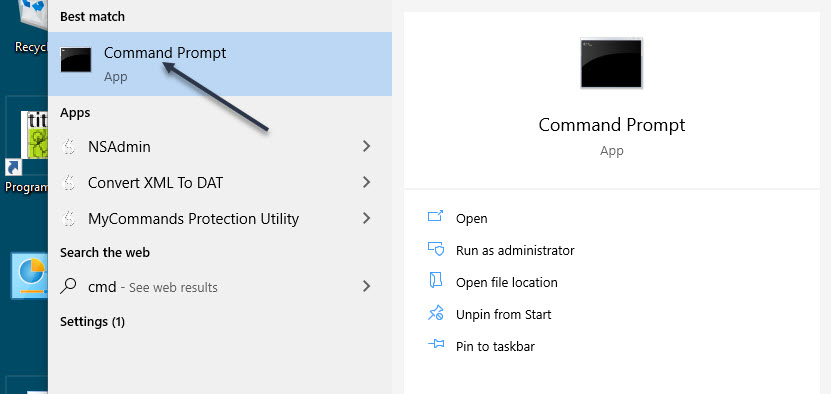
First, click the Start button from the Taskbar and type “cmd” (without quotes) in the Cortana Search bar (next to the Start button). Next, choose Command Prompt from the search results. Refer to below image:
Accessing the Command Prompt
Next, you can change directories in Command Prompt using the “cd” command (without quotes) and switch to the directory where you want to make your folders. See below image:
Changing the directory
Now. using the “md” command (without quotes) you can make a new directory for your folders. You want to create twelve folders, one for each month in a year with the following command:
md Jan Feb Mar Apr May Jun Jul Aug Sep Oct Nov Dec
See following image:
Making the Folders
If you want multiple words for a folder, just enclose the words in quotes, for example:
md “2021 Jan“ “2021 Feb” and so on.
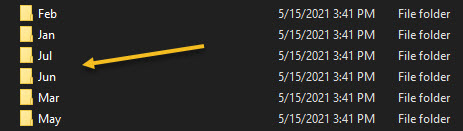
Next, you can close the Command Prompt and open the destination in Windows Explorer to check the newly made folders. Refer to below image for some of the created folders: (Due to Explorer sorting, we are only showing some consecutive ones.)
The created Folders
There are other ways to accomplish creating multiple folders at once, but this method is the easiest.
Quote For the Day
People who are really serious about software should make their own hardware.
Alan Kay
That’s it. Please feel free to share this post! One way to share is via Twitter.
Just click the Tweet icon below. This will launch Twitter where you click its icon to post the Tweet.
Check out TechSavvy.Life for blog posts on smartphones, PCs, and Macs! You may email us at techsavvy.life for comments or questions.
Please feel free to leave a comment. I would love hearing from you. Do you have a computer or smart device tech question? I will do my best to answer your inquiry. Just send an email to contact@techsavvy.life. Please mention the device, app and version that you are using. To help us out, you can send screenshots of your data related to your question.
The author’s Vietnam eBook on the Battle for Tra Bong: Events and Aftermath
You can use Google Chrome or Microsoft Edge to convert a website into an app. Although it works for Window 8 or 7, we are using Windows 10 for creating this blog post. This lets you use your sites as if they were normal apps.
You can use Google Chrome or Microsoft Edge to convert a website into an app. Although it works for Window 8 or 7, we are using Windows 10 for creating this blog post. This lets you use your sites as if they were normal apps.
This is for devices running Windows 10, and Google Chrome or Microsoft Edge
Copyright Scott Adams, Inc./Distributed by Universal Uclick for UFS
How Website Apps Work
Your website looks and works exactly the same in your app as it does in your web browser. The only difference you will see is that there will not be any browser elements in your app window, such as the bookmarks bar, address bar, and other toolbar elements.
If you use Chrome, the website app will be using Chrome in the background. If you use Edge, the browser app will use Microsoft Edge. However, normal browser elements are stripped off so that you get the actual app-like experience. These web apps get their own separate windows, taskbar icons, and desktop shortcuts.
Turn a Website Into an App Using Chrome
You can use Chrome’s main menu to turn any website into a Windows app.
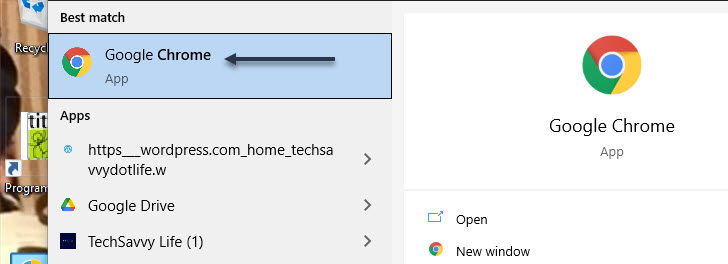
First, open the Start menu. Next, enter “Google Chrome” in the Cortana search box at bottom left-hand corner. Now, click the browser in the results at top left-hand corner. Refer to below image:
Selecting Chrome
Next, open any website that you want to turn into an app. Navigate to the specific web page that you want your app to start with.
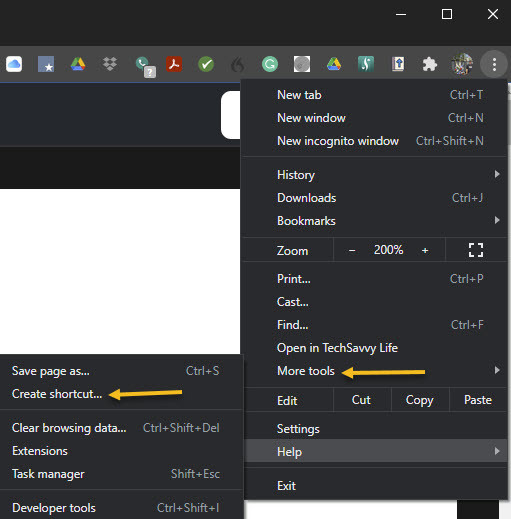
When the site has loaded, click its hamburger menu button (the three dots) in the top-right corner of the window and select:
More Tools > Create Shortcut
See below image:
Create a shortcut
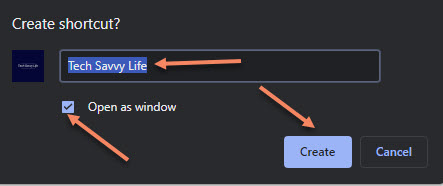
A prompt will appear asking for your new app name. Enter a name for your new app, enable the Open as window checkbox, and click Create. See following image:
Name the shortcut
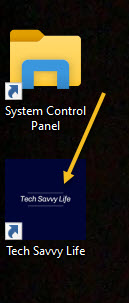
A shortcut will be placed on your desktop. You can launch your app from this desktop shortcut. Refer to below image:
Your desktop shortcut
Also, Chrome will create the app for your site and add it to the Start menu. You can now search and launch your app using your PC’s Start menu. See below image:
Use the Start menu to launch your Chrome app
Turn a Website Into an App Using Edge
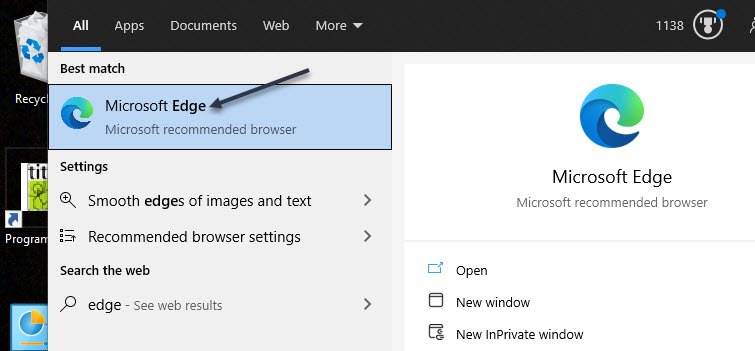
You can also use Microsoft Edge to make a website into an app. This creates the exact same kind of app that Chrome does. First, open the Start menu. Next, enter “Microsoft Edge” in the Cortana search box at bottom left-hand corner. Now, click the browser in the results at top left-hand corner. See following image:
Selecting Edge
Navigate to the website that you want to make an app for, then navigate to the specific page that you want to use for the app.
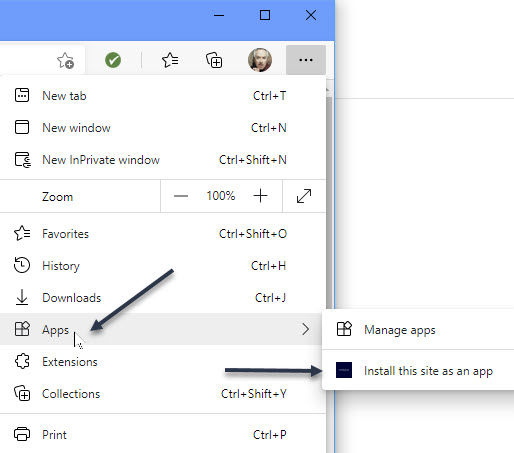
Now, click the menu hamburger button (the three dots) in the top-right corner of the window and select:
Apps > Install this site as an app
Refer to below image:
Select to install as an app
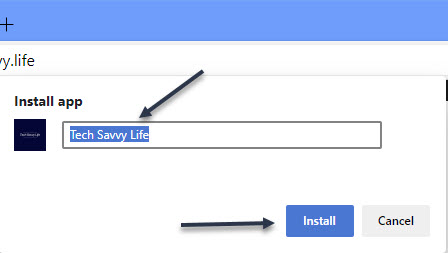
Type a name for your new app, then click Install. See below image:
Name the shortcut
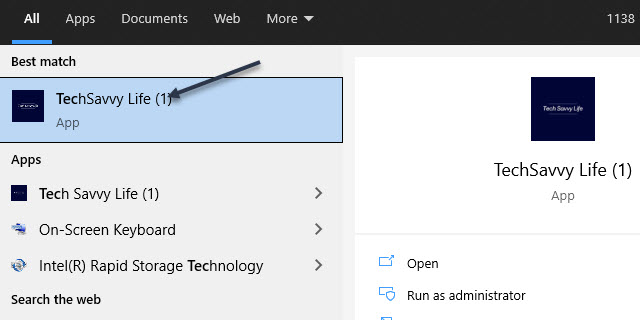
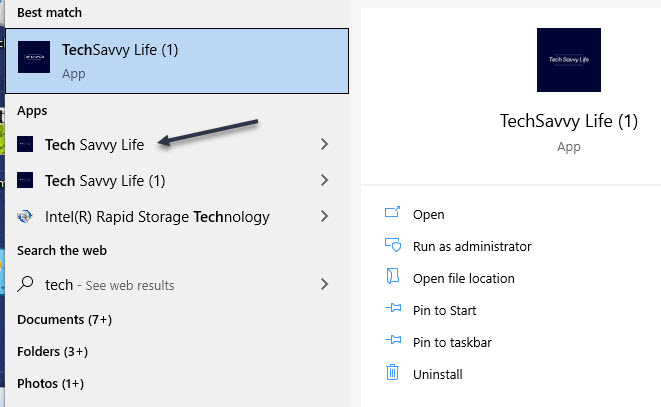
You can now launch your newly created app from the Start menu. See following image where TechSavvy.Life (1) is the Chrome version, TechSavvy.Life is the Edge version:
Use the Start menu to launch your Edge app
Create a Desktop Shortcut for Your Apps
Your website apps will have their own shortcuts in your Start menu’s All Apps list. You can also create a desktop shortcut for your apps in order to quickly access them on your PC’s desktop, if you like.
If you used Chrome to make your apps, your desktop shortcuts are already created. But if you used Microsoft Edge, you will need to manually add shortcuts to your desktop.
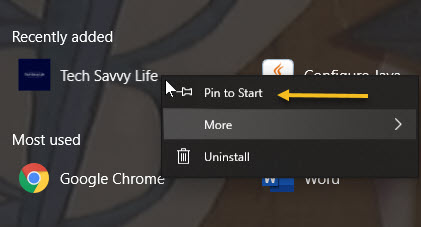
To do this, open the Start menu and search for your newly created app. Right-click your app and select Pin to Start.
You need to do this because Windows does not let you directly make a desktop shortcut for this kind of app in Edge. Refer to below image:
Pin to Start menu in Edge
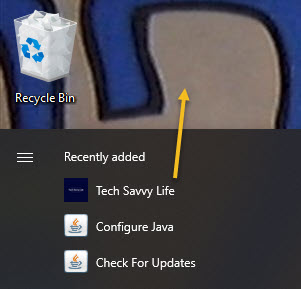
Open the Start menu again, and you will see your app on the right. Drag it over to your desktop and a desktop shortcut for it will be created. See below image:
Drag the Edge app to your desktop
Create a Taskbar Shortcut for Your Apps
You can also make a taskbar shortcut for your website apps.
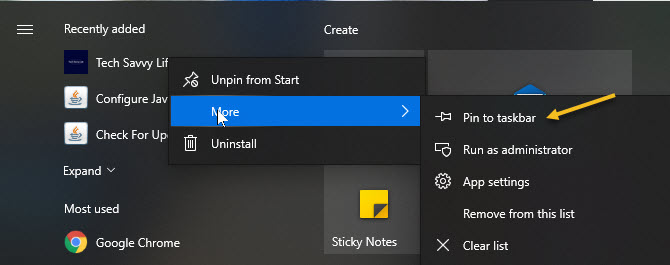
To do this, open the Start menu again, search for your app or find your desktop shortcut, right-click your app, click More, and select Pin to taskbar. See following image:
Pin to Taskbar
Assign an Icon
By default, Windows uses your website’s favicon as the icon for your app. You can change this icon if you want to give a little makeover to your new app.
You can use an icon file from your computer or one of Windows 10’s built-in icons for your new app.
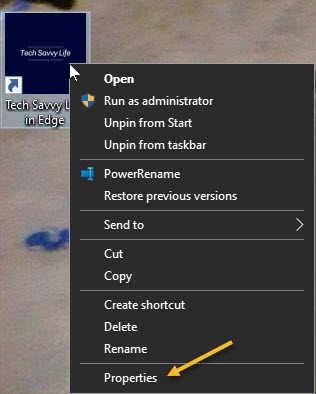
To change your app’s icon, right-click your app shortcut on your desktop and select Properties. Refer to below image:
Access Propetties
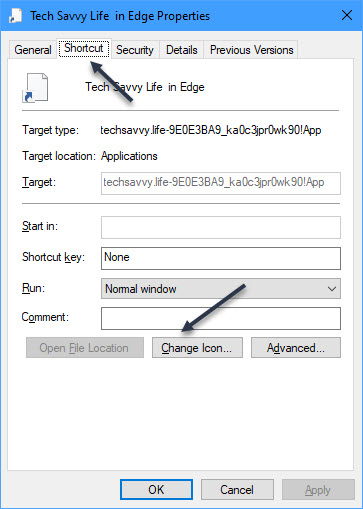
In the Properties box, click Shortcut at the top, and then click Change Icon. See below image:
Select change the icon button
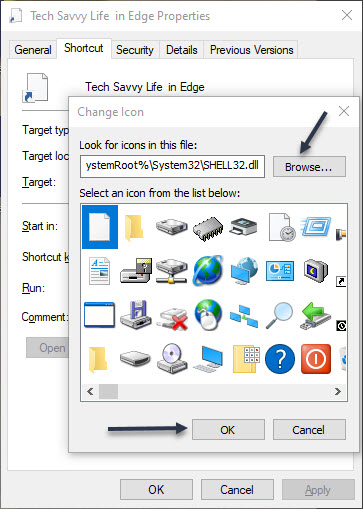
Click Browse in the window that opens and select the icon that you want to use for your app.
If you want to use one of Windows 10’s stock icons, browse to:
C:\Windows\System32 folder
and double-click the imageres.dll file in this folder.
You will see a list of Windows 10’s built-in icons. Select the one that you want to use and click OK. Even though this file is for 32-bit operating system, it will work on a 64-bit system. See following image:
Browse or use Windows 10 stock icons
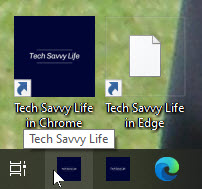
To save your settings, click Apply and then select OK. Refer to below image for my final desktop and taskbar shortcuts:
Your finished icons on desktop and taskbar
Quote For the Day
“The first rule of any technology used in a business is that automation applied to an efficient operation will magnify the efficiency. The second is that automation applied to an inefficient operation will magnify the inefficiency”.
Bill Gates
You are finished with turning a website into a Windows 10 app. Please feel free to share this post! One way to share is via Twitter.
Just click the Tweet icon below. This will launch Twitter where you click its icon to post the Tweet.
Check out TechSavvy.Life for blog posts on smartphones, PCs, and Macs! You may contact us at contact@techsavvy.life for comments or questions.
Please feel free to leave a comment. I would love hearing from you. Do you have a computer or smart device tech question? I will do my best to answer your inquiry. Just send an email to contact@techsavvy.life. Please mention the device, app and version that you are using. To help us out, you can send screenshots of your data related to your question.
The author’s Vietnam eBook on the Battle for Tra Bong: Events and Aftermath

























 Tech Savvy Life