How to Change Your iPhone Default Browser Easily

The post provides a step-by-step guide on how to change the default web browser on an iPhone from Safari to a preferred alternative, such as Chrome. It includes tips, system requirements, and FAQs regarding browser functionalities, catering to users seeking to customize their browsing experience on Apple devices.

RAYMOND OGLESBY @RaymondOglesby2
May 27, 2025 – 3 minutes read time

On Apple devices, Safari is the default browser. However, many people prefer to use other browsers, such as Chrome, instead of Safari. Fortunately, you can easily change the default web browser on your iPhone to your preferred one. Here’s how to change the default browser on an iPhone.

  • Easily change default browser from Safari.
  • You have different preferences than Apple’s standard browser.

This tip was performed in iPhone 14 Pro running iOS 18.5

Click here to learn how to update your iPhone to the latest iOS version.

First, open the Settings app. Refer to the image below:
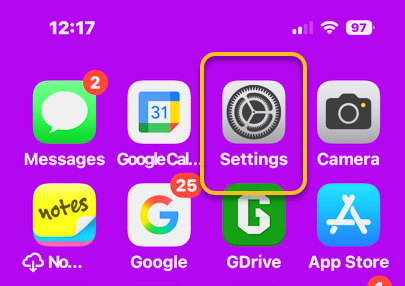
Default Browser 1
Selecting Settings

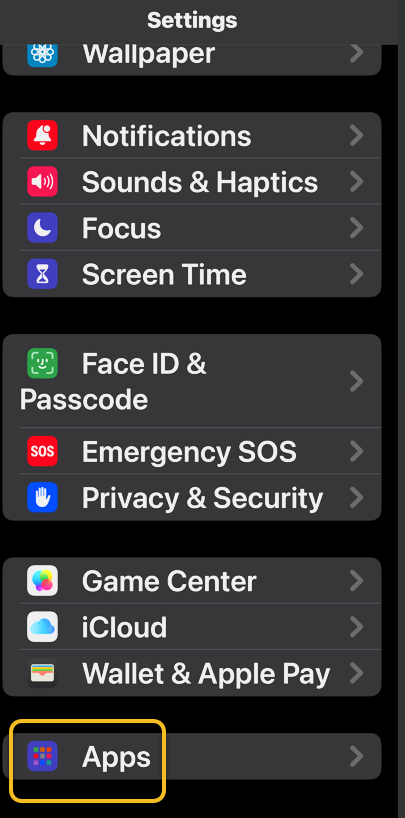
Next, tap Apps. See the image below:

Default Browser 2
Selecting Apps

Now, scroll down to the app list to find your preferred browser, such as Chrome, and tap it. See the following image:
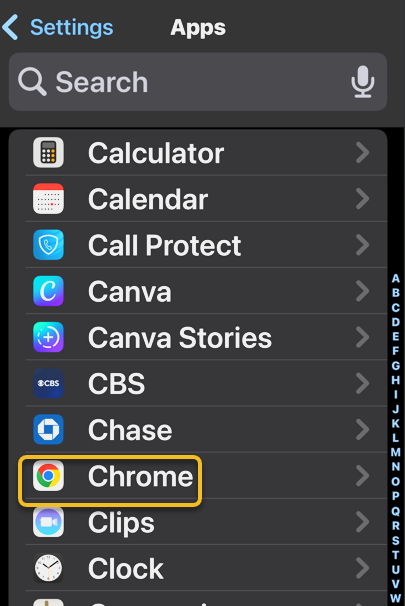
Default Browser 3
Selecting preferred browser

Next, tap Default Browser App. Refer to the image below:
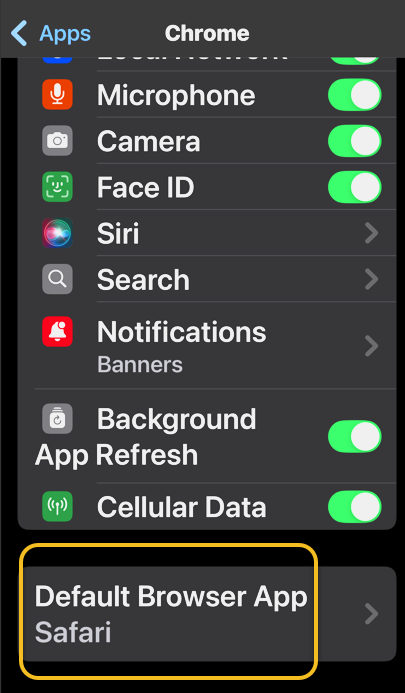
Default Browser 4
Selecting Defsult Briwser App option

Now, tap whichever browser you would like to use as your default browser. See the image below:
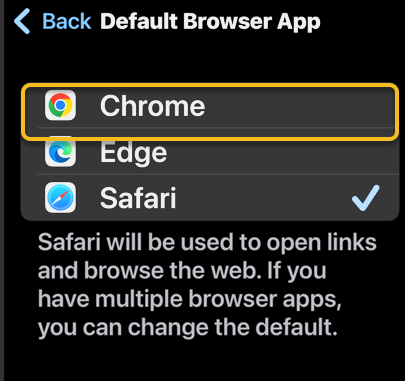
Default Browser 5
Selecting a browser

Next, when you haveselected your new default browser, you will see a blue check mark next to it. See the following image:
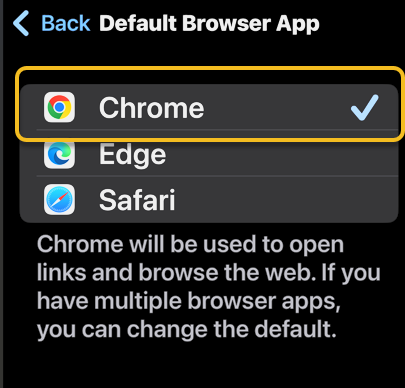
Default Browser 6
Your preferred browser selected

Now that you know how to change the default browser on your iPhone, you can easily open links in your preferred web browser, whether it’s Safari, Chrome, Edge, or another browser.

  • How do I clear my Safari history on my iPhone? To clear your Safari history on an iPhone, tap the Bookmark icon, then the History tab, then choose which parts of your Safari history you want to delete. 
  • How do I make Safari the default browser again? Follow the same steps above and select Safari from Apps. Alternatively, if you uninstall the browser app that is set as default, your iPhone will automatically switch back to Safari.
  • What do I do if Safari is not working on my iPhone? If Safari is not working on your iPhone, make sure you have a strong Wi-Fi or cellular connection. Additionally, verify that Screen Time limits are not enabled.

Disclaimer

Technology is constantly evolving, and smartphone and desktop tech rarely remains static. Therefore, the information in this post is only accurate as of the date it was written. Blog posts that are older than six months may contain instructions that are no longer compatible with your device or operating system. We hope that the content from previous posts continues to function as intended. Thank you for reading TechSavvy.Life, where technology works for you.

 “Technology means you can now do amazing things easily, but you can’t easily do them legally.”

― Lawrence Lessig

That’s it. Please feel free to share this post! One way to share is via Twitter.

Just click the Tweet icon below. This will launch Twitter where you click its icon to post the Tweet.

Checkout TechSavvy.Life for blog posts on smartphones, PCs, and Macs! You may email us at contact@techsavvy.life for comments or questions.

We value your feedback! Was this post helpful? Please share your comments with us. If you have a tech question related to your computer or smart device, feel free to reach out. Just send an email to contact@techsavvy.life, and be sure to include the device, app, and version you are using. To assist us further, you can also attach screenshots related to your inquiry.

Author’s eBook

The author’s Vietnam eBook on the “Battle for Tra Bong Vietnam: Events and Aftermath” can be accessed from a Kindle device or the Kindle App for a desktop or smartphone. The apps are free.
The author’s Vietnam eBook on the Battle for Tra Bong Vietnam: Events and Aftermath

Master the Look Up Feature on iPhone

The Look Up feature on iPhones allows users to quickly access definitions, thesaurus entries, and related websites by highlighting text and selecting the option. Available on iOS 16 or later, it enhances vocabulary learning and information retrieval across apps.

RAYMOND OGLESBY @RaymondOglesby2
February 18, 2025 – 3 minutes read time

Sometimes, while browsing the internet, you will come across words you do not understand or subjects you want to learn more about.

The Look Up feature allows you to easily look up the definition of words. Its menu provides links to several options: Apple’s dictionary, other dictionaries, Siri-suggested websites, Wikipedia, the App Store, and more.

You can even use Look Up as a free thesaurus app, or use the Look Up feature in Safari to find additional references to a word or phrase on the internet.

Let’s explore looking up words on iPhone with the Look Up feature.

  • Quickly check the definition of words or phrases with just a few taps.
  • Easily find websites or apps related to specific words.

This tip works on iPhones running iOS 16 or later.

Screenshots are from iPhone 14 Pro running iOS 18.3

Click here to learn how to update your iPhone to the latest iOS version.

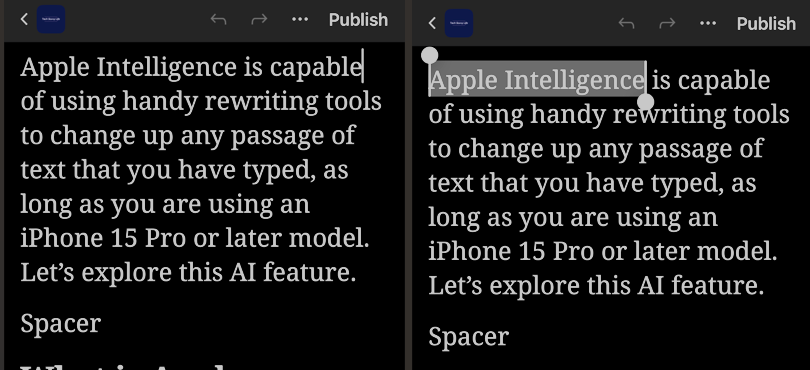
First, anywhere you can select text, tap and hold to highlight the text. Refer to the below image:

Lookup 1
Highlight text to look up

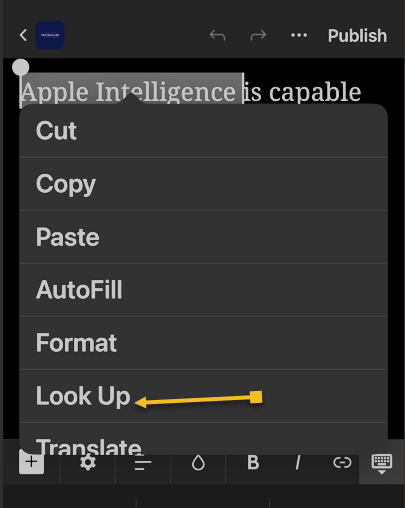
Next, above the word or phrase, a horizontal menu or a drop down menu will appear depending on your iOS. Tap the arrow to the right or select the Look Up option (as shown). See the below image:

Lookup 2
Selecting the Look Up option

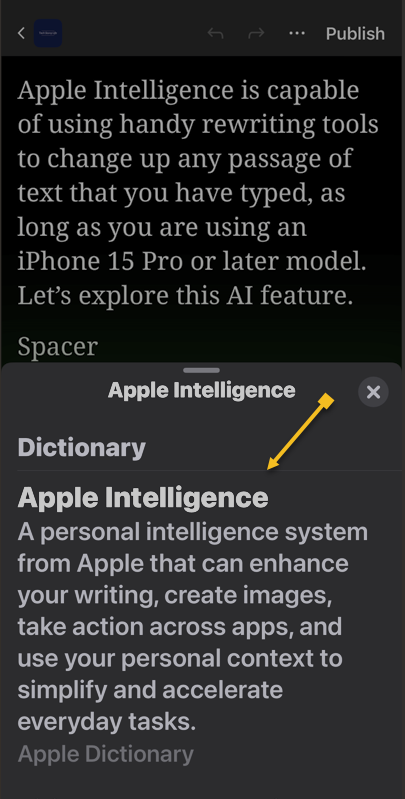
Now the results will appear in a pop-up. Usually, you will see a dictionary definition of the word(s). Pull up on the window to see more results. See the following image:

Lookup 3
The dictionary meaning of the highlighted text

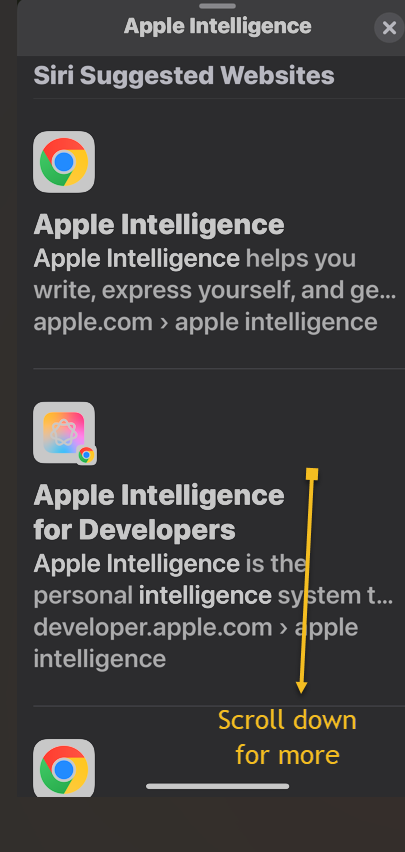
Bext, depending on the text you selected, you will see various results from different websites and apps. Scroll down to see more results. Refer to the below image:

Lookup 5
Additional results for the highlighted text

That’s how to use the Look Up feature on your iPhone. While we demonstrated this feature from a WordPress blog, it can be used anywhere where you can select text.

Technology is constantly evolving, and smartphone and desktop tech rarely remains static. Therefore, the information in this post is only accurate as of the date it was written. Blog posts that are older than six months may contain instructions that are no longer compatible with your device or operating system. We hope that the content from previous posts continues to function as intended. Thank you for reading TechSavvy.Life, where technology works for you.

Technology is nothing. What’s important is that you have faith in people, that they’re basically good and smart, and if you give them tools, they’ll do wonderful things with them.

– Steve Jobs

That’s it. Please feel free to share this post! One way to share is via Twitter.

Just click the Tweet icon below. This will launch Twitter where you click its icon to post the Tweet.

Checkout TechSavvy.Life for blog posts on smartphones, PCs, and Macs! You may email us at contact@techsavvy.life for comments or questions.

We value your feedback! Was this post helpful? Please share your comments with us. If you have a tech question related to your computer or smart device, feel free to reach out. Just send an email to contact@techsavvy.life, and be sure to include the device, app, and version you are using. To assist us further, you can also attach screenshots related to your inquiry.

Author’s eBook

The author’s Vietnam eBook on the “Battle for Tra Bong Vietnam: Events and Aftermath” can be accessed from a Kindle device or the Kindle App for a desktop or smartphone. The apps are free.
The author’s Vietnam eBook on the Battle for Tra Bong Vietnam: Events and Aftermath

Unlock Safari’s New Summary Feature in iOS 18

The iOS 18.1 update introduces Safari Summaries, allowing users to quickly grasp webpage content without extensive scrolling. Apple Intelligence, integrated into various devices, offers tailor-made AI tools like image generation, message prioritization, and smart replies, while emphasizing user privacy. This feature enhances the browsing experience by providing clear website summaries.

RAYMOND OGLESBY @RaymondOglesby2
January 7, 2025 – 4 minutes read time

If you have ever been lost in the middle of a website and wished you could just get the gist without reading through the entire page, I have good news for you.

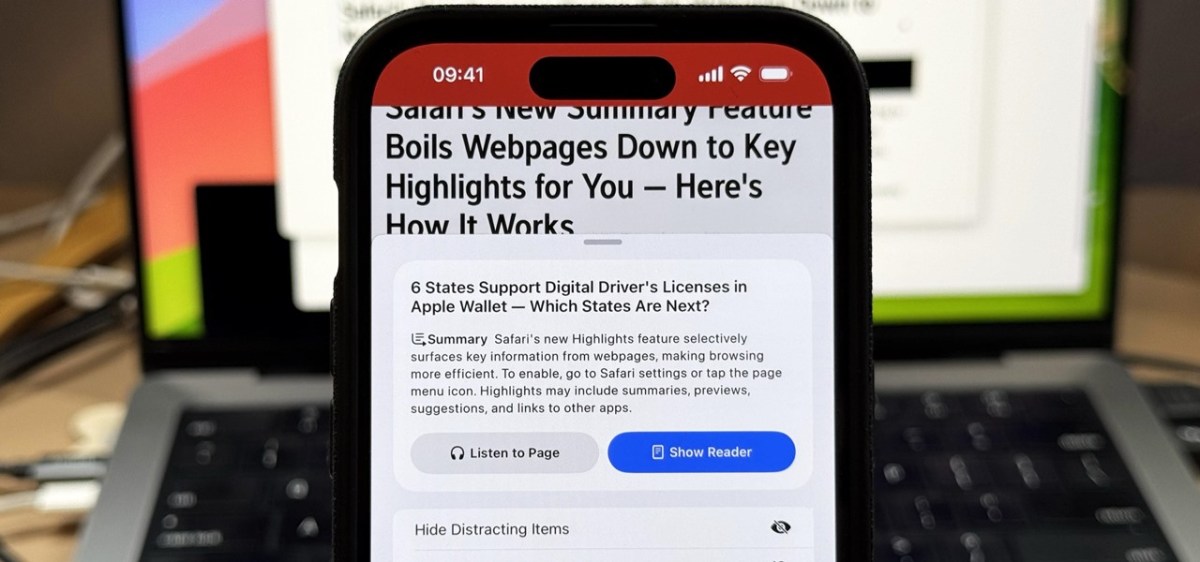
Safari gets Apple Intelligence! The iOS 18.1 update brings Safari summaries to webpages, letting you get the gist of an article quickly and clearly. This is one of the top iOS 18 Safari highlights, and it’s easy to implement. Here’s how

  • iOS 18 will summarize a website for you so you can skip the scrolling.
  • Enjoy a clear website summary without reading the whole thing.
  • Discover quickly if the article has the information you need.

This tip requires an iPhone 15 Pro and later models running iOS 18.1 or later. Screenshots are from iPhone 15 Pro running iOS 18.1.1.

Click here to learn how to update your iPhone to the latest iOS version.

Apple Intelligence is a suite of AI-powered tools that use your personal data to generate information and recommendations tailored to you. It’s available on the iPhone, iPad, and Mac, and is integrated into the core of the operating system and existing apps. 

Apple Intelligence includes features like: 

  • Image Playground: A tool for generating cartoon-style images based on text descriptions 
  • Genmoji: A tool for creating emojis for any situation 
  • Writing Tools: Tools for enhancing your writing, including ChatGPT integration and reformatting tools like List and Table 
  • Priority Messages: A tool for prioritizing messages in your inbox 
  • Notification summaries: A tool for scanning long or stacked notifications with key details 
  • Reduce Interruptions: A Focus that surfaces only notifications that might need immediate attention 
  • Smart Reply: A tool in Mail that identifies questions you were asked in an email and offers relevant selections to include in your response 

Apple Intelligence is designed to protect your privacy at every step. It’s aware of your personal information without collecting it, and it uses on-device processing and Private Cloud Compute to handle more complex requests. 

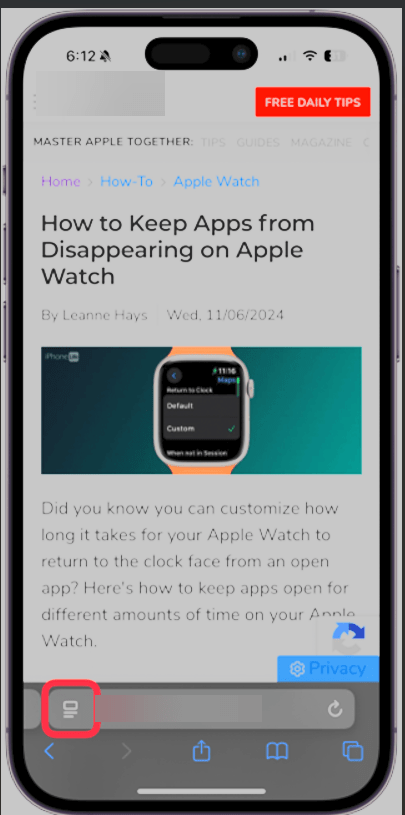
Open your webpage in Safari and tap the Page Settings button at the bottom left. Refer to the below image:

Summarize 1
Selecting Page Settings button

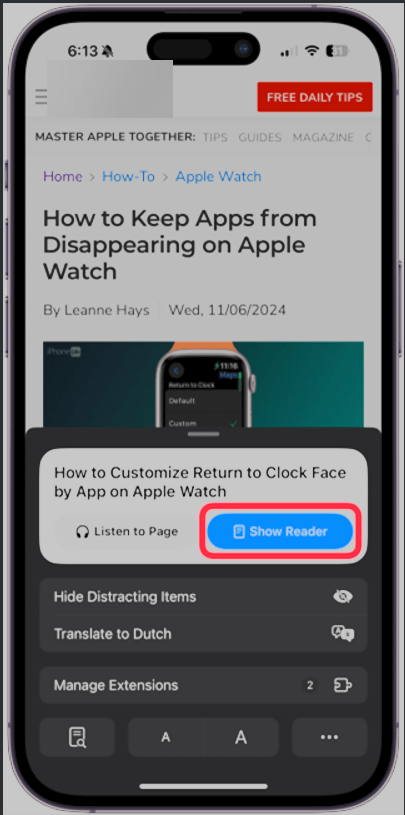
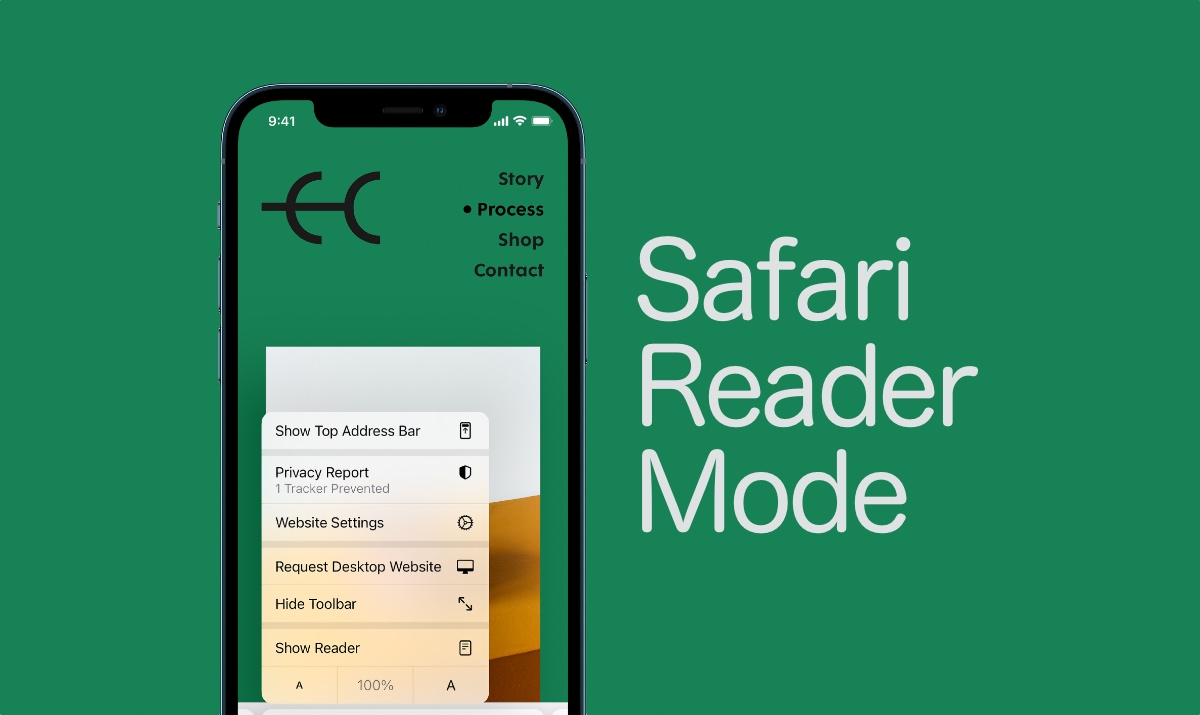
Next, tap Show Reader. See the below image:

Summarize 2
Selecting Show Reader button

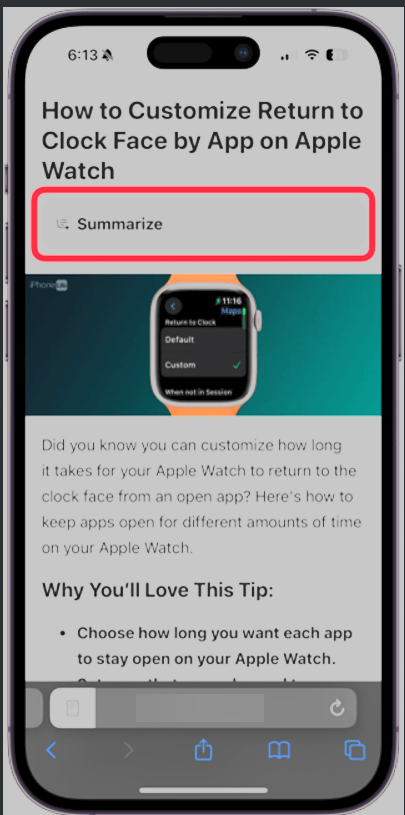
Now, tap Summarize. See the following image:

Summarize 3
Selecting Summarize button

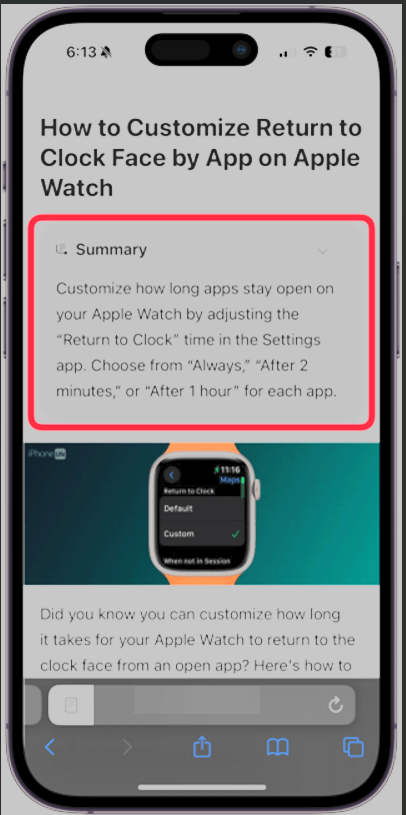
Next, you will see the summary displayed at the top of the page in a gray box. Refer to the below image:

Summarize 4
The Summary

It’s that easy! Now, you can enjoy clear, concise summaries of the webpages you do not want to have to read through or make sure a website has the information you need before you spend ten minutes scrolling.

Disclaimer

Technology is constantly evolving, and smartphone and desktop tech rarely remains static. Therefore, the information in this post is only accurate as of the date it was written. Blog posts that are older than six months may contain instructions that are no longer compatible with your device or operating system. We hope that the content from previous posts continues to function as intended. Thank you for reading TechSavvy.Life, where technology works for you.

 “Technology is a word that describes something that doesn’t work yet.” 

― Douglas Adams

That’s it. Please feel free to share this post! One way to share is via Twitter.

Just click the Tweet icon below. This will launch Twitter where you click its icon to post the Tweet.

Check out TechSavvy.Life for blog posts on smartphones, PCs, and Macs! If you have comments or questions, email us at contact@techsavvy.life.

We value your feedback! Was this post helpful? Please share your comments with us. If you have a tech question related to your computer or smart device, feel free to reach out. Just send an email to contact@techsavvy.life, and be sure to include the device, app, and version you are using. To assist us further, you can also attach screenshots related to your inquiry.

Author’s eBook

The author’s Vietnam eBook on the “Battle for Tra Bong Vietnam: Events and Aftermath” can be accessed from a Kindle device or the Kindle App for a desktop or smartphone. The apps are free.
The author’s Vietnam eBook on the Battle for Tra Bong Vietnam: Events and Aftermath

How to Request a Desktop View of a Webpage on iPhone

This post provides a guide to viewing the desktop version of a website on an iPhone, including how to switch between desktop and mobile versions and enabling Reader Mode.

RAYMOND OGLESBY @RaymondOglesby2
May 21, 2024

Viewing the desktop version of a website can sometimes help you find something unavailable on the mobile version. Of course, the iPhone always defaults to the mobile site, but there is a way to force Safari to load the desktop version. Let’s check out how to request a desktop site on iPhone.

This is for the iPhone running iOS 17+. Screenshots are from iPhone 14 Pro running iOS 17+

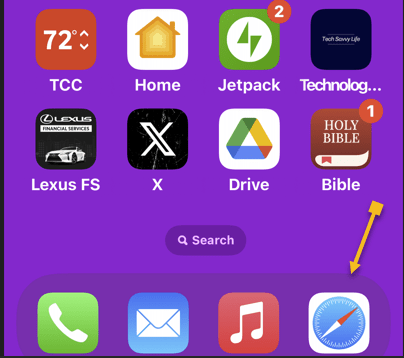
First, open Safari. Refer to the below image:

Request Desktop1
Selecting the Safari app

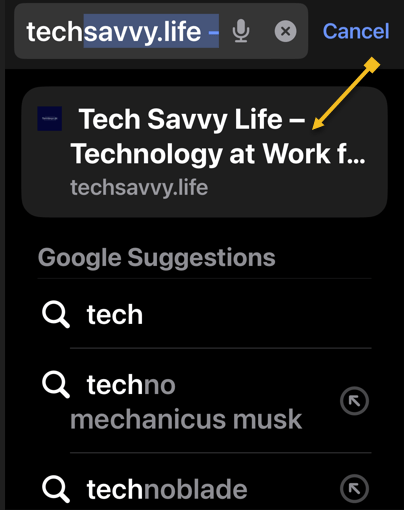
Next, search and open a webpage. We are opening TechSavvy.Life. See the below image:

Request Desktop 2
Opening a webpage in Safari

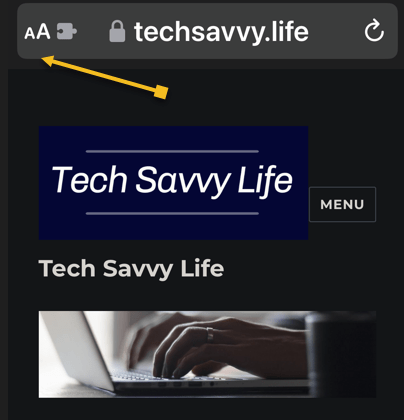
Now, tap the Reader Mode icon (the aA icon) in the upper left corner.

Note! For whatever reason. not all websites support the Reader view. Most likely because they do not want you to miss their advertisements.

See the following image:

Request Desktop 3
Selecting the Reader Mode icon

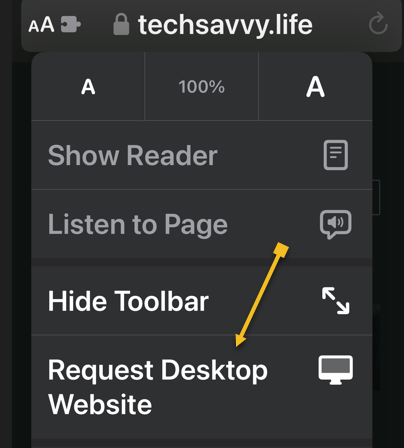
Next, tap the Request Desktop Website option. Refer to the below image:

Request Desktop 4
Selecting the Request Desktop Website option

You can now browse the desktop version of the website, taking advantage of any features that do not exist on the mobile site.

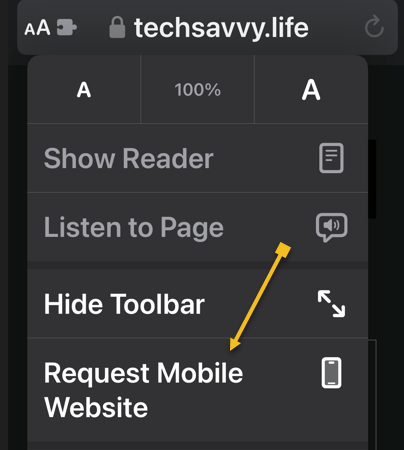
Now, if you want to switch back to the mobile site, with the webpage open, tap the Request Mobile Website option. See the below page:

Request Desktop 5
Selecting the Request Mobile Website option

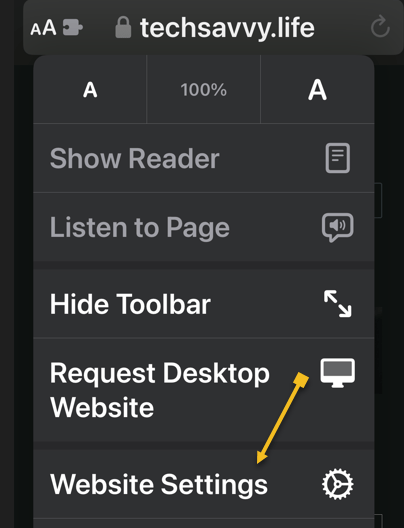
Next, you may want to view the webpage automatically in Reader Mode. If so, while viewing the webpage, tap the Website Settings option. See the following image:

Request Desktop 6
Selecting the Website Settings option

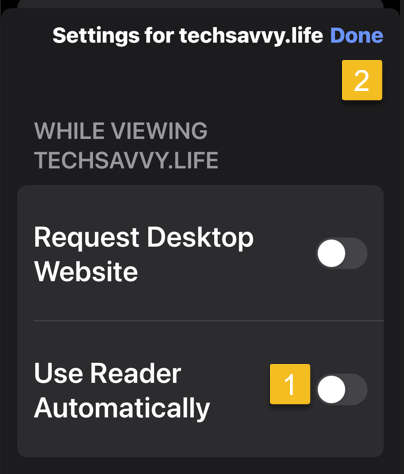
Now, toggle Use Reader Automatically to ON then tap Done, Refer to the below image:

Request Desktop 7
Setting the Use Reader Automatically toggle to ON

Disclaimer

Technology is always changing. Rarely is there static tech for smartphones and desktops. Thus, the contents of this post are only valid at the time of writing. Blog posts older than six months may have directions incompatible with your device or OS. Hopefully, older post content will continue to work as advertised. Thank you for reading TechSavvy.Life for Technology at Work For You.

Success is not final, failure is not fatal: it is the courage to continue that counts.

Winston Churchill

You are finished. Please feel free to share this post! One way to share is via Twitter.

Just click the Tweet icon below. This will launch Twitter where you click its icon to post the Tweet.

Checkout TechSavvy.Life for blog posts on smartphones, PCs, and Macs! You may email us at contact@techsavvy.life for comments or questions.

Please feel free to leave a comment. I would love to hear from you. Do you have a computer or smart device tech question? I will do my best to answer your inquiry. Just send an email to contact@techsavvy.life. Please mention the device, app, and version you are using. To help us out, you can send screenshots of your data related to your question.

You can access the E-book from a Kindle device, or the Kindle App for a desktop or smartphone. The apps are free.
The author’s Vietnam eBook on the Battle for Tra Bong Vietnam: Events and Aftermath

How to Use Bionic Reading in Chrome

We are all constantly absorbing information online. Bionic Reading is an approach to reading that can help you read faster, retain more information, and boost your productivity in your favorite web browser, like Chrome.

RAYMOND OGLESBY @RaymondOglesby2
June 6, 2023

This is for desktops using Chrome or other browsers. Screenshots are from Windows 10

We are all constantly absorbing information online. Bionic Reading is an approach to reading that can help you read faster, retain more information, and boost your productivity in your favorite web browser, like Chrome.

Bionic Reading Explained

Bionic reading is a method of reading that combines traditional reading with technology-assisted tools. This helps readers increase their reading speed, improve their comprehension and retention, and ultimately become more productive in their reading activities.

Was the above paragraph easier and quicker to read? If you said yes, then you have just experienced some of the benefits of Bionic Reading. Now, imagine that but for a whole article, essay, or book.

Your brain does not always read every letter of every word. It only intakes enough information for you to understand a word, and then it moves on to the next one. The bolding of the first half of each word lets your mind fast-track through paragraphs.

The bolding aspect is the most notable factor in Bionic Reading, but there’s more as well. A lot of apps and extensions also remove colors from images and change white or black backgrounds to gray. These changes help your eyes focus on the text.

Why Use Bionic Reading

Using Bionic Reading in Chrome, or any other web browser, can offer several benefits.

It can help you read faster and more efficiently, which allows you to cover more material in less time.

Bionic Reading can also help you retain more information by training your brain to focus on the most important parts of any text.

As a result of the two above-mentioned benefits, it can improve your productivity by allowing you to process information more effectively. This can be particularly useful in academic or work-related settings.

Bionic Reading in any browser can be a valuable tool for anyone looking to optimize their online reading experience.

Think of Bionic Reading as akin to Speed Reading but they are different in their approach. Speed Reading is the process of rapidly recognizing and absorbing phrases or sentences on a page all at once, rather than identifying individual words.

How Bionic Reading Helps You

Bionic Reading helps you read faster and more efficiently with techniques including skimming, scanning, chunking, and altering images to be easier on the eye. Refer to the below image:

Bionic Reader 1
Bionic Reading example from Chrome Web Store

For example, when you skim a text, you quickly glance through it to get a general idea of the content without reading every word. Similarly, when you scan a text, you search for specific keywords or phrases that are relevant to your reading goals.

By using these techniques, you can save time and energy. Bionic Reading tools like web browser extensions or apps can help automate some of these techniques.

Bionic Reading Trains Your Brain to Retain Information

By using Bionic Reading, you can begin to retain more information by training your brain to focus on the most crucial parts of any text, such as key concepts, arguments, or evidence.

Through using techniques like skimming or scanning (as mentioned above), you can quickly identify the main points of the text and decide what information is relevant to your reading goals. In turn, this uses less mental energy.

By consistently applying these techniques, you can train your brain to become more efficient at processing and retaining information. Studying, researching, and editing your own work can become easier as a result.

Bionic Reading Improves Your Productivity

Before we go into how Bionic Reading increases your productivity, you need a frame of reference for how your productivity can suffer through everyday means.

Using your eyes takes up about 50% of your brain power. That’s more than any of your other senses. We, as humans, heavily rely on our vision for pretty much everything we do.

As your brain becomes able to retain more information, you will need to re-read the same text less often.

Reading faster and more efficiently drastically cuts down on the stress your eyes and brain suffer while researching, writing, and doing similar work, especially when you are mentally digesting new information.

To summarize, by improving your reading efficiency and training your brain to better retain information, your productivity should increase.

Bionic Reading Chrome Extension

You can get the Bionic Reading extension for Chrome on the Chrome Web Store. See the below image:

Bionic Reader 2
Adding Bionic Reading Chrome extension

At the top of a Chrome window, click the Menu icon (the 3 dots) to open the Menu. Now, click More Tools > Extensions to view the extension. See the following image:

Bionic Reader 3
Bionic Reading Chrome extension

After installing it, you can manage the Bionic Reading extension through the Extensions menu at the top-right of your window (click the little jigsaw piece icon). Refer to the below image:

Bionic Reader 4

Activate Bionic Reading

You are now ready to begin using the Bionic Reading extension! When you want to activate it on any given webpage, all you need to do is click the jigsaw piece icon at the top-right of your window and then click the Bionic Reading icon. To turn Bionic Reading off, do the same thing again. See the below image:

Bionic Reader 5
Bionic Reading example

Everything is removed from the web page but the text. That’s all there is to it! Start saving your energy for tougher tasks by letting Bionic Reading do the heavy visual lifting.

Disclaimer

Technology is always changing and rarely is there static tech for smartphones and desktops. Thus, the contents of this post are only valid at the time of writing. Blog posts older than six months may have directions incompatible with your device or OS. Hopefully, older post content will continue to work as advertised. Thank you for reading TechSavvy.Life for Technology at Work For You.

Quote For the Day

I would like to die on Mars. Just not on impact.

Elon Musk

Tweet Info

That’s it. Please feel free to share this post! One way to share is via Twitter.

Just click the Tweet icon below. This will launch Twitter where you click its icon to post the Tweet.

Checkout TechSavvy.Life for blog posts on smartphones, PCs, and Macs! You may email us at contact@techsavvy.life for comments or questions.

I Would Like to Hear From You

Please feel free to leave a comment. I would love to hear from you. Do you have a computer or smart device tech question? I will do my best to answer your inquiry. Just send an email to contact@techsavvy.life. Please mention the device, app, and version you are using. To help us out, you can send screenshots of your data related to your question.

Author’s E-Book

You can access the e-book from a Kindle device, the Kindle App for the desktop or smartphone, which is a free app.

The author’s Vietnam eBook on the Battle for Tra Bong Vietnam: Events and Aftermath

Using a Keyboard Shortcut to Clear Your Browser History

Want to clear your browser history quickly? There’s a keyboard shortcut for that. It works in any browser, including Google Chrome, Apple Safari, Microsoft Edge, and Mozilla Firefox (on both Windows PCs and Macs.)

RAYMOND OGLESBY @RaymondOglesby2
May 30, 2023

This is for popular browsers on a PC or Mac

Want to clear your browser history quickly? There’s a keyboard shortcut for that. It works in any browser, including Google Chrome, Apple Safari, Microsoft Edge, and Mozilla Firefox (on both Windows PCs and Macs.)

Depending on your web browser of choice, you can speed things up in the future by activating the Clear button with a few keystrokes. You may have to tab through the interface to select the Clear button before hitting Enter.

Here’s how it works on a few popular browsers on a Windows 10 or Windows 11 PC:

  • Google Chrome: Press Ctrl+Shift+Delete and press Enter.
  • Mozilla Firefox: Press Ctrl+Shift+Delete and press Enter.
  • Microsoft Edge: Press Ctrl+Shift+Delete and press Enter.

You can now configure exactly what you want to delete. Your browser will remember the settings you pick here, so you will only have to set this up once.

You can pick a time range, or history from a time period like the last hour, last 24 hours, last week, or from all time. You can also pick the types of data: browsing history, download history, cookies, cached files, and more.

When you are done, click the Clear data or Clear now button. Refer to the below image for Chrome:

Clear Chrome 1
Selecting to Clear data in Chrome

Incognito Mode

In the future, you can eliminate the need to clear your browser history by browsing in a private-browsing mode, like Incognito Mode in Chrome. You will just have to close the private-browsing window, and your browser will immediately forget the history associated with your private browsing.

You can use keyboard shortcuts to open and close a private-browsing mode window, too.

  • Google Chrome: Press Ctrl+Shift+N
  • Mozilla Firefox: Press Ctrl+Shift+P
  • Safari or Chrome on a Mac: Press Command instead of Ctrl; for example, press Shift+Command+N.

When you are done, press Ctrl+W to close a single tab or Ctrl+Shift+W to close an entire window. (On a Mac, press Command instead of Ctrl.)

Just remember that Incognito Mode does not offer complete privacy online. It only prevents your web browser from storing your browsing history locally. You may want to combine it with a VPN to boost your online privacy.

Disclaimer

Technology is always changing and rarely is there static tech for smartphones and desktops. Thus, the contents of this post are only valid at the time of writing. Blog posts older than six months may have directions incompatible with your device or OS. Hopefully, older post content will continue to work as advertised. Thank you for reading TechSavvy.Life for Technology at Work For You.

Quote For the Day

Knowledge is of no value unless you put it into practice.

Anton Chekhov

Tweet Info

That was easy. Please feel free to share this post! One way to share is via Twitter.

Just click the Tweet icon below. This will launch Twitter where you click its icon to post the Tweet.

Checkout TechSavvy.Life for blog posts on smartphones, PCs, and Macs! You may email us at contact@techsavvy.life for comments or questions.

I Would Like to Hear From You

Please feel free to leave a comment. I would love to hear from you. Do you have a computer or smart device tech question? I will do my best to answer your inquiry. Just send an email to contact@techsavvy.life. Please mention the device, app, and version you are using. To help us out, you can send screenshots of your data related to your question.

Author’s E-Book

You can access the e-book from a Kindle device, the Kindle App for the desktop or smartphone, which is a free app.

The author’s Vietnam eBook on the Battle for Tra Bong Vietnam: Events and Aftermath

How to Enable iPhone Pop-Ups

Open the Settings app, tap Safari, and toggle Block Pop-ups to OFF. This allows pop-ups in Safari on your iPhone. You can also allow pop-ups in other browsers like Google Chrome. Open your browser app’s Settings to find this option.

RAYMOND OGLESBY @RaymondOglesby2
February 14, 2023

Summary: Open the Settings app, tap Safari, and toggle Block Pop-ups to OFF. This allows pop-ups in Safari on your iPhone. You can also allow pop-ups in other browsers like Google Chrome. Open your browser app’s Settings to find this option.

This is for the Safari and Chrome. Screenshots are from iPhone 14 Pro running iOS 16+

Dilbert and Love
Copyright Scott Adams, Inc./Distributed by Universal Uclick for UFS

Allow Pop-Ups in Safari

To allow sites to open pop-up windows in your Safari browser, first, open the Settings app on your iPhone.

Next, in Settings, scroll down and tap Safari. Refer to the below image:

Popup 1
Accessing Safari

Now, on the Safari page, scroll down and toggle Block Pop-Ups to OFF.

Tip: To turn on Safari’s pop-up blocker in the future, re-enable the Block Pop-Ups option.

See the below image:

Popup 2
Toggle OFF to disable pop-ups

Allow Pop-Ups in Chrome

To enable pop-up windows in Chrome, first, launch the browser on your iPhone.

Next, when Chrome launches, in the bottom right-hand corner, tap the three-dot Menu and choose Settings. See the following image:

Popup 3
Accessing Chrome Settings

Now, in Settings, scroll down and tap Content Settings. Refer to the below image:

Popup 4
Accessing Content Settings

Next, tap Block Pop-Ups. See the below image:

Popup 5
Accessing Block Pop-ups

Now, toggle Block Pop-Ups to OFF. Then, in the top right-hand corner, tap Done.

Tip: To re-enable pop-ups in Google Chrome in the future, activate the Block Pop-Ups option.

See the following image:

Popup 6
Toggle OFF to disable pop-ups and tap Done
Disclaimer

Technology is always changing, and rarely is their static tech for smartphones and desktops. Thus, the contents of this post are only valid at the time of writing. Blog posts older than six months may have directions incompatible with your device or OS. Hopefully, older post content will continue to work as advertised. Thank you for reading TechSavvy.Life for Technology at Work For You.

Quote For the Day

We refuse to turn off our computers, turn off our phone, log off Facebook, and just sit in silence because in those moments we might actually have to face up to who we really are.

Jefferson Bethke

Tweet Info

That’s it. Please feel free to share this post! One way to share is via Twitter.

Just click the Tweet icon below. This will launch Twitter where you click its icon to post the Tweet.

Checkout TechSavvy.Life for blog posts on smartphones, PCs, and Macs! You may email us at contact@techsavvy.life for comments or questions.

I Would Like to Hear From You

Please feel free to leave a comment. I would love to hear from you. Do you have a computer or smart device tech question? I will do my best to answer your inquiry. Just send an email to contact@techsavvy.life. Please mention the device, app, and version you are using. To help us out, you can send screenshots of your data related to your question.

Author’s E-Book

You can access the e-book from a Kindle device, the Kindle App for the desktop or smartphone, which is a free app.

The author’s Vietnam eBook on the Battle for Tra Bong Vietnam: Events and Aftermath

How to Download/Save Images Using Google Image Search

Google’s Image Search results are sometimes so impressive that you want to save some of those images to your device.

RAYMOND OGLESBY @RaymondOglesby2
February 2, 2023

Google’s Image Search results are sometimes so impressive that you want to save some of those images to your device. If you have found yourself in this situation, let’s explore how to download those images from your search results.

This is for mobile and desktop devices. Screenshots are from Windows 10 and iPhone 14 Pro running iOS 16+

Dilbert and Batteries
Copyright Scott Adams, Inc./Distributed by Universal Uclick for UFS

Save Images On Desktop

To download an image on a desktop, you just pick your image, click an option, and your image is saved to your computer.

First, launch your favorite web browser on your computer and open Google Image Search. There, find the image you want to save to your machine. Refer to the below image:

Google Image Search 1
Search Google Images

Next, on the search results page, access the image that you want to download. See the below image:

Google Image Search 2
Find an image

Now, right-click your image, and from the menu that opens, choose to Save image as. See the following image:

Google Image Search 3
Check the option to save your image

Next, your browser will open your computer’s standard Save As window. Here, select a folder to save your image in, type your image name in the File Name field, then click Save. Refer to the below image:

Google Image Search 4
Save your image

Now, you have successfully downloaded your favorite image from your Image Search results. If you are not sure exactly where the image file went, check your Downloads folder from File Explorer.

If your downloaded file is of low resolution, then try downloading that image directly from the source site. To do that, on the Image Search results page, click the link, beneath the image, and not the image, to be taken to the image site. There, right-click the image and choose Save image as.

Download Images On Mobile

On your mobile phone, you can download images from Google’s Image Search results using Google Chrome, Apple Safari, or Microsoft Edge. Mozilla Firefox does not offer the option to save images.

To start, first, open your web browser (we are using Safari) and launch Google Image Search or type into the search box “images.google.com”. Find the image you would like to save to your phone.

Next, on the search results page, tap the image to download. See the below image:

Google Image Search 5
Tap an image you want to download

Now, on your image full-screen page, tap and hold the image. See the following image:

Google Image Search 6
Press and hold your image

Next, on iPhone or iPad, from the menu that opens in Safari, tap Save to Photos. Refer to the below image:

Google Image Search 7
Select the option to save your image

Your iPhone will download and save the image on your local storage or in our example using Safari, your Photos app. See the below image:

Google Image Search 6
Your saved image
Disclaimer

Technology is always changing and rarely is static for smartphones and desktops. Thus, the contents of this post are only valid at the time of writing. Blog posts older than six months may have directions incompatible with your device or OS. Hopefully, older post content will continue to work as advertised. Thank you for reading TechSavvy.Life for Technology at Work For You.

Quote For the Day

The technology you use impresses no one. The experience you create with it is everything.

Sean Cerety

Tweet Info

You are finished. Please feel free to share this post! One way to share is via Twitter.

Just click the Tweet icon below. This will launch Twitter where you click its icon to post the Tweet.

Checkout TechSavvy.Life for blog posts on smartphones, PCs, and Macs! You may email us at contact@techsavvy.life for comments or questions.

I Would Like to Hear From You

Please feel free to leave a comment. I would love to hear from you. Do you have a computer or smart device tech question? I will do my best to answer your inquiry. Just send an email to contact@techsavvy.life. Please mention the device, app, and version you are using. To help us out, you can send screenshots of your data related to your question.

Author’s E-Book

You can access the e-book from a Kindle device, the Kindle App for the desktop or smartphone, which is a free app.

The author’s Vietnam eBook on the Battle for Tra Bong Vietnam: Events and Aftermath

You Can Have 500 Safari Tabs Open on iPhone

Among the things that can slow your iPhone down, a big pile of tabs in Safari is not one of them.

RAYMOND OGLESBY @RaymondOglesby2
January 17, 2023

Among the things that can slow your iPhone down, a big pile of tabs in Safari is not one of them.

Safari tabs simply do not slow the iPhone down. In fact, you can have 500 tabs open, and it has zero performance impact. And 500 more if you make a new group. And 500 more if you use private browsing. And 500 more if you make another group. Whether we had 50 tabs or 5,000 tabs in Safari for iPhone, there was simply no difference in performance.

This is for devices using Safari. Screenshots are from iPhone 14 Pro running iOS 16+

Dilbert and Pill
Copyright Scott Adams, Inc./Distributed by Universal Uclick for UFS

If you dislike the clutter and it feels like your mental burden is lighter if the tabs in your phone’s browser are wiped away, by all means, feel free to tidy up.

Your iPhone automatically manages Safari tabs, and the number of tabs has no impact on the performance of the phone. Open tabs cannot do work or use resources in the background.

There are, in fact, things that can slow down your phone. A really old and worn battery can make a phone feel sluggish. Updating an older phone to a current release of iOS can really show you how old the hardware has become. Stuffing your phone’s storage full of unused apps and undeleted blurry photos will do the trick, too.

View Number open Tabs

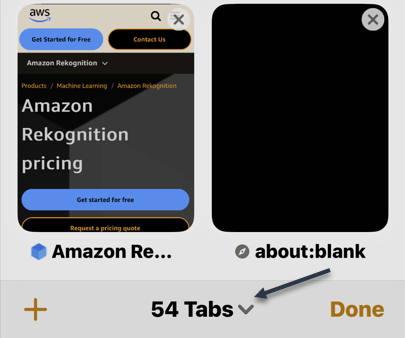
To see how many Safari tabs you have open, first, launch Safari and tap the double rectangle icon on the lower right-hand corner of your screen. Next, at the bottom, you will see your number of open tabs. Refer to the below image:

Tabs 1
Your number of open Safari tabs

Close All Open Tabs

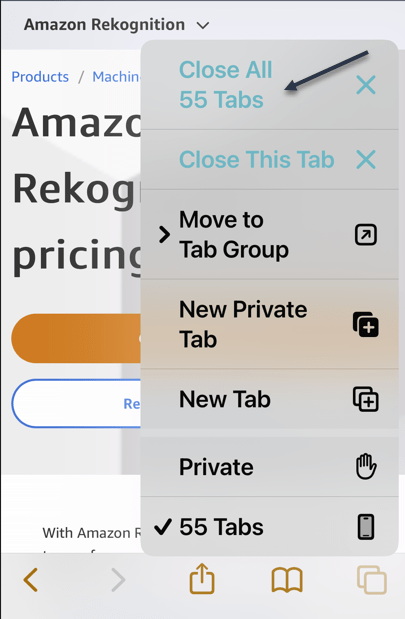
It’s easy to close all tabs at once in Safari on an iPhone or iPad. First, launch the browser, then tap and hold the View Tabs button in the bottom-right corner of the screen. Next, choose the Close All Tabs option to nuke your browsing session entirely. This works for the current session, so if you are in a Private browsing session then this will close all open private tabs. See the below image:

Tabs 2
Selecting to close all open Safari tabs

Reopen a Closed Tab

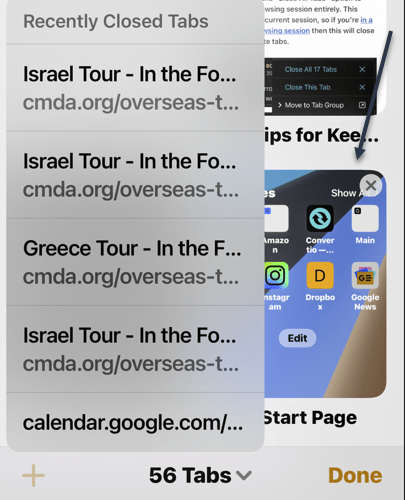
You can also get back any tabs you have recently closed. First, launch Safari, then tap tap the double rectangle icon on the lower right-hand corner of your screen.

Next, long-press the plus “+” (New Tab) button. Now, select a tab to reopen. The recently closed tab will be launched in the new tab. See the following image:

Tabs 3
Launching a recently closed Safari tab

These tabs are limited only to tabs you have closed on the device you are using, rather than another device (like a Mac).

Reopen From History

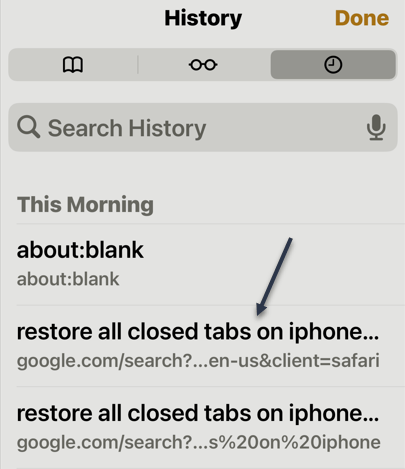
Using History, you can also get back any tabs you have recently closed. First, launch Safari, then tap the Book icon on the lower part of your screen.

Next, tap the History icon in the upper right-hand corner of your screen. Now, select a tab to reopen. The selected closed tab will be launched in the new tab. Refer to the below image:

Tabs 4
Launching a Safari tab from History

These tabs are limited only to tabs you have closed on the device you are using, rather than another device (like a Mac).

Disclaimer

Technology is always changing, and rarely is their static tech for smartphones and desktops. Thus, the contents of this post are only valid at the time of writing. Blog posts older than six months may have directions that are incompatible with your device or OS. Hopefully, older post content will continue to work as advertised. Thank you for reading TechSavvy.Life for Technology at Work For You.

Quote For the Day

I’d rather check my Facebook than face my checkbook.

Craig Coelho

Tweet Info

That’s it. Please feel free to share this post! One way to share is via Twitter.

Just click the Tweet icon below. This will launch Twitter where you click its icon to post the Tweet.

Just click the Tweet icon below. This will launch Twitter where you click its icon to post the Tweet.

I Would Like to Hear From You

Please feel free to leave a comment. I would love to hear from you. Do you have a computer or smart device tech question? I will do my best to answer your inquiry. Just send an email to contact@techsavvy.life. Please mention the device, app, and version you are using. To help us out, you can send screenshots of your data related to your question.

Author’s E-Book

You can access the e-book from a Kindle device, the Kindle App for the desktop or smartphone, which is a free app.

The author’s Vietnam eBook on the Battle for Tra Bong Vietnam: Events and Aftermath

Two Little Known Safari Features for the iPhone

Apple’s mobile browser is packed with features. They make it easier to use extensions and protect your privacy.

RAYMOND OGLESBY @RaymondOglesby2
September 13, 2022

Apple’s mobile browser is packed with features. They make it easier to use extensions and protect your privacy. Let’s explore two little-known features that all iPhone owners need to know about.

Note! Technology is always changing. This means if you are implementing this post, your OS, iOS, iPadOS, and Android screens or text may not resemble this post’s contents, especially, if you are looking at a post years old.

This is for the iPhone. Screenshots are from iPhone XR running iOS 15.5+

Copyright Scott Adams, Inc./Distributed by Universal Uclick for UFS

Safari Extensions

Safari gained the ability to use extensions with the arrival of iOS 15. This allows you to vastly expand the capabilities of Apple’s browser with third-party add-ons, though you will need to go through Apple’s channels to do so.

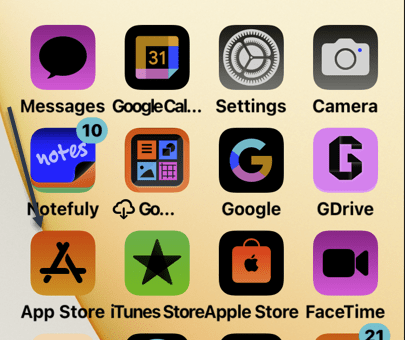
The extensions are in the App Store. First, open the App Store. Refer to the below image:

Accessing the App Store

Next, tap on Apps at the bottom of the screen. See the below image:

Selecting Apps

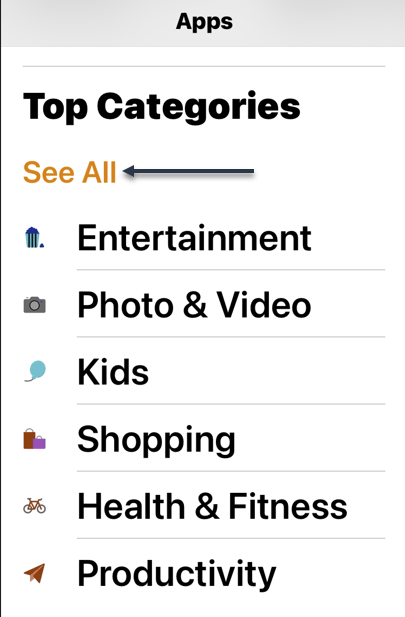
Now, scroll way down to the bottom of the page and find the Safari Extensions category under Top Categories. Tap See All if it’s not visible. From here you can install extensions just as you would any other app. See the following image:

Accessing Top Categories

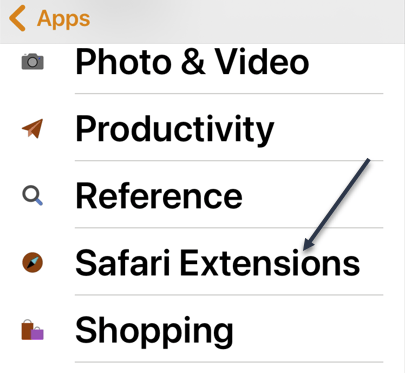
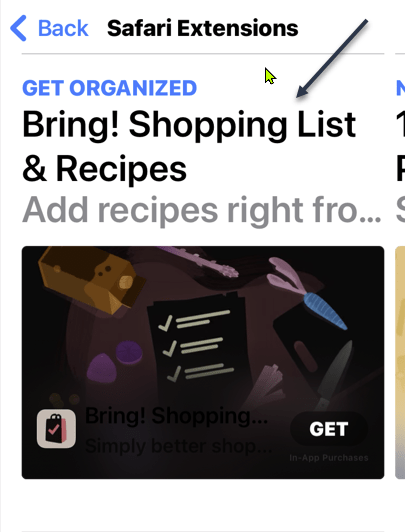
Next, scroll down and tap Safari Extensions. Refer to the below image:

Selecting Safari Extensions

Now, you can install extensions just as you would any other app. See the below image:

Install an extension by tapping GET

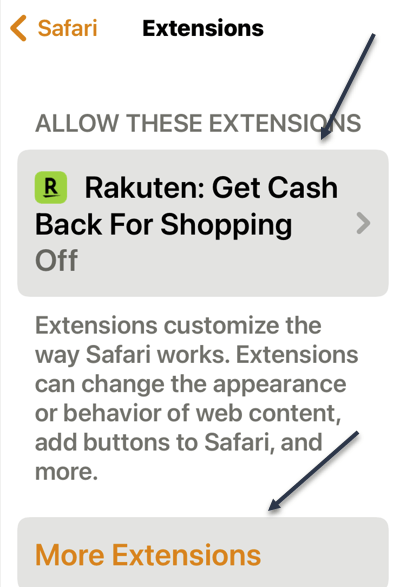
Next, many apps are bundled with Safari Extensions (just like Apple Watch apps and Home Screen widgets). To enable or disable these, head to:

Settings > Safari > Extensions

See the following image:

Safari Extensions

Advanced Privacy Features

Safari has a few privacy settings that you may have already enabled, but it’s worth checking they are on if you’re concerned about online privacy.

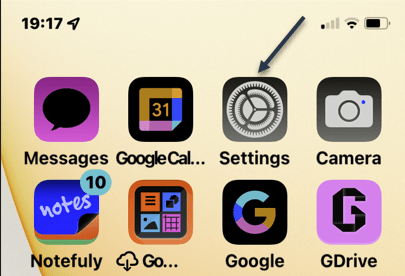
First, open Settings. Refer to the below image:

Accessing Settings

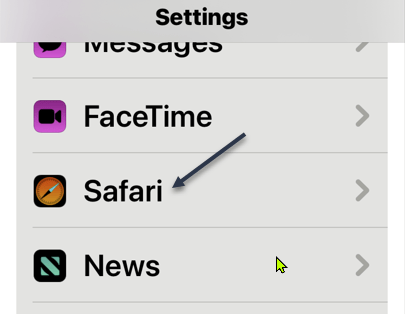
Now, tap Safari. See the below image:

Selecting Safari

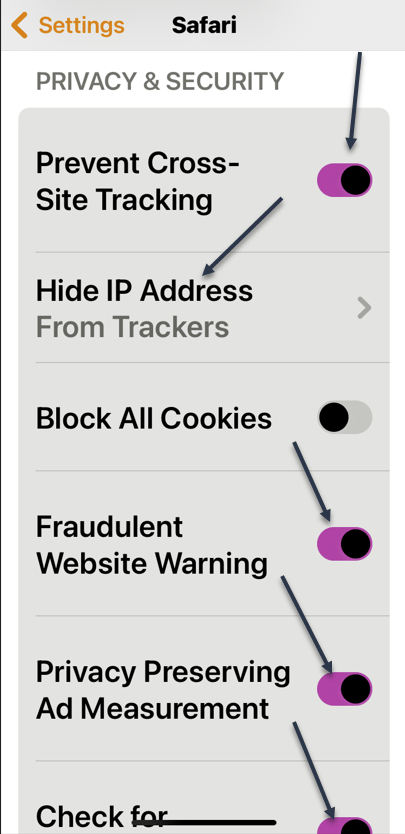
Next, scroll down to the Privacy & Security section. You can enable or disable the listed options. We recommend enabling each option except Block All Cookies and Privacy Preserving Ad Measurement by turning their toggle to ON. See the following image:

Setting Privacy options

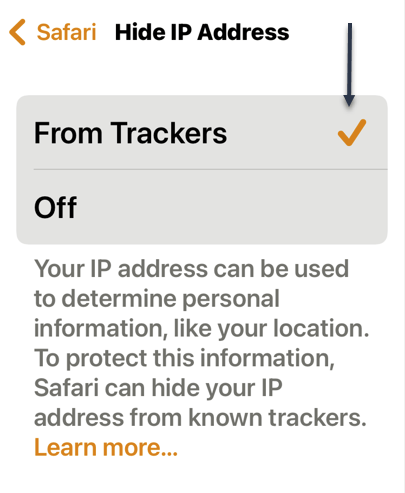
Now, tap the Hide IP Address and checkmark the From Trackers option. Refer to the below image:

Hide IP Address from Trackers

Quote For the Day

If you expect technology to solve your problems, you don’t understand technology or your problems.

Raymond Oglesby, author of TechSavvy.Life

Tweet Info

That’s it. Please feel free to share this post! One way to share is via Twitter.

Just click the Tweet icon below. This will launch Twitter where you click its icon to post the Tweet.

Checkout TechSavvy.Life for blog posts on smartphones, PCs, and Macs! You may email us at contact@techsavvy.life for comments or questions.

I Would Like to Hear From You

Please feel free to leave a comment. I would love to hear from you. Do you have a computer or smart device tech question? I will do my best to answer your inquiry. Just send an email to contact@techsavvy.life. Please mention the device, app, and version you are using. To help us out, you can send screenshots of your data related to your question.

Author’s E-Book

You can access the e-book from a Kindle device, the Kindle App for the desktop or smartphone, which is a free app.

The author’s Vietnam eBook on the Battle for Tra Bong Vietnam: Events and Aftermath