How to View Saved Wi-Fi Passwords

This post provides instructions on finding Wi-Fi passwords on Windows and iPhone devices. For Windows, it details how to access and reveal the password in plain text. For iPhone, it explains the steps to reveal the Wi-Fi password. The post also includes a disclaimer about technology changes and a quote by Thomas Sowell.

RAYMOND OGLESBY @RaymondOglesby2
February 13, 2024

This is for Windows 10/11 and iPhone. Screenshots are from Windows 10 and iPhone 14 Pro running iOS 17+

Are you connected to Wi-Fi on one device, but need the password to log in on another? Here’s how to find Wi-Fi passwords in Windows and iOS.

Struggling to connect to Wi-Fi? Maybe your laptop is connected but your phone is not, or you need to share your network with a guest but can not remember the password. There are ways to wirelessly share passwords between devices, but that’s not always an option.

Below, we will outline how to grab a Wi-Fi password from already-connected devices by viewing it as plain text. This way you do not need to reset the network security or hack the Wi-Fi network so everyone can get online.

Windows makes this easy, as long as you are connected to the network.

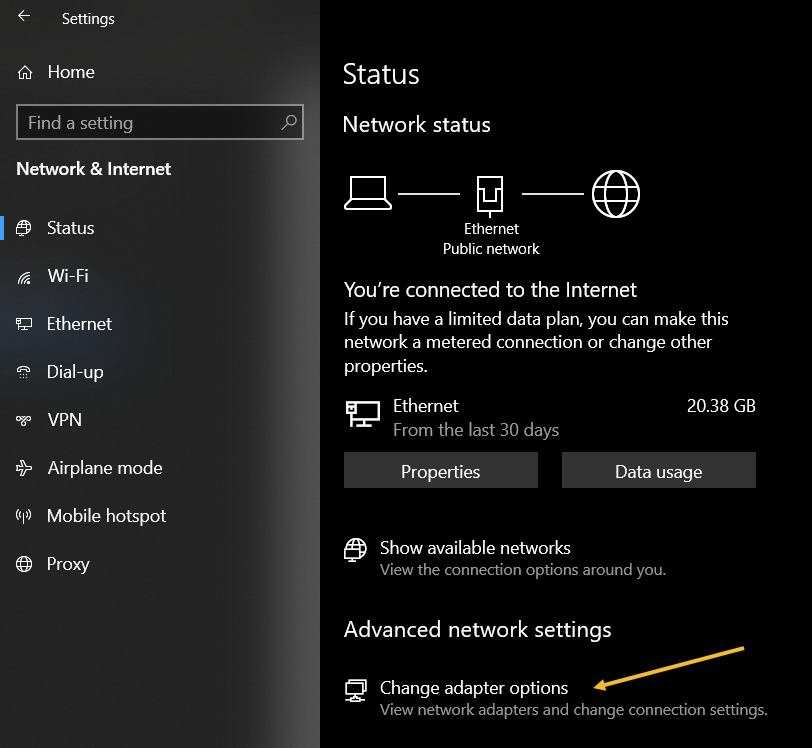
For Windows 10, open:

Settings > Network & Internet

then click the Change Adapter Options button. Refer to the below image:

Password 1
Accessing your network

For Windows 11, open:

Advanced network settings > More network adapter options

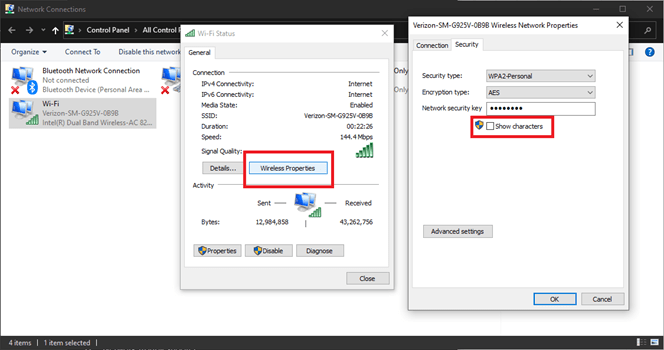
then right-click on your computer’s Wi-Fi adapter in the list and choose:

Status > Wireless Properties

Open the Security tab, and you should see a password box with dots in it. Click the Show Characters box to see the password in plain text. See the below image for Windows 10:

Password 2
Viewing your password in plain text on Windows 10

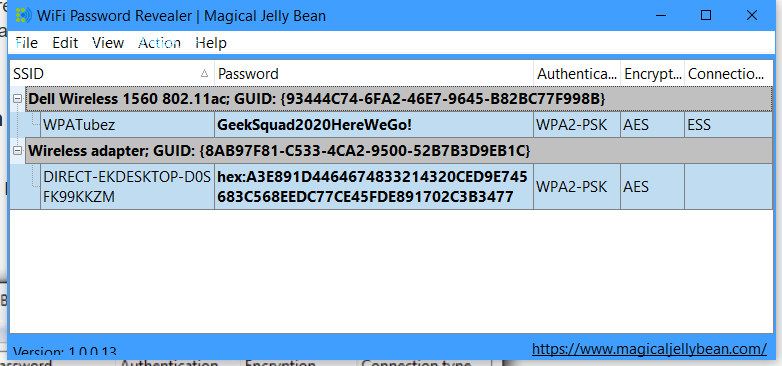
If you are trying to view the password for a network you are not currently connected to, things are a tad more complicated. You can download a third-party app like Wi-Fi Password Revealer which will show you the passwords of all saved networks. See the following image :

Password 3
Viewing Password Revealer software

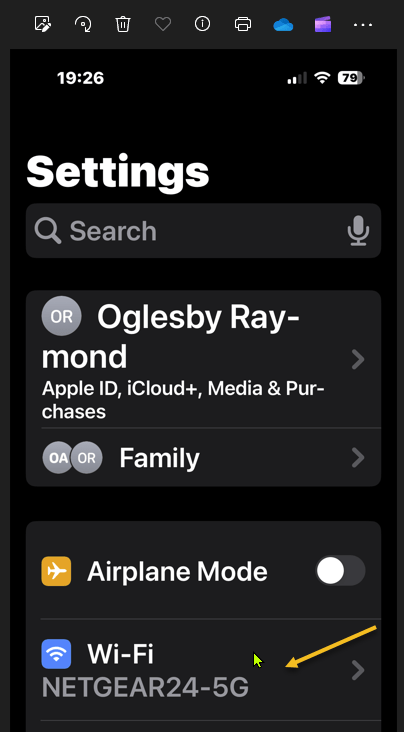
iPhone users could not view Wi-Fi passwords as plain text until iOS 16. First, open:

Settings > Wi-Fi

Refer to the below image:

Password 4
Accessing your Wi-Fi network

Now, tap the “i” icon for the current network. See the below image:

Password 5
Tapping the informational icon

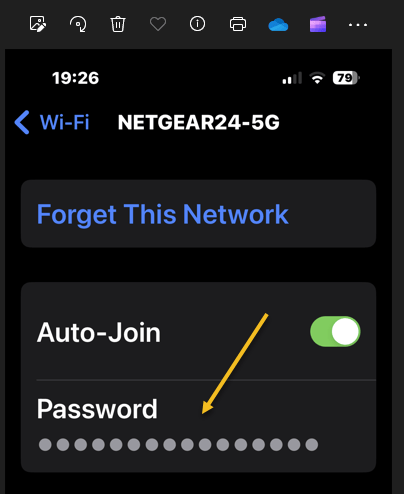
Next, select the Password entry and verify your identity with FaceID, Touch ID, or a Passcode. See the following image:

Password 6
Tapping the hidden password

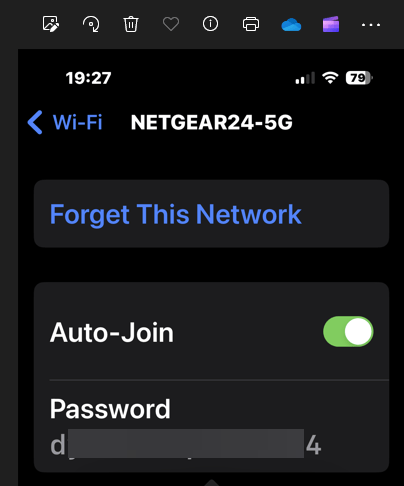
Now tap the password box with dots in it to reveal the password in plain text. Refer to the below image:

Password 7
Revealing the hidden password in plain text

Disclaimer

Technology is always changing and rarely is there static tech for smartphones and desktops. Thus, the contents of this post are only valid at the time of writing. Blog posts older than six months may have directions incompatible with your device or OS. Hopefully, older post content will continue to work as advertised. Thank you for reading TechSavvy.Life for Technology at Work For You.

It is hard to imagine a more stupid or more dangerous way of making decisions than by putting those decisions in the hands of people who pay no price for being wrong.

Thomas Sowell

That’s it. Please feel free to share this post! One way to share is via Twitter.

Just click the Tweet icon below. This will launch Twitter where you click its icon to post the Tweet.

Checkout TechSavvy.Life for blog posts on smartphones, PCs, and Macs! You may email us at contact@techsavvy.life for comments or questions.

Please feel free to leave a comment. I would love to hear from you. Do you have a computer or smart device tech question? I will do my best to answer your inquiry. Just send an email to contact@techsavvy.life. Please mention the device, app, and version you are using. To help us out, you can send screenshots of your data related to your question.

You can access the e-book from a Kindle device, the Kindle App for the desktop or smartphone, which is a free app.

The author’s Vietnam eBook on the Battle for Tra Bong Vietnam: Events and Aftermath

Is “FBI Surveillance Van” in Your Wi-Fi List

If you are trying to connect to a Wi-Fi access point and you see “FBI Surveillance Van” in your SSID list, should you be worried? Is there an FBI van outside your door?

RAYMOND OGLESBY @RaymondOglesby2
July 28, 2022

If you are trying to connect to a Wi-Fi access point and you see “FBI Surveillance Van” in your SSID list, should you be worried? Is there an FBI van outside your door? Let’s explore this surprisingly common situation.

This is for Wi-Fi routers

Dilbert and Musk
Copyright Scott Adams, Inc./Distributed by Universal Uclick for UFS

It’s a Joke

If you see “FBI Surveillance Van,” “FBI Van,” “NSA Van,” or “Police Surveillance Van” on your list of Wi-Fi routers or access points, do not worry; It’s just someone nearby playing a practical joke. This joke originated in the early days of Wi-Fi—in the 2000s; because it ties into a common fear that someone might be lurking nearby and watching you. Also, in the early days of Wi-Fi, some people used scary-sounding SSID names as a deterrent to keep people from connecting to their open (not password protected) Wi-Fi access points.

How is this possible? A Wi-Fi network name is called an SSID (“Service Set Identifier”), and people can enter any SSID they want in their Wi-Fi router or hotspot’s settings. Since everyone nearby connecting to Wi-Fi can see these SSIDs (unless they are hidden), some people use them as a public opportunity to crack a joke.

There are other dangers in using this kind of joke in the context of people who might take it seriously. In fact, an SSID named “FBI_SURVEILLANCE_VAN” made the news in 2011 in relation to a teen that plotted a violent event. This inspired a long discussion on Techdirt and a post on Gawker about whether it’s wise to name your router “FBI Surveillance Van,” even if you think it’s funny.

Is it Really a Joke?

As seen above, we already know the “FBI Surveillance Van” SSID is a joke based on ample cultural evidence on the internet. But beyond that, is there another way to know it’s just a joke?

Yes, we can. The point of law enforcement surveillance is to keep an eye on a suspect, often in secret, using a tactic called covert surveillance. The reason they keep the surveillance secret is that it might alter the suspect’s behavior if the suspect knew they were being watched.

So if an FBI van were parked nearby secretly watching someone, would they publicly announce it with an obvious Wi-Fi SSID name? No. Also, if the purported FBI agents inside this hypothetical surveillance van needed internet access, would they get it through a Wi-Fi router in their van? No, they would likely use an alternative, secure means of doing so that did not rely on consumer technology; or simply use cellular internet. They do not need to provide Wi-Fi access to your neighborhood.

Then there’s the question of the FBI’s choice of surveillance vehicle itself. Does the FBI really conduct surveillance from a van like we see in films? Possibly, but this 2008 account from NPR describes surveillance taking place mostly from ordinary cars, and sometimes on foot. What little evidence we have shows that they did use at least one van in the 1980s, but that was before the modern digital communications era.

So while we can not definitively say that the FBI is not spying on you, we can say this: If they are, it has nothing to do with a name in your Wi-Fi list.

Quote For the Day

One machine can do the work of fifty ordinary men. No machine can do the work of one extraordinary man.

Elbert Hubbard

Tweet Info

That’s it. Please feel free to share this post! One way to share is via Twitter.

Just click the Tweet icon below. This will launch Twitter where you click its icon to post the Tweet.

Check out TechSavvy.Life for blog posts on smartphones, PCs, and Macs! You may email us at contact@techsavvy.life for comments or questions.

I Would Like to Hear From You

Please feel free to leave a comment. I would love to hear from you. Do you have a computer or smart device tech question? I will do my best to answer your inquiry. Just send an email to contact@techsavvy.life. Please mention the device, app, and version you are using. To help us out, you can send screenshots of your data related to your question.

Author’s E-Book

You can access the e-book from a Kindle device, the Kindle App for the desktop or smartphone, which is a free app.

The author’s Vietnam eBook on the Battle for Tra Bong Vietnam: Events and Aftermath