

RAYMOND OGLESBY @RaymondOglesby2
November 24, 2026 – 3 minutes read time
Overview
iOS 27 brings new features to almost all of Apple’s apps, including Messages, Apple Music, Wallet, and more. Apple’s Find My app has its own share of changes in iOS 27.
Key Takeaways
- More flexible sharing options
- dDsable your location for specific people
System Requirements
This post was performed on iPhone 17 Pro running iOS 27.
Click here to learn how to update your iPhone to the latest iOS version.
Sharing Options
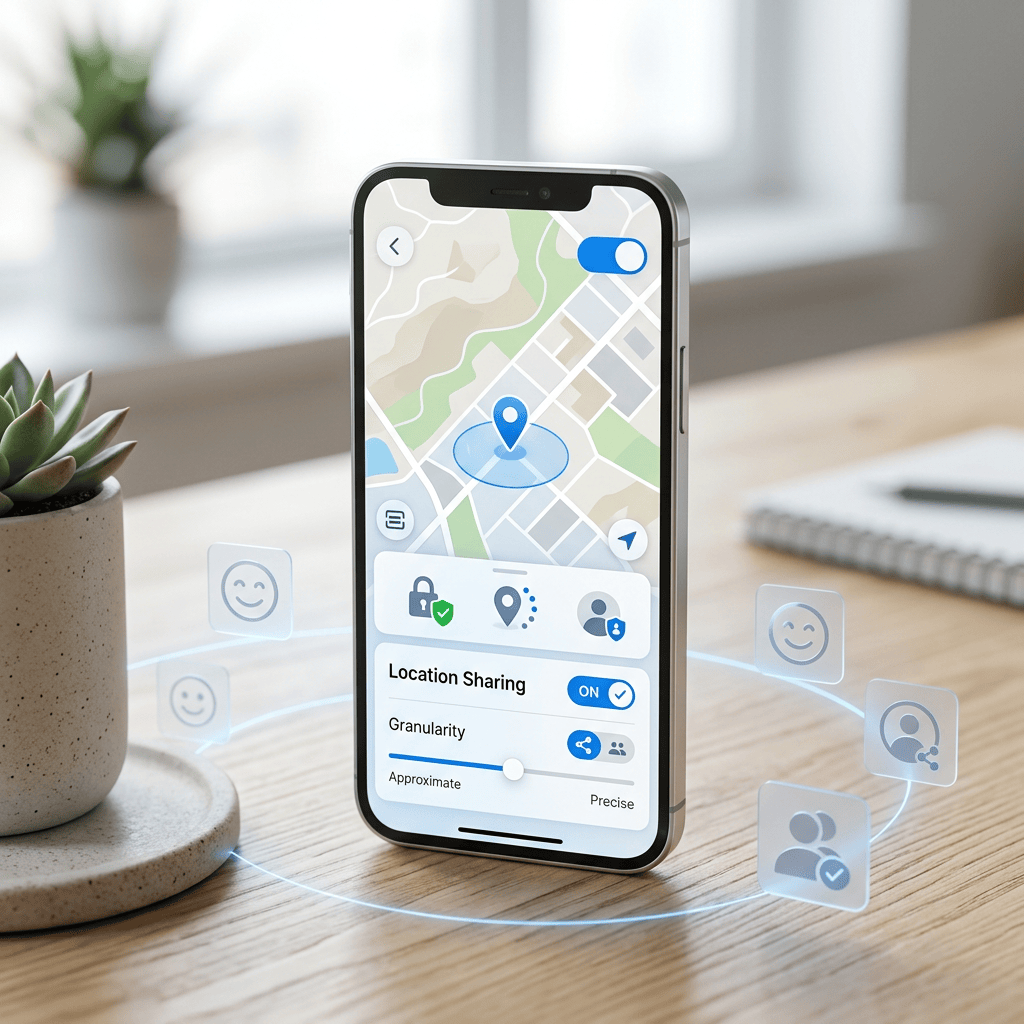
First, more flexible sharing options in Find My give you more control over when and for how long you share your location with others. “Share your location for a custom duration or until a set date and time,” Apple says. You can also now “pause sharing with people individually, whenever you want.”
One of the bigger changes here is that you can now hide your location from a specific person without sending them any notification or alert. The other person will not be notified when you pause, stop, or resume sharing your location with them.
Previously, you could turn off your location in the Find My app altogether, which would not send a notification. This, however, hid your location from everyone. In iOS 27, you can disable your location for specific people.
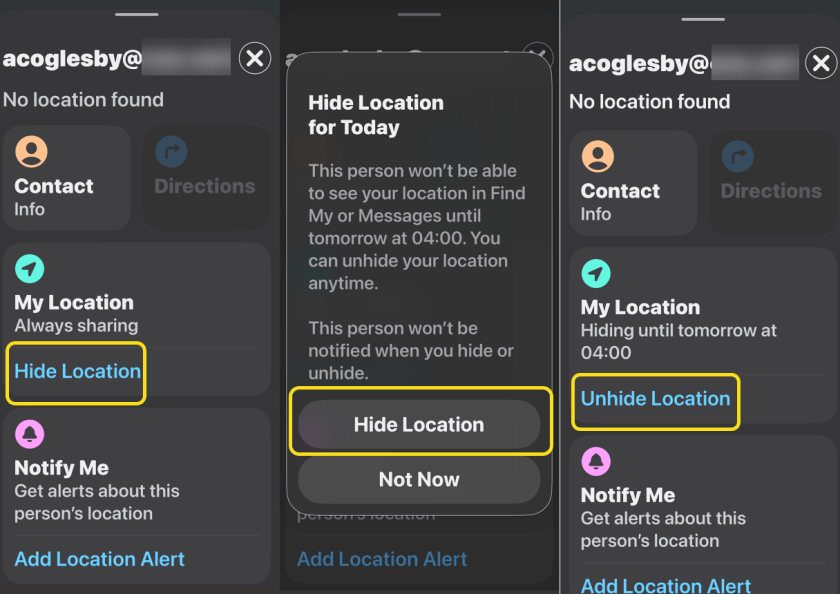
To manage this, you will see a new “Hide Location” toggle on each person’s card in the Find My app. If you pause sharing your location with someone, they will see a “No Location Found” message in their Find My app. You can unhide it manually at any time before it automatically reverts.
Enable Hide or Unhide Location
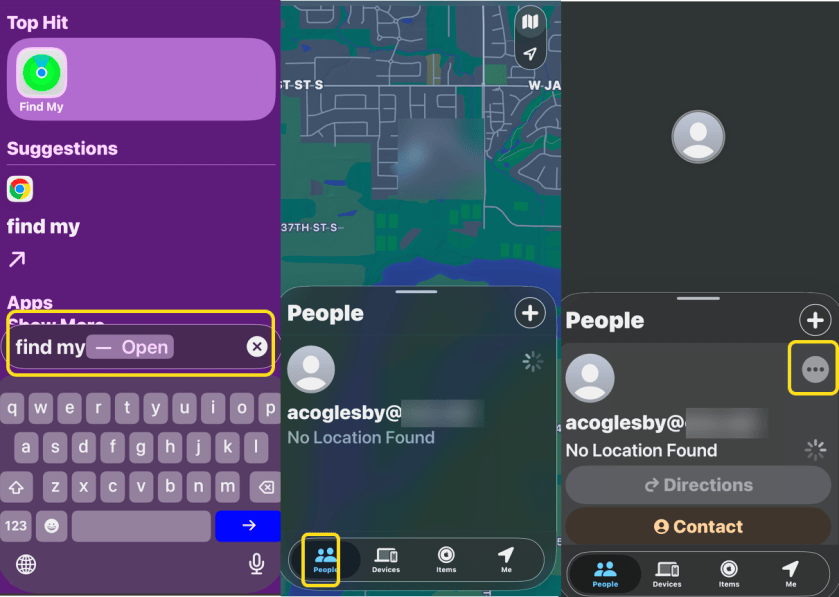
- Poen Find My app or search for it.
- Tap on the People tab.
- Select the specific person you want to hide your location from.
- Tap the three dots or options on their name card and select Hide Location.This pauses sharing until 4:00 AM the next day without sending an alert.
- You can unhide it manually at any time before it automatically reverts
Refer to the below images:
Disclaimer
Technology is constantly evolving, and smartphone and desktop tech rarely remains static. Therefore, the information in this post is only accurate as of the date it was written. Blog posts that are older than six months may contain instructions that are no longer compatible with your device or operating system. We hope that the content from previous posts continues to function as intended. Thank you for reading TechSavvy.Life, where technology works for you.
Quote For the Day
“Modern technology has become a total phenomenon for civilization, the defining force of a new social order in which efficiency is no longer an option but a necessity imposed on all human activity.”
– Jacques Ellul
(X) Twitter Info
That’s it. Please feel free to share this post! One way to share is via Twitter.
Just click the Tweet icon below. This will launch Twitter where you click its icon to post the Tweet.
Checkout TechSavvy.Life for blog posts on smartphones, PCs, and Macs! You may email us at contact@techsavvy.life for comments or questions.
Tweet
I Would Like to Hear From You
We value your feedback! Was this post helpful? Please share your comments with us. If you have a tech question related to your computer or smart device, feel free to reach out. Just send an email to contact@techsavvy.life, and be sure to include the device, app, and version you are using. To assist us further, you can also attach screenshots related to your inquiry.
The author’s Vietnam eBook, “Battle for Tra Bong Vietnam: Events and Aftermath”, is available on Kindle devices and the Kindle App for desktop, laptop, and smartphone. The apps are free.


