How to Remove Books From Kindle

Kindles can hold a lot of eBooks, but you may want to remove some. eBooks are stored in two places; on the eReader itself and your Kindle Library.

RAYMOND OGLESBY @RaymondOglesby2
September 1, 2022

Kindles can hold a lot of eBooks, but you may want to remove some. eBooks are stored in two places; on the eReader itself and your Kindle Library. We will show you how to remove your books.

This is for a Kindle. Screenshots are from Kindle Paperwhite

Dilbert and Inflation
Copyright Scott Adams, Inc./Distributed by Universal Uclick for UFS

When you buy an eBook from Amazon, rent one from your local library, or send one to your Kindle, it’s added to your Kindle Library. This is essentially iCloud storage for your eBooks. When you open the book on your Paperwhite, that’s when it downloads the eBook file to the device’s storage.

Remove an E-Book From Kindle

First, we will remove the actual eBook file from your Kindle. Note that this does not remove the book from your Kindle Library. On your Kindle home screen, tap the three-dot menu icon in the top-right corner. Refer to the below image:
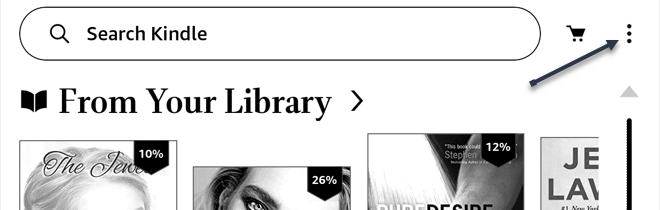
Kindle 1
Accessing the Menu

Next, select Settings from the menu. See the below image:
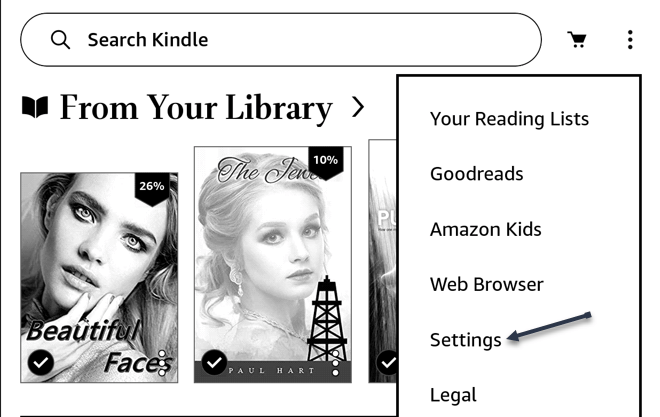
Kindle 2
Accessing Settings

Now, go to Device Options. See the following image:
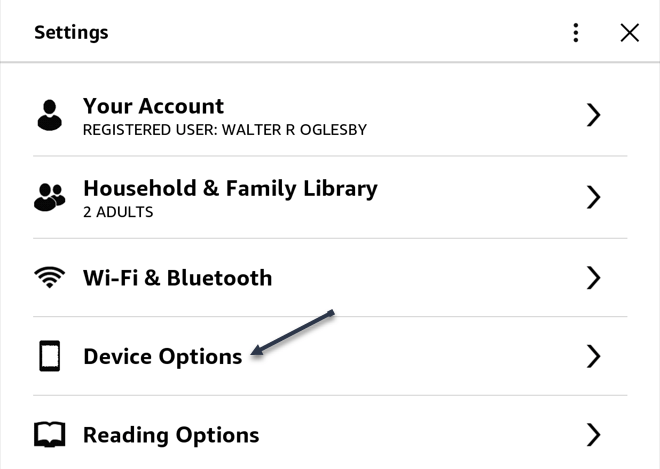
Kindle 3
Accessing Device Options

Next, go to Advanced Options. Refer to the below image:
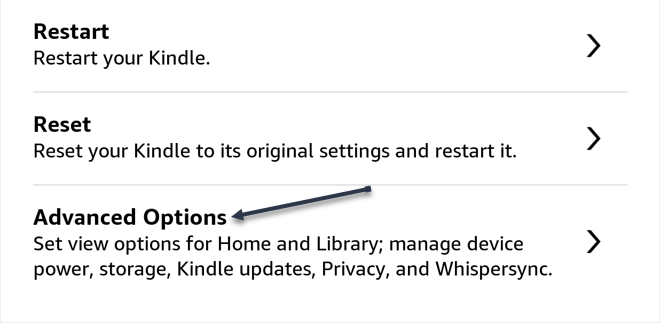
Kindle 4
Accessing Advanced Options

Now, select Storage Management. See the below image:
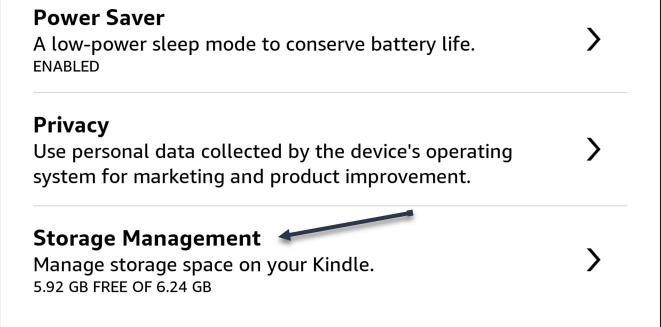
Kindle 5
Accessing Storage Management

Next, select Manual Removal. See the following image:
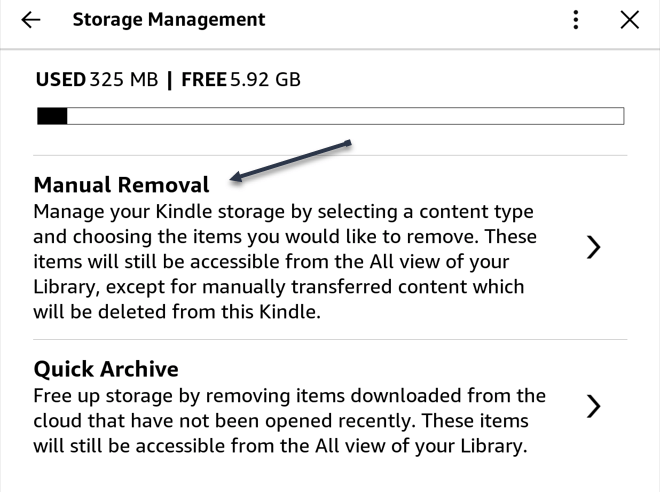
Kindle 6
Accessing Manual Removal

Now, select the Books category. Refer to the below image:
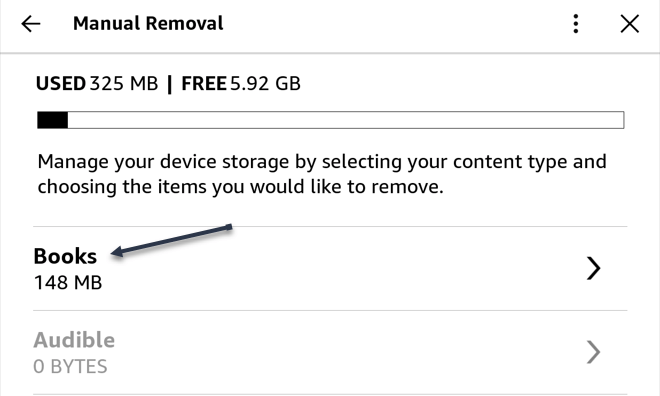
Kindle 7
Accessing Books

Next, choose the books you do not need anymore and tap Remove. See the below image:
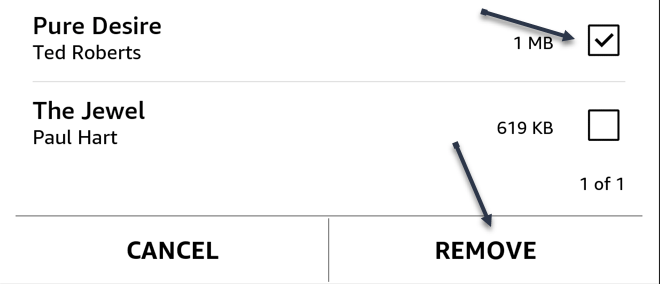
Kindle 8
Selecting Books and Remove them

Your books will no longer be taking up storage space on your Kindle Reader. It will still be in your Kindle Library.

Remove a Book From Kindle Library

You can also remove books from the Library, which will disassociate them from your account.

Removing eBooks from your Library can be done from the Kindle app on iPhone, iPad, or Android and the eReader itself. First, open the app or go to the Kindle home screen and select the Library tab. See the following image:
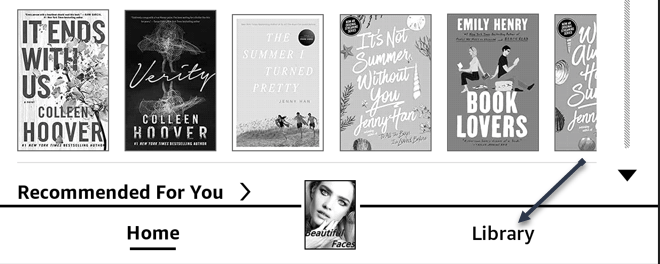
Kindle 9
Accessing Library

Next, find the book you want to remove and press and hold until a menu appears. Refer to the below image:
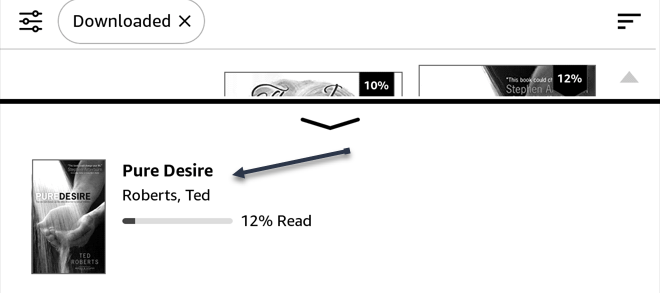
Kindle 10
Select a Book to delete/remove

Now, select Remove from Download/Library or Permanently Delete from the menu. See the below image:
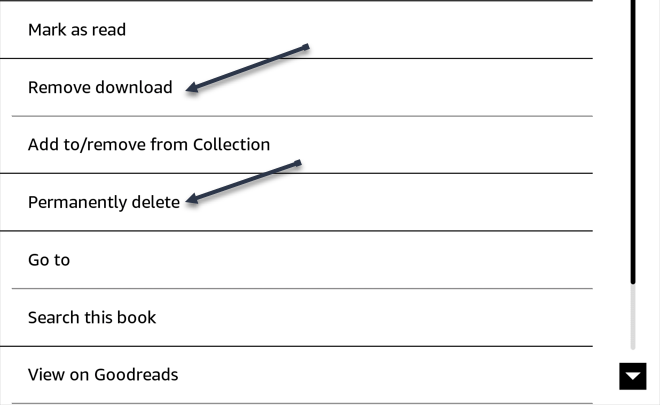
Kindle 11
Removing/Deleting the Book from your Library

Next, confirm you want to remove the eBook, and you are done! The eBook will no longer appear in your Kindle Library. If you want the book again, you will need to re-purchase or send it to your Library again. See the following image:
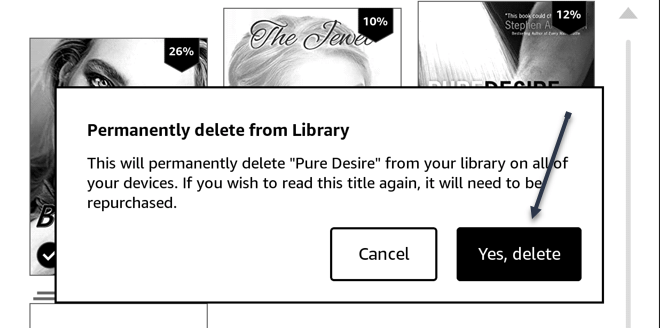
Kindle 12
Confirm the removal or deletion

Quote For the Day

It’s not that we use technology, we live technology.

Godfrey Reggio

Tweet Info

You are finished. Please feel free to share this post! One way to share is via Twitter.

Just click the Tweet icon below. This will launch Twitter where you click its icon to post the Tweet.

Checkout TechSavvy.Life for blog posts on smartphones, PCs, and Macs! You may email us at contact@techsavvy.life for comments or questions.

I Would Like to Hear From You

Please feel free to leave a comment. I would love to hear from you. Do you have a computer or smart device tech question? I will do my best to answer your inquiry. Just send an email to contact@techsavvy.life. Please mention the device, app, and version you are using. To help us out, you can send screenshots of your data related to your question.

Author’s E-Book

You can access the e-book from a Kindle device, the Kindle App for the desktop or smartphone, which is a free app.

The author’s Vietnam eBook on the Battle for Tra Bong Vietnam: Events and Aftermath

How to Delete Message(s) on iPhone

Your iPhone makes it super easy to remove individual text messages as well as entire conversations from the Messages app.

RAYMOND OGLESBY @RaymondOglesby2
August 30, 2022

Your iPhone makes it super easy to remove individual text messages as well as entire conversations from the Messages app. Let’s explore how to delete unwanted messages.

Warning: Once you have deleted a message or a conversation, you can not restore it, so make sure you are okay with losing your chats permanently.

This is for the iPhone. Screenshots are from iPhone XR running iOS 15.5+

Dilbert and Laser
Copyright Scott Adams, Inc./Distributed by Universal Uclick for UFS

Remove Individual Messages

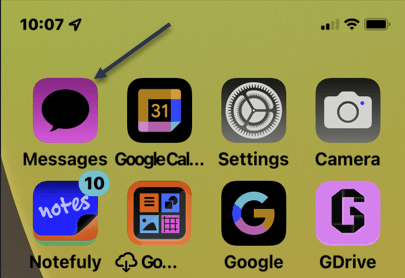
To remove single or multiple select messages from your iPhone, first, launch the Messages app on your iPhone. Refer to the below image:

Message 1
Accessing Messages

Next, in the app, find and tap the conversation in which you want to delete a message.

Now, on the Message screen, tap and hold on to the message you want to remove. Then, from the menu that opens, choose More. If the conversation has only one message, you will not see More, instead, tap Delete. See the below image:

Message 2
Accessing More option

Next, beside each message on your screen, you will see a Select icon. Tap this icon for all messages that you want to remove.

Now, when you are done, in the bottom-left corner, tap the Trash icon. See the following image:

Message 3
Selecting to delete a message

Next, in the prompt that opens, select Delete Message. Refer to the below image:

Message 4
Delete a Message

Your iPhone will delete the selected messages.

Remove Entire Conversations

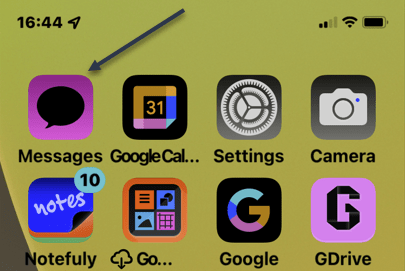
To remove an entire conversation from your iPhone, first, launch the Messages app on your iPhone. See the below image:

Message 5
Accessing Messages

Next, locate the conversation to delete but do not open it. On the conversation, you want to delete, swipe left. Then, from the options that appear, select Delete. See the following image:

Message 6
Selecting to delete a conversation

In the prompt that opens, choose Delete to confirm the deletion. Refer to the below image:

Message 7
Delete a conversation

Your iPhone will remove the entire chat from your Messages app.

Quote For The Day

Technology is a useful servant but a dangerous master.

Christian Lous Lange

Tweet Info

You are finished. Please feel free to share this post! One way to share is via Twitter.

Just click the Tweet icon below. This will launch Twitter where you click its icon to post the Tweet.

Checkout TechSavvy.Life for blog posts on smartphones, PCs, and Macs! You may email us at contact@techsavvy.life for comments or questions.

I Would Like to Hear From You

Please feel free to leave a comment. I would love to hear from you. Do you have a computer or smart device tech question? I will do my best to answer your inquiry. Just send an email to contact@techsavvy.life. Please mention the device, app, and version you are using. To help us out, you can send screenshots of your data related to your question.

Author’s E-Book

You can access the e-book from a Kindle device, the Kindle App for the desktop or smartphone, which is a free app.
The author’s Vietnam eBook on the Battle for Tra Bong Vietnam: Events and Aftermath

How to Use Quiet Mode on Facebook

If you are having trouble stepping away from Facebook’s endless scroll, Quiet Mode can help silence the chatter, memes, and misinformation.

RAYMOND OGLESBY @RaymondOglesby2
August 25, 2022

If you are having trouble stepping away from Facebook’s endless scroll, Quiet Mode can help silence the chatter, memes, and misinformation. Let’s explore this Facebook feature.

This is for devices using Facebook on mobile. Screenshots are from iPhone XR

Dilbert and Management
Copyright Scott Adams, Inc./Distributed by Universal Uclick for UFS

Social media is designed to keep you hooked. The endless scrolling. A constant stream of notifications. The temptation of opening an app. It all works together to suck you in and keep your attention for longer than what could be considered a harmless distraction.

If you feel like you are ready to pull back without fully unplugging, Facebook offers a built-in tool called Quiet Mode that can help you manage your time on the platform.

To get started, first, open Facebook, tap the Menu (the Hamburger icon) in the mobile app, and head to:

Settings & privacy > Settings > Your Time on Facebook under the Preferences section.

Time You Spend on Facebook

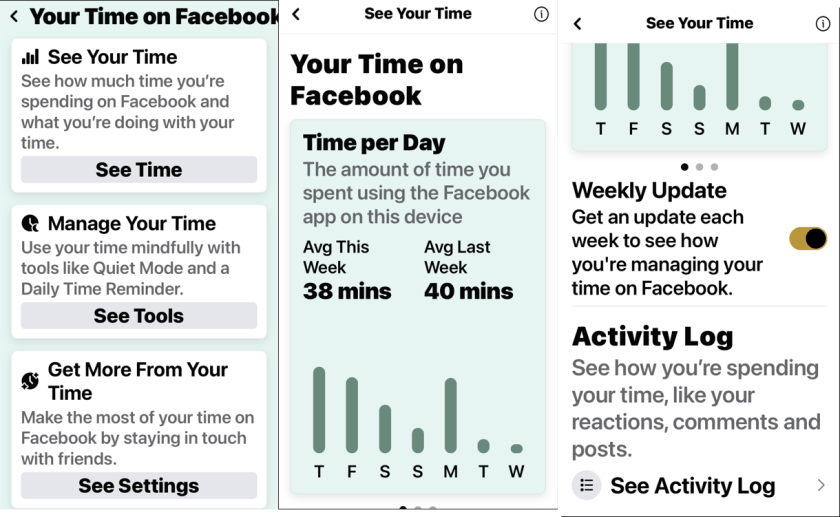
Next, tap See Time on the Your Time on Facebook page. Here you can view several graphs that show app usage. Swipe the screen to view total time, daytime versus nighttime hours, and how many times you opened the app over the last week. Refer to the below image:

FB Time 1
Your time on Facebook

Now, if you simply want to be mindful of your usage and not change anything, enable Weekly Update, which will send you a weekly email reviewing your Facebook usage from the last seven days. You can also tap Activity Log to view all your recent actions on the platform.

Setup Daily Reminder

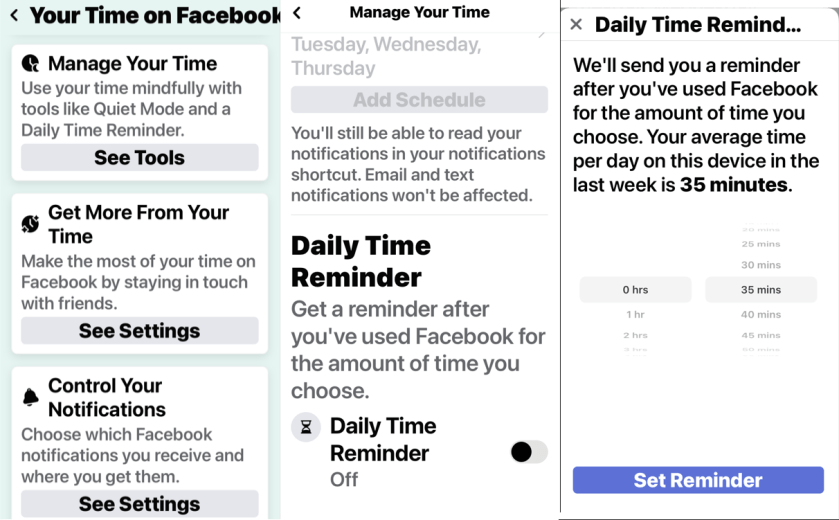
Next, tap the See Tools button on the Your Time on Facebook page. You can start off slow by setting a reminder that will tell you to stop using the app after a set amount of time.

Now, from the Manage Your Time page, enable Daily Time Reminder at the bottom of the page, and then set the timer to a specific amount of hours and minutes. The app will tell you how much time you average per day so you can set the timer to something under that number. Tap Set Reminder, then continue using the app until your time is up. See the below image:

FB Time 2
Daily Reminder

Set Quiet Mode

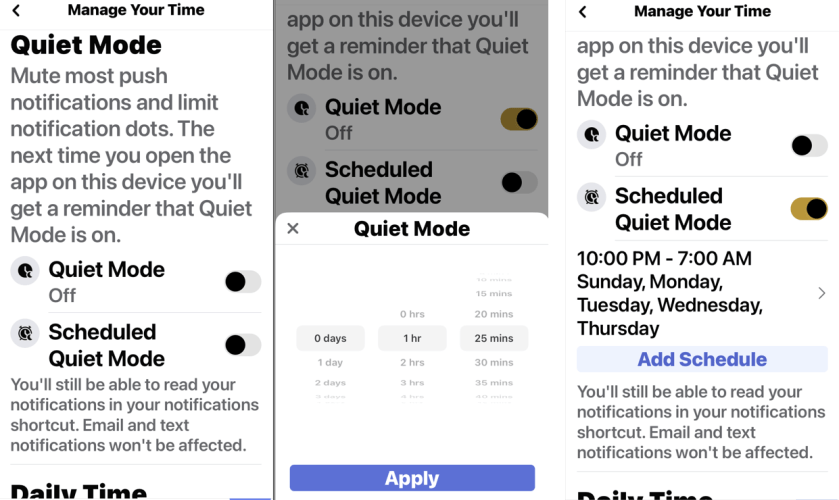
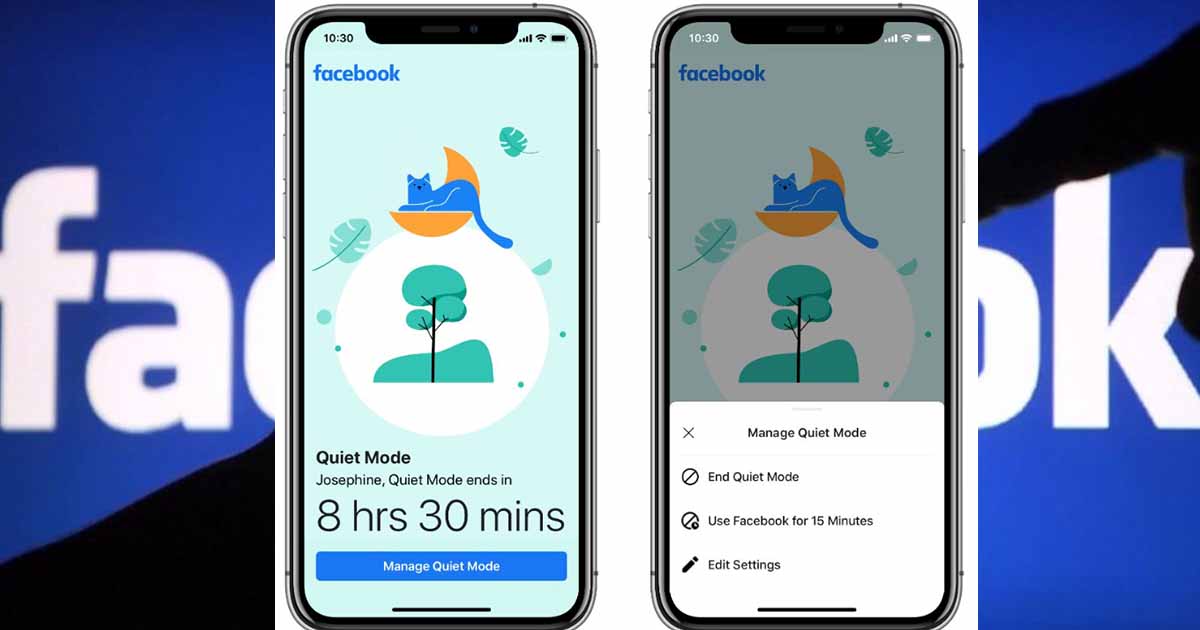
Next, if you need a little help cutting down on Facebook usage, Quiet Mode is here to help. When enabled, this feature will mute push notifications to your phone, limit the notification dots that appear in the app, and stop you from using the app the next time you open it. Enable Quiet Mode from the Manage Your Time page, and then set how long you want it to stay on.

Now, you can also schedule Quiet Mode to turn on at a specific time each day. Enable Scheduled Quiet Mode, then tap Add Schedule to set the start and end time, as well as which days the feature should be used. TapDelete Schedule to remove or redo it. See the following image:

FB Time 3

Quiet Mode

Manage Quiet Mode

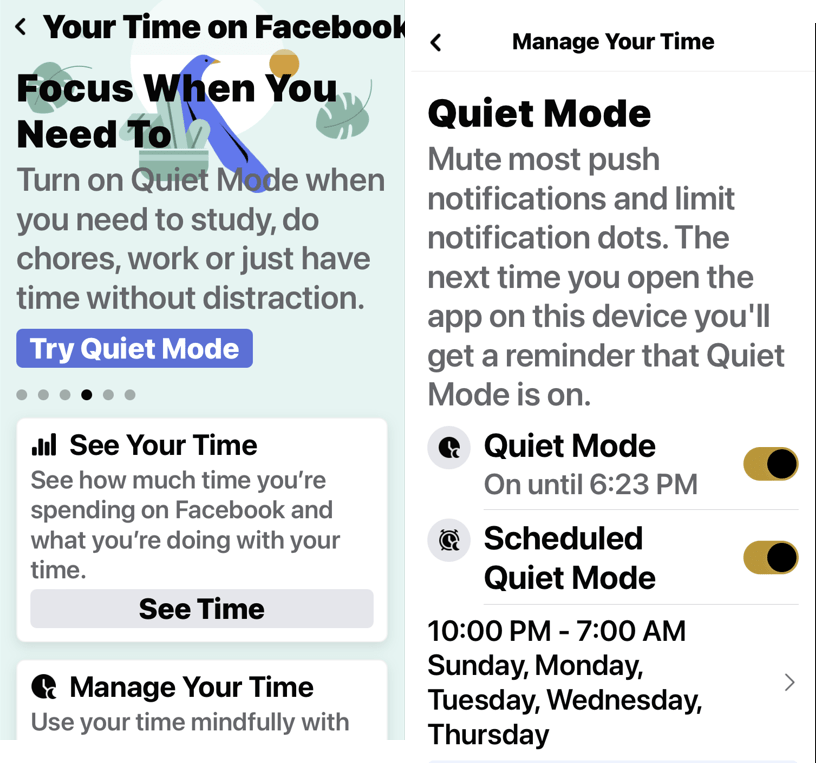
Next, when you open the app while Quiet Mode is enabled, you will be greeted by a reminder that shows you how long you have left. If you really need to do something in the app, tap Manage Quiet Mode and either end Quiet Mode immediately or get a 15-minute reprieve. Or choose Edit Settings to change how Quiet Mode works for you. Refer to the below image:

FB Time 4
Manage Quiet Mode

Quote For the Day

Innovation is the outcome of a habit, not a random act.

Sukant Ratnakar

Tweet Info

That’s it. Please feel free to share this post! One way to share is via Twitter.

Just click the Tweet icon below. This will launch Twitter where you click its icon to post the Tweet.

Checkout TechSavvy.Life for blog posts on smartphones, PCs, and Macs! You may email us at contact@techsavvy.life for comments or questions.

I Would Like to Hear From You

Please feel free to leave a comment. I would love to hear from you. Do you have a computer or smart device tech question? I will do my best to answer your inquiry. Just send an email to contact@techsavvy.life. Please mention the device, app, and version you are using. To help us out, you can send screenshots of your data related to your question.

Author’s E-Book

You can access the e-book from a Kindle device, the Kindle App for the desktop or smartphone, which is a free app.

The author’s Vietnam eBook on the Battle for Tra Bong Vietnam: Events and Aftermath

How to Follow Someone on Facebook

Once you follow a personal account or a page on Facebook, you start seeing that entity’s posts in your News feed. This is a great way to get updates from your favorite people or brands without being friends.

RAYMOND OGLESBY @RaymondOglesby2
August 23, 2022

Once you follow a personal account or a page on Facebook, you start seeing that entity’s posts in your News feed. This is a great way to get updates from your favorite people or brands without being friends. Let’s explore following a person on Facebook.

This is for devices using Facebook. Screenshots are from Windows 10 and iPhone XR

Dilbert and Crypto
Copyright Scott Adams, Inc./Distributed by Universal Uclick for UFS

Following vs Friending

When you follow someone, you do not have to add them as a friend. You can see that entity’s posts and other content in your News feed while not becoming a part of their friend’s list. This option is usually used to follow celebrities and the pages that interest you on this social platform.

To follow someone and to add someone as a friend are two different things on Facebook.

The convention on Facebook is that when you add someone as a friend, it’s likely you know that person personally. You add people like your real-life friends, colleagues, and family as “friends” on Facebook.

Know that while Facebook allows you to have up to 5,000 friends at a time, there’s no such limit for followers. Also, keep in mind that people and pages can choose not to allow themselves to be followed. In such cases, you will not see the Follow button on these entities’ pages on Facebook.

Follow People

To follow a personal account on Facebook, all you have to do is visit that person’s profile page and click or tap an option.

On Desktop

On your computer, first, launch a web browser and open Facebook. Log in to your account if you have not already.

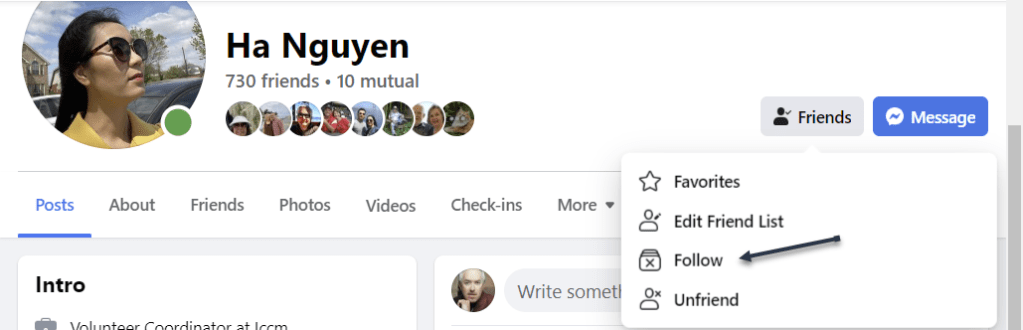
Next, after logging in, access the profile page of the person you want to follow. On this page, in the tab list beneath the person’s name, click the three dots (the Menu icon) or the Friends button. Refer to the below image:

Accessing the Menu

Now, in the three-dot Menu, choose Follow. If you do not see the Follow option, that person has yet to enable others to follow them. See the below image:

Selecting to Follow

Tip: Later, to unfollow this person, click Following followed by Unfollow on the person’s profile page.

You are now following the selected person in your Facebook account. The person’s posts will appear in your News feed.

On Mobile

To follow a person from your phone or tablet, first, launch the Facebook app on your mobile device. Then, open the profile page of the person you want to follow.

Next, on the profile page, beneath the person’s name, tap the three dots (the Menu icon). See the following image:

Accessing the Menu

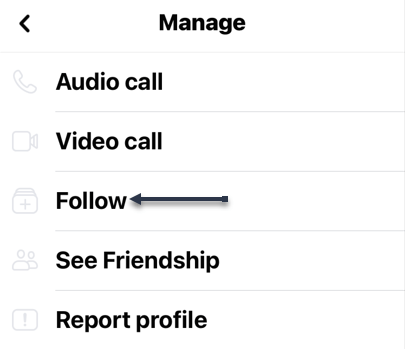
Now, in the Profile Settings menu, choose Follow. Refer to the below image:

Selecting to Follow

Tip: In the future, to unfollow this person, tap Following followed by Unfollow.

You are now following the selected person in your Facebook account. The person’s posts will appear in your News feed.

Follow Pages

Following a page is as easy as doing so for a personal account.

On Desktop

On your computer, first, launch a web browser and open Facebook. Log in to your account if you have not already.

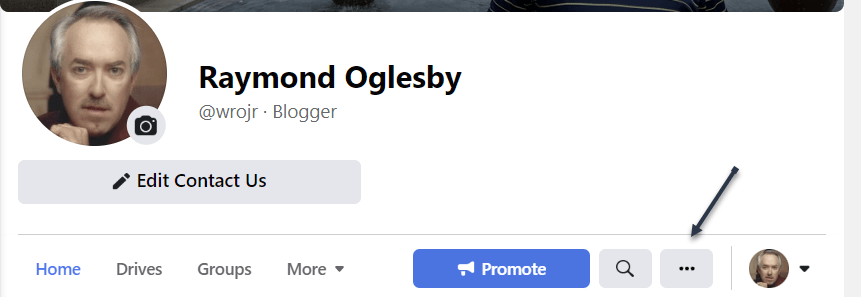
Next, open the page you wish to follow. On the page screen, at the far right of the tab list, click the three lines or the three dots (the Menu icon), whichever is shown. See the below image:

Accessing the Menu

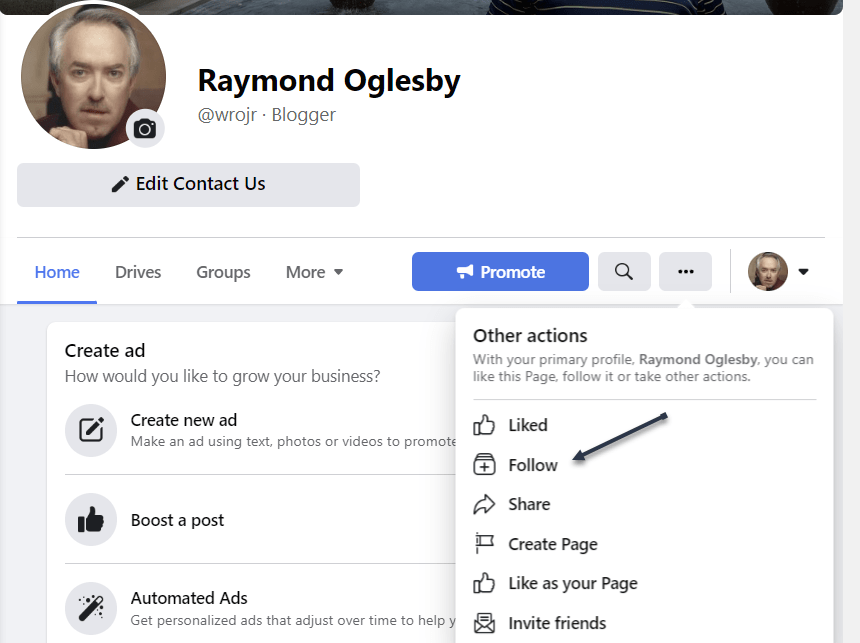
Now, in the Menu, choose Follow. If you do not see the Follow option, that person has yet to enable others to follow their page. See the following image:

Selecting to Follow

Tip: Later, to unfollow a page, visit the page, click the three lines or the three dots (the Menu icon), and choose Follow Settings. Then enable Unfollow This Page and click Update.

You are now following the selected person’s page posts in your Facebook account. The person’s page posts will appear in your News feed.

On Mobile

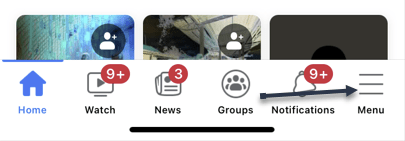
On your mobile phone or tablet, first, launch the Facebook app. Access the page to follow, then tap the three lines or three dots (the Menu icon). Refer to the below image:

Accessing the Menu

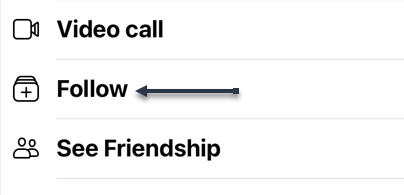
Next, from the Menu that opens, select Follow. See the below image:

Selecting to Follow

Tip: To unfollow a page, tap the three lines or three dots (the Menu icon) and select Manage Follow Settings. Then tap Unfollow.

You are now following your favorite page on Facebook.

Quote For the Day

Let’s go invent tomorrow instead of worrying about what happen yesterday.

Steve Jobs

Tweet Info

That’s it. Please feel free to share this post! One way to share is via Twitter.

Just click the Tweet icon below. This will launch Twitter where you click its icon to post the Tweet.

Checkout TechSavvy.Life for blog posts on smartphones, PCs, and Macs! You may email us at contact@techsavvy.life for comments or questions.

I Would Like to Hear From You

Please feel free to leave a comment. I would love to hear from you. Do you have a computer or smart device tech question? I will do my best to answer your inquiry. Just send an email to contact@techsavvy.life. Please mention the device, app, and version you are using. To help us out, you can send screenshots of your data related to your question.

Author’s E-book

You can access the e-book from a Kindle device, the Kindle App for the desktop or smartphone, which is a free app.

The author’s Vietnam eBook on the Battle for Tra Bong Vietnam: Events and Aftermath

How to Remove the Icons in Search Box in Windows 10/11

You may have noticed new, and ever-changing, little icons in the Search box on Windows 10’s Taskbar. That’s a “search highlight.” If you are like us, we found these icons very annoying.

RAYMOND OGLESBY @RaymondOglesby2
July 23, 2022

You may have noticed new, and ever-changing, little icons in the Search box on Windows 10’s Taskbar. That’s a “search highlight.” If you are like us, we found these icons very annoying. Here’s what it is and how to remove it.

This is for Windows 10 and 11. Screenshots are from Windows 10

Dilbert and Pills
Copyright Scott Adams, Inc./Distributed by Universal Uclick for UFS

Why the Icons

The icons are a part of a new feature rolled out to Windows 10 and Windows 11 as part of an April 2022 update.

The particular feature is called Search Highlights and it integrates a rotating set of icons into the right-hand side of the toolbar Search box. Depending on the day, the icons are specific; such as to celebrate the U.S. Open golf tournament, or more generic with suggested backgrounds, like photos of U.S. national parks.

In addition to placing the icons in the Search box, the Search Highlights feature also puts “highlighted” content into the Search menu on both Windows 10 and Windows 11. The highlights include news, trending stories, word and quote of the day tiles (presumably rolled out on slow news days,) as well as a trending searches tile.

If you like Microsoft’s bid to mimic a sort of Google daily doodle combined with a little news showcase in your Search menu then you can, naturally, just leave things how they are.

But if you had a less than positive reaction to the change, it’s thankfully very simple to turn off. Yea!

Remove the Icons

First, on Windows 10, you will see the icons in the Search box. Refer to the below image:

Icons 1
The icons in the Search box

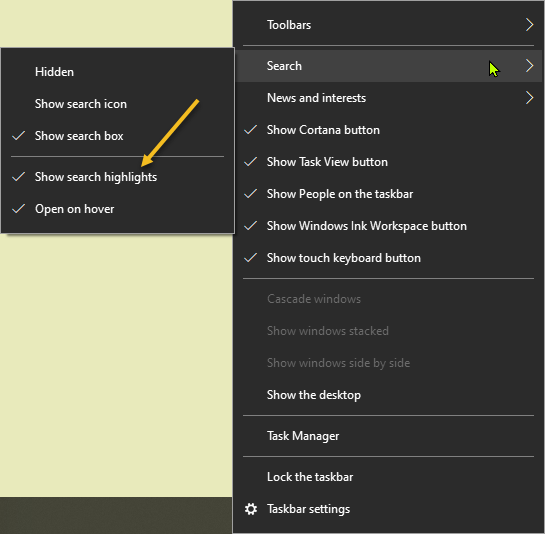
Next, right-click on a blank area in your Taskbar to pull up the menu, select Search and uncheck Show search highlights option to get rid of these silly icons. Refer to the below image:

Icons 2
Remove the icons by unchecking Show search highlights

Although there’s no Search box (and thus no new icons) on Windows 11, you can still turn off the highlights in the Search menu. Just head to:

Settings > Privacy & Security > Search Permissions > More Settings

In the More Settings section just toggle OFF the switch Show Search Highlights.

With that simple change, there will not be any more icons in the Search box or news highlights in the Search menu.

Quote For the Day

The machine does not isolate man from the great problems of nature but plunges him more deeply into them.

Antoine de Saint-Exupery

Tweet Info

That’s it. Please feel free to share this post! One way to share is via Twitter.

Just click the Tweet icon below. This will launch Twitter where you click its icon to post the Tweet.

Checkout TechSavvy.Life for blog posts on smartphones, PCs, and Macs! You may email us at contact@techsavvy.life for comments or questions.

I Would Like to Hear From You

Please feel free to leave a comment. I would love to hear from you. Do you have a computer or smart device tech question? I will do my best to answer your inquiry. Just send an email to contact@techsavvy.life. Please mention the device, app, and version you are using. To help us out, you can send screenshots of your data related to your question.

Author’s E-book

You can access the e-book from a Kindle device, the Kindle App for the desktop or smartphone, which is a free app.

The author’s Vietnam eBook on the Battle for Tra Bong Vietnam: Events and Aftermath

How to Turn Off Data Roaming on Smartphones

Roaming is a term that often gets mentioned in data plans for smartphones. Are you technically “roaming” when you’re out and about? Well, that’s not exactly what it means in the eyes of your mobile carrier.

RAYMOND OGLESBY @RaymondOglesby2
August 16, 2022

Roaming is a term that often gets mentioned in data plans for smartphones. Are you technically “roaming” when you are out and about? Well, that’s not exactly what it means in the eyes of your mobile carrier. Let’s explore data roaming.

This is for smartphones

Dilbert and Chip
Copyright Scott Adams, Inc./Distributed by Universal Uclick for UFS

Data Roaming

Data roaming is actually a very simple concept. You have a mobile carrier that provides data to your smartphone when it’s not connected to Wi-Fi. However, as you know, your carrier’s network is not limitless.

So what happens when you go somewhere not covered by your carrier’s network? That’s where data roaming comes in. Roaming allows you to hop on another network so you can still make calls, send texts, and use wireless data when your carrier’s network is disconnected.

This typically works through agreements between your carrier and other networks. The most common scenario in which data roaming comes into play is traveling to a country where your carrier does not have a presence. You can roam on the other network and not need to sign up for something new.

The Cost

Unfortunately, data roaming is not usually included for free as part of your data plan. If you want unlimited roaming you will need to pay for one of the more expensive plans. Roaming charges vary from carrier to carrier.

In general, if you do not pay extra for unlimited roaming, you will pay for how much you use. That could be around $0.25 per minute on calls, $0.10 per SMS, and $3 per MB of data. Needless to say, those numbers can add up quickly, so make sure to read the details of your data plan to find out what you could be charged.

Avoid the Charges

The good news is you probably do not have to worry about roaming charges. Your carrier may not have 5G or LTE coverage in all places, but there is almost always some lower-speed coverage everywhere in the country. Data roaming is primarily for traveling internationally.

That being said, there are some things you can do to be absolutely sure you are never roaming and being charged for it.

On the Android

On Android, go to:

Settings > Network & Internet > SIM

and toggle Roaming to OFF.

On the Samsung

On Samsung o to:

Settings > Connections > Mobile Networks

and toggle Data Roaming to OFF.

On the iPhone

On the iPhone, go to:

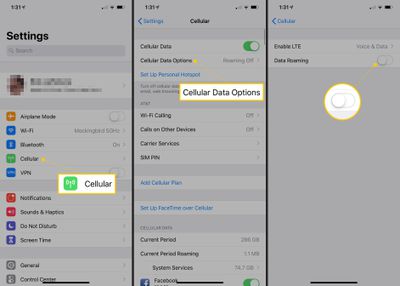
Settings > Cellular > Cellular Data Options

and toggle Data Roaming to OFF. Refer to the below image:

Roaming 1
Turn OFF Data Roaming

Tip: If you are not traveling internationally, you can also consider paying for an international data plan with your cellular carrier. You can also consider getting a SIM card and cellular data plan in the country you will be staying in. Both of these are good ways to avoid the usual pay-for-the-data-you-use roaming charges, which can be expensive.

That’s all there is to data roaming. It’s primarily a feature of mobile networks for traveling outside of your country of residence. In your day-to-day life, it’s not something to worry about. However, if you plan on traveling, you will want to see what your carrier has to offer.

Quote For The Day

In software systems it is often the early bird that makes the worm.

Alan Perlis

Tweet Info

That’s it. Please feel free to share this post! One way to share is via Twitter.

Just click the Tweet icon below. This will launch Twitter where you click its icon to post the Tweet.

Checkout TechSavvy.Life for blog posts on smartphones, PCs, and Macs! You may email us at contact@techsavvy.life for comments or questions.

I Would Like to Hear From You

Please feel free to leave a comment. I would love to hear from you. Do you have a computer or smart device tech question? I will do my best to answer your inquiry. Just send an email to contact@techsavvy.life. Please mention the device, app, and version you are using. To help us out, you can send screenshots of your data related to your question.

Author’s E-book

You can access the e-book from a Kindle device, the Kindle App for the desktop or smartphone, which is a free app.
The author’s Vietnam eBook on the Battle for Tra Bong Vietnam: Events and Aftermath

Using the Ctrl+Shift+V Shortcut

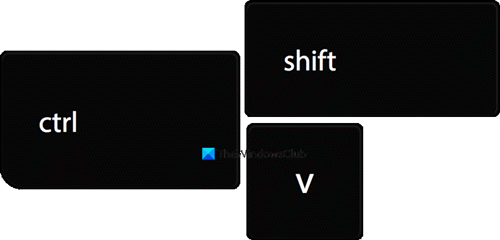
Tired of pasting and getting weird fonts and formatting in Windows 10 or 11? Avoid using Notepad as an intermediary. Try Ctrl+Shift+V shortcut and you will get only the text you want.

RAYMOND OGLESBY @RaymondOglesby2
August 11, 2022

Tired of pasting and getting weird fonts and formatting in Windows 10 or 11? Avoid using Notepad as an intermediary. Try Ctrl+Shift+V shortcut and you will get only the text you want. Here’s why.

This is for Windows 10/11 and Mac. Screenshots are from Windows 10

Dilbert and Metaverse
Copyright Scott Adams, Inc./Distributed by Universal Uclick for UFS

Paste Without Formatting

By default, when you normally Copy with Ctrl+C and Paste with Ctrl+V in Windows, the clipboard captures not only the text you have selected but also the styling that goes with it. That includes font style, text color, attributes such as bold and italics, and even bulleted lists.

Fortunately, there’s an easy way to avoid it. The next time you want to paste only the text without any formatting or style information, press Ctrl+Shift+V on your keyboard in Windows 10/11. (On a Mac, you can press Option+Shift+Command+V for a similar result).

Microsoft Word Fix

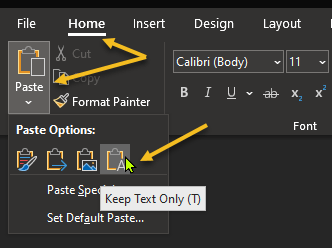
In Microsoft Word, Ctrl+Shift+V does not work. Instead, you will need to use a special option in the ribbon menu. To do so, switch to the Home tab and click Paste, then select the icon that looks like a clipboard with an “A” on it (Keep Text Only) which will paste without formatting. Refer to the below image:

Word Shortcut 1
Selecting the Keep Text Only option

You can also change the default behavior in Word to always paste without formatting. To do so, navigate to

File > Options

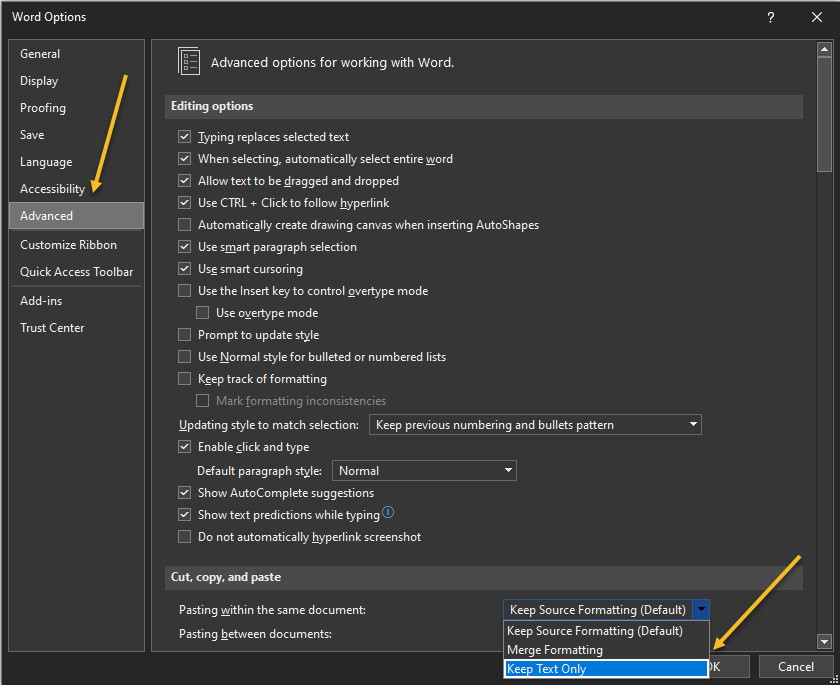
In the Options menu that opens, click Advanced in the sidebar, then choose Keep Text Only in the Cut, Copy, and Paste drop-down menus. This way, you can make Ctrl+V always paste as Keep Text Only in Word. See the below image:

Word Shortcut 2
Selecting the Keep Text Only option for Pasting within the same document

Quote For the Day

Our business is about technology, yes.But its also about operations and customer relationships.

Michael Dell

Tweet Info

That’s it. Please feel free to share this post! One way to share is via Twitter.

Just click the Tweet icon below. This will launch Twitter where you click its icon to post the Tweet.

Checkout TechSavvy.Life for blog posts on smartphones, PCs, and Macs! You may email us at contact@techsavvy.life for comments or questions.

I Would Like to Hear From You

Please feel free to leave a comment. I would love to hear from you. Do you have a computer or smart device tech question? I will do my best to answer your inquiry. Just send an email to contact@techsavvy.life. Please mention the device, app, and version you are using. To help us out, you can send screenshots of your data related to your question.

Author’s E-Book

You can access the e-book from a Kindle device, the Kindle App for the desktop or smartphone, which is a free app.

The author’s Vietnam eBook on the Battle for Tra Bong Vietnam: Events and Aftermath

How to Make Text Shortcuts on iPhone

Typing things out on an iPhone keyboard can be tiresome, but it does not have to be that way for everything. You can make custom text shortcuts to automatically be replaced with longer words or phrases. It’s a super handy feature.

RAYMOND OGLESBY @RaymondOglesby2
August 9, 2022

Typing things out on an iPhone keyboard can be tiresome, but it does not have to be that way for everything. You can make custom text shortcuts to automatically be replaced with longer words or phrases. It’s a super handy feature. Let’s explore how to set up text shortcuts.

This is for the iPhone. Screenshots are from iPhone XR running iOS 15.6+

Dilbert and Fired
Copyright Scott Adams, Inc./Distributed by Universal Uclick for UFS

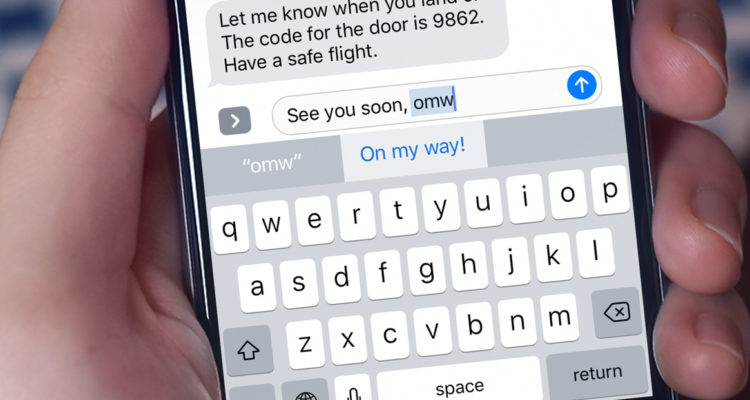
There’s a lot you can do with the iPhone’s Text Replacement feature. One example is included on every iPhone by default; omw is automatically replaced with On my way. You can use that same idea for anything. All you need is a shortcut and a phrase to go with it.

Note: The Text Replacement feature only works with the default iPhone keyboard, not third-party keyboards from the App Store.

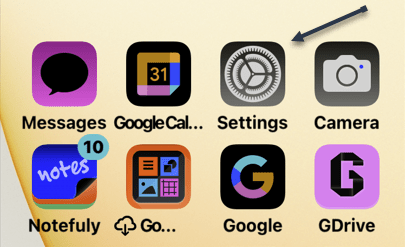
First, open the Settings app on your iPhone (this is also available on iPad). Refer to the below image:

Text 1
Selecting the Settings app

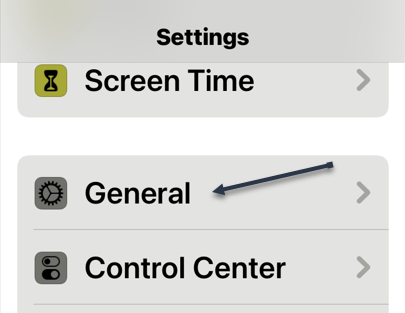
Next, go to the General section. See the below image:

Text 2
Selecting the General option

Now, select the Keyboard settings. See the following image:

Text 3
Selecting the Keyboard option

Next, go to Text Replacement. Refer to the below image:

Text 4
Selecting the Text Replacement option

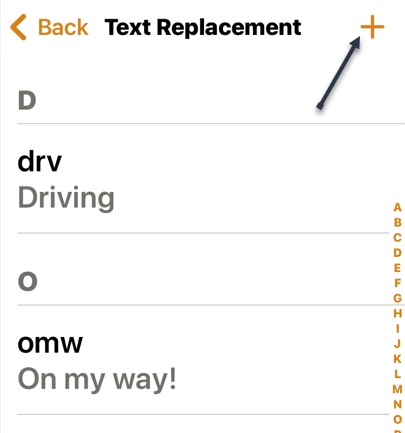
Now, tap the “+” icon in the top right-hand corner. See the below image:

Text 5
Selecting the add icon

Next, enter a Phrase and a Shortcut. The Phrase will replace the Shortcut. Tap Save when you are done. See the following image:

Text 6
Entering a Phrase and Shortcut

Now, your shortcut will be added. Refer to the below image:

Text 7
Your added shortcut

Next, you are ready to use it! We are using the Notes app for our example. Simply type the shortcut and you will see the full phrase appear above the keyboard. You can tap the phrase to insert it or continue typing by tapping the spacebar or return and it will automatically be inserted. Tap Done to finish in the Notes app. See the below image:

Text 8
Using your new text shortcut

This is a great time-saving feature for typing out longer phrases. One handy tip is to use your name as a shortcut for your entire address.

Quote For the Day

Technology should improve your life… not become your life.

Billy Cox

Tweet Info

You are finished. Please feel free to share this post! One way to share is via Twitter.

Just click the Tweet icon below. This will launch Twitter where you click its icon to post the Tweet.

Checkout TechSavvy.Life for blog posts on smartphones, PCs, and Macs! You may email us at contact@techsavvy.life for comments or questions.

I Would Like to Hear From You

Please feel free to leave a comment. I would love to hear from you. Do you have a computer or smart device tech question? I will do my best to answer your inquiry. Just send an email to contact@techsavvy.life. Please mention the device, app, and version you are using. To help us out, you can send screenshots of your data related to your question.

Author’s E-book

You can access the e-book from a Kindle device, the Kindle App for the desktop or smartphone, which is a free app.

The author’s Vietnam eBook on the Battle for Tra Bong Vietnam: Events and Aftermath

How to Make Taskbar Clock Display Seconds in Windows 10

Windows 10’s taskbar Clock can display the precise time down to the second. This feature requires a Registry hack to enable and only works on Windows 10.

RAYMOND OGLESBY @RaymondOglesby2
August 4, 2022

Windows 10’s taskbar Clock can display the precise time down to the second. This feature requires a Registry hack to enable and only works on Windows 10. Let’s find out.

This is for Windows 10

Dilbert and Selfish
Copyright Scott Adams, Inc./Distributed by Universal Uclick for UFS

Editing the Registry

Warning: The Registry Editor is a powerful tool and misusing it can render your system unstable or even inoperable. This is a pretty simple hack and, as long as you stick to the instructions, you should not have any problems. If you have never worked with the Registry Editor before, consider reading about how to use the Registry Editor before you get started. And definitely back up the Registry and create a System Restore point before making changes.

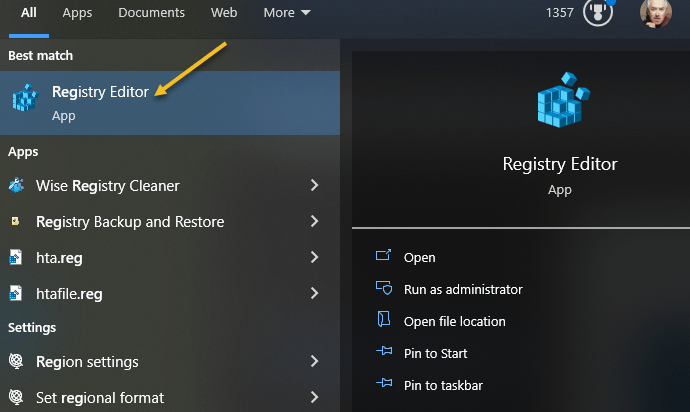
First, open the Registry Editor by clicking Start, typing “regedit” into the Cortana search box at the bottom of the Start menu, and pressing Enter. Give the Registry Editor permission to make changes to your PC. Refer to the below image:

Clock 1
Selecting the Registry Editor

Next, use the left sidebar to navigate to the following key in the Registry Editor:

HKEY_CURRENT_USER\Software\Microsoft\Windows\CurrentVersion\Explorer\Advanced

See the below image:

Clock 2
Accessing the Advanced Key

Now, right-click the Advanced key in the left pane and select:

New > DWORD (32-bit) Value

See the following image:

Clock 3
Accessing the 32-bit DWORD

Next, name the value

ShowSecondsInSystemClock

and press Enter. If you type “Sustem” instead of “System” or “Second” instead of “Seconds” in the name, these will not work, it must be the exact wording. Refer to the below image:

Clock 4
Naming the new Key

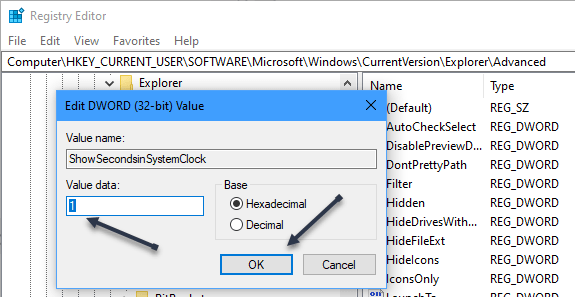
Now, double-click the value you just created, enter a value data of 1, and click OK. See the below image;

Clock 5
Assigning the value of 1 to the new Key

Next, you can now close the Registry Editor. You will have to sign out and sign back in again before your changes will take effect. To view the Clock with seconds, view the Date and Time in your System Tray in the lower right-hand corner. See the following image:

Clock 6
The Clock with seconds in System Tray

Quote For The Day

Making duplicate copies and computer printouts of things no one wanted even one of in the first place is giving America a new sense of purpose.

Andy Rooney

Tweet Info

That’s it. Please feel free to share this post! One way to share is via Twitter.

Just click the Tweet icon below. This will launch Twitter where you click its icon to post the Tweet.

Checkout TechSavvy.Life for blog posts on smartphones, PCs, and Macs! You may email us at contact@techsavvy.life for comments or questions.

I Would Like to Hear From You

Please feel free to leave a comment. I would love to hear from you. Do you have a computer or smart device tech question? I will do my best to answer your inquiry. Just send an email to contact@techsavvy.life. Please mention the device, app, and version you are using. To help us out, you can send screenshots of your data related to your question.

Author’s E-Book

You can access the e-book from a Kindle device, the Kindle App for the desktop or smartphone, which is a free app.
The author’s Vietnam eBook on the Battle for Tra Bong Vietnam: Events and Aftermath

How to Disable Flash Notifications on iPhone

Want to stop your iPhone’s flash from blinking when you receive a notification on your phone? If so, you can toggle off the flash notifications feature and the LED flash won’t blink anymore.

RAYMOND OGLESBY @RaymondOglesby2
August 2, 2022

Want to stop your iPhone’s flash from blinking when you receive a notification on your phone? If so, you can toggle off the flash notifications feature and the LED flash will not blink anymore. It’s simple to disable.

This is for the iPhone. Screenshots are from iPhone XR using iOS 15.5+

Copyright Scott Adams, Inc./Distributed by Universal Uclick for UFS

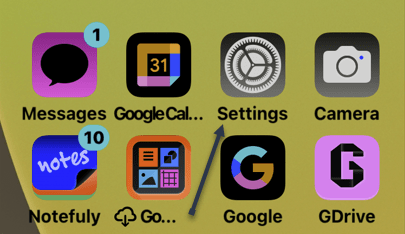
First, open the Settings app on your iPhone. Refer to the below image:

Flash 1
Accessing Settings

Next, in Settings, choose Accessibility. See the below image:

Flash 2
Accessing Accessibility option

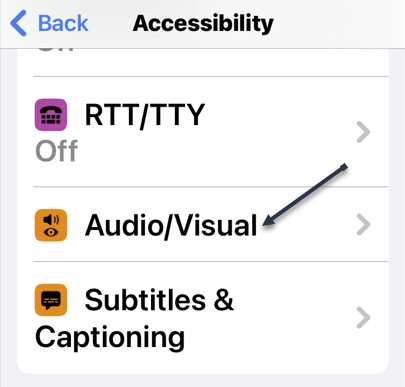
Now, from Accessibility, scroll down to the Audio/Visual option and tap it. See the following image:

Flash 3
Accessing Audio/Visual option

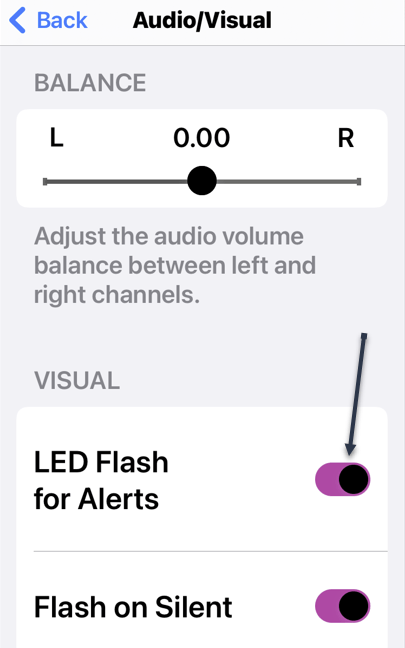
Next, in Audio/Visual, scroll down to the Visual section, and toggle OFF the LED Flash for Alerts. Refer to the below image:

Tip: To manage the flash alerts for when your iPhone is on silent mode, use the Flash on Silent option.

Flash 4
Disable LED Flash for Alerts option

From now on, your iPhone’s flash will not blink when you receive a new notification. Your regular notifications and their alerts will continue to arrive, though.

Quote For The Day

Once a new technology rolls over you, if you’re not part of the steamroller, you’re part of the road.

Stewart Brand

Tweet Info

That’s it. Please feel free to share this post! One way to share is via Twitter.

Just click the Tweet icon below. This will launch Twitter where you click its icon to post the Tweet.

Checkout TechSavvy.Life for blog posts on smartphones, PCs, and Macs! You may email us at contact@techsavvy.life for comments or questions.

I Would Like to Hear From You

Please feel free to leave a comment. I would love to hear from you. Do you have a computer or smart device tech question? I will do my best to answer your inquiry. Just send an email to contact@techsavvy.life. Please mention the device, app, and version you are using. To help us out, you can send screenshots of your data related to your question.

Author’s E-Book

You can access the e-book from a Kindle device, the Kindle App for the desktop or smartphone, which is a free app.

The author’s Vietnam eBook on the Battle for Tra Bong Vietnam: Events and Aftermath