How to Use the Microsoft Measurement Converter

Microsoft Word, PowerPoint, and Outlook offer a hidden measurement converter to save you from doing measurement conversions manually. If you are working with a document, presentation, or email that contains measurements, you will find this time-saving feature useful.

RAYMOND OGLESBY @RaymondOglesby2
August 17, 2021

Microsoft Word, PowerPoint, and Outlook offer a hidden measurement converter to save you from doing measurement conversions manually. If you are working with a document, presentation, or email that contains measurements, you will find this time-saving feature useful. Lets explore this feature.

This is for Office 365. Screenshots are from Windows 10 PC.

Dilbert and Employee
Copyright Scott Adams, Inc./Distributed by Universal Uclick for UFS

Enable Converter in Word and PowerPoint

First, open a document in Microsoft Word or a presentation in PowerPoint. Next, click

File > Options

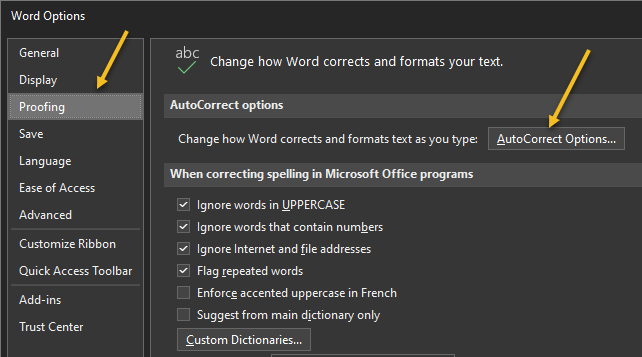
from the menu. Now, select Proofing on the left and click AutoCorrect Options on the right. Refer to below image:

Accessing AutoCorrect.Options

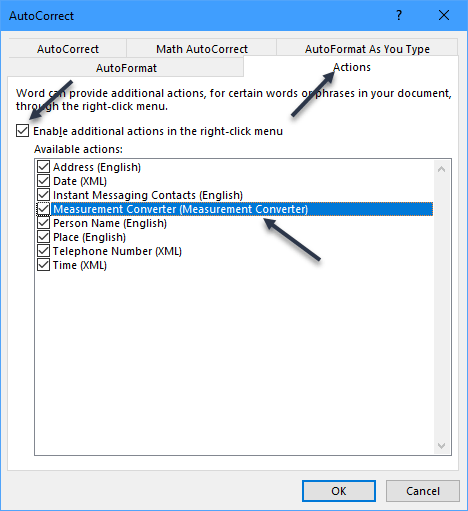
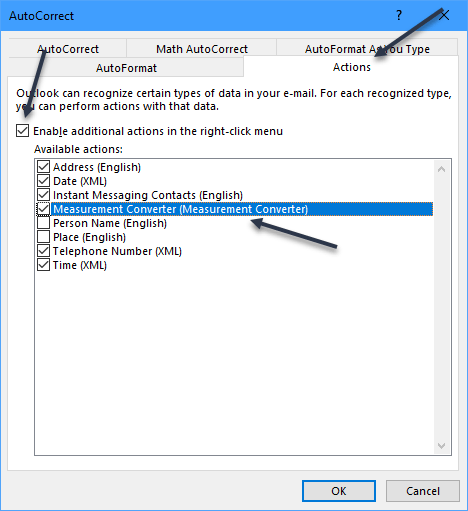
Next, select the Actions tab. Now, check the boxes for Enable Additional Actions in the right-click menu then Measurement Converter from the list. You will notice other actions you can enable. Just checkmark any additional ones you would like to use. See below image:

Enabling Measurement Converter option

Click OK, then OK once more to save and exit the options menu.

Enable Converter in Outlook

First, open Microsoft Outlook and click

File > Options

from your inbox or an email window.

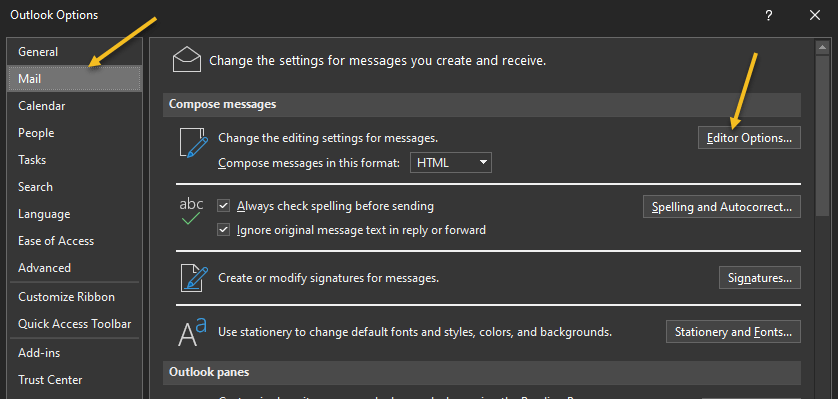
Now, select Mail on the left and click Editor Options on the right. See following image:

Accessing Editor Options

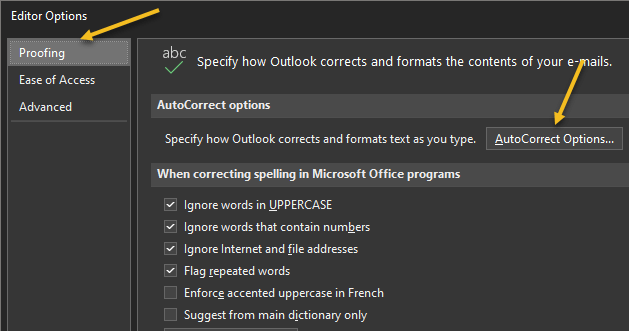
On the next screen, choose Proofing on the left and AutoCorrect Options on the right. Refer to below image:

Accessing AutoCorrect Options

Next, select the Actions tab. Now, check the boxes for Enable Additional Actions in the right-click menu, and Measurement Converter in the list. Like with Word and PowerPoint you can checkmark the boxes for any other actions you would like to use. See below image:

Enabling Measurement Converter option

Next click OK on all screens to save and exit,

Use the Converter in Office

When you receive a document that includes unfamiliar measurements, such as those from a foreign country, this tool takes the work out of manual conversions. And if you are creating the document yourself, you can convert the measurement for your audience.

Just, select the text containing the measurement. You can do this by dragging your cursor through it.

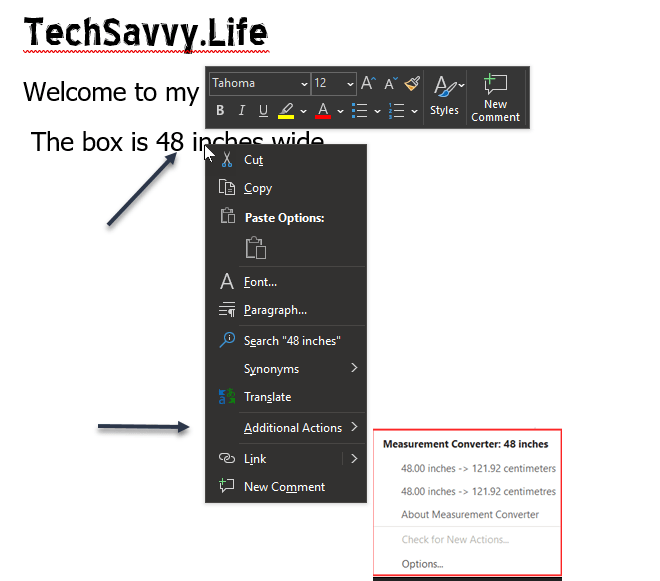
Now, right-click and move your cursor down to Additional Actions in the menu. You will see the Measurement Converter in the pop-out window. Refer to below image:

Accessing Measurement Converter

This lets you view the conversion. Additionally, you can click to select a conversion from the list and it will replace the measurement in your document, presentation, or email. This is convenient when you are preparing an item for someone expecting a different unit of measurement.

Quote For the Day

The greatest mistake you can make in life is continually fearing that you’ll make one.

Elbert Hubbard

That’s it. Please feel free to share this post! One way to share is via Twitter.

Just click the Tweet icon below. This will launch Twitter where you click its icon to post the Tweet.

Check out TechSavvy.Life for blog posts on smartphones, PCs, and Macs! You may email us at contact@techsavvy.life for comments or questions.

I Would Like to Hear From You

Please feel free to leave a comment. I would love hearing from you. Do you have a computer or smart device tech question? I will do my best to answer your inquiry. Just send an email to contact@techsavvy.life. Please mention the device, app and version that you are using. To help us out, you can send screenshots of your data related to your question.

The author’s Vietnam eBook on the Battle for Tra Bong: Events and Aftermath

How to Change Chrome New Tab Background

It’s easy to get bored at Chrome’s single white image background. Can we change this background image when opening a new tab? Yes we can. Chrome allows you to automatically switch the new tab page’s wallpaper every day.

RAYMOND OGLESBY @RaymondOglesby2
August 12, 2021

It’s easy to get bored at Chrome’s single white image background. Can we change this background image when opening a new tab? Yes we can. Chrome allows you to automatically switch the new tab page’s wallpaper every day. Let’s explore how this is done.

This is for devices running Google Chrome

Dilbert and Zoom
Copyright Scott Adams, Inc./Distributed by Universal Uclick for UFS

First, launch the Google Chrome browser on your Windows 10, Mac, Chrome OS, or Linux computer. Next, open a new tab and click the Customize pencil icon in the bottom-right corner of your screen. Refer to below image:

Background 1
Accessing new tab Customize icon

Now, in the pop-up window that appears, make sure that you are in the Background section. See below image:

Background 2
The Background section

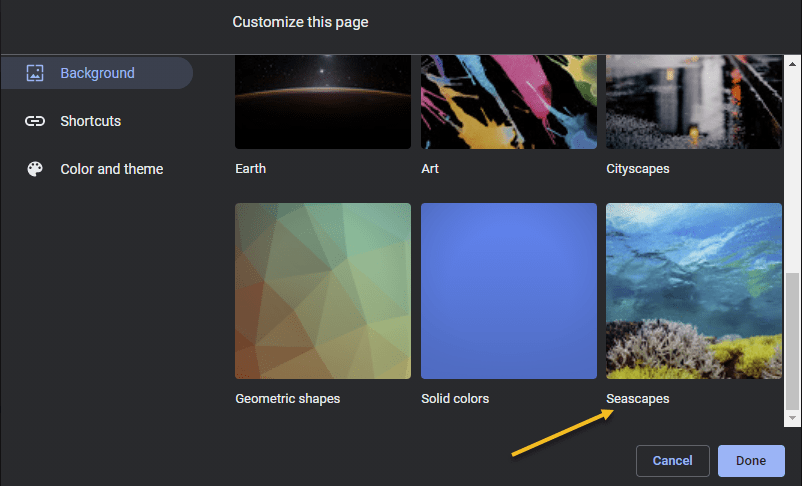
Next, on the Background page, you will find a number of preset collections of backdrops, such as “Textures,” “Seascapes,” “Art,” and “Earth.” Google Chrome can automatically apply a new wallpaper from any one of these collections every day on your new tab page.

Let’s say that you want Google Chrome to display a new wallpaper from the “Seascapes” collection on your new tab page.

To do this, first, click the collection’s thumbnail in the grid. See following image:

Background 3
Accessing the Seascapes collection

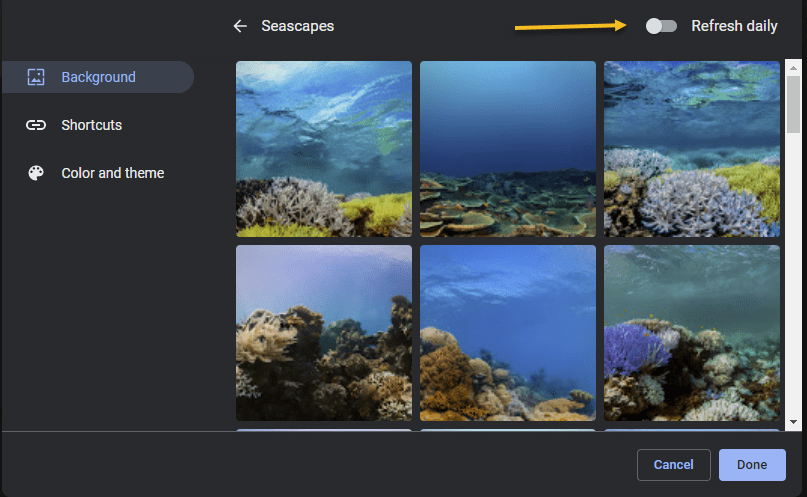
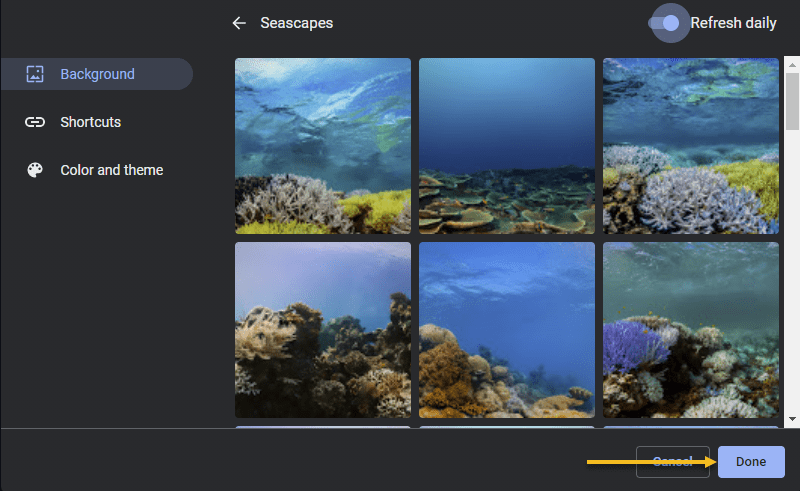
Now, on the next page, Google Chrome will list all of the collection’s wallpapers. Turn on the Refresh Daily switch in the top-right corner of the pop-up window. Refer to below image:

Background 4
Enabling daily switch

Now, click Done to save your preferences. See below image:

Background 5
Your Done

Next, the new tab page on your Google Chrome browser will show a fresh backdrop from the “Seascapes” collection (or whichever collection you have chosen) every day.

If you like one of the background images, you can see the name of the current background’s creator and its source in the bottom-left corner of the new tab page. See following image:

Background 6
Info about the backdrop

There are plenty of other ways that you can customize Google Chrome, such as edit more elements of the new tab page, or create your own browser theme.

Quote For the Day

Only two things are infinite, the universe and human stupidity, and I’m not sure about the former.

Albert Einstein

I like this little known feature of Chrome. Please feel free to share this post! One way to share is via Twitter.

Just click the Tweet icon below. This will launch Twitter where you click its icon to post the Tweet.

Check out TechSavvy.Life for blog posts on smartphones, PCs, and Macs! You may email us at contact@techsavvy.life for comments or questions.

I Would Like to Hear From You

Please feel free to leave a comment. I would love hearing from you. Do you have a computer or smart device tech question? I will do my best to answer your inquiry. Just send an email to contact@techsavvy.life. Please mention the device, app and version that you are using. To help us out, you can send screenshots of your data related to your question.
The author’s Vietnam eBook on the Battle for Tra Bong: Events and Aftermath

How to Use Reminders on iPhone and iPad

The Reminders app has seen significant improvements with iOS 13 and iOS 14. Earlier it was a simple application with basic functionalities. Now, Reminders is laden with robust features that let you add subtasks, images, and more! iOS 14.5 even lets you print reminders and sort them accordingly.

RAYMOND OGLESBY @RaymondOglesby2
August 11, 2021

The Reminders app has seen significant improvements with iOS 13 and iOS 14. Earlier it was a simple application with basic functionalities. Now, Reminders is laden with robust features that let you add subtasks, images, and more! iOS 14.5 even lets you print reminders and sort them accordingly. Let’s explore some basic features.

This is for iPhone and iPad

Dilbert and Botox
Copyright Scott Adams, Inc./Distributed by Universal Uclick for UFS

Before You Begin: Make sure iCloud Reminders are set up so that everything syncs across all your Apple devices.

On iPhone and iPad: Open:

Settings app → your name from the top → iCloud

and make sure the switch for Reminders is turned ON.

Add a List

First, open your Reminders app or use Spotlight Search (your very first screen) to locate it and open. Next, tap the Add List blue link in lower right-hand corner. Refer to below image:

Reminders 5
Selecting Add List

Now, give the list a name and tap Done. See below image:

Reminders 6
Naming the Reminder

Add a Reminder

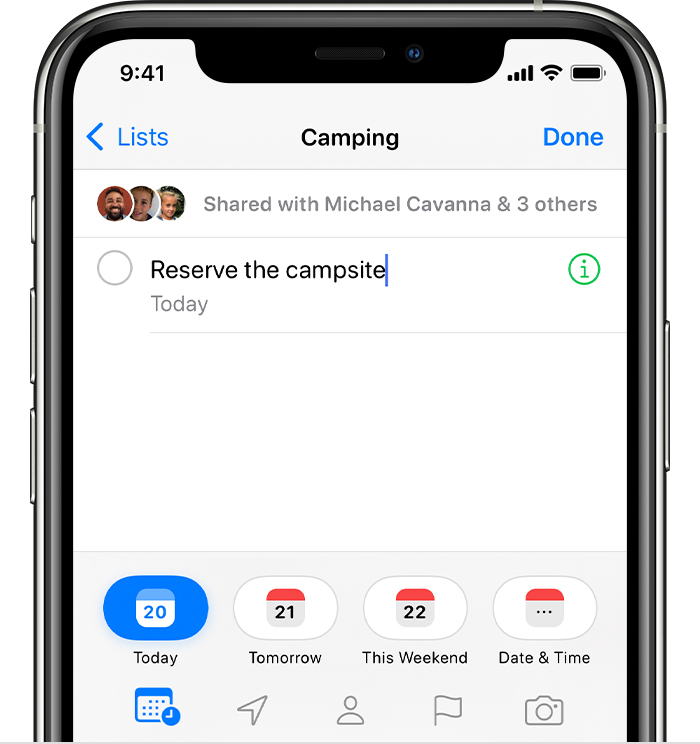
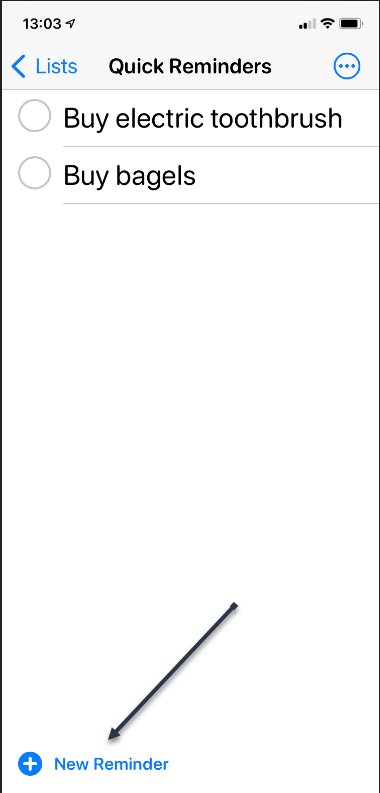
First, tap the New Reminder blue link at the bottom or tap a blank area on your screen and enter your reminder text. See following image:

Reminder 2
Selecting a New Reminder

Next, tap the Reminder, then tap the Info Circle icon to set your optional Details for the reminder. Refer to below image:

Reminder 8
Selecting more information for the Reminder

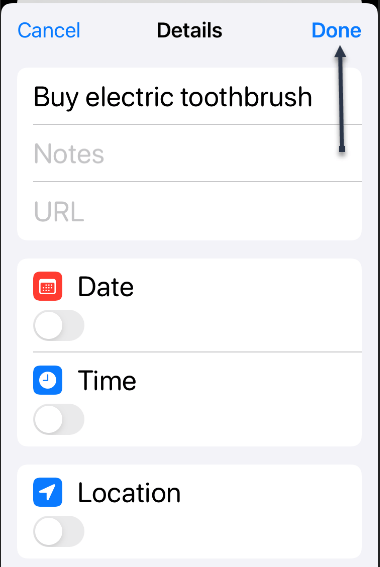
Now, after you have set your optional details like Date, Time, Location, and more, tap Done. See below image:

Reminder 7
Setting the Details options

Delete a Reminder

Tap the circle next to the reminder text and tap Done. A unique way to do this is just tap the circle, wait a moment, and your Reminder disappears. See following image:

Reminder 1
Delete a Reminder

View Your Reminders

Tap your Reminders icon, then tap your newly created list to view your Reminders. Refer to below image:

Reminder 4
Viewing your Reminders

Quote For the Day

There is a cult of ignorance in the United States, and there has always been. The strain of anti-intellectualism has been a constant thread winding its way through our political and cultural life, nurtured by the false notion that democracy means that my ignorance is just as good as your knowledge.

Isaac Asimov

You are finished. Please feel free to share this post! One way to share is via Twitter.

Just click the Tweet icon below. This will launch Twitter where you click its icon to post the Tweet.

Check out TechSavvy.Life for blog posts on smartphones, PCs, and Macs! You may email us at contact@techsavvy.life for comments or questions.

I Would Like to Hear From You

Please feel free to leave a comment. I would love hearing from you. Do you have a computer or smart device tech question? I will do my best to answer your inquiry. Just send an email to contact@techsavvy.life. Please mention the device, app and version that you are using. To help us out, you can send screenshots of your data related to your question.
The author’s Vietnam eBook on the Battle for Tra Bong: Events and Aftermath

How to Free Up Space in Google Drive

It’s easy to run out of space on Google Drive, since it stores data across much of your Google account. Fortunately, it’s also easy to delete data and free up some storage. As you will see, I am running out of space. Let’s explore how to do this.

RAYMOND OGLESBY @RaymondOglesby2
August 10, 2021

It’s easy to run out of space on Google Drive, since it stores data across much of your Google account. Fortunately, it’s also easy to delete data and free up some storage. As you will see, I am running out of space. Let’s explore how to do this.

This is for devices using Google Drive. Screenshots are from Drive on Windows 10 PC

Dilbert and Sane
Copyright Scott Adams, Inc./Distributed by Universal Uclick for UFS

If you use Google Drive to share large files, it’s quite easy to hit the 15GB free data limit on your Google account. While you can upgrade, for a price, it’s best to manually delete some data for more space first. After doing this, I upgraded to the 100GB plan, yet I am still out of space.

You will not need to spend hours combing through every nook and cranny in Google Drive. The website has a storage management feature that lists all your files, sorting them based on their file size.

First, open the Drive website in your browser.

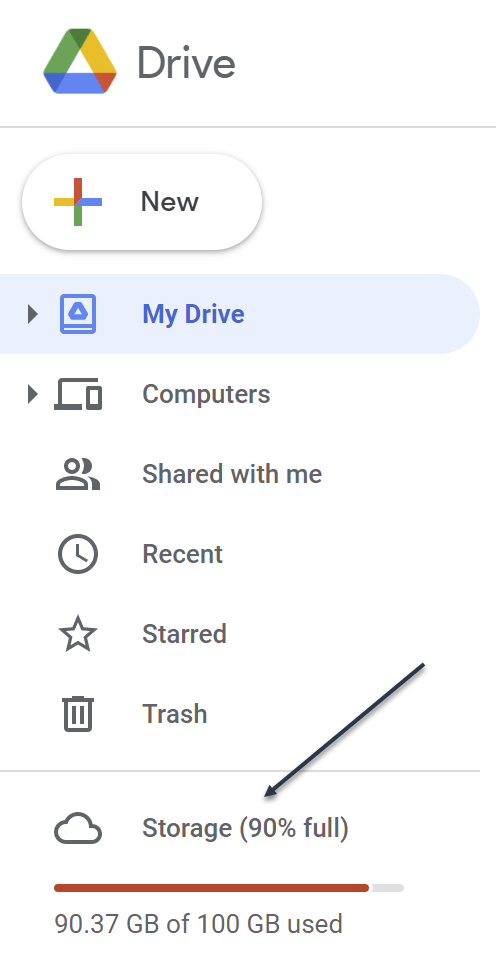
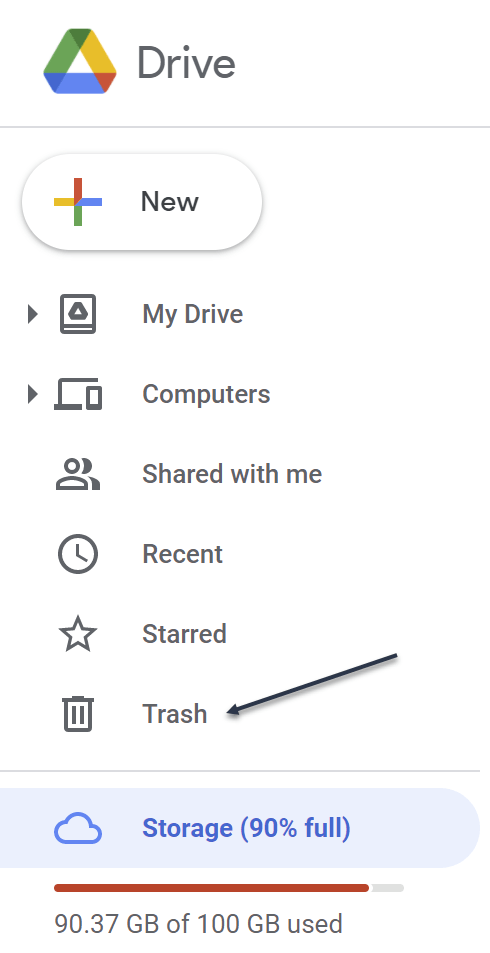
You will see the Storage section at the bottom of the left sidebar. This will show you how much storage space you have left in your account. Now, click the Storage button. Refer to below image:

Drive 1
Your used Storage space

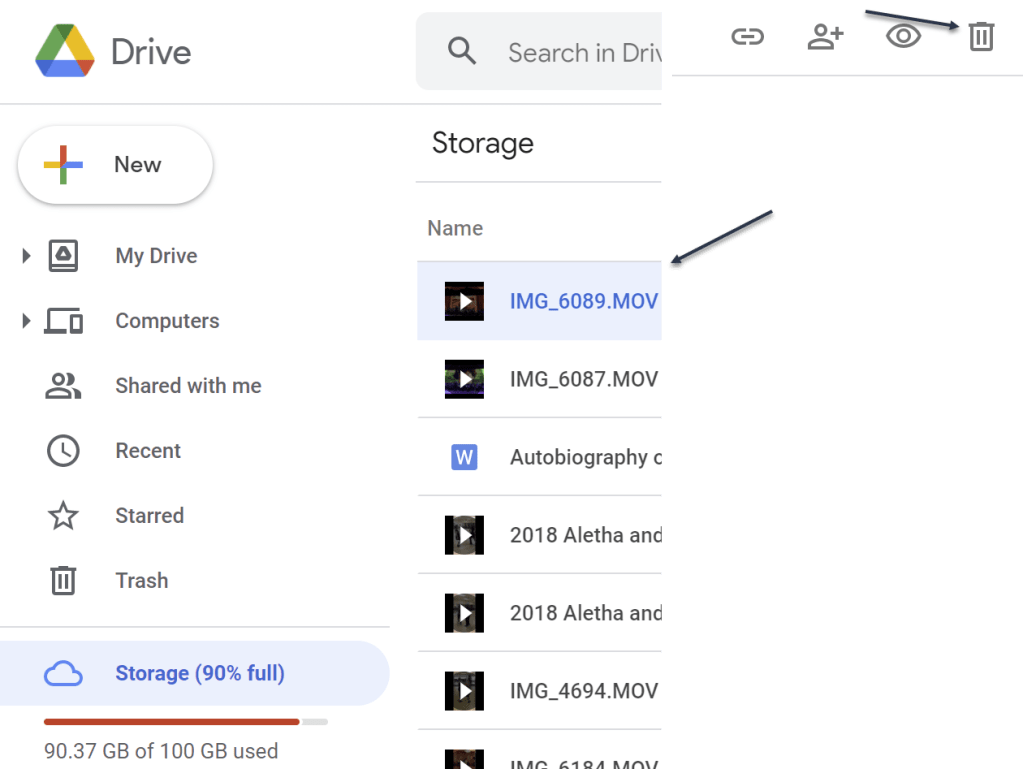
Next, you will see a list of all the large files in your account. Just click a file to select it. To select multiple files, hold the Command/Control key while selecting the file.

Now, to delete the file (or files), click the Remove button (the Trashcan icon) in the top toolbar. See below image:

Drive 2
Delete a file

Google Drive will remove the file and send it to the Trash.

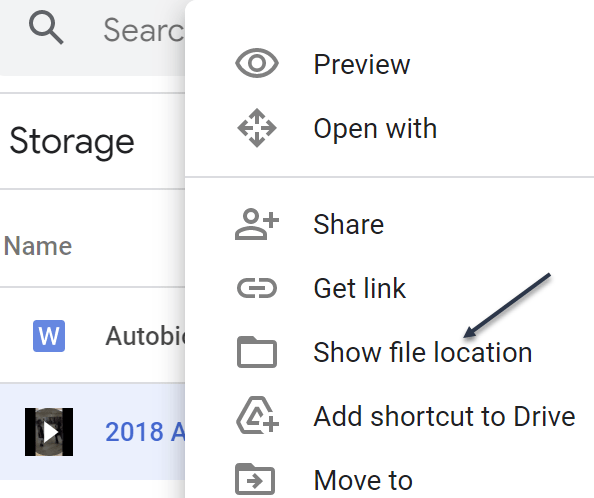
If you want to find and open a folder where a particular file is saved (or find more files to delete), right-click and choose the Show File Location option. See following image:

Drive 3
Find more files

Next, you can select multiple files and use the Remove (Trashcan icon) in the toolbar to delete all the files at once. (You can use this method to delete entire folders as well.)

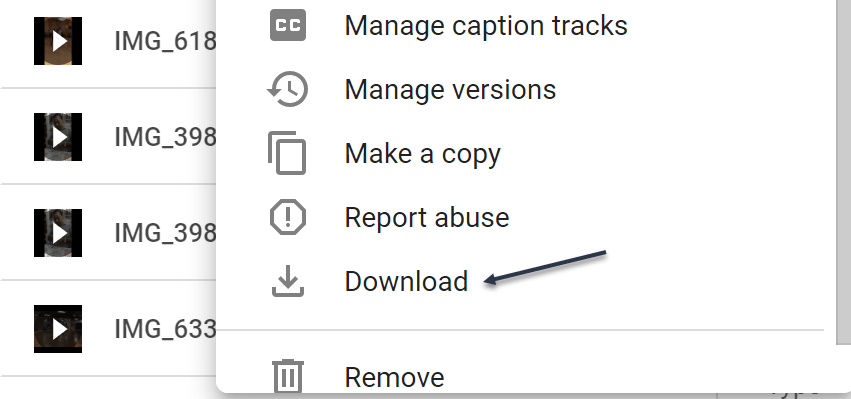
If you do not have a backup of the file that you are planning to delete, click the Download button in the right-click menu to download a copy of the file to your local storage. Refer to below image:

Drive 4
Download a file before deletion

Once you delete files like this, the files are no longer available in Google Drive, but you have not recovered any storage space yet. That’s because Google Drive does not actually delete the files for 30 days. So, if you change your mind, you have up to 30 days to recover the data.

If you want to reclaim the storage space, you will have to force Google Drive to permanently delete the data. To do this, go to the Trash or Bin section in the sidebar. See below image:

Drive 5
Accessing the Trash

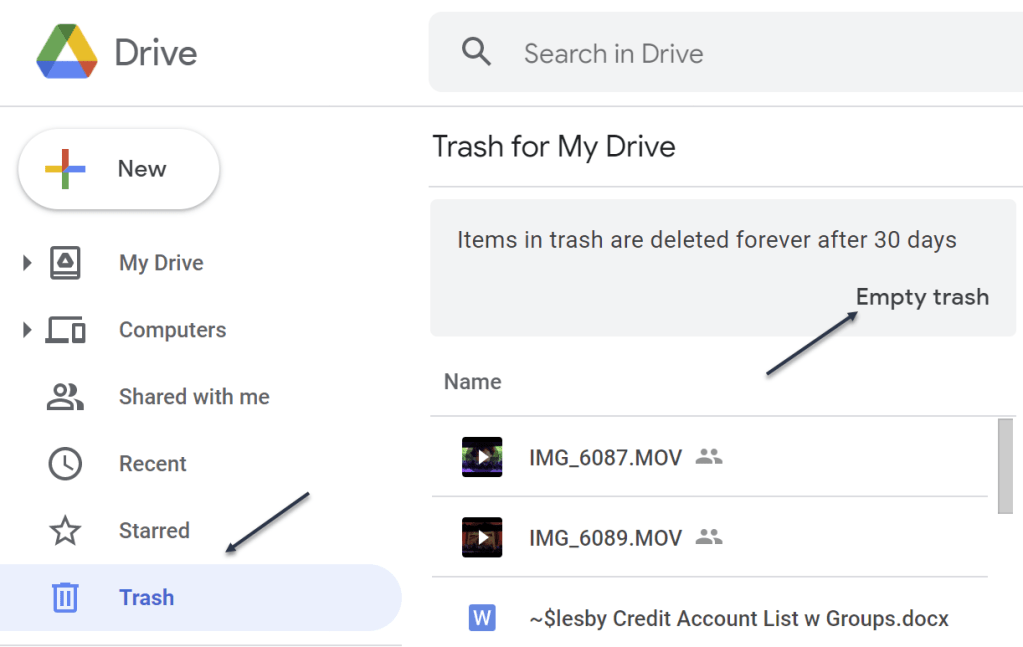
Now, in the Trash, you will see a list of files that have yet to be deleted. To individually delete a file, right-click and choose the Delete Forever option. Or, click Empty Trash to delete all the files. See following image:

Drive 6
Delete your file(s)

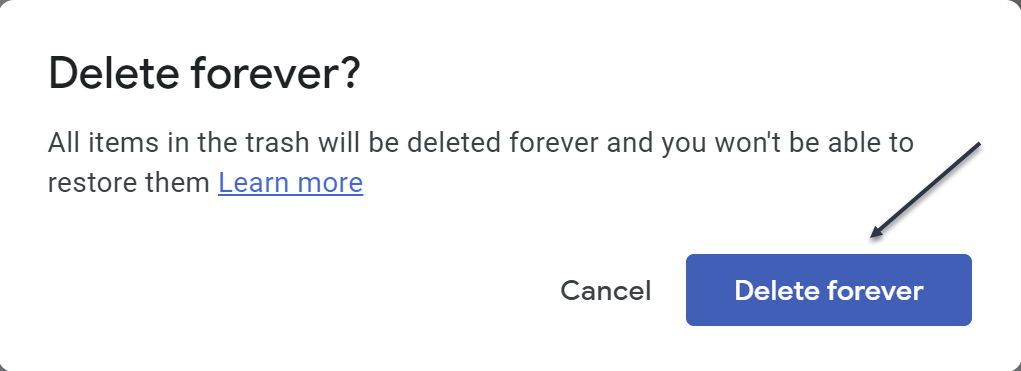
Next, in the pop-up that appears, confirm using the Delete Forever button. Refer to below image:

Drive 7
Confirm to delete the file(s) forever

Now, all the files will be deleted. Once you reload the page, you will see that the storage space has been recovered.

Quote For the Day

I have noticed even people who claim everything is predestined, and that we can do nothing to change it, look before they cross the road.

Stephen Hawking

You now know how to clean up storage space on Google Drive. Please feel free to share this post! One way to share is via Twitter.

Just click the Tweet icon below. This will launch Twitter where you click its icon to post the Tweet.

Check out TechSavvy.Life for blog posts on smartphones, PCs, and Macs! You may email us at contact@techsavvy.life for comments or questions.

I Would Like to Hear From You

Please feel free to leave a comment. I would love hearing from you. Do you have a computer or smart device tech question? I will do my best to answer your inquiry. Just send an email to contact@techsavvy.life. Please mention the device, app and version that you are using. To help us out, you can send screenshots of your data related to your question.
The author’s Vietnam eBook on the Battle for Tra Bong: Events and Aftermath

How to Use Advanced Search to Find Tweets

Twitter has tons of information that flows by faster than we can comprehend. Fortunately, it’s possible to search for tweets using various parameters.

5RAYMOND OGLESBY @RaymondOglesby2
August 5, 2021

Twitter has tons of information that flows by faster than we can comprehend. Fortunately, it’s possible to search for tweets using various parameters. Let’s explore this feature.

This is for devices running Twitter

Copyright Scott Adams, Inc./Distributed by Universal Uclick for UFS

Search Tweets by Dates Range

Twitter provides both a mobile and a desktop browser Advanced Search page that lets you search for tweets posted within a certain date range. If you are on a mobile device, open your browser and click here for mobile. For the desktop browser, open your browser and click here for desktop.

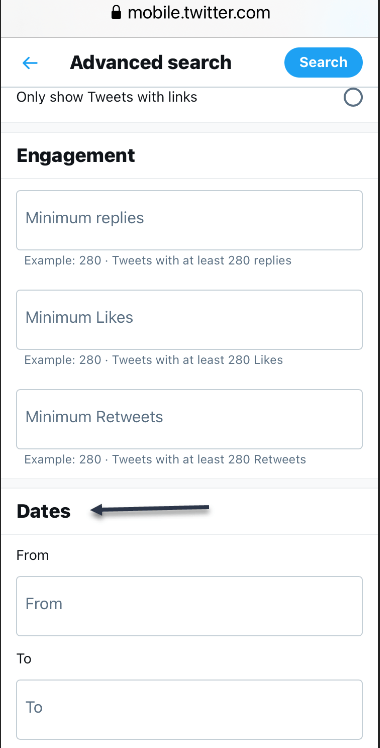
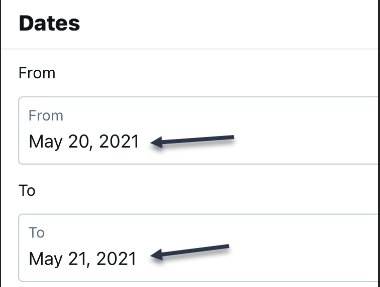
Now, on the Advanced Search page, scroll all the way down to the bottom to the Dates section. There, you will find two parameters: From and To. Refer to below image:

Accessing Dates section

Next, choose your desired month, day, and year for each parameter. Here’s what they do:

  • From: Set this to find tweets posted after midnight (12:00 a.m.) on this date.
  • To: Set this to find tweets posted up until midnight (12:00 a.m.) on this date.

While this sounds simple, using the parameters can be confusing. For example, if you want to find tweets only from May 20, 2021, you would set From to “May 20, 2021” and To to “May 21, 2021.” You will get tweets posted between midnight on May 20 until midnight on May 21. You would not set both fields to the same date. See below image:

Setting From and To date

Similarly, if you wanted to find only tweets from the month of May 2021, you would set From to “May 1, 2021” and To to “June 1, 2021.” That way, your search will cover all 31 days of May.

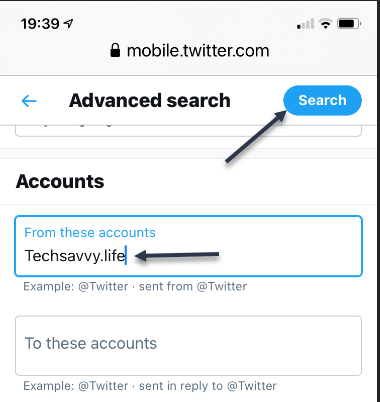
Now, scroll up and enter another parameter, such as a search term in the Words section, or an account name in the Accounts section. Next, click Search when you are done. See following image for an Account search:

Search an Account

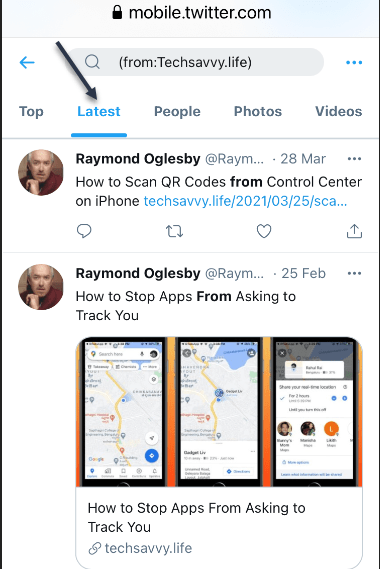
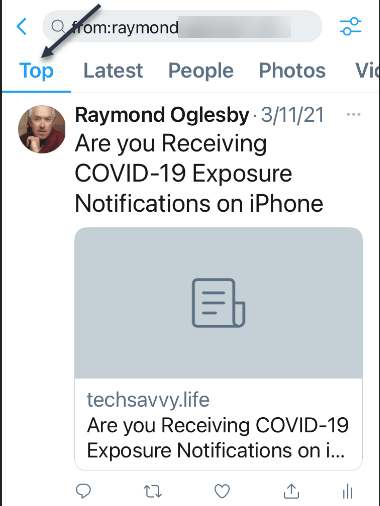
When you see the results, you can further sort them by different criteria using tabs located just below the search bar. Top shows the matching tweets with the most engagements. Latest shows all matching tweets in reverse chronological order. Refer to below image for the Latest using my domain name:

Display Latest posts for an Account

See below image for my Top posts using my Twitter name:

Display Top posts for a Twitter name

If you need to do another search, just revisit Twitter’s advanced search page and search again. It includes many parameters that allow you to narrow down tweets on certain dates, people, photos, videos, and much more.

Search Tweets by Date Range Using Inline Parameters

Another way of searching for tweets from a specific date or dates is using inline search parameters that you type directly into the search box in the Twitter app or on the Twitter website.

Here are three parameters that you can use:

Note! the following are just examples, not for literal input.

  • From: Find tweets posted only by this Twitter account. For example: from:raymondxxx  or from:techsavvy.
  • Since: Find tweets posted since 12:00 a.m. on this date. The date format is YYYY-MM-DD. For example: since:2021-05-01.
  • Until: Find tweets posted until 12:00 a.m. on this date. The date format is YYYY-MM-DD. For example: until:2021-06-01.

For example, if you would like to see all tweets posted by the “techsavvy” Twitter account between May 1, 2021 and June 1, 2021, you would type the following into the Twitter search box:

from:techsavvy until:2021-06-01 since:2021-05-01

If you wanted to find all posts about “Safari” by “raymondxxx” posted on May 15, 2021, you would enter:

safari from:raymondxxx since:2021-05-15 until:2021-05-16

And so on. This kind of quick inline search can be quite powerful once you get the syntax of the date format. You can also find embarrassing old tweets and delete them.

Quote For the Day

There ain’t no answer. There ain’t gonna be any answer. There never has been an answer. That’s the answer.

Gertrude Stein

You are finished with learning how to find tweets using Advance Search. Please feel free to share this post! One way to share is via Twitter.

Just click the Tweet icon below. This will launch Twitter where you click its icon to post the Tweet.

Check out TechSavvy.Life for blog posts on smartphones, PCs, and Macs! You may email us at contact@techsavvy.life for comments or questions.

I Would Like to Hear From You

Please feel free to leave a comment. I would love hearing from you. Do you have a computer or smart device tech question? I will do my best to answer your inquiry. Just send an email to contact@techsavvy.life. Please mention the device, app and version that you are using. To help us out, you can send screenshots of your data related to your question.
The author’s Vietnam eBook on the Battle for Tra Bong: Events and Aftermath

Lossless Playback Now Available in Apple Music

In June 2021, Apple offered lossless audio for iPhone and iPad running iOS and iPadOS 14.6 or higher, and the Mac for all subscriptions at no extra cost

RAYMOND OGLESBY @RaymondOglesby2
August 4,2021

In June 2021, Apple offered lossless audio for iPhone and iPad running iOS and iPadOS 14.6 or higher, and the Mac for all subscriptions at no extra cost. Let’s explore this feature.

This is for iPhone and iPad running iOS and iPadOS 14.6 or higher, and Mac

Dilbert and Fired
Copyright Scott Adams, Inc./Distributed by Universal Uclick for UFS

You can stream most music in lossless format except for broadcast radio, live and on-demand content, and music videos.

What is Lossless Playback

Music is compressed to save on space, particularly when it comes to streaming. The bitrate of a particular file or stream determines the quality of the music, with more bits generally meaning better quality. When you choose a higher bitrate, you will also consume more bandwidth (streaming) or space on your device (downloading).

Until recently, Apple Music could only be streamed using “lossy” AAC (Advanced Audio Codec) compression. While Apple claims that “the difference between AAC and lossless audio is virtually indistinguishable,” the company now offers lossless compression that uses ALAC (Apple Lossless Audio Codec) instead.

ALAC is an open-source format that uses around 50% of the space of uncompressed audio. Support ranges from 16-bit/44.1 kHz CD quality to more modern 24-bit/192kHz recordings. Enabling lossless audio playback for Apple Music is easy and comes at no extra financial cost, but there’s more to lossless than simply flipping a switch.

Check Your OS

First, go to;

Settings > General > Software Update

There you will see your version number. If not 14.6 or higher, tap the blue link to download and install. After installation, go back to your Home Screen.

Enable Lossless Playback on iPhone and iPad

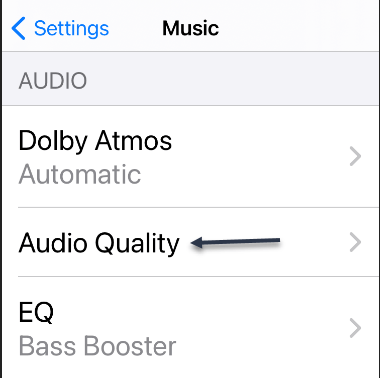
First, you must be a subscriber to Apple Music to enable Lossless audio. After subscribing (3 months free trial), then launch Settings and tap on Music. Next, tap on Audio Quality. Refer to below image:

Lossless 1
Selecting Audio Quality option

Now, under Audio Quality, toggle Lossless Audio to ON. See below image:

Lossless 2
Enabling Lossless Audio

Next, tap Wi-Fi Streaming. See following image:

Lossless 3
Accessing Wi-Fi Streaming

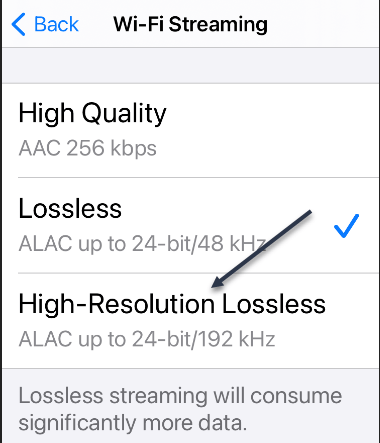
:Now, choose between a Lossless 48kHz sample rate or a High-Resolution Lossless 192kHz sample rate. Refer to below image

Lossless 4
Selecting High-Resolution Lossless option

If you choose High-Resolution Lossless and do not have a converter, you will receive a message. See below image:

Lossless 5
Message about using a DAC converter

Next, make a choice and exit Settings.

Enable Lossless Playback on a Mac

First, open your Apple Music app, and then click on

Music > Preferences

in the menu bar. Now, on the Playback tab, select Audio Quality. Next, toggle Lossless to ON. Next, choose between 48kHz and 192kHz sample rates. If you do not see the option, you may need to update your macOS.

Using AirPods

Wireless headphones and earphones use compression to stream music from your iPhone to your ears. This includes Apple’s AirPods, AirPods Pro, AirPods Max, and the Beats range of earphones and headphones. Since audio must be compressed for use with wireless Bluetooth audio, lossless audio offers no benefits.

To enjoy lossless audio, you will need to use a wired pair of headphones or speakers or the built-in speakers on your iPhone.

But wait, there is a catch. The iPhone cannot output the higher sample rate of 192kHz (Hi-Res Lossless) without an external digital-to-analog converter (DAC). The DAC in the iPhone is limited to 48kHz output.

Listening Difference

If you are frustrated that your expensive AirPods Max will not support lossless audio, consider for a minute that most people can not tell the difference. The best that you can do is to make sure that high-quality streaming is enabled under

Settings > Music

on your iPhone or iPad so that you are getting the best possible quality that’s available to you.

Quote For the Day

Imagination will often carry us to worlds that never were. But without it we go nowhere.

Carl Sagan

That’s it. Please feel free to share this post! One way to share is via Twitter

Just click the Tweet icon below. This will launch Twitter where you click its icon to post the Tweet.

Check out TechSavvy.Life for blog posts on smartphones, PCs, and Macs! You may email us at contact@techsavvy.life for comments or questions.

I Would Like to Hear From You

Please feel free to leave a comment. I would love hearing from you. Do you have a computer or smart device tech question? I will do my best to answer your inquiry. Just send an email to contact@techsavvy.life. Please mention the device, app and version that you are using. To help us out, you can send screenshots of your data related to your question.
The author’s Vietnam eBook on the Battle for Tra Bong: Events and Aftermath

How to View Excel Sheet/Workbook Statistics

If you need to see how many formulas, pivot tables, or form controls you have in a spreadsheet or workbook, check out the Workbook Statistics feature in Microsoft Excel.

If you need to see how many formulas, pivot tables, or form controls you have in a spreadsheet or workbook, check out the Workbook Statistics feature in Microsoft Excel. Let’s explore this feature.

This is for devices running Excel. Screenshots are from Excel in Office 365 on Windows 10

Dilbert and Issue
Copyright Scott Adams, Inc./Distributed by Universal Uclick for UFS

You may have found statistics in Word helpful for seeing the number of pages, words, or characters. Getting statistics in Excel can be just as useful. You may have a workbook for a class with specific requirements, or you may have a spreadsheet for business that you want to review for unnecessary elements.

View Your Sheet/Workbook Statistics

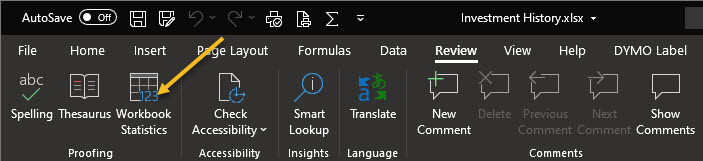
First, open your Excel workbook. Next, navigate to the Review tab. Now, click Workbook Statistics in the Proofing section. You can also press Ctrl+Shift+G. (Note that the shortcut will not work in Excel for the Web.) Refer to below image:

Stats 1
Accessing Workbook Statistics button

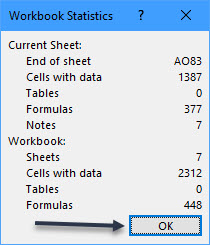
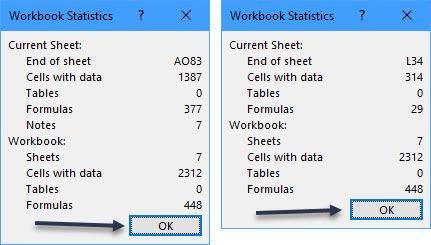
Now, a small window will open to display the data for your current sheet at the top and the entire workbook at the bottom. See below image:

Stats 2
Displaying one Sheet Statistics

If you want details for a different sheet in your workbook, close the Workbook Statistics window by clicking OK. Next click the tab for the sheet that you want to see and follow the same steps listed above. As a downside, the sheet and workbook name are not shown. See following image:

Stats 3
Displaying two Sheets and Workbook Statistics

Data Included

You can see a the following data with the Workbook Statistics feature. This is helpful for situations where you expect to see something in your current sheet or workbook and you do not, or vice versa. Statistics may differ slightly between the spreadsheet and the entire workbook.

Spreadsheet Statistics:

  • The end of the sheet (the last cell with data)
  • Cells with data
  • Tables and PivotTables
  • Formulas
  • Charts
  • Images and objects
  • Form controls
  • Comments and notes

Workbook Statistics:

  • Number of sheets
  • Cells with data
  • Tables and PivotTables
  • Formulas
  • Charts
  • External connections
  • Macros

You can view Workbook Statistics in Excel for Microsoft 365 on Windows and Mac as well as in Excel on the Web. The only difference is that Excel online does not display the complete data lists written above for sheets and workbooks.

The scientific theory I like best is that the rings of Saturn are composed entirely of lost airline luggage.

Mark Russell

That’s it. Please feel free to share this post! One way to share is via Twitter.

Just click the Tweet icon below. This will launch Twitter where you click its icon to post the Tweet.

Check out TechSavvy.Life for blog posts on smartphones, PCs, and Macs! You may email us at contact@techsavvy.life for comments or questions.

I Would Like to Hear From You

Please feel free to leave a comment. I would love hearing from you. Do you have a computer or smart device tech question? I will do my best to answer your inquiry. Just send an email to contact@techsavvy.life. Please mention the device, app and version that you are using. To help us out, you can send screenshots of your data related to your question.

The author’s Vietnam eBook on the Battle for Tra Bong: Events and Aftermath

How to Find and Install Third Party Shortcuts on iPhone and iPad

The Shortcuts app that comes pre-installed on iOS and iPadOS devices has proven to be incredibly useful especially with the release of iOS & iPadOS 14. There are so many things that you can do now with the Shortcuts app, Although you have access to a set of suggested shortcuts, you are not limited to using those alone. In fact, third-party shortcuts created by the community can be installed on your device too.

The Shortcuts app that comes pre-installed on iOS and iPadOS devices has proven to be incredibly useful especially with the release of iOS & iPadOS 14. There are so many things that you can do now with the Shortcuts app, Although you have access to a set of suggested shortcuts, you are not limited to using those alone. In fact, third-party shortcuts created by the community can be installed on your device too. Let’s explore how to do this.

This is for the iPhone and iPad

Dilbert and Zoom
Copyright Scott Adams, Inc./Distributed by Universal Uclick for UFS

There are several shortcuts websites to chose from. We will be focused on using the Shortcuts Gallery, one of the largest repositories of shortcuts. It includes proper descriptions, steps, and download links. Shortcuts are also sorted by category, so it’s easy to find what you want.

Enable Untrusted Shortcuts

Before you can start installing third-party shortcuts, you have to enable the feature. By default, shortcuts downloaded from the web are blocked because they have not been verified by Apple.

First, tap your Settings app on your iPhone or iPad. Refer to below image:

hortcuts 1
Accessing Settings

Next, scroll down and tap Shortcuts. See below image:

Shortcuts 2
Accessing Shortcuts

Now, toggle to On the Untrusted Shortcuts option. (Note! If you see a message saying you must first run a shortcut, then download a Shortcut from your Shortcut app and run it.) See following image:

Shortcuts 3
Enabling Untrusted Shortcuts

Next, in the pop-up message that appears, tap Allow. Refer to below image:

Shortcuts 4
Allow Untrusted Shortcuts

Next, enter your device’s passcode to verify that you own this iPhone or iPad. See below image:

Shortcuts 5
Entering your Passcode

You are ready to go to install third-party shortcuts.

Install Third-Party Shortcuts

 In our example, we will install the Clipboard shortcut from the Shortcuts Gallery website. Open the website in your browser on your iPhone or iPad. Now, tap the shortcut you want to download. See following image:

Shortcuts 6
Finding a Shortcut

Next, tap the Get Shortcut button. Refer to below image:

Shortcuts 7
Get the chosen Shortcut

Now, the shortcut in the Shortcuts app will open. Scroll to the bottom, and then tap Add Untrusted Shortcut. See below image:

Shortcuts 8
Adding the Untrusted Shortcut

Your new shortcut will be at the top of the list in your My Shortcuts. Just tap it to start using it. See following image:

Shortcuts 9
Your newly added Shortcut

After you have downloaded more shortcuts, you can organize them in folders. This will make it easier to launch them from an iPhone Home screen Widget.

Quote For the Day

We cannot solve our problems with the same thinking we used when we created them.

Albert Einstein

That’s it. Please feel free to share this post! One way to share is via Twitter.

Just click the Tweet icon below. This will launch Twitter where you click its icon to post the Tweet.

Check out TechSavvy.Life for blog posts on smartphones, PCs, and Macs! You may email us at contact@techsavvy.life for comments or questions.

I Would Like to Hear From You

Please feel free to leave a comment. I would love hearing from you. Do you have a computer or smart device tech question? I will do my best to answer your inquiry. Just send an email to contact@techsavvy.life. Please mention the device, app and version that you are using. To help us out, you can send screenshots of your data related to your question.
The author’s Vietnam eBook on the Battle for Tra Bong: Events and Aftermath

How to Drag Tabs Between Browser Windows

Did you know you can drag tabs between browser windows within Chrome, Edge, Firefox, and Safari on Windows, Linux, and Mac? (But not between different browser types.) It seems obvious in retrospect, but many people never notice.

Did you know you can drag tabs between browser windows within Chrome, Edge, Firefox, and Safari on Windows, Linux, and Mac? (But not between different browser types.) It seems obvious in retrospect, but many people never notice. Let’s explore how this is done.

This is for modern browsers. Screenshots are from Chrome in Windows 10

Dilbert and Press
Copyright Scott Adams, Inc./Distributed by Universal Uclick for UFS

First, open Google Chrome, Microsoft Edge, Apple Safari, or Mozilla Firefox on a Mac or PC. Open a few tabs in one browser window and then press Ctrl+n (or Command+n on a Mac) to open another browser window.

To move a tab between browser windows, click and drag the tab from the tab bar in one window onto the tab bar in another window.

(In Safari, you can alternatively just drag a tab and drop it anywhere on top of another Safari browser window.) Refer to below image for using Chrome:

Tabs 1

Once you drag the tab into the other window’s tab bar, you will see that tab appear in the tab list of the destination window. See below image:

Tabs 2

In Chrome, Edge, and Firefox, you can select multiple tabs. Just hold down Ctrl (or Command on a Mac) and click on multiple tabs. Once they are selected, you can drag them off into a new window, or you can close all of them by pressing any tab’s X button.

Quote For the Day

Part of the inhumanity of the computer is that, once it is competently programmed and working smoothly, it is completely honest.

Isaac Asimov

That’s it. Please feel free to share this post! One way to share is via Twitter.

Just click the Tweet icon below. This will launch Twitter where you click its icon to post the Tweet.

Check out TechSavvy.Life for blog posts on smartphones, PCs, and Macs. You may email us at contact@techsavvy.life for comments or questions.

I Would Like to Hear From You

Please feel free to leave a comment. I would love hearing from you. Do you have a computer or smart device tech question? I will do my best to answer your inquiry. Just send an email to contact@techsavvy.life. Please mention the device, app and version that you are using. To help us out, you can send screenshots of your data related to your question.
The author’s Vietnam eBook on the Battle for Tra Bong: Events and Aftermath

How to Pin/Unpin a Twitter Tweet

Generally speaking, the more you tweet, the further your past tweets move down your profile page. However, Twitter makes it possible to pin a tweet so that it stays at the top of your page until you remove it.

If you use Twitter regularly, you may occasionally post a message that gains attention with other users or that you want to stand out from the rest of your feed.

Generally speaking, the more you tweet, the further your past tweets move down your profile page. However, Twitter makes it possible to pin a tweet so that it stays at the top of your page until you remove it.

Pinning tweets to the top of your Twitter profile will not take more than a few seconds, and you can unpin a tweet or choose a new one to pin in its place at any time. Let’s explore how to do this.

Note! You can only have one pinned tweet at a time. Pinning a new tweet will unpin any tweet you already have pinned.

This is for the iPhone and Android using Twitter

Dilbert and Hackers
Copyright Scott Adams, Inc./Distributed by Universal Uclick for UFS

Pin a Tweet

Twitter’s mobile apps for iOS and Android allow you to pin tweets to your profile. You can also do this on your desktop.

First, open the Twitter app. Make sure you are logged in to your account.

Next, in the top-left corner of the app, tap the three horizontal lines. Refer to below image:

Twitter 1
Accessing the Twitter menu

In the menu that opens, select Profile. See below image:

Twitter 2
Accessing your Profile

Your Twitter profile opens. Now, scroll down and find the tweet to pin.

When you find the tweet, at the top-right corner of that tweet, tap the three-dots hamburger menu. See following image:

Twitter 3
Accessing the Tweet menu

From the menu that pops up from the bottom of your phone’s screen, select Pin to profile. Refer to below image:

Twitter 4
Accessing Pin tweet to your Profile

Select Pin in the prompt that appears in the middle of your phone’s screen. See below image:

Twitter 5
Pin your tweet

Your selected tweet is now pinned to your profile page. See following image:

Twitter 6
Your pinned tweet

Unpin a Tweet

To unpin the tweet, scroll to the top of your profile page in Twitter’s mobile app. Then, at the top-right corner of the pinned tweet, tap the three-dots hamburger menu. Refer to below image:

Twitter 7
Accessing your tweet menu

In the menu that appears from the bottom of your phone’s screen, tap Unpin from profile. See below image:

Twitter 8
Accessing Unpin tweet from your Profile

Select Unpin in the prompt. See following image:

Twitter 9
Unpin your tweet

And your tweet disappears from the top area of your Twitter profile.

It’s easy to pin and unpin tweets on Twitter, and you should make use of this feature to display your most important tweet at the top of your profile page.

Quote For the Day

The true sign of intelligence is not knowledge but imagination.

Albert Einstein

That’s it, a nifty feature. Please feel free to share this post! One way to share is via Twitter.

Just click the Tweet icon below. This will launch Twitter where you click its icon to post the Tweet.

Check out TechSavvy.Life for blog posts on smartphones, PCs, and Macs! You may email us at contact@techsavvy.life for comments or questions.

I Would Like to Hear From You

Please feel free to leave a comment. I would love hearing from you. Do you have a computer or smart device tech question? I will do my best to answer your inquiry. Just send an email to contact@techsavvy.life. Please mention the device, app and version that you are using. To help us out, you can send screenshots of your data related to your question.
The author’s Vietnam eBook on the Battle for Tra Bong: Events and Aftermath