Oops! You just sent a Google Gmail message that you did not want to send. You realize for one reason or another that the message has a mistake or that it shouldn’t have been sent at all. Using Gmail, you have a small window of time in which to undo your mistake.
Oops! You just sent a Google Gmail message that you did not want to send. You realize for one reason or another that the message has a mistake or that it shouldn’t have been sent at all. Using Gmail, you have a small window of time in which to undo your mistake.
By default, Gmail only gives you a 5 second delay in which to recall an email after you hit the Send button. If this is too short, you’ll need to extend the length of time Gmail will keep emails pending before it sends them. Once an email(s) are sent, you are unable to recall them.
This is for Windows 10 PCs, Macs and other devices that support Google Gmail
Copyright Scott Adams, Inc./Distributed by Universal Uclick for UFS
Unfortunately, you can’t change the length of this cancellation period in the Gmail app. You’ll need to do this in the Settings menu of Web based Gmail using your Windows 10 PC or Mac.
First, open Gmail using your browser and click Settings (the gear icon) in upper right-hand corner. Next, click the See all settings option. Refer to below image:
Open Web based Gmail Settings
In the General tab, you’ll see an option for Undo Send with a default 5 seconds delay. You can change this to periods of 10, 20, and 30 seconds from the drop-down list. It is recommended you set a 30 second delay. See below image:
Setting the Cancellation Period in Web based Gmail Settings
Scroll way down till you see the Save Changes button at the bottom of the screen. Press this button to save your change. The Settings window will then close.
The cancellation period you’ve selected will be applied to your Google account across all your devices.
How to Recall a Web Email in Gmail
If you want to recall a message sent by a Web based Gmail, you’ll need to do so within the cancellation period that applies to your account. This period begins from the moment you press the Send button. If you followed my recommendation, you have 30 seconds.
To recall an email, press the Undo button that appears in the black Message Sent pop-up. It is visible in the bottom-left corner of the Web based Gmail window. See following image:
Undo your email in Web based Gmail
This is your only chance to recall the email. If you miss it, or you click the “X” button to close the pop-up, you won’t be able to recall it. Once the cancellation period has passed, the Undo button will disappear and the email will be sent.
How to Recall a Mobile Device Email in Gmail
The process for recalling a mobile device email is similar to using the Web based Gmail. Your cancellation period you setup above for your Google account applies.
Go ahead an send an email using the Gmail app. A black pop-up box will appear at the bottom of your screen, telling you that the email has been sent.
The Undo button will appear on the right-hand side of this pop-up. If you want to stop the email, tap this button within the cancellation period or 30 seconds if following my recommendation. Refer to below image:
Undo your email using Gmail app
Pressing Undo will recall the email, returning you to the Compose draft screen in the Gmail app. At this point, you can then make changes to your email, save it as a draft or delete it.
Please feel free to leave a comment. I would love hearing from you. Do you have a computer or smart device tech question? I will do my best to answer your inquiry. Please mention the device, app and version that you are using. To help us out, you can send screenshots of your data related to your question.
The author’s Vietnam eBook on the Battle for Tra Bong: Events and Aftermath
Oops! You just sent a Microsoft Outlook message that you did not want to send. You realize for one reason or another that the message has a mistake or that it shouldn’t have been sent at all. You can fix your mistake by recalling the message. Using the recall feature, under the right conditions, your email is deleted without the recipient ever seeing the message. You can also send the recipient a replacement email with the correct information.
Oops! You just sent a Microsoft Outlook message that you did not want to send. You realize for one reason or another that the message has a mistake or that it shouldn’t have been sent at all. You can fix your mistake by recalling the message. Using the recall feature, under the right conditions, your email is deleted without the recipient ever seeing the message. You can also send the recipient a replacement email with the correct information.
For a message to be recalled, both you and the recipient must have a Microsoft 365 Business Account or Microsoft Exchange email account in the same organization. The email must not not have been read by the recipient.
However, even if you and the recipient use different email accounts, the recall feature is useful. Though the initial email won’t be deleted, the recipient receives a follow-up message indicating that you want to recall the previous email. That tells them that your initial one is incorrect for some reason. You should then follow-up your initial email and recall message with another email that contains the right information or corrects the initial one.
To summarize, three emails are involved. The initial email with incorrect information, the recall message email, then the follow-up email with the correct information.
This is for Windows 10 PCs, Macs and other devices that support Microsoft Outlook
Copyright Scott Adams, Inc./Distributed by Universal Uclick for UFS
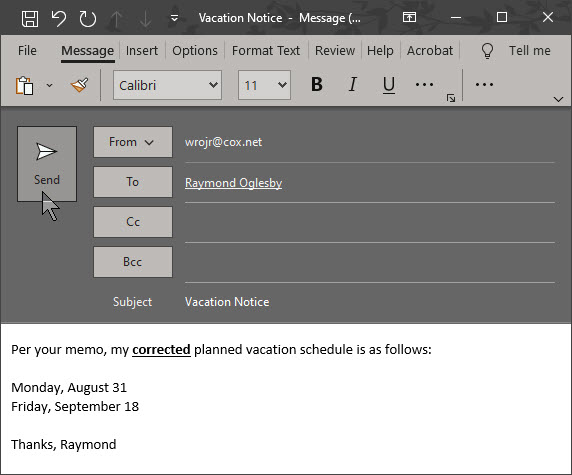
Let’s send an email. Open Outlook, start new email and address to a recipient, then send the email. Refer to below image:
Initial Outlook email
Now, let’s say you notice an error in your email and want to recall it. In our example, the vacation dates are incorrect.
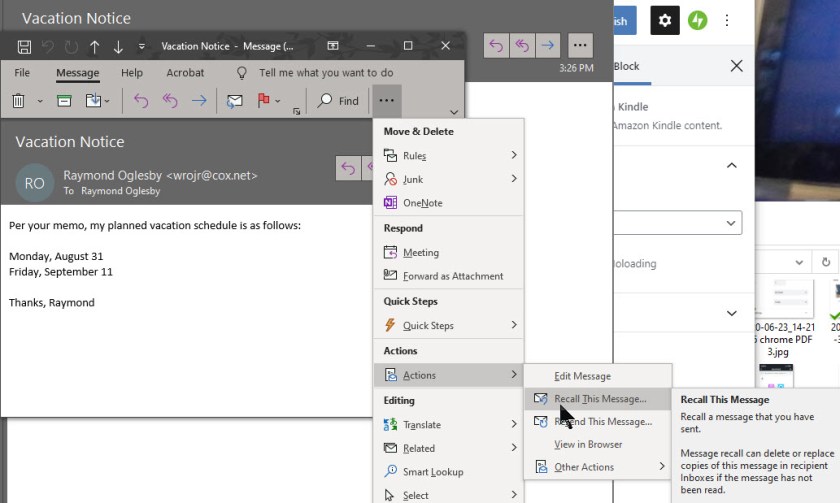
Open the email from your Sent Items folder. Select the Actions icon and click the option Recall This Message. See following image:
Recall initial Outlook email
The Recall This Message window opens to offer two options. Choosing Delete unread copies of this message tries to remove the message with no follow-up. Choosing Delete unread copies and replace with a new message provides the opportunity to send a follow-up message with the correct information. To learn of the recall’s success, ensure the box is checked for Tell me if the recall succeeds or fails for each recipient then click OK. Refer to below image:
Options for recalling initial Outlook email
If you chose the option to replace with a new message, a new email appears with the text from the initial email. You can fix any errors and send a corrected replacement message or a follow-up email with the corrected information. In my example, the recall message failed because I had already read the message. See following image:
Recall of initial Outlook email failed because recipent (me) had read the message
If you and the recipient use the same Microsoft 365 Business or Exchange, then the initial email should be deleted automatically. If so, you will receive an email saying the recall was successful for that recipient.
If you and the recipient use different email accounts, the initial emails remains in that person’s inbox. A follow-up email arrives that tells the recipient you would like to recall the message. You then have to rely on the recipient to delete or ignore the initial message. At this point, a third email could be sent with the corrected information. Refer to below image:
Please feel free to leave a comment. I would love hearing from you. Do you have a computer or smart device tech question? I will do my best to answer your inquiry. Please mention the device, app and version that you are using. To help us out, you can send screenshots of your data related to your question.
The author’s Vietnam eBook on the Battle for Tra Bong: Events and Aftermath
Want to checkout your iPhone or Android with diagnostics? Maybe you are wanting to sell the device and need to see if the device is working properly. Or you just wish to checkout the performance of your device. Whatever the reason, let’s explore a couple of apps from Apple’s or Google’s App Store.
Want to checkout your iPhone or Android with diagnostics? Maybe you are wanting to sell the device and need to see if the device is working properly. Or you just wish to checkout the performance of your device. Whatever the reason, let’s explore a couple of apps from Apple’s or Google’s App Store.
The apps are TestM and Phone Diagnostics. Both apps are free but come with ads. You can remove the ads for Phone Diagnostics for a small fee. The apps run similar diagnostic tests for touch screen, audio, video, camera, microphone, sensors and other components on your phone.
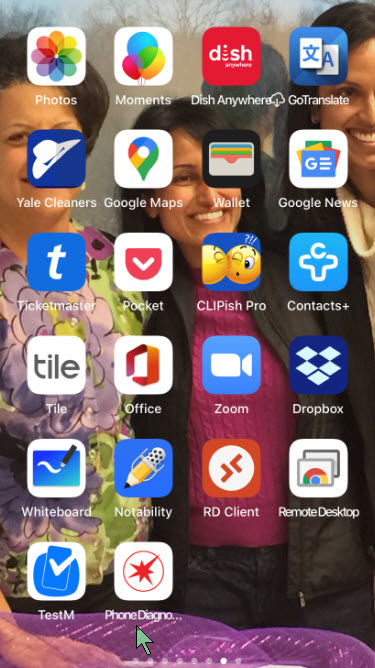
After you have installed these apps, their associated icons will appear on your Home screen (see left bottom corner) like the image below:
The installed Diagnostic apps
This is for the iOS and Android devices. Screenshots are for the iPhone
Copyright Scott Adams, Inc./Distributed by Universal Uclick for UFS
Designed for iOS and Android, the free TestM app can run diagnostics on your phone’s touch screen, sound, camera, sensors, network connectivity and other hardware.
The app gives you full control over the tests you want to run. Opt for a quick test to check three key features: touch screen, earpiece audio and high-frequently audio; or commit to a full test to check out all supported features. Otherwise, you can test just one specific feature, like the accelerometer, Bluetooth connectivity, camera flash and Face ID on an iPhone.
Most of the tests are interactive. The touch-screen test asks you to draw on the screen, the microphone test asks you to speak, the audio test prompts you to tap the numbers you hear and the camera test requests that you pose for a picture. One of the nifty tests is the Internet Speed Test to measure your phone’s upload and download speed.
After you’ve completed your testing, TestM compiles a report that reveals the key stats of your phone along with the outcome of the tests you ran. Each individual feature tested receives a green checkmark for good or a red checkmark for bad.
Any features that flunk can be re-tested from the report screen. You can share the report with someone else via email, messaging, or another app or service. TestM can even generate a list of local repair shops that might be able to fix whatever hardware ailment is affecting your phone. Refer to below image:
The TestM app Home screen
Phone Diagnostics for iPhone
Available for the iPhone, the Phone Diagnostics app offers a range of tests you can run one after the other. The app can check your touch screen, multi-touch capabilities, camera, flash, speaker, microphone, Wi-Fi, cellular access, sensors and other components. Just tap the button for the test you wish to run. Alternatively, tap the Play button in the middle of the screen to run all the tests one after the other. Unlike TestM, you can remove ads by paying a small fee.
The multi-touch test asks you to place three fingers on the screen. The camera test snaps photos using the front and rear cameras, while the video record test shoots a quick video using the rear camera. The motion test asks you to move your phone around, and the GPS test verifies your location on a map.
The app doesn’t generate any reports or results, but each successful test paints its button in green, while a failed or interrupted test appears in red. The app also attempts to steer you to a repair shop should your iPhone need to be fixed. See below image:
The Phone Diagnostics app Home screen
I have found TechSavvy.Life blog posts extremely helpful. Check them out for posts on smart phone apps, Macs and PCs!
Please feel free to leave a comment. I would love hearing from you. Do you have a computer or smart device tech question? I will do my best to answer your inquiry. Please mention the device, app and version that you are using. To help us out, you can send screenshots of your data related to your question.
The author’s Vietnam eBook on the Battle for Tra Bong: Events and Aftermath
Do you want to configure your iOS Lock Screen to block those picking up your device from reading messages, viewing the Today View or interacting with Siri.
Do you want to configure your iOS Lock Screen to block those picking up your device from reading messages, viewing the Today View or interacting with Siri.
It may appear that securing our devices with Touch ID and Face ID is all we need to protect our data. However, there’s other data accessible on the Lock Screen that can still be read by potential data thieves or on-lookers that can gain valuable information.
Lets explore how to secure the Lock Screen so that your messages and push notifications aren’t visible to anyone except you when you pick up your device. We’ll do this by disabling push notification, Siri and the Today View when the device is locked.
By doing the above, you will make your device more secure and prevent onlookers, or someone picking up your device, from gaining access to your private information contained on the Lock Screen.
This is for the iPhone and iPad running iOS 13+. Screenshots are for iPhone
Copyright Scott Adams, Inc./Distributed by Universal Uclick for UFS
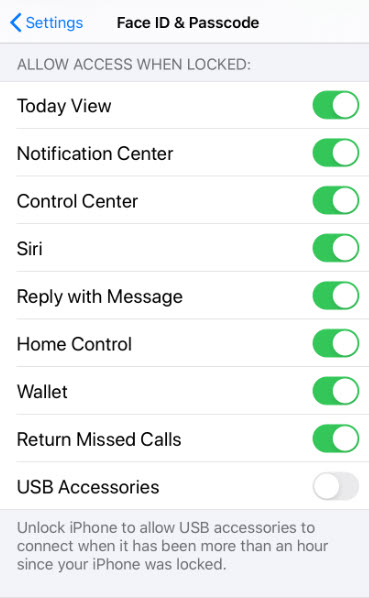
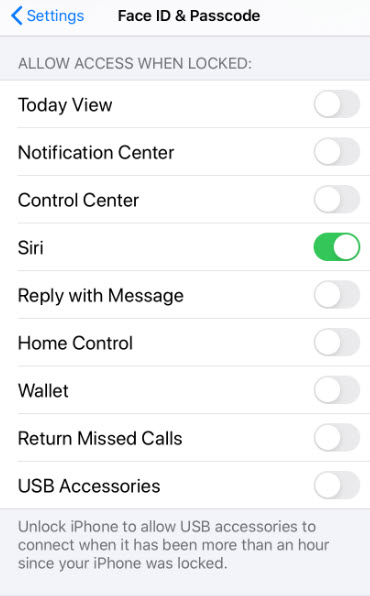
Open the Settings app. Next, select Face ID & Passcode. Enter your Passcode to proceed. Then, scroll down till you see the section ALLOW ACCESS WHEN LOCKED. Now, toggle off all options except for Siri. We will handle Siri in the Disable Siri section below. Just ignore the USB Accessories option. You will be toggling off 7 options. Refer to below for before toggling off image:
Before disabling
Refer to below for after toggling off image:
After disabling
Unchecking items in this section will make them unavailable from the LockScreen when the user is not authenticated by Passcode, Touch ID or Face ID.
There is an alternative feature if you are using a Face ID device.
Open the Settings app. Next, select Face ID & Passcode. Enter your Passcode to proceed. Scroll down to the ATTENTION section. Now, toggle on Attention Aware Features. See below image:
Setting the Attention Aware Features
The Attention Aware Features setting is available on iPhone and iPads with Face ID.
When this option is enabled, you will be unable to view notifications on the Lock Screen or Notification Center until the face of the device owner is visible to the Face ID sensor. This feature also provides not dimming the screen when looking directly at it and lowering the volume when the device is picked up.
However, the Today View, will still be visible. You can disable this behavior from the Lock Screen by following instructions in Disable Notifications and the Today View section above.
Disable Siri
If you want to ensure the highest privacy protection, you can disable Siri on the Lock Screen till your device has been authenticated with the Passcode, Touch ID or Face ID.
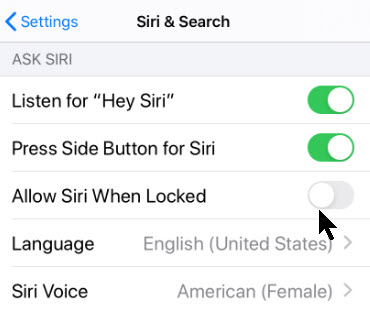
Open the Settings app. Next, select Siri & Search. Toggle off the Allow Siri When Locked option. See following image:
Disabling Siri
Now whenever you try to access Siri and any personal requests it allows, you will first need to enter your Passcode, Touch ID or Face ID.
Click to tweet if you find TechSavvy.Life blog posts extremely helpful. Check them out for posts on smart phone apps, Macs and PCs!
Please feel free to leave a comment. I would love hearing from you. Do you have a computer or smart device tech question? I will do my best to answer your inquiry. Please mention the device, app and version that you are using. To help us out, you can send screenshots of your data related to your question.
The author’s Vietnam eBook on the Battle for Tra Bong: Events and Aftermath
ICloud is Apple’s umbrella term for cloud-syncing feature. Basically, anything that is backed up or synced with Apple’s servers is considered a part of iCloud.
ICloud is Apple’s umbrella term for cloud-syncing feature. Basically, anything that is backed up or synced with Apple’s servers is considered a part of iCloud.
The purpose of iCloud is to store data securely on Apple’s remote servers. All your data is backed up and synchronized between all your devices. This allows you to retrieve your data in case you lose your smart device.
If so, you simply log into iCloud.com to retrieve your data or sign in with your Apple ID to automatically restore your data on your new smart device.
This is for smart devices and desktop/laptops. Screenshots are from iPhone and PC
Copyright Scott Adams, Inc./Distributed by Universal Uclick for UFS
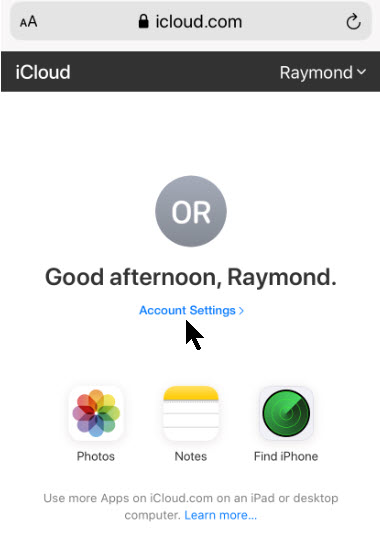
Visit iCloud.com on your smart device and sign in with your Apple account to see what services are cloud synced.
When you sign in you can access most of these features:
Photos
Notes
Reminders
Find My iPhone
Refer to below image:
Your iCloud services on a smart device
Your Account Settings
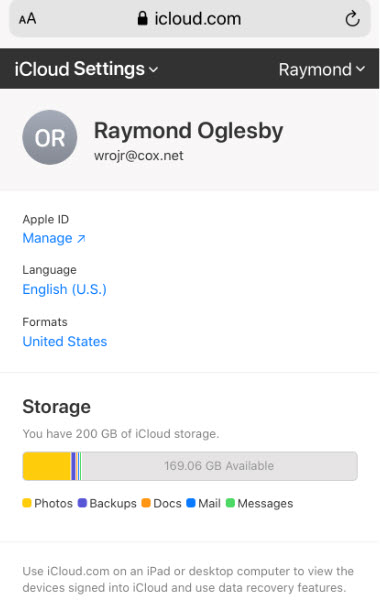
From your smart device, you can also access your Accounts Settings by clicking the blue link. Here you can view your Storage. See below image:
Your smart device storage
To see everything that your iCloud account is backing up, open the Settings app on your smart device, select your Profile at the top of the list, then navigate to the iCloud section. Here you can enable or disable app data backup. See following image;
Enable/disable apps to be backed up
Manage Storage
To manage your iCloud storage. Click on the Manage Storage section. Refer to below image:
Manage your storage
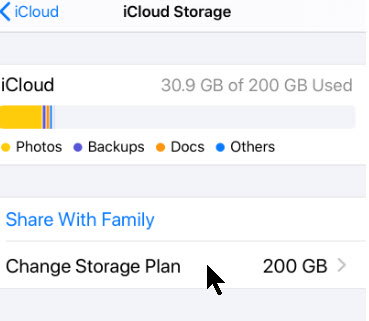
Here you can upgrade to a monthly storage plan for more storage by clicking on Change Storage Plan. See below image:
Change your storage plan
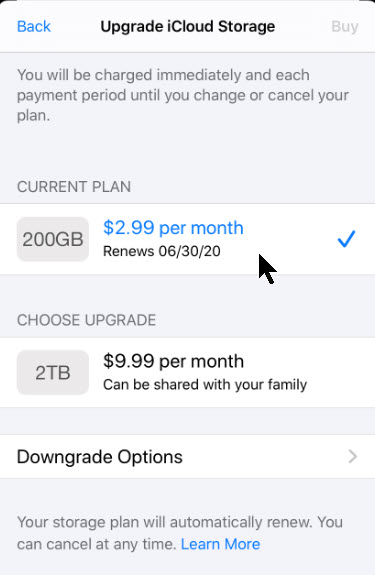
You can purchase 50GB for $.99, 200GB for $2.99 or 2TB for $9.99 per month. See following image:
Set or upgrade your storage plan
Sign In On Your Desktop
Visit iCloud.com on your iPad, Mac or desktop and sign in with your Apple account to see what services are cloud synced.
When you sign in on your iPad, Mac or desktop you gain access to most of these features:
Photos
iCloud Drive
Notes
Mail
Calendars
Contacts
Settings
Reminders
Pages, Numbers, or Keynote*
Find My iPhone
Find My Friends
See below image:
Your iCloud services from a desktop/laptop
Click to tweet if you find TechSavvy.Life blog posts extremely helpful. Check them out for posts on smart phone apps, Macs and PCs!
Please feel free to leave a comment. I would love hearing from you. Do you have a computer or smart device tech question? I will do my best to answer your inquiry. Please mention the device, app and version that you are using. To help us out, you can send screenshots of your data related to your question.
The author’s Vietnam eBook on the Battle for Tra Bong: Events and Aftermath
At times it’s tough to find specific information within a web page in Safari for iPhone or iPad. Fortunately, Safari allows you to search for text on any currently open web page using either the touch screen or an attached keyboard. Let’s explore how to do this.
If you don’t have a keyboard hooked up to your iPhone or iPad, you can search for text within the current page using the touchscreen, although the feature is in a non-obvious place. This technique works both on iPhone and iPad.
This is for iPhone and iPad using the Safari web browser
Copyright Scott Adams, Inc./Distributed by Universal Uclick for UFS
First, open Safari and navigate to the page you’d like to find text in. Once the page is loaded, tap on the Address Bar at the top of the screen. Refer to below image:
Locate a web page to Search
An on-screen keyboard will appear at the bottom of the screen and the current web page address will be highlighted. If you want, you can clear the address bar by tapping the backspace key on the keyboard (or tap on the small “X” in a circle beside the address). See below image:
Keyboard available for your Search
Set Your Search
Type in what you’d like to find on the page. Locate the On This Page section at the bottom of the search pop-up. Tap on the line just below it that starts with Find. See following image:
Enter your Search criteria
View Your Search
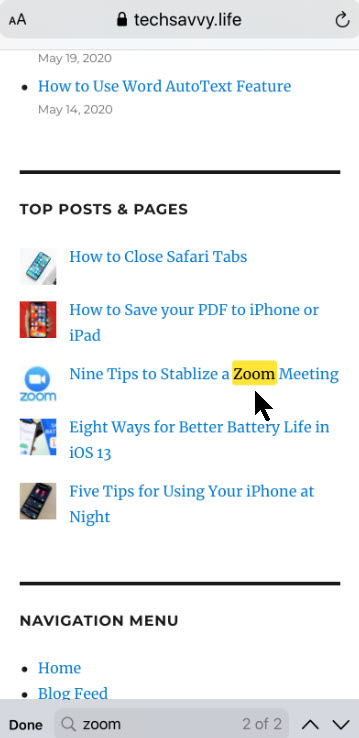
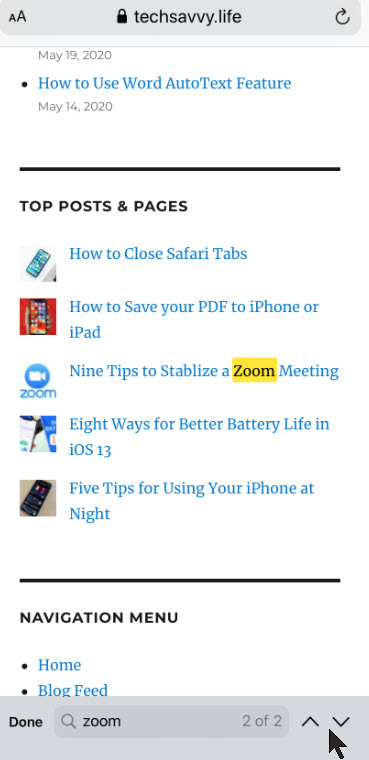
The pop-up will close and you will see the web page again with a search bar at the very bottom. Safari will highlight all occurrences of your search query on the current page. Refer to below image:
Your Search criteria highlighted
Navigate Your Search
You can cycle through the results, up and down the page, with the arrows beside the search bar. See below image:
Navigate your Search
Close Your Search
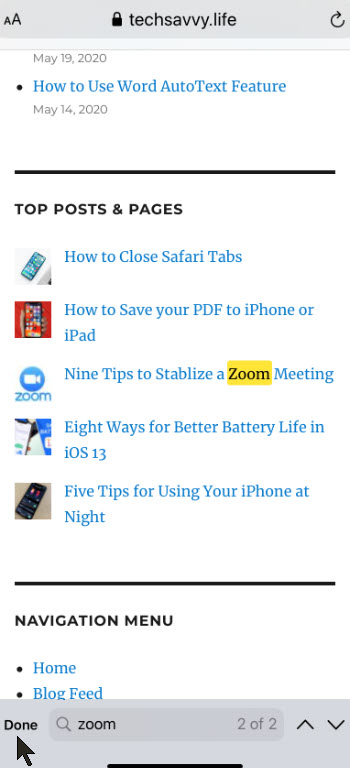
When you’re finished searching, tap Done in the lower-left corner of the screen. The Find in page mode will close. See following image:
Close your Search
Click to tweet if you find TechSavvy.Life blog posts extremely helpful. Check them out for posts on smart phone apps, Macs and PCs!
Please feel free to leave a comment. I would love hearing from you. Do you have a computer or smart device tech question? I will do my best to answer your inquiry. Please mention the device, app and version that you are using. To help us out, you can send screenshots of your data related to your question.
The author’s Vietnam eBook on the Battle for Tra Bong: Events and Aftermath
In the “old days”, back to iPhone 4, Safari was slooooow to load. By default, Safari either loads the last page you visited or your bookmarks. This tip will start Safari with a blank page. Then you can immediately begin searching for a particular topic without having to wait for graphics and text to load or for installed apps.
This is the second post in a series on Apple iPhone and its Safari web browser. I am updating and republishing this post. I just read another long blog about how to stop Safari from opening apps upon startup. All you have to do is start Safari with a blank page. Here’s how to do this.
In the “old days”, back to iPhone 4, Safari was slooooow to load. By default, Safari either loads the last page you visited or your bookmarks. This tip will start Safari with a blank page. Then you can immediately begin searching for a particular topic without having to wait for graphics and text to load or for installed apps.
This is for iPhone, iPad, and Mac using Safari web browser
Following are the steps to do this:
Tap on Safari, usually located in bottom right of your Home page
Tap on URL field and type “about:blank” (without quotation marks)
Tap Go (for iOS13 or higher)
Tap on the bottom Share arrow icon and scroll
Select Add to Home Screen to create a bookmark
Label the bookmark to something like “Blank Safari” (without any quotation marks)
Tap Add (for iOS13 or higher)
You will see a white blank Safari icon on your Home page. If you have several pages, it will appear on an empty icon space
You can drag this icon to wherever you want
When you tap this icon, Safari will instantly load a blank page
Your blank Safari screen should look like the following image:
Just highlight the about:blank URL and enter your search criteria.
I Would Like to Hear from You
Please feel free to leave a comment. I would love to hear from you. Do you have a computer tech question? I will do my best to answer your inquiry. Please mention the app and version that you are using. To help me out, you can send screenshots of your data related to your question.
The author’s Vietnam eBook on the Battle for Tra Bong Vietnam: Events and Aftermath
Pronouncing a name correctly isn’t just polite. It’s a way of recognizing someone’s identity. LinkedIn has introduced a new feature that lets members add a 10-second audio recording of their name pronunciation. Other users will be able to hear the clip by pressing a small speaker icon on a member’s profile.
Pronouncing a name correctly isn’t just polite. It’s a way of recognizing someone’s identity. LinkedIn has introduced a new feature that lets members add a 10-second audio recording of their name pronunciation. Other users will be able to hear the clip by pressing a small speaker icon on a member’s profile.
To use the feature, you’ll have to record your name on a mobile device (iOS or Android), but you’ll be able to play name pronunciations on mobile or a desktop. Let’s explore how to enable this feature.
This is for devices supporting LinkedIn
Copyright Scott Adams, Inc./Distributed by Universal Uclick for UFS
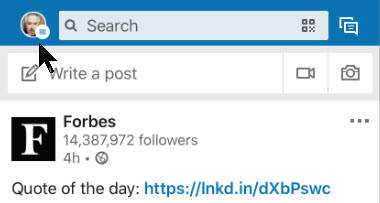
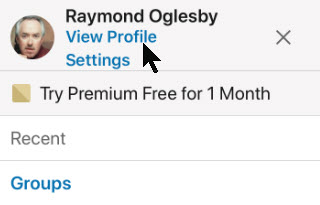
First, open the LinkedIn app on your smart device (iOS or Android). Next, from the the upper left hand corner, tap your Profile Photo. Refer to below image:
Accessing your Profile
Now, in the top menu, select the View Profile blue link . See below image
Selecting viewing your Profile
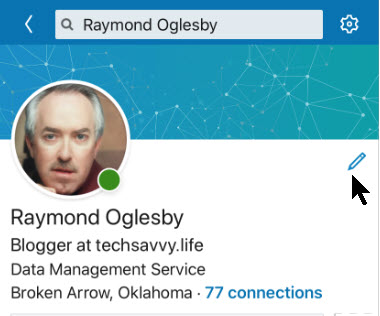
Next, tap on the Pencil icon next to your photo to edit your Profile. See following image:
Selecting edit your Profile
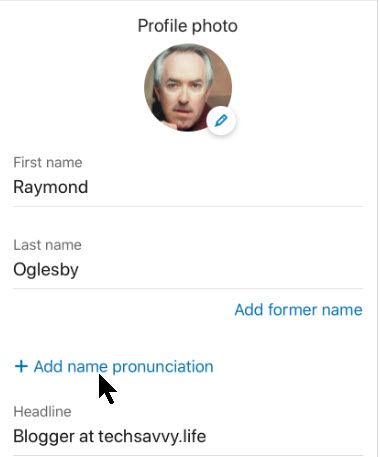
Next, tap on the Add Name Pronunciation blue link found under your First and Last name sections. Refer to below image:
Selecting add a recording of your name
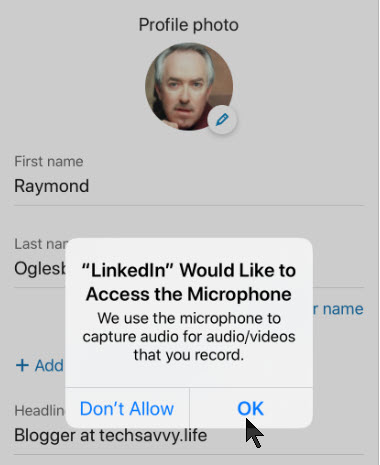
Now, grant the LinkedIn app permission to access your smart device’s microphone. See below image:
Giving permission to access your microphone
Recording Your Name
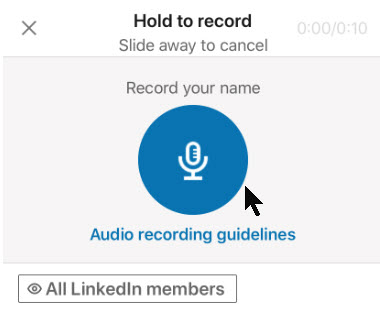
Press and hold on the blue microphone button to record your name. You have up to 10 seconds to record your first and last name. LinkedIn recommends that you limit background noise, speak slowly and pronounce clearly. Also, hold your phone about four inches from your mouth. See following image:
Recording your name
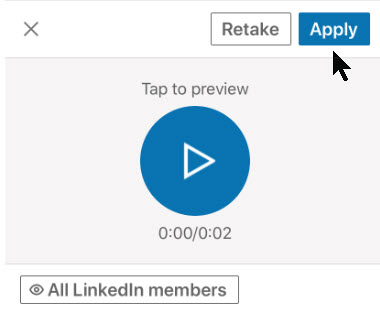
Tap the Play button to hear your audio recording played back to you. If you aren’t happy with it, select the Retake button. When you are satisfied with the recording, tap the Apply button. Refer to below image:
Saving your name recording
Choosing Your Audience
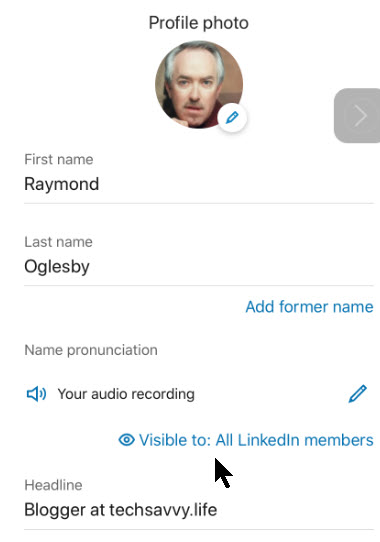
Before you leave the editing page, you can modify who can listen to your name pronunciation recording. To do so, tap the Visible To blue link at the bottom of the screen. See below image:
Accessing your audience
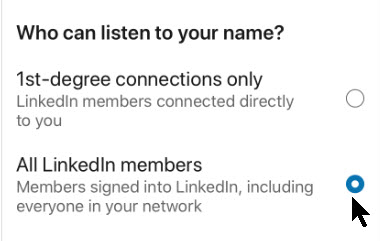
Here you have two sharing options to choose from. Either all Linkedin members can listen to your name (the default option) or only 1st-degree connections only. See following image:
Selecting your audience
Saving Your Changes
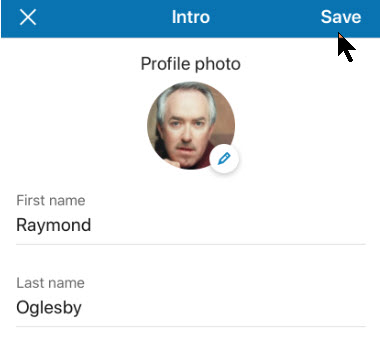
When you’re all set to exit the LinkedIn profile editing process, in the top right hand corner, tap the Save button. Refer to below image:
Saving your changes
View and Test Your Recording
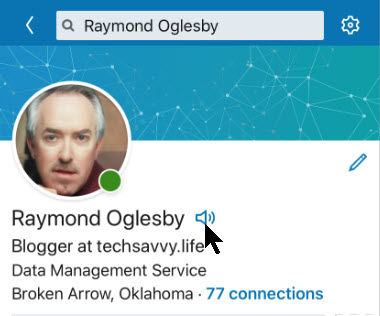
Now, you (or someone else) should see the tiny Audio icon next to your profile name. Select the icon to hear your name pronunciation. See following image:
Testing your name recording
That its. You and those you have selected can now hear the proper annunciation of your name.
I find TechSavvy.Life blog posts extremely helpful!
Please feel free to leave a comment. I would love hearing from you. Do you have a computer or smart device tech question? I will do my best to answer your inquiry. Please mention the device, app and version that you are using. To help us out, you can send screenshots of your data related to your question.
The author’s Vietnam eBook on the Battle for Tra Bong: Events and Aftermath
Using Apple Notes is a fast way to capture thoughts and take notes on your iPhone or iPad. You can do more than just take plain text notes. Instead you can organize your notes by using formatting tools to make them stand out from plain text. Let’s explore how to do this.
This is for iPhone and iPad
Copyright Scott Adams, Inc./Distributed by Universal Uclick for UFS
When you start a new note, Apple formats the first line into a Title format. You can change this by going to your Settings app, then navigate to:
Notes > New Notes > Starts With
and select your format. By default, the rest of your note is plain text.
As mentioned earlier, you can use formatting tools. These tools include headings, lists, indentations and more. These features are somewhat obscure for a new user.
The Formatting Toolbar
After opening a new note, tap on the screen to bring up the keyboard, if not already in view. Next, tap on the Aa button above the keyboard, the format row. You will see the text formatting tools that you can use. Refer to below image:
Accessing the formatting toolbar
The keyboard is replaced by the formatting toolbar split into three rows. See below image:
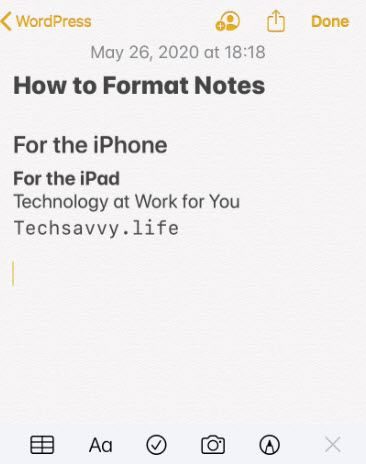
The formatting toolbar
From the first row, the Title Heading, Subheading and more are available to use. Monospaced is the only available font style to use in Notes. See following image:
The titles formatting
When the toolbar is open, tap the X to close, tap the plus sign (+) to open, both to the left of the toolbar.
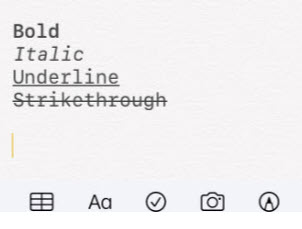
From the middle row, you can change selected text to Bold, Italic, Underline or Strikethrough formats. You may select multiple formats. Refer to below image:
The text formatting
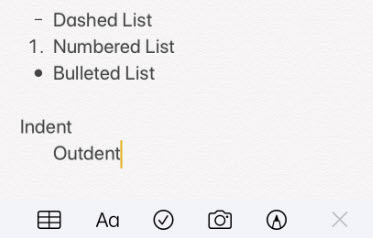
The last row has different bullet styles, indent and outdent formats. See below image:
The lists formatting
The Checklist is separate from the formatting toolbar. To add a checklist, tap on the Checklist icon. Simply, start typing in your item. Tap the Enter key to add a new item. To stop the checklist, tap the Enter key on an empty line. Refer to below image:
The checkbox formatting
To create a numbered list, start by typing 1 and then your first entry. To end your list, tap the Enter key on a blank line.
The Toolbar Examples
For a look at all our examples, see below image:
The entire formatting examples
I Would Like to Hear From You
Please feel free to leave a comment. I would love hearing from you. Do you have a computer or smart device tech question? I will do my best to answer your inquiry. Please mention the device, app and version that you are using. To help us out, you can send screenshots of your data related to your question.
The author’s Vietnam eBook on the Battle for Tra Bong: Events and Aftermath
With the Remote Desktop Mobile app for iOS and Android, you can connect to and control a remote Windows computer to work with your files and applications. This can be done from computer to computer, or you can use Microsoft’s Remote Desktop Mobile toolto access a remote PC from an iOS or Android device. With it, you can view the screen, open files and work with applications as easily as if you were in front of that computer. Let’s explore how to use the mobile app to access a remote computer.
We will first discuss setting up your PC for remote access, then explore what needs to be done on your iPhone or iPad. The steps for an Android will be similar
This is for PCs running Windows 10 and iPhones. The screenshots are for a PC and iPhone. Android devices will be similar.
Copyright Scott Adams, Inc./Distributed by Universal Uclick for UFS
Allow Remote Access
First, open Settings by typing in Settings in the Cortana search bar followed by clicking the app in upper left hand corner or click the Start button then click on the Settings tile (the cog wheel).
Next, click on the System option. Refer to below image:
Access the System option
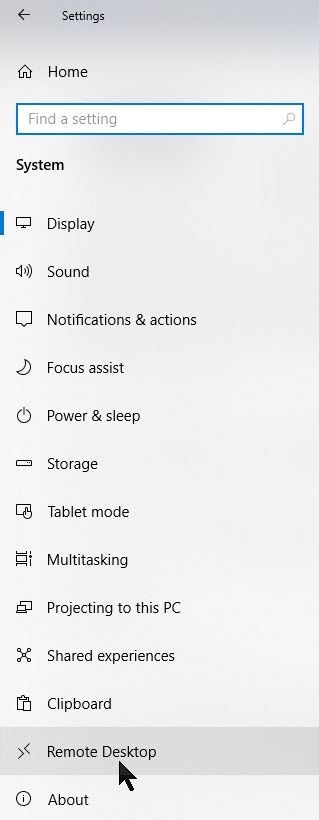
Now, click on the Remote Desktop option. See below image:
Access Remote Desktop option for the PC
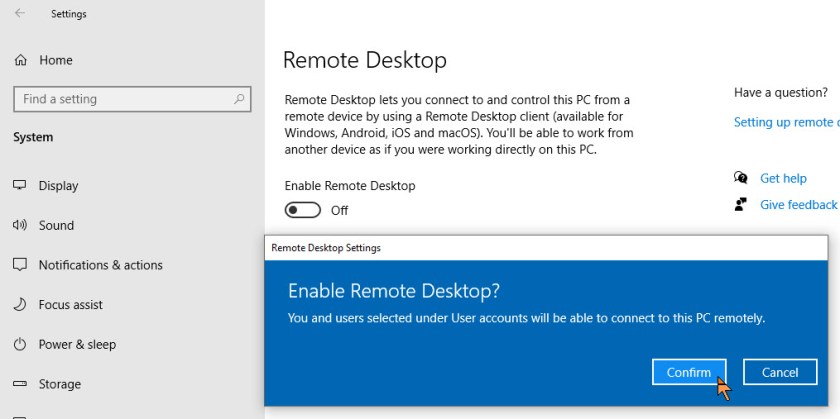
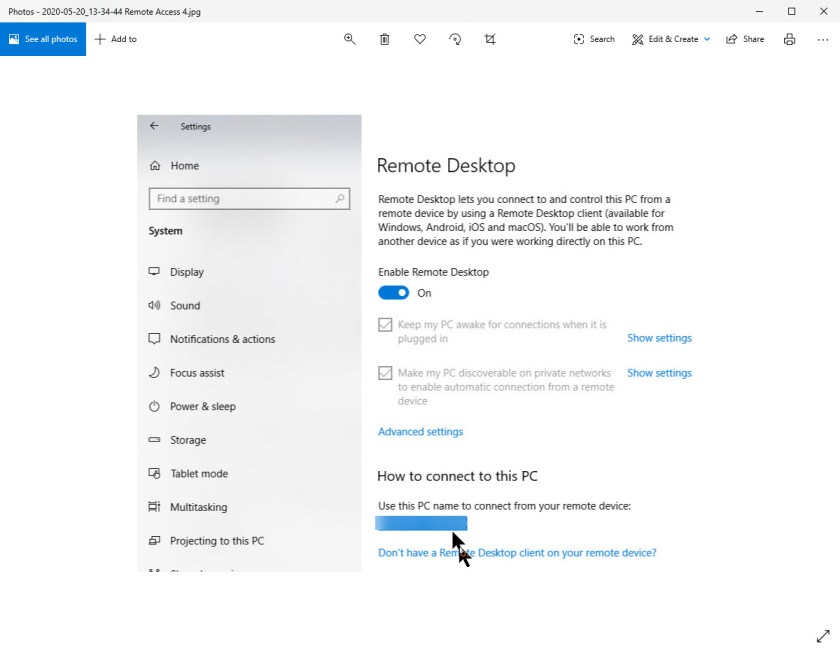
Next, slide the Enable Remote Desktop to the ON position. You will be presented with a confirmation screen. Just click Confirm to enable it. See following image:
Confirm Enable Remote Desktop access
By default, the options for Keep your PC awake for connections when it is plugged in and Make my PC discoverable on private networks to enable automatic connection from a remote device may both be enabled. To view or modify either option, click the corresponding link to Show settings, but you can leave both turned on at this point.
While you’re here, write down or copy the name of the PC as you may need it when you set up the connection. Refer to below image:
The Remote Desktop options for the PC
Remote Access Settings
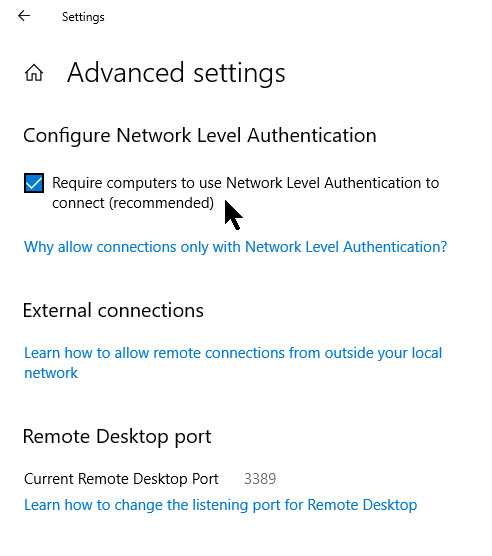
Let’s check a few more options while in Settings. Click the Advanced settings link and make sure the box for Configure Network Level Authentication is turned on. This feature provides an extra layer of protection to ward off uninvited guests.
If you’ll be connecting to the computer on the same network via a Virtual Private Network (VPN) or other means, ignore the section for External connections. The section for Remote Desktop port shows the default port to listen for and accept a remote connection. Refer to below image:
Advanced Settings for Remote Desktop
Allowing User to Signin Remotely
By default, any user who has an administrative account on the remote PC can access it. Assuming you’re using a Microsoft Account or company account to sign into Windows, your best bet is to use that account to sign in remotely.
If you want to give remote access to a different account, click the link at the bottom for Select users that can remotely access this PC. Click Add and enter the user name for the account you want to use. See below image:
Setup users to access the remote computer
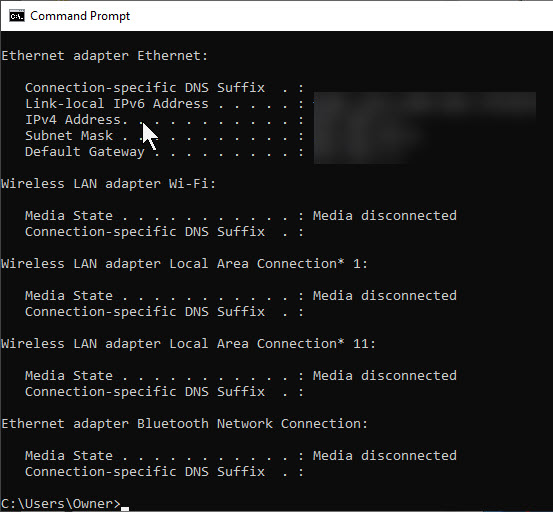
Access Your IP Address
In the Cortana search box, enter cmd and press the Enter key. The Command Prompt app will open. Next, enter ipconfig and press the Enter key. Copy or write down your IP addresses (especially the IP4 address) for later use. Refer to below image: (Note! I have blanked out my IP addresses for security reasons).
Access your User Account Name
If you are using a local account to sign in for Windows 10 and forgot your User Account name, navigate to the Settings app by:
Pressing the Windows key + I
Click the Accounts option
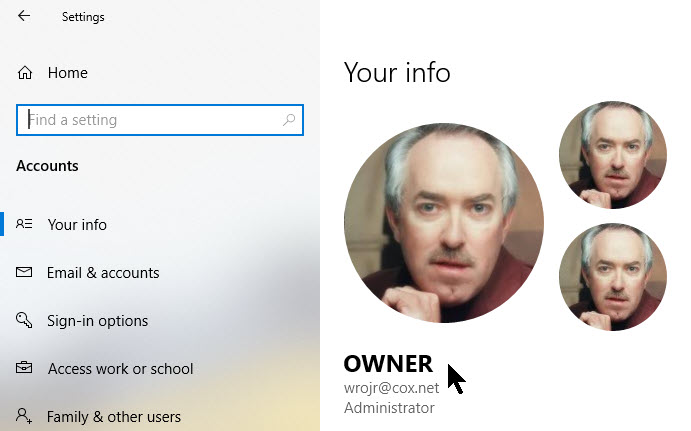
Click on Your Info
Your User Account name will be in bold under your profile photo. See my info below:
Your Settings info
Download Remote Access for Your iPhone or iPad
Now, let’s explore the second part of our remote access, the iPhone or iPad setup.
To access the computer from your iPhone or iPad, download and install the Remote Desktop Mobile app from Apple’s App Store. Open the app, tap the plus (+) symbol in upper right hand, and choose the option to Add PC. See following image:
Add a PC to connect remotely
Setup Remote Access for iOS
At the Add PC window, enter the computer name or IP Address (both copied down earlier, normally this would be your IP4 address) in the PC Name field. Type the account name you want to use in the User Account field and password or leave the field set to Ask When Required if you’d rather enter the name each time for security reasons.
Under the General section, type a name in the field for Friendly Name to add a more convenient label for this connection. Turning on the switch for Admin Mode connects you to a console session to manage a Windows server; normally you would leave this turned off. The option for Swap Mouse Buttons swaps the left and right mouse buttons.
In the Gateway section, you will need to enable and set up the option for Gateway only if your organization uses a Remote Desktop Gateway to secure remote connections. See below image:
The Add PC options
Configure Session Features
Swipe down to the Device & Audio Redirection section to enable any features on your iOS device that you wish to use during a remote connection. You’d likely want to direct the Sound to play on this device. You may also want to enable the Clipboard if you plan to copy and paste back and forth. You can also enable the Microphone, Camera and Remote Storage. When finished, tap Save in the upper-right corner. Refer to below image:
Configure device features
Connect to Remote PC on iOS
The computer you wish to access will be displayed in the app. Tap the name and icon of the computer connection you just set up. The first time you try to access the computer, Remote Desktop may ask to verify the connection to that computer. Enable the option for Don’t ask me again for connections to this computer and then tap Accept. You may click the hamburger icon (the 3 dots) in lower left hand corner to edit your entries. See following image:
The connect icon to a PC from your smart device
Remote Connection Toolbar for iOS
You now should be connected to the remote computer. You may now open apps and windows, manage the desktop and do just about everything you can do if you were sitting in front of the PC.
If you get the error code “0x204”, navigate back to the section Setup Remote Access for iOS and enter the IP4 address in the PC Name field. If you still get the error code, then click here on guidelines to resolve this issue.
To help you control your remote session, the app displays a small toolbar at the top. Tap the Magnifying glass icon to zoom in on the screen. Tap it again to zoom back out. Tap the Keyboard icon to display your device’s keyboard. Refer to below image:
The Remote Desktop Connection toolbar
Manage Remote Connections
Tap the middle icon to view all your remote connections. Tap on a different remote connection to jump to another session. This page has its own toolbar at the top. Tap the Home icon to return to the home screen, where you can set up or access another connection. Tap the Hand icon to switch to touch-screen mode and tap the Mouse icon to switch to mouse mode.
Tap the X button in the thumbnail to terminate the connection for that session. Otherwise, tap Disconnect All PCs to end every current session. See below image:
Access Remote Desktop options on the smartdevice
I Would Like to Hear From You
Please feel free to leave a comment. I would love hearing from you. Do you have a computer or smart device tech question? I will do my best to answer your inquiry. Please mention the device, app and version that you are using. To help us out, you can send screenshots of your data related to your question.
The author’s Vietnam eBook on the Battle for Tra Bong: Events and Aftermath


































 Tech Savvy Life