Deleting Microsoft Accounts Gets Man Two Years in Jail

This post is for information only, no screenshots. At the end of the main story, I added one of my own IT consultant stories.

This post is for information only, no screenshots. At the end of the main story, I added one of my own IT consultant stories.

This is for businesses

Source: Office Watch

A man has been jailed for two years after sabotaging a company by deleting 80% of their Microsoft 365 accounts; email, calendars, contact lists, docs, and so on. What did he do and what organizations should do to prevent a similar catastrophe.

Deepanshu Kher worked for an IT consultant firm and was deployed to work at Carlsbad Company who were migrating to Microsoft 365 hosting. Carlsbad were unhappy with Kher who eventually left both Carlsbad and the consultant firm.

He returned to India where he hacked into Carlsbad Company’s new Microsoft 365 system and deleted 1,200 of their 1,500 user accounts. That shut down the company for two days, unable to access email accounts, contacts, calendars, documents, directories plus Teams and video conferencing.

Customers and partners could not contact the company or vice-versa. There was no way to tell people what was happening and why.

It took three months and over half-a-million dollars for Carlsbad to get everything back into something like normal.

Lessons to be Learned

Details of the hack have not been disclosed but some reasonable guesses are possible with some preventative measures suggested. See end of this blog post for a link about the hack.

Revoke Accounts

When someone leaves an organization, especially admin level access, make sure their account privileges are suspended or revoked.  It’s easily overlooked.

A former employee or contractor might have discovered other logins or know hacks into a system but most commonly they just login to their account.

Restoring Deleted Accounts

Microsoft’s default for deleting a mailbox or user account is a ‘soft’ deletion that’s held in a recycle bin for 30 days, with a Restore option, before full deletion. Unfortunately, there’s a second ‘hard’ option which immediately deletes the entire mailbox or user account. In some cases, hard deletion is necessary but perhaps Microsoft should make irreversible deletions a lot more difficult to access, even by administrators? Maybe require more than one admin to approve hard deletions?

Where is the Hacker Now?

Mr Kher did his nasty deed from India but that didn not stop the FBI from tracking him down and issuing an arrest warrant. When he tried to re-enter the US in January 2021 he was arrested, unaware of the outstanding warrant.

In US District Court he was found guilty of “Intentional Damage to a Protected Computer ” which carries a 10 year and $250,000 fine maximum. Kher was sentenced to two years jail, three years supervised release and ordered to pay restitution of $567,084 (the precise amount it cost Carlsbad to fix their systems).

See Justice.gov for details.

One of my Personal IT Consultant Jobs

I went to work thru a consultant agency for a manufacturing plant in the Port of Catoosa near Tulsa, Oklahoma. On my first day, around 9am, the admin person starting setting me up access to their system. Two hours later, he was still working; he did not know how to set my credentials. Also, a lady supervisor came by and gave me a foot high stack of paper and told me to go through it. I ask, “what am I looking for?”. She said, “just go through it.” Then she left. I did not do this; if she did not know what I was looking for, I sure did not know.

Around 11:am, the IT director came by and wanted to take me to lunch. His right-hand partner, he and I got into his vehicle. They did not ask me any questions on the ride to the restaurant or back to the company. During lunch, they did not even acknowledge my presence or ask me anything. They just talked to each other. So, I remained silent. I thought this was strange.

Back at the plant, he took me to several departments where I met a lot of people, names I could not remember. What I later realized, it was a “dog and pony” show. He was being pressured to do something about their IT “system”, so he talked to my consulting agency and they sent me. He expected me to fix their “system”. He knew this was an impossible task for one person; he set me up for failure.

Over the next two days, I was amazed at their “system”. Their plant was using Excel spreadsheets to run the company; I found thousands of them. I estimated 10,000 spreadsheets.

One department would enter info like name, supervisor, hours worked. Then that department would “pass” the spreadsheet to the next department where they added their own info and/or creating new Excel spreadsheets. And so it went to each department. It was a gigantic mess. I wrote him a letter saying he needed an enterprise system like SAP, IBM or Accenture. He ignored the letter. He had done his job by hiring me to be his savior.

I decided to start with the Time Keeping system. I create a database and the forms. At least, they could have something to visualize.

No one spoke to me. I tried to talk to the guys in IT, but they shut the door in my face. Very wierd.

After ten days, I came in on a Monday morning and starting working. Around 10:00am a supervisor comes by and says, “why are you hear, you were fired on Friday”. I said, “no one told me”. She left and I called my boss. They did not know either. I packed what work I had done and left.

After reading the main story above, I could have done major damage to the company by deleting thousands of Excel spreadsheets in a matter of minutes. I had full admin access. So, would I have been sentenced to jail? I do not think so because I was technically fired and no one told me or my boss. The company was to blame for their lack of communication and not revoking my credentials. So, pay attention to the above story, especially, if you are running a business.

That’s it. Please feel free to share this post! One way to share is via Twitter.

Just click the Tweet icon below. This will launch Twitter where you click its icon to post the Tweet.

Check out TechSavvy.Life for blog posts on smartphones, PCs, and Macs! You may email us at contact@techsavvy.life for comments or questions.

I Would Like to Hear From You

Please feel free to leave a comment. I would love hearing from you. Do you have a computer or smart device tech question? I will do my best to answer your inquiry. Just send an email to contact@techsavvy.life. Please mention the device, app and version that you are using. To help us out, you can send screenshots of your data related to your question.

The author’s Vietnam eBook on the Battle for Tra Bong: Events and Aftermath

How to Change Google Assistant’s Voice

If you use the Google Assistant often, you might be getting tired of hearing the Assistant reply in the same voice. Fortunately, Google realized their customers wanted voice options for their devices, and introduced the ability to change your Assistant’s voice some time ago; and added a few surprise options.

If you use the Google Assistant often, you might be getting tired of hearing the Assistant reply in the same voice. Fortunately, Google realized their customers wanted voice options for their devices, and introduced the ability to change your Assistant’s voice some time ago; and added a few surprise options.

With a few simple steps, you can change the voice on all of your Google-powered devices, including your Chromebook and smartphones. Here’s the simple guide on how to change the Google Assistant’s voice.

This is for smartdevices using Google. Screenshots are from iPhone XR

Dilbert and Wrong
Copyright Scott Adams, Inc./Distributed by Universal Uclick for UFS

First, open the Google Assistant app from your iPhone App Library. Hold, swipe right, and release using the Dots bar at the bottom or swipe left all the way to open the App Library. Refer to below image:

Voice 1
Using the Dots bar

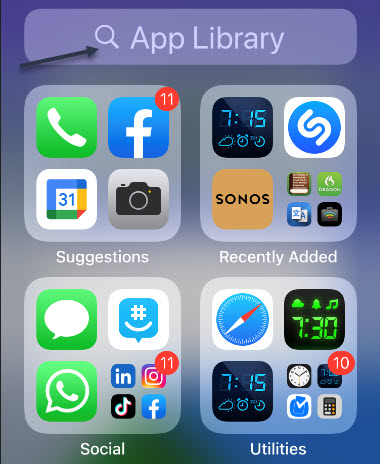
Next, at the top of your screen you will see a Search box. See below image:

Voicd 2
The App Library screen

Now, in the Search bar, type in google assistant and tap the app to open. See following image:

Voicd 3
The Google Assistant app

Here you will see a list of things you can do with the app. Locate the Assistant voice option and tap it. Refer to below image:

Voice 4
The Assistant Voice option

The default voice will be displayed, usually Red. At the bottom of your screen you will see the list of devices supporting this voice. See below image:

Voice 5
Selecting the Red voice, the default

To change the voice setting, just swipe the Dots bar to highlight one or tap a color bubble to hear a voice sample. After your selection, that voice will remain as your Google Assistant Voice setting. See following image;

Voicd 6
Selecting the Amber voice

Google Assistant also has the option to assume a variety of celebrity voices, giving you some very unique options for your voice assistant. The range of celebrity voices available continues to grow, but popular options currently include John Legend and Issa Rae.

You may have found the celebrity voice options when looking at the voice settings we mentioned earlier, but there’s an, easier way to give your Google Home a celebrity voice. All you have to do is say, “Hey Google, talk like John Legend,” or whoever you prefer, and the voice assistant will address you in that voice until you tell it otherwise. All voices are not available in all areas.

Now, exit the Assistant. That’s it. Please feel free to share this post! One way to share is via Twitter.

Just click the Tweet icon below. This will launch Twitter where you click its icon to post the Tweet.

spacer

Check out TechSavvy.Life for blog posts on smartphones, PCs, and Macs! You may email us at contact@techsavvy.life for comments or questions.

I Would Like to Hear From You

Please feel free to leave a comment. I would love hearing from you. Do you have a computer or smart device tech question? I will do my best to answer your inquiry. Just send an email to contact@techsavvy.life. Please mention the device, app and version that you are using. To help us out, you can send screenshots of your data related to your question.

The author’s Vietnam eBook on the Battle for Tra Bong: Events and Aftermath

How to Easily Open Chrome to Incognito Mode

If you do not want Google Chrome to remember your activity, you can browse the web privately in Incognito mode.

If you do not want Google Chrome to remember your activity, you can browse the web privately in Incognito mode.

It is easy to quickly open an Incognito window using a keyboard shortcut. Lets explore how to do this.

This is devices running Google Chrome

Dilbert and Class
Copyright Scott Adams, Inc./Distributed by Universal Uclick for UFS

First, open Chrome. Next, with any Chrome browser window open, press the following keyboard combination to open a new Incognito window:

  • Windows, Linux, or Chrome OS: Press Ctrl + Shift + N.
  • Mac: Press ⌘ + Shift + N.

After pressing the keyboard shortcut, a special Incognito window will open. If you want to block third-party cookies, just toggle the switch to On, the default setting. Refer to below image:

Incognito 1
Your Incognito window

Whenever you are in Incognito mode, you will be able to tell because the Chrome browser window’s toolbar will have a darker color scheme and there will be a small Incognito icon beside the address bar in the toolbar. See below image:

Incognito 2
The icon and text telling you are in Incognito mode

You can switch between Incognito windows and regular Chrome windows. You will only browse in private when you are using an Incognito window.

While browsing within an Incognito window, Chrome will not locally store your browsing history, site data, cookies, or saved form data once you close the Incognito window. However, downloaded files and bookmarks will be saved unless you manually remove them.

At any time, you can press Ctrl+T (or ⌘ + T on Mac) to open a new tab within the Incognito window, and browsing activity within that tab will be locally private as well.

Remember that Incognito mode is not perfect, and it does not protect you from those who might view your activity on the web remotely, such as your employer, school, ISP, or the websites you visit. It is only to prevent local snooping of your browsing history.

If you see a number next to the Incognito text at the top right, you have more than one Incognito window open. See following image:

Incognito 3
Your number of Incognito windows open

When you are ready to stop private browsing, you will need to close the Incognito window(s). To do so using a keyboard shortcut:

  • Windows, Linux, or Chrome OS: Press Alt + F4
  • Mac: Press ⌘ + Shift + W

Or you can just click the “X” in the corner of the window with your mouse.

That’s it. Please feel free to share this post! One way to share is via Twitter, as mentioned below.

I hope you have found this post helpful. If so, click the Tweet icon below. This will launch Twitter where you click its icon to post the Tweet.

Check out TechSavvy.Life for blog posts on smartphones, PCs, and Macs! You may email us at contact@techsavvy.life for comments or questions.

I Would Like to Hear From You

Please feel free to leave a comment. I would love hearing from you. Do you have a computer or smart device tech question? I will do my best to answer your inquiry. Just send an email to contact@techsavvy.life. Please mention the device, app and version that you are using. To help us out, you can send screenshots of your data related to your question.
The author’s Vietnam eBook on the Battle for Tra Bong: Events and Aftermath

How to Auto-Delete Your Google History Activities

Google collects and remembers “tons” of information about your activity, including your web, search, YouTube, and location history. Google auto-deletes for new users after 18 months but it will remember history forever if you previously enabled this feature with the default options.

Google collects and remembers “tons” of information about your activity, including your web, search, YouTube, and location history. Google auto-deletes for new users after 18 months but it will remember history forever if you previously enabled this feature with the default options.

As an existing user, you have four options in making Google delete your data; after 36 months, 18 months, 3 months, or stop activity collection entirely. The options are buried in Google Settings.

This is for devices running Google. Screenshots are from iPhone XR

Dilbert and Vaccine
Copyright Scott Adams, Inc./Distributed by Universal Uclick for UFS

Note! Google uses this history to personalize your experience, including your web search results and recommendations. Deleting it will make your Google experience less “personalized.”

Let’s explore how to set up this auto-delete function..

Control Web and App Activity

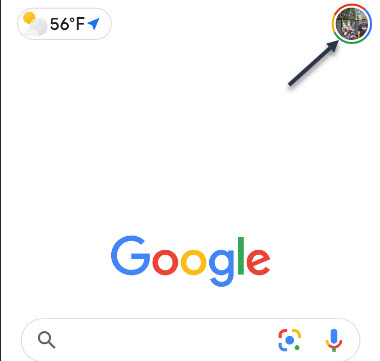
First, launch Google and tap your profile photo. Refer to below image:

Google 1
Launch Google

Now, tap the Google Account settings option See below image:

Google 2
Accessing Google Account option

Next, scroll down to Privacy & personalization section and tap Manage your data & personalization. See following image:

Google 3
Accessing your data and personalization link

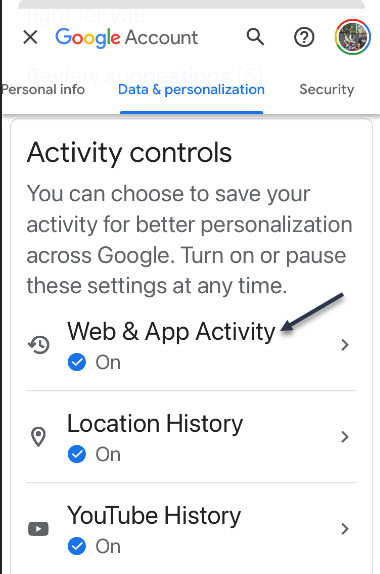
Now, scroll down to Activity controls section. Here, tap the Web & App Activity option. Refer to below image:

Google 4
Accessing your Web & App Activity section

Next, toggle to On the Web & App Activity toggle. Next, tap the Auto-delete (Off) switch to turn in On. See below image:

Enabling Auto-delete by its link

Now, select one of four options. See following image where I selected Auto -delete activity older than 18 months and tap the Next button:

Google 6
Selecting one of four options for Auto-delete

A Confirmation screen will be displayed. Just tap the Confirm button in lower right-hand corner. Refer to below image:

Google 7
Confirming your selection

Now, you will see a Preference saved dialog box. Just tap Got It text in lower right-hand corner. See below image:

Google 8
Saving your preference

Control Location and YouTube Activity

Next, go back to Activity controls section and repeat above steps for Location History and YouTube History.

Let’s say you Search, read articles, watch videos, or see photos on ‘drones’. Google will send out ad links for ‘drones’, this is called ‘ad personalization’. Through these sponsored ads is one way Google makes money. You can turn off these ads but at the expense of a ‘depersonalization experience’.

Control Ad Personalization

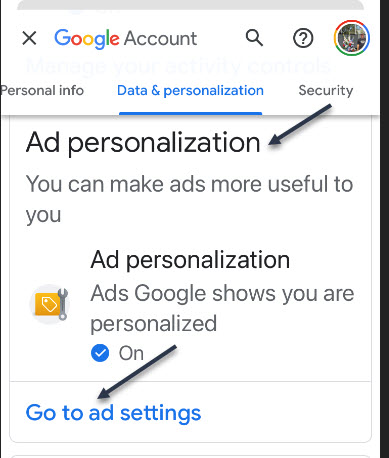
Now, go back to Activity controls and scroll down a little till you see the Ad personalization section and tap the Go to ad settings link. See following image:

Google 9
Selecting your ad settings link

Next, toggle the Ad personalization switch to ON. Refer to below image:

Google 10
Enabling your Ad personalization

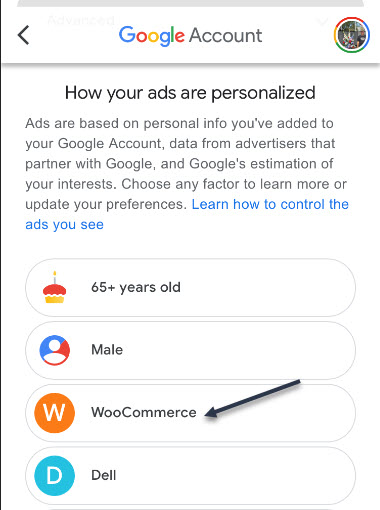
Here you will see a listing of companies/others who are using ad personalization. See below image where I selected WooCommerce:

Google 11
Selecting a targeted ad

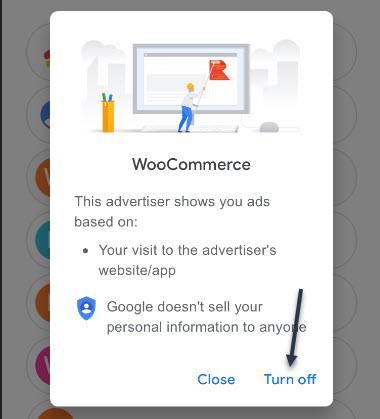
Now, you will be presented a dialog box to Turn off or Close. Next, tap the Turn off button to no longer see this company/others targeted ads. See following image:

Google 12
Turning off your targeted ad

Now, a confirmation dialog box appears where you have to tap the Turn off button again. Google makes you go through ‘hoops’ to reduce their ads. Refer to below image:

Google 12
Your confirmation for turning off the targeted ad

Really, Turn Off Ads?

Google is making you go through a myriad of selections. Notice the text that states turning off your selected ad will stay off for at least 90 days. Your selected ad will stay off for this period, then guess what, the ad comes back! Google wants to make money off these ads; they do not want you to turn them off. See above image.

That’s it. Please feel free to share this post! One way to share is via Twitter.

Just click the Tweet icon below. This will launch Twitter where you click its icon to post the Tweet.

Check out TechSavvy.Life for blog posts on smartphones, PCs, and Macs! You may email us at contact@techsavvy.life for comments or questions.

I Would Like to Hear From You

Please feel free to leave a comment. I would love hearing from you. Do you have a computer or smart device tech question? I will do my best to answer your inquiry. Just send an email to contact@techsavvy.life. Please mention the device, app and version that you are using. To help us out, you can send screenshots of your data related to your question.

The author’s Vietnam eBook on the Battle for Tra Bong: Events and Aftermath

How to Spell Check Outlook Emails Before Sending

Nobody wants their communications to have spelling errors left in, so let Microsoft Outlook help by automatically spell checking emails before they are sent.

Nobody wants their communications to have spelling errors left in, so let Microsoft Outlook help by automatically spell checking emails before they are sent. Of course you can manually check before sending by opening an Outlook email and head to:

Review > Spelling & Grammar

But who wants to do this for every email you send. Instead, the Microsoft Outlook desktop client has a setting that forces spell check to take place after you click the Send button. If no errors are found, the email is sent like normal. If a spelling error is found, Outlook gives you the option to correct it before the email is sent.

This is for PCs running Outlook

Dilbert and Bitcoin
Copyright Scott Adams, Inc./Distributed by Universal Uclick for UFS

To enable this feature, open the Outlook desktop application and click:

File > Options

Refer to below image:

Outlook 1
Accessing Options

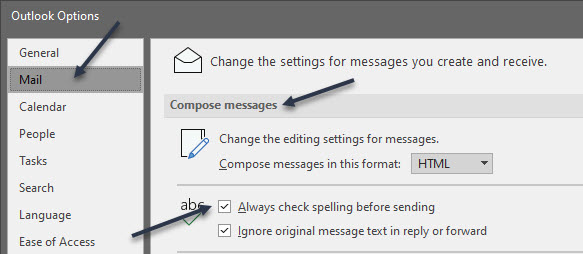
Next. in the Mail > Compose Messages section, toggle on the Always check spelling before sending checkbox. See below image:

Outlook 2
Enabling Spell Check

Now, click OK in the bottom-right corner to save and close the Options panel. See following image:

Outlook 1
Saving your change

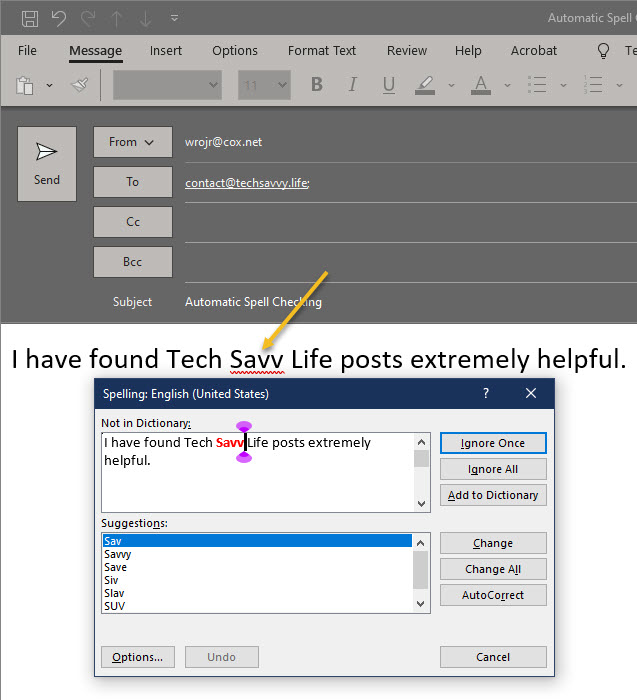
Now, when we click Send on an email with a spelling error, Microsoft Outlook will pick it up and give you the chance to change it. Refer to below image:

Outlook 4
Spell Check in action

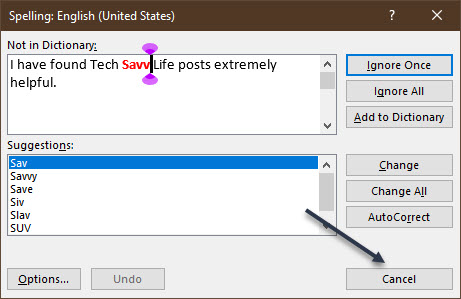
If the spell checker has found a misspelled word and you want to change it, click Cancel. Or, you could use one of its suggestions. See below image where “Savvy” is misspelled:

Outlook 5
Cancel your email

If you choose to cancel, a dialog box will open that lets you quit sending the email. Click No to stop the email from being sent. See following image:

Outlook 6
Cancel sending your email

Note! The spell checker will not pick up the wrong words, just words that are spelled incorrectly. So, if you meant to type in “Savvy” but instead typed “Savoy”, the spell checker will not pick that up because “Savoy” is a correctly spelled word.

You are finished. Please feel free to share this post! One way to share is via Twitter.

Just click the Tweet icon below. This will launch Twitter where you click its icon to post the Tweet.

Check out TechSavvy.Life for blog posts on smartphones, PCs, and Macs! You may email us at contact@techsavvy.life for comments or questions.

I Would Like to Hear From You

Please feel free to leave a comment. I would love hearing from you. Do you have a computer or smart device tech question? I will do my best to answer your inquiry. Just send an email to contact@techsavvy.life. Please mention the device, app and version that you are using. To help us out, you can send screenshots of your data related to your question.

The author’s Vietnam eBook on the Battle for Tra Bong: Events and Aftermath

How to Block Fact Checkers and Gate Keepers On Facebook

Have you received the message “This post has been removed for misinformation… or deemed inappropriate….” on Facebook. Just who are these Facebook “Police”?

Who you goin to call, Fact Checkers? A ‘play on words’ from the movie ‘Ghostbusters’.

Have you received the message “This post has been removed for misinformation… or deemed inappropriate….” on Facebook. Just who are these Facebook “Police”?

You will be surprised at the number of people who use ‘fact checker’ or ‘gate keeper’ as their name

Facebook has partnered with independent third-party fact-checkers globally who are certified through the non-partisan International Fact-Checking Network (ICFN). This fact-checking program launched in 2016, and has continued to expand it since then to cover more languages and countries.

The focus of this program is to address viral misinformation; provably false claims, particularly those that have the potential to mislead or harm.

Fact-checking partners are able to review content across both Facebook and Instagram, including organicand boosted posts. They can also review videos, images, links or text-only posts.

There are a lot of guides on the Internet that tell you to block ‘fact checker’ from the Facebook block user function. However, all this does is block users and pages that call themselves ‘fact checker’. Facebook does not actually disclose who and where the ‘fact checker’ actually are, so blocking random pages named ‘fact checker’ won’t really do much. The same goes for ‘gate keeper’.

So, this post is just for fun and informational. You are unable to actually block a Facebook ‘fact checker’ or ‘gate keeper’. With that said, let’s explore how to block people who call themselves ‘fact checker’ or ‘gatekeeper’.

This is for devices running Facebook

Dilbert and Wrong
Copyright Scott Adams, Inc./Distributed by Universal Uclick for UFS

Who Are Fact Checkers

Source: Facebook

Since we do not believe that a private company like Facebook should be the arbiters of truth, we rely on independent fact-checkers to identify and review potential misinformation, which enables us to take action.

  1. Identify: We identify potential misinformation using a variety of signals, and our fact-checking partners can also proactively identify content on their own.
  2. Review: Fact-checkers review and rate the accuracy of stories through original reporting, including interviewing primary sources, consulting public data, and conducting analyses of media, including photos and video.
  3. Act: Once we have a rating from a fact-checking partner, we take action by ensuring that fewer people see that misinformation by surfacing fact-check articles to users across our platforms and showing labels on top of false stories.

Who Are Gate Keepers

Source: Slate

Facebook Oversight Board is their gatekeeper. A gatekeeper decides what is free speech or not. The board will act much like a court of appeals for the platform, and it will take on cases regarding how to handle controversial content on Facebook and Instagram. The board will also act in an advisory capacity, giving policy recommendations to the company.

Block a Fact Checker

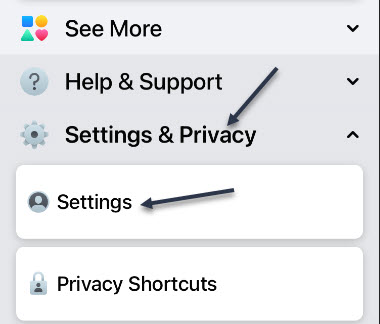
First, launch Facebook and tap the Menu icon. Refer to below image:

FC 1
Accessing Facebook menu

Now, scroll down and open the Settings and Privacy section and tap Settings. See below image:

FC 2
Accessing Facebook settings

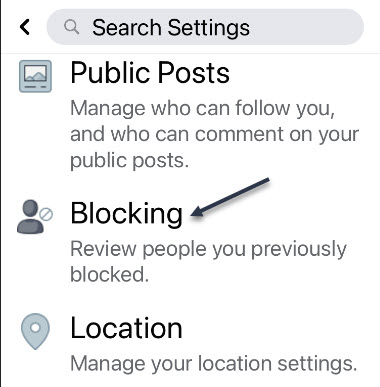
Next, scroll down to the Blocking section and tap it. See following image:

FC 3
Accessing the Blocking section

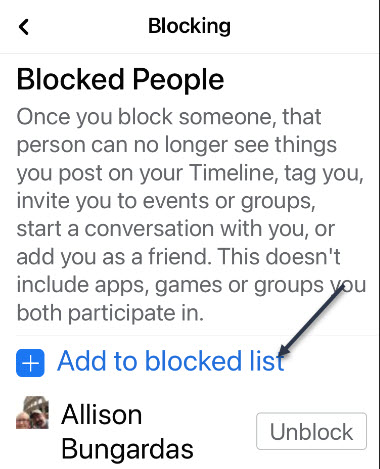
Next, tap the link Add to blocked list. Refer to below image:

FC 4
Accessing the Add to blocked list link

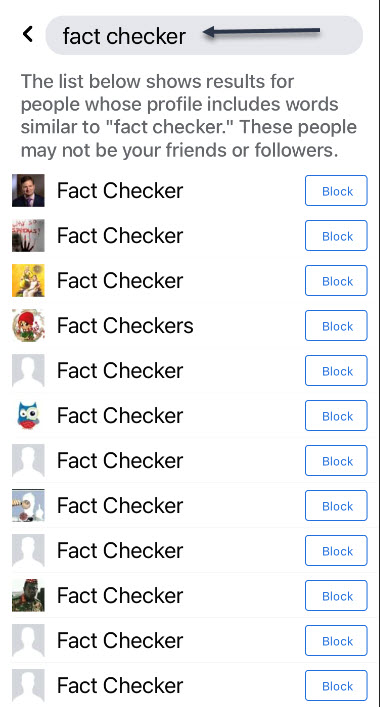
At the top of the page, in the Search box, type in: fact checker. Here you will see a long list of people using the name of ‘fact checker’. See below image:

FC 5
Entering Fact Checker in the Search box

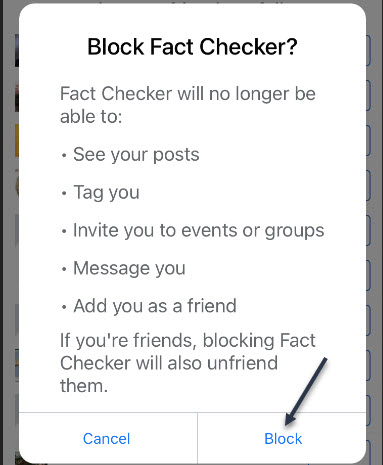
Next, tap a listing or the Block icon and you will be given a dialog box to Block or Cancel. Tap the Block icon. That person will be added to your Blocked People list. See following image:

FC 6
Blocking a Fact Checker

Now, repeat the above for each ‘fact checker’ person you want to block. Next, in the Search box, type in: fact checkers. Here you will see another long list of people using the name of ‘fact checkers’. Next, tap a listing or the Block icon. Tap the Block icon and repeat for each person in the list as needed.

Block a Gate Keeper

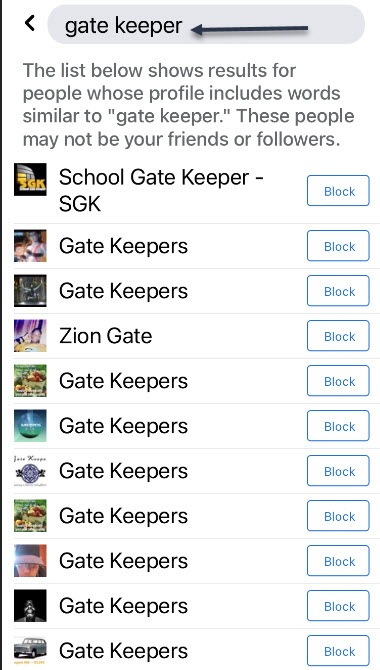
Go back to the Search box and type in: gate keeper. Here you will see a long list of people using the name of ‘gate keeper’. Refer to below image:

FC 7
Entering Gate Keeper in the Search box

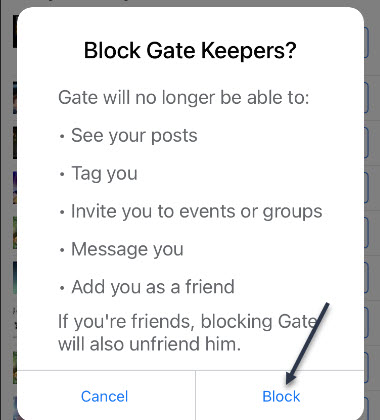
Next, tap a listing or the Block icon you will be given a dialog box to Block or Cancel. Tap the Block icon. See below image:

FC 8
Blocking a Gate Keeper

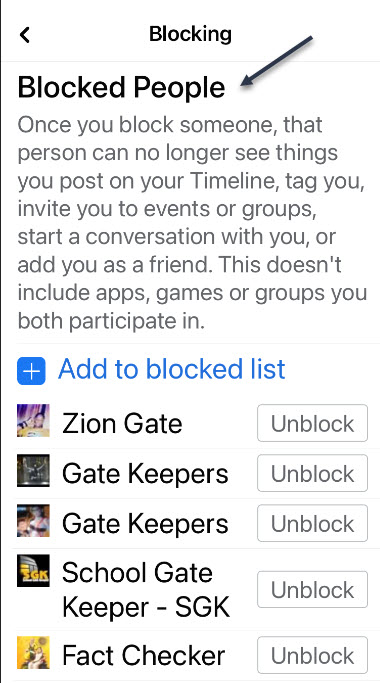
Repeat the above for a search of ‘gate keepers’ and block as needed. Next, tap the back button to see your Blocked People list that includes ‘fact checker’, ‘fact checkers’, ‘gate keeper’ and/or ‘gate keepers’. Why do people use such names? See following image:

FC 9
Your Blocked People list

Now, tap all the way back using the Back button and exit Facebook.

I hope you learned something about the Facebook ‘Police’. We did. Well, that’s it. Please feel free to share this post! One way to share is via Twitter.

Just click the Tweet icon below. This will launch Twitter where you click its icon to post the Tweet.

Check out TechSavvy.Life for blog posts on smartphones, PCs or Macs! You may email us at contact@techsavvy.life for comments or questions.

I Would Like to Hear From You

Please feel free to leave a comment. I would love hearing from you. Do you have a computer or smart device tech question? I will do my best to answer your inquiry. Just send an email to contact@techsavvy.life. Please mention the device, app and version that you are using. To help us out, you can send screenshots of your data related to your question.

The author’s Vietnam eBook on the Battle for Tra Bong: Events and Aftermath

How to Adjust Microphone Volume in Windows 10

Unfortunately, not all microphones are created equal. Baseline volume levels differ significantly between models, and while one may sound more than adequate, another may be vastly underpowered. The issue can be particularly pronounced when using microphones with communication applications such as Skype.

Unfortunately, not all microphones are created equal. Baseline volume levels differ significantly between models, and while one may sound more than adequate, another may be vastly underpowered. The issue can be particularly pronounced when using microphones with communication applications such as Skype. Let’s explore how to adjust your microphone volume.

This is for devices running Windows 10

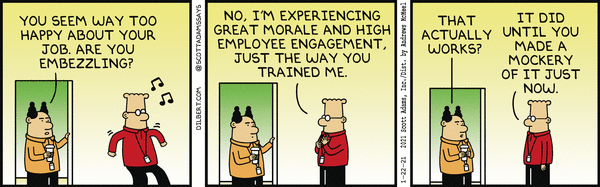
Dilbert and Happy
Copyright Scott Adams, Inc./Distributed by Universal Uclick for UFS

All microphones, whether you are using an internal or external one, have different base volumes when transmitting your voice to other parties. If you find that people often complain of not being able to hear you during meetings, the most likely culprit is the out volume of your PC’s microphone.

Use Settings

First, click the Start menu, then select the gear icon on the bottom left to open Settings. You can also press Windows+i to open it. Refer to below image:

Microphone 1
Accessing Settings

Now, click the System option. See below image:

Microphone 2
Selecting the System option

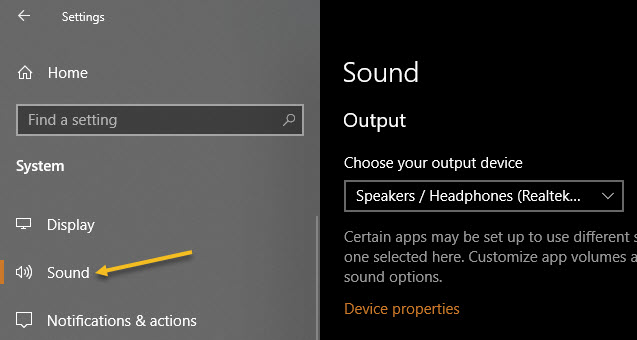
Next, select Sound in the sidebar. See following image:

Microphone 3
Selecting the Sound option

Now, scroll down to the Input section and select the device you would like to configure using the Choose your output device drop-down list. Then click Device properties option. Refer to below image:

Microphone 4
Accessing the selected device properties

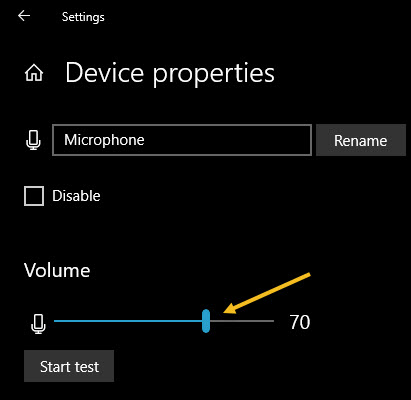
Next, use the Volume slider to adjust the output level of the microphone. See below image:

Microphone 5
Adjusting the Sound volume

The louder the volume, the louder the output signal will be when you use the microphone. Louder is not always better, however, if the signal is too loud, your voice will be distorted. Try to find the ideal volume where your voice (or other sound source) is loud enough without having any kind of distortion.

If you need help, click the Start test button and speak into the microphone at a normal volume. See following image:

Microphone 6
Running a sound test

When you click Stop test, you will see the highest percentage level registered by the test program. You can then adjust the volume slider accordingly. If you keep hitting 100% by talking at a normal volume, then the volume slider is adjusted too high. Reduce the volume and try again. Refer to below image where you will get a zero percent if no microphone is plugged in:

Microphone 7
Results of your sound test

When you are satisfied, close Settings. If you ever need to adjust it again, revisit the above steps.

Use Control Panel

You can launch this tool from the speaker icon in your taskbar’s notification area, which is opposite the Start button. First, right-click the speaker icon and select Sounds from the menu that appears. See below image:

Microphone 8
Accessing the Sounds option

Now, click the Recording tab. See following image:

Microphone 9
Selecting the Recording tab

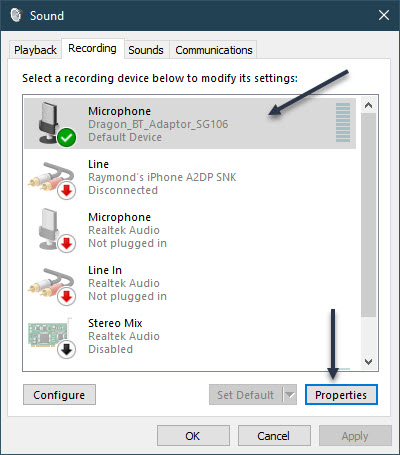
You will see a list of microphones installed on your system. Select the one you would like to adjust, then click the Properties button. Refer to below image:

Microphone 10
Accessing the selected Microphone properties

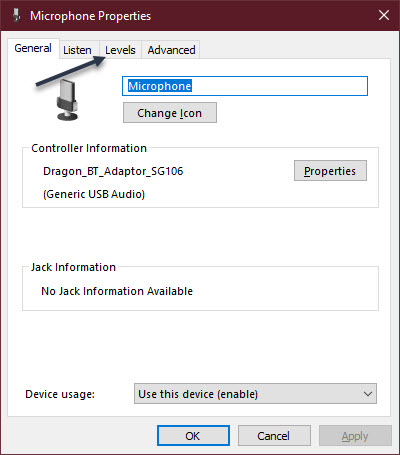
Next, click the Levels tab. See below image:

Microphone 11
Selecting the Levels tab

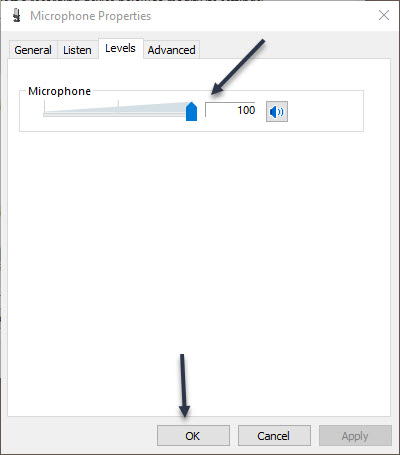
Now, use the Microphone slider to adjust the output level of the microphone. The higher the level, the louder your microphone signal will be while it is in use. That means your voice will come through louder. But a signal that is too loud will distort, so try to find the sweet spot where it is loud enough but not too loud to distort your voice. Next, click OK, then click OK again to close the Sound window. See following image:

Microphone 12
Adjusting the Sound volume

If you need to adjust the level again, revisit the above steps.

That’s it. Please feel free to share this post! One way to share is via Twitter.

Just click the Tweet icon below. This will launch Twitter where you click its icon to post the Tweet.

Check out TechSavvy.Life for blog posts on smartphones, PCs, and Macs! You may email us at contact@techsavvy.life for comments or questions.

I Would Like to Hear From You

Please feel free to leave a comment. I would love hearing from you. Do you have a computer or smart device tech question? I will do my best to answer your inquiry. Just send an email to contact@techsavvy.life. Please mention the device, app and version that you are using. To help us out, you can send screenshots of your data related to your question.

The author’s Vietnam eBook on the Battle for Tra Bong: Events and Aftermath

How to Insert a File into Another Word Document

When creating or modifying a Microsoft Word document, it can be beneficial to insert or embed another file into it. By inserting a file into a Word document, that file becomes a part of the Word document. A reader can open and view the embedded file without requiring special permission or access.

When creating or modifying a Microsoft Word document, it can be beneficial to insert or embed another file into it. By inserting a file into a Word document, that file becomes a part of the Word document. A reader can open and view the embedded file without requiring special permission or access.

Nearly any file can be inserted into a Word document, However, be aware that inserting a file into a Word document can increase its size significantly.

In this post, instead of using “copy and paste” from one document into another, we will show you another way, using the Insert feature.

This is for devices running Word

Dilbert and Keyboard
Copyright Scott Adams, Inc./Distributed by Universal Uclick for UFS

First, open the Word document that you would like to add the contents of, another Word document to.

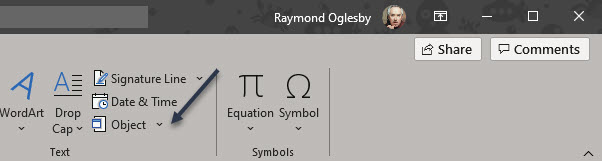
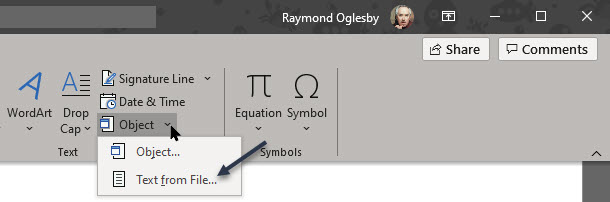
Next, in the Text group of the Insert tab, click the drop-down arrow next to the Object option. Refer to below image:

Copy 1
Accessing the Object option

A drop-down menu will appear. There are two options to choose from here; Object and Text From File.

  • Object: Embeds an object such as a Word document or Excel chart
  • Text From File: Inserts the text from another file into your Word document

The Text From File option is essentially a quicker way to “copy and paste” the content of another file into this one.

Now, click the Text From File option in the drop-down menu. See below image:

Copy 2
Accessing the Text from file option from drop-down menu

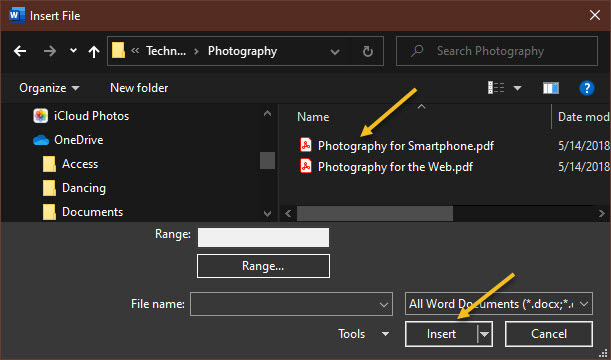
Next, the File Explorer (Finder on Mac) will open. Find the file you would like to copy the text from, select it, then click Insert. See following image:

Copy 3
Selecting the file to be inserted into original Word document

The contents of that Word document will now appear in the current Word document. This works well if there is not a lot of content in the other Word document, but if there is, embedding it may be a better option.

You may want to add headings/subheadings to the inserted document.

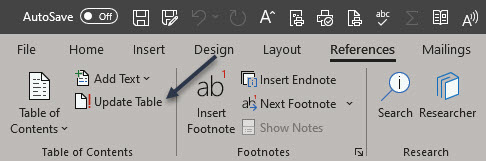
If your original Word document has a Table of Contents, make sure you update your table. First, under the References tab, select the Update Table option. Refer to below image:

Copy 4
Accessing Update Table option

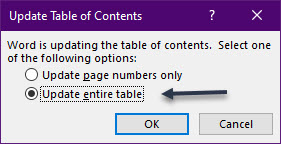
Now, from the pop-up window that will be displayed, select an option. It is recommended you choose the Update entire table option, then cli ck OK. See below image:

Copy 5
Selecting how you want the Table of Contents to be updated

That’s it. Please feel free to share this post! One way to share is via Twitter.

Just click the Tweet icon below. This will launch Twitter where you click its icon to post the Tweet.

Check out TechSavvy.Life for blog post on smartphones, PCs, and Macs! You may email us at contact@techsavvy.life for comments or questions.

I Would Like to Hear From You

Please feel free to leave a comment. I would love hearing from you. Do you have a computer or smart device tech question? I will do my best to answer your inquiry. Just send an email to contact@techsavvy.life. Please mention the device, app and version that you are using. To help us out, you can send screenshots of your data related to your question.

The author’s Vietnam eBook on the Battle for Tra Bong: Events and Aftermath

How to Set Default Microphone in Windows 10

The default sound input device is the device that Windows uses to record or hear sound. When you connect more than one microphone or other recording devices to your PC, you can select which device you want to use by default.

The default sound input device is the device that Windows uses to record or hear sound. When you connect more than one microphone or other recording devices to your PC, you can select which device you want to use by default.

This is for devices running Windows 10

Dilbert and Moron
Copyright Scott Adams, Inc./Distributed by Universal Uclick for UFS

Windows 10 users often need to juggle several microphones. There might be one built into a PC, one on a webcam, on a headset, and perhaps a podcasting microphone.

It’s worth noting that in some apps (such as Zoom), you can select your microphone device within the app, and that choice will function independently of the Windows system sound settings.

To set your default microphone system-wide, follow the steps below. Every app that uses the default Windows microphone, that is the default option for most apps, will use it.

Using Settings to Set the Default Microphone

Before we begin, it’s worth mentioning that if you have only one microphone, it will be the default.

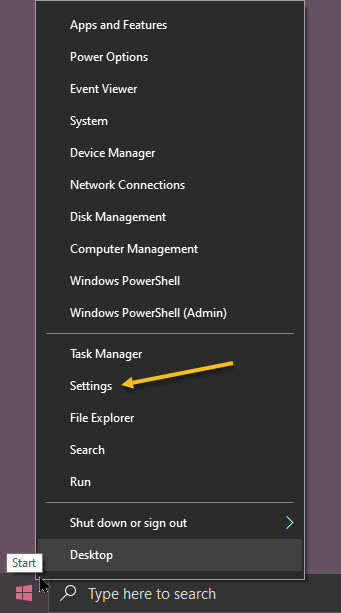
First, open Settings by clicking the Start menu and selecting the gear icon in the lower left-hand corner of your screen. You can also press Windows+i to open it. Refer to below image:

Microphone 1
Accessing Settings

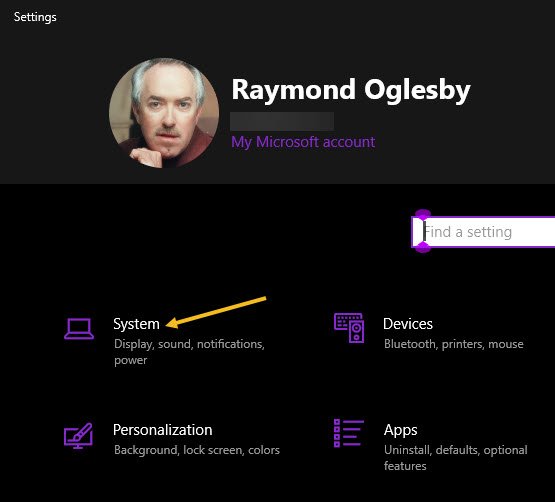
Now, in the Settings window, click the System option. See below image:

Microphone 2
Accessing System option

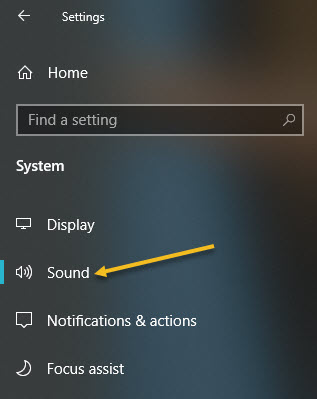
Next, on your System screen, click the Sound option from the sidebar menu. See following image:

Microphone 3
Accessing Sound option

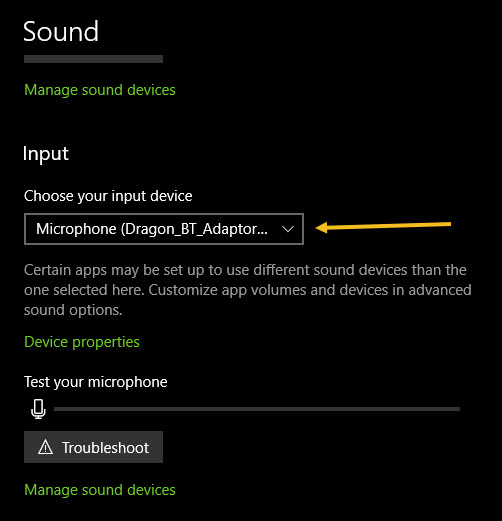
Now, scroll down to the Input section. In the drop-down menu labeled Choose your input device, select the microphone you would like to use as your default device. Refer to below image:

Microphone 4
Selecting your default microphone

Once you have selected a device from the drop-down menu, Windows will use that device as your default microphone. Now, exit Settings.

Using Control Panel to Set the Default Microphone

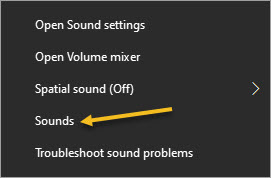
First, right-click the speaker icon in the system tray in the lower right-hand corner of your screen and select Sounds from the pop-up menu. See below image:

Microphone 5
Accessing Sounds

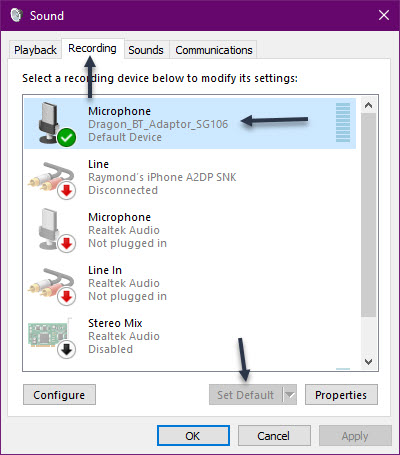
Next, click the Recording tab. Now, you will see a list of recording devices recognized by your system, which includes microphones. Select the microphone you would like to use as the default from the list and click the Set Default button. Note! If there is only one microphone listed, it will be the default. See following image:

Microphone 6
Setting the default microphone

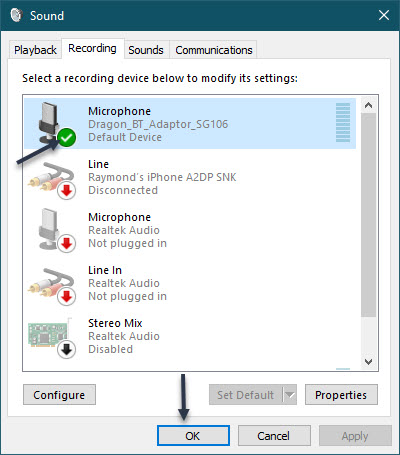
The microphone you have selected will have a green checkmark beside it and include the label Default Device. Next, click OK to close your Sound window. Refer to below image:

Microphone 7
Accepting the default microphone

If you want to change your default microphone again, just select Sounds from the speaker icon in the System tray and follow the above steps for using the Control Panel to set the default microphone.

You are finished setting your default microphone. Now you may close any openwindows. Please feel free to share this post! One way to share is via Twitter.

Just click the Tweet icon below. This will launch Twitter where you click its icon to post the Tweet.

Check out TechSavvy.Life for blog posts on smartphones, PCs, and Macs! You may email us at contact@techsavvy.life for comments or questions.

I Would Like to Hear From You

Please feel free to leave a comment. I would love hearing from you. Do you have a computer or smart device tech question? I will do my best to answer your inquiry. Just send an email to contact@techsavvy.life. Please mention the device, app and version that you are using. To help us out, you can send screenshots of your data related to your question.

The author’s Vietnam eBook on the Battle for Tra Bong: Events and Aftermath

How to Disable Preloading of Microsoft Edge at Startup using Group Policy Editor

Are you frustrated by Edge loading at Windows 10 startup? Do you prefer using Chrome as your default browser? In Windows 10 Home edition, Edge is the default browser, even if you make Chrome the default; Edge seems to ignore the Chrome setting.

Are you frustrated by Edge loading at Windows 10 startup? Do you prefer using Chrome as your default browser? In Windows 10 Home edition, Edge is the default browser, even if you make Chrome the default; Edge seems to ignore the Chrome setting.

To disable Edge, we are going to use the Group Policy Editor (the gpedit.msc file). But, back in Windows 7, Microsoft quit making the Editor a part of its operating system, especially the Home editions. So, we are going to install the Editor, and use the utility to disable preloading of Edge at startup in Windows 10.

This is for Windows 10

Dilbert and Picture
Copyright Scott Adams, Inc./Distributed by Universal Uclick for UFS

Install Group Policy Editor

Note! You will only need to do this if you have Windows 10 Home edition. If you have the Pro edition, you can bypass this step.

First, download the GPEdit Enabler script from the link below:

GPEdit Enabler for Windows 10 Home Edition

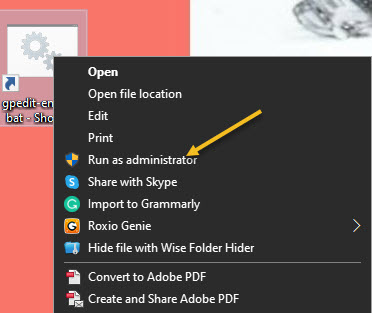
and save the “gpedit-enabler.bat” file to your desktop. Now, right-click the file and select Run as Administrator. Refer to below image:

Policy 1
Access gpedit batch file as Administrator

This will start the installation process. It may take some time depending upon your system performance. Once the process is complete, press any key to close the Command Prompt window. You may be prompted to download and install some Microsoft Net files; if so, allow permission to do so.

Although a restart is not required, if the policies are not working, you should restart your computer.

Run Group Policy Editor

First, open the Run dialog by pressing the Windows+R keys. Type gpedit.msc and press the Enter or OK button. This should open gpedit in Windows 10 Home or Pro.

On Windows 10, Microsoft Edge loads some processes in the background during startup to improve the speed when launching the application. But, we want to disable this feature and use Chrome instead.

How to Disable Preloading Edge

In the Group Policy Editor, browse to the following path:

Computer Configuration > Administrative Templates > Windows Components > Microsoft Edge

Now, click on the Setting column to sort it alphabetical. On the right side, double-click the Allow Microsoft Edge to pre-launch at Windows startup, when the system is idle, and each time Microsoft Edge is closed policy. See below image:

Policy 3
Accessing Group Policy Editor for Edge for pre-launch option

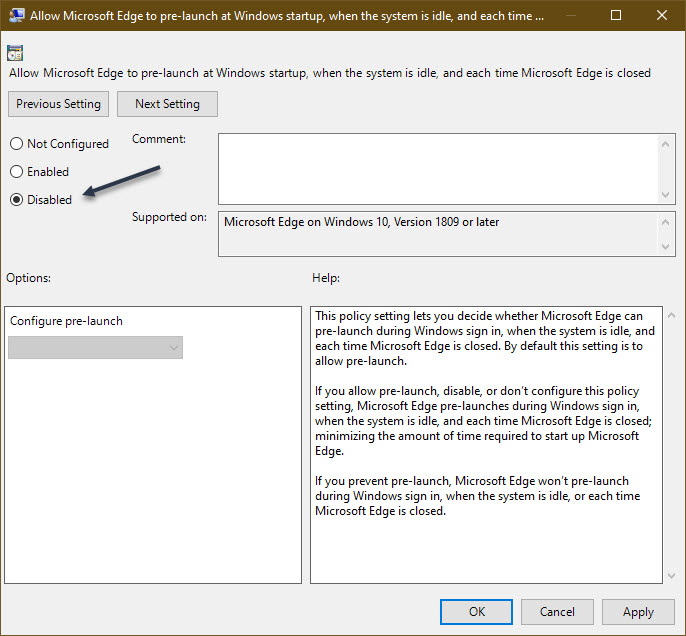
Now, select the Disabled option. See following image:

Policy 4
Selecting the pre-launch Disabled option

Next, click Apply, then OK.

Now, on the right side, double-click the Allow Microsoft Edge to start and load the Start and New Tab page at Windows startup and each time Microsoft Edge is closed policy. Refer to below image:

Policy 5
Accessing Group Policy for Edge for Start and New Tab option

Next, select the Disabled option. See below image:

Policy 6
Selecting the Start and New Tab Disabled option

Next, click Apply, then OK.

Now, repeat the above steps substituting User Configuration for Computer Configuration.

Now, exit the Editor and save any open work. You must RESTART your computer for the changes to take effect.

The Edge browser will no longer pre-load processes freeing up resources for more important apps and services.

In the case you change your mind, you can roll back the previous settings using the same instructions, but instead of selecting Disabled, select the Not Configured option.

Make Chrome the Default Browser

  • Click Start then Settings (the gear icon)
  • Click on Apps
  • Click on Default apps
  • Click on Web browser and select Google Chrome. See following image:
Policy 7
Setting Chrome as the default browser

That’s it. You have disabled Edge for pre-loading and saving resources. Please feel free to share this post! One way to share is via Twitter.

Just click the Tweet icon below. This will launch Twitter where you click its icon to post the Tweet.

Check out TechSavvy.Life for blog posts on smartphones, PCs, and Macs! You may email us at contact@techsavvy.life for comments or questions.

I Would Like to Hear From You

Please feel free to leave a comment. I would love hearing from you. Do you have a computer or smart device tech question? I will do my best to answer your inquiry. Just send an email to contact@techsavvy.life. Please mention the device, app and version that you are using. To help us out, you can send screenshots of your data related to your question.

Copyright Scott Adams, Inc./Distributed by Universal Uclick for UFS