Surprise! Microsoft rolled out a taskbar “Weather and News” widget in June 2021. And it is a mess. The widget is running MSN.com all the time in the background, and uses the Edge browser. I do not use either. Besides, you have to go through a myriad of screens to configure the widget. Microsoft is trying to make money by posting ads through the widget.
Surprise! Microsoft rolled out a taskbar “Weather and News” widget in June 2021. And it is a mess. The widget is running MSN.com all the time in the background, and uses the Edge browser. I do not use either. Besides, you have to go through a myriad of screens to configure the widget. Microsoft is trying to make money by posting ads through the widget. Let’s explore how to remove this feature.
This is for devices running Windows 10
Copyright Scott Adams, Inc./Distributed by Universal Uclick for UFS
It’s pretty hard to miss when it appears. You will see a weather forecast in a small box next to the clock and notification area. Selecting the widget opens a panel with more weather info, stocks, sports scores, news, and more. For me, I do not need or want this widget running MSN.com in the background. I can get the widget “cards” info when I want it.
You already have the news and weather through Live Tiles on the desktop. You really do not need duplicated access.
Interesting, if you move the taskbar to the top, left, or right on the screen, the widget disappears. Bug or feature? I think it’s a bug. But, who knows. When Windows 11 arrives in the fall, the UI will change to be Mac-like, a revamped tablet interface, among many other modifications. Microsoft may fix the widget by then.
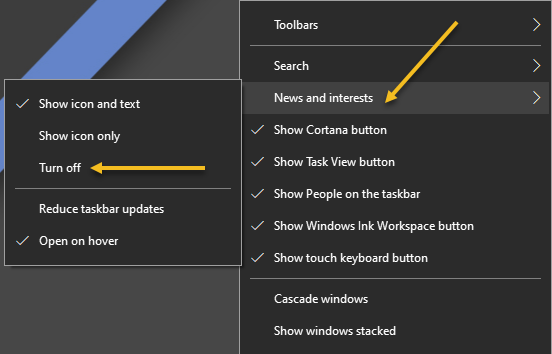
Fortunately, it’s easy to get rid of it. First, right-click anywhere on the taskbar to load the widget. Refer to below image:
The Weather and News widget
From the menu, select News and interests and then click Turn off from the submenu. See below image:
Turning off the Widget
The weather widget will no longer be present in your taskbar. If you would like to bring it back at any time, simply open the same menu and select Show icon and text.
Alternatively, you can also select Show icon only for a smaller widget that takes up less room on your taskbar.
Quote For the Day
We live in a society exquisitely dependent on science and technology, in which hardly anyone knows anything about science and technology.
Carl Sagan
That was easy. Please feel free to share this post! One way to share is via Twitter.
Just click the Tweet icon below. This will launch Twitter where you click its icon to post the Tweet.
Check out TechSavvy.Life for blog posts on smartphones, PCs, and Macs! Please email us at contact@techsavvy.life for comments or questions.
Please feel free to leave a comment. I would love hearing from you. Do you have a computer or smart device tech question? I will do my best to answer your inquiry. Just send an email to contact@techsavvy.life. Please mention the device, app and version that you are using. To help us out, you can send screenshots of your data related to your question.
The author’s Vietnam eBook on the Battle for Tra Bong: Events and Aftermath
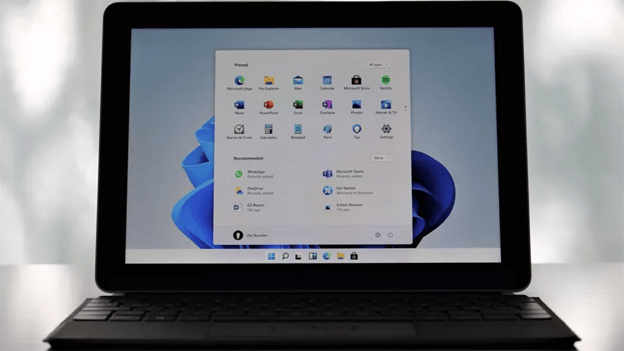
Just before Apple’s June 24th announcement, it’s not a long shot to know some of the features being moved onto Windows 11. Here are the major ones.
Courtesy of TechRadar
Just before Apple’s June 24th announcement, it’s not a long shot to know some of the features being moved onto Windows 11. Here are the major ones.
This is for 2021 Fall release of Windows 11
Copyright Scott Adams, Inc./Distributed by Universal Uclick for UFS
A New Look for Windows 11
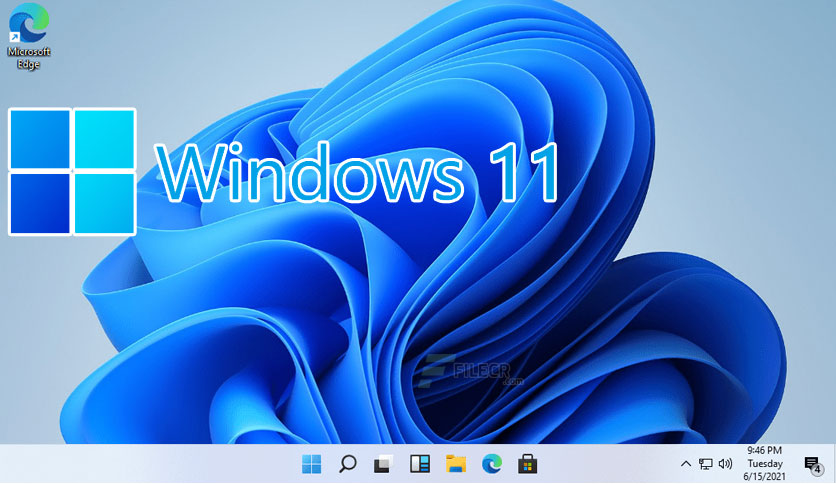
Windows 11 image courtesy of Windows Central
In the latest Insider dev channels, there are already countless icons that have seen a redesign, giving most of these the most dramatic changes in looks since Windows 7.
It’s been long rumored that the UI is currently being redesigned, with a new font, Segoe UI Variable, already enabled in dev versions as early as build 21376. However, Microsoft’s design team is also looking for a new font, asking users, to pick from five fonts to replace Calibri.
There’s been a recent job posting, that gives even more weight to a redesign coming. It described the role as “building new parts and modernizing existing parts of the Windows UX, conducting user research to understand users’ needs.”
While this could also mean a subtle refresh of Windows 10, it could mean a huge redesign for Windows 11, if it is confirmed at the June 24 event.
With the recent build of 21996 confirming the Windows 11 name, we can also see a refresh UI, with the start button and the icons on the taskbar moving to the middle, being reminiscent of the dock from macOS.
It’s not just the fonts and the icons that are seeing a refresh for Windows 11, it even goes to the corners across the whole of the operating system, which looks to set it apart even further from Windows 10.
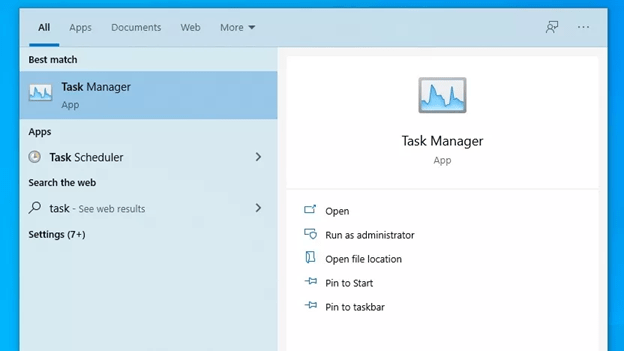
Task Manager courtesy of Windows Latest
Alongside the new look, there’s also the implementation of rounded corners coming up. This will remove the sharp edges across the whole of the user interface and bring a softer appearance to Windows 11.
The start menu is now apparently at the center of the taskbar, but there is a way to bring the classic menu back to the left.
From app windows to the Start Menu, to buttons, Live Tiles, and even the Action Center, there is a redesign. This redesign feature could have a dramatic effect on how Windows 11 looks, and help make it stand out to users if they are upgrading from Windows 10.
Windows 11 new OS features
A big update to Windows 11 will not just be to the look of the operating system, but in the useful features that it can bring to many situations.
It’s been reported that Microsoft will be including battery usage statistics to the Settings app. Smartphones have had this sort of feature for many years, but it’s been conspicuously absent in Windows.
Other rumored features that could be moved over to Windows 11 could include the ability to uninstall most of the pre-installed Microsoft apps, improvements to Snap Assist for external displays, and a dashboard for your Microsoft Account that lives in the taskbar.
Additionally, recent test builds have suggested that the Taskbar and File Explorer processes usually seen in Task Manager looks to be separated, at long last.
Alongside this, right clicking on the Taskbar for Task Manager is now absent, alongside the keyboard shortcut of Win + X to switch to PowerShell is also gone. Personally, I want the right-click back for the Task Manager.
Windows 11 tablet improvements
Tablet mode has been one of Windows’ weaker points ever since Windows 8.
However the most important feature currently rumored is a new gesture layer that would sit above the user interface and allow trackpad-like gestures on a touchscreen.
Pen and voice inputs are both expected to receive further refinement as well, with a new UI for voice and context menu for pen are both planned. These tablet features could be a showcase for Windows 11, especially with future Surface products in the pipeline from Microsoft. To have a new, numbered operating system for its upcoming tablets could be a big selling point for new users.
Quote For the Day
Absence of evidence is not evidence of absence.
Carl Sagan
That’s it for now on Windows 11 features. There will be more to come. Please feel free to share this post! One way to share is via Twitter.
Just click the Tweet icon below. This will launch Twitter where you click its icon to post the Tweet.
Check out TechSavvy.Life for blog posts on smartphones, PCs, and Macs! You may email us at contact@techsavvy.life for comments or questions.
Please feel free to leave a comment. I would love hearing from you. Do you have a computer or smart device tech question? I will do my best to answer your inquiry. Just send an email to contact@techsavvy.life. Please mention the device, app and version that you are using. To help us out, you can send screenshots of your data related to your question.
The author’s Vietnam eBook on the Battle for Tra Bong: Events and Aftermath
Chances are good you will never seen malware up close and personal. Even if you threw caution to the winds and visited a dangerous site or clicked a treacherous link, your antivirus software probably wiped out any offending program before the latter could say boo. So, you might wonder, just what does malware look like? Would I even recognize a malware program if I saw it?
Chances are good you will never seen malware up close and personal. Even if you threw caution to the winds and visited a dangerous site or clicked a treacherous link, your antivirus software probably wiped out any offending program before the latter could say boo. So, you might wonder, just what does malware look like? Would I even recognize a malware program if I saw it?
To be fair, a lot of malicious programs do not look like anything at all. A virus, for example, tries its best to hide from view while infecting other files and computers. A bot sits quietly on your computer until it gets orders from the command and control center to spew some spam or participate in a DDoS attack on a major website. Trojans, by contrast, appear to be useful, legitimate programs, putting up a pretty façade to hide background activities like stealing your personal data. And when ransomware hollers for your attention, it’s bad news.
This is for all devices
Copyright Scott Adams, Inc./Distributed by Universal Uclick for UFS
The Horror of Ransomware
If a ransomware attack hits your computer, you will not know it at first. The ransomware stays out of sight, quietly encrypting your important files. Once the dirty work is done, the malware totally demands your attention with its ransom note. The perpetrators promise that if you pay the specified ransom (usually in Bitcoin or some other cryptocurrency) you will get your files back, but if they take your money and run, you do not have any recourse. You really do not want a direct encounter with ransomware.
Malware Bundled
Sometimes the problem with an installation is notthe program itself, but the software that’s bundled with it. You may find completely legitimate software—even antivirus programs; bundled with adware, spyware, or other unwanted trash. In a case like that, the security vendor is not to blame. A third party created the deceptive bundle. AppEsteem is a young company with a mission to expose these deceptors and to warn legitimate companies when they stray too far toward the dark side of bundling.
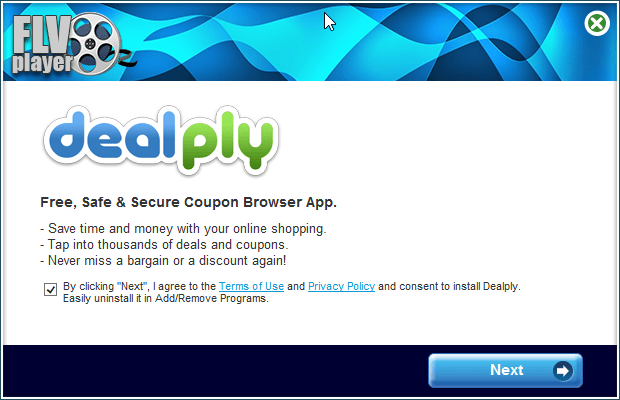
The installer shown here offers a free player for FLV video files. Along with the player you are privileged to receive a shady Adware program masquerading as a coupon browser. There’s a checkbox that says you agree to its terms; uncheck the box and you can not proceed. No video player for you! The best thing that can happen with this kind of bundling is that you’re forced to install a program you did not want. Mostly it’s worse than that, because the bundled bonus is malware. Refer to below image:
Bundled Malware
Now here’s something handy; a multi-utility install program. If you read Russian, you know it’s “the fastest and most convenient way to install programs.” Just check the boxes for the ones you want and turn the installer loose. The list includes browsers, messenger programs, video players, even antivirus utilities. But when you install them, you also get a dose of malware. See below image:
Utility Pack Malware
Trojan Horses
Here, we have a sharp-looking utility designed, apparently, to ensure that your PC does not limp along with old, outdated drivers. However, if you try to update any drivers, or back up your existing drivers, you must pay. This is a model used both by some legitimate programs and by rogue antivirus scareware utilities. Lucky you, though: there’s a promotional price that ends today. Its overt activities are just a wee bit suspicious. See following image:
Driver Malware
Want to get into smartphone repair? This set of tools and manuals looks like it might be a big help. Alas, you ca not see just what you’re getting until you pay for your registration. While you are perusing schematics, it collects personal information behind the scenes and takes orders for further unwanted activity from a remote command and control server. Refer to below image:
Smartphone Malware
You probably do not know this, but the EXE files that represent programs on your Windows computer are also called PE files, short for Portable Executable. Every PE file starts with an extensive header that contains a ton of information telling Windows about the program. Malware researchers learn a lot by digging into that header. See below image:
Portable Executable Malware
Lets Hope You Don’t See These
As you can see, malicious programs, like legitimate programs, run the gamut from sad-looking attempts to totally professional ones. With any luck, and with powerful, up-to-date antivirus protection, these images are the only malware you will ever see. Malware is just one of many threats to your devices and private information.
A few reminders to keep the bad guys away in your emails and phone calls:
Do not click that link. Instead hover your mouse over each element of the email and look for anything suspicious. If suspicious, do not click that link – per my son, VP at True Digital Security.
Do not open emails from FedX, USPS, Wells Fargo, Walmart, Cox Communications, Thank You, SSA, or VA if you have no dealings with them. They will contact you by mail not by phone.
Do not give out personal informati0n over the phone. If you need to contact someone, you initiate the call.
Never buy gift cards or give out their serial number.
If your Userid or Password has been leaked in a data breech, change them as soon as possible.
Quote For the Day
I don’t pretend we have all the answers. But the questions are certainly worth thinking about.
Arthur C Clarke
That’s it. Please feel free to share this post! One way to share is via Twitter.
Just click the Tweet icon below. This will launch Twitter where you click its icon to post the Tweet.
Check out TechSavvy.Life for blog posts on smartphones, PCs, and Macs! You may email us at contact@techsavvy.life for comments or questions.
Please feel free to leave a comment. I would love hearing from you. Do you have a computer or smart device tech question? I will do my best to answer your inquiry. Just send an email to contact@techsavvy.life. Please mention the device, app and version that you are using. To help us out, you can send screenshots of your data related to your question.
The author’s Vietnam eBook on the Battle for Tra Bong: Events and Aftermath
If you often lose your Windows 10 pointer in your super-size high-resolution display, there is a simple way to locate the pointer quickly.
If you often lose your Windows 10 pointer in your super-size high-resolution display, there is a simple way to locate the pointer quickly. Let’s explore how to turn it on and add visibility to the pointer.
This is for devices running Windows 10
Copyright Scott Adams, Inc./Distributed by Universal Uclick for UFS
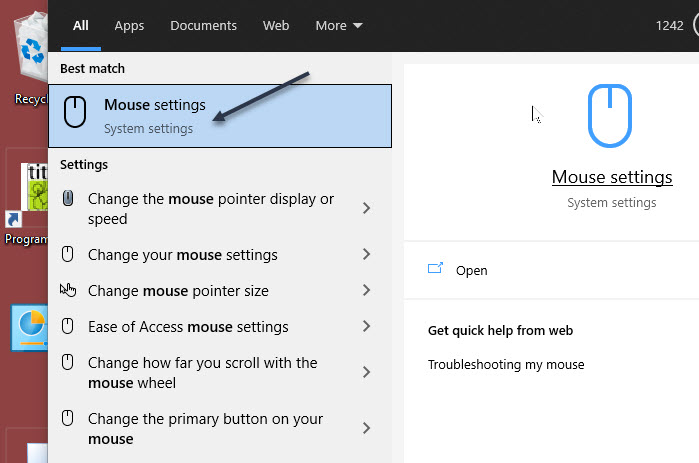
First, open the Start menu and type “mouse” (without the quotes) in the Cortana search box. Next, click the Mouse settings shortcut that appears in upper left-hand corner. Refer to below image:
Accessing mouse settings
Now, in Mouse settings, locate the Related settings section and click the Additional mouse options link. See below image:
Additional mouse settings
Next, when the Mouse Properties window opens, click the Pointer Options tab and checkmark the option Show location of pointer when I press the CTRL key. See following image:
Turing on location of pointer
Now, select the Pointers tab. Depending on your display scheme, for example, if you use Dark Mode, you may want to use a white pointer, conversely, for a white or light background, a black cursor is your best option. Now, click OK. Refer to below image:
Setting your pointer
Your Mouse Properties window will close. Next, exit Settings.
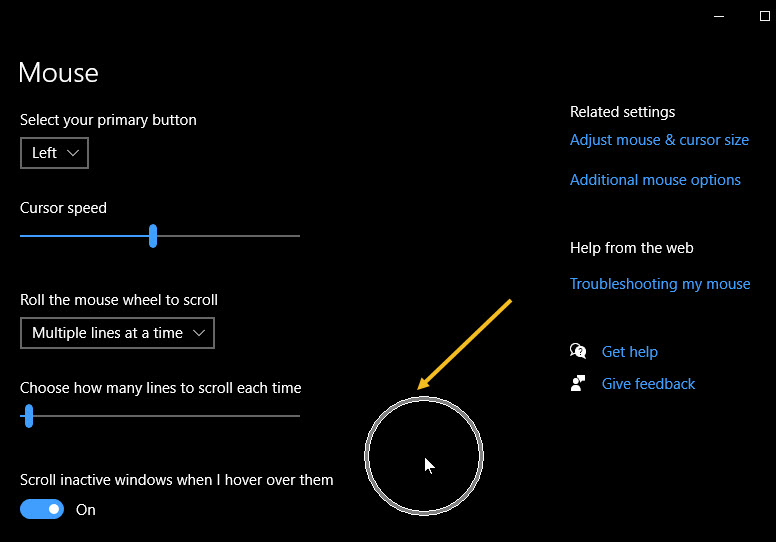
Your pointer will change to your selection. Also, anytime you press the Ctrl key, an animated shrinking circle will appear around the cursor to locate it. See below image:
Using the Ctrl key
Quote For the Day
How inappropriate to call this planet Earth when it is quite clearly Ocean.
Arthur C Clarke
You are finished. Please feel free to share this post! One way to share is via Twitter.
Just click the Tweet icon below. This will launch Twitter where you click its icon to post the Tweet.
Check out TechSavvy.Life for blog posts on smartphones, PCs, and Macs! You may email us at contact@techsavvy.life for comments or questions.
Please feel free to leave a comment. I would love hearing from you. Do you have a computer or smart device tech question? I will do my best to answer your inquiry. Just send an email to contact@techsavvy.life. Please mention the device, app and version that you are using. To help us out, you can send screenshots of your data related to your question.
The author’s Vietnam eBook on the Battle for Tra Bong: Events and Aftermath
The Taskbar in Windows 10 comes with a lot of customizations. One of those customizations allows you to show/hide texts beside icons in opened windows in the Taskbar. You can show the icon and the name of the window at the same time.
The Taskbar in Windows 10 comes with a lot of customizations. One of those customizations allows you to show/hide texts beside icons in opened windows in the Taskbar. You can show the icon and the name of the window at the same time.
This used to be the Taskbar default behavior way back in Windows 95. Let’s explore how to get this feature back.
This is for devices running Windows 10
Copyright Scott Adams, Inc./Distributed by Universal Uclick for UFS
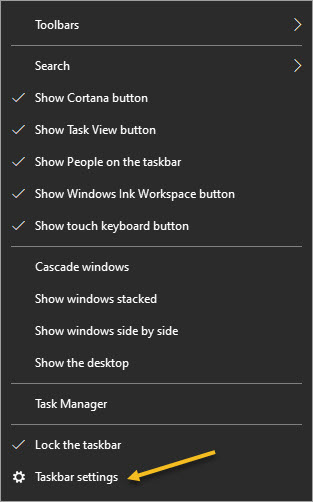
First, open some Taskbar apps then right-click the Taskbar and select Taskbar settings. (You can also find this same screen by heading to:
Settings > Personalization > Taskbar
Refer to below image:
Accessing Taskbar settings
By default, Windows 10 hides open application windows under a single Taskbar button that looks like the app’s icon. Lets change this.
Next, in Taskbar settings, click the menu labeled Combine taskbar buttons. See below image:
Accessing Combine Taskbar buttons
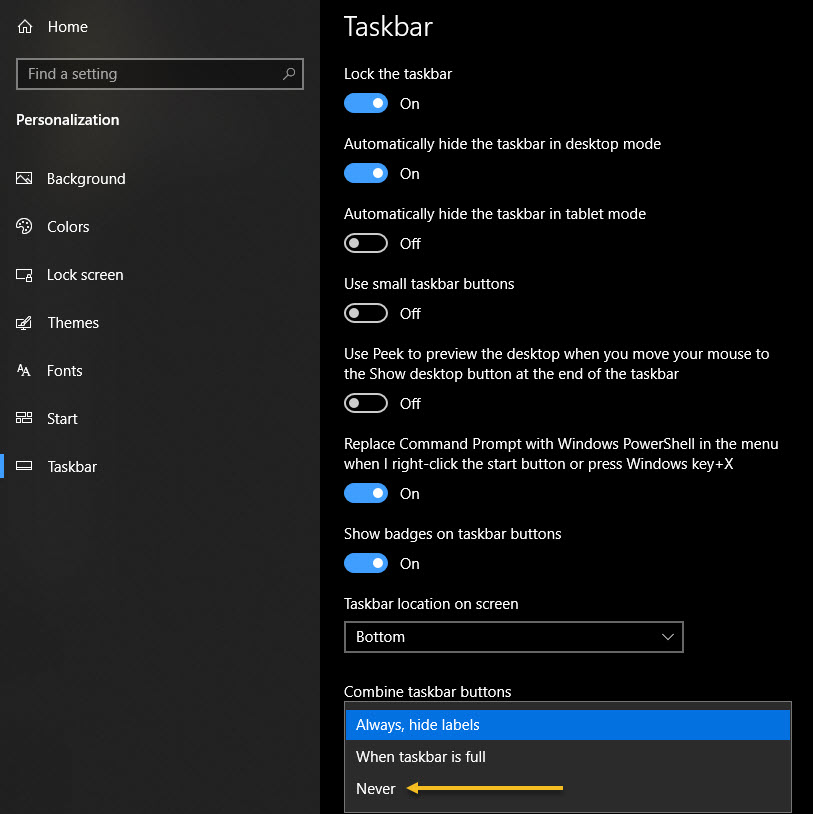
Now, in the pop-up list that appears, select Never. See following image:
Selecting the Never option
Next, you will notice that any open windows listed on your Taskbar now show labels as well as the app icon. Refer to below image:
Your opened icons with labels
Here is another example of labels beside its icon. Although its hard to see, the Settings icon is gray indicating it is the top window. Depending on your color scheme, it may be a different color. Also, notice that each opened window is underlined. See below image:
Your opened icons with primary window icon and label highlighted
If you are satisfied with that, close Settings, and you are all set. It’s like Windows 95 all over again as to labels beside its icon!
If you change your mind, you can always undo it by selecting Always hide labels in the Combine taskbar buttons menu.
Quote For the Day
People who are really serious about software should make their own hardware.
Alan Kay
You are finished. I like this feature, hope you do likewise. Please feel free to share this post! One way to share is via Twitter.
Just click the Tweet icon below. This will launch Twitter where you click its icon to post the Tweet.
Check out TechSavvy.Life for blog posts on smartphones, PCs, and Macs! Please email us at contact@techsavvy.life for comments or questions.
Please feel free to leave a comment. I would love hearing from you. Do you have a computer or smart device tech question? I will do my best to answer your inquiry. Just send an email to contact@techsavvy.life. Please mention the device, app and version that you are using. To help us out, you can send screenshots of your data related to your question.
The author’s Vietnam eBook on the Battle for Tra Bong: Events and Aftermath
Two-Factor authentication (2FA) adds an extra security layer to your accounts across the internet. 2FA means your accounts require information beyond user name and password to confirm you are who you say you are before you can get into the accounts. Let’s explore how to access 2FA.
Two-Factor authentication (2FA) adds an extra security layer to your accounts across the internet. 2FA means your accounts require information beyond user name and password to confirm you are who you say you are before you can get into the accounts. Let’s explore how to access 2FA.
This is for iPhone, iPad, PCs and Macs. Screenshots are from Windows 10 and iPhone XR
Copyright Scott Adams, Inc./Distributed by Universal Uclick for UFS
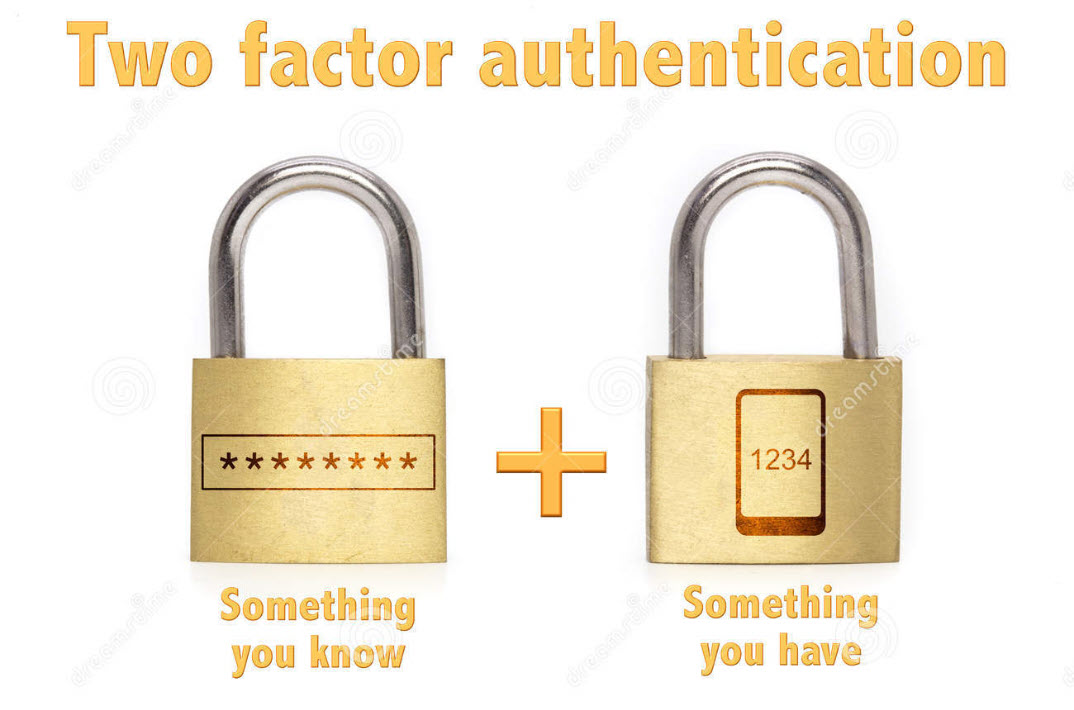
The “second factor” comes in after you enter your username and password, which are considered to be the “first factor.” 2FA can be used to confirm your identity by asking for an extra piece of information. The additional information can be:
Something you know, like an additional passcode.
Something you have, like your phone to receive a one time authorization code.
Something you are, like a fingerprint or voice print. This is also called biometric security.
The idea is to provide another piece of information a hacker would not have, making it harder for the bad guy to break into your account.
The following is not an exhaustive list of services with 2FA ability, but we cover the major services everyone tends to use, and walk you through how to access. We will cover Amazon, Apple, Facebook, Google, Instagram, LinkedIn, Microsoft, and Twitter. Activate 2FA on all of these and you will be more secure. Once you have found their 2FA screens you can can set it up for each app.
Amazon
First, launch Amazon.com on the desktop and login in to your account. Next, click the Menu icon in upper left-hand corner. Now, scroll down the drop-down menu to Your Account option.
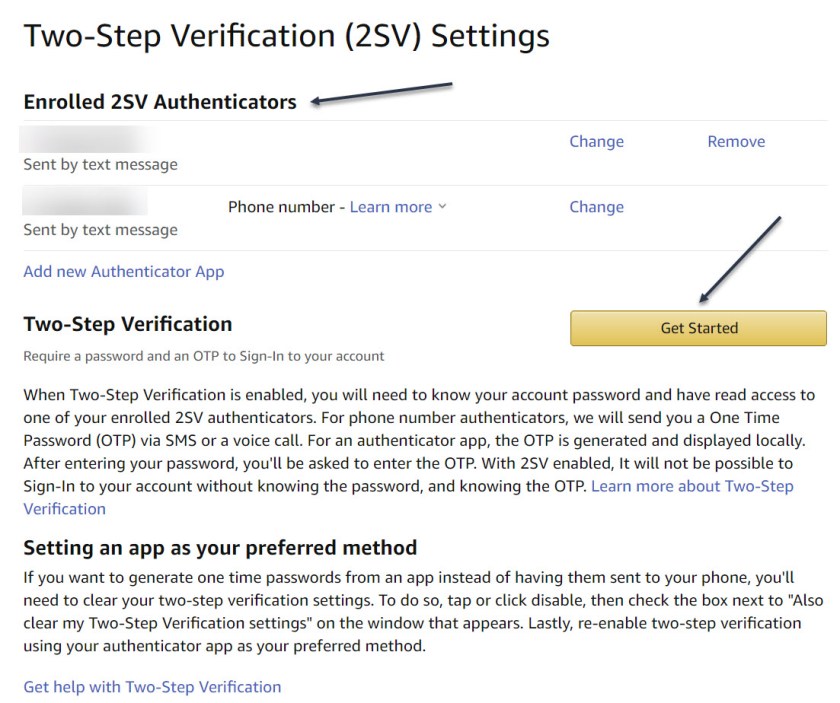
Next, click on the Login & Security big button. Now, on the next page, click Edit next to Two-Step Verification (2SV) Settings. The preferred method is an authentication app (scan the QR code); phone number(s) are the backup method. Refer to below image where I already have 2SV based on my phone number (which is dimmed out):
Amazon 2SV
If you think your account has been comprised, go back to Login & Security and click the Edit button next to Secure Your Account.
Apple
Following are the steps on how to access 2FA for Apple using either iOS or macOS.
On iOS go to:
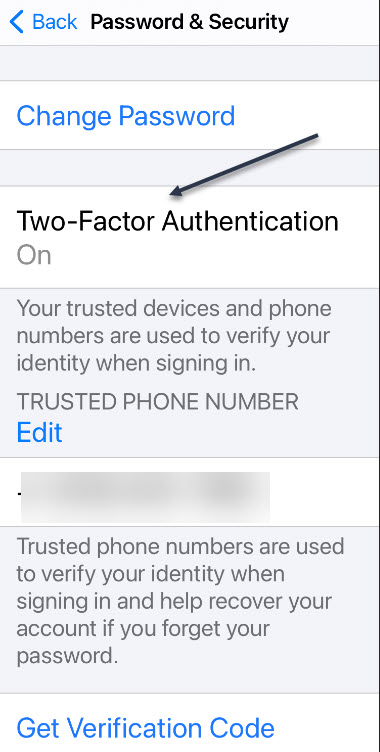
Settings > [your name at the top] > Password & Security > Turn on Two-Factor Authentication.
On macOS go to:
System Preferences > iCloud, then sign in, click Account Details > Security > Turn on Two-Factor Authentication.
Note! once Apple 2FA is activated for two weeks, you can not turn it off. “Certain features in the latest versions of iOS and macOS require this extra level of security, which is designed to protect your information,” according to Apple. See below image for iOS:
Apple 2FA
Facebook
First, login to Facebook on your desktop. Next, click the Down arrow in upper right-hand corner. Now, from the drop-down menu that appears, click on the Settings & Privacy option. On the next screen, click the Privacy & Checkup option. From there, click on the topic How to keep your account secure. Under this topic, you can access 2FA for Facebook. See following image where 2FA is On with a backup method of sending a text message to a phone number.
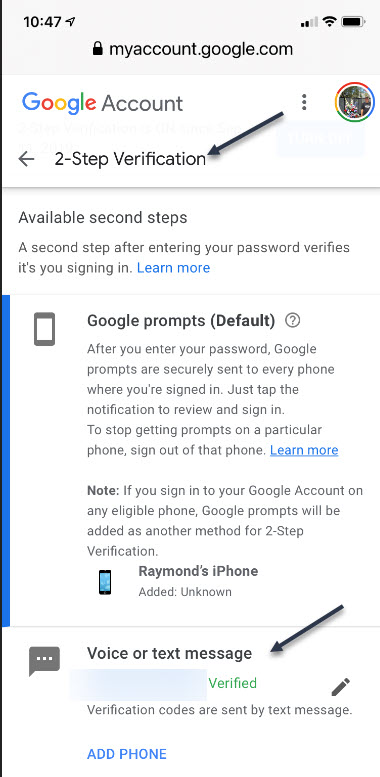
First, sign in to your Google account on your smart device. Next, at the top of the screen, locate the Security tab and tap it. Now, scroll down and tap the 2- Step Verification option. You can continuing scrolling to see more ways to verify you. Refer to below image where my 2SV is already turned On and I am using the backup method of Voice or text message:
Google 2SV
Google calls its system 2SV . It’s all about identifying you via phone. When you enter a password to access your Google account for almost any service, if 2SV is on, there are multiple options to get that second step. First among them now: the Google Prompt. You simply add your smartphone to your account, make sure the Google search app is on the phone, and at login, you can go to the phone and simply acknowledge with a tap that you are the one signing in.
Instagram
First, launch Instagram on your smart device. Next, go to your Profile in lower right-hand corner, then tap the menu (the hamburger icon) on the top-right. Tap Settings > Security > Two-Factor Authentication. There you can choose how you would like to get your authentication code by tapping the Get Started button. See below image:
Instagram 2FA
Linkedin
Business social network Linkedin makes it easy to set up verification, either by SMS texts or authentication app.
First, launch Linkedin on you smart device, then go to your Profile at upper left-hand screen. Next, go to Settings > Sign in & Security > Account > Two-step verification to activate it or deactivate. See following image:
Linkedin 2SV
Microsoft
First sign into your Microsoft account on your smart device. Now, tap your Profile. Next, scroll down and tap Security. 2FA is the second option, tap on it. Once again, tap Two -step verification > Manage. Microsoft will suggest you get app passwords as needed for older service or devices (like Xbox 360); go in later to generate one as needed. Refer to below image:
Microsoft 2SV
Twitter
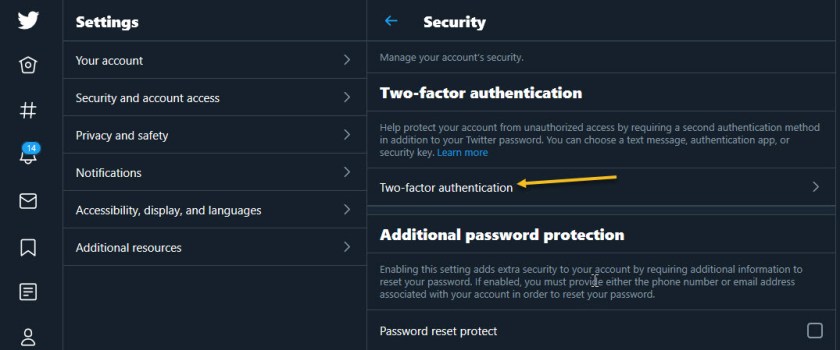
First, to activate Login Verification on Twitter.com on the desktop, login to Twitter, Click the More menu on the left (the three dots) and select Security & Account Access > Security > Two-Factor Authentication. See following image:
Twitter 2FA
Quote For the Day
Technology is a useful servant but a dangerous master.
Christian Louis Lange
That’s it. With 2FA activated on these apps you are more secure. Please feel free to share this post! One way to share is via Twitter.
Just click the Tweet icon below. This will launch Twitter where you click its icon to post the Tweet.
Check out TechSavvy.Life for blog posts on smartphones, PCs, and Macs! You may email us at contact@techsavvy.life for comments or questions.
Please feel free to leave a comment. I would love hearing from you. Do you have a computer or smart device tech question? I will do my best to answer your inquiry. Just send an email to contact@techsavvy.life. Please mention the device, app and version that you are using. To help us out, you can send screenshots of your data related to your question.
The author’s Vietnam eBook on the Battle for Tra Bong: Events and Aftermath
Adding an animated GIF GIF to your Word document is useful if you want to convey a message, demonstrate an activity, capture the audience’s attention, or just add some flair.
Adding an animated GIF to your Word document is useful if you want to convey a message, demonstrate an activity, capture the audience’s attention, or just add some flair. Let’s explore how this is done.
This is for devices running Windows 10 and Word. Screenshots are from Word in Office 365
Copyright Scott Adams, Inc./Distributed by Universal Uclick for UFS
Microsoft Word lets you insert animated GIFs stored on your computer’s hard drive. The process for inserting a GIF in a Word document is no different than inserting a photo. Unfortunately, this only works in Microsoft Word for Windows 10. If you are a Mac user, you can still insert a GIF, but it will not be animated.
First, launch Word and place the cursor in the document’s location where you want the GIF to appear. Now, in the Illustrations group of the Insert tab, click Pictures. Next, choose This Device from the drop-down menu. Refer to below image:
Selecting where to find a GIF
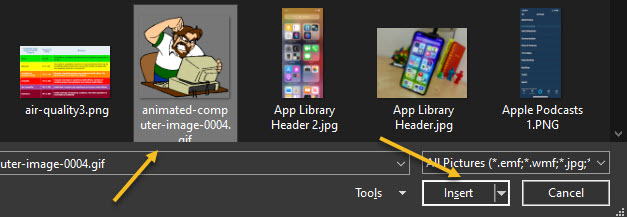
Now, the File Explorer will open. Next, locate and select the GIF you want to insert, then click Insert. See below image:
Selecting a GiF to insert
The GiF will appear in your Word document. If you want to pause the Animation, click the pause icon in the bottom-left corner of the image. See following image:
Your GIF inserted into Word
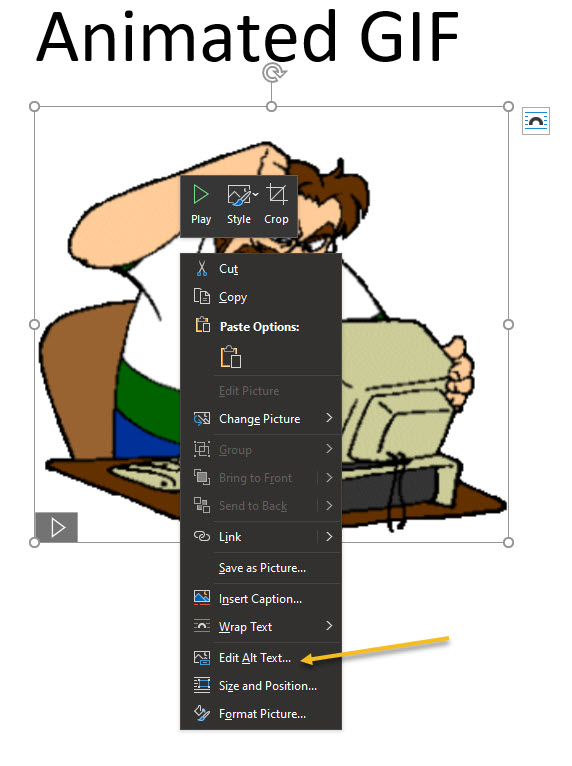
To add alt text, right-click the GIF and then select Edit Alt Text from the context menu. Refer to below image:
Selecting the Edit Alt Text option
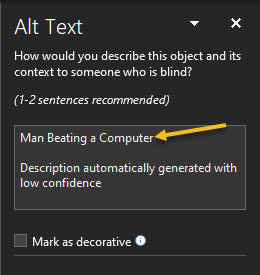
The Alt Text pane will appear to the right of the window. Type the desired alt text in the text box. See below image:
Entering your Alt Text
You have now learned how to insert an animated GIF into your Microsoft Word document. Congratulations!
Quote For the Day
If you are not sitting at the table, you are on the menu.
Jenny Boyer, MD, President of Tulsa County Medical Association
That’s it. Please feel free to share this post! One way to share is via Twitter.
Just click the Tweet icon below. This will launch Twitter where you click its icon to post the Tweet.
Check out TechSavvy.Life for blog posts on smartphones, PCs, and Macs! You may email us at contact@techsavvy.life for comments or questions.
Please feel free to leave a comment. I would love hearing from you. Do you have a computer or smart device tech question? I will do my best to answer your inquiry. Just send an email to contact@techsavvy.life. Please mention the device, app and version that you are using. To help us out, you can send screenshots of your data related to your question.
The author’s Vietnam eBook on the Battle for Tra Bong: Events and Aftermath
Some apps require you to run a certain Java version to properly function. You can check which version of Java you have installed using a graphical tool or via the command line.
Some apps require you to run a certain Java version to properly function. You can check which version of Java you have installed using a graphical tool or via the command line. Let’s explore how to do this.
This is for devices running Windows 10
Copyright Scott Adams, Inc./Distributed by Universal Uclick for UFS
Check Graphically
If you prefer to avoid the command line, you can use the About Java utility to find the installed Java version.
First, open the Start menu. Next, type in About Java in the Cortana search box in bottom left-hand corner. Now, click the first result in upper-left corner. Refer to below image:
Accessing your About Java app
Next, you will see your current Java version listed in the first line. See below image:
Your Jave Version and Update number
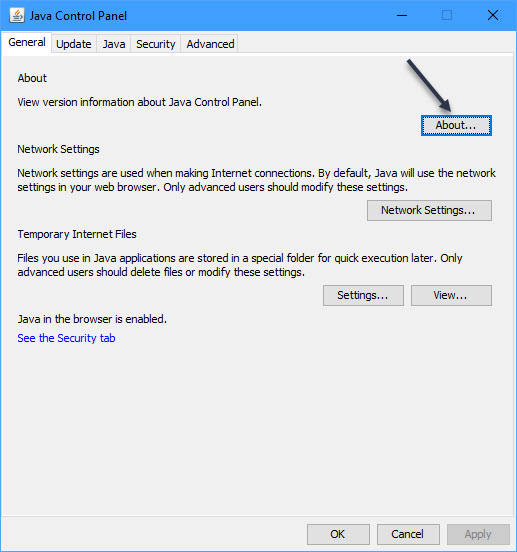
If you do not see About Java in the Start menu, search for Configure Java in the Cortana search box and click the result. Then click the About button to see your Java Version and Update number. See following image:
Accessing the Java Control Panel About button
Note: If you do not see either the About Java or Configure Java tools, you likely do not have Java installed. You can download it here from Oracle’s official website. This may take several minutes; just be patient.
Check Using the Command Prompt
You can check your Java version from the command line, too.
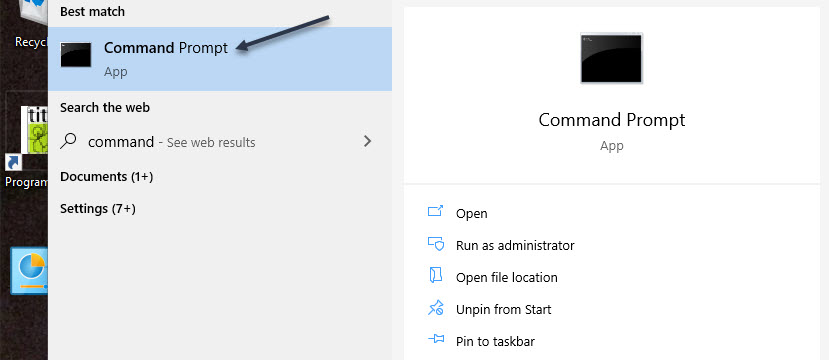
First, open the Start menu. Next, type in Command Prompt in the Cortana search box in bottom left-hand corner. Now, click the Command Prompt app in upper-left corner. Refer to below image:
Accessing the Command Prompt app
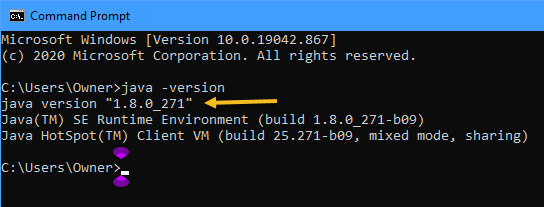
When the Command Prompt opens, type the following command at the prompt and press Enter.
java -version
Now, you will see your Java version and some numbers next to it. These numbers are your Java version and Update number. See below image:
Your Java Version and Update number
If the Command Prompt says that Java is not recognized as an internal or external command, that’s probably because the system variables are not properly set; or perhaps because you do not have Java installed. Reinstall Java on your PC from the download it here link and this should fix the issue for you.
What is the Latest Java Version
To check this, open your browser and search for:
What is the Latest Version of Java for Windows 10
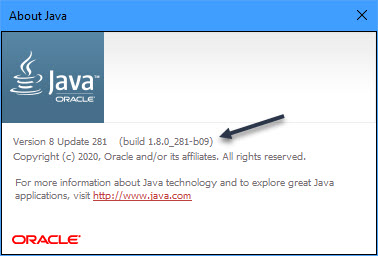
As of this writing , the latest version Update 281. I have Update 271, so I need to upgrade. You can download it here for the latest version from Oracle’s official website. This may take take several minutes; just be patient. You will be prompted to uninstall your older version, just click the uninstall button. When finished, close your Java dialog box. Now, go back to either method above on checking your Java version. See following image where I have updated to the latest version:
Your updated Java Update number
Check Your Version of Windows
You are finished. You can do the above for Windows 8 or 7, but in the download, you have to choose the Windows operating system, either 32-bit or 64-bit, download link. To check this in Windows 10 , first, open the Settings app by pressing Windows+i or click Start, then the Settings icon in lower left-hand corner. Next, scroll down to:
System > About
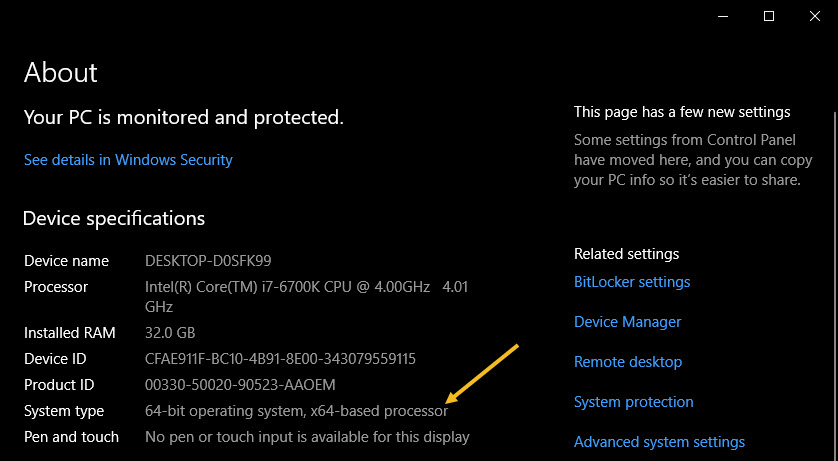
On the right side, look for the System type entry. You will be showned two pieces of information; whether you are using a 32-bit or 64-bit operating system and whether you have a 64-bit capable processor. Refer to below image:
Your operating system
For Windows 8, head to:
Control Panel > System
You can also hit Start and search for system. Look for the System type entry to see whether your operating system and processor are 32-bit or 64-bit.
For Windows 7, click on Start, right-click on Computer, and then choose Properties. On the System page, look for the System type entry to see whether your operating system is 32-bit or 64-bit.
Quote for the Day
The advance of technology is based on making it fit in so that you don’t really even notice it, so it’s part of everyday life.
Bill Gates, Microsoft
Please feel free to share this post! One way to share is via Twitter.
Just click the Tweet icon below. This will launch Twitter where you click its icon to post the Tweet.
Check out TechSavvy.life for blog posts on smartphones, PCs, and Macs! You may email us at contact@techsavvy.life for comments or questions.
Please feel free to leave a comment. I would love hearing from you. Do you have a computer or smart device tech question? I will do my best to answer your inquiry. Just send an email to contact@techsavvy.life. Please mention the device, app and version that you are using. To help us out, you can send screenshots of your data related to your question.
The author’s Vietnam eBook on the Battle for Tra Bong: Events and Aftermath
We have all been there; looking up a word on Google just to find out how it’s spelled. No matter the typos, Google usually knows what you want to type. Thankfully, Google allows you to use its spell-check feature everywhere in your Chrome web browser.
We have all been there; looking up a word on Google just to find out how it’s spelled. No matter the typos, Google usually knows what you want to type. Thankfully, Google allows you to use its spell-check feature everywhere in your Chrome web browser.
Called the Enhanced spell check, this setting allows you to access Google’s more advanced spell check whenever you type something on the Internet.
But as is the case with most Google services, there is a privacy cost to this. Turning on Enhanced spell check in Chrome also means agreeing to send everything you type on the web to Google’s server. So enable it at your own risk. But, you can also enable Basic spell check without sending data to Google. Lets explore how to do this.
This is for PCs, Macs, Chrome OS, or Linux running Chrome
dCopyright Scott Adams, Inc./Distributed by Universal Uclick for UFS
First, open your Google Chrome browser. Next, click the three-dot hamburger icon located in the top right-hand corner. Refer to below image:
Accessing the menu hamburger icon
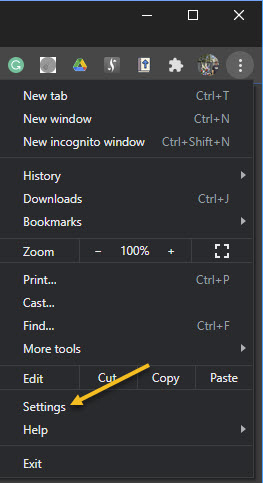
Now, from the drop-down menu that appears, select Settings. See below image:
Accessing Settings
Alternatively, you can press the Cmd+Comma keyboard shortcut on a Mac or Alt+E on a Windows PC to access the Settings option.
Next, in the sidebar, click Advanced to reveal the advanced menu. Now, choose Languages from the list. See following image:
Accessing Languages under the Advanced section
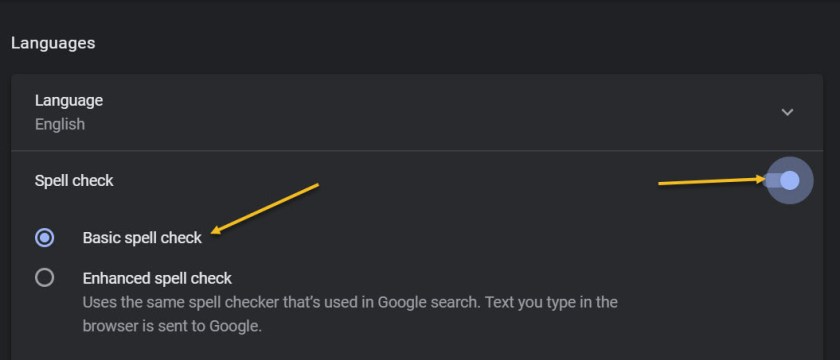
Under the Spell check section, toggle the radio button in front of the Basic spell check option to turn it On. If you want enhanced spell checking, toggle the radio button in front of the Enhanced spell check to turn it On. Keep in mind, the enhanced option means you are sending your browser activity to Google. Refer to below image:
Enabling Basic spell check option
At the time of writing, Enhanced spell check is not available for Google Chrome’s Android and iPhone clients.
The number one benefit of information technology is that it empowers people to do what they want to do. It lets people be creative. It lets people be productive. It lets people learn things they didn’t think they could learn before, and so in a sense it is all about potential.
Steve Ballmer, Microsoft
That’s it. Please feel free to share this post! One way to share is via Twitter.
Just click the Tweet icon below. This will launch Twitter where you click its icon to post the Tweet.
Check out TechSavvy.Life for blog posts on smartphones, PCs, and Macs! You may email us at contact@techsavvy.life for comments or questions.
There might be times when it would be helpful to add a YouTube video to a Microsoft Word document. It can help you get your point across or help with training. Inserting the YouTube video directly into the document makes it easier to watch it. Word allows you to include the video right inside the document. Then the reader does not need to click a link to the video and launch a separate browser instance.
There might be times when it would be helpful to add a YouTube video to a Microsoft Word document. It can help you get your point across or help with training. Inserting the YouTube video directly into the document makes it easier to watch it. Word allows you to include the video right inside the document. Then the reader does not need to click a link to the video and launch a separate browser instance. Let’s explore how this is done.
This is for Word. Screenshots are from Word in Office 365 and Chrome using Windows 10
Copyright Scott Adams, Inc./Distributed by Universal Uclick for UFS
If you follow my example, I will be using a YouTube video from the 2008 Winner in a Poland ballroom dance competition on BBC One. I have been ballroom dancing for 15 years and this is one of the best ballroom dance videos I have found. As of this writing, the video has been viewed over 3.9 million times. I hope you enjoy the video and this post.
Copy YouTube Video URL
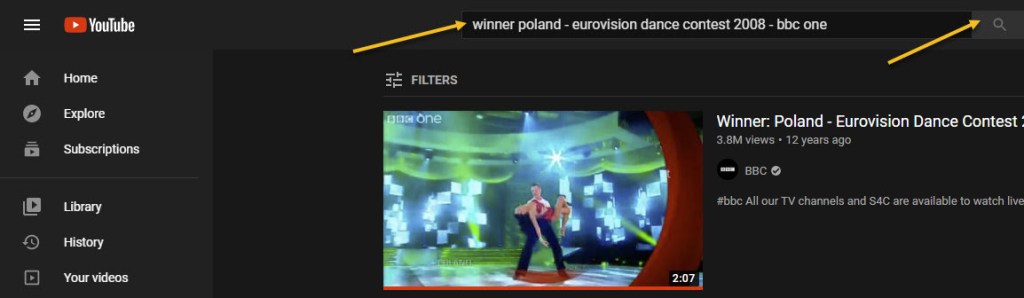
To insert a YouTube video into your Word document, open your browser of choice (I am using Chrome) and go to the YouTube website. Now, search for a YouTube video that you want to use by typing the name of the video in the search bar. Next, click the search button or simply press Enter. Refer to below image:
Entering your YouTube video name
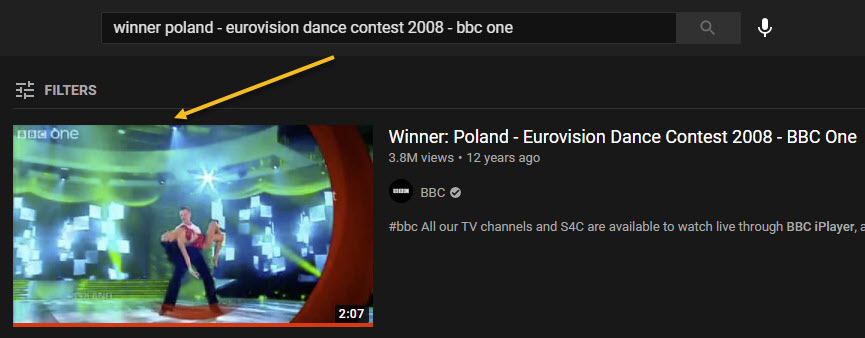
Next, select the video from the search results by clicking it. See below image:
Accessing your YouTube video
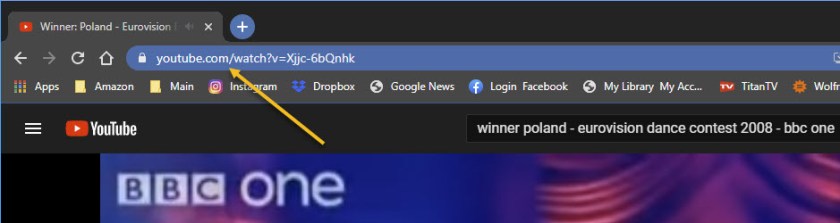
Now, highlight the video’s URL in the browser’s address bar. Right-click and then select Copy from the context menu. (This is the easiest option). See following image:
Copy the URL of your YouTube video
Copy YouTube Embed Code
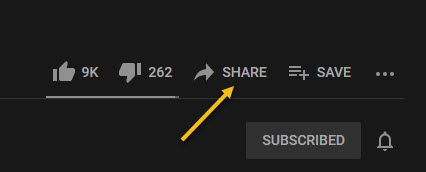
Alternately, to get the embed code, click Share under the video. Refer to below image:
Accessing your YouTube video Share option
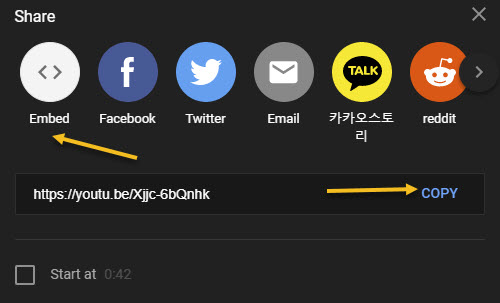
Next, in the Share window, select Embed. See below image:
Selecting your YouTube video Embed option
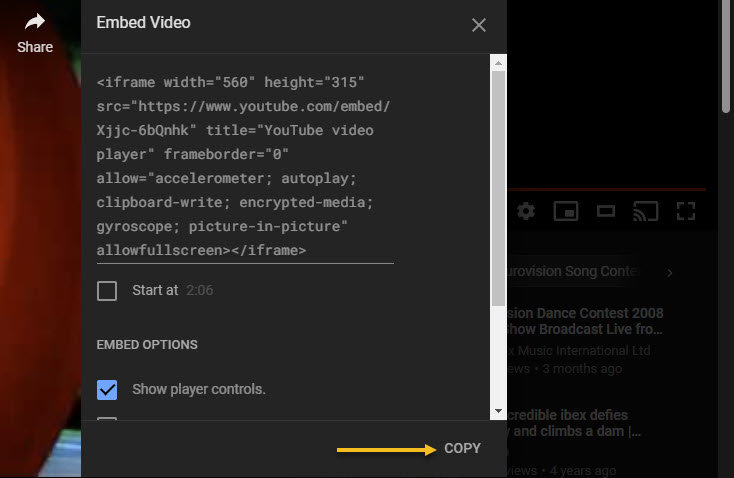
Now, the Embed Video window will appear. Click Copy to copy the code to your clipboard. Optionally, if you want to start the video from a specific time, check the box next to Start At and enter the desired time. See following image:
Copy your YouTube video Embed code
Insert URL or Embed Code
With the URL or embed code copied to your clipboard, open Word. Next, place your pointer where you want to insert your video.
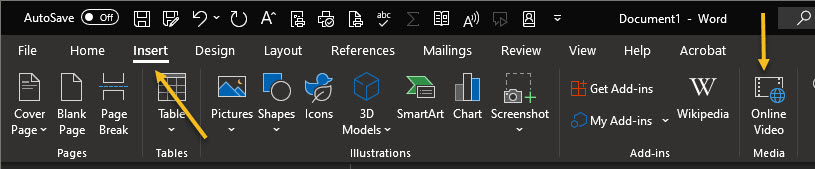
Now, from the top toolbar, click the Insert tab, then select Online Video in the Media group. Refer to below image:
Selecting the Inset option for Online Video
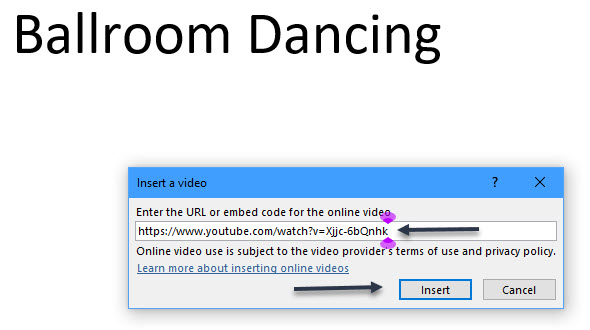
The Insert a Video dialog box will appear. Next, paste (Ctrl+V or right-click > Paste) the URL or embed code in the text box, then click Insert. See below image where I used the URL:
Copy/Paste the URL of your YouTube video
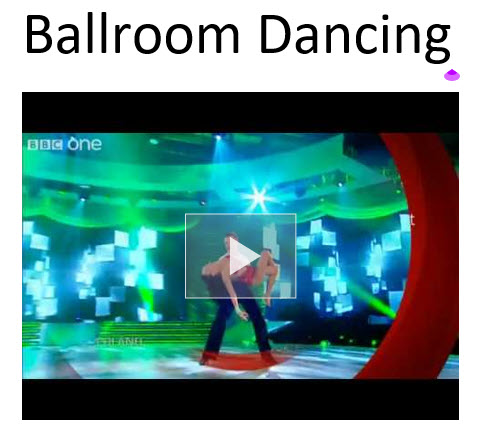
The video will now be inserted into the Word document. Clicking the play button will make the video pop out in the foreground while the background is dimmed. Press the Play button again to start. To pause, just click the video.
Your YouTube Video in Word
All of the normal video controls you would find on YouTube are also available for the video inserted into your Word document. See following image on how the video is displayed in Word:
Your YouTube video inside of a Word document
Quote For the Day
Everybody gets so much information all day long that they lose their common sense.”
Gertrude Stein
That’s it. Please feel free to share this post! One way to share is via Twitter.
Just click the Tweet icon below. This will launch Twitter where you click its icon to post the Tweet.
Check out TechSavvy.Life for blog posts on smartphones, PCs, and Macs! You may email us at contact@techsavvy.life for comments or questions.
Please feel free to leave a comment. I would love hearing from you. Do you have a computer or smart device tech question? I will do my best to answer your inquiry. Just send an email to contact@techsavvy.life. Please mention the device, app and version that you are using. To help us out, you can send screenshots of your data related to your question.
The author’s Vietnam eBook on the Battle for Tra Bong: Events and Aftermath




























 Tech Savvy Life