How to Download/Save Images Using Google Image Search

Google’s Image Search results are sometimes so impressive that you want to save some of those images to your device.

RAYMOND OGLESBY @RaymondOglesby2
February 2, 2023

Google’s Image Search results are sometimes so impressive that you want to save some of those images to your device. If you have found yourself in this situation, let’s explore how to download those images from your search results.

This is for mobile and desktop devices. Screenshots are from Windows 10 and iPhone 14 Pro running iOS 16+

Dilbert and Batteries
Copyright Scott Adams, Inc./Distributed by Universal Uclick for UFS

Save Images On Desktop

To download an image on a desktop, you just pick your image, click an option, and your image is saved to your computer.

First, launch your favorite web browser on your computer and open Google Image Search. There, find the image you want to save to your machine. Refer to the below image:

Google Image Search 1
Search Google Images

Next, on the search results page, access the image that you want to download. See the below image:

Google Image Search 2
Find an image

Now, right-click your image, and from the menu that opens, choose to Save image as. See the following image:

Google Image Search 3
Check the option to save your image

Next, your browser will open your computer’s standard Save As window. Here, select a folder to save your image in, type your image name in the File Name field, then click Save. Refer to the below image:

Google Image Search 4
Save your image

Now, you have successfully downloaded your favorite image from your Image Search results. If you are not sure exactly where the image file went, check your Downloads folder from File Explorer.

If your downloaded file is of low resolution, then try downloading that image directly from the source site. To do that, on the Image Search results page, click the link, beneath the image, and not the image, to be taken to the image site. There, right-click the image and choose Save image as.

Download Images On Mobile

On your mobile phone, you can download images from Google’s Image Search results using Google Chrome, Apple Safari, or Microsoft Edge. Mozilla Firefox does not offer the option to save images.

To start, first, open your web browser (we are using Safari) and launch Google Image Search or type into the search box “images.google.com”. Find the image you would like to save to your phone.

Next, on the search results page, tap the image to download. See the below image:

Google Image Search 5
Tap an image you want to download

Now, on your image full-screen page, tap and hold the image. See the following image:

Google Image Search 6
Press and hold your image

Next, on iPhone or iPad, from the menu that opens in Safari, tap Save to Photos. Refer to the below image:

Google Image Search 7
Select the option to save your image

Your iPhone will download and save the image on your local storage or in our example using Safari, your Photos app. See the below image:

Google Image Search 6
Your saved image
Disclaimer

Technology is always changing and rarely is static for smartphones and desktops. Thus, the contents of this post are only valid at the time of writing. Blog posts older than six months may have directions incompatible with your device or OS. Hopefully, older post content will continue to work as advertised. Thank you for reading TechSavvy.Life for Technology at Work For You.

Quote For the Day

The technology you use impresses no one. The experience you create with it is everything.

Sean Cerety

Tweet Info

You are finished. Please feel free to share this post! One way to share is via Twitter.

Just click the Tweet icon below. This will launch Twitter where you click its icon to post the Tweet.

Checkout TechSavvy.Life for blog posts on smartphones, PCs, and Macs! You may email us at contact@techsavvy.life for comments or questions.

I Would Like to Hear From You

Please feel free to leave a comment. I would love to hear from you. Do you have a computer or smart device tech question? I will do my best to answer your inquiry. Just send an email to contact@techsavvy.life. Please mention the device, app, and version you are using. To help us out, you can send screenshots of your data related to your question.

Author’s E-Book

You can access the e-book from a Kindle device, the Kindle App for the desktop or smartphone, which is a free app.

The author’s Vietnam eBook on the Battle for Tra Bong Vietnam: Events and Aftermath

How to Enable Google Chrome Dark Mode

Google Chrome has had a built-in dark theme like Mozilla Firefox and Microsoft Edge since Chrome 74. You can even apply a dark theme to every web page you visit using third-party themes or an extension.

RAYMOND OGLESBY @RaymondOglesby2
January 26, 2023

Google Chrome has had a built-in dark theme like Mozilla Firefox and Microsoft Edge since Chrome 74. You can even apply a dark theme to every web page you visit using third-party themes or an extension. Let’s explore this dark mode feature.

This is for devices running Windows 11 or 10. Screenshots are from Windows 10

Dilbert and Robot
Copyright Scott Adams, Inc./Distributed by Universal Uclick for UFS

Chrome offers a built-in dark mode on Windows 11 and Windows 10. It even makes all of Chrome’s context menus dark, too.

Dark Mode for Windows 11

First, open the Settings app and navigate to:

Personalization > Color

Next, click the drop-down menu to the right of Choose Your Mode and select Dark. Refer to the below image:

Dark Mode 1
Setting Dark Mode for Windows 11

Next, close out the Settings app and launch Google Chrome. Unless you have manually set Chrome’s theme, it will match your system.

Dark Mode for Windows 10

First, head to:

Settings > Personalization > Colors

and select Dark under Choose your default app mode. See the below image:

Dark Mode 2
Setting Dark Mode for Windows 10

Apply a Dark Theme

Chrome supports user-created themes, which you can download from the Chrome Web Store. To give Chrome a dark interface, all you have to do is install a dark theme. Google even provides a helpful collection of editor-selected dark themes. This will give your Chrome browser a dark mode on Windows 7, Linux, Chrome OS, and any operating system without a native dark theme.

Note! Google now offers some official Chrome browser themes, including a “Just Black” dark mode theme. You may want to give that a try.

We recommend Morpheon Dark, which is the most popular dark theme in the Store. Unlike some other dark themes, it provides a decent amount of contrast between your active tab, which is a bit lighter, and your inactive tabs, which are darker.

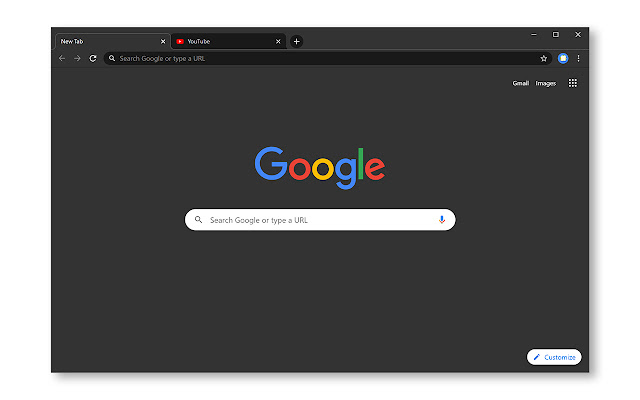
This theme turns darkens the Tab Bar, Title Bar, Toolbar, and New Tab page. That’s all you can theme in Chrome. You can not make Chrome’s Context Menus or Settings page dark, for example. See the following image:

Dark Mode 3
Apply Morpheon Dark Mode

If you ever want to switch back to Chrome’s default theme you can. Head to:

Menu > Settings

Look for the Themes option under Appearance and then click Reset to Default. Refer to the below image:

Reset to the default theme
Disclaimer

Technology is always changing, and rarely is their static tech for smartphones and desktops. Thus, the contents of this post are only valid at the time of writing. Blog posts older than six months may have directions incompatible with your device or OS. Hopefully, older post content will continue to work as advertised. Thank you for reading TechSavvy.Life for Technology at Work For You.

Quote For the Day

Even the technology that promises to unite us, divides us. Each of us is now electronically connected to the globe, and yet we feel utterly alone.

Dan Brown

Tweet Info

You are finished. Please feel free to share this post! One way to share is via Twitter.

Just click the Tweet icon below. This will launch Twitter where you click its icon to post the Tweet.

Checkout TechSavvy.Life for blog posts on smartphones, PCs, and Macs! You may email us at contact@techsavvy.life for comments or questions.

I Would Like to Hear From You

Please feel free to leave a comment. I would love to hear from you. Do you have a computer or smart device tech question? I will do my best to answer your inquiry. Just send an email to contact@techsavvy.life. Please mention the device, app, and version you are using. To help us out, you can send screenshots of your data related to your question.

Author’s E-Book

You can access the e-book from a Kindle device, the Kindle App for the desktop or smartphone, which is a free app.

The author’s Vietnam eBook on the Battle for Tra Bong Vietnam: Events and Aftermath

Explore the World of Radio Stations

While radio is not particularly hard to access; you just need a device capable of tuning into radio frequencies; listening to the radio outside of your area can be difficult. This app, however, lets you listen to any radio station in any country worldwide, complete with a colorful interface.

RAYMOND OGLESBY @RaymondOglesby2
January 10,2023

While radio is not particularly hard to access; you just need a device capable of tuning into radio frequencies. Listening to the radio outside of your area can be difficult. This app, however, lets you listen to any radio station in any country worldwide, complete with a colorful interface. Let’s check this out.

This is for computers and mobiles running a web browser. Screenshots are from Windows 10 PC

Dilbert and Dating
Copyright Scott Adams, Inc./Distributed by Universal Uclick for UFS

Radio Garden is available as a web version, and it also has mobile apps for Android and iOS. Its whole premise is that you can listen to several radio stations in many different countries and cities. You will see a bunch of small green dots all across the globe, and those are radio stations that you can tune into immediately. You do not need a login or any kind of subscription. All you need is a device that can access the internet, like your computer or smartphone. Refer to the below image:

Radio 1
South Carolina

You can zoom in or out, move the round circle to any part of the world, or tap a green dot to listen to a station. Check out the Settings menu for options. We suggest you ignore the ads, they take you where you may not want to go; just close them. You can purchase the app for $2.99 (under Settings) to remove the virtual ads.

Some examples of Radio Garden stations:

Radio 2
Brazil
Radio 3
Ukraine
Radio 4
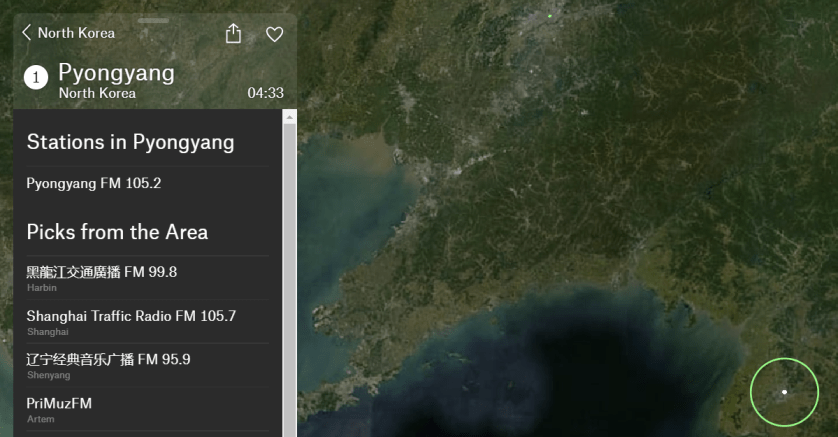
North Korea

It’s a lot of fun to play around with the app and learn something new.

Disclaimer

Technology is always changing and rarely is there static for smartphones and desktops. Thus, the contents of this post are only valid at the time of writing. Blog posts older than six months may have directions incompatible with your device or OS. Hopefully, older post content will continue to work as advertised. Thank you for reading TechSavvy.Life for Technology at Work For You.

Quote For the Day

Good, bad or indifferent, if you are not investing in new technology, you are going to be left behind.

Philip Green

Tweet Info

That’s it. Please feel free to share this post! One way to share is via Twitter.

Just click the Tweet icon below. This will launch Twitter where you click its icon to post the Tweet.

Checkout TechSavvy.Life for blog posts on smartphones, PCs, and Macs! You may email us at contact@techsavvy.life for comments or questions.

I Would Like to Hear From You

Please feel free to leave a comment. I would love to hear from you. Do you have a computer or smart device tech question? I will do my best to answer your inquiry. Just send an email to contact@techsavvy.life. Please mention the device, app, and version you are using. To help us out, you can send screenshots of your data related to your question.

Author’s E-Book

You can access the e-book from a Kindle device, the Kindle App for the desktop or smartphone, which is a free app.

The author’s Vietnam eBook on the Battle for Tra Bong Vietnam: Events and Aftermath

Checkout James Webb Telescope Photo Gallery

NASA launched the James Webb Space Telescope (JWT) in December 2021, giving scientists a fresh look at the universe and giving the rest of us some cool wallpapers.

RAYMOND OGLESBY @RaymondOglesby2
December 20, 2022

NASA launched the James Webb Space Telescope (JWT) in December 2021, giving scientists a fresh look at the universe and giving the rest of us some cool wallpapers. There’s an easy way to check out the latest images and save them for your device’s wallpaper. Let’s explore how.

This is for desktop and mobile devices

Flicker Main
MACS NIRCam Image – Dense Cosmic Knot in the Early Universe

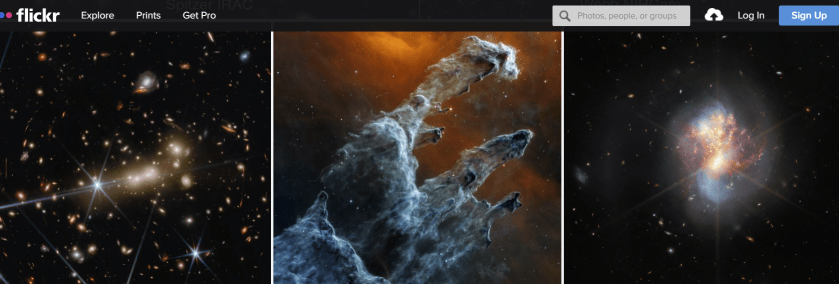
Processed images from JWT have been published on Twitter, the telescope’s official website (this is a really cool site), and other locations, but there’s another portal you may not have seen. NASA operates a Flickr site for the telescope, which contains images of engineering tests, control centers, and best of all, space pictures. To see all the photos, you need to signup for Flickr in the top right-hand corner. Refer to the below image for an example of their gallery:

Flickr 1
Deep Space – Pillars of Creation – Emerging Galaxies

You can browse through the whole collection in your browser, and saving the full-resolution version of an image is as easy as clicking the Download button (the arrow pointing down). If you have a Flickr account, you can also follow the account to see new pictures. After creating your Flickr account, in the Search box (located in the upper right-hand corner), type in James Web Telescope to view the images.

The first few photos from JWT were already excellent wallpapers, but the Flickr gallery is being updated with the latest images. There are the Pillars of Creationtwo galaxies mergingJupiter in infrared, and the fiery hourglass.

In the 32-year run (and counting) of the Hubble Space Telescope is any indication, the JWT should continue giving us fantastic images for years to come.

Disclaimer

Technology is always changing and rarely is there static for smartphones and desktops. Thus, the contents of this post are only valid at the time of writing. Blog posts older than six months may have directions that are incompatible with your device or OS. Hopefully, older post content will continue to work as advertised. Thank you for reading TechSavvy.Life for Technology at Work For You.

Quote For the Day

Technology means you can now do amazing things easily; but you couldn’t easily do them legally.

Lawrence lessig

Tweet Info

That’s it. Please feel free to share this post! One way to share is via Twitter.

Just click the Tweet icon below. This will launch Twitter where you click its icon to post the Tweet.

Checkout TechSavvy.Life for blog posts on smartphones, PCs, and Macs! You may email us at contact@techsavvy.life for comments or questions.

I Would Like to Hear From You

Please feel free to leave a comment. I would love to hear from you. Do you have a computer or smart device tech question? I will do my best to answer your inquiry. Just send an email to contact@techsavvy.life. Please mention the device, app, and version you are using. To help us out, you can send screenshots of your data related to your question.

Author’s E-Book

You can access the e-book from a Kindle device, the Kindle App for the desktop or smartphone, which is a free app.

The author’s Vietnam eBook on the Battle for Tra Bong Vietnam: Events and Aftermath

How to Customize the SendTo Menu in Windows

The SendTo menu in Windows has been a useful feature for a long time. It may be buried in the right-click context menu in File Explorer, but you can use it to send files to a specific location, copy photos to a new device, or print your work in moments. It also comes with default entries you may never use and lack certain features you may want.

RAYMOND OGLESBY @RaymondOglesby2
December 8, 2022

The SendTo menu in Windows has been a useful feature for a long time. It may be buried in the right-click context menu in File Explorer, but you can use it to send files to a specific location, copy photos to a new device, or print your work in moments. It also comes with default entries you may never use and lack certain features you may want. Let’s explore tweaking what appears in the SendTo menu.

This is for Windows 11, 10, and 8.1. Screenshots are from Windows 10

Dilbert and Approved
Copyright Scott Adams, Inc./Distributed by Universal Uclick for UFS

Open the SendTo Menu

The SendTo function works the same in Windows 11, 10, and 8.1. First, open File Explorer and right-click on a file, such as a word processing document, spreadsheet, text file, or image file. From the pop-up menu, move your mouse to the SendTo command. menu.

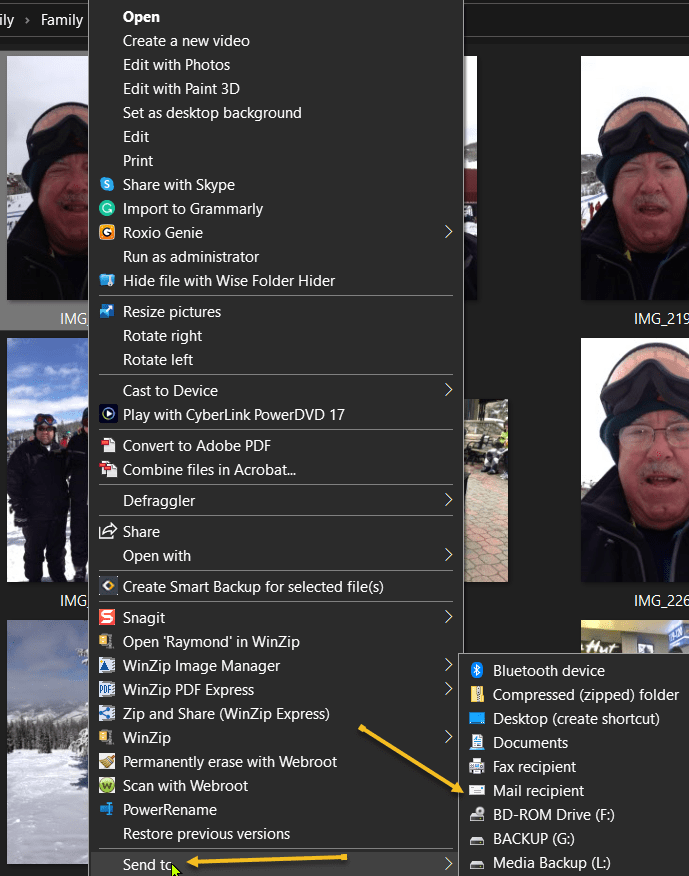
The SendTo menu opens, revealing various locations and applications to which you can send the file. First, click a specific entry, such as a Bluetooth device, a compressed zip file, a Mail recipient, or your Documents folder. The file you selected is then sent to the chosen destination. Refer to the below image:

Send To 1
Your SendTo menu

Remove Entries

Next, press the Windows Key + R to trigger the Run window. At the Open field in the window, type shell:SendTo and then click OK. See the below image:

Send To 2
Accessing SendTo via Run command

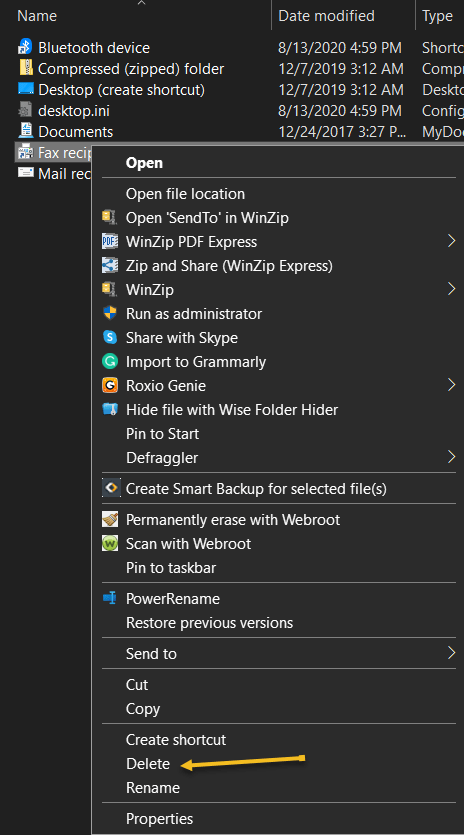
Now, the File Explorer opens to the SendTo folder for your user account. From here, you can delete any entries you would never use by right-clicking on them and selecting Delete from the pop-up menu. See the following image:

Send To 3
Delete a SendTo option

Add Entries

When adding new entries to the menu, you need to know the path of the executable file for the app you want to add. Let’s say you wish to play songs from Windows Media Player and want to add them to the SendTo menu. First, you would create a SendTo entry for it in the SendTo folder. To do so, open File Explorer, then right-click on any empty area of the folder.

Next, select New > Shortcut. In the window that opens to create the shortcut. Refer to the below image:

SendTo 4
Create a shortcut

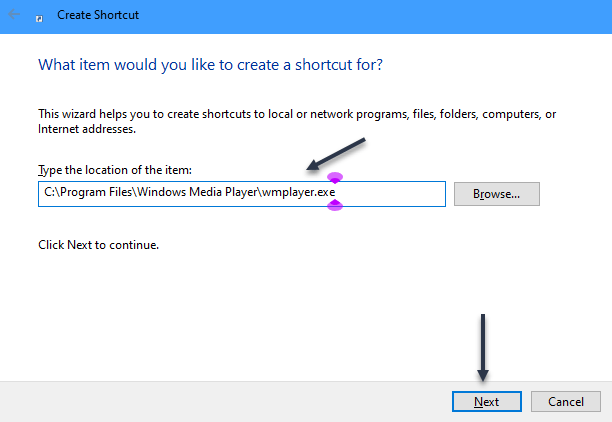
Now, browse to or type the following path: C:\Program Files\Windows Media Player\wmplayer.exe, then click Next. See the below image:

SendTo 5
Location of the shortcut

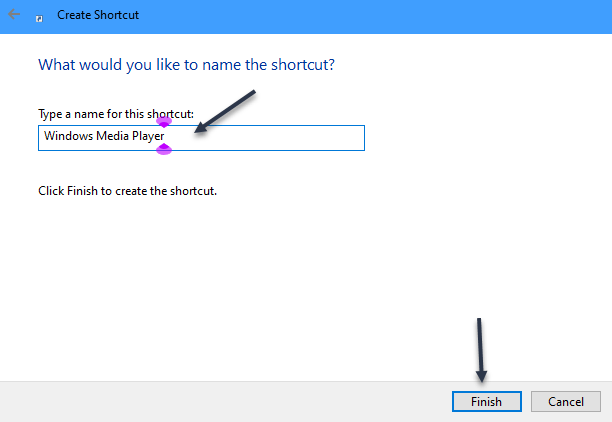
Next, you would then change the name for the shortcut to Windows Media Player and click Finish. See the following image:

SendTo 6
Name the shortcut

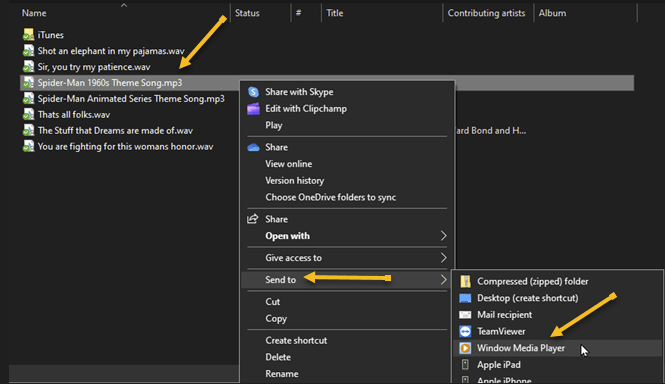
Now you can send any type of audio file to Windows Media Player if you right-click on it and open the SendTo menu. Refer to the below image:

SendTo 7
Send a file to your new entry

Quote For the Day

To err is human, but to really foul things up you need a computer.

Paul Ehrlich

Tweet Info

That’s it. Please feel free to share this post! One way to share is via Twitter.

Just click the Tweet icon below. This will launch Twitter where you click its icon to post the Tweet.

Checkout TechSavvy.Life for blog posts on smartphones, PCs, and Macs! You may email us at contact@techsavvy.life for comments or questions.

I Would Like to Hear From You

Please feel free to leave a comment. I would love to hear from you. Do you have a computer or smart device tech question? I will do my best to answer your inquiry. Just send an email to contact@techsavvy.life. Please mention the device, app, and version you are using. To help us out, you can send screenshots of your data related to your question.

Author’s E-Book

You can access the e-book from a Kindle device, the Kindle App for the desktop or smartphone, which is a free app.
The author’s Vietnam eBook on the Battle for Tra Bong Vietnam: Events and Aftermath