How to Insert an Outlook Contact Into Word

There are a number of ways to insert contact information into a Word document, like using Mail Merge. But what if you just wanted to insert specific Outlook contacts. The easiest way is by adding an Address Book button to the Quick Address Toolbar (QAT) so that you can add contacts on-the-fly and at the touch of a button in any Microsoft Office application.

There are a number of ways to insert contact information into a Word document, like using Mail Merge. But what if you just wanted to insert specific Outlook contacts. The easiest way is by adding an Address Book button to the Quick Address Toolbar (QAT) so that you can add contacts on-the-fly and at the touch of a button in any Microsoft Office application. Lets explore how to insert an Outlook contact into Microsoft Word.

This is for devices running Microsoft Word

Dilbert and Assistant
Copyright Scott Adams, Inc./Distributed by Universal Uclick for UFS

Adding the QAT Address Book Button

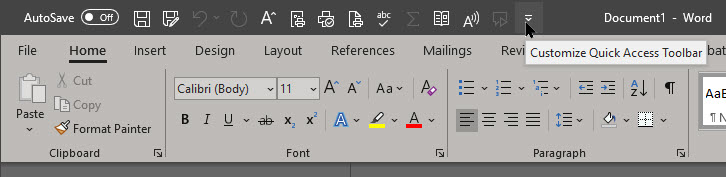
(If you have already done this, you may skip this step). To add the button, click the arrow icon in the QAT. This icon opens a drop-down menu that allows you to customize the QAT. Refer to below image:
Contacts 1
Accessing the Quick Access Toolbar

Now, from the available options, choose More Commands. See below image:

Contacts 2
Choosing More Commands

Next, click the Quick Access Toolbar from the left sidebar. Now, choose Commands Not in the Ribbon from the Choose Commands From drop-down menu. See following image:

Contacts 3
Accessing commands not on the ribbon

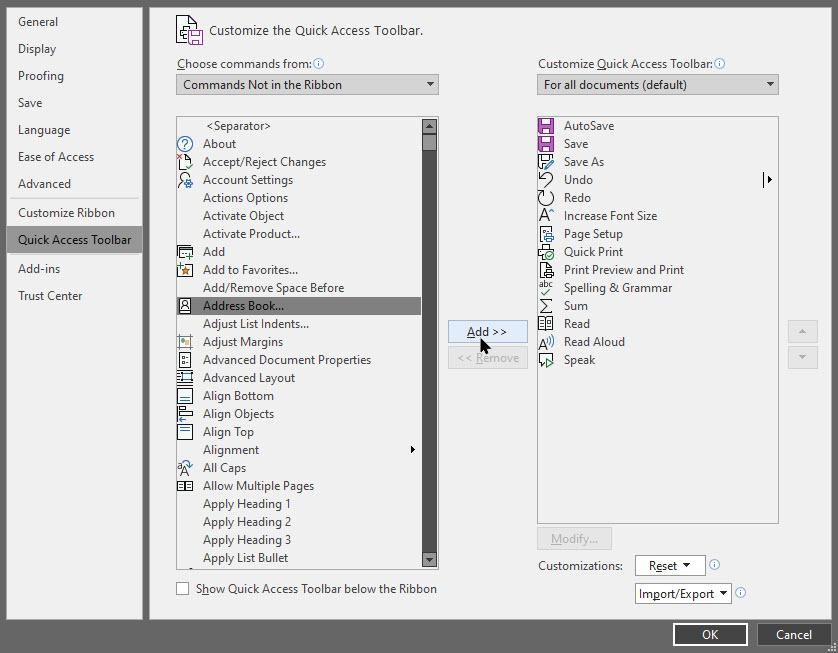
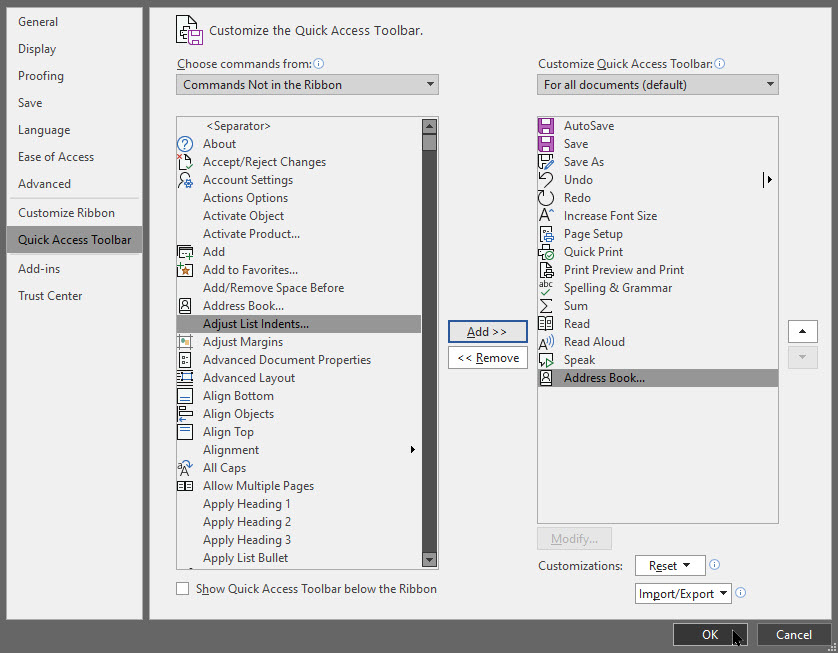
Now, choose Address Book. Next, click the Add button to add it to the QAT. Refer to below image:
Contacts 4
Adding the Address Book button to the ribbon

Finally, click OK to add the Address Book button. See below image:
Contacts 5
Saving your change for the ribbon

Inserting Contacts Into a Word Document

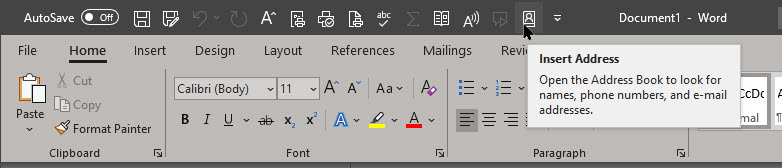
To insert a contact, position the cursor where you would like to add the contact information. Next, from the Quick Access Toolbar, click the Address Book icon you just added. See following image:
Contacts 6
Selecting the Address Book button to insert a contact

Now, contact names from your address book should appear. If you have multiple address books, select one from the drop-down box to view its contacts. Click the contact you would like to add, then click the OK button. Refer to below image:

Contacts 7
Inserting an Address Book contact into Word

Now, any information that you have for the contact should appear in the document. This, however, is almost entirely up to how thorough you are in creating the contact. For some, it will be just a name and an email address. For others, you will get the full details that includes address, phone number, and the like. It all depends on what you added when you created a new contact (or edited it later).

You are finished! Please feel free to share this post! One way to share is via Twitter, as mentioned below..

I hope you have found this post helpful. If so, click the Tweet icon below. This will launch Twitter where you click its icon to post the Tweet.

Check out TechSavvy.Life for blog posts on smartphones, PCs, and Macs! You may email us at contact@techsavvy.life for comments or questions.

I Would Like to Hear From You

Please feel free to leave a comment. I would love hearing from you. Do you have a computer or smart device tech question? I will do my best to answer your inquiry. Just send an email to contact@techsavvy.life. Please mention the device, app and version that you are using. To help us out, you can send screenshots of your data related to your question.


The author’s Vietnam eBook on the Battle for Tra Bong: Events and Aftermath

How to Use Smart Invert on iPhone

If you love Dark Mode but your favorite iPhone or iPad app or website does not support it, you can force a simulated Dark Mode everywhere using Apple’s built-in Smart Invert accessibility feature.

If you love Dark Mode but your favorite iPhone or iPad app or website does not support it, you can force a simulated Dark Mode everywhere using Apple’s built-in Smart Invert accessibility feature.

This is for the iPhone

Dilbert and Error
Copyright Scott Adams, Inc./Distributed by Universal Uclick for UFS

Defining Smart Invert

Smart Invert is an Apple accessibility feature that inverts the colors on your screen (like a negative image), but with a twist. It’s “smart” because it usually prevents images, videos, and some apps that are already dark-colored from getting inverted. It was designed for people with vision loss, low vision, or other vision issues that might benefit from an inverted screen but might not want to see inverted images.

How About Dark Mode

Apple’s system wide Dark Mode (first introduced in iOS 13) generally works well and is supported by a large number of iPhone and iPad apps, but some apps with largely white interfaces still do not support it. Also, if you want to browse the web at night without waking a sleeping buddy, Smart Invert keeps the light low.

Enabling Smart Invert

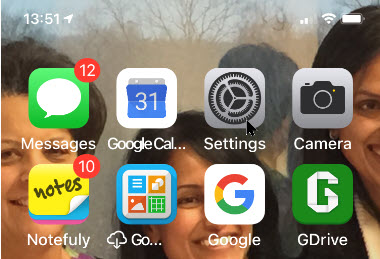
First, launch Settings (the gear icon). Refer to below image:

Invert 1
Accessing Settings

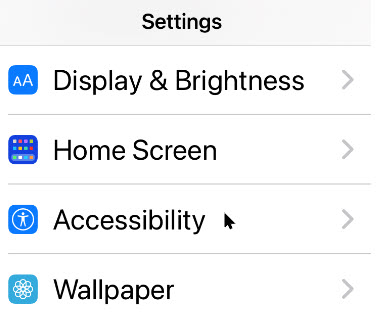
Now, navigate to the Accessibility option. See below image:

Invert 2
Accessing Accessibility option

Next, tap the Display & Text Size option. See following image:

Invert 3
Accessing Display & Text Size option

In its settings, scroll down until you see Smart Invert toggle. Tap it to turn it on. Your screen will immediately be inverted (a black screen). Refer to below image: (Note! This iPhone will not capture the inverted screen).

Invert 4
Enabling Smart Invert

Now, exit Settings and use your apps as usual.

Disable Smart Invert

If you want to to turn it off, revisit

Settings > Accessibility > Display & Text Size > Smart Invert

and toggle off the switch. Or you can use a shortcut. Let’s see how to setup a shortcut.

Use a Shortcut

Using a built-in feature called Accessibility Shortcut on your iPhone, you can triple-click your Home button (on older iPhones or your Side button on newer models) to quickly launch an accessibility function such as Smart Invert.

To set it up, launch Settings and navigate to Accessibility. Next, scroll down and tap Accessibility Shortcut. See below image:

Invert 5
Accessing Shortcut option

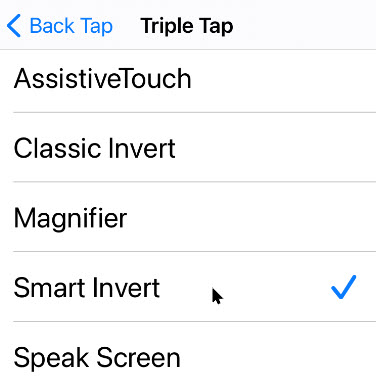
Now, you will see a list of Accessibility functions you can toggle with the shortcut. Tap Smart Invert then tap the Back button. See following image:

Invert 6
Enabling Smart Invert shortcut

Now, whenever you triple-click your Home or Side button (depending on which iPhone model you have), you will launch Smart Invert. If you triple-click it again, Smart Invert will turn off.

Use a Back Tap

Starting with iOS 14 and higher, if you have an iPhone 8 or above, you can use the Back Tap feature to toggle Smart Invert. To do so, go to

Settings > Accessibility > Touch > Back Tap

Now, select whether you want to trigger Smart Invert using a double-tap or triple-tap on the back of your iPhone. In the list of actions that appears, select Smart Invert. Refer to below image where we selected the triple-tap action:

Invert 7
Assigning Smart Invert option to Back Tap

Now, go back one screen and exit Settings. With Back Tap enabled, you can tap on the back of your iPhone two or three times to quickly turn Smart Invert on or off. That’s it. Please feel free to share this post! One way to share is via Twitter, as mentioned below.

I hope you have found this post helpful. If so, click the Tweet icon below. This will launch Twitter where you click its icon to post the Tweet.

Check out TechSavvy.Life for blog posts on smartphones, PCs, and Macs! You may email us at contact@techsavvy.life for comments or questions.

I Would Like to Hear From You

Please feel free to leave a comment. I would love hearing from you. Do you have a computer or smart device tech question? I will do my best to answer your inquiry. Just send an email to contact@techsavvy.life. Please mention the device, app and version that you are using. To help us out, you can send screenshots of your data related to your question.

The author’s Vietnam eBook on the Battle for Tra Bong: Events and Aftermath

Three Tweaks to Speed Up Windows 10

Windows 10 is speedier than the previous versions of Microsoft’s desktop operating system, but you can still optimize its performance.

Windows 10 is speedier than the previous versions of Microsoft’s desktop operating system, but you can still optimize its performance.

There are performance factors to consider after you are up and running from a previous version of Windows. Even the latest Windows version isn’t immune to slowdowns.

For people with older, low-power machines who want a speed boost, a few tips towards this end does boost system performance. Lets explore these three tweeks.

This is for devices running Windows 10

Dilbert and Doctor
Copyright Scott Adams, Inc./Distributed by Universal Uclick for UFS

Tweak 1 – Check for Viruses

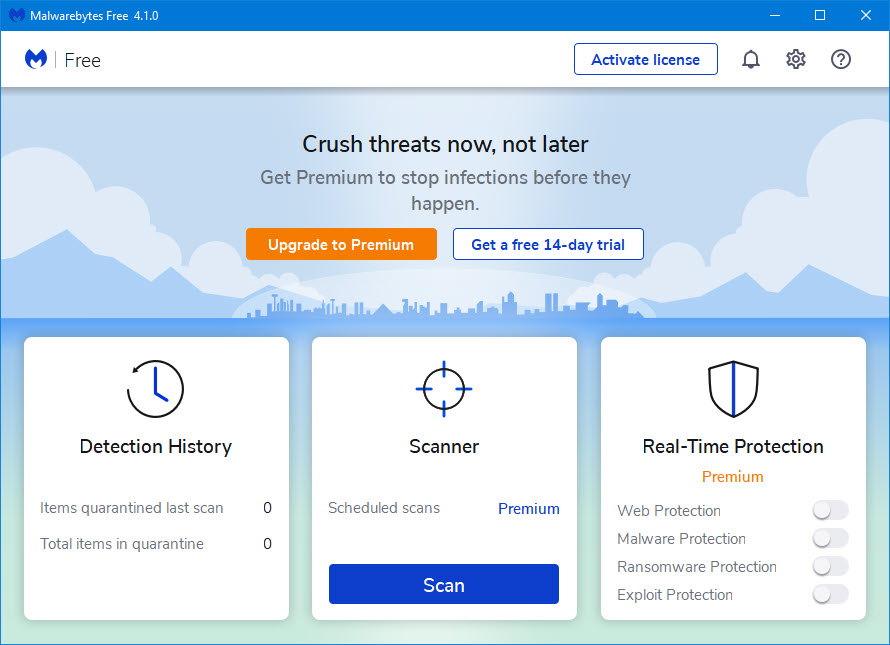
You can run the built-in Windows Defender or a third-party app to do this, but you are best served by a top pick among malware-cleanup programs, the free Malwarebytes app. Click here to download. Just install and run. Refer to below image:

Tweaks 1
Malwarebytes main screen

Tweak 2 – Change Power Settings

This tweak could boost your PC’s computing speed but at the expense of electricity. Head to

Settings (press Start, then the gear icon in lower left-hand corner or your desktop icon) > System > Power & sleep

To the right of your screen, click the Additional power settings link.

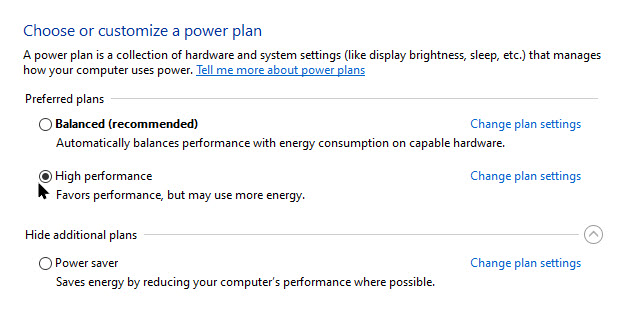
Now, click the dropdown arrow on the right side to Show additional plans. Next, select High Performance. See below image:

Tweaks 2
Accessing power settings

Tweak 3 – Turn Off Notifications

Yes, like your smart phone, Windows 10 has annoying tips and notifications.

If Windows does not need to generate a notification, your computing will go faster. I have over 20 apps that are capable of sending notifications. To turn them off, head to

Settings (press Start, then the gear icon in lower left-hand corner or your desktop icon) > Notifications & actions

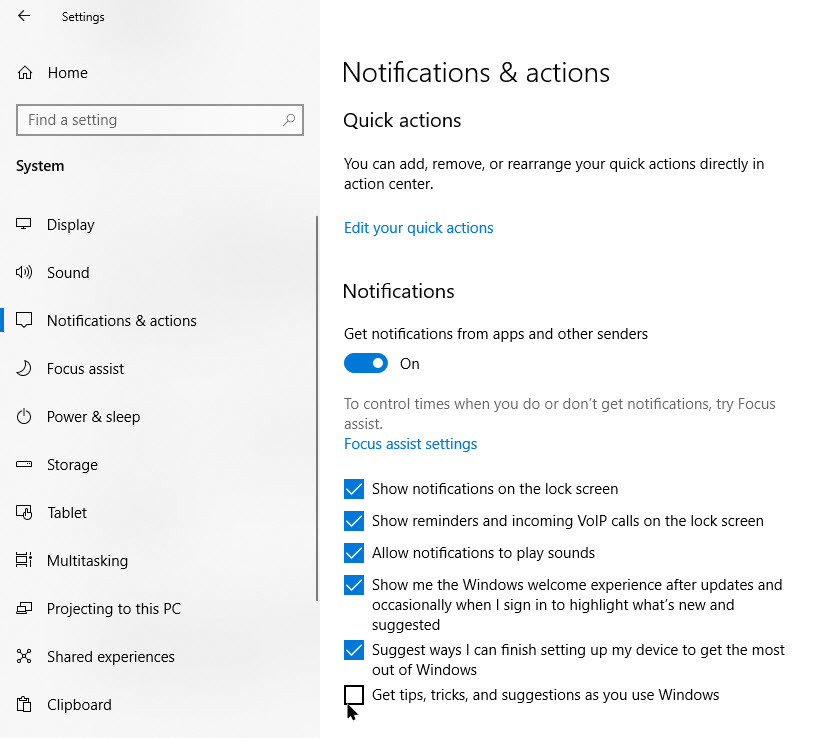
Next, you may want to disable the Get, tips, tricks, and suggestions as you use Windows. See following image:

Tweaks 3
Accessing types of Notifications

Now, scroll down to the Get notifications from these senders section. You will see a list of individual apps that can send notifications, and you can uncheck those you do not want to hear from. These notifications reduce processing that Windows needs to do to display relevant information for your system. If Windows does not need to generate a notification, your computing will go faster. Refer to below image:

Tweaks 4
Disabling Notifications from senders

An easy way to pause notifications is to tap the Focus Assist button in the Action Center.

To open the Action Center, do one of the following:

  • On the right end of the taskbar, select the Action Center icon
  • Press the Windows logo key  + A
  • On a touchscreen device, swipe in from the right edge of the screen

Just tap through the Focus Assist button to view your options for type of notifications to receive or turn them off. This also makes it easier to re-enable them later.

You are finished with these three Windows 10 tweaks. Please feel free to share this post! One way to share is via Twitter.

Just click the Tweet icon below. This will launch Twitter where you click its icon to post the Tweet.

Check out TechSavvy.Life for blog posts on smartphones, PCs, and Macs! You may email us at contact@techsavvy.life.

I Would Like to Hear From You

Please feel free to leave a comment. I would love hearing from you. Do you have a computer or smart device tech question? I will do my best to answer your inquiry. Just send an email to contact@techsavvy.life. Please mention the device, app and version that you are using. To help us out, you can send screenshots of your data related to your question.
The author’s Vietnam eBook on the Battle for Tra Bong: Events and Aftermath

How to Enable Full Screen Incoming Calls on iPhone or iPad in iOS or iPadOS 14

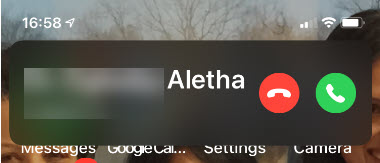
In iOS and iPad OS 14, Apple introduced persistent call banners instead of full-screen notifications. This means that when your device is unlocked, regular, FaceTime, and third-party VoIP incoming call banners take only a small space at the top.

In iOS and iPad OS 14, Apple introduced persistent call banners instead of full-screen notifications. This means that when your device is unlocked, regular, FaceTime, and third-party VoIP incoming call banners take only a small space at the top.

Call 1
Incoming Call banner mode

This compact UI feature is turned on by default. While you can swipe down on a banner to quickly expand the incoming call to the full-screen mode, it is not a permanent solution.

However, if you want a big contact picture in incoming calls, or do not like the new style, or it’s too easy to miss and you prefer the old way, here is how to activate this feature in iOS and iPadOS 14.

This is for iPhone or iPad running iOS or iPadOS 14

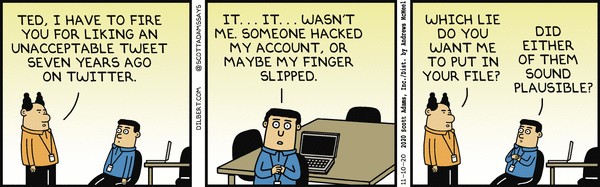
Dilbert and Tweet
Copyright Scott Adams, Inc./Distributed by Universal Uclick for UFS

Open the Settings app (the gear icon). Refer to below image:

Call 2
Accessing Settings

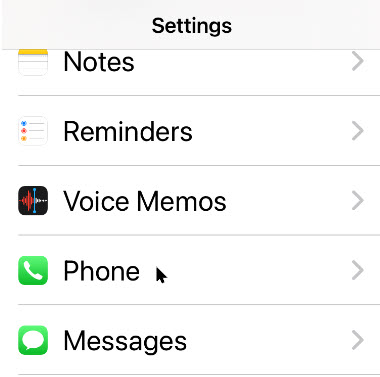
Next, scroll down to the Phone section. See below image:

Call 3
Accessing the Phone option

Now, choose Incoming Calls option. See following image:

Call 4
Accessing Incoming Calls option

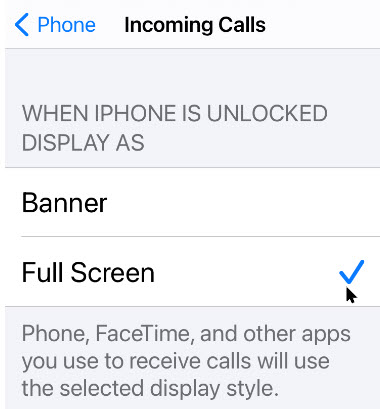
Next, checkmark the Full Screen option. Refer to below image:

Call 5
Selecting Full Screen for incoming calls

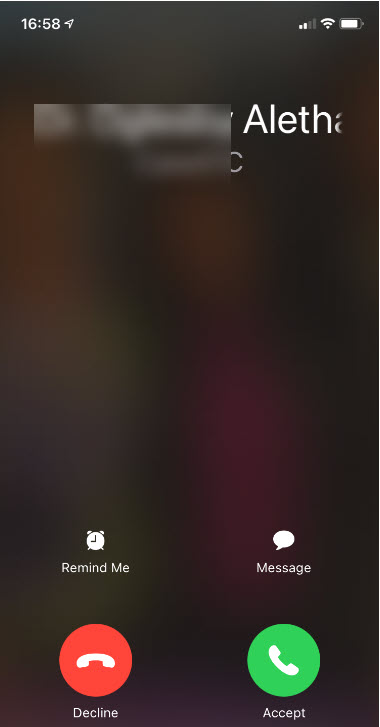
The next time you receive a phone call (a cellular or a VoIP call), you will see a full-screen incoming call notification. See below image:

Call 6
Incoming Calls full screen mode

That’s it. Please feel free to share this post! One way to share is via Twitter.

Just click the Tweet icon below. This will launch Twitter where you click its icon to post the Tweet.

Check out TechSavvy.Life for blog posts on smartphones, PCs, and Macs! Feel free to email us at contact@techsavvy.life.

I Would Like to Hear From You

Please feel free to leave a comment. I would love hearing from you. Do you have a computer or smart device tech question? I will do my best to answer your inquiry. Just send an email to contact@techsavvy.life. Please mention the device, app and version that you are using. To help us out, you can send screenshots of your data related to your question.

The author’s Vietnam eBook on the Battle for Tra Bong: Events and Aftermath

How to Set a Custom Color for Start Menu in Windows 10

Out of the box, the Start menu includes a default layout with elements and settings that usually fit most people. However, if you want to make it more functional and personal, the experience available on Windows 10 is highly customizable.

On Windows 10, the Start menu is an essential component, as it is the experience you use every day to find apps, settings, and files.

Out of the box, the Start menu includes a default layout with elements and settings that usually fit most people. However, if you want to make it more functional and personal, the experience available on Windows 10 is highly customizable.

Starting with the October 2020 update, Windows 10 now defaults to a light theme that takes away accent colors from your Start menu and Taskbar. If you would like to select a custom color for your Start menu, there is an easy way to pick it in Settings. Let’s explore how to do this.

This is for devices running Windows 10

Dilbert and Words
Copyright Scott Adams, Inc./Distributed by Universal Uclick for UFS

Selecting Colors Settings

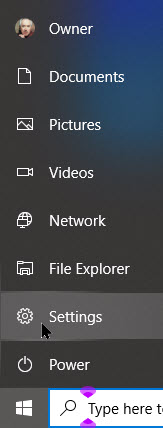
First, launch Settings by pressing Windows+I keys or by opening the Start menu and clicking the gear icon on the left. Refer to below image:

Start 1
Accessing Settings

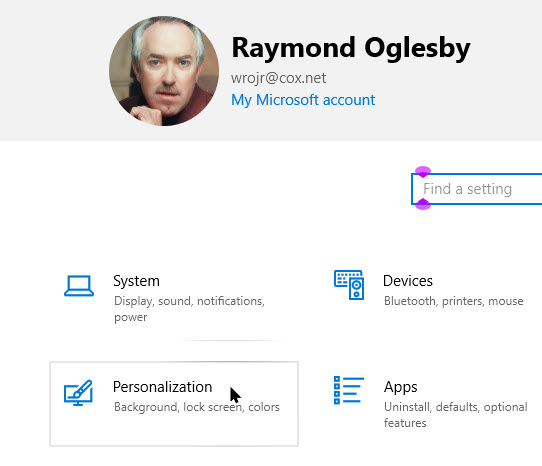
In Settings, click the Personalization option. See below image:

Start 2
Accessing Personalization option

Now, in its settings, click the Colors option. See following image:

Start 3
Accessing Colors option

Selecting your Colors

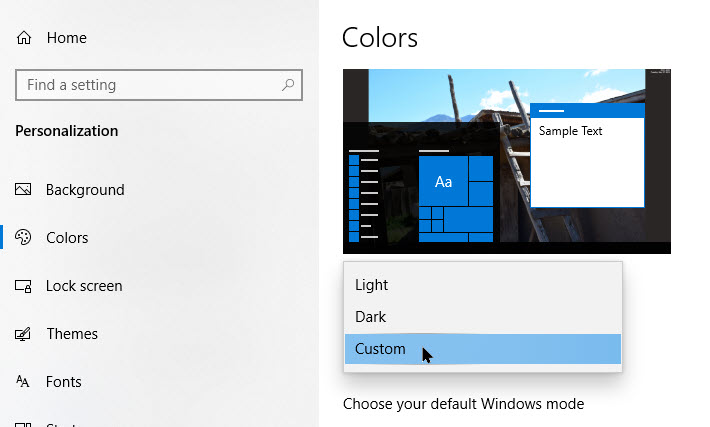
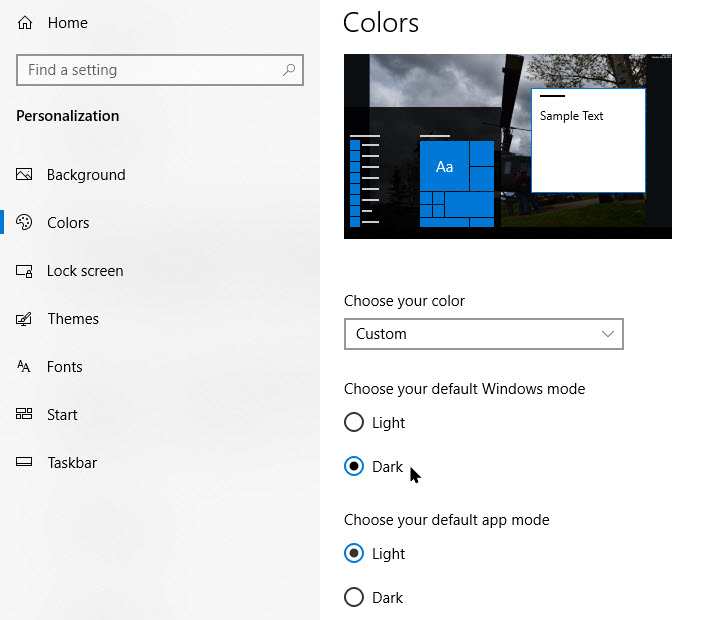
Next, in the Colors settings, locate the Choose your color drop-down menu. In this menu, select Custom. Refer to below image:

Start 4
Selecting Custom color option from drop-down

Now, two new choices will appear. Under Choose your default Windows mode, select Dark. This Dark mode is required for colorizing of your Start menu.

Now, under Choose your default app mode, select one of two options, Light or Dark, whichever one you would like the best. See below image:

Start 5
Selecting Dark mode

Selecting your Accent Color

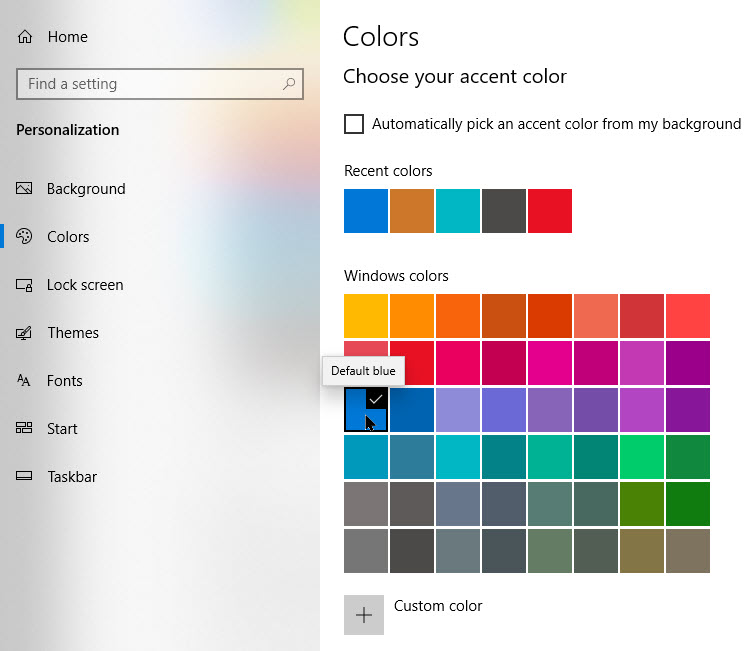
Next, scroll down the Colors page and locate the Choose your accent color section.

If you want the color to automatically match your desktop background image, checkmark Automatically pick an accent color from my background. Otherwise, click a color in the grid that you would like to use for your Start menu and Taskbar. You can also pick a custom color by clicking the Custom color button below the grid. See following image:

Start 6
Selecting your accent color

Now, locate the Show accent color on the following surfaces section and checkmark Start, taskbar, and action center.

Note! If this option is greyed out, make sure you select Dark as your default Windows mode above. It won’t work in Light mode. Refer to below image:

Start 7
Selecting your accent color on surfaces

Your New Look

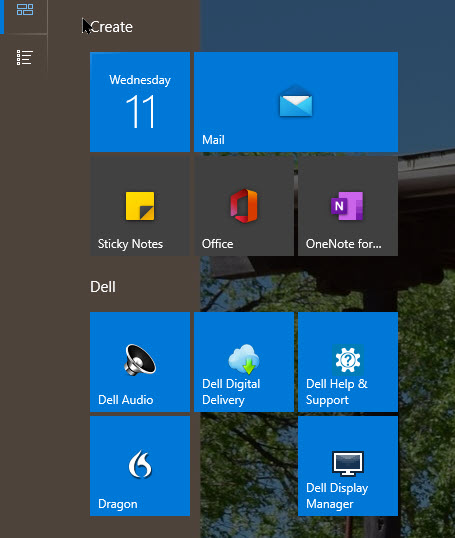
The next time you open your Start menu, you will see that it has changed to the accent color you selected. See below image:

Start 8
Your new Start colorized icons

If you ever want to switch back to the standard Windows 10 theme, open

Settings > Personalization > Colors

and select Light in the Choose your color drop-down menu.

That’s it. Please feel free to share this post! One way to share is via Twitter.

Just click the Tweet icon below. This will launch Twitter where you click its icon to post the Tweet.

Check out TechSavvy.Life for blog posts on smartphones, PCs, and Macs! Feel free to email us at contact@techsavvy.life.

I Would Like to Hear From You

Please feel free to leave a comment. I would love hearing from you. Do you have a computer or smart device tech question? I will do my best to answer your inquiry. Just send an email to contact@techsavvy.life. Please mention the device, app and version that you are using. To help us out, you can send screenshots of your data related to your question.

The author’s Vietnam eBook on the Battle for Tra Bong: Events and Aftermath

How to Use Sound Recognition on iPhone in iOS 14

Sound Recognition, first introduced in iOS 14, lets iPhone users with hearing loss receive visual alerts when the iPhone detects certain sounds like smoke alarms, sirens, door knocks, or dogs barking.

Sound Recognition, first introduced in iOS 14, lets iPhone users with hearing loss receive visual alerts when the iPhone detects certain sounds like smoke alarms, sirens, door knocks, or dogs barking. It does this with onboard intelligence, so no network connection is required. Let’s explore how to setup and use this feature.

This is for the iPhone running iOS 14+

Dilbert and Lunch
Copyright Scott Adams, Inc./Distributed by Universal Uclick for UFS

Setup Sound Recognition

First, launch Settings (the gear icon). Refer to below image:

Sound 1
Accessing Settings

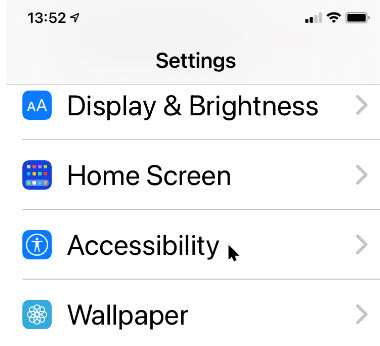
in Settings, scroll down and tap Accessibility. See below image:

Sound 2
Accessing Accessibility

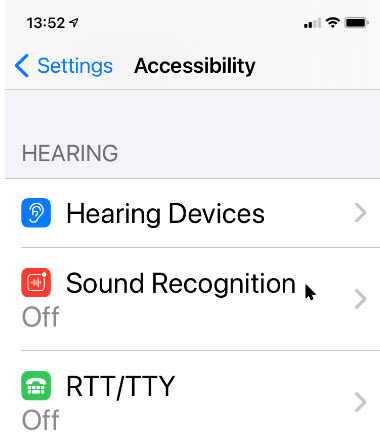
In Accessibility, navigate to the Hearing section. Now, tap Sound Recognition. See following image:

Sound 3
Accessing Sound Recognition

Enabling Sounds

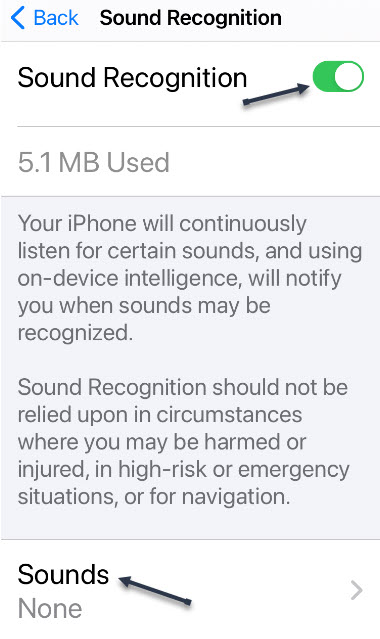
In Sound Recognition settings, tap the switch beside Sound Recognition to turn it on. Next, tap Sounds below that to choose which sounds to recognize. Refer to below image:

Sound 4
Enabling Sound Recognition

Siri is Disabled

Once you enable a Sound, a message will be displayed about Siri being disabled if you Turn On Sound Recognition, or you may Cancel. See below image:

Sound 5
Hey Siri message if a Sound is enabled

Now, you will see a list of switches that correspond to types of sound your iPhone can recognize, such as sirens and water running. As of iOS 14, here’s the full list:

  • Fire Alarm
  • Siren
  • Smoke Alarm
  • Cat
  • Dog
  • Appliances
  • Car Horn
  • Door Bell
  • Door Knock
  • Water Running
  • Baby Crying

Tap the switch beside each sound that you would like for your iPhone to recognize. You can enable any combination of them, or all of them. See following image where I enabled Fire, Smoke, and Dog:

Sound 6
Enabling Sounds

Now, to save your selection(s), press the Back link in upper left-hand corner, then exit Settings.

The Notifications

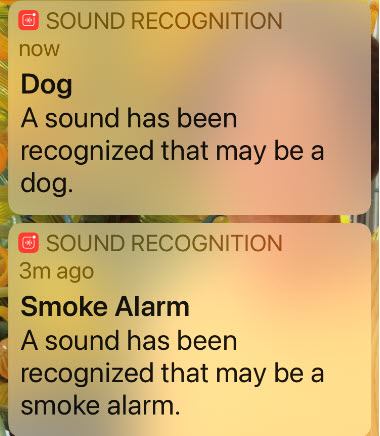
If you wouldd like to test the Sound Recognition feature, try searching for sounds like “Smoke Alarm” or “Dog Barking” on YouTube. When triggered, Sound Recognition will place an alert notification at the top of your screen. Later, you can see a list of these alerts in your iPhone’s Notification Center. Refer to below image:

Sound 7
Sound Recognition notifications

If you wish to activate other sounds or disable them, navigate back to the Sounds in the Sound Recognition screen. Also, you could create a shortcut in the Control Center to activate/deactivate the Sounds.

A Viewpoint

I usually don’t comment on what Apple engineers intended to do or how a feature is to work. This feature does work as advertised. But, if my house was on fire and the alarm goes off, I want my iPhone to blast our a fire alarm sound. What good is a notification alert; yikes, my house is burning! I don’t have time to grab my iPhone and launch the Notification Center. To me, this is a flaw.

While sleeping, I would like for my iPhone to blast out the sound of a fire or smoke alarm and call 911. Other sounds you might wnat to hear through your iPhone is Baby Crying and Water Running. For these reasons, this is a poorly designed feature.

At the same time,I realize that Apple wants no liability claims for missing sounds, like smoke or fire. They chose not to use the iPhone as an alarm in Sound Recognition.

That’s it. Please feel free to share this post! One way to share is via Twitter.

Just click the Tweet icon below. This will launch Twitter where you click its icon to post the Tweet.

Check out TechSavvy.Life for blog posts on smartphones, PCs, and Macs! Feel free to email us at contact@techsavvy.life.

I Would Like to Hear From You

Please feel free to leave a comment. I would love hearing from you. Do you have a computer or smart device tech question? I will do my best to answer your inquiry. Just send an email to contact@techsavvy.life. Please mention the device, app and version that you are using. To help us out, you can send screenshots of your data related to your question.

The author’s Vietnam eBook on the Battle for Tra Bong: Events and Aftermath

How to Manage System Folders in Start Menu in Windows 10

On Windows 10, the Start menu is an essential component, as it is the experience you use every day to find apps, settings, and files.

On Windows 10, the Start menu is an essential component, as it is the experience you use every day to find apps, settings, and files.

Out of the box, the Start menu includes a default layout with elements and settings that usually fit most people. However, if you want to make it more functional and personal, the experience available on Windows 10 is highly customizable.

We are going to explain a little know feature, manage the system folders. Here’s how to do this:

This is for devices running Windows 10

Copyright Scott Adams, Inc./Distributed by Universal Uclick for UFS

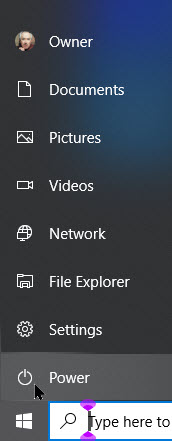
The User, Documents, Pictures, Settings and Power options are now tucked away in a column on the far left of the Start menu. Click the button at the top left of the Start menu to expand this column. Refer to below image:

Start Menu 1
The default Start menu System folders

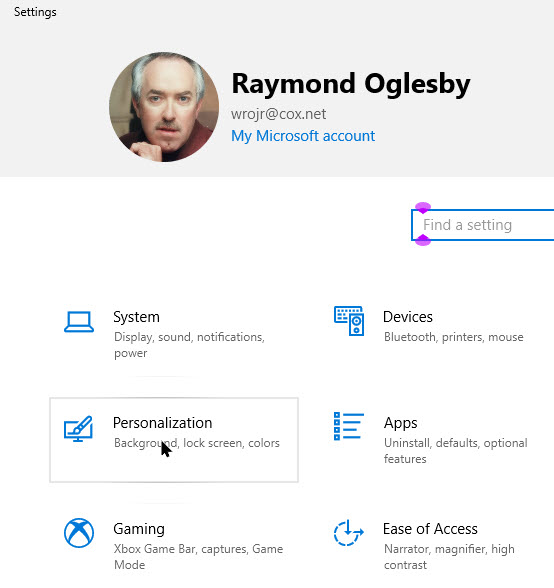
First, launch Settings by pressing Windows+I. Now click the Personalization option. See below image:

Start Menu 2
Accessing Personalization option in Settings

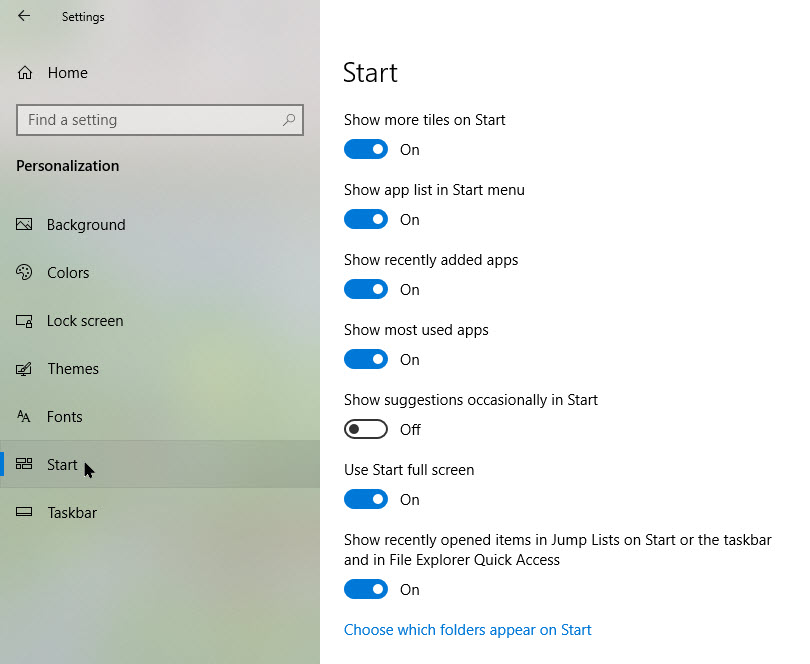
Next, click the Start option. See following image:

Start Menu 3
Accessing the Start option

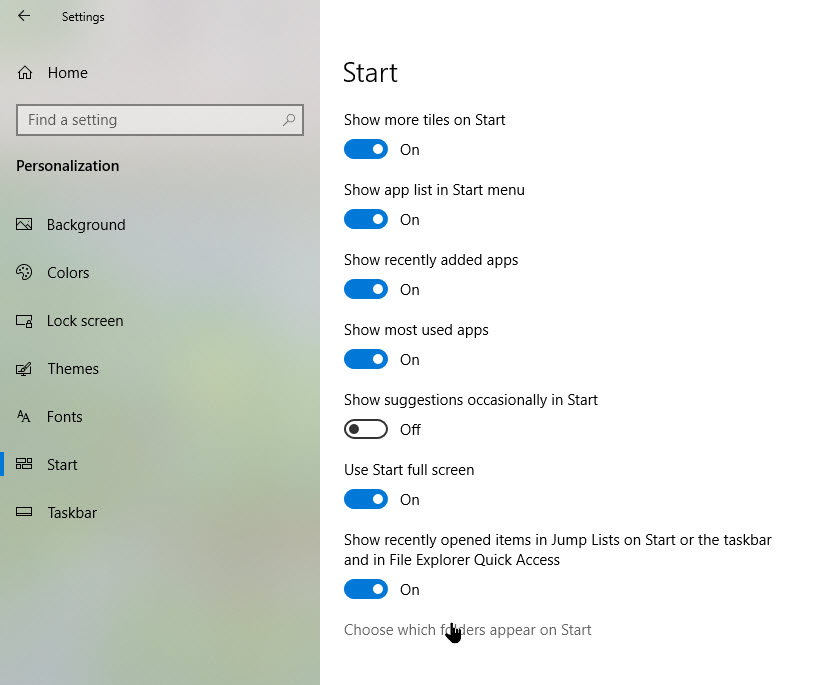
On the right, scroll all the way to the bottom and click the Choose which folders appear on Start link. Refer to below image:

Start Menu 4
Accessing the System folders link

Now, choose whatever folders you want to appear on the Start menu. See below image:

Start Menu 5

Enable/Disable System folders to appear on Start Menu

I have selected several folders. To view an icon’s associated text, just hover your mouse over an icon. See following image for the my new system Start menu:

Start Menu 6
Your new System folder Start menu

That’s it. Please feel free to share this post! One way to share is via Twitter.

Just click the Tweet icon below. This will launch Twitter where you click its icon to post the Tweet.

Check out TechSavvy.Life for blog posts on smartphones, PCs, and Macs! Feel free to email us at contact@techsavvy.life.

I Would Like to Hear From You

Please feel free to leave a comment. I would love hearing from you. Do you have a computer or smart device tech question? I will do my best to answer your inquiry. Just send an email to contact@techsavvy.life. Please mention the device, app and version that you are using. To help us out, you can send screenshots of your data related to your question.

The author’s Vietnam eBook on the Battle for Tra Bong: Events and Aftermath

How to Use the Magnifier Feature on iPhone or iPad in iOS 14

Your device can serve as a magnifier so you can better view the world around you. The built-in Magnifier tool uses the camera to zoom in like a magnifying glass. You can use the Magnifier to better see faraway objects or enlarge items that are closer to you, like text in a book or on a computer screen.

Your device can serve as a magnifier so you can better view the world around you. The built-in Magnifier tool uses the camera to zoom in like a magnifying glass. You can use the Magnifier to better see faraway objects or enlarge items that are closer to you, like text in a book or on a computer screen. Lets explorehow to use the Magnifier.

This is for the iPhone or iPad running iOS 14+

Dilbert and Friends
Copyright Scott Adams, Inc./Distributed by Universal Uclick for UFS

Setup Magnifier

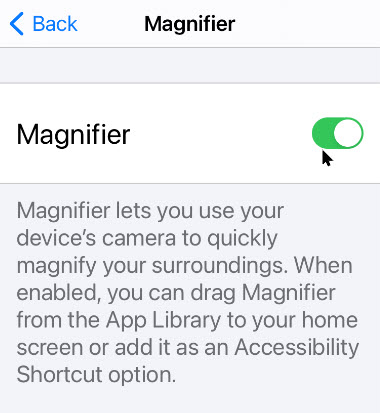
To enable the feature, go to

Settings > Accessibility > Magnifier

and toggle On the switch for Magnifier. Refer to below image:

Magnify 1
Accessing the Magnifier

The Magnifier then appears on your Home Screen as an app. To launch the tool, just tap its icon. In my example, my first available Home Screen area is at the bottom right of the 6th page. See below image:

Magnify 2
Accessing the Magnifier app

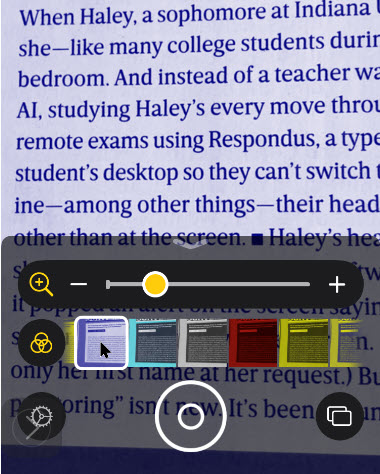
The Magnifier Toolbar

Notice that the objects within the view of your camera are magnified in the viewfinder. Using the Magnifier panel at the bottom of your screen, drag the slider or pinch your fingers in and out to zoom in and out of the object. You can move the Magnifier panel around the screen by dragging any empty area of it with your finger. See following image:

Magnify 3
The Magnifier Toolbar

The Brightness Option

Tap the icon for Brightness and then drag the slider to increase or decrease the brightness. Tap the icon again to turn off the Brightness slider. Refer to below image:

Magnify 4
The Brighness option

The Filter Option

Tap the Filter icon to choose between different filters and find one that improves the clarity of the object. Tap the icon again to turn off the Filter gallery. Tap the Flashlight icon to turn on your device’s flashlight and throw more light onto the object. See below image:

Magnify 5
The Filter option

The Capture and View Options

To capture an image of the object you are viewing, press the Shutter button. You can then view any images you capture by tapping the View button. Swipe through the thumbnails of your captured images at the bottom left-hand corner and tap a specific picture to view it. See following image:

Magnify 6
Selecting a snapshot to view

The Share Option

From here, you can also tap the Share icon to share an image with someone else via an app or service. Refer to below image:

Magnify 7
Sharing your snapshot via Social Media

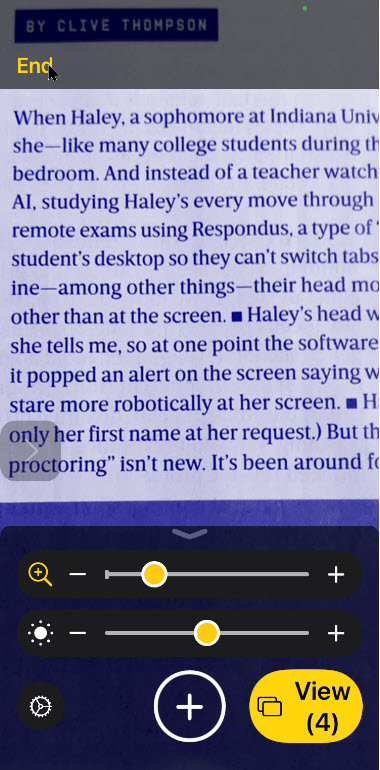
Close the Magnifier

Tap the End link at the upper left-hand corner to return to the Magnifier screen. See following image:

Magnify 8
Close the Magnifier

That’s it. Please feel free to share this post! One way to share is via Twitter.

Just click the Tweet icon below. This will launch Twitter where you click its icon to post the Tweet.

Check out TechSavvy.Life for blog posts on smartphones, PCs, and Macs! Feel free to email us at contact@techsavvy.life.

I Would Like to Hear From You

Please feel free to leave a comment. I would love hearing from you. Do you have a computer or smart device tech question? I will do my best to answer your inquiry. Just send an email to contact@techsavvy.life. Please mention the device, app and version that you are using. To help us out, you can send screenshots of your data related to your question.
The author’s Vietnam eBook on the Battle for Tra Bong: Events and Aftermath

How to Access Full Screen Startup in Windows 10

While in desktop mode, Windows 10 allows you to use the Start menu in a full-screen mode or in a way that only covers part of the screen.

While in desktop mode, Windows 10 allows you to use the Start menu in a full-screen mode or in a way that only covers part of the screen. Lets explore how to do this.

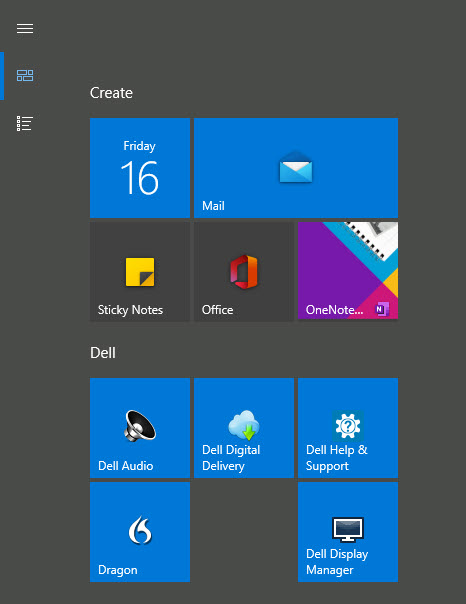
Depending on how you have your Start menu configured, a full-screen Start menu covers the entire screen (but not the Taskbar), and you can change between a “pinned tiles” view and an “all apps” view using the buttons in the upper-left corner.

In either view, you will see a screen full of shortcuts that you click on to launch an application. Refer to below image for a partial view of my desktop:

Start 1
Partial Desktop screen

To configure whether you see the full-screen Start menu in desktop mode or not, we need to make a change in Windows Settings.

This is for devices running Windows 10 operating system

Dilbert and Training
Copyright Scott Adams, Inc./Distributed by Universal Uclick for UFS

First, click the Start menu, select the Gear icon on the bottom left, then click Settings, or press the Windows+I keys to open Settings. See below image:

Start 2
Accessing Settings

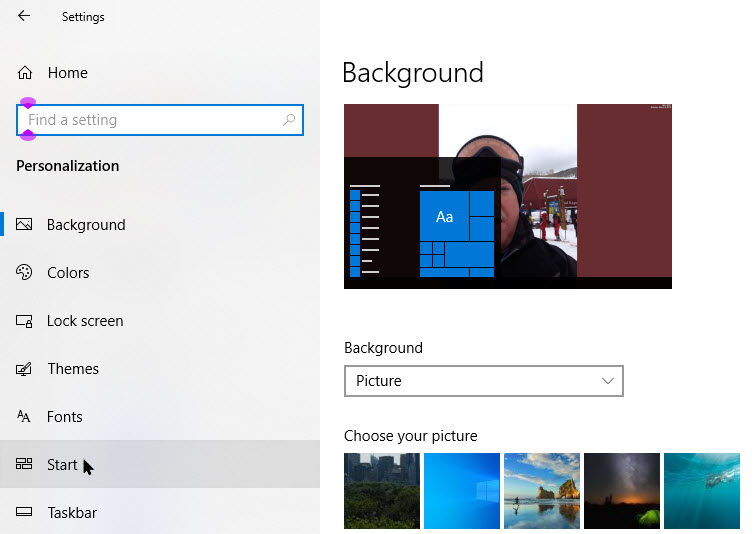
Now, click on Personalization. See following image:

Start 3
Access Personalization

Next, select Start from the sidebar to open the its settings. Refer to below image:

Start 4
Accessing Start option

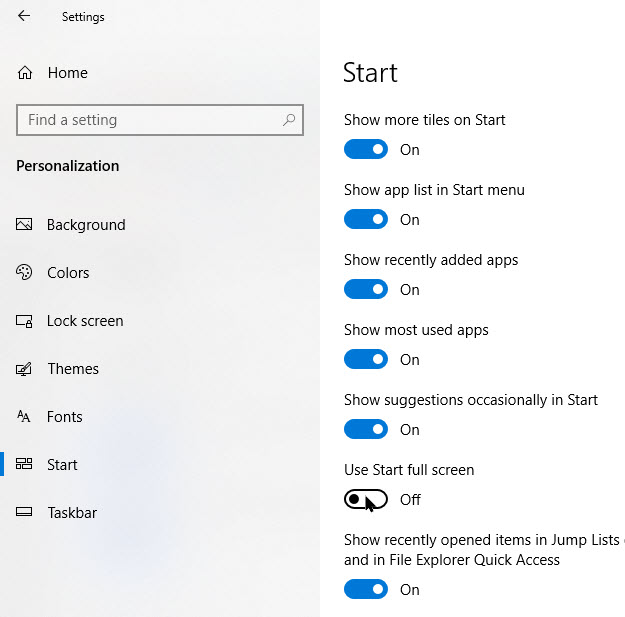
In Start menu settings, scroll down to the switch labeled Use Start Full Screen. If you would like to use the Start menu full screen in desktop mode, set this switch to On. If you do not want Start to cover the entire screen when you open it in desktop mode, set this switch to Off. See below image:

Start 5
Disabling Start Full Screen

Note! If your PC is in tablet mode, it will always show a full-screen Start menu.

You do not have to use a full-screen Start menu to get more room for shortcuts. If you would like to use a larger Start menu without having it occupy the full screen, you can easily resize the Start menu by clicking and dragging its edges.

Also, you can add a few more tiles by enabling the switch labeled Show more tiles located at the top of Start menu settings. Refer to above image.

You arte finished. Please feel free to share this post! One way to share is via Twitter.

Just click the Tweet icon below. This will launch Twitter where you click its icon to post the Tweet.

Check out TechSavvy.Life for blog posts on smartphones, PCs, and Macs! Feel free to email us at contact@techsavvy.life.

I Would Like to Hear From You

Please feel free to leave a comment. I would love hearing from you. Do you have a computer or smart device tech question? I will do my best to answer your inquiry. Just send an email to contact@techsavvy.life. Please mention the device, app and version that you are using. To help us out, you can send screenshots of your data related to your question.

The author’s Vietnam eBook on the Battle for Tra Bong: Events and Aftermath

How to View Privacy and Other Features in Safari for iPhone and iPad

Apple’s default web browser on iPhone or iPad is Safari, but have you ever taken the time to investigate its many hidden features and settings? We are going to concentrate on three features regarding security, privacy and the new start page. You may be amazed at what you find, at least we were.

Apple’s default web browser on iPhone or iPad is Safari, but have you ever taken the time to investigate its many hidden features and settings? We are going to concentrate on three features regarding security, privacy and the new start page. You may be amazed at what you find, at least we were.

With iOS or iPadOS 14 and higher, Safari has a few new tricks up its sleeve, including privacy reports, and password monitoring. Let’s explore three hidden features.

This is for the iPhone and iPad

Dilbert and Fedex
Copyright Scott Adams, Inc./Distributed by Universal Uclick for UFS

Your Privacy Report

Cross-site trackers monitor your web-based activities as you surf from one site to another, an activity that can certainly raise privacy concerns. Safari blocks such trackers from profiling you by default, and now allows you to see which sites and trackers are blocked.

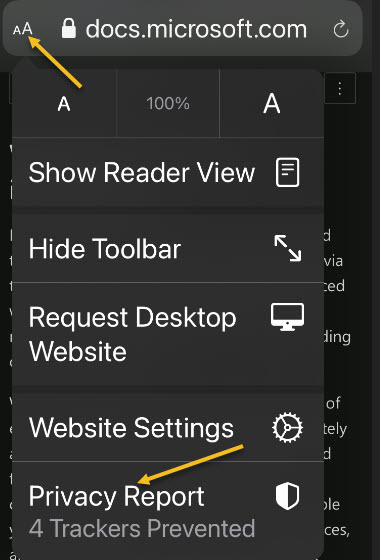
First, to check your Privacy Report, tap the aA icon in upper left-hand corner of a website. Next, tap Privacy Report. Refer to below image:

Safari 8
Accessing the Privacy Report

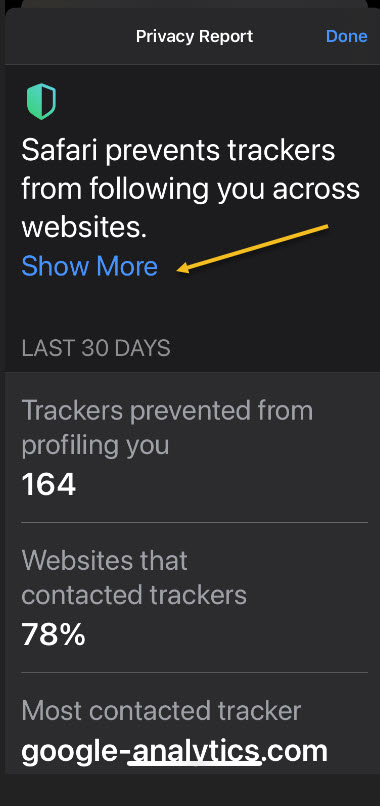
Now, your report will open. See below image:

Safari 7
Your Privacy Report

In my Privacy Report, I have 164 trackers with 78% of visited websites with trackers.

Next, click the Show More link to learn more about the cross-site tracking and how Apple blocks them and to read about trackers. The window reveals how many trackers were prevented from profiling you and how many sites contacted such trackers. See following image:

Safari 9
Stats about your browsing

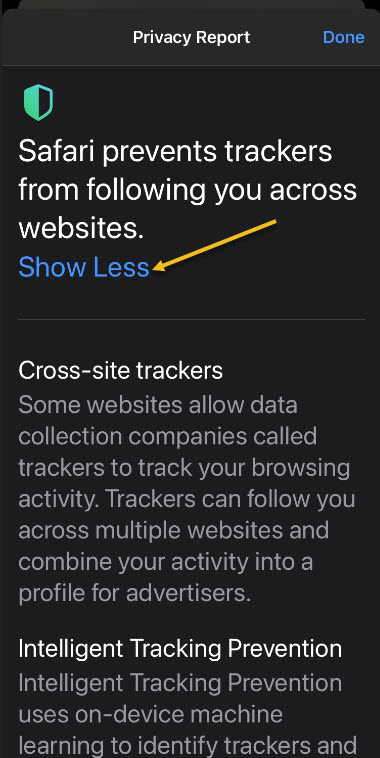
Let’s go back one screen and tap the Show Less link. Now, scroll down till you see two tabs. Websites and Trackers tabs. Refer to below image:

Safari 10
Verbage about trackers

Next, tap on a Website to see which trackers were blocked. See below image:

Safari 5
Selecting a website for tracking info

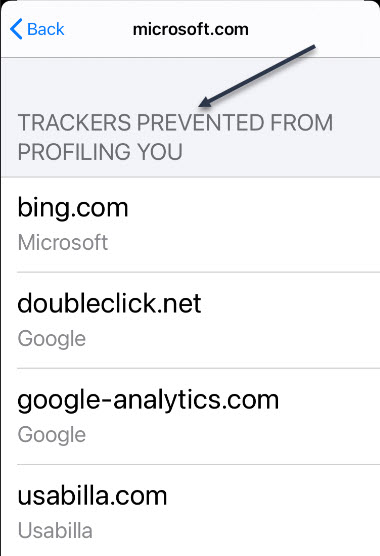
In my example, I selected Microsoft.com. Yes, even Microsoft has trackers. You may be alarmed at the number and percentage of trackers wanting to profile you, especially if you access Safari a lot. Your device is blocking them.

You may tap on the Trackers link to see a list of trackers. See following image:

Safari 7
The list of trackers for a website

My son works for a cyber security firm. He helps recover “hacked” devices. If a person wants to “hack” your device, with the proper tools, they can. The best you can do, is to “protect” your device. by using security features on your device and apps, having strong passwords, using multi factor authentication, and the like.

Your iCloud Passwords

On your iPhone or iPad, you can now see any passwords saved in the iCloud Keychain that has been leaked in a data breach, are being reused for multiple login credentials, or are considered weak.

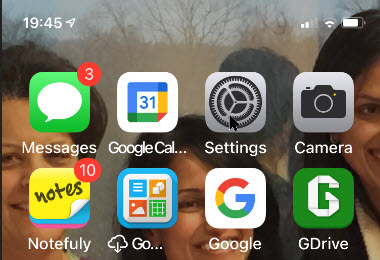
First, launch Settings (the gear icon). Refer to below image:

Safari 1
Accessing Settings

Now, scroll down to the Passwords option and tap it. See below image:

Safari 2
Accessing the Passwords option

Next, tap the Security Recommendations option. See following image:

Safari 3
Accessing Security Recommendations option

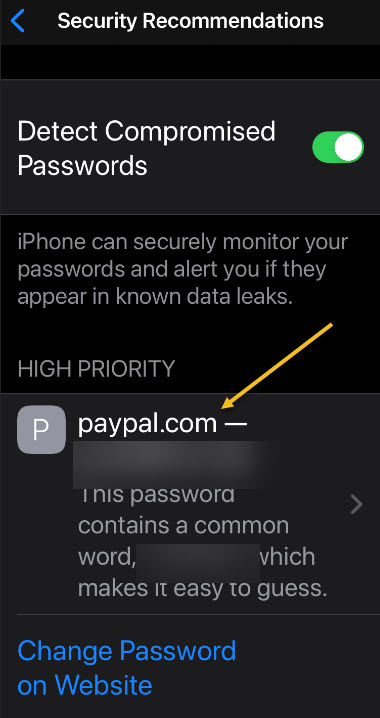
Now, you can tap a specific entry to delete or change the password. You may be surprised by passwords you have forgotten. Apple has provided a link to access the website for updating these passwords. In my example, I have one High Priority password that I need to change; one that I had forgotten about. The password for PayPal website has been erased for privacy purposes. Refer to below image:

Safari 4
Your comprised passwords

Your New Start Page

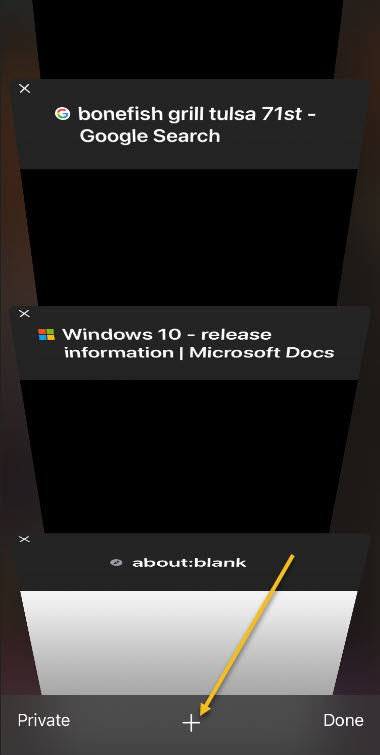
Safari debuted a new Start page with the release of iOS/iPadOS 13. Open a new tab by taping the plus “+” button at the bottom of your screen. See below image:

Safari 11
Selecting a new tab

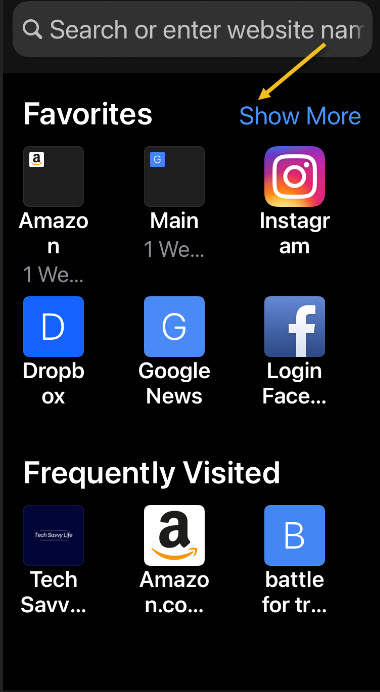
Now, you will see your bookmarks, frequently visited sites, and Siri suggested sites. Tap the Show More or Show Less link in the upper right to see more or fewer icons. See following image:

Safari 12
Your new Start page

Using SpeedTest

Althrough not a feature of privacy in Safari, you may want to know about the speed of your ISP for downloads and uploads. This tool is best used for a PC or Mac. Simply, head over to SpeedTest in your browser for your ISP speeds. Next, click the big round GO button. When it is finished, you will see your results like the image below:

Safari 13
Results of running SpeedTest

You can click the GO button again to rerun the test. Your results will differ depending on the time of day and Internet traffic. The firm, Ookla, has specific apps for your operating system that you can download and use.

That’s it. Please feel free to share this post! One way to share is via Twitter.

Just click the Tweet icon below. This will launch Twitter where you click its icon to post the Tweet.

Check out TechSavvy.Life for this post and similar blog posts on smartphones, PCs, and Macs!

I Would Like to Hear From You

Please feel free to leave a comment. I would love hearing from you. Do you have a computer or smart device tech question? I will do my best to answer your inquiry. Please mention the device, app and version that you are using. To help us out, you can send screenshots of your data related to your question.

The author’s Vietnam eBook on the Battle for Tra Bong: Events and Aftermath