I am Raymond Oglesby, an Information Technology (IT) specialist with 30 years in the field. I have taught Microsoft Applications and troubleshot computers in 15 countries and many States. My career was focused on mainframes and desktops from application development to implementation. I have written hundreds of programs for various architectures. I decided to start a blog to share my knowledge and experiences with you. I plan on updating this blog at least twice a week about smart phone apps to Windows.
Please feel free to leave a Comment or Tweet. I would love to hear from you. Do you have a computer tech question? I will do my best to answer your inquiry. Please mention the app and version that you are using. To help me out, you can send screenshots of your data related to your question.
The App Library is an iPhone-only feature in iOS 14 and above bringing, among other things, an overview of all the apps installed on the iPhone, that can be sorted alphabetically for quick and effortless browsing,
The App Library is an iPhone-only feature in iOS 14 and above bringing, among other things, an overview of all the apps installed on the iPhone, that can be sorted alphabetically for quick and effortless browsing,
This is for the iPhone
Copyright Scott Adams, Inc./Distributed by Universal Uclick for UFS
Find Your App Library Page
To find the App Library, visit your iPhone’s Home Screen and swipe left as many times as it takes to reach the App Library screen or tap, hold, and swipe right on the Dots Bar to move quickly through your pages. Refer to below image:
The Dots Bar to swipe through pages quickly
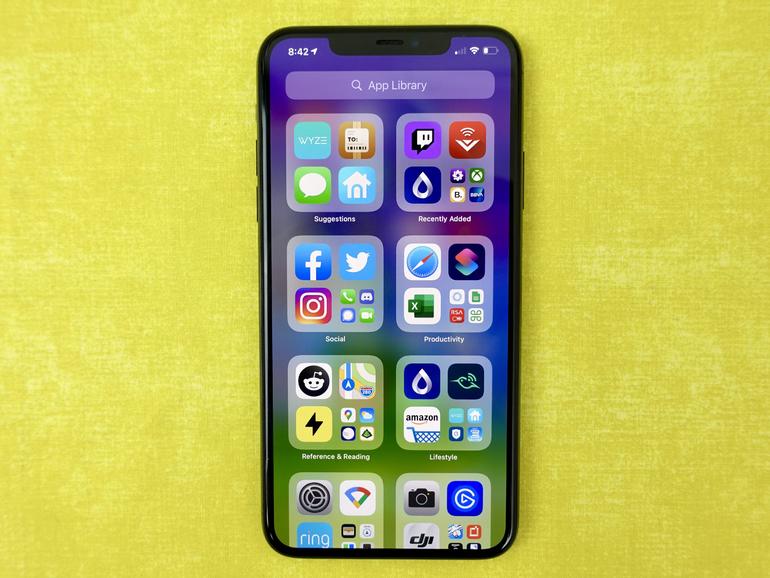
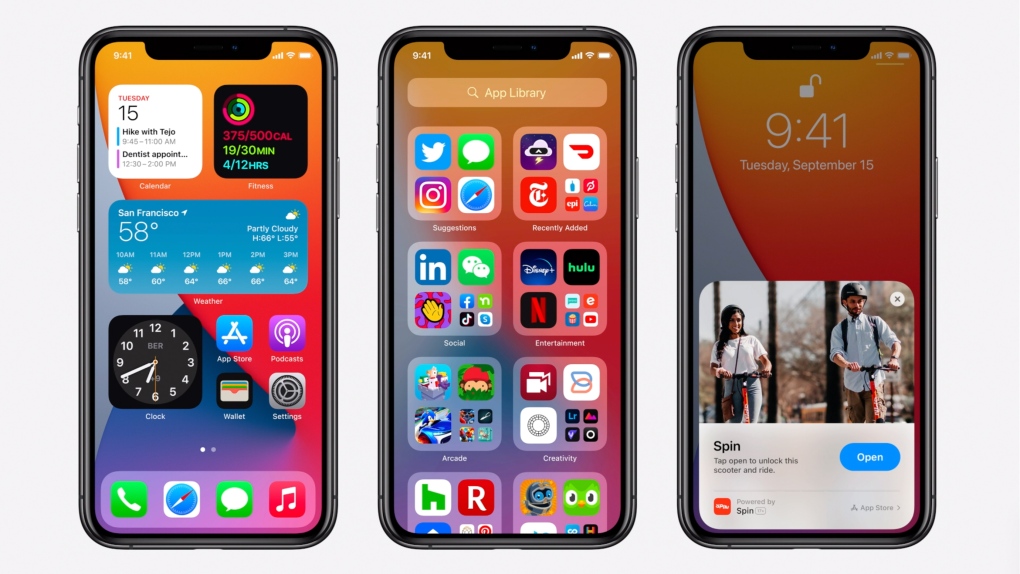
This is always the last page after your Home Screen icons. Once you are there, you will see groups of app icons sorted automatically by category. See below image:
The App Library page
Note! If you do not see it, you have yet to update to the latest version of iOS.
Using Your Alphabetical List
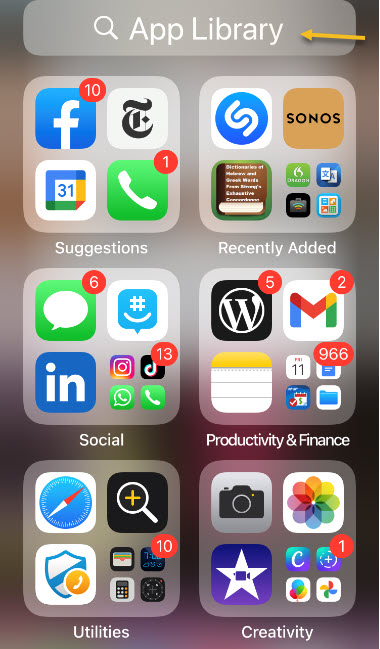
To see an alphabetical list of apps, swipe downward from the middle of the App Library screen or tap the Search bar at the top. See following image:
Accessing the App Library
A new screen will appear that lists your apps sorted by the first letter of each app’s name. Refer to below image:
Alphabetical listing of the App Library
You can swipe your finger up and down to browse through the list. To launch an app, just tap it.
If you would like to quickly scroll through the list of apps, slide your finger along the vertical letter index on the far right side of the screen (on your iPhone it’s very small letters) and the list will quickly navigate to that position. See below image:
Alphabetical listing using the list on right side of your screen
You can also type a search in the Search bar at the top of the screen, and the results will immediately appear below. Once again, tap an app to launch it. See following image:
Alphabetical listing using the Search bar at the top of your screen
Cancel Your Alphabetical List
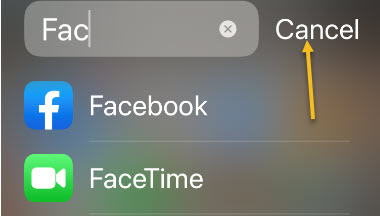
If you would like to return to the App Library screen, tap Cancel just to the right of the Search bar. Refer to below image:
Return back to your App Library screen
You are finished. Please feel free to share this post! One way to share is via Twitter, as mentioned below.
I hope you have found this post helpful. If so, click the Tweet icon below. This will launch Twitter where you click its icon to post the Tweet.
Check them out for blog posts on smartphones, Macs and PCs! You may email us at techsavvy.life for comments or questions.
Please feel free to leave a comment. I would love hearing from you. Do you have a computer or smart device tech question? I will do my best to answer your inquiry. Just send an email to contact@techsavvy.life. Please mention the device, app and version that you are using. To help us out, you can send screenshots of your data related to your question.
The author’s Vietnam eBook on the Battle for Tra Bong: Events and Aftermat
Windows 10 includes a number of ways to manage application windows. One of them is Task View, a built-in feature that shows thumbnails of all your open windows.
Windows 10 includes a number of ways to manage application windows. One of them is Task View, a built-in feature that shows thumbnails of all your open windows.
While using Windows 10, it’s easy to see thumbnails of all your open windows. Lets explore how to view your thumbnail in Windows 10.
This is for devices running Windows 10
Copyright Scott Adams, Inc./Distributed by Universal Uclick for UFS
Open Task View
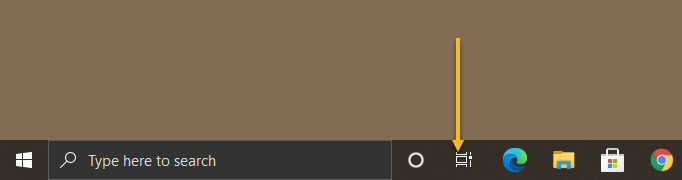
Click the Task View button on your taskbar, which is located just to the right of the Start button. Or you can press Windows+Tab keys on your keyboard. Refer to below image:
Launch Task View
If you can not find the button, right-click the taskbar and enable Show Task View Button in the context menu. See below image:
Show Task View
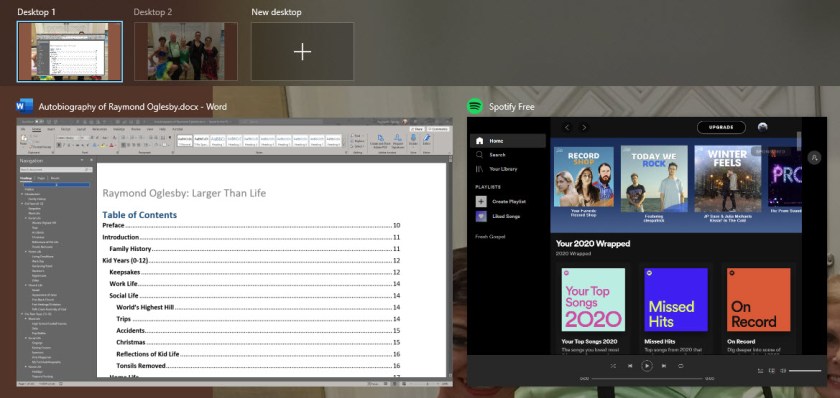
Once Task View opens, you will see thumbnails of every window you have open, and they will be arranged in neat rows. See following image:
Your open Windows 10 screens
Manage Task View
While open, use your keyboard’s arrow keys to select the window you want to view, then press the Enter key. Or you can just click the thumbnail with your mouse.
If the window you selected was already open, Windows 10 will open it in front of all other open windows. If it was minimized it will be restored and brought to the foreground.
If you want to close a window, hover over its thumbnail with your mouse until the “X” button appears, then click it. Alternately, you can select the window using your cursor keys and press the Delete key to close it. Refer to below image:
Close Task View
To close Task View and return to the desktop, just click any blank area of the screen or press the Escape key.
You are finished. Please feel free to share this post! One way to share is via Twitter, as mentioned below.
Just click the Tweet icon below. This will launch Twitter where you click its icon to post the Tweet.
Check out TechSavvy.Life for blog posts on smartphones, PCs, and Macs! You may email us at contact@techsavvy.life for comments or questions.
Please feel free to leave a comment. I would love hearing from you. Do you have a computer or smart device tech question? I will do my best to answer your inquiry. Just send an email to contact@techsavvy.life. Please mention the device, app and version that you are using. To help us out, you can send screenshots of your data related to your question.
The author’s Vietnam eBook on the Battle for Tra Bong: Events and Aftermath
If you have a large number of unread text messages on your iPhone or iPad, dealing with them one-by-one can be a hassle. Thanks to Apple, it’s easy to mark every one of your unread messages as read but the feature is not well known. Let’s explore how to mark all text messages as read.
If you have a large number of unread text messages on your iPhone or iPad, dealing with them one-by-one can be a hassle. Thanks to Apple, it’s easy to mark every one of your unread messages as read but the feature is not well known. Let’s explore how to mark all text messages as read.
This is for iPhone and iPad
Copyright Scott Adams, Inc./Distributed by Universal Uclick for UFS
First, open your Messages app. Now, on an iPhone, look in the upper-right corner of the screen and tap the ellipses button, which looks like three dots in a circle. Refer to below image:
The Messages app
For the iPad, tap the Edit button in upper left-hand corner.
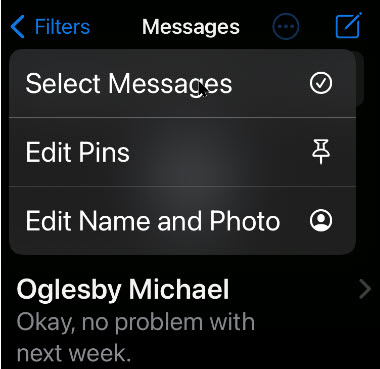
A pop-up menu will be displayed. Next, tap the Select Messages option. See below image:
Select Messages option
Now, your messages will enter “Edit” mode. But you don’t need to deal with individual messages. On both iPhone and iPad, look for the Read All button in the lower left- hand corner of your screen and tap it. See following image:
Select Read All option
At first glance, you may be thinking that the Read All means “I am going to read all my messages”. Actually, it means “I have read all my messages”. Apple should have put in a clarification note as to what Read All means.
After that, all unread messages will be marked as read. You will receive no notification that they all read but they will be. Cool feature!
That’s it. Please feel free to share this post! One way to share is via Twitter, as mentioned below.
I hope you have found this post helpful. If so, click the Tweet icon below. This will launch Twitter where you click its icon to post the Tweet.
I have found TechSavvy.Life blog posts extremely helpful. Check them out for blog posts on smartphones, Macs, and PCs! You may email us at contact@techsavvy.life for comments or questions.
Please feel free to leave a comment. I would love hearing from you. Do you have a computer or smart device tech question? I will do my best to answer your inquiry. Just send an email to contact@techsavvy.life. Please mention the device, app and version that you are using. To help us out, you can send screenshots of your data related to your question.
The author’s Vietnam eBook on the Battle for Tra Bong: Events and Aftermath
Microsoft Edge is the default web browser app in Windows 10. It’s a universal Store app which has extension support, a fast rendering engine, and a simplified user interface. If you are using its InPrivate feature frequently, you might want to enable your favorite extensions in private mode.
Microsoft Edge is the default web browser app in Windows 10. It’s a universal Store app which has extension support, a fast rendering engine, and a simplified user interface. If you are using its InPrivate feature frequently, you might want to enable your favorite extensions in private mode.
By default, Microsoft Edge disables extensions in InPrivate mode to prevent unintentional privacy leaks. But sometimes you might need to use an extension while staying private.
The browser allows making specific extensions available in InPrivate mode. This can be done for each extension individually. Let’s explore how to do this.
This is for devices using Edge in Windows 10
Copyright Scott Adams, Inc./Distributed by Universal Uclick for UFS
First, open Edge. Now, in any Edge window, click the menu button (the three dots in upper right-hand corner) and select Extensions. Refer to below image:
Accessing Extensions
Next, in the Extensions tab, you will see a list of extensions you have installed, and each will have its own box. Now, locate the extension you would like to enable in InPrivate mode and clickits Details link. See below image:
Accessing an installed Extension details
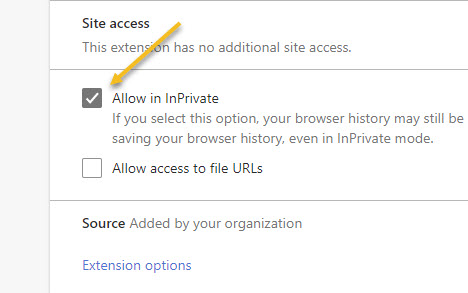
Now, on the Details screen for the extension, scroll down and check the box beside Allow in InPrivate. This will enable the extension to be used during private browsing.
Note! After checking this box, the extension could potentially collect and share your browsing history with a third party, so be sure you trust the extension before turning this feature on. See following image:
Enabling InPrivate browsing for an installed Extension
The change will take effect immediately. If you would like to use other extensions while private browsing, press back once to return to the Extensions screen and repeat these steps with each extension you would like to enable in InPrivate mode.
When you are done, close the Extensions tab. The next time you open an InPrivate window, you will notice that the extensions you enabled now work in that window too.
You are finished. Please feel free to share this post! One way to share is via Twitter.
Just click the Tweet icon below. This will launch Twitter where you click its icon to post the Tweet.
Check out TechSavvy.Life for blog posts on smartphones, PCs, and Macs! You may email us at contact@techsavvy.life for comments or questions.
Please feel free to leave a comment. I would love hearing from you. Do you have a computer or smart device tech question? I will do my best to answer your inquiry. Just send an email to contact@techsavvy.life. Please mention the device, app and version that you are using. To help us out, you can send screenshots of your data related to your question.
The author’s Vietnam eBook on the Battle for Tra Bong: Events and Aftermath
You can change your time zone and create events with certain time zones. This helps if you will be traveling when the event happens, or if you are creating events for people in different time zones.
You can change your time zone and create events with certain time zones. This helps if you will be traveling when the event happens, or if you are creating events for people in different time zones.
Time might be constant, but your time zone does not have to be. You can set a one-off time zone to an event, or set primary and secondary (desktop version only) time zones for an entire calendar or account.
This is for Android, iPhone, and iPad running Google Calendar
Copyright Scott Adams, Inc./Distributed by Universal Uclick for UFS
How Your Calendar Uses Time Zones
According to Google:
For Events; When you create an event, you will see it in your local time zone. It will also show up in the local time zones for anyone you invite, even if they are in a different time zone.
For Reminders: Reminders always show up at the same hour regardless of time zone. For example, a daily 9 AM MT reminder becomes a 9 AM ET reminder if you travel from Denver to New York.
For Tasks: Tasks adapt to the new time zone if the Calendar’s time zone is changed after a task is created. For example, a 9 AM MT task changes to an 11 AM ET task if you travel from Denver to New York.
Confused, I am. Why not make all these options the same? I do not know why Google treats each option differently. Lets explore how to set a Google Calendar time zone.
Change Your Time Zone for One Event
You can change the time zone for a new or existing event in the Google Calendar app on Android, iPhone, and iPad.
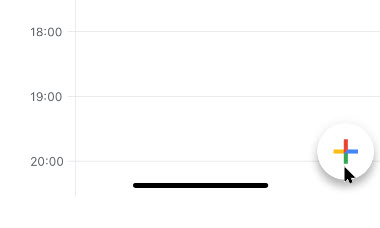
To create a new event, click the Add button in the bottom-right corner and select the type of event you wish to create. Refer to below image:
Add an Event
To edit an existing event, tap on that event in your calendar view and then tap the Edit Event button. See below image:
Edit an Event
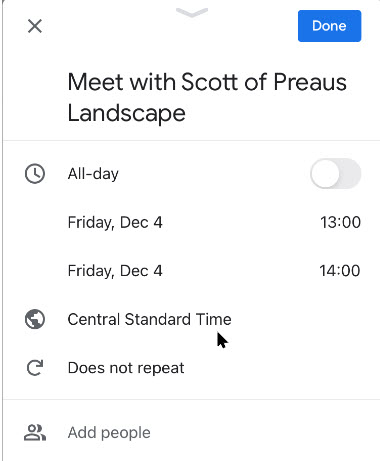
Next, in the event details menu, tap the current time zone. (Note!. You may have to tap More options to see the time zone). See following image:
The current time zone for the Event
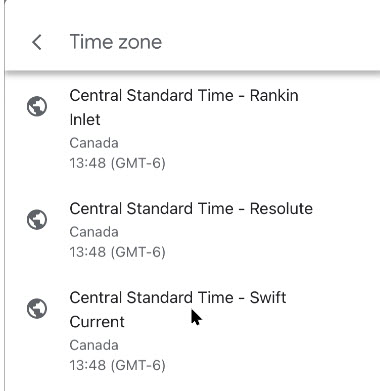
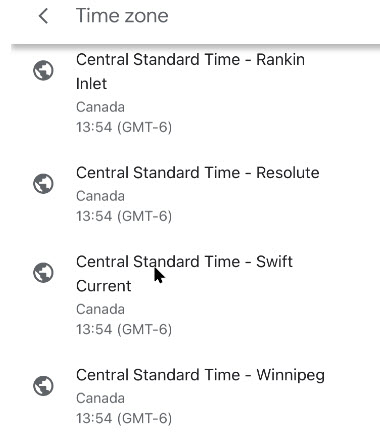
In the next menu, search for a country or specific time zone. Next, tap one of the results to select it as the new time zone. (Note! I kept the Event in CST). Refer to below image:
Selecting a time zone for the Event
The time zone for the event will be added immediately after selecting it from the Search menu.
Confirm the rest of the event details are correct. Now, tap the Save button in the top-right corner to save the Event with the new time zone details. See below image:
Save your changes
Change Your Time Zone Settings for All Events
When you travel to a different time zone, you can see your calendar in the local time. This can be confusing. The time zone is updated depending on if you are creating an event, reminder, or task. To keep your event times in your local time, I recommend not to create events, reminders, or tasks while in a different time zone, espicially if you are only going to be away from home a short while; wait till you get back to your local time zone to create them.
To change this setting:
Launch the Google Calendar app.
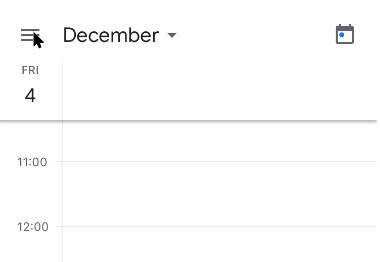
Next, tap the Menu hamburger icon in top left of your screen. See following image:
Acccess the Menu
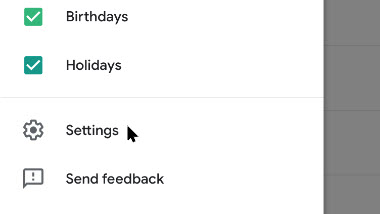
Now, swipe down and tap the Settings option. Refer to below image:
Access Settings
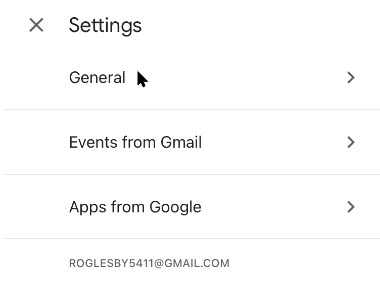
Next, tap the General option. See below image:
Access the General option
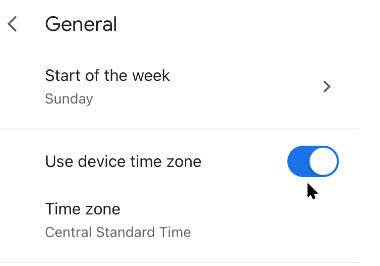
Now, tap Use device time zone on or off. If On, your device will update automatically as you travel. See following image:
Selecting Use device time zone toggle
If Off, you can select a new time zone from the drop down menu. (Note! I kept the Events in CST). Refer to below image:
=Select a time zone for all Events
The new time zone for Google Calendar on your device will be applied automatically. Any entries in your Google Calendar will now be displayed in this new time zone on your mobile device. As I mentioned previously, this can be confusing, at least to me it is, so make sure what time zone you want to create events, teminders, or tasks. Now, tap back and exit Settings.
You are finished. Now you know how to see time zones in Google Calendar for events, remindars, or tasks. Please feel free to share this post! One way to share is via Twitter, as mentioned below.
Just click the Tweet icon below. This will launch Twitter where you click its icon to post the Tweet.
Check out TechSavvy.Life for blog posts on smartphones, PCs, and Macs! You may email us at contact@techsavvy.life for comments or questions.
Please feel free to leave a comment. I would love hearing from you. Do you have a computer or smart device tech question? I will do my best to answer your inquiry. Just send an email to contact@techsavvy.life. Please mention the device, app and version that you are using. To help us out, you can send screenshots of your data related to your question.
The author’s Vietnam eBook on the Battle for Tra Bong: Events and Aftermath
If you do not want Google Chrome to remember your activity, you can browse the web privately in Incognito mode.
If you do not want Google Chrome to remember your activity, you can browse the web privately in Incognito mode.
It is easy to quickly open an Incognito window using a keyboard shortcut. Lets explore how to do this.
This is devices running Google Chrome
Copyright Scott Adams, Inc./Distributed by Universal Uclick for UFS
First, open Chrome. Next, with any Chrome browser window open, press the following keyboard combination to open a new Incognito window:
Windows, Linux, or Chrome OS: Press Ctrl + Shift + N.
Mac: Press ⌘ + Shift + N.
After pressing the keyboard shortcut, a special Incognito window will open. If you want to block third-party cookies, just toggle the switch to On, the default setting. Refer to below image:
The Incognito window
Whenever you are in Incognito mode, you will be able to tell because the Chrome browser window’s toolbar will have a darker color scheme and there will be a small Incognito icon beside the address bar in the toolbar. See below image:
The icon and text telling you are in Incognito mode
You can switch between Incognito windows and regular Chrome windows. You will only browse in private when you are using an Incognito window.
While browsing within an Incognito window, Chrome will not locally store your browsing history, site data, cookies, or saved form data once you close the Incognito window. However, downloaded files and bookmarks will be saved unless you manually remove them.
At any time, you can press Ctrl+T (or ⌘ + T on Mac) to open a new tab within the Incognito window, and browsing activity within that tab will be locally private as well.
Remember that Incognito mode is not perfect, and it does not protect you from those who might view your activity on the web remotely, such as your employer, school, ISP, or the websites you visit. It is only to prevent local snooping of your browsing history.
If you see a number next to the Incognito text at the top right, you have more than one Incognito window open. See following image:
The number of Incognito windows open
When you are ready to stop private browsing, you will need to close the Incognito window(s). To do so using a keyboard shortcut:
Windows, Linux, or Chrome OS: Press Alt + F4
Mac: Press ⌘ + Shift + W
Or you can just click the “X” in the corner of the window with your mouse.
That’s it. Please feel free to share this post! One way to share is via Twitter, as mentioned below.
I hope you have found this post helpful. If so, click the Tweet icon below. This will launch Twitter where you click its icon to post the Tweet.
Check out TechSavvy.Life for blog posts on smartphones, PCs, and Macs! You may email us at contact@techsavvy.life for comments or questions.
Please feel free to leave a comment. I would love hearing from you. Do you have a computer or smart device tech question? I will do my best to answer your inquiry. Just send an email to contact@techsavvy.life. Please mention the device, app and version that you are using. To help us out, you can send screenshots of your data related to your question.
The author’s Vietnam eBook on the Battle for Tra Bong: Events and Aftermath
Apple released a software update for iPhones and iPads in their operating system that includes a built-in music recognition icon that can help you quickly identify a song that is playing.
Apple released a software update for iPhones and iPads in their operating system that includes a built-in music recognition app that can help you quickly identify a song that is playing.
It is one way Apple is using Shazam, which it acquired in 2018. Since it is built-in, you don’t need to have the Shazam app installed for this to work. All you do is add a button to the Control Center menu and then, when you hear a song you like and want to know who the artist is, you just tap the button.
This is for iPhone and iPad
Copyright Scott Adams, Inc./Distributed by Universal Uclick for UFS
Setting Up Music Recognition
We need to check your software updates, enable Siri, and download/install the Shamaz app.
First, let’s check your software updates. Head to
Settings > General > SoftwareUpdate
for the iOS or iPadOS 14.2 update (or higher) and update if necessary.
Next, head to the Apple Store to download/install the Shazam app.
Here.is how the feature works. When you tell your iPhone to listen for a song, it uses its microphone to record the audio around you. That audio data is uploaded to a server and analyzed, matching it to a known song in a database.
Listen by Siri
Let’s examine another built-in feature that does not require the lastest software update; Siri. To enable Siri, go to
Settings > Siri & Search
and toggle on Listen for Hey Siri. You may also want to enable Press Side Button for Siri. Refer to below image:
Enabling Siri
You can ask Siri what song is playing by saying something like “What’s that song?” or “What’s playing?”.
To activate Siri, long-press the Power button. Say “What’s that song?”. If you have Hey Siri set up, you can also say “Hey Siri, what’s that song?” without pressing any buttons.
Siri will pop up and say something like “Let me listen” or “Naming that tune.” Be sure your iPhone can hear the music properly. If you are in a noisy location or someone is talking loudly over the music, it might not hear the song well enough. If you have a problem, try moving your iPhone closer to the sound source playing the music, reducing noise in the area, or turning the volume up on the speaker playing the song. See below image where Siri is listening for a song:
Listening by Siri
If your device hears the song well enough, it will show you the song. If not, you will receive a message like “I can’t seem to recognize this song”.
Listen by Shazam in Control Center
As of the iOS and iPadOS 14.2 update, there is now a quick Control Center button you can use to start identifying a song. However, it is not enabled by default. Why; I do not know. Why does Apple want to hide this feature? But that is the reason for this post; to show you how to setup and use the Shazam built-in app.
First, head to Settings (the gear icon). See following image:
Accessing Settings
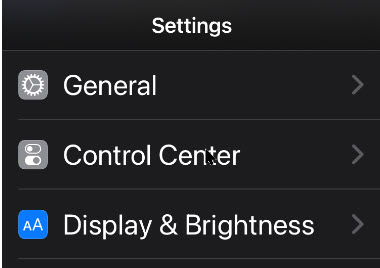
Next, scroll down to Control Center. Refer to below image:
Accessing Control Center option
Now, scroll down and tap the plus (+) sign to the left of the Music Recognition button to add the feature to the Control Center. If you do not see this option on the Settings screen, you have not updated your iPhone or iPad to 14.2 or higher yet. See below image:
Enabling Music Recognition in Control Center
You can then drag it up or down in the list to rearrange the Control Center layout.
With the button added, you can now swipe down from the top-right corner of your device screen to open the Control Center. (On an older iPhone without a notch, you will have to swipe up from the bottom of the screen instead.)
Now, tap the button with the Shazam logo. The button will light up and pulse while it listens to the audio around you. Ensure your iPhone can hear the audio source properly. See following image:
Listening by Shazam in Control Center
When the process is complete (it can take 10-15 seconds), you will see a “Music Recognition” notification banner showing you what song is playing. This notification appears along with all your other apps’ notifications in your notification center. If it can not identify a song in that period of time, you will see a notification saying a song was not detected.
Listen by the Shazam App
If you want more features, you will need a separate music recognition app on your device. The integrated music recognition features rely on Shazam, the music recognition app Apple purchased.
Shazam still has an app for your device that you can install, and it has more features. For example, the Shazam app supports Autp Shazam. In this mode, Shazma will stay in the background on your iPhone or iPad, listen to everything around you, and store a history of songs it’s heard. For example, let’s say you are at a party or ballroom dance competition and you love the playlist. You can enable Auto Shazma mode and your phone or tablet will automatically remember all the songs that was played. You can even keep using other apps on your device while Shazma listens.
To use this feature, install the Shazma app as mentioned in the beginning of this post. Now, launch it, and long-press the big Shazma button, to enable Auto Shazma mode. Refer to below image:
Listening by Shazam app
Listen by Google
Although, not an Apple product, here is another music recognition method.
If a song you are trying to identify is trapped in your head and all you can remember is the song’s melody, there is still something you can do. With the Google app, you can hum or whistle a song’s tune to identify it.
Launch Google Search
Tap the microphone icon
Tap the Search A Song button
Now, start humming or whistling the song you are trying to identify. If Google can find similar matches, the results will appear labeled with match percentages. Tap More Results to see more possible matches. If Google does not find a match, you will receive a message saying so.
That’s it. Please feel free to share this post! One way to share is via Twitter, as mentioned below.
Just click the Tweet icon below to launch Twitter where you click its icon to post the Tweet.
Check out TechSavvy.Life for blog posts on smartphones, PCs, and Macs! You may email us at contact@techsavvy.life for comments or questions.
Please feel free to leave a comment. I would love hearing from you. Do you have a computer or smart device tech question? I will do my best to answer your inquiry. Just send an email to contact@techsavvy.life. Please mention the device, app and version that you are using. To help us out, you can send screenshots of your data related to your question.
The author’s Vietnam eBook on the Battle for Tra Bong: Events and Aftermath
Gmail allows you to change the name that is associated with your email address. Your display name and your email address will show up when you send an email from your Gmail account.
Gmail allows you to change the name that is associated with your email address. Your display name and your email address will show up when you send an email from your Gmail account.
Your Google username is what pops up whenever you send someone an email. It is how people identify you, and how they know that it is okay to open those messages, even if your email address does not include your full name or another way of identifying who you are.
Keep in mind that changing your username is not the same as changing your email address; you would need to create a new account for that.
Before diving in, keep in mind that this action is not yet supported on mobile devices like Android, iPhone, or iPad. This can only be done on your desktop/laptop browser and you have to be logged into your Gmail account to get started.
This is for the PC
Copyright Scott Adams, Inc./Distributed by Universal Uclick for UFS
Setting Menus
To change the name on your Gmail account, first, log in to your account through mail.google.com on your desktop/laptop browser. Note! You may already be logged in, if so, you can just launch Gmail.
Now, click the gear icon to open the Settings menu. Refer to below image:
Accessing Gmail Settings
Next, select See All Settings link at the top of the drop-down menu. See below image:
Accessing See All Settings link
You will now be in the General tab of Gmail’s Settings menu. Now, click the Accounts and Import tab. See following image:
Selecting the Accounts and Import tab
Your Display Name
Notice in the Send Mail As section, you will see your email address and the display name associated with your address. Author’s Note! Email addresses have been grayed out for privacy purposes.
Next, click the Edit Info button to change your display name. Refer to below image:
Selecting Edit Info button
A new window will appear. Here, you can change your display name by clicking the bubble next to the text box and then typing the new display name in that text box.
Now, click Save Changes to apply your change. See below image:
Changing your display name
Your Changed Display Name
Now, you will see your newly entered display name next to the Send Mail As section in Gmail’s Settings menu. See following image:
Showing your new display name
Final Notes
The next time you send an email, your new display name will be shown to the recipient.
While Google allows you to change your display name, you can not actually change your username (which is different than your display name) or your email address. As mentioned previously, if you really need a new email address, you can always create another Google account. Also, you can migrate your data from your “old” account to the newly created one.
You are finished. Please feel free to share this post! One way to share is via Twitter, as mentioned below.
I hope you have found this post helpful. If so, click the Tweet icon below. This will launch Twitter where you click its icon to post the Tweet.
Check out TechSavvy.Life blog posts about smart phone apps, PCs, and Macs! You may email us at contact@techsavvy.life for comments or questions.
Please feel free to leave a comment. I would love hearing from you. Do you have a computer or smart device tech question? I will do my best to answer your inquiry. Just send an email to contact@techsavvy.life. Please mention the device, app and version that you are using. To help us out, you can send screenshots of your data related to your question.
The author’s Vietnam eBook on the Battle for Tra Bong: Events and Aftermath
Connecting to lightning fast 5G networks, requires a sacrifice: battery life. But Apple baked a Smart Data Mode setting into new iPhones to give you more control over using 5G.
Connecting to lightning fast 5G networks, requires a sacrifice: battery life. But Apple baked a Smart Data Mode setting into new iPhones to give you more control over using 5G.
Apple gives you three options: You can keep 5G on all the time, switch over to LTE and never use 5G, or allow your iPhone to make that decision for you with an auto mode. There is no reason to upgrade to an iPhone 12 just for the 5G feature because the network carriers are behind the iPhone hardware. 6G is already in the works and Apple is planning on using it in its iPhone 13 lineup.
But, if you have an iPhone 12, here is how to easily turn off 5G to save your battery life.
This is for iPhone 12 lineup
Copyright Scott Adams, Inc./Distributed by Universal Uclick for UFS
First, open Settings (the gear icon) on your iPhone. Refer to below image:
Accessing Settings
Next, tap the Cellular option. See below image:
Accessing the Cellular option
Next. tap the Cellular Data Options. See following image:
Accessing the Cellular Data Options
Now, tap the Voice & Data option. Refer to below image:
Accessing Voice & Data option
Next, select LTE from the list to disable 5G completely. Not shown in the below image are the options 5GOn and 5G Auto because the screenshot is from an iPhone XR. See below image:
Selecting the LTE option to save draining the battery
The option, 5G Auto, allows the iPhone to automatically deactivate 5G to save battery life when it is not needed.
Now, exit Settings. 5G is now disabled on your iPhone. If you ever need to turn it back on, just revisit the above steps and select 5G On or 5G Auto.
That’s it. Please feel free to share this post! One way to share is via Twitter.
Just click the Tweet icon below. This will launch Twitter where you click its icon to post the Tweet.
Check out TechSavvy.Life for blog posts on smartphones, PCs, and Macs! You may email us at contact@techsavvy.life for comments on questions.
Please feel free to leave a comment. I would love hearing from you. Do you have a computer or smart device tech question? I will do my best to answer your inquiry. Just send an email to contact@techsavvy.life. Please mention the device, app and version that you are using. To help us out, you can send screenshots of your data related to your question.
The author’s Vietnam eBook on the Battle for Tra Bong: Events and Aftermath
Need to clear your Google Chrome browsing data? Your browsing data is stored in a “cache” and at times, may cause a problem with the actual data stored on a website. By clearing your browsing data, you are starting with a “fresh cache” to avoid inconsistencies.
Need to clear your Google Chrome browsing data? Your browsing data is stored in a “cache” and at times, may cause a problem with the actual data stored on a website. By clearing your browsing data, you are starting with a “fresh cache” to avoid inconsistencies.
This is for PCs, Macs, iPhone and iPad
Copyright Scott Adams, Inc./Distributed by Universal Uclick for UFS
FIRST, before doing any of the following, launch your Google Chrome app. For the iPhone or iPad
Open an article or your account and tap the the hamburger icon (the 3 dots) in lower right-hand corner.
Tap History. (It may be labeled MoreHistory). Also, you can view more of your history at historygoogle.com
At the bottom, tap Clear Browsing Data.
Check Browsing history. It may be checked by default.
Uncheck any other items you don’t want to delete.
Tap Clear Browsing Data. Tap Clear Browsing Data again or Cancel if you do not want to proceed.
At the top right, tap Done, then tap Done again.
Refer to below image:
Clearing Chrome browsing data on an iPhone or iPad
For Windows, Mac, or Linux
Press Cntl+Shift+Delete keys for Windows or Linux. Press Command+Shift+Backspace for a Mac. The backspace key is labeled “Delete”.
Uncheck any items you don’t want to delete.
Press Clear data button in lower right.
Hit Enter or Return key.
See below image:
Clearing Chrome browsing data for Windows, Mac, or Linux
IMPORTANT: Be sure and close/quit your browser and restart it after clearing your browsing data.
Your browsing history will be cleared to the level you have chosen. You may repeat the above process to clear any unchecked items.
That’s it. Please feel free to share this post! One way to share is via Twitter, as mentioned below.
I hope you have found this post helpful. If so, click the Tweet icon below. This will launch Twitter where you click its icon to post the Tweet.
Check out TechSavvy.Life for blog posts on smartphones, PCs, and Macs! You may email us at contact@techsavvy.life for comments or questions.
Please feel free to leave a comment. I would love hearing from you. Do you have a computer or smart device tech question? I will do my best to answer your inquiry. Just send an email to contact@techsavvy.life. Please mention the device, app and version that you are using. To help us out, you can send screenshots of your data related to your question.
The author’s Vietnam eBook on the Battle for Tra Bong: Events and Aftermath