How to Open Scientific Calculator on iPhone

The Calculator app on your iPhone may seem boring and basic, but there are a few interesting tricks worth knowing. You can ask Siri to perform calculations for you, long-press on results to copy them, long-press the field to paste numbers in, and swipe left or right above the keypad to delete digits one by one. The app can also be used as a scientific calculator with just a simple maneuver

The Calculator app on your iPhone may seem boring and basic, but there are a few interesting tricks worth knowing. You can ask Siri to perform calculations for you, long-press on results to copy them, long-press the field to paste numbers in, and swipe left or right above the keypad to delete digits one by one. The app can also be used as a scientific calculator with just a simple maneuver. Lets explore how to find this calculator.

This is for the iPhone

Copyright Scott Adams, Inc./Distributed by Universal Uclick for UFS

First, swipe left all the way to the App Library (the last page). In the Search box, type calculator and select the Calculator app. Refer to below image:

Selecting the Calculator

Next, the Standard Calculator will be displayed with basic mathematical operations. See below image:

The Standard Calculator

To enter scientific calculator mode, rotate your iPhone 90 degrees until it is in landscape orientation. Your Calculator app will automatically adjust to fit the wide orientation of your screen, and new scientific calculator buttons will be added to your display. See following image:

The Scienific Calculator

If your calculator does not change into scientific mode then it’s likely that your have orientation lock enabled. To disable it, navigate to the Control Center by swiping down from upper right-hand corner. Now, tap the orientation lock icon until it is no longer highlighted. You will see a brief message at the top saying Portrait Orinetation Lock: Off. Refer to below image:

Checking the Orientation Lock

Now, you may close the Calculator. You are finished. Please feel free to share this post! One way to share is via Twitter.

Just click the Tweet icon below. This will launch Twitter where you click its icon to post the Tweet.

Check out TechSavvy.Life for blog posts on smartphones, PCs, and Macs! You may email us at contact@techsavvy.life for comments or questions.

I Would Like to Hear From You

Please feel free to leave a comment. I would love hearing from you. Do you have a computer or smart device tech question? I will do my best to answer your inquiry. Just send an email to contact@techsavvy.life. Please mention the device, app and version that you are using. To help us out, you can send screenshots of your data related to your question.

The author’s Vietnam eBook on the Battle for Tra Bong: Events and Aftermath

How to See Which Apps Can View Your iPhone Photos

Over time it can be easy to forget all the different apps you have allowed to have read/write access to the Photos app on iPhone.

Over time it can be easy to forget all the different apps you have allowed to have read/write access to the Photos app on iPhone.

Your photos include not only visual information but also metadata that might reveal your location or when the photo was taken, among other information..

Whether you are doing some regular maintenance or want to check on a specific app, let’s explore how to see which apps have access to your photos and even revoke access.

This is for the iPhone

Dilbert and Customers
Copyright Scott Adams, Inc./Distributed by Universal Uclick for UFS

First, open Settings (the gear icon) on your iPhone. Refer to below image:

Photos 1
Accessing Settings

Next, scroll down and tap the Privacy option. See below image:

Photos 2
Accessing the Privacy option

Now, tap the Photos option. See following image:

Photos 3
Accessing the Photos option

Here, you will see a list of installed apps that have requested access to your photos. Beside each one is a status that shows one of three options. Here is their meaning:

  • Selected Photos: The app can access only a set of photos that you manually select.
  • All Photos: The app can access all photos on your device.
  • None: The app cannot access any of your photos.

To change these settings, tap an app name in the list. Refer to below image:

Photos 4
Accessing an app

On the details screen for the app, you can change whether or not the particular app you selected can access your photos. See below image:

Photos 5
Enabling the None option for the selected app

Alternately, you can choose Selected Photos and a pop-up that browses your photo library will appear. See following image:

Photos 6
Your photos. Select which one(s) you want Photos access

Tap any photos you would like the app to access, then tap Done. Any photos you do not select will be unavailable to the app.

Now, tap Photos in the corner to go back one screen, then exit Settings. The change will take effect immediately. If you ever need to change the setting again, just revisit the above steps.

That’s it. Please feel free to share this post! One way to share is via Twitter.

Just click the Tweet icon below. This will launch Twitter where you click its icon to post the Tweet.

Check out TechSavvy.Life for blog posts on smartphones, PCs, and Macs! You may email us at contact@techsavvy.life for comments or questions.

I Would Like to Hear From You

Please feel free to leave a comment. I would love hearing from you. Do you have a computer or smart device tech question? I will do my best to answer your inquiry. Just send an email to contact@techsavvy.life. Please mention the device, app and version that you are using. To help us out, you can send screenshots of your data related to your question.

The author’s Vietnam eBook on the Battle for Tra Bong: Events and Aftermath

How to See Which Apps Are Accessing Your Camera or Microphone on iPhone

Some iPhone apps require camera/microphone access to function properly, and some do not. Apple has introduced new app privacy settings with iOS 14 and higher, which allow you to see what apps have camera/microphone access. This way, you can change camera/microphone settings for any app, all in the same place, so apps that do not need to see or hear you, can not.

Some iPhone apps require camera/microphone access to function properly, and some do not. Apple has introduced new app privacy settings with iOS 14 and higher, which allow you to see what apps have camera/microphone access. This way, you can change camera/microphone settings for any app, all in the same place, so apps that do not need to see or hear you, can not.

Let’s explore how to allow camera/microphone access on your iPhone or turn it off.

This is for iPhone running iOS 14+

Dilbert and Idiot
Copyright Scott Adams, Inc./Distributed by Universal Uclick for UFS

First, open Settings (the gear icon) on your iPhone. Refer to below image:

Camera 1
Accessing Settings

Next, scroll down and tap the Privacy option. See below image:

Camera 2
Accessing Privacy option

Now, scroll down and tap the Camera or Microphone option. See following image:

Camera 3
Accessing Microphone or Camera option

Here, you will see a list of apps that have asked you for camera or microphone access in the past. Apps that currently have access to your iPhone camera/microphone will have the switch turned On. Apps that do not have access will have its switch turned Off. Refer to below image:

Camera 4
List of apps with Facebook and Gmail turned On

If you.would like to remove iPhone camera/microphone access from an app, tap its switch to turn it off Off. Likewise, you can also grant camera/microphone access to a listed app by turning the switch On. See below image:

Camera 5
Facebook app is turned Off

Now, exit Settings.

If you want to know if your camera/microphone is in use, look in the upper-right corner of your screen at the status bar. If you see a green dot there, then an app is using the camera. If there’s an orange dot, that means your microphone is in use. The color scheme depends on your display mode. See following image for microphone in use as a blue dot:

Camera 6
Colored coded dots to indicate if Microphone or Camera is in use

If an app is using your camera/microphone when you do not expect it to, revisit the above steps and flip its switch to Off.

You are finished setting your access to camera or microphone. Please feel free to share this post! One way to share is via Twitter.

Just click the Tweet icon below. This will launch Twitter where you click its icon to post the Tweet.

Check out TechSavvy.Life for blog posts on smartphones, PCs, and Macs! You may email us at contact@techsavvy.life for comments or questions.

I Would Like to Hear From You

Please feel free to leave a comment. I would love hearing from you. Do you have a computer or smart device tech question? I will do my best to answer your inquiry. Just send an email to contact@techsavvy.life. Please mention the device, app and version that you are using. To help us out, you can send screenshots of your data related to your question.

The author’s Vietnam eBook on the Battle for Tra Bong: Events and Aftermath

How to Stop Apps From Asking to Track You

If you are like me, you are not too keen on being tracked. So when an app asks you if it can track your iPhone activity across other programs and websites for ads, the answer is pretty much always “NO”. If you are tired of choosing Ask App Not to Track over and over again, there is a way to stop apps from even being able to ask in the first place.

If you are like me, you are not too keen on being tracked. So when an app asks you if it can track your iPhone activity across other programs and websites for ads, the answer is pretty much always “NO”. If you are tired of choosing Ask App Not to Track over and over again, there is a way to stop apps from even being able to ask in the first place.

While the setting was available in earlier versions of iOS 14, it was not useful because developers were not required to ask for tracking permission until iOS 14.4. So if you are not running iOS 14.4 or later, you may see the setting, but you will not get any tracking requests from apps.

With one system-wide setting disabled, most of the apps on your iPhone will not be able to (or are not supposed to) track your activity across other apps and websites.

But, permission is not a hard and fast rule. According to Apple, some apps might try to track you without getting the “OK” from you first.

With that in mind, let us explore this “not asking” feature.

This is for iPhone and iPad running iOS or iPadOS 14.4+

Copyright Scott Adams, Inc./Distributed by Universal Uclick for UFS

First, open Settings (the gear icon) on your iPhone or iPad. Refer to below image:

Contact 1
Accessing Settings

Next, scroll down to the Privacy option and tap it. See below image:

Contact 2
Accessing Privacy option

Now, tap Tracking near the top of your screen. See following image:

Contact 3
Accessing Tracking option

Next, tap the toggle beside Allow Apps to Request to Track to turn it off (to the left position). Refer to below image:

Contact 4
Disabling Request to Track option

Now, exit Settings. From now on, apps will no longer pop-up requests asking to track you. This means that you are telling all apps not to profile you for targeted advertising; unless you have previously given them permission to do so.

To change which apps can track you for targeted advertising individually, follow the above steps and turn off the toggles beside any app listed there. It is important to note that even with this option disabled, you can still be tracked while using the web on your iPhone or iPad.

That’s it. Please feel free to share this post! One way to share is via Twitter.

Just click the Tweet icon below. This will launch Twitter where you click its icon to post the Tweet.

Check out TechSavvy.Life for blog posts on smartphones, PCs, and Macs. You may email us at contact@techsavvy.life for comments or questions.

I Would Like to Hear From You

Please feel free to leave a comment. I would love hearing from you. Do you have a computer or smart device tech question? I will do my best to answer your inquiry. Just send an email to contact@techsavvy.life. Please mention the device, app and version that you are using. To help us out, you can send screenshots of your data related to your question.

The author’s Vietnam eBook on the Battle for Tra Bong: Events and Aftermath

How to Set Contacts Name Order on iPhone and iPad

If your iPhone or iPad is displaying contact names differently than what you want, like last name before the first name (or vice versa,) you can fix it. This will change how names appear in Mail, Messages, Phone, Contacts, and other apps that follow this setting.

If your iPhone or iPad is displaying contact names differently than what you want, like last name before the first name (or vice versa,) you can fix it. This will change how names appear in Mail, Messages, Phone, Contacts, and other apps that follow this setting.

This is for iPhone and iPad

Dilbert and News
Copyright Scott Adams, Inc./Distributed by Universal Uclick for UFS

First, launch Settings (the gear icon). Refer to below image:
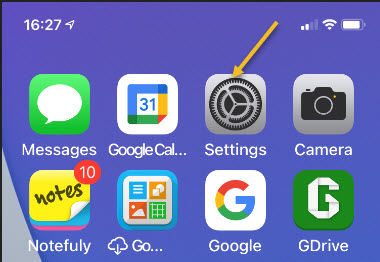
Display 1
Accessing Settings

Next, scroll down to the Contacts option and tap it. See below image:

Display 2
Accessing Contacts option

Now, in the Contacts settings, tap Display Order. See following image:

Display 3
Accessing Display Order option

In Display Order you have two choices. Choose whichever one you prefer. Refer to below image:

Display 4
Selecting your Display Order preference

The Short Name feature in the Contacts settings also determines how you will see names in apps such as Mail. With Short Name enabled, the app may display only a first name instead of the full name order you just set. See below image:

Display 5
Accessing Short Name option

By default, Short Name is enabled. If you would like to see a full name with the order you just chose instead, tap the switch to turn Short Name off. See following image:

Display 6
Enable/disable Short Name option

Now, tap Back once, then exit Settings.

The next time you use an app that pulls information from your contacts (like Apple’s Mail app), you will see the names in the order you just set. If you do not see the changes reflected yet, you might need to exit the application first so it can reload the settings. Then, tap the app icon to launch it again.

You are finished. Please feel free to share this post! One way to share is via Twitter.

Just click the Tweet icon below. This will launch Twitter where you click its icon to post the Tweet.

Check out TechSavvy.Life for blog posts on smartphones, PCs, and Macs! You may email us at contact@techsavvy.life for comments or questions.

I Would Like to Hear From You

Please feel free to leave a comment. I would love hearing from you. Do you have a computer or smart device tech question? I will do my best to answer your inquiry. Just send an email to contact@techsavvy.life. Please mention the device, app and version that you are using. To help us out, you can send screenshots of your data related to your question.

The author’s Vietnam eBook on the Battle for Tra Bong: Events and Aftermath

How to Turn Off Eye Contact in FaceTime on iPhone in iOS 14

FaceTime Eye Contact feature, which Apple released with iOS 14 and higher. makes it appear like you are looking right at the camera, even when you are actually looking at your friend on the screen. If you find this artificial trick a bit creepy, rest assured you can turn it off at any time. This feature tells me that Apple engineers have too much time on their hands; it is a weird feature.

FaceTime Eye Contact feature, which Apple released with iOS 14 and higher. makes it appear like you are looking right at the camera, even when you are actually looking at your friend on the screen. If you find this artificial trick a bit creepy, rest assured you can turn it off at any time. This feature tells me that Apple engineers have too much time on their hands; it is a weird feature.

In typical video chat scenarios, you want to look at your friend while you talk to them. When you do, you are obviously not looking at the camera. So from your friend’s perspective, you look like you are looking slightly below eye level. The new feature aims to fix that issue by using software to “move” your eyes into an eye contact position. It works really well; perhaps a little too well.

Aside from creating the “fake” feeling of authentic eye contact during a video conversation, FaceTime’s new feature can also make the other caller feel like you are staring into the abyss of your camera and not at them. We have gotten so used to where the eyes actually are in video calls that when they are pointed right at us all of the time, it looks intimidating and unnatural; like you are not really paying attention; and that’s not necessarily how a regular talk goes.

The somewhat spooky Eye Contact feature for FaceTime, is only available for iPhone XS and above. Ironically, this feature is turned On by default. Let’s explore how to turn this feature Off.

This is for the iPhone running iOS 14

Dilbert and Alice
Copyright Scott Adams, Inc./Distributed by Universal Uclick for UFS

First, open Settings (the gear icon) on your iPhone. Refer to below image:

eyes 1
Accessing Settings

Next, in Settings, scroll down and tap FaceTime. See below image:

eyes 2
Accessing FaceTime option

Now. In FaceTime settings, scroll down and toggle the switch beside Eye Contact to turn it Off. See below image:

eyes 3
Accessing Eye Contact toggle

This disables the fake and creepy “natural eye contact” feature. Refer to below image:

eyes 4
Disabling Eye Contact toggle

Now, exit the Settings app. The next time you use FaceTime, your pupils will be exactly where you would expect them to be. Reality wins over this creepy feature.

That was easy. Please feel free to share this post! One way to share is via Twitter, as mentioned below.

I hope you have found this post helpful. If so, click the Tweet icon below. This will launch Twitter where you click its icon to post the Tweet.

Check our TechSavvy.Life for blog posts on smartphones, PCs, and Macs! You may contact us at contact@techsavvy.life for comments or questions.

I Would Like to Hear From You

Please feel free to leave a comment. I would love hearing from you. Do you have a computer or smart device tech question? I will do my best to answer your inquiry. Just send an email to contact@techsavvy.life. Please mention the device, app and version that you are using. To help us out, you can send screenshots of your data related to your question.

The author’s Vietnam eBook on the Battle for Tra Bong: Events and Aftermath

How to Edit Office Documents Directly in GMail

Google is making it even easier to work with Microsoft Office files, with the company now allowing you to directly edit attached Office files in Gmail as well as Google Docs, Sheets and Slides. It’s available to all Gmail users, free and paid accounts. No more document conversion hassles, at long last!

Google is making it even easier to work with Microsoft Office files, with the company now allowing you to directly edit attached Office files in Gmail as well as Google Docs, Sheets and Slides. It’s available to all Gmail users, free and paid accounts. No more document conversion hassles, at long last!

This is for devices using Google Gmail

Dilbert and Smell
Copyright Scott Adams, Inc./Distributed by Universal Uclick for UFS

Google Editing Explained

Previously, documents had to be imported into Google Drive in order to edit or modify them; while emailed attachments were only able to be viewed.

The new workflow, however, streamlines that process considerably. Now, you can directly open and edit an Office file using the Google Docs editor just by clicking on it; just like you would a native Google Docs. But the new editing function does not convert Office files into Google Docs, instead preserving the original file format.

Gmail will allow you to respond to the original email and include the now-updated file (still in an Office file format) without first requiring you to download and re-attach the updated file.

This means you can now edit your Word, Excel and PowerPoint files without ever leaving Gmail.

For example, when you receive a Word document as an email attachment, you can open it and start editing in Docs with a single click while still preserving the Word file format.

With the new change, Microsoft Office attachments will have a new “edit” option and when edits are complete, there will be a new option to share the document via email.

Remove a Chrome Extension

First, you must remove an Extension (if installed) from Google Chrome.

  1. Sign into your managed Google Account.
  2. In a Chrome browser, click More.
  3. Scroll down to More tools.
  4. Click Extensions.
  5. Find the Office Editing for Docs, Sheets. & Slides extension and click Remove.

Once you have removed the Extension you can use the Office editing feature.

Directly Edit Office Attachments

Any incoming email with a Microsoft Office document appears in the Inbox list with icons, preview pane, and the name of the document attachment. Refer to below image:

Gmail 1
Accessing the email with attached Office files

Clicking one of those panes opens a pop-up windows with various options. At top right there is a download button; use that to save a copy for opening in Word, Excel or PowerPoint on your computer. Now, click on the Edit icon to edit your file. See below image where we are selecting the Word file to edit:

Gmail 2
Selecting the Edit for a Word file

Hover your mouse over each attachment to see some options:

  • Download – save to your computer
  • Save to Google Drive
  • Edit with Google Docs – opens a new browser window ready to edit.

After Google Editing

Once you have edited the attachment, there are various options for sharing the revised document. Look under the File menu. See following image for the Email option:

Gmail 4
Your Email option

Now, checkout your various options to save the document. Refer to below image for the Download options:

Gmail 5
Your Download options

Google Editing of Office Files

Word docx files can be edited directly with Google Docs, look for the .DOCX icon at top left. See below image:

Gmail 6
Edit a Word document

Excel xlsx files can be edited directly with Google Sheets look for the .XLSX icon at top left. See following image:

Gmail 7
Edit an Excel file

PowerPoint .pptx files can be edited directly with Google Slides, look for the .PPTX icon at top left. Refer to below image:

Gmail 8
Edit a PowerPoint file

Note! There may be compatibility problems between Excel and Sheets or PowerPoint and Slides.

You are finished. Please feel free to share this post! One way to share is via Twitter.

Just click the Tweet icon below. This will launch Twitter where you click its icon to post the Tweet.

Check out TechSavvy.Life for blog posts on smartphones, PCs, and Macs! You may contact us at contact@techsavvy.life for comments or questions.

I Would Like to Hear From You

Please feel free to leave a comment. I would love hearing from you. Do you have a computer or smart device tech question? I will do my best to answer your inquiry. Just send an email to contact@techsavvy.life. Please mention the device, app and version that you are using. To help us out, you can send screenshots of your data related to your question.

The author’s Vietnam eBook on the Battle for Tra Bong: Events and Aftermath

How to Control Exposure in Camera App on iPhone in iOS 14

The iPhone’s user-friendly Camera app makes it possible for anyone to take great photos. But the app does not get it right every time, and sometimes you might want to brighten or darken your scene.

The iPhone’s user-friendly Camera app makes it possible for anyone to take great photos. But the app does not get it right every time, and sometimes you might want to brighten or darken your scene.

To do that, you will need to use the Exposure Compensation dial. Apple added it in the iOS 14 update released in September 2020. This built-in feature works on the iPhone 11, iPhone 11 Pro, and newer iPhones. On older iPhones, you will have to use a third-party camera app.

This is for the iPhone running iOS 14

Dilbert and Social Media
Copyright Scott Adams, Inc./Distributed by Universal Uclick for UFS

Exposure Compensation Dial

To enable the Exposure Compensation dial, launch the Camera app, and tap on the arrow at the top of the viewfinder in portrait orientation.

A row of icons will appear just above the shutter button. The Exposure Compensation slider is the plus/minus (+/-) icon. Tap on it and a new slider will appear along the bottom of the frame.

You can now move the slider left and right to decrease or increase the amount of light in your scene.

If you tap on the plus/minus (+/-) again, you will get back to the main row of icons. You can close the menu using the arrow at the top of the viewfinder. Keep in mind that, if you set an exposure compensation value, it will persist until the next time you open the camera app; even if you close this menu.

The Exposure Compensation feature added in iOS 14 is not full manual control, but fine-tuning of a scene. As you move around the Camera app will continue to adapt to lighting conditions unless you manually lock exposure and focus. It is an effective way to get more control over the image without having to go fully manual.

If you do not have an iPhone 11 or newer, you will not see this option as it is not available on older devices.

Third Party Apps

If you own an iPhone XS, XR, or earlier, you will not be able to access the Exposure Compensation dial. You’ll have to make do with the old method of doing things, which means locking focus and exposure to a single point and then making micro-adjustments inside the yellow box.

If you have an older device and want to set exposure and focus separately in a more intuitive way, try VSCOManual, or Camera+ 2. My favorite is the latter, Camera+2.

I hope you have found this post helpful. If so, click the Tweet icon below. This will launch Twitter where you click its icon to post the Tweet.

Check out TechSavvy.Life for blog posts on smartphones, PCs, and Macs! You may email us at contact@techsavvy.life for comments or questions.

I Would Like to Hear From You

Please feel free to leave a comment. I would love hearing from you. Do you have a computer or smart device tech question? I will do my best to answer your inquiry. Just send an email to contact@techsavvy.life. Please mention the device, app and version that you are using. To help us out, you can send screenshots of your data related to your question.
The author’s Vietnam eBook on the Battle for Tra Bong: Events and Aftermath

How to View an Alphabetical List of Your iPhone Apps

The App Library is an iPhone-only feature in iOS 14 and above bringing, among other things, an overview of all the apps installed on the iPhone, that can be sorted alphabetically for quick and effortless browsing,

The App Library is an iPhone-only feature in iOS 14 and above bringing, among other things, an overview of all the apps installed on the iPhone, that can be sorted alphabetically for quick and effortless browsing,

This is for the iPhone

Dilbert and Trust
Copyright Scott Adams, Inc./Distributed by Universal Uclick for UFS

Find Your App Library Page

To find the App Library, visit your iPhone’s Home Screen and swipe left as many times as it takes to reach the App Library screen or tap, hold, and swipe right on the Dots Bar to move quickly through your pages. Refer to below image:

Alpha 1
The Dots Bar to swipe through pages quickly

This is always the last page after your Home Screen icons. Once you are there, you will see groups of app icons sorted automatically by category. See below image:

Alpha 2
The App Library page

Note! If you do not see it, you have yet to update to the latest version of iOS.

Using Your Alphabetical List

To see an alphabetical list of apps, swipe downward from the middle of the App Library screen or tap the Search bar at the top. See following image:

Alpha 3
Accessing the App Library

A new screen will appear that lists your apps sorted by the first letter of each app’s name. Refer to below image:

Alpha 4
Alphabetical listing of the App Library

You can swipe your finger up and down to browse through the list. To launch an app, just tap it.

If you would like to quickly scroll through the list of apps, slide your finger along the vertical letter index on the far right side of the screen (on your iPhone it’s very small letters) and the list will quickly navigate to that position. See below image:

Alpha 5
Alphabetical listing using the list on right side of your screen

You can also type a search in the Search bar at the top of the screen, and the results will immediately appear below. Once again, tap an app to launch it. See following image:

Alpha 6
Alphabetical listing using the Search bar at the top of your screen

Cancel Your Alphabetical List

If you would like to return to the App Library screen, tap Cancel just to the right of the Search bar. Refer to below image:

Alpha 7
Return back to your App Library screen

You are finished. Please feel free to share this post! One way to share is via Twitter, as mentioned below.

I hope you have found this post helpful. If so, click the Tweet icon below. This will launch Twitter where you click its icon to post the Tweet.

Check them out for blog posts on smartphones, Macs and PCs! You may email us at techsavvy.life for comments or questions.

I Would Like to Hear From You

Please feel free to leave a comment. I would love hearing from you. Do you have a computer or smart device tech question? I will do my best to answer your inquiry. Just send an email to contact@techsavvy.life. Please mention the device, app and version that you are using. To help us out, you can send screenshots of your data related to your question.
The author’s Vietnam eBook on the Battle for Tra Bong: Events and Aftermat

How to Mark Text Messages as All Read on iPhone or iPad

If you have a large number of unread text messages on your iPhone or iPad, dealing with them one-by-one can be a hassle. Thanks to Apple, it’s easy to mark every one of your unread messages as read but the feature is not well known. Let’s explore how to mark all text messages as read.

If you have a large number of unread text messages on your iPhone or iPad, dealing with them one-by-one can be a hassle. Thanks to Apple, it’s easy to mark every one of your unread messages as read but the feature is not well known. Let’s explore how to mark all text messages as read.

This is for iPhone and iPad

Dilbert and Format
Copyright Scott Adams, Inc./Distributed by Universal Uclick for UFS

First, open your Messages app. Now, on an iPhone, look in the upper-right corner of the screen and tap the ellipses button, which looks like three dots in a circle. Refer to below image:

Read All 1
The Messages app

For the iPad, tap the Edit button in upper left-hand corner.

A pop-up menu will be displayed. Next, tap the Select Messages option. See below image:

Read All 2
Select Messages option

Now, your messages will enter “Edit” mode. But you don’t need to deal with individual messages. On both iPhone and iPad, look for the Read All button in the lower left- hand corner of your screen and tap it. See following image:

Read All 3
Select Read All option

At first glance, you may be thinking that the Read All means “I am going to read all my messages”. Actually, it means “I have read all my messages”. Apple should have put in a clarification note as to what Read All means.

After that, all unread messages will be marked as read. You will receive no notification that they all read but they will be. Cool feature!

That’s it. Please feel free to share this post! One way to share is via Twitter, as mentioned below.

I hope you have found this post helpful. If so, click the Tweet icon below. This will launch Twitter where you click its icon to post the Tweet.

I have found TechSavvy.Life blog posts extremely helpful. Check them out for blog posts on smartphones, Macs, and PCs! You may email us at contact@techsavvy.life for comments or questions.

I Would Like to Hear From You

Please feel free to leave a comment. I would love hearing from you. Do you have a computer or smart device tech question? I will do my best to answer your inquiry. Just send an email to contact@techsavvy.life. Please mention the device, app and version that you are using. To help us out, you can send screenshots of your data related to your question.
The author’s Vietnam eBook on the Battle for Tra Bong: Events and Aftermath