If you do not want Google Chrome to remember your activity, you can browse the web privately in Incognito mode.
If you do not want Google Chrome to remember your activity, you can browse the web privately in Incognito mode.
It is easy to quickly open an Incognito window using a keyboard shortcut. Lets explore how to do this.
This is devices running Google Chrome
Copyright Scott Adams, Inc./Distributed by Universal Uclick for UFS
First, open Chrome. Next, with any Chrome browser window open, press the following keyboard combination to open a new Incognito window:
Windows, Linux, or Chrome OS: Press Ctrl + Shift + N.
Mac: Press ⌘ + Shift + N.
After pressing the keyboard shortcut, a special Incognito window will open. If you want to block third-party cookies, just toggle the switch to On, the default setting. Refer to below image:
Your Incognito window
Whenever you are in Incognito mode, you will be able to tell because the Chrome browser window’s toolbar will have a darker color scheme and there will be a small Incognito icon beside the address bar in the toolbar. See below image:
The icon and text telling you are in Incognito mode
You can switch between Incognito windows and regular Chrome windows. You will only browse in private when you are using an Incognito window.
While browsing within an Incognito window, Chrome will not locally store your browsing history, site data, cookies, or saved form data once you close the Incognito window. However, downloaded files and bookmarks will be saved unless you manually remove them.
At any time, you can press Ctrl+T (or ⌘ + T on Mac) to open a new tab within the Incognito window, and browsing activity within that tab will be locally private as well.
Remember that Incognito mode is not perfect, and it does not protect you from those who might view your activity on the web remotely, such as your employer, school, ISP, or the websites you visit. It is only to prevent local snooping of your browsing history.
If you see a number next to the Incognito text at the top right, you have more than one Incognito window open. See following image:
Your number of Incognito windows open
When you are ready to stop private browsing, you will need to close the Incognito window(s). To do so using a keyboard shortcut:
Windows, Linux, or Chrome OS: Press Alt + F4
Mac: Press ⌘ + Shift + W
Or you can just click the “X” in the corner of the window with your mouse.
That’s it. Please feel free to share this post! One way to share is via Twitter, as mentioned below.
I hope you have found this post helpful. If so, click the Tweet icon below. This will launch Twitter where you click its icon to post the Tweet.
Check out TechSavvy.Life for blog posts on smartphones, PCs, and Macs! You may email us at contact@techsavvy.life for comments or questions.
Please feel free to leave a comment. I would love hearing from you. Do you have a computer or smart device tech question? I will do my best to answer your inquiry. Just send an email to contact@techsavvy.life. Please mention the device, app and version that you are using. To help us out, you can send screenshots of your data related to your question.
The author’s Vietnam eBook on the Battle for Tra Bong: Events and Aftermath
Google collects and remembers “tons” of information about your activity, including your web, search, YouTube, and location history. Google auto-deletes for new users after 18 months but it will remember history forever if you previously enabled this feature with the default options.
Google collects and remembers “tons” of information about your activity, including your web, search, YouTube, and location history. Google auto-deletes for new users after 18 months but it will remember history forever if you previously enabled this feature with the default options.
As an existing user, you have four options in making Google delete your data; after 36 months, 18 months, 3 months, or stop activity collection entirely. The options are buried in Google Settings.
This is for devices running Google. Screenshots are from iPhone XR
Copyright Scott Adams, Inc./Distributed by Universal Uclick for UFS
Note! Google uses this history to personalize your experience, including your web search results and recommendations. Deleting it will make your Google experience less “personalized.”
Let’s explore how to set up this auto-delete function..
Control Web and App Activity
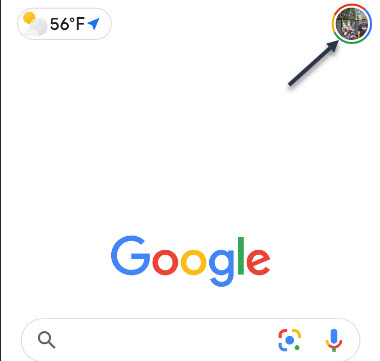
First, launch Google and tap your profile photo. Refer to below image:
Launch Google
Now, tap the Google Account settingsoption See below image:
Accessing Google Account option
Next, scroll down to Privacy & personalization section and tap Manage your data & personalization. See following image:
Accessing your data and personalization link
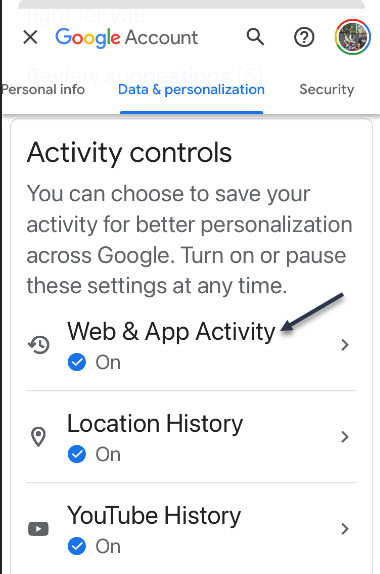
Now, scroll down to Activity controls section. Here, tap the Web & App Activity option. Refer to below image:
Accessing your Web & App Activity section
Next, toggle to On the Web & App Activity toggle. Next, tap the Auto-delete (Off) switch to turn in On. See below image:
Enabling Auto-delete by its link
Now, select one of four options. See following image where I selected Auto -delete activity older than 18 months and tap the Next button:
Selecting one of four options for Auto-delete
A Confirmation screen will be displayed. Just tap the Confirm button in lower right-hand corner. Refer to below image:
Confirming your selection
Now, you will see a Preference saved dialog box. Just tap GotIt text in lower right-hand corner. See below image:
Saving your preference
Control Location and YouTube Activity
Next, go back to Activity controls section and repeat above steps for Location History and YouTube History.
Let’s say you Search, read articles, watch videos, or see photos on ‘drones’. Google will send out ad links for ‘drones’, this is called ‘ad personalization’. Through these sponsored ads is one way Google makes money. You can turn off these ads but at the expense of a ‘depersonalization experience’.
Control Ad Personalization
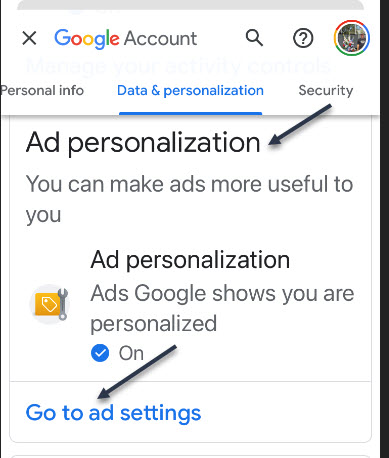
Now, go back to Activity controls and scroll down a little till you see the Ad personalization section and tap the Go to ad settings link. See following image:
Selecting your ad settings link
Next, toggle the Ad personalization switch to ON. Refer to below image:
Enabling your Ad personalization
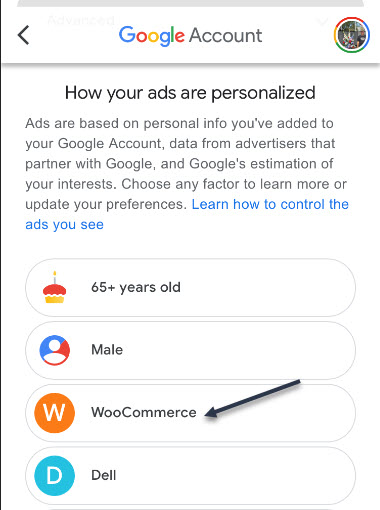
Here you will see a listing of companies/others who are using ad personalization. See below image where I selected WooCommerce:
Selecting a targeted ad
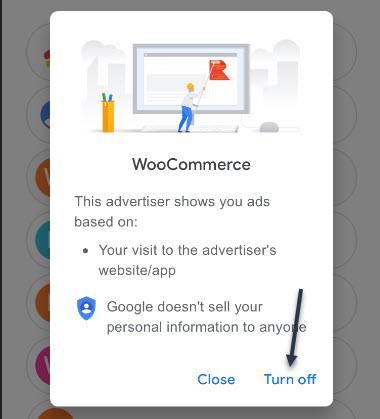
Now, you will be presented a dialog box to Turnoff or Close. Next, tap the Turn off button to no longer see this company/others targeted ads. See following image:
Turning off your targeted ad
Now, a confirmation dialog box appears where you have to tap the Turn off button again. Google makes you go through ‘hoops’ to reduce their ads. Refer to below image:
Your confirmation for turning off the targeted ad
Really, Turn Off Ads?
Google is making you go through a myriad of selections. Notice the text that states turning off your selected ad will stay off for at least 90 days. Your selected ad will stay off for this period, then guess what, the ad comes back! Google wants to make money off these ads; they do not want you to turn them off. See above image.
That’s it. Please feel free to share this post! One way to share is via Twitter.
Just click the Tweet icon below. This will launch Twitter where you click its icon to post the Tweet.
Check out TechSavvy.Life for blog posts on smartphones, PCs, and Macs! You may email us at contact@techsavvy.life for comments or questions.
Please feel free to leave a comment. I would love hearing from you. Do you have a computer or smart device tech question? I will do my best to answer your inquiry. Just send an email to contact@techsavvy.life. Please mention the device, app and version that you are using. To help us out, you can send screenshots of your data related to your question.
The author’s Vietnam eBook on the Battle for Tra Bong: Events and Aftermath
You might want to delete plain text messages because of the storage space they use. Also, you may want to delete messages for privacy reasons or just because it keeps your Messages app better organized. Plus, texts with images actually can take up a fair bit of room.
You might want to delete plain text messages because of the storage space they use. Also, you may want to delete messages for privacy reasons or just because it keeps your Messages app better organized. Plus, texts with images actually can take up a fair amount of space.
By default, your iPhone and iPad save every iMessage and SMS text message that comes your way. As a result, you could have years of messages synced to iCloud that follow you for the rest of your life, taking up valuable space. Fortunately, there’s a way to delete old text messages automatically. Lets explore how this is done.
This is for the iPhone and iPad. Screenshots are from an iPhone
Copyright Scott Adams, Inc./Distributed by Universal Uclick for UFS
First, lets check how much storage you are using for messages and attachments (like photos on an iPhone). Go to
Settings > General > iPhone Storage > (scroll down to) Messages
Notice the amount of storage used by Documents & Data, and tap on Review Large Attachments for more detail. Refer to below image where I can save 145 MB by deleting them:
Viewing how much storage space is being used
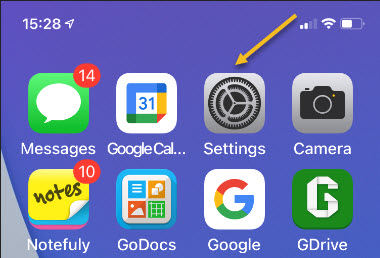
Now, exit back to Settings (the gear icon) on your iPhone or iPad. See below image:
Accessing Settings
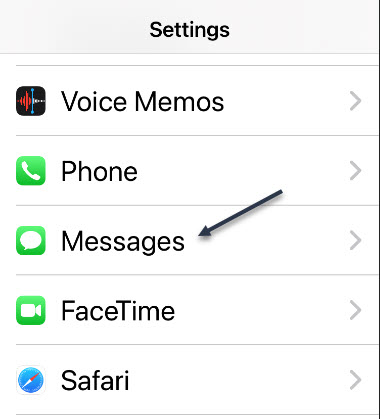
Now, in Settings, scroll down and tap the Messages option. See following image:
Accessing the Messages option
Next, in Messages, scroll down and tap the KeepMessages option. Refer to below image:
Accessing the Keep Messages option. The default is Forever
By default, Messages is set to keep your SMS text messages and iMessages forever. Next, tap either 30 Days or 1 Year depending on how long you would like to keep your old text messages. See below image:
Selecting your option on how long to keep text messages
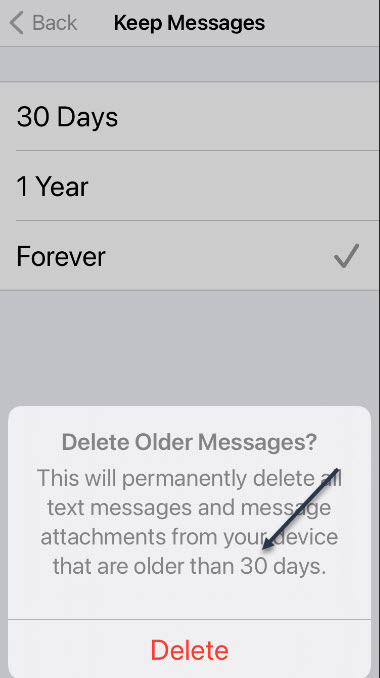
After tapping your preference, you will see a pop-up dialog asking whether you want to delete all messages older than the time period you specified. If you are sure, just tap the Delete button. See following image:
Pop-up window showing the option you selected
Next, exit Settings. From now on, Messages will automatically delete any messages once they hit the 30-day or 1-year mark, depending on which option you specified. Note! The default, Forever, will remain checked until you tap the Delete button.
Now, head back to
Settings > General > iPhone Storage > (scroll down to) Messages
and check your Messages storage for the amount of space you reclaimed.
That’s it. Please feel free to share this post! One way to share is via Twitter.
Just click the Tweet icon below. This will launch Twitter where you click its icon to post the Tweet.
Check out TechSavvy.Life for blog posts on smartphones, PCs, and Macs! You may email us at contact@techsavvy.life for comments or questions.
Please feel free to leave a comment. I would love hearing from you. Do you have a computer or smart device tech question? I will do my best to answer your inquiry. Just send an email to contact@techsavvy.life. Please mention the device, app and version that you are using. To help us out, you can send screenshots of your data related to your question.
The author’s Vietnam eBook on the Battle for Tra Bong: Events and Aftermath
Have you received the message “This post has been removed for misinformation… or deemed inappropriate….” on Facebook. Just who are these Facebook “Police”?
Who you goin to call, Fact Checkers? A ‘play on words’ from the movie ‘Ghostbusters’.
Have you received the message “This post has been removed for misinformation… or deemed inappropriate….” on Facebook. Just who are these Facebook “Police”?
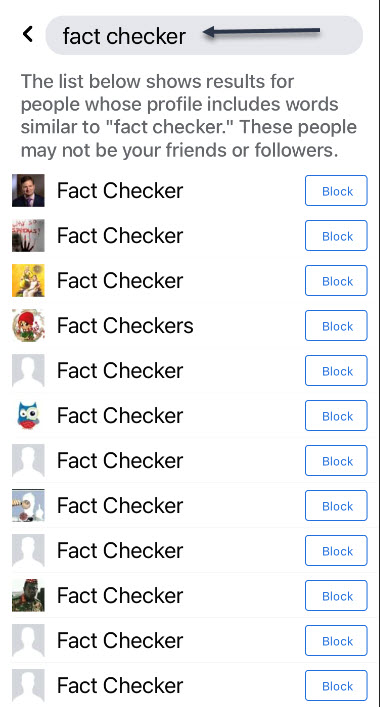
You will be surprised at the number of people who use ‘fact checker’ or ‘gate keeper’ as their name
Facebook has partnered with independent third-party fact-checkers globally who are certified through the non-partisan International Fact-Checking Network (ICFN). This fact-checking program launched in 2016, and has continued to expand it since then to cover more languages and countries.
The focus of this program is to address viral misinformation; provably false claims, particularly those that have the potential to mislead or harm.
Fact-checking partners are able to review content across both Facebook and Instagram, including organicand boosted posts. They can also review videos, images, links or text-only posts.
There are a lot of guides on the Internet that tell you to block ‘fact checker’ from the Facebook block user function. However, all this does is block users and pages that call themselves ‘fact checker’. Facebook does not actually disclose who and where the ‘fact checker’ actually are, so blocking random pages named ‘fact checker’ won’t really do much. The same goes for ‘gate keeper’.
So, this post is just for fun and informational. You are unable to actually block a Facebook ‘fact checker’ or ‘gate keeper’. With that said, let’s explore how to block people who call themselves ‘fact checker’ or ‘gatekeeper’.
This is for devices running Facebook
Copyright Scott Adams, Inc./Distributed by Universal Uclick for UFS
Who Are Fact Checkers
Source: Facebook
Since we do not believe that a private company like Facebook should be the arbiters of truth, we rely on independent fact-checkers to identify and review potential misinformation, which enables us to take action.
Identify: We identify potential misinformation using a variety of signals, and our fact-checking partners can also proactively identify content on their own.
Review: Fact-checkers review and rate the accuracy of stories through original reporting, including interviewing primary sources, consulting public data, and conducting analyses of media, including photos and video.
Act: Once we have a rating from a fact-checking partner, we take action by ensuring that fewer people see that misinformation by surfacing fact-check articles to users across our platforms and showing labels on top of false stories.
Who Are Gate Keepers
Source: Slate
Facebook Oversight Board is their gatekeeper. A gatekeeper decides what is free speech or not. The board will act much like a court of appeals for the platform, and it will take on cases regarding how to handle controversial content on Facebook and Instagram. The board will also act in an advisory capacity, giving policy recommendations to the company.
Block a Fact Checker
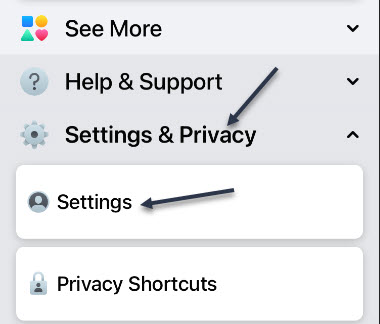
First, launch Facebook and tap the Menu icon. Refer to below image:
Accessing Facebook menu
Now, scroll down and open the Settings and Privacy section and tap Settings. See below image:
Accessing Facebook settings
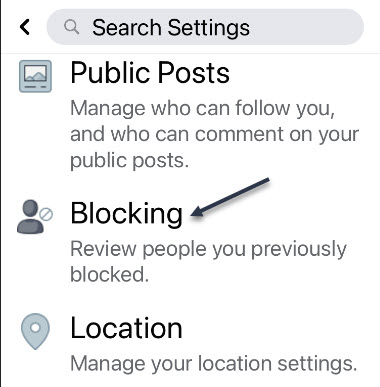
Next, scroll down to the Blocking section and tap it. See following image:
Accessing the Blocking section
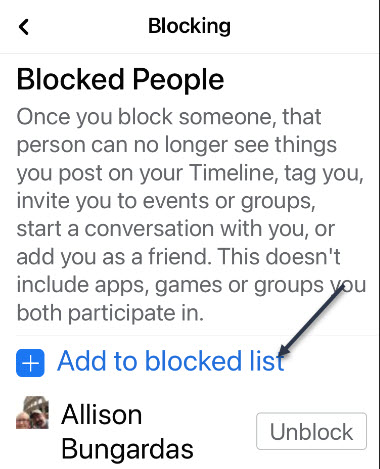
Next, tap the link Add to blocked list. Refer to below image:
Accessing the Add to blocked list link
At the top of the page, in the Search box, type in: fact checker. Here you will see a long list of people using the name of ‘fact checker’. See below image:
Entering Fact Checker in the Search box
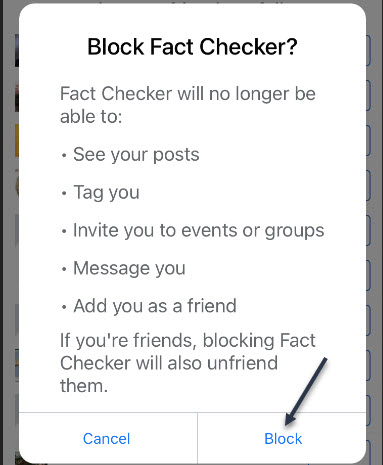
Next, tap a listing or the Block icon and you will be given a dialog box to Block or Cancel. Tap the Block icon. That person will be added to your Blocked People list. See following image:
Blocking a Fact Checker
Now, repeat the above for each ‘fact checker’ person you want to block. Next, in the Search box, type in: fact checkers. Here you will see another long list of people using the name of ‘fact checkers’. Next, tap a listing or the Block icon. Tap the Block icon and repeat for each person in the list as needed.
Block a Gate Keeper
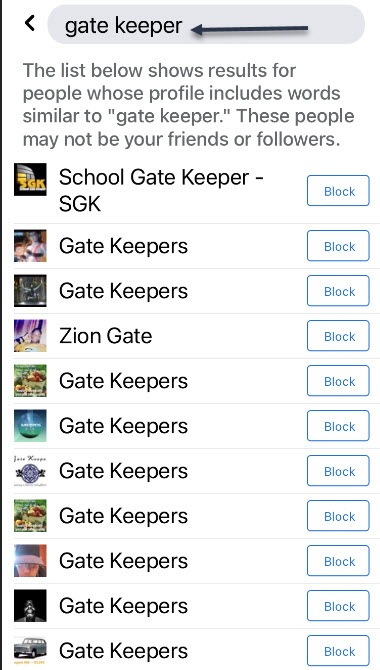
Go back to the Search box and type in: gate keeper. Here you will see a long list of people using the name of ‘gate keeper’. Refer to below image:
Entering Gate Keeper in the Search box
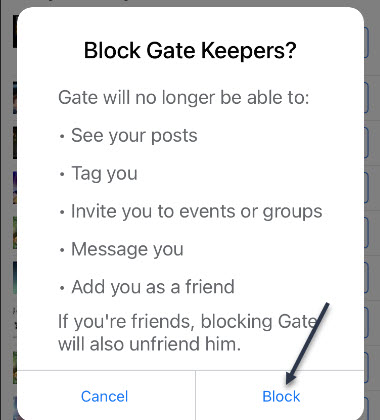
Next, tap a listing or the Block icon you will be given a dialog box to Block or Cancel. Tap the Block icon. See below image:
Blocking a Gate Keeper
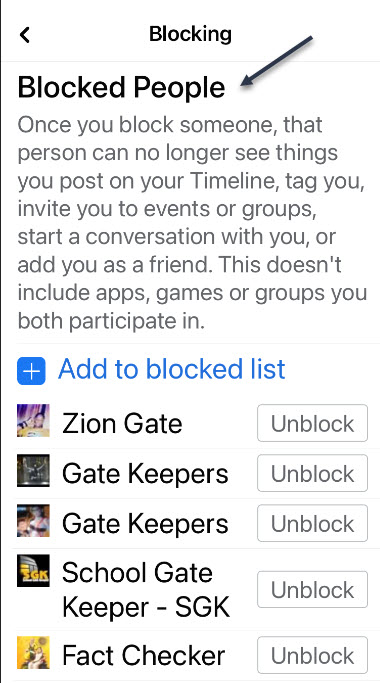
Repeat the above for a search of ‘gate keepers’ and block as needed. Next, tap the back button to see your BlockedPeople list that includes ‘fact checker’, ‘fact checkers’, ‘gate keeper’ and/or ‘gate keepers’. Why do people use such names? See following image:
Your Blocked People list
Now, tap all the way back using the Back button and exit Facebook.
I hope you learned something about the Facebook ‘Police’. We did. Well, that’s it. Please feel free to share this post! One way to share is via Twitter.
Just click the Tweet icon below. This will launch Twitter where you click its icon to post the Tweet.
Check out TechSavvy.Life for blog posts on smartphones, PCs or Macs! You may email us at contact@techsavvy.life for comments or questions.
Please feel free to leave a comment. I would love hearing from you. Do you have a computer or smart device tech question? I will do my best to answer your inquiry. Just send an email to contact@techsavvy.life. Please mention the device, app and version that you are using. To help us out, you can send screenshots of your data related to your question.
The author’s Vietnam eBook on the Battle for Tra Bong: Events and Aftermath
This is a fun and informational blog post about how an iPhone is designed, manufactured, tested, marketed and shipped. I learned a lot about one of the greatest achievements in technology.
This is an informational blog post about how an iPhone is designed, manufactured, tested, marketed and shipped. I learned a lot about one of the greatest achievements in technology and hope you will to.
This is for an iPhone
Copyright Scott Adams, Inc./Distributed by Universal Uclick for UFS
Did you know your iPhone screen is made up of eight layers? Each one plays an integral role in making sure users get the best experience every time the phone is used. Beyond the display, are many other layers, about 176 layers for iPhone 11 Pro Max.
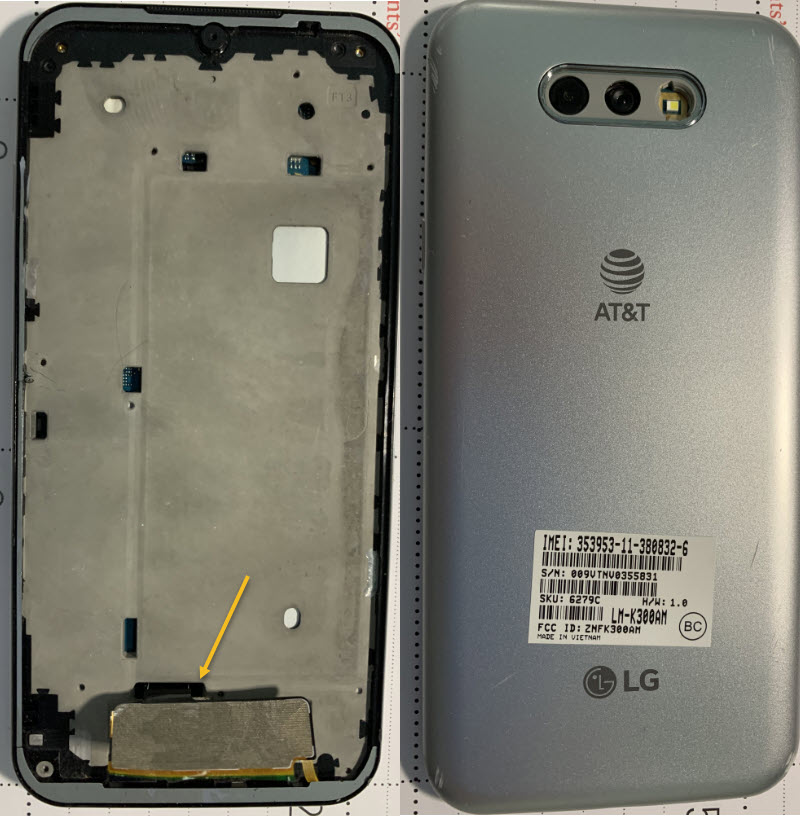
My wife and I were walking in our neighborhood. She noticed a smartphone on the ground so, I picked it up and noticed the display screen was missing. The arrow points to the ribbon connector for the missing display. Refer to below images of the AT&T LG smartphone we found made in Vietnam:
AT&T LG smartphone with missing display that we found
She said, “why not write a blog post about the making of a smartphone?” So, here are some snippets of information about the making of an iPhone. Read on if you want to learn more.
The cost to make the iPhone 11 Pro Max was $490.
The components manufactured by many companies around the world are ultimately sent to just two companies to assemble into iPods, iPhones, and iPads. Those companies are Foxconn and Pegatron, both of which are based in Taiwan.
Foxconn is Apple’s longest-running partner in building these devices. It currently assembles the majority of Apple’s iPhones in its Shenzen, China, location, although Foxconn maintains factories in countries across the world, including Thailand, Malaysia, the Czech Republic, South Korea, Singapore, and the Philippines.
Pegatron is a relatively recent addition to the iPhone assembly process. It is estimated that it builds around 30 percent of the orders.
Apple buys many of the components for iPhones — like the memory chip, the modem, the camera module, the microphone and the touch-screen controller — from more than 200 suppliers around the world. Foxconn, the Taiwanese company that runs the Zhengzhou facility, even produces some smaller parts, such as metal casings.
Foxconn’s facilities in Zhengzhou cover 2.2 square miles and can employ up to 350,000 workers, many of whom earn about $1.90 an hour. They work up to 12 hour shifts under intense pressure. The operation does what is called F.A.T.P., or final assembly, testing and packaging.
There are 94 production lines at the Zhengzhou manufacturing site, and it takes about 400 steps to assemble the iPhone, including polishing, soldering, drilling and fitting screws. The facility can produce 500,000 iPhones a day, or roughly 350 a minute.
After the iPhone rolls off the assembly line, it is placed in a sleek white fiberboard box, wrapped and put on a wooden pallet, and then wheeled out to waiting trucks.
As the final point of assembly for the iPhone, China also serves as a starting point for Apple’s global tax strategy. In Zhengzhou, often in the customs facility, Foxconn sells the completed iPhones to Apple, which in turn resells them to Apple affiliates around the world.
The process, most of which takes place electronically, allows Apple to assign a portion of its profits to an affiliate in Ireland, a tax-advantageous locale. The system is not unique to China.
Smartphones are small enough to be shipped by plane in huge quantities — and cost effectively. A single wide-body Boeing 747 can easily carry 150,000 iPhones tucked into its aluminum canisters.
From Zhengzhou, UPS, FedEx and other freight carriers typically fly United States-bound iPhones to Anchorage. There, they refuel, before going on to Louisville, Ky., a major logistics hub, or other points in the country.
Domestic-bound iPhones are typically loaded onto a large truck and taken on an 18-hour drive from Zhengzhou to Shanghai, in eastern China, where Apple has set up its national distribution center. A single tractor-trailer holds up to 36,000 iPhones. Because the vehicles have about $27 million worth of freight on board, they are equipped with cameras and sometimes accompanied by armed security guards.
After the iPhone leaves the Foxconn factory in Zhengzhou, it takes two days, on average, to get to a store in Shanghai, a 590-mile trip. It takes three days, on average, to get a store in San Francisco, some 6,300 miles away.
Apple does very little of its own manufacturing. Instead it relies on contract outsourcing companies like Foxconn (one of the largest employers in the world) to do this for them. This removes much of the headache of manufacturing for Apple while keeping production costs as low as possible. There is a significant market advantage to this approach and its one that many other electronics manufacturers are emulating now.
Like any good design company, the design process at Apple is not over when manufacturing begins. In fact, Apple iterates the design throughout manufacturing. The product is built, it’s tested and reviewed, then the design team improves on it and it’s built all over again. These cycles take 4-6 weeks at a time and may be run many times over a product’s development lifecycle.
This is a very costly approach but it’s one of the reasons that Apple has a reputation for quality. The more you invest in design, the more likely you are to build incredible market changing products. It’s the process that the iPod, the iPhone and the iPad go through.
The packaging room is a very-high security area in Apple and it’s where prototypes are unboxed. As you might expect, the security is to prevent leaks to the outside world. If you ever do see a leaked prototype for an Apple product – it won’t have come from here. It’s more likely to have vanished from a production line in China.
The final step in Apple’s product development is product launch. When the product is considered to be as good as it can be – it enters an action plan known as “the Rules of the Road”. This explains all the responsibilities and actions that must be taken prior to a commercial launch of the product. It is an extremely remarkable accomplishment to design, manufacture, market, and ship an iPhone.
It must be a nerve-wracking experience to be privy to the “Rules of the Road” because if you lose it or leak it, you are immediately fired.
Please feel free to leave a comment. I would love hearing from you. Do you have a computer or smart device tech question? I will do my best to answer your inquiry. Just send an email to contact@techsavvy.life. Please mention the device, app and version that you are using. To help us out, you can send screenshots of your data related to your question.
Copyright Scott Adams, Inc./Distributed by Universal Uclick for UFS
Facebook can feel a little overwhelming. What if you miss a post and you can not find it later? Thankfully, Facebook has a bookmarking feature to help you keep track of things and save them for later.
Facebook can feel a little overwhelming. What if you miss a post and you can not find it later? Thankfully, Facebook has a bookmarking feature to help you keep track of things and save them for later.
You can save shared links, posts, photos, videos, and even pages and events. These things can all be organized into Collections. Let’s explore how to do this.
This is for iPhone, iPad, and Android using Facebook
Copyright Scott Adams, Inc./Distributed by Universal Uclick for UFS
How to Save Facebook Posts
First, find any Facebook post you would like to save. Tap or click the three-dot hambuger icon in the upper right-hand corner of the post. Refer to below image:
Accessing the hamburger icon for a post
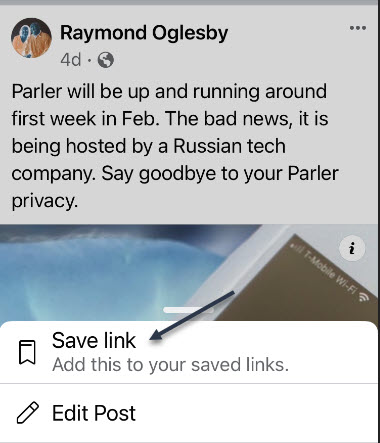
Next, select Save Post (or Save Event, Save Link, etc). In my example I am saving a link. See below image:
Accessing Save link option
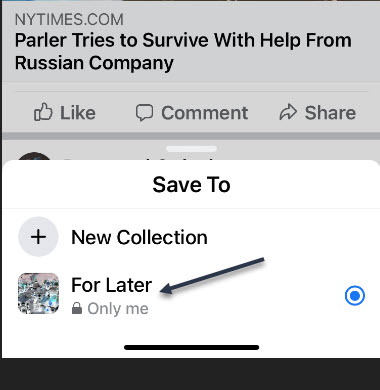
After you select Save Post or Link, etc, you will immediately get the choice to save it to a collection or create a new one. See following image:
Saving the link to collection For Later
How to Access Facebook Posts
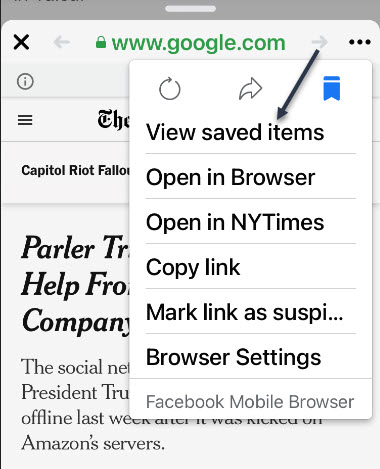
Now, you will need to open the post (if it is a link) and tap the hamburger icon. Next, select View Saved Items. Refer to below image:
Accessing View saved items option
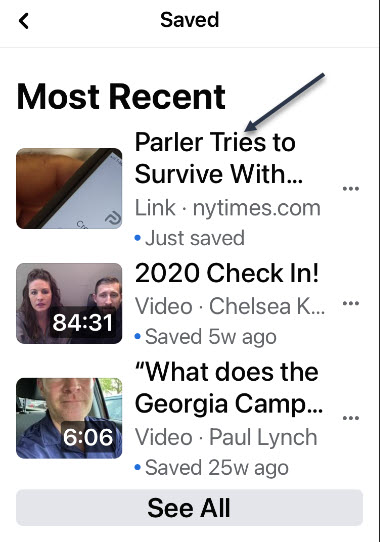
The most recent items will appear at the top, and Collections can be found underneath. See below image:
Listing of your most recent saves
Thje steps are similar for your desktop version of Facebook. That’s it! This is a nice little trick to save posts you enjoyed or to remember to read something later.
Just click the Tweet icon below. This will launch Twitter where you click its icon to post the Tweet.
Check out TechSavvy.Life for blog posts on smartphones, PCs, and Macs! You may email us at contact@techsavvy.life for comments or questions.
Please feel free to leave a comment. I would love hearing from you. Do you have a computer or smart device tech question? I will do my best to answer your inquiry. Just send an email to contact@techsavvy.life. Please mention the device, app and version that you are using. To help us out, you can send screenshots of your data related to your question.
The author’s Vietnam eBook on the Battle for Tra Bong: Events and Aftermath
Apple recently introduced new “nutrition labels” for privacy in the iPhone App Store. With the help of these labels, you can quickly learn how an app can track you or use your personal information.
Apple recently introduced new “nutrition labels” for privacy in the iPhone App Store. With the help of these labels, you can quickly learn how an app can track you or use your personal information. Let’s explore how to view the privacy policies of apps you already have on your device.
This is for the iPhone
Copyright Scott Adams, Inc./Distributed by Universal Uclick for UFS
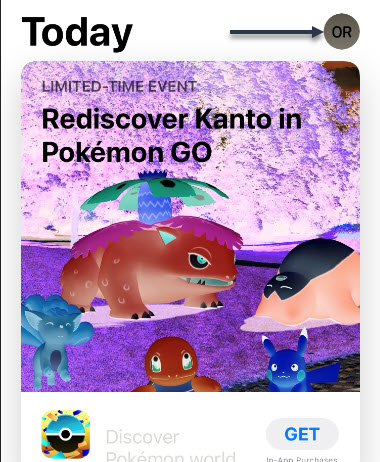
First, open the App Store on your iPhone. Next, tap your profile image in the upper-right corner of your screen. Refer to below image:
Selecting your Profile
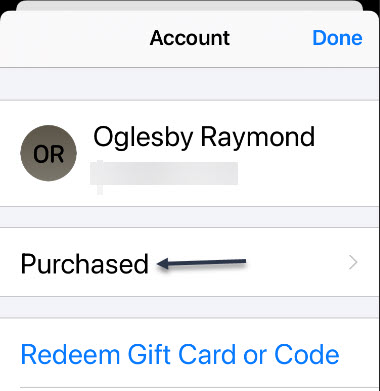
Now, in your Profile, tap Purchased. See below image:
Selecting your Purchased apps
Next, select My Purchases. See following image:
Selecting your Purchases
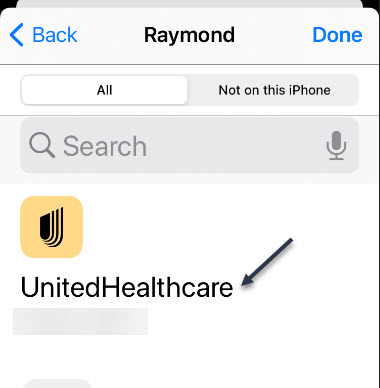
Next, you will see a list of every app you have purchased or downloaded to your iPhone. Scroll through the list and tap the icon of the one whose privacy policies you would like to check. Refer to below image:
Selecting an app to check its Privacy policy
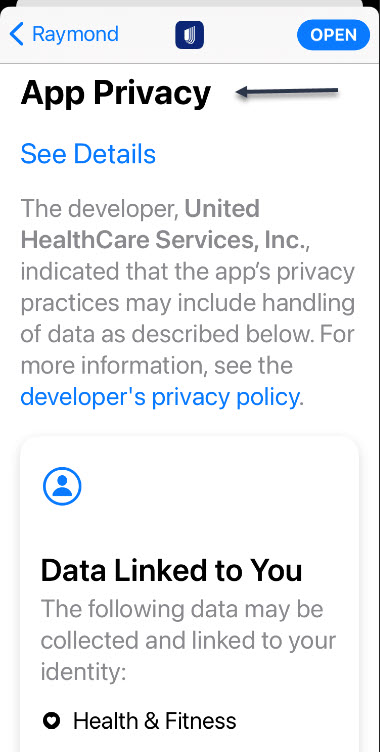
Now, you will be taken to the App Store page for that particular app. Scroll down the page until you see the App Privacy section. Here, you will see summaries of how the app tracks you or uses your data in sections like Data Used to Track You and Data Linked to You. See below image:
Selecting your App Privacy option
To see more details about the app Privacy, tap on the See Details link. See following image:
Selecting the Details option
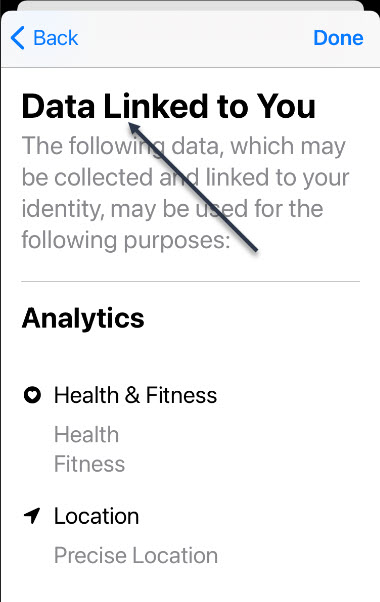
Here, you will get a detailed rundown about what information the app stores and how it is used. Refer to below image:
View the details about your app Privacy
Once you are done, tap Back twice and return to the list of purchased apps. To check another app, tap its icon and repeat the process above. If you do not like what you see, you can always delete the app.
You are finished. Please feel free to share this post! One way to share is via Twitter.
Just click the Tweet icon below. This will launch Twitter where you click its icon to post the Tweet.
Check out TechSavvy.Life for blog posts on smartphones, PCs, and Macs!.You may email us at contact@techsavvy.life for comments or questions.
Please feel free to leave a comment. I would love hearing from you. Do you have a computer or smart device tech question? I will do my best to answer your inquiry. Just send an email to contact@techsavvy.life. Please mention the device, app and version that you are using. To help us out, you can send screenshots of your data related to your question.
The author’s Vietnam eBook on the Battle for Tra Bong: Events and Aftermath
There is a good chance you will see a “COVID-19 Exposure Notifications Are Available” pop-up on your iPhone sometime soon; if you have not already seen it. Apple and Google launched this feature in May 2020 for the iPhone.
There is a good chance you will see a “COVID-19 Exposure Notifications Are Available” pop-up on your iPhone sometime soon; if you have not already seen it. Apple and Google launched this feature in May 2020 for the iPhone.
This is for the iPhone
Copyright Scott Adams, Inc./Distributed by Universal Uclick for UFS
The contact-tracing feature is dependent on apps from your local health authority that take advantage of it. In the USA, this means your state government generally has to roll out its own contact-tracing app. Not all state governments have done this yet.
You will see this notification when your local health authority rolls out its app if it has not already done so. If you travel between states or countries, you may see the notification when you arrive in a location that has such an app, too.
Contact-tracing is not enabled by default, and it does not do anything unless you choose to enable it. Also, it is just an API that your local public health authority; for example, your state government health agency; can use. If your local public health authority has not released an app that takes advantage of the API, there is no way to use it. Additionally, other people must be using the app for contact-tracing to work.
Turn On Exposure Notifications
You can choose to activate exposure notifications through Settings. First, open Settings (the gear icon), scroll down and tap Exposure Notifications to enable it. Refer to below image:
Accessing Notifications
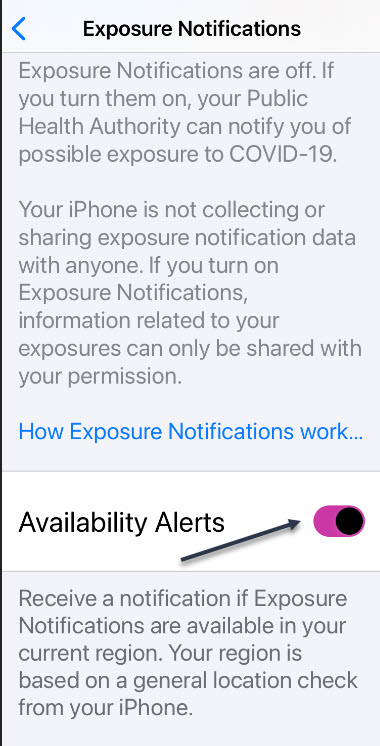
Now, tap on the Turn On Exposure Notifications link. Also, enable the toggle Availability Alerts to On. See below image:
Enabling Notifications
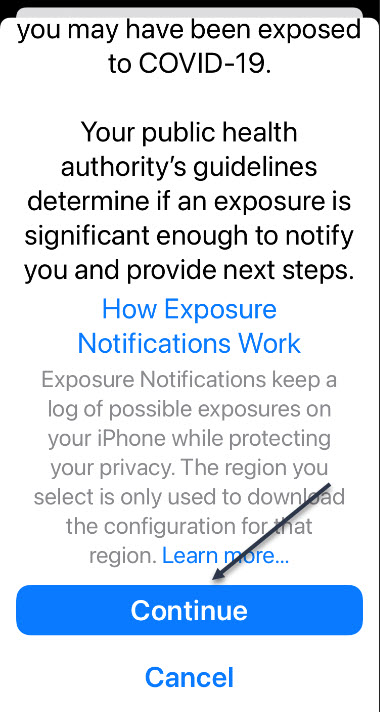
If you want the notifications, scroll down and tap Continue and you will be prompted to install the app from your local public health authority, if not already installed. See following two images:
Continuing Exposure Notifications
Next, scroll and select your your Country. See below image:
Selecting your Country
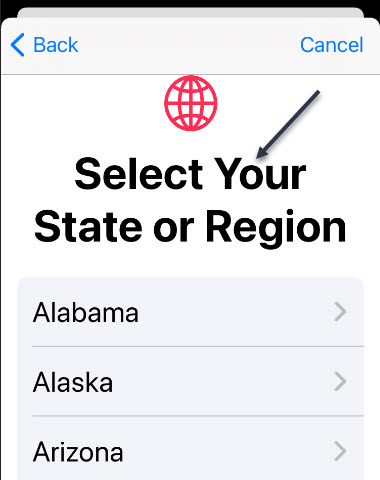
Now, scroll and select your your State (for USA). See following image:
Selecting your State
You will be shown a screen whether Exposure Notifications is available or not. In our case, we selected our state, Oklahoma, where Exposure Notifications is NOT available. Next, click Done. Refer to below image:
Checking if Exposure Notification is available
Turn Off Exposure Notifications
If you do not want to see availability alerts when a COVID-19 tracking app is available in your area, head to
Settings > Exposure Notifications
And switch the Availability Alerts toggle to Off. See below image:
Turning off Exposure Notifications
Now, exit Settings. You are finished. Please feel free to share this post! One way to share is via Twitter.
Just click the Tweet icon below. This will launch Twitter where you click its icon to post the Tweet.
Check our TechSavvy.Life for blog posts on smartphones, PCs, and Macs! You may email us at contact@techsavvy.life for comments or questions.
Please feel free to leave a comment. I would love hearing from you. Do you have a computer or smart device tech question? I will do my best to answer your inquiry. Just send an email to contact@techsavvy.life. Please mention the device, app and version that you are using. To help us out, you can send screenshots of your data related to your question.
The author’s Vietnam eBook on the Battle for Tra Bong: Events and Aftermath
When creating or modifying a Microsoft Word document, it can be beneficial to insert or embed another file into it. By inserting a file into a Word document, that file becomes a part of the Word document. A reader can open and view the embedded file without requiring special permission or access.
When creating or modifying a Microsoft Word document, it can be beneficial to insert or embed another file into it. By inserting a file into a Word document, that file becomes a part of the Word document. A reader can open and view the embedded file without requiring special permission or access.
Nearly any file can be inserted into a Word document, However, be aware that inserting a file into a Word document can increase its size significantly.
In this post, instead of using “copy and paste” from one document into another, we will show you another way, using the Insert feature.
This is for devices running Word
Copyright Scott Adams, Inc./Distributed by Universal Uclick for UFS
First, open the Word document that you would like to add the contents of, another Word document to.
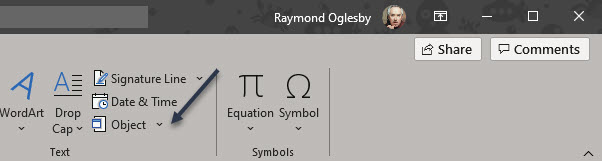
Next, in the Text group of the Insert tab, click the drop-down arrow next to the Object option. Refer to below image:
Accessing the Object option
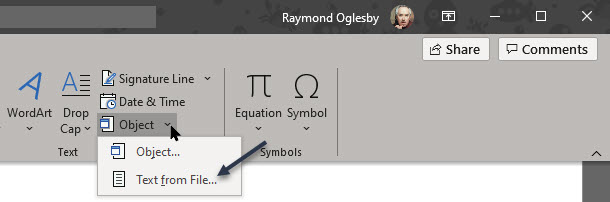
A drop-down menu will appear. There are two options to choose from here; Object and Text From File.
Object: Embeds an object such as a Word document or Excel chart
Text From File: Inserts the text from another file into your Word document
The Text From File option is essentially a quicker way to “copy and paste” the content of another file into this one.
Now, click the Text From File option in the drop-down menu. See below image:
Accessing the Text from file option from drop-down menu
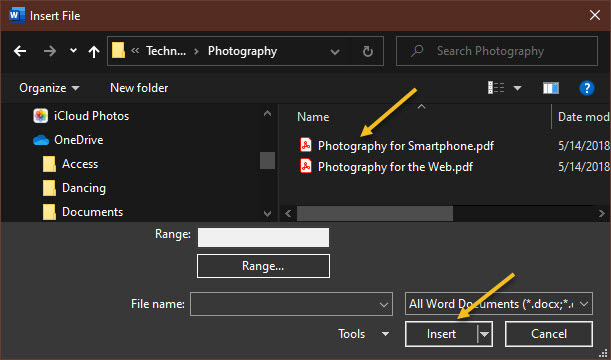
Next, the File Explorer (Finder on Mac) will open. Find the file you would like to copy the text from, select it, then click Insert. See following image:
Selecting the file to be inserted into original Word document
The contents of that Word document will now appear in the current Word document. This works well if there is not a lot of content in the other Word document, but if there is, embedding it may be a better option.
You may want to add headings/subheadings to the inserted document.
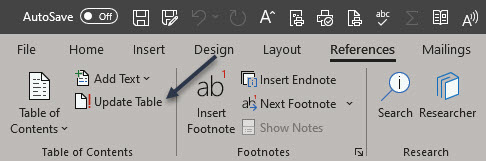
If your original Word document has a Table of Contents, make sure you update your table. First, under the References tab, select the Update Table option. Refer to below image:
Accessing Update Table option
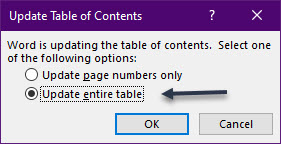
Now, from the pop-up window that will be displayed, select an option. It is recommended you choose the Update entire table option, then cli ck OK. See below image:
Selecting how you want the Table of Contents to be updated
That’s it. Please feel free to share this post! One way to share is via Twitter.
Just click the Tweet icon below. This will launch Twitter where you click its icon to post the Tweet.
Check out TechSavvy.Life for blog post on smartphones, PCs, and Macs! You may email us at contact@techsavvy.life for comments or questions.
Please feel free to leave a comment. I would love hearing from you. Do you have a computer or smart device tech question? I will do my best to answer your inquiry. Just send an email to contact@techsavvy.life. Please mention the device, app and version that you are using. To help us out, you can send screenshots of your data related to your question.
The author’s Vietnam eBook on the Battle for Tra Bong: Events and Aftermath
The Calculator app on your iPhone may seem boring and basic, but there are a few interesting tricks worth knowing. You can ask Siri to perform calculations for you, long-press on results to copy them, long-press the field to paste numbers in, and swipe left or right above the keypad to delete digits one by one. The app can also be used as a scientific calculator with just a simple maneuver
The Calculator app on your iPhone may seem boring and basic, but there are a few interesting tricks worth knowing. You can ask Siri to perform calculations for you, long-press on results to copy them, long-press the field to paste numbers in, and swipe left or right above the keypad to delete digits one by one. The app can also be used as a scientific calculator with just a simple maneuver. Lets explore how to find this calculator.
This is for the iPhone
Copyright Scott Adams, Inc./Distributed by Universal Uclick for UFS
First, swipe left all the way to the App Library (the last page). In the Search box, type calculator and select the Calculator app. Refer to below image:
Selecting the Calculator
Next, the Standard Calculator will be displayed with basic mathematical operations. See below image:
The Standard Calculator
To enter scientific calculator mode, rotate your iPhone 90 degrees until it is in landscape orientation. Your Calculator app will automatically adjust to fit the wide orientation of your screen, and new scientific calculator buttons will be added to your display. See following image:
The Scienific Calculator
If your calculator does not change into scientific mode then it’s likely that your have orientation lock enabled. To disable it, navigate to the Control Center by swiping down from upper right-hand corner. Now, tap the orientation lock icon until it is no longer highlighted. You will see a brief message at the top saying Portrait Orinetation Lock: Off. Refer to below image:
Checking the Orientation Lock
Now, you may close the Calculator. You are finished. Please feel free to share this post! One way to share is via Twitter.
Just click the Tweet icon below. This will launch Twitter where you click its icon to post the Tweet.
Check out TechSavvy.Life for blog posts on smartphones, PCs, and Macs! You may email us at contact@techsavvy.life for comments or questions.
Please feel free to leave a comment. I would love hearing from you. Do you have a computer or smart device tech question? I will do my best to answer your inquiry. Just send an email to contact@techsavvy.life. Please mention the device, app and version that you are using. To help us out, you can send screenshots of your data related to your question.
The author’s Vietnam eBook on the Battle for Tra Bong: Events and Aftermath