How to Use an Email Expire Date in Microsoft Outlook

Outlook lets you add an expiration date to email you send or receive. Once the expiration date has passed the email will be displayed with different formatting, a strikethrough, and you can use Outlook’s built-in tools to manage expired email automatically.

Outlook lets you add an expiration date to email you send or receive. Once the expiration date has passed the email will be displayed with different formatting, a strikethrough, and you can use Outlook’s built-in tools to manage expired email automatically.

This is for Microsoft Outlook 2010 and later. Screenshots are from Microsoft 365 Outlook

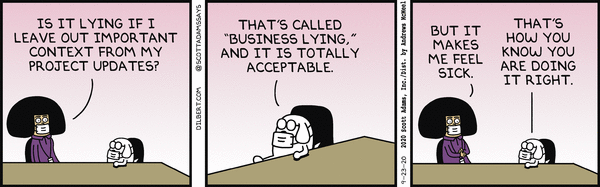
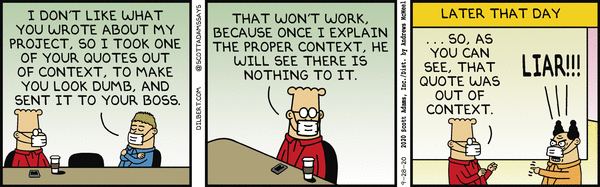
Dilbert and Cough
Copyright Scott Adams, Inc./Distributed by Universal Uclick for UFS

Check out TechSavvy.Life for similar blog posts!

Set an Expire Date for a Sent Email

To add an expiration date to an email you’re sending, you need to open the Properties window for the email.

Open Outlook and compose a message. Then click on Options. Next, in the More Options Group click on Message Options. The Propeties window will be displayed. Now, in the Delivery Options Group, checkmark Expires after and set the Date and Time you wish for the email to expire. Refer to below image:

Outlook Expire Date 1
Settring Expire Date for a sent email

Outlook has a formatting rule for expired emails. This rule can be found under the Conditional Formatting dialog. The dialog box is displayed from the View tab, then select View Settings. Next, select Conditional Formatting option. The email that has expired has a grey font and the text has a strikethrough. See below image:

Outlook Expire Date 2
Setting Expire date formatting

This formatting rule will be applied to the receiptents’s Outlook as well as other web apps, like GMail. Now, click OK twice to close the dialog boxes.

For demonstration purposes, I am backdating the email to show the strikethrough formatting when I open the email. Now, close the Properties window and send the email. You will get a prompt saying the Expire Date has passed if backdating or if the date has actually passed, just click Yes. It can still be opened but the strikethrough gives a visual indication that the email is no longer relevant. See following image:

Outlook Expire Date 3
The sent email with formatting

Set an Expire Date for All Messages You Send

You can setup Outlook to automatically add an expiration date of some number of days after the message is sent.

Double-click to open the message. Next, click on File then Options. Next, click on the Mail tab. Under the Send Messages Group, checkmark Mark messages as expired after this many days and set the days you wish for the email to expire. Click OK to save your change. Refer to below image:

Outlook Expire Date 4
Setting the Expire Date for all emails you send

Delete An Expired Email

To delete an expired email. Just select the strikethrough emails and click the Delete icon in the ribbon or press the Del key. You could also show the expired emails by adding a column to a folder that shows the expiration date.

If you have turned on Outlook auto archive feature, then you can delete emails automatically based on expire date.

Open the AutoArchives window by File > Options > Advanced. Select the option AutoArchive Settings. Checkmark the option Run AutoArchive every 14 days (the default). Select OK twice to save your change. See following image:

Outlook Expire Date 5
Setting the AutoArchive feature

When this option is enabled, emails will be deleted or moved (depending on other settings) when the date has passed.

Set an Expire Date for Received Email

You can set an expiration date for a message you have received.

Double-click to open the message. You can not set an expiration date from the Reading Pane.

Select File then Properties. Under Delivery Options, checkmark the box Expires after amd se;ect a date and time for your message to expire. Then, click Close and the Save icon in the upper left hand corner of your message or click File > Save to save your change. Refer to below image:

Outlook Expire Date 6
Setting Expire Date for received email

I have found TechSavvy.Life blog posts extremely helpful. Check them out for posts on smart phone apps, Macs and PCs!

I Would Like to Hear From You

Please feel free to leave a comment. I would love hearing from you. Do you have a computer or smart device tech question? I will do my best to answer your inquiry. Please mention the device, app and version that you are using. To help us out, you can send screenshots of your data related to your question.

The author’s Vietnam eBook on the Battle for Tra Bong: Events and Aftermath

How to Use iOS 13+ Printing

We are going to explore how to print to PDF while on the go, do custom printing options like labels and manage existing print jobs through AirPrint right on your iOS 13+ devices.

We are going to explore how to print to PDF while on the go, do custom printing options like labels and manage existing print jobs through AirPrint right on your iOS 13+ devices. iOS 13+ has a very robust printing subsystem that can allow you to export PDFs and more.

In this blog post, we’ll delve into how to print custom items like labels. We’ll also see how to print to PDF instead of paper and how to manage printer jobs and viewing ink supply levels.

iOS 13+ can handily help in this situation, and it works in any app that supports printing or sharing. We will be using Safari browser in our examples.

This is for Apple devices supporting iOS 13+

Dilbert and Supremist
Copyright Scott Adams, Inc./Distributed by Universal Uclick for UFS

Check out TechSavvy.Life for similar blog posts!

Print to PDF

To print to PDF using any app that supports printing:

Select the Share (or Print) button in the app. When browsing in Safari, just tap the Share button in the bottom toolbar. Refer to below image:

iPhone Printing 1
The Share ibutton

Next, scroll down and tap Print. See below image:

iPhone Printing 2
The Print option

Using two fingers, pinch your fingers apart as if zooming on the Print Preview. This will generate a PDF and show a new view. Refer to below image:

iPhone Printing 3
Print Preview

In this Print Preview PDF view, tap the Share button in upper right-hand corner. See following image:

iPhone Printing 4
The Share button

Select your choice to save the PDF to Files, send as an iMessage or an email. Refer to below image:

Phone Printing 5
The Save to Files option

Sharing a PDF from Print Preview is easy and works on all apps where printing is supported.

Printing Labels

For now, the only way to print labels for contacts is through third-party apps. This feature has been built-into Macs for years.

If you are using Avery Labels for printing contact sheets, there are two apps worth mentioning. Click on the links below to download from the Apple App Store.

Label Printer for $2.99 and the free Label Printer Lite.

Address Labels for CardLists for $1.99.

Both of these apps have numerous features. You can print multiple contacts or a single contact on a sheet, select templates from Avery and others, add a graphic to your labels, design your label, manually adjust alignment, and much more.

Managing Your Print Jobs and Ink Levels

You can check the ink or toner levels to ensure you have plenty for your print project. Once you have spooled a print job, you can monitor its status or cancel it.

Check Your Ink Levels

With iOS and iPadOS you are able to view your ink or toner levels without a computer. This is easily to do.

Select the Share (or Print) button in the app. Refer to image one above.

Next, scroll down and tap Print. Refer to image two above.

Now, tap the right hand arrow beside an available printer name. See following image:

iPhone Printing 6
Selecting your printer

Select the “i” with an enclosed circle button beside the available printer name. Refer to below image:

iPhone Printing 7
Your selected printer

If there is no printer listed, you do not have a wireless printer and/or lack support for the AirPrint feature; you may skip this section. Nearly all modern day printers support AirPrint.

You will now be viewing the Printer Info which contains ink levels, name and location (if supplied by the printer or printer server). See following image:

iPhone Printing 8
Your printer ink levels

Viewing ink or toner levels can be done from the iOS or iPadOS Print Setup dialog in any app that supports it.

Manage Print Jobs

When you print with AirPrint, you are able to manage your print jobs. Once a print job has been started, you can look at the status of the job and/or cancel the job. This can be done by opening the App Switcher (double-tap the Home button if you have one). For Face ID devices, swipe up partially on the screen, hold, then release.

You’ll see the printer job app at the top of the screen. Just tap it to see the print details like how many pages are being printed and which page is active in the queue. Tap the Cancel Printing button to stop any active print jobs. See below image:

iPhone Printing 9
An active print job

If the print queue is empty,, you will receive a message about no print jobs. Refer to below image:

iPhone Printing 10
No active print jobs

When printing in IOS or iPadOS, a new app will appear in the App Switcher for non-Face ID and Face ID devices to manage print jobs.

I have found TechSavvy.Life blog posts extremely helpful. Check them out for posts on smart phone apps, Macs and PCs!

I Would Like to Hear From You

Please feel free to leave a comment. I would love hearing from you. Do you have a computer or smart device tech question? I will do my best to answer your inquiry. Please mention the device, app and version that you are using. To help us out, you can send screenshots of your data related to your question.
The author’s Vietnam eBook on the Battle for Tra Bong: Events and Aftermath

How to Use Private Browsing in Safari on Your iPhone or iPad

Maybe you’d like to checkout a website without leaving a record of it on your iPhone or iPad. Safari includes a Private Browsing Mode that allows you to do this.

Maybe you’d like to checkout a website without leaving a record of it on your iPhone or iPad. Safari includes a Private Browsing Mode that allows you to do this. Lets explore this Safari feature.

While using Private Browsing Mode on your iPhone or iPad, Safari will not save your browsing history, AutoFill form information, cookie changes and recent searches when you close each Private Browsing window. We will cover this later, but its important to note that you must close each window of your private browsing session.

Private Browsing Mode does not protect your browsing history from the host of your network (such as your business or school), your ISP or websites that might use your IP address to track you.

This is for iPhone and iPad using Safari web browser

Dilbert and No
Copyright Scott Adams, Inc./Distributed by Universal Uclick for UFS

Check out TechSavvy.Life for similar blog posts!

Using Safari Private Browsing Mode

First, open Safari. You should see a toolbar at bottom of the screen, if not, tap to reveal the toolbar.

Next, tap the New Window icon in lower right hand corner. Refer to below image:

iPhone Privacy 1
The Safari New Window icon

Your screen will display your open browser windows. Now, tap the Private button in lower left-hand corner. See below image:

iPhone Privacy 2
The Safari Private button

Your Private Browsing Mode is now setup. At the bottom of the screen, tap the plus “+” button to open a Private window. Note! You will not see the below screen again as long as your device is logged in, you will just go in or our of Private Browsing Mode. See following image:

iPhone Privacy 3
To enter Private Browsing Mode., tap the plus button

From here, you can type in an address or tap on a Favorites. In Private mode, you can use Safari as usual but it won’t track you locally. See below image:

iPhone Privacy 4
Your Private Mode Browsing Mode entry screen

Exit Private Browsing Mode

First, you need close each Private window you opened by clicking the “X” in upper left-hand corner.

Now, to exit Private Browsing Mode, tap the New Window icon, then tap the Private button in lower-left hand corner. The Private button will be in reverse color. You will be switched to non-Private Mode Browsing. Refer to below image:

iPhone Privacy 5
Exiting Private Browsing Mode

I have found TechSavvy.Life blog posts extremely helpful. Check them out for posts on smart phone apps, Macs and PCs!

I Would Like to Hear From You

Please feel free to leave a comment. I would love hearing from you. Do you have a computer or smart device tech question? I will do my best to answer your inquiry. Please mention the device, app and version that you are using. To help us out, you can send screenshots of your data related to your question.

The author’s Vietnam eBook on the Battle for Tra Bong: Events and Aftermath

How to Recall an Email in Gmail

Oops! You just sent a Google Gmail message that you did not want to send. You realize for one reason or another that the message has a mistake or that it shouldn’t have been sent at all. Using Gmail, you have a small window of time in which to undo your mistake.

Oops! You just sent a Google Gmail message that you did not want to send. You realize for one reason or another that the message has a mistake or that it shouldn’t have been sent at all. Using Gmail, you have a small window of time in which to undo your mistake.

By default, Gmail only gives you a 5 second delay in which to recall an email after you hit the Send button. If this is too short, you’ll need to extend the length of time Gmail will keep emails pending before it sends them. Once an email(s) are sent, you are unable to recall them.

This is for Windows 10 PCs, Macs and other devices that support Google Gmail

Dilbert and Clothes
Copyright Scott Adams, Inc./Distributed by Universal Uclick for UFS

Check out TechSavvy.Life for similar blog posts!

Setting the Time Delay in Web Based Gmail

Unfortunately, you can’t change the length of this cancellation period in the Gmail app. You’ll need to do this in the Settings menu of Web based Gmail using your Windows 10 PC or Mac.

First, open Gmail using your browser and click Settings (the gear icon) in upper right-hand corner. Next, click the See all settings option. Refer to below image:

Gmail Recall 1
Open Web based Gmail Settings

In the General tab, you’ll see an option for Undo Send with a default 5 seconds delay. You can change this to periods of 10, 20, and 30 seconds from the drop-down list. It is recommended you set a 30 second delay. See below image:

Gmail Recall 2
Setting the Cancellation Period in Web based Gmail Settings

Scroll way down till you see the Save Changes button at the bottom of the screen. Press this button to save your change. The Settings window will then close.

The cancellation period you’ve selected will be applied to your Google account across all your devices.

How to Recall a Web Email in Gmail

If you want to recall a message sent by a Web based Gmail, you’ll need to do so within the cancellation period that applies to your account. This period begins from the moment you press the Send button. If you followed my recommendation, you have 30 seconds.

To recall an email, press the Undo button that appears in the black Message Sent pop-up. It is visible in the bottom-left corner of the Web based Gmail window. See following image:

Gmail Recall 3
Undo your email in Web based Gmail

This is your only chance to recall the email. If you miss it, or you click the “X” button to close the pop-up, you won’t be able to recall it. Once the cancellation period has passed, the Undo button will disappear and the email will be sent.

How to Recall a Mobile Device Email in Gmail

The process for recalling a mobile device email is similar to using the Web based Gmail. Your cancellation period you setup above for your Google account applies.

Go ahead an send an email using the Gmail app. A black pop-up box will appear at the bottom of your screen, telling you that the email has been sent.

The Undo button will appear on the right-hand side of this pop-up. If you want to stop the email, tap this button within the cancellation period or 30 seconds if following my recommendation. Refer to below image:

Gmail Recall 4
Undo your email using Gmail app

Pressing Undo will recall the email, returning you to the Compose draft screen in the Gmail app. At this point, you can then make changes to your email, save it as a draft or delete it.

RELATED

Note! Coming soon if inactive
How to Recall a Sent Microsoft Outlook Message

I have found TechSavvy.Life blog posts extremely helpful. Check them out for posts on smart phone apps, Macs and PCs!

I Would Like to Hear From You

Please feel free to leave a comment. I would love hearing from you. Do you have a computer or smart device tech question? I will do my best to answer your inquiry. Please mention the device, app and version that you are using. To help us out, you can send screenshots of your data related to your question.

The author’s Vietnam eBook on the Battle for Tra Bong: Events and Aftermath

How to Recall a Sent Microsoft Outlook Message

Oops! You just sent a Microsoft Outlook message that you did not want to send. You realize for one reason or another that the message has a mistake or that it shouldn’t have been sent at all. You can fix your mistake by recalling the message. Using the recall feature, under the right conditions, your email is deleted without the recipient ever seeing the message. You can also send the recipient a replacement email with the correct information.

Oops! You just sent a Microsoft Outlook message that you did not want to send. You realize for one reason or another that the message has a mistake or that it shouldn’t have been sent at all. You can fix your mistake by recalling the message. Using the recall feature, under the right conditions, your email is deleted without the recipient ever seeing the message. You can also send the recipient a replacement email with the correct information.

For a message to be recalled, both you and the recipient must have a Microsoft 365 Business Account or Microsoft Exchange email account in the same organization. The email must not not have been read by the recipient.

However, even if you and the recipient use different email accounts, the recall feature is useful. Though the initial email won’t be deleted, the recipient receives a follow-up message indicating that you want to recall the previous email. That tells them that your initial one is incorrect for some reason. You should then follow-up your initial email and recall message with another email that contains the right information or corrects the initial one.

To summarize, three emails are involved. The initial email with incorrect information, the recall message email, then the follow-up email with the correct information.

This is for Windows 10 PCs, Macs and other devices that support Microsoft Outlook

Dilbert and Ideas
Copyright Scott Adams, Inc./Distributed by Universal Uclick for UFS

Check out TechSavvy.Life for similar blog posts!

Recall a Message

Let’s send an email. Open Outlook, start new email and address to a recipient, then send the email. Refer to below image:

Recall 1
Initial Outlook email

Now, let’s say you notice an error in your email and want to recall it. In our example, the vacation dates are incorrect.

Open the email from your Sent Items folder. Select the Actions icon and click the option Recall This Message. See following image:

Recall 2
Recall initial Outlook email

The Recall This Message window opens to offer two options. Choosing Delete unread copies of this message tries to remove the message with no follow-up. Choosing Delete unread copies and replace with a new message provides the opportunity to send a follow-up message with the correct information. To learn of the recall’s success, ensure the box is checked for Tell me if the recall succeeds or fails for each recipient then click OK. Refer to below image:

Recall 3
Options for recalling initial Outlook email

If you chose the option to replace with a new message, a new email appears with the text from the initial email. You can fix any errors and send a corrected replacement message or a follow-up email with the corrected information. In my example, the recall message failed because I had already read the message. See following image:

Recall 4
Recall of initial Outlook email failed because recipent (me) had read the message

If you and the recipient use the same Microsoft 365 Business or Exchange, then the initial email should be deleted automatically. If so, you will receive an email saying the recall was successful for that recipient.

If you and the recipient use different email accounts, the initial emails remains in that person’s inbox. A follow-up email arrives that tells the recipient you would like to recall the message. You then have to rely on the recipient to delete or ignore the initial message. At this point, a third email could be sent with the corrected information. Refer to below image:

Recall 5
Corrected Outlook email

RELATED

Note! Coming soon if inactive
How to Recall an Email in Gmail

I have found TechSavvy.Life blog posts extremely helpful. Check them out for posts on smart phone apps, Macs and PCs!

I Would Like to Hear From You

Please feel free to leave a comment. I would love hearing from you. Do you have a computer or smart device tech question? I will do my best to answer your inquiry. Please mention the device, app and version that you are using. To help us out, you can send screenshots of your data related to your question.

The author’s Vietnam eBook on the Battle for Tra Bong: Events and Aftermath

How to Check if Your iPhone or Android is Running Smoothly

Want to checkout your iPhone or Android with diagnostics? Maybe you are wanting to sell the device and need to see if the device is working properly. Or you just wish to checkout the performance of your device. Whatever the reason, let’s explore a couple of apps from Apple’s or Google’s App Store.

Want to checkout your iPhone or Android with diagnostics? Maybe you are wanting to sell the device and need to see if the device is working properly. Or you just wish to checkout the performance of your device. Whatever the reason, let’s explore a couple of apps from Apple’s or Google’s App Store.

The apps are TestM and Phone Diagnostics. Both apps are free but come with ads. You can remove the ads for Phone Diagnostics for a small fee. The apps run similar diagnostic tests for touch screen, audio, video, camera, microphone, sensors and other components on your phone.

After you have installed these apps, their associated icons will appear on your Home screen (see left bottom corner) like the image below:

iPhone Diagnostics 1
The installed Diagnostic apps

This is for the iOS and Android devices. Screenshots are for the iPhone

Dilbert and Stupid Again
Copyright Scott Adams, Inc./Distributed by Universal Uclick for UFS

Check out TechSavvy.Life for similar blog posts!

TestM App for iPhone and Android

Designed for iOS and Android, the free TestM app can run diagnostics on your phone’s touch screen, sound, camera, sensors, network connectivity and other hardware.

The app gives you full control over the tests you want to run. Opt for a quick test to check three key features: touch screen, earpiece audio and high-frequently audio; or commit to a full test to check out all supported features. Otherwise, you can test just one specific feature, like the accelerometer, Bluetooth connectivity, camera flash and Face ID on an iPhone.

Most of the tests are interactive. The touch-screen test asks you to draw on the screen, the microphone test asks you to speak, the audio test prompts you to tap the numbers you hear and the camera test requests that you pose for a picture. One of the nifty tests is the Internet Speed Test to measure your phone’s upload and download speed.

After you’ve completed your testing, TestM compiles a report that reveals the key stats of your phone along with the outcome of the tests you ran. Each individual feature tested receives a green checkmark for good or a red checkmark for bad.

Any features that flunk can be re-tested from the report screen. You can share the report with someone else via email, messaging, or another app or service. TestM can even generate a list of local repair shops that might be able to fix whatever hardware ailment is affecting your phone. Refer to below image:

iPhone Diagnostics 2
The TestM app Home screen

Phone Diagnostics for iPhone

Available for the iPhone, the Phone Diagnostics app offers a range of tests you can run one after the other. The app can check your touch screen, multi-touch capabilities, camera, flash, speaker, microphone, Wi-Fi, cellular access, sensors and other components. Just tap the button for the test you wish to run. Alternatively, tap the Play button in the middle of the screen to run all the tests one after the other. Unlike TestM, you can remove ads by paying a small fee.

The multi-touch test asks you to place three fingers on the screen. The camera test snaps photos using the front and rear cameras, while the video record test shoots a quick video using the rear camera. The motion test asks you to move your phone around, and the GPS test verifies your location on a map.

The app doesn’t generate any reports or results, but each successful test paints its button in green, while a failed or interrupted test appears in red. The app also attempts to steer you to a repair shop should your iPhone need to be fixed. See below image:

iPhone Diagnostics 3
The Phone Diagnostics app Home screen

I have found TechSavvy.Life blog posts extremely helpful. Check them out for posts on smart phone apps, Macs and PCs!

I Would Like to Hear From You

Please feel free to leave a comment. I would love hearing from you. Do you have a computer or smart device tech question? I will do my best to answer your inquiry. Please mention the device, app and version that you are using. To help us out, you can send screenshots of your data related to your question.
The author’s Vietnam eBook on the Battle for Tra Bong: Events and Aftermath

How to Secure Your iOS Lock Screen

Do you want to configure your iOS Lock Screen to block those picking up your device from reading messages, viewing the Today View or interacting with Siri.

Do you want to configure your iOS Lock Screen to block those picking up your device from reading messages, viewing the Today View or interacting with Siri.

It may appear that securing our devices with Touch ID and Face ID is all we need to protect our data. However, there’s other data accessible on the Lock Screen that can still be read by potential data thieves or on-lookers that can gain valuable information.

Lets explore how to secure the Lock Screen so that your messages and push notifications aren’t visible to anyone except you when you pick up your device. We’ll do this by disabling push notification, Siri and the Today View when the device is locked.

By doing the above, you will make your device more secure and prevent onlookers, or someone picking up your device, from gaining access to your private information contained on the Lock Screen.

This is for the iPhone and iPad running iOS 13+. Screenshots are for iPhone

Dilbert and Stupid
Copyright Scott Adams, Inc./Distributed by Universal Uclick for UFS

Click to tweet on how you like TechSavvy.Life!

Disable Notification and the Today View

Open the Settings app. Next, select Face ID & Passcode. Enter your Passcode to proceed. Then, scroll down till you see the section ALLOW ACCESS WHEN LOCKED. Now, toggle off all options except for Siri. We will handle Siri in the Disable Siri section below. Just ignore the USB Accessories option. You will be toggling off 7 options. Refer to below for before toggling off image:

iPhone Lock Screen 1
Before disabling

Refer to below for after toggling off image:

iPhone Lock Screen 2
After disabling

Unchecking items in this section will make them unavailable from the Lock Screen when the user is not authenticated by Passcode, Touch ID or Face ID.

There is an alternative feature if you are using a Face ID device.

Open the Settings app. Next, select Face ID & Passcode. Enter your Passcode to proceed. Scroll down to the ATTENTION section. Now, toggle on Attention Aware Features. See below image:

iPhone Lock Screen 3
Setting the Attention Aware Features

The Attention Aware Features setting is available on iPhone and iPads with Face ID.

When this option is enabled, you will be unable to view notifications on the Lock Screen or Notification Center until the face of the device owner is visible to the Face ID sensor. This feature also provides not dimming the screen when looking directly at it and lowering the volume when the device is picked up.

However, the Today View, will still be visible. You can disable this behavior from the Lock Screen by following instructions in Disable Notifications and the Today View section above.

Disable Siri

If you want to ensure the highest privacy protection, you can disable Siri on the Lock Screen till your device has been authenticated with the Passcode, Touch ID or Face ID.

Open the Settings app. Next, select Siri & Search. Toggle off the Allow Siri When Locked option. See following image:

iPhone Lock Screen 4
Disabling Siri

Now whenever you try to access Siri and any personal requests it allows, you will first need to enter your Passcode, Touch ID or Face ID.

Click to tweet if you find TechSavvy.Life blog posts extremely helpful. Check them out for posts on smart phone apps, Macs and PCs!

I Would Like to Hear From You

Please feel free to leave a comment. I would love hearing from you. Do you have a computer or smart device tech question? I will do my best to answer your inquiry. Please mention the device, app and version that you are using. To help us out, you can send screenshots of your data related to your question.

The author’s Vietnam eBook on the Battle for Tra Bong: Events and Aftermath

What Is Apple’s iCloud Service?

ICloud is Apple’s umbrella term for cloud-syncing feature. Basically, anything that is backed up or synced with Apple’s servers is considered a part of iCloud.

ICloud is Apple’s umbrella term for cloud-syncing feature. Basically, anything that is backed up or synced with Apple’s servers is considered a part of iCloud.

The purpose of iCloud is to store data securely on Apple’s remote servers. All your data is backed up and synchronized between all your devices. This allows you to retrieve your data in case you lose your smart device.

If so, you simply log into iCloud.com to retrieve your data or sign in with your Apple ID to automatically restore your data on your new smart device.

This is for smart devices and desktop/laptops. Screenshots are from iPhone and PC

Dilbert and Disband
Copyright Scott Adams, Inc./Distributed by Universal Uclick for UFS

Click to tweet on how you like TechSavvy.Life!

Sign In On Your Apple Device

Visit iCloud.com on your smart device and sign in with your Apple account to see what services are cloud synced.

When you sign in you can access most of these features:

  1. Photos
  2. Notes
  3. Reminders
  4. Find My iPhone

Refer to below image:

Your iCloud services on a smart device

Your Account Settings

From your smart device, you can also access your Accounts Settings by clicking the blue link. Here you can view your Storage. See below image:

Your smart device storage

To see everything that your iCloud account is backing up, open the Settings app on your smart device, select your Profile at the top of the list, then navigate to the iCloud section. Here you can enable or disable app data backup. See following image;

Enable/disable apps to be backed up

Manage Storage

To manage your iCloud storage. Click on the Manage Storage section. Refer to below image:

Manage your storage

Here you can upgrade to a monthly storage plan for more storage by clicking on Change Storage Plan. See below image:

Change your storage plan

You can purchase 50GB for $.99, 200GB for $2.99 or 2TB for $9.99 per month. See following image:

Set or upgrade your storage plan

Sign In On Your Desktop

Visit iCloud.com on your iPad, Mac or desktop and sign in with your Apple account to see what services are cloud synced.

When you sign in on your iPad, Mac or desktop you gain access to most of these features:

  1. Photos
  2. iCloud Drive
  3. Notes
  4. Mail
  5. Calendars
  6. Contacts
  7. Settings
  8. Reminders
  9. Pages, Numbers, or Keynote*
  10. Find My iPhone
  11. Find My Friends

See below image:

Your iCloud services from a desktop/laptop

Click to tweet if you find TechSavvy.Life blog posts extremely helpful. Check them out for posts on smart phone apps, Macs and PCs!

I Would Like to Hear From You

Please feel free to leave a comment. I would love hearing from you. Do you have a computer or smart device tech question? I will do my best to answer your inquiry. Please mention the device, app and version that you are using. To help us out, you can send screenshots of your data related to your question.

The author’s Vietnam eBook on the Battle for Tra Bong: Events and Aftermath

How to Find Text Using Safari on Your iPhone and iPad

At times it’s tough to find specific information within a web page in Safari for iPhone or iPad. Fortunately, Safari allows you to search for text on any currently open web page using either the touch screen or an attached keyboard. Let’s explore how to do this.

If you don’t have a keyboard hooked up to your iPhone or iPad, you can search for text within the current page using the touchscreen, although the feature is in a non-obvious place. This technique works both on iPhone and iPad.

This is for iPhone and iPad using the Safari web browser

Dilbert and Virus Deaths
Copyright Scott Adams, Inc./Distributed by Universal Uclick for UFS

Click to tweet on how you like TechSavvy.Life!

Find a Web Page

First, open Safari and navigate to the page you’d like to find text in. Once the page is loaded, tap on the Address Bar at the top of the screen. Refer to below image:

Safari Text 1
Locate a web page to Search

An on-screen keyboard will appear at the bottom of the screen and the current web page address will be highlighted. If you want, you can clear the address bar by tapping the backspace key on the keyboard (or tap on the small “X” in a circle beside the address). See below image:

Safari Text 2
Keyboard available for your Search

Set Your Search

Type in what you’d like to find on the page. Locate the On This Page section at the bottom of the search pop-up. Tap on the line just below it that starts with Find. See following image:

Safari Text 3

Enter your Search criteria

View Your Search

The pop-up will close and you will see the web page again with a search bar at the very bottom. Safari will highlight all occurrences of your search query on the current page. Refer to below image:

Safari Text 4
Your Search criteria highlighted

Navigate Your Search

You can cycle through the results, up and down the page, with the arrows beside the search bar. See below image:

Safari Text 5
Navigate your Search

Close Your Search

When you’re finished searching, tap Done in the lower-left corner of the screen. The Find in page mode will close. See following image:

Safari Text 6
Close your Search

Click to tweet if you find TechSavvy.Life blog posts extremely helpful. Check them out for posts on smart phone apps, Macs and PCs!

I Would Like to Hear From You

Please feel free to leave a comment. I would love hearing from you. Do you have a computer or smart device tech question? I will do my best to answer your inquiry. Please mention the device, app and version that you are using. To help us out, you can send screenshots of your data related to your question.

The author’s Vietnam eBook on the Battle for Tra Bong: Events and Aftermath

How Do You Start Safari With a Blank Page?

In the “old days”, back to iPhone 4, Safari was slooooow to load. By default, Safari either loads the last page you visited or your bookmarks. This tip will start Safari with a blank page. Then you can immediately begin searching for a particular topic without having to wait for graphics and text to load or for installed apps.

This is the second post in a series on Apple iPhone and its Safari web browser. I am updating and republishing this post. I just read another long blog about how to stop Safari from opening apps upon startup. All you have to do is start Safari with a blank page. Here’s how to do this.

In the “old days”, back to iPhone 4, Safari was slooooow to load. By default, Safari either loads the last page you visited or your bookmarks. This tip will start Safari with a blank page. Then you can immediately begin searching for a particular topic without having to wait for graphics and text to load or for installed apps.

This is for iPhone, iPad, and Mac using Safari web browser

Following are the steps to do this:

  • Tap on Safari, usually located in bottom right of your Home page
  • Tap on URL field and type “about:blank” (without quotation marks)
  • Tap Go (for iOS13 or higher)
  • Tap on the bottom Share arrow icon and scroll
  • Select Add to Home Screen to create a bookmark
  • Label the bookmark to something like “Blank Safari” (without any quotation marks)
  • Tap Add (for iOS13 or higher)
  • You will see a white blank Safari icon on your Home page. If you have several pages, it will appear on an empty icon space
  • You can drag this icon to wherever you want
  • When you tap this icon, Safari will instantly load a blank page

Your blank Safari screen should look like the following image:

Safari Blank Page
Just highlight the about:blank URL and enter your search criteria.

I Would Like to Hear from You

Please feel free to leave a comment. I would love to hear from you. Do you have a computer tech question? I will do my best to answer your inquiry. Please mention the app and version that you are using. To help me out, you can send screenshots of your data related to your question.

The author’s Vietnam eBook on the Battle for Tra Bong Vietnam: Events and Aftermath