How to Create Rolling Credits in PowerPoint

Do you need to give people credit for your PowerPoint presentation? If so, you can add these credits to your final slide by using the scrolling text animation feature. You can use an existing presentation or add this to your next one. In our example, we are using an existing PowerPoint slide show.

This is for PowerPoint for Office 365 Windows and Mac versions. Other versions of PowerPoint will be similar.

Setting Up the Slide

  • Open an existing presentation or create a new one
  • Navigate to the final slide
  • Click the Insert tab
  • Insert a blank text box by clicking the Text Box icon in the Text group. Your cursor will turn into an down arrow. After you click, the cursor changes to a crossbar. Click and drag the cursor to draw the text box. See followin image:
Rolling Credits 1
PowerPoint drawing the text box for the Credits

Entering Your Presentation Credits

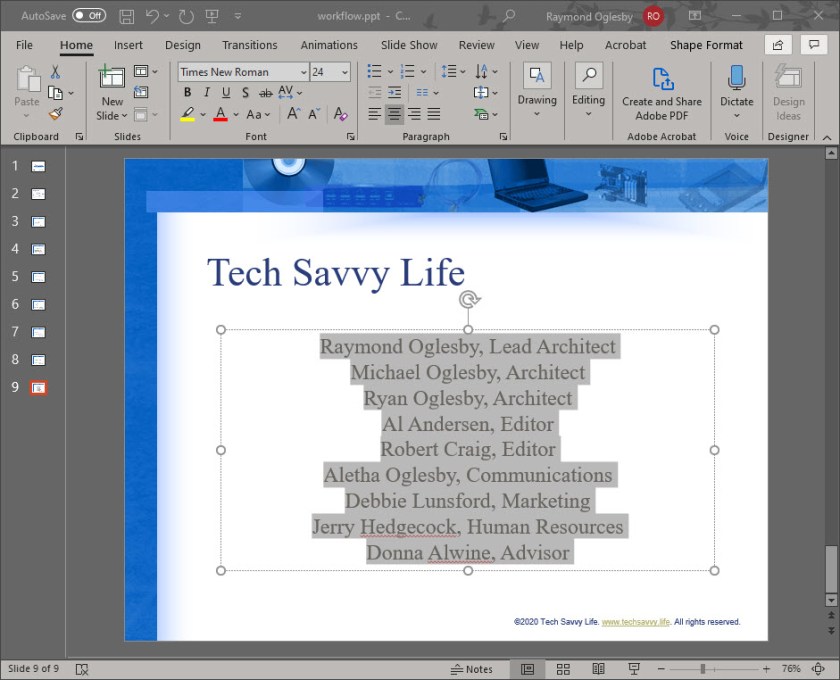
  • Enter your credits. The text box will expand, if necessary, as you enter the names.
  • Highlight your entries
  • Select the Home tab
  • Since credits are usually centered, select the Center alignment icon in the Paragraph group. See following screen:
Rolling Credits 2
PowerPoint Credits completed and centered

Adding the Animation Effects

Now lets add the animation to the text box. With the textbox selected:

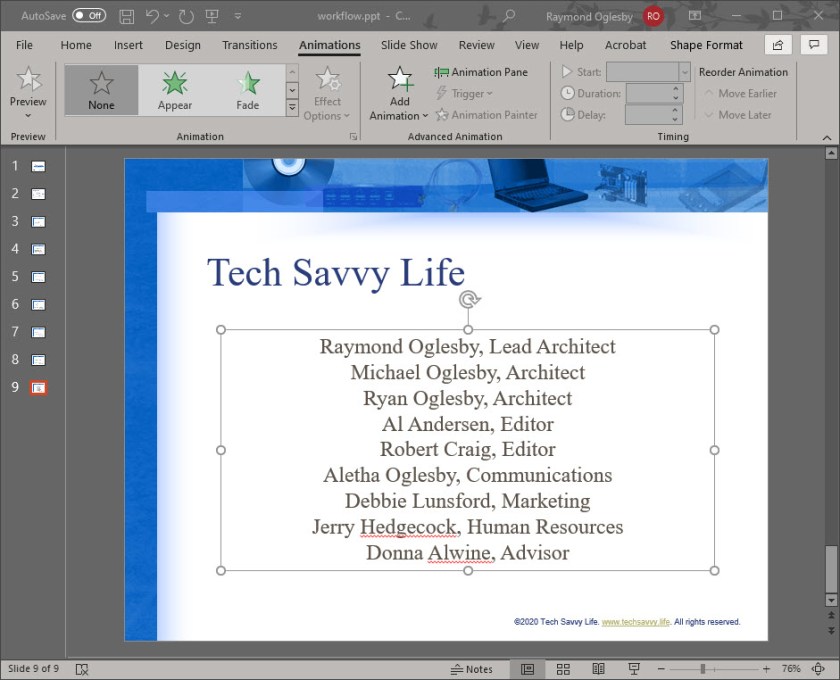
  • Click the Animations tab
  • Select Add Animation button in the Advanced Animation group. See following image:
Rolling Credits 3
PowerPoint about to add the animations
  • A drop down menu will appear. Scroll to the bottom and select More Entrance effects. The Add Entrance Effect window will be shown. See following image:
Rolling Credits 4
PowerPoint Add Entrance Effect drop down menu

Setting the Credits Animation

  • Scroll down to the Exciting group and select Credits. You will see the credits animation scrolling effect in the background.
  • Click OK to save your changes
Rolling Credits 5
PowerPoint selecting the Credits animation

The rolling credits will be added to your presentation. You may now view your slideshow from the beginning or from the current slide to see the Rolling Credits in action.

Thats it. You are finished.

I Would Like to Hear from You

Please feel free to leave a comment. I would love hearing from you. Do you have a computer or smart device tech question? I will do my best to answer your inquiry. Please mention the device, app and version that you are using. To help us out, you can send screenshots of your data related to your question.


The author’s Vietnam eBook on the Battle for Tra Bong: Events and Aftermath


How to Loop a PowerPoint Presentation

At times, you will want to entertain your guests before an event, like at a wedding or a trade show. You’ll want to loop your PowerPoint presentation so your guests aren’t staring at a blank screen. I have included a link to a sample slideshow using the loop feature.

Here is a link to a sample slideshow demonstrating the PowerPoint looping feature. I am using a presentation available from TechRepublic.

Lets examine how this is done.

This is for PowerPoint for Office 365 Windows and Mac versions. Other versions of PowerPoint will be similar.

Dilbert Money
Copyright Scott Adams, Inc./Distributed by Universal Uclick for UFS

Setting Up your Slideshow

First, open your PowerPoint presentation in which you would like to use the loop feature. Once open, navigate to the Set Up group of the Slide Show tab and select the Set Up Slide Show option.

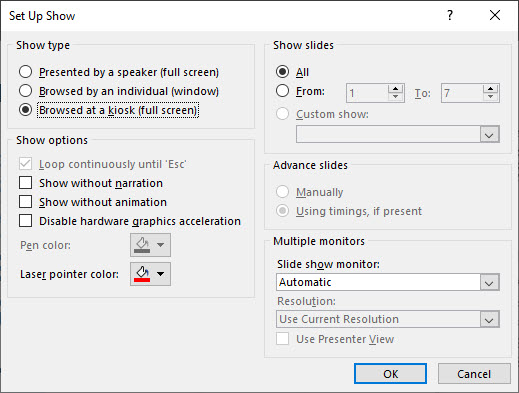
The Set Up Show window will open. Check the box next to Loop continuously until Esc. After selection, click OK. Refer to below image:

Powerpoint Loop 1
Setting the Loop feature

When you play your slideshow, it will loop until you press the “Esc” key. Now we want to set up the presentation for automatic slide transitions.

Applying the Loop Feature

Navigate back to the Set Up group of the Slide Show tab and select the Set Up Slide Show option. There is one option you need to set, the Using Timings, if Present under the Advance Slides group.

Now, under the Show Type group, select Browsed at a kiosk (full screen). The Loop continuously until Esc option will be enabled automatically (we turned it on above) Also, select the Using timings, if present option. Select OK to proceed. See following image:

Powerpoint Loop 2
Setting the kiosk feature

By setting the Browsed at a kiosh (full screen) option, the Forward and Back keys are locked, thus allowing unattended playback without the fear of someone breaking it.

Setting Up Transitions

Now, lets setup the timings of your slides. Click on the Transitions tab and check the box next to After and set the timing for slide transition. In my example, I have the timining set to 10 seconds. If On Mouse Click is enabled, it won’t work because we have previously selected to loop the slideshow until the presenter has pressed the “Esc” key. To finish the loop feature, select the Apply To All option. See following image:

Powerpoint Loop 3

Now when you play your presentation, it will continuously loop until you press the “Esc” key.

Related

How to use the Dim feature in PowerPoint which is demonstrated in Slide 3 of the sample slideshow.

I Would Like to Hear from You

Please feel free to leave a comment. I would love hearing from you. Do you have a computer or smart device tech question? I will do my best to answer your inquiry. Please mention the device, app and version that you are using. To help us out, you can send screenshots of your data related to your question.
The author’s Vietnam eBook on the Battle for Tra Bong: Events and Aftermath

Want to Print Nonadjacent Ranges in Excel?

Normally, we chose an adjacent range of cells with headers for printing in Excel. However, there are occasions we want to print nonadjacent cell ranges. There are some of us who didn’t realize you could do this in a single print area. Let’s see how this is done.

This is for Excel for Office 365 Windows and Mac versions. Other versions of Excel will be similar.

Dilbert Touching
Copyright Scott Adams, Inc./Distributed by Universal Uclick for UFS

First Method of Selecting Cells

One method is holding down the “Cntl” key while selecting the range of cells you want in your Print Area.

  • Select your first range of cells
  • Press and hold the “Cntl” key
  • Select additional ranges of cells
  • Release the “Cntl” key
  • Click the Page Layout tab
  • Click Print Area
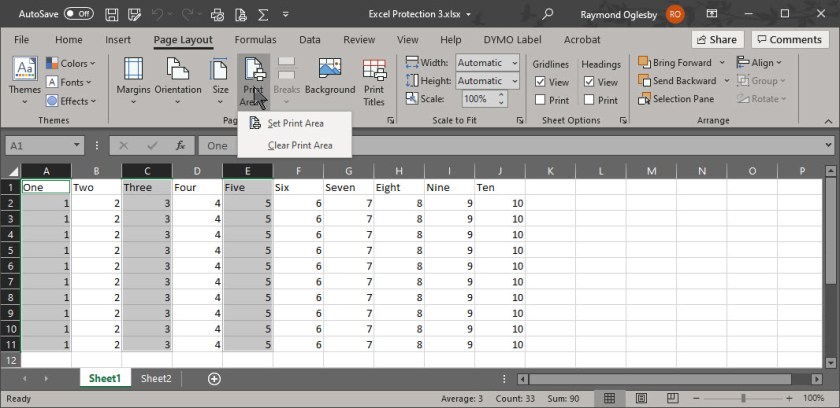
  • Click Set Print Area. See following image for my selection of nonadjacent cells in Print Area:
Excel Print Area 1
Selecting nonadjacent cells Print Area

Please note that each range you selected will print on a separate page in the same order that you selected regardless of cells location. Also, your current page settings will apply to all your pages. For example, you are unable to mix Landscape and Portrait printing.

Second Method of Selecting Cells

Another method is adding nonadjacent cells to an existing Print Area.

  • Select a range of cells you want to add to your Print Area
  • Click the Page Layout tab
  • Click Print Area
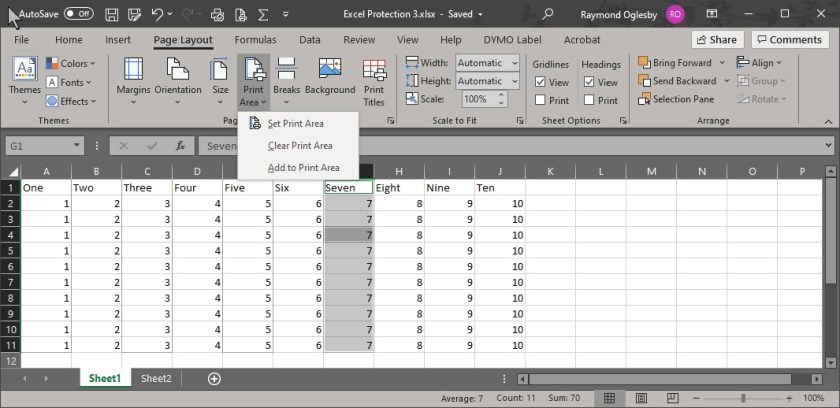
  • Click Add to Print Area. Refer to below image:
Excel Print Area 2
Adding a nonadjacent cell range to Print Area

As with the first method, each range will print on a separate page in the order selected and with the same print settings.

Locate the Print Area

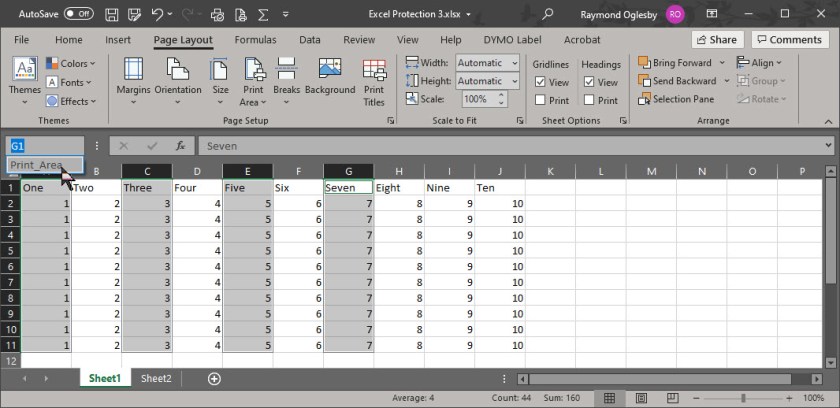
In the Name box to the left of the Formula bar, click it’s drop down arrow and select Print_Area. See following image:

Excel Print Area 3
Using the Name box to show the Print Area

Alternatively, from the View tab, click Page Break Preview in the workbook Views group to see the Print Area.

Click Normal to return to default Excel view.

Two Methods on Printing Your Ranges

You may not want each nonadjacent cell range printed on a separate page. You have two options:

  1. Move the cell ranges adjacent to each other and reset your Print Area
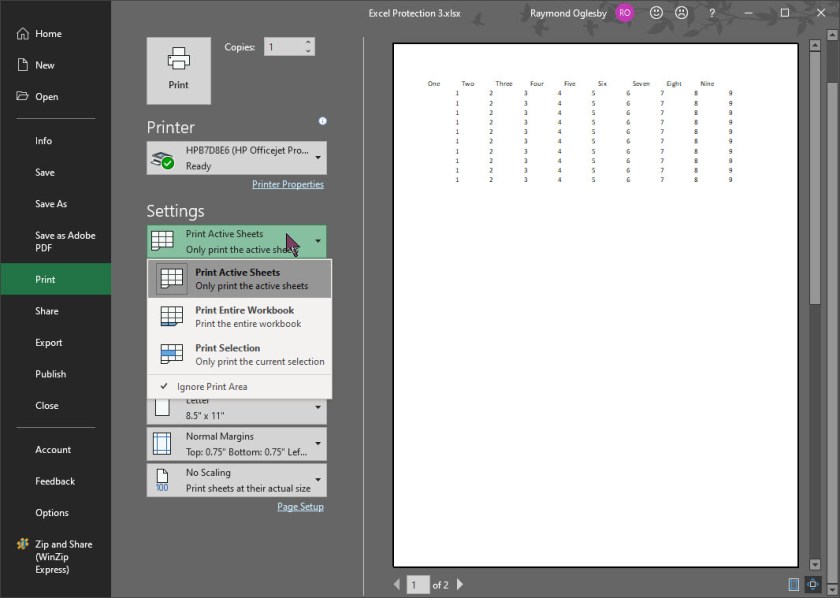
  2. Before printing, select the option to Ignore Print Area. The Active Sheet is now ready for printing. Your Print Area is still saved, you are just ignoring it. Refer to following image:
Excel Print Area 4
Ignoring the Print Area for printing

I Would Like to Hear from You

Please feel free to leave a comment. I would love hearing from you. Do you have a computer or smart device tech question? I will do my best to answer your inquiry. Please mention the device, app and version that you are using. To help us out, you can send screenshots of your data related to your question.
The author’s Vietnam eBook on the Battle for Tra Bong: Events and Aftermath

Turning on Verbose Boot Mode to View Background Messages in Windows 10

For many users, we just expect the operating system to work as advertised. But what if you need to know or just curious about what happens in the background upon boot/restart or shutdown of your PC. Microsoft Windows 10 hides this from users by default, they assume you don’t need to see it. But for technical users or those troubleshooting problems, it would be helpful to know what is happening as the machine boots or restarts. With a tweak to the Windows 10 Registry we can see its boot/restart or shutdown behavior. To do this we are going to turn on Verbose Boot Mode.

This post involves editing the Windows 10 Registry. It is recommended that you backup the Registry before making any changes. Below are the steps to backup the Registry using a free software program called RegBak. The RegBak program was covered in an earlier post. I am posting about RegBak again in case you missed it or you may click here to view the previous post.

This is for Windows 10 operating system

Dilbert Jobs
Copyright Scott Adams, Inc./Distributed by Universal Uclick for UFS

The RegBak Software Utility

The program I recommend is called RegBak, a freeware program. You can download the program here. Click the Download button for RegBak then click the regbak.exe file at the bottom of the screen and follow the install instructions. Once installed, you should see a screen like the one below:

RegBak Install
After installing RegBak

To backup your Windows registry:

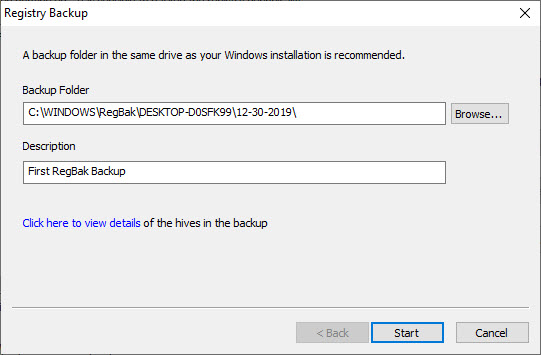
  • Click the New Backup button
  • Enter a Description (this is optional)
  • Click Start

Below is a screenshot:

RegBak Install
Starting to run RegBak
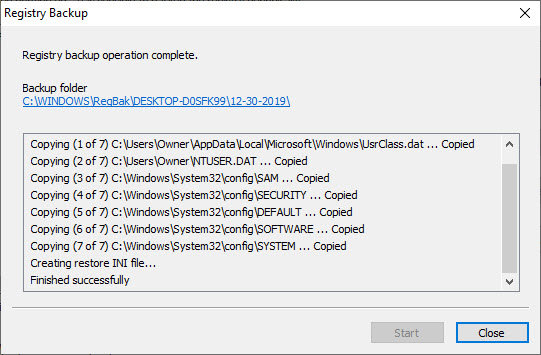
  • Click Close

Your screen will look like the below image:

RegBak Results
Results of running RegBak
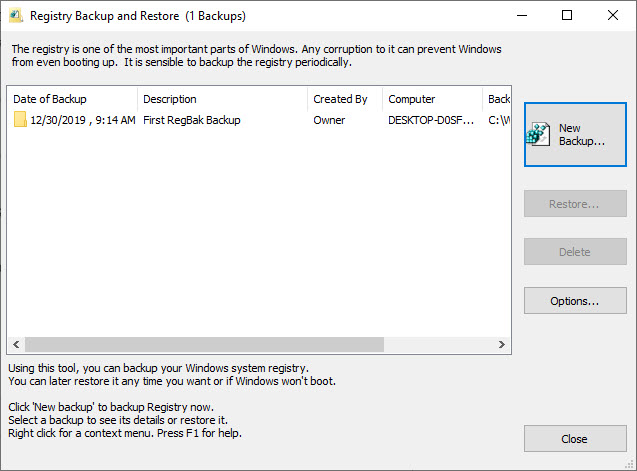
  • Click Close to exit

Your screen should look like the below image:

RegBak Results
Registry backup complete

To Restore from a backup: Note! only do this if your Registry is corrupt.

  • Highlight a backup entry
  • Click the Restore button
  • Click Close

You can also delete a backup by highlighting an entry and clicking on Delete. Feel free to check out the Options button. I would just leave the default options as is.

Changing the Registry

After you have backup up the Registry, type “regedit.exe” (without quotes) in the Cortana search box. You will see a similar screen like below:

Verbose Registry Editor
Registry Editor screen

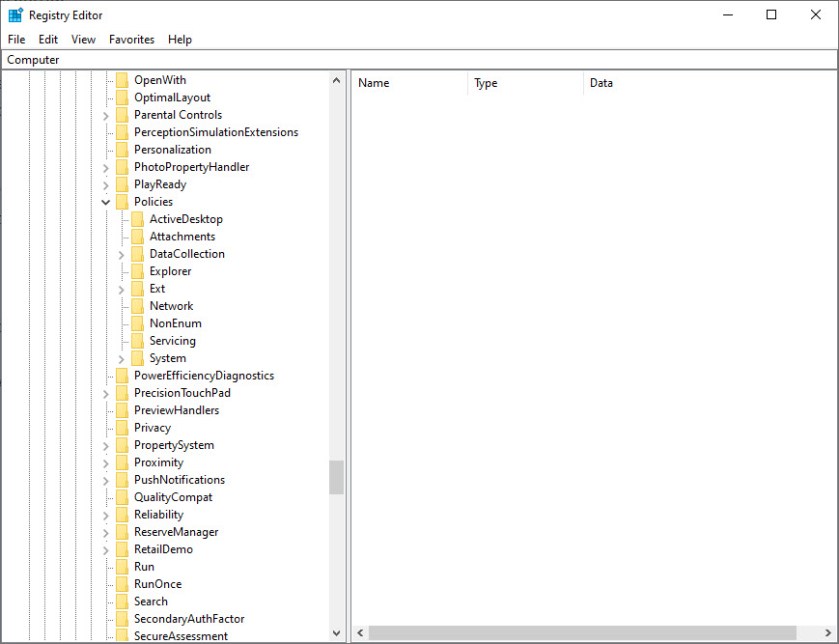
Expand the Registry to the following key:

HKEY_LOCAL_MACHINE\SOFTWARE\Microsoft\Windows\CurrentVersion\Policies\System

You screen should look like the below image:

Registry Editor found key to change screen

Right click the System folder
Select New
Select DWORD (32 bit) Value
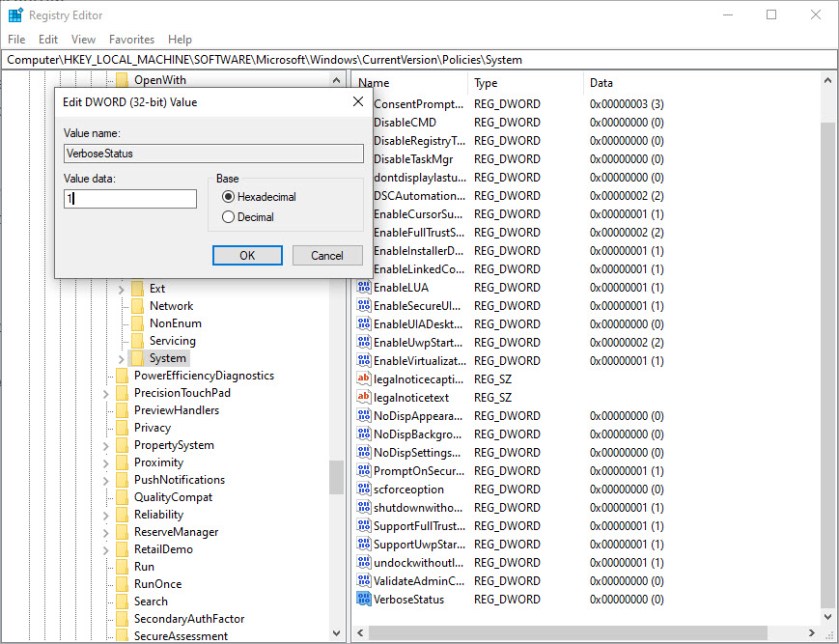
Name the new DWORD to VerboseStatus
Change its current value of 0 to a 1. See following image:

Verbose Mode Set On
Registry Editor key change for turn on Verbose Mode screen

Click OK to accept the change
Click File>Exit to quit your edit of the Registry

The next time you boot/restart or shutdown your PC you should see a list of your boot/restart or shutdown activity. As mentioned earlier, the information is helpful in resolving computer problems. In my testing, this is not what I expected; I wanted to see a lot more detail than what was provided. It did help me resolve a shutdown problem. Its worth a try to see if it helps you.

When you need to, you can change the VerboseStatus value back to a 0 to turn the feature off.

I Would Like to Hear from You

Please feel free to leave a comment. I would love hearing from you. Do you have a computer tech or smart device question? I will do my best to answer your inquiry. Please mention the device, app and version that you are using. To help us out, you can send screenshots of your data related to your question.
The author’s Vietnam eBook on the Battle for Tra Bong: Events and Aftermath


Using the Microsoft Word Zoom In or Out Feature

I get frustrated when Microsoft Word does not remember my last zoom setting for a document. At times it seems to just forget. It will bring up four pages when I only want to work on one page. To help us out, let’s explore a few options of the Zoom feature.

The Zoom bar is located on the right side of the status bar at the bottom for a Word document. To use the Zoom bar, click and drag the slider to the right or left to zoom out or in. As you do so, the page percentage decreases or increases. Also, you can click the “+” or “-” sign to zoom out or in by 10% increments.

This is for Word for Office 365 Windows and Mac versions. Other versions of Word will be similar.

The Zoom Dialog

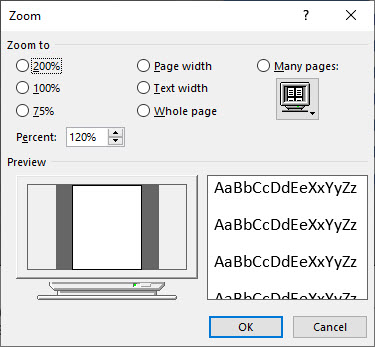
If you want more control, the Zoom Dialog Box offers a few more options. To access this, select View>Zoom. You will see the following screen:

Word Zoom Options
Word Zoom options

You can choose a predefined option, like “75%”, as noted on the left hand side of the dialog box. Alternatively, you can choose the up and down arrows in the Percent button to increase or decrease the percentage in 1% increments. These percentages will differ depending on your device’s screen size of your Word windows (full screen, half screen, etc). When you are finished, click OK.

Some Shortcuts

If your are using a touchscreen or touchpad, you can take advantage of the pinch to zoom feature. This feature allows you to zoom out or in by placing two fingers on the screen. To Zoom out, you pinch your fingers together, to Zoom in, you separate your fingers.

If you are using a mouse, you can hold the Ctrl button and scroll the wheel up or down to Zoom in and out. Some mouses have separate flywheel buttons for zooming in or out.

I Would Like to Hear from You

Please feel free to leave a comment. I would love hearing from you. Do you have a computer or smart device tech question? I will do my best to answer your inquiry. Please mention the device, app and version that you are using. To help us out, you can send screenshots of your data related to your question.

The author’s Vietnam eBook on the Battle for Tra Bong: Events and Aftermath

How to View Two Excel Worksheets From the Same Workbook Side by Side

There is a way to compare the contents in two sheet tabs in the same workbook. Lets see how this is done. In my example, Sheet1 has eleven rows, Sheet2 has ten rows. See following image:

Excel Side by Side 1
The two sheets

This is for Excel for Office 365 Windows and Mac versions. Other versions of Excel will be similar.

Opening a Second Window for Comparing Contents

In the View tab of the Window group, click New Window

Excel Side by Side 2
Setting up for a new window

A second window of the same workbook opens, like a clone. At the end of the workbook name is a number denoting the sheet, either a one or a two. The new window becomes the active sheet.

Excel Side by Side 3
The two windows

Setting Up Side by Side Viewing

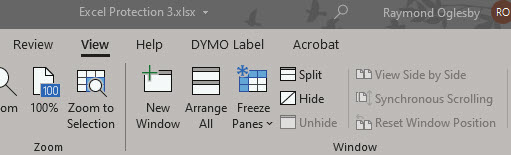
In the View tab of the Window group, click View Side by Side

A Compare Dialog box may appear. If so, choose the sheet you want to compare with the active sheet.

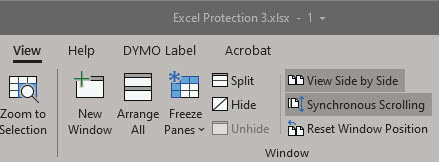
Click View Side by Side. When you select this view, Synchronous Scrolling should already be turned on. This allows you to scrool both worksheets at the same time. If its not turned on, click the View tab, then click Sychronous Scrolling. See below image:

Excel Side by Side 5
Setting up for viewing side by side

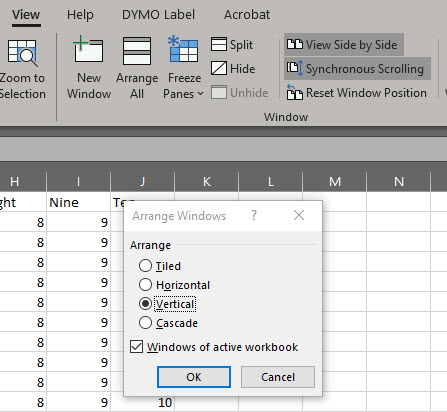
If the two windows didn’t arrange side by side, from the View tab, click Arrange All>Vertical and check the box for Windows of active workbook. Refer to following image:

Excel Side by Side 6
Setting up how to view the side by side comparison

Viewing the Two Sheets Side by Side

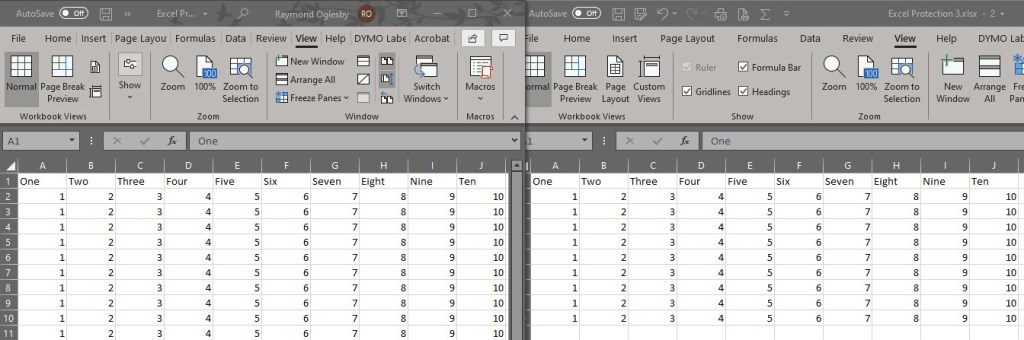
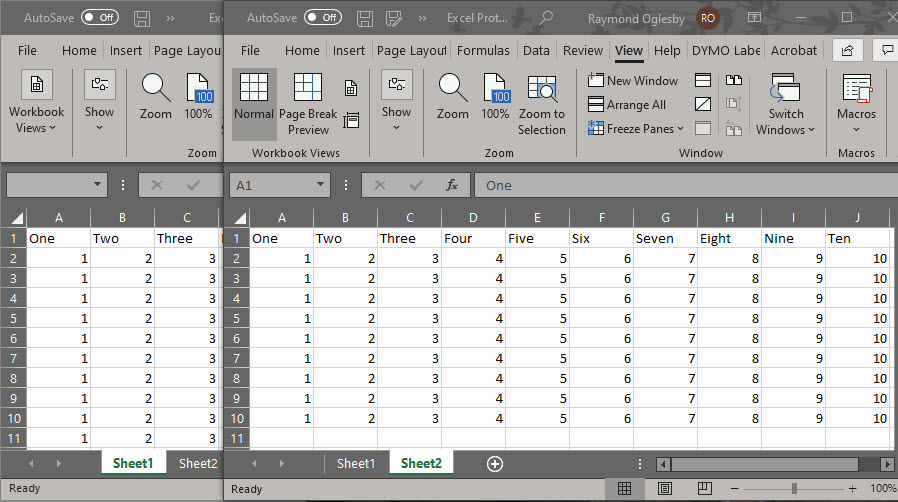
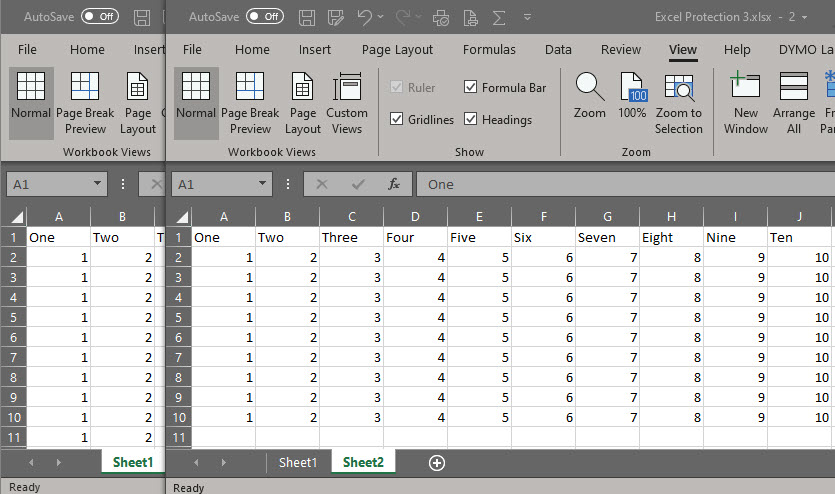
You can now synchronously scroll both up and down, left and right to compare the contents of the two sheet tabs in the same workbook. See final image below:

Excel Side by Side 7
Comparing the two sheets in same workbook

When you are finished, to restore your window size, close one of the two windows, then click the Maximize Button in upper right hand corner of the worksheet window.

I Would Like to Hear from You

Please feel free to leave a comment. I would love hearing from you. Do you have a computer or smart device tech question? I will do my best to answer your inquiry. Please mention the device, app and version that you are using. To help us out, you can send screenshots of your data related to your question.

How to Sync Across All Devices Using Windows 10

It is quite common that one user owns both a laptop and a desktop or two or more PCs. Each device has its merits.

If you have both a laptop and a desktop or two or more computers, you may want to sync the two or more devices for following reasons:

  • Use the same Windows 10 settings on two or more computers without spending time manually entering theme customizations, browser options, etc.
  • Keep frequently-used files up to date on two PCs without the repetitive work of copy and paste.

Choose from Settings such as Language preferences, Passwords, and color Theme. If you turn on Other Windows settings, Windows also syncs some device settings (for things like printers and mouse options), File Explorer settings and notification preferences. 

Since it’s beneficial to sync a laptop and a desktop or two or more PCs, how is this done? First, you’ll need to use the same Microsoft account to log into each Windows 10 device that you wish to sync.

This is for Windows 10 devices

Sync Your Windows 10 Devices

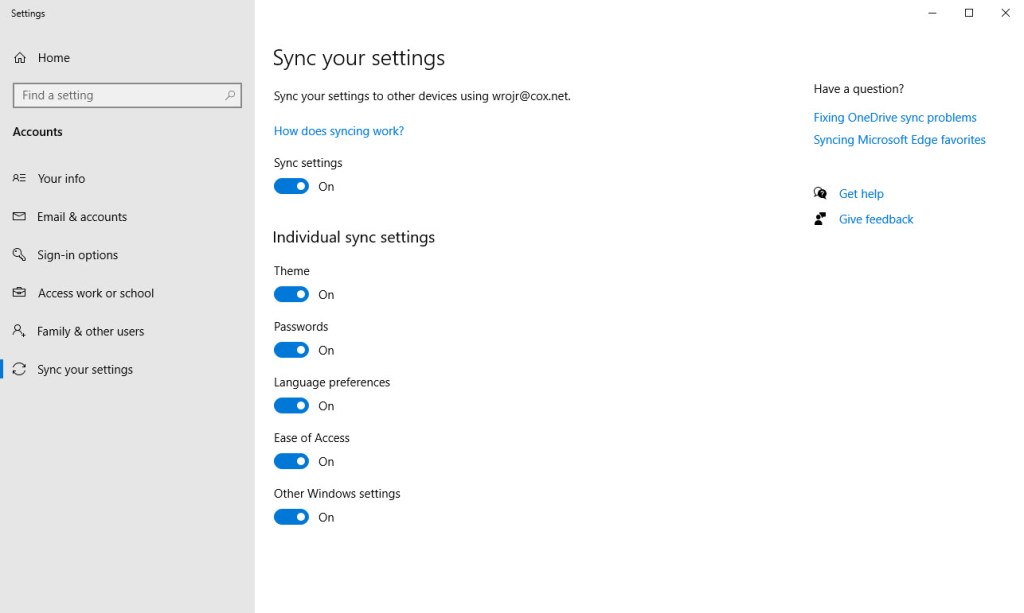
  • In your Cortana search box, type in Settings
  • Select Accounts
  • Select Sync your settings. You will be required to sign into your Microsoft account, especially, if you are syncing your Passwords which requires a verification. Refer to below image:
Win 10 Sync Settings
Sync your Windows 10 Settings screen
  • Turn off or on your syncing preferences
  • Repeat the above steps for each Windows 10 device

Once the feature is on, the synchronization will take place across all your devices that are running on Windows 10 and where you’re logged in with the same Microsoft Account.

I Would Like to Hear from You

Please feel free to leave a comment. I would love hearing from you. Do you have a computer tech or smart device question? I will do my best to answer your inquiry. Please mention the device, app and version that you are using. To help me out, you can send screenshots of your data related to your question.
How to Block Unwanted Apps in Microsoft Edge

Microsoft Edge has a new “crapware” blocker. For some reason, it isn’t enabled by default, and it should be.

The browser can block “potentially unwanted programs (PUP)”, also known as “potentially unwanted apps”. These are obnoxious programs like adware, cryptocurrency miners, malware and browser toolbars, to name a few.

There is a simple toggle to block these “crapware” downloads. Let’s see how this is done.

This is for Microsoft Edge in Windows 10 and Mac versions

First, let’s check what version of Edge you are running. The stable release of Edge is 80+.

Check Your Version of Edge

Stable Version

  • Open Microsoft Edge
  • Click the Settings & more icon (the three dots in the upper right-hand corner)
  • Click Help & feedback
  • Click About Microsoft Edge

If you have the correct version, let’s enable the toggle. If not, go to Windows Update to check for updates or download and install from this link.

Set the Toggle to Block Unwanted Apps

  • Click the Settings & more icon (the three dots in the upper right-hand corner)
  • Click Settings
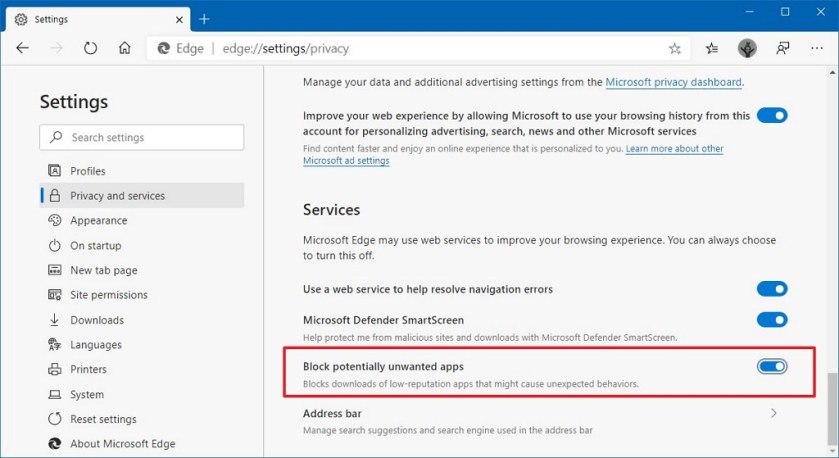
  • Click Privacy and services option
  • Under Services, toggle to On for Block potentially unwanted apps option
Block Unwanted Apps in Edge
  • Close the Settings screen
  • You may now Close or Exit Edge

Microsoft Edge will now be more active in blocking unwanted software.

I Would Like to Hear from You

Please feel free to leave a comment. I would love hearing from you. Do you have a computer or smart device tech question? I will do my best to answer your inquiry. Please mention the device, app and version that you are using. To help me out, you can send screenshots of your data related to your question.

Did you Know you can Show Multiple Time Zones in Windows 10?

This feature is for a Desktop or Laptop running Windows 10 Operating System. Your family, coworkers or friends may be in different time zones. Lets say you have friends residing in Arizona which does not observe Daylight Savings Time. How many hours are they ahead or behind your current time zone? We are going to find an easy way to do this beside searching for “time in <city>”.

This is for Windows 10 operating system

Setup Additional Time Zones

To find these settings:

  • Right click on the clock in the Windows 10 Taskbar (lower right)
  • Select Adjust date/time
  • Select Add clocks for different time zones under Related Settings section

See below screenshot:

Date and Time Settings
Date and Time settings screenshot

Adding Two Time Zones

To add other clock(s):

  • Check Show this clock box
  • Chose a time zone
  • Enter a display name
  • Repeat above for a second time zone, its up to you

Your can add two times zones besides your current one

  • Click OK

See below screenshot for adding two time zones:

Time Zone Settings
Adding time zone for Dhaka, Bangladesh and DaNang, Vietnam

Now when you hover your mouse over the date and time in the Taskbar you will see your time zone settings.

I Would Like to Hear from You

Please feel free to leave a comment. I would love hearing from you. Do you have a computer or smart device tech question? I will do my best to answer your inquiry. Please mention the device, app and version that you are using. To help me out, you can send screenshots of your data related to your question.

How to Schedule an Auto Shutdown of Your PC

Do you want to save electricity? Shutting down your Windows 10 Desktop or Laptop at a specific date and time is one answer. Normally, we walk away from our computer at the end of the day. At some point, your PC will slip into hibernation or sleep mode, which saves power consumption but we are going to save even more electricity plus reduce heat buildup.

The Windows operating system has a Task Scheduler which allows us to setup a shutdown at a specific date and time. This Scheduler has been around since Windows XP. By setting up a scheduled task, we are going to shut down your PC at a specific time. I am going to walk you through the setup process screen by screen.

The steps are for Windows 10 operating system. The Task Scheduler is for Windows XP through Windows 10

  • In the Cortana search box, type in “task scheduler“ (without the quotes)
  • Open the Task Scheduler. See following image:
Task Scheduler 0
Opening the Task Scheduler

Create the Auto Shutdown Task

  • Select Create Basic Task. See following image:
Task Scheduler 0A
Creating a Basic Task
  • Give the Task a name and a description. I am using Auto Shutdown at 10 pm as the name. See following image:
Task Scheduler 2
Assigning a Name and Description to our scheduled task

Set the Task Triggers

  • Click Next at the bottom of the screen to open the Task Trigger screen
  • Select Daily (the default). See the following image:
Task Scheduler 3
Selecting the Task Trigger
  • Select Next
  • Select a Start: date and time
  • Set Recur every: 1 day (the default). See below image:
Task Scheduler 4
Setting the start date, time and the recurrence of the scheduled task

Set the Task Action

  • Select Next. You will see the Action screen
  • Select Start a program (the default). See below image:
Task Scheduler 5
Selecting the Action we want to perform

Set the Task Arguments

  • Click Next
  • In the Program/script box, enter “shutdown” (without the quotes)
  • Enter -s -f -t 60 in the Add arguments box. See following screen:
Task Scheduler 6
Entering the program name and arguments for the scheduled task

These arguments are part of the shutdown.exe program. The -s tells Windows to shutdown, you could enter -r for a shutdown and Restart. The -f forces all running programs to close and is implied if the -t argument is greater than 0. The -t 60 adds a 60 seconds countdown, if you want an immediate shutdown, change to -t 0. See following image:

Task Scheduler 6
Setting the program name and arguments

View Your Task Summary

  • Click Next and you will see your Summary screen. See below image:
Task Scheduler 7
A Summary of the scheduled task
  • Click Finish
  • Close the Task Scheduler. For our example, we are initiating a daily shutdown starting on 2/5/2020 at 10pm by closing all running applications with a 60 seconds countdown.

View, Edit or Delete Your Scheduled Task

  • Open Task Scheduler
  • Click on Task Scheduler Library
  • Find your task under the Name column and highlight it. You can view your Triggers and Actions under the appropriate tab. See following image:
Task Scheduler 8
Viewing your scheduled task
  • To Edit your task, highlight the task and select Properties. I recommend you go through each tab and make any necessary change(s). Click OK to apply your change(s).
  • To Delete the task, highlight the task and select Delete. Click Yes to complete the deletion.
  • Close the Task Scheduler

You are finished. At the designated date and time, watch your computer automatically shutdown. In our example, the auto shutdown occurs every day at 10 pm..
I Would Like to Hear from You

Please feel free to leave a comment. I would love hearing from you. Do you have a computer tech question? I will do my best to answer your inquiry. Please mention the app and version that you are using. To help me out, you can send screenshots of your data related to your question.